
Task forces
Task Force allows you to create and maintain a group or committee of people in the bank to work on a defined task.
To add new Task force
- From Admin menu, click Entities, and then Task forces. Task Force Search page appears. All task forces available in Aura appear on the page.
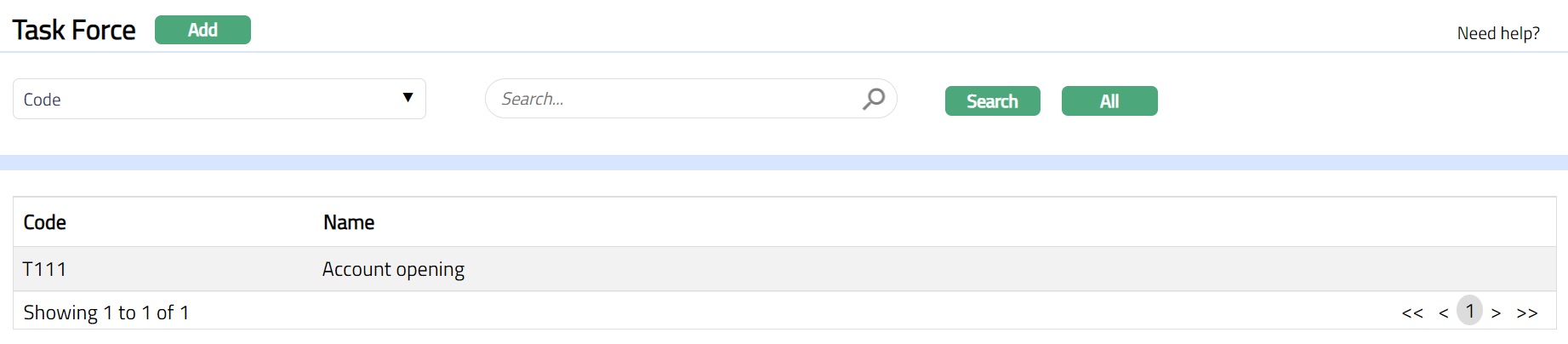
- Click Add. New Task Force -- General (1/2) page appears.
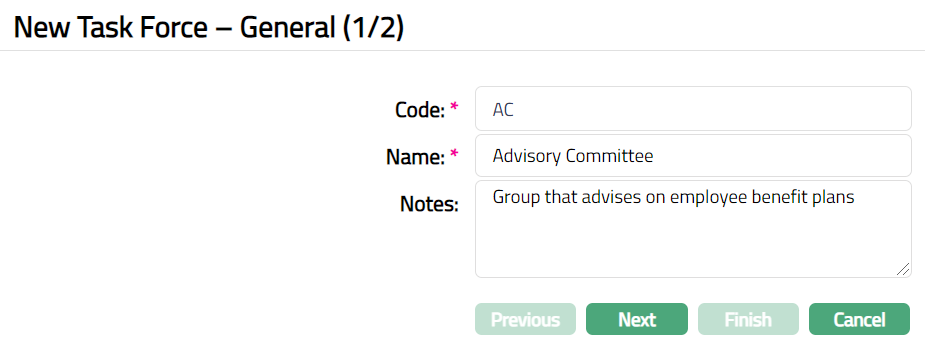
Enter Code for the Task Force. For example, AC.
Enter Name of the Task Force. For example, Advisory Committee.
Enter Notes for the task force. For example, Group that advises on employee benefit plans.
Click Next. New Task Force -- Confirmation (2/2) page appears.
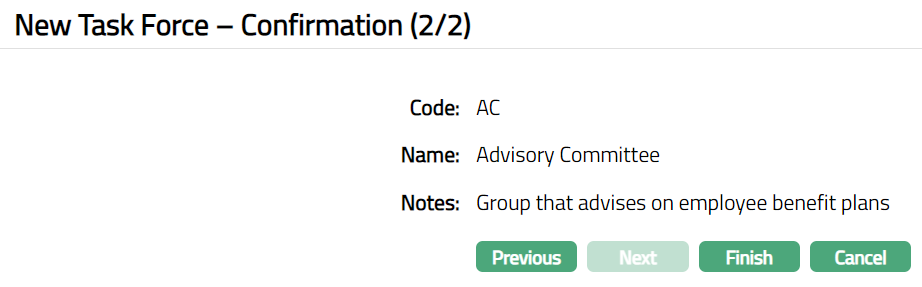
- Click Finish. Task Force page with the added details.
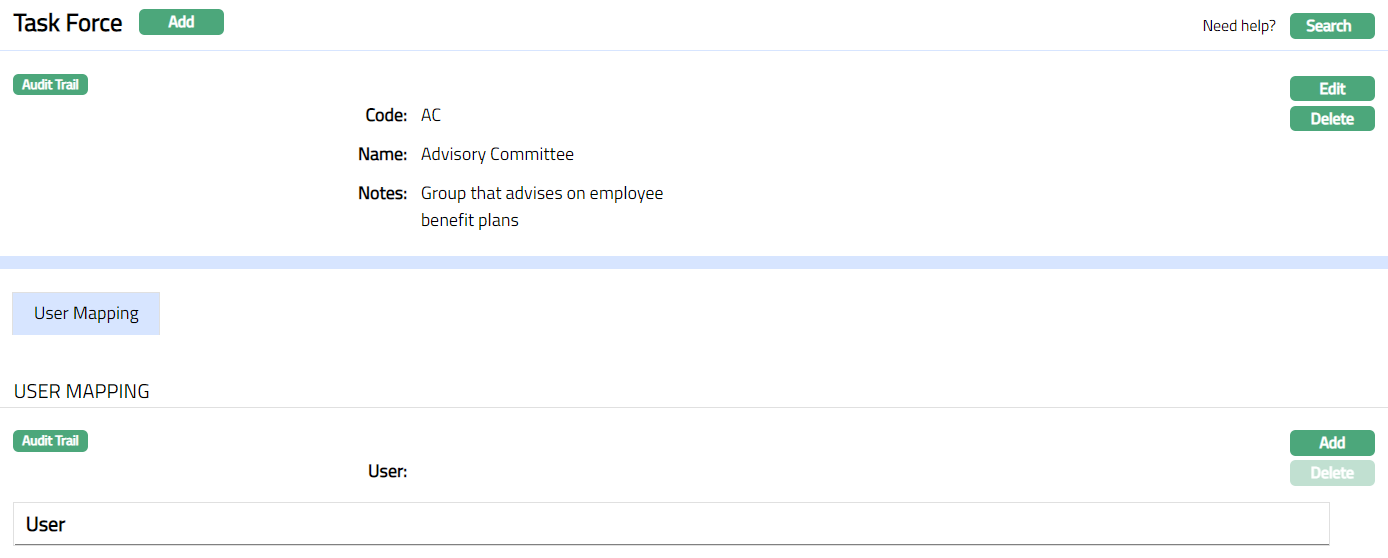 Functions: Add, Search, Edit, Delete
Delete: You can delete Task Force record saved in Aura by clicking Delete button. Aura will ask for confirmation, on approving which the selected record will be deleted.
To add User
Access Task Force page. User Mapping tab displays by default.
Click Add. Add User Mapping page appears.

Select User to map to the Task force. By clicking the User hyperlink, the User page appears with the list of the Users mapped to that entity under Admin > Users > User Maintain > Entity Mapping.
Click Save. User Mapping tab appears with the added details.
 Functions: Add, Delete
Delete: You can delete a selected mapped user by clicking Delete button. Aura will ask for confirmation, on approving which the selected record will be deleted.
Note: A User can be unmapped from a Task Force at any time. Any task assigned to that User as part of the Task Force will be moved to the Task Pool of other users mapped to that Task Force. Hence, at least one User has to be attached to a Task Force.