
Cash Deposit
Cash Deposit wizard facilitates the cash deposit transaction entries. The wizard automatically posts the corresponding Station Journal and Day Journal entries. The wizard is based on the Cash Deposit Transaction Default that should have been set up already.
To record cash deposit transaction.
- From Retail menu, click Transaction Wizard and then Cash Deposit. Cash Deposit - Details (1/2) appears.
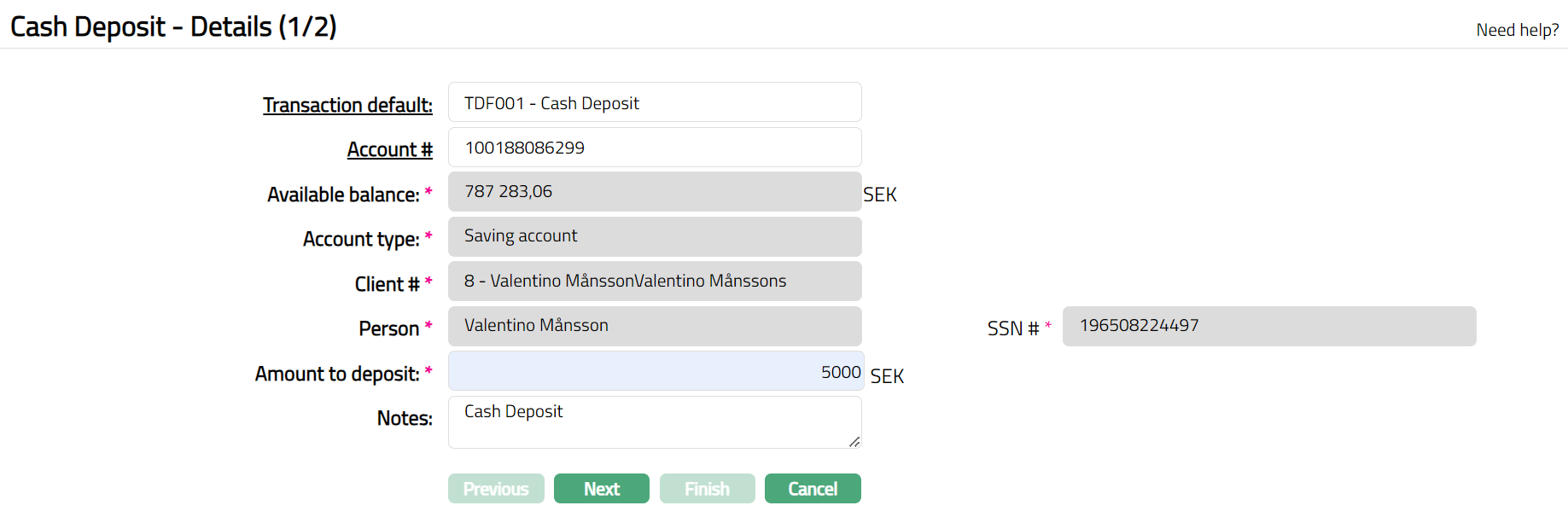
- Transaction default field is a hyperlink. Click hyperlink to see the Cash Deposit Transaction Defaults maintained under Retail > Settings > Transaction Defaults. Select the required Transaction Default.
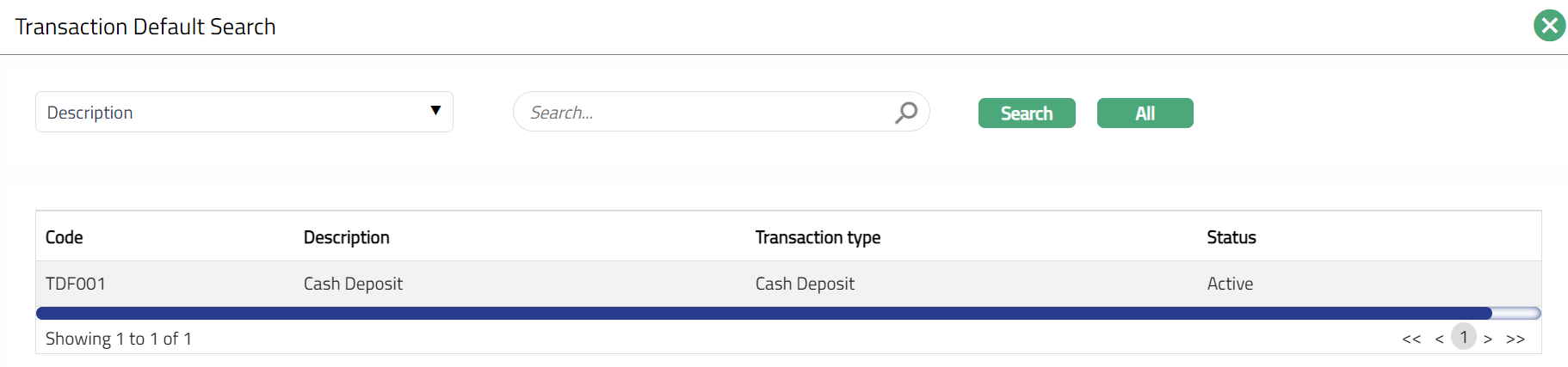
Note: If there is only one Cash Deposit Transaction default, the same will automatically be selected and displayed.
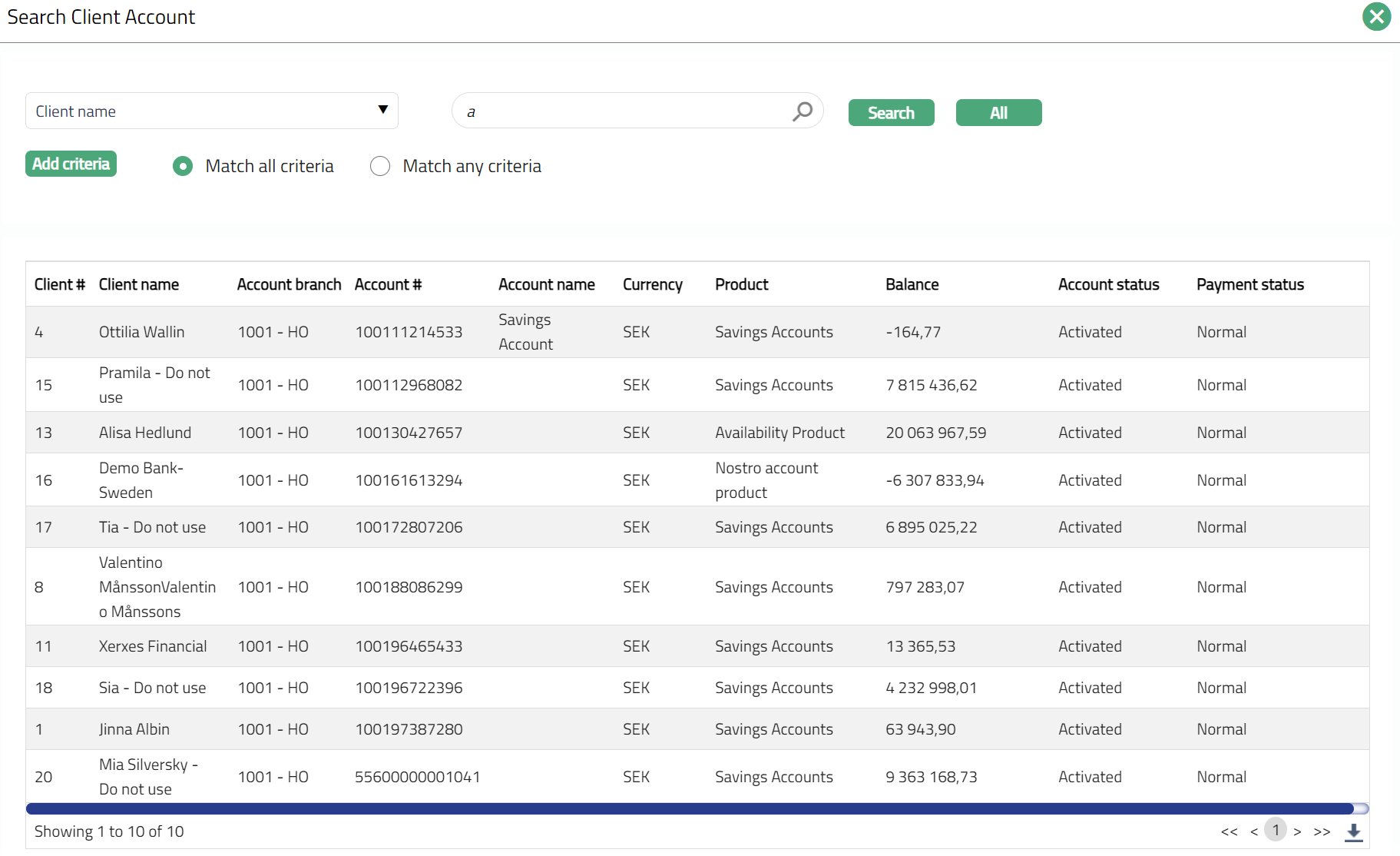
- Account # field is a hyperlink. Click hyperlink. Aura displays the Search Client Account page. Input the required search criteria to see a list of all the current accounts where the account currency matches the list of currencies specified in the Transaction default chosen. Select the required Account #.
- Based on the Account #, the following details are displayed:
Available balance: Displays the Available balance amount in the selected account along with the Account Currency.
Account Type: This field is a display field and displays the product description of the selected account.
Client #: This field is also a display field and will display the client id along with the client's full name.
Person: This displays the full name(s) of the Person(s) or Organization depending on whether the Client is Personal, Joint or Corporate.
SSN #: Aura will display the SSN# of the Person(s) or joint Person(s) as maintained under CRM > Person > Maintain.
Enter Amount to deposit. You cannot enter any figure less than or equal to zero.
Enter Notes. You can enter the message for the cash deposit transaction.
Click Next. Cash Deposit Confirmation (2/2) page appears.

- Click Finish. Station Journal is automatically created and posted with the cash deposit details, based on the chosen Transaction Default settings.
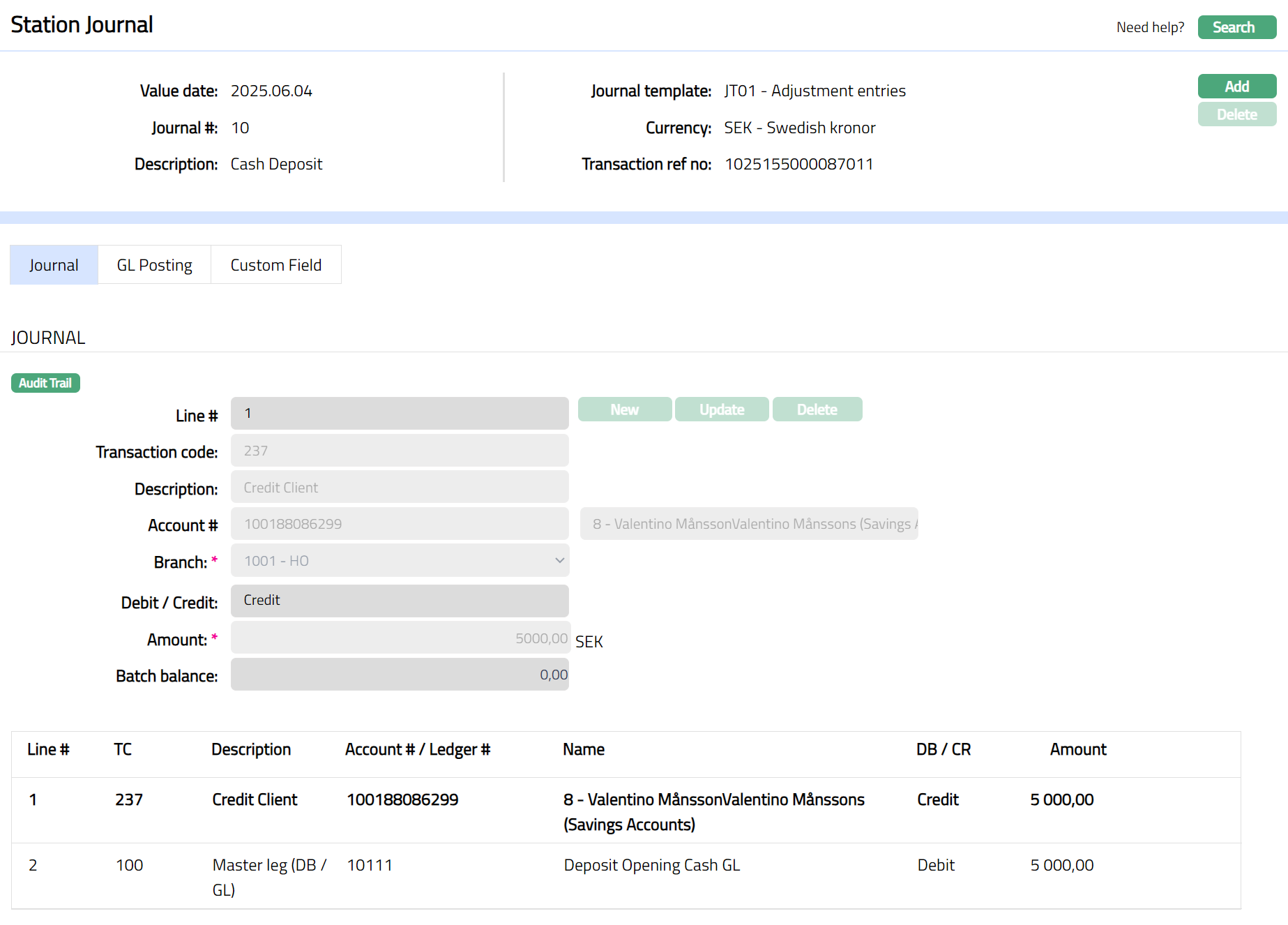
Functions: Add, Delete, Search.
Note: In Day Journal Page, the status of GL Posting tab will appear as Posted for the Cash Deposit transaction and will default all the details from the Station Journal Screen. The same has to be approved in the Day Journal screen. On approval of the Day Journal, the status is updated as Approved; and you can verify the accounting entries from using General Ledger > Transaction Review > Statement.