
Loan Request Settings
Loan Request Setting is similar to a Product set up for Accounts. It is a kind of a template that allows you to maintain the details of different kinds of loan requests that are offered to customers. Once the Loan Request Setting is created, the values in these are defaulted to the Loan Requests that are created under that Setting, with an option to change the details at the Loan Request level.
The following are the tabs in a Loan Request Setting:
Creating Loan Request Setting
To create new Loan Request Setting,
1. From Retail menu, click Peer to Peer, Settings, and then Loan Request Settings. The Loan Request Setting Search page appears. All Loan Request Settings available in Aura appear on the page.

2. Click Add. New Loan Request Setting → Profile (1/3) appears.
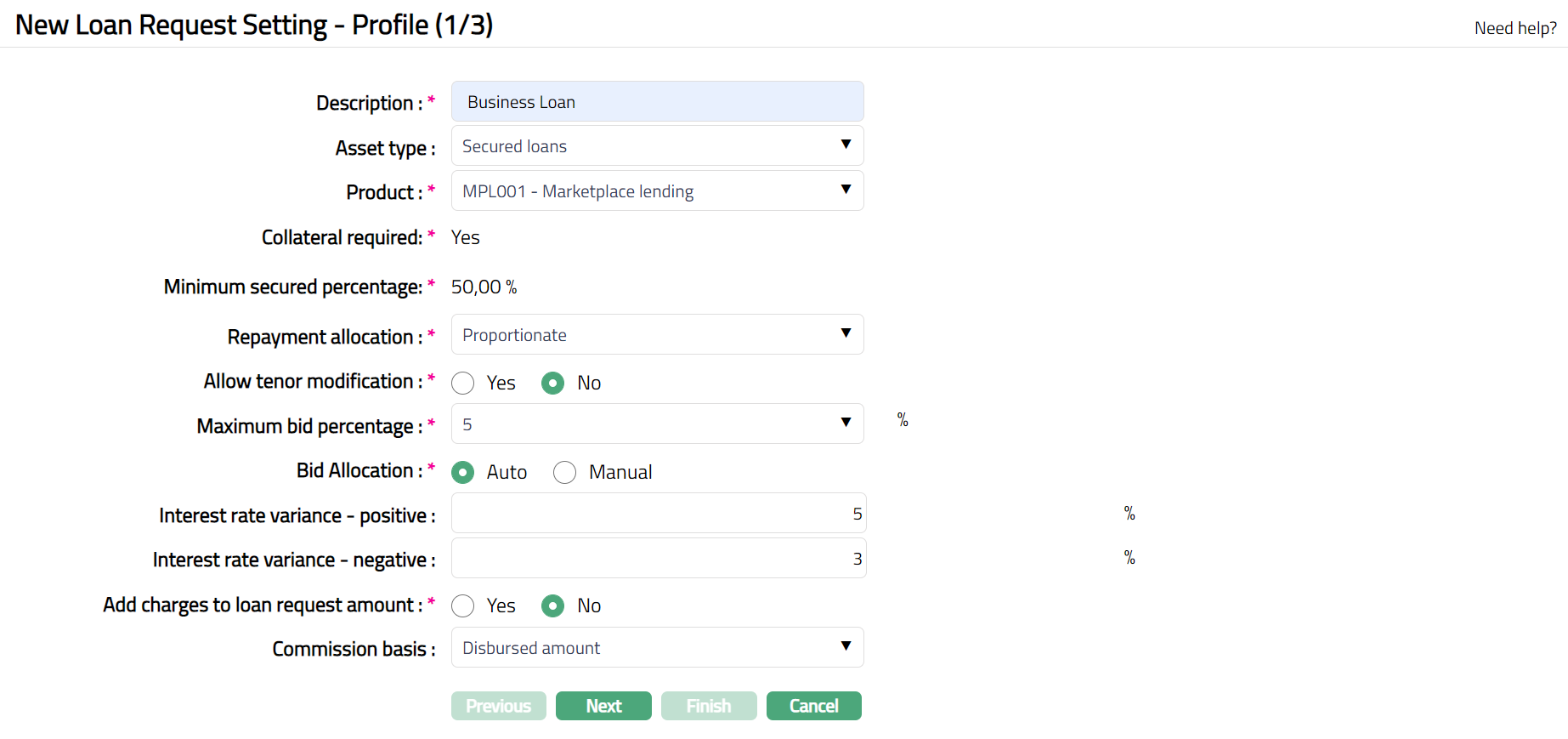
3. Enter Description for the Loan Request Setting.
4. Choose an Asset Type -- Available Asset Types are Unsecured Loans, Secured Loans, Subordinate and High-Risk Loans. Based on the Asset Type selected here, during Loan Request creation, only such Loan Request Setting where the Asset Type matches will be available for the user to choose. This will also be used during auto-creation of bids.
5. Select Product that has to be mapped to this Loan Request Setting. All Active Marketplace Loan Products created under Retail → Peer to Peer → Settings → Product will be shown here.
6. Collateral required will be defaulted based on the Product that you chose above.
7. Minimum secured percentage is defaulted from Retail → Peer to Peer → Settings → Product New Product → Settings (3/9).
8. Choose Repayment allocation that will be applicable to this Loan Request Setting. Available options are Proportionate and Priority. If Proportionate is chosen, for all Loans created under this Loan Request Setting, the repayment moneys will be distributed among the contributing sub-loans in a proportionate manner. If Priority is chosen, you will have to define the Priority for the contribution sub-loans during the Loan Request creation.
9. If you want to allow bids for various tenors during fulfillment of loans, choose Allow Tenor Modification as Yes. If you want all the bids to be exactly for the same tenor as that of the Loan Request, choose Allow Tenor Modification as No
10. Maximum Bid Percentage indicates the maximum amount that a single auto-created bid for this Loan Request Setting can be. Thus, it allows you to control the number of bids that will be required into a single Loan Request. 100% enables the Loan Request to be fulfilled by a single bid. Thus, lesser this percentage more will be the number of bids required to fulfill a Loan Request. Options: 5, 10, 25, 50, 100.
11. After bids have been received for a Loan Request, how you would like to have the bids accepted is decided by Bid Allocation. If Allow Tenor Modification is No, Bid Allocation is defaulted to Auto, but you can change to Manual. If Allow Tenor Modification is Yes, then, this is defaulted to Manual and disabled. If this flag is set to Manual, after bids have been received for a Loan Request, Bid Acceptance has to be done manually for each bid. If this flag is set to Auto, Aura will automatically accept the Bids based on the click of a single button.
12. Interest Rate Variance -- Positive and Interest Rate Variance -- Negative can be used to control how much the interest rate quoted by the lender can vary with reference to the rate indicated by the borrower. If this is not filled, then, there will not be any check on the interest rate entered by the lender.
13. When you want to allow the borrower to add the charges on a Loan Request to the requested Loan Amount, you can choose Yes for Add charges to Loan Request Amount. The Total Loan Request Amount that will then have to be fulfilled by bids will be inclusive of the Charge Amounts on the Loan Request.
14. Commission Basis is to indicate whether the Commission on the Loan Request will be based on the Disbursed Amount for the Loan Request or the Income Earned on the Loan Request.
15. Click Next. New Loan Request Setting → Charge (2/3) appears

16. Choose the required Lender Fee and Broker Fee from the drop-down list of available Charge Schemes where the Charge Type is Event. If the Charge is Banded, the charge amount will be calculated on the basis of the Loan Request amount. The charge amount is collected upon disbursement.
17. Click Next. New Loan Request Setting → Confirmation (3/3) page appears showing all the details that you entered above.
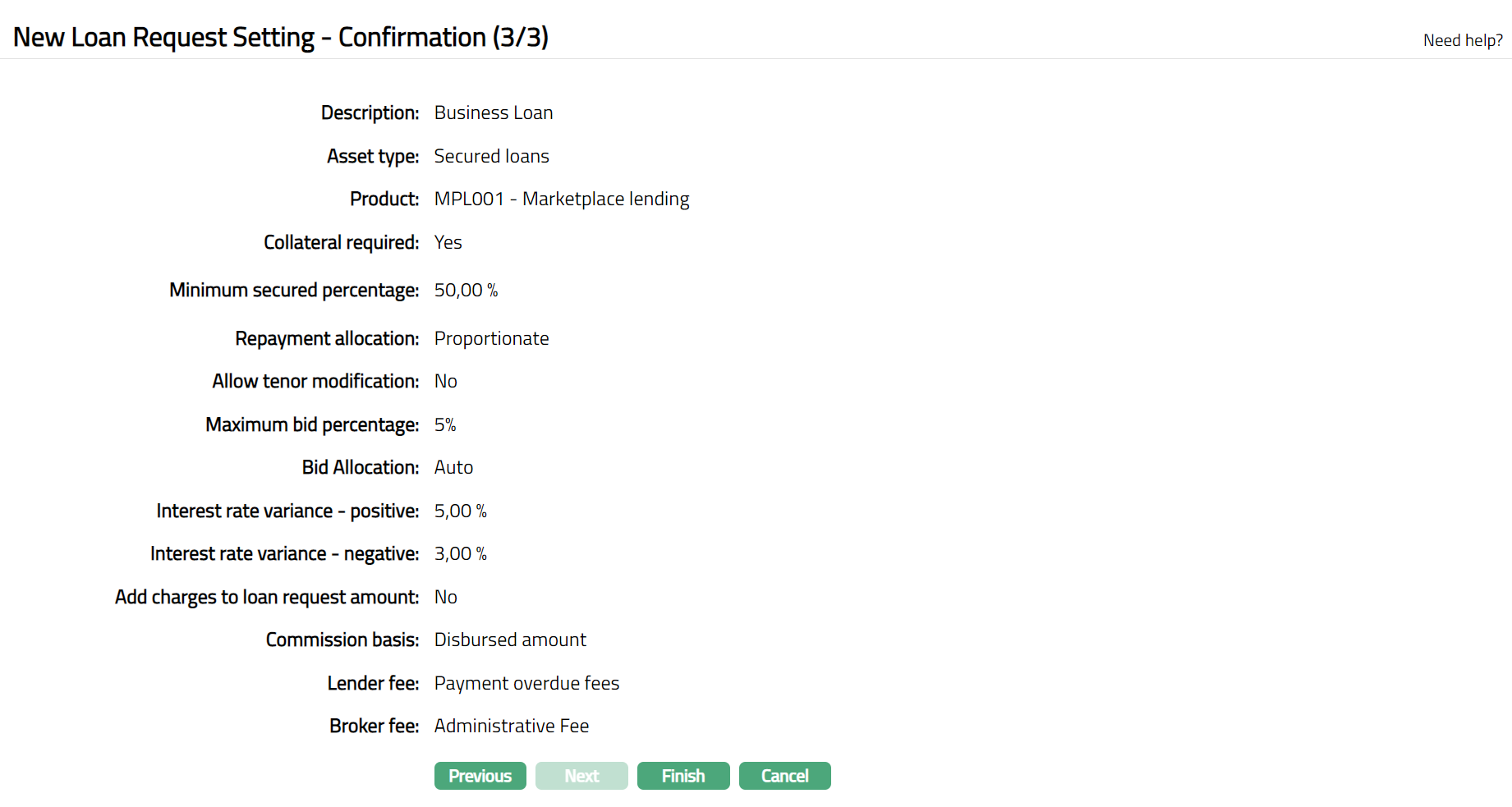
18. Click Finish. Loan Request Setting record is created and you will see the Profile tab by default.
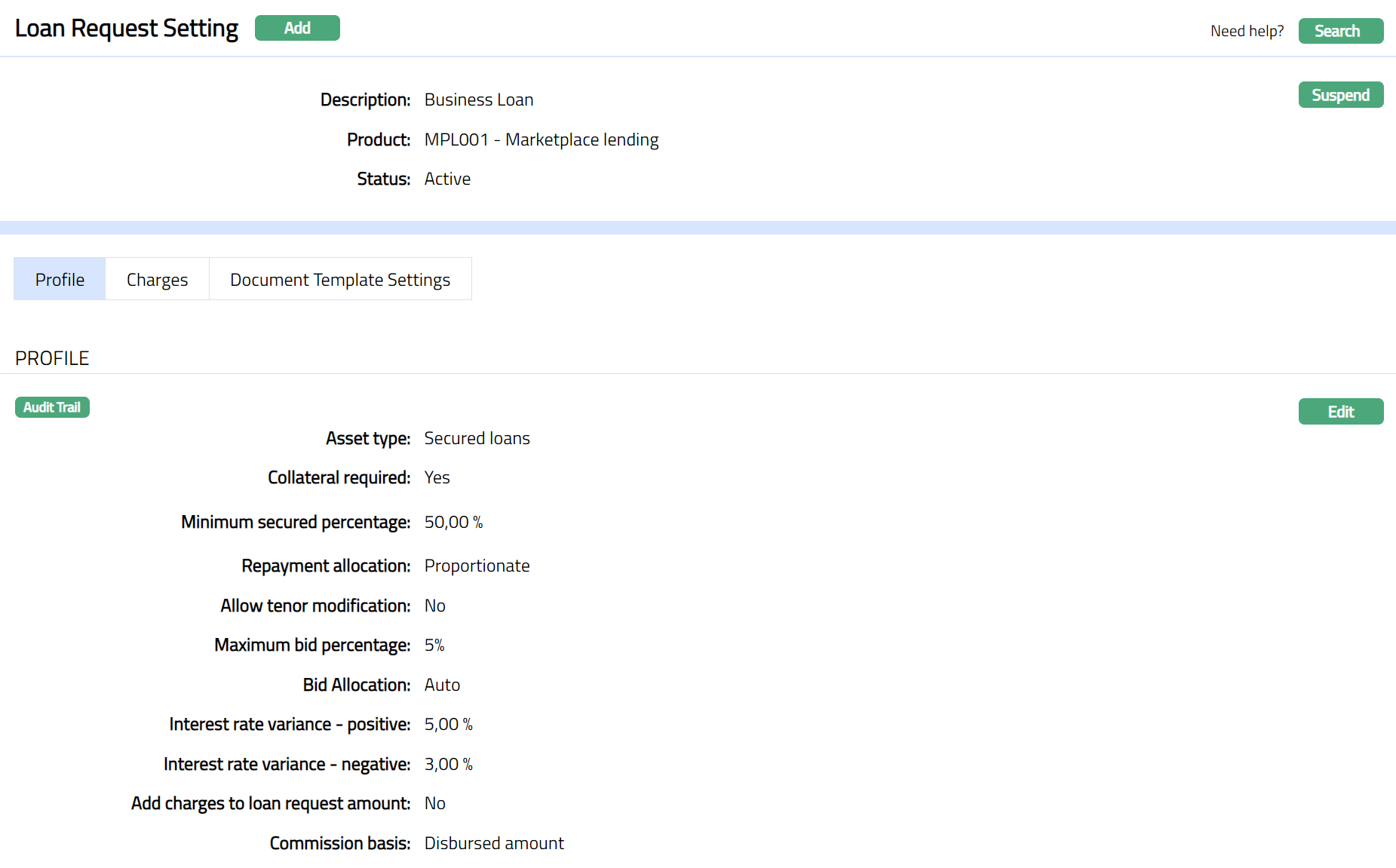
Functions: Add, Search, Suspend, Activate, Edit
Note: The status of the Loan Request Setting is Active as soon as it is created.
Edit: Using Edit, you can update details of the Loan Request Setting. However, the updated conditions will be applicable only for any Loan Requests that are created AFTER the changes have been done and will NOT affect the Loan Request records already created.
Suspend: You can suspend Loan Request Setting by a click Suspend button. When you click Suspend button, Aura displays an alert message. On confirmation Aura will suspend the Loan Request Setting. Suspending a Loan Request Setting only makes it unavailable in future for any new Loan Request creation / any other drop-down list. Existing Loan Requests under the Loan Request Setting continue without any impact. Suspended records can be activated by using Activate button.
Activate: You can activate a suspended Loan Request Setting by a click Activate button. When you click Activate button, Aura displays an alert message. On confirmation Aura will activate the Loan Request Setting. Activation of a record only makes it available in future for any new Loan Request creation / any other drop-down list.
Profile
The Profile tab, which is the default tab in the Loan Request Setting screen, shows the basic details of the Loan Request Setting.
To view / edit Profile,
1. Access Loan Request Setting page. Click Profile tab to view the details as per sample below. The details are defaulted from the entries that you made during Loan Request Setting creation. For details refer to New Loan Request Setting → Profile (1/3)
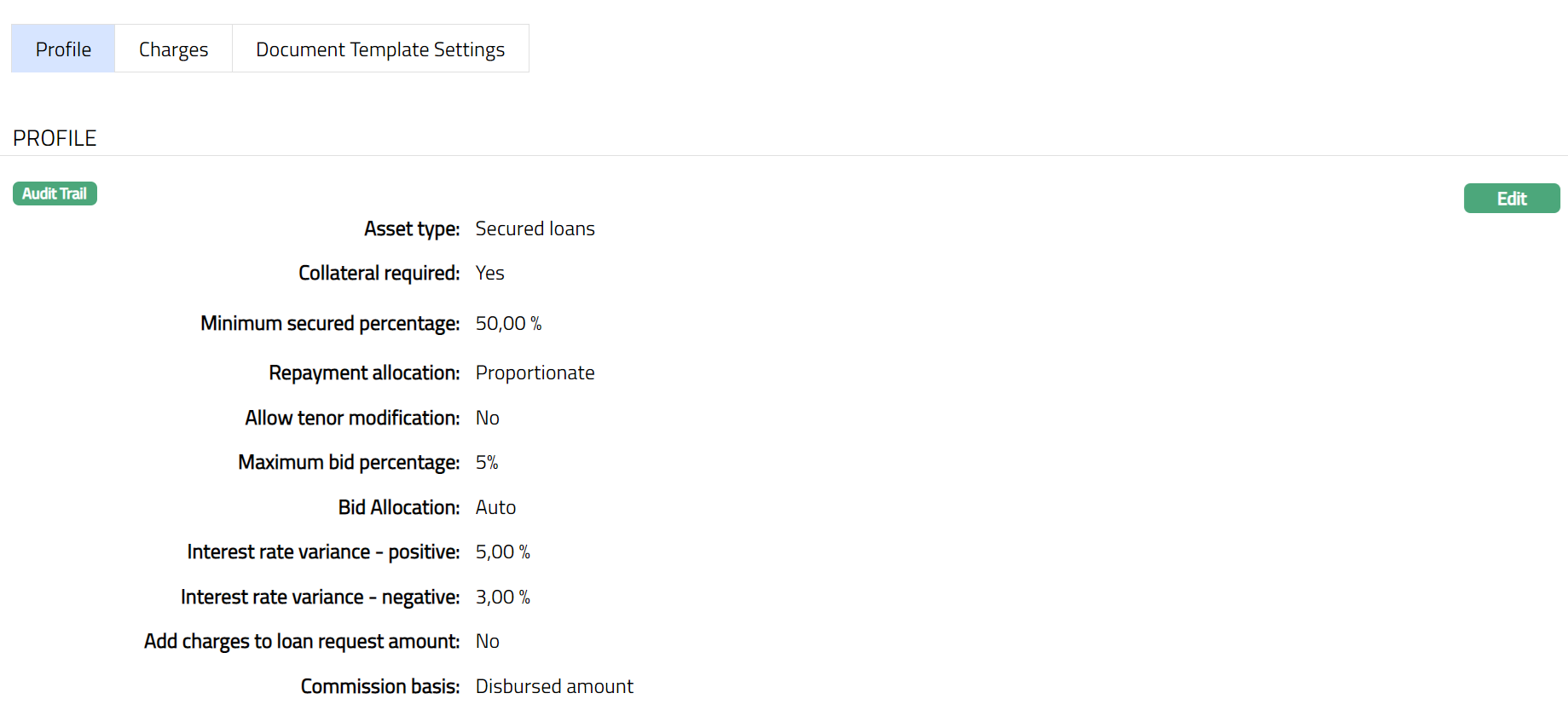
2. Click Edit. Edit Loan Request Setting page appears.
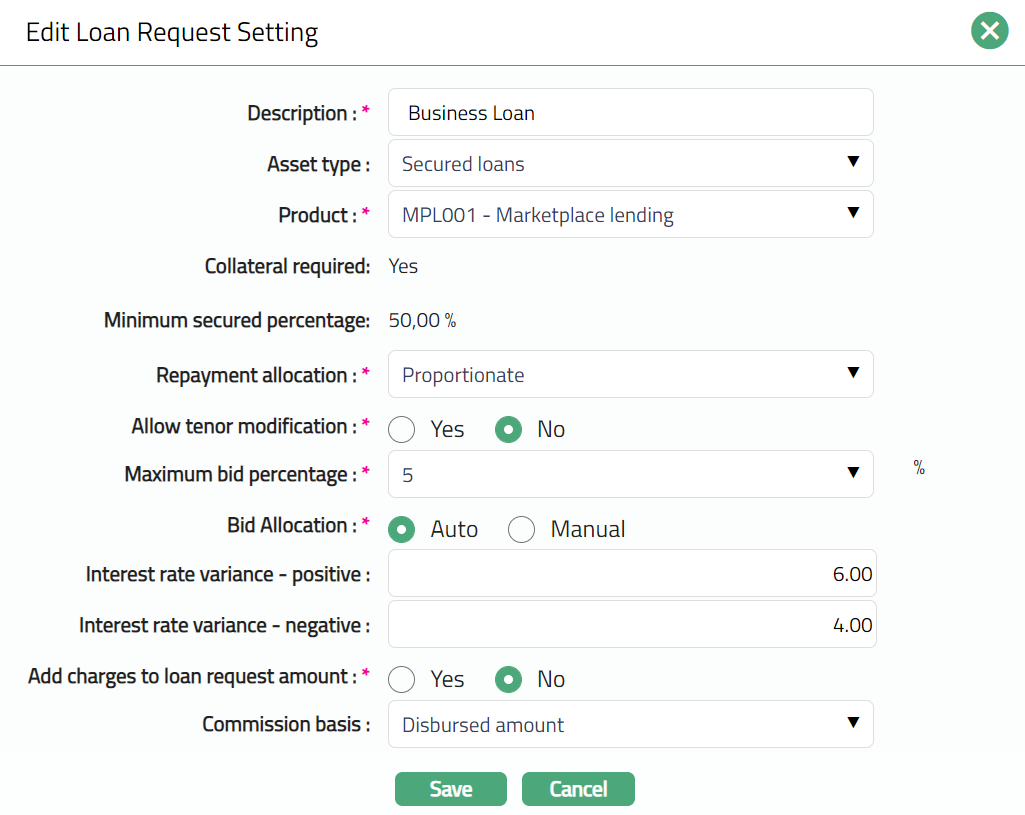
The following fields are editable:
Description
Asset Type
Product
Repayment Allocation
Allow Tenor Modification
Maximum Bid Percentage
Bid Allocation
Interest Rate Variance -- Positive
Interest Rate Variance -- Negative
Add Charges to Loan Request Amount
Commission Basis
3. Click Save. Profile page appears with the edited details.
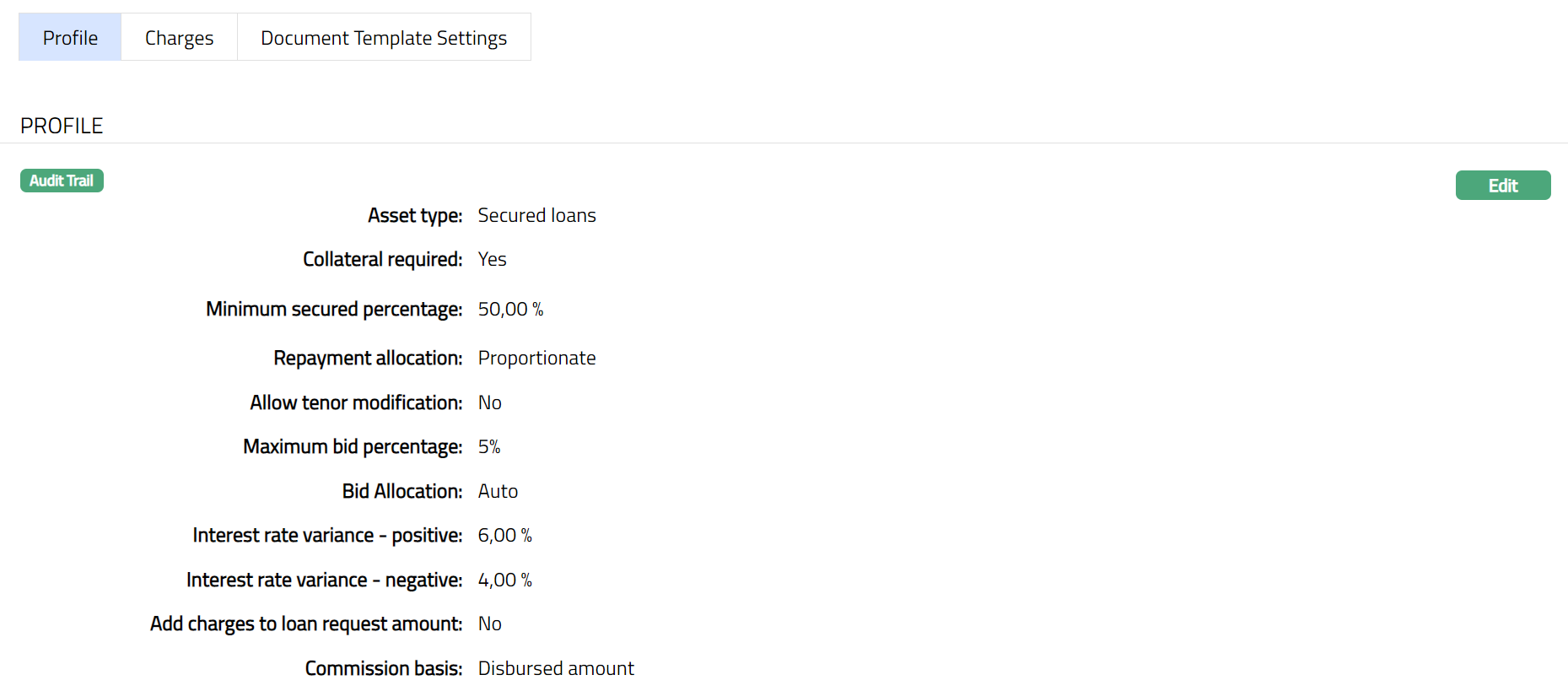
Functions: Edit
Charge
Charge tab allows you to view and edit the details of different charges for Loan Requests under the Loan Request Setting.
1. Access Loan Request Setting page. Click Charge tab to view the details as per sample below. The details are defaulted from the entries that you made during creation of the Loan Request Setting. For details refer to New Loan Request Setting → Charge (2/3).

2. Click Edit. Edit Charge page appears.
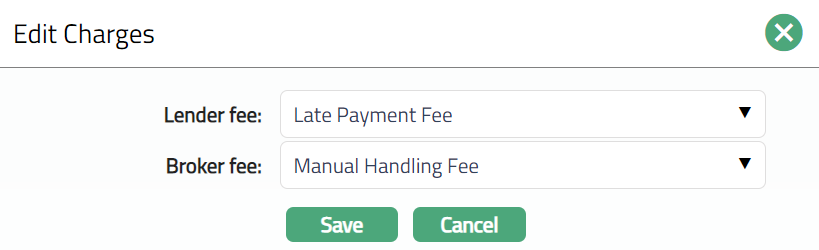
Note: All fields in Edit Charge are editable.
3. Click Save. Charge page appears with the edited details.

Functions: Edit
Retention
The Retention tab allows you to configure how much of the income fee collected from various charges should be retained and passed on to the Lender and Broker.
Aura allows you to define separate retention details for each of the following:
Each item has a default retention of 100% which means the Lender/Broker retains the full amount of the fee. You can adjust this percentage to allocate a portion of the fee to other accounts.
Lender Fee Retention
To View/Edit Retention details for Lender
1. Access the Loan Request Settings page and navigate to the Retention tab.
The list of charges appear in terms of Lender fee percentage and Broker fee percentage, as shown in the sample screenshot below.

2. Click on the View button corresponding to the Lender fee item to edit the corresponding retention details. The Lender Fee details appear, as shown in the sample screenshot below.

3. Click Edit. The Edit Retention page for Lender fee appears, as shown in the sample screenshot below.
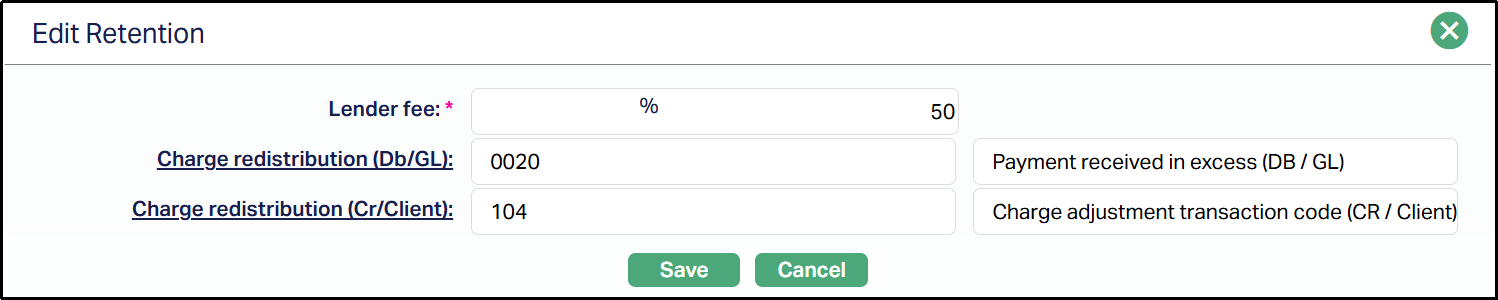
4. Enter the percentage of fees that should be retained and passed on to the Lender in the Lender fee field. You can input any value between 0% and 100%, and up to 2 decimal places are allowed.
5. Select the Transaction Code associated with the General Ledger Accounts from the Charge redistribution (Db/GL) hyperlink for specifying the Debit (Db) transaction involved in the Lender’s fee retention.
6. Select the Transaction Code associated with the General Ledger Accounts from the Charge redistribution (Cr/Client) hyperlink for specifying the Credit (Cr) transaction involved in the Lender’s fee retention.
Note: For both of the above fields, the Transaction Codes are maintained in General Ledger → Settings → Transaction Code, and the General Ledger Accounts are maintained in General Ledger → General Ledger → Accounts.
7. Click Save. The Retention page for Lender fee appears with the edited details, as shown in the screenshot below:

Functions: Edit, Finish.
Finish: Click Finish to return to the previous/first page in the Retention tab.
Note: If the Retention is less than 100%, then the remaining portion must also be mapped through redistribution accounts using the Transaction Codes associated with the General Ledger Accounts.
Broker Fee Retention
To View/Edit Retention details for Broker,
1. Access the Loan Request Settings page and navigate to the Retention tab. The list of charges appear in terms of Lender fee percentage and Broker fee percentage, as shown in the sample screenshot below.
2. Click on the View button corresponding to the Broker Fee item to edit the corresponding retention details. The Broker Fee details appear when you click on the View button corresponding to the Broker Fee, as shown in the sample screenshot below.

3. Click Edit. The Edit Retention page appears for Broker fee, as shown in the sample screenshot below.
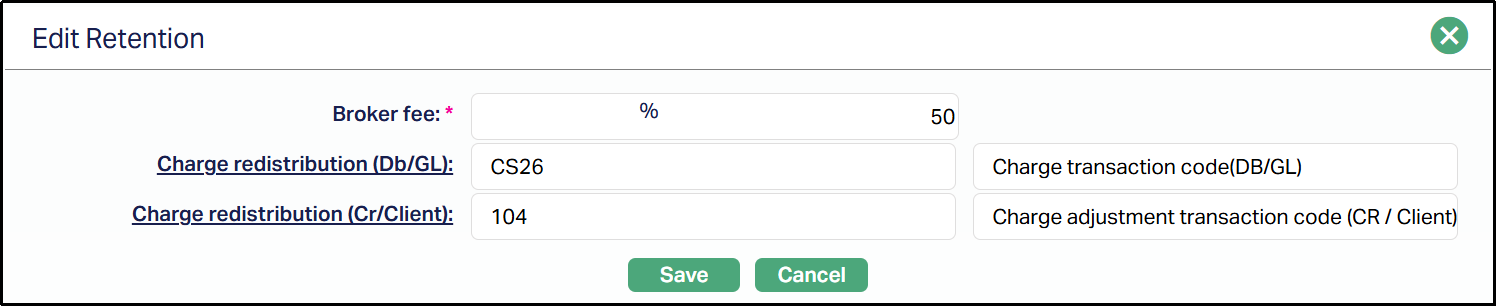
4. Enter the percentage of fees that should be retained and passed on to the Broker in the Broker fee field. You can input any value between 0% and 100%, and up to 2 decimal places are allowed.
5. Select the Transaction Code associated with the General Ledger Accounts from the Charge redistribution (Db/GL) hyperlink for specifying the Debit (Db) transaction involved in the Broker’s fee retention.
6. Select the Transaction Code associated with the General Ledger Accounts from the Charge redistribution (Cr/Client) hyperlink for specifying the Credit (Cr) transaction involved in the Broker’s fee retention.
Note: For both of the above fields, the Transaction Codes are maintained in General Ledger → Settings → Transaction Code, and the General Ledger Accounts are maintained in General Ledger → General Ledger → Accounts.
7. Click Save. The Retention page for Broker fee appears with the edited details, as shown in the screenshot below.

Functions: Edit, Finish.
Finish: Click Finish to return to the previous/first page in the Retention tab.
Note: If the Retention is less than 100%, then the remaining portion must also be mapped through redistribution accounts using the Transaction Codes associated with the General Ledger Accounts.
Document Template Settings
Using this tab, you can maintain the document template which can be used for creating documents for all the Loan Requests maintained under this Loan Request Setting.
Note: This feature has to be customized for each bank during implementation as per their specific requirements.
1. Access Loan Request Setting page. Click Document Template Settings tab.

2. Click New. New Document Template page appears.
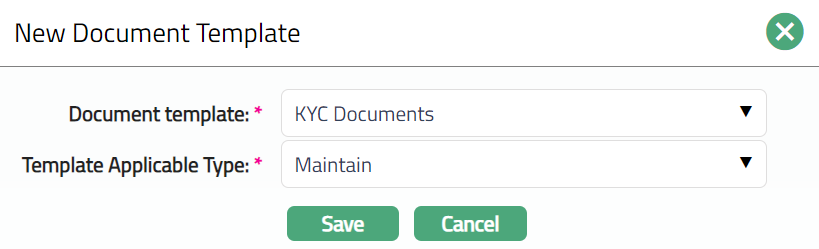
3. Select Document template from the available drop-down list as maintained under Admin → System codes → Process → Document templates.
4. Select Template applicable type from available drop-down list. The available option is Maintain.
5. Click Save. Document Template page appears with the added details.

Functions: New, Delete
Delete: To delete Document Template settings, select the Document Template and click Delete. When you click Delete button, Aura displays an alert message. On confirmation, Aura will delete the Document Template.