
Tax Scheme
Tax scheme maintain option allows you to maintain tax schemes. Tax schemes are used in tax calculation for Demand liabilities, Time liabilities and Placements. Demand liabilities include Client Accounts and Card Accounts. Time liabilities include Term Deposit Accounts, CASA Placements include Investments from lenders for P2P loans. Tax calculation will trigger both during liquidation and during end of financial year.
The following are the tabs in Tax Scheme:
To add new Tax Scheme
From Admin menu, click Tax Scheme and then click Maintain. Tax Scheme Search page is displayed. All the tax schemes maintained in Aura are listed here.

In Tax Scheme Search page, click Add. New Tax Scheme- General (1/3) screen appears.
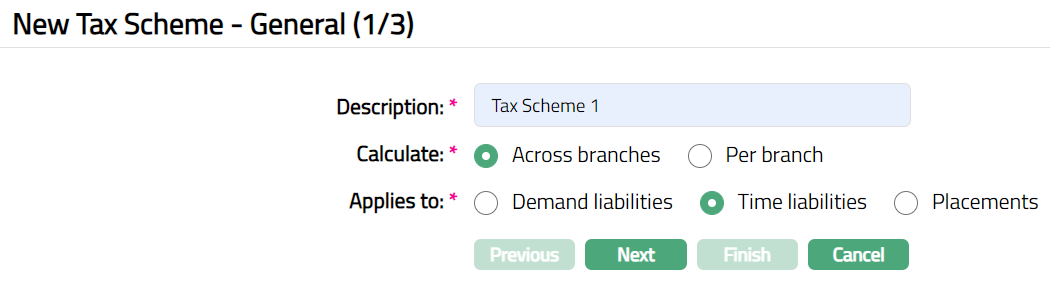
Enter description of the tax scheme in the Description field.
Select Across Branches or Per Branch as a mode to calculate Tax. By default, Across branches is selected.
If you select Across branches, then tax will be levied on interest earned by a client across the branches.
If you select Per branch, then tax will be levied based on per branch income for a client.
- Select an option from Applies to in order to define the applicability of the tax scheme. The options available are Demand liabilities, Time liabilities and Placements. By default, Time liabilities will be selected.
If Demand liability is selected, then Aura will consider Client account and Card account income of a client for tax calculation.
If a Time liability is selected, then Aura will consider income earned by the client on the Term deposit account.
If Placements is selected, then Aura will consider income earned by the client on the investments made for P2P loans.
Note: You can maintain only one tax scheme applicable to Demand liability or Time liability or Placements.
- Click Next. New Tax Scheme-Combination (2/3) page appears.
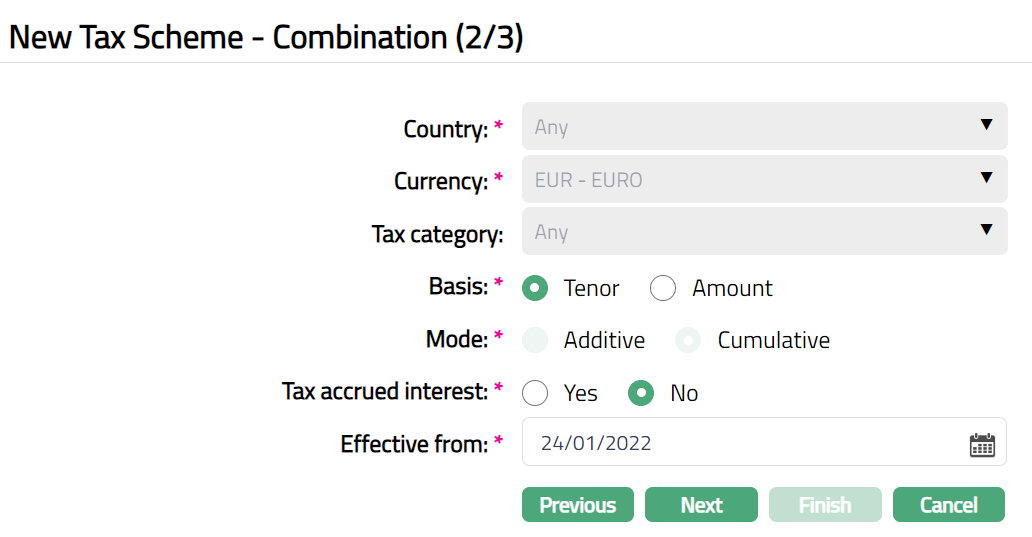
By default, Any is selected as an option for Country and the field is disabled.
By default, the base currency maintained for an Entity at Admin > Entities > Maintain is selected as Currency and the field is disabled.
By default, Any is selected as an option for Tax Category and the field is disabled.
Note: If Tax category is defined at Person / organisation level but combination is not maintained at tax scheme level for the same Tax Category then Aura will consider Any tax category combination for calculating tax.
- Select Basis on which the tax is calculated. The options available are Tenor and Amount.
If Applies To is selected as Demand liability, then this field will be in disabled mode. By default, Amount option will be selected.
If Time liability has been selected as an option in Applied to field, then by default Tenor is selected and the Basis option is enabled.
If Placements has been selected as an option in Applied to field, then by default Tenor is selected and the Basis option is enabled.
- Select Mode of tax calculation for the tax scheme. The options available are Additive and Cumulative.
If Applies to is selected as Demand liability the Mode field options will be enabled and Aura will allow you to select any option. By default, Additive is selected.
If Applies to is selected as Time liability, then Mode field options are disabled and Cumulative is selected by default.
If Applies to is selected as Placements, then Mode field options are disabled and Cumulative is selected by default.
- Select an option for Tax accrued interest.
If you select Yes, then the interest accrued is also included for tax calculation at the end of the Financial year for the Entity.
By default, No is selected. If the option is selected as No, then accrued interest in client's account is not included for tax calculation; only on liquidated interest, tax will be calculated.
Enter Effective from date. By default, current date is populated in this field. The tax scheme will be effective from the date selected here. The effective date has to be equal to or greater than the current booking date.
Click Next. Tax scheme -- Confirmation (3/3) page appears.
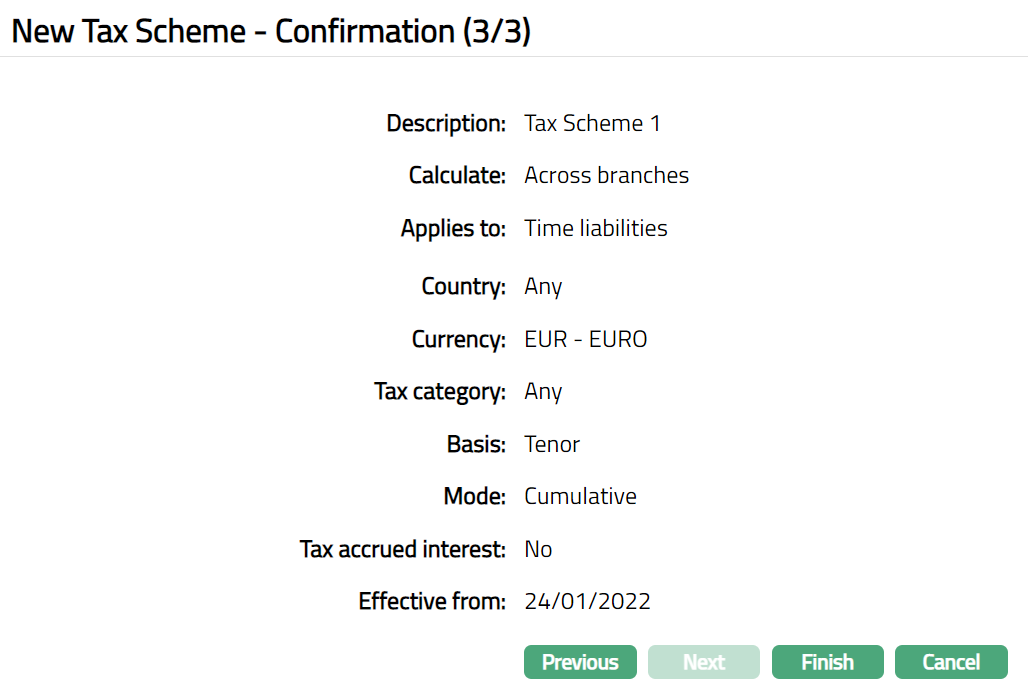
Click Finish. Tax Scheme page appears. On click of Finish, Tax scheme record is created. Tax scheme status and Combination status will be Active.
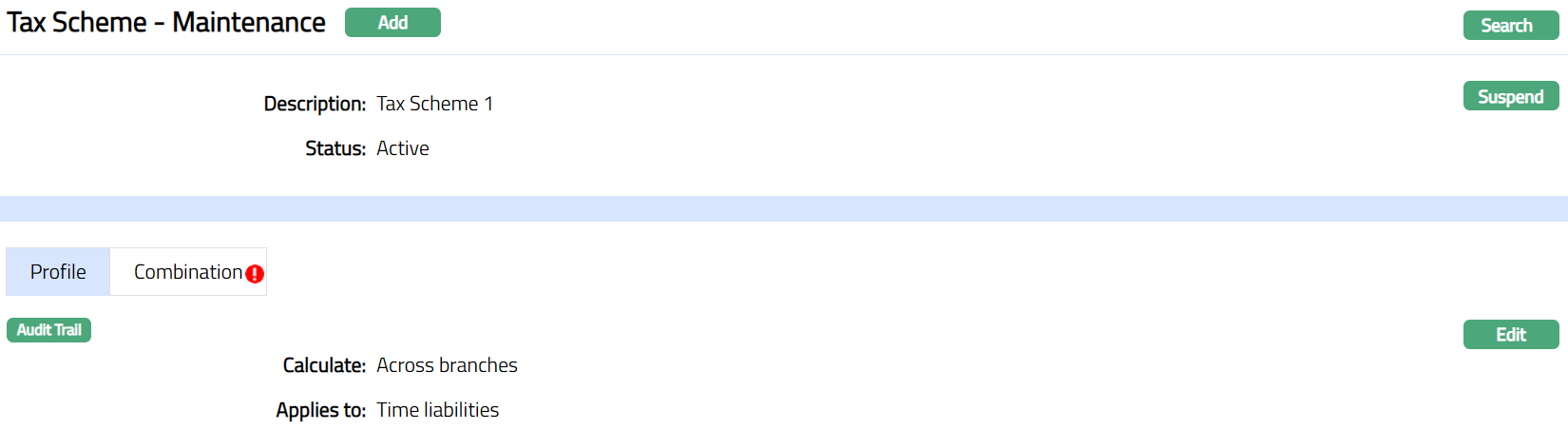
Functions: Add, Search, Suspend
Suspend: You can suspend the Tax Scheme by clicking on Suspend button. When you click on Suspend button, Aura will ask for confirmation. On confirmation Aura will suspend the Tax Scheme and the Activate button will appear in place of the Suspend button.
Activate: If you want to activate a suspended Tax Scheme record then click on Activate button. Aura will ask for confirmation. On confirmation Aura will activate the Tax Scheme and Suspend button will appear in place of Activate button.
Note: Based on the unique combination of Country, Currency, Tax category and Tax scheme effective date, Aura picks the maintained band and interest rate for tax calculation. If more than one records are maintained for a Tax Scheme with the same Combination but different Effective From Date, then Aura will pick the latest Effective From Date combination which is lesser than or equal to the current business date.
Profile
Profile tab, is the default tab in the Tax Scheme
To view / edit
Access Tax Scheme page and click Profile tab to view the tax scheme details as per sample below. The details are defaulted from the entries that you made during tax scheme creation. For details refer to New Tax Scheme- General (1/3).

Click Edit. Edit Profile page appears.
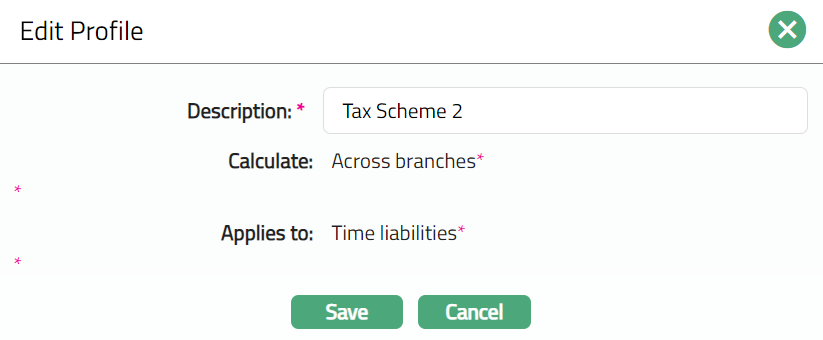
Note: Only Description field is editable.
Click Save. Profile page appears with the edited details.
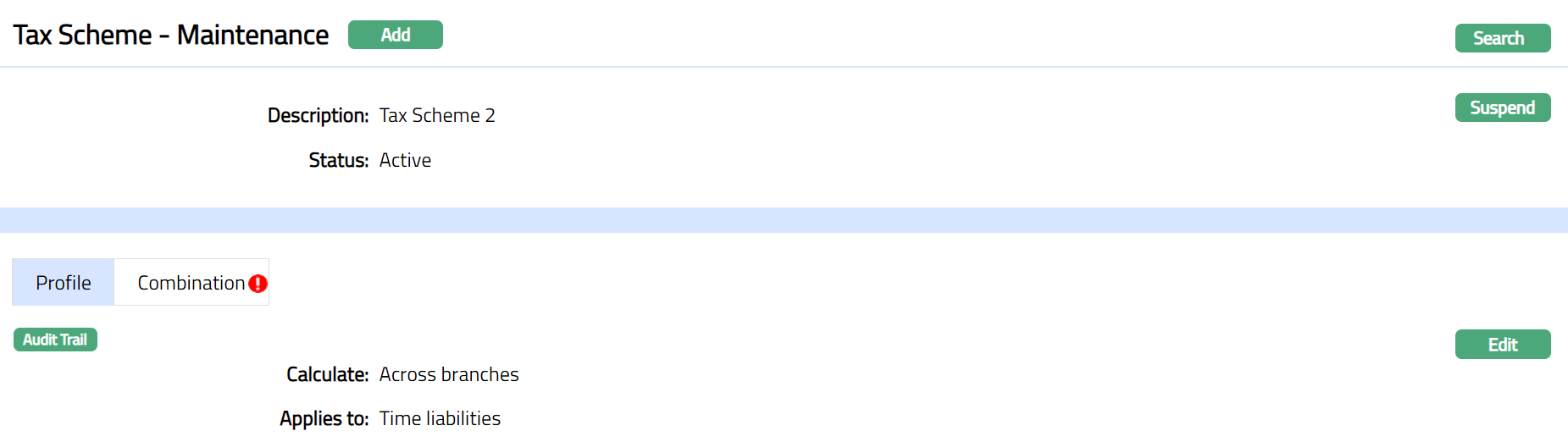 Function: Edit
Combination
This option allows you to maintain the combination for a tax scheme. The combination helps you to tailor the tax scheme to specific country, currency, tax category, basis and mode or any combination thereof. You cannot create a record for the same combination as the one already existing, except when you give a different effective from date.
To add combination
- Access Tax Scheme screen and click Combination tab.
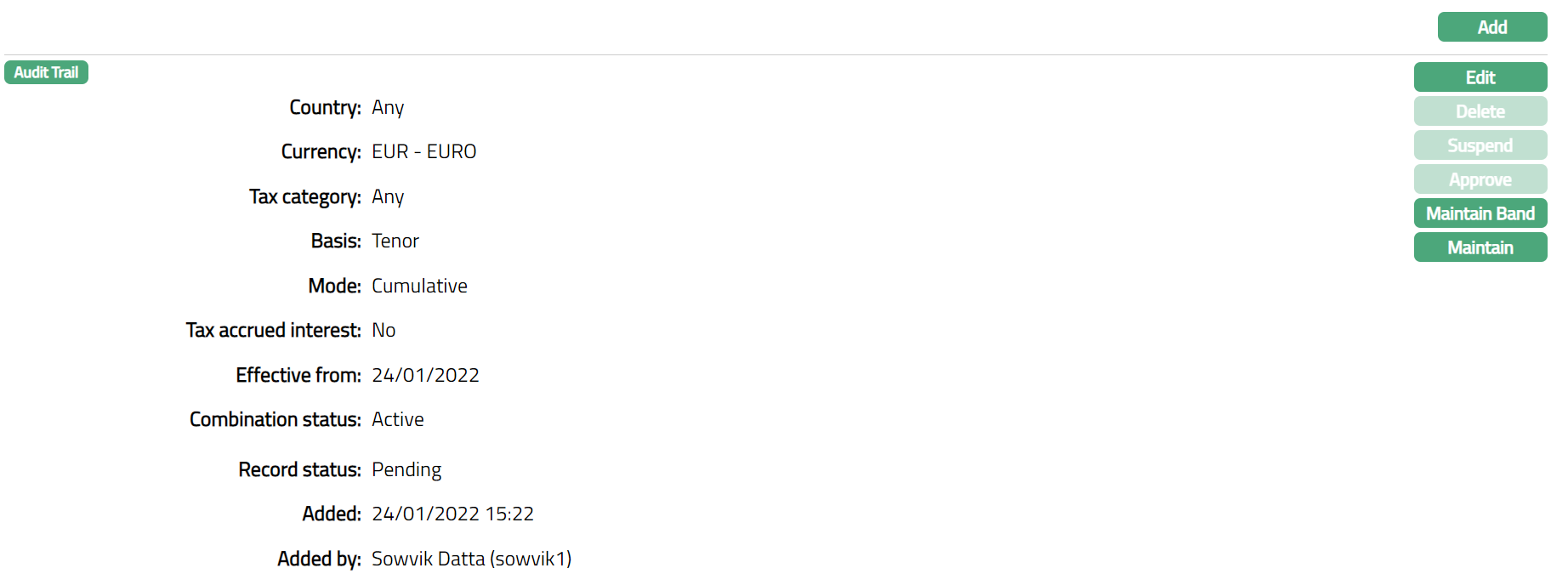
Additional Fields are as follows:
Combination Status field denotes the status of the combination.
Record Status field denotes the status of the tax scheme record.
Added field denotes the date on which the record was added.
Added by field denotes the name of the user who created the record.
Click Add. Add Combination page appears.
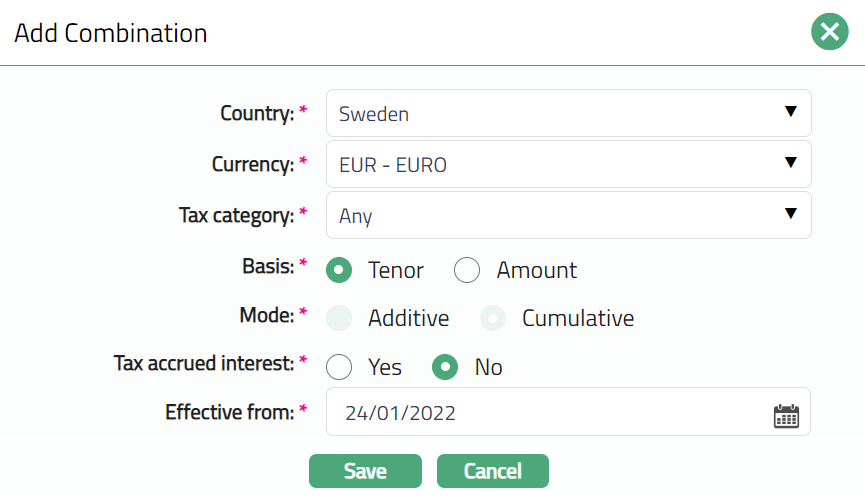
Select Country for this Tax scheme from the drop-down list of countries that have been maintained in Admin > System codes > Generic definitions > Countries. If you do not want to specify a country, choose Any. Once the record is created, this field cannot be edited.
Select Currency for this Tax scheme from the drop-down list of currencies that have been maintained in Admin > System codes > Currencies > Currencies. If you do not want to specify a currency, choose Any. Once the record is created, this field cannot be edited.
Select Tax Category from the drop-down list maintained at Admin > System codes > Categories > Tax Categories. If you do not want to specify a currency, choose Any.
Select Basis on which the tax is calculated. The options available are Tenor and Amount.
If Applies to is selected as Demand liability then this field will be in disabled mode, by default Amount option is selected.
If Time liability has been selected for Applied to field then by default Tenor is selected and the Basis option is enabled.
If Placements has been selected as an option in Applied to field then by default Tenor is selected and the Basis option is enabled.
- Select Mode of tax calculation for the tax scheme. The options available are Additive and Cumulative.
If Applies to is selected as Demand liability the Mode field options will be enabled and Aura allows you to select any option. By default, Additive is selected.
If Applies to is selected as Time liability, then Mode field options is disabled and cumulative is selected by default.
If Applies to is selected as Placements, then Mode field options is disabled and Cumulative is selected by default.
- Select an option for Tax accrued interest.
If you select Yes, then for the tax scheme the interest accrued is also included for tax calculation at the end of the Financial year for the Entity.
If the option is selected as No, then accrued interest in client's account is not included for tax calculation; only on liquidated interest tax will be calculated. By default, No, is selected.
Enter Effective from date. By default, current date is populated in this field. The tax scheme will be effective from the date selected here. The effective date has to be equal to or greater than the current booking date.
Click Save. Combination page appears with the added details.
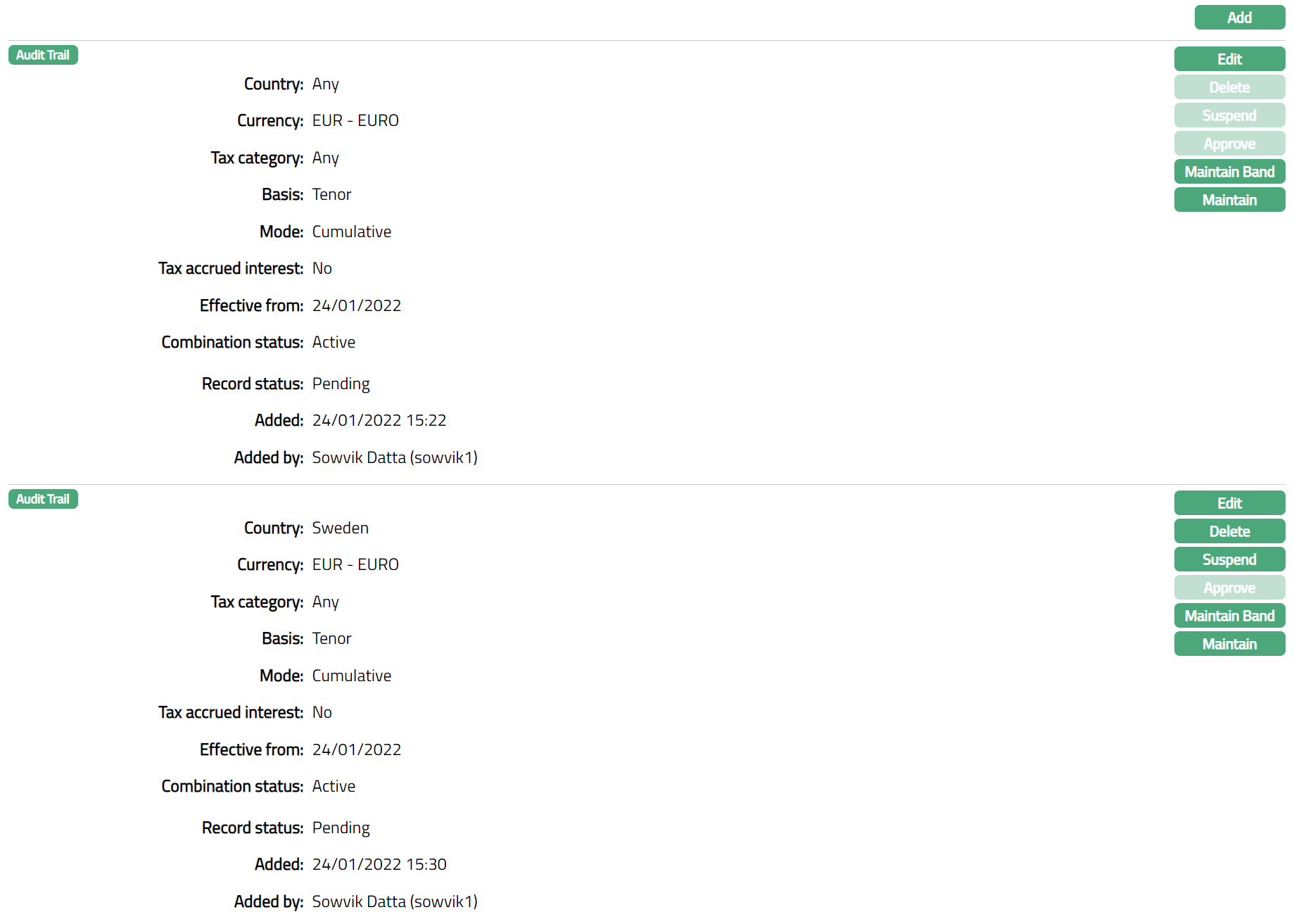
Functions: Add, Edit, Delete, Suspend, Activate, Approve, Maintain Band, Maintain
Delete: You can delete tax scheme record saved in Aura by a click on Delete button. Aura will ask for confirmation, on approval of which, the selected record will be deleted.
Suspend: You can suspend the Tax scheme Combination by clicking on Suspend button. When you click on Suspend button, Aura will ask for confirmation. On confirmation Aura will suspend the Tax scheme Combination. Once the tax scheme is suspended, it is not available for use in other modules. Suspended tax schemes can be activated by using Activate button.
Activate: You can activate the Tax scheme Combination by clicking on Activate button. When you click on Activate button, Aura will ask for confirmation. On confirmation Aura will activate the Tax scheme Combination. Once the tax scheme is activated, it becomes for use in other modules.
Approve: If you want to Approve a Tax scheme record, then retrieve the record and Click on Approve. Aura will ask for confirmation. Once the tab is approved, status gets changed from pending to Approved.
Note: Once the default tax scheme combination record is created, the Edit, Delete, and Suspend button will be disabled and only the Maintain Band and Maintain Product button will be enabled. For other combinations the Edit, Delete, Suspend, Maintain Band and Maintain Product buttons will be enabled.
To Edit combination.
- Click Edit. Edit Combination page appears.
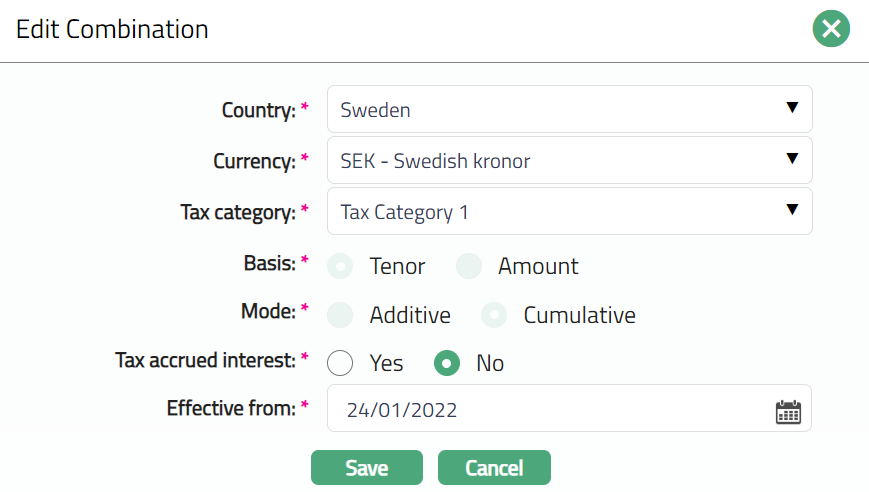
Note: Except Basis and Mode fields, rest all other fields are editable.
- Click Save. Combination page appears with the edited details.
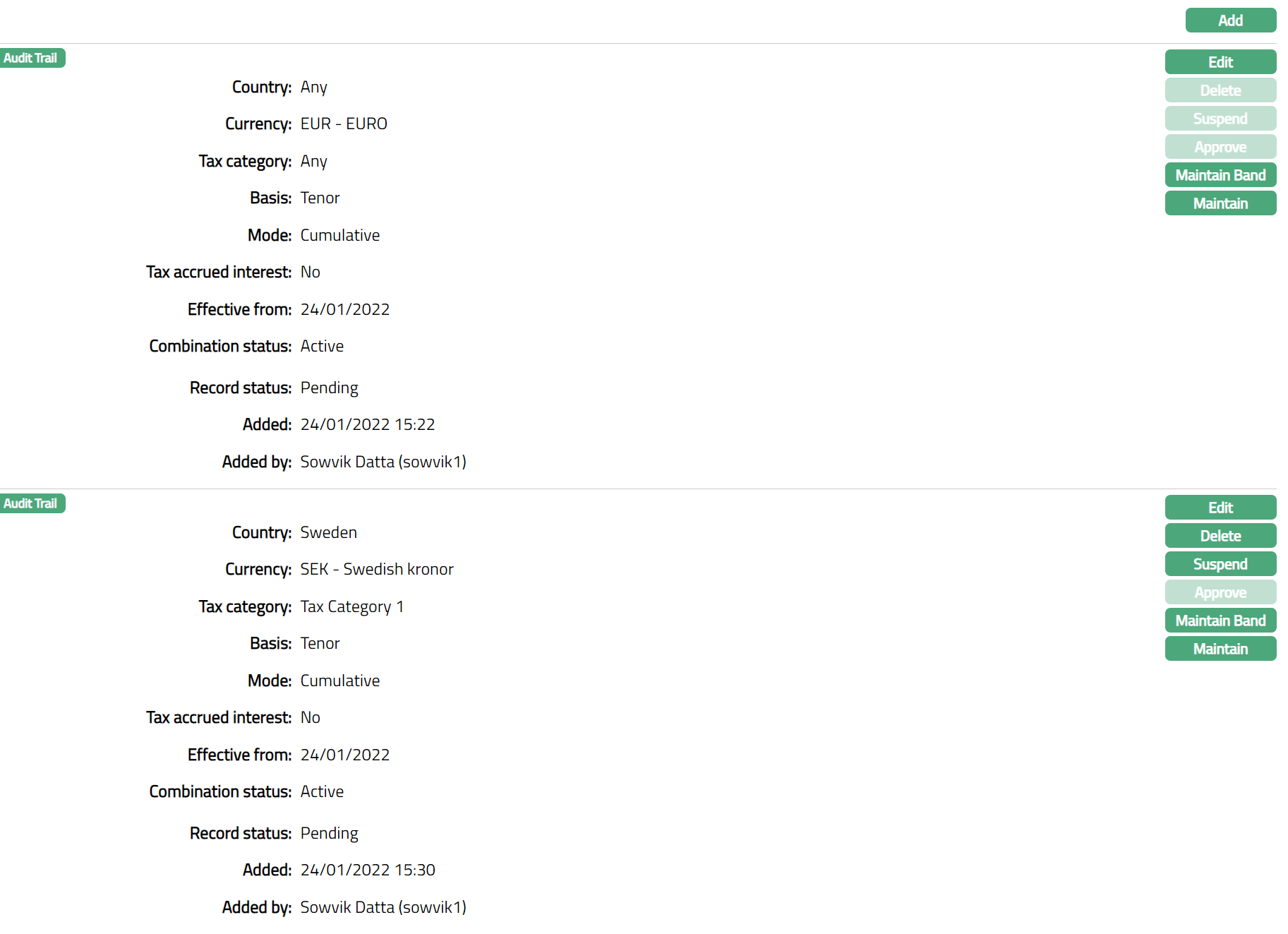
Functions: Edit, Delete, Suspend, Activate, Approve, Maintain Band, Maintain
Maintain Band
Maintain Band option allows you to maintain multiple bands for each Tax scheme combination.
To add a new Band
- Access Tax scheme screen and click Combination tab. Combinations that already exist for the Tax scheme are displayed.
Click Maintain Band for the required Combination. Band screen appears showing the Bands that have already been maintained for this Combination. For a new Tax scheme Combination, this will be blank.
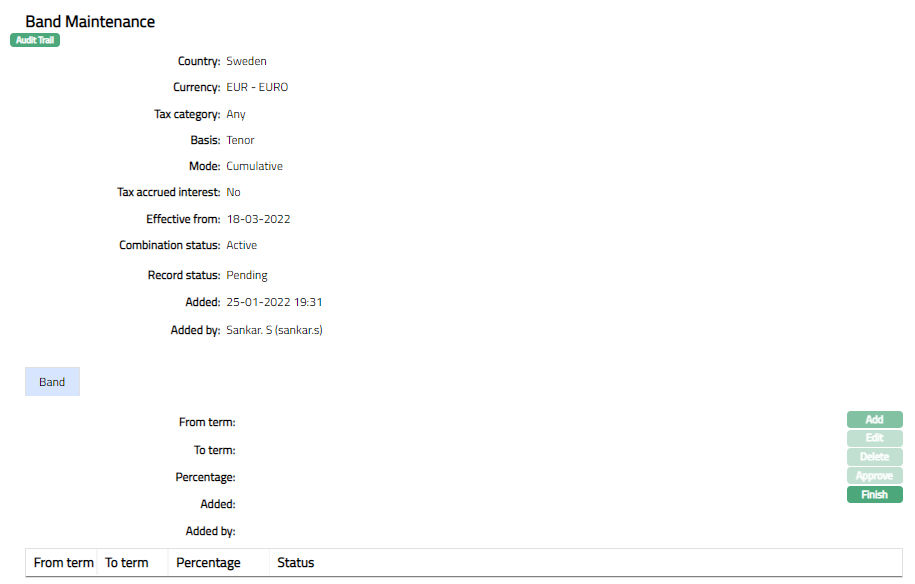
The values for Country, Currency Tax category, Basis Mode, Tax accrued interest, effective from are derived from the Combination that is maintained.
Click Add. Add Band page appears.
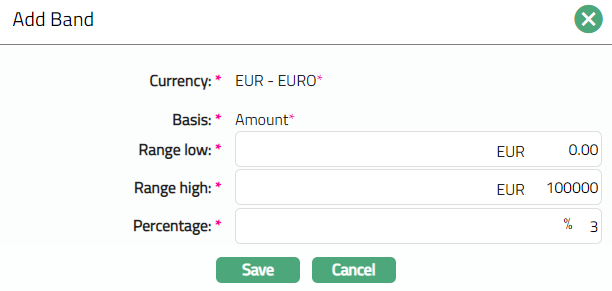
If the Basis is Amount, then the following screen appears.
If the Basis is Tenor, the following screen appears.
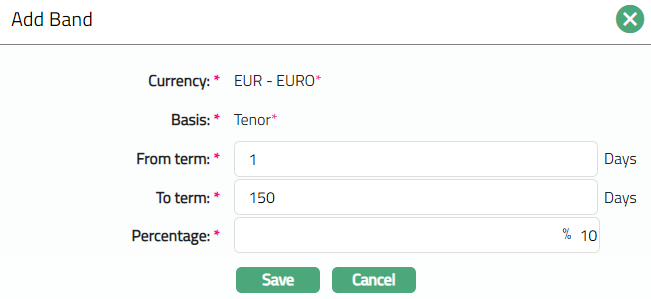
Currency is derived from the Basis currency that you had specified for the combination. This is a non-editable field.
Basis is derived from the tax scheme maintained. This is a non-editable field.
If the Basis is Tenor, then
Enter From term. It denotes the day from which the tax scheme maintained for the term band will be applicable.
Enter To term. It denotes the day to which the interest scheme maintained for the term band will be applicable.
Enter Percentage. It denotes the percentage of tax applicable in the current band for tax calculation using this tax scheme.
If the Basis is Amount, then
Range Low, i.e., the lower limit, is defaulted to Zero for the first band. For the succeeding bands, it is automatically set as Range high of the previous band + least decimal of Basis currency. In case of Any Currency, the number of decimals is taken as 2.
Enter Range high. i.e., the upper limit for the Band.
Enter Percentage. It denotes the percentage of tax applicable in the current band for tax calculation using this tax scheme.
- Click Save. The Band page appears with the added details.
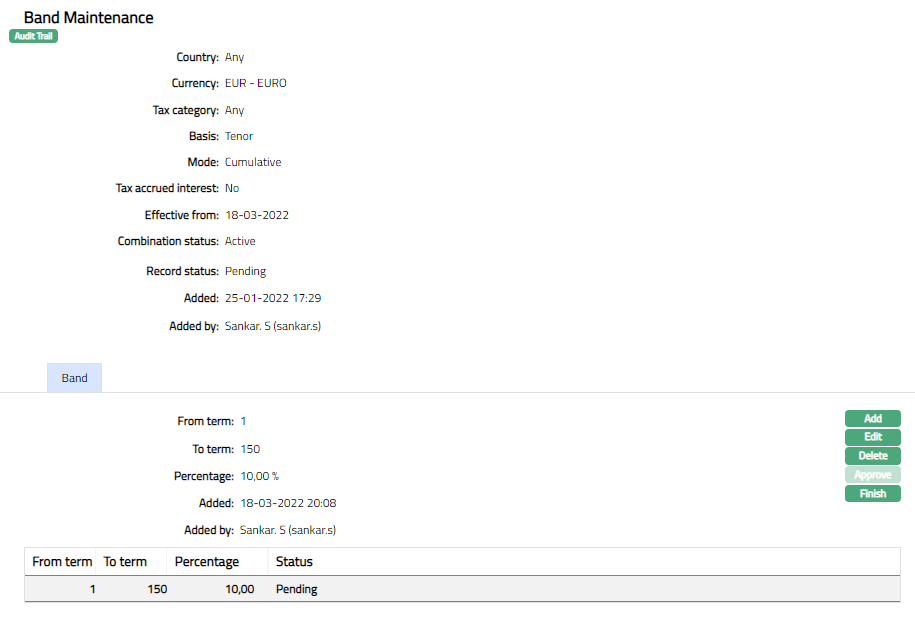
Functions: Add, Edit, Delete, Approve, Finish
Note: The band tab will set the status to Pending till it is approved by another user. On approval, the status is set to Approved.
- Click Finish button to navigate to Combination screen.
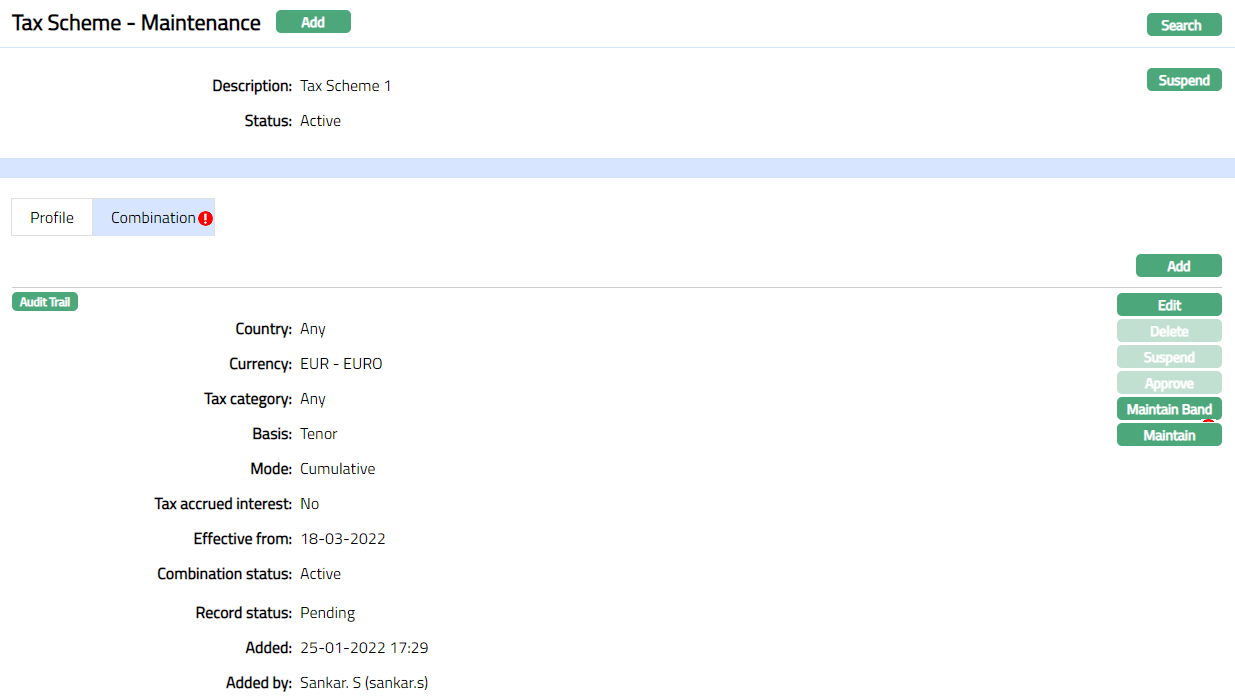
Functions: Add, Edit, Delete, Suspend, Activate
Maintain Band option allows you to define the availability of the tax scheme for the specific Band or all the Band available in Aura.
Add Product
To add product
Access Tax scheme screen and click Combination tab. The Combinations that already exist for the Tax scheme are displayed.
Click Maintain Band in the required Combination. Band Maintenance page appears.
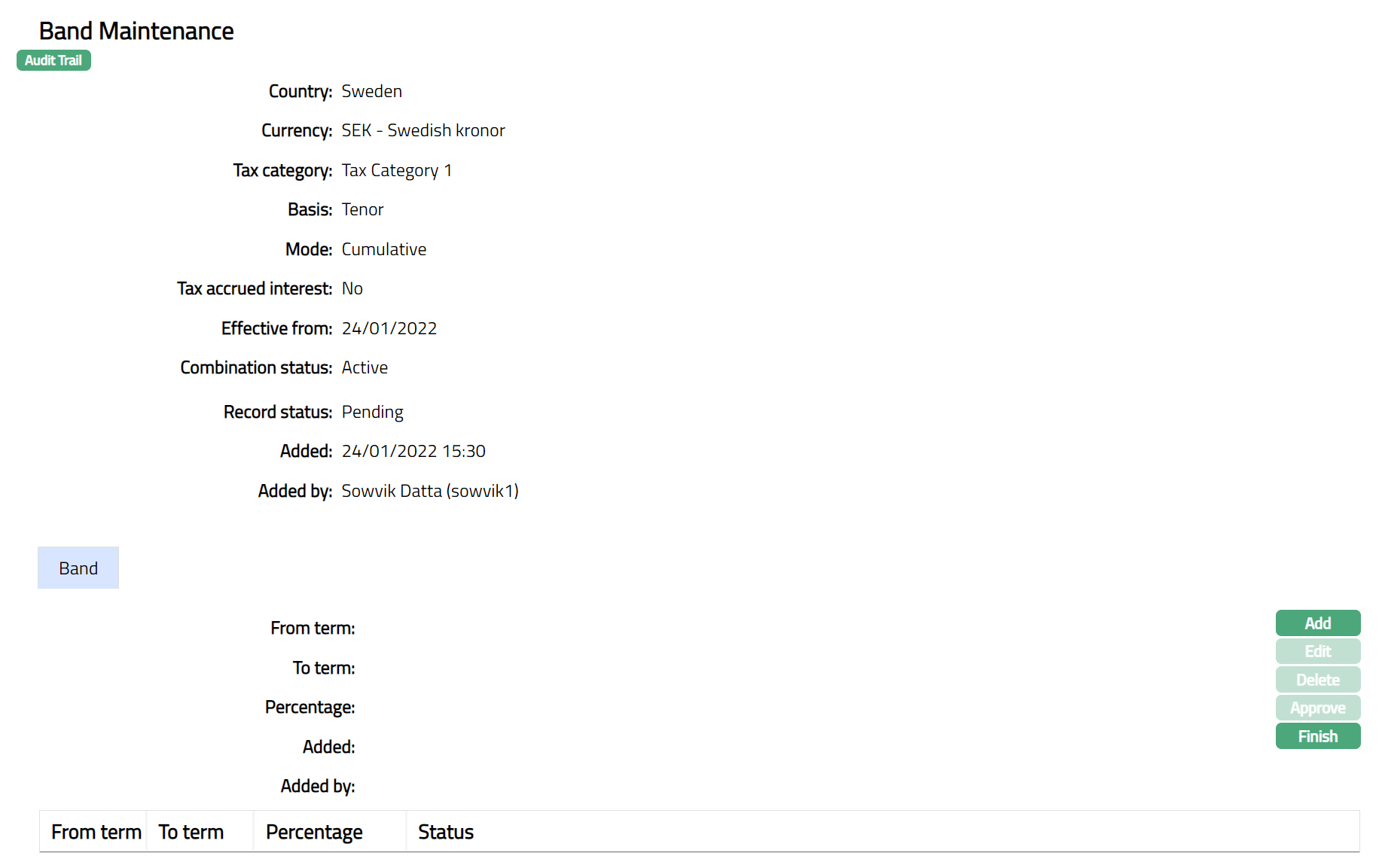
Click Add. Add Band page appears.
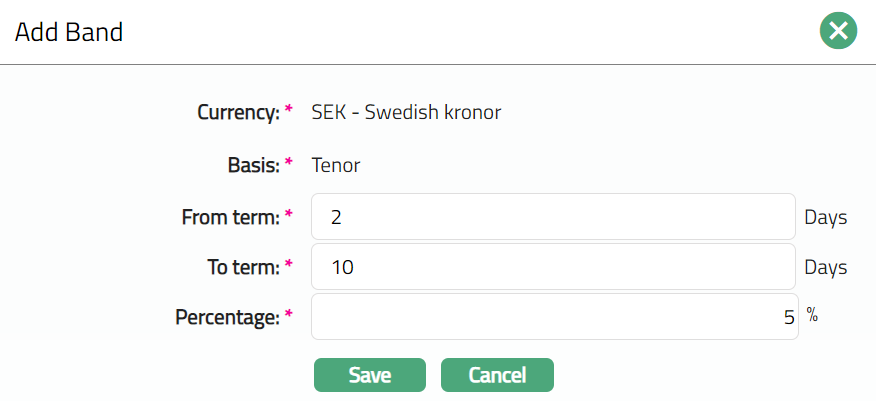
Mention From term and To term in days.
Mention Percentage.
Click Save. Band page appears with the added details.
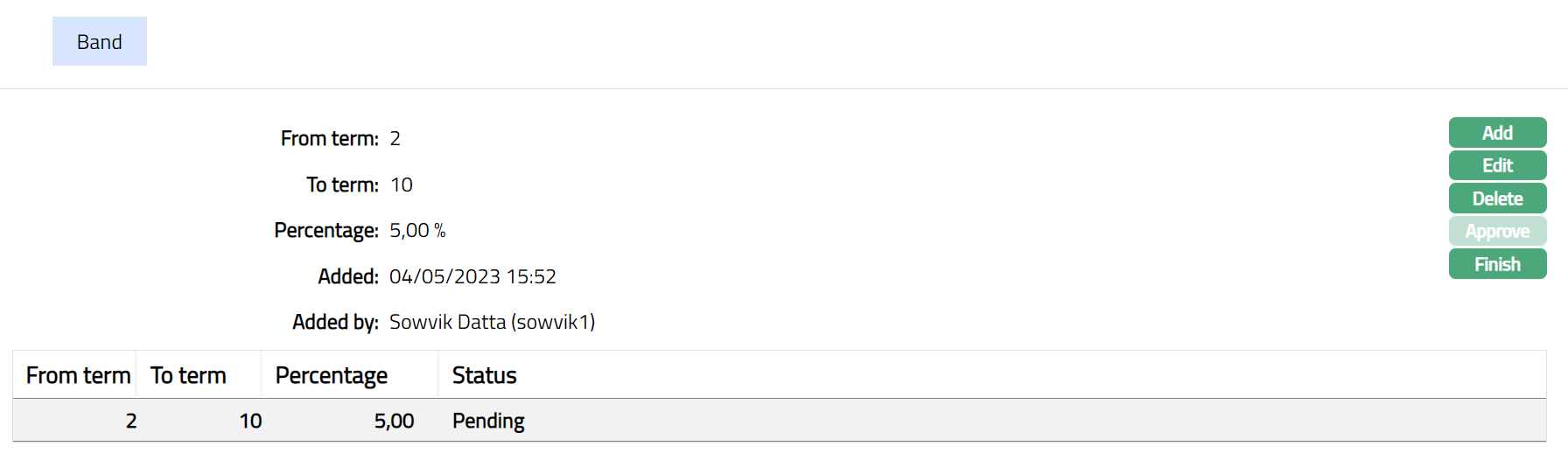
Note: Status will be displayed as Pending, until the same is approved by another user who has not created the record. Once Approved the Status will change to Approve.
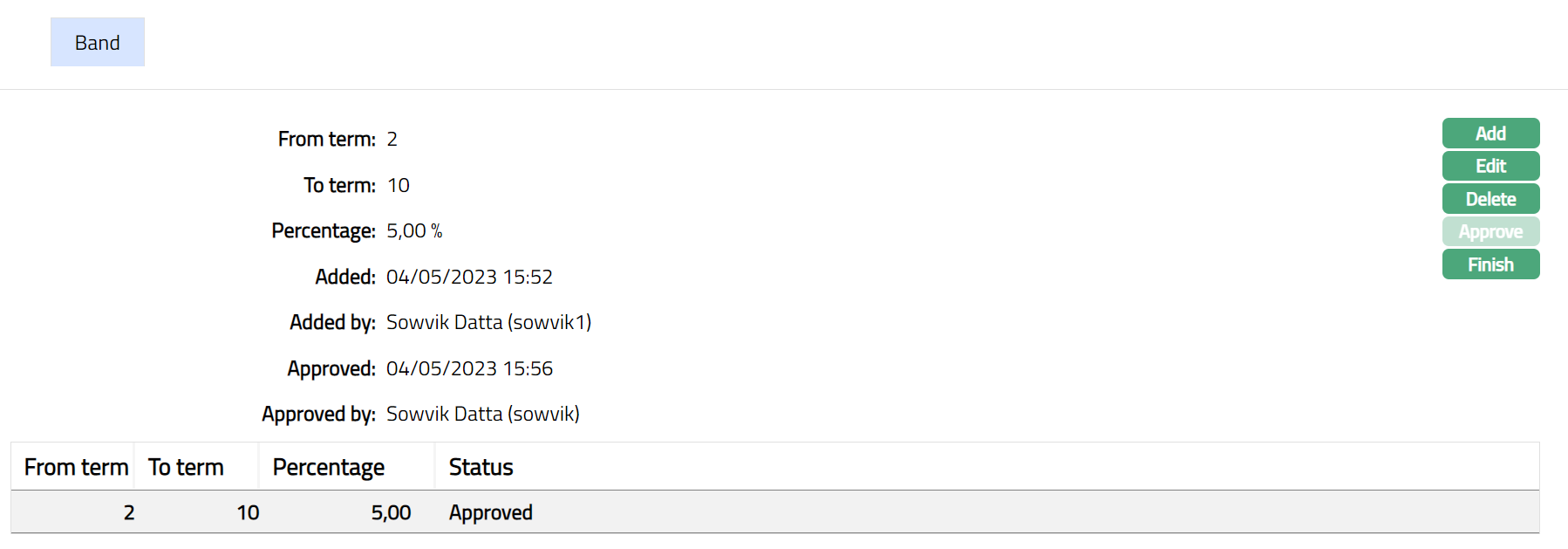 Functions: Add, Edit, Delete, Approve, Finish
Additional Fields are as follows:
Added field denotes the date on which the record was added.
Added by field denotes the name of the user who created the record.
Approved field denotes date on which the record was approved and is displayed only for approved records.
Approved by field denotes name of the user who approved the record and is displayed only for approved records.
To Edit Band.
Click Edit. Edit Band page appears.
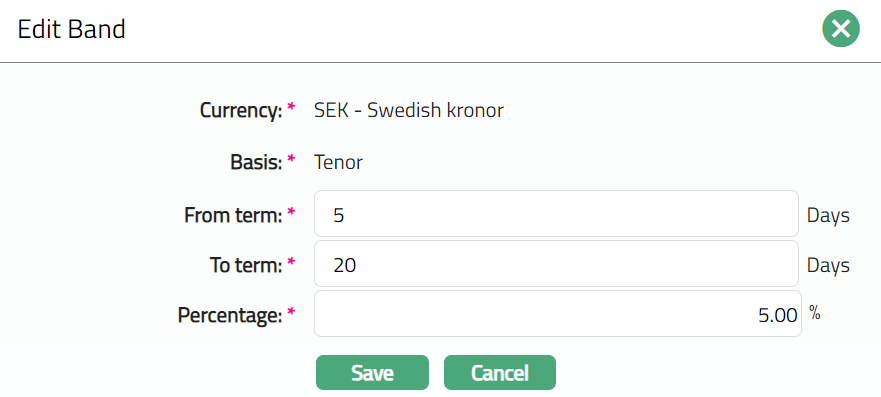
Note: Except Currency and Basis field rest all fields are eitable.
Click Save. Band page appears with the edited details.
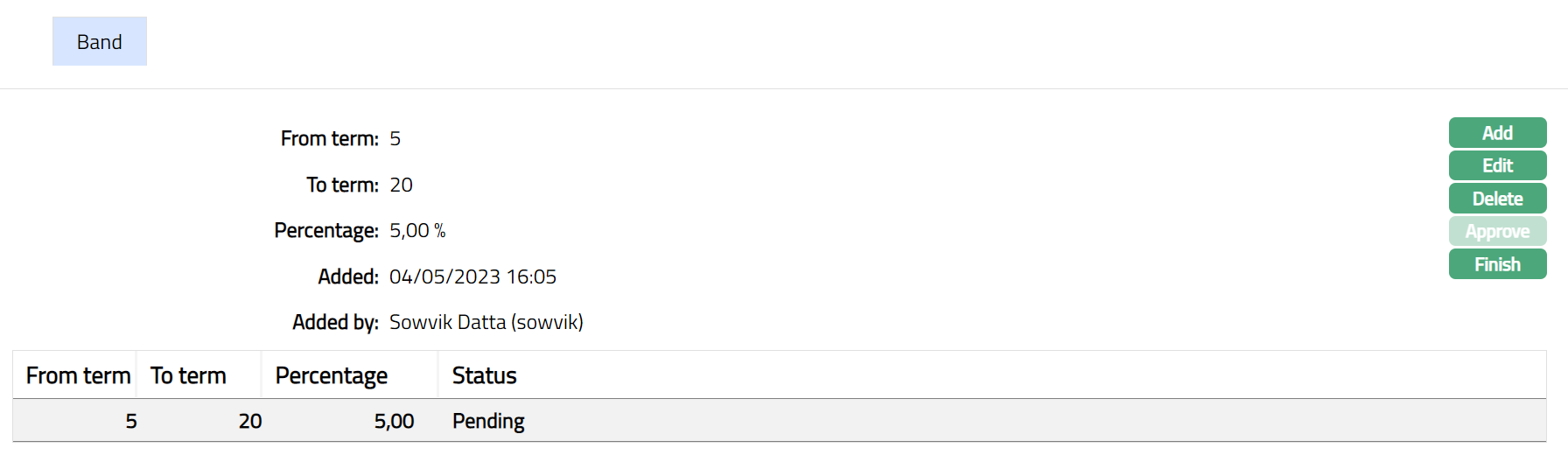
Note: When added/ edited, status will be displayed as Pending, until the same is approved by another user who has not created the record. Once Approved the Status will change to Approve. Sample screen shot shown below.
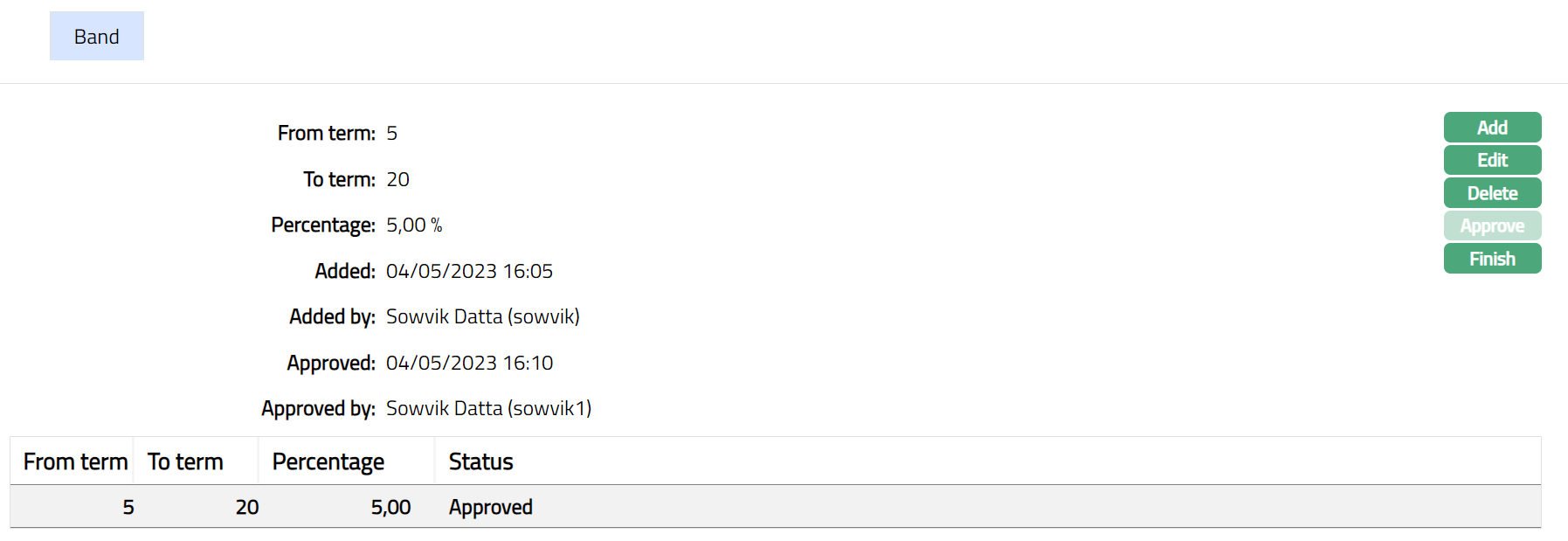
Functions: Add, Edit, Delete, Approve, Finish.
Click Finish. Combination page appears.
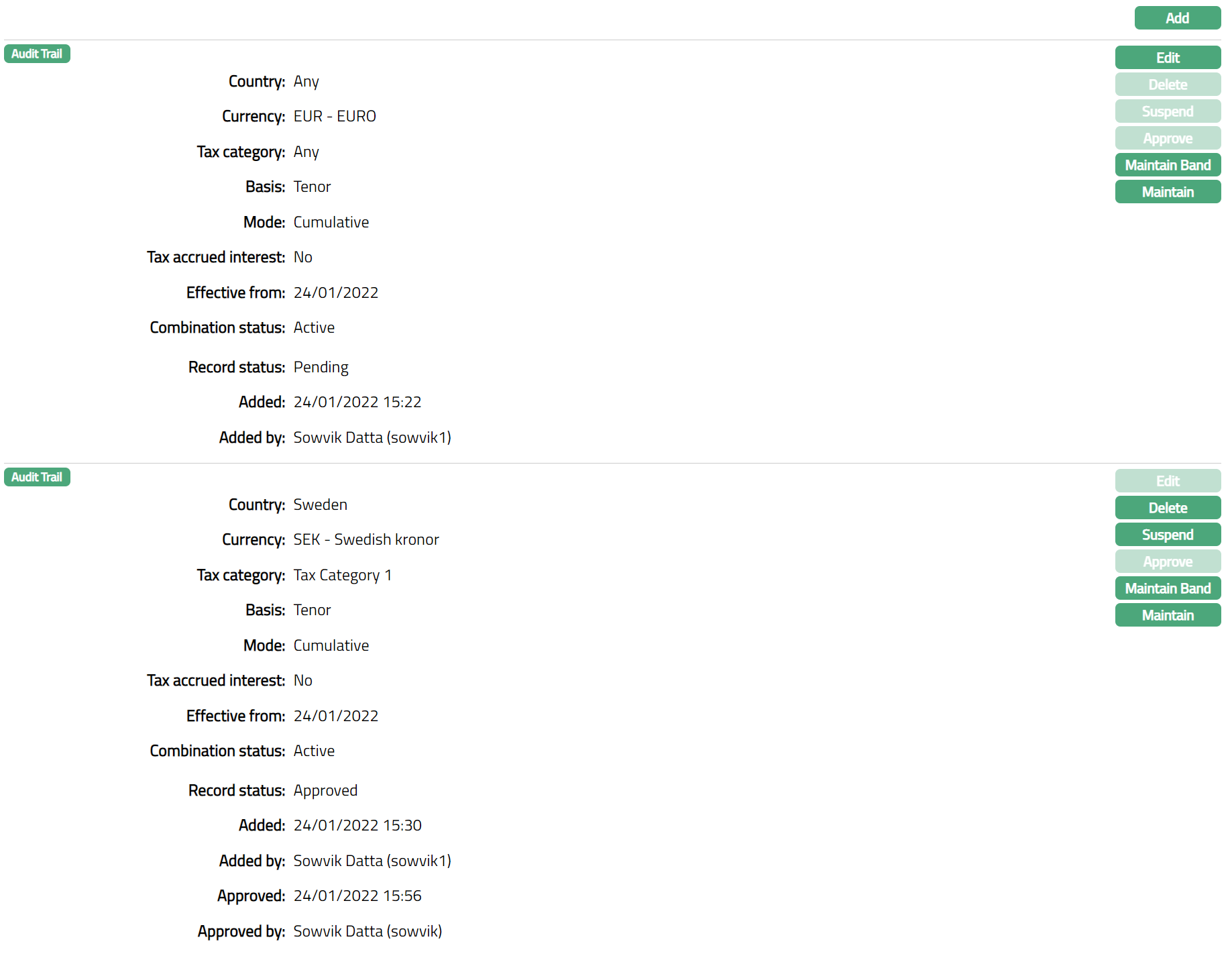
Functions: Edit, Delete, Suspend, Activate, Approve, Maintain Band, Maintain
To Maintain Product.
Click Maintain. Maintain Product page appears.
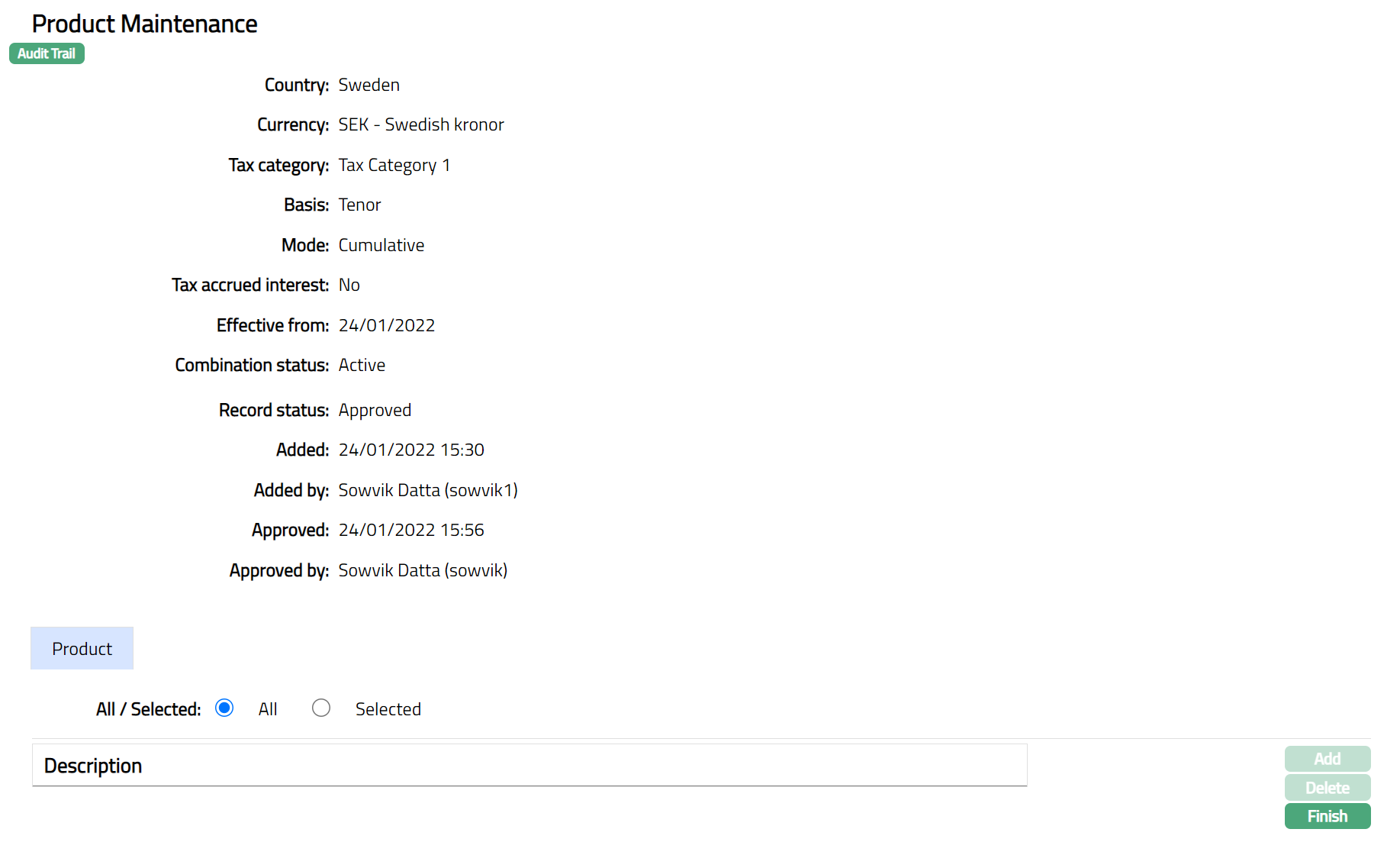
By default, All radio button is selected so that this tax scheme is available for all Products.
To restrict the product for which this Tax scheme is available, click Selected radio button. Add button is now enabled.

Click Add. Add Product screen appears where you can select the required product from the drop-down of all active products in Aura.
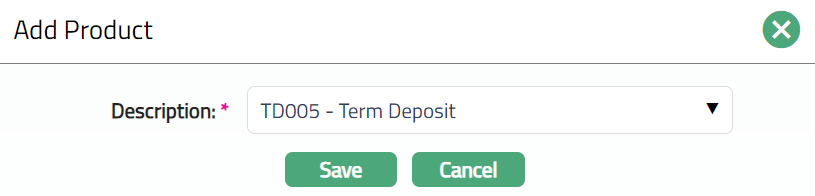
Click Save. Product tab appears with the added details. The selected product(s) will appear in Product Maintenance screen.

Function: Add, Delete, Finish
To delete a branch, select the branch and click Delete.
Click Finish. Combination page appears.
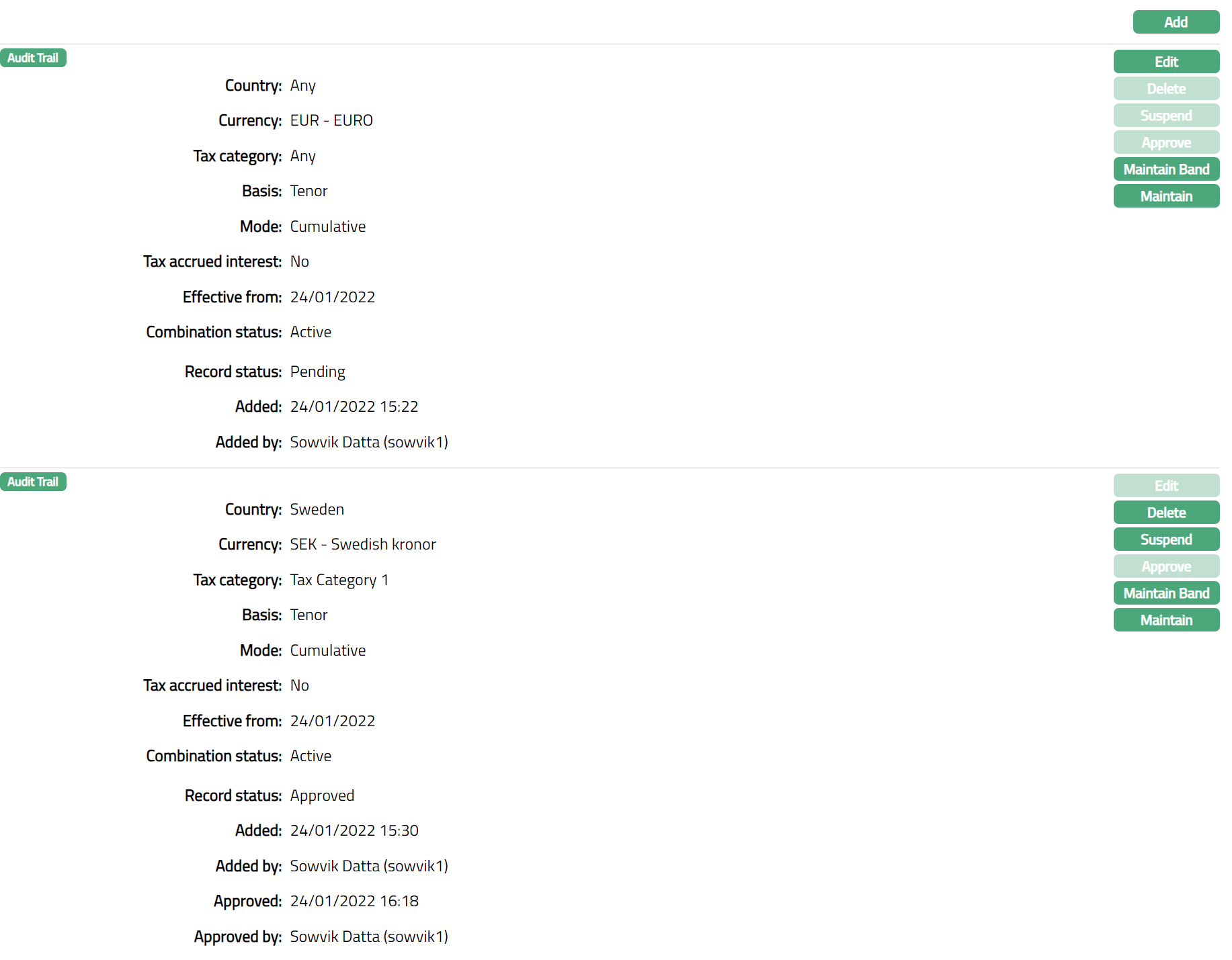
Functions: Edit, Delete, Suspend, Activate, Approve, Maintain Band, Maintain
Note: You may choose to allow All tax schemes for the product at any time. However, at the time of Deleting a product, Aura will prompt you to confirm if the selected products may be deleted. If confirmed, then all the selected products will be deleted, and the tax scheme will be available for ALL products.
Note: When Added/ Edited the Record status will display as Pending. Once Approved by different user the Record status will change to Approved. Sample screen shown above.
Additional Fields are as follows:
Added field denotes the date on which the record was added.
Added by field denotes the name of the user who created the record.
Approved field denotes date on which the record was approved and is displayed only for approved records.
Approved by field denotes name of the user who approved the record and is displayed only for approved records