
Cheque Number Search
The Cheque Number Search option allows you to view all cheque numbers that have been allocated through cheque books issued to client accounts. You can refine the search by selecting parameters from the available dropdown list.
To View/Search for a Cheque Number,
1. From the Retail menu, click Accounts > Operations > Cheque Number Search.
2. The Cheque Number Search page appears. By default, no records are displayed initially, sample screenshot shown below.

3. In the Search for drop-down, select the required search criteria. Available options are: Account #, Book number, Cheque number, Cheque status, Client #, Client name.
4. Enter the appropriate value in the textbox. Example: Select Cheque Status = Issued.
5. Click Search. All records available in Aura that satisfy the search criteria appear in the results table. Sample screenshot shown below.
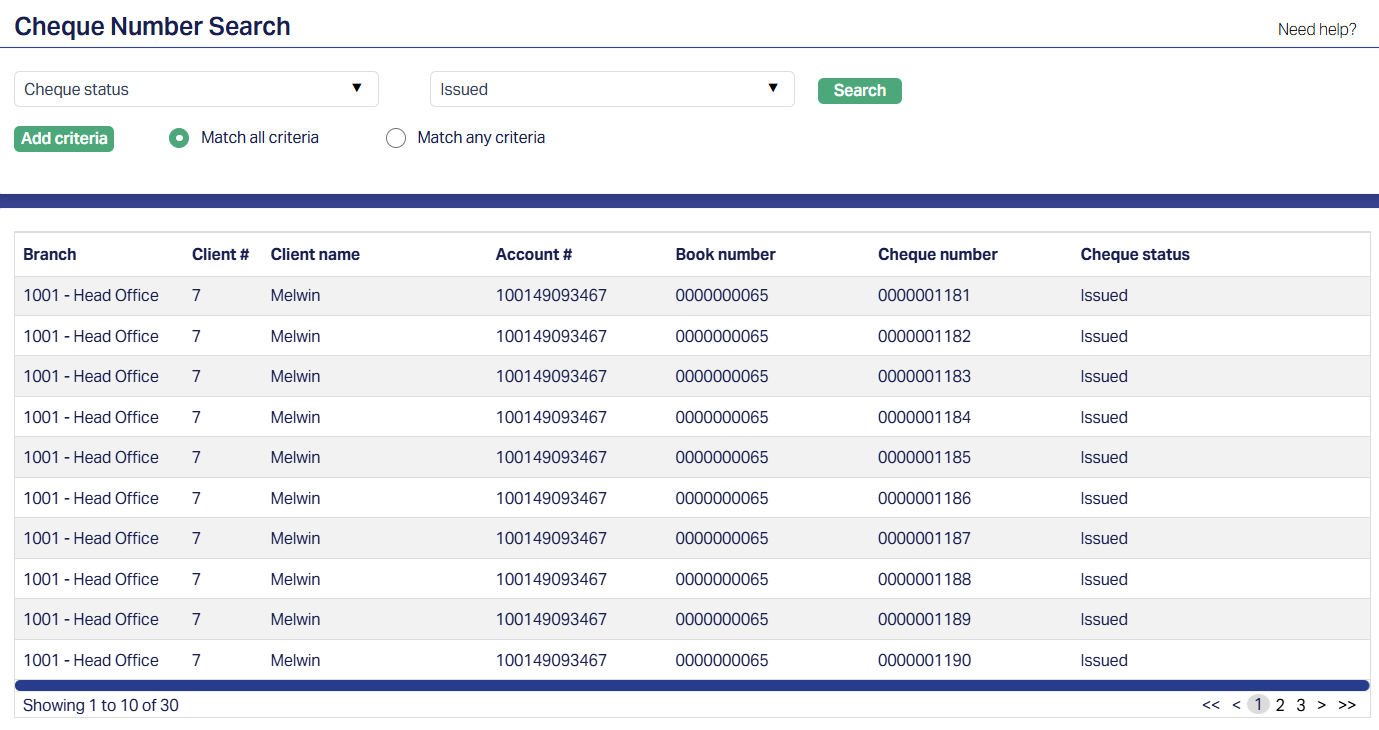
If Cheque Status option is input as search criteria, then the list of values will include -
Printed: Indicates that the cheque has been fully approved and printed but is still in custody of the bank. It has not yet been handed over or assigned to any client account.
Issued: Indicates that the cheque has been formally issued to a customer. At this stage, the cheque leaves the bank's possession and becomes the customer's instrument to use.
Paid: Indicates that the cheque has been presented by the customer and successfully honored through the inward cheque clearing process. The corresponding funds are debited from the issuing account.
Returned: Indicates that the cheque presented through clearing was not honored and was returned. Common reasons include insufficient funds, mismatched signatures, or account-related restrictions. The amount is not debited from the issuing account.
Stop Payment: Indicates that a stop payment instruction has been recorded against the cheque by the issuing customer or bank. Any subsequent presentation of this cheque will be blocked during clearing, and no payment will be processed.
Notes:
Search criteria can be combined using the Add criteria button, with options to Match all criteria or Match any criteria.
Multiple records may be displayed if several cheque books or cheques meet the entered criteria.
Cheque details shown include: Branch, Client ID, Client Name, Account #, Book Number, Cheque Number, and Cheque Status.