
Limit Setting
Limit setting option allows you to set up the generic features of Limits, like whether contingent entries are to be posted for the limits created under the Setting, Interest is to be charged for unutilized portion of the limit and list of charges & additional charges to be collected for a limit. You will be able to edit and suspend the Limit Setting at any time, but you can delete a Limit Setting only if Limits have not already been created using the Limit Setting.
The sub-tabs are as follows:
To add new Limit Setting,
1. From CRM menu, click Collateral & limits, then Settings and then Limit setting. Limit Setting Search page appears. All Limit Setting records available in Aura appear on the page.

2. Click Add. New Limit Setting → Profile (1/6) page appears.

3. Enter Code for the limit. This has to be unique for an Entity.
4. Enter Description for the Limit Setting.
5. Select the Revolving flag to indicate that the Limit Setting is intended for a revolving limit. By default, it is unchecked. The selected value is used as the default for Limits created under this Limit Setting.
6. You can check or uncheck the Post contingent entries flag based on the requirement for posting contingent accounting entries on creation of the limit. By default, it is unchecked.
7. Click Next. New Limit Setting → Commitment (2/6) page appears.

8. Select Liquidation Frequency for the Commitment interest from the preshipped values. The available options are Annual, Daily, Monthly, Quarterly, Semi annual, Weekly.
9. Select Commitment interest scheme for the Commitment interest from the list of active interest schemes maintained under Admin → System Codes → Interest → Interest scheme.
10. Click Next. New Limit Setting → Charges (3/6) page appears.

11. Select Limit set up charge from the drop-down list maintained under Admin → Pricing → Charge → Charge Scheme. The list displays all Event-based Flat charges, where Treat as Commission is No. This charge is booked into the client's charge account when a Limit is approved.
12. Select Periodic Limit charge from the drop-down list maintained under Admin → Pricing → Charges → Charge Schemes.
The list displays applicable Periodic Charge Schemes where Treat as Commission is set to No. Charge Schemes with Frequency set to Debit Liquidation Date or Credit Liquidation Date are not applicable.
Periodic Charge Schemes can be selected regardless of whether the Charge Scheme is configured for Advance or Arrears, Pro-rated = Yes or No, or Charge Amortization = Yes or No.
If Charge Amortization = Yes for the selected Charge Scheme, the Charge Scheme must have Amortization Basis = SLM.
The Periodic Limit Charge can be a Flat or Banded charge. For a Flat Charge, the configured Flat Charge Amount is used. For a Banded Charge, the charge amount is calculated based on the Total Limit Amount applicable when the charge is applied. If the charge is Pro-rated, the applicable charge amount is calculated proportionately.
Charge Amortization
When Charge Amortization = Yes, the Periodic Limit Charge is debited from the mapped Charge Account and credited to the Amortization GL. The charge is amortized over the configured Charge Frequency.
The number of days for amortization is calculated from the Charge Application Date through the end of the applicable frequency period, using plain calendar days.
For Banded Charges, any change to the Limit Amount does not affect a charge that has already been applied. The charge for the next period is calculated based on the Limit Amount applicable at that time.
Charge Amortization Calculation Examples
The following examples illustrate Charge Amortization for a Quarterly Charge Scheme with a Calendar cycle.
Example 1: Pro-rated
| Case | Charge Applied On | Quarter End Date | Charge Amount | Number of Days | Per-day Charge Amortization | Balance Moved to Income GL |
|---|---|---|---|---|---|---|
| 1 | 06-Aug-26 | 30-Sep-26 | 200 | 56 | 3.57 | 3.65 |
| 2 | 01-Aug-26 | 30-Sep-26 | 200 | 61 | 3.28 | 3.20 |
Number of days is calculated as: Quarter End Date − Charge Application Date + 1
Example 2: Non-pro-rated
| Case | Charge Applied On | Quarter End Date | Charge Amount | Number of Days | Per-day Charge Amortization | Balance Moved to Income GL |
|---|---|---|---|---|---|---|
| 3 | 06-Aug-26 | 30-Sep-26 | 300 | 56 | 5.36 | 5.20 |
| 4 | 01-Aug-26 | 30-Sep-26 | 300 | 61 | 4.92 | 4.80 |
Number of days is calculated as: Quarter End Date − Charge Application Date + 1
13. Click Next. New Limit Setting → General Ledger (4/6) page appears.
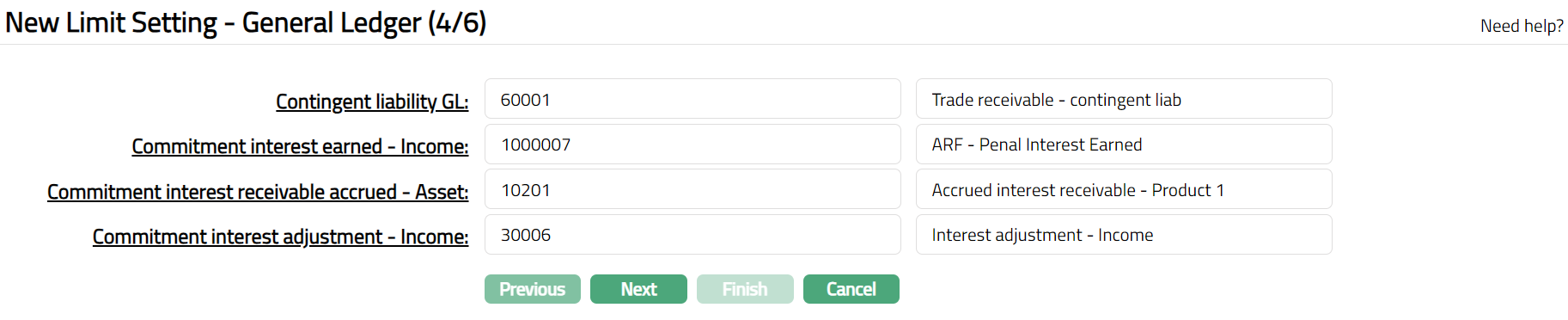
Note: The table below gives the fields, the use and the conditions for each of these GLs. You can either directly input the Ledger # or click on the hyperlink to see the list of GLs satisfying these conditions and select the required Ledger #.
Contingent liability GL will be enabled only if Post contingent entries checkbox is marked in the New Limit Setting -- Profile (1/6) page.
If Commitment interest is selected in the New Limit Setting → Commitment (2/6) page, then GL codes related to commitment interest are mandatory.
| Sl No | Fields | Used | List of Accounts based on |
|---|---|---|---|
| 1 | Contingent Liability GL | To record all active Contingent Liability entries for Limit. This field will be enabled only if Post contingent entry checkbox is checked. | Ledger type Contingent Liability, FX consolidation is Foreign operation (Current rate). |
| 2 | Commitment Interest Earned - Income | For accounting all the commitment interest earned on limits. | Ledger type Income |
| 3 | Commitment Interest Receivable Accrued - Asset | For accounting the commitment interest receivable accrued on limits. | Ledger type Asset |
| 4 | Commitment Interest Adjustment - Income | For accounting all the commitment interest adjustment on limits. | Ledger type Income |
14. Click Next. New Limit Setting → Transaction Code (5/6) page appears.
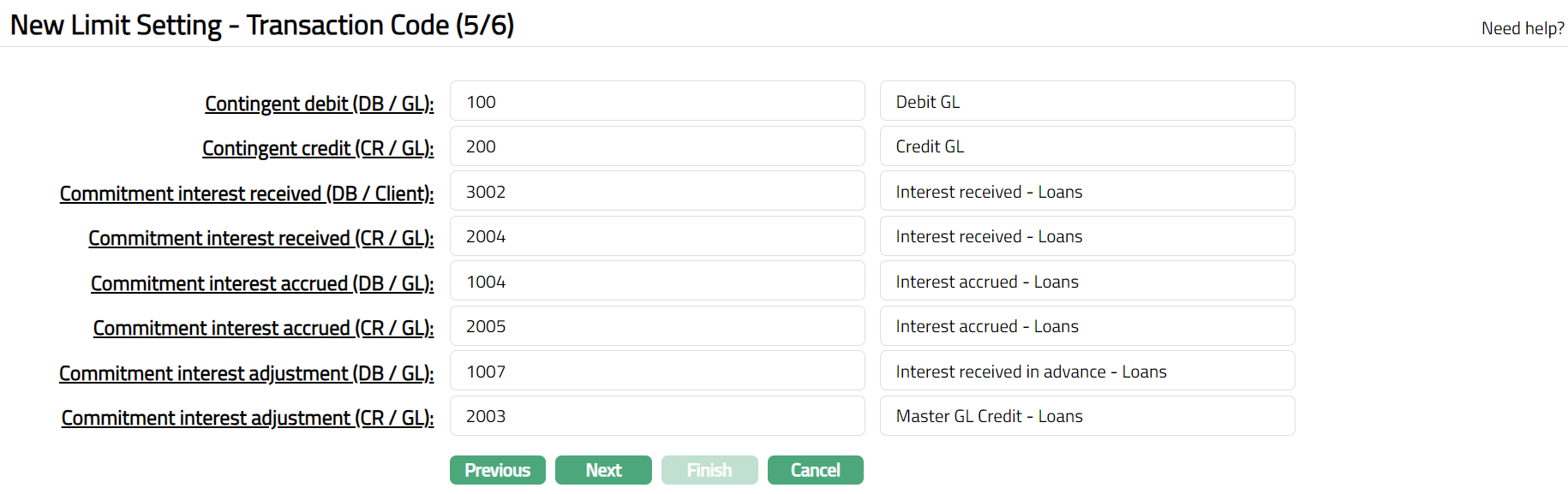
Note: The table below gives the fields, the use, the conditions and the events for each of these Transaction Codes. You can either directly input the Transaction Code # or click on the hyperlink to see the list of Transaction codes satisfying these conditions and select the required Transaction code #.
Contingent debit (DB/GL) and Contingent credit (CR/GL) will be enabled only if Post contingent entries checkbox is marked in the New Limit Setting → Profile (1/6) page.
If Commitment interest is selected in New Limit Setting → Commitment (2/6) page, then Transaction codes related to Commitment interest are mandatory.
| Sl No | Field name of Transaction settings | Used for | List of Transaction codes based on | Event when it will be used |
|---|---|---|---|---|
| 1 | Contingent debit (DB/GL) | All the debit contingent transactions in the General Ledger Account. This field will be enabled only when Post Contingent Liability checkbox is checked. | General Ledger Debit | Activation |
| 2 | Contingent credit (CR/GL) | All the credit contingent transactions in the General Ledger Account. This field will be enabled only when Post Contingent Liability is selected as Yes. | General Ledger Credit | Activation |
| 3 | Commitment interest received (DB/Client) | All the commitment interest received in the Client Account. | Client Account Debit | Liquidation |
| 4 | Commitment interest received (CR/GL) | All the commitment interest received in the General Ledger Account. | General Ledger Credit | Liquidation |
| 5 | Commitment interest accrued (DB/GL) | All the commitment interest accrued in the General Ledger Account. | General Ledger Debit | Accrual |
| 6 | Commitment interest accrued (CR/GL) | All the commitment interest accrued in the General Ledger Account. | General Ledger Credit | Accrual |
| 7 | Commitment interest adjustment (DB/GL) | All the commitment interest adjustment in the General Ledger Account. | General Ledger Debit | Adjustment |
| 8 | Commitment interest adjustment (CR/GL) | All the commitment interest adjustment in the General Ledger Account. | General Ledger Credit | Adjustment |
15. Click Next. New Limit Setting → Confirmation (6/6) page appears.
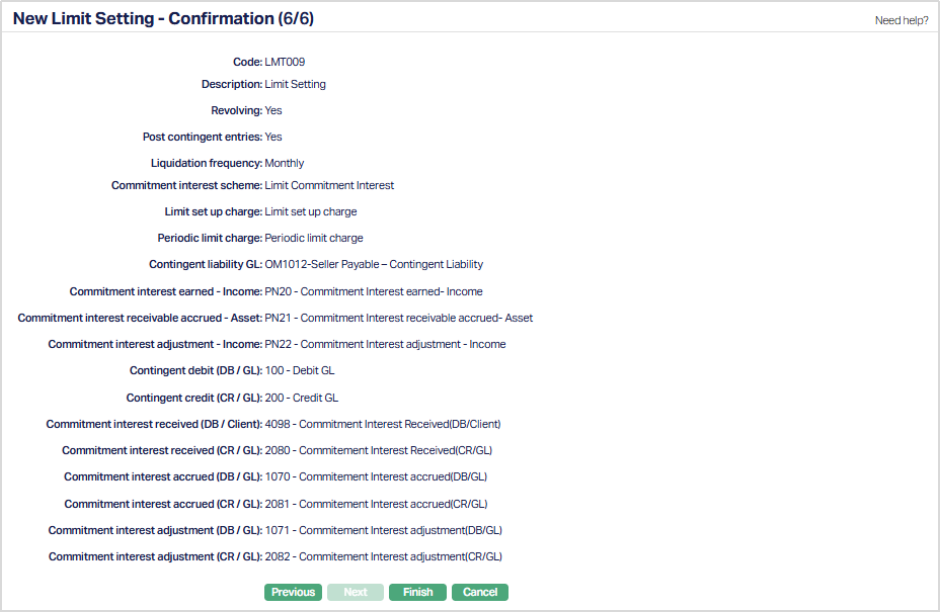
16. Click Finish. Limit Setting page appears, and you will see the Profile tab by default.
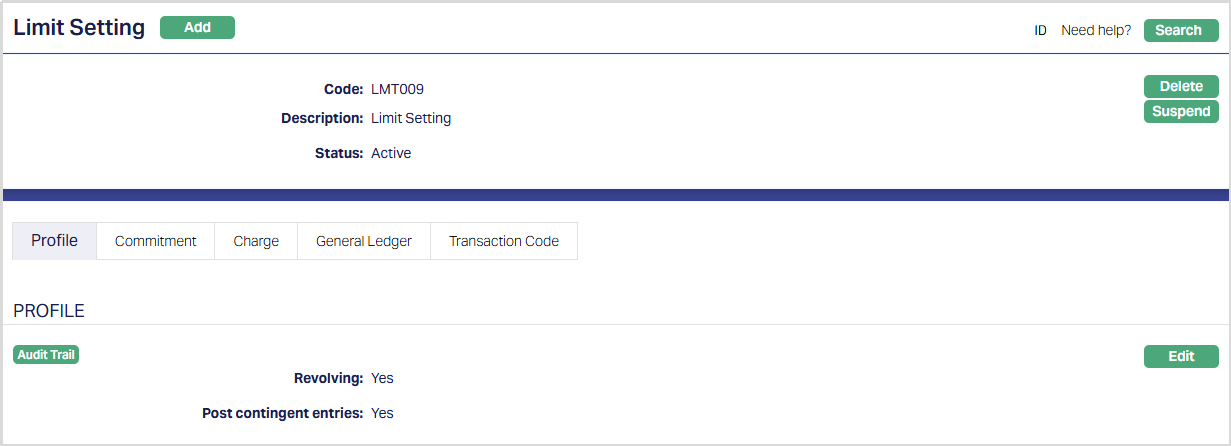
Functions: Add, Search, Delete, Suspend, Activate, Edit
Note: Status of the Limit Setting will be Active as soon as the Limit Setting is created.
Delete: Click Delete button to delete Limit setting record. When you click on delete button, Aura displays an alert message. On confirmation Aura will delete the Limit Setting.
Suspend: You can suspend the Limit Setting by clicking on Suspend button. When you click on Suspend button, Aura displays an alert message. On confirmation Aura will suspend the Limit Setting. Once the Limit Setting is suspended, it becomes unavailable in the drop-down list while creating a limit in other modules in Aura. Suspended Limit Setting can be activated by using Activate button.
Activate: You can activate a suspended Limit Setting by clicking on Activate button. When you click on Activate button, Aura displays an alert message. On confirmation Aura will activate the Limit Setting. Once the Limit Setting is activated, it becomes available in the drop-down list.
Profile
Profile tab, which is the default tab in the Limit Setting Maintenance screen, shows the basic details of the Limit setting.
To view / edit Profile,
1. Access Limit Setting page. Click Profile tab to view the details as per sample below. The details are defaulted from the entries that you made during Limit Setting creation. For details refer to New Limit Setting → Profile (1/6).

2. Click Edit. Edit Profile page appears.
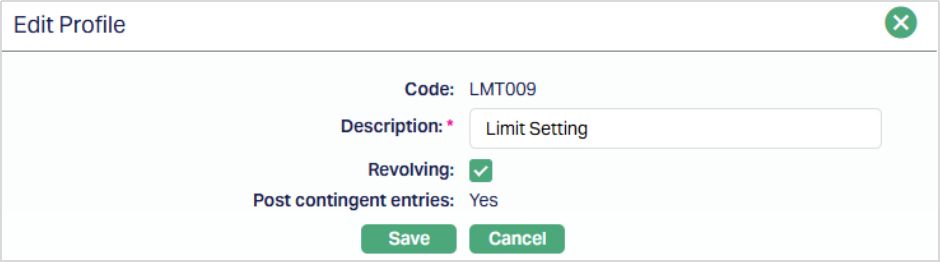
Note: Description and Revolving fields are editable.
3. Click Save. Limit Settings page appears with the edited details.
Functions: Edit.
Commitment
Commitment tab allows you to edit the commitment interest, which is calculated upon the unutilized amount of the limit.
To view / edit Commitment interest,
1. Access Limit Setting page. Click Commitment tab to view the details as per sample below. The details are defaulted from the entries that you made during Limit Setting creation. For details refer to New Limit Setting → Commitment (2/6).

2. Click Edit. Edit Commitment page appears.
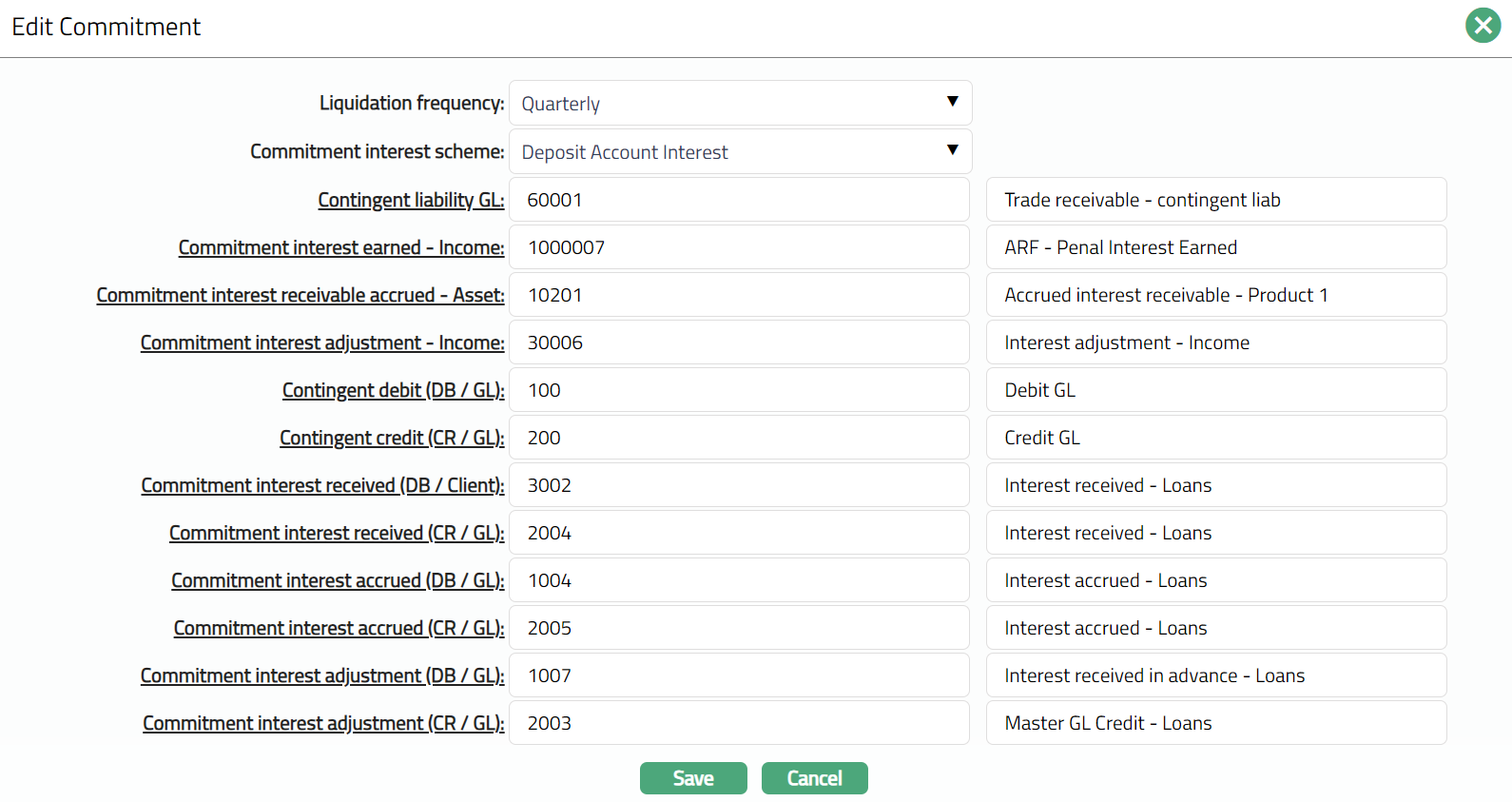
Note: All fields are editable.
Notes:
While creating the Limit settings, if Post contingent entries checkbox is marked in the New Limit Setting → Profile (1/6) page, then Contingent liability GL will be enabled.
While creating the Limit settings, if Post contingent entries checkbox is marked in the New Limit Setting → Profile (1/6) page, then Contingent debit (DB/GL) and Contingent credit (CR/GL) will be enabled.
If you select Liquidation frequency and Commitment interest scheme, then GL codes and Transaction codes related to Commitment interest are mandatory.
3. Click Save. Commitment page appears with the edited details.

Functions: Edit
Charge
This tab will allow you to edit the charges for the limit setting.
To view / edit Charge,
1. Access Limit Setting page. Click Charge tab to view the details as per sample below. The details are defaulted from the entries that you made during Limit Setting creation. For details refer to New Limit Setting → Charges (3/6).

2. Click Edit. Edit Charges page appears.
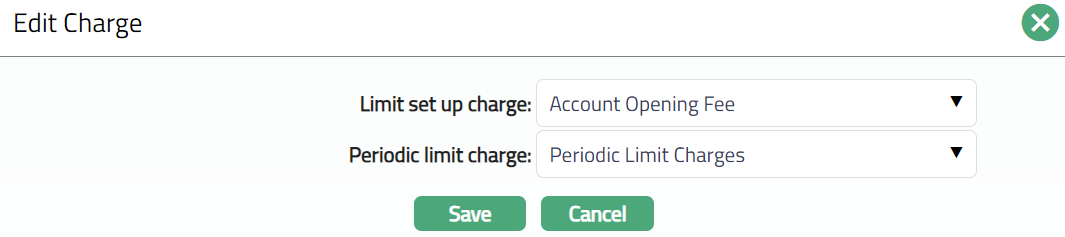
Note: All fields are editable.
3. Click Save. Charge Page appears with the edited details.

Functions: Edit
General Ledger
General Ledger tab allows you to view and maintain the various GL accounts for the Limit Setting.
To view General Ledger settings,
Access Limit Setting page. Click General Ledger tab to view the details as per sample below. The details are defaulted from the entries that you made during Limit Setting creation. For details refer to New Limit Setting → General Ledger (4/6).
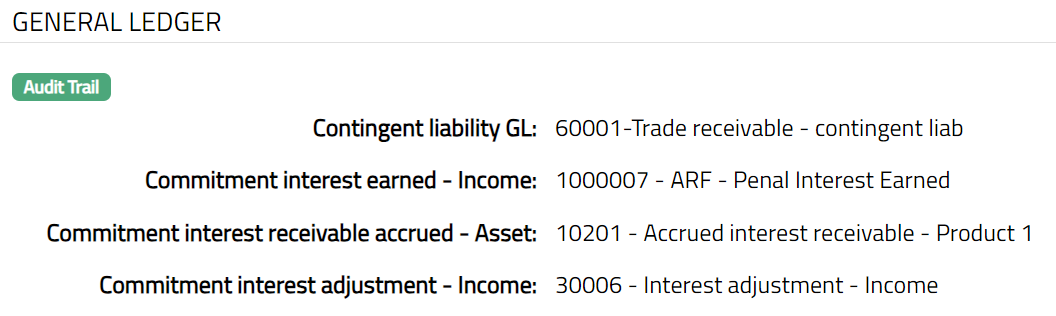
Note: Aura will not allow you to edit the GL codes under the General Ledger tab. You can edit the GL codes using the Edit function in Commitment tab.
Transaction Code
Transaction code tab allows you to view and maintain the various transaction codes for the Limit Setting.
Access Limit Setting page. Click General Ledger tab to view the details as per sample below. The details are defaulted from the entries that you made during Limit Setting creation. For details refer to New Limit Setting → General Ledger (4/6).
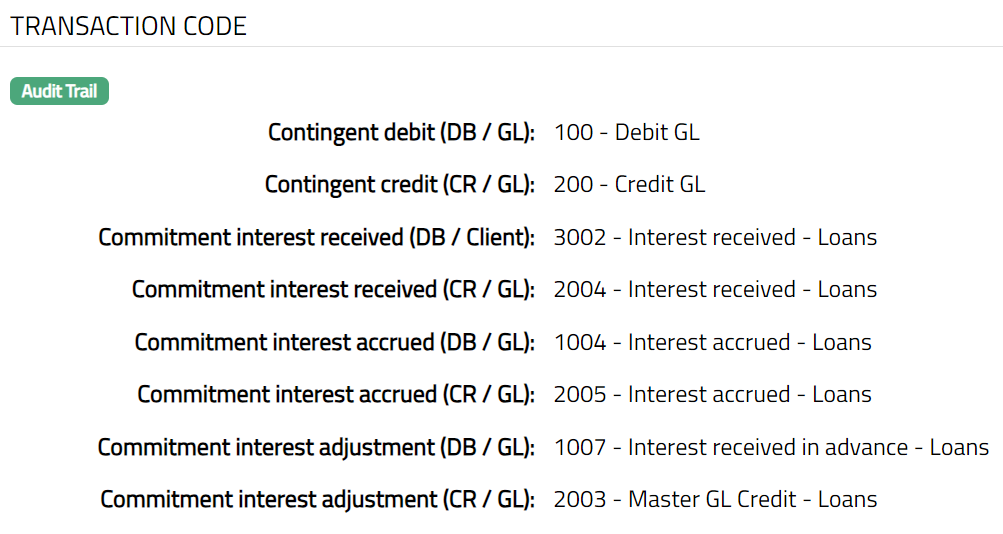
Note: Aura will not allow you to edit Transaction codes under Transaction Code tab. You can edit Transaction codes using Edit function in Commitment tab.