
Safe Deposit Locker - Agreement
Agreement option allows you to maintain an agreement for the safe deposit locker. You can set the terms and conditions such as agreement duration, charges for the locker allocation, maintenance and operating instructions for the locker.
The following are the various tabs that appear on Safe Deposit Locker Agreement page.
To add new Safe Deposit Locker Agreement
- From Retail menu, click Safe Deposit Locker and then Agreement. Safe Deposit Locker Agreement Search page appears.

- Click Add. New Safe Deposit Locker Agreement -- Details (1/3) page appears.
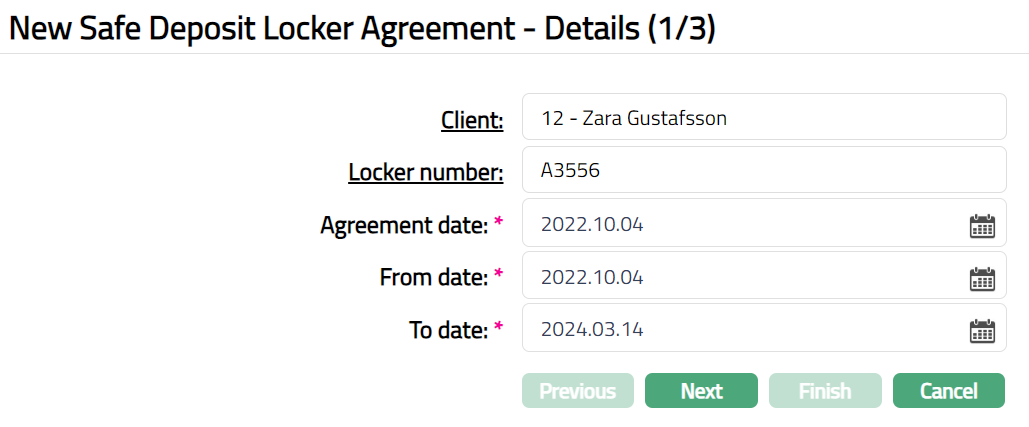
- Select client by clicking Client hyperlink. Client search page appears where you can search for a client with relevant criteria. You can also input the client's name or Client number in the search page and select the required client from the displayed list.
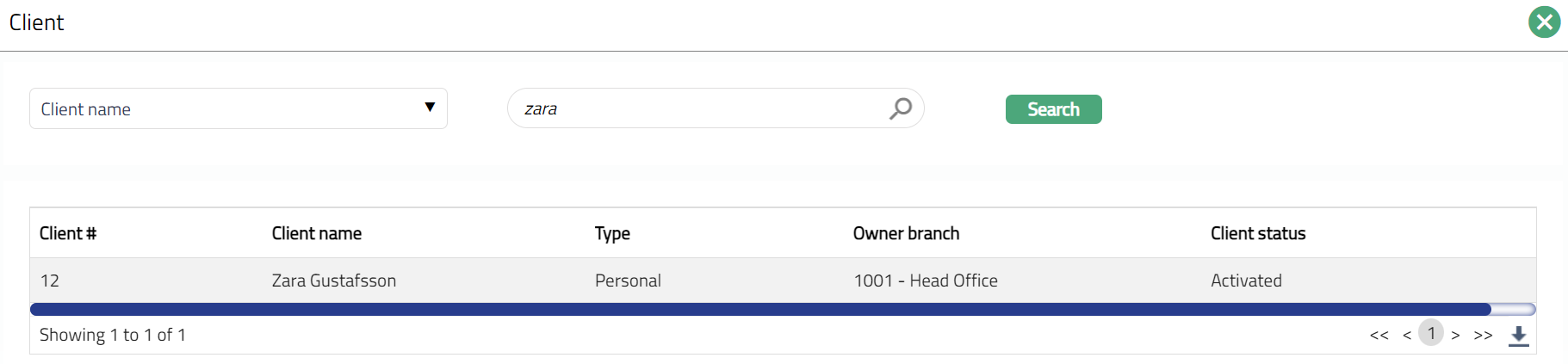
- Select Locker number by clicking Locker number hyperlink. Locker Number Search page appears with the list of all the lockers for which the Safe deposit locker maintenance record is maintained under Retail > Safe deposit lockers > Maintain and the locker status is Available and record status is Approved.
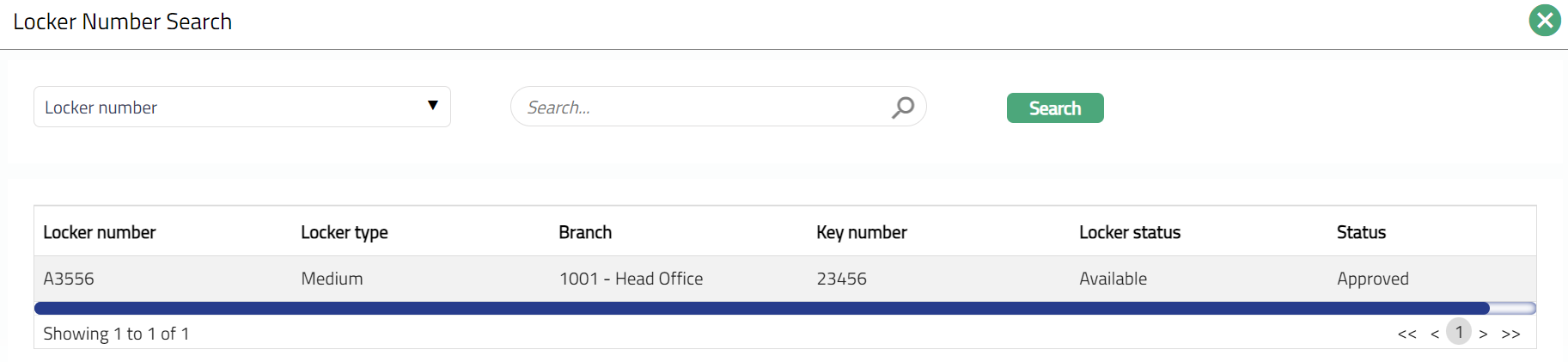
Agreement date denotes the date on which the agreement is made between client and bank to open the safe deposit locker. Current date is defaulted as an Agreement Date. This can be both future dated and back dated.
From date denotes the date from which the locker will be available for the client. Current date is defaulted as From Date. This can be both future dated and back dated (When it is back dated, From Date has to be equal to or greater than Agreement Date) and has to be less than To date.
To date denotes the date till when the locker would be available for the client. To Date has to be greater than or equal to the current date. This can be future dated.
Click Next. New Safe Deposit Locker Agreement -- Charges (2/3) page appears.
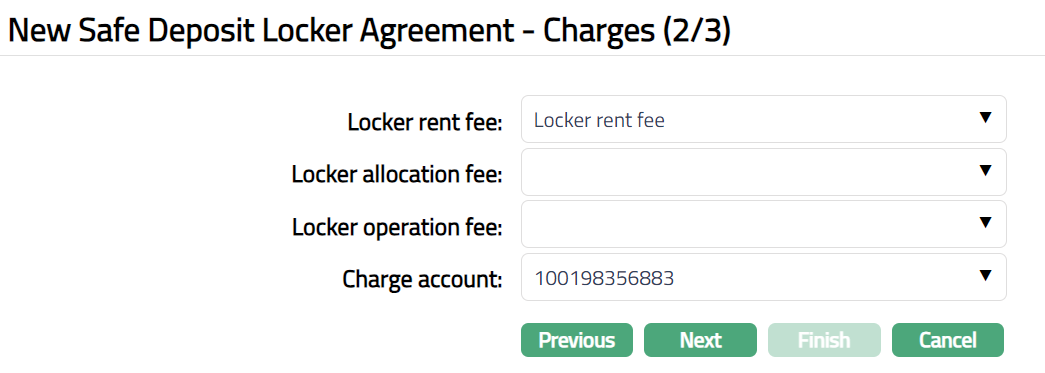
When you want to levy rent for locker allocated, select Locker rent fee from the drop-down list of all Periodic based, Flat charges maintained under Admin > Pricing > Charges > Charge Scheme. The charge amount is collected when agreement is signed i.e., when the agreement status becomes Activated or Renewed. Renewal is done by extending the agreement To date.
When you want to levy charges for locker allocation, select Locker allocation fee from the drop-down list of all Event based, flat, deferred and non-deferred charges Admin > System codes > Charges. The charge amount is collected when agreement is signed i.e., becomes Activated or Renewed by extending to date.
When you want to levy charges for locker operations, select Locker operations fee from the drop-down list of all Event based, flat, deferred and non-deferred charges Admin > System codes > Charges. The charge amount is collected when agreement is signed i.e., becomes Activated or Renewed by extending to date.
Note: If you want to waive the first operation fee in a month then the maintenance needs to be done at Admin > Pricing > Charges > Charge bundle settings.
- Click Next. New Safe Deposit Locker Agreement -- Confirmation (3/3) appears.
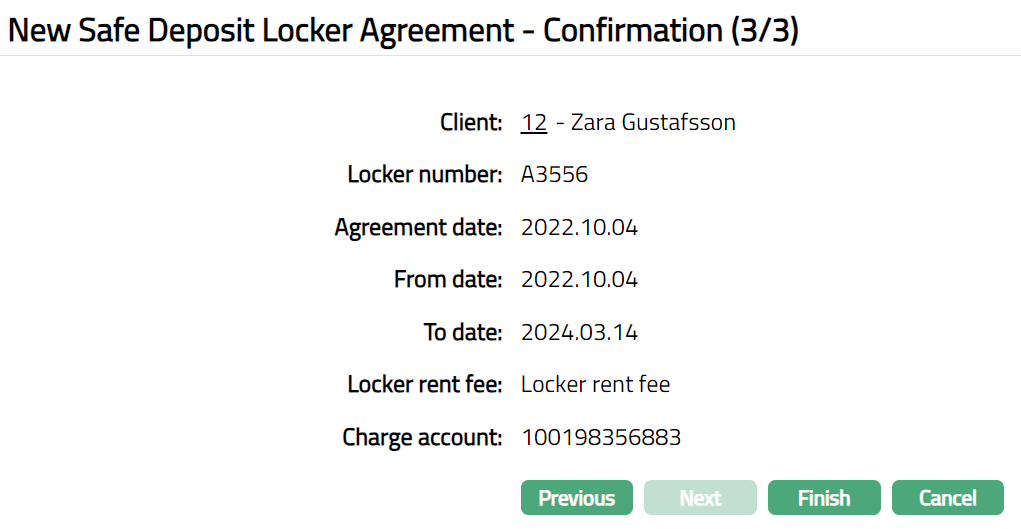
- Click Finish. Safe Deposit Locker Agreement record is created. Safe Deposit Locker Agreement page will appear. The agreement status is Opened -- Record status will be Pending.
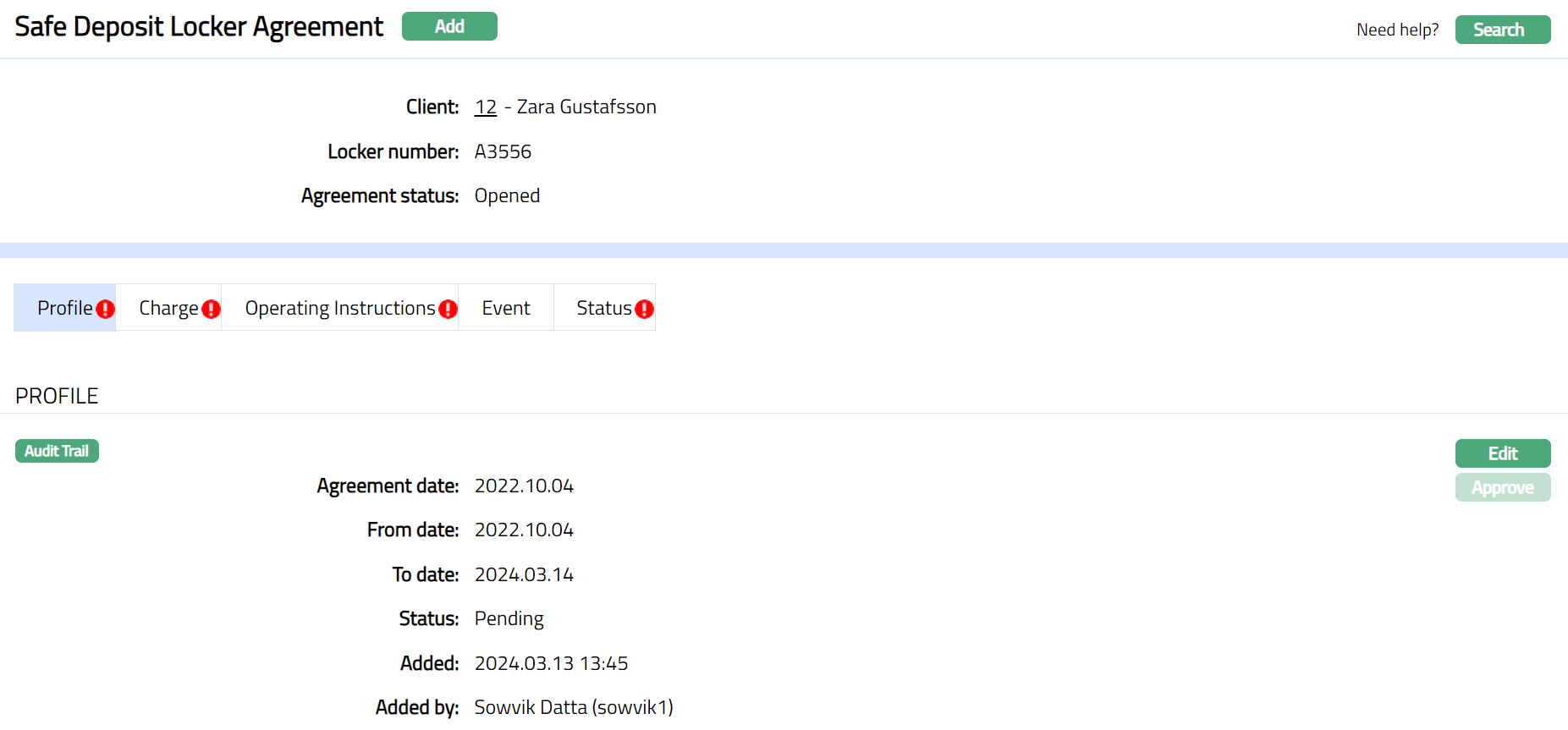
Functions: Add, Search, Edit, Approve
Approve: If you want to approve the Safe Deposit Locker Agreement record, then retrieve the record and click on Approve. Aura will ask for confirmation. Once the tab is approved, status gets changed to from Activated -- Approved. The user other than the one who has created the agreement can approve the record.
Profile
Profile tab, which is the default tab in the Safe Deposit Locker Agreement page shows the basic details of the Safe Deposit Locker Agreement. The default status of the tab is Pending, and the status can be changed to Activated on Approval. Any user other than the one who has created the record can approve the profile tab.
Access Safe Deposit Locker Agreement page and click Profile tab to view the details as per sample below. The details are defaulted from the entries that you made during creation of a Safe Deposit Locker Agreement. For details refer to New Safe Deposit Locker Agreement Maintain -- Details (1/2).
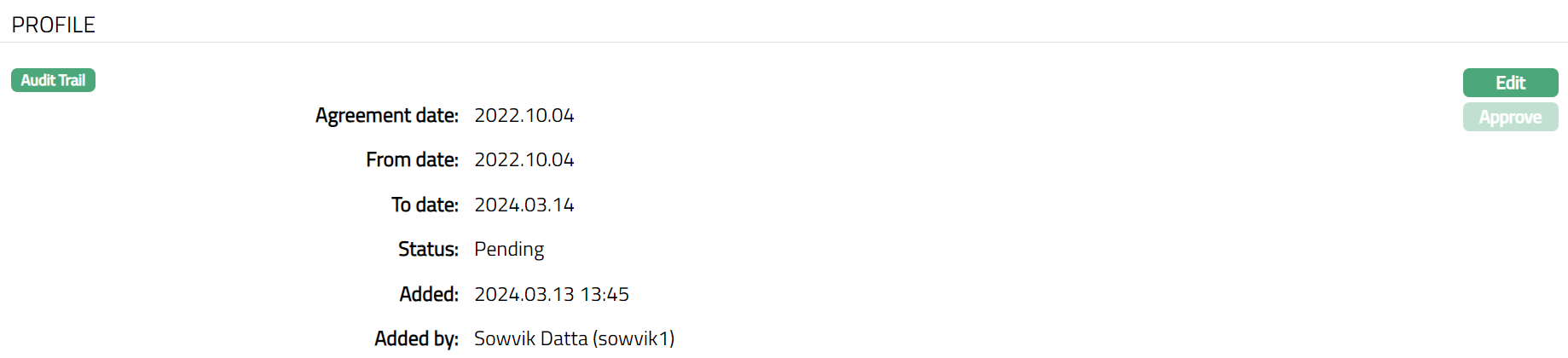
To edit Profile
- Click Edit Button. Edit Profile page appears.
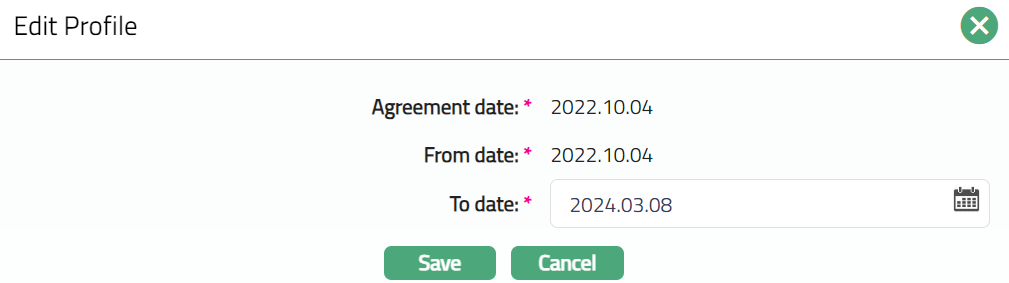
Note: Only To date field is editable.
2. Click Save. Profile page appears with the edited details.mjP.kr appears with the edited details.
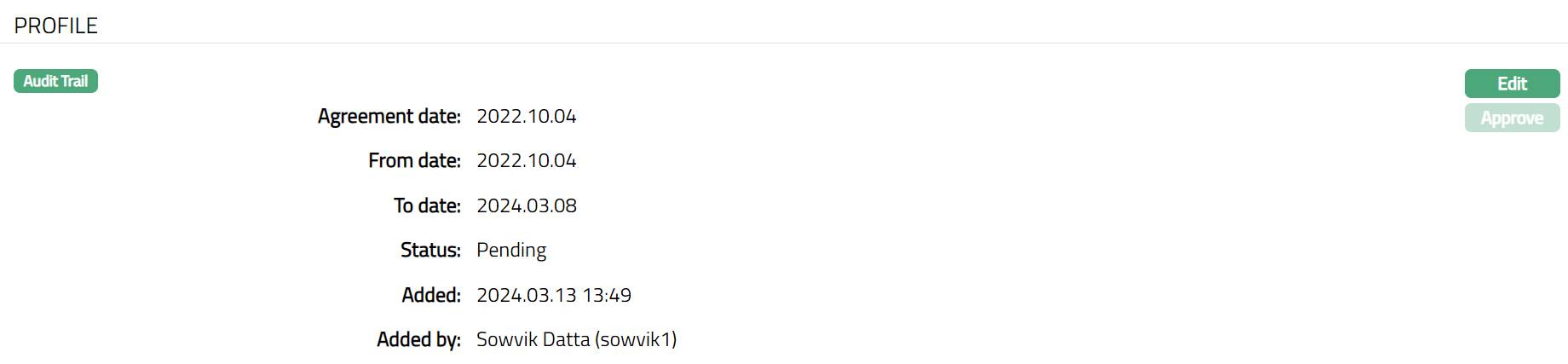
Note: On editing the Profile tab, the status is changed to Pending. Another user with the required rights should approve this record. Note: If the user who added the Status had auto-approval rights, the status of the record will automatically become Approved.
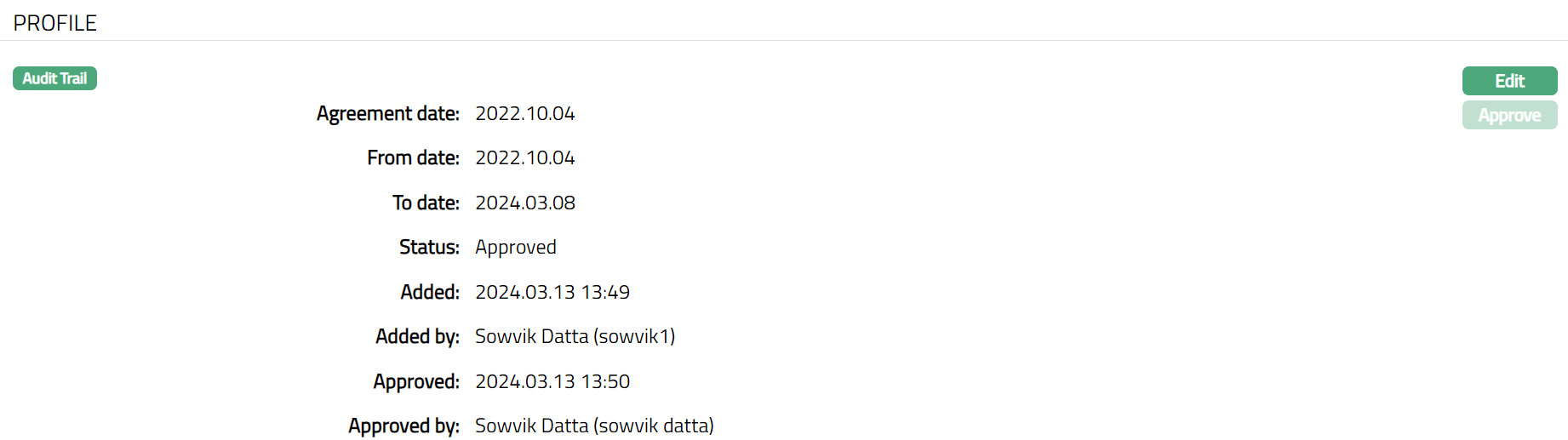
Functions: Edit, Approve.
Additional fields available in the above screen are explained below.
Status field denotes the status of record.
Added field denotes the date on which the record was added.
Added by field denotes the name of the user who created the record.
Approved field denotes date on which the record was approved. This is displayed only if the record is approved.
Approved by field denotes name of the user who approved the record. This is displayed only if the record is approved.
Charge
This tab can be used to view and edit the charges attached to the agreement. On creation of an agreement or on editing the charges attached to the agreement, the record status of the charge tab will be in Pending.
To edit Charges
Access Safe Deposit Locker Agreement page. The details are defaulted from the entries that you made during creation of a Safe Deposit Locker Agreement. For details refer to New Safe Deposit Locker Agreement -- Details (2/3)

Note: All the charges Locker rent fee, locker allocation fee, locker operation fee are allowed for edit.
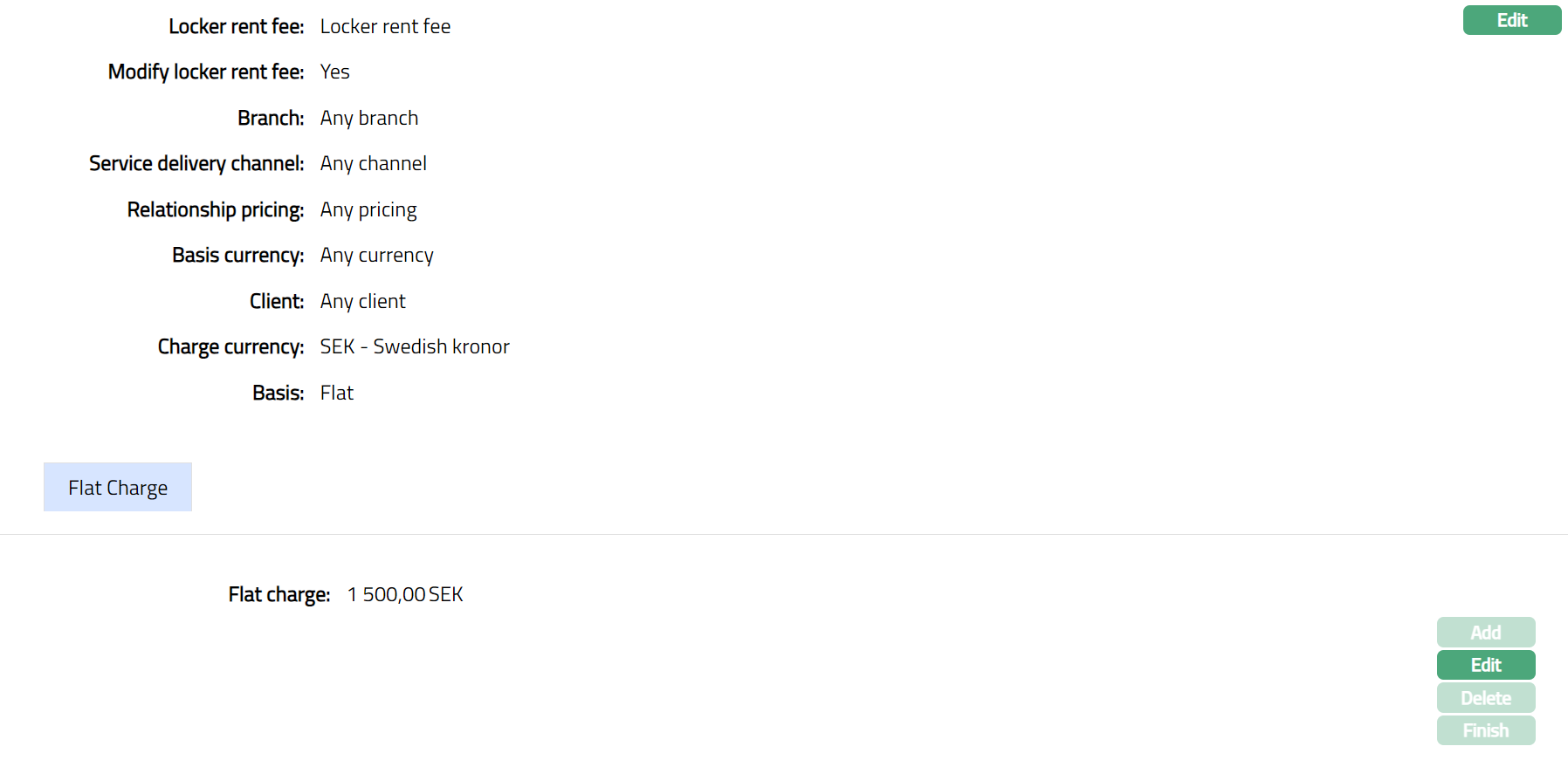
- Click View against each defaulted charges to see the charge details and other parameters for the Charge. The details of the band of an attached charge Scheme are also displayed. The sample of the page is shown below.
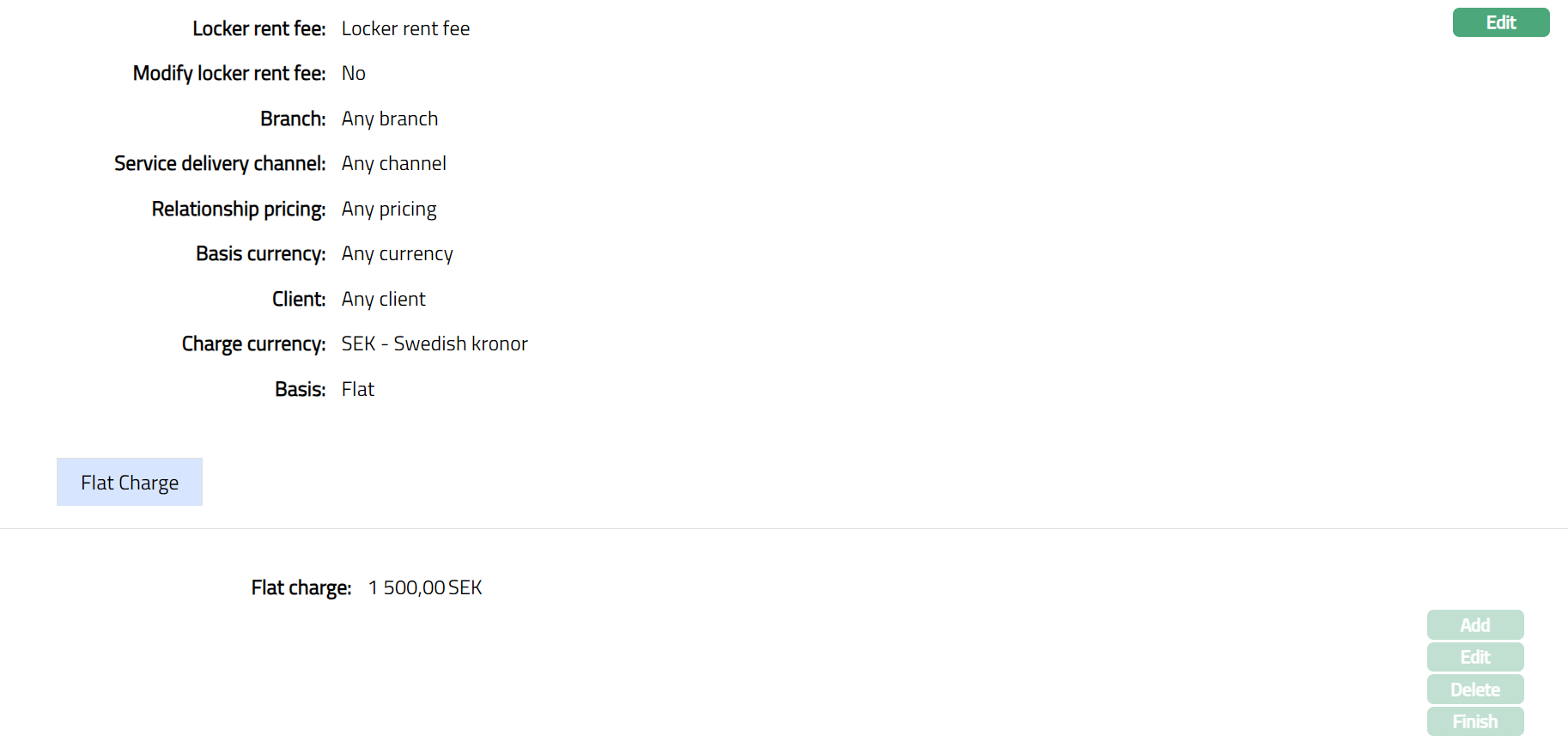
Functions: Add, Edit, Delete, Finish.
Locker rent fee: It is the name of the Charge selected.
Modify locker rent fee allows you to modify the charge parameters applicable to this agreement that are defaulted from the Charge scheme. By default it will be No and is an editable field. Only if this is set to Yes, you will be allowed to change the charge parameters.
The values for Branch, Service delivery channel, Relationship pricing, Basis, Client, Chargecurrency, are defaulted from Admin > System code > Charges > Charges. These fields are non-editable.
The Flat charge value is derived from Charge scheme attached to the locker rent fee. The Flat charge is displayed only when the Charge Basis is Flat.
Click Edit. Edit Scheme screen appears.
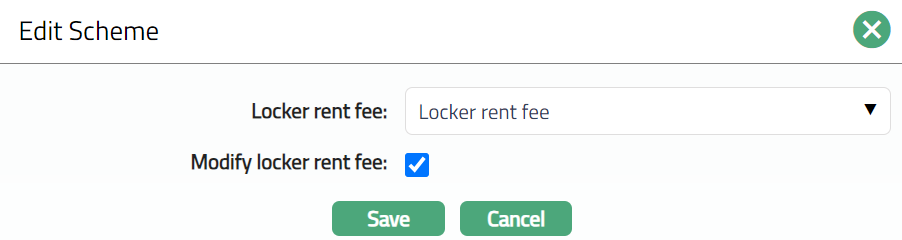
If you want to change the Charge scheme, select the required Charge Scheme from the Locker rent fee drop down list. All active deferred flat charge schemes are shown in the dropdown list. You can modify this field irrespective of the Modify locker rent fee flag. If the scheme is modified when Modify locker rent fee flag is checked, then all the details of the modified scheme will be displayed in the view screen and the flag will be unchecked.
Using Modify locker rent fee check box you can specify if you want to delink the Charge parameters applicable to this agreement from the Charge scheme details that are maintained under Admin > System codes > Charges > charges for this charge scheme. Thus, it enables you to customize the charge applicable to a specific agreement and keep it tailor-made for that agreement even if there are changes at the charge scheme level.
By default, Modify rent fee will be unchecked (No), which will display the default values that are retained.
If this is checked (Yes) Add, Edit and Delete buttons will be enabled (only for last band) and you can make changes in the charge scheme parameters. Finish button is always enabled and can be used to close Flat charge page.
- Click Save. Scheme section appears with the edited details.
To edit Charge details
- Click Edit. Based on the type of charge Flat the following screen appears.
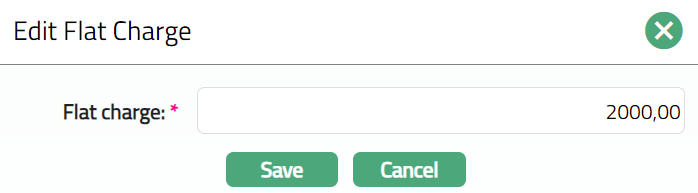
- Click Save. Charge section appears with the edited details.
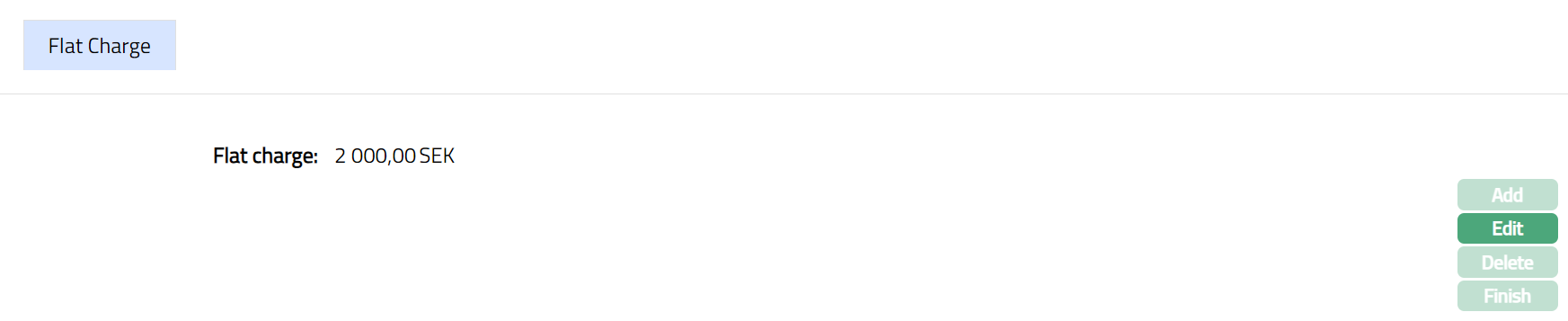 Functions: Add, Edit, Delete, Finish.
Note: Any change in the tab will set the charge tab status to Pending till it is approved by another user who has not created this record. On approval, the charge tab status is set to Approved.
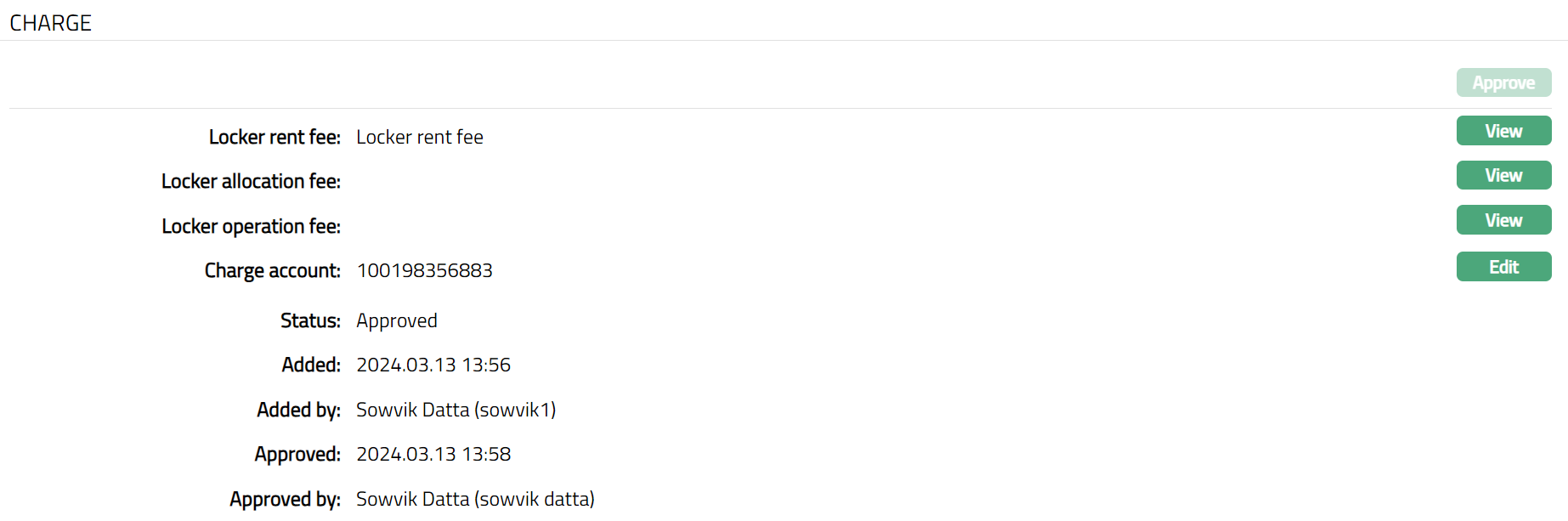
Functions: Approve, View
Additional fields available in the above screen are explained below.
Status field denotes the status of record.
Added field denotes the date on which the record was added.
Added by field denotes the name of the user who created the record.
Approved field denotes date on which the record was approved. This is displayed only if the record is approved.
Approved by field denotes name of the user who approved the record. This is displayed only if the record is approved.
Operating Instructions
This tab allows you to add operating instructions to an agreement. The default status of the tab is Pending until the status is approved by any other user. An Operating instruction can be deleted until Approval.
- Access Safe Deposit Locker Agreement page and click Operating Instructions tab to view the details as per sample below.
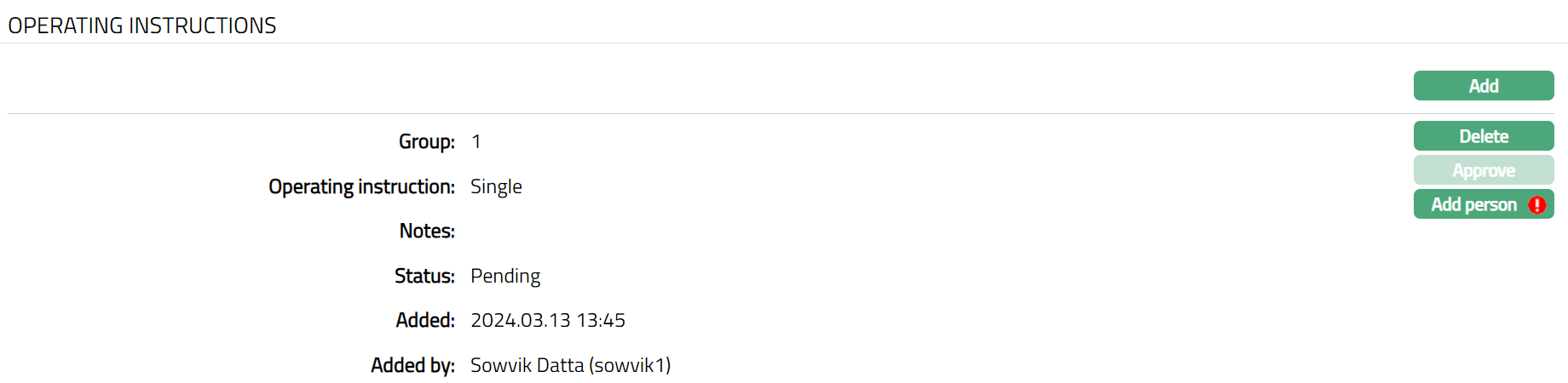
Functions: Add, Delete, Approve, Add Person.
The fields available on the screen are:
Group: On creation of an agreement, Group is defaulted as 1.
Operating instructions: On creation of an agreement, Operating instruction is defaulted as Single. If the operating instruction is selected as single then, only one person is allowed to operate the locker at a time. If it is jointly, then multiple people in a group are allowed to operate the locker at a time.
Notes this field will be empty on creation of the record. Any remarks added while adding an operating instruction will be displayed here.
Status field denotes the status of record.
Added field denotes the date on which the record was added.
Added by field denotes the name of the user who created the record.
To Add operating Instruction
- Click Add. Add Operating Instructions page will appear.
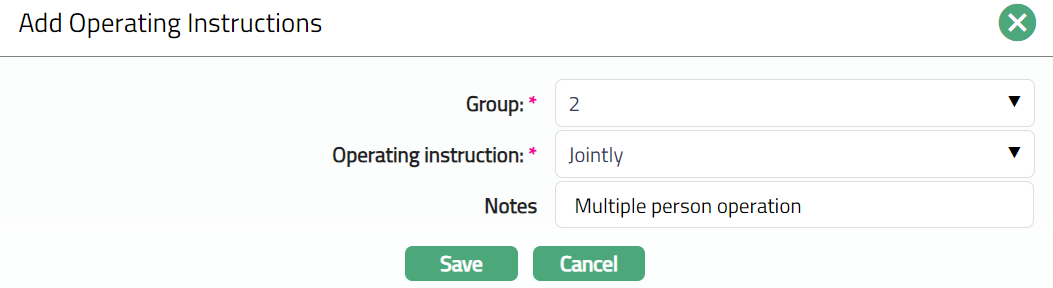
Select Group from the drop-down list. You can add a maximum of 9 groups.
Select Operating instruction whether Single, Jointly as appropriate for this Group.
Enter remarks in the Notes field.
Click Save. Operating Instruction page appears with the added details.
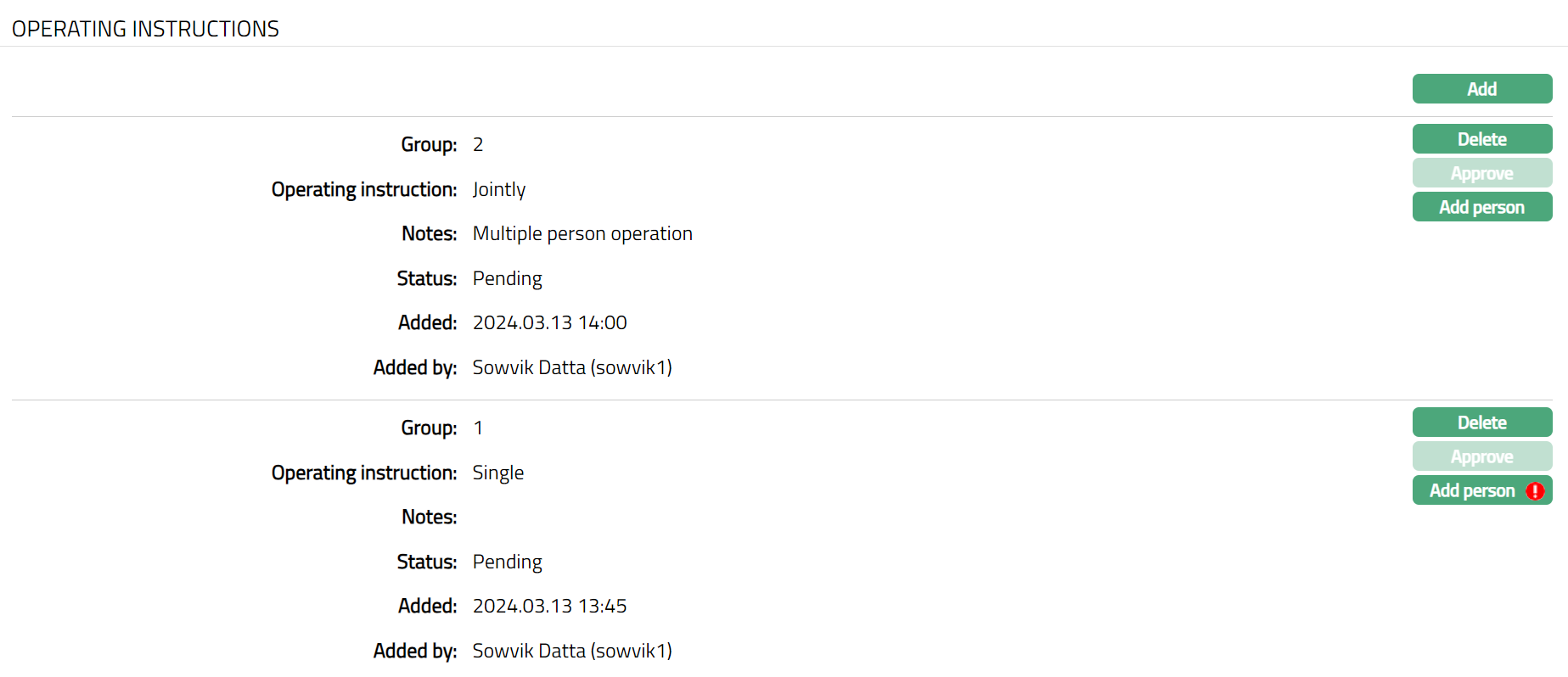
To add Person
- Click Add Person. Person page appears.
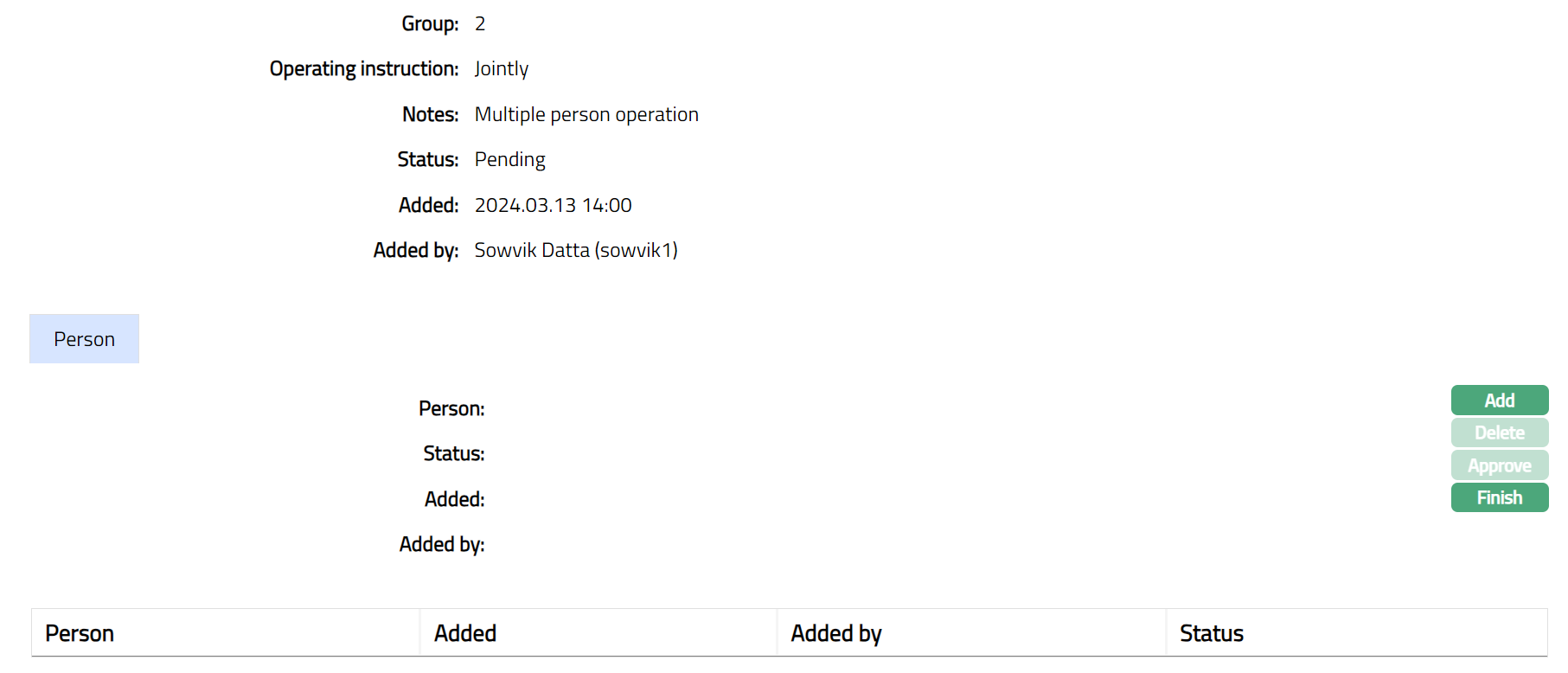
- Click Add. Add Person page appears.
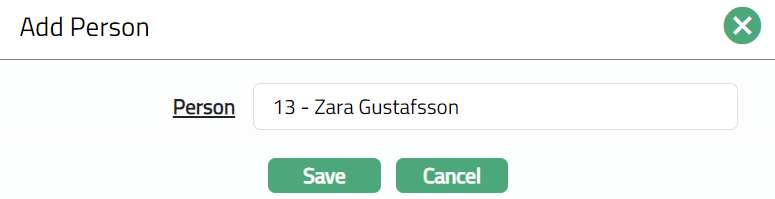
Select Person by clicking Person hyperlink. Person search page displays the list of people linked to the client.
Click Save. Person page appears with the added details.
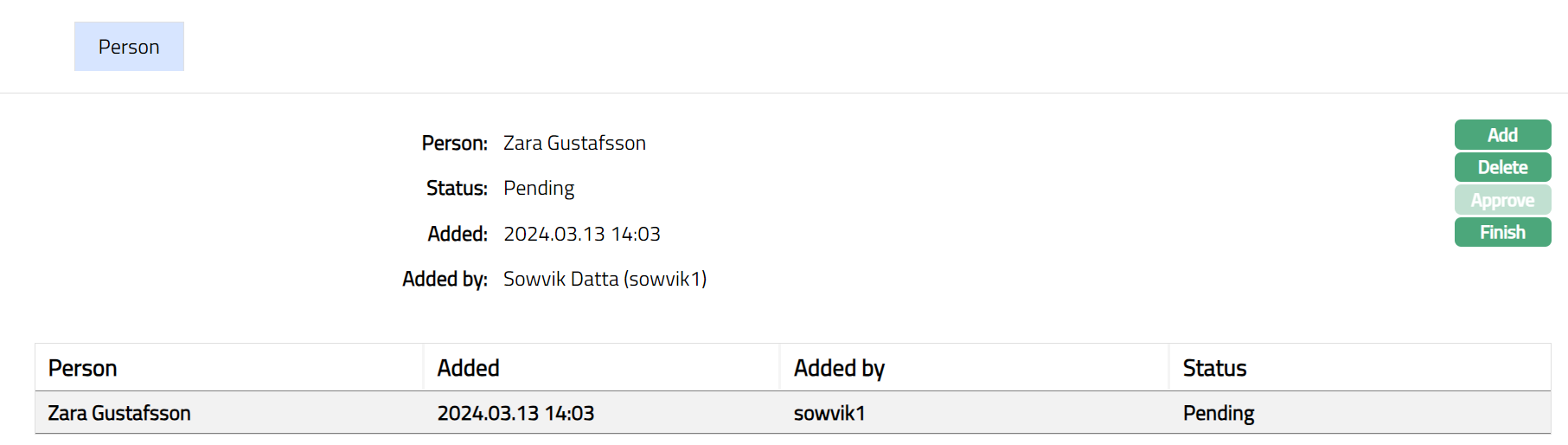
Functions: Add Delete, Approve, Finish.
Note: Any change in the tab will set the status to Pending till it is approved by another user who has not created the record. On approval, the tab status is set to Approved.
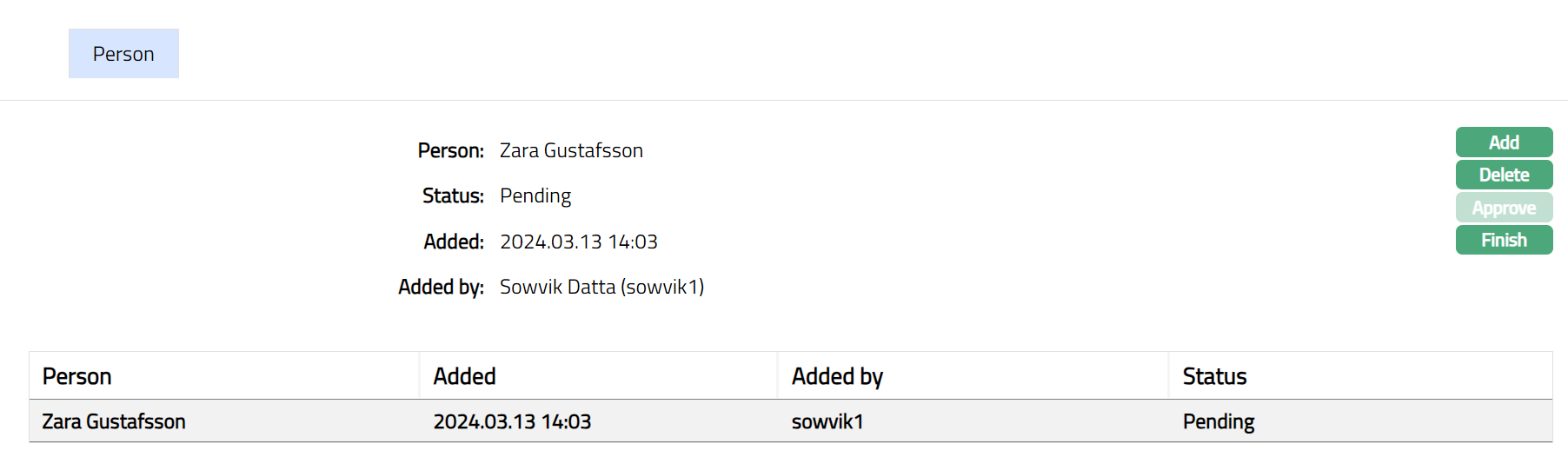
Functions: Add Delete, Approve, Finish.
Additional fields available in the above screen are explained below.
Status field denotes the status of record.
Added field denotes the date on which the record was added.
Added by field denotes the name of the user who created the record.
Approved field denotes date on which the record was approved. This is displayed only if the record is approved.
Approved by field denotes name of the user who approved the record. This is displayed only if the record is approved.
- Click Finish. Operating Instructions page appears.
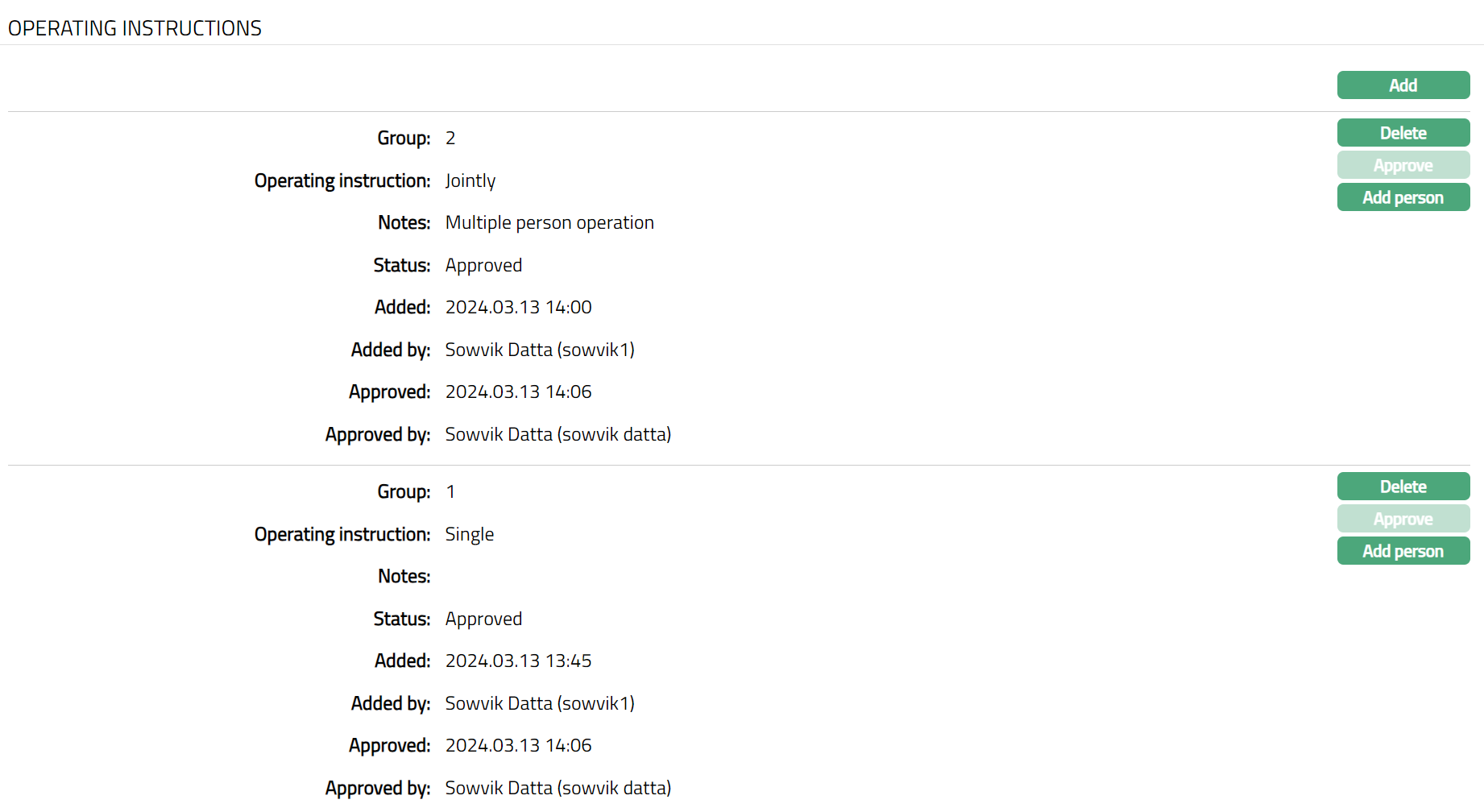 Functions: Add Delete, Approve, Add person.
Approve: If you want to approve the person added to the group, then click on the group and then click on the Approve button. Aura will ask for confirmation. Once approved, status gets changed to from Approved. The user other than the one who has added the person can approve the record.
Delete: If you want to delete the Person added click on Delete button. Aura will ask for confirmation. Person record can be deleted until Approval.
Event
Events tab allows you to view the past, current and future events. This tab is non-editable. The events that appear in this tab are, RNTFEE / PROCHG and ALLFEE.
To view Events
Access Safe Deposit Locker Agreement screen.
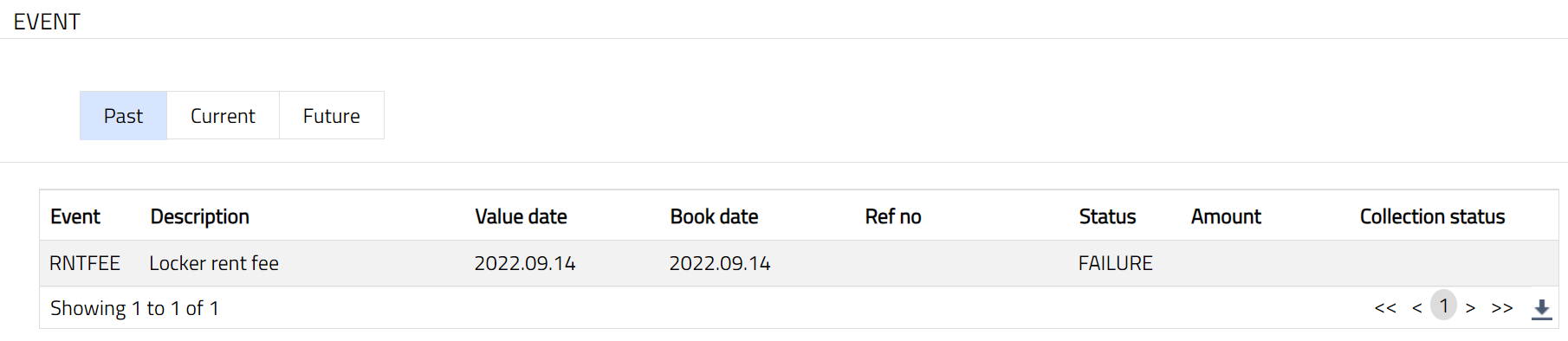
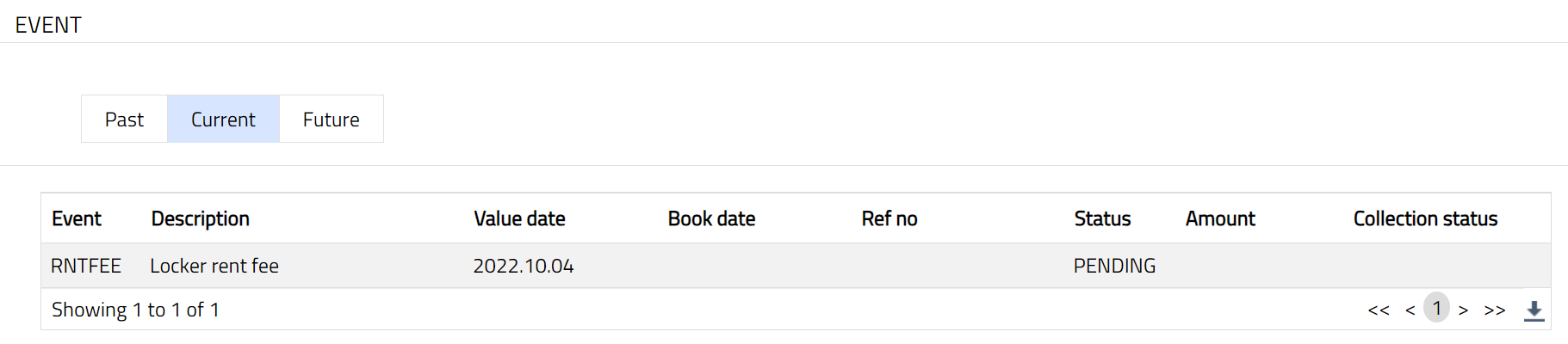
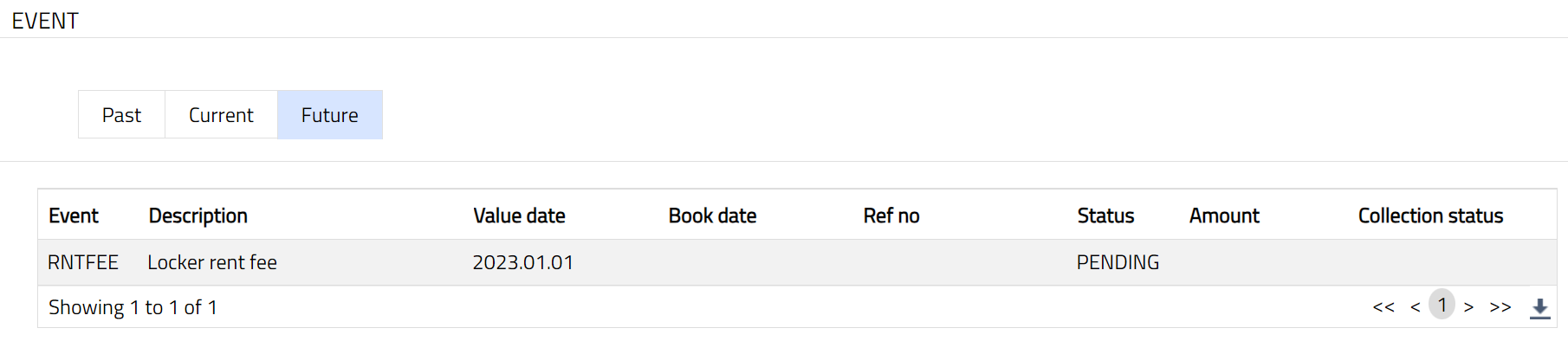
Click Event tab. There are three sub-tabs-- Past, Current and Future. By default, the Current tab is displayed. It shows the details of the Events that have value date = current business date. The Past tab and Future tab show details of events that have value date earlier than / later than the current business date respectively.
A sample of the Past tab is shown below:
A sample of the Current tab is shown below:
A sample of the Future tab is shown below:
All the tabs show the following data:
Event: Code for the event.
Description: Description of the event.
Value Date: The value date for the event.
Book Date: The date of entry / input of the event.
Ref No: The transaction reference number under which the event is processed.
Status: Status of the event:
Pending: Where the event is not yet processed.
Success: Where the event has been processed successfully.
Failure: Where the event has failed during process.
Retry: Indicates a failed event where the system retries to process the event
on subsequent business days.
Amount: Indicates the amount processed by the event.
Collection Status: If the Collection status is Pending, it indicates that the deferred charges has not been collected and if the Collection Status is Success, it indicates that the deferred charges has been collected.
Events are listed below.
| Event Code | Description | Condition |
|---|---|---|
| RNTFEE / PROCHG | Locker rental fee | This event occurs based on the periodicity of the charges linked to the agreement as Locker rent fee. On approval of the Agreement, the RNTFEE event is populated and marked as successful based on the value date of the charge. If the mapped charge scheme for RNTFEE is advance with prorate = Yes, and if closure is done before the completion of the period for which the charge is collected, then refund the extra collected charge using the PROCHG event. |
| ALLFEE | Locker allocation fee | This event occurs based on the periodicity of the charges linked to the agreement as Locker allocation fee. On approval of the Agreement status, the ALLFEE event is populated, and charge collection happens unless deferred. If deferred, collection occurs on the deferred date. |
Status
Using this tab you can set agreement status, view the history of the agreement status, as well as approve the status records. On creating a Safe Deposit Locker Agreement Maintenance record, the Agreement status is Opened and Record status is Pending.
To edit status
- Click Status tab.
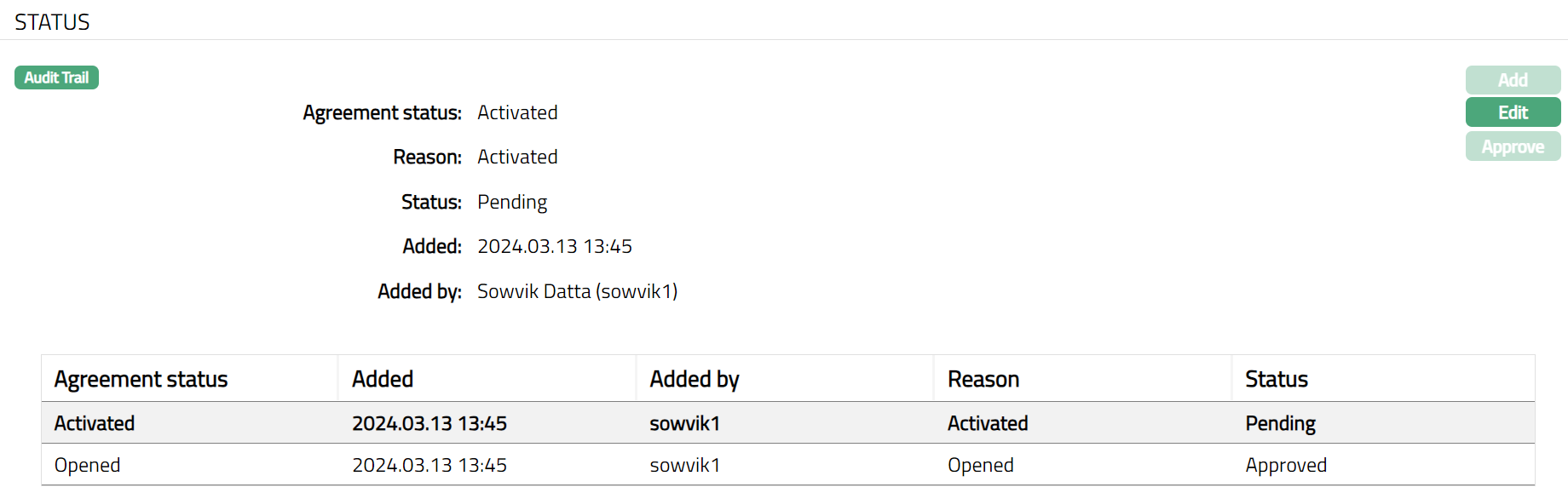
Following fields are shown only in the View screen and are not editable:
Status field denotes the status of the tab.
Added field denotes the date on which the record was added.
Added by field denotes the name of the user who created the record.
- Click Edit. Edit status screen appears.
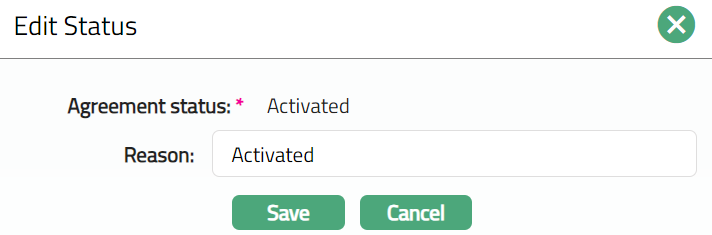
Opened: This is the initial agreement status as soon as it is created.
Activated: This is the status in which operations on the locker is allowed. On Creation of Agreement if auto approval is set to No, then the record has to be manually Activated by a user other than the one who created the agreement.
Blocked: You can manually update the agreement status from Activated to Blocked as required. In this status, no operations will be allowed on the locker. When you want to change the blocked status on the locker, you can move the agreement status manually back to Activated by adding new status.
Closed: This record status will automatically be updated when an account closure is processed.
Note:
Approve button is enabled when status is Pending and allows the user other than the one who must approve the newly added status.
On approval the following things happen:
At the first instance, on Approval of an agreement -- the locker status becomes Allocated -- Approved.
On approval of a modified agreement, the locker status becomes Allocated Pending.
On Approval of the Locker agreement status data is to be updated in Agreement tab under History tab of the locker maintenance record, if already row exists for the Client, then update the row otherwise insert new row.
Enter Reason for the status selected.
Click Save, Status tab appears with the edited details.
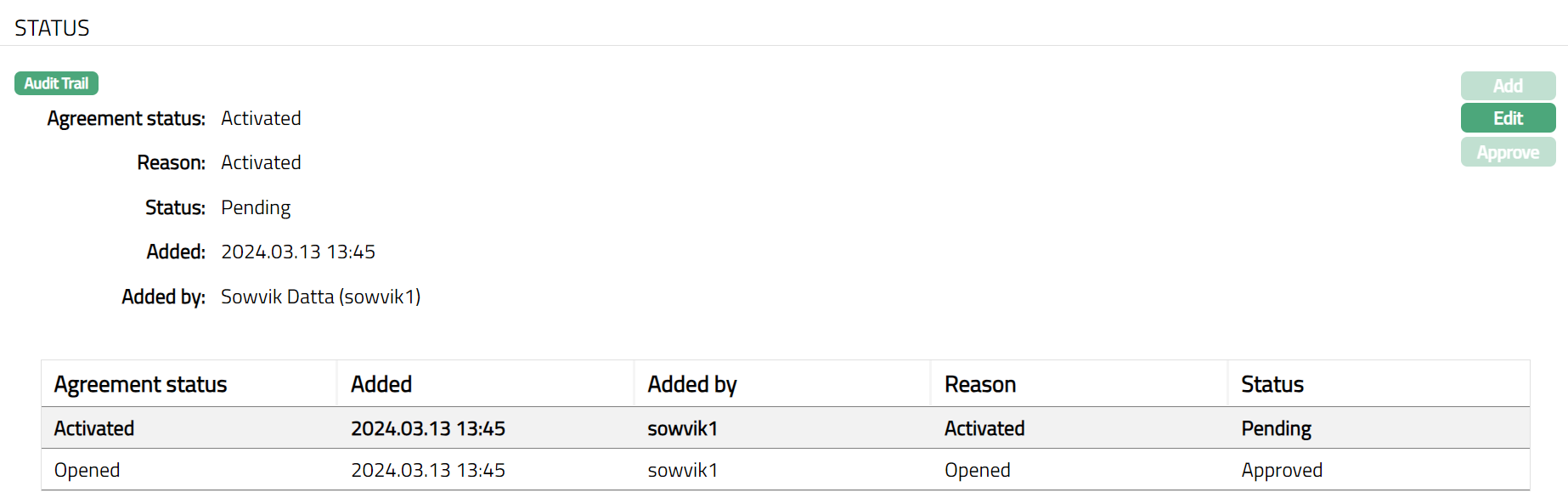
Functions: Add, Edit, Approve.
Note: Any change in the tab will set the status to Pending till it is approved by another user who has not created the record. On approval, the tab status is set to Approved.
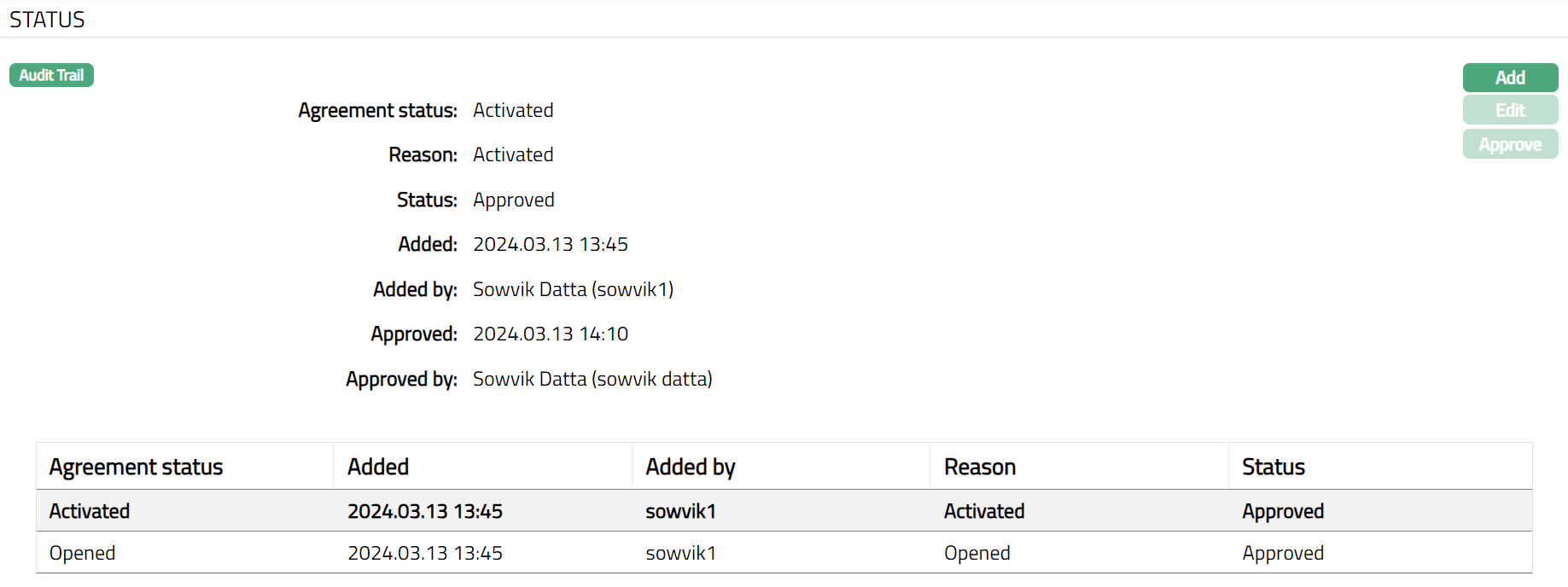
Functions: Add, Edit, Approve
Following fields are shown only in the View screen and are not editable:
Status field denotes the status of the tab.
Added field denotes the date on which the record was added.
Added by field denotes the name of the user who created the record.
Approved field denotes date on which the record was approved and is displayed only for approved records.
Approved by field denotes name of the user who approved the record and is displayed only for approved records.
To Add status,
- Click Add. Add status page appears.
Aura will validate and allow you to change the status as mentioned below.
Opened to Activated
Activated to Blocked.
Blocked to Activated.
Activated to Closed.
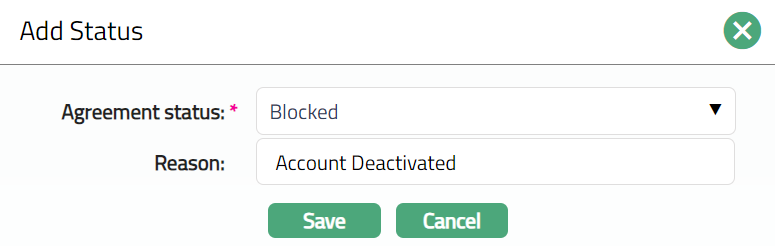
- Select Agreement status from the drop-down list of statuses.
Note: On creation of an agreement, status available in Agreement status drop-down list is Activated. After activation, the statuses available in Agreement status drop-down list are Blocked and Closed.
Enter Reason for the status selected.
Click Save. Status tab appears with the edited details.
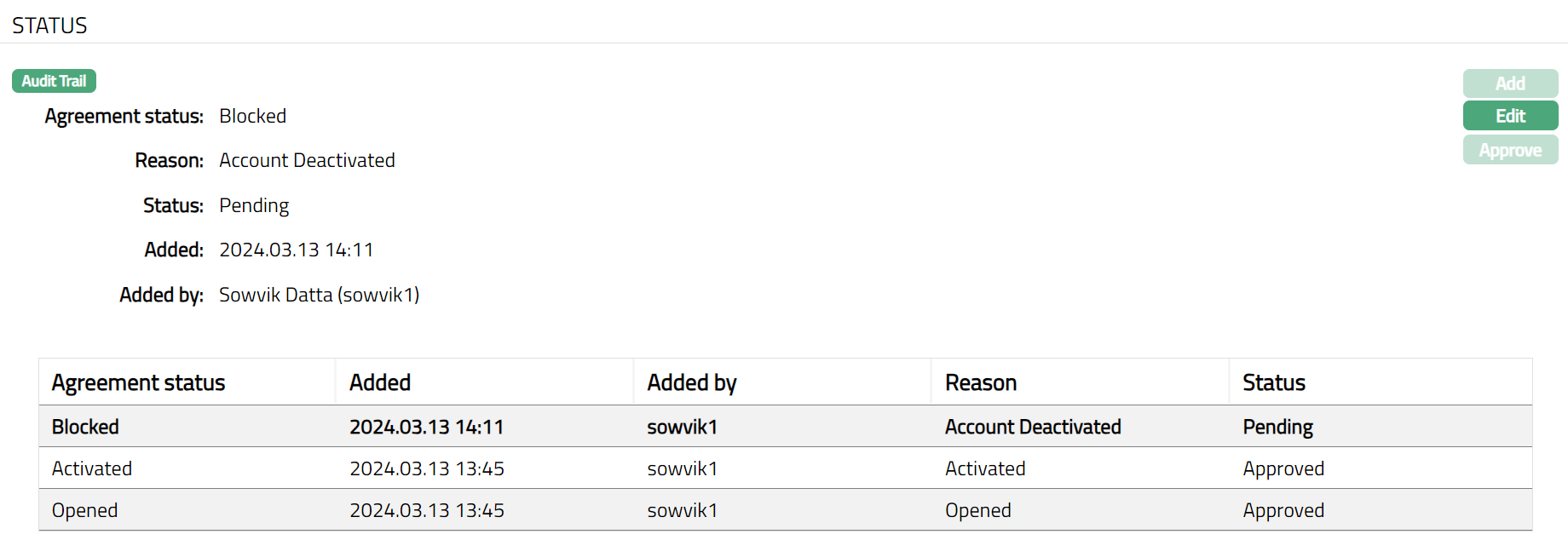
Note: Any change in the tab will set the status to Pending till it is approved by another user who has not created this record. On approval, the tab status is set to Approved. If the status is pending, the Edit button also gets enabled.
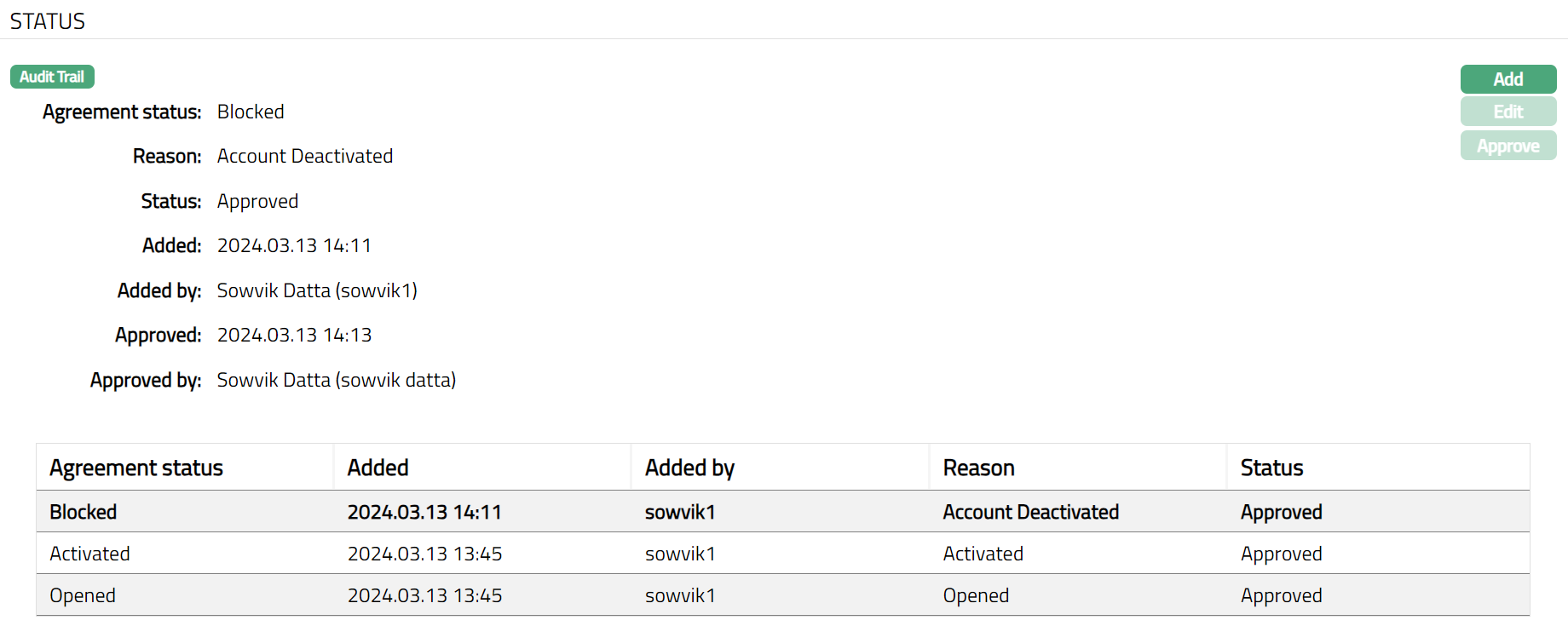 Functions: Add, Edit, Approve
Following fields are shown only in the View screen and are not editable:
Status field denotes the status of the tab.
Added field denotes the date on which the record was added.
Added by field denotes the name of the user who created the record.
Approved field denotes date on which the record was approved and is displayed only for approved records.
Approved by field denotes name of the user who approved the record and is displayed only for approved records.