
Payment Settings
Payment settings menu allows you to maintain the settings on the basis of which payment transactions take place.
Following are the tabs in Payment Setting:
Internal Processing (Appears when Payment type is Outgoing / Incoming/ Own account transfer / Other client transfer)
To add new Payment setting,
1. From Retail menu, click Settings, then Payment settings. Payment Setting Search page appears. All Payment-Setting records available in Aura appear on the page.

2. Click Add. New Payment Settings → Profile (1/4) page appears.
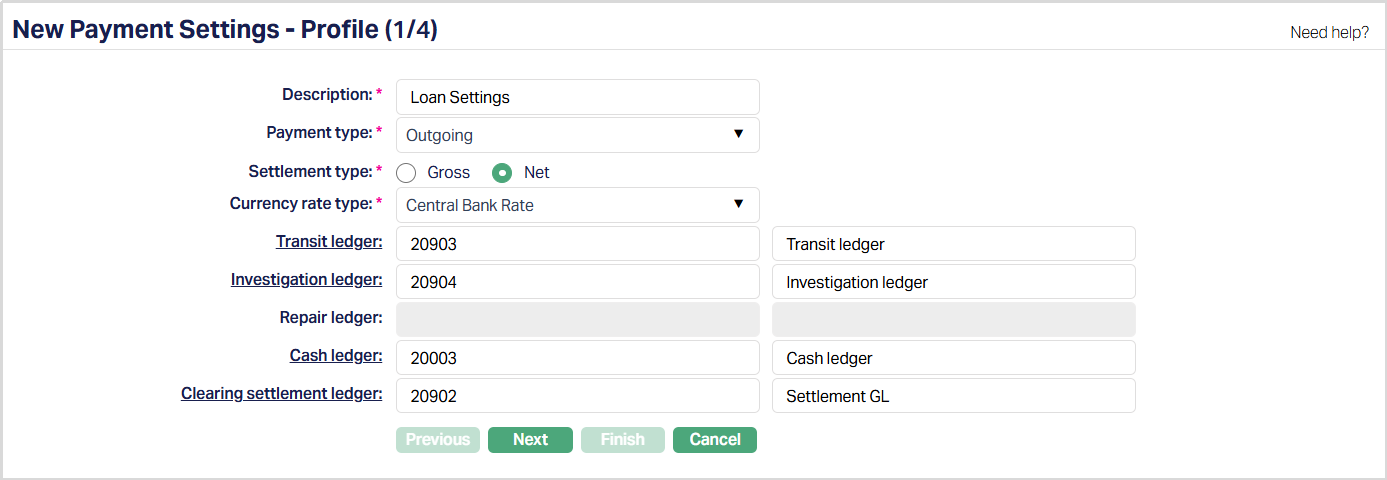
3. Enter Description for the Payment Setting.
4. Select Payment type from the drop-down list of pre-defined payment types. The available options are Incoming, Outgoing, Own Account Transfer and Other Client Transfer.
The various options are explained as follows:
Incoming: Inter-bank transfer where recipient client's account is credited.
Outgoing: Inter-bank transfer where sender client's account is debited.
Own account transfer: It is the transfer between two accounts of the same client the same bank.
Other client transfer: It is the transfer between two clients of the same bank.
5. Select whether Settlement type is Gross or Net using the appropriate radio button. The field will be enabled only if the Payment type is Incoming/Outgoing. When the Payment type is Own Account / Other Client Transfer; then the field will be disabled, and Gross option is selected by default.
6. Select Currency rate type from the drop-down list maintained under Admin → System codes → Currencies → Currency rate type. Currency rate type is used for calculating the exchange rate.
7. Transit ledger is used as an intermediary ledger for Outgoing / Incoming payments. Input the required ledger number that will be used as the Transit Ledger to record all such transactions under this Payment Setting. Alternatively, you can click on Transit ledger hyperlink, to see the General Ledger Account Search screen. All the ledgers belonging to ledger type Asset, Liability or Neutral where the cash account is No and Manual posting is No are shown. You can select the required ledger. This field is enabled only if the Payment type is selected as Incoming / Outgoing.
8. Investigation ledger is used to park the funds for investigation purposes. It is not mandatory and can be used for both Incoming and Outgoing payments. Input the required ledger number that will be used as the Investigation ledger to record all such transactions under this Payment Setting. Alternatively, you can click on Investigation ledger hyperlink, to see the General Ledger Account Search screen. All the ledgers belonging to ledger type Asset, Liability or Neutral where the cash account is No and Manual posting is No are shown. You can select the required ledger. This field is enabled only if the Payment type is selected as Incoming / Outgoing.
9. Repair ledger is used to park the funds when the incoming message from the network goes to repair queue because of business validation exceptions. It is enabled and mandatory only for Incoming payments. Input the required ledger number that will be used as the Repair ledger to record all such transactions under this Payment Setting. Alternatively, you can click on Repair ledger hyperlink, to see the General Ledger Account Search screen. All the ledgers belonging to ledger type Asset, Liability or Neutral where the cash account is No and Manual posting is No are shown. You can select the required ledger. This field is enabled only if the Payment type is selected as Incoming
10. Cash Ledger is used to record any cash transactions performed during any of Gross / Net settlement. It is enabled only for Outgoing payments. Input the required ledger number that will be used as the Cash ledger to record all cash transactions under this Payment Setting. Alternatively, you can click on Cash ledger hyperlink, to see the General Ledger Account Search screen. All the ledgers belonging to ledger type Asset, Liability or Neutral where the cash account is No and Manual posting is No are shown. You can select the required ledger.
11. Clearing settlement ledger is used for Incoming and Outgoing payment settlements and is enabled only for Net Settlement type. It is used to park the funds before the funds are sent for clearance in case of Outgoing payments and for moving the funds in case of Incoming payments. Input the required ledger number that will be used as the Clearing settlement ledger to record all such transactions under this Payment Setting. Alternatively, you can click on Clearing settlement ledger hyperlink, to see the General Ledger Account Search screen. All the ledgers belonging to ledger type Asset, Liability or Neutral where the cash account is No and Manual posting is No are shown. You can select the required ledger. This field is enabled only if the Payment type is selected as Incoming / Outgoing.
12. Click Next. New Payment Settings → Settings (2/4) page appears.
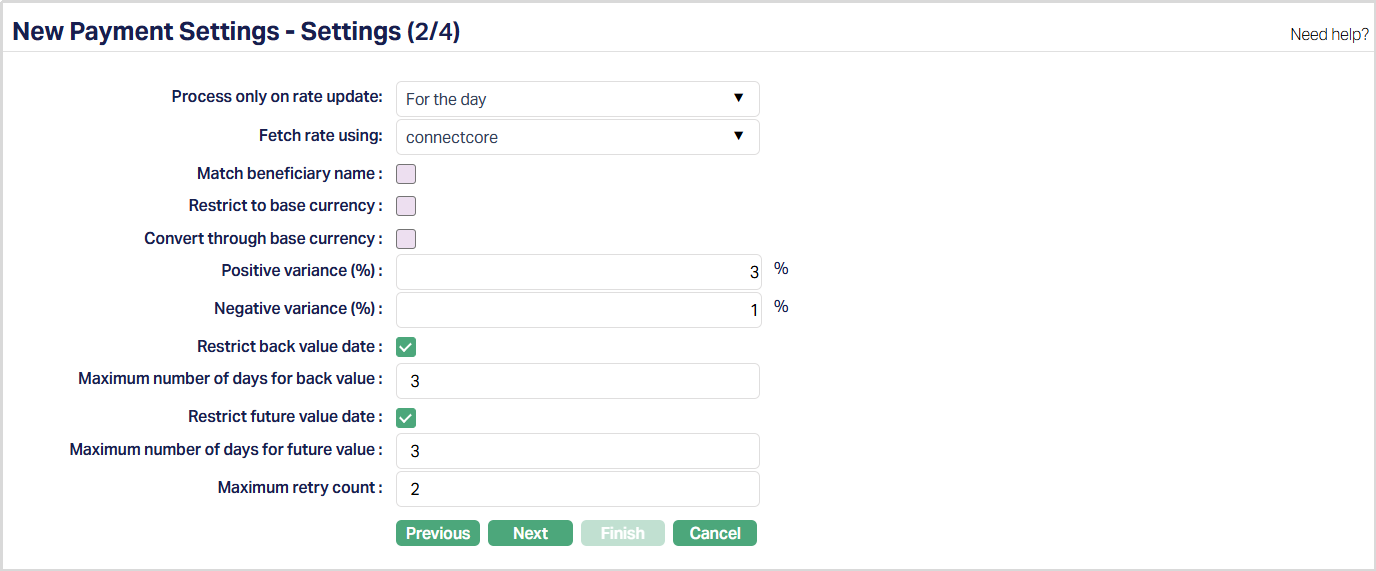
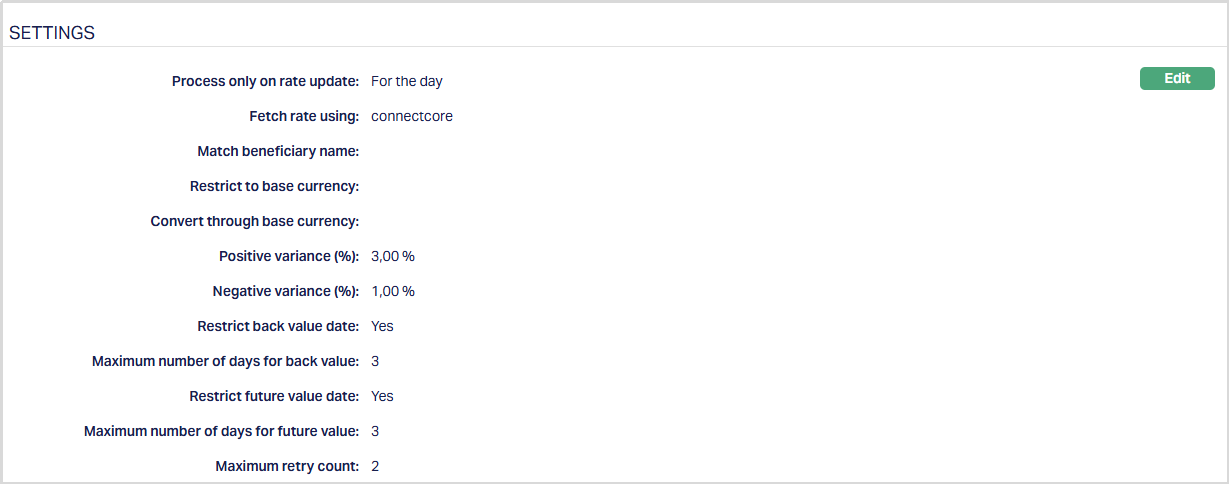
13. Process only on rate update - This field specifies when the exchange rate should be considered during transaction processing. You can leave it blank to allow processing using the latest available approved rate.
- Select For the day to process transactions only after the exchange rate for the day is updated, or
- Select For the transaction to fetch the exchange rate for each transaction individually.
14. Fetch rate using - This field specifies the interface definition used to fetch the exchange rate for each transaction. Aura displays all active interface definitions. This field becomes mandatory only when you select For the transaction in the Process only on rate update field.
15. Check Match beneficiary name checkbox to ensure that the beneficiary's name matches with the account holder name, If matched, the transaction will be posted, else Aura will display an error message. This checkbox is enabled only if the Payment type is selected as Incoming.
16. Check Restrict to base currency checkbox to ensure that at least one of the currencies for any transaction is the local currency. This checkbox is enabled only if the Payment type is selected as Own Account Transfer / Other Client Transfer. This option can be used by the bank to ensure that cross-currency transactions between two foreign currencies do not take place and all transfers are between the foreign currency and the local currency of the bank.
17. Check Convert through base currency checkbox to ensure that the currencies for any transaction if different from the base currency are converted through the base currency. This checkbox is enabled only if the Payment type is selected as Own Account Transfer / Other Client Transfer.
18. Enter Positive variance % for the Payment Setting. It is the percentage of positive variance calculated on Exchange Rate.
19. Enter the Negative variance % for the Payment Setting. It is the percentage of the Negative variance calculated on Exchange rate.
For example:
Suppose, Exchange rate = 9.1
Positive variance % = 5% of 9.1= 0.45 (9.1+0.45= 9.55)
Negative variance % = 5% of 9.1= 0.45 (9.1-0.45= 8.65)
20. Check Restrict back value date checkbox to restrict the number of days up to which any transaction can be back-value dated.
21. Enter Maximum number of days for back value for the Payment Setting. This will be the number of days up to which Aura will restrict the back value dated transaction.
22. Check Restrict future value date checkbox to restrict the number of days up to which any transaction can be future value dated.
23. Enter Maximum number of days for future value for the Payment Setting. This will be the number of days to which Aura will restrict the future value dated transaction.
24. Enter Maximum retry count to be allowed by Aura to retry a failed transaction. On retry, Aura will follow the normal accounting entry process. Value allowed is from 0 - 9. By default, the field will be blank.
For example:
- If Maximum entry count = 0; then Aura will not allow any retry for failed transactions.
- If Maximum entry count = 3, then Aura will allow 3 retries for failed transactions.
25. Click Next. New Payment Settings → Internal Processing (3/4) page appears.
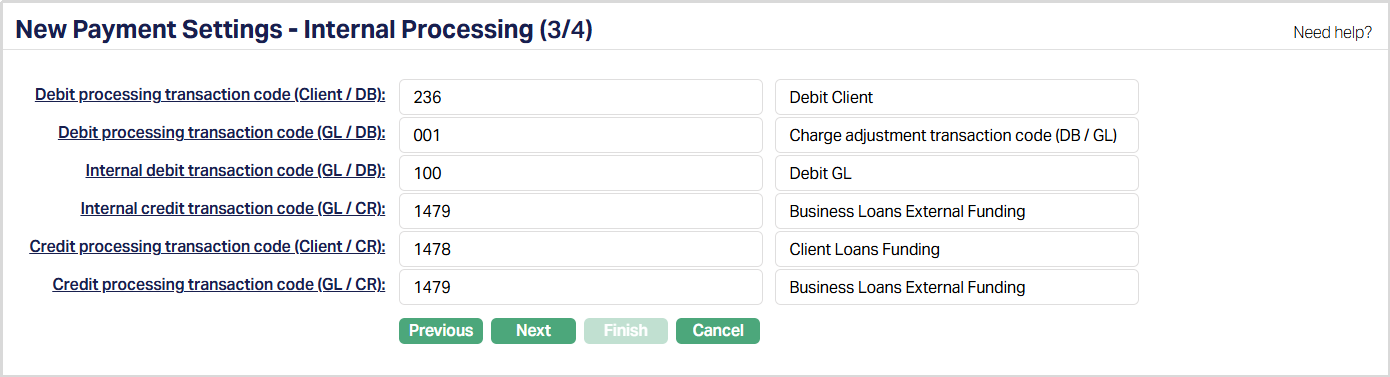
Note: In the table below, you will find the description of the fields, the use and the conditions for each of the GLs / Transaction Codes. You can either directly input the Ledger # / Transaction Code or click on the hyperlink to see the list of GL / Transaction Codes satisfying these conditions and select the required Ledger # / Transaction Code.
| Fields | Used | List of Accounts/Transaction Codes based on |
|---|---|---|
| Debit Processing | For recording all debit processing transactions in Client Account | Transaction type Debit (Client/DB) |
| Debit processing | For recording all debit processing transactions in General Ledger | Transaction type Debit (GL/DB) |
| Internal debit | For recording all debit transactions in General Ledger | Transaction type Debit (GL/DB) |
| Internal Credit | For recording all credit transactions in General Ledger | Transaction type Credit (GL/CR) |
| Credit Processing | For recording all Credit processing transactions in Client Account | Transaction type Credit (Client/CR) |
| Credit processing | For recording all Credit processing transactions in General Ledger | Transaction type Credit (GL/CR) |
26. Click Next. New Payment Settings → Confirmation (4/4) page appears.
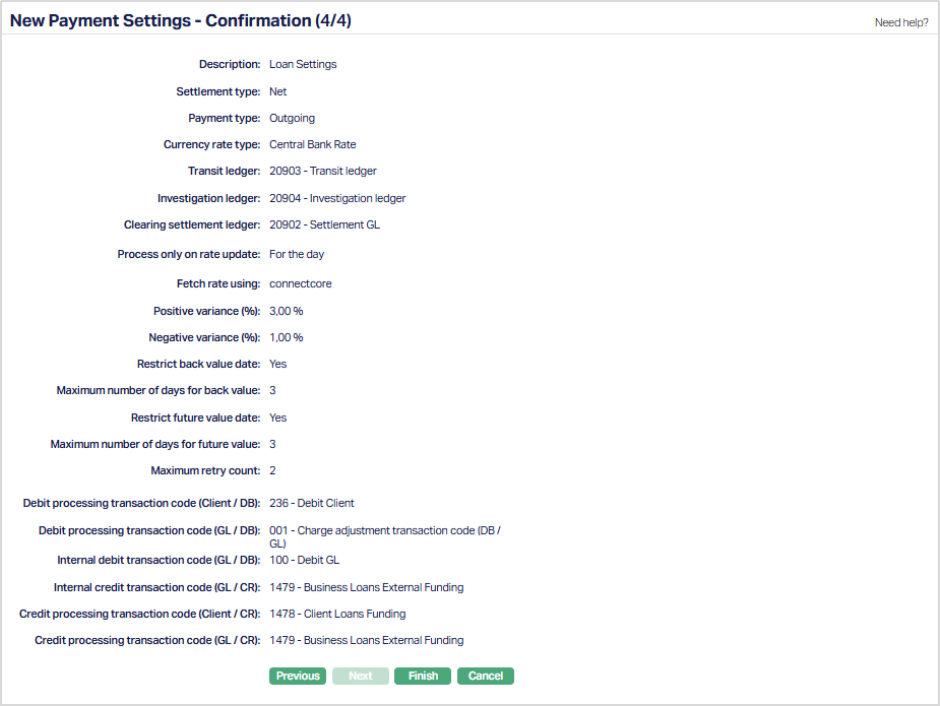
27. Click Finish. Payment Settings page appears. New Payment Setting is created, and you will see Profile tab by default and the Status of the Payment Setting is Active.
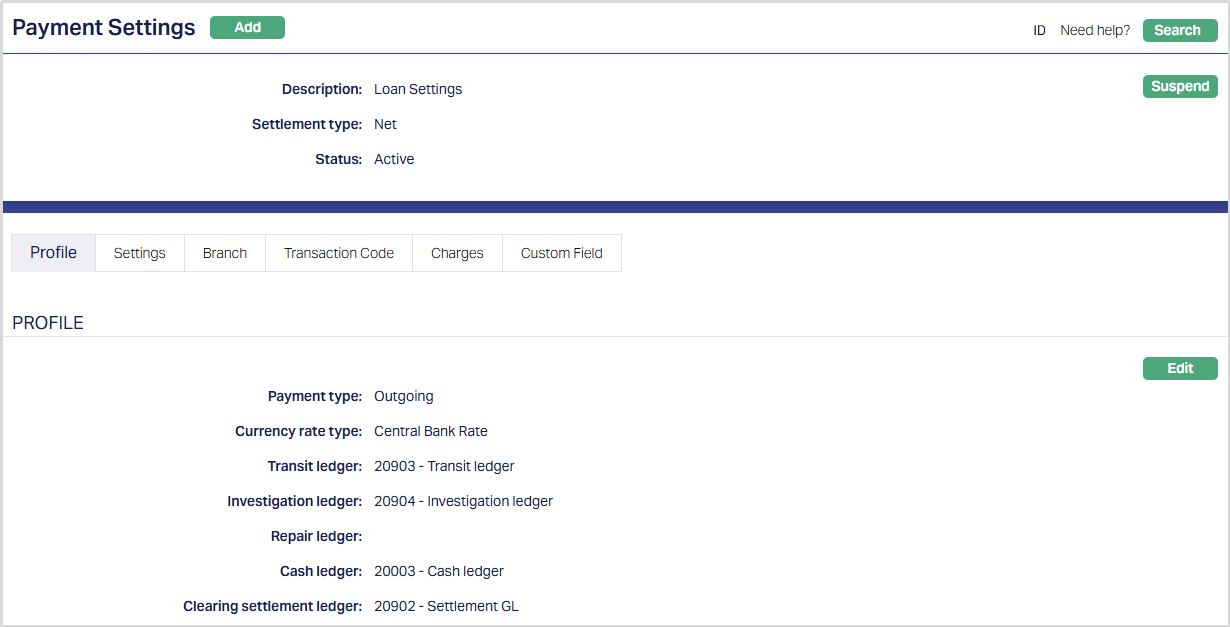 Functions: Add, Suspend, Search, Edit
Suspend: You can suspend a Payment Setting record by clicking on Suspend button. When you click on Suspend button, Aura will ask for confirmation. On confirmation, Aura will suspend the Payment Setting and Activate button will appear in place of the Suspend button. Once the Payment Setting is suspended, then it becomes unavailable for use in Aura and Payment Grid. However, suspended Payment Setting record can be activated by using Activate button.
Activate: If you want to activate a suspended Payment Setting record then click on Activate button. Aura will ask for confirmation. On confirmation Aura will Activate the Payment setting record and Suspend button will appear in place of Activate button. Once the Payment Setting is activated, it becomes available for use in Aura and Payment Grid.
Profile
Profile tab, which is the default tab in the Payment Settings screen, shows the basic details of the Payment Settings.
To view / edit Profile,
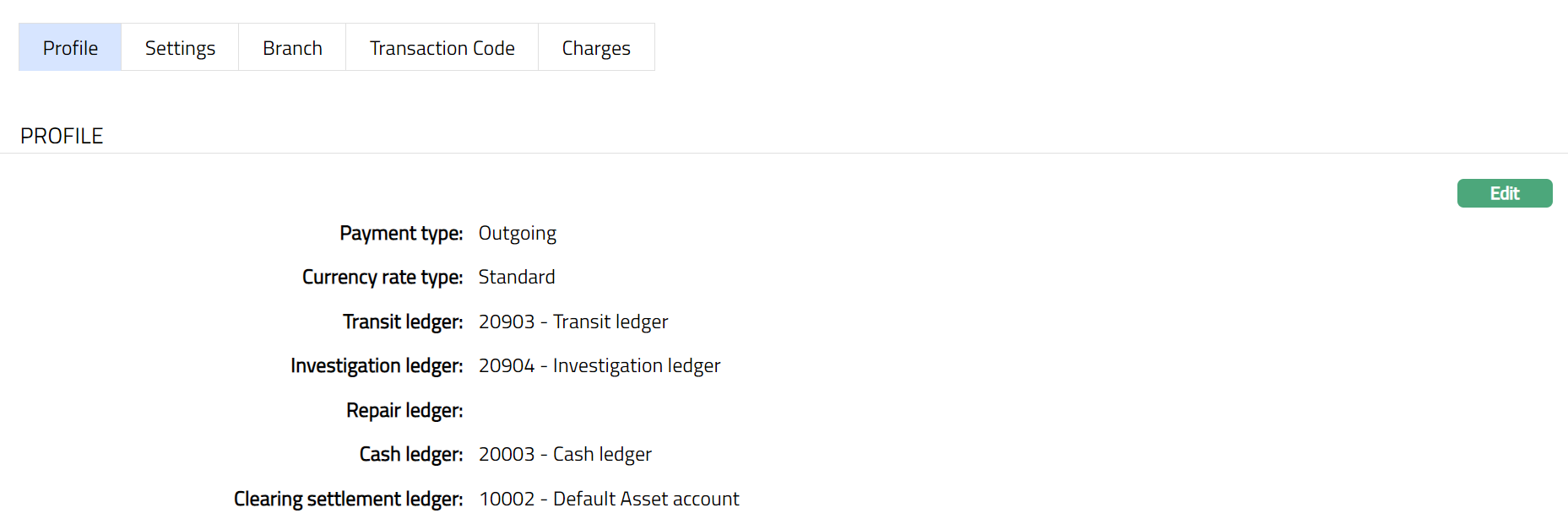
1. Access Payment Settings page. Click Profile tab to view the details as per sample below. The details are defaulted from the entries that you made during Payment Setting creation. For details refer to New Payment Settings → Profile (1/4).
2. Click Edit. Edit Profile page appears.
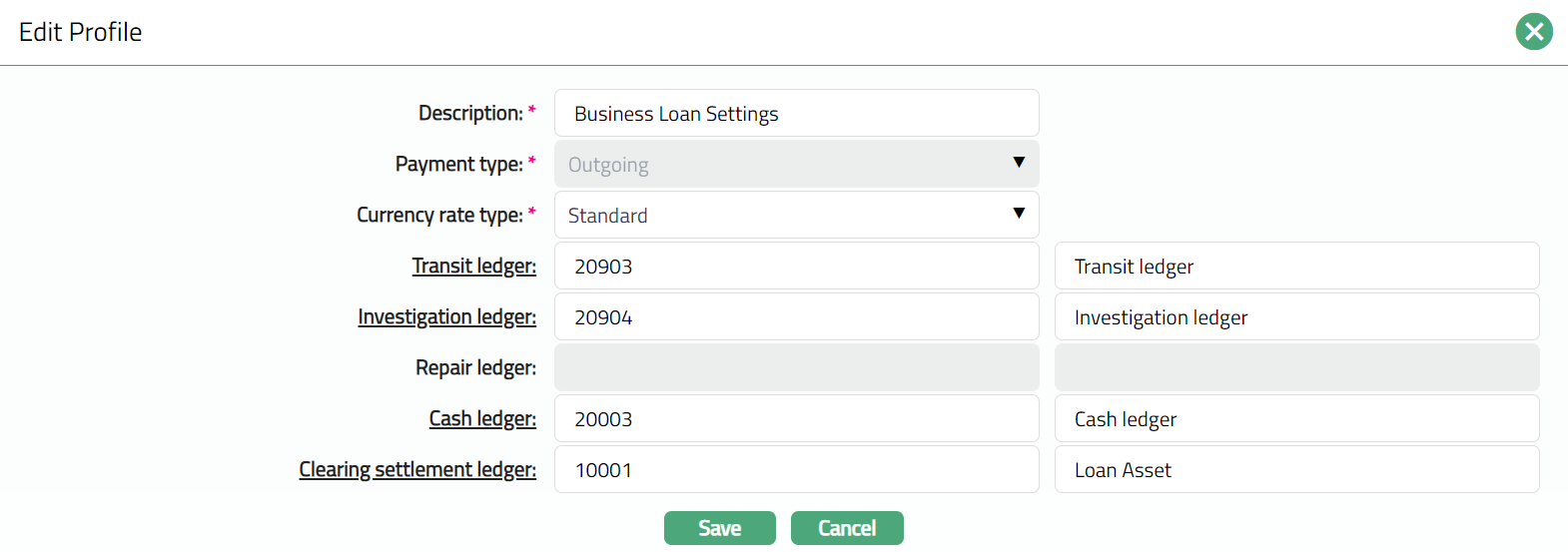
Note: All the fields are editable. The editable fields will be enabled/disabled based on the Payment type chosen in New Payment Settings → Profile (1/4).
3. Click Save. Profile page appears with the edited details.
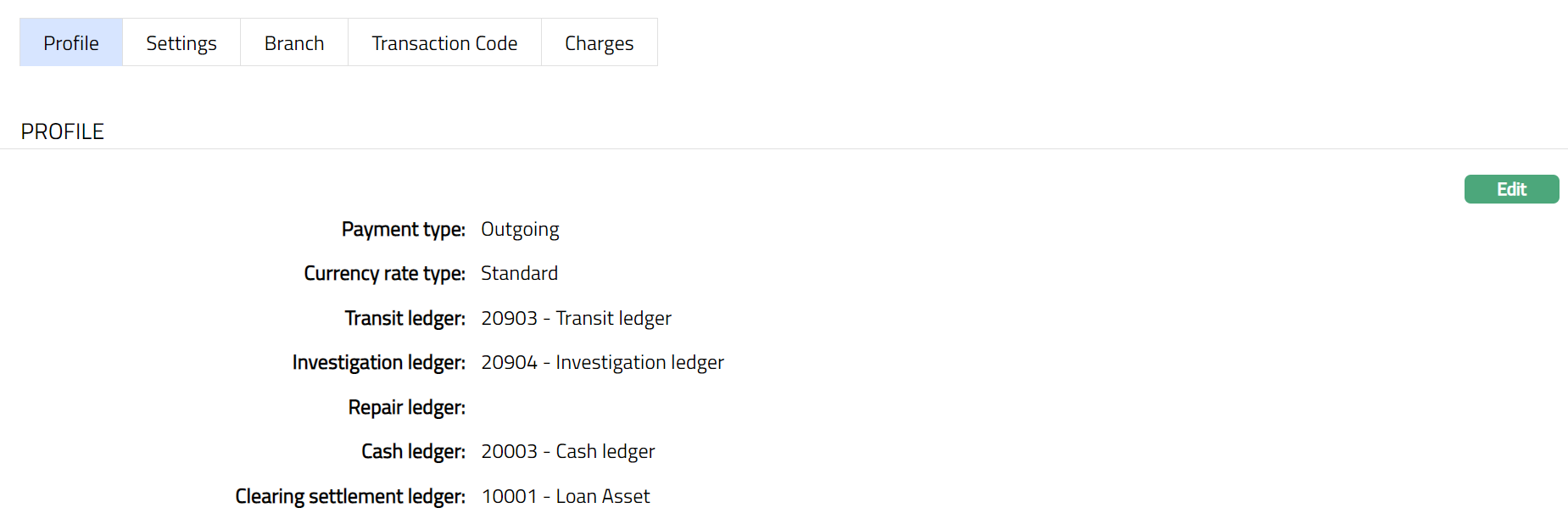 Functions: Edit
Settings
Using this tab, you can view and edit the various parameters that you selected while creating the Payment Settings record.
1. Access Payment Settings page then click Settings tab.
2. Click Edit. Edit Settings page appears.
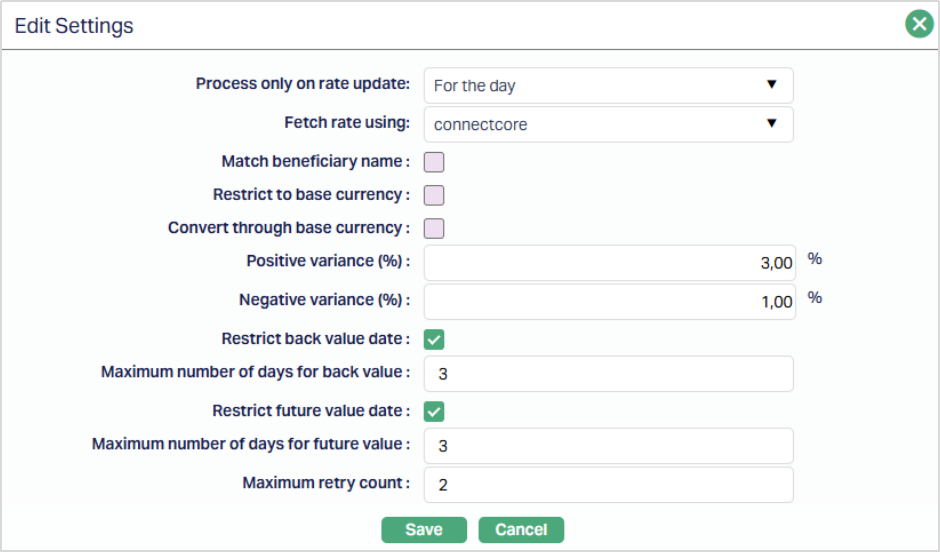
Note: All fields are editable in Edit settings page.
3. Click Save. Settings page appears with the edited details.
Function: Edit
Branch
Using this tab, you can allow the Payment Settings to be available for all the Branches or only specific Branch(es).
To select branch,
1. Access Payment Settings page then click Branch tab.
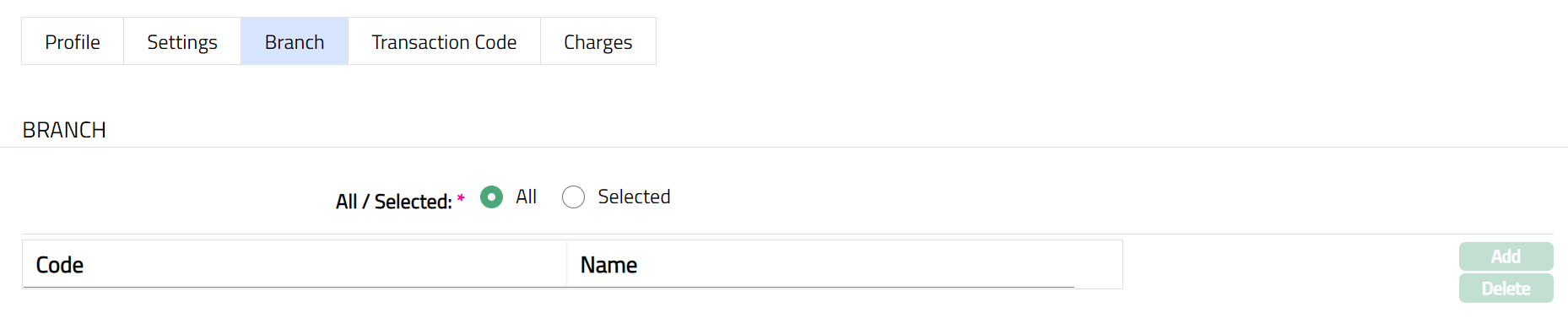
2. By default, All radio button is selected so that this payment setting is available for all Branches.
3. To restrict branches that are available under this payment setting, click Selected radio button. Add button is now enabled.
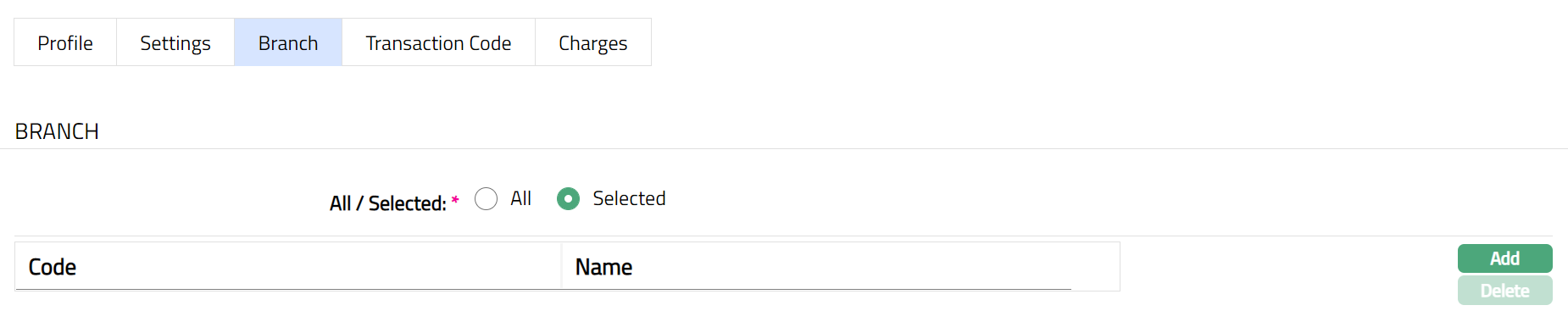
4. Click Add. Add Branch screen appears where you can select the required branch from the drop-down of all active Branches of the Entity.
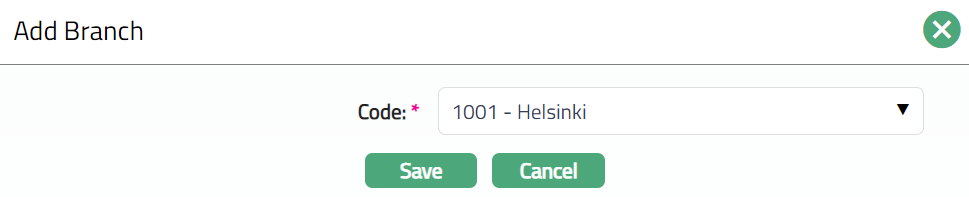
5. Click Save. Branch page appears with the added details.
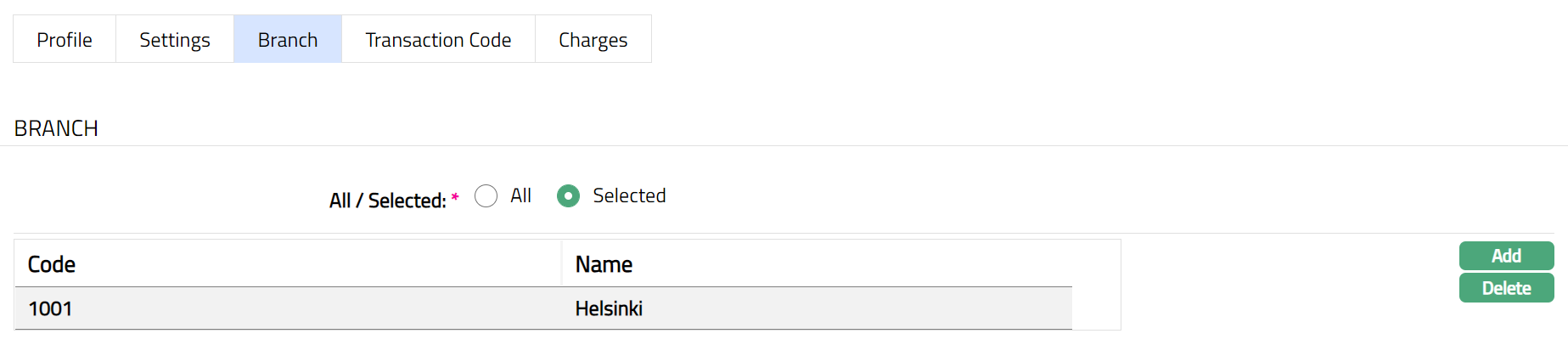 Functions: Add, Delete
Delete: To delete a branch, select the branch and click Delete. You may choose to allow All branches for the product at any time. However, Aura will prompt you to confirm if the selected branches may be deleted. If confirmed, then all the selected branches will be deleted, and the product will be available for ALL Branches.
Transaction code
Transaction code tab allows you to specify the transaction codes that are to be used for the various events while processing a transaction. These transaction codes define what description / narration is used for the account postings / statements.
When Payment Type is Own account transfer/Other client transfer; then Transaction code will display only one sub tab as Internal Processing.
When Payment Type is Incoming/Outgoing, then the Transaction code will display two sub-tabs as Internal Processing and Exception Processing.
Internal Processing
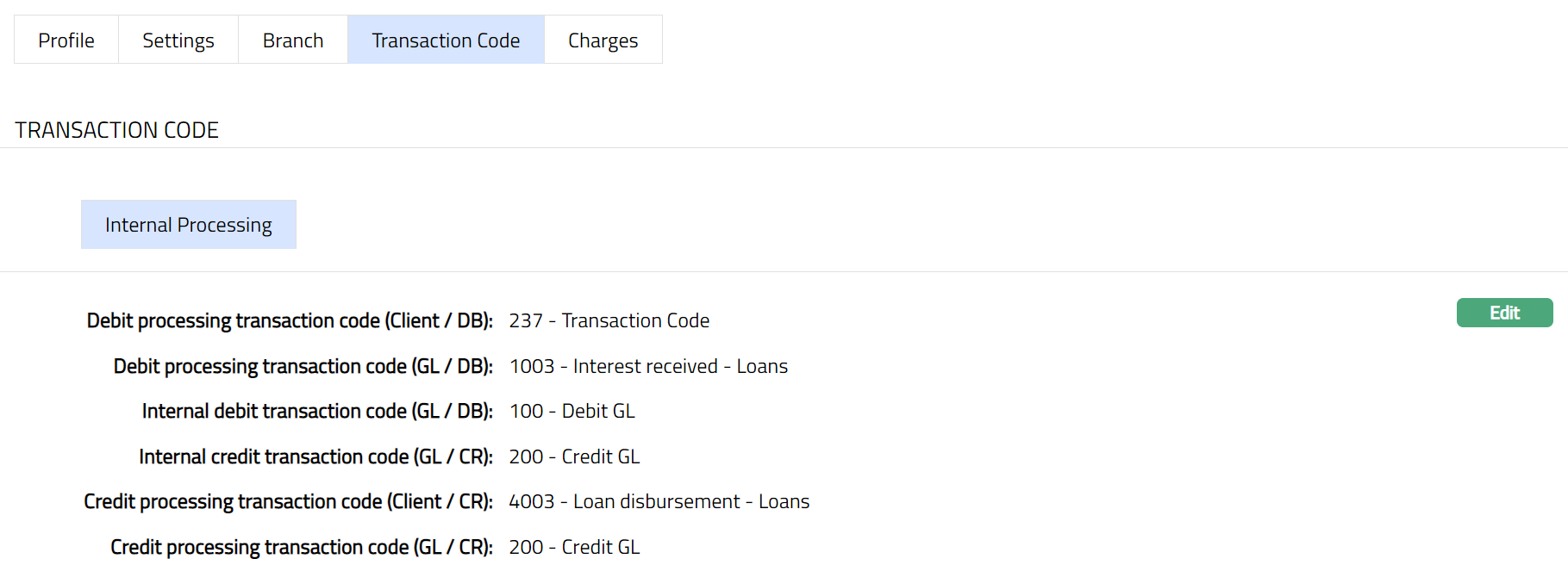
Internal processing sub tab allows you to specify the transaction codes that are to be used for processing debit and credit transactions.
1. Access Payment Settings page. Click Transaction code tab and then click Internal Processing sub tab to view the details as per sample below. The details are defaulted from the entries that you made during Payment Setting creation. For details refer to Payment Settings → Internal Processing (3/4).
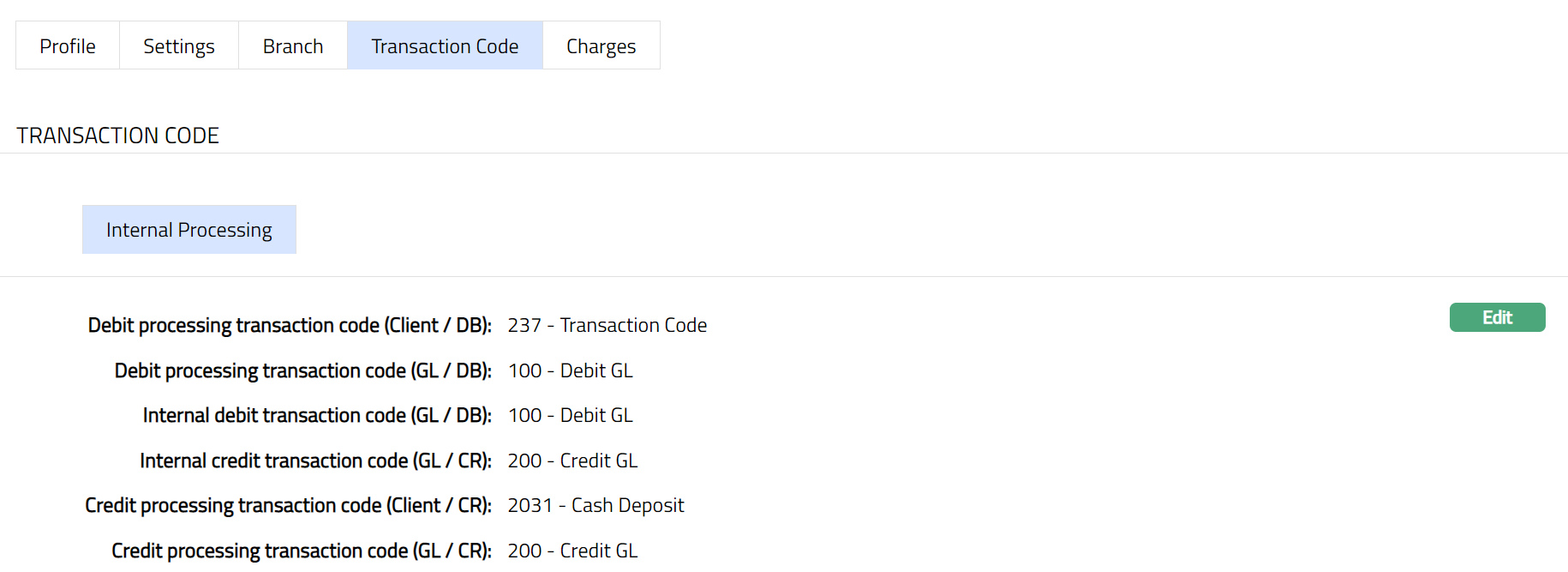
2. Click Edit. Edit Internal Processing page appears.
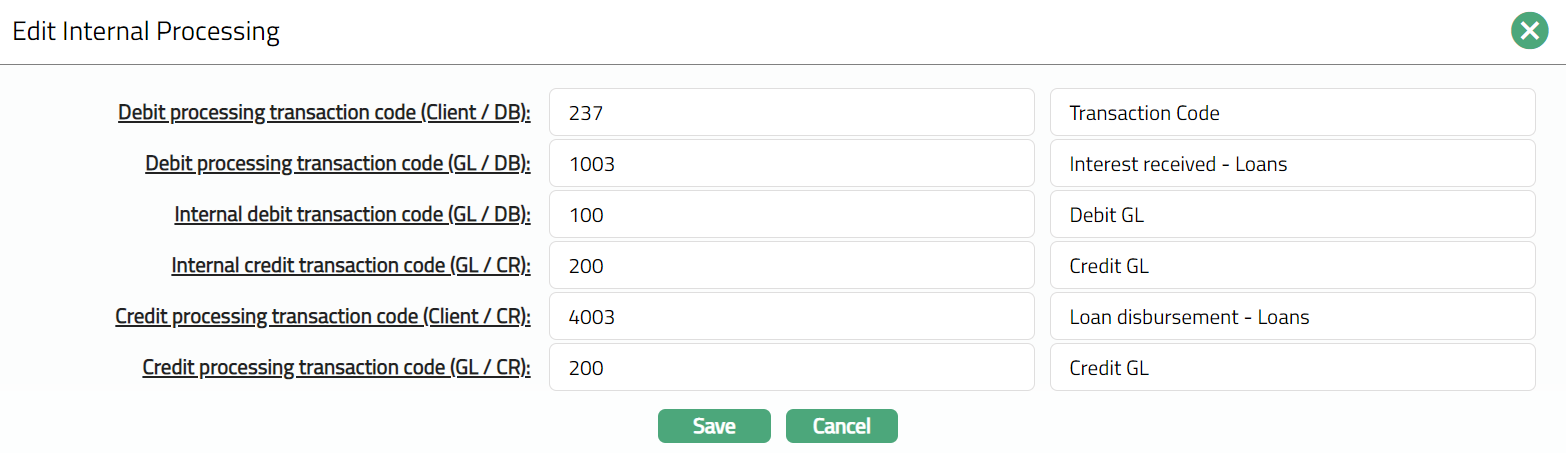
Note: All fields are editable
3. Click Save. Internal Processing sub tab under Transaction Code tab appears with the edited details.
Function: Edit
Charges
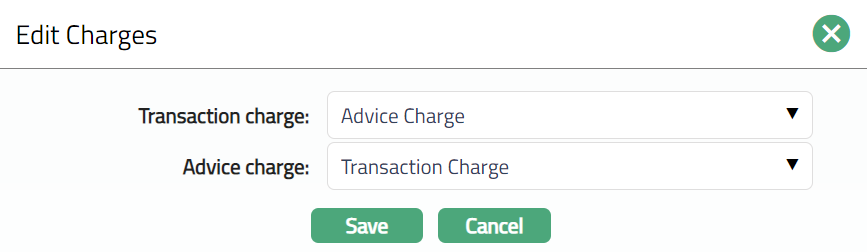
Charge tab allows you to view and edit the details of different charges for transactions under the Payment settings.
1. Access Payment Settings page then Click Charges tab to view the details as per sample below. The details are defaulted from the entries that you made during Payment Setting creation.

2. Click Edit. Edit Charges page appears.
Note: All fields are editable.
3. Click Save. Charges page appears with the edited details.

Function: Edit
Custom Field
This option provides you the flexibility to define fields apart from those that are already available in the standard version of Aura. Thus, it enables you to customize additional data storage and use as required to suit your specific business needs.
To maintain Custom Field,
1. Access Payment Settings page. Click on Custom Field tab.

2. The custom field(s) appears only when it is created in Admin → System Codes → Custom fields and is linked to Retails - Settings - Payment Settings account option in Admin → System codes → Custom fields → Field mappings.
3. Click Edit. The Edit Custom Field page appears. In the following illustration, one custom field "OTP - One Time Password" category has been mapped to the Payment Settings as show below:

4. Enter the OTP - One Time Password in the Field.
5. Click Save. OTP Field screen appears displaying the details added to the custom field.
 Functions:Edit