
Premature Withdrawal
Premature Withdrawal wizard facilitates partial or full redemption of term deposit account before its maturity.
To initiate Premature Withdrawal,
1. From Retail menu, click Accounts, click Term Deposit, and then click Premature Withdrawal. The Premature Withdrawal Search screen appears. All premature withdrawal records available in Aura appears on the page.

2. Click Add. New Premature Withdrawal (1/2) page appears
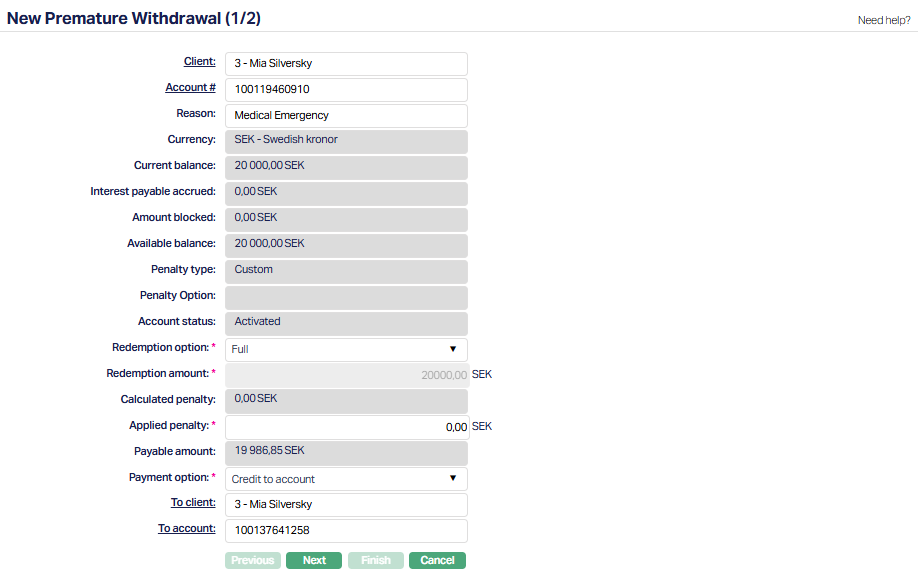
3. Click Client hyperlink. Client Search page appears where you can search for a client with relevant criteria and select the required client.
4. Click Account hyperlink. Term Deposit Search page appears showing the term deposit accounts of the selected client. Select the required Account #.
Based on the selected account number, the following fields are displayed along with the defaulted details while creating the account:
Currency denotes the account currency. This is defaulted from the Retail → Accounts → Term deposit
Current balance denotes the balance of the term deposit as on date i.e. the original Principal less premature withdrawals if any and it includes the interests credited to the Term Deposit account in case of Compound Interest till last liquidation date.
Interest payable accrued denotes the amount of interest accrued that is payable under the account as of the previous day EOD.
Amount blocked denotes the total of all the amount blocks that are valid as at this time.
Available balance denotes the available balance in the term deposit account. it is the difference between the Current balance and amount blocked.
Penalty type denotes the type of penalty applicable for the account. This is defaulted from the Penalty type maintained for the selected term deposit account. Based on the selected Penalty type, Aura calculates the applicable penalty amount and controls whether the Applied penalty field is editable during premature withdrawal processing. System displays the following Penalty types and how Aura calculates penalty based on the selected Penalty type has been mentioned below.
Fixed amount: If user selects this option as Penalty type, then this option enables user to define a Fixed amount as Penalty.
To calculate the Penalty amount:
Add interest accrued on the withdrawal amount (Amount Payable)
Reduce the penalty amount from the above amount (Penalty)
This is the Net Amount Payable
Custom: If user selects this option as Penalty type, Aura allows you to modify the Applied penalty amount during premature withdrawal processing.
On Elapsed period: If user selects this option as Penalty type, then
On the basis of the withdrawal amount and the period for which the deposit has run, Aura will find out the applicable interest rate.
Reduce the penalty % from this interest rate.
Compare this with the contracted interest rate.
Whichever is lower, is taken as the Penalty Interest rate
Using this, the interest payable is calculated and added to withdrawal amount.
Recalculate interest and if excess amount has been liquidated, recover from the above amount.
This is Net Amount Payable.
On Remaining period: If user selects this option as Penalty type, then
On the basis of the withdrawal amount, and the period for which the deposit has run, find out total accrued interest based on contracted interest rate
Add withdrawal amount and accrued interest.
This is the Amount 1(Amount Payable).
For the withdrawn amt, and the period for which deposit is NOT kept, the interest rate applicable is found.
Add Penalty % to this.
Compare this total to the contracted interest rate.
Whichever is higher is the penalty interest. Calculate penalty interest on this basis.
This is Amount 2 (Penalty Amount).
Net Amount Payable = Amount 1 minus Amount 2
Revised Interest: If user selects this option as Penalty type, then
On premature withdrawal of any TD account, TD account interest rate is revised as per setup.
Penalty Type will be defaulted from term deposit account level (Retail → Accounts → Term Deposit → Premature Withdrawal)
At the time of premature withdrawal of any TD account - based on the selected interest scheme at the account level, Aura recalculates TD Interest for the period till which TD amount will be with the bank.
Penalty% denotes the percentage of the penalty applied on the account which is to be charged on premature withdrawal. This is defaulted from the account. This field is displayed only if the Penalty Type is selected as On elapsed period or On remaining period
Penalty amount denotes the penalty amount to be charged on premature withdrawal. This is defaulted from the account level if maintained. This field is displayed only if the Penalty type is Fixed amount.
Account status denotes the status of the account chosen for premature withdrawal
5. Select Redemption option -- whether Partial or Full -- from the drop-down list. This field will be enabled only when the account status is Activated.
6. Redemption amount is enabled only on selecting the redemption option as partial. You can enter any amount less than available balance. In case of Full redemption, the available balance is automatically displayed here, and it cannot be edited.
7. Calculated Penalty denotes the penalty amount calculated by Aura based on the selected Penalty type and premature withdrawal details. This field is non-editable and displays the system-calculated penalty amount.
8. Applied Penalty denotes the final penalty amount applied on the premature withdrawal. By default, Aura displays the same value as the Calculated penalty amount.
Note:
- For Penalty types Fixed amount and Custom, you can modify the Applied penalty amount. The entered value must be greater than or equal to 0 and less than or equal to the Calculated penalty amount.
- For Penalty types On elapsed period and On remaining period, the Applied penalty field is non-editable.
Aura automatically recalculates the Payable amount whenever the Redemption amount or Applied penalty amount is changed.
9. Based on the Penalty % or fixed Penalty Amount, Aura calculates the Calculated penalty amount applicable for the premature withdrawal. By default, the same value is displayed in the Applied penalty field.
10. Payable amount denotes the net payable amount for the premature withdrawal. Aura calculates this amount based on the Redemption amount and Applied penalty amount. Whenever the Redemption amount or Applied penalty amount is modified, Aura automatically recalculates the Payable amount.
11. Select Payment option from the drop-down. The available options are Credit to account and Transfer to another bank.
12. In case Payment option Credit to Account is chosen:
a) To client will by default show the client chosen above. However, you can choose a different client using the To client hyperlink. On clicking the hyperlink, the Client search page appears with the list of active clients where you can search for a client with relevant criteria and select the required client.
b) Click To account hyperlink to see the Client Account Search screen. You will see the selected Client's current accounts whose status is Activated and where the account currency matches with the term deposit account currency and where the Disallow credit has not been checked. Select the required account
13. In case Payment option Transfer to another bank is chosen:
a) Aura will display the Deposit matured payable GL as per the product settings. This cannot be edited.
b) Enter the account number to which the payment has to be transferred in the To Account box.
c) Enter branch of the external bank to which the payment has to be transferred in the To branch.
d) Select To bank from the dropdown list of banks. maintained under Admin → Management → Settlement directory. You can choose Others, if the Bank has not been so maintained.
e) Aura will automatically display the SWIFT BIC code of the above bank from under Admin → Management → Settlement directory. If the Payout bank is Others, then you can input the BIC code.
f) Aura will automatically display the Bank clearing code of the above bank from under Admin → Management → Settlement directory. If the Payout bank is Others, then you can input the Bank clearing code.
14. Click Next. New Premature Withdrawal → Confirmation (2/2) page appears displaying the details of the New Premature withdrawal that you added.
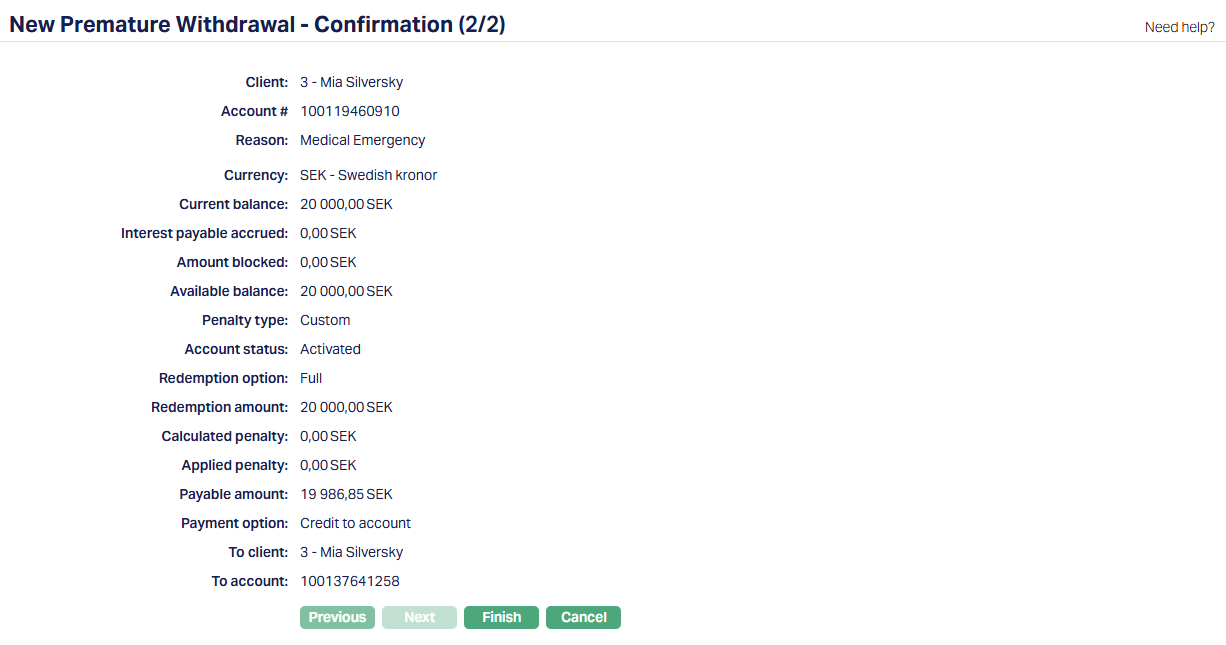
15. Click Finish. Premature Withdrawal page appears with the added details.
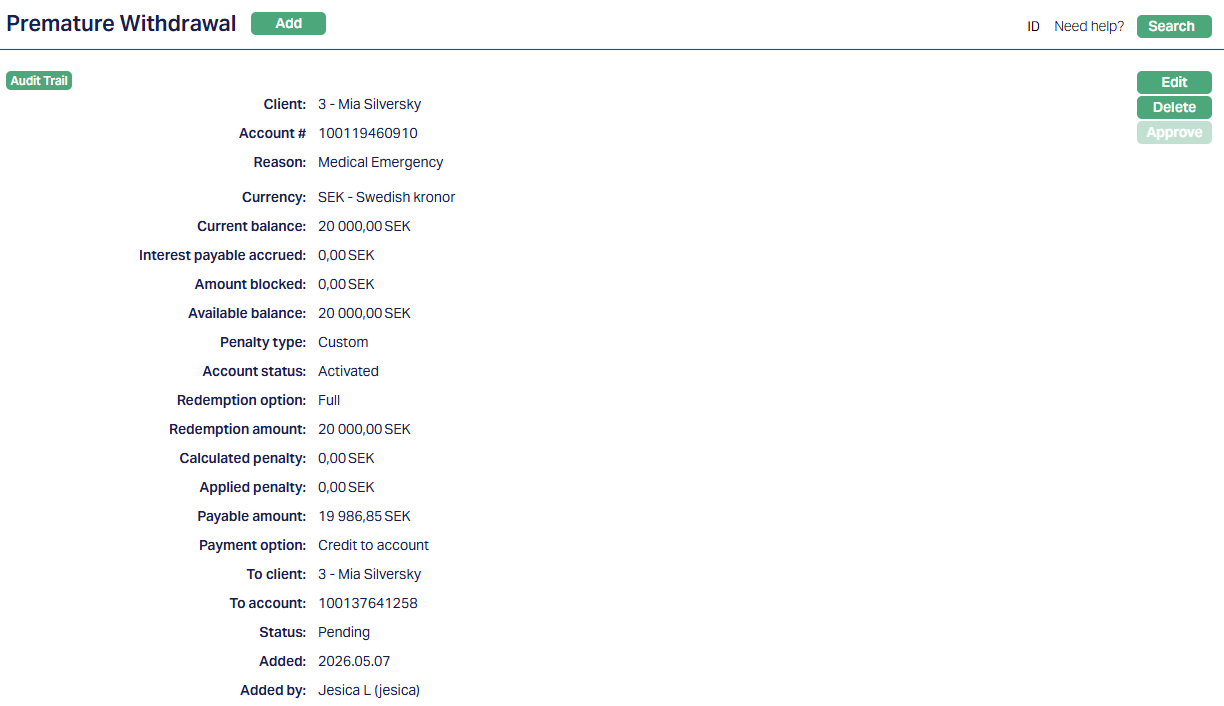
Functions: Add, Search, Edit, Delete, Approve
Status of the premature withdrawal is Pending till it is approved by another user. The user who created the record can edit it any number of times, till it is approved. In this status, Aura disables all the buttons of all the tabs for that particular TD account and only view is enabled.
To approve a premature withdrawal, access the premature withdrawal screen and click Approve
To Edit premature withdrawal record,
1. Access Premature Withdrawal record in the search page which you have created and click Edit.
2. Edit Premature Withdrawal screen appears.
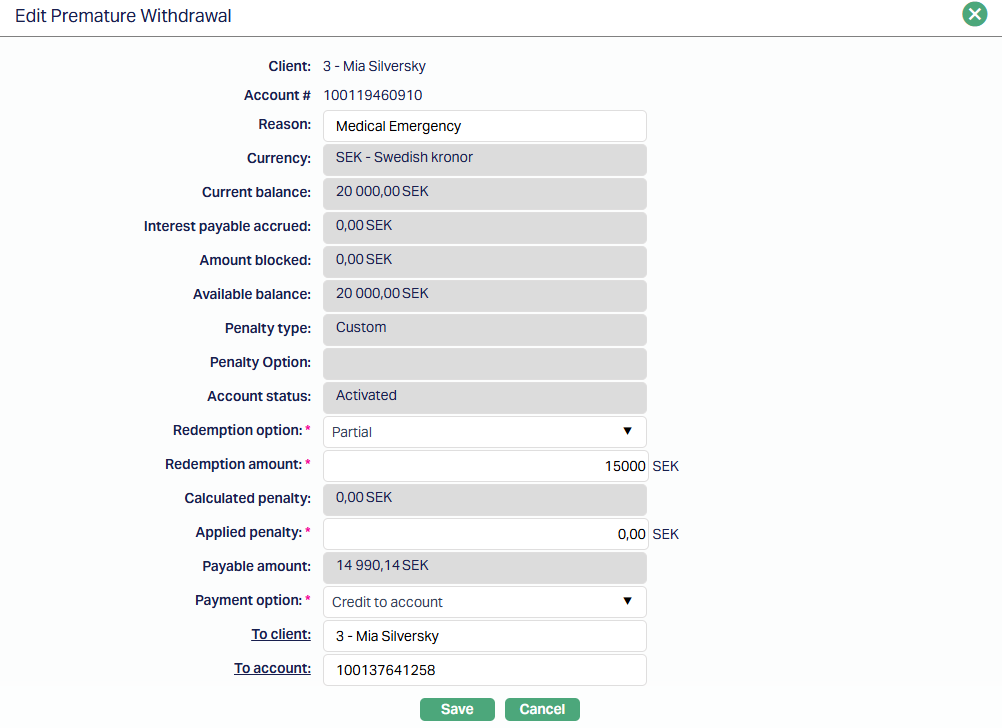
Note: Only the following fields are editable in the Edit Premature Withdrawal screen when the status is Pending.
- Reason
- Redemption Option
- Payment option
- To client
- To Account
- Applied penalty (only for Penalty types Fixed amount and Custom)
For Penalty types On elapsed period and On remaining period, the Applied penalty field remains non-editable.
3. Click Save. Premature Withdrawal screen appears with the edited details.
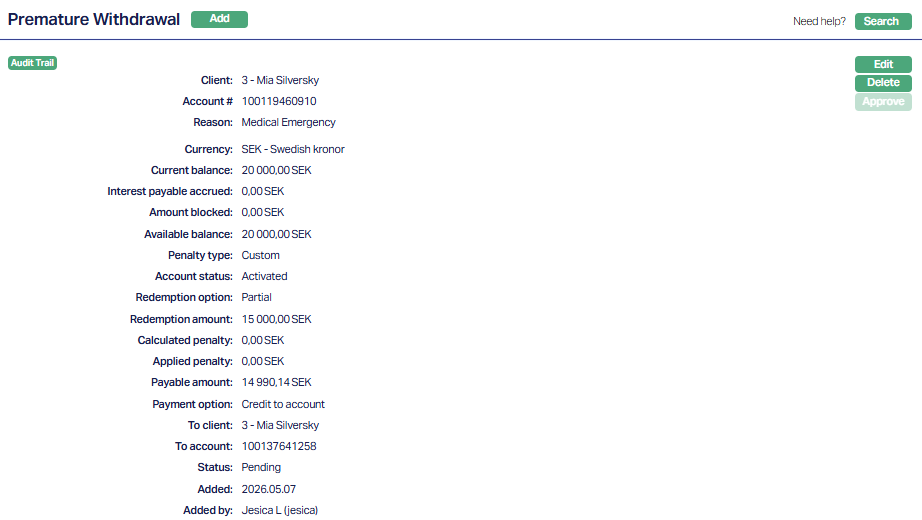
Function: Edit, Delete
Once edited the status of the premature withdrawal is Pending till it is approved by another user. The user who created the record can edit it any number of times, till it is approved. In this status, Aura disables all the buttons of all the tabs for that particular TD account and only view is enabled.
To approve premature withdrawal, access the premature withdrawal screen and click Approve. Once Approved the status changes to approved.
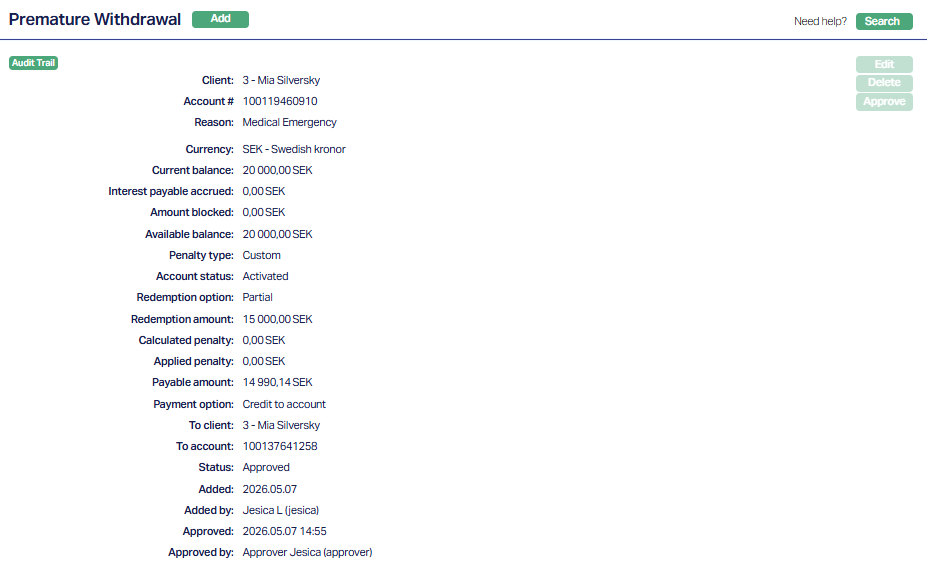
Functions: Add, Search, Edit, Delete, Approve.
Once Premature withdrawal is approved, the following sequence of activities occurs:
The interest payable accrued is liquidated only on selecting the redemption option as Full while creating a new premature withdrawal. Penalty will be levied for both full and partial premature withdrawal if selected.
The payable amount is transferred based on the selected payment option. If Credit to account is selected, then the payable amount is transferred to the provided account using the transaction code maintained at the product level. If Transfer to other bank is the payment option, then the payable amount is transferred to Deposit matured payable GL defined at product level.
In case of transfer to other bank a separate payment instruction has to be initiated for transferring the amount
Delete: You can delete Premature Withdrawal record by a click on Delete button. When you click on Delete button, Aura displays an alert message. On confirmation Aura will delete the Premature Withdrawal record.