
Languages
The Languages menu option allows you to maintain the languages in which Aura Labels, Data and Tool Tips can be translated. English is the default language and all screens will be displayed in English by default.
When any new language is added, you will be able to provide the respective translations for certain screen labels, messages displayed to the users and data values. To do so, access the Admin > Translations menu. You will also be able to maintain appropriate translations for the Tool Tips for selected fields.
Note: If the user's Language does not have translations maintained, the screens will be displayed in the default language -- i.e. English.
Adding a Language
To add a new Language
From the Admin menu, click System Codes, Generic Definitions, and then Languages. The Language Search page appears. All Languages that have been added earlier in Aura appear on the page, sorted alphabetically based on the Codes
Click Add. The New Language -- General (1/2) page appears.
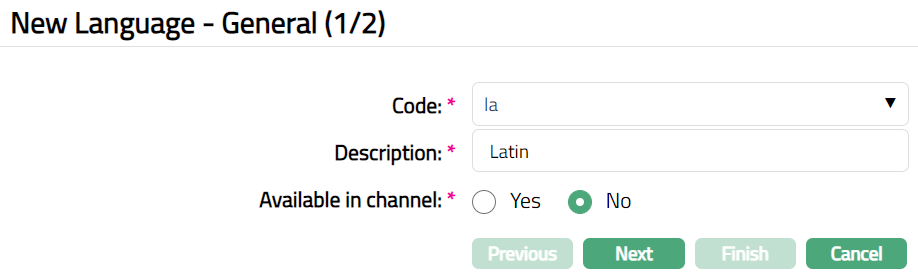
Aura comes with a set of pre-defined Language Codes as defined by the ISO 639-1 standard. Select the two-letter Alpha-2 Code that you wish to add now.
The Description field will auto-populate with the corresponding description / name once the Language code is selected. For example -- Latin is displayed in this field when "la" is selected in the Code field.
Select Yes or No if you want the language to be made Available in channel. If Yes option is chosen, then the specific language is made available in the channel so that you can switch to the specific language. If translations are maintained, then the display will be in the same language. If No option is chosen, then the language will not be available in the channel.
Click Next. The New Language -- Confirmation (2/2) page appears.
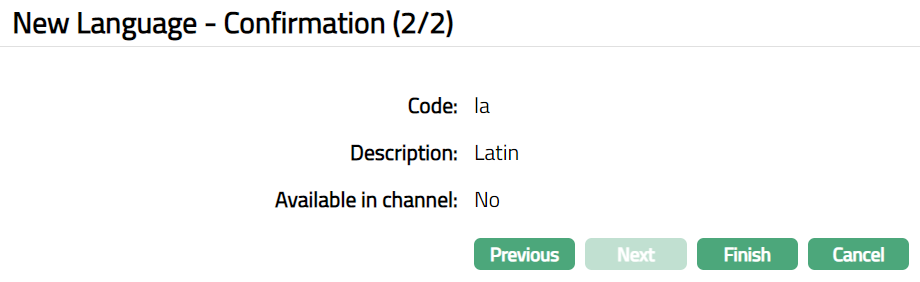
- Click Finish. The Language page appears displaying the details of the Language you added.

Functions: Add, Edit, Delete, Search,Suspend, Activate.
Delete: You can delete a language saved in Aura by a click on Delete button. Aura will ask for confirmation, on approving which the selected record will be deleted.
Suspend: You can suspend a language record by clicking on Suspend button. When you click on Suspend button, Aura displays an alert message. On confirmation Aura will suspend the language and Activate button will appear in place of the Suspend button.
Activate: If you want to Activate a suspended language then click on Activate button. Aura displays an alert message. On confirmation Aura will Activate the Language and Suspend button will appear in place of Activate button
To edit the Language
- Access the Language page.
- Click Edit. The Edit Language page appears.
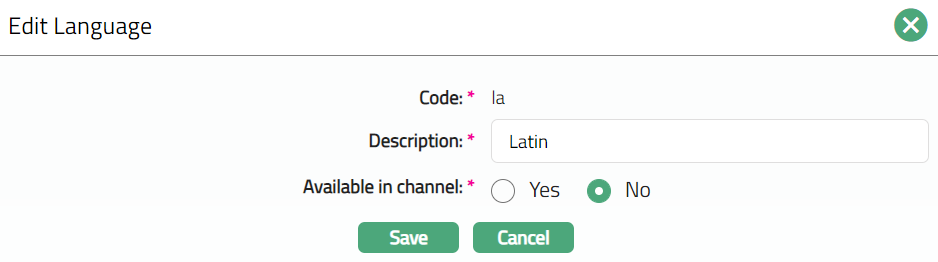
Code is not editable.
- Make the required changes and click Save.