
Gross Settlement
Gross Settlement allows you to view and modify Gross settlement records for both incoming and outgoing payments. Gross Settlement is the transfer of funds which immediately reaches the recipient. It is an electronic transfer between banks, where the payment transaction is not subjected to any waiting period. The transaction is settled as soon as they are processed and are used for SWIFT, TARGET2 networks.
There are five sub-tabs which allow you to view/process a Gross Settlement record. The five sub-tabs are as follows.
To view / maintain Gross Settlement record,
1. From the PaymentGrid menu, click Operations and then Gross settlement. The Gross Settlement Search page appears.
2. Select the Search for option from the drop down list. You can search using the following inputs:
- Beneficiary account
- Booking date
- Clearing Network
- Exception
- Message format
- Message Mode
- Message reference
- Payment reference
- Receiver name
- Sender name
- Transaction amount
- Transaction currency
- Transaction status
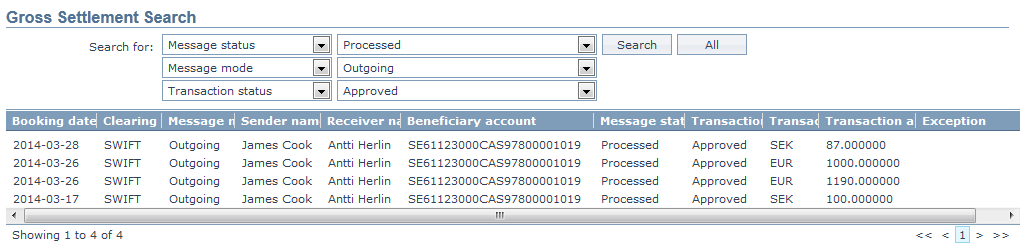
You can search a record based on three different parameters. Enter the appropriate search inputs in the textboxes provided next to the Search for dropdown. Based on the three parameters, CC-PG will display all the records that match these criteria.
For example: If you select Message status as Processed, Message mode as Outgoing and Transaction status as Approved, then CC-PG will display all records that matches this criteria.
3. Click Search. All the records which satisfy the search criteria will appear on the page. If All is clicked, then all the Gross settlement records maintained in CC-PG will get displayed. A sample screen is shown below.
4. If you want to view or modify a Gross Settlement record, click on the appropriate record and the Gross Settlement Maintenance page appears.
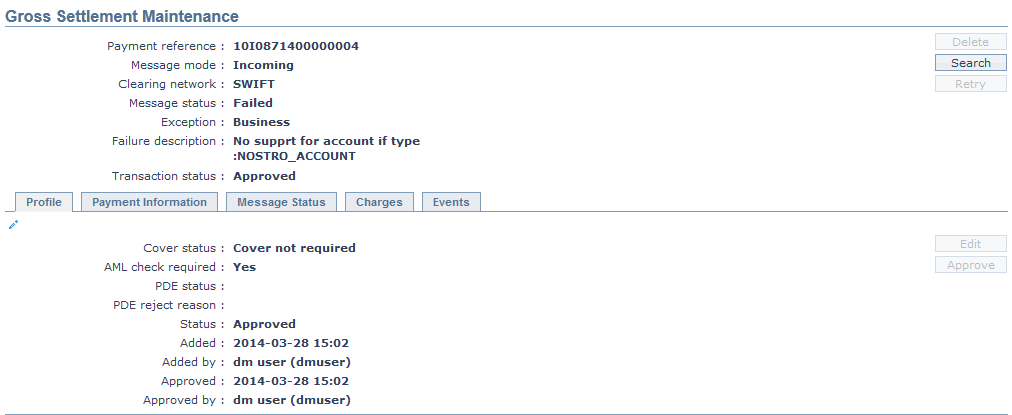
Functions: Delete, Search, Retry, Edit, Approve.
The fields that appear in the header pane for all tabs are as follows:
Payment reference#: It specifies the reference # of the payment transaction.
Message mode: It specifies the mode of the message. The mode can be Incoming or Outgoing.
Clearing network: It specifies the Clearing network of the payment transaction. The network can be SWIFT or TARGET2.
Message status: It specifies the status of the message. The status can be Edited, Failed, Processed, Recalled, Registered, Accepted, Rejected, Cancelled and Reversed.
- Edited: If Payment information tab is edited, the message status will display Edited.
- Failed: If the incoming / Outgoing message fails to process, the message status will display as Failed and will throw an exception.
- Processed: If the Incoming / Outgoing message is processed successfully, then the message status will display Processed.
- Registered: If a payment transaction is initiated and is to be credited at a future date, message status will show Registered for both Incoming / Outgoing message.
- Cancelled: If payment cancellation is made by Core bank, message status will display Cancelled.
- Rejected: The message status will display Rejected, if the request for cancellation is rejected.
- Reversed: If payment reversal is done in Core bank, message status will show Reversed for both Incoming / Outgoing
Exception: It specifies the exception of the transaction. The exceptions are AML, PDE, Business, Cover required and Critical.
- AML: (Anti Money Laundering) Based on the AML configuration, the transaction is marked as AML exception.
- Business: If there is any business related failure, then the transaction is marked as Business exception.
- PDE: (Possible Duplicate Elimination) Based on the PDE settings, CC-PG will mark the transactions as PDE exception. If the transaction is identified as PDE, you can Override or Reject the same.
- Cover Required: Based on the condition maintained for Cover required in Product level, CC-PG will mark the transaction with exception as Cover required.
- Critical: Any system connectivity failure is marked as Critical exception.
Failure description: It specifies the description of the failed transaction.
Transaction status: It specifies the status of the transaction. The status can be Pending or Approved.
Profile
The Profile tab, which is the default tab in the Gross Settlement Maintenance screen, shows the basic details of the Gross Settlement payment record. The details displayed here are based on the message mode.
The Edit button will be enabled if Cover Status is Cover partially matched or Nostro Confirmation is Yes or PDE Status is PDE occurred.
The Profile tab will be enabled only if the PDE status is PDE Occurred and will be disabled if the PDE status is PDE Reject, PDE Override or PDE Null.
To view/ edit the Profile,
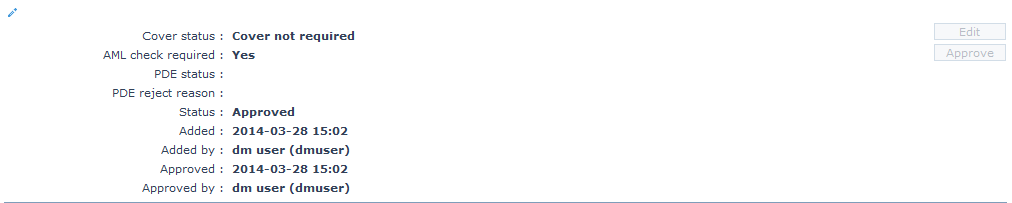
1. Access the Gross Settlement Maintenance screen and click Profile tab to view the details as per sample below.
Incoming
Outgoing

AML status: It displays the AML (Anti Money Laundry) status of the transaction that comes from the AML module and no changes can be done in CC-PG. It is displayed for both Incoming and Outgoing payments. The AML statuses, are as follows:
Hold: The transaction is kept on hold after positive match.
Negative Match: If the transaction does not match any AML checks, then CC-PG will display Negative match.
Positive Match: If the transaction matches any AML checks, then CC-PG will display Negative match.
AML check required: It displays whether the AML check is required or not. The available options are Yes or No. If Yes, then AML check is required. If No, then AML check is not required. This field will appear only when the Message Mode is Outgoing. The value is defaulted from the AML Required field maintained in Product.
Message dispatched: It displays whether the message is dispatched or not. The available options are Yes or No. If Yes, the message is dispatched and if No, the message is not dispatched. This field will be displayed only for Outgoing Payments.
Cover Status: It displays the Cover status of an Incoming Message. The following are the possible values:
Cover required: Incoming message will check for mapping for Nostro; if BIC is not mapped, then Cover required gets populated.
Cover not required: If BIC is mapped, then Cover not required gets populated.
Cover not matched: If cover file comes and doesn't match, then Cover not matched gets populated.
Cover matched: If cover file comes and matches, then Cover matched gets populated.
Cover partially matched: If cover file comes and matches partially, then Cover partially matched gets populated.
Nostro Confirmation: It will display as per the selection made in Nostro Route or Nostro Configuration. If Yes is chosen, CC-PG will wait for authorization and will not proceed with credit processing and message generation. If No is chosen credit processing will be processed. This field will appear only when the Message Mode is Outgoing.
PDE status: It displays the PDE (Possible Duplicate Exception) status of the transaction and is displayed only for Incoming message mode. Based on the PDE configuration maintained in Message Configuration, CC-PG marks the transaction with exception as a PDE (Possible Duplicate Exception). After the transaction is identified as PDE, the PDE exception can be changed to various statuses. The statuses are as follows:
PDE Occurred: Based on the PDE configuration, CC-PG will display the status as PDE occurred.
PDE Override: If the transaction is not a duplicate and can be further processed, you can Override the PDE transaction by changing the status from PDE Occurred to PDE Override.
PDE Reject: If the transaction is indeed a duplicate and you want to stop further processing, you can do so by changing the status from PDE occurred to PDE Reject.
PDE reject reason: It will display the reason updated by the user on PDE rejection. It will display only when the Message mode is Incoming.
Status field displays the status of the tab.
Added field displays the date on which the record was added.
Added by field displays the name of the user who created the record.
Approved field displays date on which the record was approved and is displayed only for approved records.
Approved by field displays name of the user who approved the record and is displayed only for approved records.
2. Click Edit. The Edit Profile page appears.
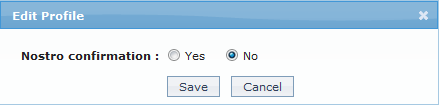
3. Select Yes or No for Nostro confirmation.
4. Make the required changes and Save. The Gross Settlement Maintenance page appears with the updated details.
 Functions: Edit, Approve.
Approve: If you want to approve a Gross Settlement record, then retrieve the record and click Approve. CC-PG will ask for confirmation. Once the tab is approved, status gets changed from Pending to Approved.
On Approval of a record, the following actions will be taken
If the Cover status is Cover matched, then CC-PG will proceed with credit processing.
If the Cover status is Cover not matched, then CC-PG will wait for cover.
If Nostro Confirmation is No, CC-PG will proceed with credit processing.
If the PDE status is PDE override, then CC-PG will trigger the next stage.
If PDE status is PDE reject, then CC-PG will update the Message status as Rejected and payment cycle comes to an end.
Payment Information
Payment Information tab allows you to view and maintain the details for the TAG and actual message generated. The Edit button will be enabled only for Incoming Gross Settlement records. Only, those fields are editable that are configured under Message configuration > Editable columns.
To view/edit the payment information,
1. Access the Gross Settlement Maintenance screen and click Payment Information tab to view the details as per sample below.
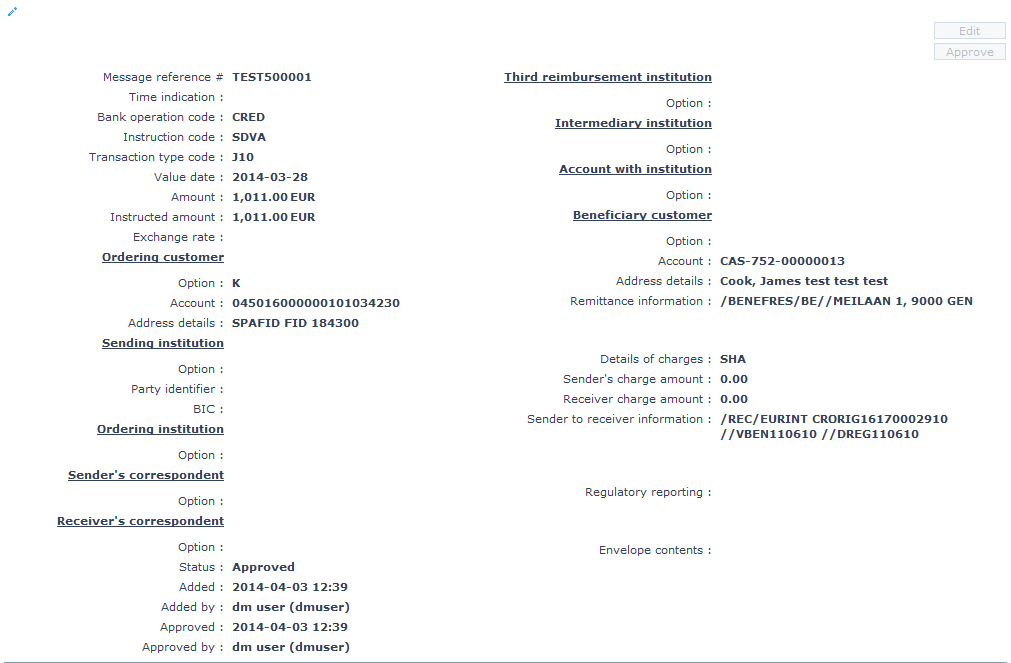
Message reference # : It specifies the reference # assigned by the Sender to identify the message.
Time indication (Tag 13c): It specifies the time to be taken for processing the payment instruction.
Bank operation code (Tag 23 B): It identifies the type of Bank Operation Code. The option is CRED.
Instruction code (Tag 23E): It specifies an instruction.
Transaction type code (Tag 26T): It specifies the nature of, purpose of and/ or reason for the individual transaction
Value date (Tag 32A): It specifies the value date.
Amount (Tag 32A): It specifies the settlement amount and currency.
Instructed amount (Tag 33B): It specifies the amount and currency of the instruction.
Exchange rate (Tag 36): It specifies the exchange rate used to convert the instructed amount.
Ordering customer (Tag 50a): It specifies the customer ordering the transaction. The available options are A, K or F. If the option is:
- A: Account # and BIC/ BEI details will be displayed.
- K: Account # and Name & Address will be displayed.
- F: Party Identifier and Name & Address will be displayed.
Sending institution (Tag 51a): It identifies the sender of the message. The available option is A. Party Identifier and BIC details will be displayed.
Ordering institution (Tag 52a): It specifies the financial institution of the ordering customer, when different from the Sender. The available options are A and D. If option is:
- A: Party Identifier and BIC details will be displayed.
- D: Party Identifier and Name & Address will be displayed.
Sender's correspondent (Tag 53a): It specifies the account or branch of the Sender or another financial institution through which the Sender will reimburse the Receiver. The available options are A, B, D. If the option is:
- A: Party Identifier and BIC details will be displayed.
- B: Party Identifier and Location details will be displayed.
- D: Party Identifier and Name & Address details will be displayed.
Receiver's correspondent (Tag 54a): It specifies the branch of the Receiver or another financial institution at which the funds will be made available to the Receiver. The available options are A, B, D. If the option is:
- A: Party Identifier and BIC details will be displayed.
- B: Party Identifier and Location details will be displayed.
- D: Party Identifier and Name & Address details will be displayed
Third reimbursement institution (Tag 55a): It specifies the Receiver's branch, when the funds are made available to this branch through a financial institution. The available options are A, B, D. If the option is:
- A: Party Identifier and BIC details will be displayed.
- B: Party Identifier and Location details will be displayed.
- D: Party Identifier and Name & Address details will be displayed
Intermediary institution (Tag 56a): It specifies the financial institution, between the Receiver and the account with institution, through which the transaction must pass to reach the account with institution. The available options are A, C, D. If the option is:
- A: Party Identifier and BIC details will be displayed.
- C: Party Identifier and Party Identifier details will be displayed.
- D: Party Identifier and Name & Address details will be displayed.
Account with institution (Tag 57a): It specifies the financial institution which provides services to the account for the beneficiary customer other than the Receiver. The available options are A, B, C, D. If the option is:
- A: Party Identifier and BIC details will be displayed.
- B: Party Identifier and Location details will be displayed.
- C: Party Identifier details will be displayed.
- D: Party Identifier and Name & Address details will be displayed
Beneficiary customer (Tag 59a): It specifies the customer who will be paid. The available options are A and No letter option. If option is:
- A: Account and BIC/BEI details will be displayed.
- No letter option: Account and Name & Address details will be displayed.
Remittance information (Tag 70): It specifies either the details of the individual transaction or a reference to another message containing the details which are to be transmitted to the beneficiary customer.
Details of charges (Tag 71A): It specifies which party will bear the charges for the transaction. The available options are SHA, BEN and OUR.
Sender's charge amount (Tag 71F): It specifies the amount of the transaction charges deducted by the Sender and by previous banks in the transaction chain. CC-PG will display the currency and amount of the sender's charge amount.
Receiver's charge amount (Tag 71G): It specifies the amount of the transaction charges due to the Receiver.. It will display the currency and the amount of Receiver's charge.
Sender to receiver information (Tag 72): It specifies additional information for the Receiver.
Regulatory reporting (Tag 77B): It specifies the code(s) for the statutory and/or regulatory information required by the authorities in the country of Receiver or Sender.
Envelope contents (Tag 77T): It displays the extended remittance information in different formats. The content of the field is subject to bilateral agreements between the ordering customer and the Beneficiary..
Status field displays the status of the tab.
Added field displays the date on which the record was added.
Added by field displays the name of the user who created the record.
Approved field displays date on which the record was approved and is displayed only for approved records.
Approved by field displays name of the user who approved the record and is displayed only for approved records.
2. Click Edit. The Edit Payment Information page appears. Only, those fields are editable that are configured under Message configuration > Editable columns.
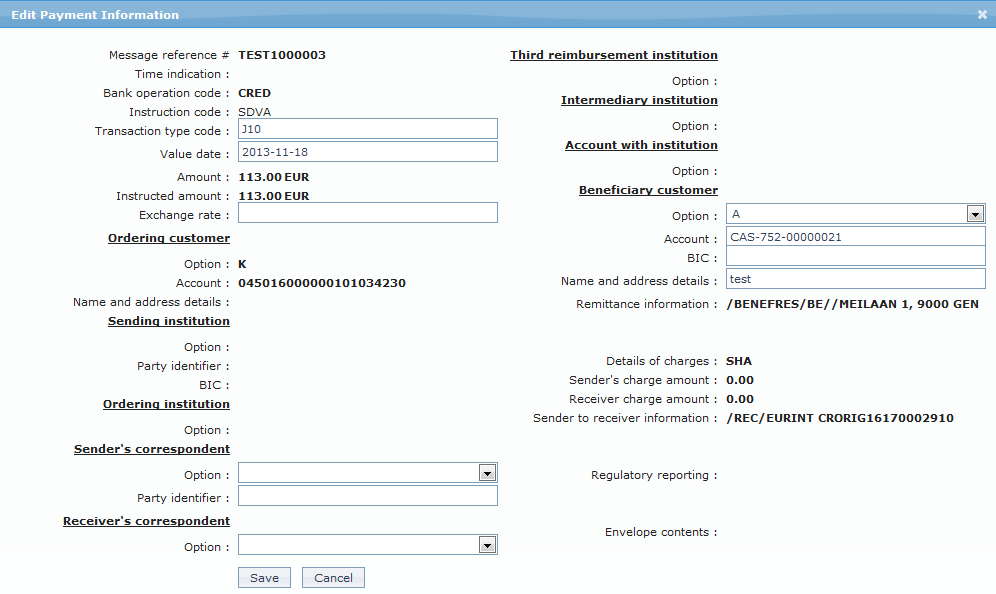
3. Make the required changes and Save. The Gross Settlement Maintenance page appears with the updated details.
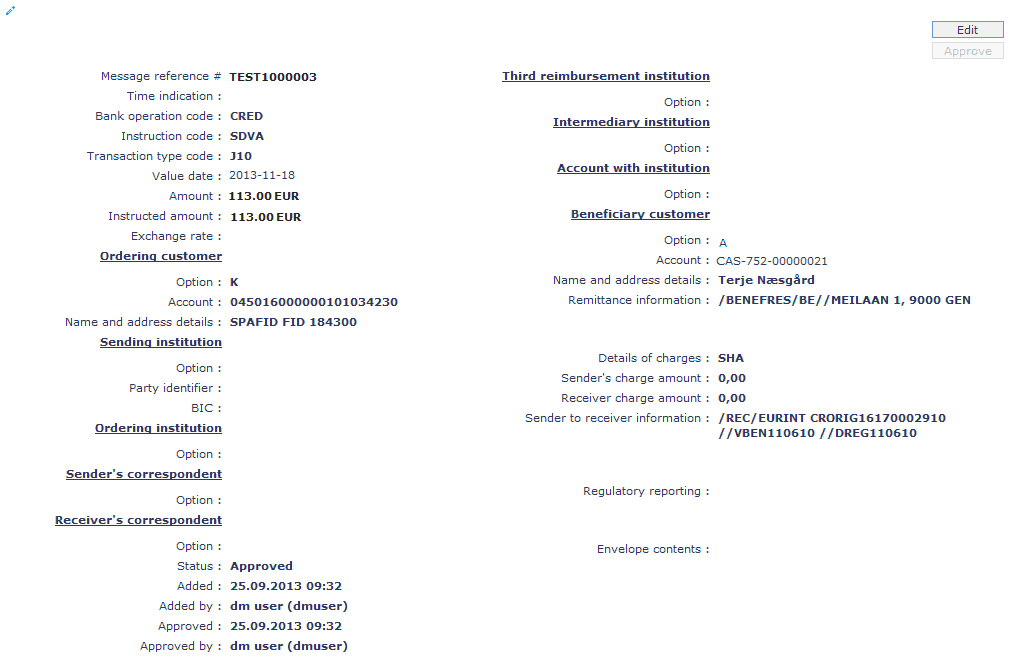
Functions: Edit,Approve.
Approve: If you want to approve a Payment information record, then retrieve the record and click Approve. CC-PG will ask for confirmation. Once the tab is approved, status gets changed from Pending to Approved. The Approved button will be enabled only if the Message mode is Incoming and After Amend is Yes at the Product level.
Message Status
Message status allows you to cancel / reverse / reject a message by means of different statuses of a message. Add button will be enabled based on the current status of the message and the Message mode.
To view/add the Message status,
1. Access the Gross Settlement Maintenance screen and click Message Status tab to view the details as per sample below.
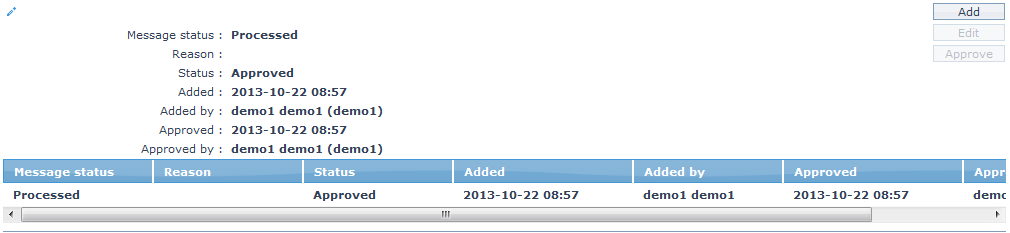
The additional fields are as follows:
Message status displays the status of the message as selected by the user or updated by CC-PG.
Reason specifies the reason for the message status.
Status field displays the status of the tab.
Added field displays the date on which the record was added.
Added by field displays the name of the user who created the record.
Approved field displays date on which the record was approved and is displayed only for approved records.
Approved by field displays name of the user who approved the record and is displayed only for approved records.
2. Click Add. The Add Message Status page appears.
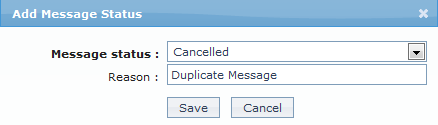
3. Select the Message status from the drop down list.
Note: The status of the message can be changed to below mentioned statuses based on the mode of the message. Only if the current status of the message is Processed or Failed, a new message status can be added. The following are the options available:
| Message Status | Message Mode | Options |
|---|---|---|
| Processed | Incoming | Cancelled and Reversed |
| Processed | Outgoing | Cancelled and Reversed |
| Failed | Incoming | Rejected |
4. Enter the Reason for changing the Message Status.
5. Click Save to save the added details.
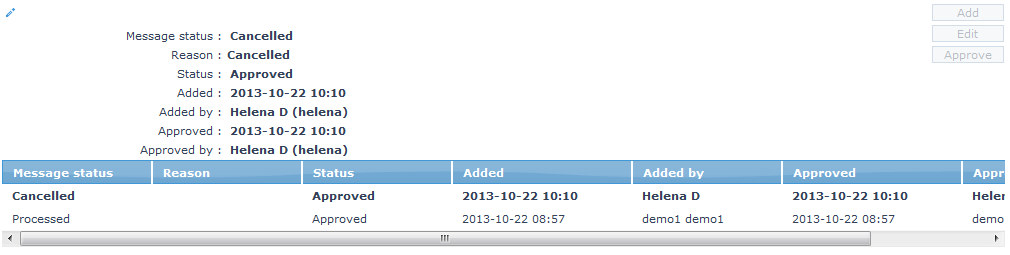
Functions: Add, Edit, Approve.
Note: On adding a new Message status for Gross Settlement record, the status will be Pending and a blue bubble appears on the Message Status tab, if the Authorization setting for the Product is configured as required; else, it is automatically approved. Only on Approval, the Status gets changed to Approved and the blue bubble disappears.
Approve: If you want to approve a Message status record, then retrieve the record and click on Approve. CC-PG will ask for confirmation. Once the tab is approved, status gets changed from Pending to Approved. On approval, the relevant action as indicated by the new status is initiated.
To edit the Message status,
1. Access the Gross settlement Maintenance page and click Message Status and Click Edit. The Edit Message Status page appears. The Edit button will be enabled only if the Authorization setting for that particular status is set as Yes in Product Maintenance.
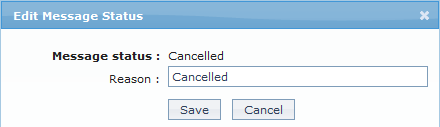
Only Reason is editable.
2. Make the required changes and click Save. The Gross Settlement Maintenance page appears with the updated details.
Functions: Add, Edit, Approve.
Charges
The charge tab allows you to view the charge details of a transaction.
To view the charges,
1. Access the Gross Settlement Maintenance screen and click Charges tab to view the details as per sample below.

Charge scheme: It specifies the Charge scheme attached to the charge rule. On the basis of the rule, the Charge scheme created in ConnectCore and attached to the Charge rule in CCPG is picked and displayed here.
Charge amount in charge currency: It specifies the amount collected and currency for charge in Charge Currency.
Charge amount in account currency: It specifies the amount collected and currency for charge in Account currency. []
Events
Event tab allows you to view the events of the transactions.
To view the Events,
1. Access the Gross Settlement Maintenance screen and click Events tab to view the details as per sample below.
Events Past

Events Current

Events Future

All the tabs show the following data:
Event: It specifies the event code for the transaction.
Description: It specifies the description of the event.
Value Date: It specifies the actual transaction date.
Book Date: The date of entry / input of the event.
Reference #: It specifies the reference # of the transaction.
Status: It displays the status of the event. The status can be of the following types.
Success: Where the event has been processed successfully.
Failed: Where the event has failed during process.
Amount: It specifies the amount of the transaction in transfer currency.
The Events in a Gross Settlement are as listed below.
| Events | Description | Message Status |
|---|---|---|
| PAYMBK | The event will trigger after the Payment is booked in Core bank | Registered |
| PAYMDP | The event will trigger after the debit processing occurs in Core bank | Registered |
| PAYMCP | The event will trigger after the credit processing occurs in Core bank | Processed |
| PAYMRV | The event will trigger after the payment is reversed in Core bank | Reversed |
| PAYMCN | The event will trigger after the payment is cancelled in Core bank | Cancelled |
| PAYMRJ | The event will trigger when reject action is taken in CC-PG | Rejected |