
Standing Instruction Settings
Standing instruction setting enables you to maintain instructions that your clients give, to pay / transfer a specified amount at regular intervals / on the happening of an event (example: account balance exceeding a defined amount) to another account.
Following are the tabs in the Standing Instructions Settings page.
To add new Standing Instruction Setting,
1. From Retail menu, click Settings, and then Standing Instruction setting. Standing Instruction Settings Search page appears.

2. Click Add. New Standing Instructions Settings → Profile (1/2) page appears.
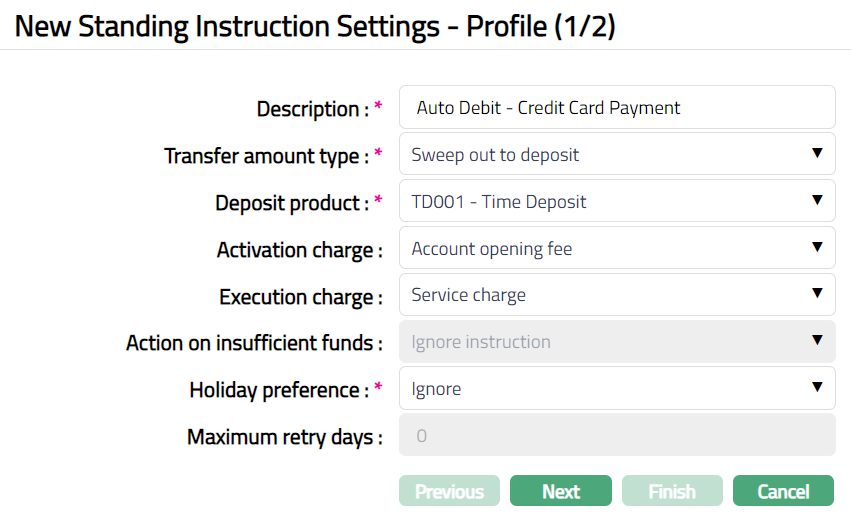
3. Enter Description for the Standing Instruction Settings.
4. Select Transfer amount type from the pre-shipped list. The available options are:
Fixed Amount: A fixed amount is moved to another account.
GL Fund Transfer: It enables you to transfer funds to another GL account with a defined frequency.
Sweep out: The balance in excess of a predefined amount is transferred to another account.
Sweep out to Deposit: The balance in excess of a predefined amount is transferred to a Term Deposit.
Sweep in: A predefined amount is transferred from the source account to destination account to fulfill deficit amount in the destination account.
Sweep in for liquidity management: A transfer option available for liquidity management.
5. Deposit Product is enabled and mandatory if the Transfer Amount Type is Sweep out to deposit and sweep in from deposit. It shows the list of all active Term Deposit Products maintained. Select the required Term Deposit product under which the Term Deposit account has to be created or attach accounts of this product as source accounts based on the Transfer amount type selected above. This field will be disabled on selection of GL account in the above field.
6. Enter Activation charges, if any, by selecting from the list of active charges that are Event based and where the charges are not deferred. In case of Banded charges, the amount of transfer will be the basis for the charge. The charges will be booked on the approval of the standing instruction. This field will be disabled on selection of GL account in the Transfer Amount Type field.
7. Select Execution charge from the drop-down list of active event-based charges. This charge is applicable when the instruction is executed successfully. This field will be disabled on selection of GL account in the Transfer Amount Type field.
8. Using Action on insufficient funds, you can specify what course of action should be followed by Aura in case there are insufficient funds in the account on the date of the instruction. This field is enabled only if the Transfer Amount type is Fixed Amount. The following options are available:
Ignore Instruction: This is the default option and enables you to ignore a Standing Instruction. For example, a Standing Instruction given for a transfer of fixed amount will fail if the From Account has insufficient funds. Aura will attempt to execute the instruction again only on the next instruction date (which would be the next month in case instruction frequency is Monthly).
Execute with available amount: Enables to execute the instruction with the available balance in the account.
Retry for full amount: Enables Aura to execute the action only if sufficient balance is available in the account. If the instruction fails due to insufficient balance on the date of instruction and if this option is chosen, Aura will attempt to execute the instruction again the next day. This will go on till the instruction actually succeeds or if the maximum number of retry days are reached.
No balance check: Enables Aura to execute the action on insufficient funds without having a check on the balance. If GL Fund Transfer is selected as Transfer amount type, then Aura will by default display No balance check and will be in disabled mode.
9. Specify what should happen in case the instruction date falls on a holiday in Holiday preference field. The following options are available:
Ignore: Choose this option if you want the standing instruction to be ignored if the instruction date falls on a holiday. Aura will attempt to execute the instruction again on the next instruction date (which would be the next month in case instruction frequency is Monthly).
Next Business Day: Choose this option if you want the instruction to be executed on the next working day if the Instruction Date falls on a holiday.
Previous working day: Choose this option if you want the instruction to be executed on the previous working day if the Instruction Date falls on a holiday.
10. Enter Maximum retry Days for number of days for which the Standing Instruction should be repeatedly tried for execution in case it fails. This field is enabled only when the Transfer Amount Type is Fixed Amount and option selected in the Action on insufficient funds is Retry for full amount.
11. Click Next. Standing Instructions Settings → Confirmation (2/2) page appears showing the details of the settings that you input.
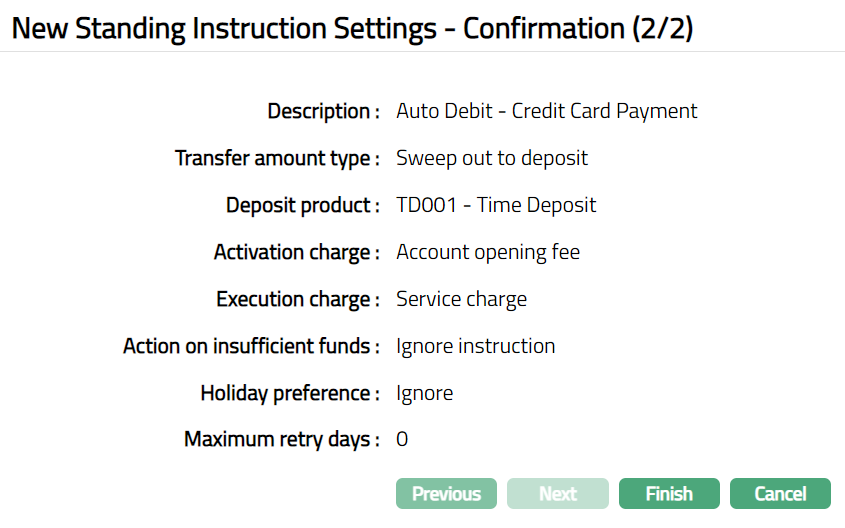
12. Click Finish. Standing Instruction Settings page appears with all the details you have added, showing Profile tab by default. The status of the Standing Instruction Setting will be Active as soon as it is created.
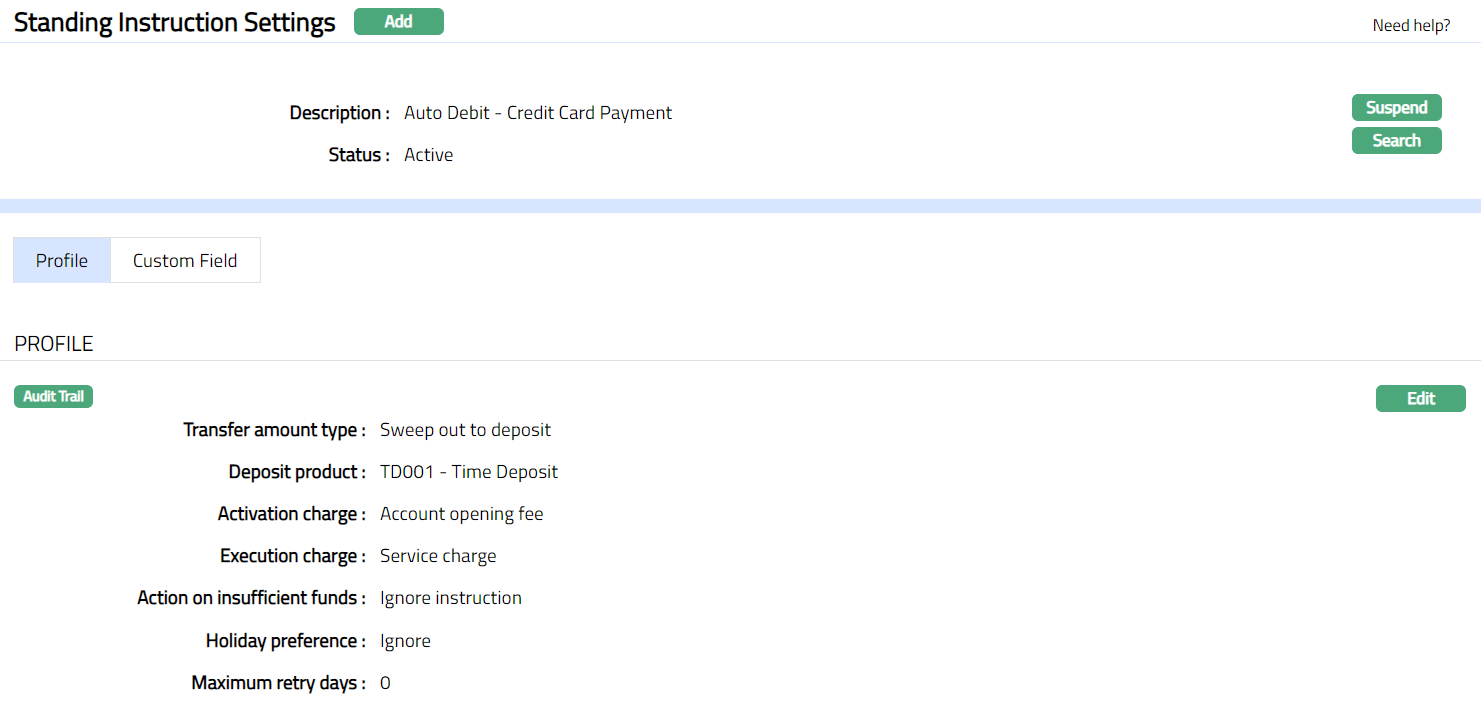
Functions: Add, Suspend, Activate,Search.
Note: Any Standing Instructions that were already created will continue to be executed as defined; however, new Standing Instructions under this Setting can no longer be created.
Suspend: You can suspend the Standing Instruction Setting record by clicking on Suspend button. When you click on Suspend button, Aura will ask for confirmation. On confirmation, Aura will suspend the Standing Instruction Setting. Once the Standing Instruction Setting is suspended, it becomes unavailable in the drop down list in other modules in Aura.
Activate: You can activate a suspended Standing Instruction Setting by clicking on Activate button. When you click on Activate button, Aura will ask for confirmation. On confirmation Aura will activate the Standing Instruction Setting. Once the Standing Instruction Setting is activated, it becomes available in the drop down list in other modules.
Profile
Profile tab, which is the default tab in Standing Instruction Settings page screen, shows the basic details of the Standing Instruction Setting.
To view / edit Profile.
1. Access Standing Instruction Settings page and click Profile tab. The details are defaulted from the entries that you made during Standing Instruction creation. For details refer to New Standing Instruction Settings → Profile (1/2).
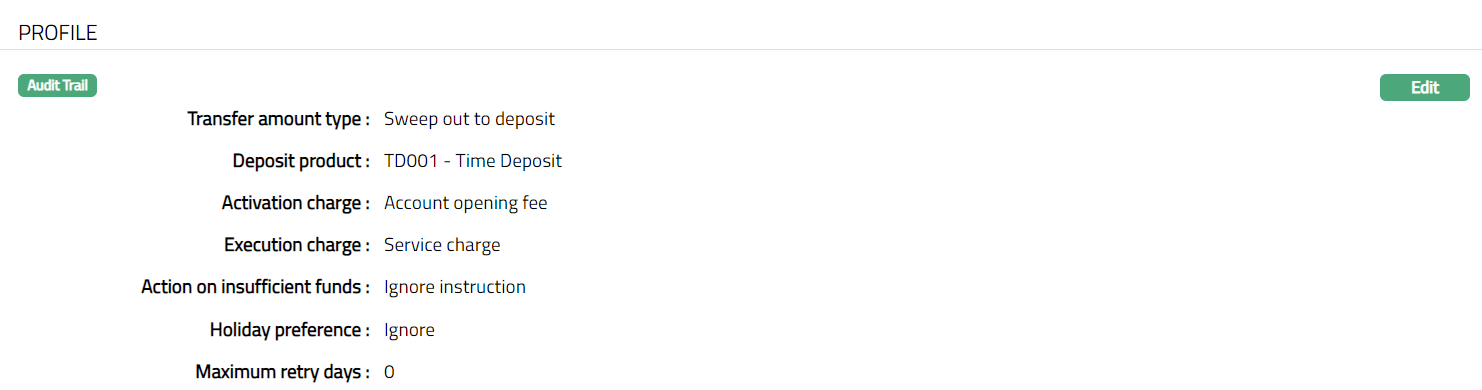
2. Click Edit. Edit Standing Instruction Settings → Profile screen appears.
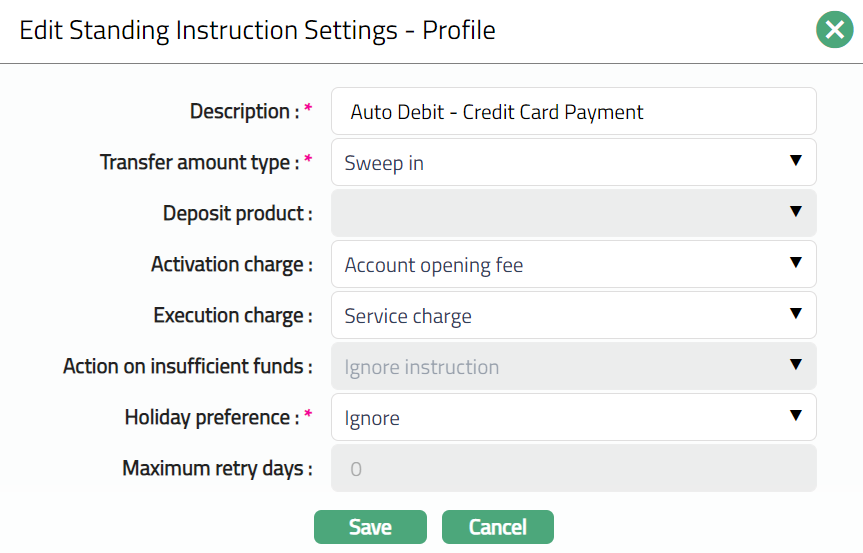
Note: The editable fields will be based on the option selected for Transfer amount type and Action on insufficient funds.
3. Click Save. Profile page appears with the edited details.
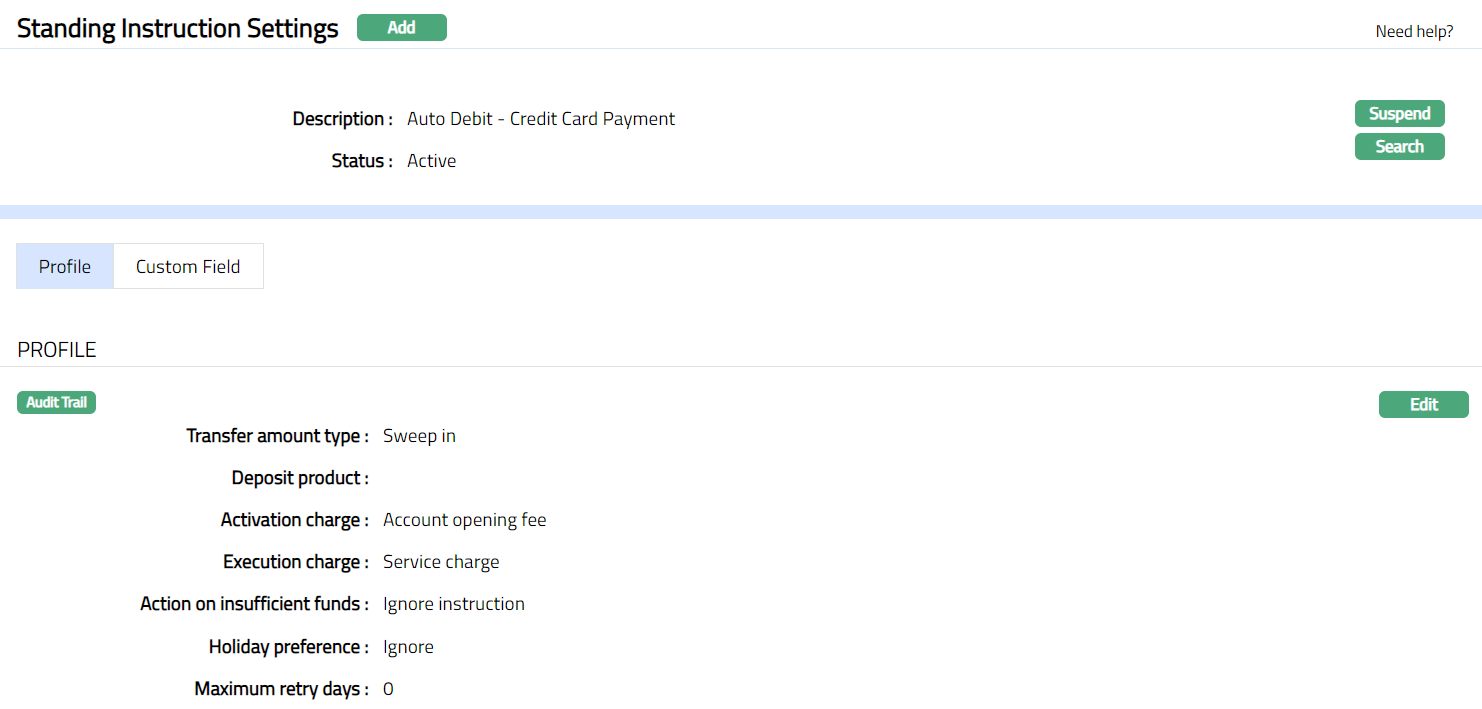
Functions: Edit.
Custom Field
This menu option allows you to define fields apart from those that are already available in the standard version of Aura. Thus, it enables you to customize additional data storage and use as required to suit your specific business need.
To maintain Custom Field,
1. Access Standing Instruction Settings page. Click Custom Field tab. Custom Field search screen appears.

Note: The field appears only when it is created under Admin → System codes → Custom fields → Custom fields and linked to Standing Instruction Setting option in Admin → System codes → Custom fields → Field mappings.
2. Click Edit. Edit Custom Field page appears. In the following illustration, one custom field has been mapped to the Standing Instruction settings as shown below:

3. Enter Additional Information for the custom field as applicable. For Example: any additional information in relevance to the standing instruction settings can be updated.
4. Click Save. Custom field page appears with the edited details.

Functions: Edit