
Branch Submenus
This option allows you to define the sub menus under Service, Teller or Sales groups. Once it is created the submenus appear in the Process-mapping screen. After attaching a Process in the Process-mapping screen, it automatically appears in the relevant submenu under Service, Teller or Sales respectively.
Adding a Branch Submenu
To add a Branch submenu
- From Admin menu, click System Codes, and then click Branch Submenu under Process. The Branch Submenu Search page appears. All Branch Submenu records available in Aura appear on the page.

- Click Add. Branch Submenu -- General (1/2) page appears.
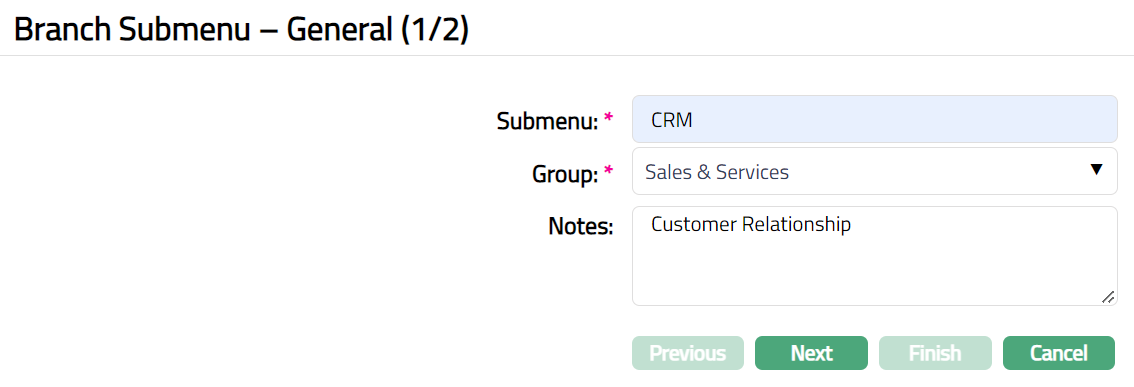
Enter name for Submenu. It is the name of the submenu which appears under the selected group in branch view.
Select appropriate Group that the submenu belongs to, from the available drop-down list like, Service, Sales and Teller.
Enter remarks for the submenu in Notes field.
Click Next. Branch Submenu -- Confirmation (2/2) page appears.
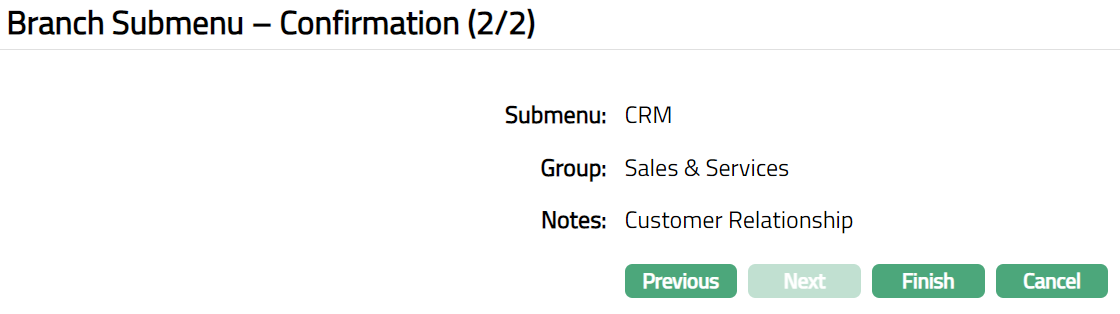
- Click Finish. Branch Submenu page appears displaying the details of the record you added.

Functions: Add, Edit, Delete, Search
Delete: You can delete a Branch Submenu record saved in Aura by clicking on Delete button. Aura will ask for confirmation, on approving the selected record will be deleted. A Branch Submenu can be deleted until it is used in any of the process.
To Add new Branch Submenu
- Click Add. Branch Submenu- general (1/2) page appears.
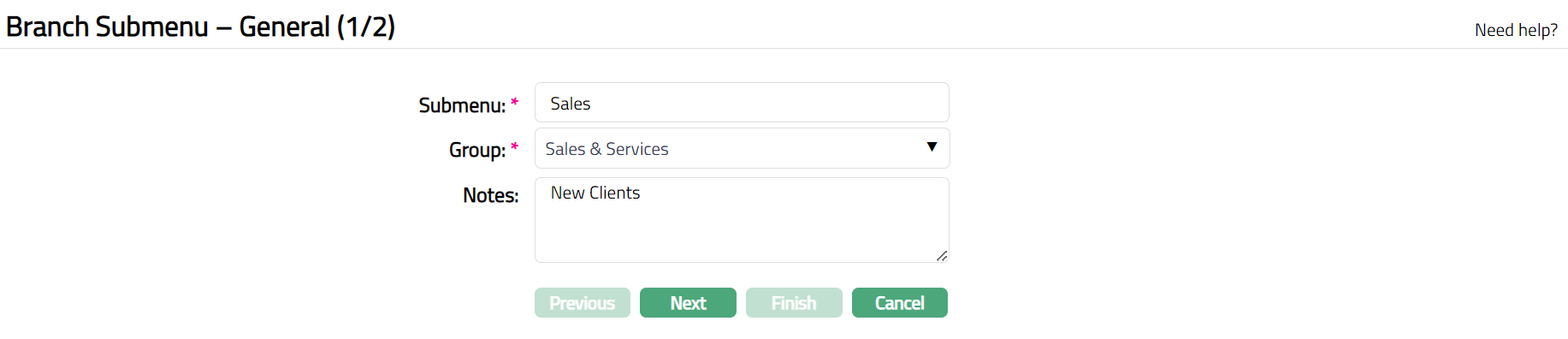
Input the required details in Submenu, Group and Notes
Click Next. Branch Submenu -- Confirmation (2/2) page appears.

- Click Finish. Branch Submenu page appears displaying the details of the record you added.

Functions: Add, Edit, Delete, Search
To Edit Branch Submenu
- Click Edit. Edit Branch Submenu page appears.
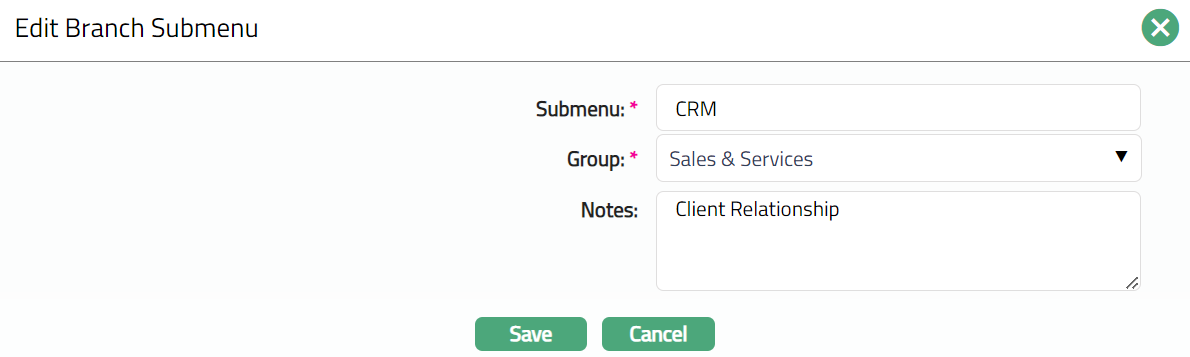
Note: All fields are editable.
- Make the required changes and click Save. Branch Submenu page appears with the edited details.
 Functions: Add, Edit, Delete, Search