
Card Bundle
One of the commonly used login methods for a secure login to internet banking is via code card. In this method the users are issued plastic cards containing printed codes and a serial number. For each login or transaction confirmation, users may be asked to enter the next available code or the code against a specific serial number.
Card Bundle allows you to maintain the card and code information of the card batches. You can specify the length of the code, number of codes and the number of cards in a batch based on which the codes can be generated and handed over to the card manufacturer.
The following is the only tab in Card Bundle:
To add Card Bundle
- From Admin menu, click Secure stationery and then Card bundle. Card Bundle Search page appears. Click All. All Card bundles available in Aura with Bundle status Generated / Printed appear on the page based on the Bundle number.
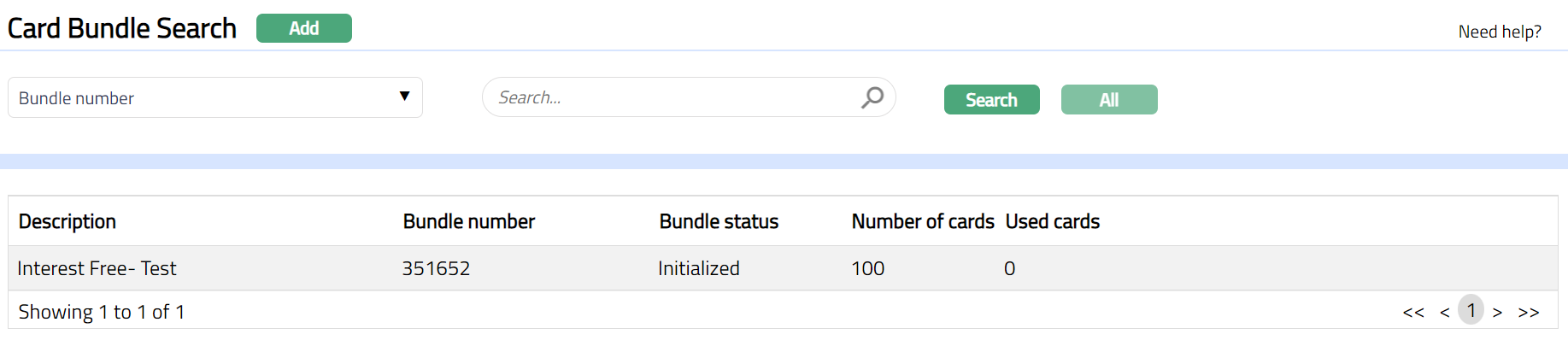
- Click Add. New Card Bundle -- General (1/2) page will appear.
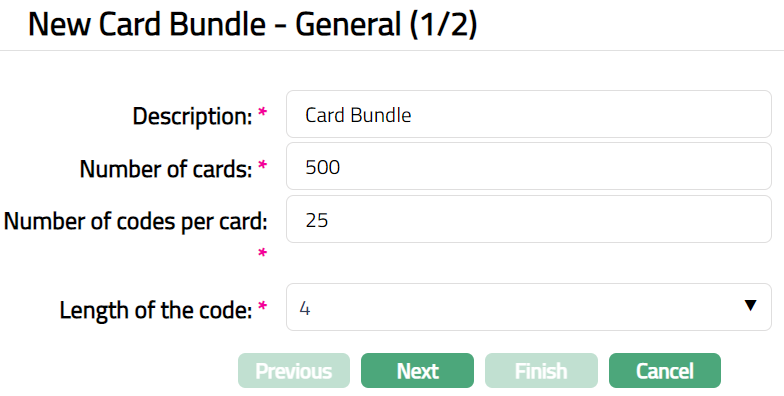
Enter Description for card bundle.
Enter Number of cards for the bundle.
Enter Number of codes per card.
Select Length of the code for the card bundle from the drop-down list. The available options are: 3,4,5,6.
Click Next. New Card Bundle -- Confirmation (2/2) will appear.
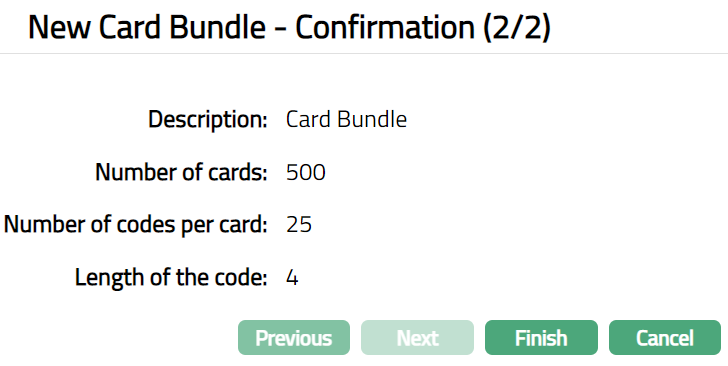
- Click Finish. Card Bundle Maintenance page appears with the added details. Note: Profile tab will be displayed by default with Bundle status field display as Initialized.
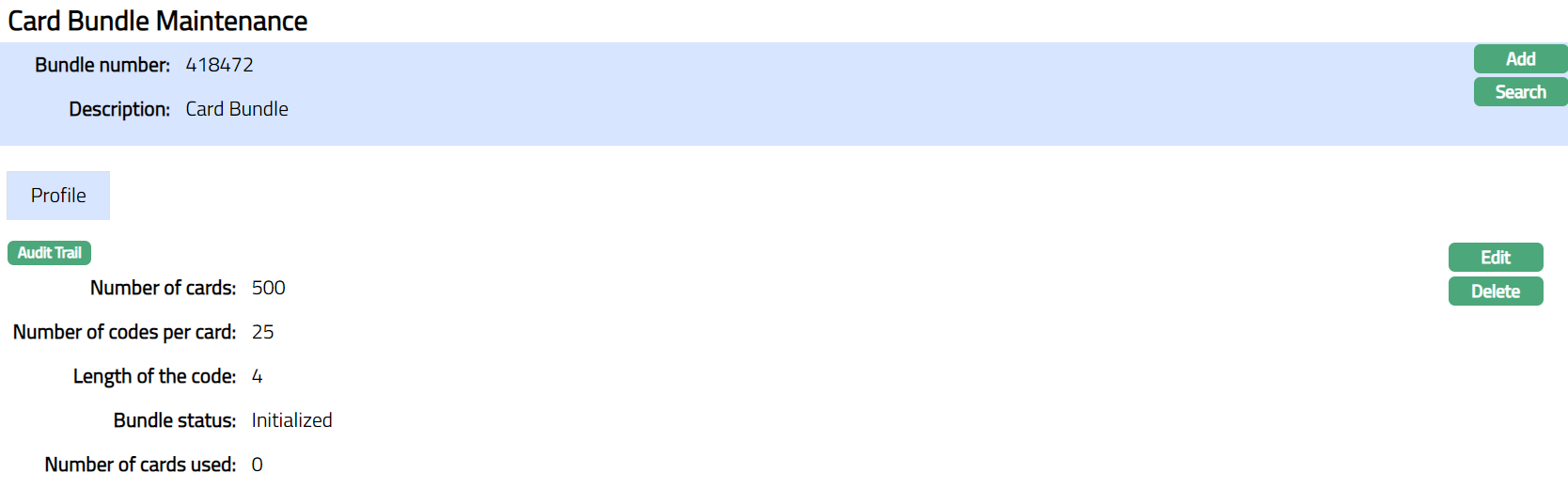
Functions: Add, Search.
Note: Card bundle statuses are as follows.
Initialized: On creation of the Card bundle record, Status displays as Initialized.
Generated: On invocation by the EOC processor or external system, the codes are generated for the Cards. On successful completion of code generation, the Status gets updated from Initialized to Generated.
Printed: On invocation by the EOC processor or external system, the Status gets updated from Generated to Printed and each card under the bundle is marked as printed. The card has just been printed and not yet issued.
Profile
Profile tab shows the basic details of the Card Bundle.
To edit Profile
- Access Card Bundle Maintenance page and click Profile tab.

- Click Edit. Edit Profile page appears.
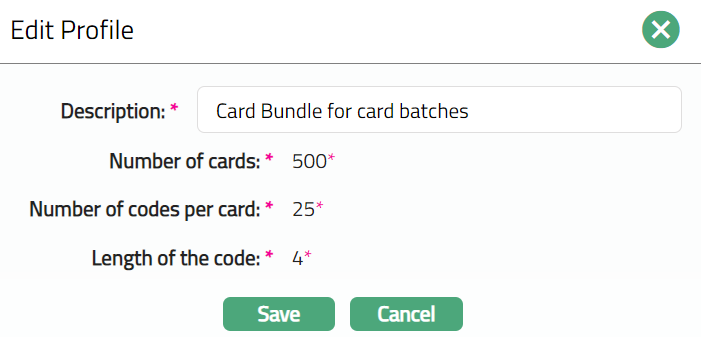
Note: Only Description field is editable.
- Click Save. Profile page appears with the edited details.
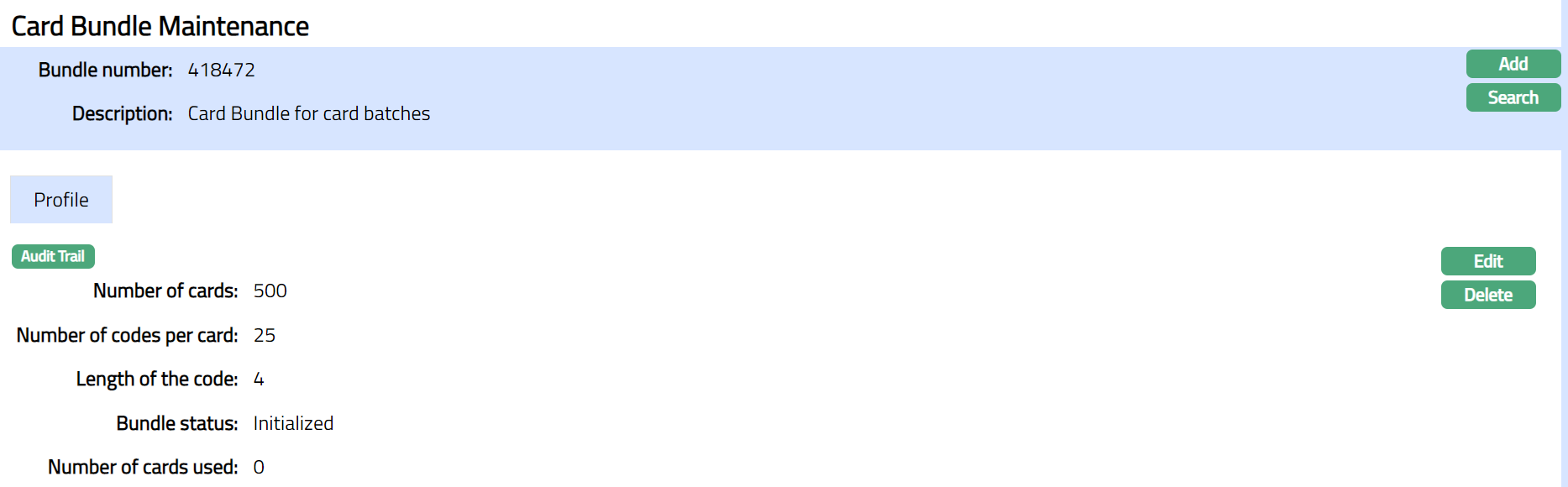
Functions: Edit, Delete
Delete: You can delete a Card Bundle record saved in Aura by clicking Delete button. Aura will ask for confirmation, on approving which the selected record will be deleted.