
Free Format Message
Free Format Message functionality allows the financial institutions to send or receive information for which another message type is not applicable. It can be used as a status message to report reasons for a transaction instruction not being executed or as a message to reject a transaction. On creation of a Free Format Message, a unique Payment reference # gets generated and on the basis of this Payment reference #, the message is tracked.
There is only one tab, which will allow you to modify the records.
To add a Free Format Message,
1. From the PaymentGrid menu, click Operations and then click Free format message. The Free Format Message Search page appears.
2. Click Add. The New Free Format Message → General (1/2) page appears.
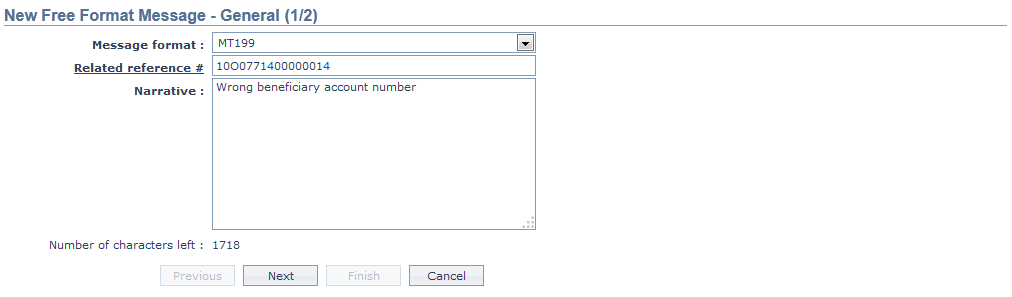
3. Select the Message format from the drop down list. The available options are MT199 and MT299.
4. Select the Related reference # by clicking on the hyperlink. The Related Reference Search page appears with list of outgoing payment reference numbers. If MT199 is chosen in Message Format field, then Outgoing payment reference numbers of Category 1 (like MT101, MT102 and MT103) will be displayed. If MT299 is chosen in Message Format field, then Outgoing payment reference numbers of Category 2 (like MT200 and MT202) will be displayed. You can also input the Message reference # or Payment reference # and select the required reference # from the list displayed by CC-PG.
5. Enter the Narrative for the Free Format Message. The maximum number of characters that can be input is 1750.(35 lines x 50 characters).
6. CC-PG will by default display the Number of characters left in the textbox once the Narrative is input.
7. Click Next. The New Free Format Message → Confirmation (2/2) page appears.

8. Click Finish. The Free Format Message Maintenance page appears and a unique Payment reference # gets generated.
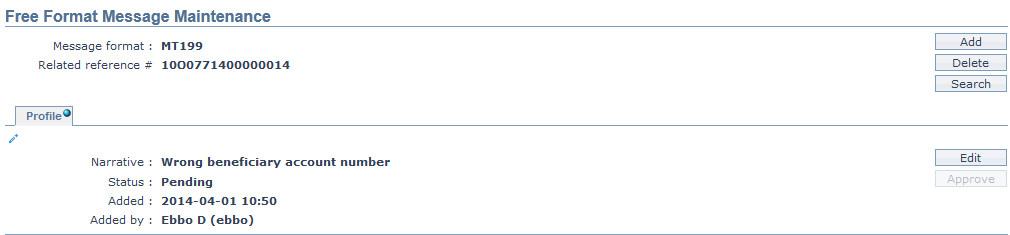
Functions: Add, Edit, Delete, Search,Approve.
Note: On creation of a Free Format Message, a unique payment reference number is generated for each Free Format Message. Using this Payment reference # you can track each message. The Status of the record will be Pending and only on Approval, the record status gets changed to Approved.
Delete: You can delete a Free Format Message record saved in CC-PG by a click on Delete button. CC-PG will ask for confirmation, on approving which the selected record will be deleted. Once the record is approved, it cannot be deleted.
Approve: If you want to Approve a Free Format Message, then retrieve the record and click on Approve. CC-PG will ask for confirmation. Once the tab is approved, status gets changed from Pending to Approved. CC-PG will generate an outgoing message in the outgoing file path as per the Message Format ( MT199 or MT299) selected by the user.
Profile
The Profile tab, which is the default tab in the Free Format Message Maintenance screen, shows the basic details of the record. The details displayed here are defaulted from New Free Format Message → General (1/2) screen.
To view the Profile tab,
1. Access the Free Format Message Maintenance page and click Profile tab.

The additional fields are as follows:
Status field denotes the status of the tab.
Added field denotes the date on which the record was added.
Added by field denotes the name of the user who created the record.
Approved field denotes date on which the record was approved and is displayed only for approved records.
Approved by field denotes name of the user who approved the record and is displayed only for approved records.
To edit the Free Format Message,
1. Click Edit. The Edit Free Format Message page appears. The Edit button will be enabled only when the Status of the Free Format Message is Pending.
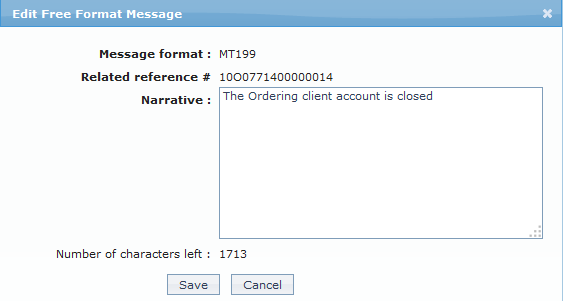
Only the Narrative field is editable.
2. Make the required changes and click Save. The Free Format Message Maintenance page appears with the updated details.

Functions: Add, Edit, Delete, Search, Approve