
Net Settlement
Net Settlement is the process by which collective total of all transactions is calculated on any given day. Credit and Debit transactions are recorded on the clearing house books throughout the business day and final settlement of the net transactions i.e., the credit less the debits occurs.
Net Settlement allows you to view and modify the Net Settlement records for both Incoming and Outgoing payments.
The sub-tabs are as follows:
To view / maintain Net Settlement record,
1. From the Payment Grid menu, click Operations and then click Net Settlement. The Net Settlement Search page appears.

2. Select the Search for option from the drop down list. You can search using the following inputs:
- Beneficiary account
- Booking date
- Clearing Network
- Creditor
- Debtor
- Exception
- Message dispatched
- Message format
- Message Mode
- Message reference
- Message Status
- Payment reference
- Transaction amount
- Transaction currency
- Transaction status
You can search a record based on three different parameters. Enter the appropriate search inputs in the textboxes provided next to the Search for dropdown. Based on the three parameters, AURA will display all the records that match these criteria.
For example: If you select Message status as Processed, Message mode as Outgoing and Transaction status as Approved, then AURA will display all records that matches this criteria.
3. Click Search. All the records which satisfy the search criteria will appear on the page. A sample screen is shown below.
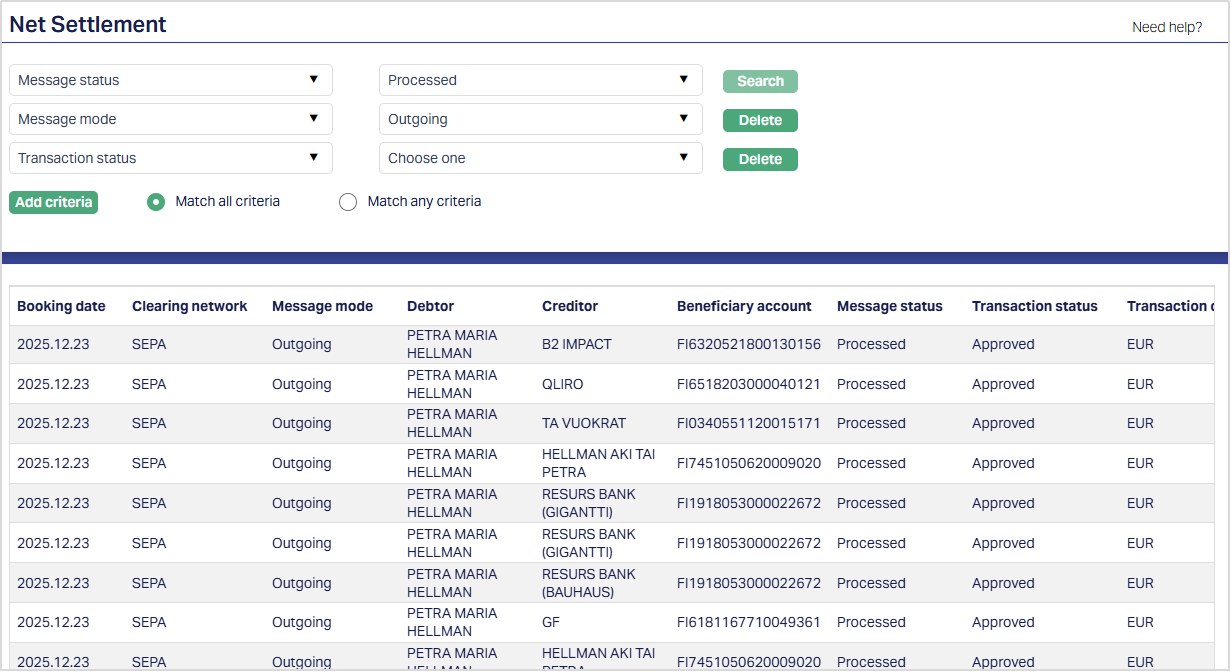
4. If you want to view or modify a Net Settlement record, click on the appropriate record and the Net Settlement Maintenance page appears.
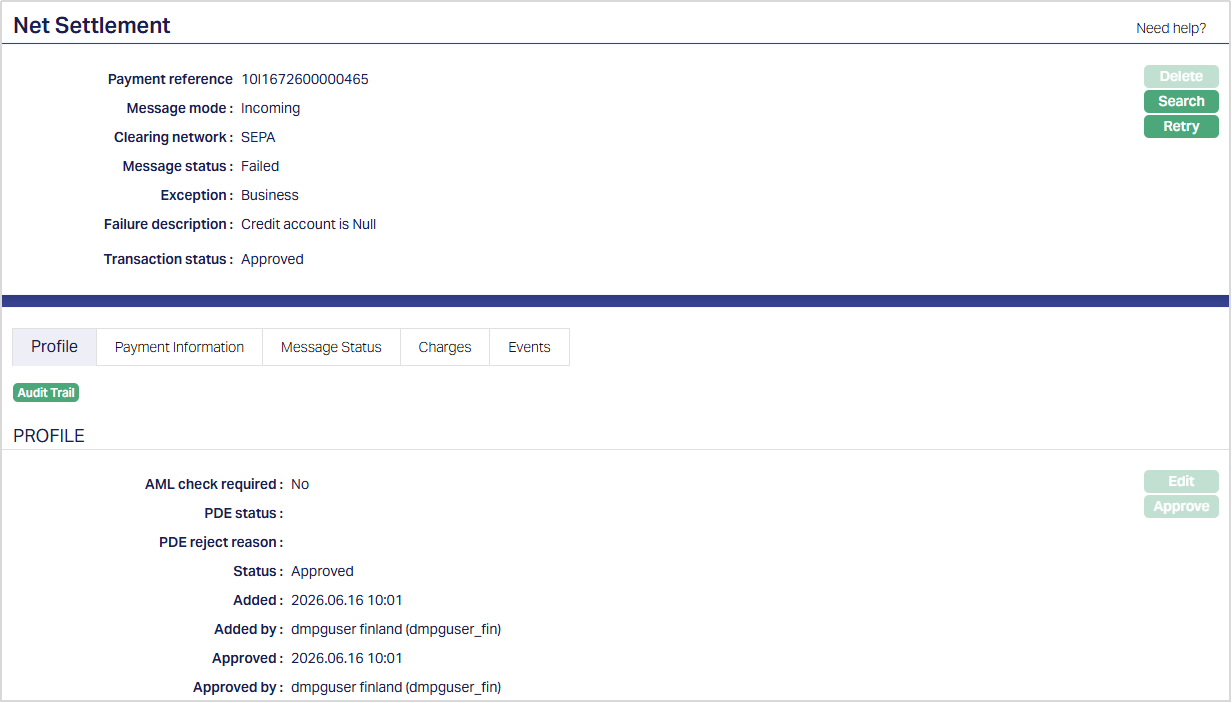
Functions: Delete, Search, Retry, Edit, Approve.
The fields that appear in the header pane for all tabs are as follows:
Payment reference: It specifies the reference # of the payment transaction.
Message mode: It specifies the mode of the message. The mode can be Incoming, Outgoing, Inward, Outward, Inward return or Outward return
Clearing network: It specifies the Clearing network of the payment transaction. The network can be SEPA, GIRO, DCL - Bank Account, Bankgiro, SWIFT or TARGET2.
Message status: It specifies the status of the message. The status can be - Cancelled, Reversed, Edited, Failed, Processed, Registered, Recalled, Rejected, Accepted, Returned, Sent for Collection, Pending, Retried, and Invoice Cancelled.
- Cancelled: If payment cancellation is initiated to Core bank, message status will display Cancelled.
- Reversed: If payment reversal is initiated to Core bank, message status will show Reversed.
- Edited: If Payment information tab is edited, the message status will display Edited.
- Failed: If the message fails to process, the message status will display as failed with an exception.
- Processed: If the message is processed successfully, then the message status will display Processed.
- Registered: If a payment amount is initiated and is to be credited in future date, message status will show Registered.
- Recalled: Available only for SEPA. If a request is made for a Recall of an outgoing message, then message status will display Recalled.
- Rejected: The message status will display Rejected, if the request for cancellation is rejected.
- Accepted: Available only for SEPA. When AURA receives Camt.59 message, the message status becomes Recalled. If a recalled message is accepted, then message status will show Accepted status.
- Returned: If a payment transaction is returned by the clearing network or receiving institution, the message status will display Returned.
- Sent for Collection:If a payment or collection transaction is successfully created and submitted for collection processing, the message status will display Sent for Collection.
- Pending: Indicates that the payment transaction is pending processing.
- Retried: If a payment transaction is not executed and is scheduled for reprocessing, the message status will display Retried.
- Invoice Cancelled: Indicates that the invoice associated with the payment transaction has been cancelled.
Exception: It specifies the exception of a failed transaction. The exceptions can be AML, PDE, Business and Critical.
- AML: (Anti-Money Laundering) If there is any failure due to AML, the transaction is marked as AML exception.
- PDE: Possible Duplicate Emission.
- Business: If there is any business related failure, then the transaction is marked as Business exception.
- Critical: Any connectivity failure between systems is marked as Critical exception.
Failure description: It specifies the description of the failed transaction.
Transaction status: It specifies the status of the transaction. The status can be Pending or Approved.
RETRY
The Retry function allows you to reprocess failed payment transactions.
To retry a failed payment,
1. Click on the Retry button . The Retry Net Settlement dialog appears.
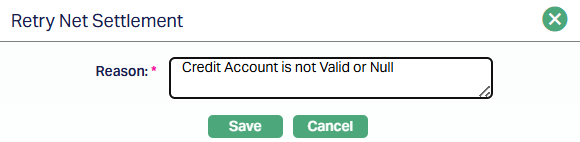
2. Enter the Reason for retrying the payment. This field is mandatory.
3. Click Save. The payment is submitted for retry processing.
Note:
- The entered Reason is recorded in the Message Status tab.
- If the payment originally failed due to a Business exception caused by the Ceiling for Maximum Prepayment or Excess Receipts threshold, and Override during External Payment Retry is enabled for the associated Loan Product, Aura bypasses the threshold validation during the retry.
- Payments that failed for any other reason continue to follow the standard validation rules and are not affected by the override setting.
Profile
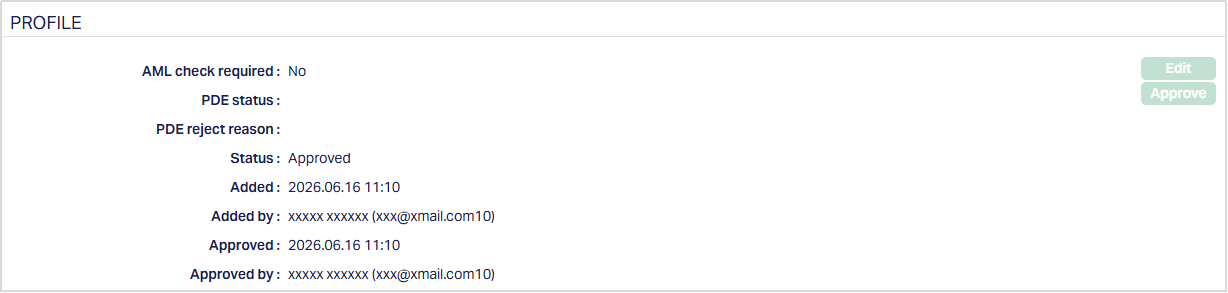
The Profile tab, which is the default tab in the Net Settlement Maintenance screen, shows the basic details of the Net Settlement payment record. The details displayed here are based on the message mode.
The Edit button will be enabled only if the PDE status is PDE occurred and Mode is Incoming.
To view/ edit the Profile,
1. Access the Net Settlement Maintenance screen and click Profile tab to view the details as per sample below.
OUTGOING

INCOMING
INWARD

OUTWARD
AML status: It displays the AML (Anti-Money Laundering) status of the transaction that comes from the AML module and no changes can be done in AURA. It is displayed for both Incoming and Outgoing payments. The AML statuses, are as follows:
Hold: The AML module is kept on hold after positive match.
Negative Match: If the list does not match in AML module, then AURA will display Negative match.
Positive Match: If the list matches in AML module, then AURA will display Positive match.
Override: After the Positive match, if the AML officer decides that the transaction can be further processed and thus overrides, then AURA will display Override.
AML check required: It displays whether the AML check is required or not. The available options are Yes or No. If Yes, then AML check is required. If No, then AML check is not required. The value is defaulted as per the selection of AML required radio button maintained in Product.
Message dispatched: It displays whether the message is dispatched or not. The available options are Yes or No. If Yes, the message is dispatched and if No, the message is not dispatched. This field will be displayed for applicable outgoing message modes.
PDE status: It displays the PDE (Possible Duplicate Emission) status of the transaction and is displayed only for Incoming message mode. Based on the PDE configuration maintained in Message Configuration, AURA marks the transaction with exception as PDE. After the transaction is identified as PDE, the PDE exception can be changed to various statuses. The statuses are as follows:
- PDE Occurred: Based on the PDE configuration, AURA will display the status as PDE occurred.
- PDE Override: If you want to Override the PDE transaction, you can change the status from PDE Occurred to PDE Override.
- PDE Reject: If you want to reject a PDE transaction, you can change the status from PDE occurred to PDE Reject.
PDE reject reason: It will display the reason updated by the user on PDE rejection. It will display only when the Message mode is Incoming.
Status field displays the status of the tab. Pending or Approved.
Added field displays the date on which the record was added.
Added by field displays the name of the user who created the record.
Approved field displays date on which the record was approved and is displayed only for approved records.
Approved by field displays name of the user who approved the record and is displayed only for approved records.
Approve: If you want to approve a Net Settlement record, then retrieve the record and click Approve. AURA will ask for confirmation. Once the tab is approved, status gets changed from Pending to Approved.
Note: On Approval of a record, the following actions will be taken
If the PDE status is PDE override, then AURA will trigger to the next stage.
If PDE status is PDE reject, then AURA will update the Message status as Rejected and payment cycle comes to an end.
Payment Information
Payment Information tab allows you to view and maintain the details for the actual message generated.
The fields displayed in the Payment Information tab vary depending on the Clearing Network of the selected transaction. Additional fields may be displayed for specific clearing networks.
To view the payment information,
Access the Net Settlement Maintenance screen and click Payment Information tab to view the details as per sample below.
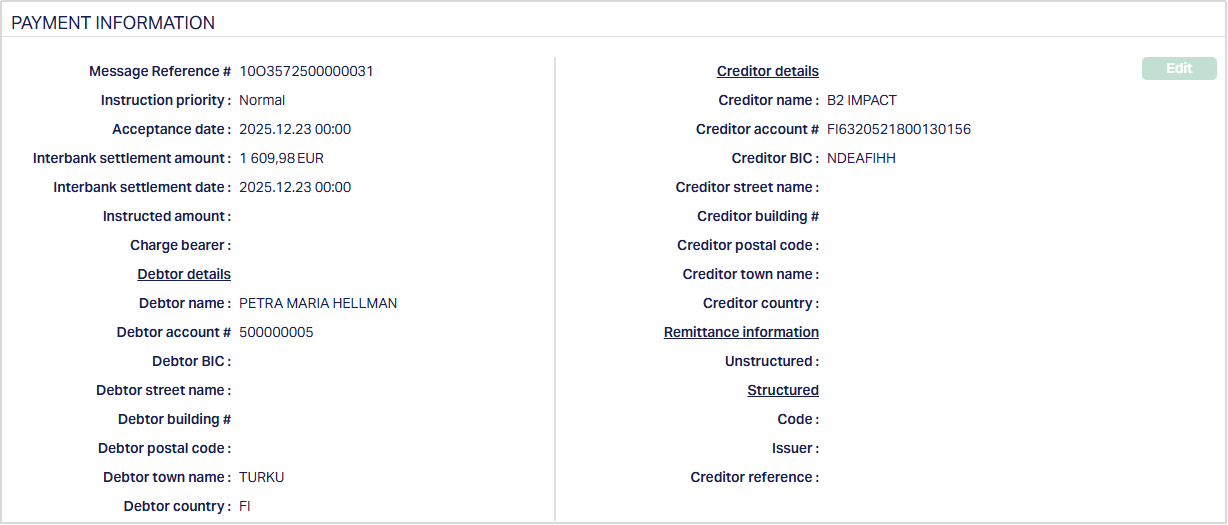
For SEPA:
For GIRO /DCL /Bankgiro /SWIFT /TARGET2:
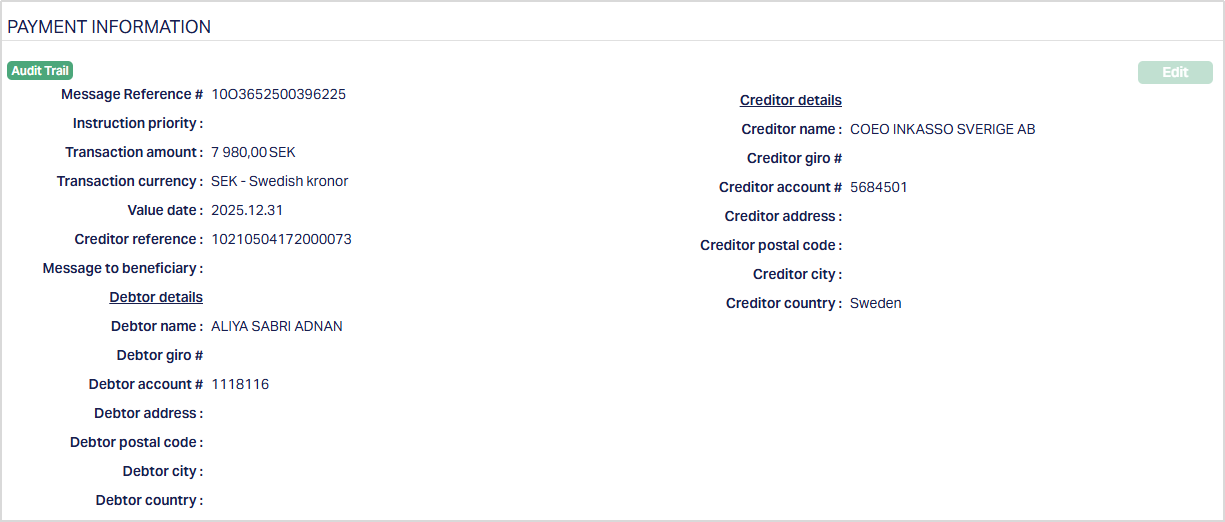
Message Reference #: It specifies the reference # assigned by the Sender to identify the message.
Instruction priority: It specifies the payment processing speed. Only Normal value is used for SEPA payments.
Acceptance date: It specifies the date of fulfillment of all conditions required by the originator bank for the execution of a SEPA credit transfer. It includes but is not limited to the regulatory option of cut off time defined by the originator bank or to the availability of adequate financial cover and of the information required to execute the instruction.
Interbank settlement amount: It specifies the total amount and currency moved between instructing agent and instructed agent.
Interbank settlement date: It specifies the date on which obligations with respect to fund transfer between originator bank and Beneficiary bank are discharged.
Instructed amount: It specifies the amount and currency to be moved between the debtor and creditor, before deduction of charges, expressed in the currency as ordered by the initiating party.
Transaction amount: It specifies the settlement amount and currency.
Transaction currency: It specifies the currency of the transaction.
Value date: It specifies the value date of the payment.
Creditor reference: It specifies the reference information provided by the creditor to allow the identification of the underlying documents. The creditor reference supports a maximum of 35 characters.
Remittance information: It specifies the payment information transmitted in the message upon request in order to facilitate the reconciliation
Charge bearer: It specifies the party (Parties) liable for payment related fees. Only SLEV is allowed for a SEPA credit transfer.
Message to Beneficiary: It specifies the payment information or message communicated to the beneficiary.
Debtor details: Details of the party that owes an amount of money to the creditor.
Debtor name: It specifies the name of the Debtor or Originator.
Debtor account #: It specifies the IBAN of the Originator for credit transfer instruction.
Debtor BIC: It specifies the BIC code of the Debtor or Originator.
Debtor street name: It specifies the street name of the Debtor.
Debtor building: It specifies the Debtor's or Originator's building number.
Debtor postal code: It specifies the postal code of the Debtor.
Debtor town name: It specifies the town name of the Debtor.
Debtor country: It specifies the country of the Debtor.
Debtor Giro #: It specifies the Giro # of the Debtor
Debtor address: It specifies the address of the Debtor
Debtor city: It specifies the name of the city of the Debtor.
Creditor details: Details of the party to which an amount of money is due.
Creditor name: It specifies the creditor name.
Creditor account #: It specifies the IBAN of the Creditor for credit transfer instruction.
Creditor BIC: It specifies the BIC code of the Creditor bank.
Creditor street name: It specifies the street name of the Creditor.
Creditor building #: It specifies the Creditor's building number.
Creditor postal code: It specifies the postal code of the Creditor.
Creditor town name: It specifies the town name of the Creditor.
Creditor country: It specifies the name of the country of the Creditor.
Creditor Giro#: It specifies Giro number of the Creditor.
Creditor Address: It specifies the address of the Creditor.
Creditor city: It specifies the name of the city of the creditor.
Remittance Information: It is the Payment information transmitted to the beneficiary in the credit transfer order on request of the Originator in order to facilitate the reconciliation.
Unstructured: It specifies the information supplied to enable the reconciliation of an entry with the items that the payment is intended to settle, such as commercial invoices in an accounts' receivable application, in an unstructured form.
Structured: It is the Information supplied to enable the matching/reconciliation of an entry with the items that the payment is intended to settle, such as commercial invoices in an accounts' receivable system, in a structured form
- Code: It specifies the document type in a coded form.
- Issuer: It specifies the identification of the issuer of the reference document type.
- Creditor reference: It specifies the reference information provided by the creditor to allow the identification of the underlying documents.
Note: For applicable Failed and Rejected transactions, the Edit function may be enabled. When enabled, only specific fields such as Creditor Account # can be modified.
To edit,
1. Click Edit. The Edit Payment Information page appears.
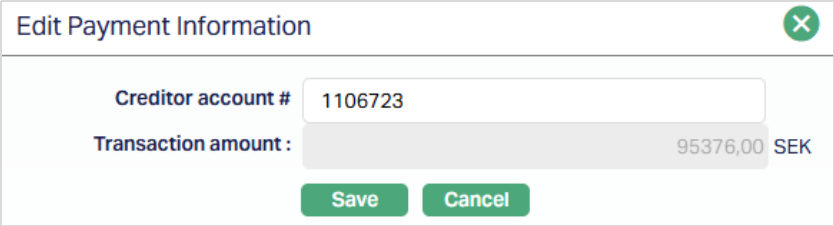
2. Edit/Update the Creditor account #
3. Click Save. The Payment Information tab appears with the edited details.
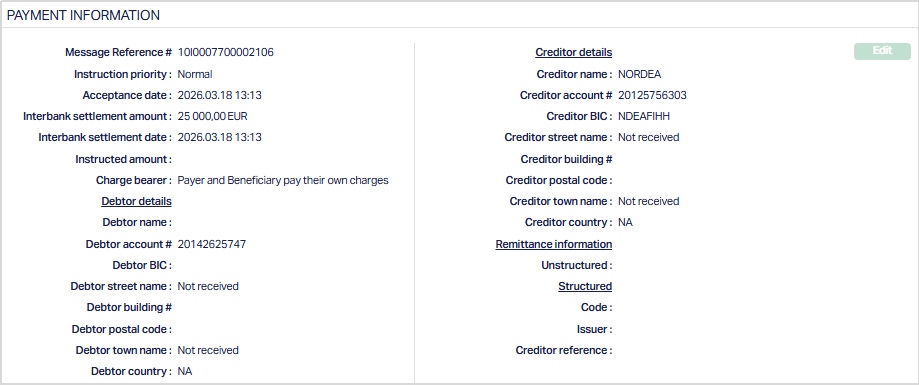
Function: Edit
Message status
Message status allows you to cancel / reverse / return / recall / accept / reject / process a message by means of different statuses of a message. The Add button is enabled based on the current status of the message and Message mode.
To view/add the Message status,
1. Access the Net Settlement Maintenance screen and click Message Status tab to view the details as per sample below.
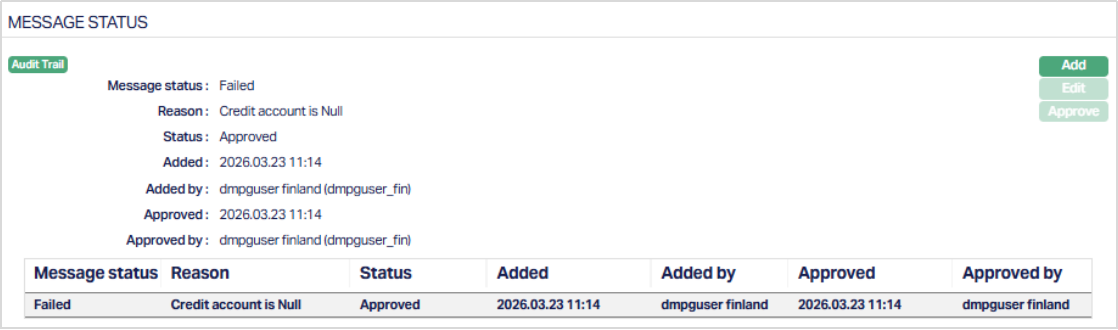
The additional fields are as follows:
Reason specifies the reason for the message status change. For payment retries, it stores the reason entered during the Retry operation.
Status field displays the status of the tab. Approved or Pending.
Added field displays the date on which the record was added.
Added by field displays the name of the user who created the record.
Approved field displays date on which the record was approved and is displayed only for approved records.
Approved by field displays name of the user who approved the record and is displayed only for approved records.
2. Click Add. The Add Message Status page appears.
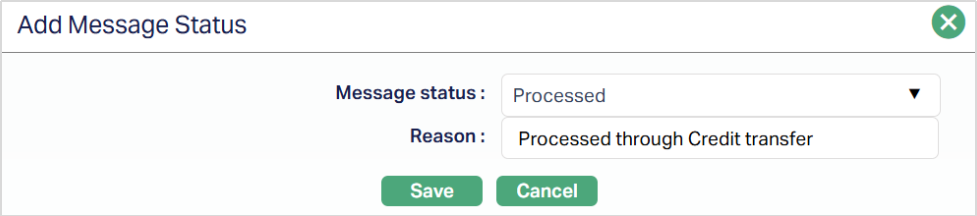
3. Select the Message status from the drop down list.
Note: The available message statuses depend on the current status and mode of the message. For Failed Incoming payments, the message status can be changed to Processed. The following options are available:
| Current Message Status | Message Mode | Available Message Status |
|---|---|---|
| Failed | Incoming | Processed |
| Processed | Incoming | Returned (only for SEPA), Cancelled and Reversed |
| Processed | Outgoing | Recalled (only for SEPA), Cancelled and Reversed |
| Recalled (only for SEPA) | Incoming | Accepted and Rejected |
4. Enter the Reason for the Message status.
Note: For a Failed Incoming payment being changed to Processed, the Reason is mandatory.
5. Click Save to save the added details.
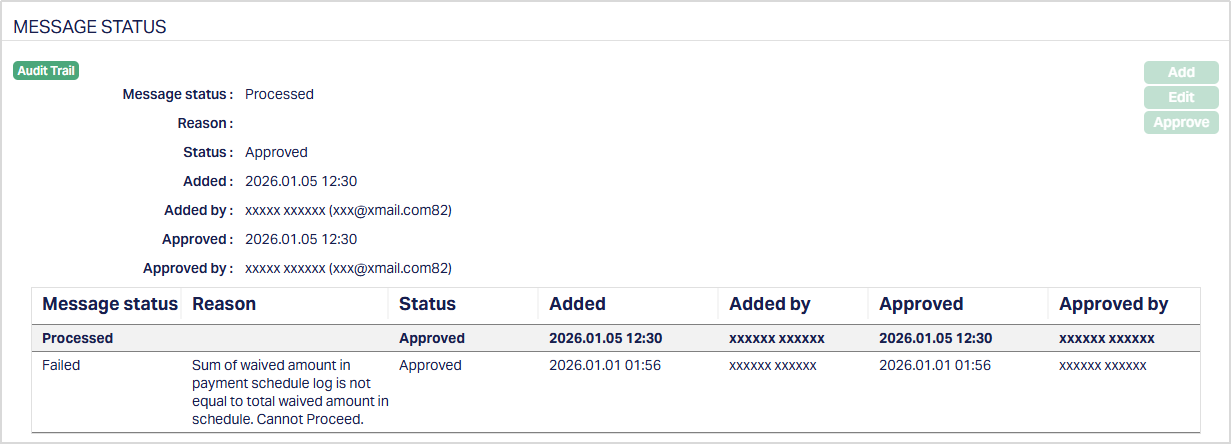
Functions: Add, Edit, Approve
Note: On adding a new Message status for Net Settlement record, the status will be Pending , if the Authorization setting for the Product is configured as required; else, it is automatically approved. Only on Approval, the Status gets changed to Approved and the blue bubble disappears.
Approve: If you want to approve a Message status record, then retrieve the record and click on Approve. AURA will ask for confirmation. Once the tab is approved, status gets changed from Pending to Approved. On approval, the relevant action as indicated by the new status is initiated.
Edit: The Edit function allows users to modify an existing Message Status record. After the required information is updated and saved, the changes are reflected in the Message Status tab.
Charges
The charge tab allows you to view the charge details of a transaction.
To view the charges,
1. Access the Net Settlement Maintenance screen and click Charges tab to view the details as per sample below.

Charge scheme: It specifies the Charge scheme attached to the charge rule. On the basis of the rule, the Charge scheme created in core bank and attached to the Charge rule in CCPG is picked and displayed here.
Charge amount in charge currency: It specifies the amount and currency collected for charge in Charge Currency.
Charge amount in account currency: It specifies the amount and currency collected for charge in Account currency.
Events
Event tab allows you to view the events of the transactions. It will display the events of all the accounting entries in Core bank.
To view the charges,
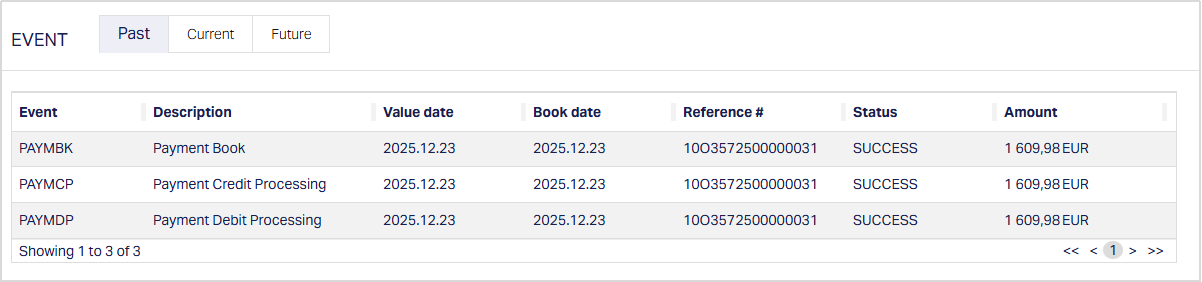
1. Access the Net Settlement Maintenance screen and click Events tab to view the details as per sample below.
Events Past
Events Current

Events future

All the tabs show the following data:
Event: It specifies the event code for the transaction.
Description: It specifies the description of the event.
Value Date: It specifies the actual transaction date.
Book Date: The date of entry / input of the event.
Reference #: It specifies the reference # of the transaction.
Status: It displays the status of the event. It can be of the following types.
- Success: Where the event has been processed successfully.
- Failed: Where the event has failed during process.
Amount: It specifies the transaction amount in transfer currency.
The Events in a Net Settlement are as listed below.
| EVENTS | DESCRIPTION | TRANSACTION STATUS | Remarks |
|---|---|---|---|
| PAYMBK | The event will trigger after the Payment is booked in Core Bank | Registered | |
| PAYMDP | The event will trigger after the debit processing occurs in Core bank | Registered | |
| PAYMCP | The event will trigger after the credit processing occurs in Core bank | Processed | |
| PAYMRV | The event will trigger after the payment is reversed in Core bank | Reversed | If Reverse event is triggered, then pacs: 004 message gets generated. |
| PAYMCN | The event will trigger after the payment is cancelled in Core bank | Cancelled | |
| PAYMRJ | The event will trigger when reject action is taken in AURA | Rejected | If reject event triggers, then camt: 029 message gets generated. |
| PAYMRC | The event will trigger when recall action is taken in AURA | Recalled | If recalled event triggers, then camt: 056 message gets generated. |
| PAYMRT | The event will trigger when return / cancel action is taken in AURA / Core bank respectively. | Returned | If return event triggers, then pacs: 004 message gets generated. |
| PAYMAC | The event will trigger when accept / cancel action is taken in AURA / Core bank respectively | Accepted |