
Card Account Status
Card Account Status allows you to define any number of statuses and define the action to be done at each status for the Card Account. These statuses can be used as an Account status or as Payment Status or both. Each status will have corresponding preferences like Decline Authorization, Disallow Debit, Disallow credit, Stop invoice etc. These statuses can be used in the Rule Builder to automatically move the accounts to various statuses based on business rules.
The following are the various tabs that appear on the Status page.
To add new Status record
- From Admin menu, click Status, then Card Account Status. Card Account Status Search page appears.

- Click Add. New Status - General (1/2) page appears.
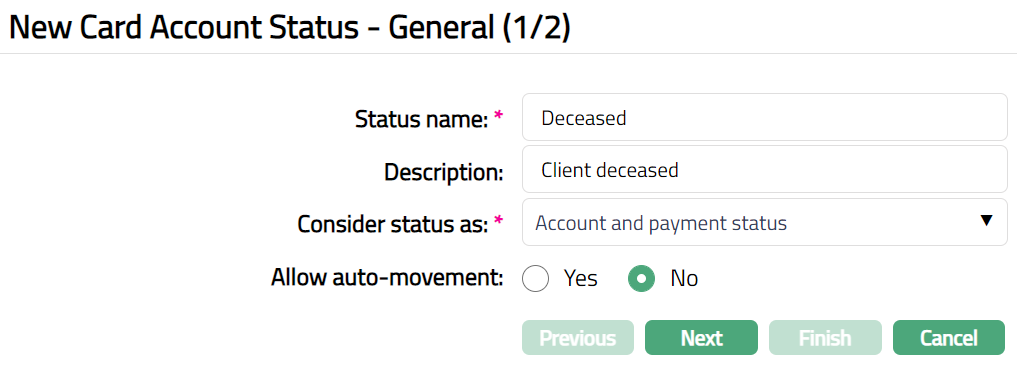
Enter name of the status in Status name field.
Enter Description for the status.
Select Consider Status as from the available drop-down list that is pre-shipped. The available options are Account Status, Payment Status, Account and Payment Status. Depending on whether it is a Payment status or Account Status, the status will be available in other corresponding functionalities. For example, if it is an Account Status, it will be available for use in Card Account Status management and if it is a Payment status, it will be available for use in the From Payment Status field in the Rule builder tab of Credit Card Account Product.
If you have chosen Account Status or Account and Payment Status above, Allow auto-movement is enabled. If an account reaches this status, the Allow auto movement flag will be defaulted into the account from this maintenance. If Allow auto-movement is No, the account status will not automatically move even if the account satisfies the Rules maintained in the product's Rule Builder tab. However, if Allow auto movement is selected as Yes, then the account status will change automatically, as per the Rules in the Rule Builder tab. Note that the Allow auto movement flag in a Billing account enables rules to be applied for the automatic Account status movement, while in the Transaction account, it signifies whether the Account status should move in tandem with the Billing account.
The following table summarizes the Billing Account (BA) / Transaction Account (TA) Account status movements, and the impact of the Allow Auto Movement flag, with a few highlights at the end.
| Allow Auto Movement in BA | Allow Auto Movement in TA | Impact |
|---|---|---|
| Yes | Yes | BA moves based on Status Rules. Based on BA, TA also simultaneously moves. |
| Yes | No | BA moves based on Status Rules. TA does not move. |
| No | Yes | BA does not move based on Status Rules. Hence, TA also does not move (though Allow auto-movement is Yes in TA). |
| No | No | BA does not move based on Status Rules. Hence, TA also does not move. |
Points to be noted:
Just because user sets the Account status of a BA to a particular Status, TA does not move at the same time. Status from BA to TA will be propagated only when system moves the status of the BA. For manually set status for the BA, system will not propagate the status at EOD or online. User has to do a similar status change at the TA manually.
The status rules act only on the Billing Account; that too, based only on Payment Status of the BA.
However, users can manually set the Account status of a BA or a TA to the desired value; and also set the Allow auto-movement flag as needed.
- Click Next. New Status -- Confirmation (2/2) page appears.
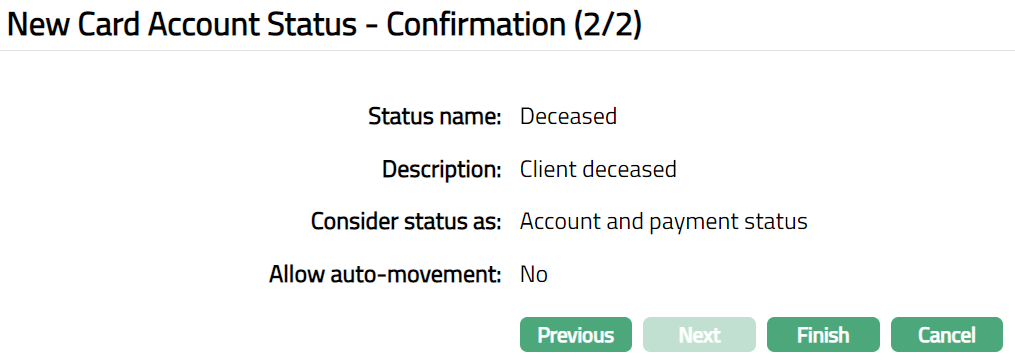
- Click Finish. Card Account Status Maintenance page appears displaying the details of the Status you added. Status of the record is Active.
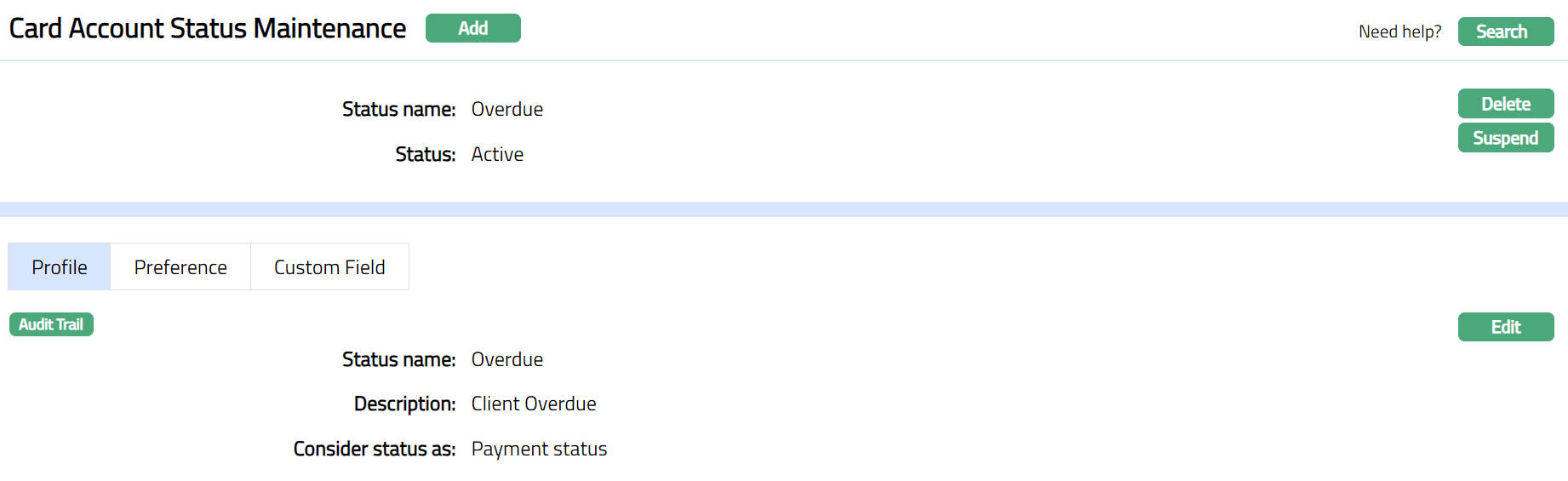
Functions: Add, Search, Delete, Suspend, Activate.
Delete: You can delete Card Account Status record saved in Aura by a click on Delete button. Aura will ask for confirmation, on approving which the selected record will be deleted.
Suspend: You can suspend Card Account Status by clicking on Suspend button. When you click on Suspend button, Aura will ask for confirmation. On confirmation Aura will suspend the Card Account Status and Activate button will appear in place of the Suspend button.
Activate: If you want to activate a suspended Card Account Status record then click on Activate button. Aura will ask for confirmation. On confirmation Aura will Activate the Card Account Status and Suspend button will appear in place of Activate button.
Profile
Profile tab, which is the default tab in Card Account Status Maintenance screen, shows the basic Status details for the Card account status.
To View/Edit Profile
- Access Card Account Status Maintenance page and click Profile tab to view the details as per sample below. The details are defaulted from the entries that you made in New Status -- General (1/2).

- Click Edit. Edit Profile page appears.
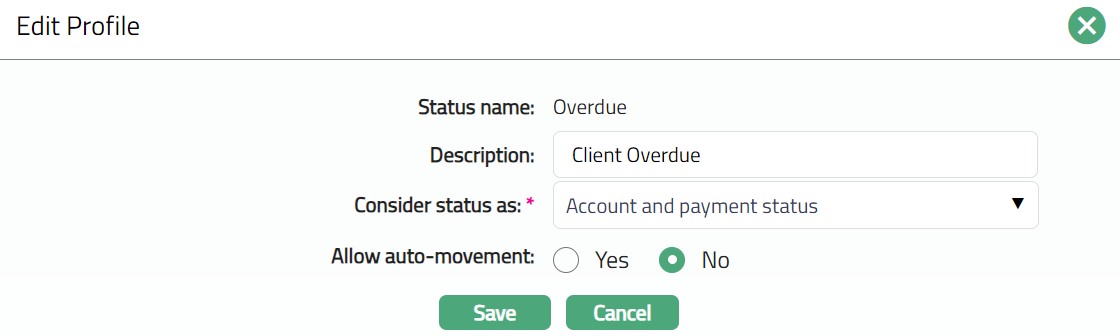
The editable fields are:
Description
Consider Status as: While creation of the status, if Account and Payment status is selected as an option, then this field will not be editable. However, if you had chosen it as either an Account status or as a Payment status, then you can change it to Account and Payment Status.
Select Allow auto-movement radio button.
- Click Save. Profile tab appears with the edited details.
 Functions: Edit.
Preference
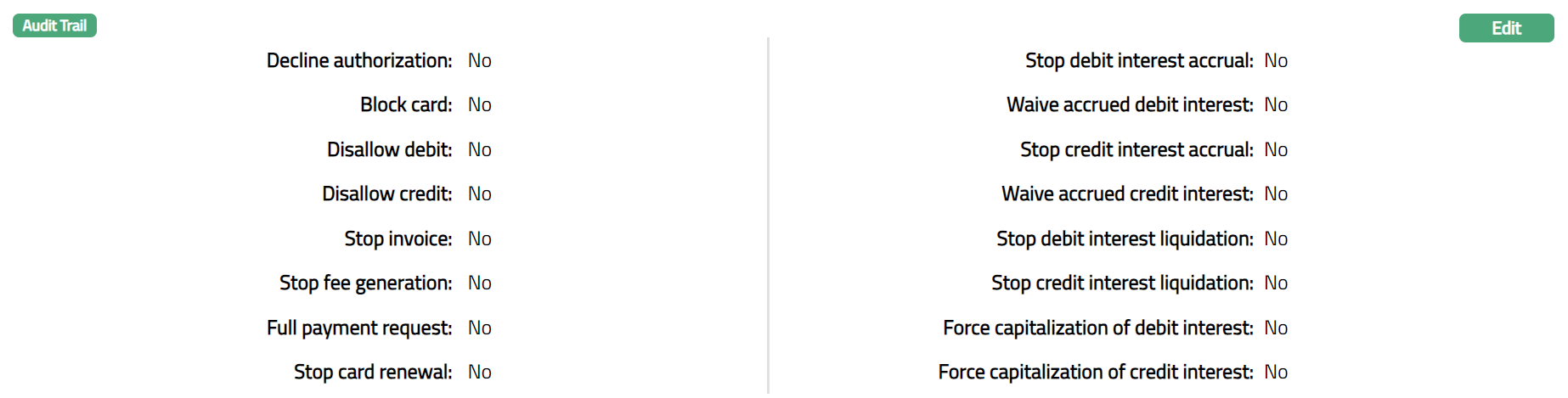
Preference tab allows you to maintain the corresponding effects that will apply to accounts which fall into the specific Account / Payment Status. Thus, you could build preferences like Decline Authorization, Disallow Debit / Credit, Stop interest accrual, Stop invoice etc. for accounts which reach a particular Account Status. Thus, it gives you the flexibility of enabling or disabling specific actions on accounts that reach a specific Account Status / Payment Status.
The following are the Preferences available for a user-defined status. All these are by default marked as No such that normal activities are allowed in the account.
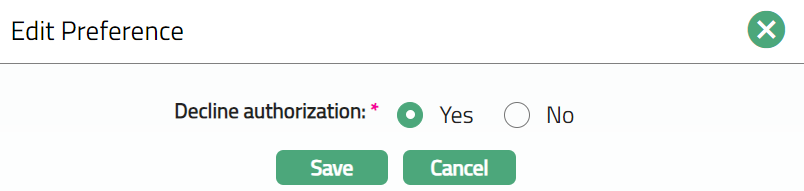
Decline Authorization: This is the only preference that is available for both Account Status and Payment Status. All other preferences can be set up only for Account Status. When this flag is marked as Yes, Aura will decline all authorisations irrespective of the balance available in the account. You will not be able to create an amount block on the account using the Amount Block tab in the Card account. When this flag is marked as No, then all authorizations will be accepted.
Block card: When this flag is marked as Yes, it indicates that the card has been blocked. This is just an indicator flag and does not have any other effect on the Account.
Disallow Debit: When this flag is marked as Yes, Aura will not allow any debits from that account. However, based on Allow Forced Debit flag in the Transaction code, debits may still be processed.
Disallow Credit: When this flag is marked as Yes, Aura will not allow any credits into this account. However, based on Allow Forced Credit flag in the Transaction code, credits may still be processed.
Stop Invoice: If this option is marked as Yes, there will be no invoice generated for this account. This does not stop debit interest liquidation. Only invoice generation is stopped. If debit interest has to be stopped then the relevant flag (Stop Debit interest accrual) has to be marked.
Stop fee generation: When this flag is marked as Yes, Aura will not process any event based and periodical fee for the account. However, the transaction-based charges will continue to apply.
Full payment request: When this flag is marked as Yes, then Aura will override the payment amount options to always require payment of full outstanding balance. Amount Required and Amount Requested will always be full outstanding balance as long as this flag is Yes.
Stop card renewal: When this flag is marked as Yes, it indicates stoppage of card renewal. This is just an indicator flag and does not have any other effect on the Account.
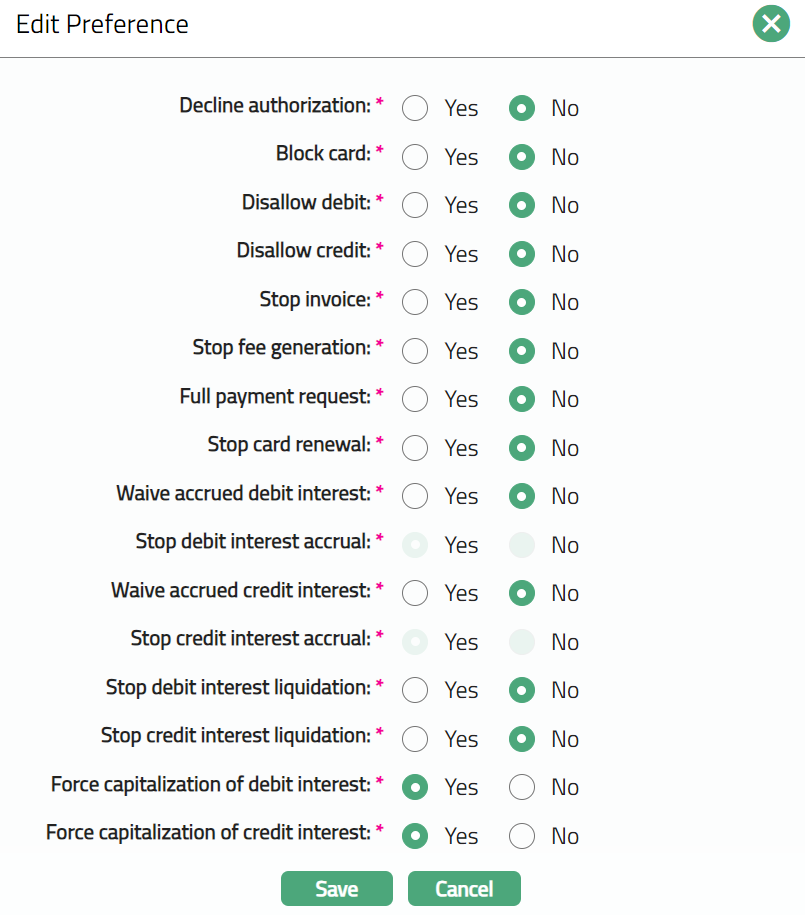
Stop debit interest accrual: When this flag is marked as Yes, Aura will stop any interest accrual on the debit balances for this account. When the flag is unchecked, Aura will re-start to accrue interest from that date. There will not be any accrual for the interim period when this flag was Yes.
Waive accrued debit interest: When this field is marked Yes, the interest that has accrued till that point will be waived. If this is marked as No, then the interest that had accrued till then will not be waived and will remain as an accrual. If this field is Yes, stop debit interest accrual field will be Yes and disabled.
Stop Credit interest accrual: When this flag is marked as Yes, Aura will stop any interest accrual on the credit balances for this account. When the flag is unchecked, Aura will re-start to accrue interest from that date. There will not be any accrual for the interim period when this flag was Yes.
Waive accrued Credit interest: When this field is marked Yes, the interest that has accrued till that point will be waived. If this is marked as No, then the interest that had accrued till then will not be waived and will remain as an accrual. If this field is Yes, Stop credit interest accrual field will be Yes and disabled.
Stop debit interest liquidation: When this flag is marked as Yes, Aura will not liquidate any debit interest even though the liquidation day according to the frequency is reached. The accrual of debit interest continues and thus this flag will only stop the liquidation of interest as long as this option is checked. When the flag is unchecked all the accrued debit interest will be liquidated in the next cycle.
Stop credit interest liquidation: When this flag is marked as Yes, Aura will not liquidate any credit interest even though the liquidation day according to the frequency is reached. The accrual of credit interest continues and thus this flag will only stop the liquidation of interest as long as this option is checked. When the flag is unchecked all the accrued credit interest will be liquidated in the next cycle.
Force capitalization of debit interest: If this flag is marked as Yes, Aura will liquidate the accrued debit interest in the account, when the account moves to this account status. Accrual will however continue if the Stop Accrual flag is not checked. If this field is Yes, Stop debit interest accrual field will be Yes and disabled.
Force capitalization of credit interest: If this flag is checked, Aura will liquidate the accrued credit interest in the account, when the account moves to this account status. Withholding Tax will be debited. Accrual will however continue if the Stop Accrual flag is not checked. If this field is Yes, Stop credit interest accrual field will be Yes and disabled.
To edit Preferences
- Access Card Account Status Maintenance page and click Preference tab. Preferences that you see are grouped under separate tabs depending on whether it is defined as an Account Status or Payment Status or both.
The following is a sample of Preferences tab for an Account Status:
The following is a sample of Preferences tab for a Payment Status:

By default, all the options will be selected as No, such that all account activities / functions are allowed for the Status.
If you want to enable / disable specific preferences, click Edit. Edit Preference page appears.
Edit Preference page in case of Account status:
Edit Preference page in case of Payment status:
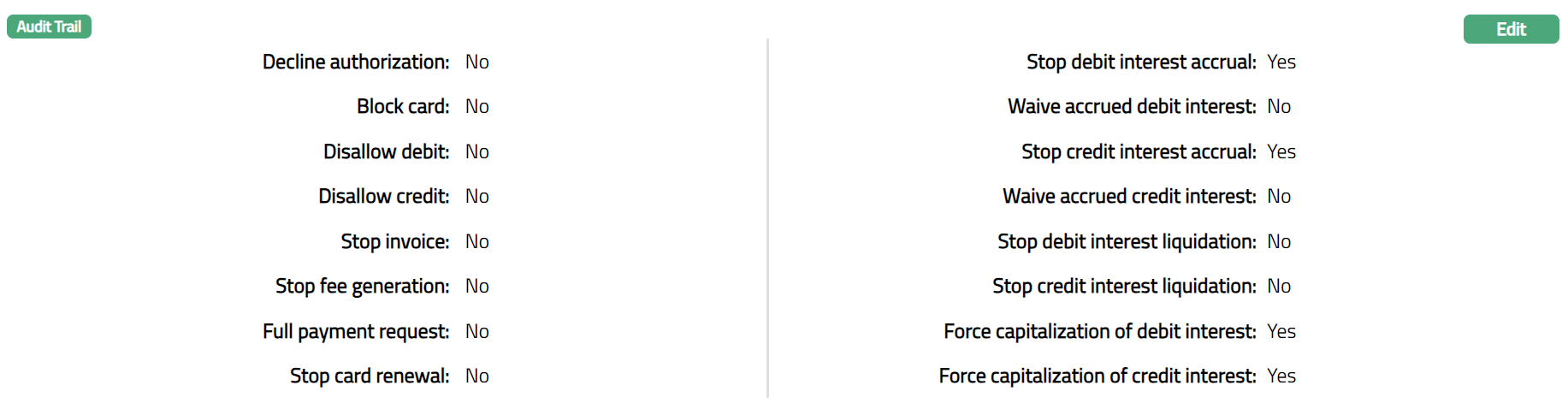
- Click Save. Preferences tab appears with the edited details for both Account Status / Payment status. Sample Screen shown below.
In case of Account Status
Functions: Edit
In case of Payment Status
 Functions: Edit
Custom Field
This menu option allows you to define fields apart from those that are already available in the standard version of Aura. Thus, it enables you to customize additional data storage and use as required to suit your specific business needs.
To maintain Custom Field
- Access Card Account Status Maintenance page, then Click Custom Field tab. Initially the tab will be blank as per the sample screen shot shown below.

The field appears only when it is created in Admin > System codes > Custom fields > Custom fields and linked to Card Account Status option in Admin > System codes > Custom fields > Field mappings.
Click Edit. Edit Custom Field page appears. In the following illustration, one custom field Card Account Status has been mapped as shown below.

Enter Status details to be associated with Card Account Status.
Click Save. Custom Field tab appears with the edited details.
 Function: Edit