
Organisation
Organisation allows you to create and maintain records of external organizations with which you do business.
The following are the various tabs that appear on the Organisation page.
To add New Organisation,
1. From CRM menu, click Organisation, and then Maintain. Organisation Search page appears.

2. Click Add. New Organisation → General (1/6) appears.
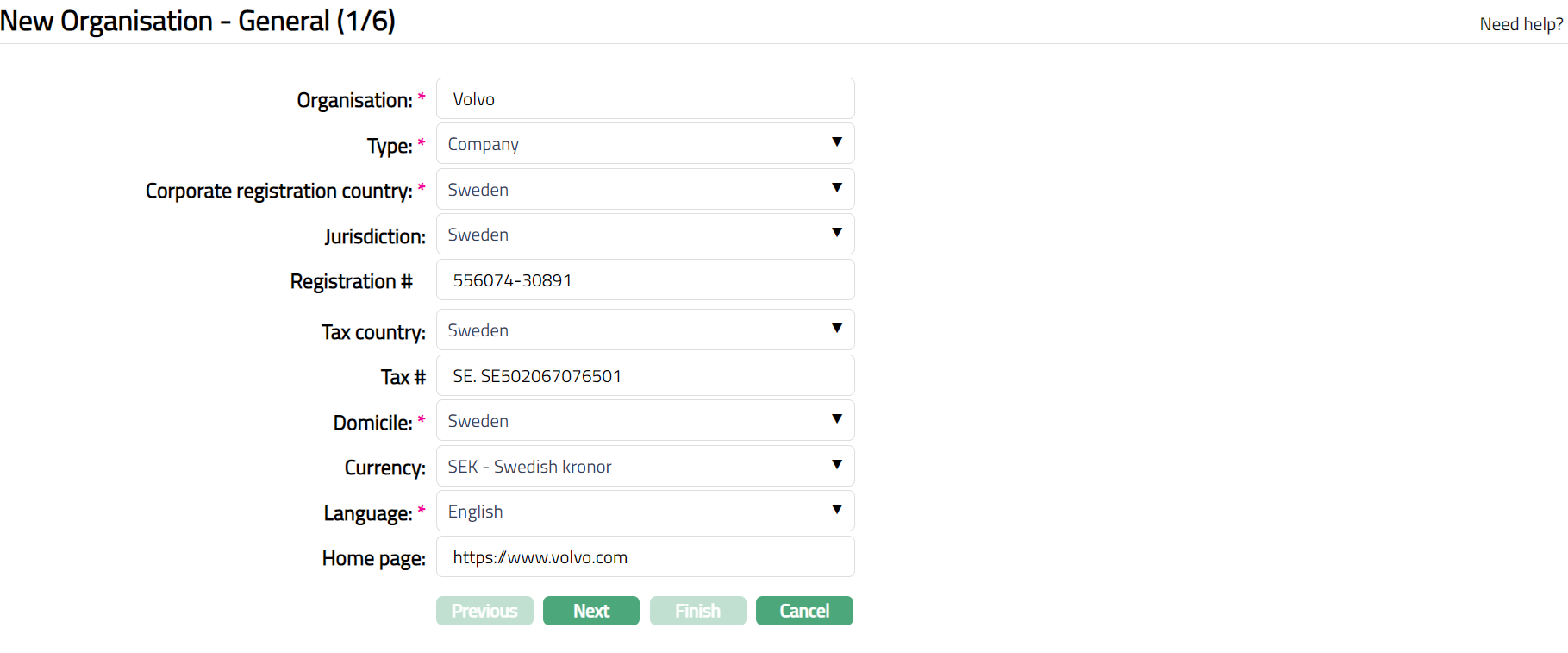
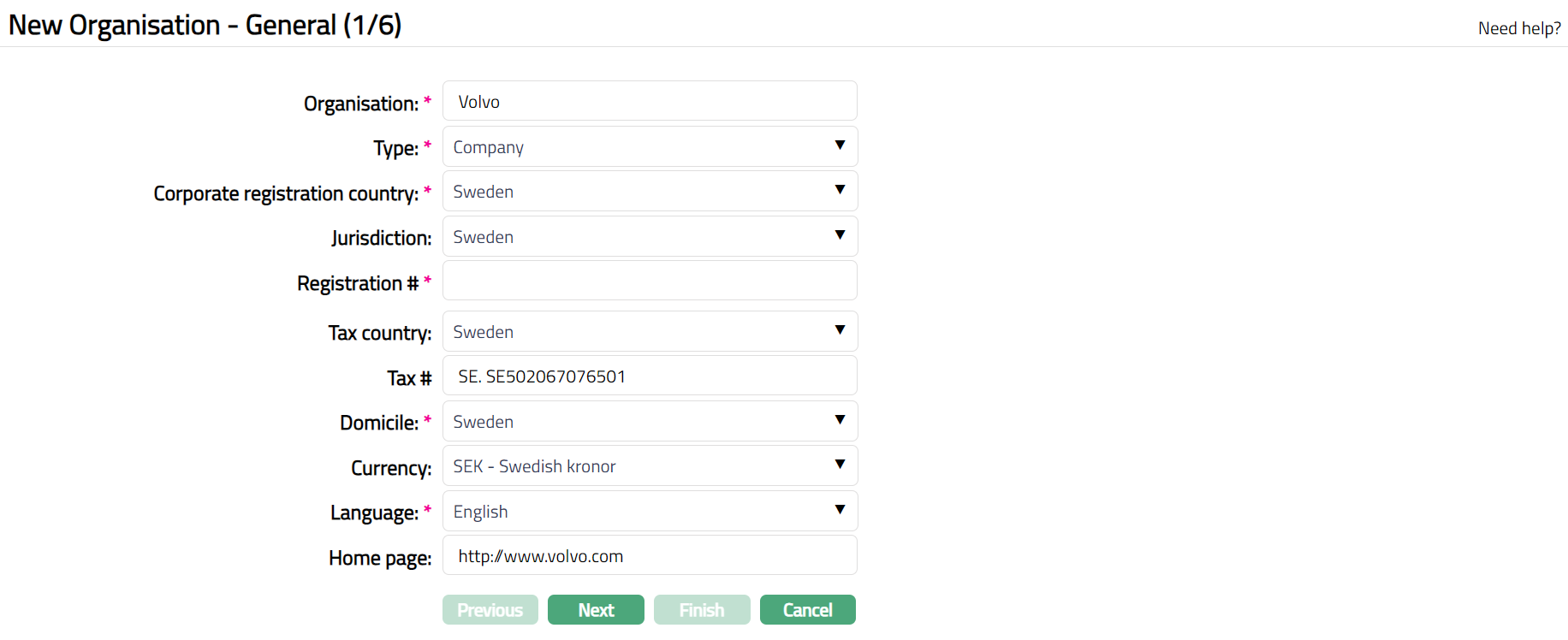
3. Enter name of the Organisation.
4. Select Type of the organisation from the available drop-down list of Organisation type maintained under Admin → System codes → Generic definitions → Organisation type.
5. Select Corporate Registration Country from the available drop-down list of countries maintained under Admin → System codes → Generic definitions → Countries.
6. Select Jurisdiction in which the organisation works from the available drop-down list of countries maintained under Admin → System codes → Generic definitions → Countries.
7. Enter Registration # of the Organisation.
8. Select Tax country of the Organisation from the available drop-down list of countries maintained under Admin → System codes → Generic definitions → Countries.
9. Enter Organisation Tax # in the Tax country.
10. Select Domicile of the Organisation from the available drop-down list of the countries maintained under Admin → System codes → Generic definitions → Countries.
11. Select Default currency of the Organisation from the available drop-down list of active currencies maintained under Admin → System codes → Currencies → Currencies.
12. Select Language for correspondence from the available drop-down list of languages maintained under Admin → System codes → Generic definitions → Languages.
13. Enter website URL for the Home page of the Organisation.
14. Click Next. New Organisation → Address (2/6) page appears.
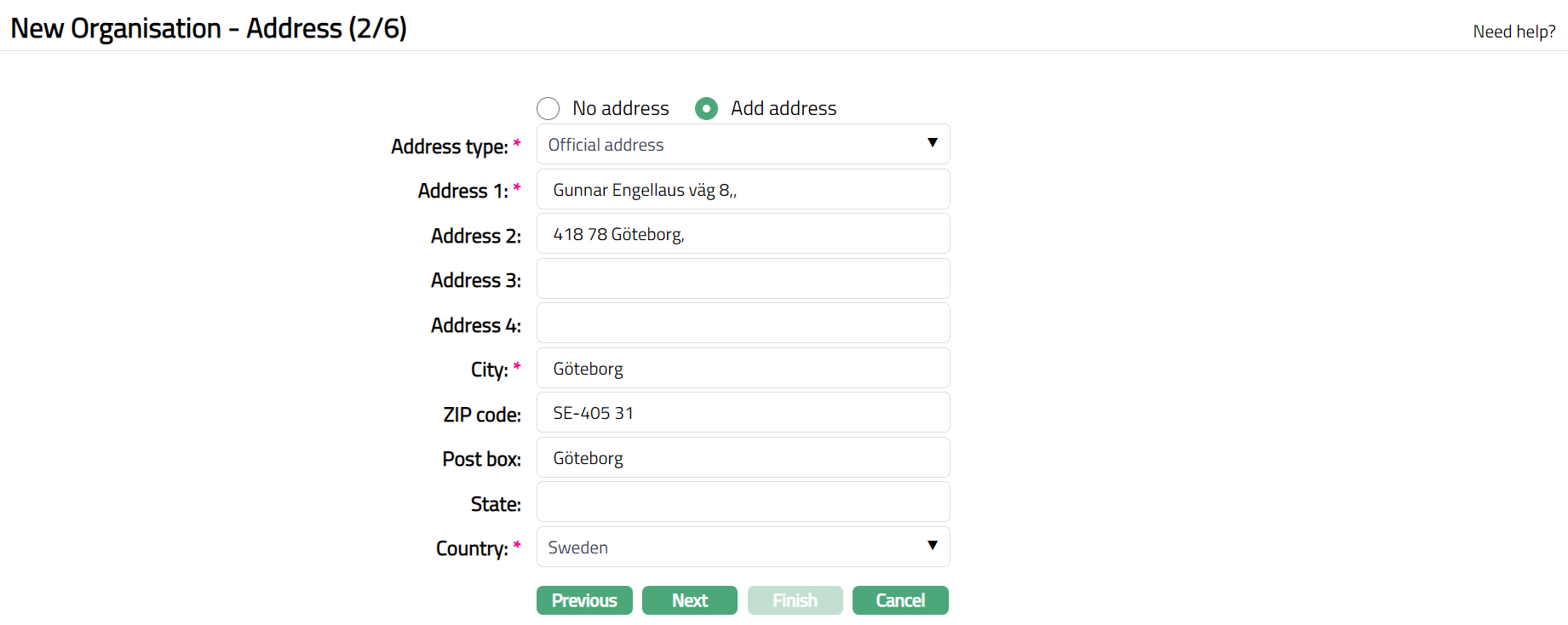
15. By default, No address radio button is selected. If you do not want to record the address of the Organisation at this stage, then you can select this option.
16. If you want to enter the address, then click Add address radio button and provide the required details.
17. Select Address type from the available drop-down list maintained under Admin → System codes → Address details → Address types.
18. Enter Address 1, 2, 3, and 4 of the organisations.
19. Enter City of the organisation.
20. Enter Zip code of the organisation.
21. Enter Post box of the organisation.
22. Enter State of the organisation.
23. Select Country from the available drop-down list of countries maintained under Admin → System codes → Generic definitions → Countries.
24. Click Next. New Organisation → Phone (3/6) page appears.
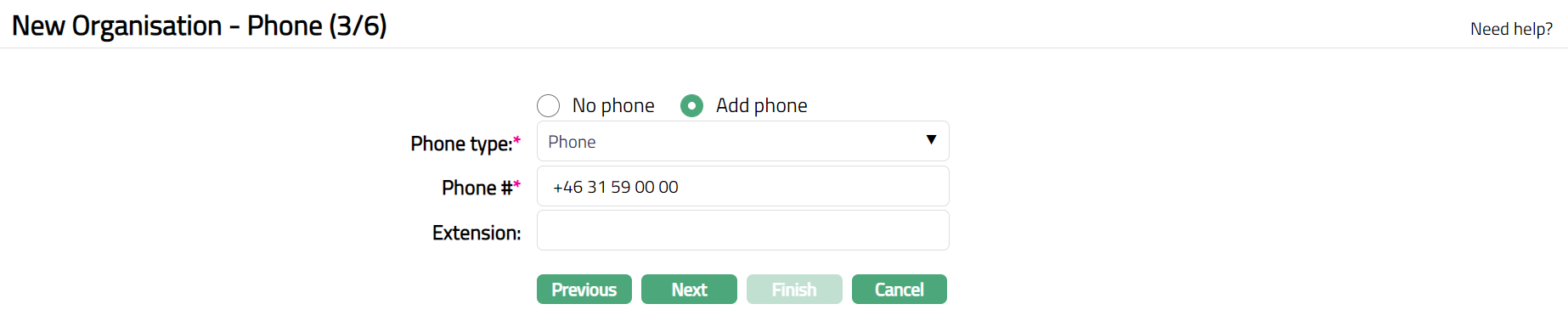
25. By default, No phone radio button is selected. If you do not want to input the phone details at this stage, then you can select this option.
26. If you want to enter the phone details, then click on Add phone radio button and provide the required details.
27. Select Phone type from the available drop-down list maintained under Admin → System codes → Address details → Phone types.
28. Enter Phone # of the organisation.
29. Enter Extension of the phone of the organisation.
30. Click Next. New Organisation → Email (4/6) page appears.

31. By default, No E-mail is selected. If you do not want to enter the E-mail details of the person at this stage, then you can select this option.
32. If you want to enter E-mail, then click Add E-mail and provide the required details.
33. Select E-mail type from the drop-down list of email types maintained under Admin → System Codes → Address details → E-mail types.
34. Enter E-mail address of the person.
35. Click Next. New Organisation → Person (5/6) page appears.
36. By default, No person is selected. If you do not want to enter the details of the persons associated with the Organisation at this stage, then you can select this option
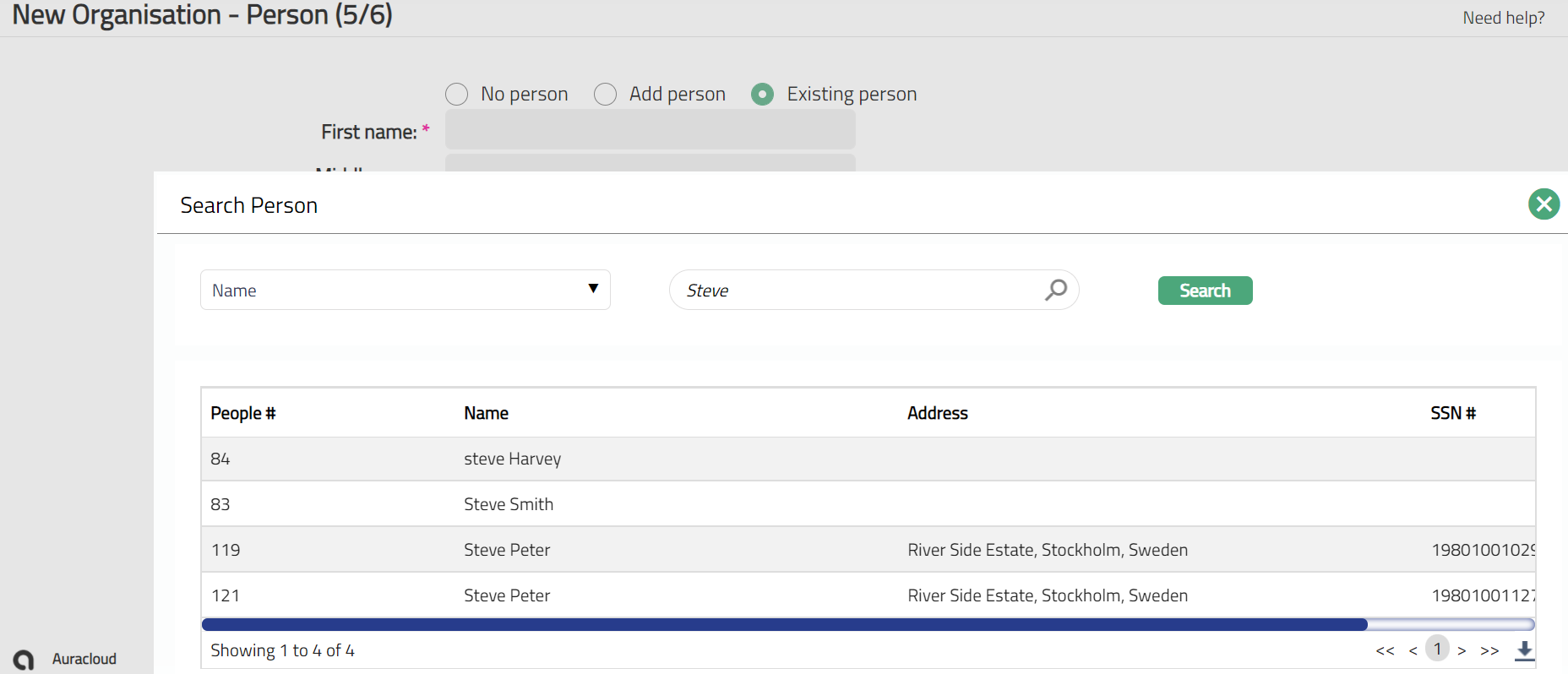
37. If you want to enter the details of a person associated with the Organisation who was already been created as a Person under CRM → Person → Maintenance, then click on Existing person. Aura will display the Search Person window. Enter the appropriate search conditions and select the required person. All the details as maintained under Person will be displayed and the fields will be disabled for input.
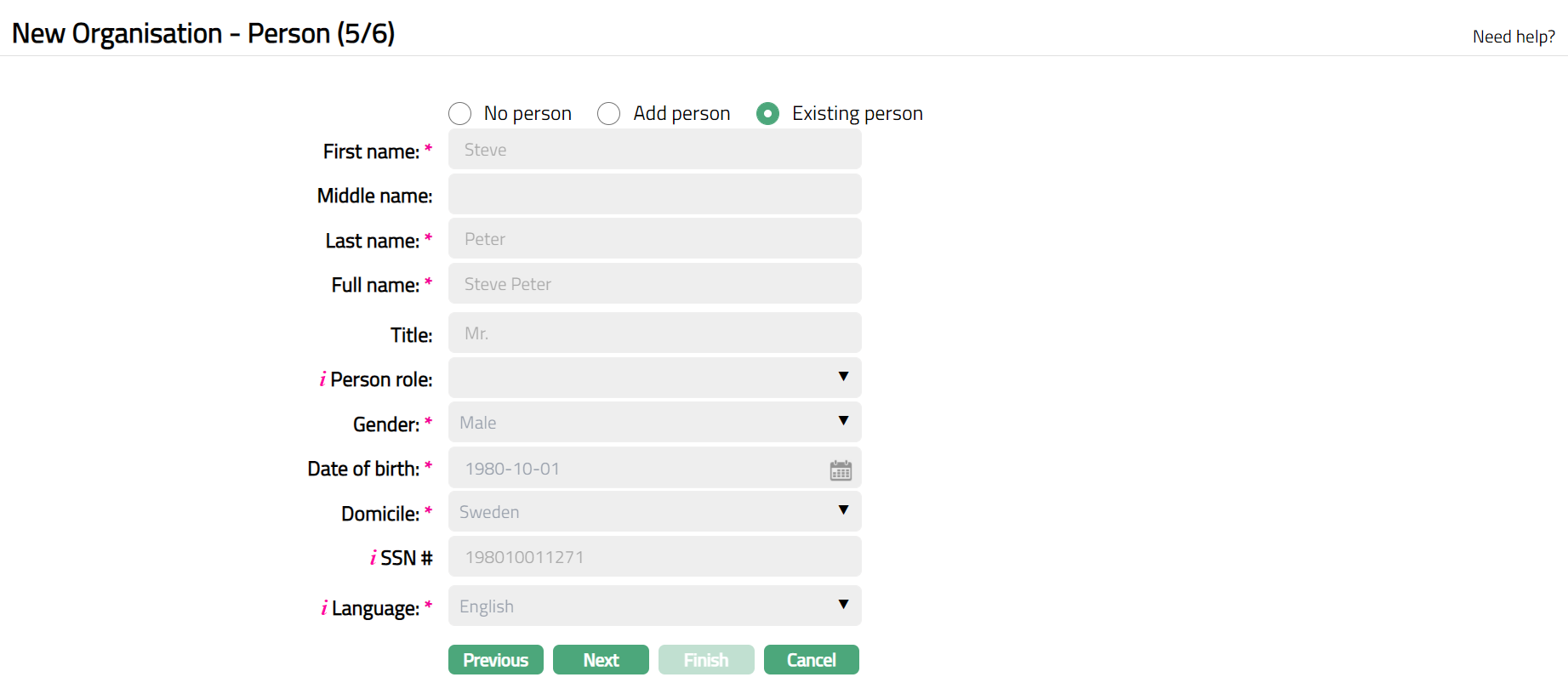
38. If you want to enter the details of a person associated with the Organisation who has not yet been created as a Person under CRM → Person → Maintenance, then click Add person and provide the required details.
39. Enter First Name of the Person.
40. Enter Middle Name of the person as applicable.
41. Enter Last name of the person.
42. On entering the First Name and Last Name Aura derives Full Name of the person. You can however edit it as needed.
43. Enter Title of the person that is to be prefixed to the person's First name.
44. Select role of the person in the Organisation using Person role from the available drop-down list. Aura will not allow you to maintain the same role for the same organization for a person. The person role should have been maintained using Admin → System codes → Generic definitions → Person role.
45. Select Gender of the person from the available drop-down list.
46. Input Date of birth of the person. You can either enter the date manually or select using the calendar. Aura will validate the date format using the format maintained under Entity maintenance → Regional → Date format.
47. Select Domicile of the person i.e. country of residence from the drop-down list of the countries maintained under Admin → System codes → Generic definitions → Countries.
48. Enter SSN#. It is the person's Social Security Number i.e., a unique number provided by the person's residence country.
Note: Validation for SSN, if required, may be customized during implementation.
49. Select Language i.e., Language of the person from the available drop-down list maintained under Admin → System codes → Generic definitions → Languages.
50. Click Next. New Organisation → Confirmation (6/6) page appears.
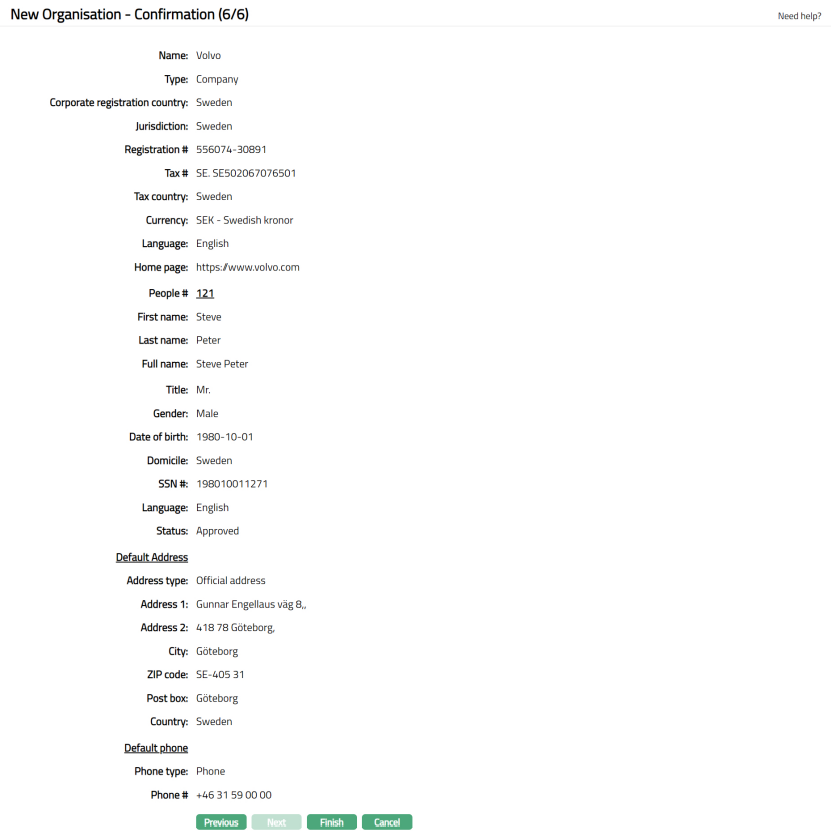
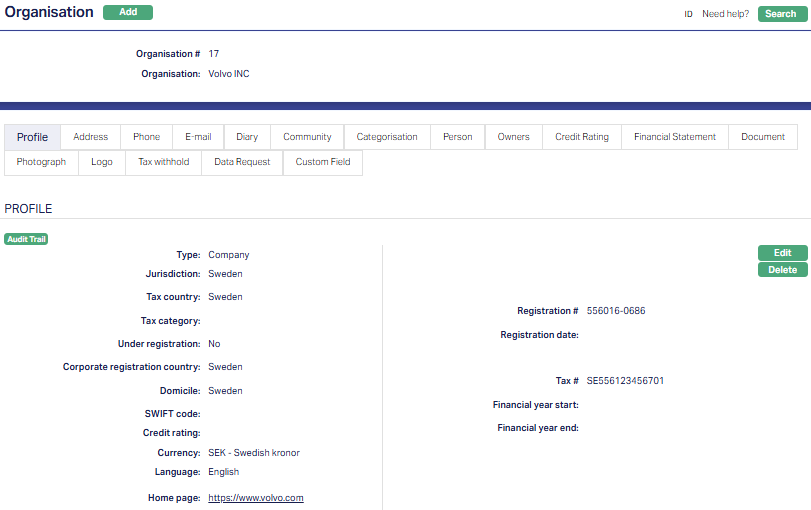
51. Click Finish. Organisation page appears with the added details with a unique Organisation #. Note: Profile tab will be displayed by default.
Functions: Add, Search, Edit, Delete
Profile
Profile tab, which is the default tab in the Organisation page, shows the basic details of the organisation which were added in New Organisation → General (1/6).
To view / edit Organisation,
1. Access Organisation page and click Profile tab.
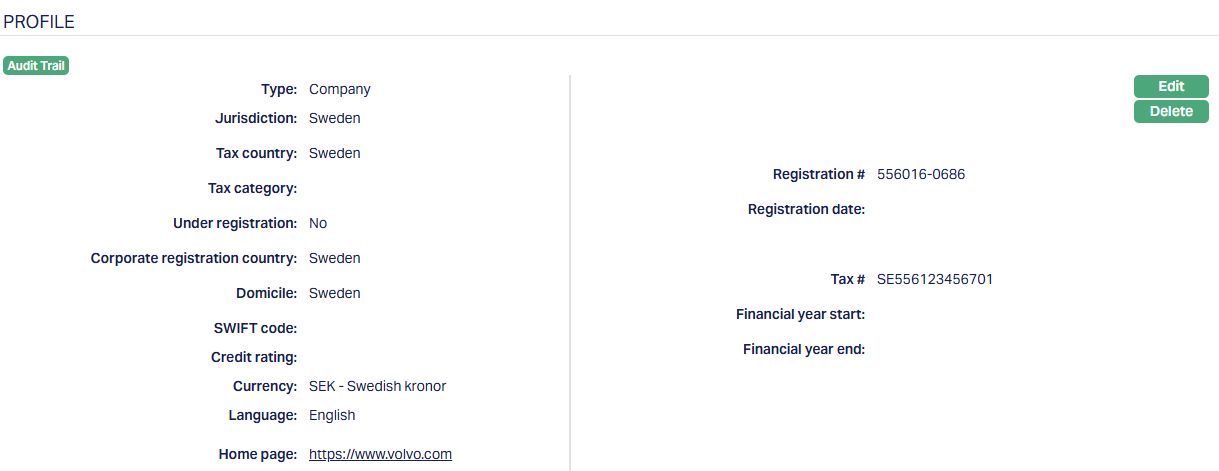
2. Click Edit. Edit Organisation page appears.
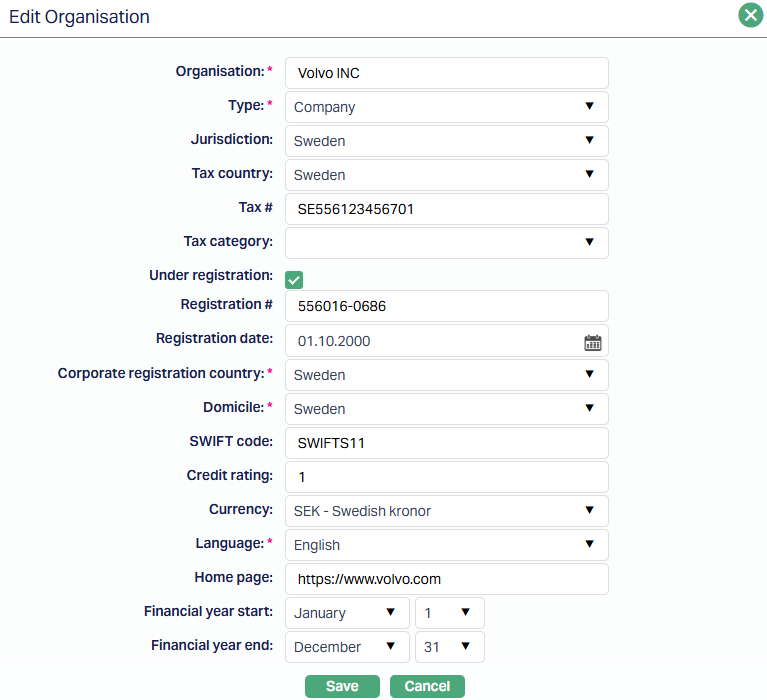
The additional fields that you can view / edit in Profile page are explained below:
3. Check Under registration checkbox if the organization is under the process of registration and has not yet received the registration number.
4. Enter Registration date of the organisation by using the calendar OR by manually changing the date in the field itself. By default, the date will be the current date. Aura will validate the date against the format maintained at Admin → Entities → Maintain → Regional → Date format.
5. Select Tax category from the dropdown list maintained at Admin → System Codes → Categories → Tax category.
6. Enter SWIFT Code for the organisation.
7. Enter Credit rating of the organisation. It is the credit rating / score provided by the credit agency to the organisation.
8. Select Financial year Start & the Financial year End of the Organisation from the drop-down list of month and date.
9. Click Save. Profile page appears with the edited details.
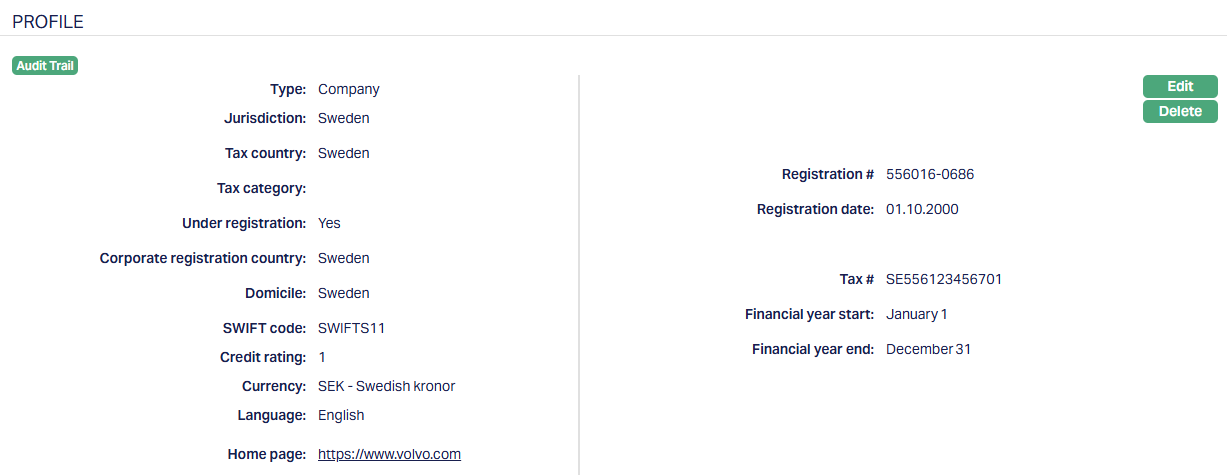
Functions: Edit, Delete
Address
Address tab allows you to maintain the address of the Organisation. The details are defaulted from New Organisation → Address (2/6) page.
To view / edit Address,
1. Access Organisation page and click Address tab
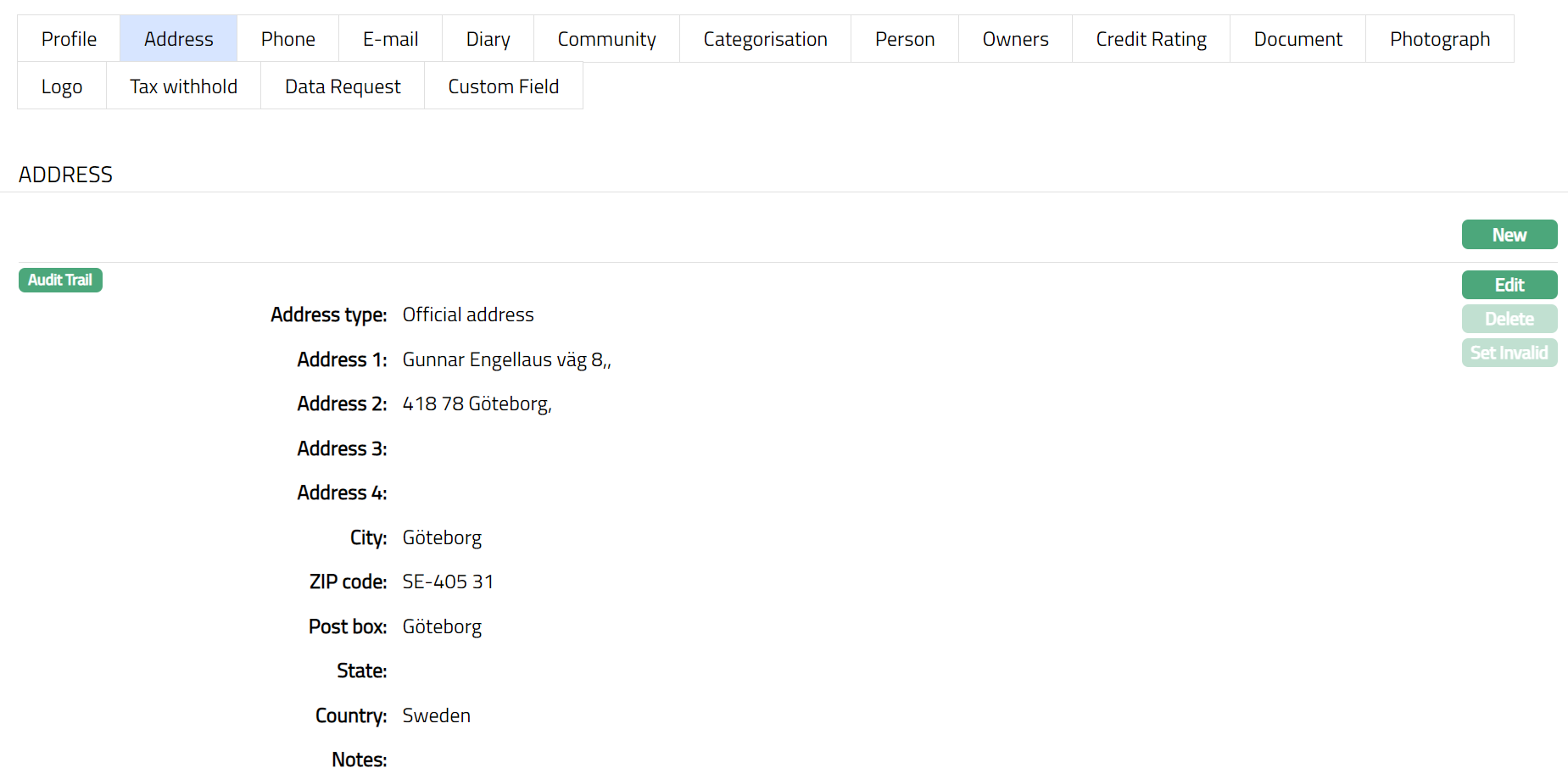
2. If you want to add a new address for the Organisation, then click New. New Address page appears.
Please refer to New Organisation → Address (2/6) for the details regarding the fields.
3. Click Save. Organisation page appears with the added details.
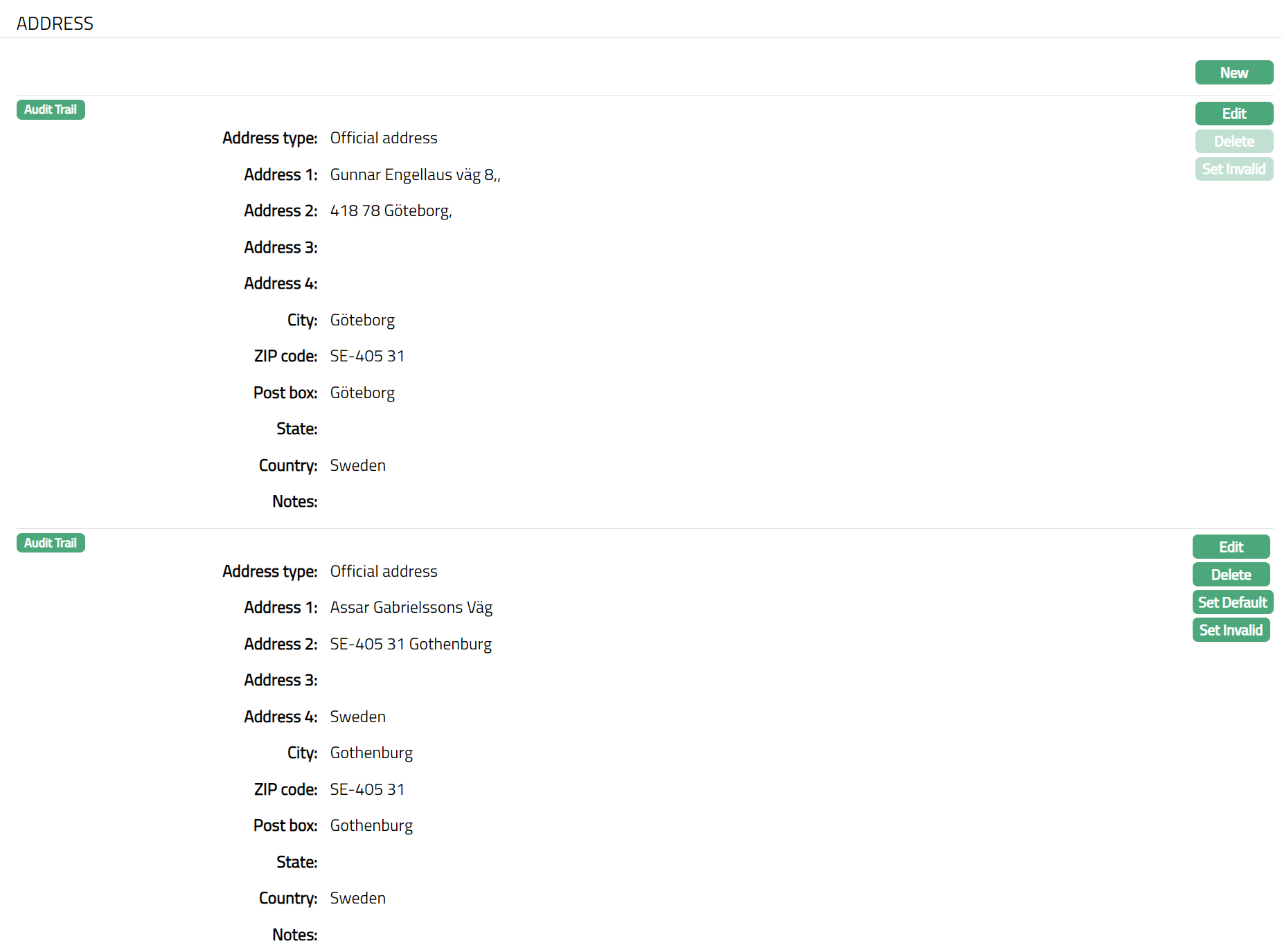
Functions: Edit, Delete, Set Default, Set Invalid, Set Valid
Delete: You can delete an Address detail by clicking on Delete button. Aura will ask for confirmation, on approving which the selected Address details will be deleted.
Set Default: When you create multiple Address records, you can set one of them as the default Address using the Set Default function. When there is only one Address, the same is taken as the default Address.
Set Invalid: You can set an Address as invalid by a click on Set Invalid. This means that the particular address record is no longer valid. Aura will ask for confirmation. On confirmation, the Address is made invalid and Set Valid button appears in place of Set Invalid button.
Set Valid: If you want to set an invalid Address to valid, then click on Set valid button. Aura will ask for confirmation. On confirmation, the Aura will set the Address as Valid and Set Invalid button appears in place of Set valid button
To edit Address,
1. Click Edit. Edit Address page appears.
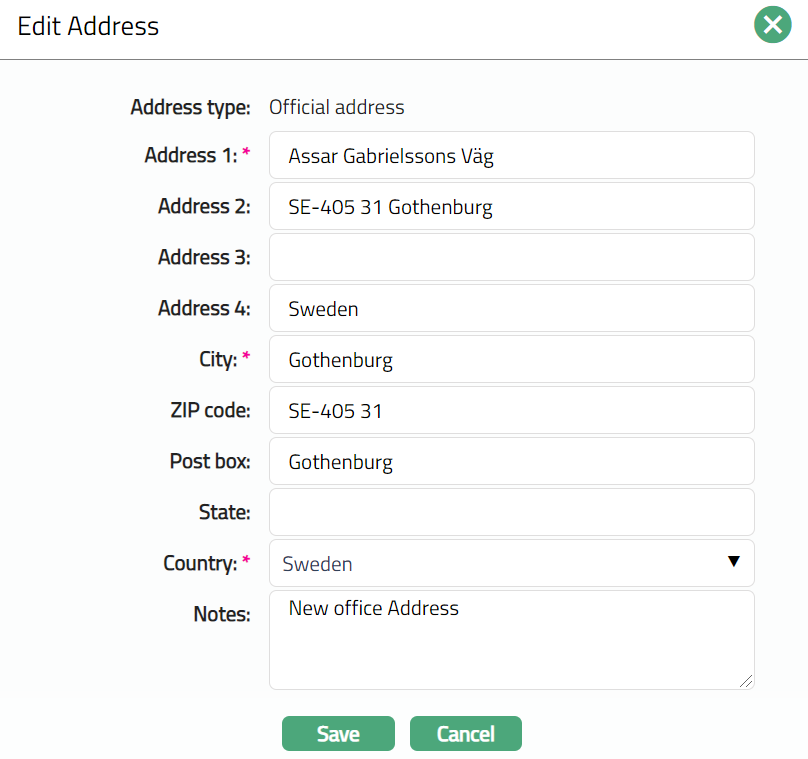
Note: All fields are editable, the only additional field is Notes.
2. Enter Notes i.e., any remarks for the address.
3. Make required changes and click Save. Address page appears with the edited details.
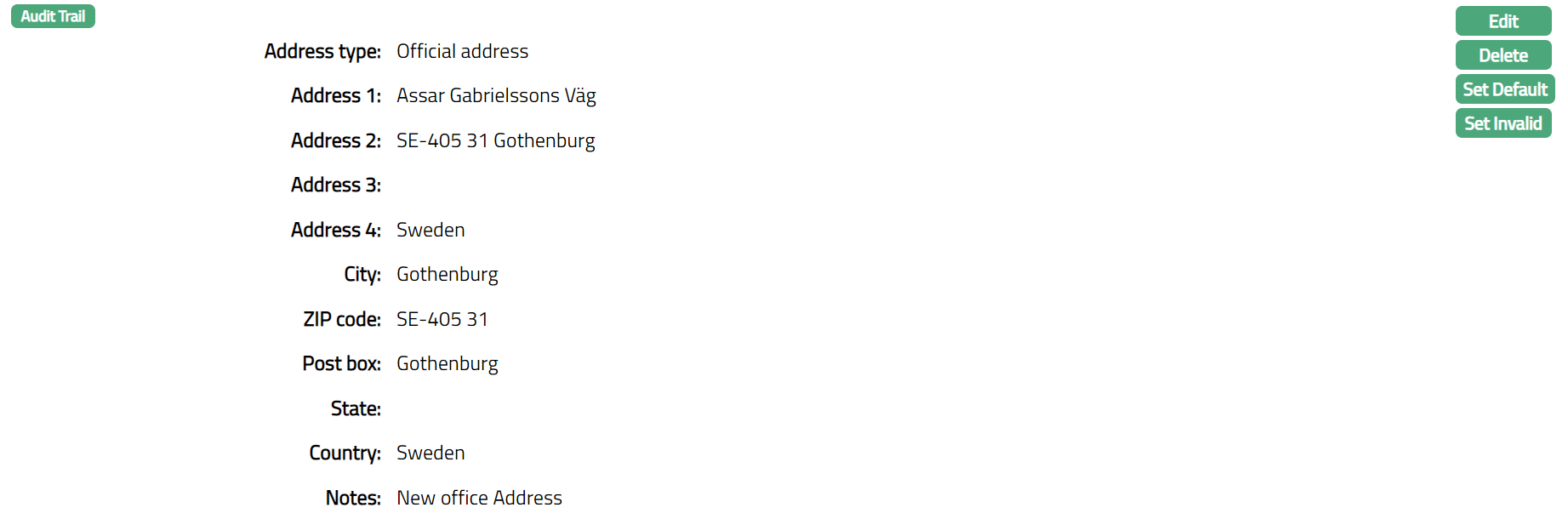
Functions: Edit, Delete, Set Default and Set Invalid
Phone
Phone tab allows you to maintain the phone details of the organisation.
To view / Edit Phone details,
1. Access Organisation page and Click Phone tab. The details are defaulted from New Organisation → Phone (3/6).
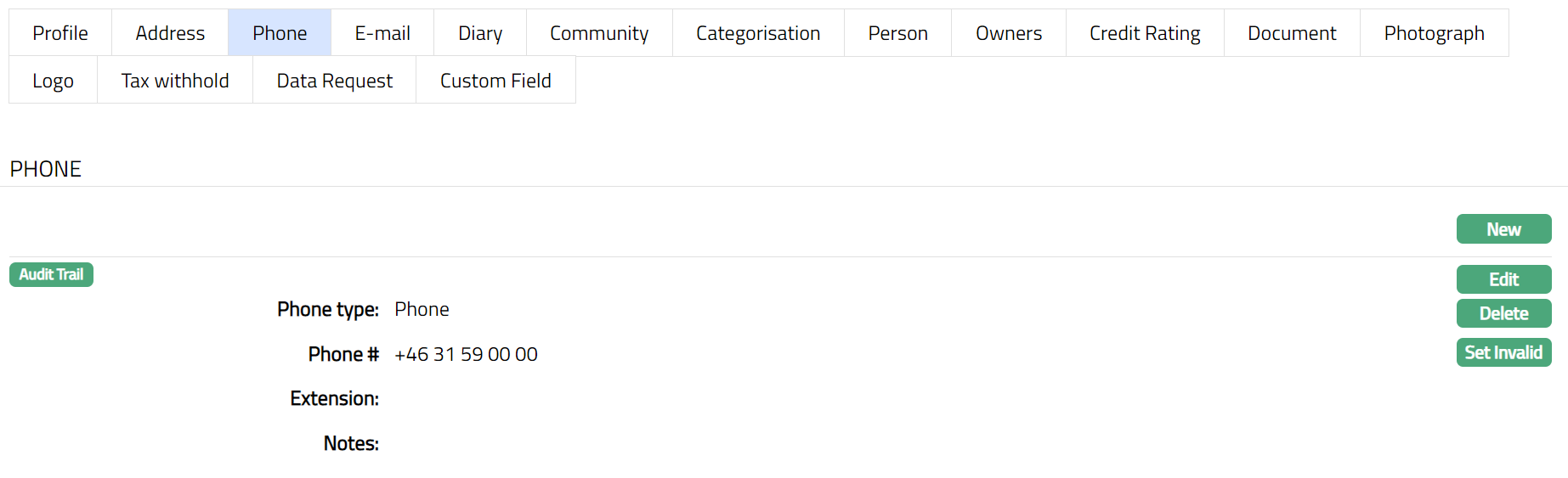
2. Click New if you wish to Add new phone details for the Organisation. New Phone page appears.
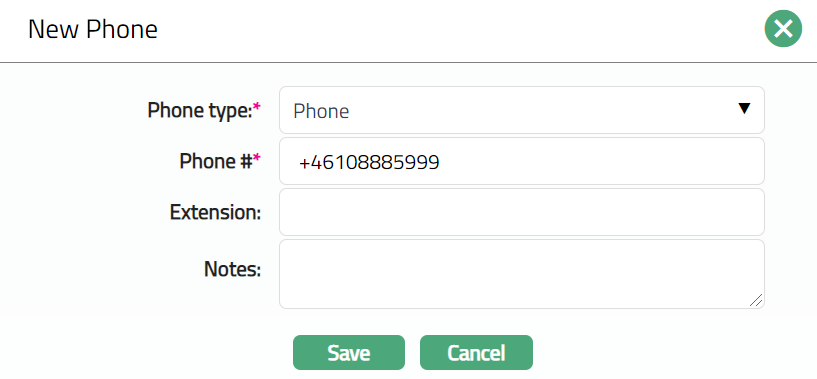
Note: Please refer to New Person → Phone (3/6) section for the details regarding the fields.
3. Click Save. Organisation page appears with the added details.
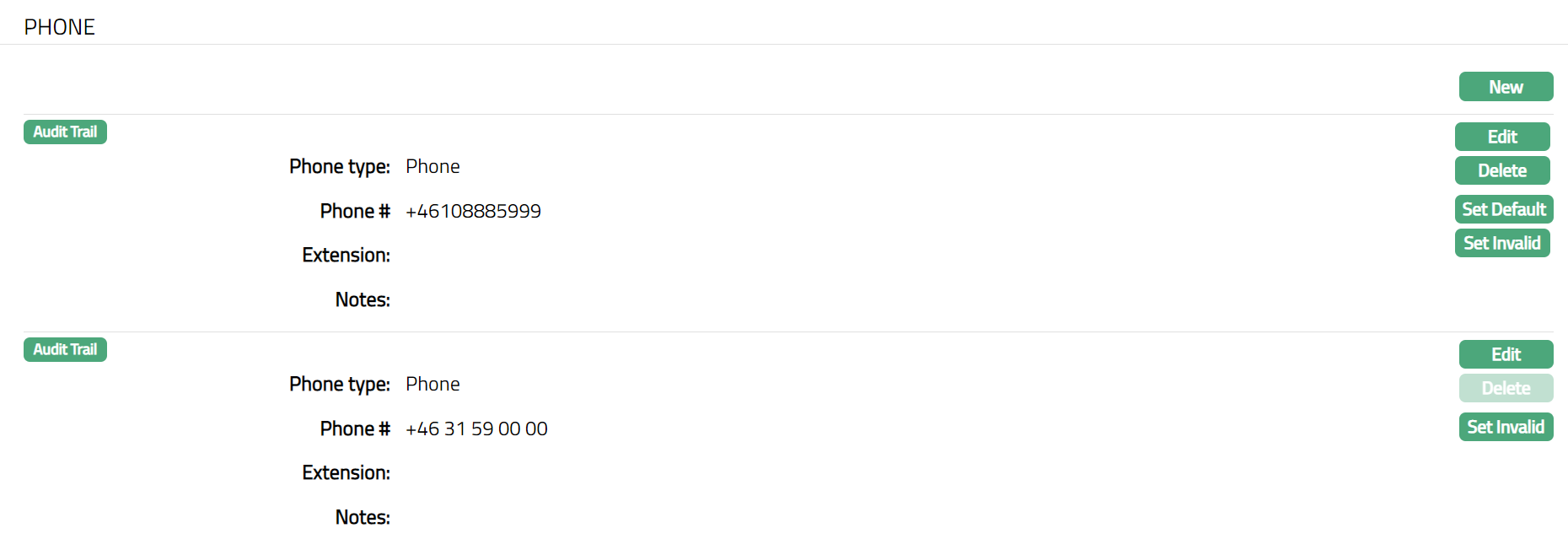
Functions: New, Edit, Delete, Set Default, Set Invalid, Set Valid
Delete: You can delete a Phone detail by clicking on Delete button. Aura will ask for confirmation, on approving which the selected Phone details will be deleted.
Set Default: When you create multiple Phone records, you can set one of them as the default Address using the Set Default function. When there is only one Phone detail, the same is taken as the default Phone.
Set Invalid: You can set a Phone detail as invalid by a click on Set Invalid. This means that the particular phone detail is no longer valid. Aura will ask for confirmation. On confirmation, the Phone is made invalid and Set Valid button appears in place of Set Invalid button.
Set Valid: If you want to set an invalid Phone to valid, then click on Set valid button. Aura will ask for confirmation. On confirmation, the Aura will set the Phone as Valid and Set Invalid button appears in place of Set valid button
To edit Phone details,
1. Click Edit. Edit Phone page appears.

Note: For detailed explanation of these fields, refer to New Organisation → Phone (3/6). The additional fields that you can view / edit in the Phone page are explained below:
Note: All fields are editable, and the only additional field is Notes.
2. Enter Notes i.e., any remarks for the Phone.
3. Make required changes and click Save.
4. Phone page appears with the edited details.
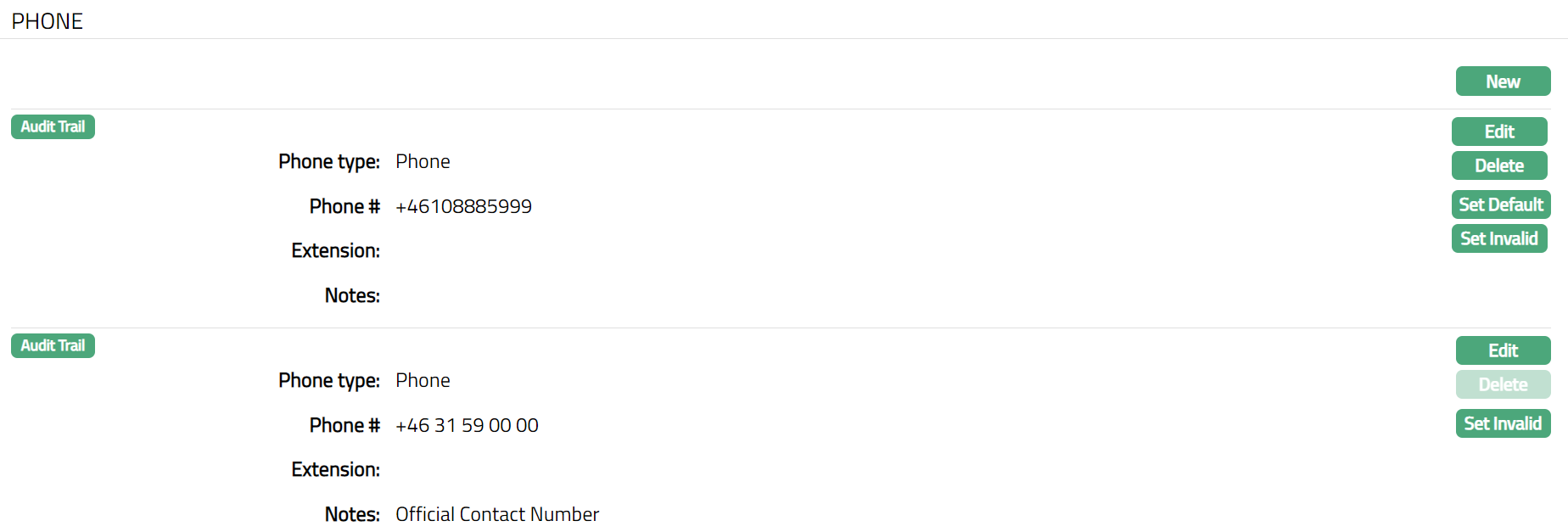

Functions: Edit, Delete, Set Default, Set Invalid
E-mail tab allows you to maintain the E-mail details of the Organisation.
To add E-mail details,
1. Access Organisation page and click E-mail tab. By default, E-mail details are shown from New Organisation → Phone (4/6)
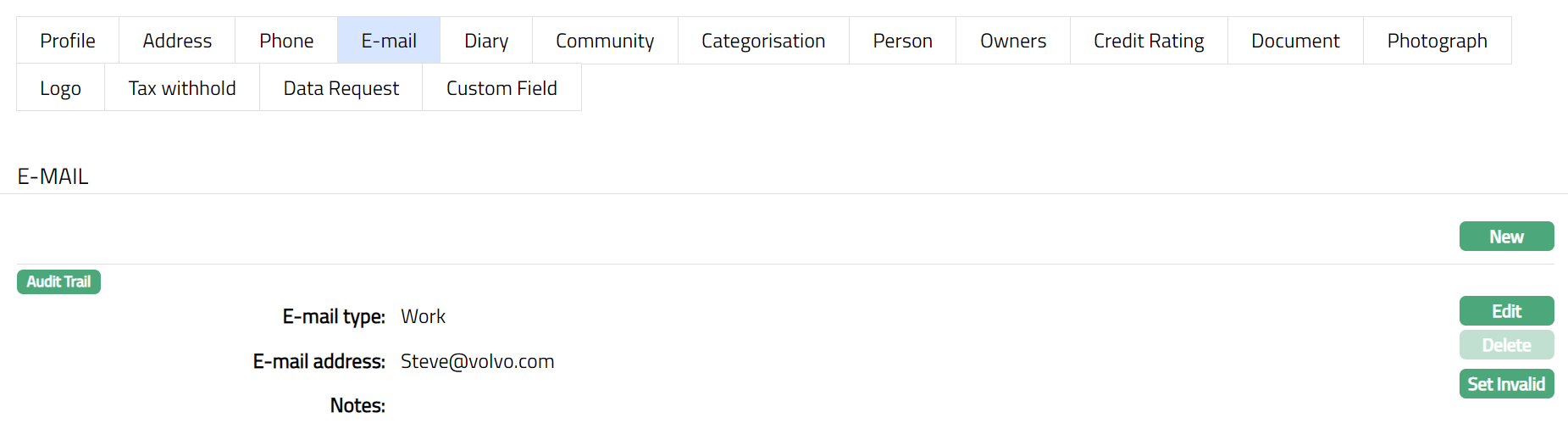
2. Click New if you wish to Add new E-Mail details for the Organisation. New E-Mail Address page appears.
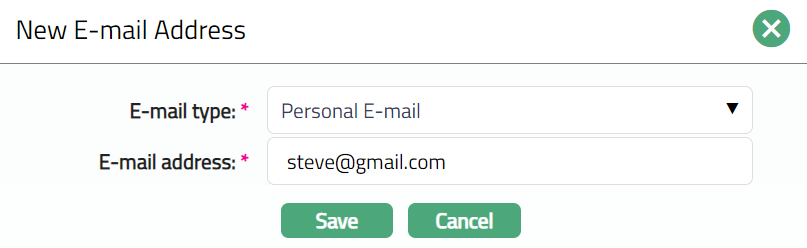
Note: Please refer to New Person → E-Mail (4/6) section for the details regarding the fields.
3. Click Save. Organisation page appears with the added details.
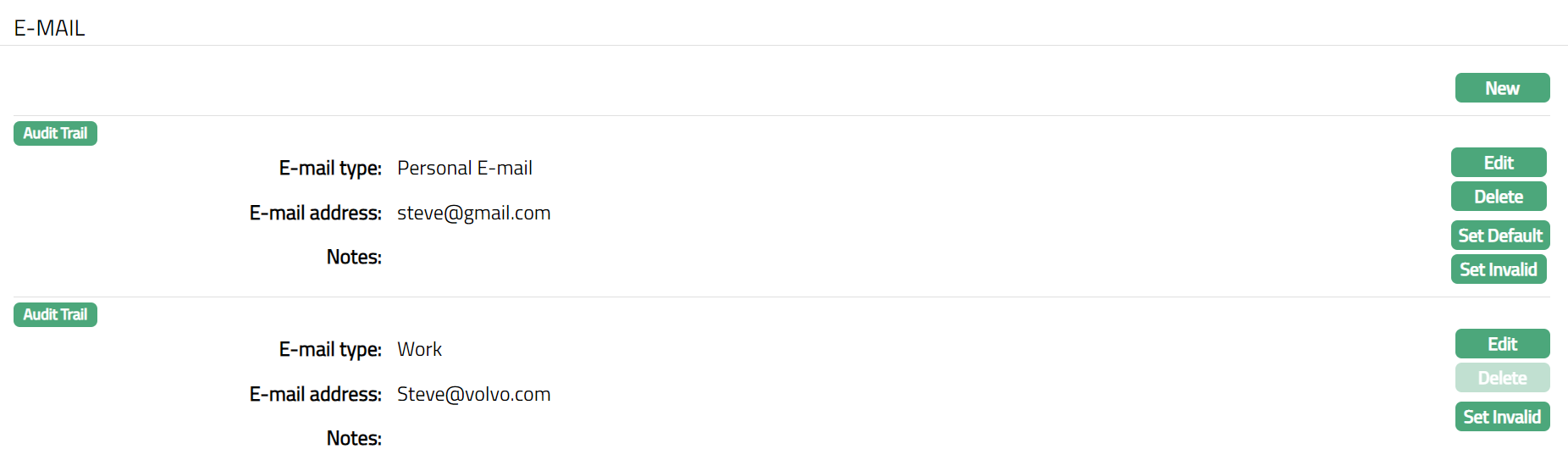
Functions: New, Edit, Delete, Set Default, Set Invalid, Set Valid
Delete: You can delete an E-Mail detail by clicking on Delete button. Aura will ask for confirmation, on approving which the selected E-Mail details will be deleted.
Set Default: When you create multiple E-Mail records, you can set one of them as the default Address using the Set Default function. When there is only one E-Mail detail, the same is taken as the default E-Mail.
Set Invalid: You can set an E-Mail detail as invalid by clicking Set Invalid. This means that the particular E-Mail detail is no longer valid. Aura will ask for confirmation. On confirmation, the E-Mail is made invalid and Set Valid button appears in place of Set Invalid button.
Set Valid: If you want to set an invalid E-Mail to valid, then click on Set valid button. Aura will ask for confirmation. On confirmation, the Aura will set the E-Mail as Valid and Set Invalid button appears in place of Set valid button
To edit E-Mail details,
1. Click Edit. Edit E-Mail Address page appears.
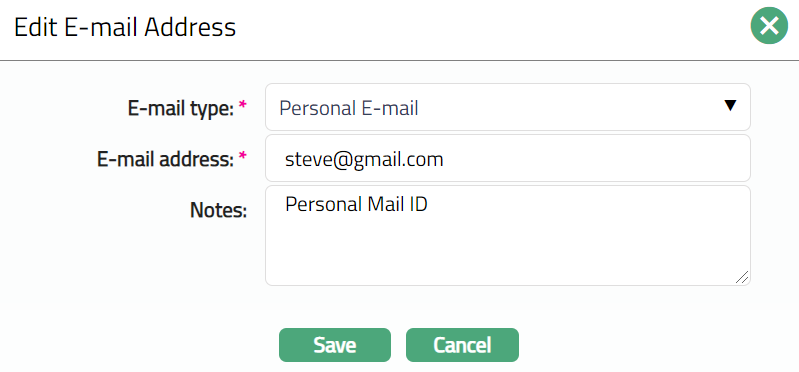
Note: For detailed explanation of these fields, refer to New Organisation → E-Mail (4/6). The additional fields that you can view / edit in the E-Mail screen are explained below:
Note: All fields are editable, and the only additional field is Notes.
1. Enter Notes i.e., any remarks for the E-Mail.
2. Make required changes and click Save. E-Mail page appears with the edited details
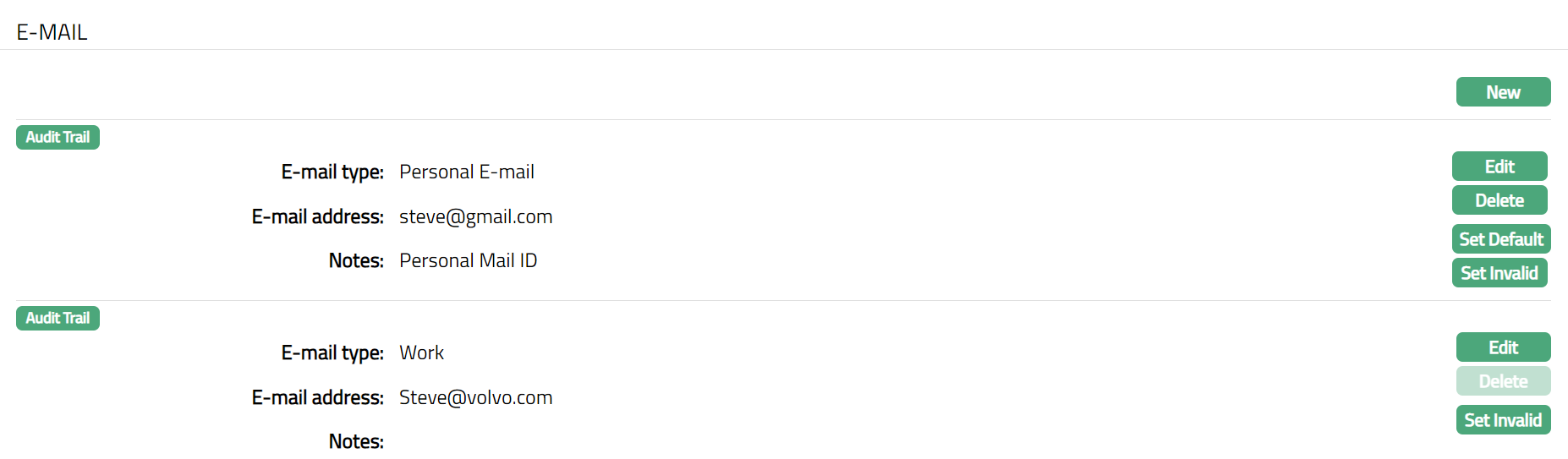
Functions: New, Edit, Delete, Set Default, Set Invalid, Set Valid
Diary
Diary tab allows you to maintain the diary entries for the Organisation.
To add Diary,
1. Access Organisation page and click Diary tab.

2. Click New button. New Diary page appears.
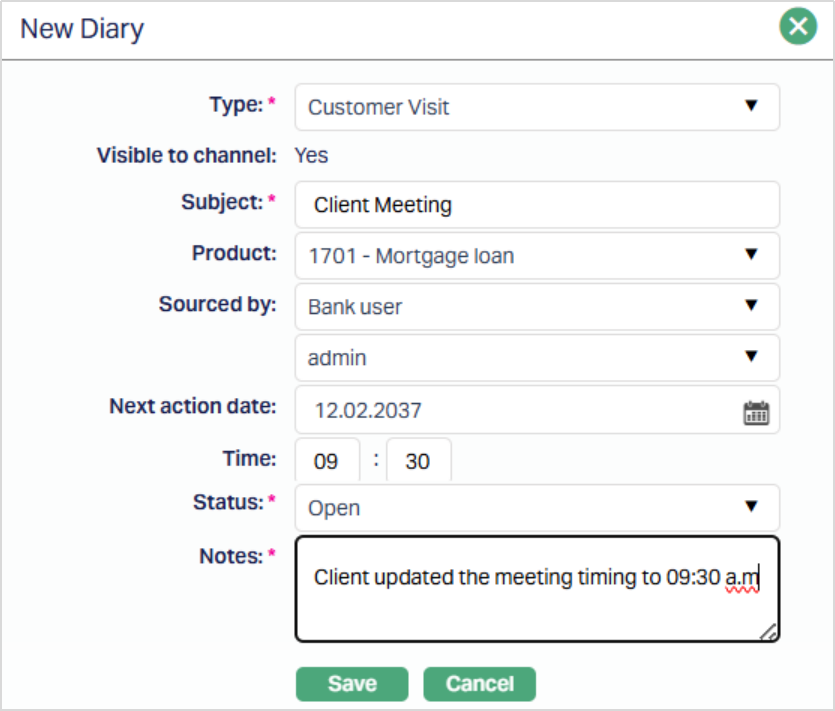
3. Select Type of diary from the available drop-down list maintained under Admin → System codes → Documents → Diary types.
4. Based on Diary Type maintained, Visible to Channel will automatically be shown as Yes or No. If Yes then the details will be visible in any external channel that the Bank uses, like Internet Bank or Customer Portal, etc. If No, then the details will not be visible in such external channels.
5. Enter Subject for the diary. It is used to enter the suitable title for the diary record.
6. Select Product from the drop-down list. These values appear from the list of Products maintained under Retail → Settings → Products
7. Select Sourced by from the drop-down list. Available options are Agent, Agent User, Bank User, Channel User.
8. Based on the value selected for Sourced By, the list of users matching the User Type will be displayed here. Select the required user.
9. Enter or select using the calendar icon, Next Action date, if required
10. Enter Time for action, if required.
11. Select Status from the pre-shipped list. Available options are: Open, Not Interested, Follow-up, Closed.
12. Enter contents for the diary under Notes field. It is used to record the general details of the discussion so that the same may be recalled later.
13. Click Save. Diary page appears with the added details.
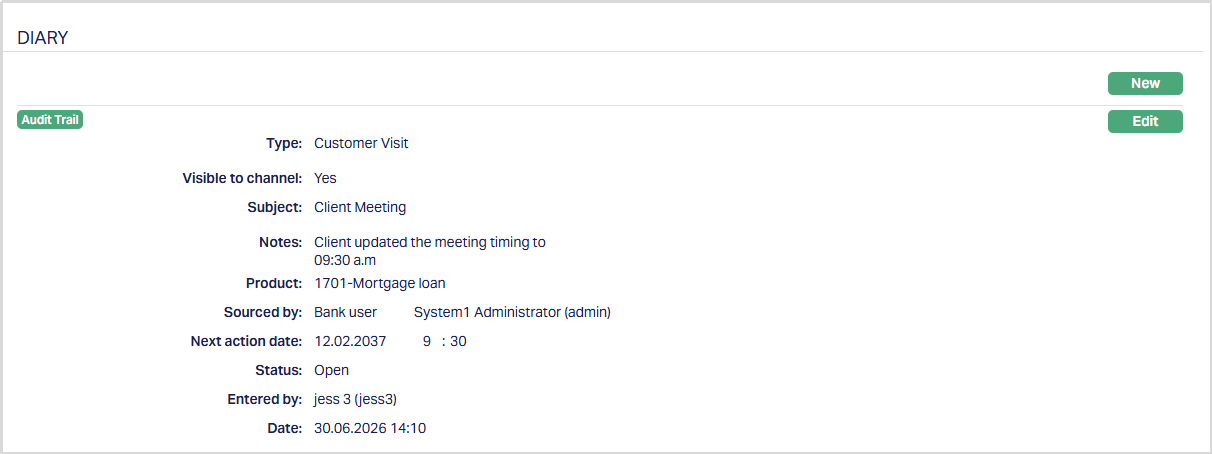
Functions: New, Edit
The additional fields are as follows:
Entered by denotes the person who created / entered the record.
Date field denotes the date on which the record was added.
Diary Status
The Status field indicates the current state of the diary record. The following statuses are available -
- Open: Indicates that the diary record is active and can be edited.
- Follow-Up: Indicates that further action is required. Diary records in this status are displayed under the notification bell until the status is updated.
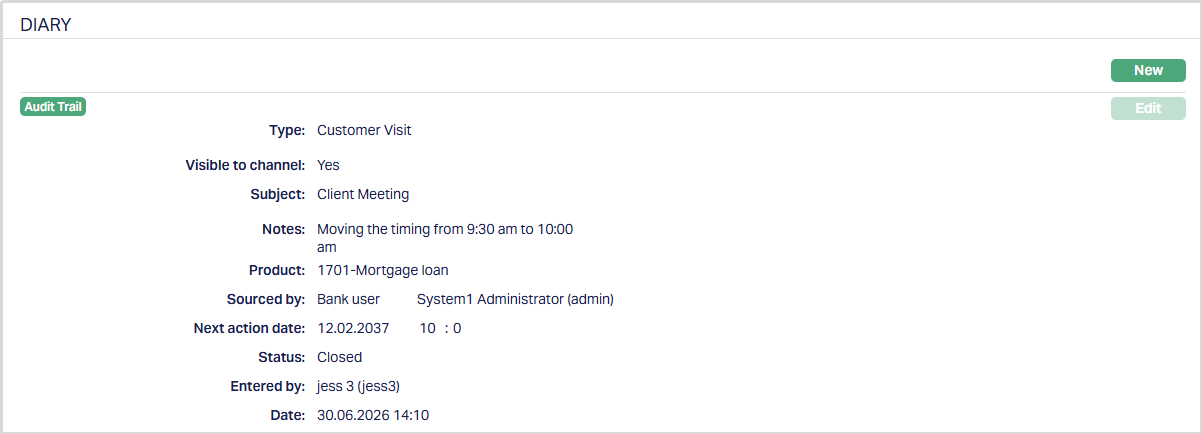
- Closed: Indicates that the diary record has been completed. Once a diary record is marked as Closed, it becomes read-only and cannot be edited.
- Not Interested: Indicates that no further action is required. Once a diary record is marked as Not Interested, it becomes read-only and cannot be edited.
Diary Status Flow
| Current Status | Can be changed to |
|---|---|
| Open | Follow-up, Closed, Not Interested |
| Follow-Up | Open, Closed, Not Interested |
| Closed | No further changes allowed |
| Not Interested | No further changes allowed |
The Edit button remains enabled while the diary record is in Open or Follow-up status. Once the status is changed to Closed or Not Interested, the Edit button is disabled and the diary record cannot be modified.
To edit Diary,
1. Click Edit. Edit Diary page appears.
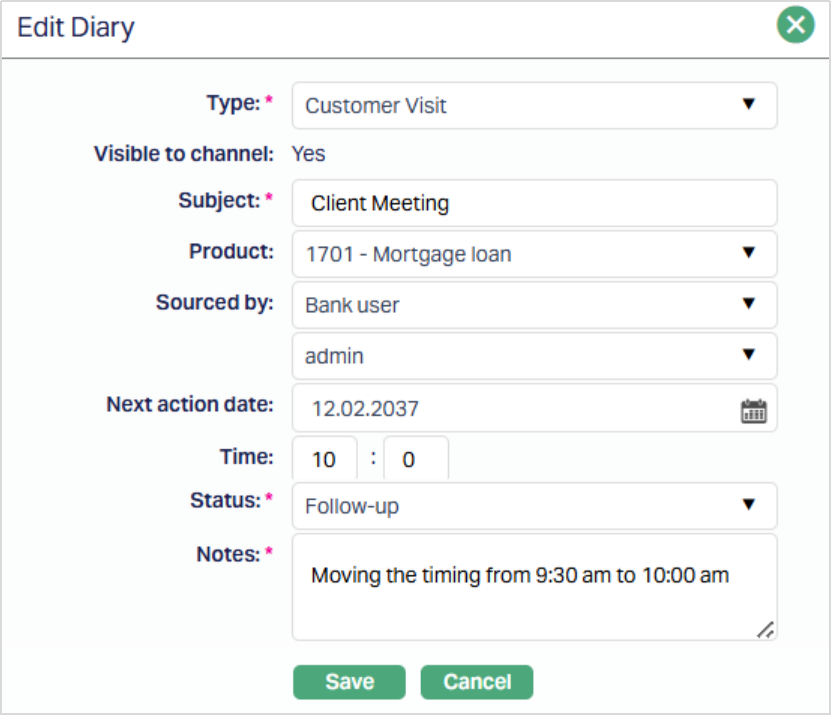
Note: Except Visible to Channel field rest all other fields are editable.
2. Enter Notes i.e., any remarks in Diary.
3. Make required changes and click Save. Diary page appears with the edited details.
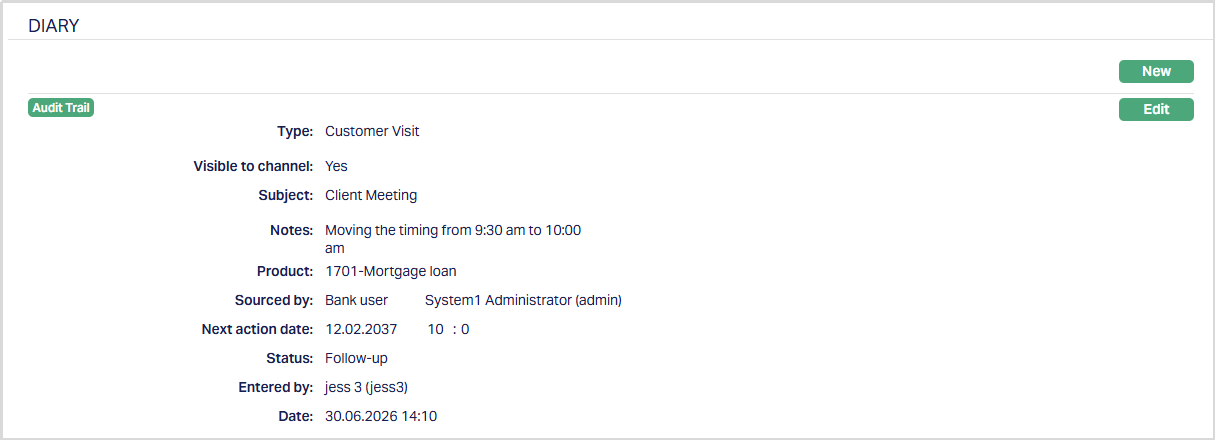
Functions: New, Edit
Diary Follow-Up Notifications
When a diary record is created or updated with the Follow-up status, Aura displays a notification under the notification bell.
The notification displays the number of diary records that are currently in Follow-up status for Clients, Persons, and Organisations.
Selecting a notification navigates the user to the corresponding records.
The notification remains available until the diary record status is changed from Follow-up to another status.
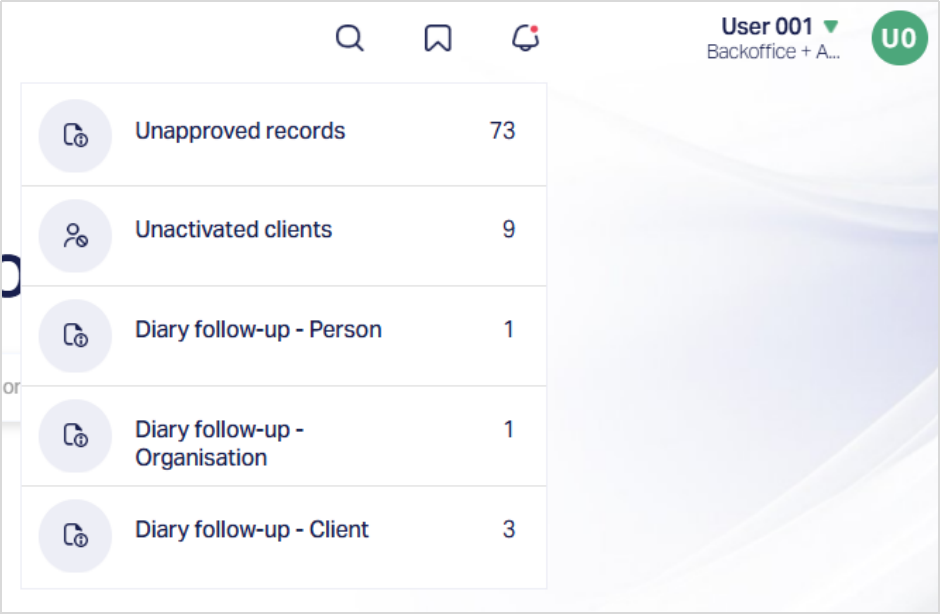
To update a Follow-Up Diary Record for an Organisation,
1. Select Diary follow-up - Organisation from the Notification. Aura navigates to the Organisation search page displaying the client records with diary entries in the Follow-up status.
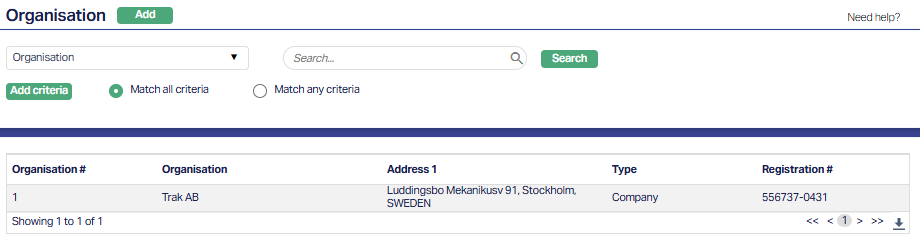
2. Select the required Organisation, access the Diary tab and click Edit. The Edit Diary page appears.
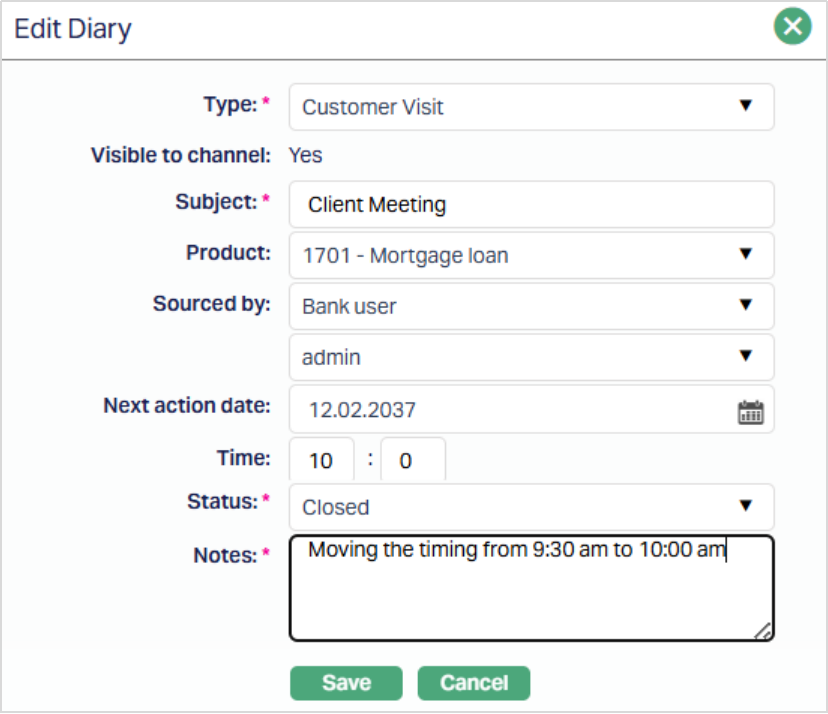
3. Update the Status as required (for example - Closed after the activity has been completed).
4. Click Save. The Diary record appears with the updated status.
Functions: New, Edit
Community
Community tab allows you to maintain the community of the organisation.
To add Community,
1. Access Organisation page and click Community tab.

2. Click New button. New Community page appears.
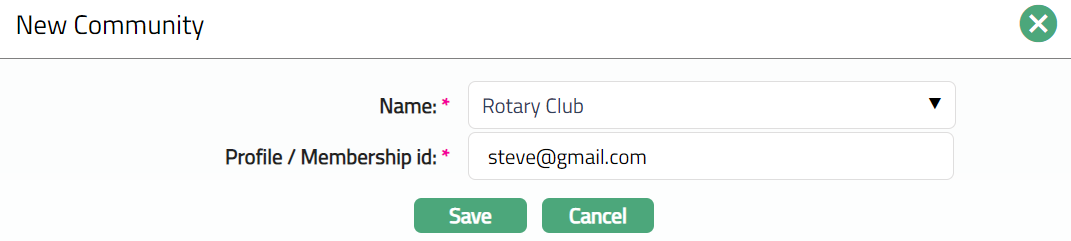
3. Select Name of community of the organisation from the available drop-down list maintained under Admin → System codes → Generic definitions → Community.
4. Enter Profile/Membership id of the organisation in that Community.
5. Click Save. Community page appears displaying the added details.

Functions: New, Edit, Delete.
Delete: You can delete the Community record saved in Aura by clicking Delete button. Aura will ask for confirmation, on approving which the selected record will be deleted. Once the record is approved, it cannot be deleted
To edit Community,
1. Click Edit. Edit Community page appears.
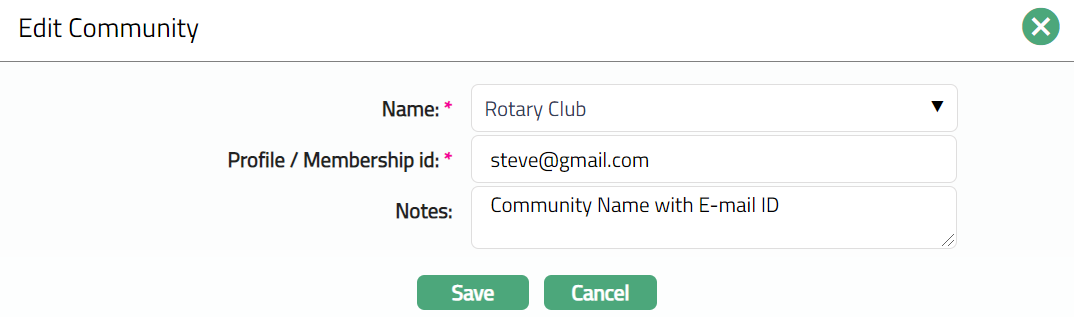
The additional fields that you can view / edit in the screen are explained below:
2. Enter Notes i.e., any remarks for the Community.
3. Make required changes and click Save. Community page appears with the edited details.

Functions: New, Edit, Delete
Categorisation
Categorisation tab allows you to maintain categories to which the Organisation is linked.
To add Category,
1. Access Organisation page and click Categorisation tab

2. Click New button. New Category page appears.
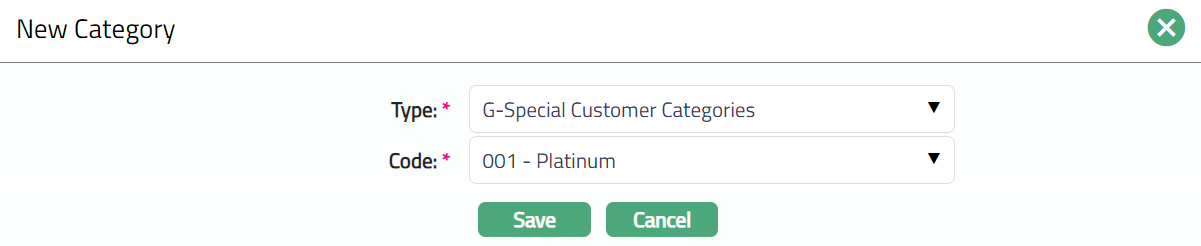
3. Select Category Type from the available drop-down list maintained under Admin → System codes → Categories → Category types as applicable for organisation.
4. Select Code from the drop-down list maintained under Admin → System codes → Categories → Category types. Aura will display all the codes maintained under the selected category type.
- Click Save. Categorisation page appears with the added details.

Functions: New, Edit, Delete
Delete: You can delete Category record saved in Aura by a click on Delete button. Aura will ask for confirmation, on approving which the selected record will be deleted. Once the record is approved, it cannot be deleted
To edit Categorisation,
1. Click Edit. Edit Category page appears.
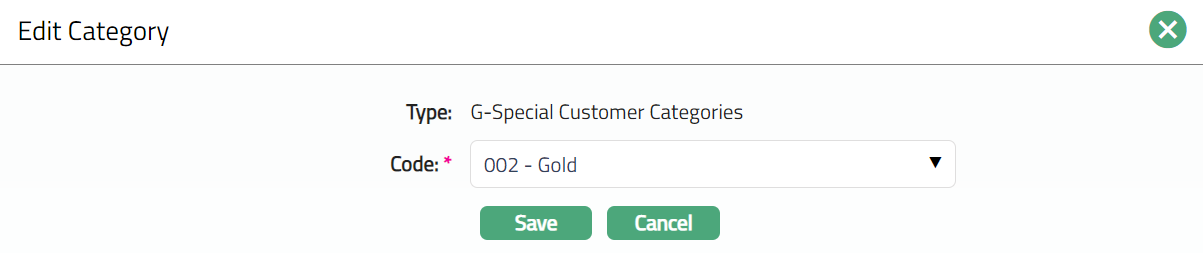
Note: Only Code field is editable.
2. Make required changes and click Save. Categorisation page appears with the edited details.

Functions: New, Edit, Delete
Person
Person tab allows you to maintain the person details of the organisation.
To view / Edit Person details,
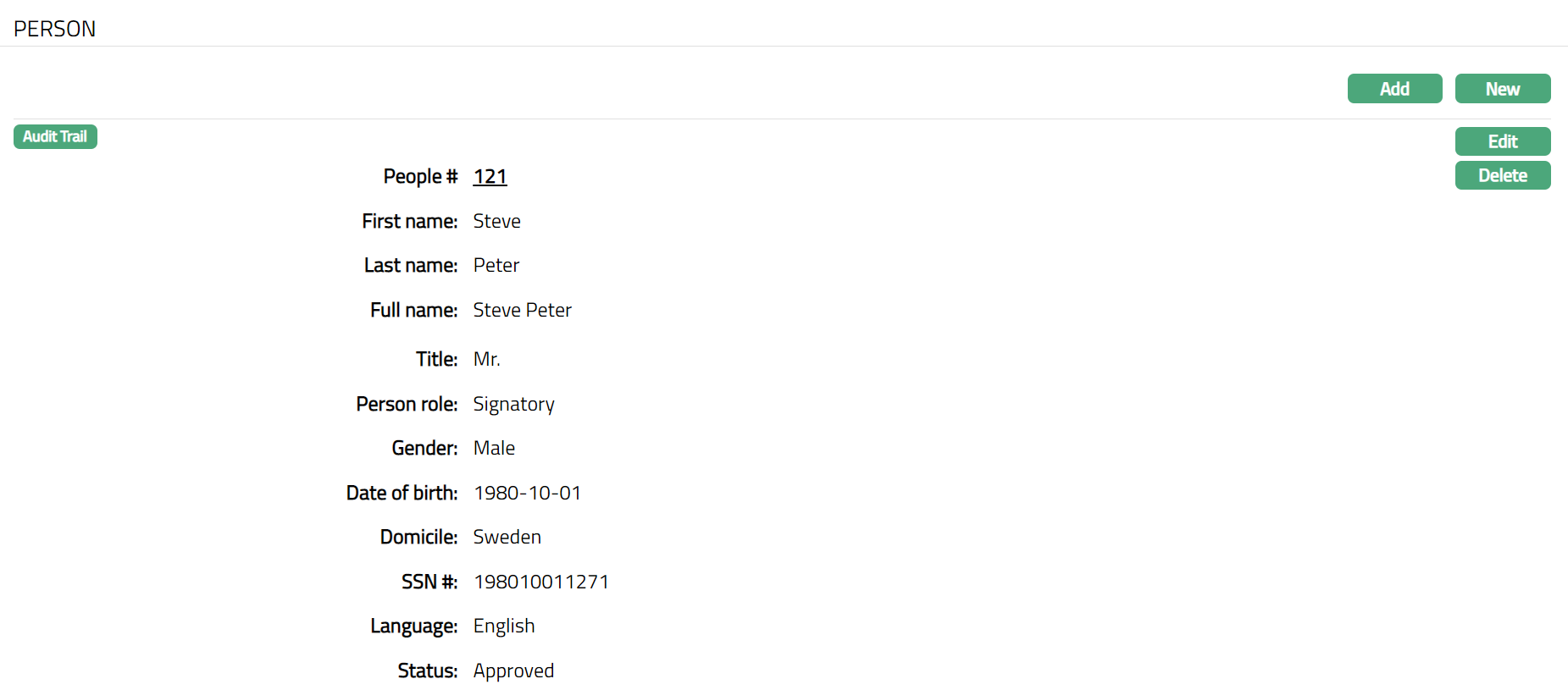
1. Access Organisation page and click Person tab. The details are defaulted from New Organisation → Person (5/6).
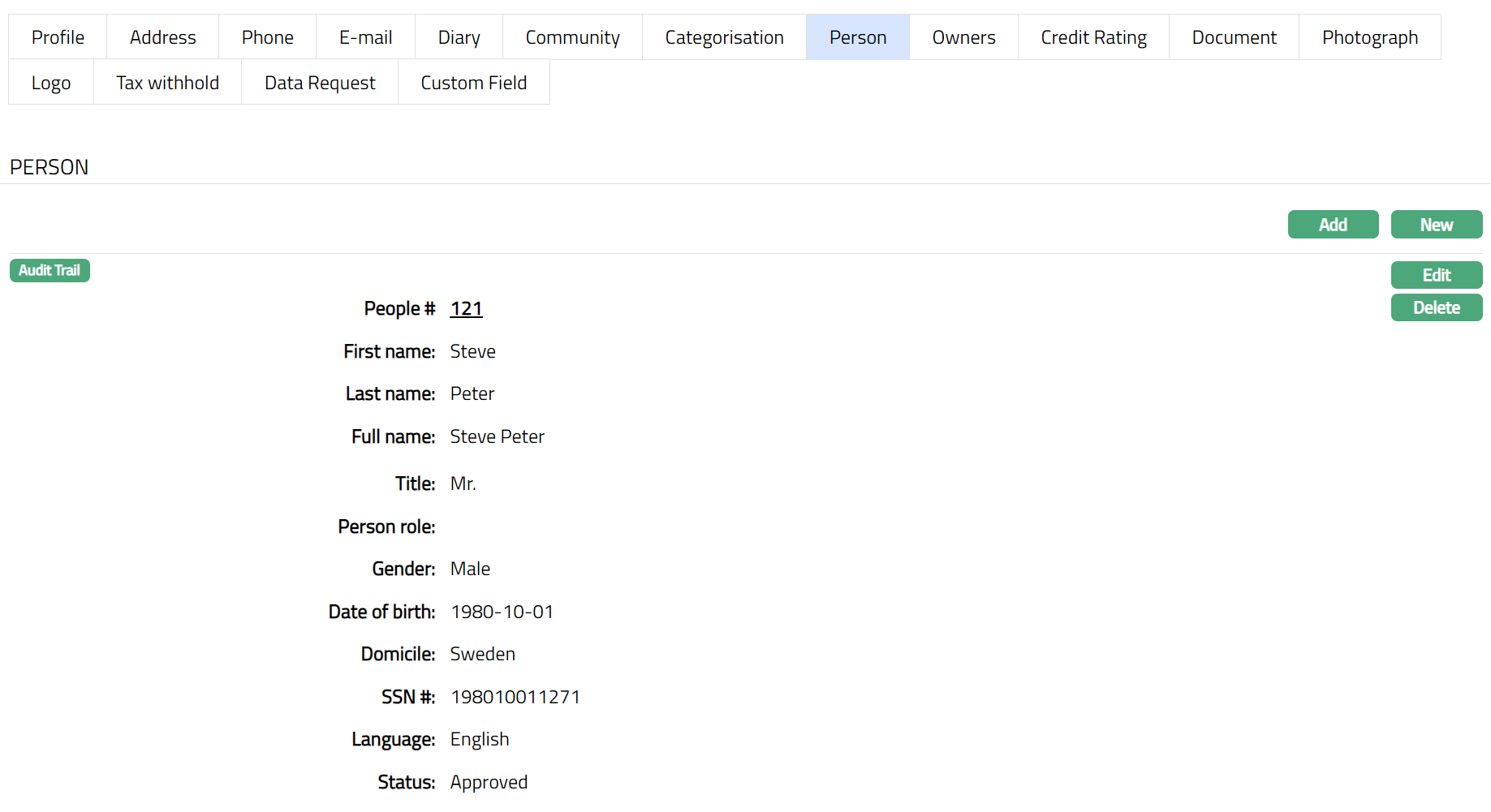
2. Click New if you wish to Add new person details for the Organisation who has not yet been created as a Person under CRM → Person → Maintain and provide the required details.
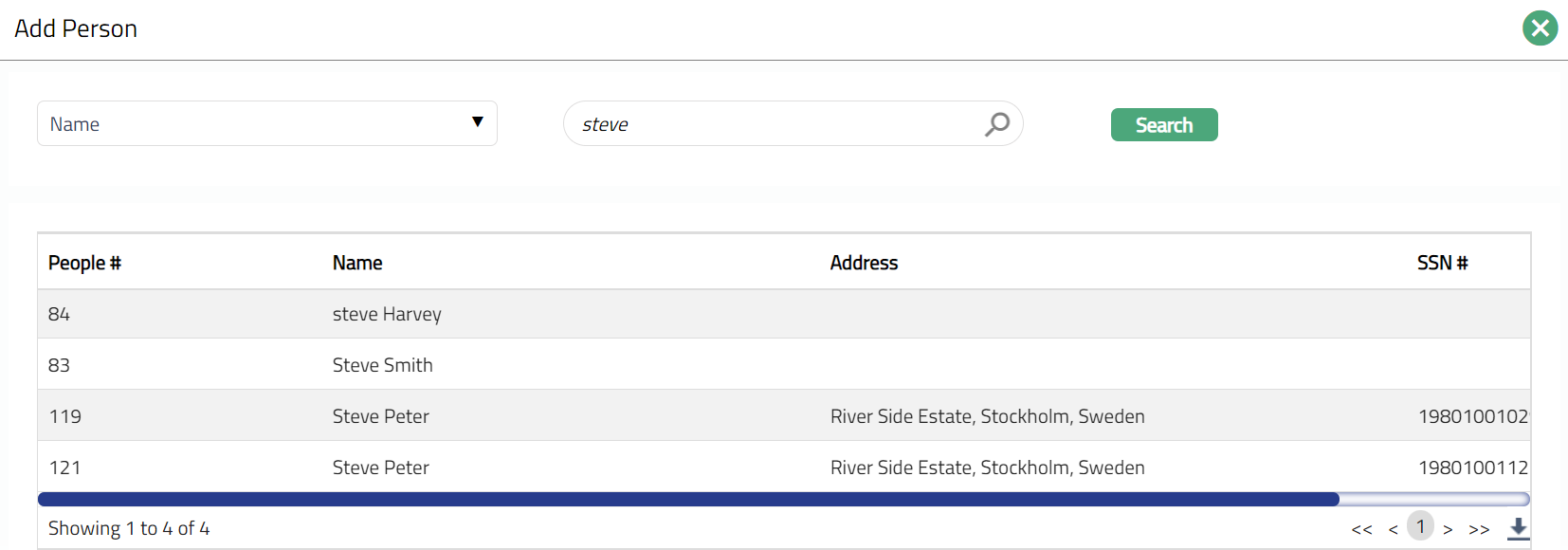
3. If you want to enter the details of a person associated with the Organisation who was already been created as a Person under CRM → Person → Maintain, then click Add. Aura will display the Search Person window. Enter the appropriate search conditions and select the required person. All the details as maintained under Person will be displayed and the fields will be disabled for input.

4. Enter name of the Person and click Search.
5. Select name of the Person from the list. Person name and details will be added in the Person page.
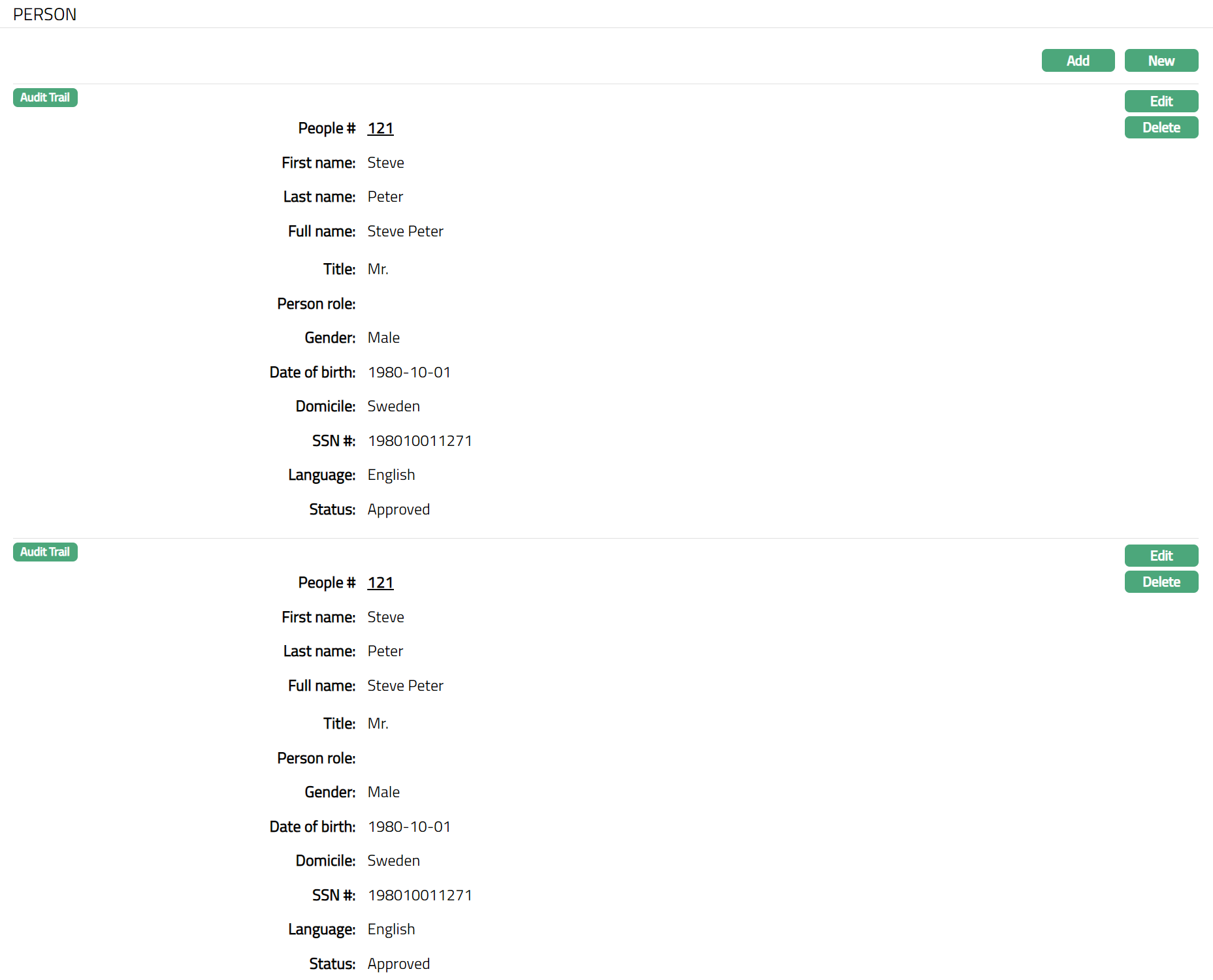
Functions: Add, New, Edit, Delete
Delete: You can delete a Person detail by clicking on Delete button. Aura will ask for confirmation, on approving which the selected Person details will be deleted.
To edit Phone details,
1. Access Organisation page and Person tab.
2. Click Edit. Edit Person page appears.
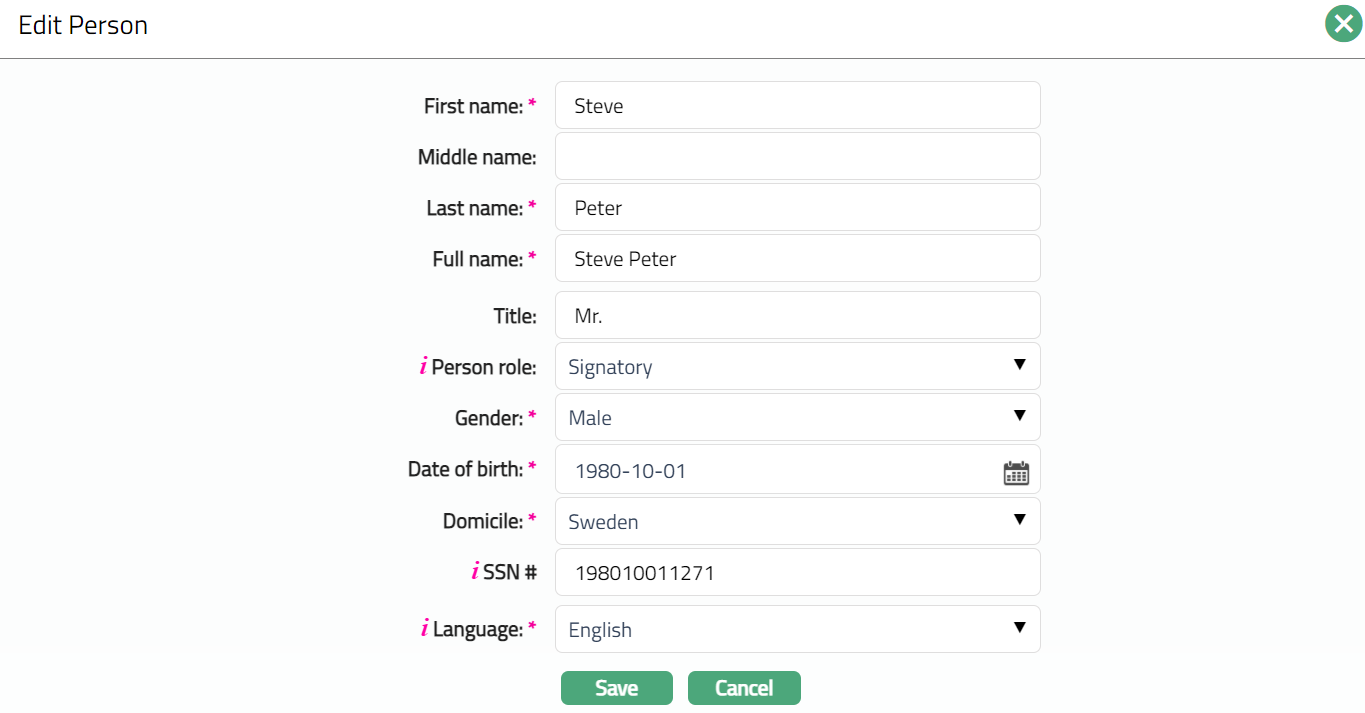
Note: For detailed explanation of these fields, refer to New Organisation → Person (5/6). The additional fields that you can view / edit in the Person screen are explained below:
Note: All fields are editable.
3. Make required changes and click Save. Person page appears with the edited details.
Functions: Add, New, Edit, Delete
Owners
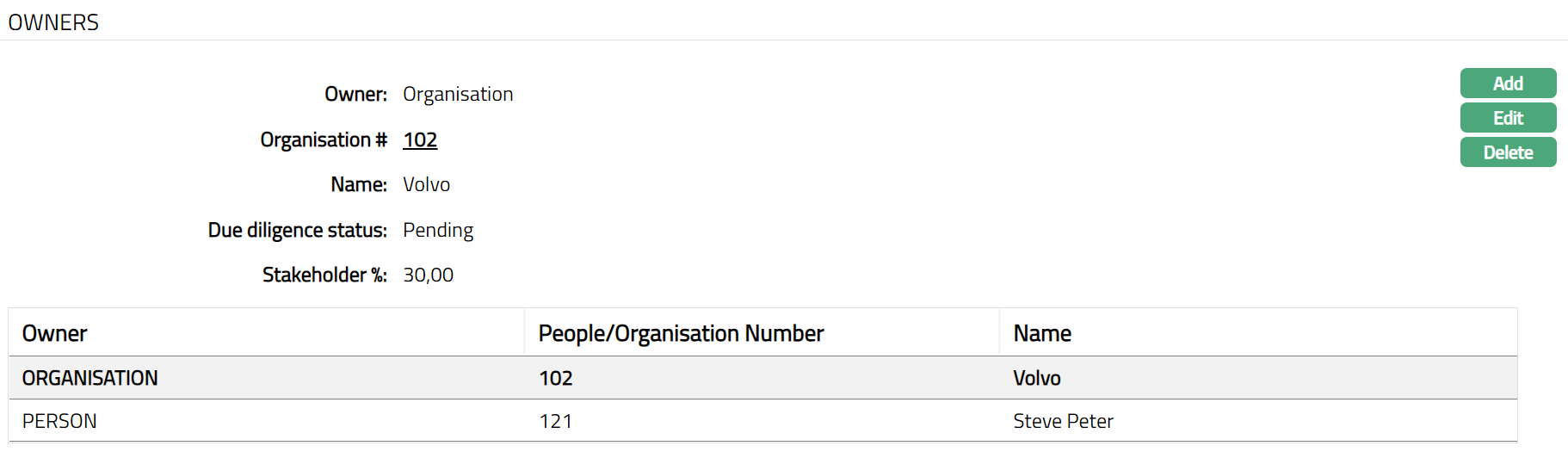
Owner's tab allows you to create and maintain the organisation owner's details.
To add New Owner,
1. Access Organisation page and Click Owner tab.
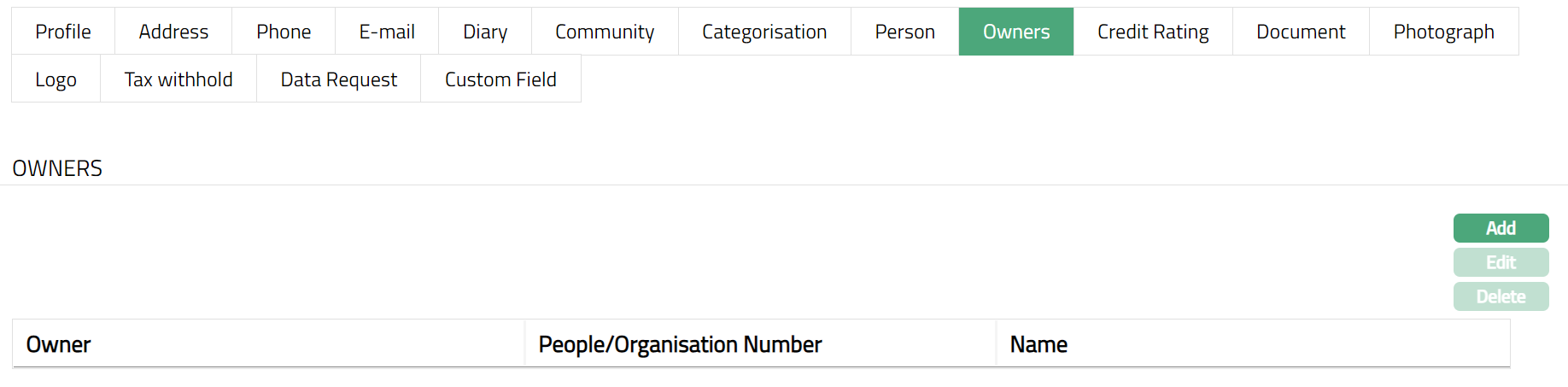
2. Click Add. New Owner page appears.
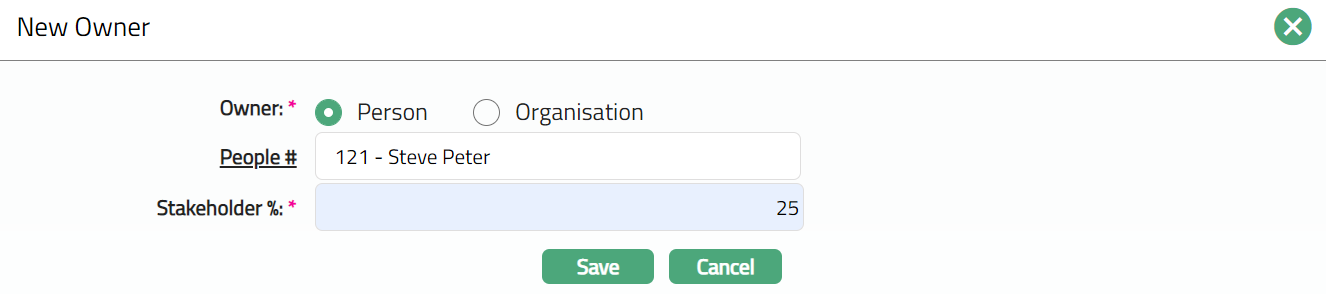
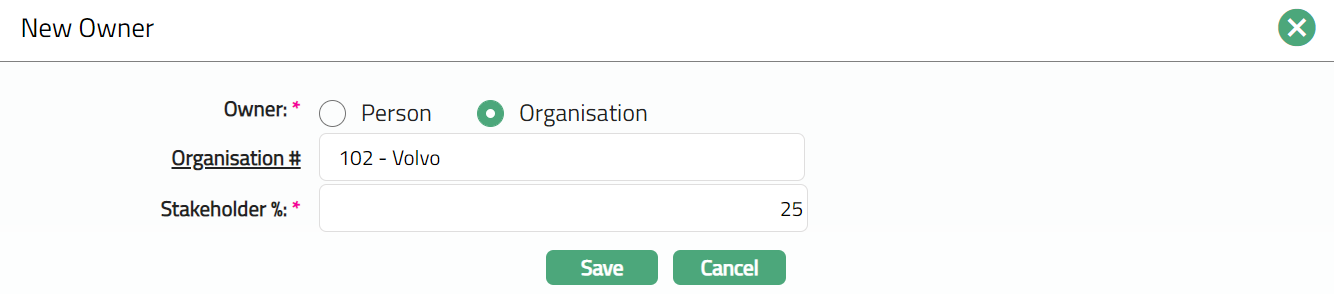
3. By default, Person is selected. If you wish to add Organisation select Organisation.
4. Enter Name of the owner if you select Person. If you select organisation the Enter the name of the organisation. Else, you can click on the hyperlink and search for the required Person or Organisation.
5. On entering the required details of New Owner Aura will display the list of all the names as per the entered details. Select the appropriate Owner name from the displayed list.
6. Enter the Stakeholder % of the owner. If the total of all the Stakeholders' % exceeds 100 %, Aura will display an error message.
7. Click Save. Owners page appears with the added details.
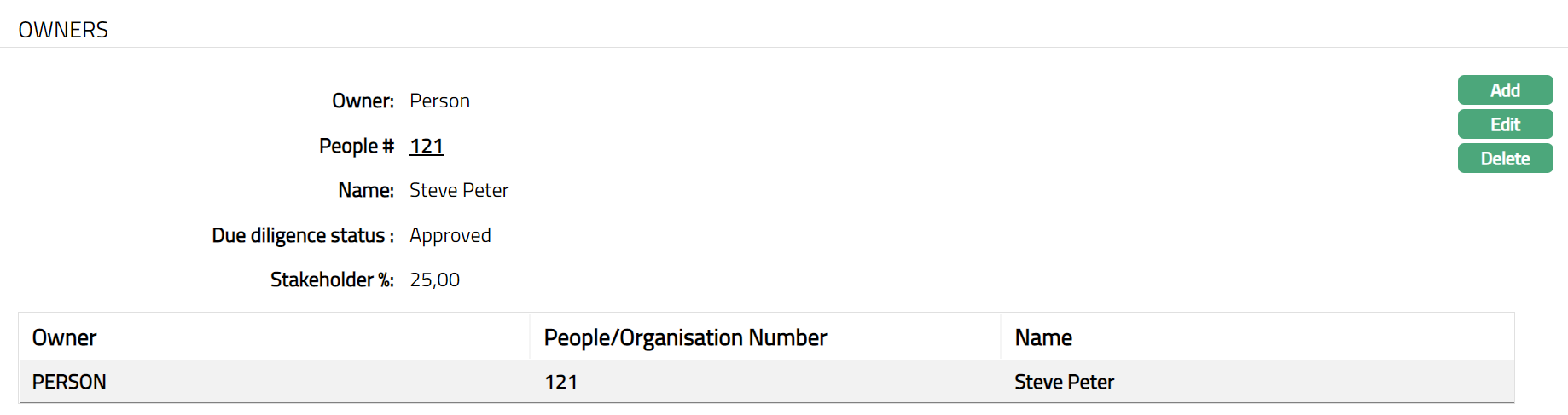
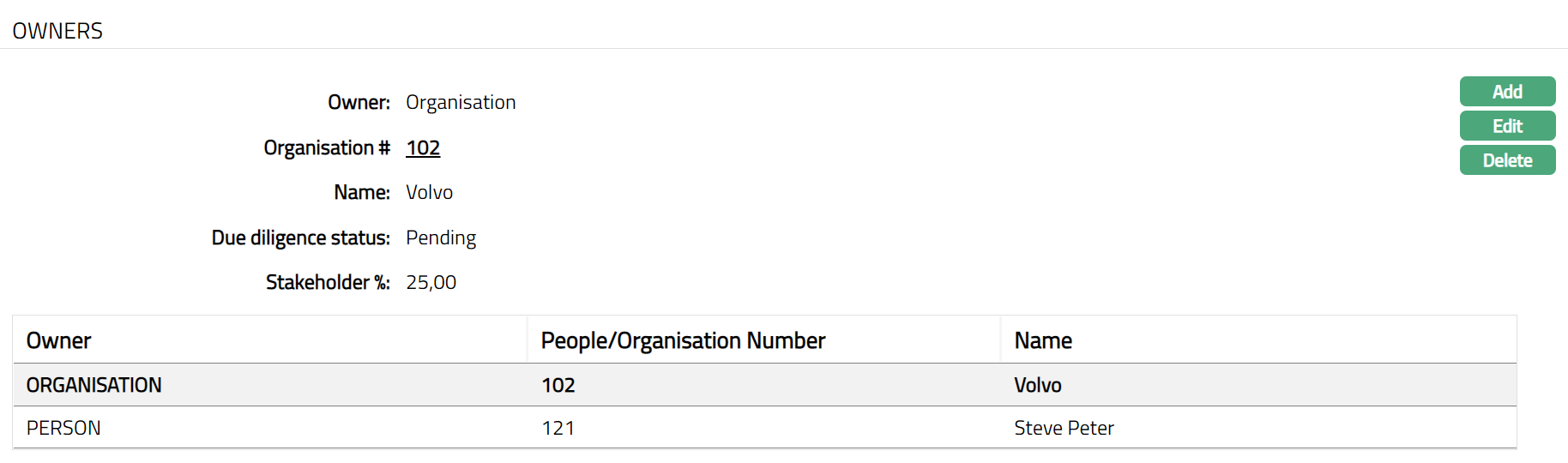
Functions: Add, Edit and Delete
To edit Owners.
1. Click Edit. Edit Owner page appears.

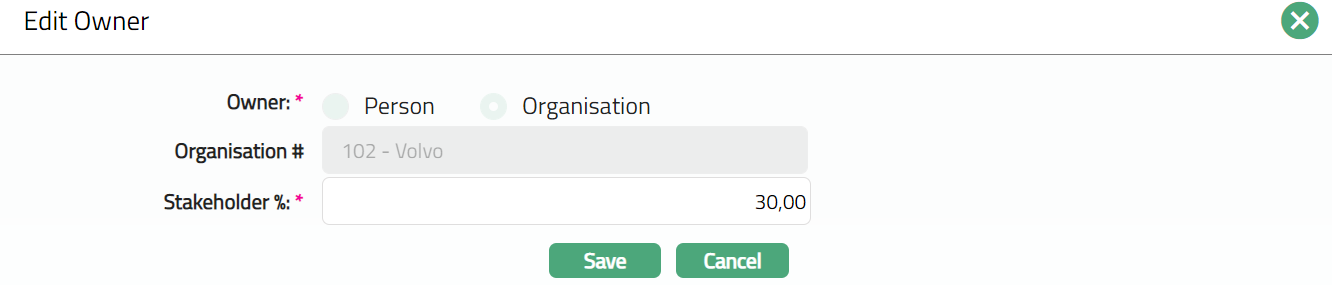
Note: Only Stakeholder % field is editable.
2. Make necessary changes and click save. Owner page appears with the edited details.
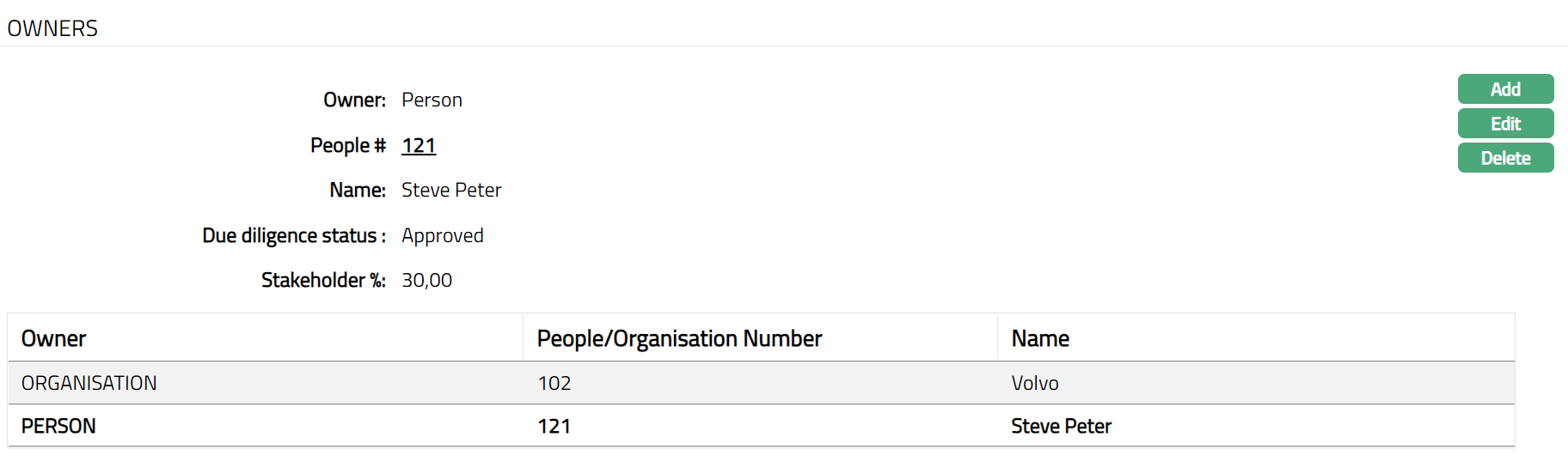
Functions: New, Edit, Delete.
Credit Rating
Credit Rating is the Credit worthiness of an organisation. Credit Rating happens externally from Aura. Aura has ability to provide or accept data from external systems through APIs. Hence Aura can connect with any Credit Rating agency and collate the data.
Credit rating tab allows you to create and maintain the organisation credit rating details.
To Add New Credit Rating,
1. Access Organisation Maintain page. Click Credit Rating tab. Credit Rating page appears.

2. Click Add. Add Credit Rating page appears.
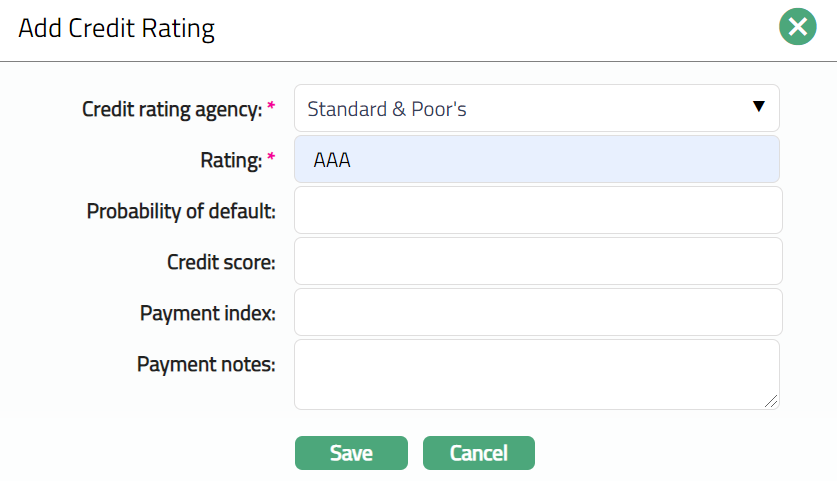
3. Select Credit Rating agency of the organisation from the available drop-down list of Credit rating agencies maintained under Admin → System codes → Generic definitions → Credit rating agency. Once saved, this field cannot be edited.
Rating: In general terms credit rating is a quantified assessment of the creditworthiness of a borrower or with respect to a financial obligation. A credit rating or score is assigned to any entity that wants to borrow money. It can be an individual, a corporation, a state or provincial authority, or a sovereign government. Note: Rating need to be fed manually as provided by the external agency.
Probability of default: Probability of default also denoted as (PD), is the likelihood that a borrower will fail to pay back a debt. Note: This need to be fed manually as provided by the external agency.
Credit score: A credit score is an indicator of a person's creditworthiness, or their ability to repay debt. It is usually expressed as a number based on the person's repayment history and credit files across different loan types and credit institutions. Credit score is also known as a credit rating. Note: This need to be fed manually as provided by the external agency.
Payment index: The payment index shown publicly on the commercial credit report of your company with a weighted average of late days in which you pay your suppliers. Note: This need to be fed manually as provided by the external agency.
Payment notes: Payment note is a short-term or one-time loan payable as a single amount on its maturity. The "note" states the terms of the loan. Note: This need to be fed manually as provided by the external agency.
4. Click Save. Credit Rating page appears displaying the added details.
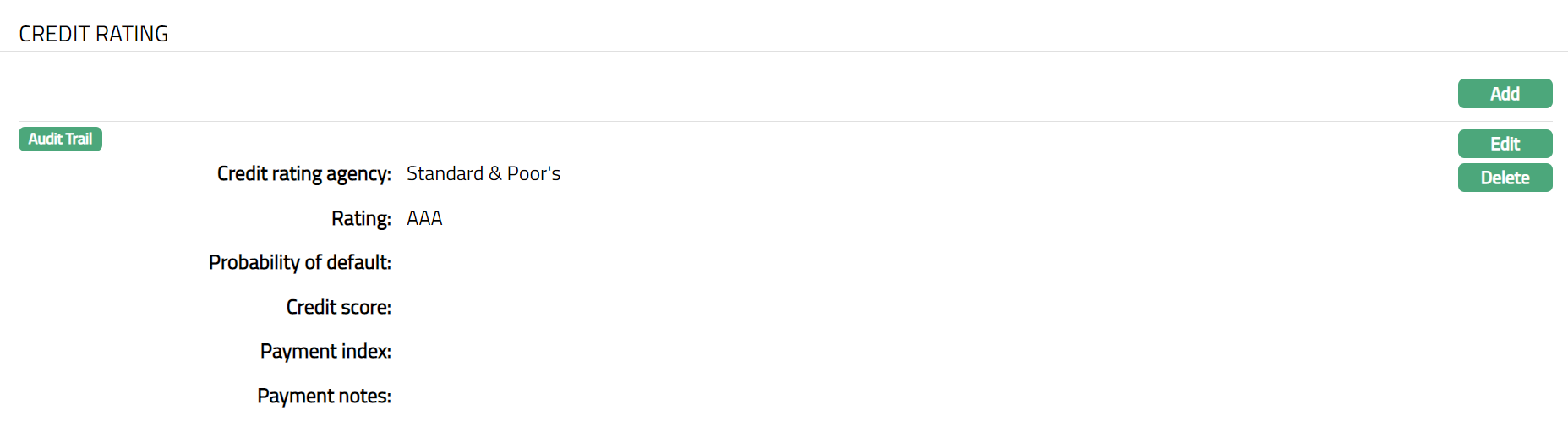
Functions: Add, Edit, Delete.
Note: Aura will not display the credit agency name in the dropdown list if you have already entered a credit rating from that agency for the Organisation.
Financial Statement
The Financial Statement tab allows you to maintain the financial statement details of the organisation for a specific financial year.
To add a Financial Statement,
1. Access Organisation Maintain page. Click Financial Statement tab. As soon as the account is created, this tab will show no records, as there are no financial statements attached to the account.
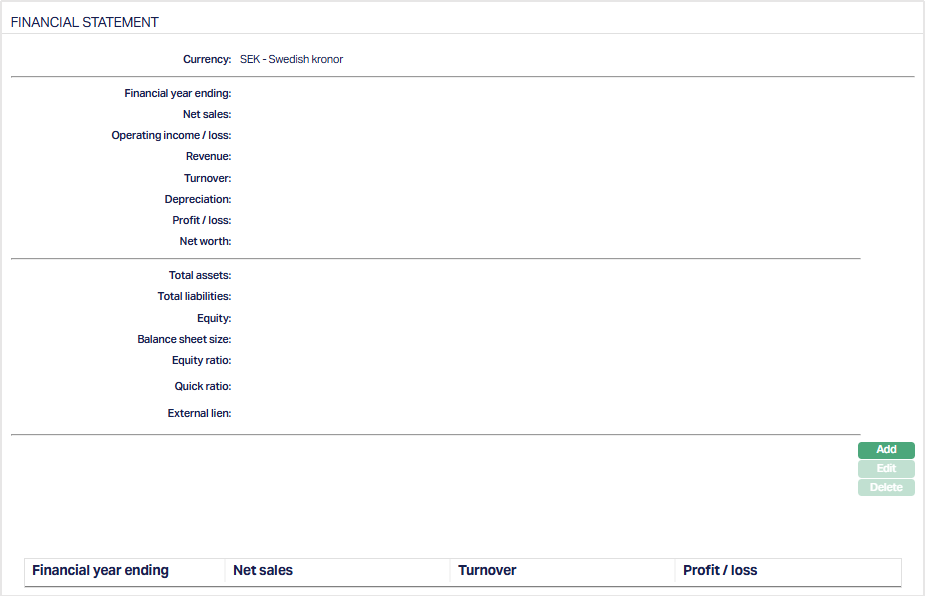
2. Click Add. The Add Organisation Financial Statement page appears.
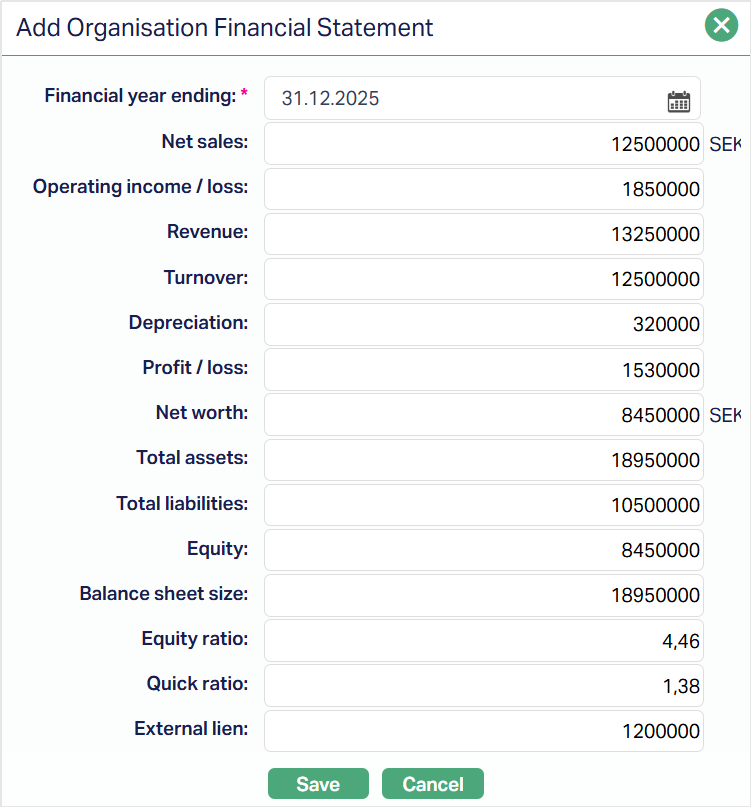
3. Financial year ending - Select the financial year end date for which the financial statement is maintained.
4. Net sales - Enter the net sales amount. It represents the revenue earned from sales after deducting returns, discounts, and allowances.
5. Operating income / loss - Enter the operating income or loss. It represents the profit or loss generated from the Organisation's core business operations before interest and taxes.
6. Revenue - Enter the total revenue earned by the Organisation from its business activities.
7. Turnover - Enter the turnover amount. It represents the total value of goods sold or services provided during the financial year.
8. Depreciation - Enter the depreciation amount. It represents the reduction in the value of fixed assets over time due to usage or wear and tear.
9. Profit / loss - Enter the net profit or loss for the financial year after accounting for income and expenses.
10. Net worth - Enter the net worth of the Organisation. It represents the value of total assets less total liabilities.
11. Total assets - Enter the total assets of the Organisation. It represents everything owned by the Organisation that has economic value.
12. Total liabilities - Enter the total liabilities of the Organisation. It represents the total financial obligations owed by the Organisation.
13. Equity - Enter the equity amount. It represents the owners' interest in the Organisation after deducting liabilities from assets.
14. Balance sheet size - Enter the balance sheet size. It represents the total value of the Organisation's assets reported in the balance sheet.
15. Equity ratio - Enter the equity ratio. It represents the proportion of the Organisation's assets financed by equity.
16. Quick ratio - Enter the quick ratio. It represents the Organisation's ability to meet its short-term liabilities using its most liquid assets.
17. External lien - Enter the external lien amount. It represents the value of assets that are pledged or subject to claims by external parties.
18. Click Save. The Financial Statement page appears with the added details.
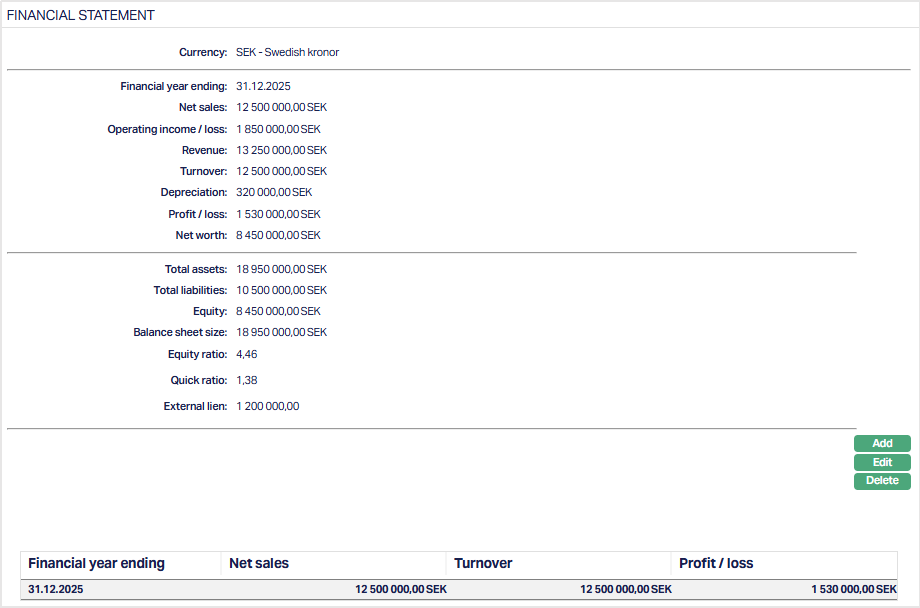
Functions: Add, Edit, Delete.
Note: Currency displays the Organisation's currency. The decimal precision of the monetary values is based on the decimal places configured for the currency under Admin → System Codes → Currency.
To Edit a Financial Statement,
1. Click Edit. The Edit Organisation Financial Statement page appears.
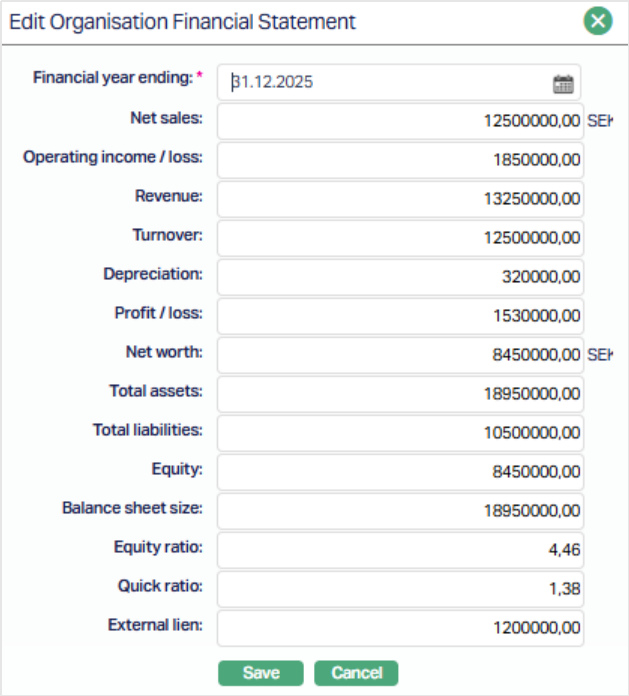
All fields are editable.
2. Click Save. The Financial Statement page appears with the edited details.
Functions: Add, Edit, Delete.
Document
Document tab allows you to upload documents related to the person. These can be in the form of scanned images or files on your computer. You can categorise the documents as per Document Type and store with a document reference number.
To add New Document,
1. Access Person page, then click Document tab.

2. Click New button. New Document page appears.
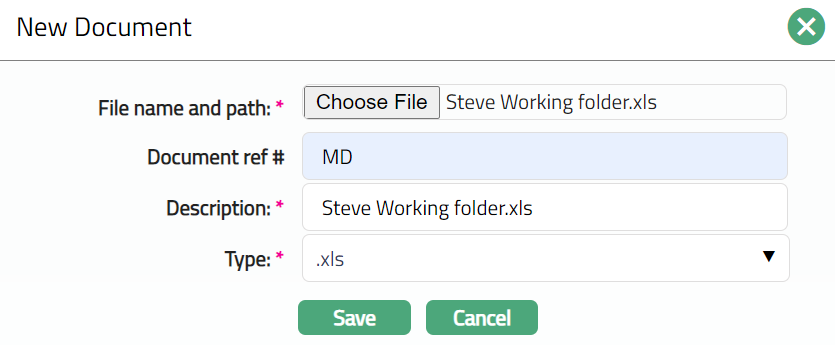
3. Click Choose File button to select the File name and path of the document.
4. Enter Document ref number for the document. This document reference number is used in Branch view → Documents.
5. Based on the file selected Description field will be derived. If required, you can change the description.
6. Select Type of the Document uploaded from the available drop-down list maintained under Admin → System Codes → Documents → Document types. Once entered, this cannot be edited.
7. Click Save. Document page appears displaying the added details.
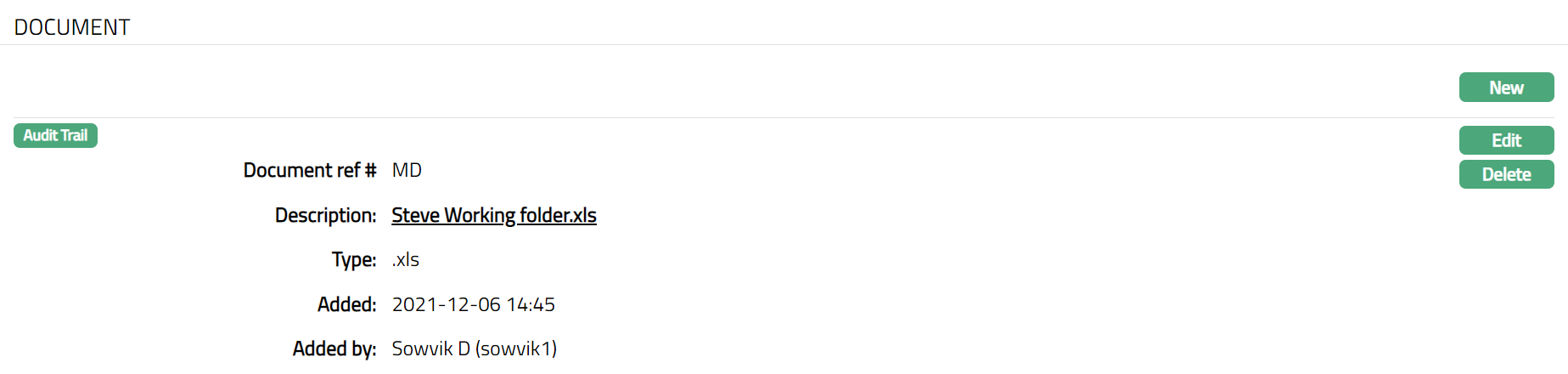
Functions: New, Edit, Delete
To edit Document,
1. Click Edit. Edit Document page appears.
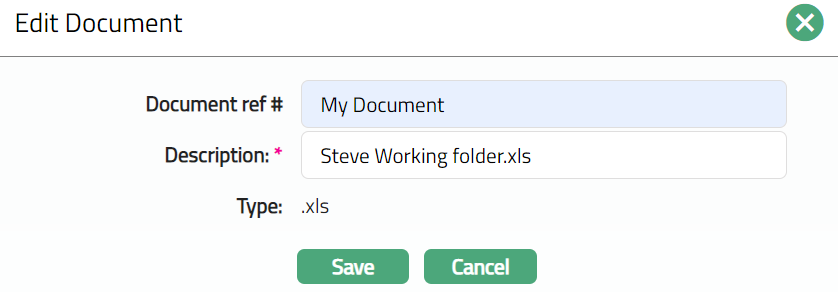
Note: Only Document Reference # & Description fields are editable.
2. Do necessary changes and click Save. Document page appears with the edited details.

Functions: New, Edit, Delete
Delete: You can delete Document record saved in Aura by clicking Delete button. Aura will ask for confirmation, on approving the selected record will be deleted.
Photograph
Photograph tab allows you to upload photograph related to the person. These can be in the form of scanned images or files on your computer. You can categorise the photograph as per Photograph Type and store with a photograph reference number.
To add New Photograph,
1. Access Person page and click Photograph tab.

2. Click New button. New Photograph page appears.
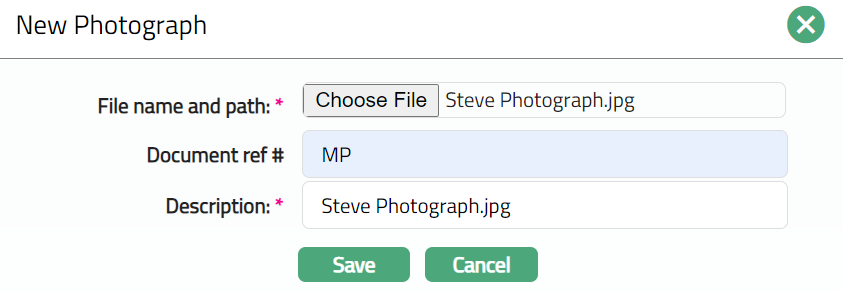
3. Click Choose File button to select the File name and path of the photograph.
4. Enter Photograph ref number for the photograph. This photograph reference number is used in Branch view → Photograph.
5. Based on the file selected Description field will be derived. If required, you can change the description.
6. Click Save. Photograph page appears displaying the added details.
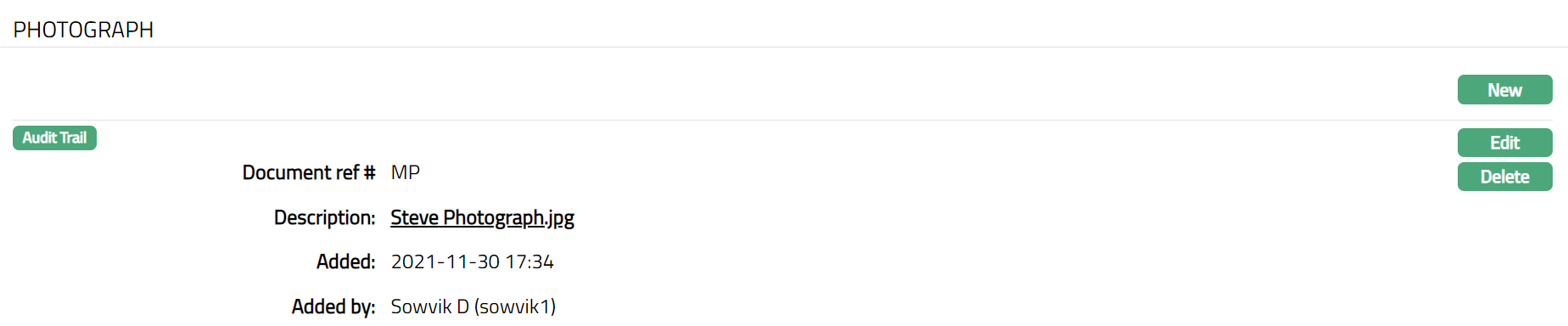
Functions: New, Edit, Delete
To Edit Photograph,
1. Click Edit. Edit Photograph page appears.
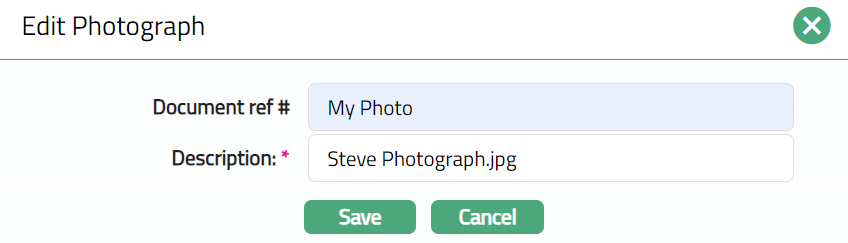
Note: Only Document Reference # & Description fields are editable.
2. Do necessary changes and click Save. Photograph page appears with the edited details.
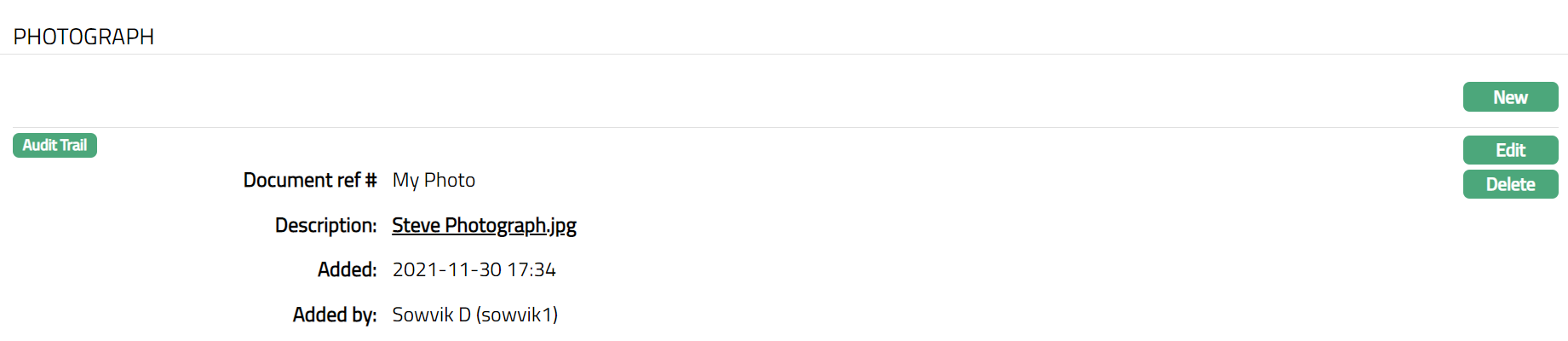
Functions: New, Edit, Delete
LOGO
Logo tab allows you to upload Logo related to the organisation. These can be in the form of .jpg/.jpeg etc.
To add Logo of the Organisation,
1. Click Organisation page and click Logo tab.

2. Click Upload button. Upload Logo page appears.
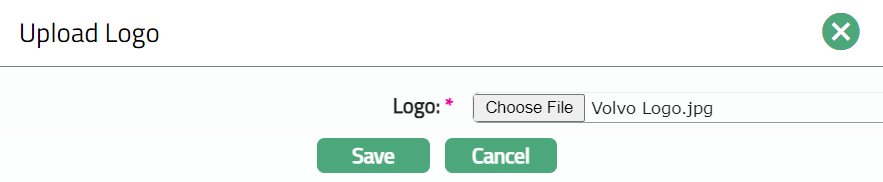
3. Click Choose File button to select the File name and path of the Logo.
4. Click Save. Logo page appears displaying the added details. Sample screen shown below.
Functions: Upload, Delete
Delete: You can delete Logo saved in Aura by a click on Delete button. Aura will ask for confirmation, on approving the selected Logo will be deleted.
Tax Withhold
Tax Withhold tab is used to store details related to the amount of tax which must be withheld on interest on deposits according to the tax laws of that Country. Here views the gross interest earned and tax amount per currency for current and previous financial years (based on current booking date) currency wise. This will also show you the Tax Country and Tax Category of the Organisation.
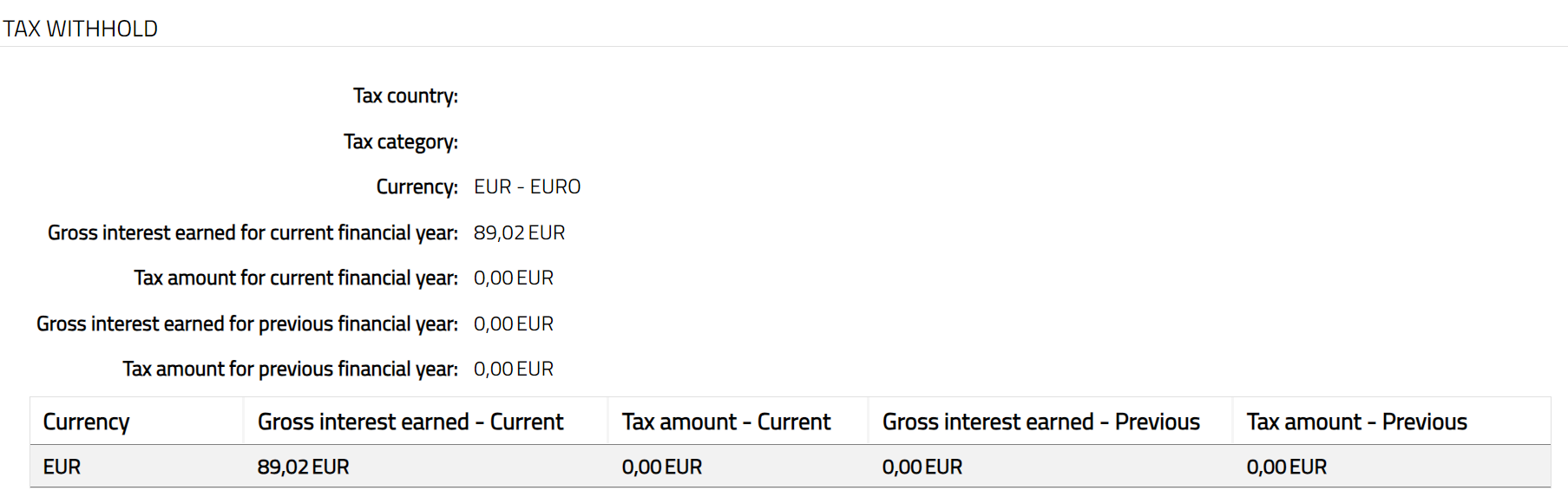
The available fields are:
Tax country denotes the country where the Person does employment / business and files tax to the government.
Tax category denotes the category to which the tax scheme belongs. It is populated from Admin → Tax category → Maintain.
Currency denotes the currency in which customer has earned interest and paid Tax.
Gross interest earned for current financial year denotes the gross interest earned currency wise for the current financial year updated till current booking date.
Tax amount for current financial year denotes the tax amount deducted currency wise for an account for current financial year updated till current booking date.
Gross interest earned for the previous financial year denotes the gross interest earned currency wise for the previous financial year updated till the end of previous financial year.
Tax amount for previous financial year denotes the tax amount deducted currency wise for an account for previous financial year updated till end of previous financial year.
Note:
Based on the unique combination of Country, Currency, Tax category and Tax scheme effective date, Aura will pick the band and Tax percentage rate for tax calculation. If more than one records are maintained for a Tax Scheme for a same Combination with different Effective From Date, then Aura will pick the latest Effective From Date combination <= current business date and should calculate tax.
If Tax category is defined at Person / organisation level but combination has not been maintained at tax scheme level for the same Tax Category then system should take Any tax category combination for calculating tax.
Based on Tax accrued interest flag maintained at Tax scheme level, the accrued interest on the accounts held by the current Person / Organisation will be considered for tax calculation and will be calculated only at the end of financial year.
For tax calculation
So, in the case of interest liquidation, the execution is always on the account where liquidation is applicable.
In the case of interest accrual, interest bearing accounts should be picked one after the other.
In the case of joint client type, tax liability is calculated based on the percentage of ownership and hence interest amount. i.e. if the account has three beneficial owners with equal ownership and if there is a liquidation of 3000INR. Each of them is liable to pay tax only on 1000INR provided applicable band has a rate > 0.
Data Request
Data Request tab allows you to record the details of request for data stored in your systems (say, under General Data Protection Regulation, i.e., GDPR) when it is raised by a Person. You can mention the Data request date and the Report generation date based on the request of the related person.
To add Data Request,
1. Access Person page, then click Data Request tab.
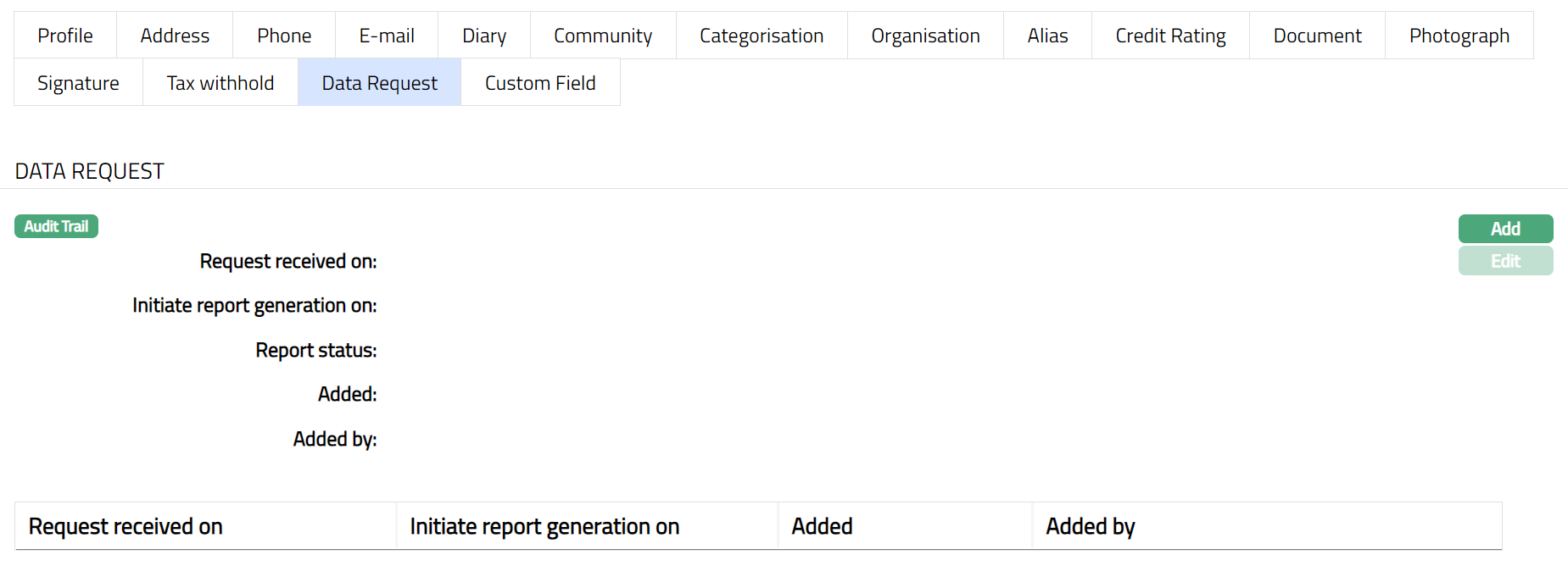
2. Click Add button. Add Data Request page appears.
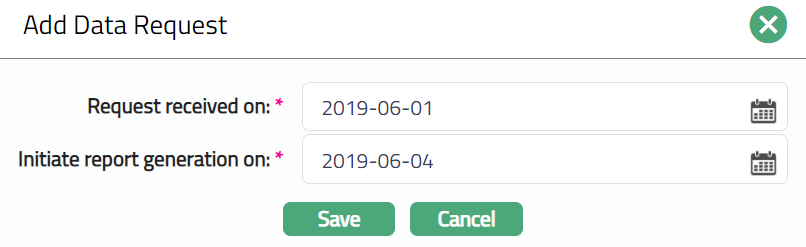
3. Enter Request received on date.
4. Enter Initiate report generation on date.
Note: For the above dates, you can use the calendar icon or type in the date
5. Click Save. Data Request page appears with the added details.
6. Once saved Report Status will be shown as Requested.
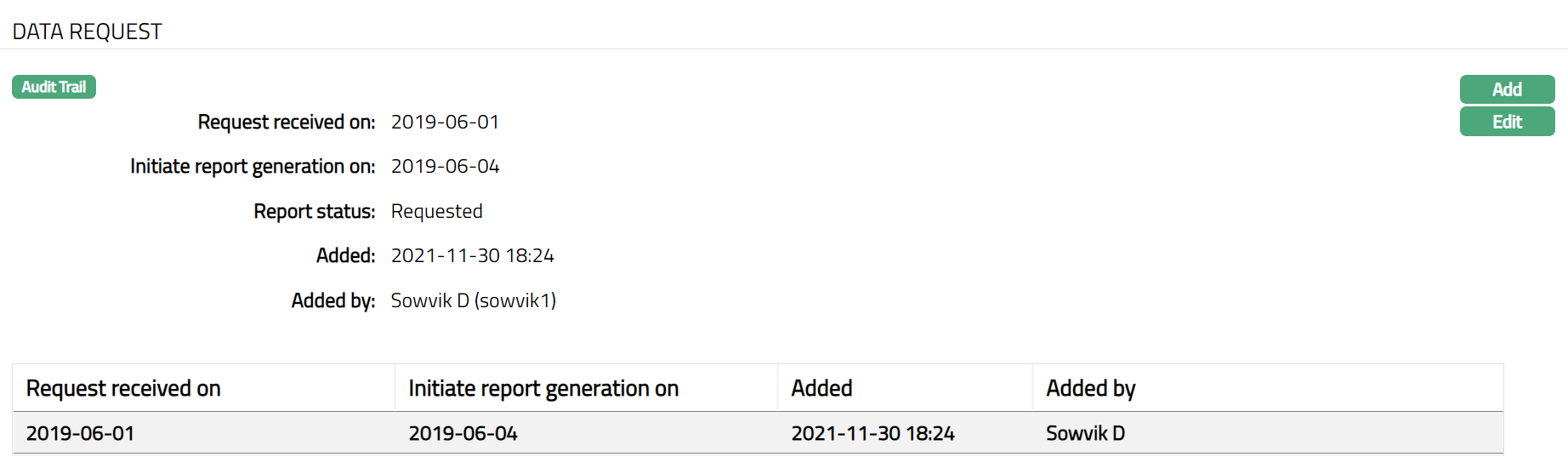
Following are the additional details that are displayed:
Report Status indicates the status of the Report. On Save, the Status will be Requested. Once the Report is generated, it will be Generated
Added field denotes the date on which the record was added
Added by denotes the person who created the record
7. Once saved the system will automatically generate the Report based on the frequency set. Report status will be changed from Requested to Generated.
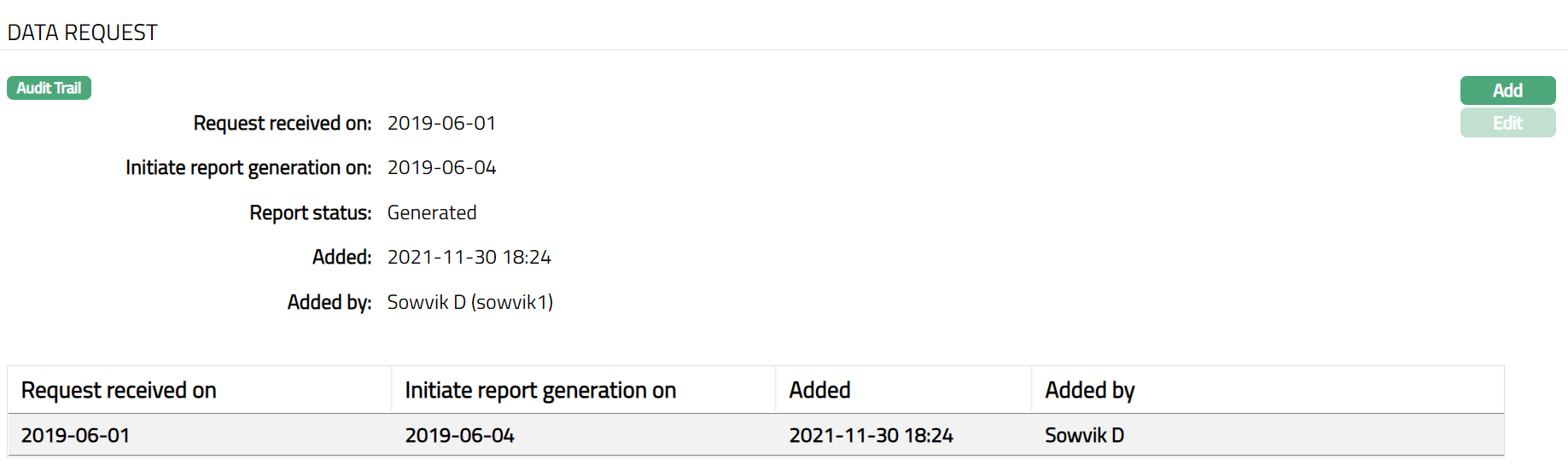
Note: If you want to change the details of the Request, you can do so when the Report Status is Requested; once the report gets generated, edit is disabled
To Edit Data Request,
1. Click Edit. Edit Data Request page appears.
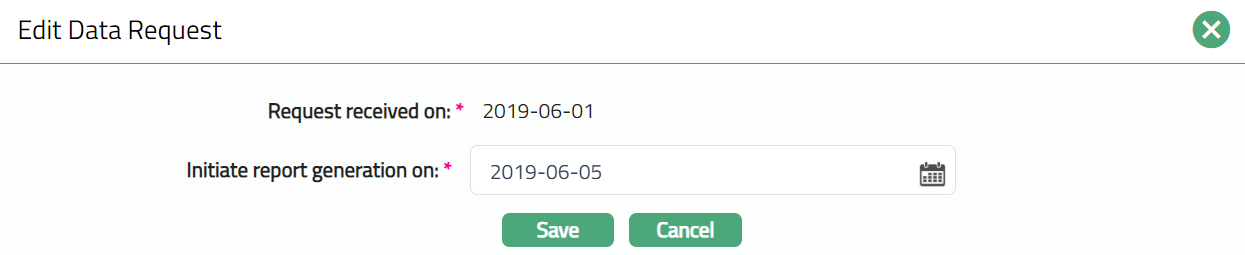
Note: Only Initiate report generation on field is editable.
2. Do the required change and click Save. Data Request page appears with the edited details. Note: Once Saved the Report Status changes to Initiated.
3. Once saved the system will automatically generate the Report based on the frequency set. The Report status will be changed from Requested to Generated.
4. Generated file can be viewed by user in Document Tab. Generated file format will be in .pdf
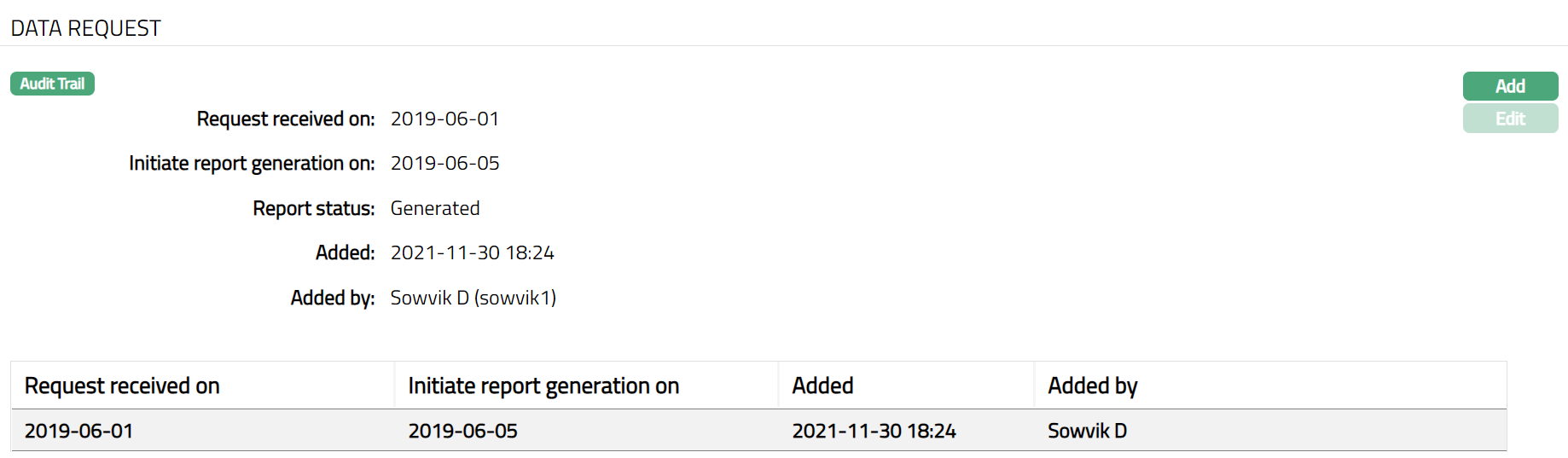
Functions: Add, Edit
Custom Field
This option provides you the flexibility to define fields apart from those that are already available in the standard version of Aura. Thus, it enables you to customize additional data storage and use as required to suit your specific business needs.
Using the Custom Field tab, you can maintain the custom fields mapped to the Organisation. Depending on the custom fields created and mapped to Organisation (using Admin → System Codes → Custom Fields), the fields will be displayed on this tab
To edit Custom field,
1. Click Custom Field tab. Custom Field page appears.

2. Click Edit. Edit Custom Field page appears.

3. Enter the details as required and click Save. Custom field page appears with the edited details.

Functions: Edit