
Contract Disbursement
The Disbursement function is used to manually release amounts that are payable to the Seller on Factoring contracts. Aura lets you disburse the Advance amount, Gross Invoice Amount, Reserve Amount, or Recourse Amount when these have not been released automatically. Aura shows only the contracts that are eligible for disbursement based on the inputs you provide.
When you finish and approve the disbursement, Aura updates limit utilization where applicable and posts related accounting entries and event log updates.
Disbursement types in Aura
Aura provides three types of disbursements under Factoring. Each type is used for a different purpose. All three types appear as options when you add a new disbursement.
The three types of disbursements under Factoring are - Advance Payout, Reserve Release and Recourse Release.
The following tabs are available in a Factoring Contract Disbursement:
To add a new Factoring disbursement
1. From the Commercial menu, click Factoring and then Contract disbursement. Factoring Disbursement Search page appears.

2. Click Add. New Factoring Disbursement → Profile (1/4) page appears.
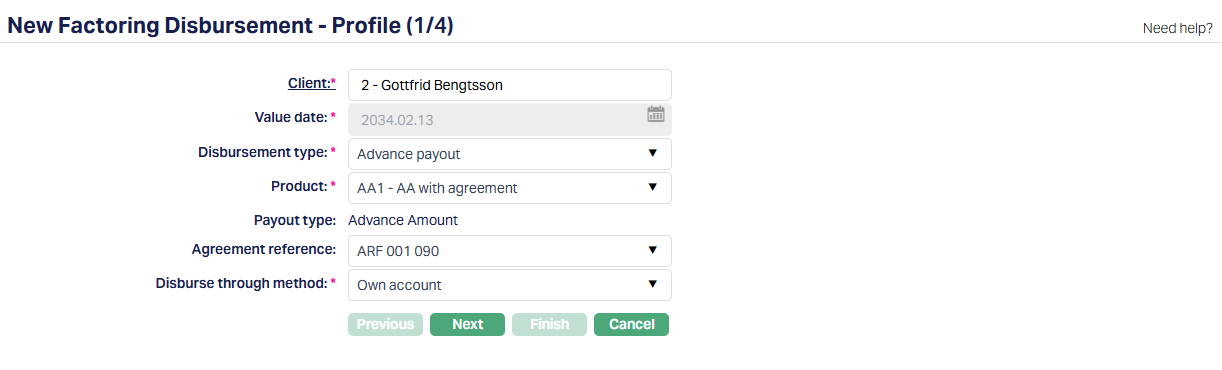
3. Click Client hyperlink. Client Search page appears with the list of Active clients maintained under CRM > Clients > Maintain. You can search for a client with relevant criteria and select the required client to whom the disbursement has to be done. Alternatively, you can type the name of the client and choose the relevant client from the list suggested by Aura.
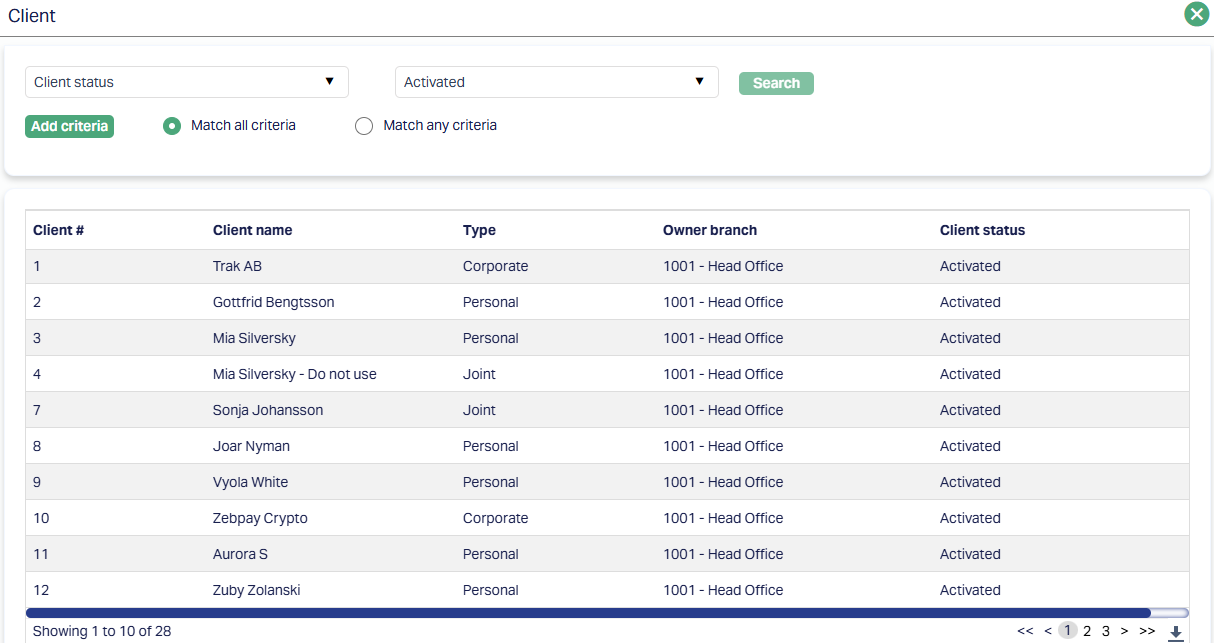
When you choose a client, Aura uses this information to filter the agreement, buyers, and eligible contracts in the later steps.
4. Value Date - Aura sets the Value Date to the Current Booking Date. This date is read-only and cannot be changed. The Value Date is used to check whether the contracts are eligible for disbursement based on their invoice dates and maturity conditions.
5. Disbursement Type - You may choose the type of disbursement you want to make. Aura provides three options: Advance Payout, Reserve Release and Recourse Release. The type you select determines the products that appear next, the contracts Aura will display later, and the fields that are shown in the wizard.
If you select Advance Payout:
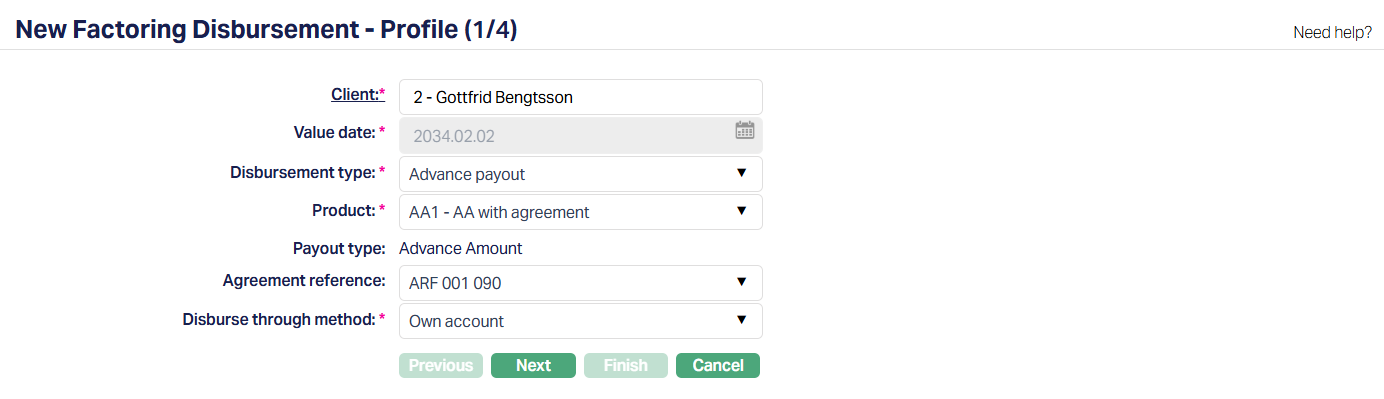
Advance Payout : You can use Advance Payout when the Payout Type of the contract is Advance Amount or On Maturity.
- If the Payout Type is Advance Amount, you can enter the amount to be disbursed, based on the Seller and Buyer Limit availability.
- If the Payout Type is On Maturity, Aura allows you to disburse the full Gross Invoice Amount when the Maturity Date is reached or later.
Aura lists the eligible contracts based on the Client, Product, Agreement Reference Number, Disburse Through Method, and selected Buyers. When you create a disbursement record, Aura will update limit utilisation for both Buyer and Seller Limits if a limit is attached. At approval, Aura posts the required accounting entries and interest or charge updates.
If you select Reserve Release:
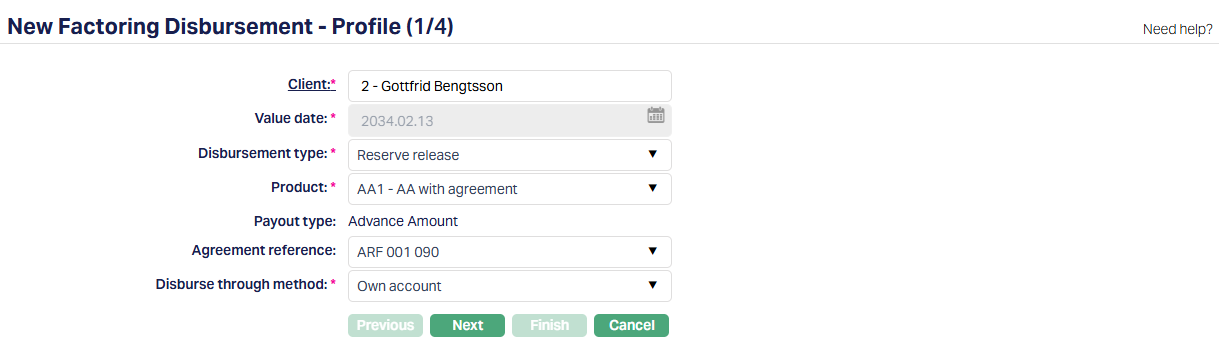
Reserve Release: You can use Reserve Release to manually release the Reserve Amount that is payable to the Seller when Aura has not released it automatically. This may happen when the Reserve Release Threshold is not yet reached or when the contract status does not allow automatic reserve release. You can enter any amount up to the Reserve Release Amount shown for each contract. When you approve the record, Aura posts the accounting entries for the payout.
If you select Recourse Release:
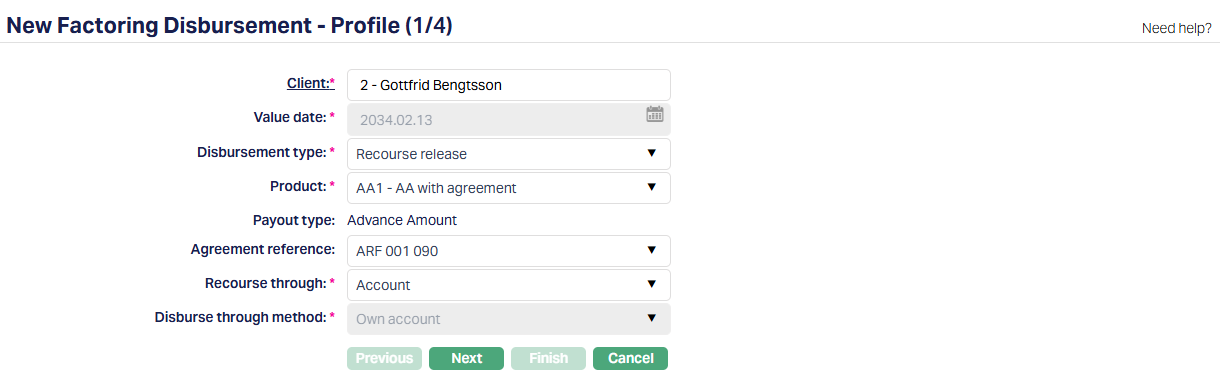
Recourse Release: You can use the Recourse Release when the Recourse Through Account is activated and you want to release the Recourse Amount to the Seller even if a repayment has not been received. Aura displays all contracts where a Recourse Amount exists. When you select a contract, Aura will release the full Recourse Amount. Partial recourse release is not allowed. At approval, Aura posts the accounting entries and event log updates.
6. Product - Aura shows only the products that support the selected disbursement type. For Advance Payout and Recourse Release, Aura lists products where the Payout Type is either Advance Amount or on Maturity.
For Reserve Release, Aura lists only products where the Payout Type is Advance Amount. When you select a product, Aura reads the product settings and displays the corresponding Payout Type.
7. Payout Type - Aura displays the Payout Type linked to the selected product. This field is read-only and is not editable. It helps you understand whether the contracts under this product follow the Advance Amount flow or On Maturity flow. Aura uses this during contract selection and disbursement amount calculation in Step 3/4 .
8. Agreement Reference - If the Seller has active Agreements for Accounts Receivable Factoring, Aura shows them here. You can choose an Agreement if you want Aura to display only the contracts linked to that Agreement. You may leave this field blank if you want to include contracts without an agreement. Aura uses this value to determine whether Seller Limit information should be displayed in Step 3/4 .
9. Recourse Through - This field appears only when the Disbursement Type is Recourse Release. In this case, Aura displays the Recourse Through option and sets it to Account. This value cannot be changed. Aura uses this to identify the recourse behaviour for the contracts you will see in Step 3/4.
10. Disburse through Method - You must select how Aura should process the payout. Aura provides three options - Own Account, External Account, and Settlement GL. Own Account is selected by default when the type is Advance Payout or Reserve Release, and you may change it.
If the type is Recourse Release, Aura fixes this method as Own Account and does not allow changes. Aura uses this field to identify the payout account or GL during processing.
11. Click Next. New Factoring Disbursement → Buyers (2/4) page appears.

12. Buyers - This option indicates which Buyers' Trade Invoices should be included for the disbursement. You can choose All or Selected. By default, Aura sets this to All, and when All is selected, Aura disables the Add Buyers field. If you change the option to Selected, Aura enables the Add Buyers field and you must specify which Buyers you want to include. Only contracts belonging to the Buyers chosen here will be displayed in the next step.

13. Add Buyers - This field is enabled only when the Buyers option is set to Selected. You can search and select Buyers using the auto-complete search. After selecting a Buyer, you must click Add for the Buyer to appear in the list. Aura displays the Buyer's client ID and name in alphabetical order. You can delete a Buyer by hovering over the record and clicking the delete icon that appears. Aura displays only those Buyers who have contracts eligible for disbursement based on the inputs provided in Step 1/4.
14. Click Next. New Factoring Disbursement → Contracts (3/4) page appears.
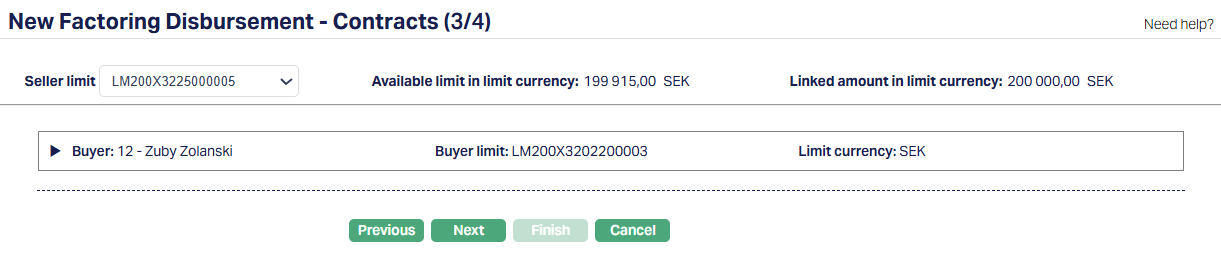
Aura displays the list of contracts that are eligible for the disbursements based on the inputs entered in Step 1/4 and the Buyer(s) selected in Step 2/4. The fields shown in this step depend on the Disbursement Type and Payout Type for all four types:
Advance Payout: Payout Type = Advance Amount
Advance Payout: Payout Type = On Maturity
Reserve Release
Recourse Release
Aura applies the eligibility rules and displays only those contracts that can be disbursed at this stage.
If Disbursement Type = Advance Payout and Payout Type = Advance Amount
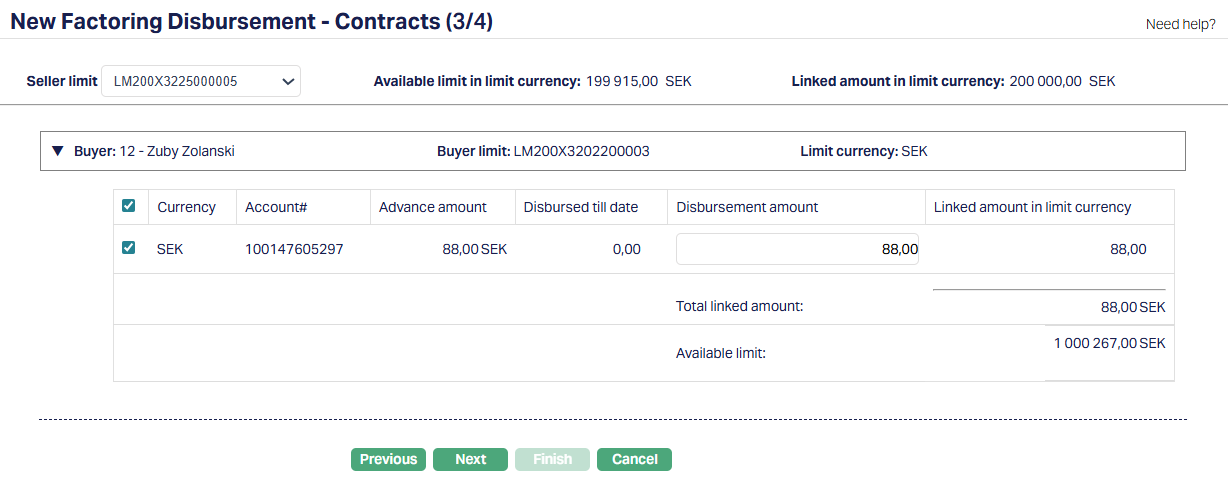
Aura displays the list of contracts that are eligible for Advance Amount disbursement based on the Client, Product, Agreement Reference Number and Disburse Through Method selected in Step 1/4, and the Buyers chosen in Step 2/4. If an Agreement Reference Number is selected in Step 1/4 and that Agreement has a Seller Limit attached, Aura displays the Seller Limit information at the top of the screen. If no Agreement is selected, the Seller Limit fields remain blank.
Aura shows the Buyers in alphabetical order. Each Buyer section is collapsed by default. When expanded, the eligible contracts under that Buyer appear. If Buyer Limits exist, Aura displays the Buyer Limit and its currency. If multiple Buyer Limits exist for the same Buyer, each appears in a separate section. Each Buyer section ends with the Total Linked Amount and the Available Limit for that Buyer Limit. Both of these start at 0.00 and update as you enter or select disbursement amounts.
When you expand a Buyer section, Aura displays the list of eligible contracts and allows you to input the disbursement amount. When you tab out of the field or check the box, Aura checks both the Seller Limit and the Buyer Limit for sufficiency. If a limit is not sufficient, Aura displays an error so that you can adjust the amount.
If the Agreement Reference Number in Step 1/4 was left blank, the screen will display contracts with a blank Agreement Reference Number and matching other selections. In such cases, the Seller Limit fields remain blank.
Fields and Behaviour:
Seller Limit: If you selected an Agreement Reference Number in Step 1/4, Aura displays the Seller Limit that is mapped to that Agreement. If no Agreement Reference Number was selected, this field is blank.
Available Limit in Limit Currency: If a Seller Limit is displayed, Aura shows the available limit amount in the limit currency, including the currency code. The number of decimals follows the currency definition. If no Agreement Reference Number was selected, this is blank.
Linked Amount in Limit Currency: If a Seller Limit is displayed, Aura shows the linked amount in the limit currency. This starts at 0.00 and updates dynamically as you enter disbursement amounts. If no Agreement Reference Number was selected, this is blank.
Buyer: Aura displays the Buyer client ID and name for each section. This is based on the Buyers selected in Step 2/4.
Buyer Limit: If the contracts under the Buyer have a Buyer Limit attached, Aura shows the Buyer Limit ID. If the Buyer has multiple Buyer Limits under the same Agreement, each appears in its own section. If no Buyer Limit exists, this field is blank.
Limit Currency: Aura displays the three letter ISO code of the limit currency for the Buyer Limit.
List of Contracts: Aura displays contracts that meet all eligibility rules for Advance Amount disbursement. These include:
Contract payout type is Advance Amount
Contract is activated
Amount disbursed till date is less than the Advance Amount
Trade Invoice Due Date is greater than the Value Date
Contract matches the Client, Product, Agreement Reference Number and Disburse Through Method from Step 1
Contract matches the Buyer from Step 2
Trade Invoice Date is less than or equal to the current booking date
The contract does not have the Disallow Disbursement preference
No payment has been received
No pending action exists (Disbursement, Repayment or COT)
Contracts are displayed in the order: Buyer ascending, Buyer Limit ID ascending, currency priority and Account Number ascending.
Checkbox: All checkboxes are unchecked by default. When you check a contract, Aura automatically sets the Disbursement Amount to Advance Amount minus Disbursed Till Date and performs the limit checks. If you manually type a disbursement amount, Aura checks the box automatically.
Currency: Aura shows the contract currency.
Account Number #: Aura shows the account number of the contract.
Advance Amount: Aura shows the advance amount of the contract. The number of decimals on the currency definition.
Disbursed till date: Aura shows the total amount that has already been disbursed on the contract till date. If nothing has been disbursed, Aura shows 0.00
Disbursement Amount: Aura displays this field with a default value 0.00. When you select the contract using the checkbox, Aura automatically sets the disbursement Amount to Advance Amount minus Disbursed Till Date. You can also type the amount directly. If you do, Aura will automatically check the contract. For Advance Amount contracts, you can enter any value that is less than or equal to the remaining advance amount available. The decimals follow the currency definition of the contract.
When you leave the field, Aura performs the limit checks and updates the display values on this screen only. These updates do not affect actual limit utilisation. The details of the checks are.
a) Aura checks whether the Seller Limit and the Buyer Limit (if applicable) have enough available balance to cover the Disbursement Amount after converting it to the respective limit currency.
If both limits are sufficient, Aura displays the equivalent amount under Linked Amount in Limit Currency and adds it to the Buyer's Total Linked Amount for this disbursement.
b) Aura reduces the value shown under Available Limit for the Buyer Limit in limit currency by the updated Linked Amount. This reduction is only for display while you are in Step 3.
c) Aura adds the equivalent amount in the Seller Limit currency to the Seller Linked Amount and reduces the on-screen Seller Available Limit by this amount. These changes are also read only.
These values are displayed to help you review the impact of your entries, but do not update the actual Buyer or Seller limit utilisation at this point. Actual utilisation is updated only when you complete the wizard using Finish. At that time, Aura repeats all limit checks. If another record has consumed part of the limit in the meantime, Aura will display an error and will not save the disbursement.
Aura displays the contracts in the order of Buyer (ascending), Buyer Limit ID (ascending), currency priority and Account number (ascending).
Linked Amount in Limit Currency: Aura displays the Disbursement Amount converted into the Buyer Limit currency. This value updates each time the Disbursement Amount changes and the limit checks are successful. The number of decimals follows the definition of the limit currency.
Total Linked Amount: Aura shows the total of all Linked Amounts in the Buyer Limit currency for the contracts selected under that Buyer Limit. This value updates automatically whenever a Disbursement Amount changes and the corresponding Linked Amount in Limit Currency is recalculated.
Available Limit: Aura displays the available balance of the Buyer Limit in the limit currency. This value reduces on screen as the Total Linked Amount increases. These updates are for read-only while you are in this step. The actual limit utilisation is updated only at the Finish stage.
Before moving to the next step, Aura checks -
Seller Limit: The Seller Limit must have enough available balance to cover the total DIsbursement Amount. If not, Aura shows the Seller Limit error.
Buyer Limit: The Buyer Limit must have enough available balance for each Buyer-Limit combination. If not, Aura shows the Buyer Limit error.
Contract Eligibility: The contracts must meet all eligibility rules. If any rule fails, Aura shows the relevant message.
If Disbursement Type = Advance Payout and Payout Type = On Maturity
For contracts where the Payout Type is On Maturity, the disbursement normally happens automatically at the beginning of the day on the maturity date. If the automatic disbursement does not take place, you can release the amount manually on the maturity date or any day after. Since these contracts are paid out in one complete disbursement, the entire Gross Invoice Amount will be used at the Disbursement Amount, and you cannot enter a partial value. Aura allows On Maturity disbursements only on the maturity date or any date after it.
Aura displays only the contracts that are eligible for On Maturity disbursement based on the Client, Product, Agreement Reference Number and Disburse Through Method entered in Step 1/4, and the Buyer chosen in Step 2/4.
Fields and Behaviour:
Seller Limit: If you selected an Agreement Reference Number in Step 1 and that Agreement has a Seller Limit attached, Aura displays the mapped Limit here. If you did not select an Agreement Reference Number, this field remains blank.
Available Limit in Limit Currency: If a Seller Limit is available, Aura displays the available balance in the limit currency along with the currency code. Decimals follow the currency definition. If there is no Agreement Reference Number, this field remains blank.
Linked Amount in Limit Currency: If a Seller Limit is available, Aura shows the linked amount in limit currency. The value starts at 0.00 and updates dynamically as you select contracts. If no Agreement Reference Number was selected, this field remains blank.
Buyer: Aura shows the Buyer client ID and name for each section. These appear for the Buyers chosen in Step 2.
Buyer Limit: If the contracts under a Buyer have a Buyer Limit attached, Aura displays the Buyer Limit ID. If a Buyer has multiple Buyer Limits under the same Agreement, Aura displays each limit in a separate section. If the contracts have no Buyer Limit, this field remains blank and the contracts appear in a separate section.
Limit Currency: Aura displays the three letter currency code of the Buyer Limit.
List of Contracts: Aura displays only the contracts that satisfy the following:
The contract belongs to the Seller selected in Step 1.
Product matches the selection from Step 1.
Agreement Reference Number of the contract matches Step 1.
Disburse Through Method matches Step 1.
Buyer matches the selection in Step 2.
Account Status is Activated.
Trade Invoice Due Date is less than or equal to the Value Date.
Trade Invoice Date is less than or equal to the current booking date.
The contract does not have the Disallow Disbursement preference.
No payments have been received on the contract.
There are no pending actions (Disbursement, Repayment, COT).
Aura displays contracts in the order of Buyer ascending, Buyer Limit ID ascending, currency priority and Account Number ascending.
Checkbox: All checkboxes are unchecked by default. When you check a contract, Aura automatically populates the Disbursement Amount with the full Gross Invoice Amount and performs the limit checks for both Seller and Buyer Limits.
Currency: Aura displays the contract currency.
Account Number #: Aura displays the account number of the contract.
Gross Invoice Amount: Aura displays the gross invoice amount for the contract. The decimals follow the contract currency definition.
Disbursed till Date: Aura displays the amount already disbursed on the contract. For On Maturity contracts, this is typically 0.00. Decimals follow the contract currency definition.
Disbursement Amount: Aura displays this field with a default of 0.00. When you check a contract, Aura automatically sets the Disbursement Amount to the full Gross Invoice Amount and disables editing. Since On Maturity disbursement must happen in one complete amount, you cannot modify this value.
When you leave the field (or when the auto population happens), Aura performs the limit checks and updates the on screen values only. These updates follow the steps below:
a) Aura checks whether the Seller Limit and Buyer Limit (if applicable) have enough available balance to support the Disbursement Amount after converting it to the respective limit currency. If both limits are sufficient, Aura displays the equivalent amount under Linked Amount in Limit Currency and adds it to the Buyer's Total Linked Amount.
b) Aura reduces the value displayed under the Buyer Limit's Available Limit by the new Linked Amount. This reduction is read-only.
c) Aura adds the equivalent value in the Seller Limit currency to the Seller Linked Amount and reduces the Seller Available Limit accordingly. These values are also read-only.
These limit updates do not affect actual limit utilisation. Actual utilisation is updated only when you click Finish. Aura rechecks all limits during Finish. If limits have been consumed by another record meanwhile, Aura shows an error and does not complete the disbursement.
Linked Amount in Limit Currency: Aura displays the Disbursement Amount converted to the Buyer Limit currency. This updates each time you select or deselect a contract.
Total Linked Amount: Aura shows the total value of all Linked Amounts for the Buyer Limit. This updates whenever a contract is selected or removed.
Available Limit: Aura shows the available limit for the Buyer Limit in the limit currency. This decreases on screen as the Total Linked Amount increases. These changes are read-only.
Before moving to the next step, Aura checks -
Seller Limit: The Seller Limit must have enough available balance to cover the total DIsbursement Amount. If not, Aura shows the Seller Limit error.
Buyer Limit: The Buyer Limit must have enough available balance for each Buyer-Limit combination. If not, Aura shows the Buyer Limit error.
Contract Eligibility: The contracts must meet all eligibility rules. If any rule fails, Aura shows the relevant message.
If Disbursement Type = Reserve Release
You can use this option when Aura has not automatically released the Reserve Amount that is payable to the Seller. Manual Reserve Release is required in the following situations:
1. The Reserve Release Threshold has not been reached - Aura will not release the reserve until the total reserve release amount for the contract reaches the threshold defined in the client agreement.
2. The contract has an Account Status Preference that disallows reserve release - In such cases, Aura will not release the reserve automatically.
3. The agreement requires full repayment of Advance before reserve release - If only part of the Advance Amount has been repaid, the Reserve Payable becomes zero.
In this condition, the reserve cannot be released manually or automatically until the Advance Amount is fully recovered.
When any of these conditions prevent automatic release, you can manually release the Reserve Amount using this step.
Aura displays all contracts where Reserve Release Amount > 0 at that point in time. These are the contracts for which you can enter the amount to be released. The contracts are displayed in the following order:
- Currency priority
- Buyer ascending
- Account Number ascending
Aura also displays a sub-total of the Disbursement amount for each currency group.
Fields and Behaviour:
Checkbox: All checkboxes are unchecked by default. When you check a contract, Aura automatically sets the Disbursement Amount equal to the Reserve Release value. If you type an amount manually, Aura checks the checkbox automatically.
Currency: Aura displays the contract currency.
Buyer: Aura displays the Buyer Client ID and name chosen in Step 2/4.
Account Number #: Aura displays the account number of the contract.
Gross Invoice Amount: Aura displays the gross invoice amount of the contract. The decimals follow the currency definition.
Advance Amount: Aura displays the advance amount of the contract.
Payment Received: Aura displays the total payment received on the contract to date.
Reserve Release: Aura displays the Reserve Amount that can be released on the contract. This value is calculated based on payments, advance amount, and the threshold rules**.**
Disbursement Amount: Aura displays this field with a default equal to the Reserve Release amount. You can change this value to any amount up to the Reserve Release. This is the amount that will be released manually for the selected contract.
If Disbursement Type = Recourse Release
Use this option when Recourse Through Account is activated for the contract, and you want to manually release the Recourse Amount even though no repayment has been received.
Normally, when Recourse Through Account is active, Aura debits the Seller's client account for the unpaid portion of the Gross Invoice Amount. Whenever a repayment later comes in, Aura credits the Seller's account by releasing the corresponding portion of the Recourse Amount.
If the Factor wants to release the Recourse Amount before any repayment allocation, you can use this Recourse Release option. Aura currently supports only full Recourse Release - partial releases are not allowed.
Aura displays all contracts with Recourse Amount > 0, based on the selections made in:
- Step 1/4: Client, Product, Agreement Reference Number, Disburse Through Method
- Step 2/4: Buyers
Contracts appear in the order: Currency priority, Buyer ascending, Account Number ascending.
Fields and Behaviour:
Checkbox: All checkboxes are unchecked by default. When you check a contract, Aura populates Recourse Release = Recourse Amount. The Recourse Release field becomes disabled, as partial release is not allowed.
Currency: Aura shows the contract currency.
Buyer: Aura displays the Buyer client ID and name for each section. This is based on the Buyers selected in Step 2/4.
Account Number #: Aura displays the account number of the contract.
Gross Invoice Amount: Aura displays the gross invoice amount for the contract. The decimals follow the contract currency definition.
Advance Amount: Aura shows the advance amount of the contract. The number of decimals on the currency definition.
Unpaid Amount: The portion of the Gross Invoice Amount that remains unpaid.
Recourse Amount: The Recourse Amount calculated for the contract. This is normally equal to the Unpaid Amount.
Recourse Release: Aura displays this field with a default value of 0.00. When you select the contract using the checkbox, Aura automatically fills this field with the full Recourse Amount and disables editing. This is because partial recourse release is not allowed at present, and the entire Recourse Amount must be released back to the Seller when this disbursement is created. You cannot change or reduce this value.
15. Click Next. New Factoring Disbursement → Confirmation (4/4) page appears.
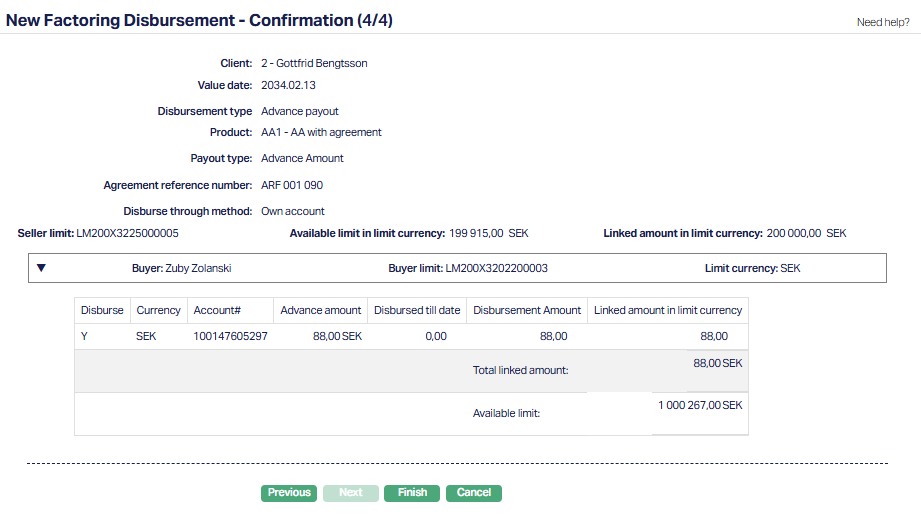
Note: Aura displays all the contracts you viewed in Step 3/4, including those where the Disbursement Amount or Recourse Release is 0.00. This is for review purposes.
However, when you finish the disbursement, Aura saves only the contracts where the Disbursement Amount or Recourse Release is greater than 0.00. Any contract with a value of 0.00 will not be saved.
16. Click Finish. Aura saves the disbursement and sets its status to Pending. It will stay in Pending until it is reviewed and approved by another user.
Before saving, Aura revalidates the Seller Limit and Buyer Limit. If any limit has been reduced by another transaction after Step 3/4, Aura displays an error and does not save the disbursement.
Limit Utilisation Update (Advance Amount only)
If the Disbursement Type is Advance Amount, Aura updates the limit utilisation for both the Seller Limit and the Buyer Limit based on the Disbursement Amount. This update happens only if the limits are attached to the contract, and it applies even if Track Seller Exposure or Track Buyer Exposure is set to No.
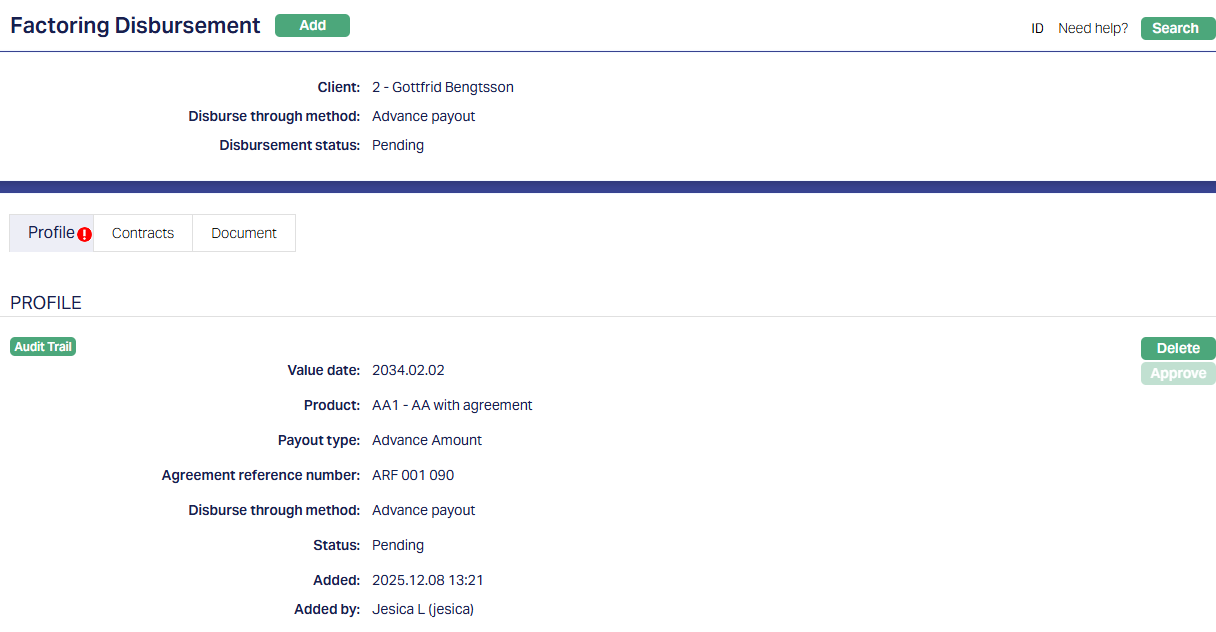
Functions: Add, Search, Delete, Approve.
Profile
The Profile tab, which is the default tab in the Contract Disbursement screen, shows the basic details of the disbursement record. All the information displayed here is taken from the entries that you made in the Add Wizard. For details, refer to New Factoring Disbursement → Profile (1/4) page.
To view the Profile tab, open the Contract Disbursement page and click Profile, which appears as the default tab on the screen.
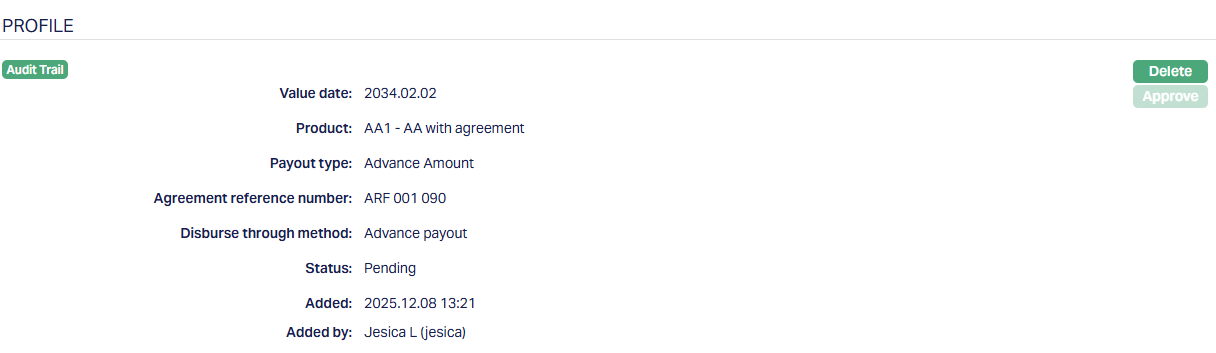
When the record is approved by another user, the tab status changes to Approved and the red bubble / indicator disappears. After approval, the Disbursement Status is updated to Processed.
Delete: The delete button is enabled only when the disbursement is in Pending status. After the record is approved and the Disbursement status becomes Processed, the button is disabled.
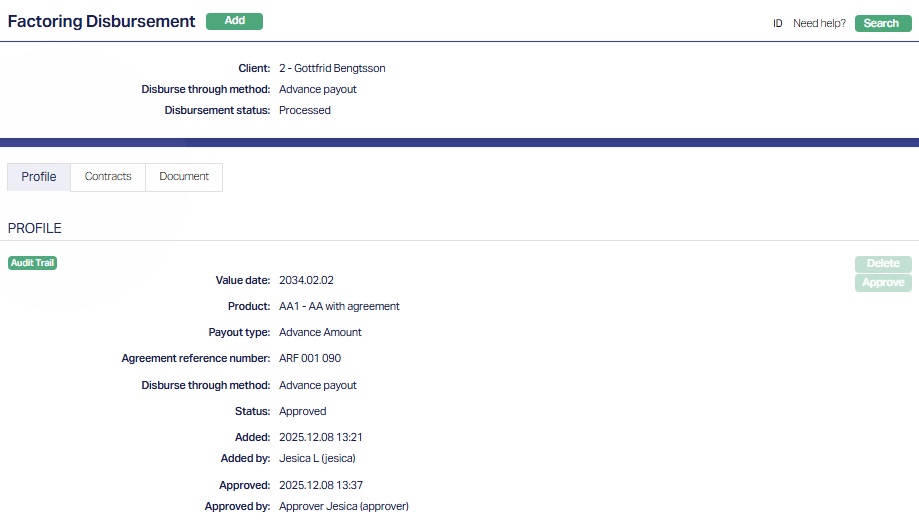
The additional fields that are shown are:
Status indicates the current state of the record. It will be either: Pending - If the record is waiting for approval or Approved - If the record has been reviewed and finalized.
Added shows the date and timestamp when the record was created and Added by displays the user ID and full name of the person who created the record.
Approved shows the date and time when the record was approved and Approved by displays the user ID and full name of the person who approved the record.
Contracts
The Contracts tab shows the list of contracts included in the disbursement. The information displayed here is taken directly from the selections and amounts you entered in the Add Wizard. For details on how these values are derived, refer to New Factoring Disbursement → Contracts (3/4) page.
To view/edit Contracts tab,
1. Access Contract Disbursement screen. Click the Contracts tab to view the contracts linked to this disbursement.
How the Contract tab behaves for each Disbursement Type
Aura displays different information depending on the Disbursement Type. The fields, grouping and limits shown on this tab match the UI presented in Step 3/4.
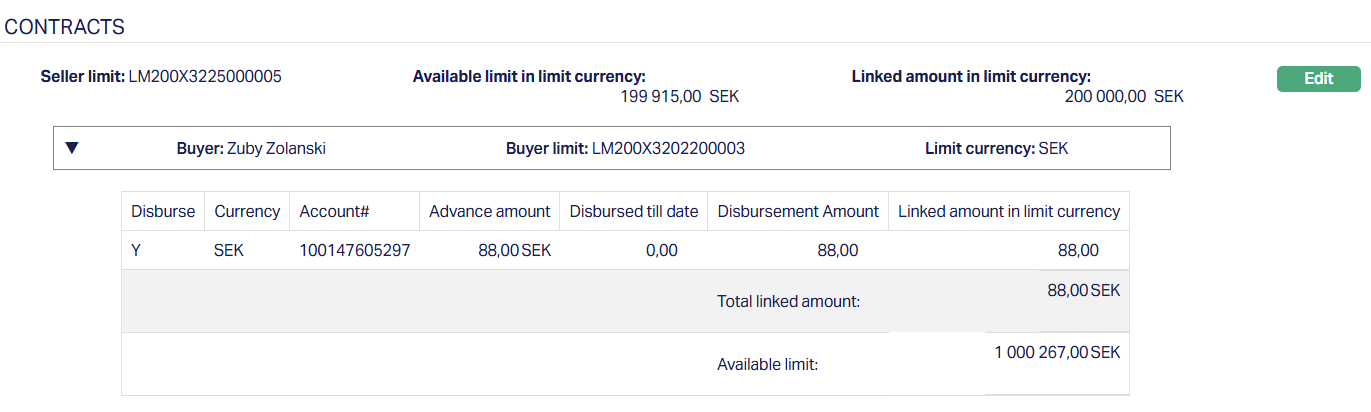
a) Advance Payout - Advance Amount: For Advance Amount disbursements, the Contracts tab displays the full limit structure because the disbursement affects both the Seller Limit and the Buyer Limit.
At the top of the page, Aura shows the Seller Limit, Available Limit, and Linked Amount. Buyers are displayed in collapsed sections, arranged alphabetically, and each section can be expanded to view the related contracts. If Buyer Limits are attached, each Buyer section is further grouped by the respective Buyer Limit. A sample layout/screenshot is shown below.

Within each Buyer or Buyer Limit group, Aura displays the following contract details: Currency, Account Number, Advance Amount, Disbursed Till Date, Disbursement Amount, Linked Amount in Limit Currency, Total Linked Amount, and Buyer Available Limit.
All values shown here match the amounts entered in Step 3 of the Add Wizard. These fields are read-only unless the disbursement record is still in Pending status.
2. Click Edit. Edit - Contracts page appears.
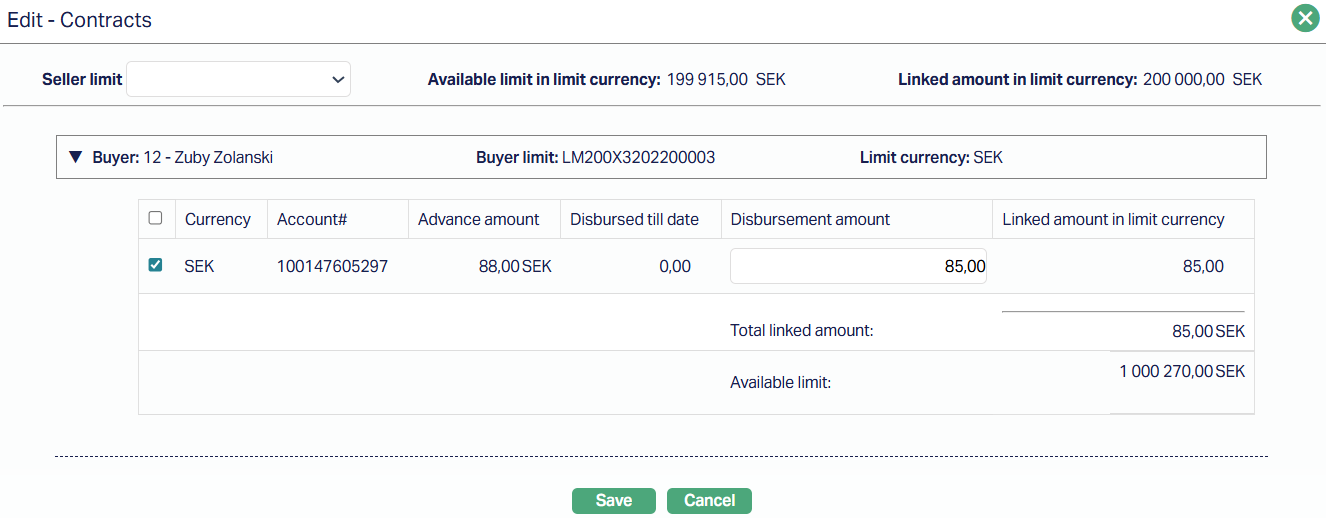
In this case, only the Disbursement amount field is editable.
3. Click Save. The Contracts page appears with the edited details.
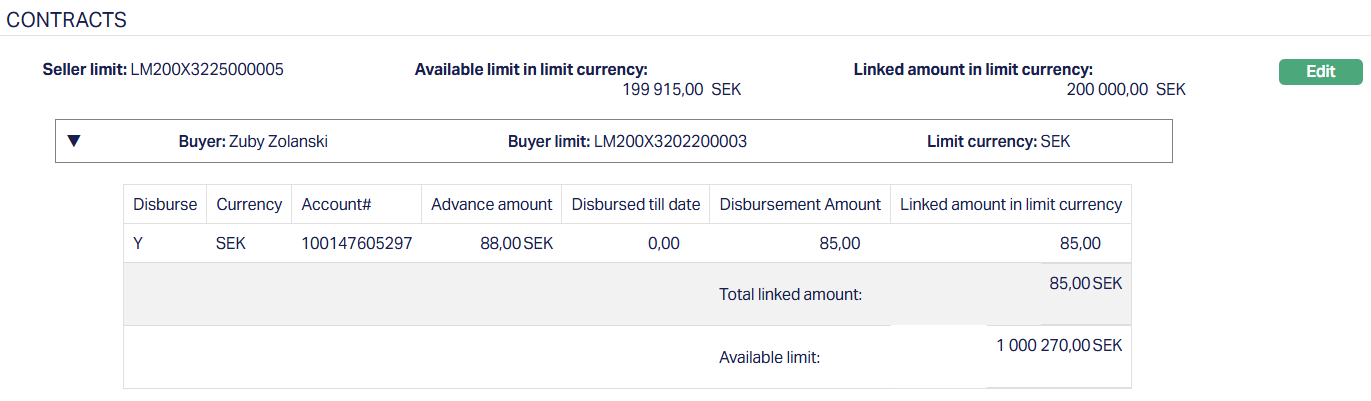
Function: Edit
Edit: The edit button is enabled only when the disbursement is in Pending status. After the record is approved and the Disbursement status becomes Processed, the button is disabled.
b) Advance Payout - On Maturity: For On Maturity disbursements, the Contracts tab displays contracts where the full Gross Invoice Amount must be disbursed. The layout is similar to Advance Amount, but the disbursement fields differ because the entire amount is fixed.
Buyers are displayed in collapsed sections , and if Buyer Limits are attached, the records are further grouped by Buyer Limit. Aura displays: Currency, Account Number, Gross Invoice Amount, Disbursed till Date (always 0.00 for On Maturity), Disbursement Amount (full invoice amount), Linked Amount in Limit Currency, Total Linked Amount, and Buyer Available Limit.
Since On Maturity disbursements are always for 100% of the Gross Invoice Amount, the Disbursement Amount is not editable. These values remain read-only even when the record is in Pending status.
c) Reserve Release: For Reserve Release disbursements, the Contracts tab displays a simplified layout because Reserve Releases do not involve Seller or Buyer Limits.
Contracts are grouped by Buyer and Currency, without any limit-based grouping. Aura displays: Currency, Buyer, Account Number, Gross Invoice Amount, Advance Amount, Payment Received, Reserve Release, and Disbursement Amount.
The Disbursement Amount is editable only when the record is Pending. After approval, all fields become read-only.
d) Recourse Release: For Recourse Release disbursements, the Contracts tab shows only the information needed for full Recourse Release, since partial release is not allowed.
Contracts are grouped by Buyer, and Aura displays: Currency, Buyer, Account Number, Gross Invoice Amount, Advance Amount, Unpaid Amount, Recourse Amount, and Recourse Release.
The Recourse Release amount is always the full Recourse Amount, and this field remains read-only in all cases. Editing is not allowed because partial recourse release is not supported.
Document
The Document tab allows you to upload / generate documents related to the Disbursement contract. Documents in the form of scanned images or files on your computer can be uploaded. You can categorise the documents as per Document Type and store them with a Document Reference number.
You can generate documents related to the Account based on Templates mapped to the Product.
To upload a document,
1. Access Contract Disbursement screen. Click the Document tab.

2. Click New. New Document page appears.
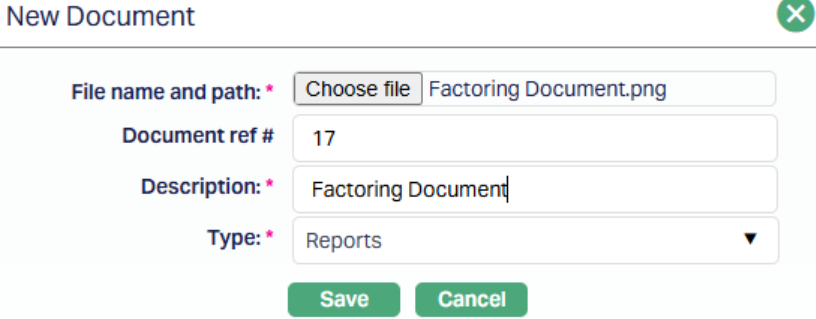
3. Click the Choose File button to select the File name and path of the document.
4. Enter Document ref no. for the document.
5. Based on the field selected the Description field will be derived. If required, you can change the description.
6. Select Type of the document uploaded. The document types should have been maintained from Admin > System Codes > Documents > Document types. Once entered, this cannot be edited.
7. Click Save. The document gets uploaded, and the details are displayed.
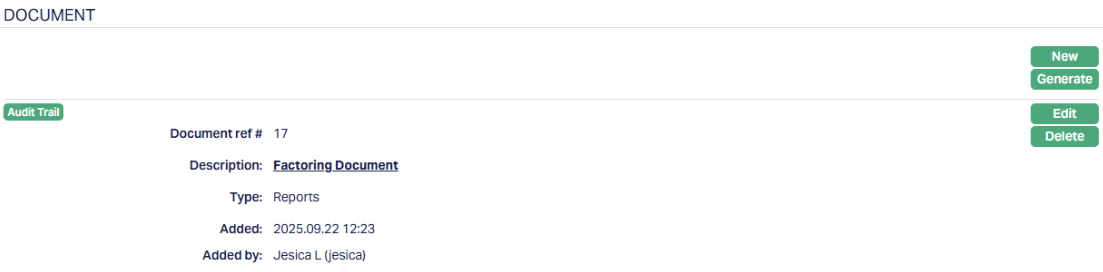
Functions: New, Generate, Edit, Delete.
To generate a document,
1. Click Generate to generate the .pdf file using the template as maintained under Admin > System Codes > Documents > Document templates. You have to map the document template for Contract Disbursement using the Document Template Settings tab as maintained under Retail > Settings > Product. Generate Document page will appear where the mapped templates will be displayed.
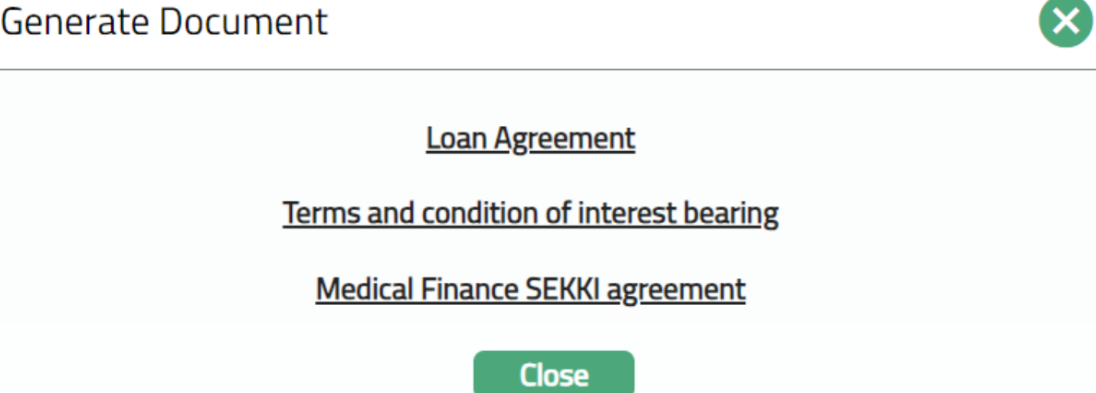
2. Click on any template from the list of templates after which the document will be generated based on the selected template as shown below.
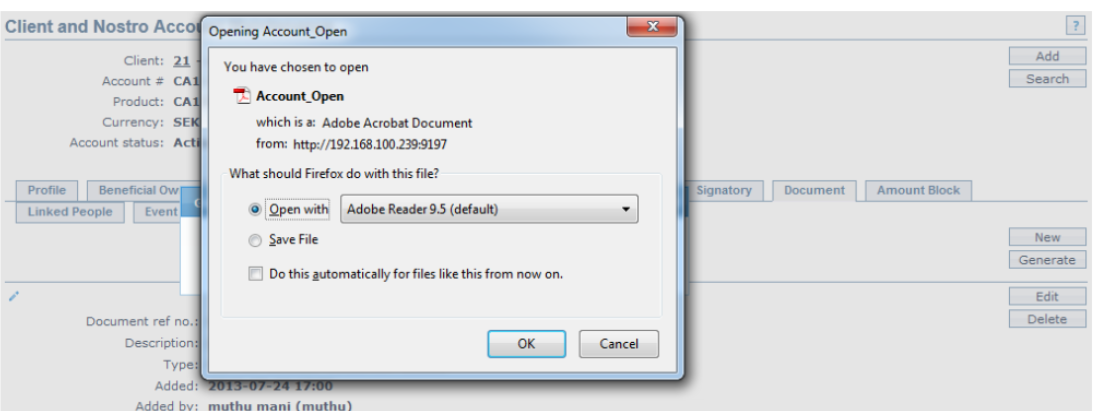
Delete: You can delete a document by a click on the Delete button. Aura will ask for confirmation, on approving which the selected document will be deleted.
To edit document,
1. Access Contract Disbursement page. Click the document tab.
2. Click Edit. Edit Document page appears.
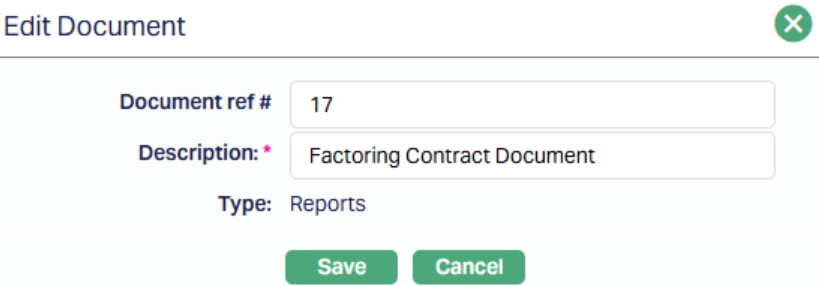
Note: Only document ref no. and Description fields are editable.
3. Click Save. The Document page appears with the edited details.
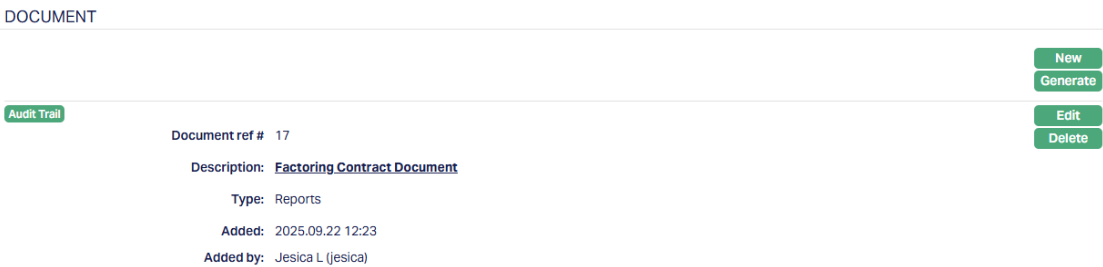
Functions: New, Generate, Edit, Delete.