
Conversations
Conversations is a message-based communication system between the client and the bank and is used when the client needs to ask / request something from the bank or when the bank needs to inform the client about something.
To add new conversation,
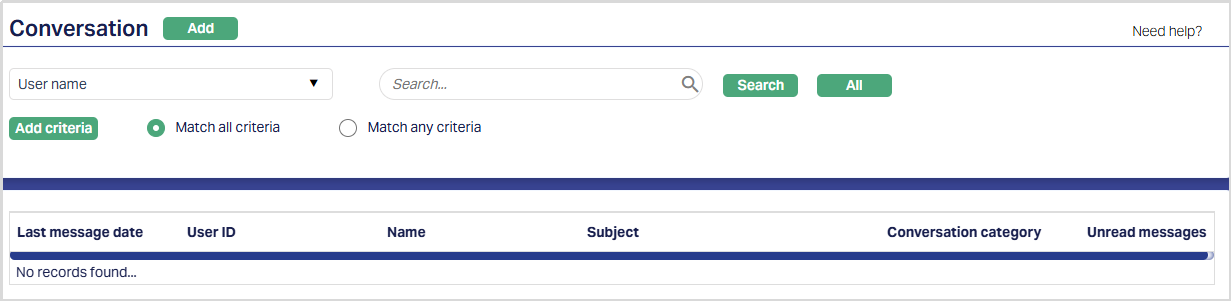
1. From CRM menu, Click Conversations and then click conversation. Conversation search page appears displaying the conversation maintained as shown below.
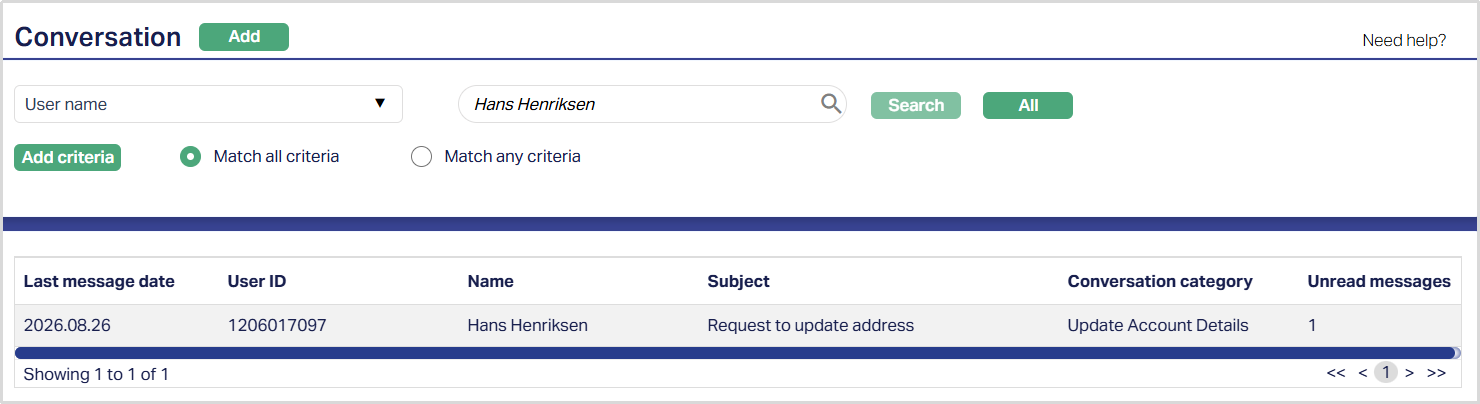
2. Click Add. New Conversation → General (1/2) page appears.
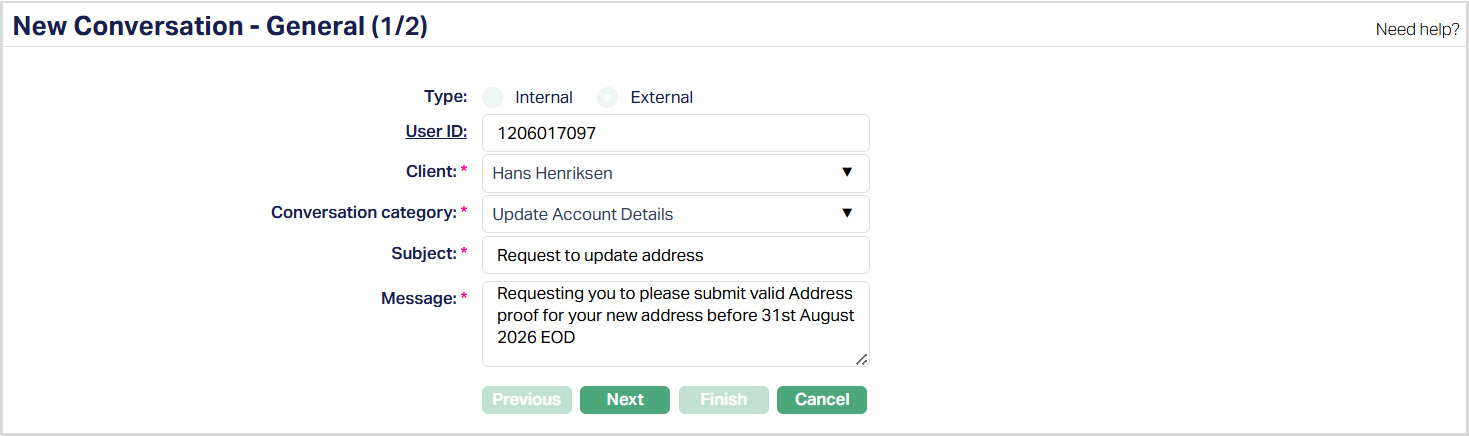
3. Select the Type of conversation. The available options are Internal and External. External is selected by default and cannot be changed.
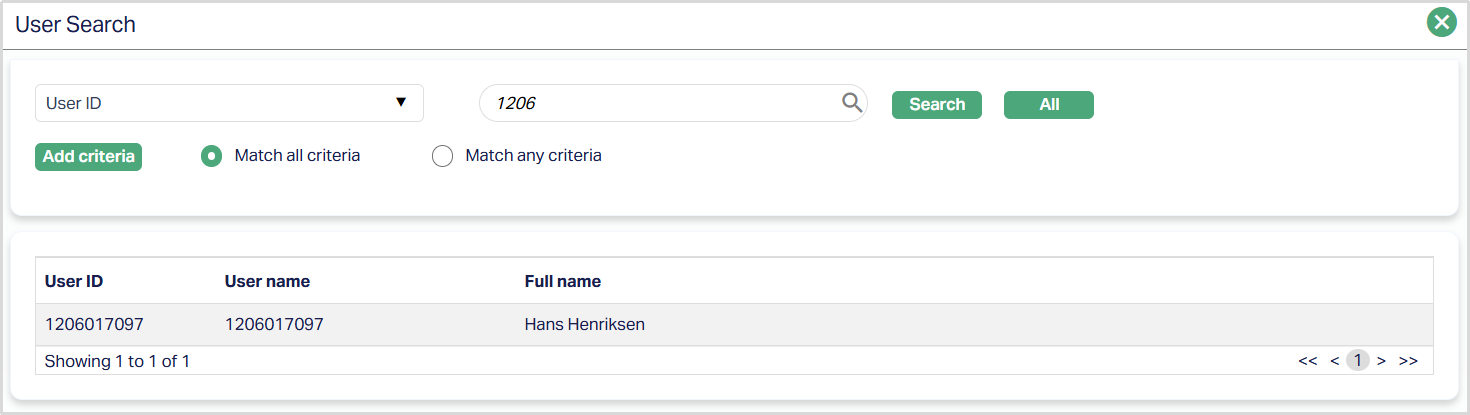
4. Enter User ID of the User who is communicating with the client. Click on the hyperlink to see the list of channel banking users and select the required User ID as shown below.
5. Select Client name from the available drop-down list maintained under CRM → Clients → Maintain
6. Select Conversation category from the available drop-down list maintained under Admin → System Codes → Categories → Conversation Category. This field indicates the category of the message.
7. Enter Subject for the message.
8. Enter the Message in detail.
9. Click Next. New Conversation → Confirmation (2/2) page appears.
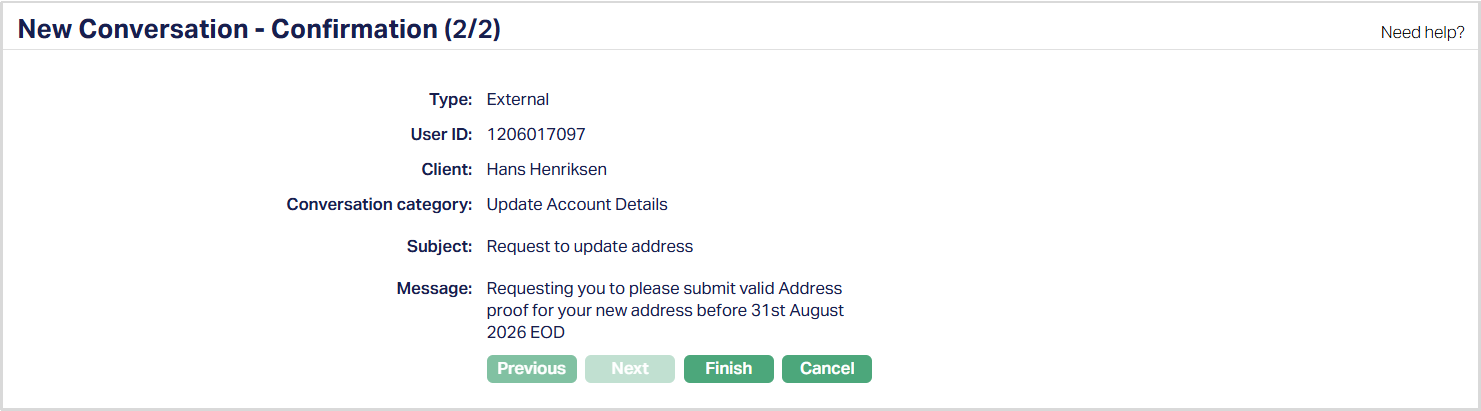
10. Click Finish. The message is delivered and the conversation page appears.
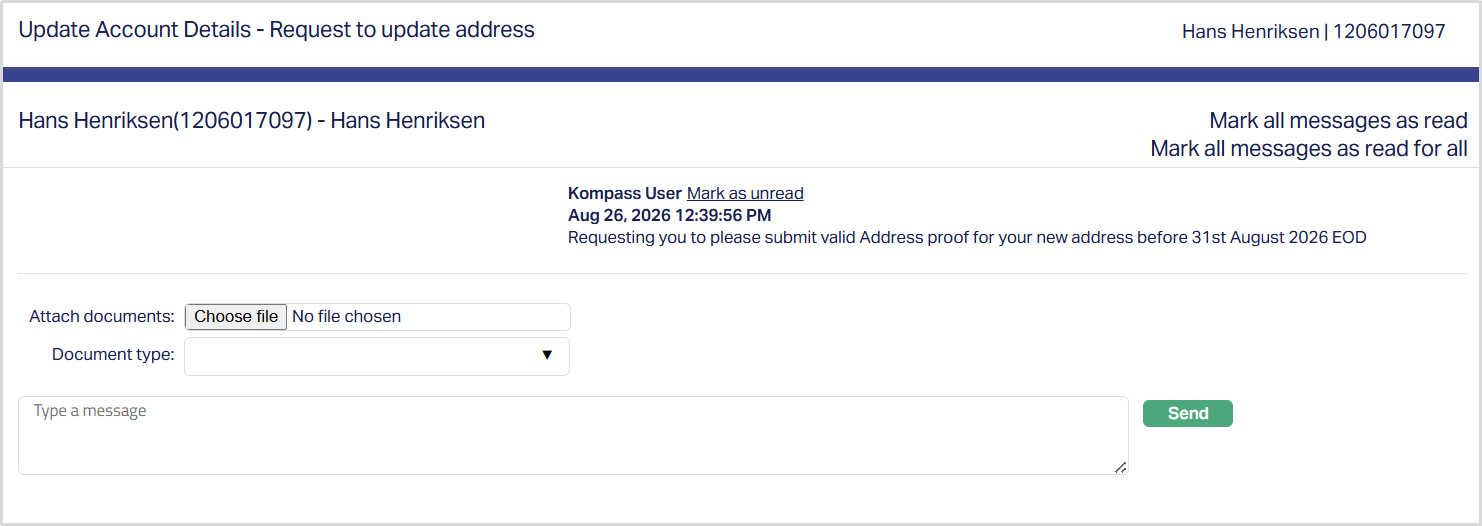
11. The customer (channel banking user) can reply to the message by entering a response and clicking Send.
- To attach a document to the reply, click Choose file and select the required document.
- Select the Document type from the available drop-down list. The document types are maintained under Admin → System Codes → Documents → Document Types.
- Attaching a document is optional. A reply can be sent without attaching a document.
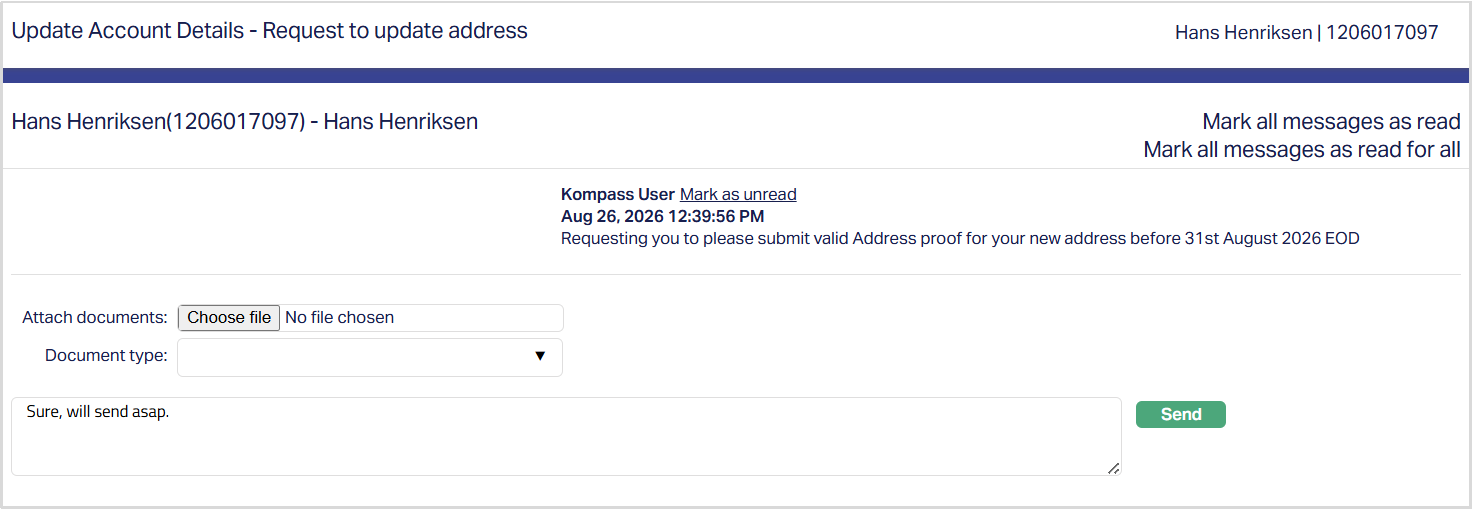
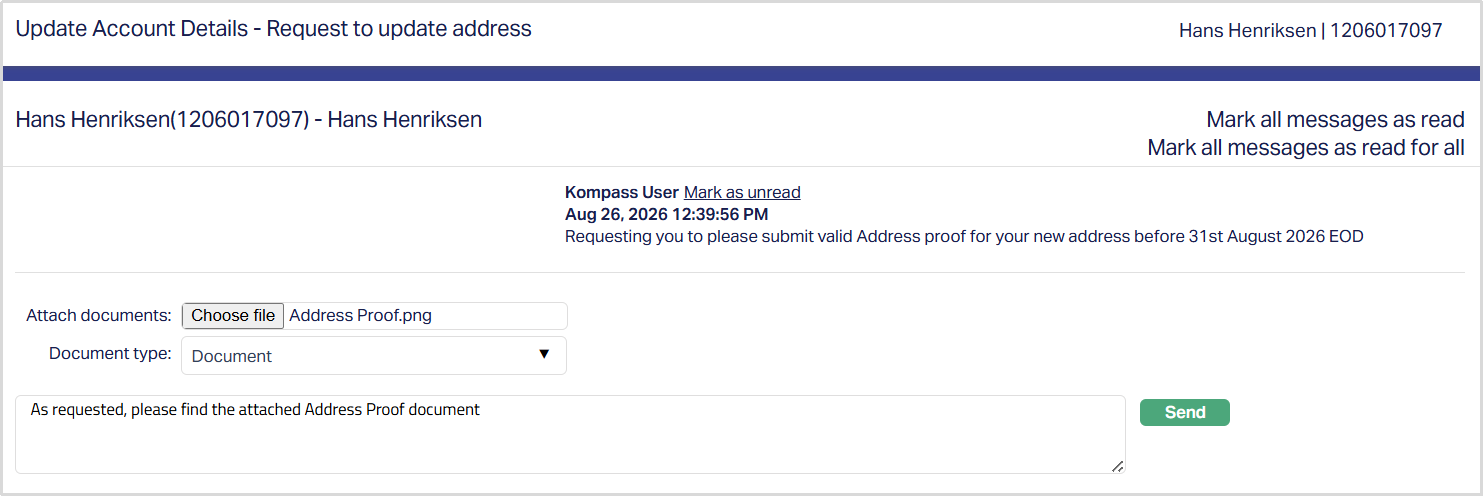
12. The following page appears once the reply is received at your end. The sample screen is shown below.
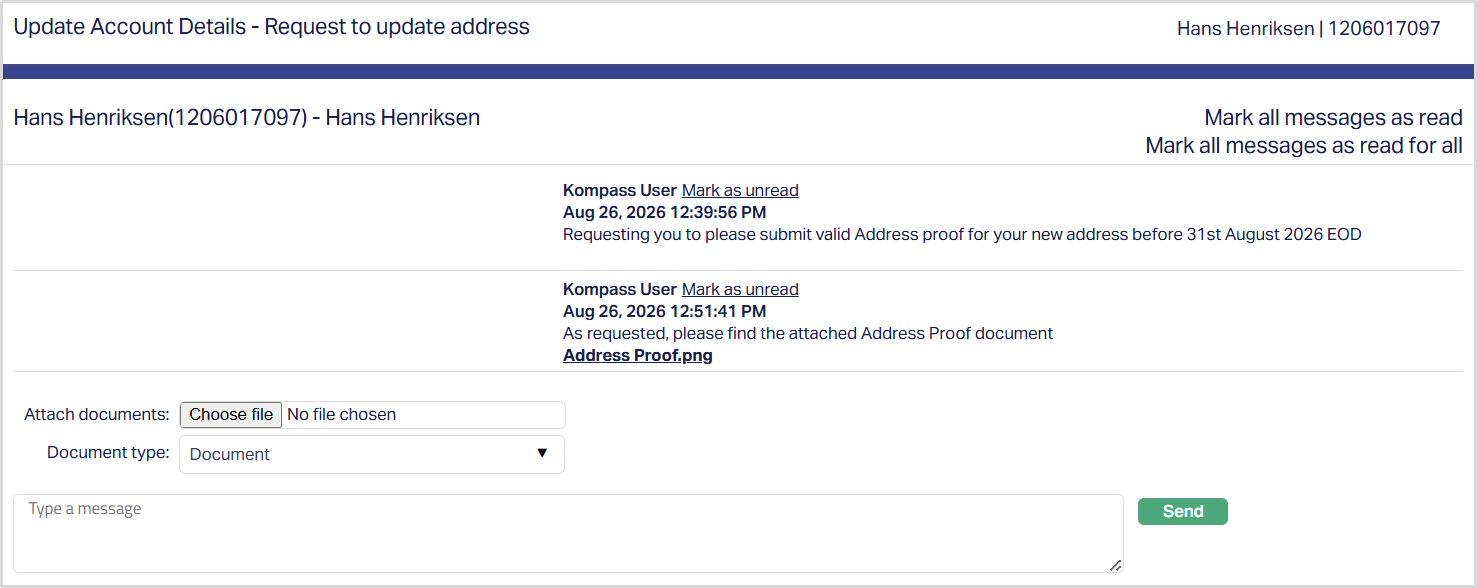
Note: All messages can be marked as Read or Unread by clicking the corresponding option displayed on the right side of the screen. Alternatively, individual messages can be marked as Read or Unread by clicking the hyperlink next to the name of the channel banking user.