
Internal Client Transfer
Internal Client Transfer menu allows you to do payment transfers within the bank between two accounts of same client (Own Account Transfer) and different clients (Other Client Transfer) through a consolidated mechanism.
Following are the tabs in an Internal Client Transfer:
Note: The above-mentioned tabs can be seen only when you view a created Internal Client Transfer record.
To add new Internal Client Transfer,
1. From Retail menu access Payment, then click Net Settlement, and then click Internal client transfer. **Internal Client Transfer → Profile (1/3) page appears.
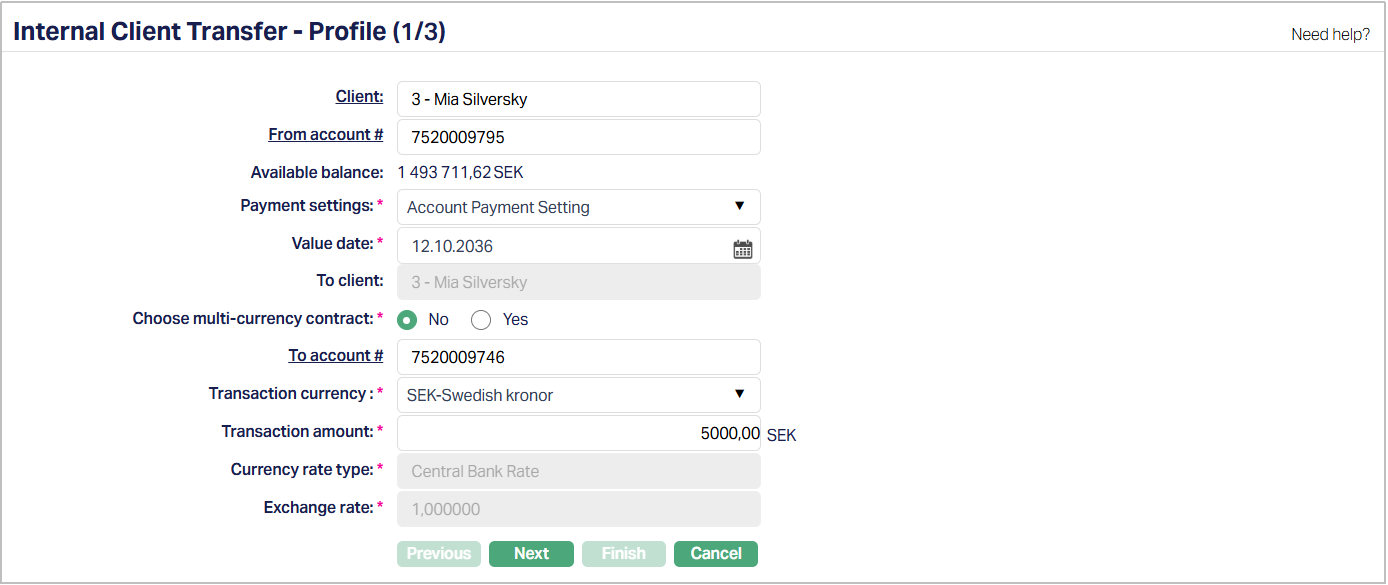
2. Select Client hyperlink. Client Search page appears. Select the client from the list as maintained under CRM → Clients → Maintain.
3. Select From account # hyperlink. Search Client Account page appears. Select the account for the client from the drop-down list maintained under Retail → Accounts → Client account → Maintain.
4. Available balance of the chosen from account will be displayed along with the From account currency as suffix.
5. Select Payment settings from the available dropdown list as maintained under Retail → Settings → Payment settings. Only those payment settings whose payment type as Own Account transfer and Other client transfer will be displayed by Aura.
6. Aura displays Value date as the current date by default. However, you can change it. Value date denotes the date on which the actual transfer of funds needs to take place and From account needs to be debited. Value date can be back-dated, current dated and future-dated. The number of days allowed for back / future value date will be derived from the selected payment setting.
7. Select To client hyperlink. Client search page appears. Select the account for the client from the list as maintained under Retail → Accounts → Client account → Maintain. Aura will display To Client only when you have selected Other Client Transfer as payment type under payment settings. If Own Account Transfer is selected as payment type under payment settings, this field will be disabled.
8. Choose multi-currency contract -
- Select No to transfer funds directly to a beneficiary account. In this case, select the To account # hyperlink. The Search Client Account page appears. Select the beneficiary account from the list maintained under Retail → Accounts → Client account → Maintain.
- Select Yes to transfer funds using a multi-currency contract. In this case, the To account # field changes to To multi-currency contract #. Click the hyperlink and select the required multi-currency contract from the list of contracts maintained in Aura.
9. To account # - Displays when Choose multi-currency contract is set to No. Select the beneficiary account to which funds will be transferred.
10. To multi-currency contract # - Displays when Choose multi-currency contract is set to Yes. Select the multi-currency contract through which the transaction will be processed.
11. Select Transaction currency from the list of available drop-down. Transaction currency denotes the currency in which the transfer needs to be executed. Aura will display the list of From Account and To Account currencies.
12. Enter Transaction amount which is to be transferred. Transaction currency as selected above will be displayed as suffix.
13. Aura displays Currency rate type as derived from the selected payment setting. Currency rate type denotes the currency rate type - Cash, Non-Cash or Central Bank rate type depending on the rate type maintained under payment settings. This field will be enabled when From Account and To Account currencies are different and will be disabled when From Account and To Account currencies are same.
14. Exchange rate denotes the exchange rate of two different currencies used in the transaction. Aura derives the exchange rate from Currency Rate as maintained under Admin → System codes → Currencies. If the From Account and To Account currencies are same, 1 will be derived and displayed against exchange rate. If the From Account and To Account currencies are different, Aura will default the Exchange rate to the sell rate / buy rate from the latest approved Currency rate type for the currency pair selected (From Account and To Account). Exchange rate can be edited.
Note: In case of back value dated and current value dated transaction, the exchange rate will be picked up from the latest available approved rate, where effective by date <= Current date. In case of future value dates, the exchange rate field will be disabled, and you will not be able to modify the rate. The exchange rate to be considered will be the latest available rate on the date of actual settlement (payment processing).
Exchange rate will also adhere to the variance (maximum and minimum) as derived from the Payment settings whose payment type is Own Account transfer or Other Client transfer. For example: If exchange rate is 2.000000 and 10 % maximum and minimum variance is maintained in payment settings, then you will be able to input a maximum of 2.2000000 and minimum of 1.8000000 in this field.
15. Click Next. Internal Client Transfer → Others (2/3) page appears.
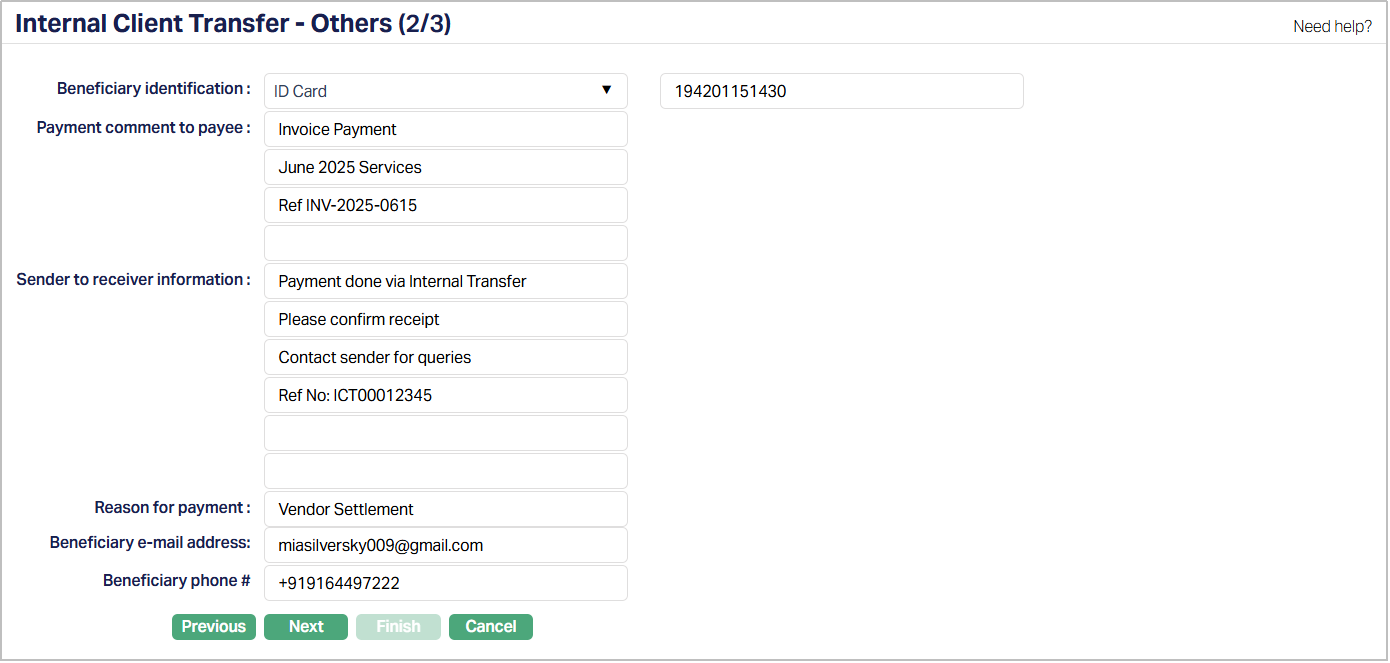
16. Enter the Identification type/number in the text-box next to the Beneficiary identification field.
17. Enter the Payment Comment to Payee. It specifies the comment to the payee regarding the payment.
18. Enter the Sender to receiver information. It specifies the information sent by the sender to the receiver.
19. Enter the Reason for Payment. It specifies the reason for payment
20. Enter the e-mail address and phone # of the Beneficiary.
21. Click Next. Internal Client Transfer → Confirmation (3/3) page appears.
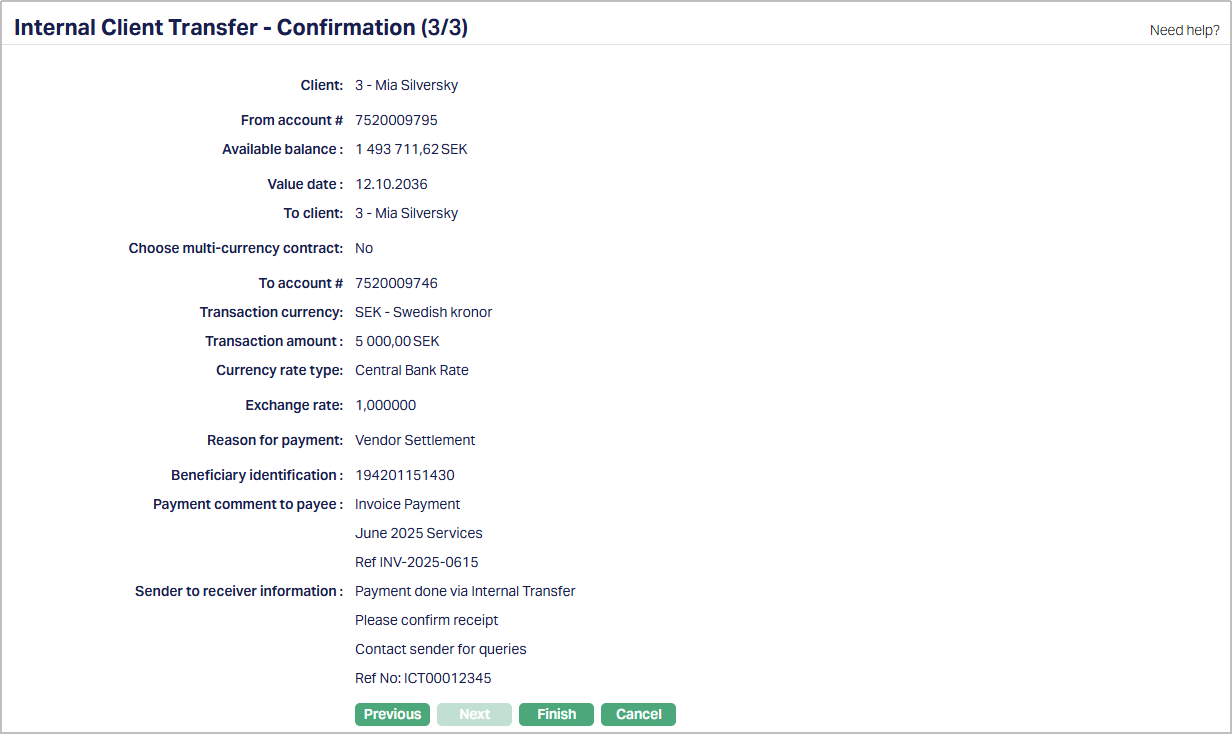
22. Click Finish. Internal Client Transfer page appears with a unique Payment reference number displaying Transaction Status as Registered and Status and Status as Pending. Note: Profile page will appear by default.
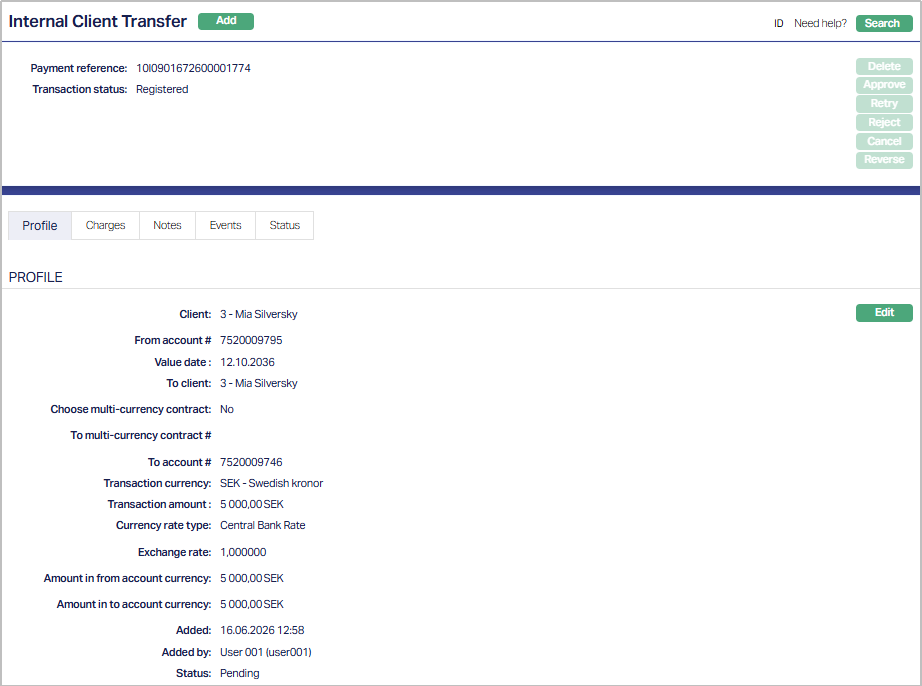
Functions: Add, Search, Delete, Approve, Retry, Reject, Cancel, Reverse, Edit
Delete: You can delete an internal client transfer record saved in Aura by a click on Delete button. Aura will ask for confirmation, on approving which the selected record will be deleted. Once the transaction is approved, it cannot be deleted.
Approve: You can approve an internal client transfer record by a click on Approve button. Only users other than the one who created the record can approve the transaction.
Retry: You can retry a failed record by a click on Retry button. Aura will ask for Confirmation. On Confirmation, the selected record will be retried. Retry button gets enabled only if the Transaction status is Failed and Pending and maximum Retry count is not exceeded.
Reject: You can reject a failed record by a click on Reject button. Aura will ask for confirmation. On confirmation, the selected record will be rejected. Reject button gets enabled only if the Transaction status is Failed and Pending.
Cancel: You can cancel an internal client transfer by a click on Cancel button. Only transactions which are approved can be cancelled. Aura will ask for confirmation, on approval of which the selected transaction will be cancelled. Status of the record will become Pending.
Reverse: You can reverse an internal client transfer by a click on Reverse button. Only transactions which are approved can be reversed. Aura will ask for confirmation, on confirmation of which the selected transaction will be reversed. The status of the record will be pending till the reversal is approved.
Note: When you click on Finish, the following takes place:
Transaction Status -- Registered
Based on Payment settings, Charges, Currency rate type, Exchange rate and Amount in From Account and To Account currencies are resolved only for current and back dated transactions and the details maintained for the selected payment setting will be applied for the transaction.
Based on Payment settings, Charges, Currency rate type, Exchange rate and Amount in From Account and To Account currencies are resolved only when value date becomes equal to current date in the future for future dated transactions and the details maintained for the selected payment setting will be applied for the transaction.
Status for the transactions will be Registered. No Accounting entries will be performed at this stage.
A unique payment reference number will be generated and displayed in View screen.
Record Status will be Pending.
Transaction Status -- Processed
Aura will debit the From Account for Transfer Amount and Charges
Aura will credit the To account with Transfer Amount
If Accounting entries fail, Aura will mark the Transaction status as Failed. You are supposed to start a new transaction then.
If Accounting entries are successful, Aura will mark the Transaction status as Processed and Record status as Approved
All other buttons will be disabled. Only Cancel and Reverse action can be executed at this stage.
For future value dated transaction, Aura will execute the above-mentioned steps on the value date.
On Approval, Aura will keep the transaction status as Registered and record status will be updated to Approved
On the value date, when accounting entries are successful, Aura will mark the transaction status as Processed.
Transaction Status -- Failed
During approval of a registered transaction, if the approval fails; Transaction status will become Failed and record status will become Pending. Retry and Reject button gets enabled. Retry button gets enabled when Transaction is Failed and pending, and maximum retry count not exceeded.
Reversal / Cancellation
Reversal and Cancellation actions can be performed only if the Transaction status is Processed.
If transaction fails during reversal, Transaction status will remain Processed and Record status will become Pending.
If transaction fails during cancellation, Transaction status will remain Processed and Record status will become Pending.
Profile
Profile tab, which is the default tab in the Internal Client Transfer screen, shows the basic details of the Payment Setting.
To view / edit Profile,
1. From Retail menu access Payment, then click Net Settlement and then click Enquiry. Enquiry page appears. Click Internal Client Transfer. Internal Client Transfer page appears. Profile tab appears by default. The details are defaulted from the entries that you made during Internal Client Transfer creation. For details refer to Internal Client Transfer → Profile (1/3).
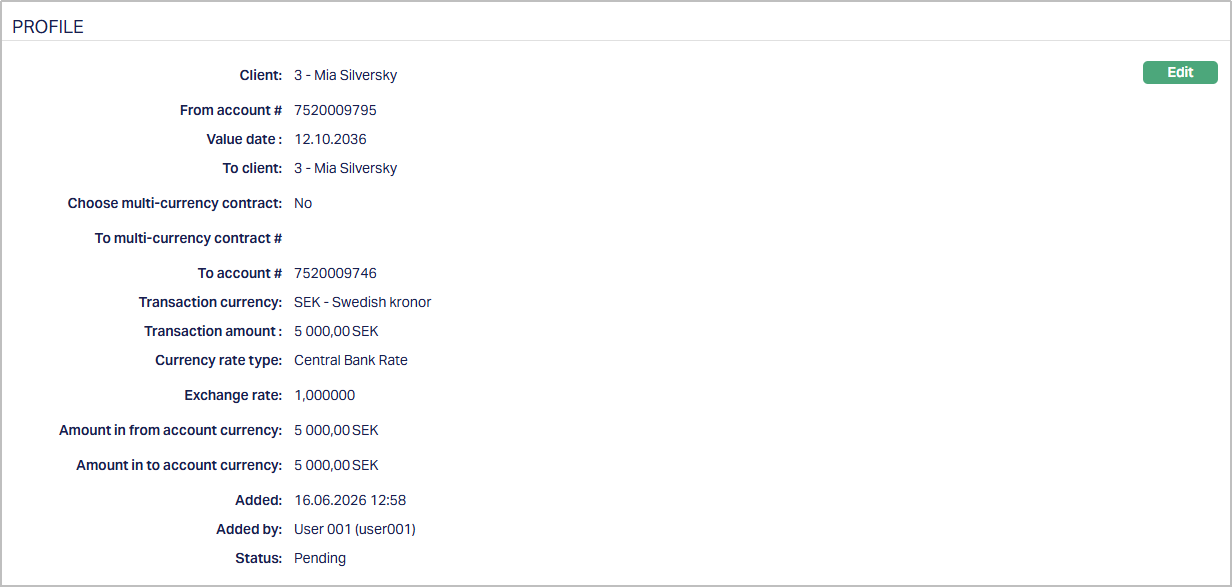
Additional fields as seen above are explained below:
Amount in from account currency denotes the amount in From Account currency of the selected client.
Amount into account currency denotes the amount in To Account currency of the selected client.
Added denotes the time and date when the record was created.
Added by denotes the user who created the record.
Status field denotes the status of the tab.
2. Click Edit. Edit Profile page appears. You can edit only if the Internal Client Transfer has not been approved.
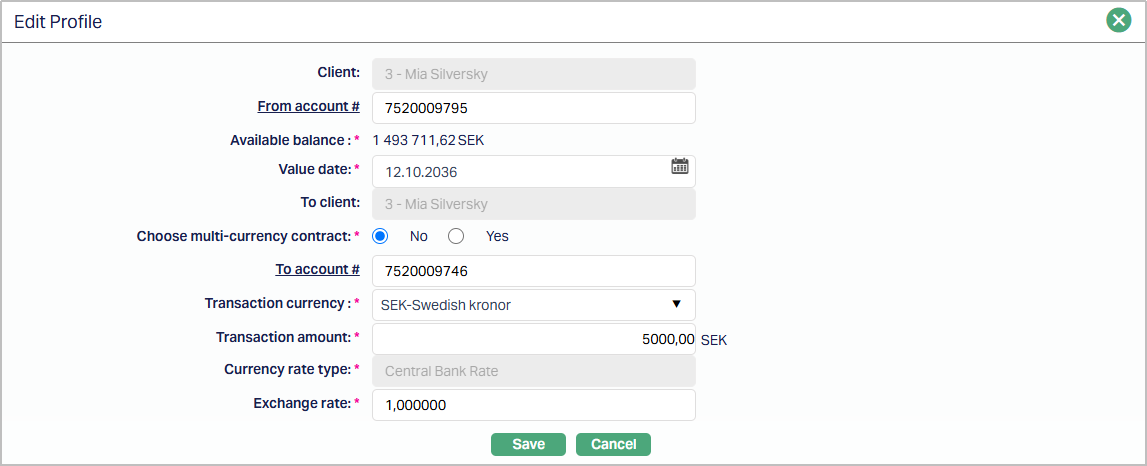
Note: Except Client, To client, Currency rate type and Exchange rate, all other fields are editable.
3. Click Save. Profile page appears with the Edited details.
Note: Approval to be done from Enquiry with the help of Reference #. Once Approve the Status will display as Approved.
Function: Edit
Following fields are shown only in the View screen and are not editable:
Status field denotes the status of the tab.
Added field denotes the date on which the record was added.
Added by field denotes the name of the user who created the record.
Approved field denotes date on which the record was approved and is displayed only for approved records.
Approved by field denotes name of the user who approved the record and is displayed only for approved records.
Charges
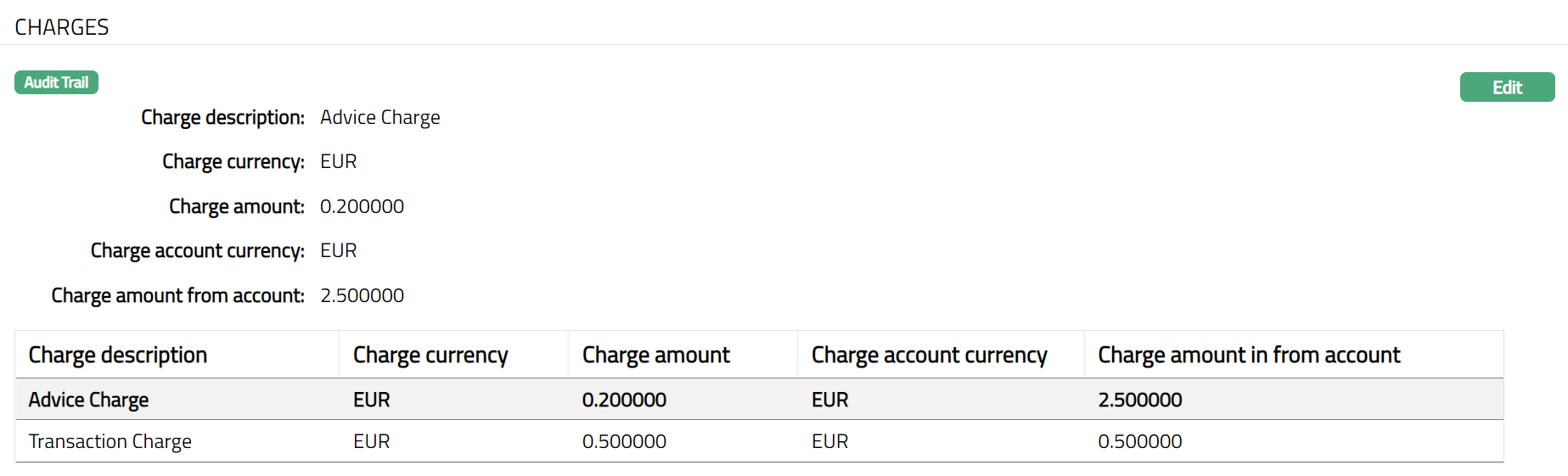
Using this tab, you can view the charge details and edit Charge amount from account.
1. Access Internal Client Transfer page and click Charges tab.
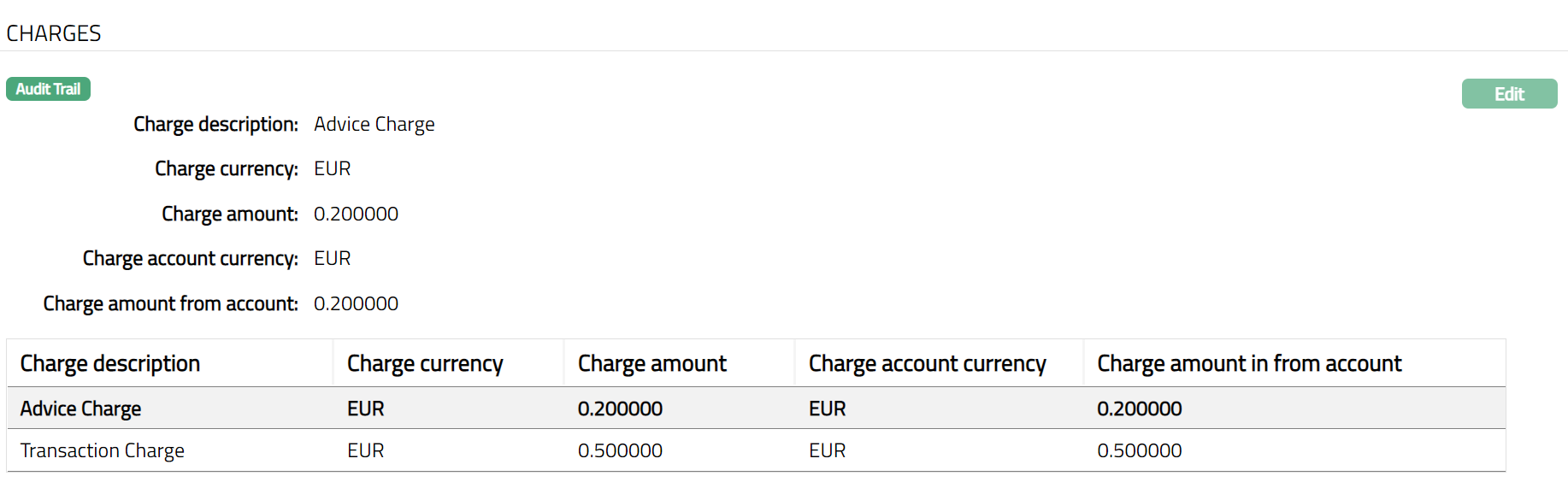
The additional fields are as follows:
Charge description denotes the description for which charge needs to be collected for the transaction.
Charge currency denotes the charge currency for the transaction.
Charge amount denotes the charge amount for the transaction.
Charge account currency denotes the currency in which the charge will be collected.
Charge account from account denotes the charge amount for the transaction in From Account currency.
2. Click Edit. Edit Charges page appears.
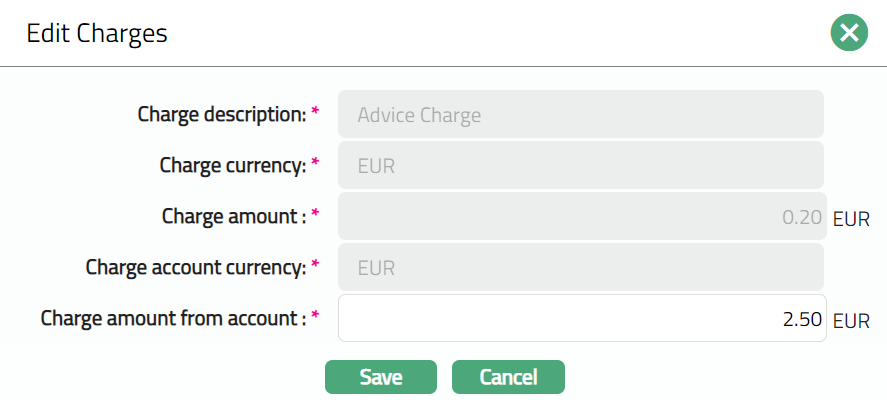
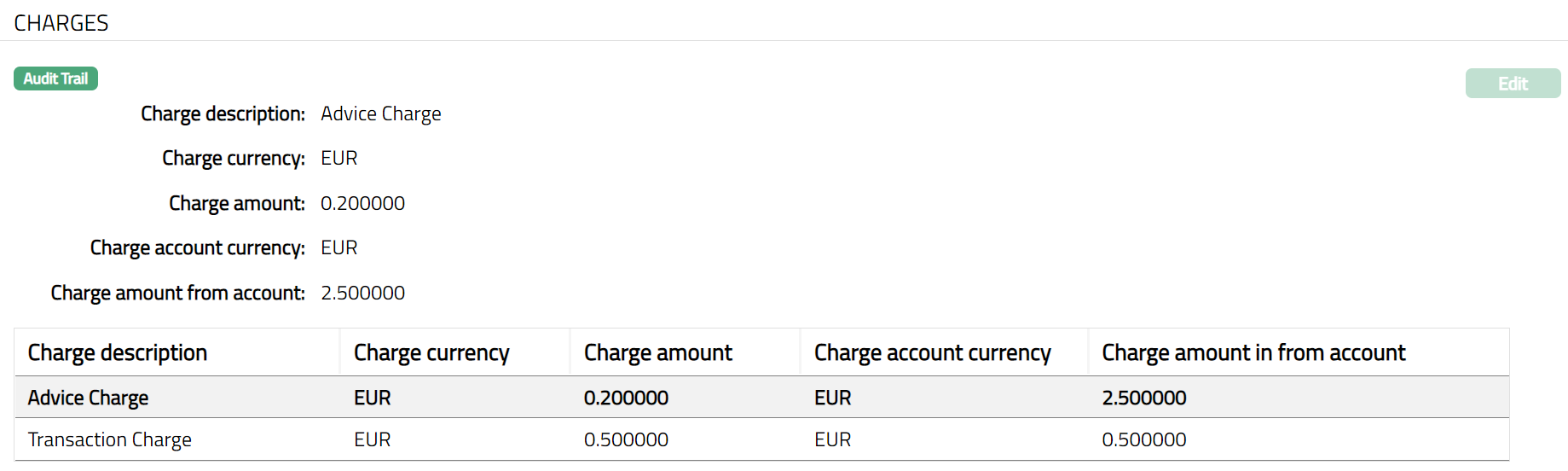
Note: Only Charge amount from account field can be edited.
3. Click Save. Charge page appears with the edited details.
Function: Edit
Note: You can Edit Charges till the status is Pending. Once Approved you cannot edit further. Sample screen shot shown below.
Notes
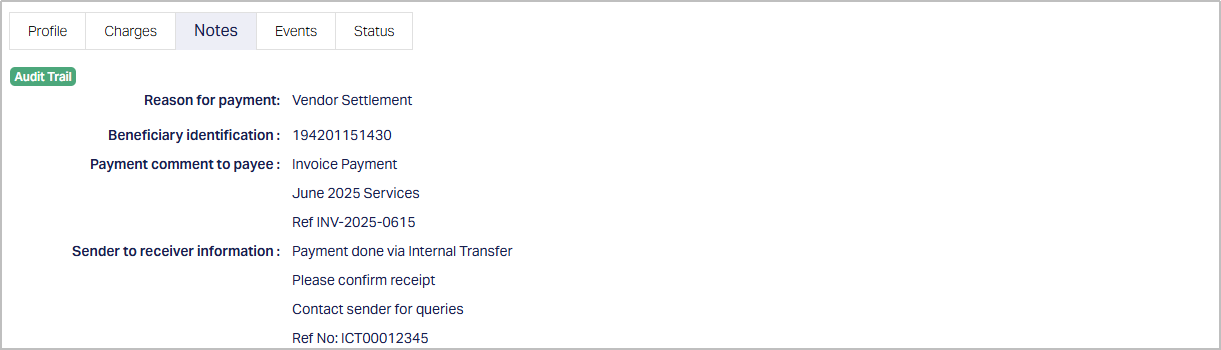
The Notes tab allows you to view the beneficiary and payment information entered during Internal Client Transfer creation. This tab is non-editable and is available only after the transaction has been created.
To view Notes, From Retail menu access Payment, then click Net Settlement and then click Enquiry. Enquiry page appears. Click Internal Client Transfer. Internal Client Transfer page appears, and click on Notes tab. The details are defaulted from the entries that you made during Internal Client Transfer creation. For details refer to Internal Client Transfer → Others (2/3).
Note: This tab is view-only and cannot be edited.
Events
Events tab allows you to view the past, current and future events. This tab is non-editable.
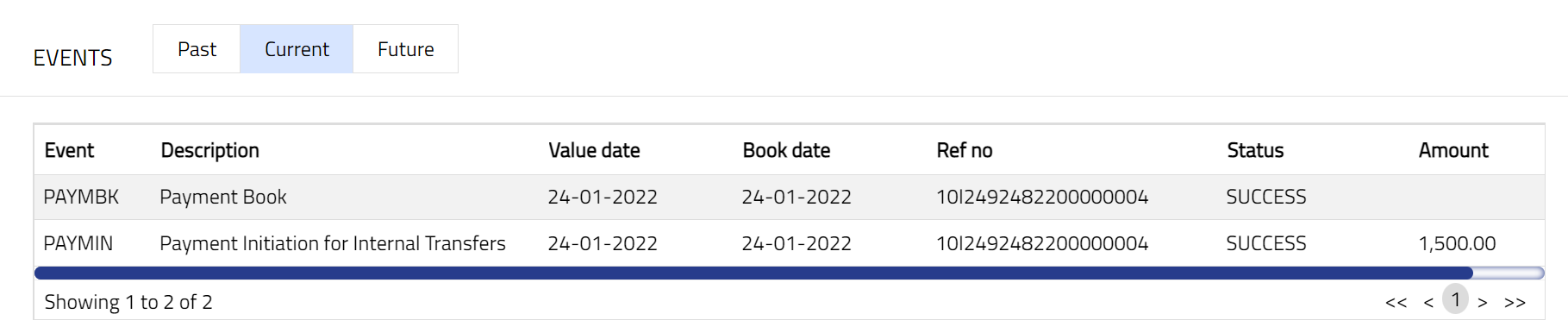
1. Access Internal Client Transfer page. Click Events tab. By default, the Current tab is displayed. It shows the details of the Events that have value date = current business date. Past tab and Future tab show details of events that have value date earlier than / later than the current business date respectively.
All the tabs show the following data:
Event: Code for the event.
Description: Description of the event.
Value Date: The value date for the event
Book Date: The date of entry / input of the event
Ref No: The transaction reference number under which the event is processed
Status: Status of the event:
Pending: Where the event is not yet processed
Success: Where the event has been processed successfully
Failure: Where the event has failed during process
Retry: Indicates a failed event where the system retries to process the event on subsequent business days.
Amount: Indicates the amount processed by the event.
A sample of Past tab is shown below:

A sample of Current tab is shown below:
A sample of Future tab is shown below:

Status
Status tab allows you to view the status of the transaction and to add a reason for it.
1. Access Internal Client Transfer page and click Status tab.
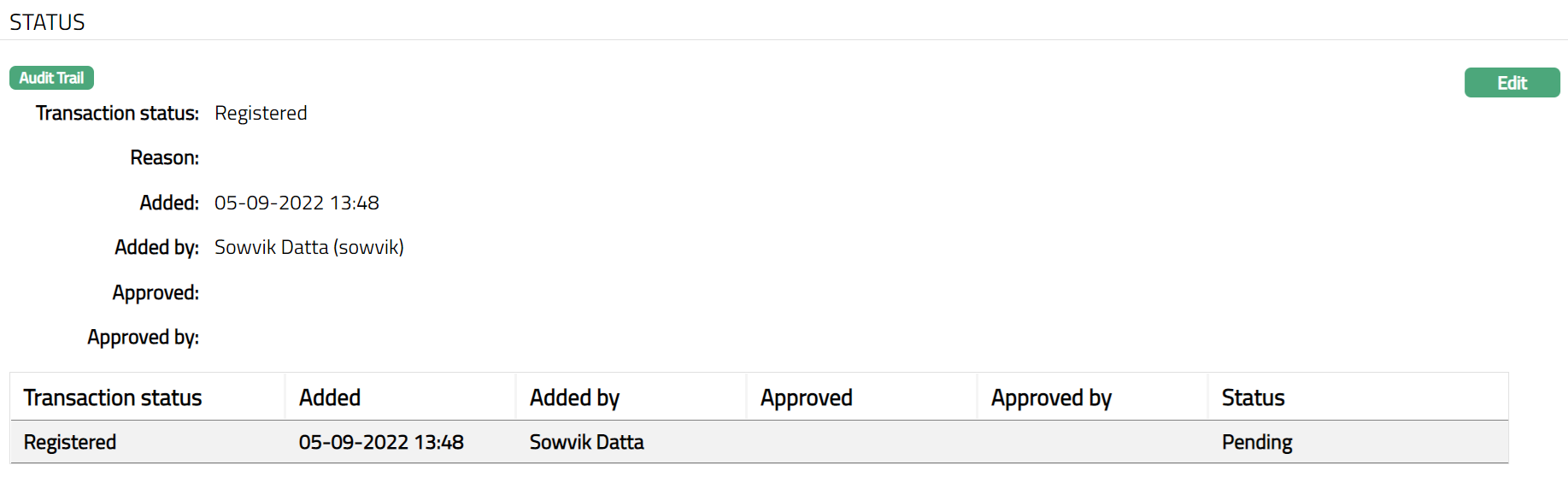
Following fields are shown in the View screen:
Transaction status denotes the status of the transaction.
Reason denotes the reason for transaction status updates. If the Transaction status is failed, then Aura displays the reason for failure. For example: Insufficient funds, Account blocked, Debit not allowed Account dormant
Added denotes the date and time when the record was added.
Added by denotes the user who has added the record.
Approved denotes the date and time when the record was approved.
Approved by denotes the user who has approved the record.
2. Click Edit. Edit Transaction Status page appears. You can edit only if the Internal Client Transfer has not been approved.
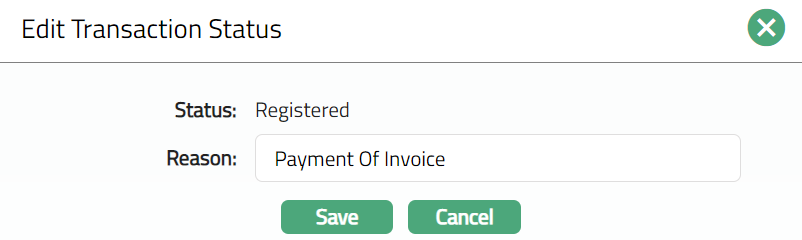
3. Aura displays the Status of the transaction. This field is not editable.
4. Enter Reason for the transaction.
5. Click Save. Status page appears with the edited details.
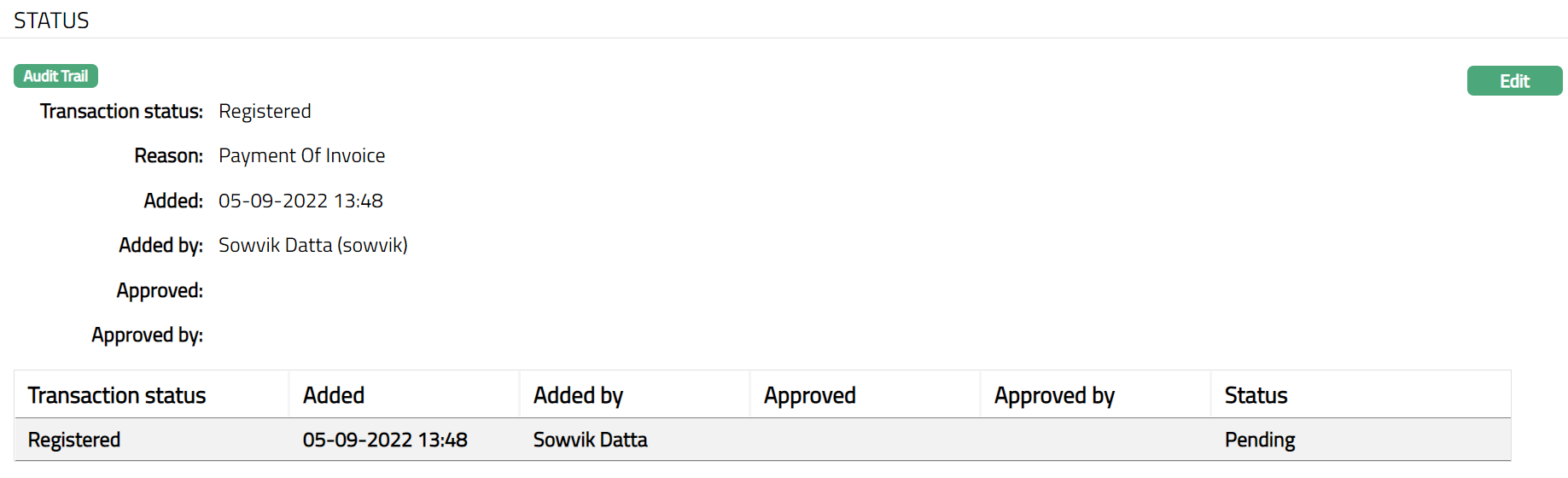
Note: Approval to be done from Enquiry with the help of Reference #. Once Approved you cannot edit Further.
6. Click Approve to approve the transaction. Once approved, the Internal Client Transfer → Maintenance page shows Status tab as shown below.
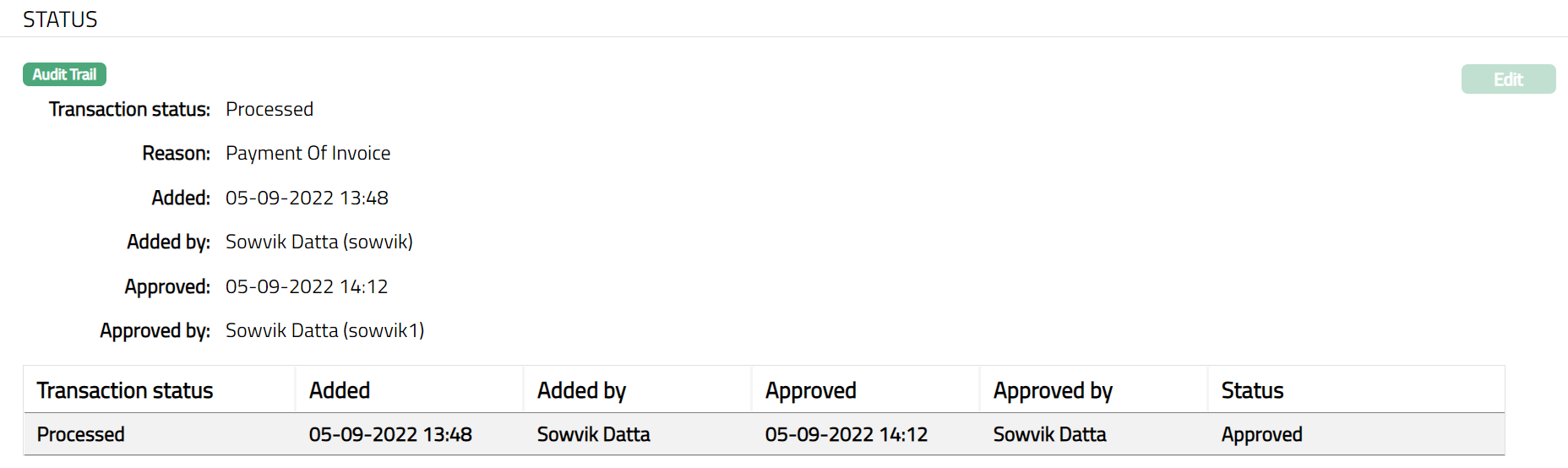
Function: Edit