
Nostro Account Closure
The Nostro Account Closure module allows users to search for, select and close an existing Nostro account held in a foreign bank.
The following are the tabs that appear on the Nostro Account Closure page:
To close the account,
1. From Retail menu, click Accounts, then Nostro Account and then Closure. Nostro Account Closure search page appears.

2. Click Add. Nostro Account Closure -- Client Details (1/3) page appears.
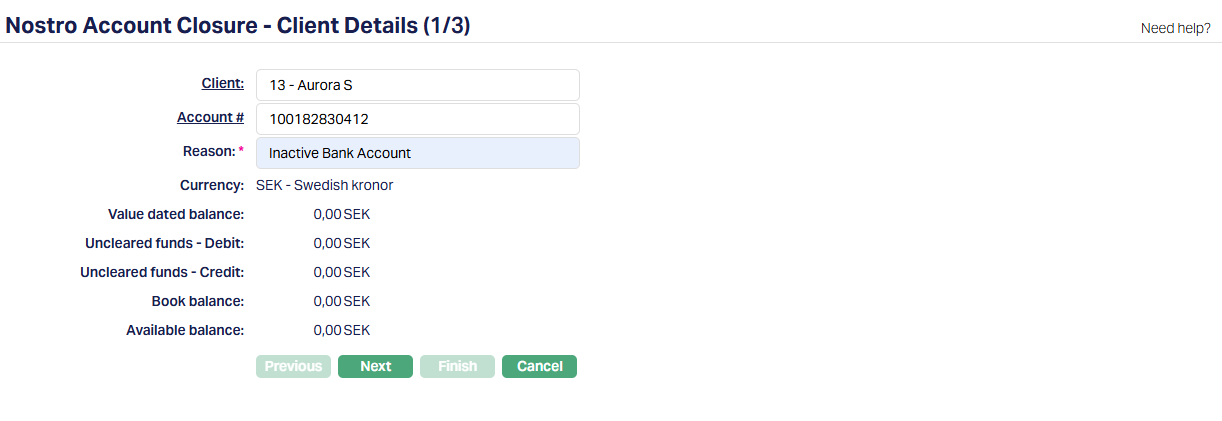
3. Select Client by clicking on client hyperlink. Client search page appears where you can search client with relevant criteria and select the required client. Alternatively, you can input the Client's name, Client #, Client status and select the required client from the list displayed by Aura.
4. Select Account # by clicking on Account number hyperlink. Search Client Account page appears where you can search for the Client account with relevant criteria and select the required account for a client.
5. Enter the reason for closing the account. This is a mandatory field and you cannot proceed with the closure process without entering a valid reason.
6. On selection of the Client account, the Currency will be defaulted.
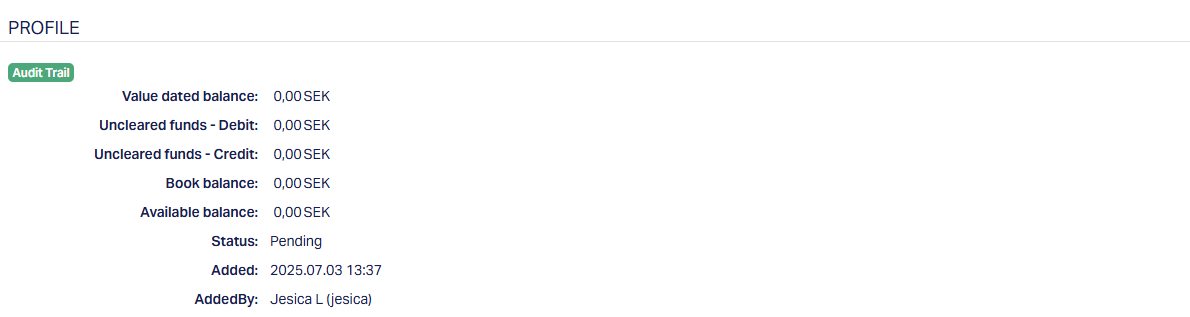
7. Value dated balance denotes the current value dated balance of the account.
Uncleared funds - Debit denotes the total amount that is pending to be debited from the account.
Uncleared funds - Credit denotes the total amount that is pending to be credited to the account.
Book balance denotes the current book dated balance. It is calculated as Value dated balance + Uncleared funds debit + Uncleared funds credit.
Available balance denotes the available balance in the account and is calculated as follows: Opening value dated balance + credits during the day with current or past value date -- debits during the day with current or past value date + overdraft limit - amount blocked.
Note: Aura will not allow you to proceed to the next screen if any of the following conditions are found:
If the account is in a status apart from Activated.
If any standing instructions are pending.
If there are any amount blocks in the account.
If there are any un-cleared balances.
If there is any future value dated balances in the account.
If there are any transactions pending to be authorized in Station journal.
If there are any Term deposits opened where this account is linked.
If there are any loans opened where this account is linked as collateral.
If the account is mapped to the locker as a charge account.
8. Click Next. Nostro Account closure -- Settlement Details (2/3) page appears.
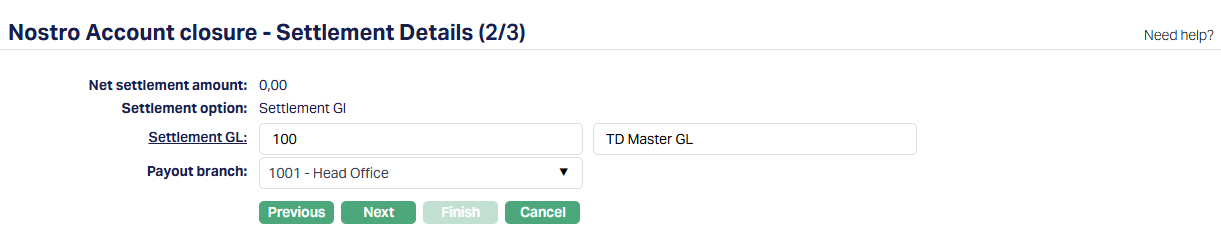
9. Net Settlement amount which is automatically generated displays the available balance and the total amount to be settled upon closure of the account.
10. To settle the amount using a General Ledger account, Settlement GL has been selected for Settlement option. This is by default and cannot be changed.
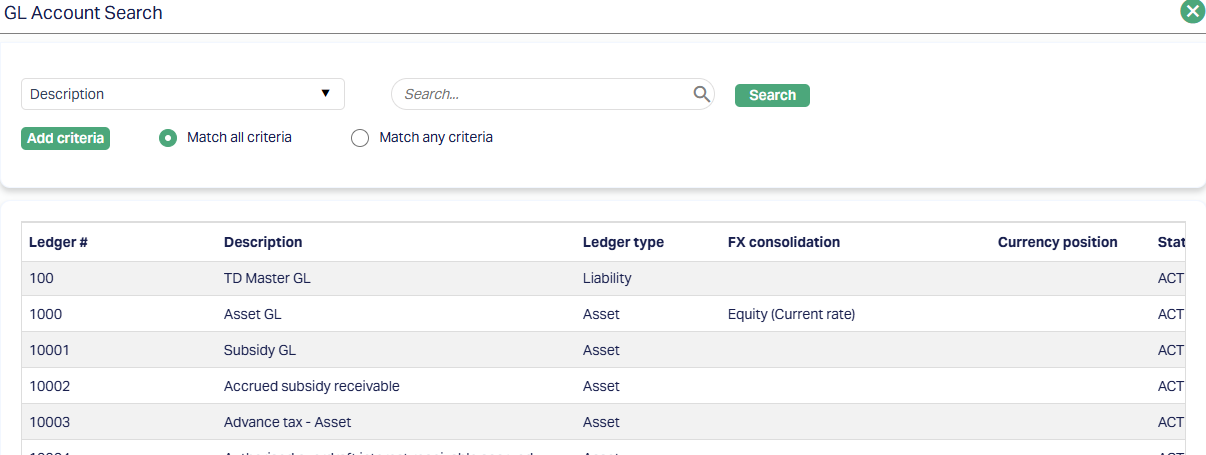
11. Click on Settlement GL hyperlink. The GL Account Search page appears where you can search for a ledger account with relevant criteria maintained at General ledger > General ledger > Accounts and select the required Ledger type and description. Alternatively, you can type in the name of the GL or GL number and choose the relevant GL from the list suggested by Aura (Please refer to the sample screenshot shown below)
12. Select the branch from which the payout is to be made from the dropdown. This field is populated with branches maintained under Admin > Branches > Maintain. You can choose the branch from where the client wishes the settlement amount to be paid.
13. Click Next. Nostro Account Closure -- Confirmation (3/3) page appears.
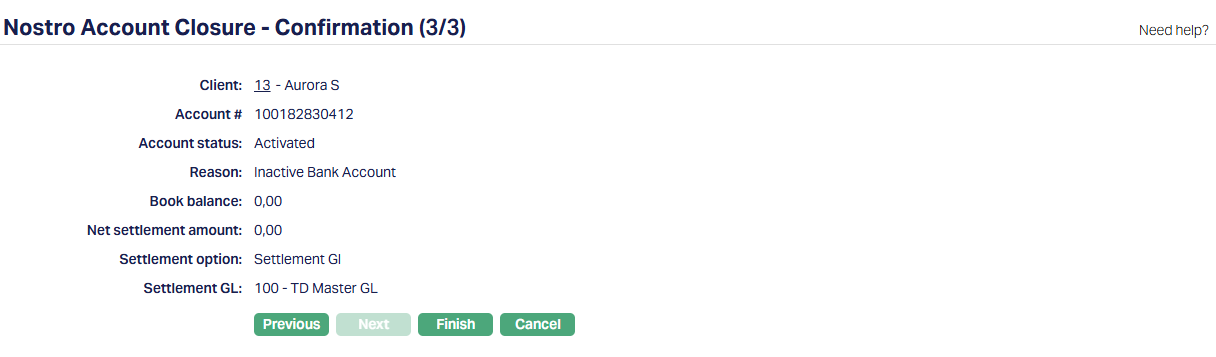
14. Click Finish. Nostro Account Closure page appears.
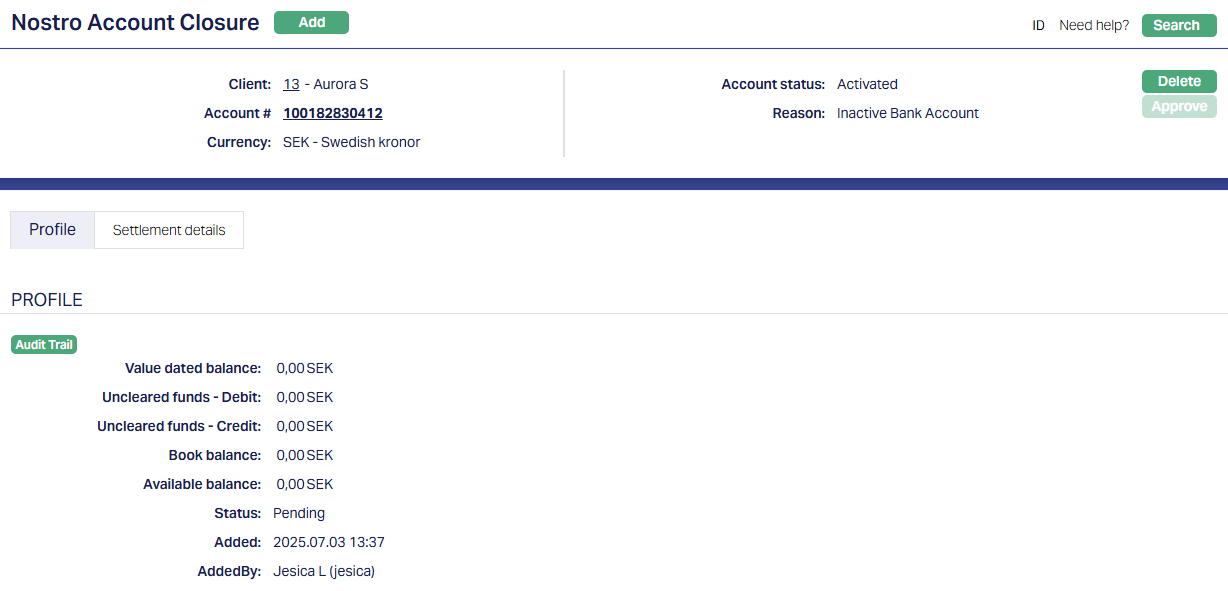
Functions: Add, Search, Delete and Approve.
The additional fields that are shown are:
Status indicates the current state of the record. It will be either: Pending - If the record is waiting for approval or Approved - If the record has been reviewed and finalized.
Added shows the date and timestamp when this record was created and Added by displays the user ID and full name of the person who created the record.
Note: The status of the Nostro Account Closure is Pending. The same has to be approved by a user other than the one who created the closure record.
Tabs Overview:
Common Tab - Header Pane
Visible across all tabs containing the Client's name, Account # , Currency and Reason for account closure we have entered while creating the record.
The common tab also displays the account status of the Nostro Account.

You can delete a closure record by a click on the Delete button. Aura will ask for confirmation, on approving which the selected record will be deleted. Once the record is approved, it cannot be deleted.
Profile
The Profile tab, which is the default tab in Nostro Account Closure screen, shows the basic details of the account closure record created for an account.
To view Profile,
Access Nostro Account Closure page and click Profile tab to view the details as per sample below. The details are defaulted from the entries that you made in Nostro Account Closure -- Client Details (1/3) during account closure creation.
Settlement Details
The Settlement Details tab displays the final settlement method and configuration used for closing the Nostro Account. The details are defaulted from the entries that you made in Nostro Account closure -- Settlement Details (2/3) during account closure creation.

All the fields in these tabs - Profile and Settlement details are defaulted based on the inputs made during the closure steps and are not editable after submission.
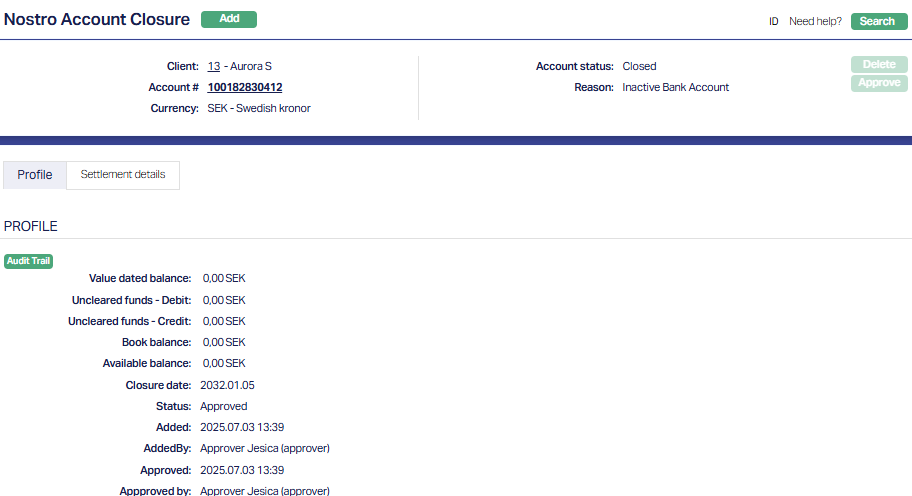
Once the Closure is approved, the account is closed and the Account Status is changed from Activated to Closed. Once closed, the account becomes non-operational and will no longer appear in active Nostro account lists.