
Transaction Code
Transaction codes are used for the posting of transactions into the accounts. A transaction code identifies a single debit or credit type transaction which will affect either the general ledger or a customer account.
To add Transaction code
- From PaymentGrid menu, click Settings and, then Transaction Code. Transaction Code Search page appears.

- Click Add. New Transaction Code -- Profile (1/2) page will appear.
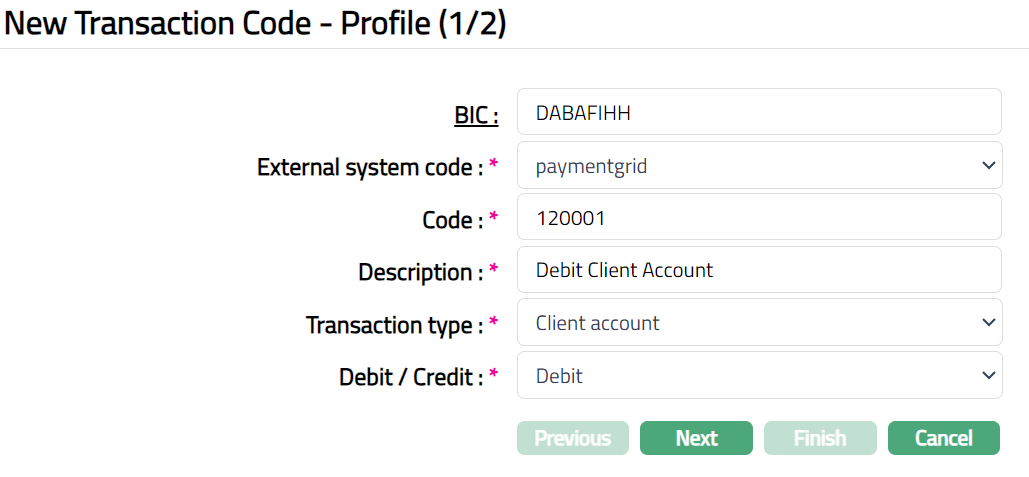
Select BIC (Business Identifier Code) by clicking on BIC hyperlink. The Search BIC code page appears with the list of active BIC maintained under Admin > Management > Settlement directory. You can search for a BIC code with relevant criteria and select the required BIC code. You can also input the name of the bank and select the required BIC code from the list displayed by CC-PG.
Select External system code from the drop-down list of active external system codes maintained under Admin > System codes > Interface definition > Maintain.
Enter transaction Code which is maintained in the external system to which the adjustment entries will be posted. This is a unique alphanumeric code. If you enter an existing external system code, BIC and code combination, then CC-PG will display an error message as Combination already exists.
Enter Description for the Transaction code.
If Transaction code pertains to a Client account, choose the Transaction Type as Client account; similarly, if the Transaction code pertains to a General Ledger, choose General Ledger from the dropdown list.
Specify whether the Transaction code is for a debit or credit type transaction in the Debit / Credit drop-down field.
Click Next. New Transaction Code -- Confirmation (2/2) page appears.
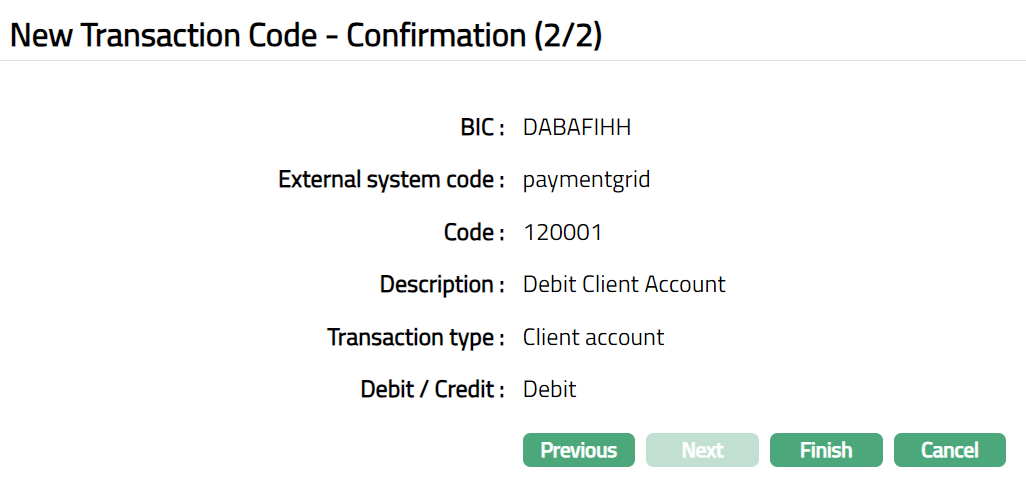
- Click Finish. Transaction Code page appears. Transaction code Status will be displayed as Active.
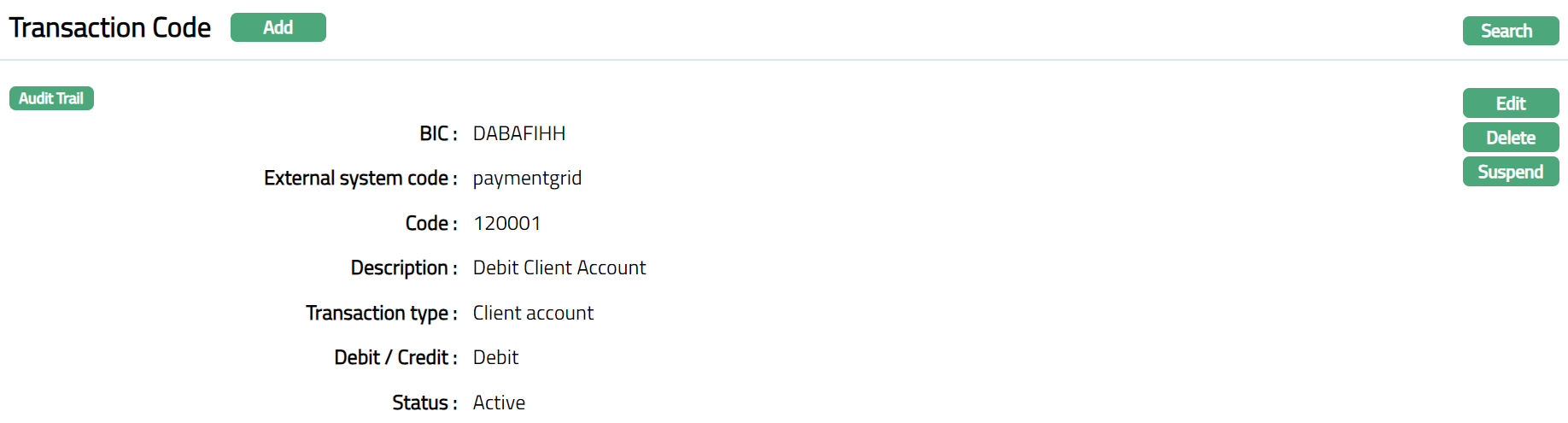
Functions: Add, Edit, Delete, Search, Suspend, Activate.
Delete: You can delete a Transaction code record by clicking on Delete button. When you click on Delete button, CC-PG will ask for confirmation, on approving which the selected record will be deleted. However, you cannot delete a general ledger if mapped to any product.
Suspend: You can suspend a Transaction code record by clicking on Suspend button. When you click on Suspend button, CC-PG displays an alert message. On confirmation CC-PG will suspend the Transaction code. Once the Transaction code is suspended, it becomes unavailable in the drop-down list. Suspended Transaction code can be activated by using Activate button.
Activate: If you want to activate a suspended Transaction Code then click on Activate button. CC-PG displays an alert message. On confirmation CC-PG will Activate the Transaction Code and Suspend button will appear in place of Activate button.
To edit Transaction Code
- Access Transaction Code page and click Edit. Edit Transaction Code page appears.
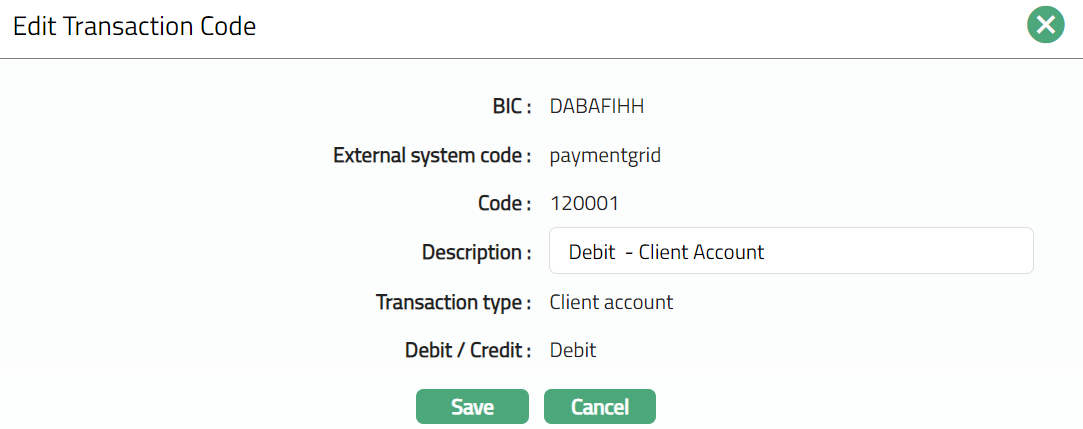
Note: Only Description field is editable.
- Click Save. Transaction Code page appears with the edited details.
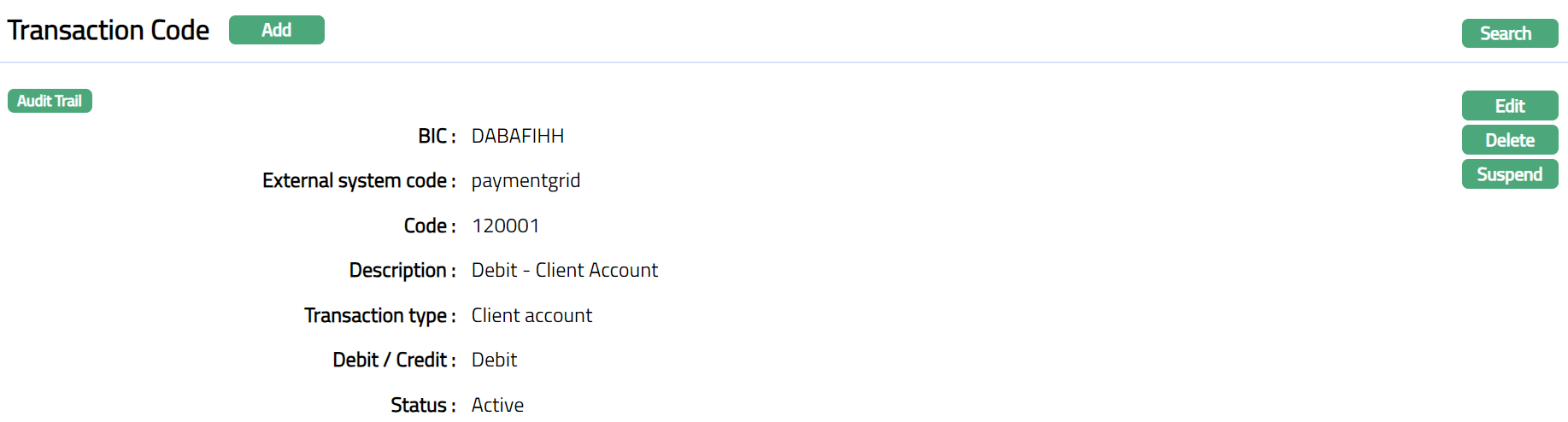
Functions: Add, Edit, Delete, Search, Suspend, Activate.