
FX Manual Settlement
A manual settlement is initiated only for the leg whose automatic settlement attempt has failed.
In case of non-split value dated contracts -- if a Manual settlement is approved, Aura will attempt settlement of both the buy and the sell legs in that order.
In case of split value dated contracts when Manual settlement is approved, Aura will automatically check that leg(s) of the contract whose settlement date is <= current date and attempt settlement for those leg(s).
To execute a new Forex Manual Settlement,
1. From the Treasury menu, click Contracts and then Manual Settlement. The Manual Settlement Search page will appear.
2. Click Add. The New Manual Settlement → Details (1/3) page appears.
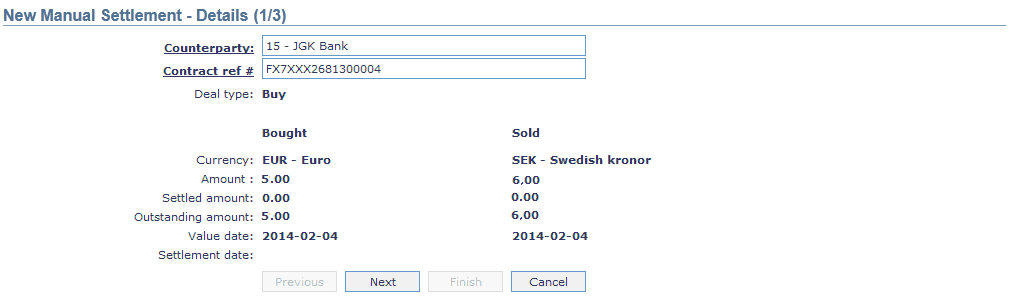
3. Click the hyperlink to input the client id and name of the other party for the contract in Counterparty. The Counterparty Search will display only those clients whose contracts are Buy overdue, Approved, Sell Overdue, Approved or Overdue**.**
4. Click the hyperlink to input the Contract reference # .Aura will display contracts that are Buy overdue, Approved, Sell Overdue, Approved or Overdue.
5. Based on the Contract reference # you choose, Aura will automatically display the Deal Type. This field is not editable
6. Based on the Contract reference # you choose, Aura will automatically display the Bought Currency. This field is not editable.
7. Based on the Contract reference # you choose, Aura will automatically display the Sold Currency. This field is not editable
8. Based on the Contract reference # you choose, Aura will automatically display the Bought amount. This field is not editable.
9. Based on the Contract reference # you choose, Aura will calculate the Settled amount. This field is not editable.
10. Based on the Contract reference # you choose, Aura will calculate the Outstanding amount using the formula Bought amount minus Settled amount for the deal type -- Buy and the formula will be Sold amount minus Outstanding amount for the deal type-Sell. 0 will be the defaulted value displayed if the amount is yet to be settled.
11. Based on the Contract reference # you choose, Aura will display the Value Date which is normally by default 2 working days from the Book Date.
12. As the contract is yet to reach a settlement the Settlement Date field remains blank.
13. Click Next. The New Manual Settlement → Charges (2/3) page appears.

14. Aura displays the Charge currency defaulted from the product level.
15. Enter the Charge amount in charge currency.
16. Click the radio button to indicate the type of Charge account. The options are:
- Client Account
- General Ledger Account
17. The ledger # field is enabled if you select Charge account type as General Ledger. Click the hyperlink to select the required Ledger number.
18. Charge account currency is automatically displayed by Aura based on your selection of charge account.
19. Charge amount in account currency is defaulted from the entry you made during charge creation where the Charge Type is Transaction and the Amount or percentage is Amount.
20. Enter the Remarks for the charges.

21. On click on Finish. The Contract Status in Contract Maintenance page gets updated to Manually Settled and Record Status as Pending and Approval is required. On Approval, accounting entries will be passed.
If accounting entries fail, then Aura will generate a message (for e.g. Approval failed) and the Contract status remains as Manual Settlement and Record status as Pending.
If accounting entries are successful, then below mentioned actions occur in Aura
The Contract status is updated to Buy Settled/ Sell Settled and Record status gets updated to Approved depending on whether the Buy/Sell ledger is settled during Approval.
If this is the second Settlement Ledger, then the Contract status is updated as Fully Settled and Record status is updated as Approved.
The Settlement date --Buy/Settlement and date -- Sell/both is updated to the current business date.
MT 202 payment message gets initiated with settlement details.
Revaluation will be stopped for the ledger that is Settled.
The contract which is Fully Settled and Approved can only be viewed.
Note: In case of Client Contracts, the Buy ledger of the Contract is settled first before the Sell ledger Settlement is initiated.