
Product Novation
The Product Novation feature allows you to transfer an ongoing loan account from one product to another - typically when a loan asset is sold or transferred between entities or funding partners.
This helps ensure that all GL balances, charge schemes, and status rules align with the new product, without disrupting the loan's current terms or repayment setup. Novation ensures that both accounting and operational continuity are maintained.
The following are the various tabs that appear on the Product Novation page:
To initiate a new Product Novation,
1. From the Retail menu, click Loans and then Product Novation. The Product Novation Search page appears. All Product Novation accounts available in Aura appear on the page.
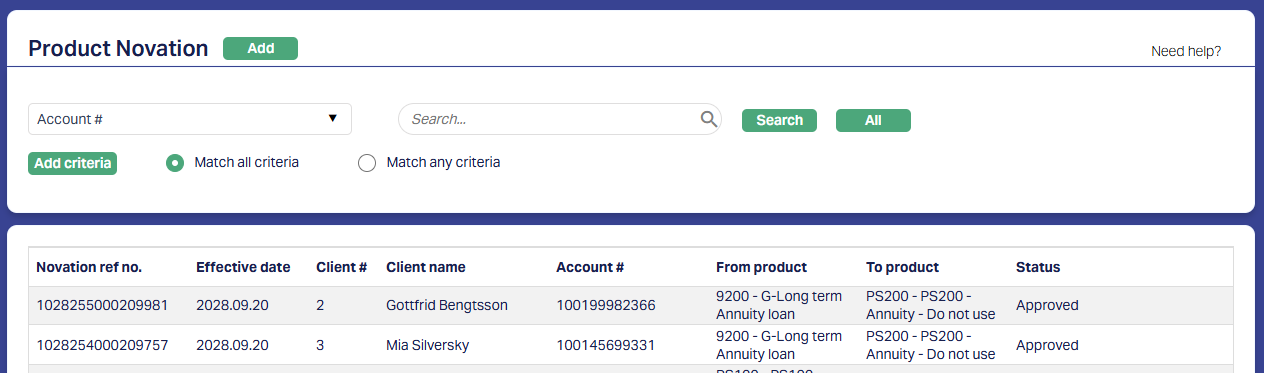
2. Click Add. The New Product Novation - Move From (1/3) page appears.
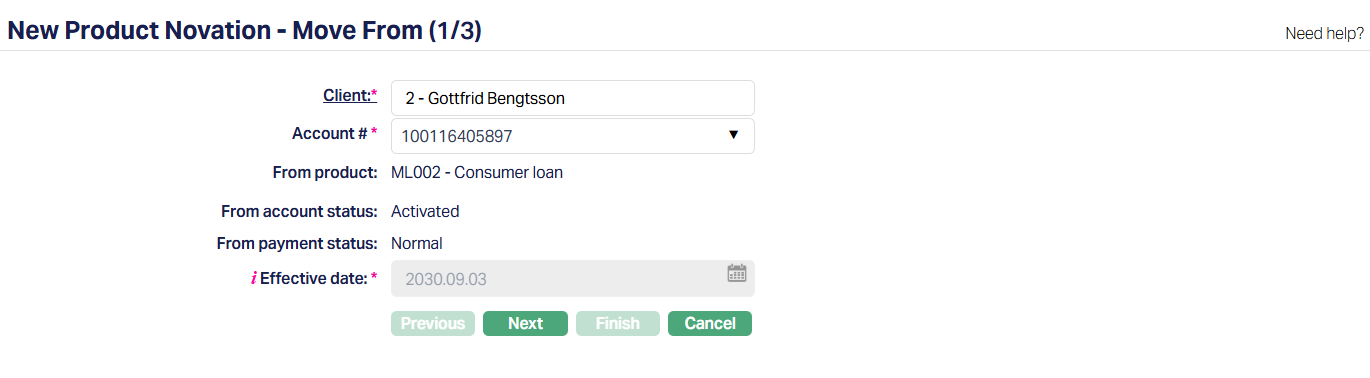
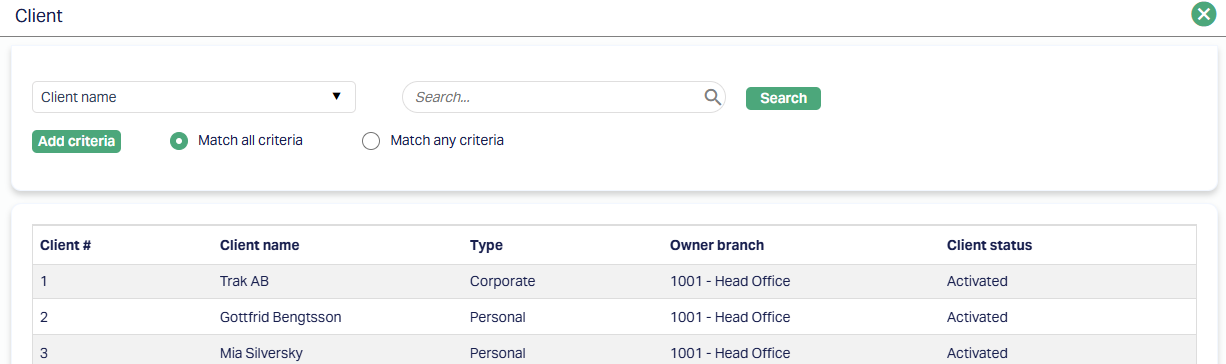
3. Click on Client hyperlink. The Client Search page appears where you can search for a client with relevant criteria and select the required client. Alternatively, you can type in the name of the client or client number and choose the relevant client from the list suggested by Aura. (Please refer to the sample screenshot shown below.)
4. Account # displays a drop-down of loan accounts belonging to the selected client. Only accounts that are NOT in Opened or Closed status will be displayed. Choose the relevant Account # in which the Product Novation will be maintained.
5. From Product is auto-filled and displays the current Product Code and Description associated with the selected Loan account.
This field is read-only.
6. From Account Status displays the latest approved Account Status for the selected account.
This field is read-only.
7. From Payment Status displays the latest approved Payment Status for the selected account.
This field is read-only.
8. Effective date defaults to the current Booking date and is non-editable.
Note: No impairment settings should be active and No other pending function (e.g., Repayment, Change of Term) should exist for the same loan account. If such exists, Aura will block the novation process and an error message is displayed.
9. Click Next. The New Product Novation -- Move To (2/3) page appears.

10. To product - Dropdown showing the list of only compatible active products with the current loan account.
Aura automatically filters the product list based on matching attributes such as:
Tenor range
Currency
Approved Amount
Interest range and calculation method
Availability (including Client Type)
Product parameters like "Invoice Generation Required" and "Add Penalty to Next Invoice"
11. To account status - Dropdown showing active user-defined loan statuses maintained under Admin > Loan Status. Aura displays only those statuses that are marked as "Treat as = Account Status" or "Account Status & Payment Status", and are also marked as Activated.
12. Include income statement ledgers - a checkbox that allows you to include Income and Expense GLs (Profit and Loss accounts) in the novation process.
If checked: All General Ledgers - Asset, Liability, Income, and Expense are displayed and moved.
If unchecked: Only Balance Sheet General Ledgers - Assets and Liabilities are considered.
By default, this is unchecked.
Aura will block the novation process and display an error message if the below validations are unmet -
Insurance Plan in the loan account must also be mapped to the destination product.
Default and Additional Charges mapped to the account must exactly match the charge schemes in the To Product.
Impairment should not be active on the loan account.
No other function like Repayment, Change of Term, Disbursement, or External Payment should be in Pending status for the same account.
13. Click Next. The New Product Novation -- Confirmation (3/3) page appears.
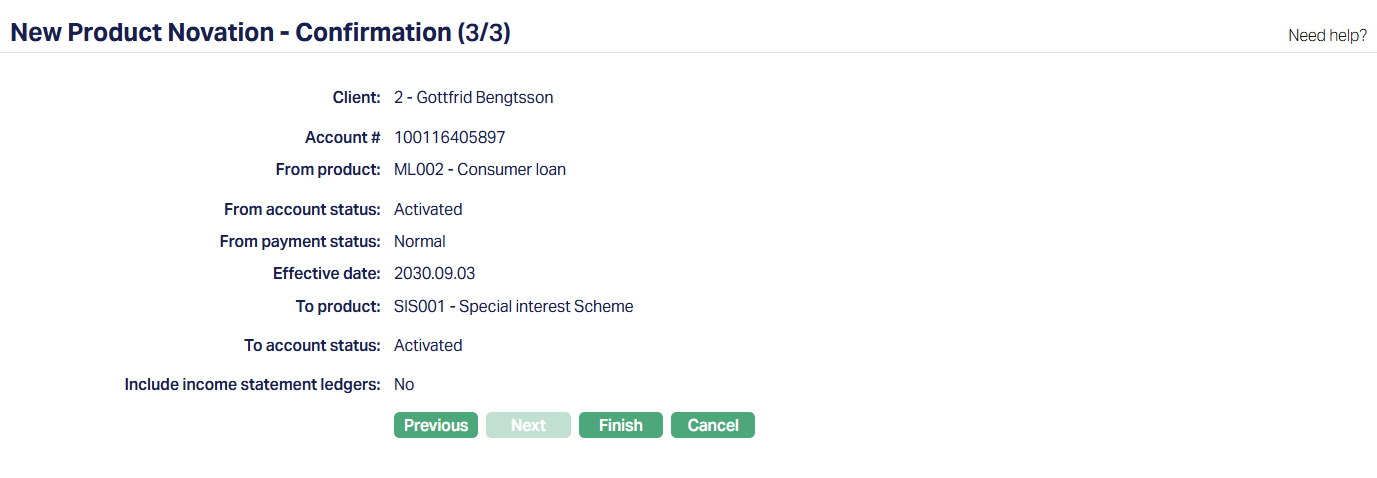
14. Click Finish. The Product Novation Record is created with a Unique Novation ref no. and the Product Novation page appears displaying the Overview tab and Profile tab of the account that you added.
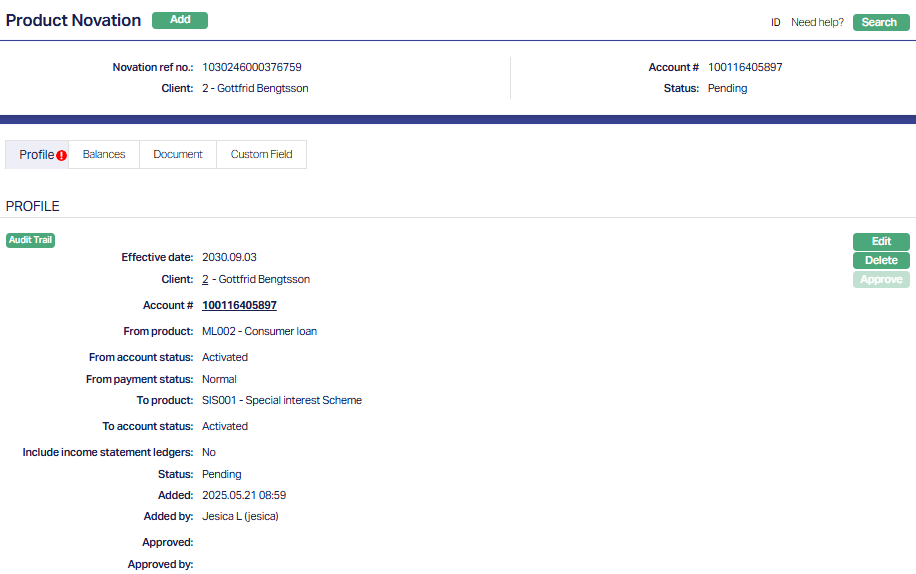
Functions: Add, Edit, Delete and Approve.
Tabs Overview:
Common Tab - Header Pane
Visible across all tabs containing the Unique Novation ref no. along with Account # and Client name that was entered while creating the account.
The Common Tab also displays the status of the Novation Record - whether it is Pending or Approved.

Functions: Add, Search
Profile
The Profile tab, which is the default screen in the Product Novation screen, shows the basic details of the Product Novation. Refer The New Product Novation - Move From (1/3) for details.
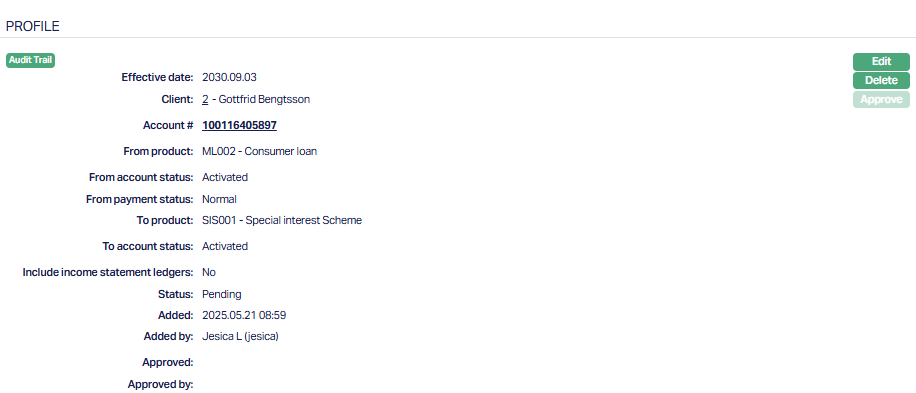
Functions: Edit, Delete, Approve
The additional fields that are shown are,
1. Novation ref number is the unique identifier generated by Aura when you click Finish in the Add Wizard. It helps track and reference each novation record distinctly.
2. Status indicates the current state of the novation record. It will be either: Pending - If the record is waiting for approval or Approved - If the novation has been reviewed and finalized.
3. Added shows the date and timestamp when this novation record was created and Added by displays the user ID and full name of the person who created the record.
4. Approved shows the date and time when the record was approved and Approved by displays the user ID and full name of the person who approved the novation.
Note: Status of the record is Pending till it is approved by another user. On approval, the tab status is set to Approved and the red bubble disappears.
To edit,
1. Access Product Novation screen. Profile tab is displayed by default.
2. Click Edit. Edit Profile page appears.
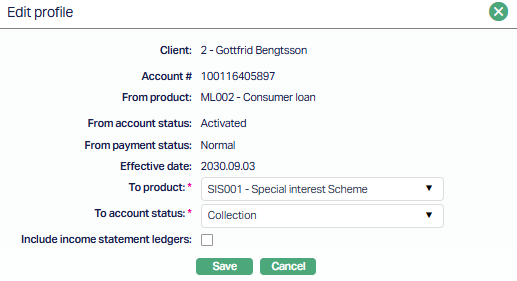
Note: Only To product, To account status and Include income statement ledgers fields are editable.
3. Click Save after making changes, Aura will update the novation record, recalculate the balances as per the revised destination product settings and reflect the updated balances in the Balances Tab.
4. After Saving, Product Novation page appears with edited details.
On approval, the tab status is set to Approved and the red bubble disappears.
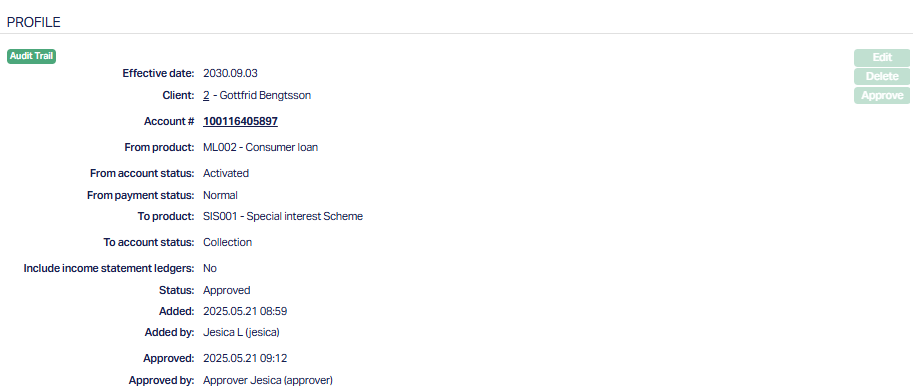
Note: Once Approved, The Status of the Product Novation will be changed from Pending to Approved. The Edit and Delete buttons will be disabled. Make sure you edit all the necessary fields before Approval.
Approval Behaviour
Product and Status Updates - When you approve a Product Novation record, Aura updates the loan account's product to the one you selected during setup. The To Product replaces the existing one, and Aura also sets the account status as per your input -- unless the status rules defined in the new product result in a different status. In such cases, the final account status is derived from the destination product's rules, ensuring it reflects how status movements would occur during end-of-day. Likewise, the payment status is recalculated using the status rules of the new product. If no rules are defined, the payment status defaults to Normal.
Accounting and Balance Movement - Once the novation is approved, Aura calculates the balances for each relevant GL label based on the current ledger mappings in the original product. The system considers both debit and credit entries under the loan account's contract reference number and arranges the balances based on whether each label is mapped to an asset, liability, income, or expense GL. If the "Include Income Statement Ledgers" checkbox is ticked, Aura includes P&L accounts (Income and Expense) in addition to Balance Sheet GLs. It then posts accounting entries to shift balances from the From Product GLs to the To Product GLs, provided the GLs are different. If the same GL is used in both products, no entry is posted for that label. The actual posting uses pre-configured transaction codes based on debit/credit direction.
Charge Scheme and Schedule Handling - As part of the approval process, the charge scheme assigned to the loan account is updated based on the To Product's configuration. This ensures that all future charges are processed using the correct GLs and transaction codes, even though the amounts themselves don't change. Importantly, Aura does not regenerate the payment schedule at this point. Any regeneration (such as from a change in terms or a prepayment later on) will apply the new charge scheme from the destination product. If there is a status movement charge applicable due to the status change, it will be added to the schedule, but the schedule version itself remains unchanged.
SIS Handling - If your loan account is governed by a Special Interest Scheme (SIS), Aura adjusts the SIS settings depending on the configuration of the To Product and whether Loan Attribute Parameters (LAP) have already been processed. For example, if the To Product has SIS enabled and LAP hasn't occurred yet, the account adopts the To Product's SIS setup. If LAP has already taken place, no change is made. SIS settings are transitioned carefully to ensure consistency between interest schemes before and after novation.
Event Logging - A system event with code LNPRNO is triggered, capturing the novation action even though it carries no transaction amount. This event is included in the loan account's event history for tracking purposes. The novation reference number remains a unique identifier for this activity, allowing you to revisit or report on it later.
Balances
This tab displays the GL balances as calculated at the time of creation, edit, or approval. The balances are grouped by labels from the product's General Ledger Settings, and reflect the movement of loan balances from one set of GLs to another as part of the novation.
Note: What's shown here depends on whether the "Include Income Statement Ledgers" checkbox is selected - only Balance Sheet GLs are shown if unchecked, while all GLs including Income and Expense are shown if checked.
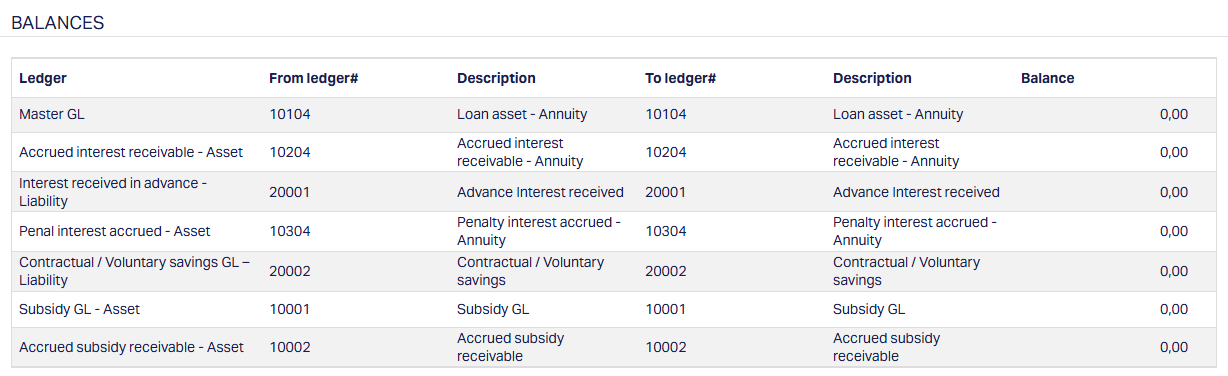
1. Ledger displays all the labels from the General Ledger Settings in the product (e.g., Accrued Interest Receivable - Asset) irrespective of whether there is a balance or not for each of them.
2. From Ledger # and Description displays the code/ledger number and name of the From Product.
3. To Ledger # and Description displays the corresponding code/ledger number and name of the To Product.
4. Balance shows the calculated amount at the time of creation/edit/approval.
Calculation of Balances
1. Aura calculates balances based on all accounting entries where the Contract Reference # matches the loan account number, and the GL is mapped in the From Product's General Ledger Settings.
2. The display of calculated balances are later used during approval to post accounting entries from the From Product GLs to the To Product GLs, only if the two are different.
3. If multiple labels are mapped to the same GL, Aura groups them based on whether the GL is a:
Balance Sheet item (Asset or Liability), or
P&L item (Income or Expense)
4. The resulting balances are then displayed under the appropriate headings such as Accrued Interest Receivable -- Asset or Interest Earned -- Income, based on their classification.
Document
The Document tab allows you to view/add any relevant documents.
Documents listed in this tab are specific to the selected Product Novation record and are either generated through predefined templates or manually updated.

Functions: New, Generate
To upload a New Document,
1. Click New. The New Document page appears.

2. On the File name and path, select Choose File will open a window on your laptop/PC. Select the related file and then upload.
3. Enter the Document ref #
4. The Description will be defaulted to the name of the selected file with the ability for you to make changes.
5. Select Type of the document from the list of available drop-down as maintained under Admin > System Codes > Documents > Document types.
6. Click Save. The Document which is uploaded will be displayed with the details you have entered.
You can add more documents or edit and delete them accordingly.
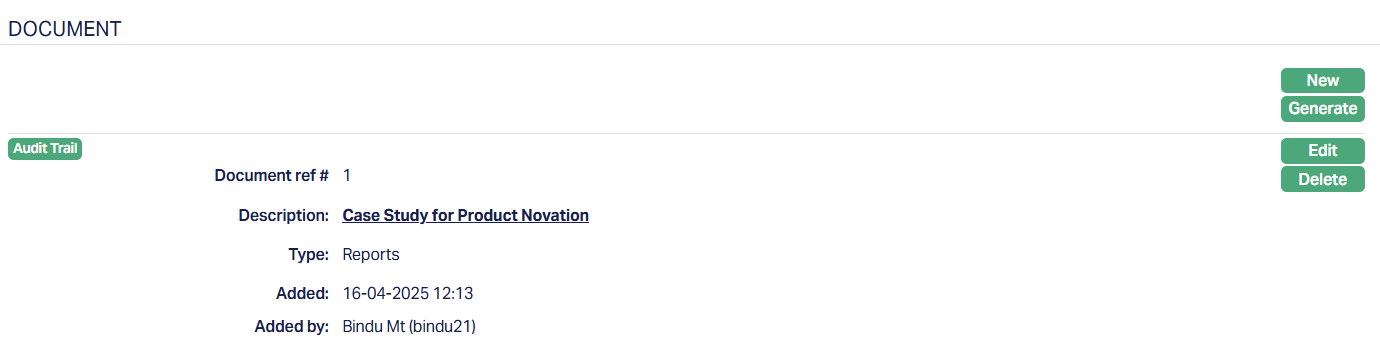
Functions: New, Generate, Edit, Delete
7. Templates configured under Loan Product > Document Template Settings with the type Product Novation will be available for generation.
Note: All previous documents remain accessible under the Loan Account.
Custom Field
This option provides you the flexibility to define fields apart from those that are already available in the standard version of Aura. Thus, it enables you to customize additional data storage and use as required to suit your specific business needs.
To maintain Custom Field,
1. Access Product Novation page. Click on Custom Field tab.

2. The custom field(s) appears only when it is created in Admin > System codes > Custom fields and linked to Loans - Product Novation account option in Admin > System codes > Custom fields > Field mappings.
3. Click Edit. The Edit Custom Field page appears. In the following illustration, one custom field "Effective from" Category has been mapped to the Product Novation as shown below:

4. Enter/Select the Date on which the Product Novation profile is effective from.
5. Click Save. Effective from date screen appears displaying the details added to the custom field.

Functions: Edit