
Agent User
Using this functionality, you can create a User for the Agent and map an Agent to the Agent User.
The following are the various tabs that appear on the Agent User Maintain page.
To add User for the Agent,
1. From CRM menu, click Sales and then Agent user.

Click Add. New Agent user → Profile (1/6) page appears.
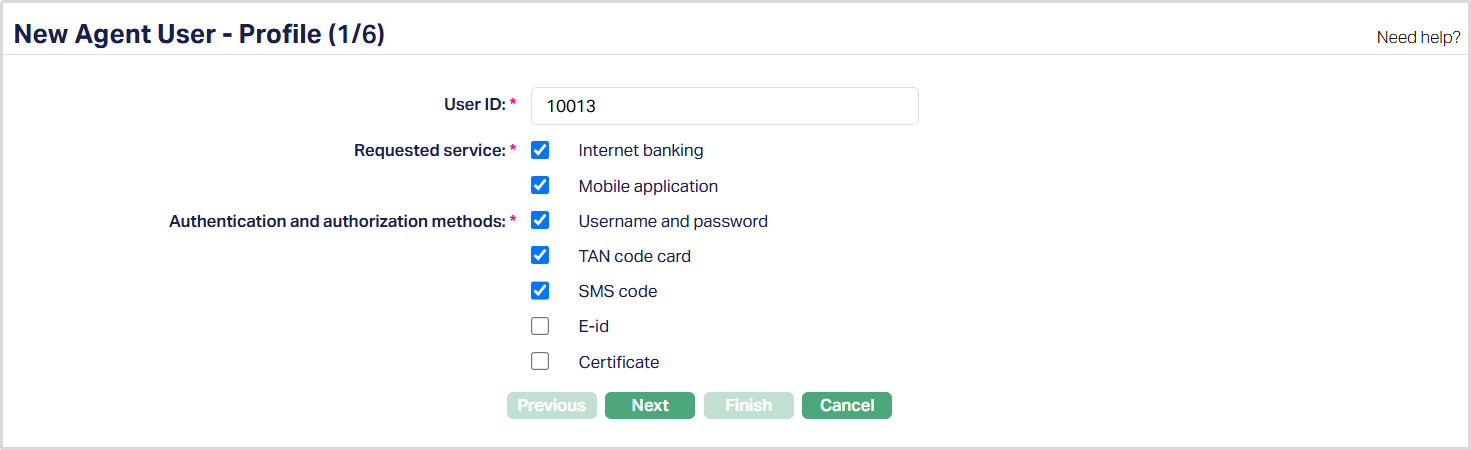
2. Enter the unique User ID for channel banking.
3. Select the option for Requested service. This will determine the type of service offered by bank. You can choose from:
- Internet banking
- Mobile application
4. Select the option for Authentication and authorization methods for the service for the Agent User. You can choose from
Username and Password: Using this method, user can login into the application using a username and password. Username and password is used only for authentication (logging -- in). The Password is automatically generated, printed and sent to the client.
TAN Code card: If this method is used, the users are issued plastic cards containing printed codes and a serial number. For each login or transaction confirmation and payment authorization, users may be asked to enter the next available code or the code against a specific serial number. If this option is chosen for the Agent User, then ensure that TAN code card is issued to the client using the tab Issue Code Card.
SMS code: If this method is used, the user can authorize a payment by using one time SMS code sent to the user by the bank. If the SMS code option is chosen by the client, Aura generates an encrypted code, and the bank sends a decrypted code to the client. This SMS code can be used by the client only once.
E-id: If this method is chosen, the channel user has to download the mobile application in his mobile. Bank will send the channel user a randomly generated Id to login into the mobile application. Once the channel user logs into the mobile application; bank will send a secret pin code (password) to the channel user. Using this pin code, the channel user can login into Internet Banking.
Certificate: In this method, the user can log-in and authorize payments using the Certificate. If this option is chosen for the Agent User, ensure that a secure device is issued to the client, using the Issue Secure Device tab. The Secure Device has an identifier code which is a randomly generated password). Using this code, the client can log into Internet Banking.
5. Click Next. New Agent User → General (2/6) page appears.
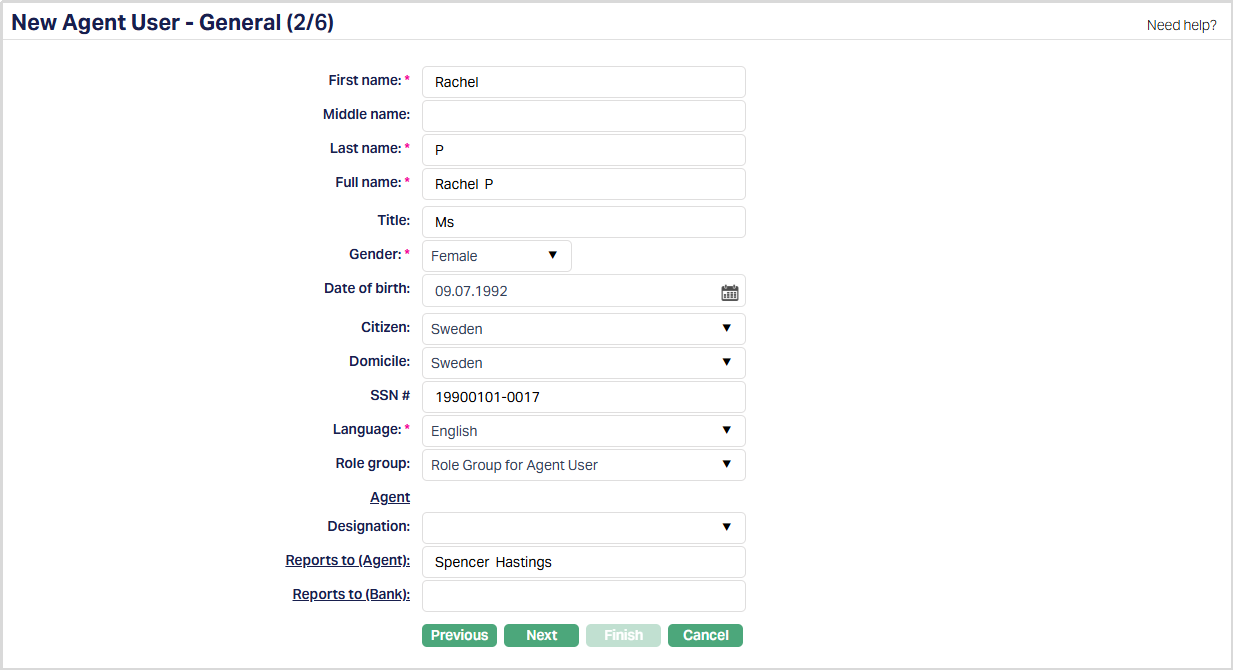
6. Enter First Name of the Agent user.
7. Enter Last Name of the Agent user.
8. On entering the First Name and Last Name Aura derives Full Name of the user.
9. Enter Title of the user i.e., prefix to the user First name.
10. Select Gender from the list of the pre-shipped options. The available options are Male, Female and Not disclosed.
11. Input Date of birth of the user. You can either enter the date manually or select using the calendar. Aura will validate the date format against the format maintained under Admin → Entities → Maintain → Regional → Date format.
12. Select the country in which the user is a Citizen from the list of countries maintained under Admin → System Codes → Generic definition → Countries.
13. Select Domicile of the user i.e., place of residence from the list of countries maintained under Admin → System codes → Generic definitions → Countries.
14. Enter SSN # of the user. It is the user's social security number i.e., a unique number provided by the person's residence country.
Note: The validation for SSN, if required, may be customized during implementation.
15. Select Language i.e., preferred Language of the user from the list of languages maintained under Admin → System codes → Generic definitions → Languages.
16. Select Designation of the Agent User from the list of options maintained under Admin → Users → Designations.
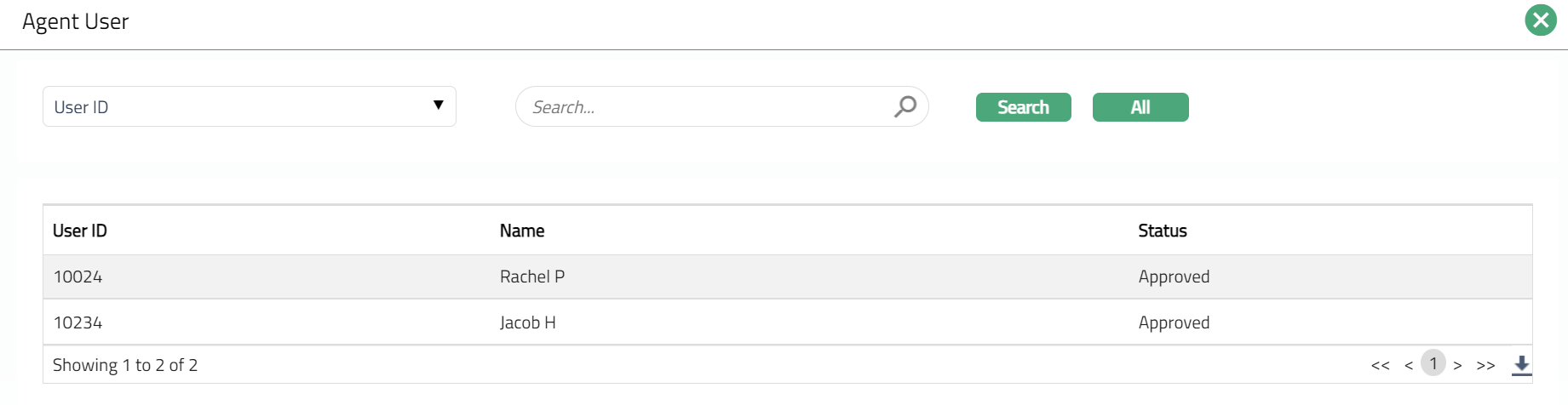
17. Select Agent user who will be reporting to the Agent/Merchant by clicking on the Report to (Agent) hyperlink. Agent user search page appears with the list of Agent user. Select the required User to whom the current user being created will be reporting to.
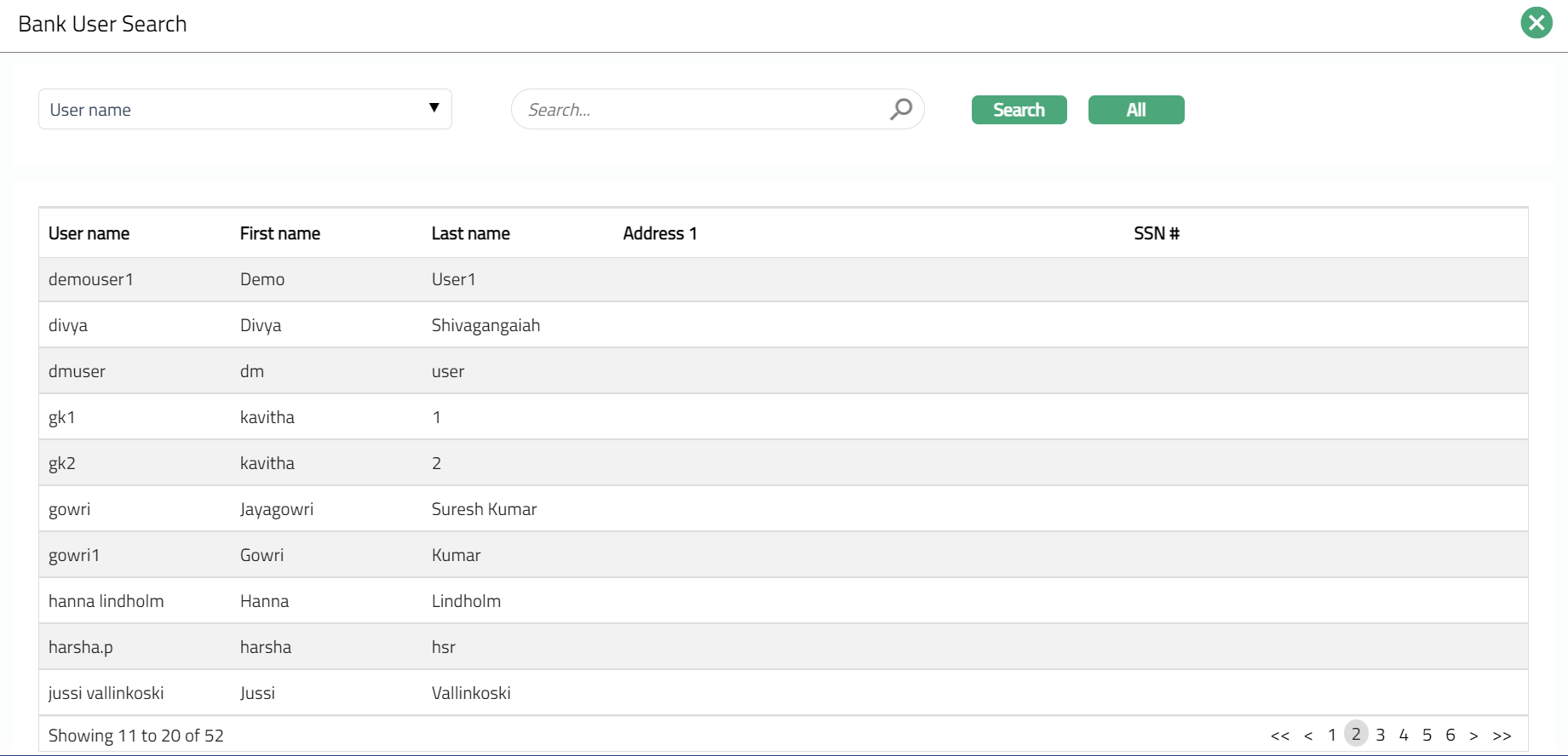
18. Select Agent user who will be reporting to the Bank by clicking on the Report to (Bank) hyperlink. Report to (Bank) search page appears where you can search for a Bank (Aura) user with relevant criteria and select the required User.
19. Click Next. New Agent User → Address (3/6) page appears.
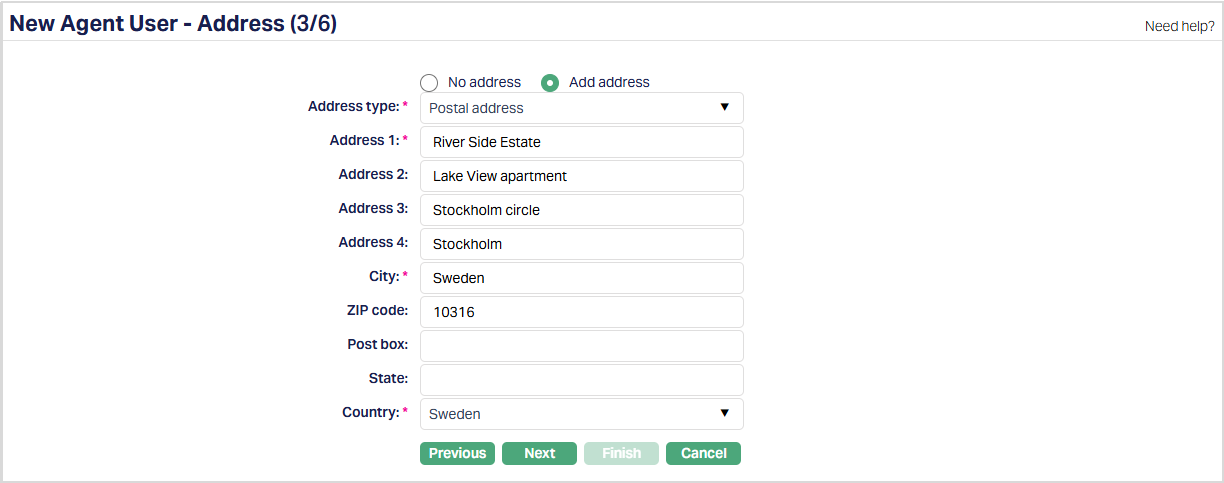
20. By default, No address is selected. If you do not want to record the address of the user at this stage, then you can select this option.
21. If you want to enter the address, then click Add address and provide the required details.
22. Select Address type from the list of Address types maintained under Admin → System codes → Address Details → Address types.
23. Enter address details in Address 1, Address 2, Address 3 and Address 4 i.e., any additional locator such as name of Apartment / Building, a prominent landmark, etc, which will help to locate the address more easily.
24. Enter City of the user.
25. Enter Zip code of the user.
26. Enter Post box of the user.
27. Enter State of the user.
28. Select Country from the drop-down list maintained under Admin → System codes → Generic definitions → Countries.
29. Click Next. New Agent User → Phone (4/6) page appears.
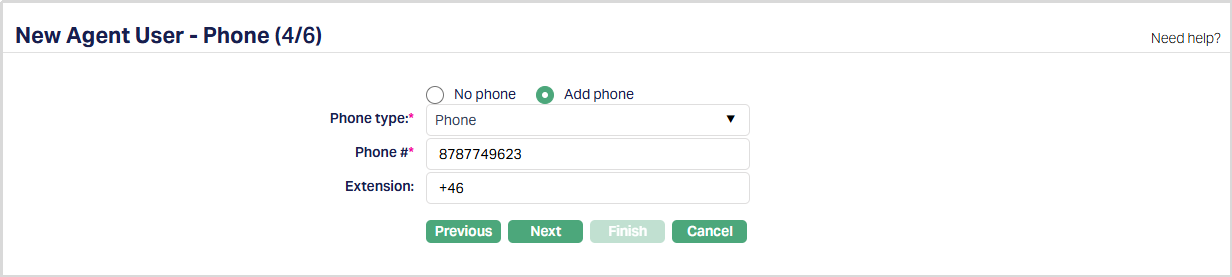
30. By default, No phone is selected. If you do not want to input the phone details at this stage, then you can select this option.
31. If you want to enter the phone details, then click Add phone and provide the required details.
32. Select Phone type from the drop-down list maintained under Admin → System Codes → Address details → Phone types.
33. Enter Phone # of the person.
34. Enter Extension of the phone of the person.
35. Click Next. New Agent User → E-mail (5/6) page appears.

36. By default, No E-mail is selected. If you do not want to enter the E-mail details of the user at this stage, then you can select this option.
37. If you want to enter the E-mail, then click Add E-mail and provide the required details.
38. Select E-mail type from the drop-down list maintained under Admin → System Codes → Address details → E-mail types.
39. Enter E-mail address of the User.
40. Click Next. New Agent User → Confirmation (6/6) page appears.
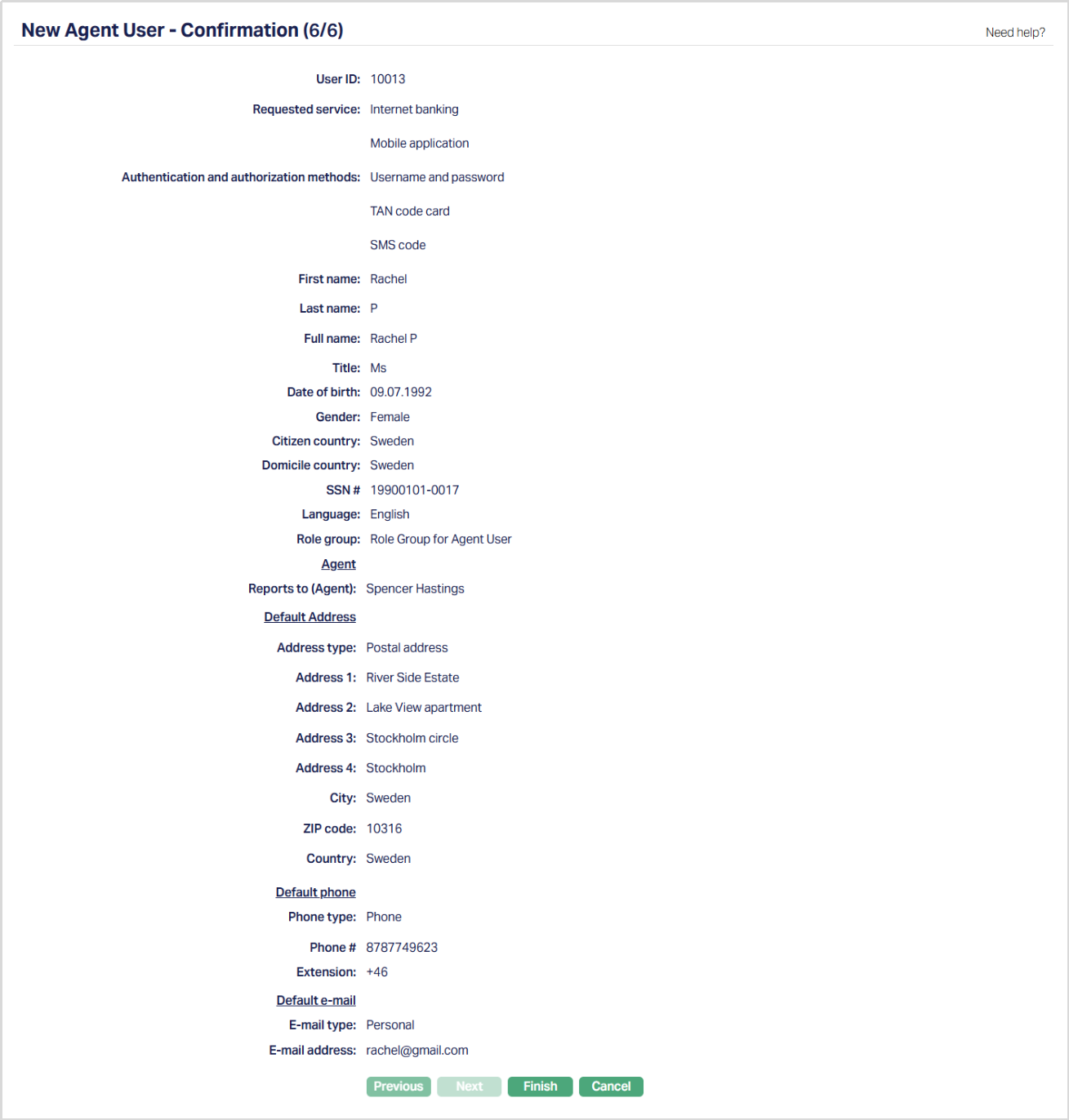
41. Click Finish. Agent User page appears with the new Agent User details, and you can see the Profile tab by default.
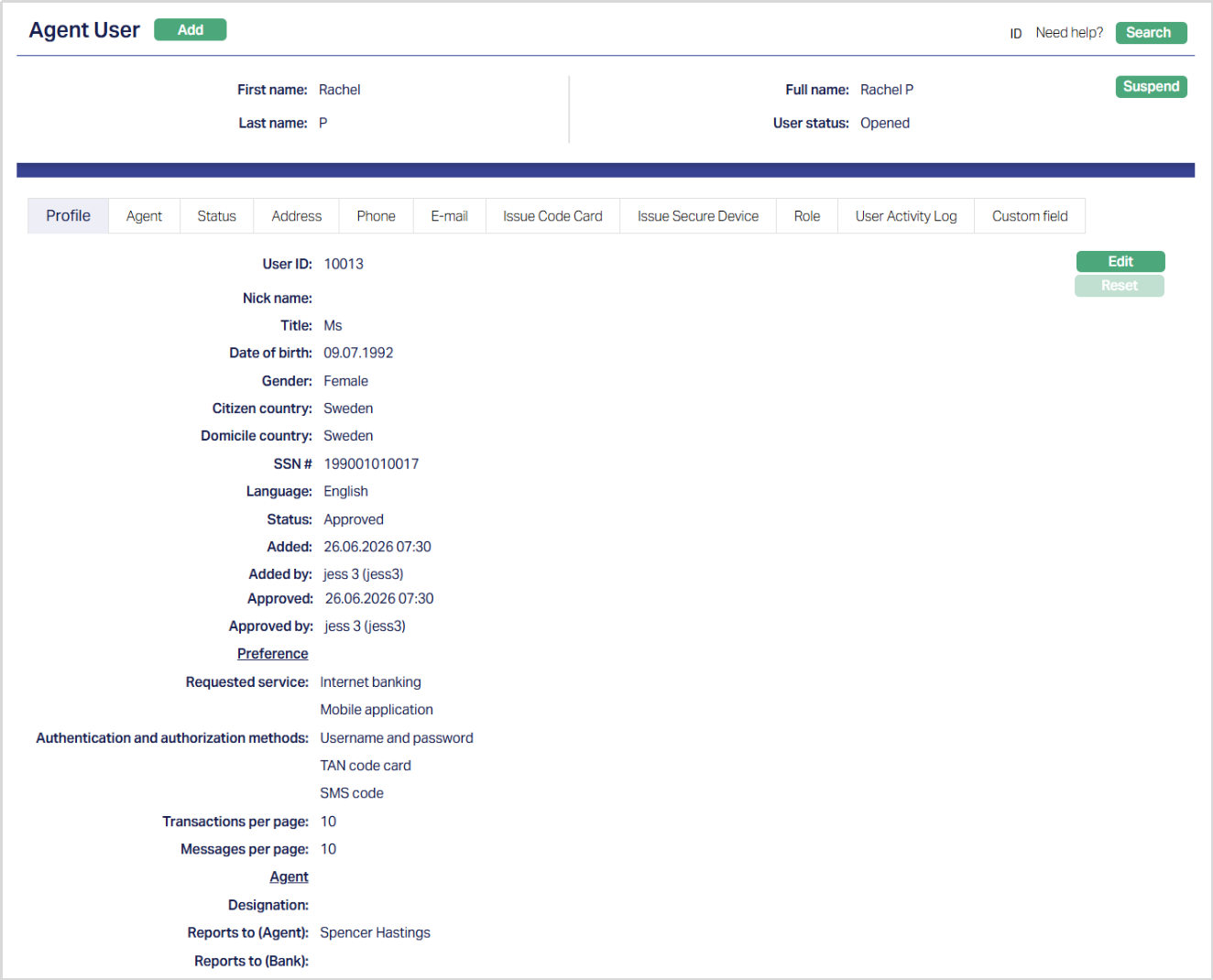
Functions: Suspend, Edit, Reset.
Suspend: You can suspend an Agent User by clicking on Suspend button. When you click on Suspend button, Aura will ask for confirmation. On confirmation Aura will suspend the User and Activate button will appear in place of the Suspend button.
Activate: If you want to activate a suspended Agent User then click on Activate button. Aura will ask for confirmation. On confirmation Aura will Activate the User and Suspend button will appear in place of Activate button.
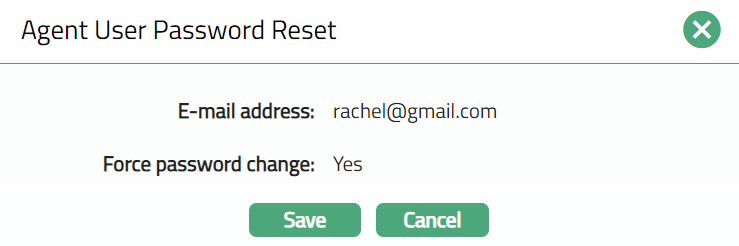
Reset Password: If you want to reset the password for the Agent User, then click on Reset Password button. Aura will ask for confirmation. On confirmation Aura will automatically generate a password and send to the Agent User.
Profile
Profile tab, which is the default tab in the Agent Maintenance screen, shows the basic details of the Agent User. It is also used to reset the password of a user.
To view / edit the details in the Profile Tab,
1. Access Agent Maintain page and click Profile tab to view the details as per sample below. The details are defaulted from the entries that you made during creation of an Agent User.
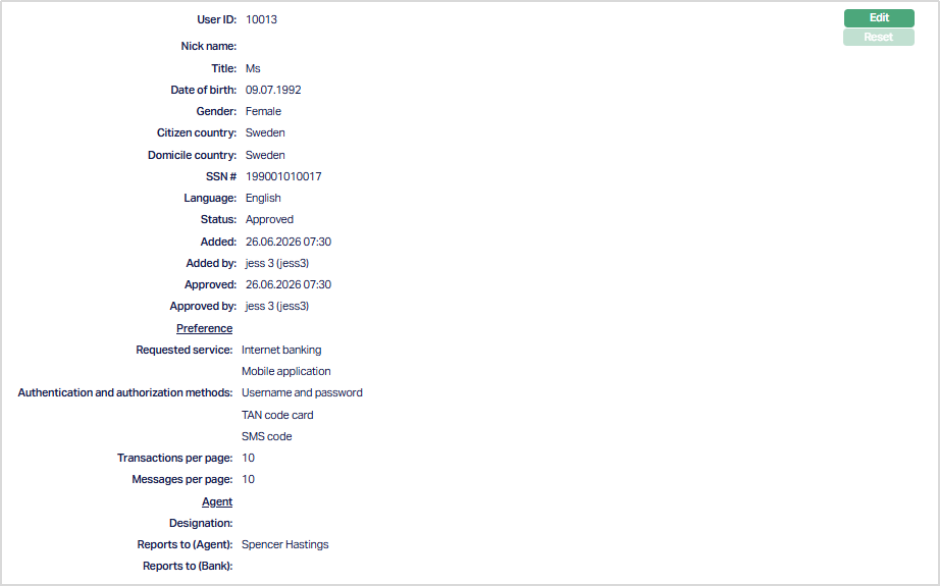
The additional fields are as follows:
Nick name: When the Agent user logs into the Internet Banking, he is asked to input the Nick name. Nick name input there is displayed here and is non-editable.
Transaction per page: When the Agent user logs into the Internet Banking, he is asked to enter the number of transactions to be displayed per page. Transaction per page input there is displayed here and is non-editable.
Message per page: When the Agent user logs into the Internet Banking, he is asked to enter the number of messages to be displayed per page. Message per page input there is displayed here and is non-editable.
Status field displays the status of the tab.
Added field displays the date on which the record was added.
Added by field displays the name of the user who created the record.
Approved field displays date on which the record was approved and is displayed only for approved records.
Approved by field displays name of the user who approved the record and is displayed only for approved records.
2. Click Edit. Edit Agent User page appears.
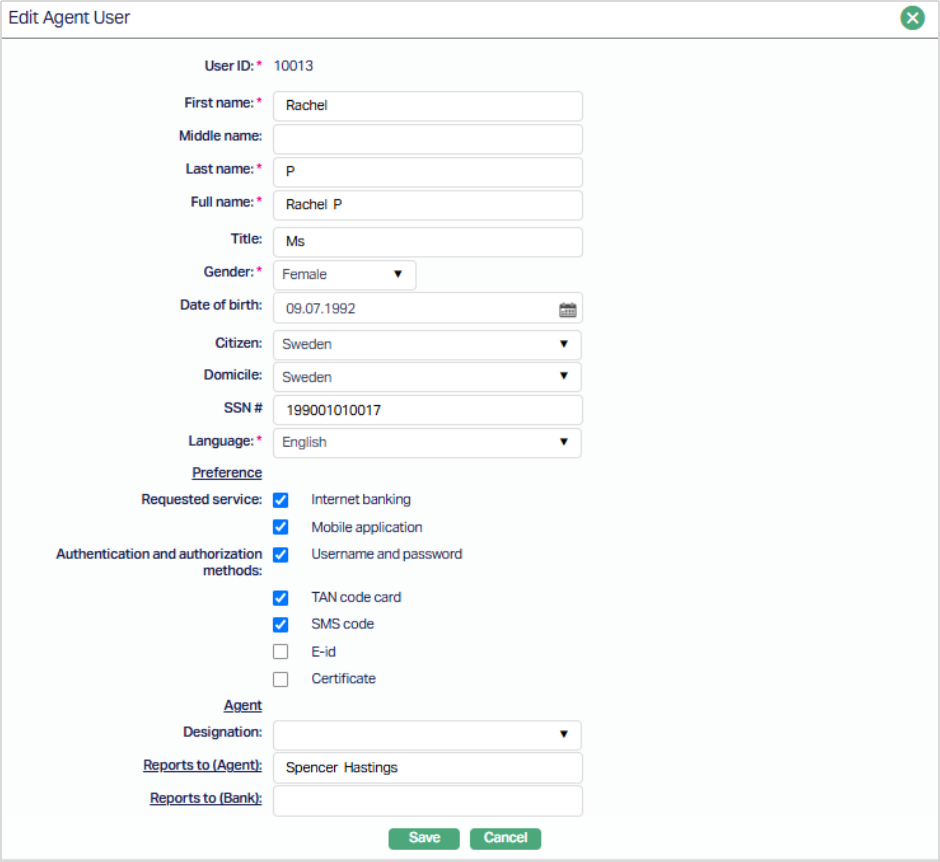
All the fields are editable except User Id.
3. Select Agent user who will be reporting to the Agent/Merchant by clicking on the Report to (Agent) hyperlink. Agent user search page appears with the list of Agent user. Select the required User to whom the current user being created will be reporting to.
4. Select Agent user who will be reporting to the Bank by clicking Report to (Bank) hyperlink. Report to (Bank) search page appears where you can search for a Bank (Aura) user with relevant criteria and select the required User.
5. Click Save. Profile tab appears with the added details.
Functions: Edit, Reset Password
Reset Password: If you want to reset the password for the Agent User, then click on Reset Password button. Aura displays an alert message. On confirmation Aura will automatically generate a password and send to the Agent User.
Agent
The Agent tab allows you to map and manage Agents associated with an Agent User. An Agent User can be mapped to one or more Agents, with one active agent designated as the Default agent.
To view/add an agent,
1. Access Agent User maintain page and click Agent tab. When the Agent User is created, this tab does not display any records because no Agents are mapped to the Agent User.

2. Click Add. The Add Agent page appears.

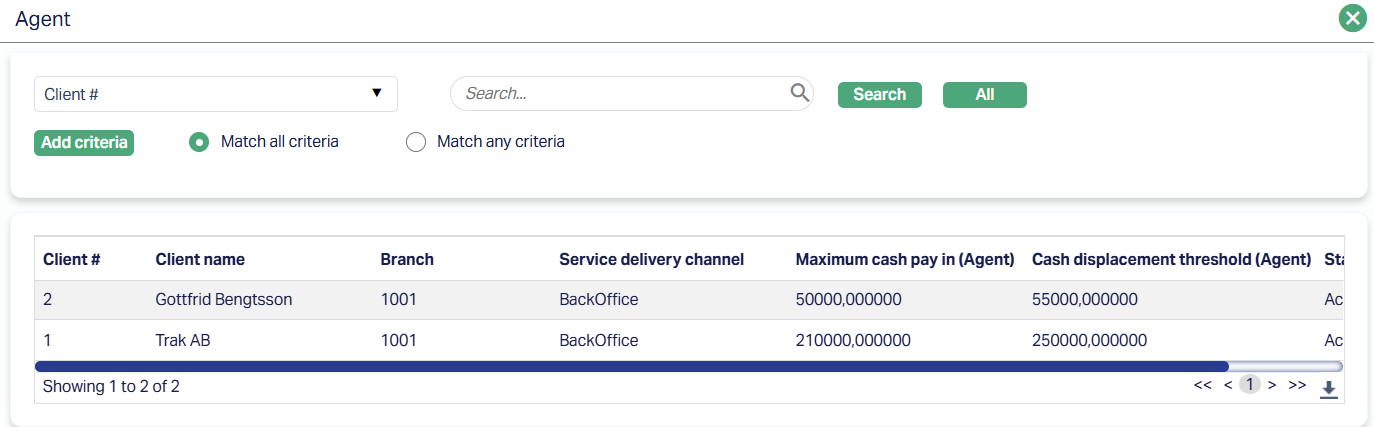
3. Select the Agent by clicking on the Agent hyperlink. The Agent search page appears displaying all the active Agents maintained under CRM - Sales - Agent as shown in the screenshot below.
4. The Default checkbox is selected by default when adding the first agent.
5. Click Save. The Agent tab appears with the added details.

Functions: Add, Edit, Suspend.
Notes:
- Only Agents with the status Activated can be selected.
- An Agent that is already mapped to the Agent User cannot be selected again.
- When the first agent is mapped to an Agent User, Aura automatically marks the Agent as the Default Agent. The Default checkbox is selected and disabled.
Edit: When only one Agent is mapped to the Agent User, the Edit button is disabled because the Agent is automatically designated as the Default Agent. When an additional Agent is added, the Edit button is enabled for the Active Agent with Default = No. You can use the Edit option to designate the selected Agent as the Default Agent.

To edit/change the Default Agent,
1. Select the required Agent and Click Edit. The Edit Agent page appears.
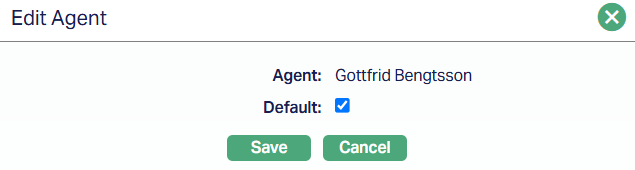
2. Select the Default checkbox.
3. Click Save. The selected Agent is marked as the Default Agent, and the previously configured default Agent is automatically updated to Default = No.

Functions: Add, Edit, Suspend.
Suspend: You can suspend an Agent by clicking on the Suspend button. When you click on the Suspend button, Aura will ask for confirmation. On confirmation Aura will suspend the User and Activate button will appear in place of the Suspend button.
Activate: If you want to activate a suspended Agent then click on the Activate button. Aura will ask for confirmation. On confirmation Aura will Activate the User and Suspend button will appear in place of the Activate button.
Status
Using the Status tab, you can add and view the history of the Agent User status, as well as approve the status records. On creating an Agent User, the status is Opened.
To add Agent User Status
1. Access Agent User page and click Status tab.
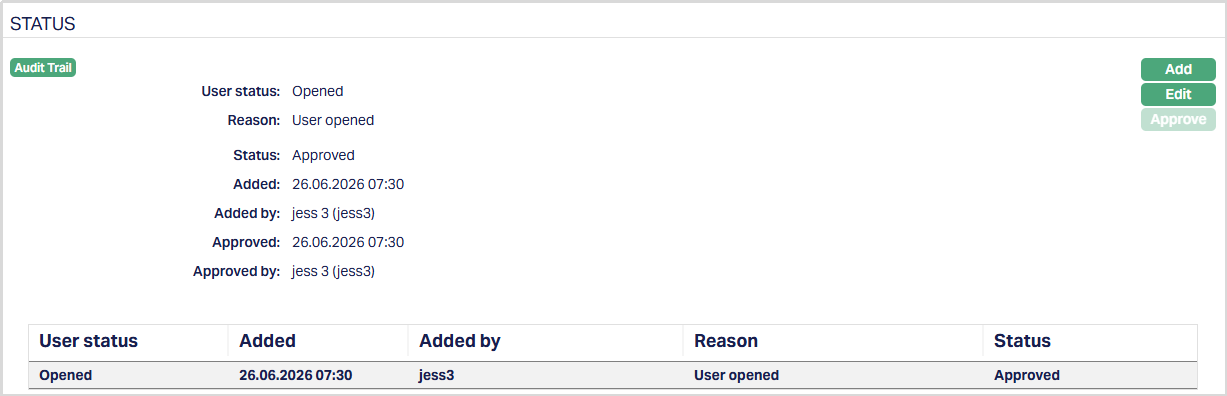
2. Click Add. Add Agent User status page appears.
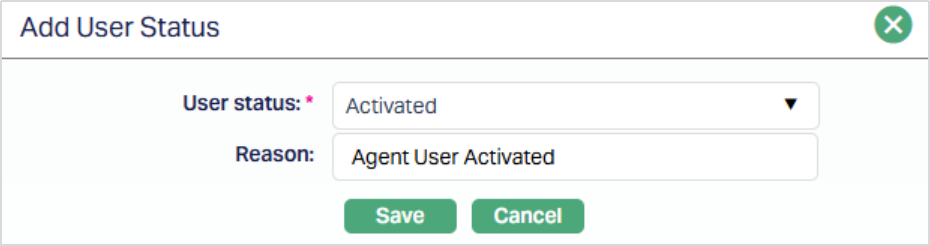
3. Select Status from the drop-down list. Depending on the current status of the Agent, the possible values are:
a. Activated: This is the status in which transactions are allowed. It has to be manually set by a user different from the one who created the account.
b. Suspended: If you want to suspend the Agent, then you can change the status of the record to suspend. On suspension of the Agent, Aura will suspend all Outlets, Terminals and Agent Users linked to the Agent. Aura will also suspend all Terminals and Agent Users linked to the Outlet, which is suspended at Agent Level.
Aura will validate and allow you to change the status as mentioned below.
Opened to Activate
Opened to suspended.
Activate to Suspended
Suspended to Activate.
4. Enter the Reason for the status selected.
5. Click Save to save the changes that you made.
Note: On creation of Agent User, the Agent User status by default will be Opened and Record status will be Pending. The Agent User will not be activated unless Activated status is added to the Agent User and is approved by authorized person. Only on Approval, the Agent User Status becomes Activated, and the Record Status gets changed to Approved and the red bubble disappears.
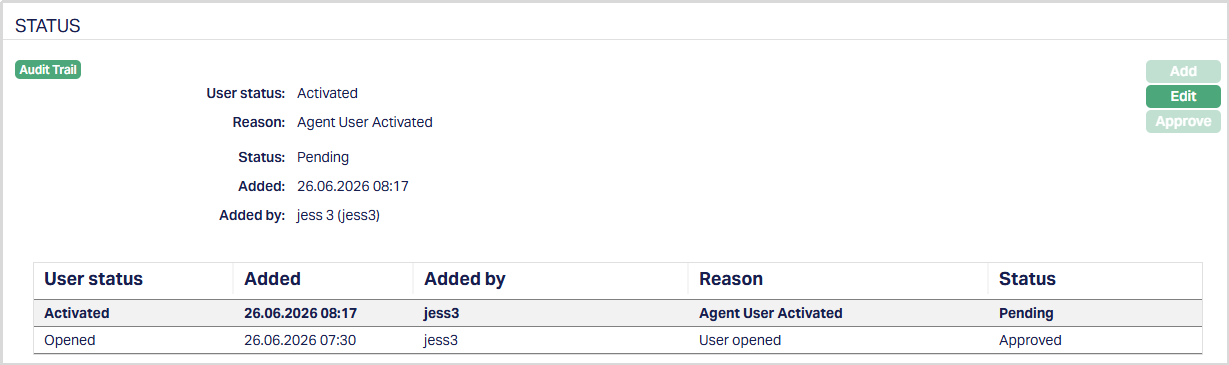
Functions: Add, Edit, Approve
To edit Status,
1. Click Edit. Edit User Status page appears.
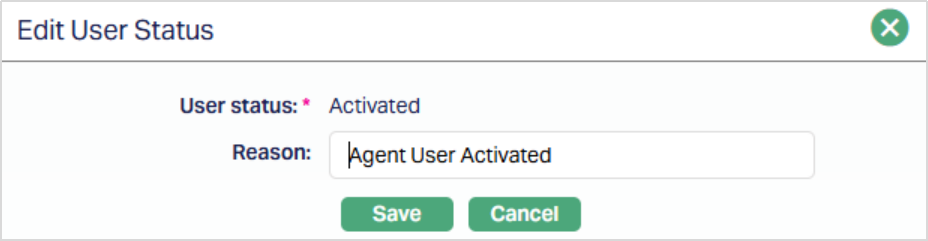
Note: Only Reason is editable.
2. Make required changes and click Save.
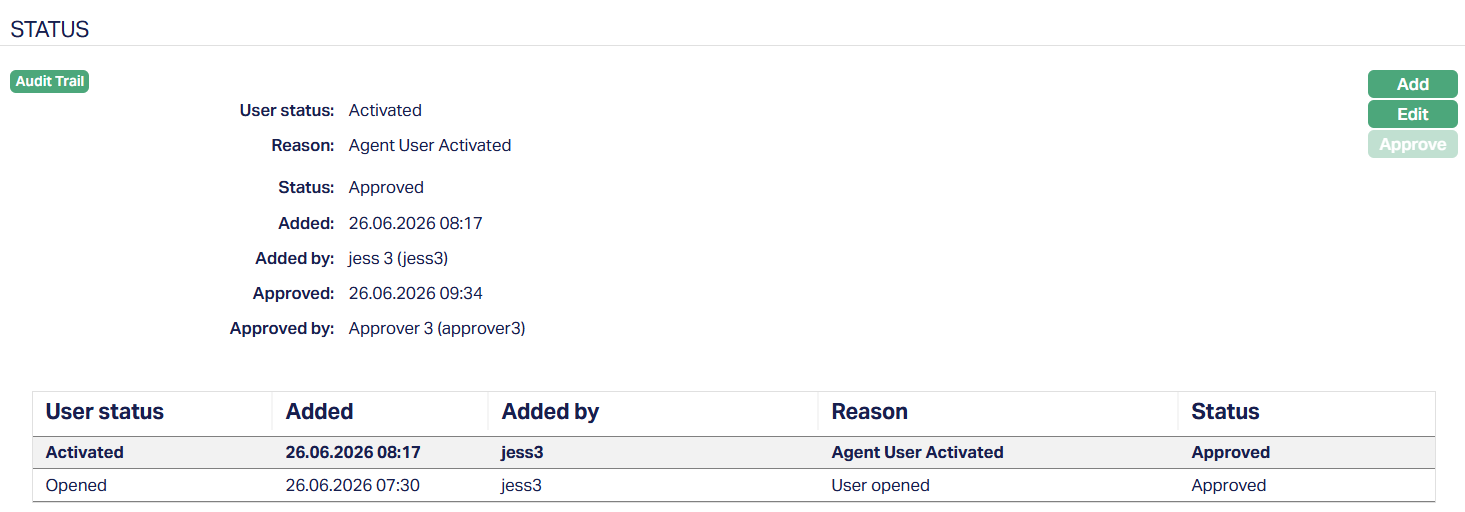
Functions: Add, Edit, Approve
Address
The Address tab allows you to maintain the address of the User.
To view the details,
1. Access Agent User Maintain page and click Address tab to view the details as per sample below. The details are defaulted from the entries that you made during creation of a New Agent User. For details refer New Agent User → Address (3/6).
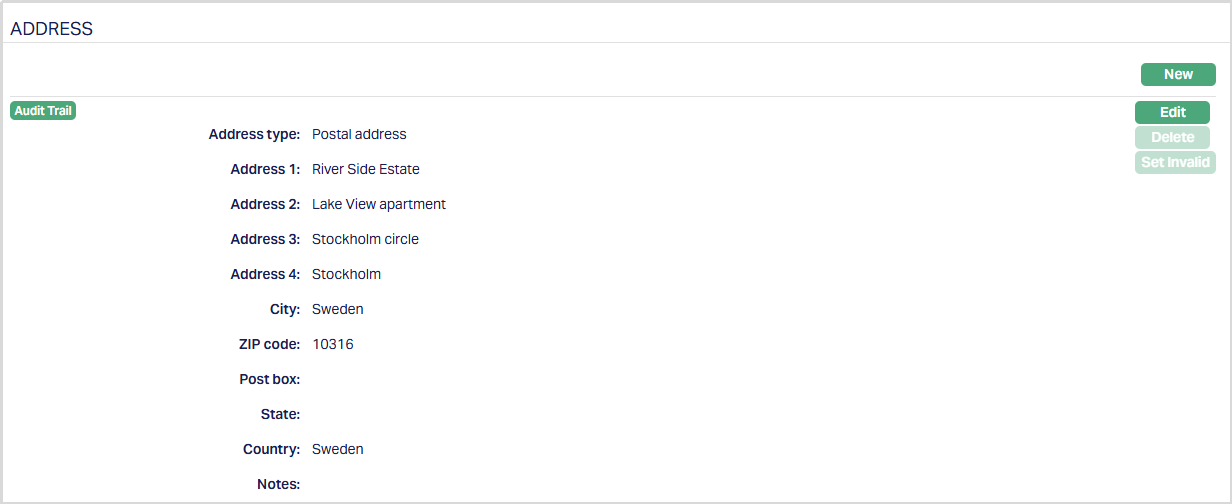
The additional field is Notes. This field will allow you to add a note for the address.
2. Click New to add a new address New Address page appears.
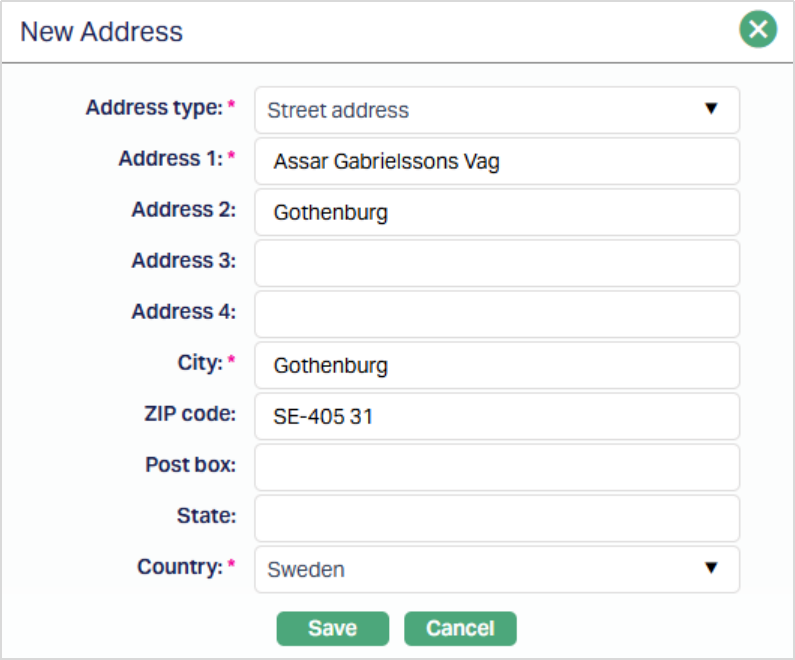
3. Select Address type from the list of Address types maintained at Admin → Address Details → Address types.
4. Enter address details in Address 1, Address 2, Address 3 and Address 4 i.e., any additional locator such as name of Apartment / Building, a prominent landmark, etc, which will help locate the User's address more easily.
5. Enter City or the town of the User's address as designated by the post office.
6. Enter Zip code or postal code in full, if used in the User's address.
7. Enter Post box details of the address.
8. Enter State in which the address exists, if applicable.
9. Select Country from the list of countries maintained at Admin → Generic Definitions → Countries.
10. Click Save. Address tab appears with the added details.
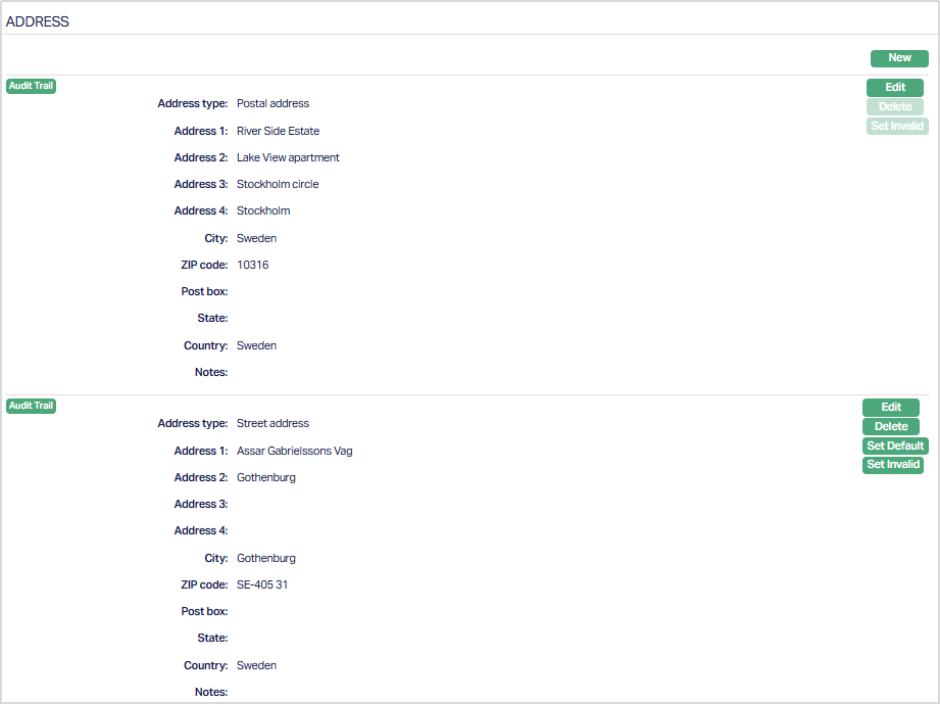
Functions: New, Edit, Delete, Set Default, Set Invalid, Set Valid
Delete: You can delete the Address saved in Aura by a clicking on Delete button. Aura will ask for confirmation, on approving which the selected record will be deleted.
Set Invalid: You can set the selected address as invalid by clicking on Set Invalid button. When you click on Set Invalid button, Aura will ask for confirmation. On confirmation Aura will set the address as invalid and Set Valid button will appear in place of Set Invalid button.
Set valid: If you want to set the address as valid, then click on Set valid button. Aura will ask for confirmation. On confirmation Aura will set the address as valid and Set Invalid button will appear in place of Set valid button
Set Default: When you create multiple address records, you can set one of them as the default address using this button. When there is only one address, the same is taken as the default address.
To Edit Address,
1. Click Edit. Edit Address page appears.
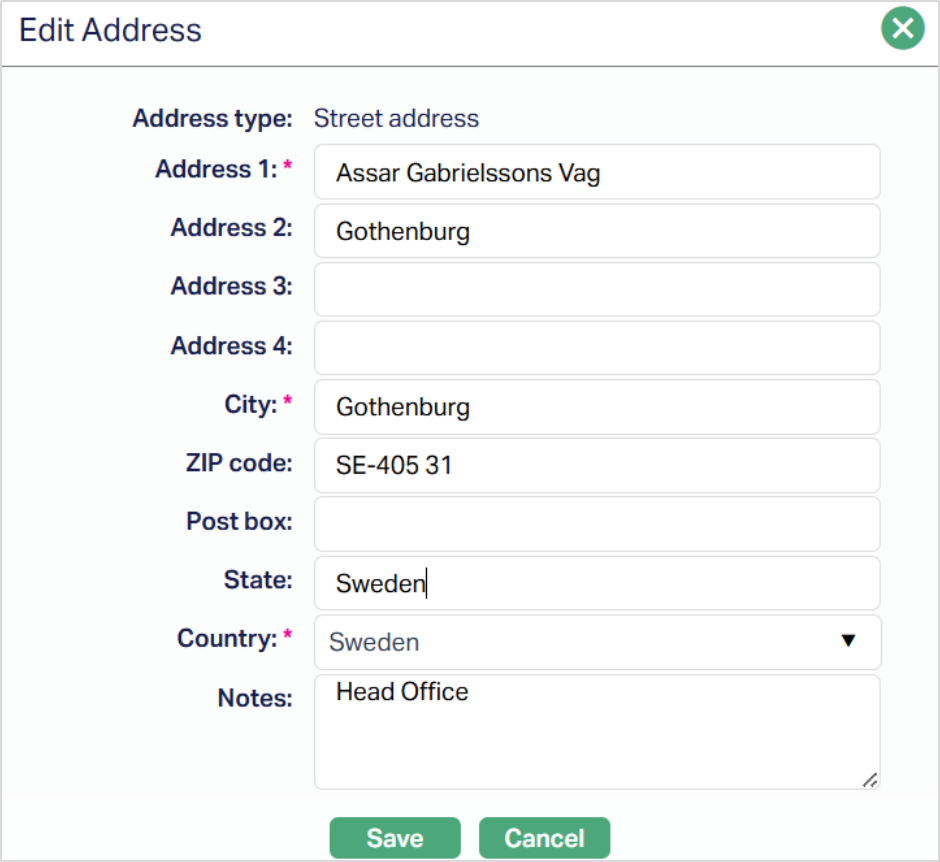
Make required changes and click Save. Address page appears with the edited details.
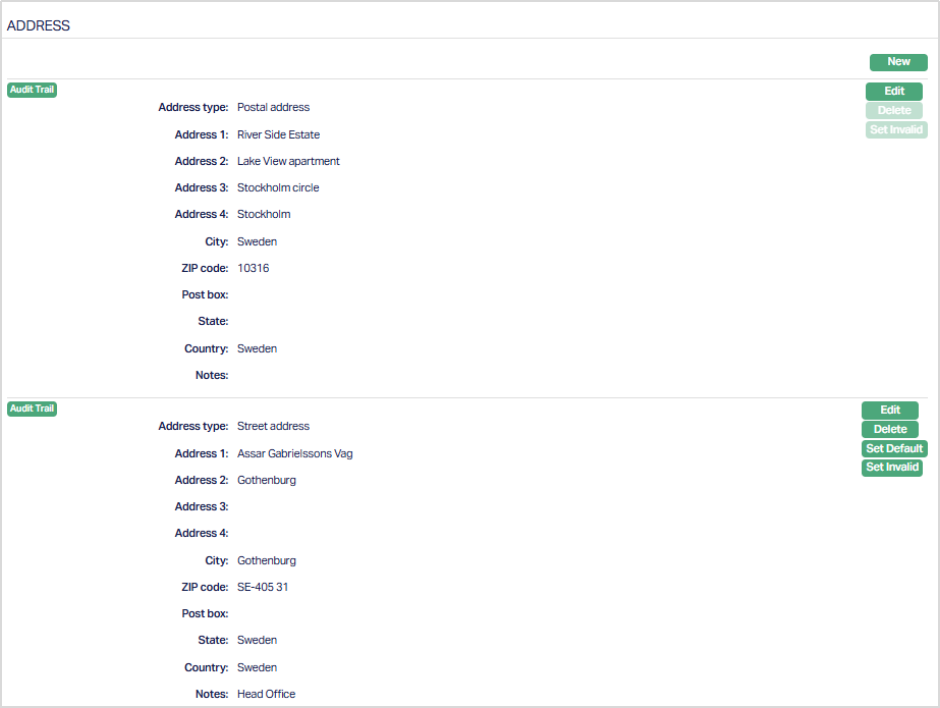
Phone
Phone tab allows you to maintain the phone details of the User.
1. Access Agent User Maintain page and click Phone tab. The details are defaulted from the entries that you made during creation of a New Agent User. For details refer to New Agent User → Phone (4/6).
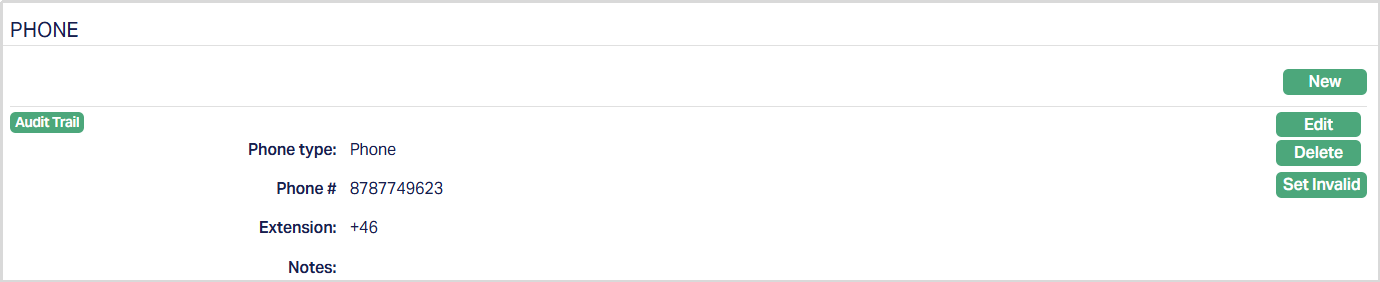
The additional field is Notes. This field will allow you to add a note for the Phone.
2. Click New to add the new phone details. New Phone page appears.
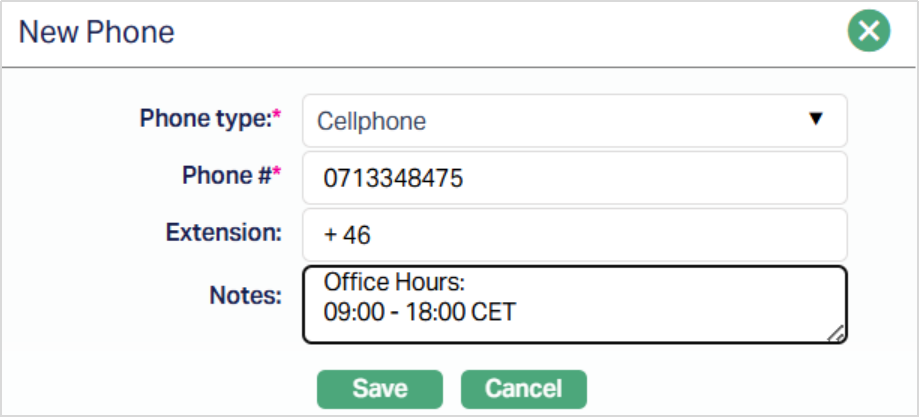
3. Select Phone type from the dropdown list. The Phone type should be maintained at Admin → System codes → Address Details → Phone types.
4. Enter Phone # i.e., the phone number of the user.
5. Enter Extension for the Phone #.
6. Enter Notes, if there is any additional information that you wish to capture regarding the phone record.
7. Click Save. New phone details will be displayed under the Phone tab.
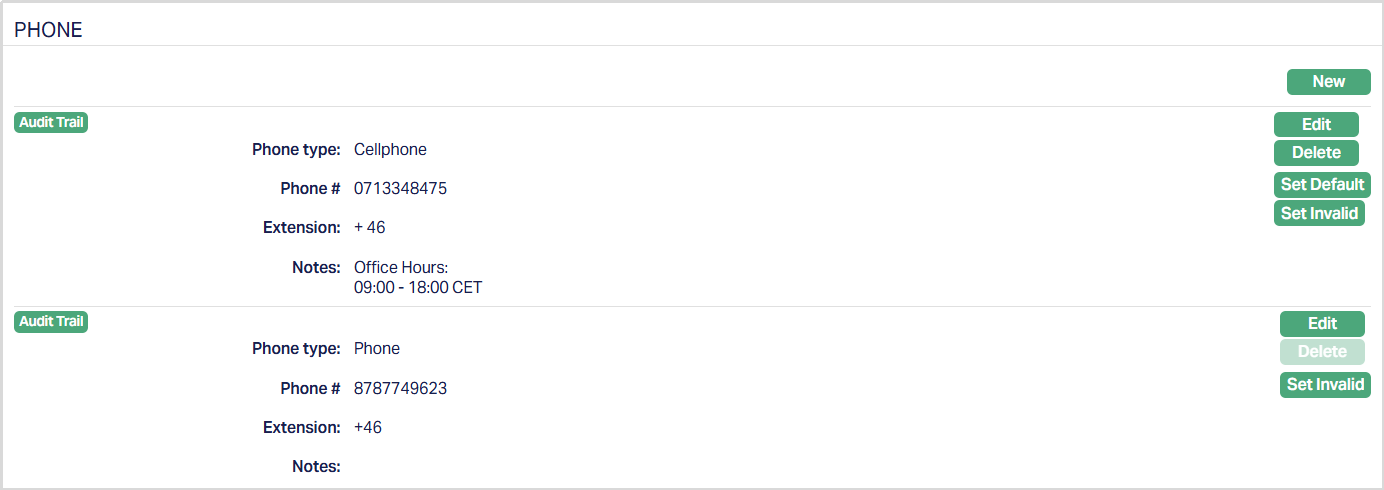
Functions: New, Edit, Delete, Set Default, Set Invalid, Set Valid
Delete: You can delete the Phone details saved in Aura by a clicking on Delete button. Aura will ask for confirmation, on approving which the selected record will be deleted.
Set Invalid: You can set the selected Phone details as invalid by clicking on Set Invalid button. When you click on Set Invalid button, Aura will ask for confirmation. On confirmation Aura will set the address as invalid and Set Valid button will appear in place of Set Invalid button.
Set valid: If you want to set the Phone details as valid, then click on Set valid button. Aura will ask for confirmation. On confirmation Aura will set the address as valid and Set Invalid button will appear in place of Set valid button
Set Default: When you create multiple Phone records, you can set one of them as the default Phone details using this button. When there is only one Phone detail, the same is taken as the default Phone.
To Edit Phone,
1. Click Edit. Edit Phone page appears.
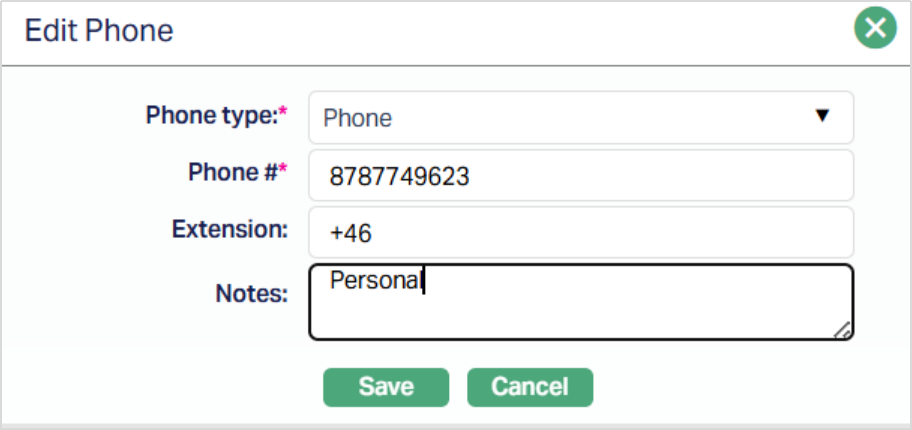
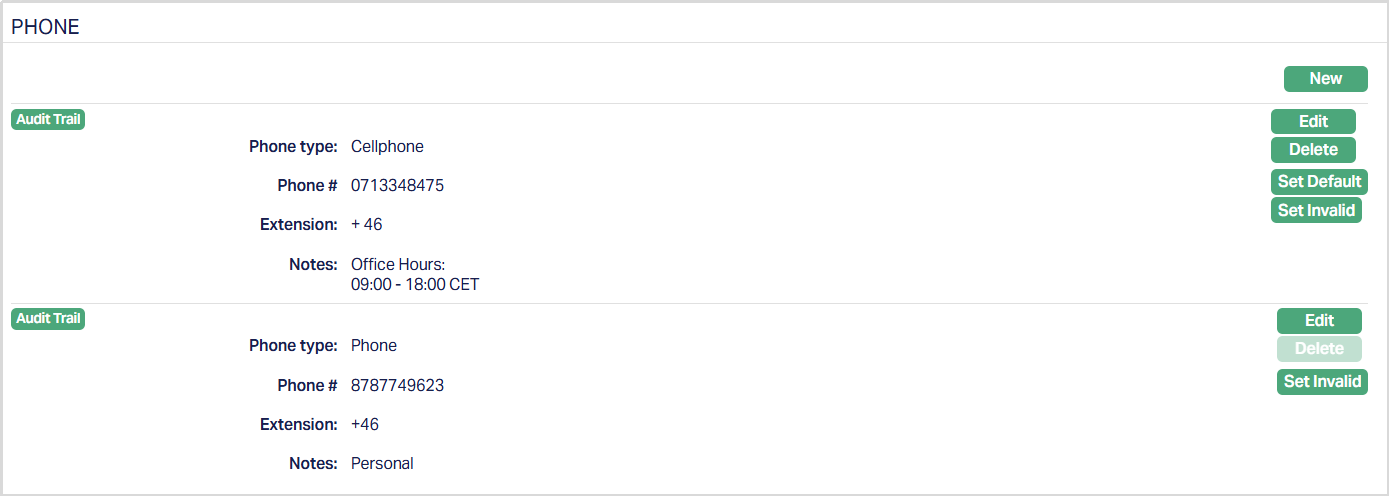
Make the required changes and click Save. Phone page appears with the edited details.
E-mail tab allows you to maintain the E-mail details of the User.
1. Access Agent User Maintain page and click E-mail tab. The details are defaulted from the entries that you made during creation of a New Agent User. For details refer to New Agent User → E-mail (5/6).

The additional field is Notes. This field will allow you to add a note for the E-mail.
2. Click New to add the new e-mail details. New E-mail Address page appears.
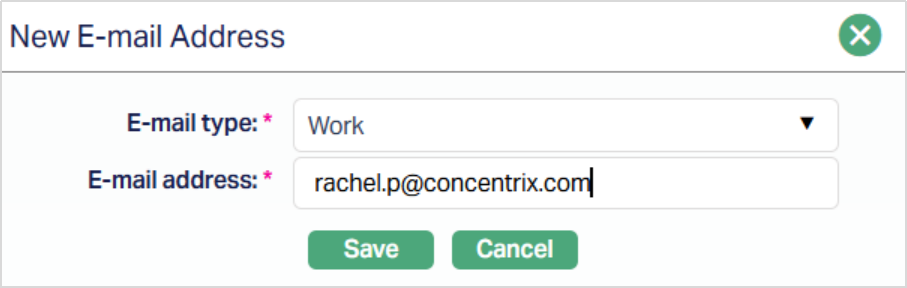
3. Select the Email type from the dropdown list of E-mail types maintained under Admin → System codes → Address Details → E-mail types.
4. Enter the E-mail address.
5. Click Save. E-mail tab appears with the added details.
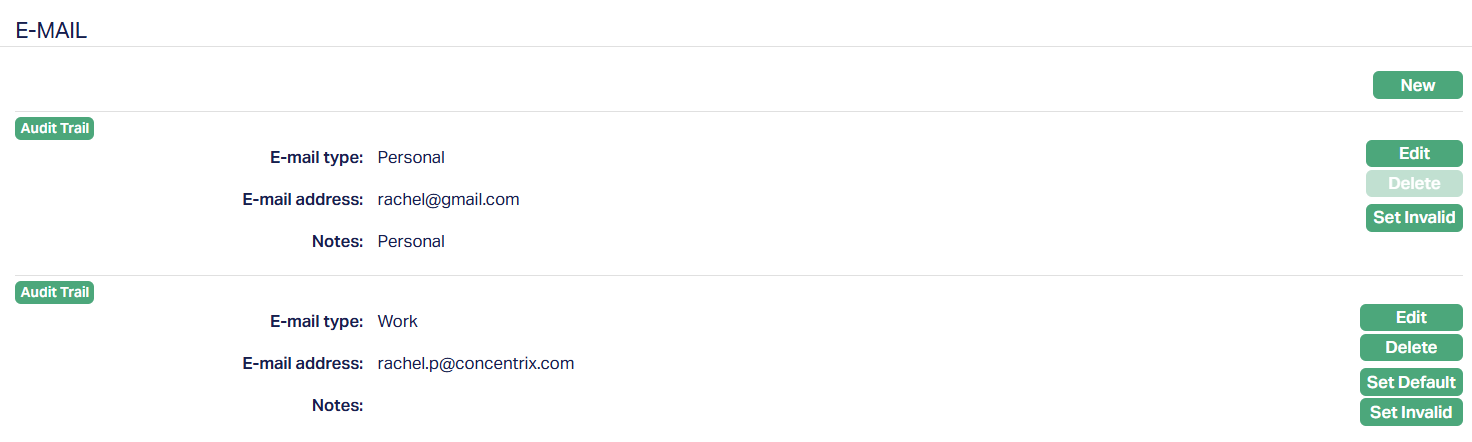 Functions: New, Edit, Delete, Set Invalid, Set Default, Set Valid
Valid: You can delete the E-mail saved in Aura by a clicking on Delete button. Aura will ask for confirmation, on approving which the selected record will be deleted.
Set Invalid: You can set the E-mail as invalid by clicking on Set Invalid button. When you click on Set Invalid button, Aura will ask for confirmation. On confirmation Aura will set the E-mail as invalid and Set Valid button will appear in place of Set Invalid button.
Set valid: If you want to set the E-mail valid, then click on Set valid button. Aura will ask for confirmation. On confirmation Aura will set the E-mail as valid and Set Invalid button will appear in place of Set valid button.
Set Default: When you create multiple E-mail records, you can set one of them as the default E-mail details using this button. When there is only one E-mail detail, the same is taken as the default E-mail.
To Edit E-mail,
1. Click Edit. Edit E-mail page appears.
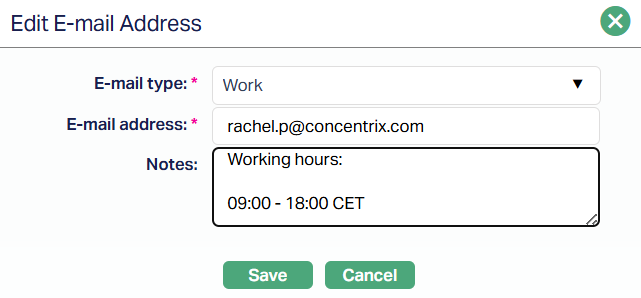
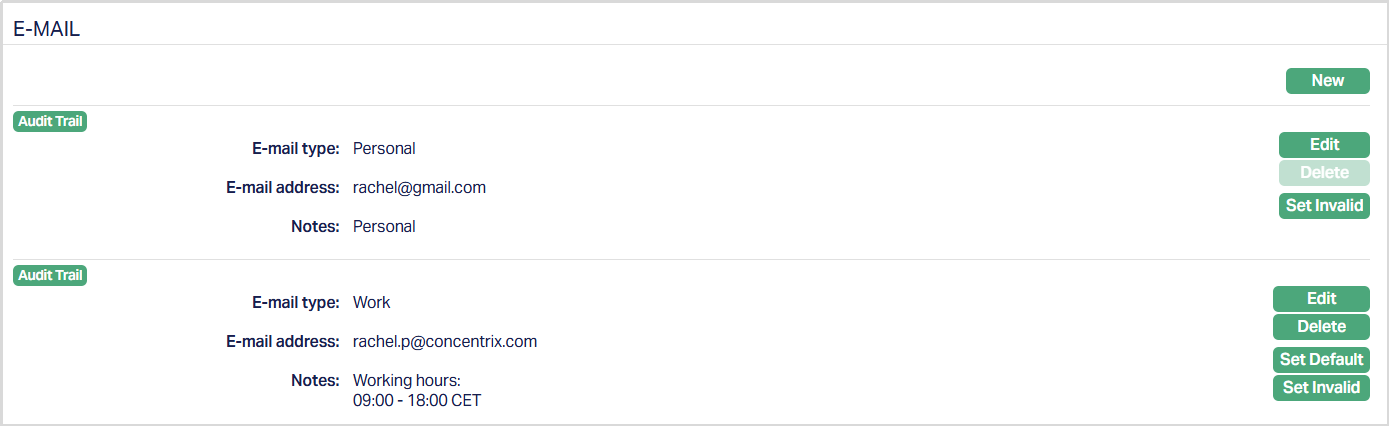
2. Click Save. E-mail tab appears with the editted details.
Role
**Role ** tab allows you to maintain the Role Group details of the User.
To View/Edit Role Group,
1. Access Agent User Maintain page and click Role Group tab. The details are defaulted from the entries that you made during creation of Role Group under Admin → User → Role Group

2. Click Edit. Edit Role Group page appears.
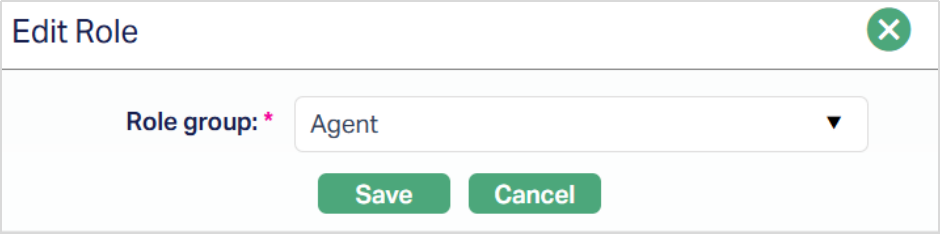
3. Click Save. Role Group tab appears with the editted details.

Functions: Edit, Approve
Issue Code Card
One of the commonly used login methods for a secure login to internet banking is via Code card. In this method the users are issued plastic cards containing printed codes and a serial number. For each login or transaction confirmation, users may be asked to enter the next available code or the code against a specific serial number. Using this tab, you can issue these cards to the client.
To issue new code card,
1. Access Agent User Maintain page. Click Issue Code Card tab and click New. Issue Code Card page appears. New button will be enabled only when TAN code card method is chosen.
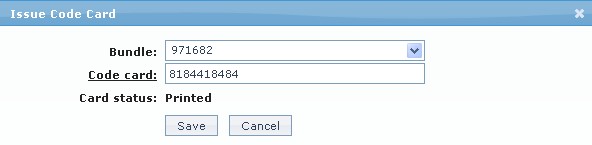
2. Select the Bundle from the dropdown list maintained under Admin → Secure stationery → Card bundle with status as Printed.
3. Aura randomly allocates one of the cards from the card bundle to thevCode card. However, you can click Code card hyperlink to select any other card within the selected card bundle. The number of codes allocated to the card needs to be used by the user before he is issued another code card by the bank.
4. Card status of the code card is displayed by Aura.
Note:
Only if the Code Card status is Printed, it can be issued for use to an Agent User.
The Card status is updated to Reserved as soon as the record is saved. The Code Card selected is Reserved for the Agent User.
Once the record is approved, the Card status gets updated to Issued.
If you want to Block the Code Card; you need to mark it as Blocked using the Edit option in Card Maintenance (Admin → Secure stationery → Card Maintenance → Edit). The Card status also gets updated to Blocked.
5. Click Save. The Agent User Maintenance page appears displaying the details of the code card issued. After saving, Aura will update the Card Status as Reserved, and the record status will get updated as Pending. This means that the issued card with that card number cannot be issued for any other user. It is reserved for the allotted user.

Functions: New, Delete, Approve
Delete: You can delete Code card saved in Aura by a click on Delete button. Aura will ask for confirmation. On confirmation Aura will delete the selected Code card. Once the Code card is approved, it cannot be deleted.
Approve: If you want to Approve a Code card, then retrieve the record and Click on Approve. Aura will ask for confirmation. Once the tab is approved, status gets changed from pending to Approved.
Note: Any person other than the one who assigned the card can approve the issued Code Card. Once the Code Card is approved, the Card Status will change to Issued.
Issue Secure Device
Issue secure device is another medium for logging in to internet banking. A device is issued by the bank to the user which has an identifier code. It is reusable unlike Code Card.
To issue a new secure device,
1. Access Agent User Maintenance page. Click Issue Secure Device tab.

2. Click New. Issue Secure Device page appears.
Note: New button will be enabled only when Certificate method is chosen.
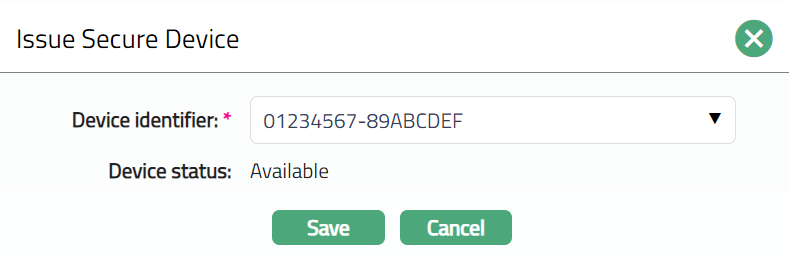
3. Select Device identifier from the dropdown list maintained under Admin → Secure stationery → Secure device. You can add only one device for a user.
4. Aura displays the Device status of the secure device.
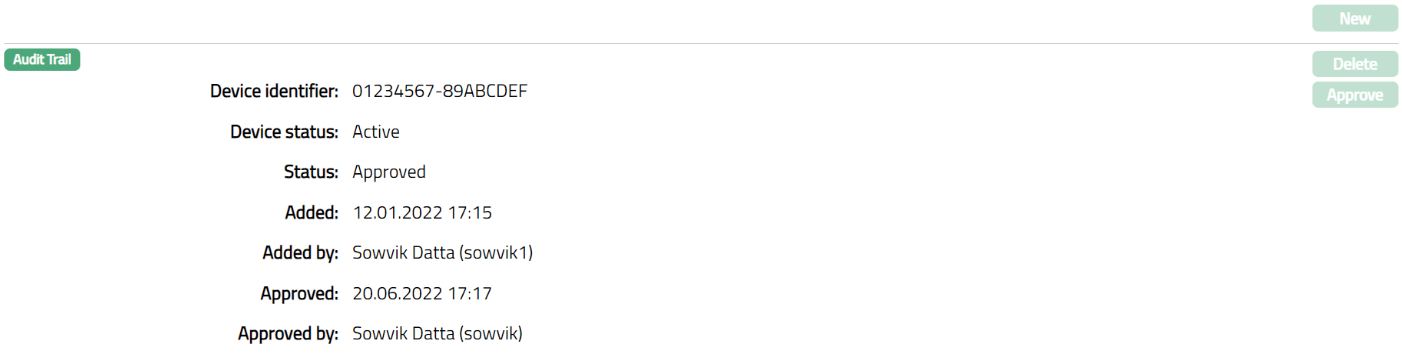
5. Click Save. Agent User page appears displaying details of the Secure device issued. After saving, Aura will update the Device status as Reserved, and the record status will get updated as Pending. This means that the issued Secure Device with that Device Identifier cannot be issued to any other user. It is reserved for the allotted user.

6. Once Issue Secure Device record is Approved by authorized person / another user the Status will get updated to Approved.
Functions: New, Delete, Approve
Delete: You can delete the Issued Secure Device record by a click on Delete button. Aura will ask for confirmation. On confirmation Aura will delete the selected Issued Secured Device. Once the Issued Secure Device tab is approved, it cannot be deleted
Approve: If you want to Approve an Issued Secure Device, then retrieve the record and Click on Approve. Aura will ask for confirmation. Once the tab is approved, status gets changed from Pending to Approved.
Note: If you want to remove the device which is attached for a particular person, then you have to disable the status from the Admin → Secure stationery → Secure device maintenance → Edit. Once the attached device is disabled for the Agent User, Aura will display the status as Disabled for the old secure device which you attached before, and it will no longer be valid.
Any person other than the one who assigned the device can approve the issued Secure Device. Once the Secure Device is approved, the Device Status will change to Active.
Once the Device status is Reserved, the New button will be disabled and Delete button will be enabled.
Once the Device Status is Active, the New and Delete button will be disabled.
Once the Device status is Disabled, the New button will be enabled and Delete button will be disabled.
User Activity log
User Activity log allows you to view the log of the activities done by the user.
To view user activity log
1. Access Agent User Maintenance page. Click User Activity log tab.
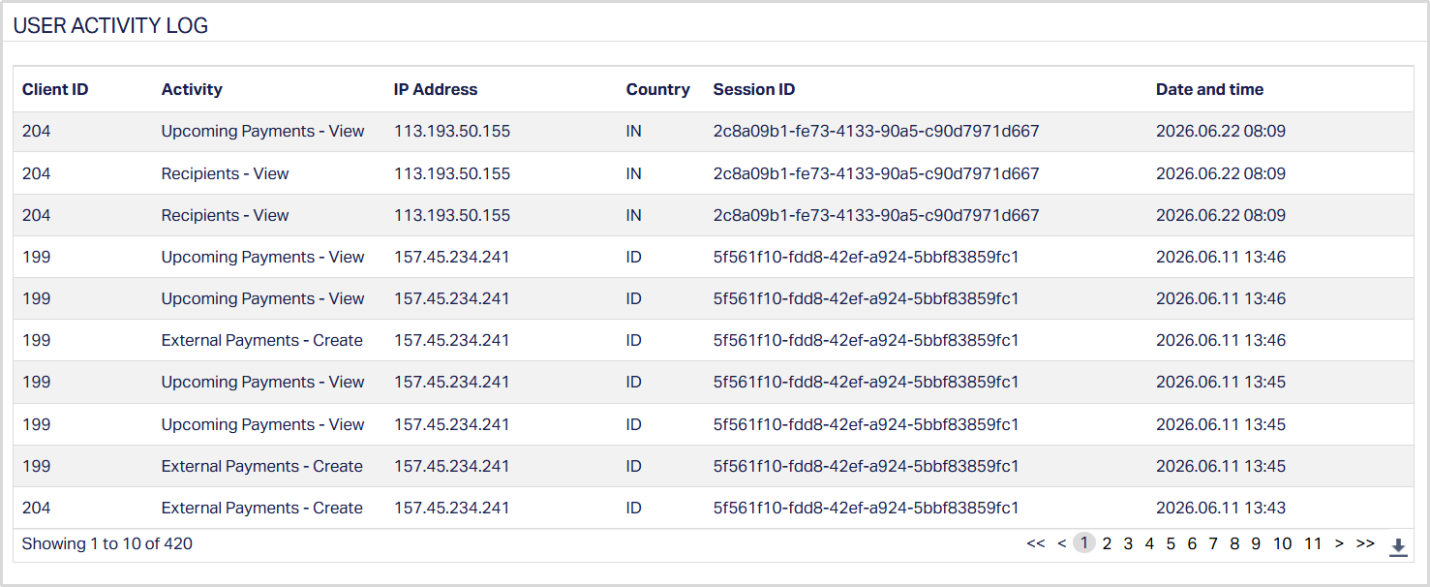
Client ID denotes the ID number of the client
Activity denotes the activities done by the user.
IP Address denotes the IP address of the computer system used by the user.
Country denotes the country from which the banking service was accessed.
Session ID denotes id of the user's session.
Date and time denote the date and the time for that activity.
Custom Field
This option provides you the flexibility to define fields apart from those that are already available in the standard version of Aura. Thus, it enables you to customize additional data storage and use as required to suit your specific business needs.
Using the Custom Field tab, you can maintain the custom fields mapped to the Sales. Depending on the custom fields created and mapped to Organisation (using Admin → System Codes → Custom Fields), the fields will be displayed on this tab
To edit Custom field,
1. Access Sales Agent User page and click Custom Field tab.

2. Click Edit. Edit Custom Field page appears.

3. Enter details as required and click Save. Custom field page appears with the edited details.

Functions: Edit