
Placement Instruction
A Placement Instruction is similar to a Product set up for Accounts. It is a kind of a template that allows you to maintain the details of different kinds of investment products that are offered to investors. Once the Placement Setting is created, the values in these are defaulted to the Placement Instructions that are created under that Setting, with an option to change the details at the Placement Instruction level.
The following are the tabs in a Placement Setting:
Creating a Placement Instruction,
To create new Placement Instruction
1. From Retail menu, click Peer to Peer, Settings, and then Placement Instruction. The Placement Instruction Search page appears. All Placement Instruction available in Aura appear on the page.

- Click Add. New Placement Instruction → Profile (1/2) page appears.
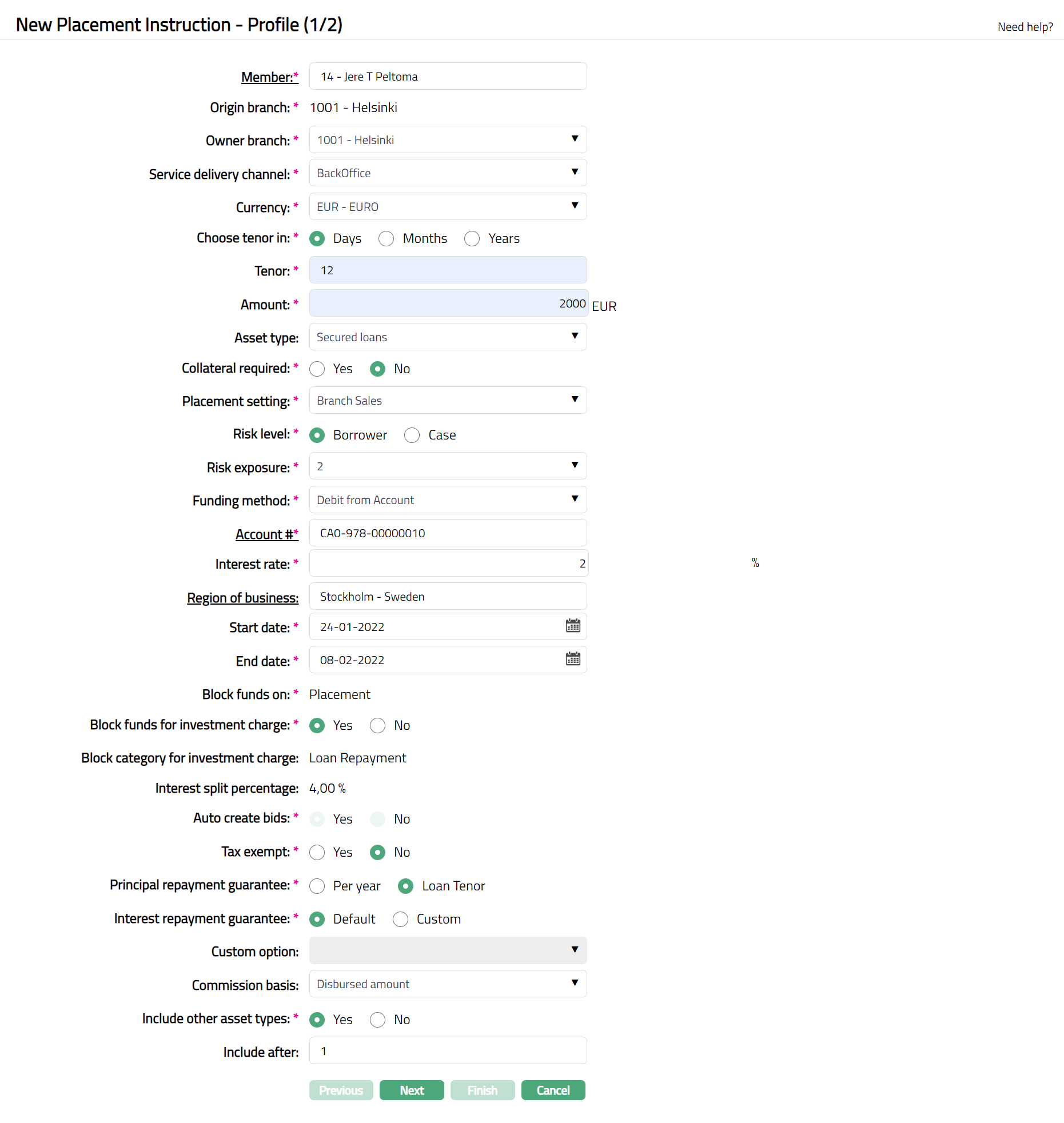
3. Select required Member. You can directly input the Member name or use the hyperlink to search for and select the required Member.
4. Origin Branch will be defaulted for the select Member
5. Select Owner branch from the drop-down list of all the branches which are allowed for the product. By default, the user's logged in branch is selected. You can change as required. This is the branch in which the account is maintained.
Select Service delivery channel from the drop-down list of Service Delivery Channels that are maintained under Admin > System codes > Categories > Service delivery channel.
6. Select Currency from the drop-down list maintained under Admin → System codes → Currency → Currency. The drop-down list displays all the currencies maintained for the selected product.
7. Select Tenor in Days / Months / Years. Note: If you had selected Tenor, this field will be enabled, and you can select the appropriate radio button to specify the loan term in Days / Months / Years
8. Enter Amount for the account.
9. Choose an Asset Type -- Available Asset Types are Unsecured Loans, Secured Loans, Subordinate and High-Risk Loans. Based on the Asset Type selected here, during Loan Request creation, only such Loan Request Setting where the Asset Type matches will be available for the user to choose. This will also be used during auto-creation of bids.
10. Select the required radio button Yes or No for Collateral required.
11. Select Placement Settings from the available drop-down list, maintained under Retail → Peer to Peer → Settings → Placement Settings
12. Select Risk Level by selecting the required radio button Yes or No.
13. Select Risk exposer from the available drop-down list maintained under Admin → System Code → Risk Category.
14. Select Funding method for any Placements under this Instruction: Option available is Debit from Account
15. Select required Account #. You can directly input the Number or use the hyperlink to search for and select the required number.
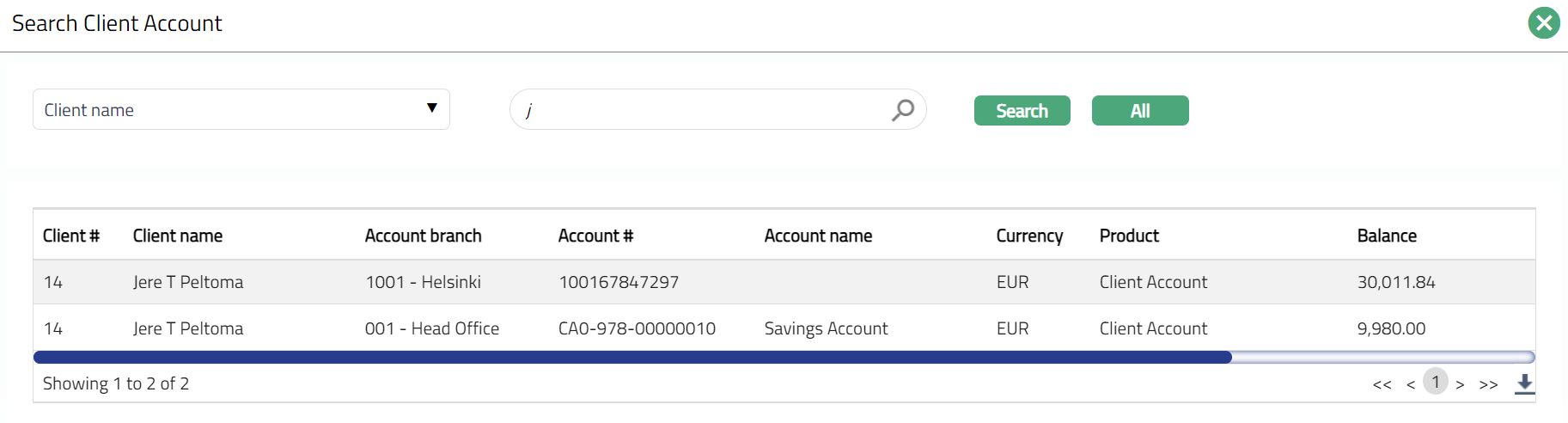
16. Enter Interest Rate for the account.
17. Region of Business is defaulted for the member which is selected for the account. This is the Business region in which the account is maintained.
18. Start date denotes the date on which the Placement Instruction is set. By default, Aura will display the current system date, but Start date has to be current date or future dates.
19. End date denotes the date when the Placement Instruction will end. Note: If the End date is a holiday If the Instruction option is Manual, the End date has to be initiated by the user on the next working day.
20. Block Funds On indicates when the funds will be blocked. This is applicable only when funding method is 'Debit from Account'. It ensures that the funds cannot be used by the Lender for any other purposes. Options are:
a. Placement: Funds will be blocked along with Placement -- i.e., when the Lender (Investor) gives an instruction for the Placement
b. Commitment: Funds will be blocked on the Commitment Date as indicated in the Loan Request
21. Block Funds for Investment charge indicate if funds have to be blocked also for investment charges when the lender makes a placement by selecting radio button Yes or No as required
22. Block Category for Investment charge, if you have chosen to block funds for investment charges as well, indicate the specific Block Category that has to be used for the same
23. Interest Split percentage is maintained and defaulted from Retail → Peer to Peer → Placement Settings →> New Placement Settings → Currency (2/5)
24. Auto create Bids, you can specify that Bids have to be manually placed for certain products using the auto-create bids flag. By default, this is Yes, indicating that Bids will be automatically created by Aura once the lender has given her Placement Instruction.
25. Select the required radio button Yes or No for Tax Exempt.
26. You can choose to specify if the Principal Repayment Guarantee that is defined as a charge is to be applied based on the entire Loan Tenor or Per Year using the next field.
27. You can choose to specify if the Interest Repayment Guarantee by selecting the radio button Default or Custom. Note: By default, the Default radio button will be selected.
28. Custom Option field will be activated once you select Custom radio button under Interest Repayment Guarantee.
29. Commission Basis is to indicate whether the Agent Commission on the Placement Instruction will be based on the Disbursed Amount or the Income Earned.
Note: Commission calculation has to be customized during Implementation
30. Select Include other asset types radio button Yes or No.
31. Enter Include after in terms of days once you select Yes radio button against Include other asset types
32. Click Next. New Placement Instruction → Confirmation (2/2) page appears showing all the details that you entered above.
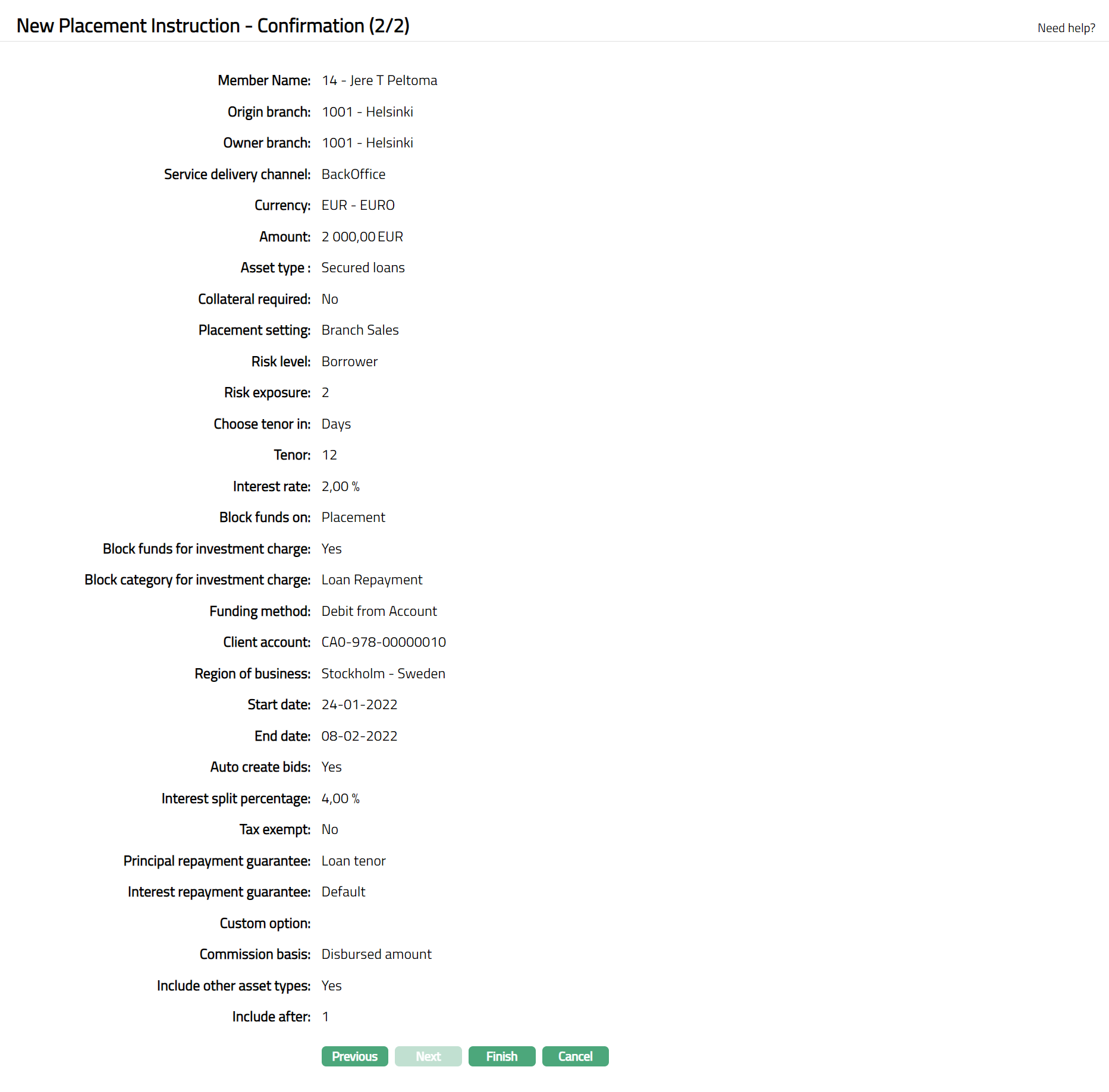
33. Click Finish. Placement Instruction record is created, and you will see the Profile tab by default.
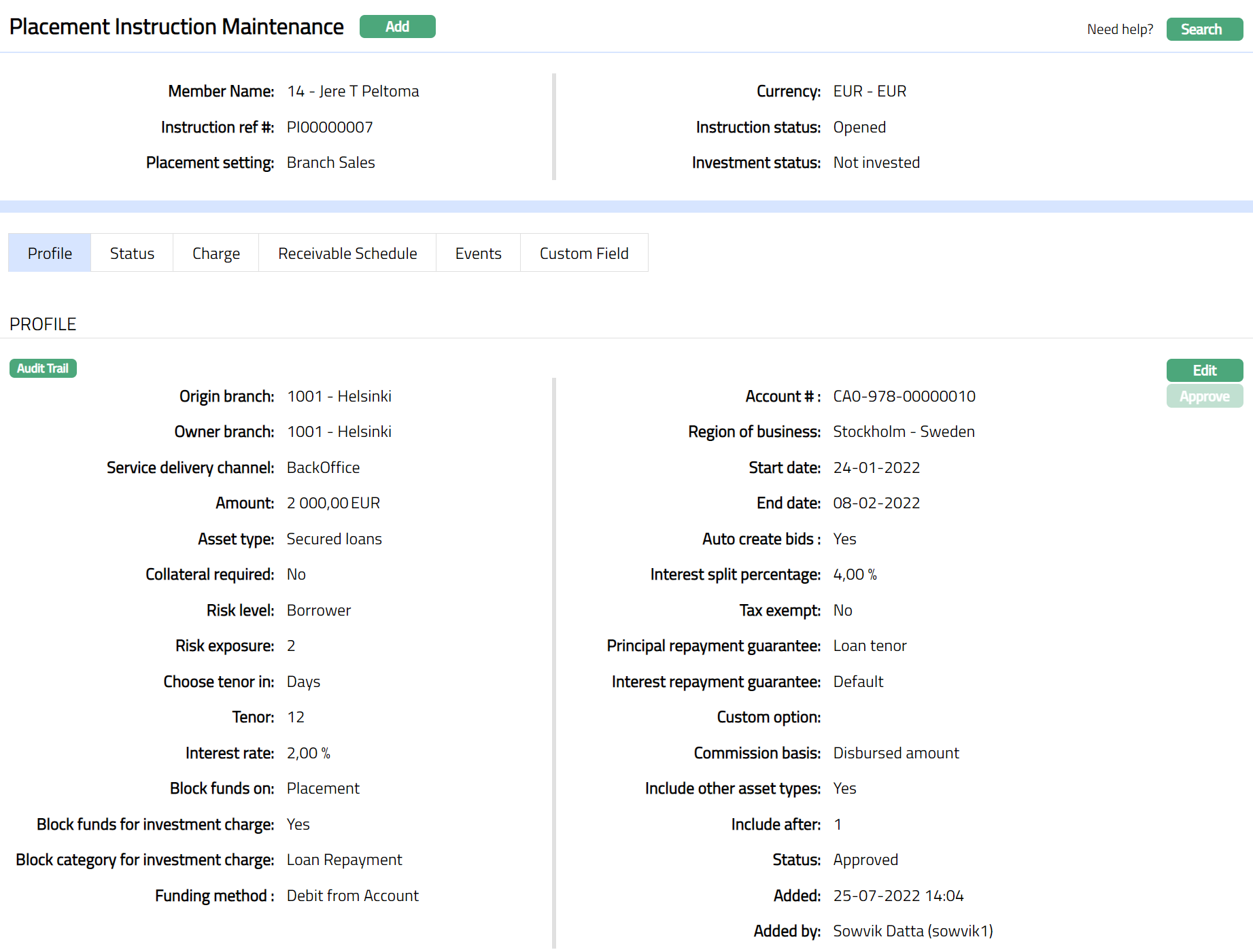
Functions: Add, Search, Edit, Approve
Note: The Instruction status of the Placement Instruction is Opened as soon as it is created.
Edit: Using Edit, you can update details of the Placement Setting. However, the updated conditions will be applicable only for any Placement Instructions that are created AFTER the changes have been done and will NOT affect the records already created.
Suspend: You can suspend the Placement Setting by a click on Suspend button. When you click on Suspend button, Aura displays an alert message. On confirmation Aura will suspend the Placement Setting. Suspending a Placement Setting only makes it unavailable in future for any new Placement Instruction creation / any other dropdown list. Existing Placement Instructions under the Placement Setting continue without any impact. Suspended records can be activated by using Activate button.
Activate: You can activate a suspended Placement Setting by a click on Activate button. When you click on Activate button, Aura displays an alert message. On confirmation Aura will activate the Placement Setting. Activation of a record only makes it available in future for any new Placement Instructions creation / any other drop-down list.
Delete: To delete the record, click Delete. When you click on Delete button, Aura displays an alert message. On confirmation, Aura will delete the record which you have created.
Profile
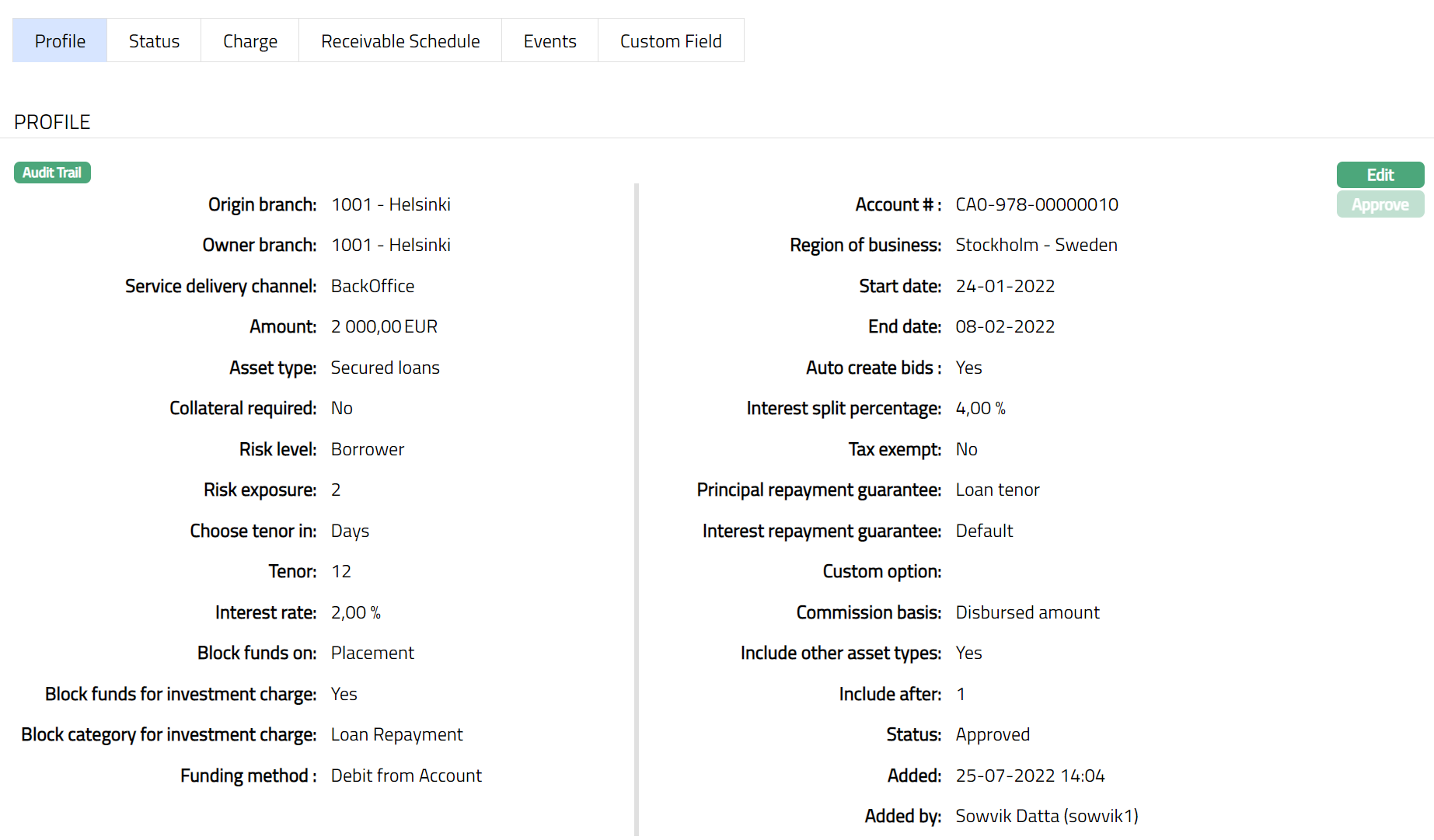
Profile tab, which is the default tab in the Placement Instruction screen, shows the basic details of the Placement Instruction.
To view / edit Profile
1. Access Placement Instruction page. Click Profile tab to view the details as per sample below. The details are defaulted from the entries that you made during Placement Instruction creation. For details refer to New Placement Instruction → Profile (1/2)
2. Click Edit. Edit placement instruction profile page appears.
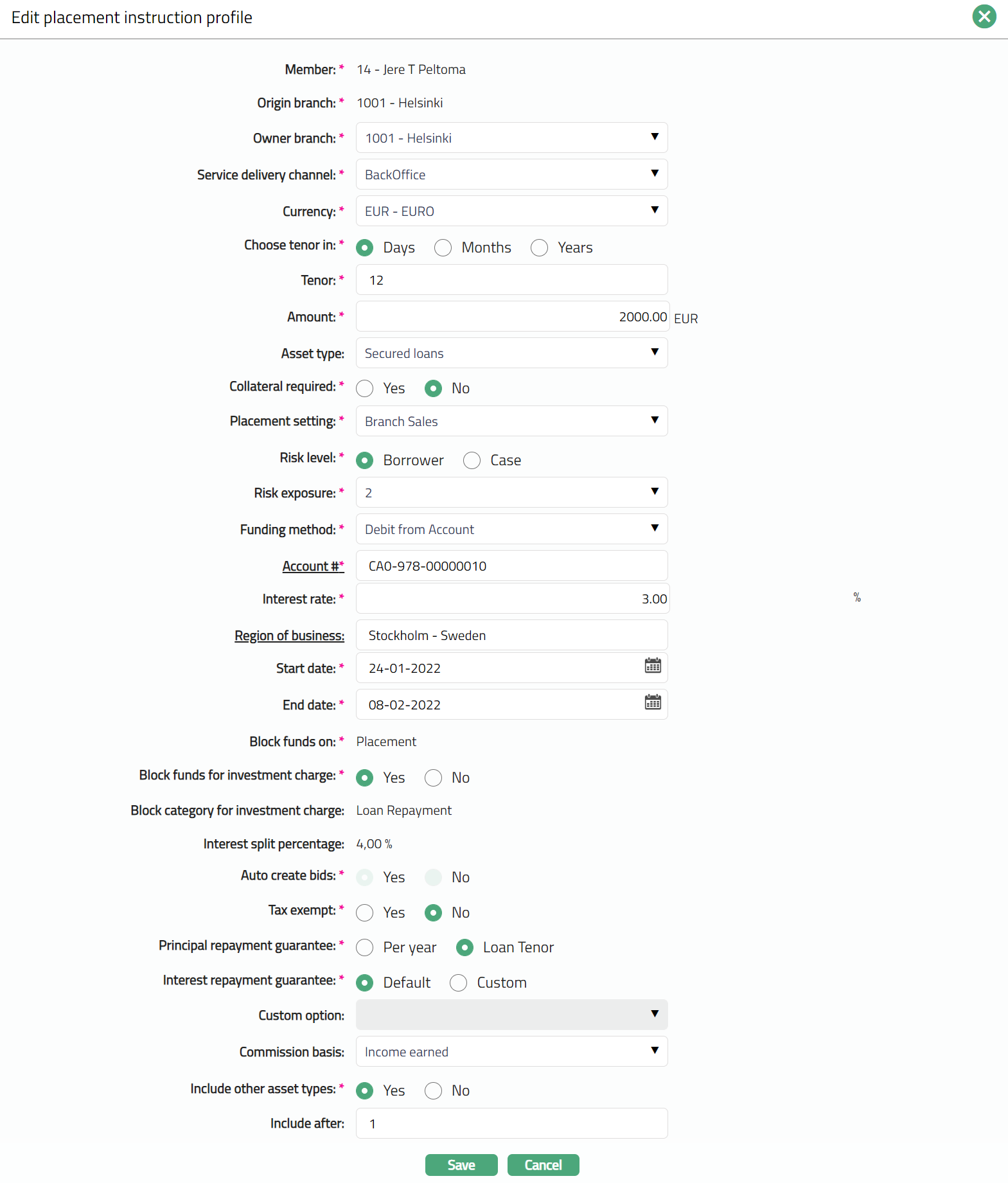
Note: Except the following fields rest all other fields are editable:
Member
Origin Branch
Block funds on
Block category for investment charge
Interest Split percentage
3. Click Save. Profile page appears with the edited details.
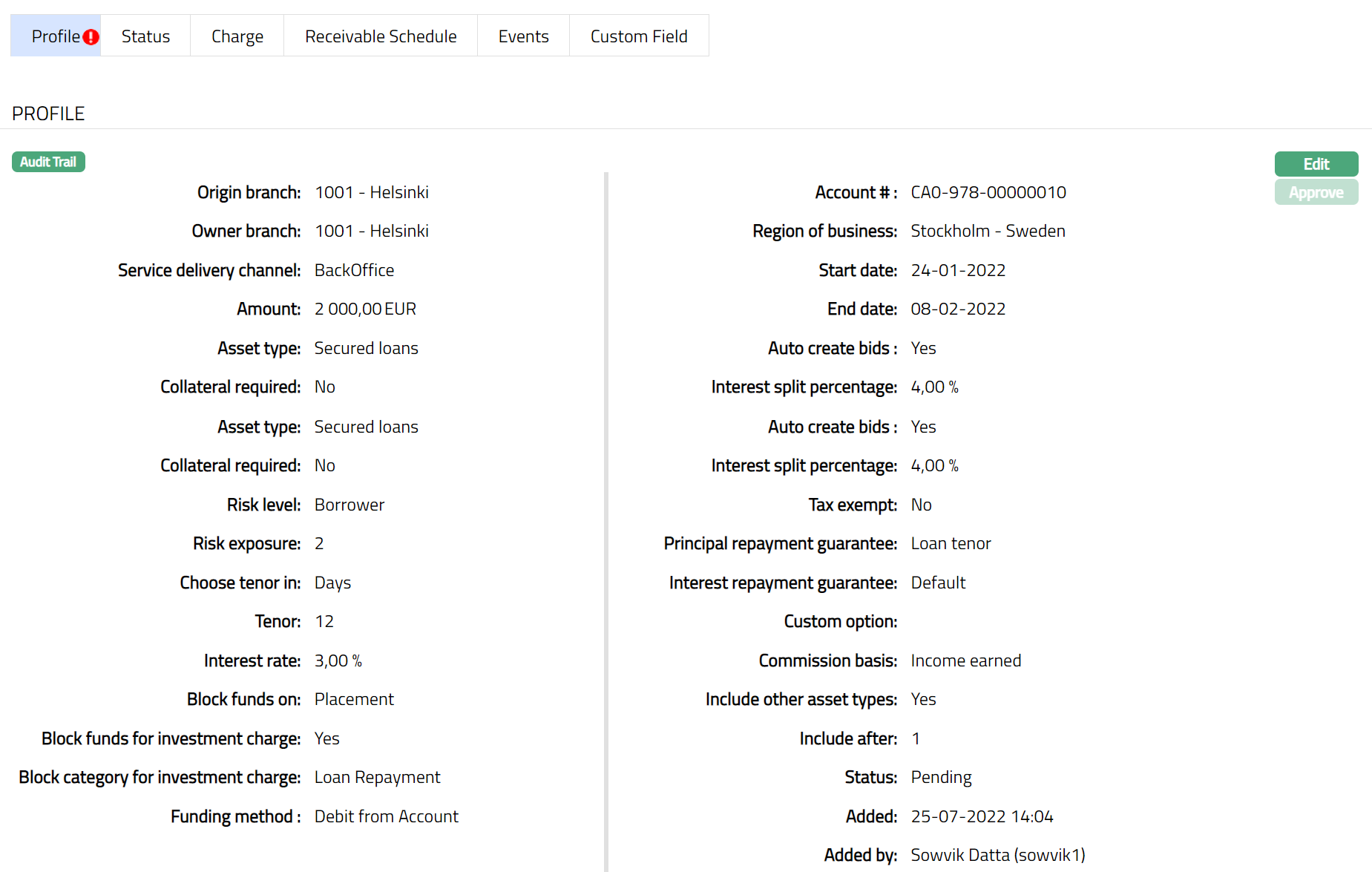
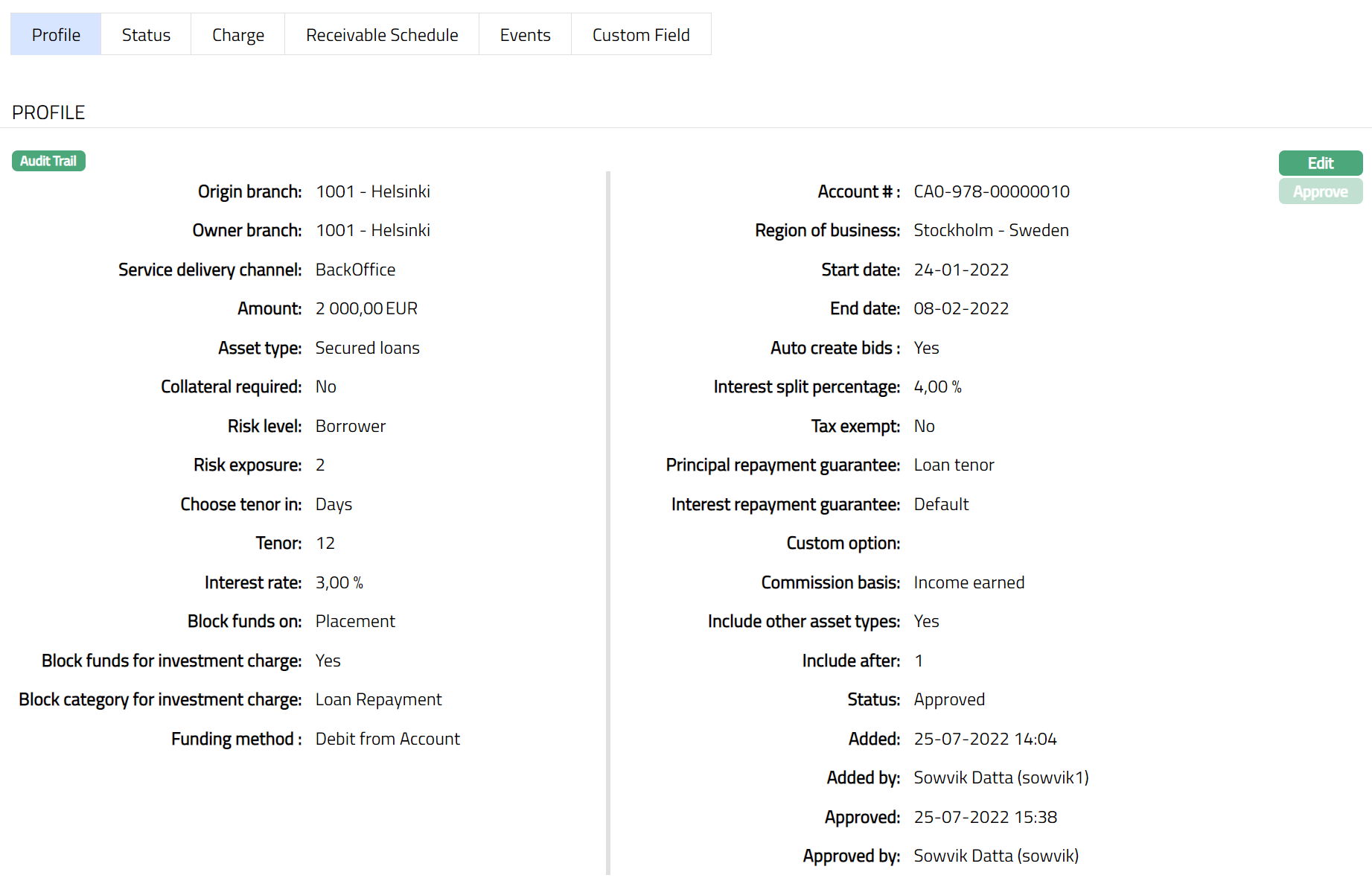
Note: After edit, the Profile tab will reflect as Pending. To approve, a user different from the one who created / edited has to retrieve the record and click Approve. Once the tab is approved the red bubble disappears and the Status changes to Approve and the red bubble disappears as shown below.
Functions: Edit, Approve
Status
The Status tab allows you to view/set the Placement Instruction status as well as define the preferences for the current status of the Placement Instruction. The preferences will allow you to enable/disable certain functions on the Placement Instruction like reason, effective date, record status, etc.
The sub-tabs available are:
- Instruction Status
- Investment Status
Instruction Status
This sub-tab allows you to view and set the Instruction Status, which tracks the progress of the directive (Placement Instruction) you have given to the banking/financial institution. It tells you where your instruction/request is in the bank's internal process workflow.
To Add/View a status,
1. Access the Placement Instruction page and click the Status tab. The Instruction Status sub-tab is opened by default.
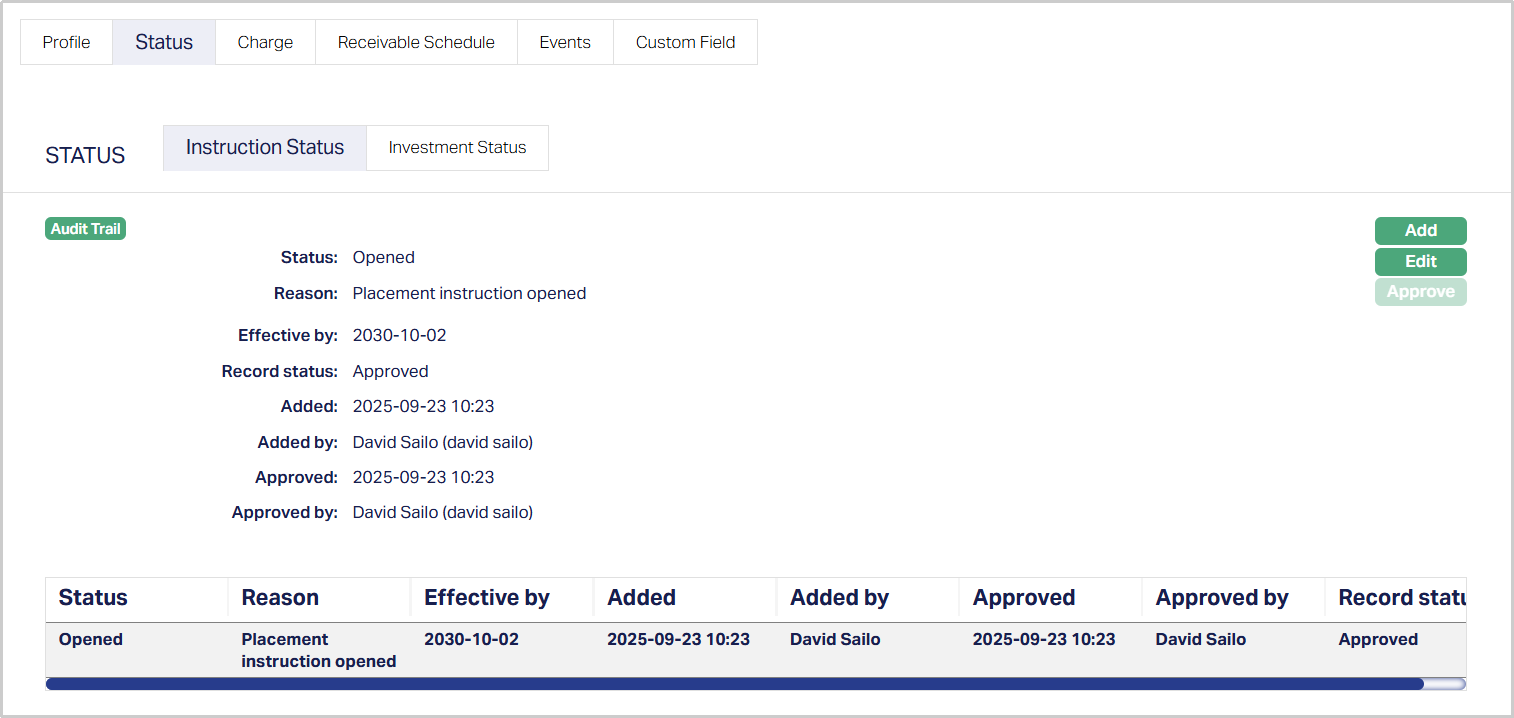
Note: The Status field will reflect as Opened on adding/creating the record and the Record Status field will reflect as Approved.
Once the record is approved by a user different from the one who added/created the record, you cannot Edit or Approve further.
- The Status field denotes the current state of the Placement Instruction; for example: Opened, Activated, Blocked, Closed or Re-opened.
- The Reason field displays the reason for the status selected for the record; for example, “Placement Instruction has passed the due date”.
- The Effective by field indicates the date by which the instruction was designated to be effective.
2. Click Add. The Add Instruction Status page appears.
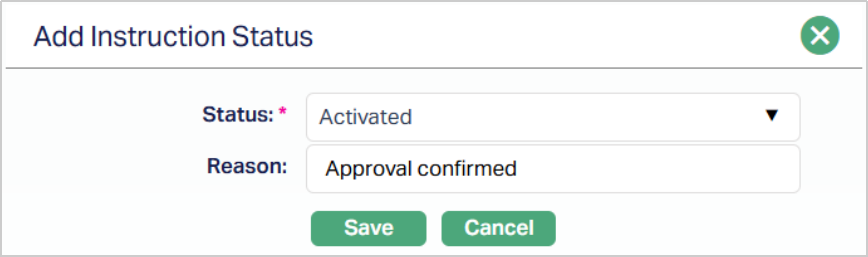
3. Select the Status of the Placement Instruction from the drop-down list. Depending on the current status of the Placement Instruction, the possible values are:
- Opened: This is the initial Instruction Status as soon as it is created.
- Activated: This is the status in which transactions are allowed on the instruction. It has to be manually set by a user different from the one who created the account.
- Blocked: You can manually update the Instruction Status from Activated to Blocked as required. In this Instruction Status, no debits or credits will be allowed from/into the instruction. When you want to remove the block, you can update the Instruction Status manually back to Activated.
- Closed: This Instruction Status will be automatically updated when an instruction closure is processed.
- Re-opened: You can open an instruction that has a Closed status, if needed. This Instruction Status is equivalent to Open account status in all other respects but gives you an indication that the instruction was once Closed.
4. Enter the Reason for the status selected for the Placement Instruction.
5. Click Save. The Instruction Status screen appears with the added details.
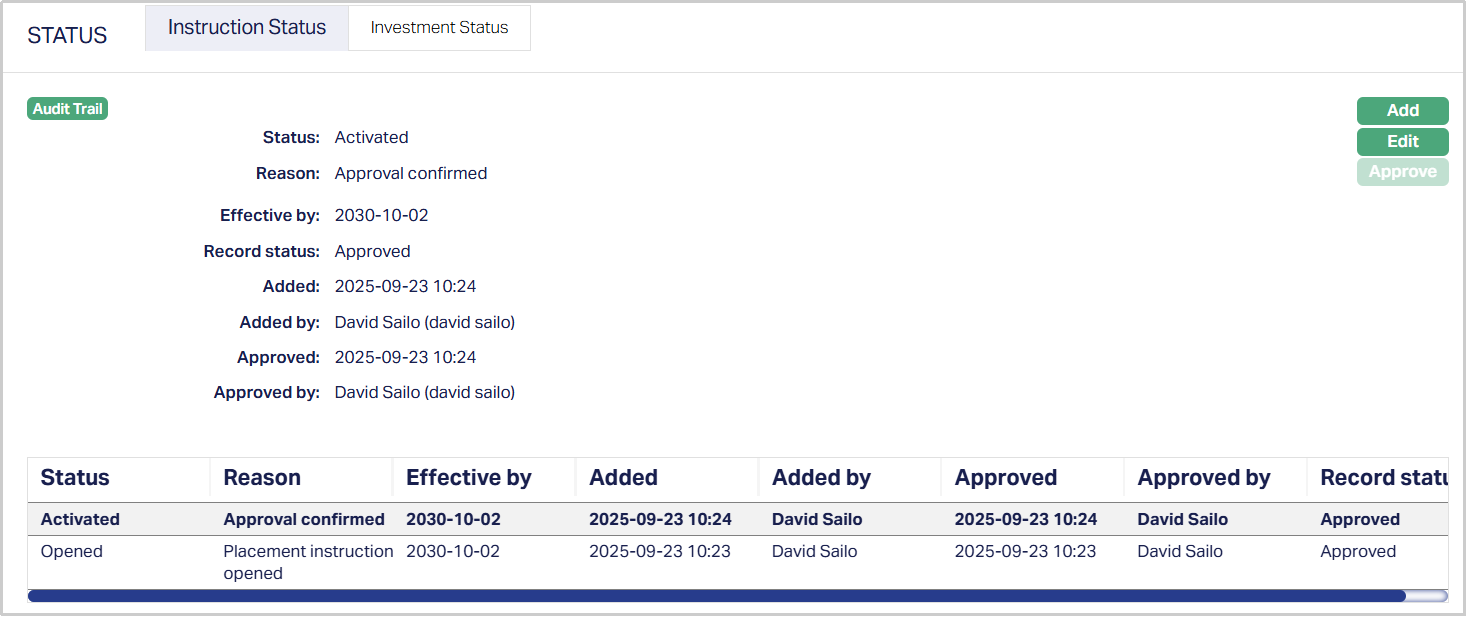
Functions: Add, Edit, Approve.
To edit Status,
1. Click Edit. The Edit Account Status page appears.
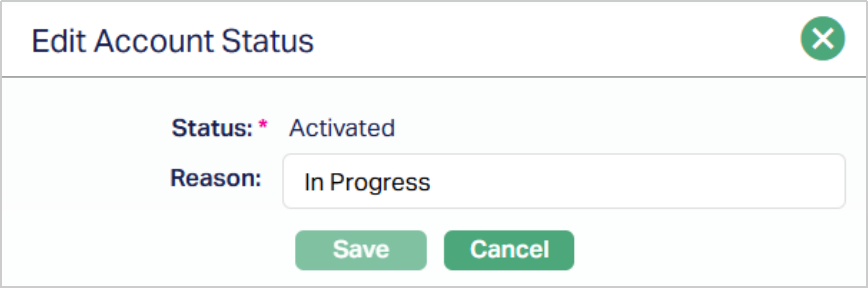
Note: The Reason field is the only editable field.
2. Enter the Reason for the status selected.
3. Click Save. The Instruction Status page appears with the edited details.
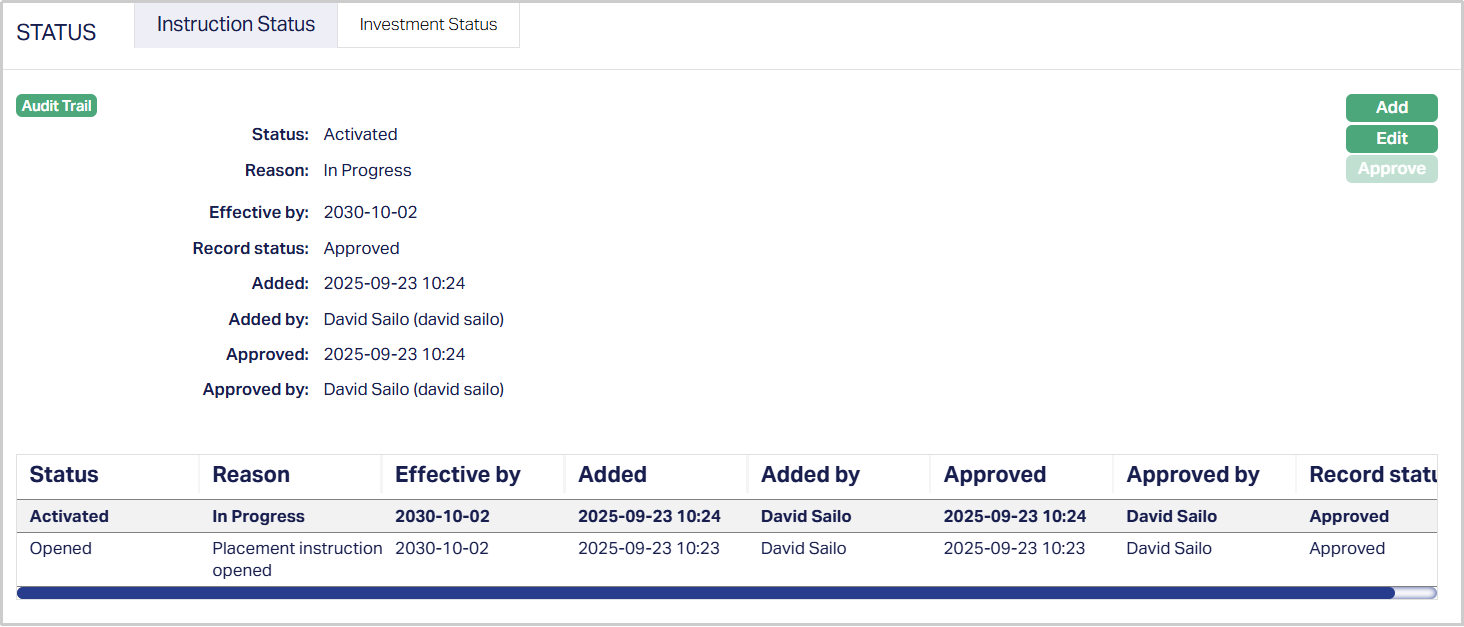
Functions: Add, Edit, Approve.
Note: Status will reflect as Activated and the Record Status will reflect as Approved. After Approval, the Instruction Status can no longer be edited.
The additional fields that you can view in the Instruction Status tab are explained below -
- Record status shows the approval state of the record itself, such as Approved or Pending.
- Added field denotes the date and time on which the record was added.
- Added by field denotes the name of the user who created the record.
- Approved field denotes the date and time on which the record was approved and is displayed only on approval.
- Approved by field denotes the name of the user who approved the record and is displayed only on approval.
Investment Status
This sub-tab allows you to view the Investment Status of the Placement Instruction. The Investment status describes the condition of your actual investment after the Placement Instruction has been successfully processed/executed. It reflects the state and performance of your funds or securities.
To View the Investment Status,
1. Access the Placement Instruction page and click the Status tab, then click the Investment Status sub-tab to view the details as per the sample below.
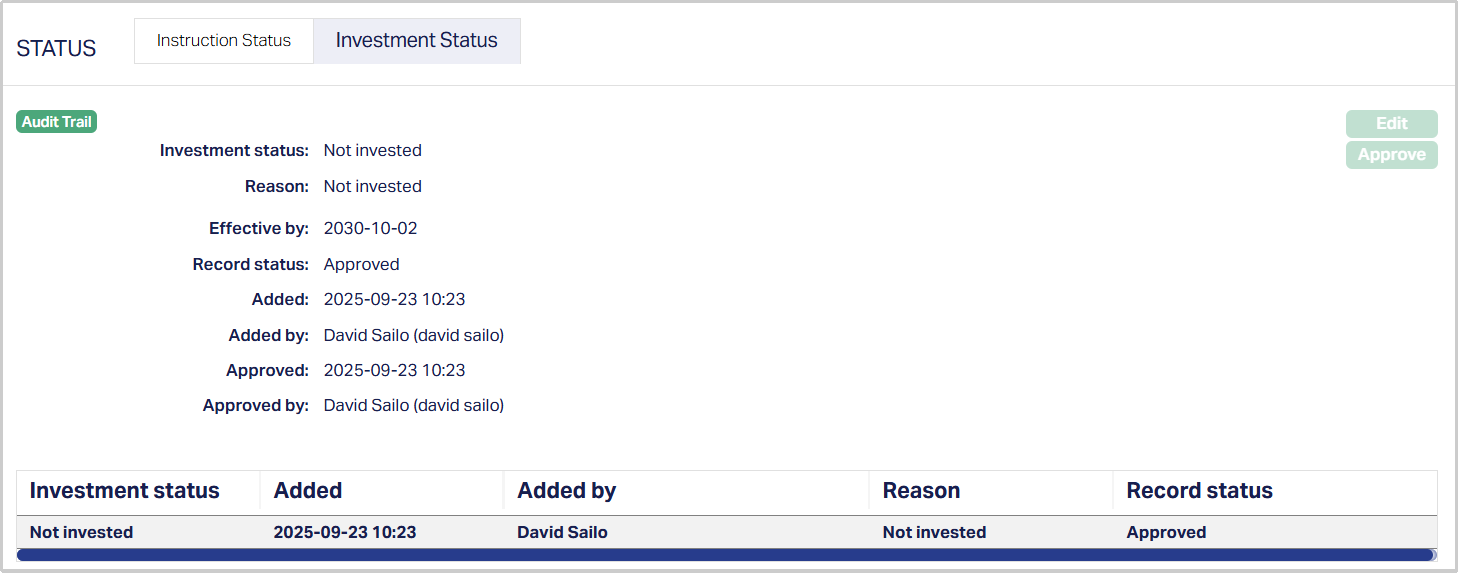
Functions: Edit, Approve.
The Edit button remains disabled because Investment Status transitions are fully system-driven. You cannot manually edit or override them. Aura determines Investment Status automatically and inserts the relevant records in this sub-tab.
The various fields that you can view in this sub-tab are explained below -
- The Investment status field denotes the current status of the investment; for example, Not invested or Invested.
- The Reason field displays the reason for the status selected for the investment. In case of automatic status movements, the reasons are pre-defined; while in case of manual status updates, this will display the reason input during the manual status change.
- The Effective by field shows the date on which this Investment Status was designated to be effective.
The additional fields that you can view in the Investment Status tab are explained below -
- Record status shows the approval state of the record itself, such as Approved or Pending.
- Added field denotes the date and time on which the record was added.
- Added by field denotes the name of the user who created the record.
- Approved field denotes the date and time on which the record was approved and is displayed only on approval.
- Approved by field denotes the name of the user who approved the record and is displayed only on approval.
Charge
The Charge tab allows you to view and edit the details of different charges for accounts under the Product.
The following are the Sub tabs under Charge tab:
Value
Tenor
Additional Charge
Value
To view/edit the Charge,
1. Access Placement Instruction page. Click Charge tab to view the details as per sample below. By default, the Value sub tab will appear displaying the entries that you made during Placement Instruction creation. For details refer to Retail → Peer to Peer → Settings → Placement Settings → Charge (3/5).
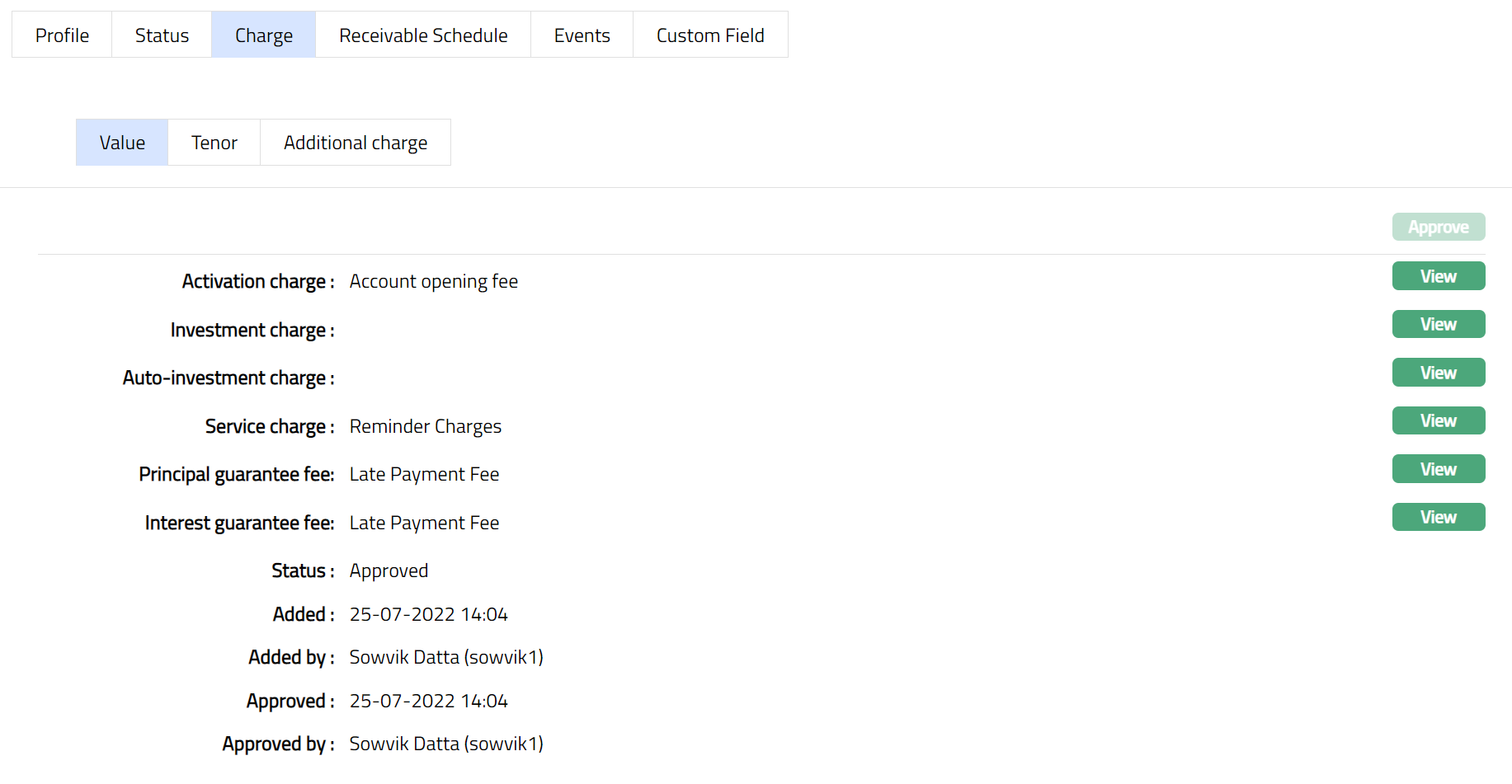
The additional fields that you can view in the tab are explained below:
Status field denotes the status of the tab.
Added field denotes the date on which the record was added.
Added by field denotes the name of the user who created the record.
Approved field denotes date on which the record was approved and is displayed on approval.
Approved by field denotes name of the user who approved the record and is displayed on approval.
To Edit Value,
2. Click View and then Edit. The Edit page appears. Sample screen shots shown below.
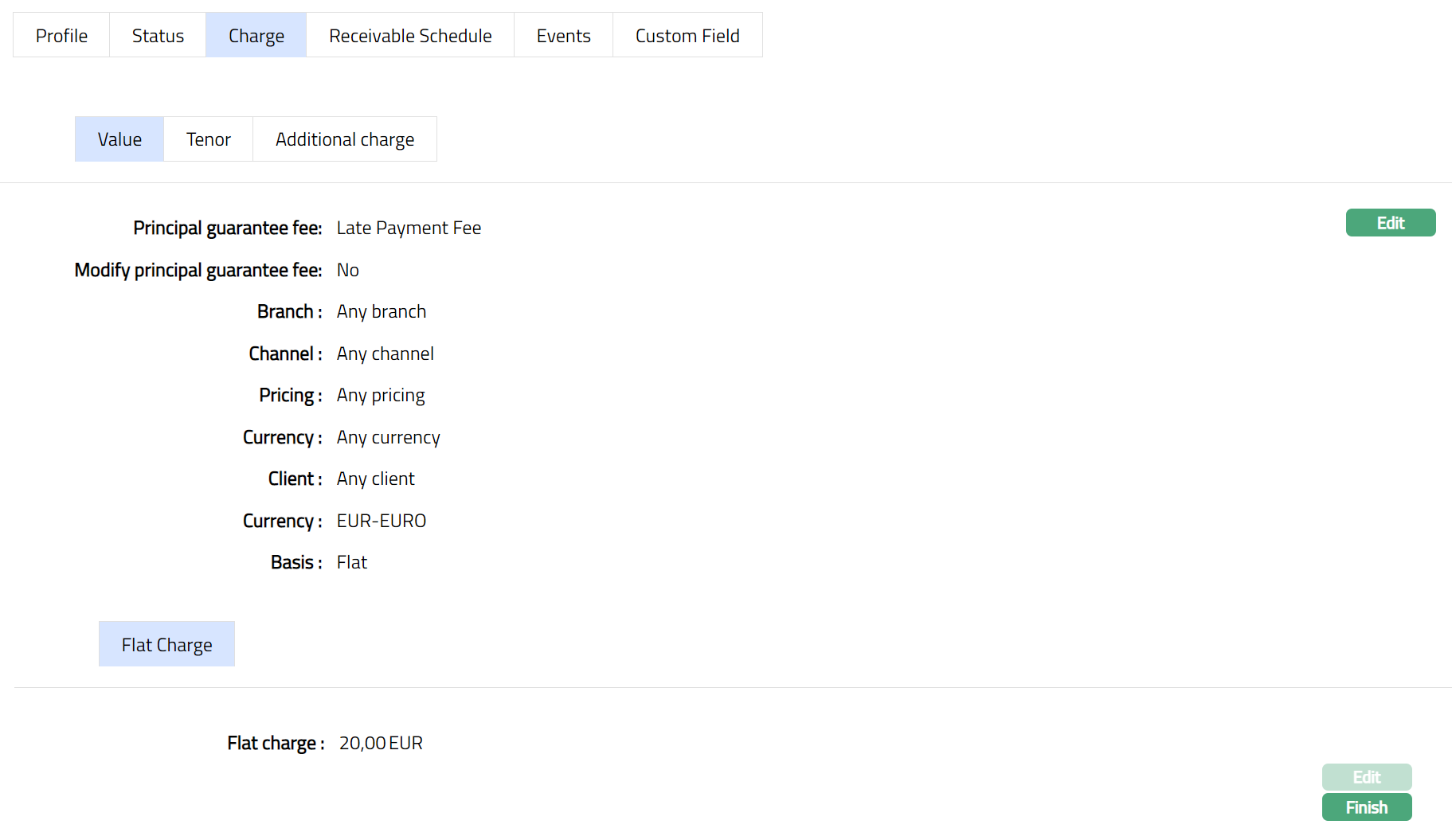
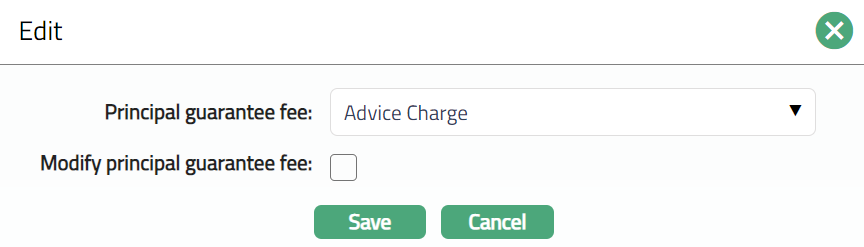
All the fields in Edit page are editable.
3. Click Save. The Value sub tab page under Charge tab appears with the edited details.
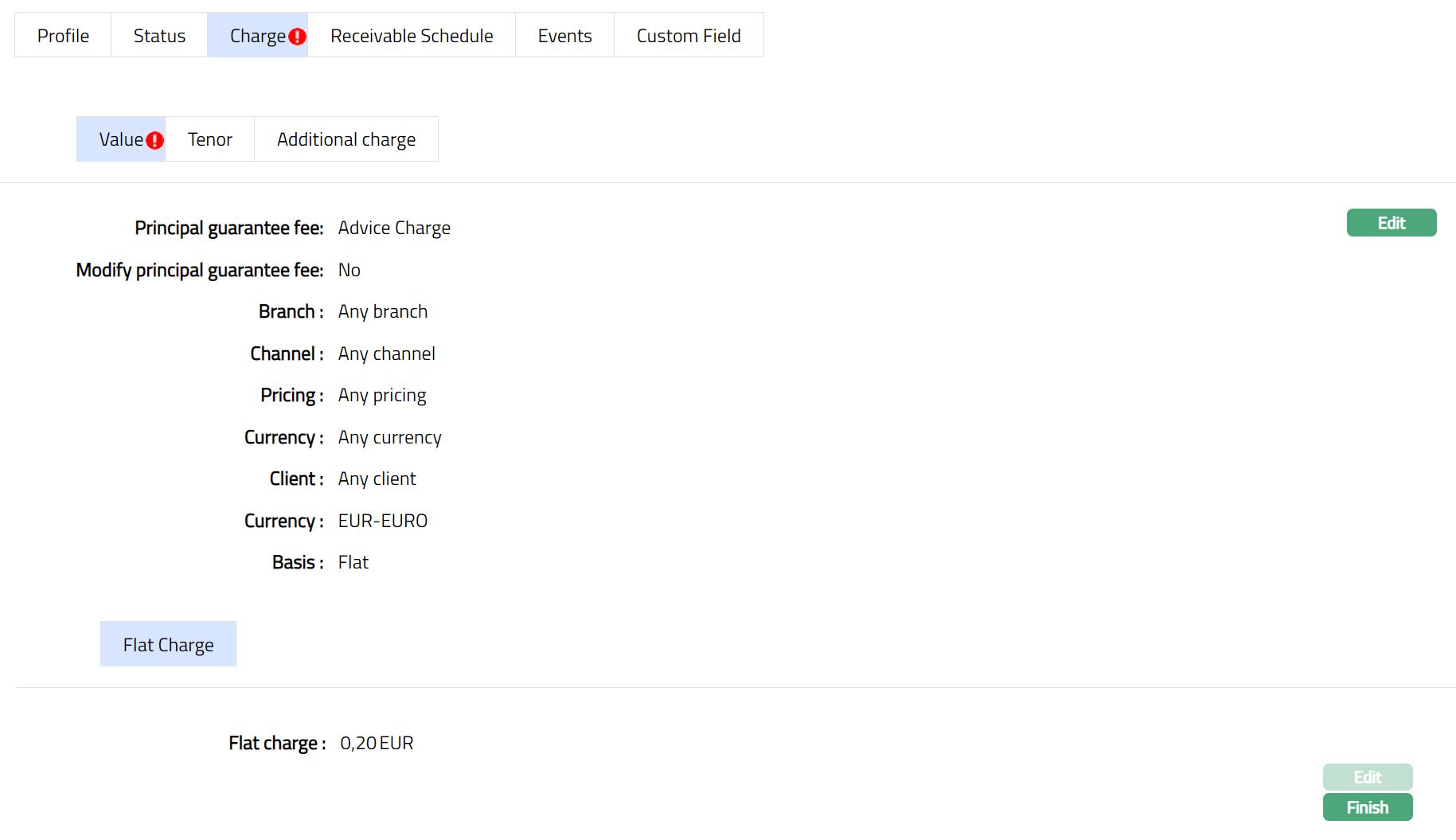
4. Click Finish. The Value sub tab appears with the edited details.
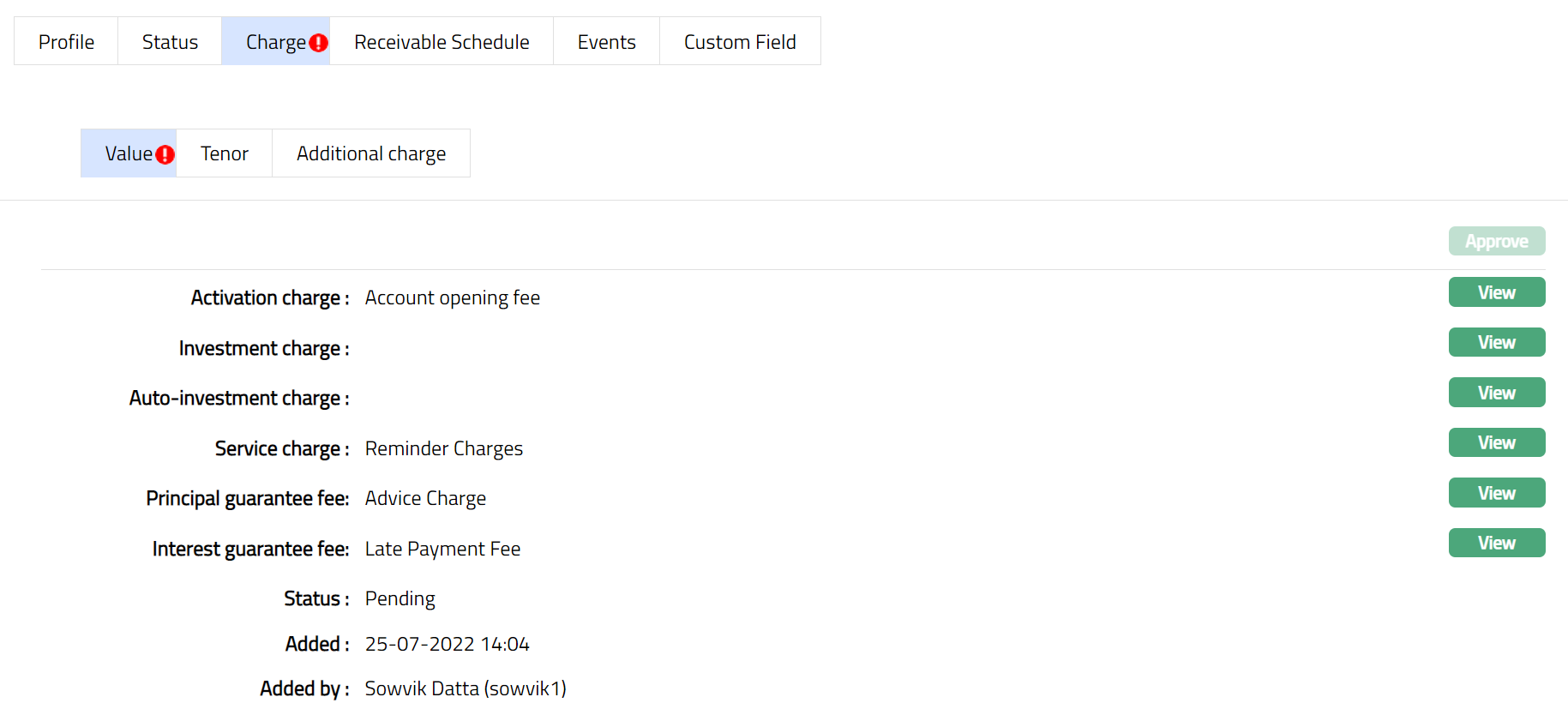
Note: After creation / edit, the status of the Value sub tab under Charge tab will be Pending till it is approved by another user. On approval, the tab status is set to Approved and the red bubble disappears.
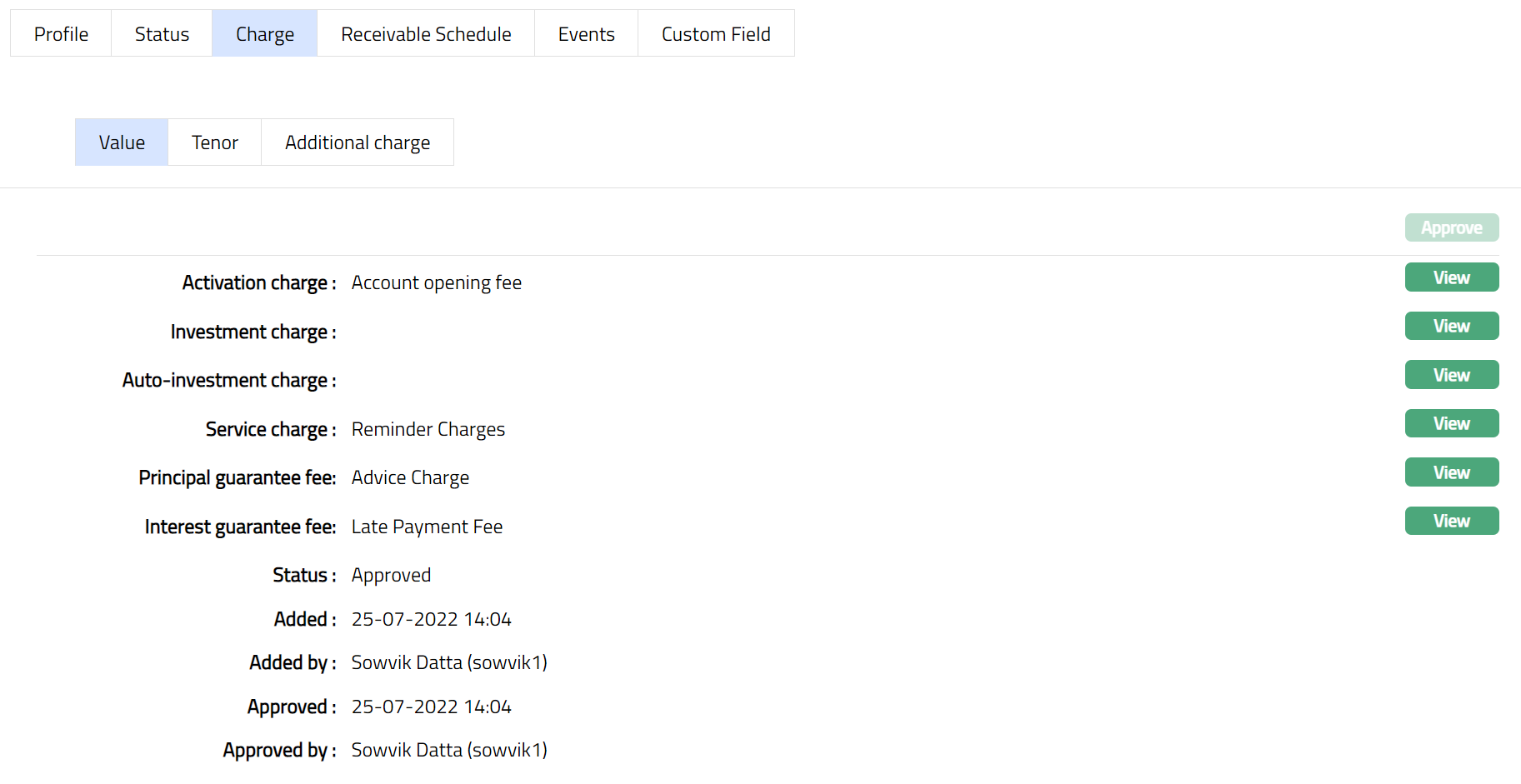
Functions: View, Edit, Approve
The following fields are shown only in the View screen and are not editable:
Status field denotes the status of the tab.
Added field denotes the date on which the record was added.
Added by field denotes the name of the user who created the record.
Approved field denotes date on which the record was approved and is displayed only for approved records.
Approved by field denotes name of the user who approved the record and is displayed only for approved records.
Tenor
To view/edit the Charge,
1. Access Placement Instruction page. Click Charge tab and then Tenor sub tab to view the details as per sample below. On creation of Account, if there are any Tenor maintained then the same will reflect else it will be blank.
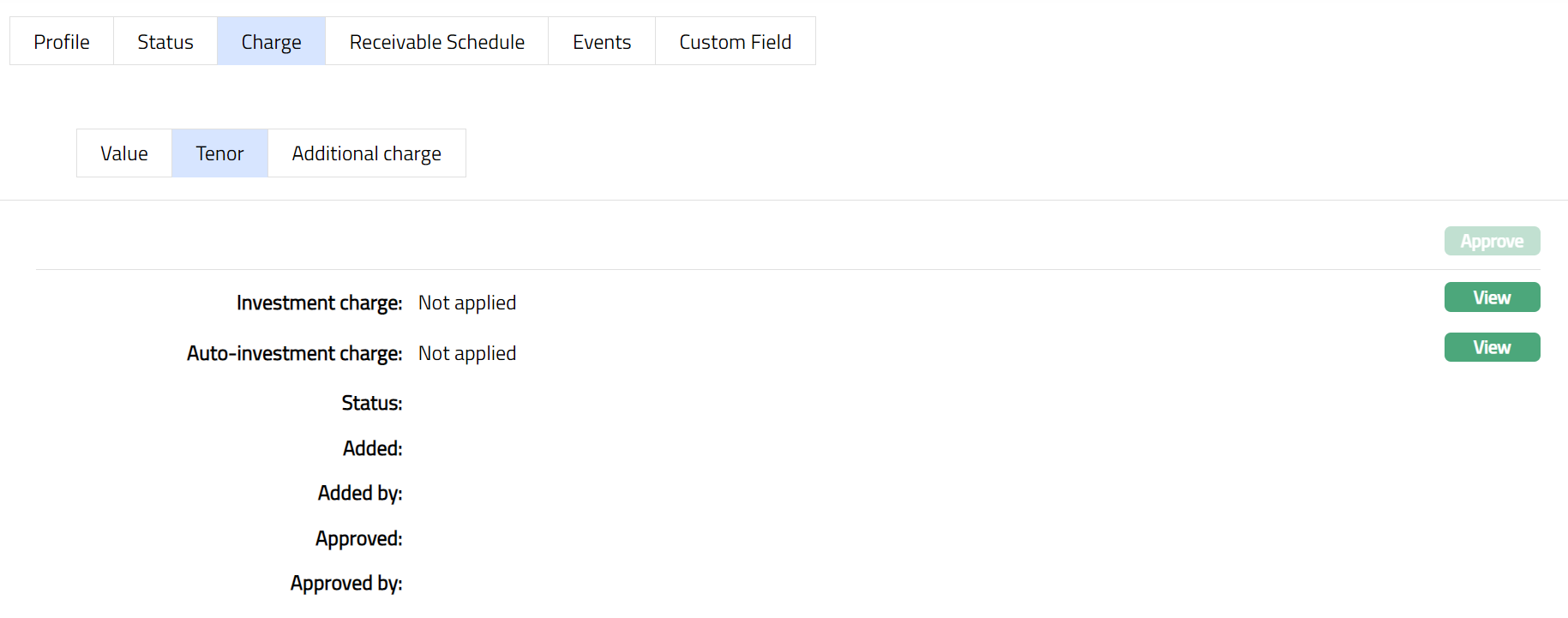
To Edit Tenor,
2. Click View and then Edit. The Edit page appears. Sample screen shots shown below. Sample screen shots as shown below.
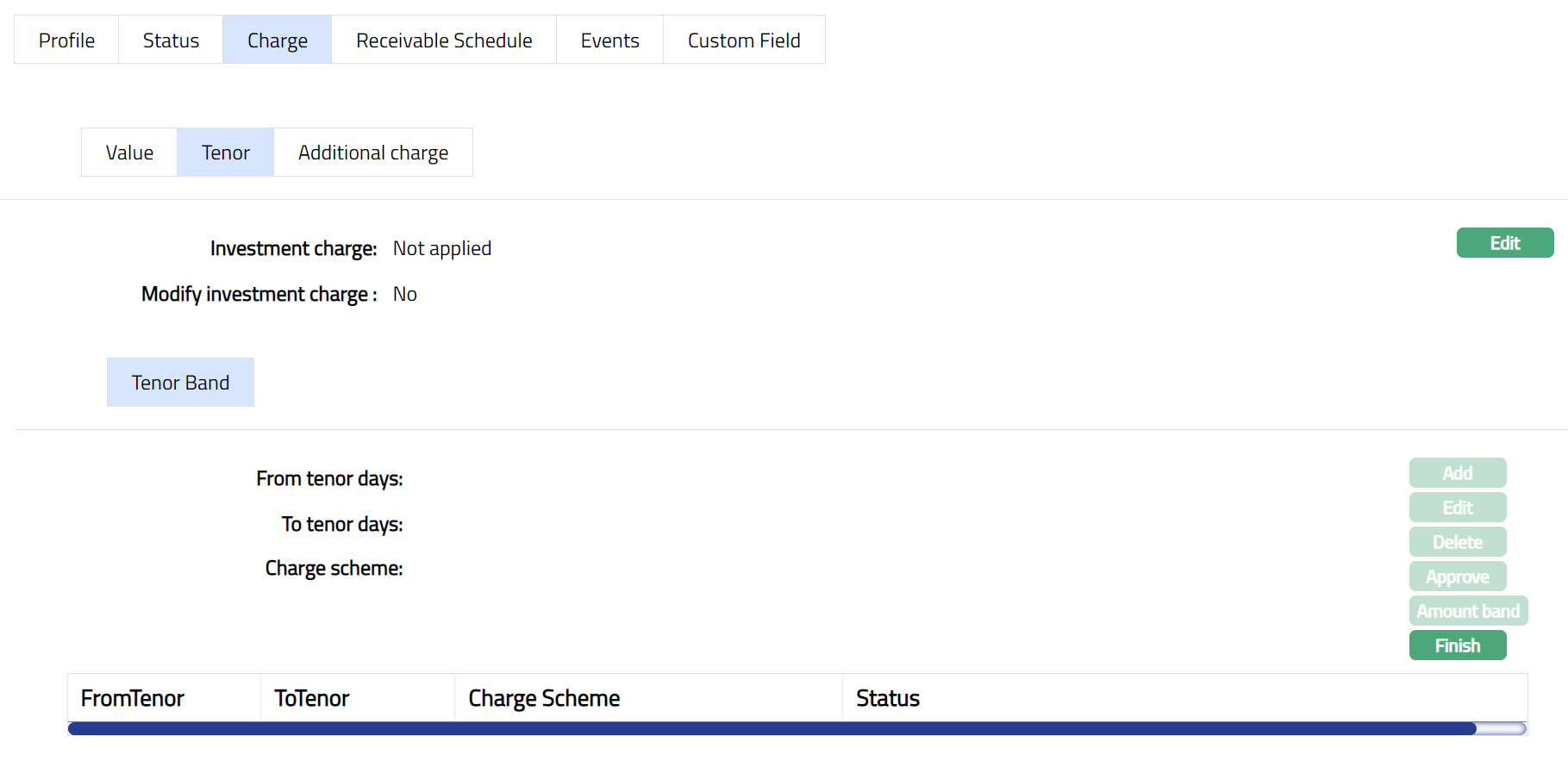
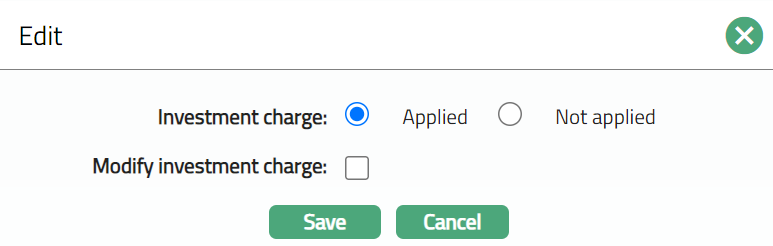
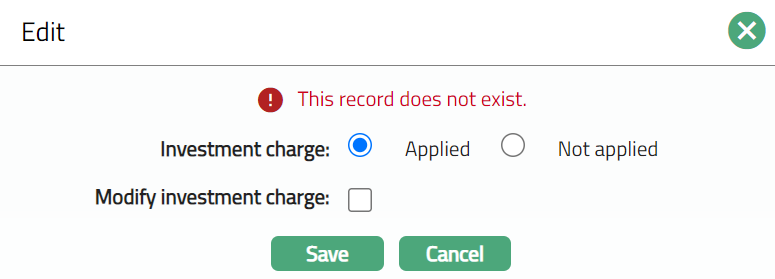
All the fields in Edit page are editable.
3. Click Save. The Tenor sub tab page under Charge tab appears with the edited details.
Additional Charge
The Additional Charge tab allows you to add, view and maintain additional charges for the loan account
To Add a charge,
1. Access Placement Instruction page. Click Charge tab and then Additional charge sub tab to view the details as per sample below. On creation of Account, if there are any additional charge maintained at the product level - the details are defaulted from Product → Additional Charge based on the Product that you chose for the account during creation.
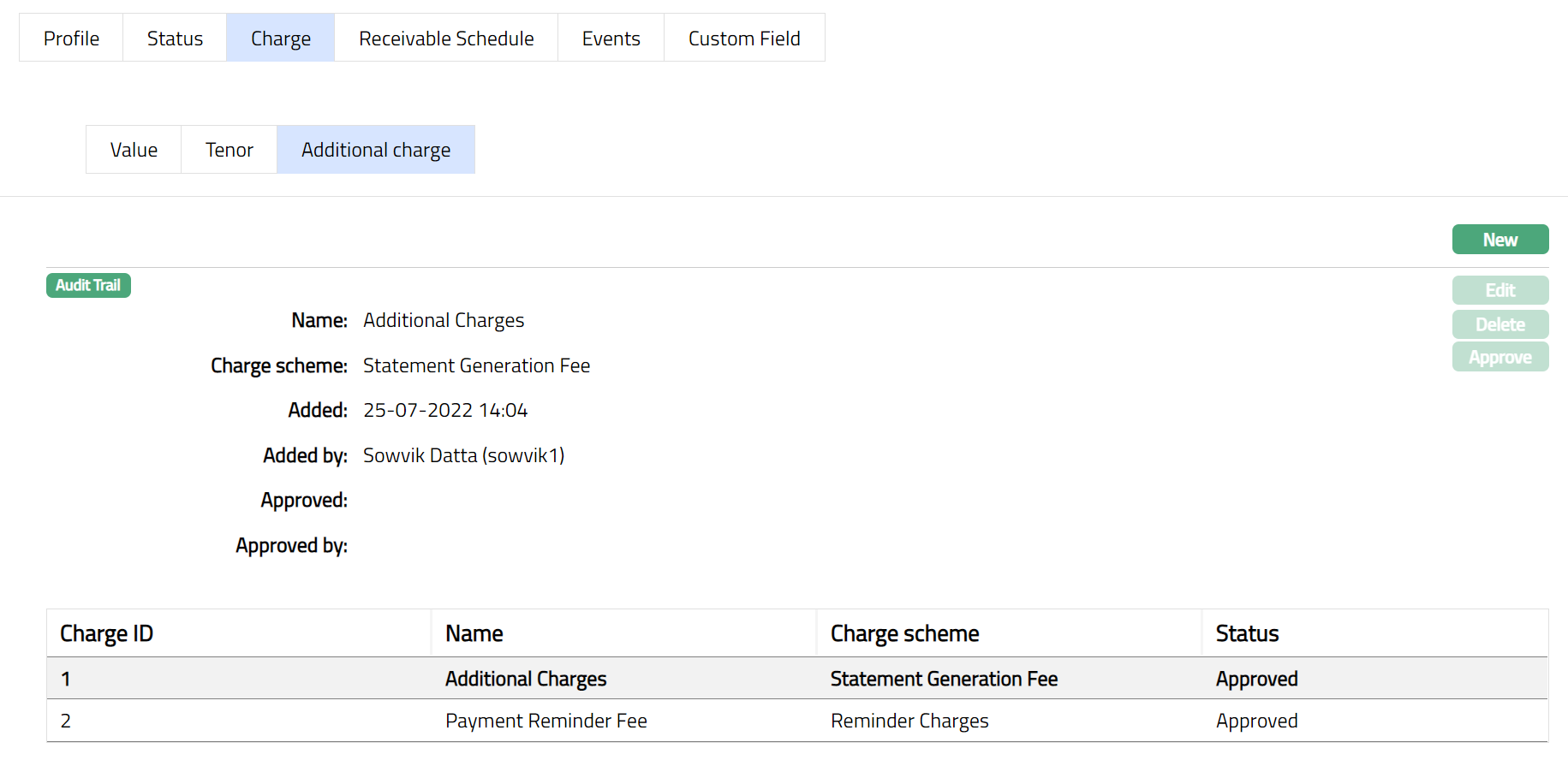
Note: Similarly, you can add as many Additional charges as required. Sample Screen shot shown below.
2. Click New. The New Additional Charge page appears.
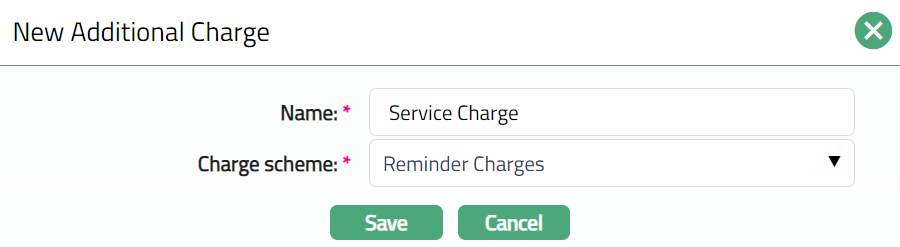
3. Enter the charge Name.
4. Select the Charge scheme from the dropdown list of Periodic flat or banded charges maintained at Admin → Charge → Charges. If the Charge is Banded, the charge amount will be calculated on the basis of the amount sanctioned.
5. Click Save. The Additional charge page appears with the added details.
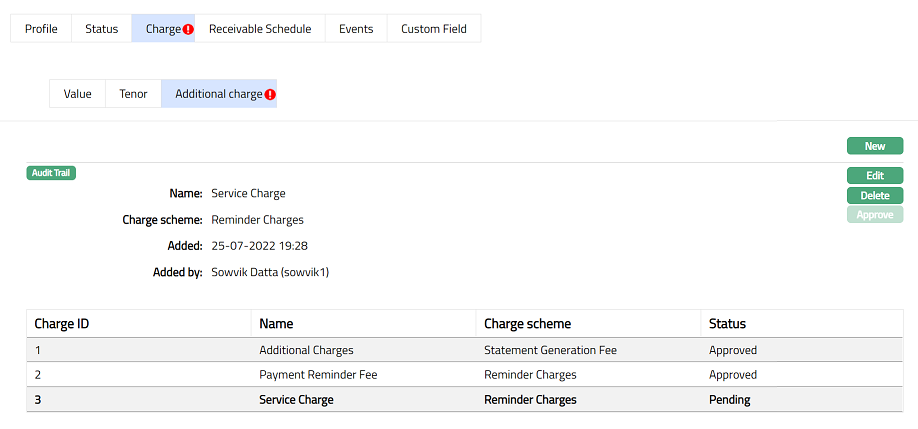
Note: Once Approve you cannot make ant further changes in the tab.
To Edit Additional Charge,
1. Access Placement Instruction page. Click Additional charge tab and then Edit. Edit Additional Charge page appears.
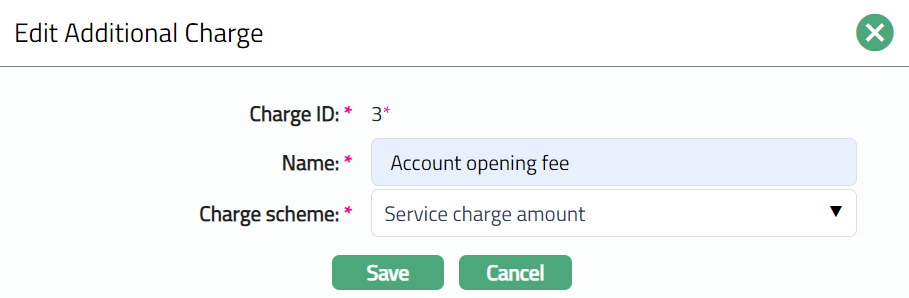
Note: Except Charge ID all other fields are editable.
2. Click Save. The Additional Charge page appears with the edited details.
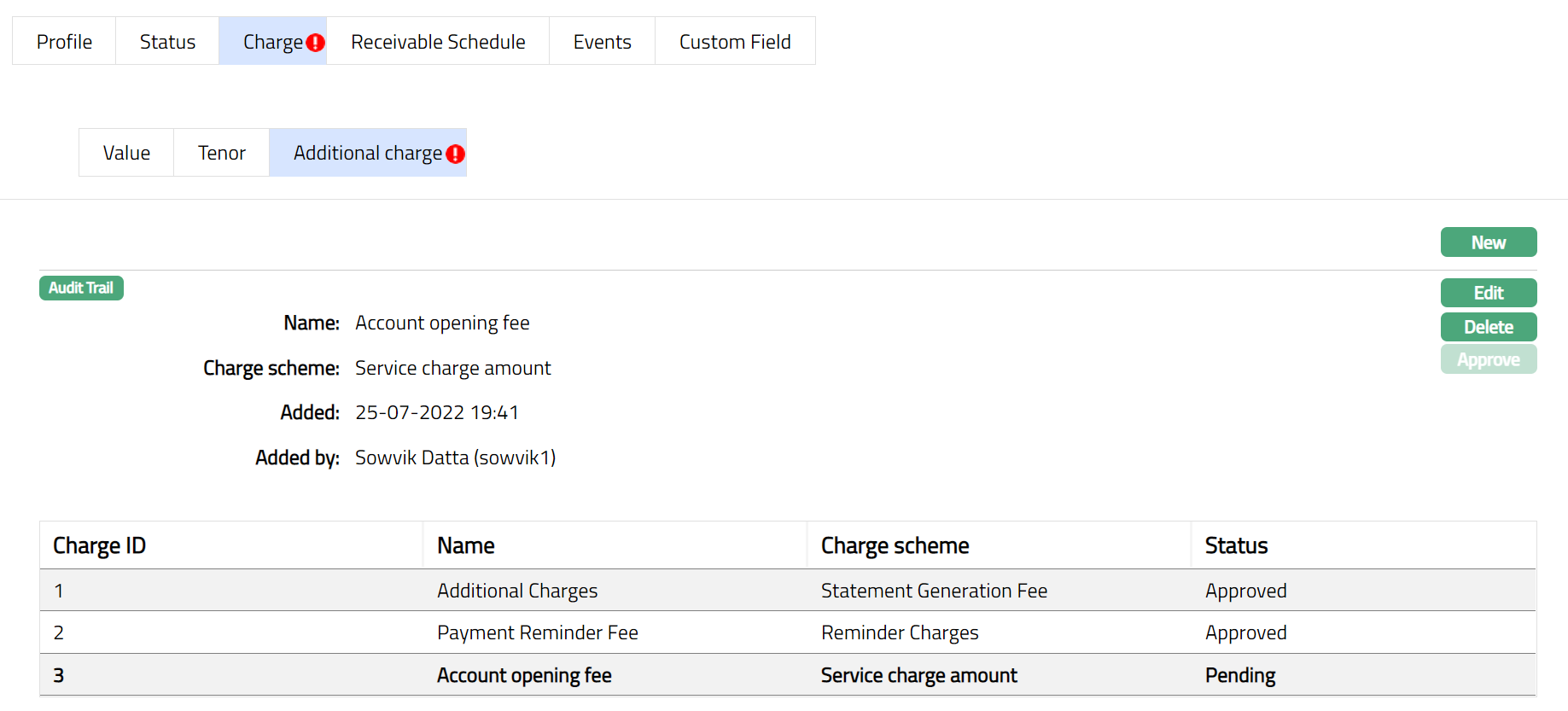
Note: Any change in the tab will set the tab status to Pending till it is approved by another user. On approval, the tab status is set to Approved and the red bubble disappears.
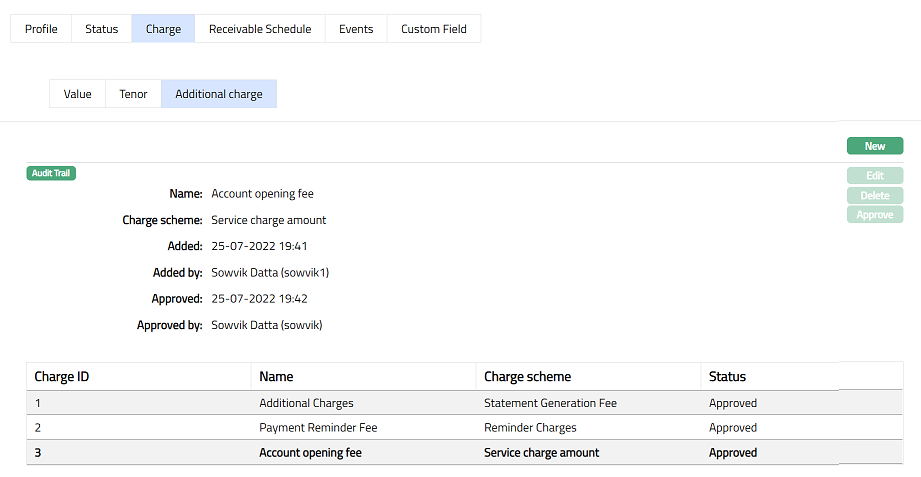
Functions: New, Edit, Delete, Approve.
The additional fields that you can view in the Profile tab are explained below.
Status field denotes the status of the record.
Added field denotes the date on which the record was added.
Added by field denotes the name of the user who created the record.
Approved field denotes the date on which the record was approved and is displayed only on approval.
Approved by field denotes the name of the user who approved the record and is displayed only on approval.
Receivable Schedule
This tab gives the details of the expected payments for the investments under this Placement Instruction. If there have been investments into multiple Loans under a single Placement Instruction, the Receivable Schedule Tab will show that many sub-tabs with the details of the receivable's schedules for each investment. As and when any Bid is rejected, withdrawn, suspended, partially accepted or expires, to that extent the Bid Block is released, and the Placement Block is incremented.
To view Receivable Schedule,
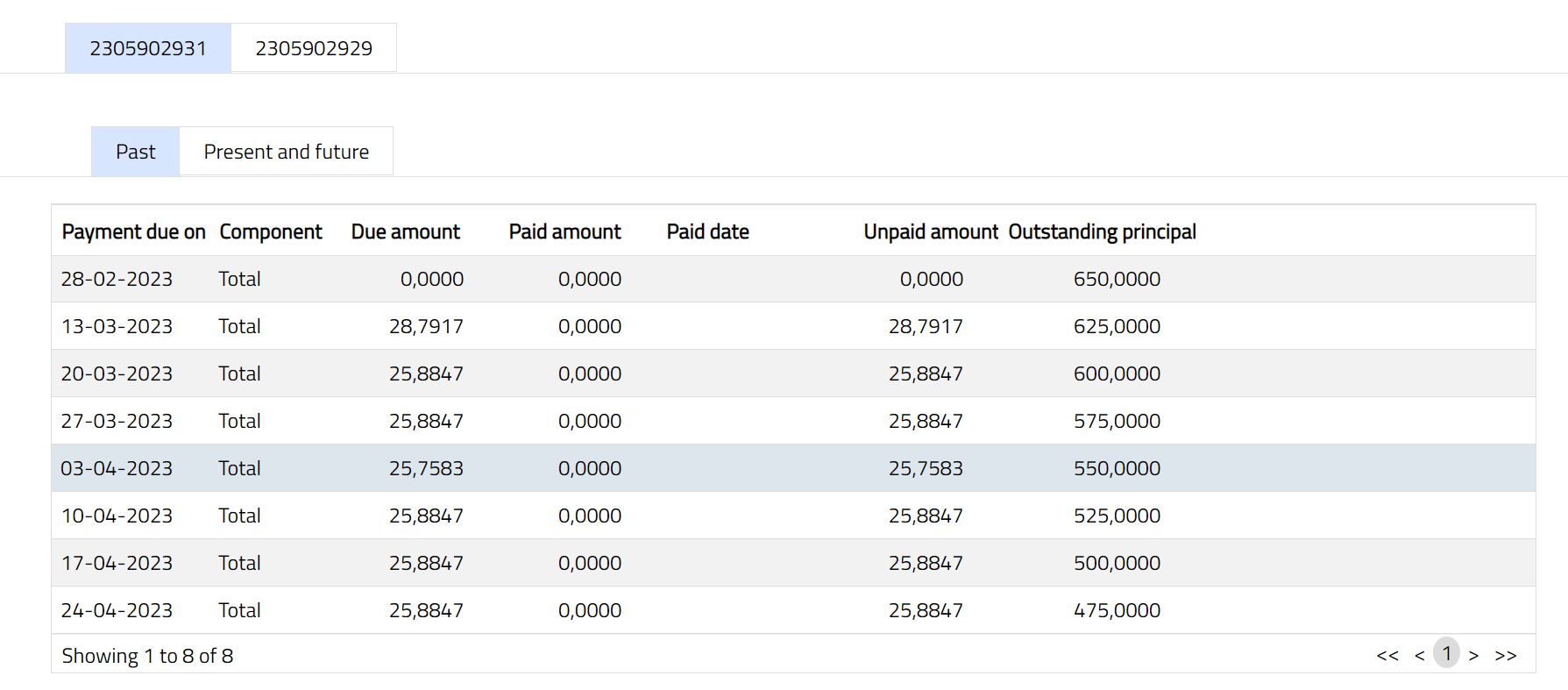
1. Access Placement Instruction Maintenance screen and click Receivable Schedule tab. There are two sub-tabs within it -- Past, Present and future. By default, the Past tab is displayed. It displays details of the receivable's schedules for each investment against the selected Account number.
A sample of Past sub tab is shown below:
A sample of Present and future sub tab is shown below:
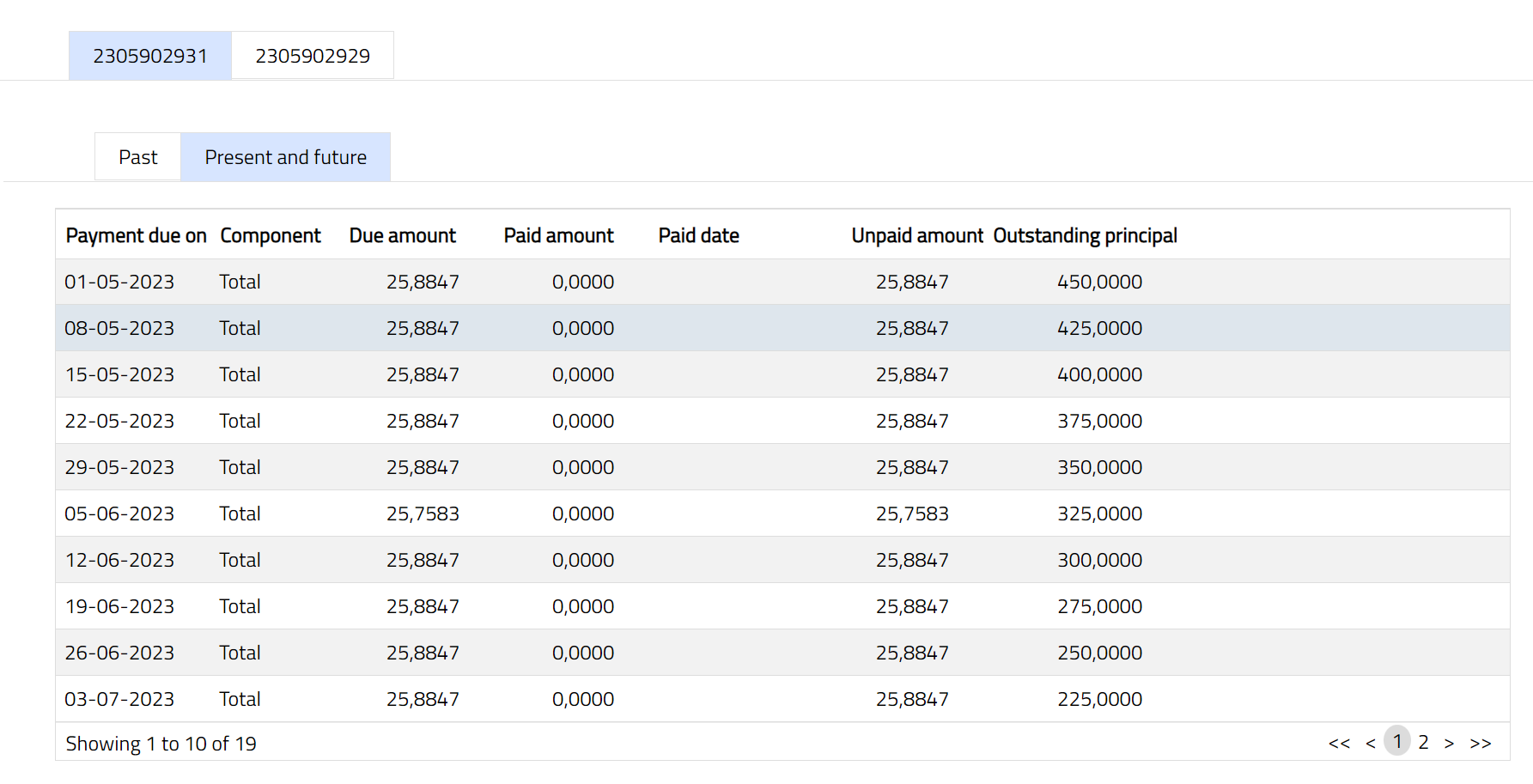
Both the sub tabs displays the following data:
Payment due on: It is the date on which the payment is due.
Component: It indicates whether it is a total or partial payment.
Due amount: It indicates the amount which is due for payment.
Paid amount: It indicates the amount which is paid.
Paid date: It is the date on which the payment is made.
Unpaid amount: It indicates the amount which is unpaid.
Outstanding principal: It indicates the Principal outstanding amount.
Note: Similarly, you can select another Account number to view the Receivable Schedule details for that investment.
Events
Event tab allows you to view the past, current and future events. This tab is non-editable.
To view Events,
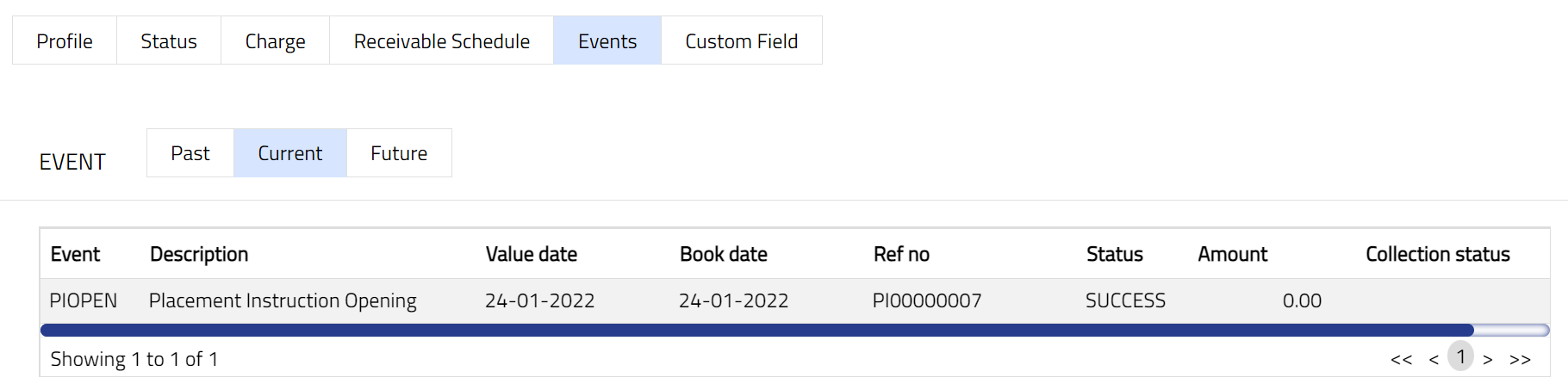
1. Access Placement Setting screen then click Event tab. There are three sub-tabs within it -- Past, Current and Future. By default, the Current tab is displayed. It shows the details of the Events that have value date as current business date. The Past tab and Future tab show details of events that have value date earlier than / later than the current business date respectively. Note: If there are no event then the page will display blank as per the sample screen shot shown below.
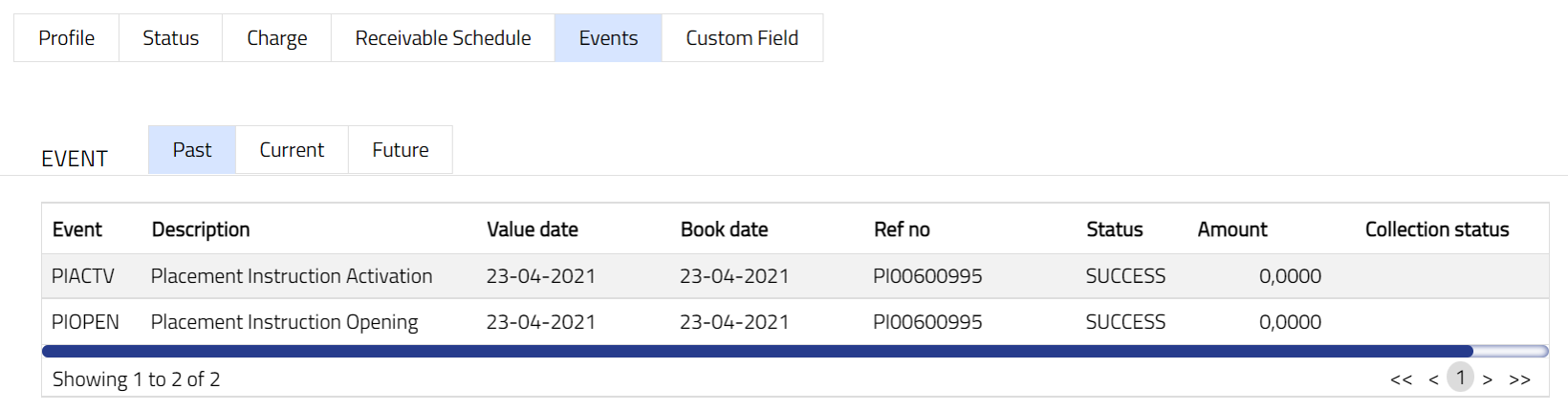
A sample of the Past tab is shown below:
A sample of the Current tab is shown below:
A sample of the Future tab is shown below:
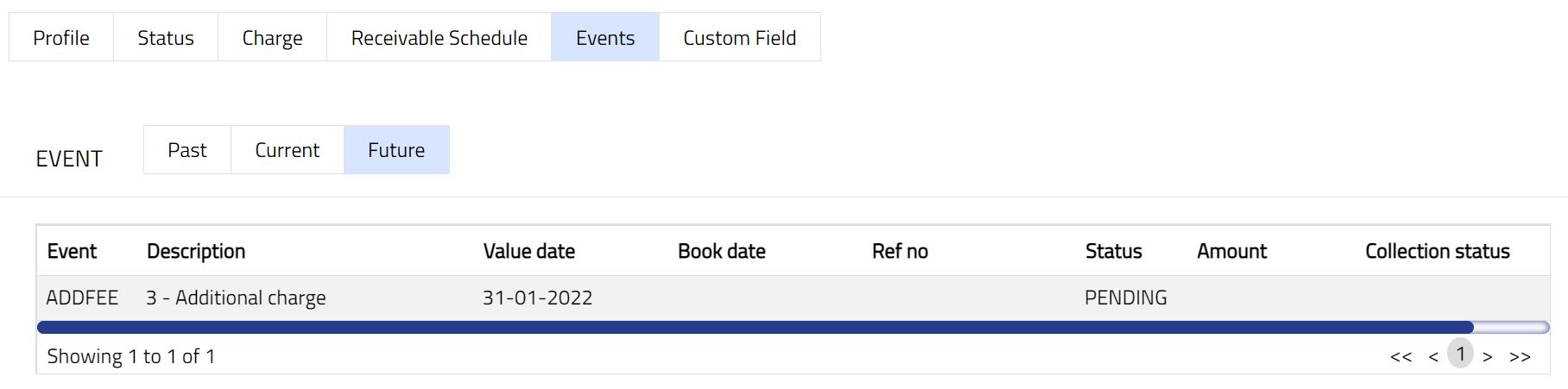
All the tabs show the following data:
Event: It displays the code for the event.
Description: It displays the description of the event.
Value Date: It indicates the date on which any event pertaining to the account gets applied. It can be back date, future date or current date.
Book Date: The date of entry / input of the event.
Ref No: The transaction reference number under which the event is processed.
Status: It displays the status of the event. It status can be of the following types.
Pending: Where the event is not yet processed.
Success: Where the event has been processed successfully.
Failure: Where the event has failed during process.
Retry: Indicates a failed event where the system retries to process the event on subsequent business days.
Amount: It indicates the amount processed by the event. Example: Interest liquidation event will have the amount of interest liquidated.
Collection Status: If the Collection status is Pending, it indicates that the deferred charges has not been collected and if the Collection Status is Success, it indicates that the deferred charges has been collected.
| Sl. no | Event Code | Description | Condition |
|---|---|---|---|
| 1 | PIACTV | Placement Instruction Activation | This event occurs when the account is activated, and it occurs only once, i.e., at the time of account activation. |
| 2 | PIOPEN | Placement Instruction Opening | This event occurs when the account is opened, and it occurs only once, i.e., at the time of account opening. |
| 3 | ADDFEE | Additional Charge | This event occurs when you add any additional charge/fee. |
Custom Field
This menu option allows you to define fields apart from those that are already available in the standard version of Aura. Thus, it enables you to customize additional data storage and use as required to suit your specific business needs.
To maintain Custom Field,
1. Access Placement Instruction page. Click Custom Field tab.

2. The field appears only when it is created in Admin → System codes → Custom fields → Custom fields and linked to Peer to Peer option in Admin → System codes → Custom fields → Field mappings.
3. Click Edit. Edit Custom Field page appears. In the following illustration, one custom field Loan Category has been mapped to the Product as shown below:

4. Enter Loan Category to be associated with the Peer-to-Peer. For example: Branch Sales, Agent etc.
5. Click Save. Custom Field tab appears with the edited details.

Function: Edit