
Charge Group
Charge group allows you to maintain differentiated charge groups for the different kinds of Charges on a Card Account Product. This (along with the Interest Group) will enable you to offer different pricing schemes for different groups of customers / card accounts.
During creation of a Card Account Product, a Default Charge Group for the Product is automatically created by Aura, using the charge schemes that were assigned for the various types of charges. You cannot edit any values for this Default Charge Group.
You can create other Charge Groups for a Card Account Product using this option and use the Default Group or any of these additional groups during the Card Account creation.
The sub-tabs are
Adding Charge group
From Card menu, click Settings, and then Charge Group. Charge Group Search page appears. All existing Charge groups appear on the page.
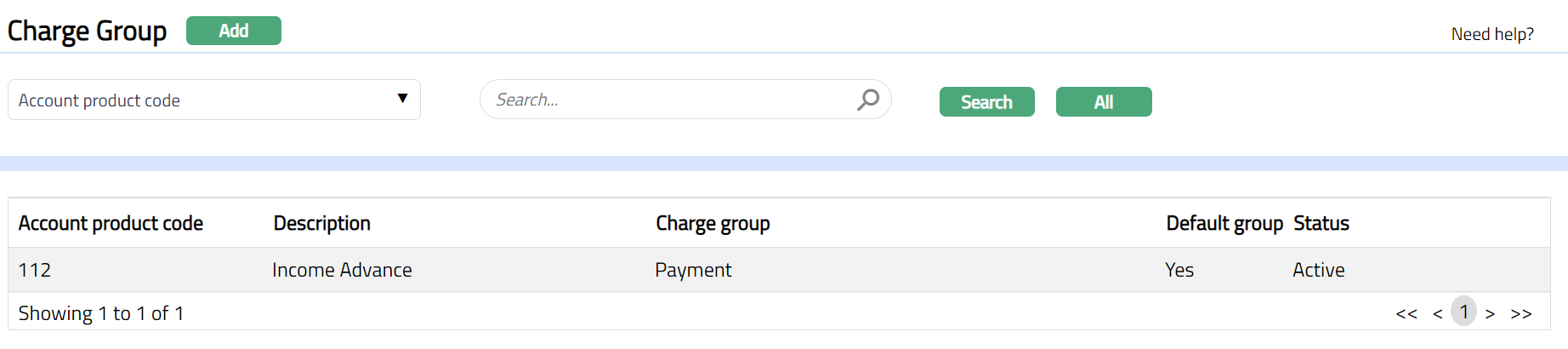
Click Add. New Charge Group -- Details (1/2) page appears.
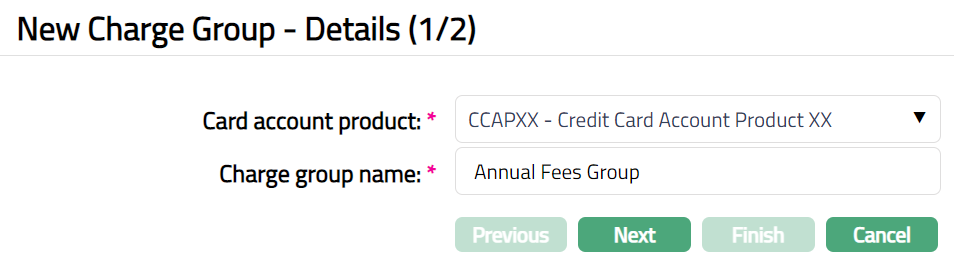
Select Card account product for the new charge group from the drop-down list. The list will display all the active Card Account Products maintained at Card > Settings > Card Account Product.
Enter name for Charge group.
Click Next. New Charge Group -- Confirmation (1/2) page appears.
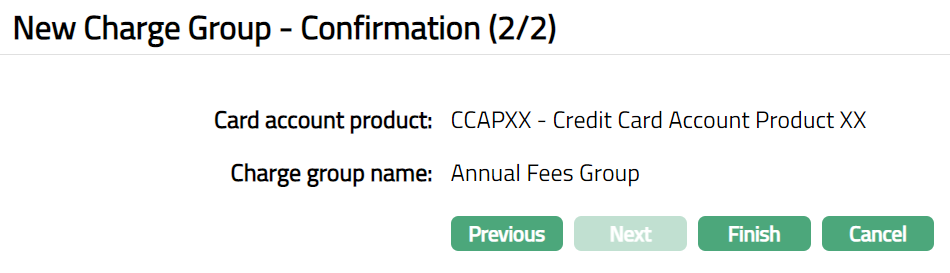
- Click Finish. Charge Group page appears.
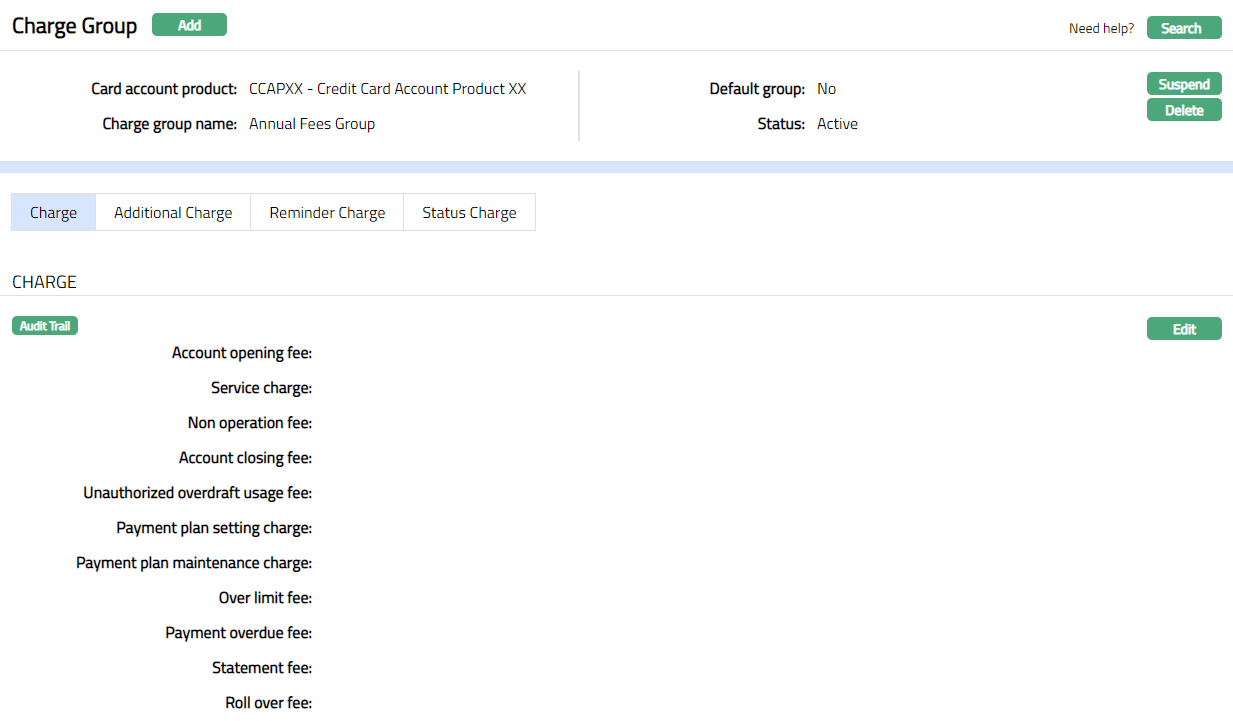
Functions: Add, Search, Delete, Suspend, Activate.
Note: Edit, Delete and Suspend buttons will be disabled for the Default Group but will be allowed for non-default groups.
Charge
This tab will allow you to view and edit the Charge schemes for the Default Charges.
- Access Charge Group page and click Charge tab to view the charge details maintained for the Charge group. On creation of the new Charge Group, this will be blank.
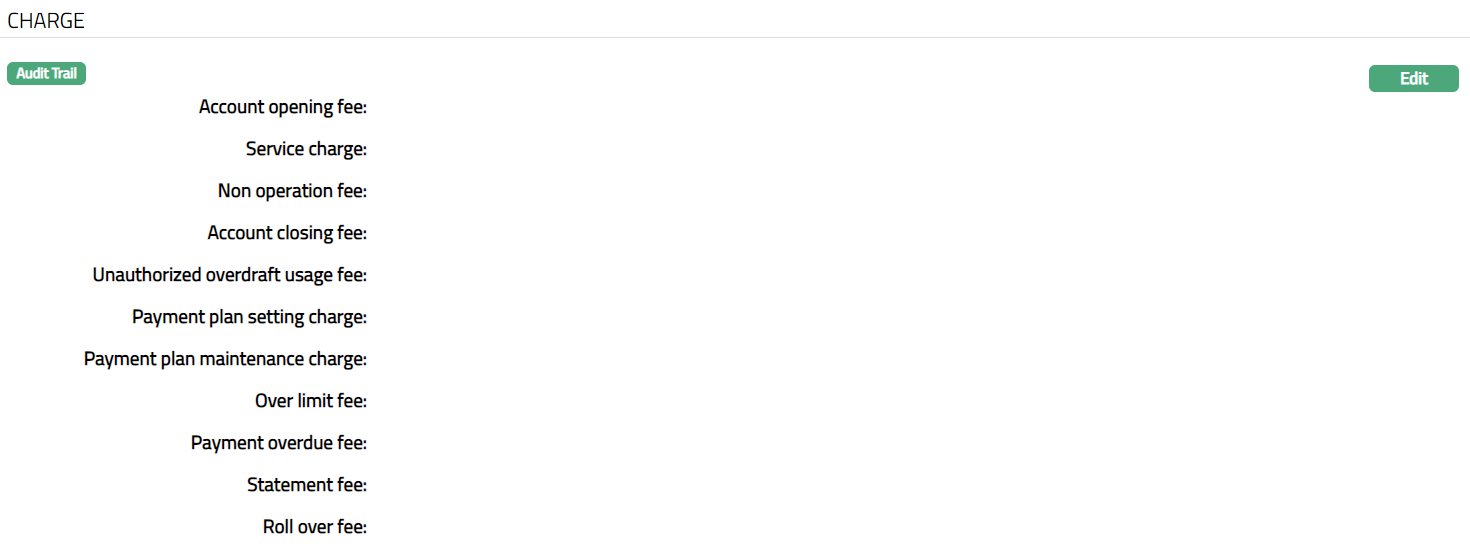
- Click Edit. Edit Charges page appears.
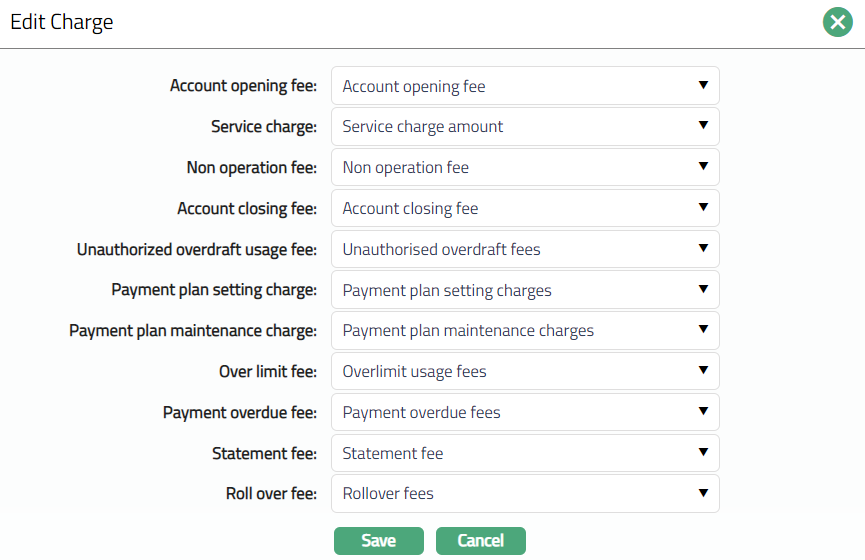
Select Account Opening Fee for the Charge Group from the drop-down list of all the active Charge schemes maintained under Admin > System Codes > Charges > Charges. It is the charge for opening the account and is selected from the list of the Event based Flat Charges.
Select Service charge for the Charge Group from the drop-down list of all the active Charge schemes maintained under Admin > System Codes > Charges > Charges. It is the charge for the service provided and is selected from the list of Periodic, Flat or Banded Charges. If Banded, the card account outstanding balance will be the basis for the charge.
Select Nonoperation fee for the Charge Group from the drop-down list of all the active Charge schemes maintained under Admin > System Codes > Charges > Charges. It is the charges for an account that remains un-operated and is selected from the list of Periodic Flat Charges. If there were no transactions which affect the Dormancy calculation during the charge period, the charge will be applied at the end of the period. It will be only arrear charges.
Select Account Closing fee for the Charge Group from the drop-down list of all the active Charge schemes maintained under Admin > System Codes > Charges > Charges. It is used for closure of the account and is selected from the list of Event based Flat charges.
Select Unauthorized overdraft usage fee for the Charge Group from the drop-down list of all the active Charge schemes maintained under Admin > System Codes > Charges > Charges. This charge is levied every time the account goes beyond its authorized limit and is selected from the list of Event based Flat charges
Select Payment plan setting charge for the Charge Group from the drop-down list of all the active Charge schemes maintained under Admin > System Codes > Charges > Charges. This charge will be applied when a payment plan for an account is initiated and is selected from the list of Event based Flat charges.
Select Payment plan maintenance for the Charge Group from the drop-down list of all the active Charge schemes maintained under Admin > System Codes > Charges > Charges. This charge will be applied whenever the Amount required for the Invoice is derived from an active Payment plan. The charge is selected from the list of Periodic, Flat charges.
Select Over limit fee for the Charge Group from the drop-down list of all the active Charge schemes maintained under Admin > System Codes > Charges > Charges. This charge will be applied if the account goes beyond limit for even one day during the cycle and is selected from the list of Periodic, Flat charges.
Select Payment overdue fee for the Charge Group from the drop-down list of all the active Charge schemes maintained under Admin > System Codes > Charges > Charges. This charge will be levied if the customer misses payment of amount required and if the payment status is Normal and the charge is selected from the list of Event based Flat charges.
Select Statement Fee for the Charge Group from the drop-down list of all the active Charge schemes maintained under Admin > System Codes > Charges > Charges. The charge is levied when an invoice is generated, and the charge is selected from the list of Event based Flat charges.
Select Rollover Fee for the Charge Group from the drop-down list of all the active Charge schemes maintained under Admin > System Codes > Charges > Charges. The charge is levied when the account balance is rolled over to the next cycle by not paying the amount due for the last cycle. Select the charge from the list of Event based Flat or Banded charges. If Banded, the rolled over amount will be the basis for the charge.
Click Save. Charge page appears with the edited details.
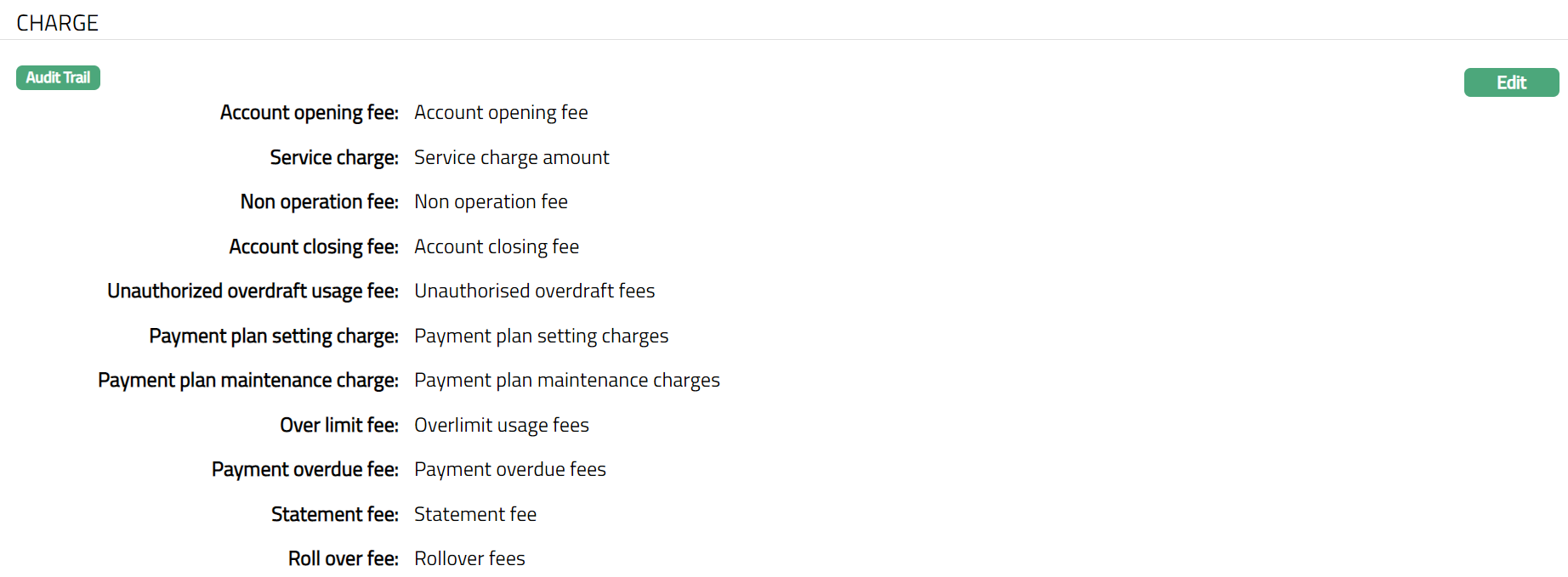
Functions: Edit.
Additional Charges
This tab will allow you to view and maintain the Charge schemes for all the latest defined Additional charges for the chosen Product.
- Access Charge Group page and click Additional Charge. This will display the Charge schemes maintained in the Charge Group for the various Additional Charges of the Product. With the creation of the new Charge Group, this will be blank.

To edit Charge schemes for the Additional charges,
Click Edit. Edit Additional Charges page appears.
Note: Until Additional charge is Approved, only the person who has added the additional charge can edit it. On approval anyone can edit it.
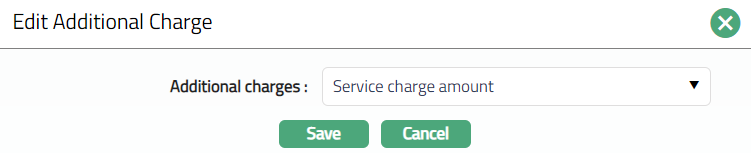
Select Charge scheme for the Additional Charges from the drop-down list of all the active Periodic, Flat Charge schemes maintained under Admin > System Codes > Charges > Charges.
Click Save. Additional Charge page appears with the edited details.

Functions: Edit
Reminder Charge
This tab will allow you to view and maintain the Charge scheme for all the latest defined Reminder charges for the chosen Product.
- Access Charge Group page and click Reminder Charge. This will display the Charge schemes maintained in the Charge Group for the various Reminder Charges of the Product. On creation of the new Charge Group, this will be blank.

To edit Charge schemes for the Reminder Charge
- Click Edit. Edit Reminder Charges page appears.
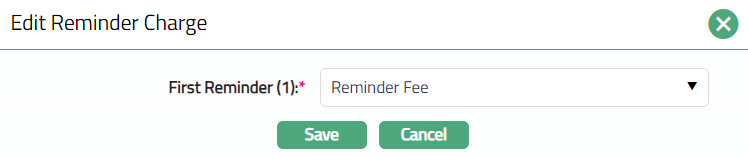
Select Charge scheme for the Reminder Charges from the drop-down list of all the active Event based Flat Charge schemes maintained under Admin > System Codes > Charges > Charges.
Click Save. Reminder Charge page appears with the added details.

Functions: Edit
Status Charge
This tab will allow you to view and maintain the Charge schemes for all the latest defined Status charges for the chosen Product.
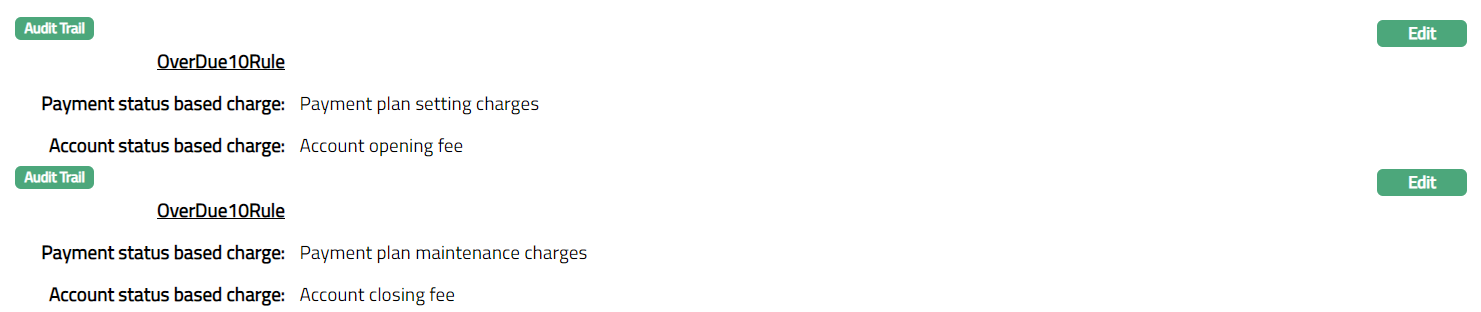
Access Charge Group page and click Status Charge. This will display the Charge schemes maintained in the Charge Group for the various Status Charges of the Product. On creation of the new Charge Group, this will be blank.
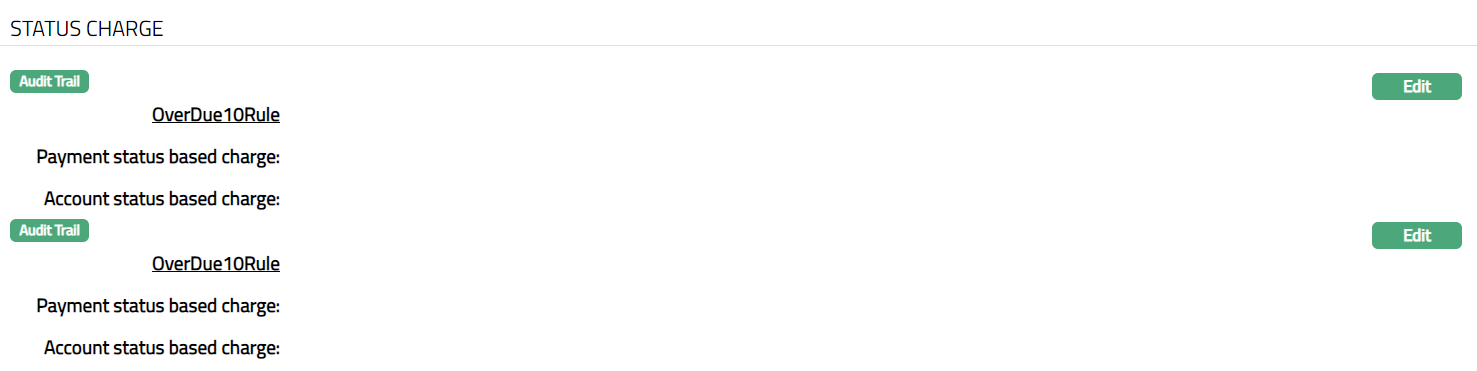
To edit interest schemes for the Status Charge
- Click Edit. Edit Status Charge page appears.
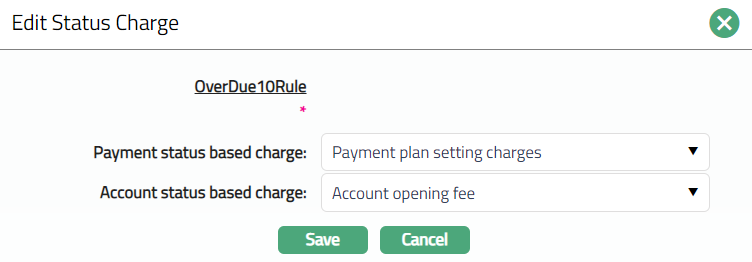
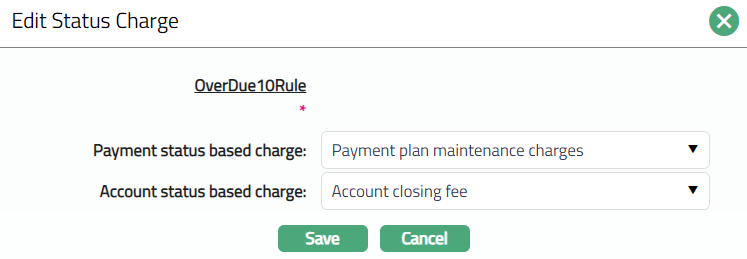
- Select Charge scheme for the Status Charges from the drop-down list of all the active Charge schemes maintained under Admin > System Codes > Charges > Charges.
Account status-based charge: Select charge scheme for the Account status-based charge from the list of Periodic or Event charges, where the Basis is Flat or Banded. If Banded, the basis will be card account outstanding balance.
Note.
If the Charge is Event based, charge will be applied only once, when the account moves into this Payment Status.
If the charge is Periodic, charge will be applied if the account remains in the same status at the end of the period.
Payment status-based charge: Select the charge scheme for the Payment status-based charge from the list of Periodic or Event charges, where the Basis is Flat or Banded. If Banded, the basis will be card account outstanding balance.
Note:
If the Charge is Event based, charge will be applied only once, when the account moves into this Payment Status.
If the charge is Periodic, charge will be applied if the account remains in the same status at the end of the period.
- Click Save. Status Charge page appears with the edited details.
Functions: Edit