
Account Statement
Account statement allows you to view the statements for Client account, Nostro account and Term Deposit account.
To view Account Statement,
- From Retail menu, click Transaction review and then Account statement. Account page appears. From search page you can search for Account Statement from the available drop-down options of Account #, Account branch, Client # or Currency. Below is the Account Statement with Currency option.
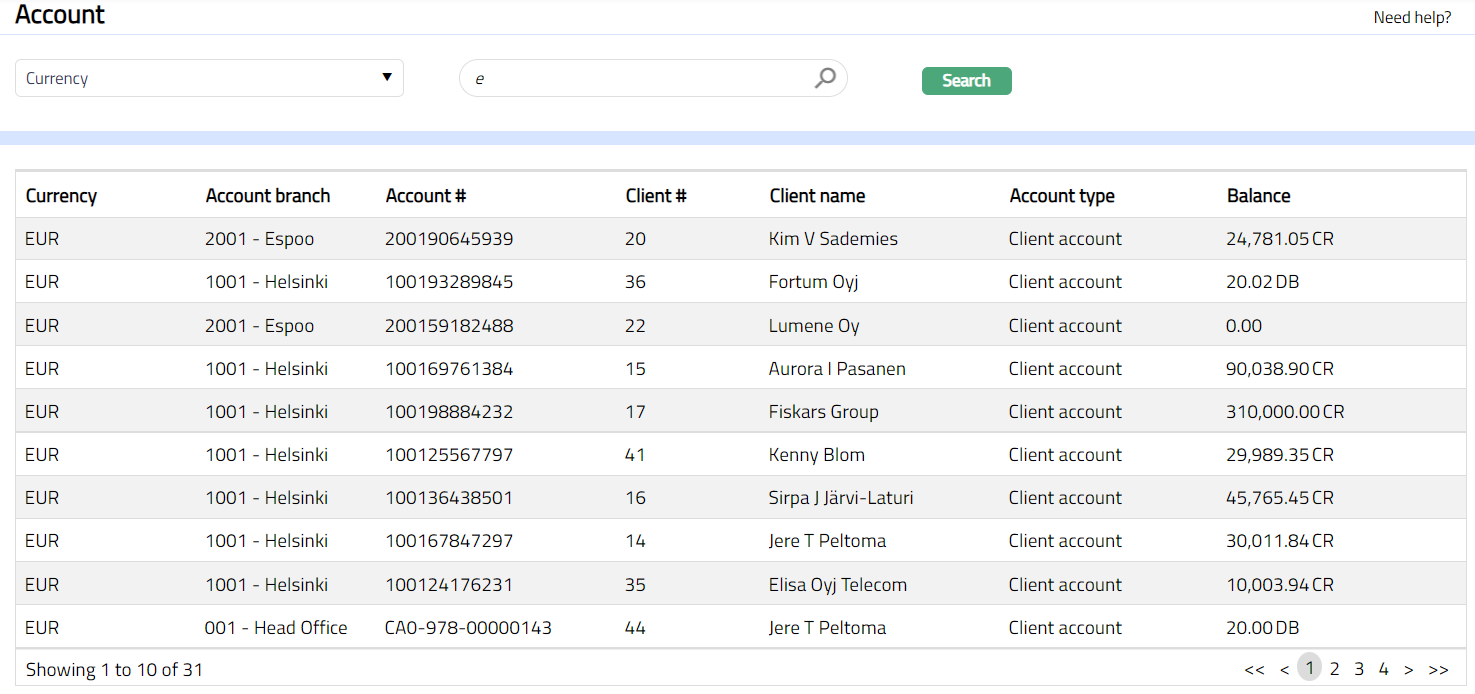
The records appear in the search page only if the transaction is successfully completed in the respective accounts. The balance displayed here is the current balance of the account.
Click any of the accounts to view the transaction details of that account as shown below. The details of transactions of the past one month, based on Book date, along with the Opening and Closing balance will be shown by default.
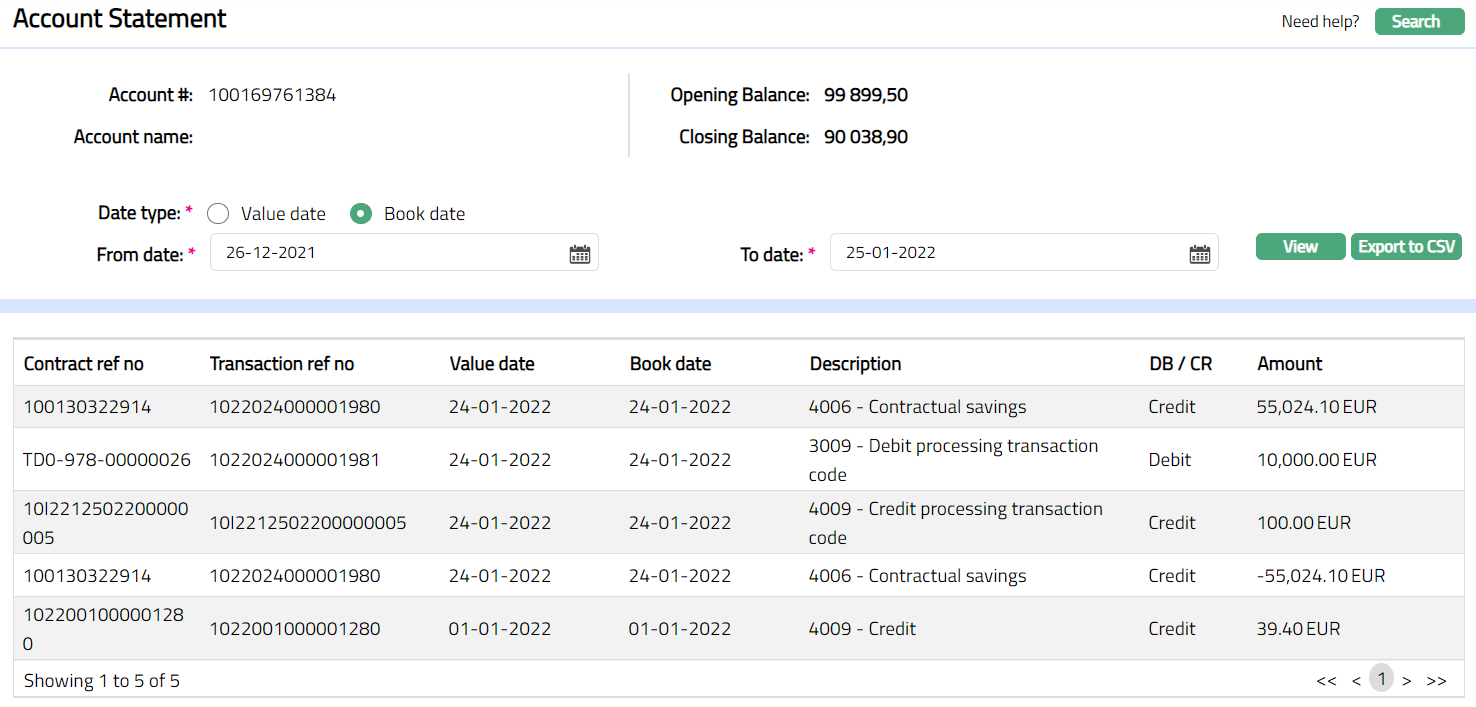
By default, Date type will be chosen as Book date. You can change it to Value date if required.
By default, From date will be current date minus one month and To date will be the current date. If required, you can modify the From date and To date by clicking on the date picker located to right and choose another date or by entering the date in the fields.
If you have made changes to the above fields, click View to view the list of transactions that were posted between From date and To date for the selected account.
Click any of the records to view transaction details corresponding to the selected record. The details will display all legs (Debits & Credits) corresponding to the selected transaction leg.

Note: If Date type is Book date, Book dated Opening balance = Net of all Debits/Credits where book date < From date
Book dated Closing balance = Book dated Opening balance + Net of all Debits/Credits where book date is between From date and To date
If Date type is Value date, Value dated Opening balance = Value dated closing balance of (From date -1) from Value dated balance table
Value dated Closing balance = Value dated closing balance of To date