
Loan Reversal
Loan Reversal option allows you to reverse certain life-cycle events on the Loan, like Repayment and Disbursement.
The following are the tabs in a Loan Reversal screen:
To add a reversal record,
1. From Retail menu, click Loans, and then click Reversal. The Loan Reversal Search page appears.

2. Click Add. New Loan Reversal → Profile (1/3) page appears by default.

3. Click on Client hyperlink to select the client from the list of clients maintained under CRM → Clients → Maintain. You can search for a client with relevant criteria and select the required client. Alternatively, you can type in the name of the client and choose the relevant client from the list suggested by Aura.
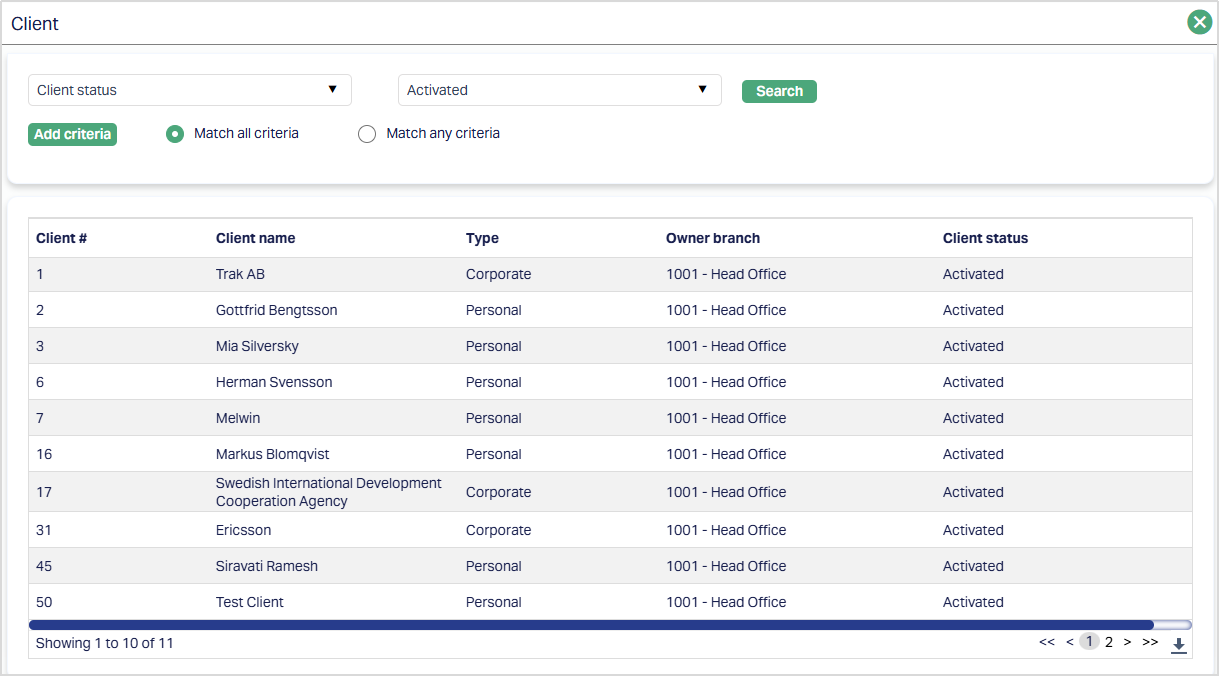
4. Select the account for which you want to do the reversal from Account # drop-down list of all loan account numbers of the selected client that are active.
5. Enter the reason for the reversal in the Remarks field.
Note: If you select the Account # for which there are no eligible reversible events, Aura will not allow you to proceed to next step.
6. Click Next. The New Loan Reversal → Reversal Events Step (2/3) page appears. All the events that are eligible for reversal for the selected account will be displayed here.

Note: Only events that are within the open accounting period will be considered for reversal. Events in closed accounting period cannot be reversed.
The following events are reversible:
LNPAYS -- Schedule Payment event
LNDISB -- Disbursement event
LNPAYP -- Prepayment of Loan.
1. In case of Full Prepayment, the reversal can be done before End of Day is initiated on that day; else, usually the Loan's Account Status moves to Closed at the end of the day and after that, Reversal cannot be done
2. In case of Partial Prepayment, Reversal can be done even after End of Day is initiated.
Events are reversed in the reverse-chronological order i.e., latest event is reversed first and then backwards, till the earliest event. For example, assuming LNPAYS is an event that can be reversed, and the event has happened in the following manner:
10-Jan-2013 LNPAYS SUCCESSFUL
10-Feb-2013 LNPAYS SUCCESSFUL
10-Mar-2013 LNPAYS FAILED
15-Mar-2013 LNPAYS SUCCESSFUL
10-Apr-2013 LNPAYS SUCCESSFUL
10-May-2013 LNPAYS SUCCESSFUL
If you want to reverse the 15-Mar-2013 LNPAYS event, then the 10-May-2013, 10-Apr-2013 LNPAYS events have to be reversed before the 15-Mar-2013 LNPAYS event. So, if you select the 15-Mar-2013 LNPAYS event, all the events after the selected one till date will be automatically marked for Reversal
Once an event is reversed, this event cannot be selected for subsequent reversals
7. Select the event from the list of events for the selected account.
8. All the Events show the following data:
Event: It displays the code for the event.
Description: It displays the description of the event.
Value Date: It is the Value date of the Event.
Book Date: The date of entry / input of the event.
Ref No: The transaction reference number under which the event is processed.
Amount: It indicates the amount processed by the event. Example: Interest liquidation event will have the amount of interest liquidated.
Status: It displays the status of the event.
9. Click Next. The New Loan Reversal → Confirmation (3/3) page appears.
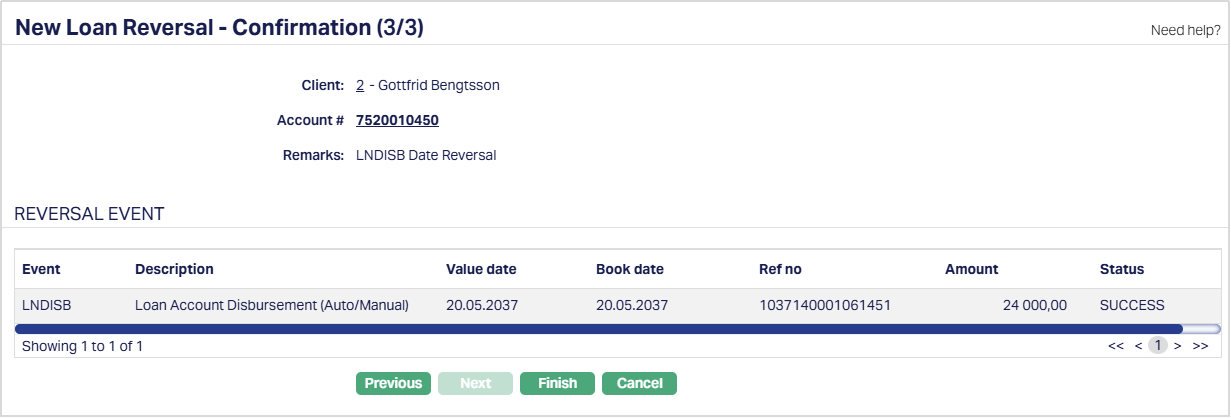
10. Click Finish. Loan Reversal page will appear.
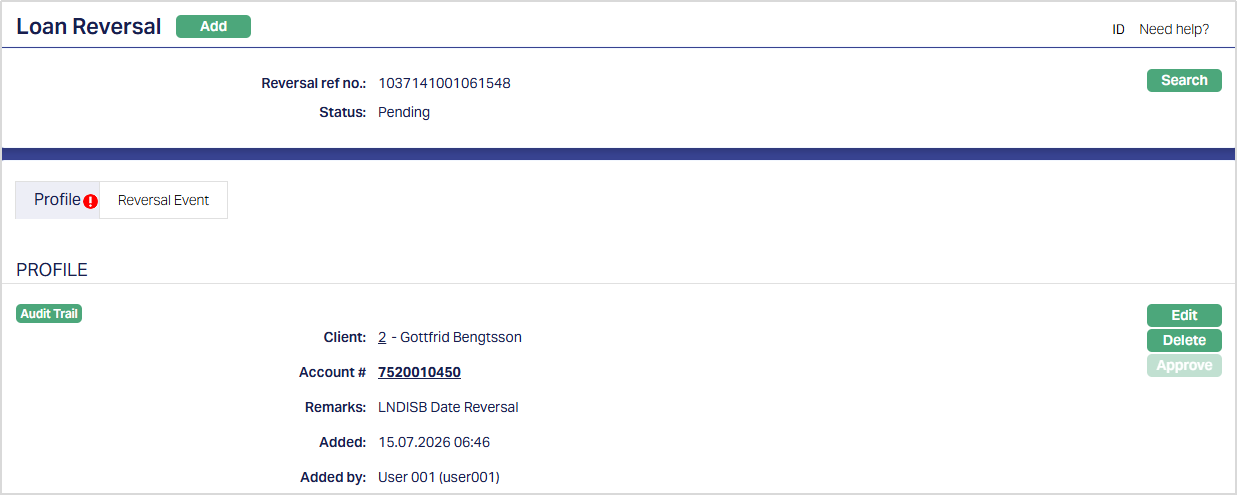
Functions: Add, Edit, Delete and Approve
The Reversal record will be created with a unique Reversal Reference Number and the record status will be Pending, subject to auto-approval settings. Any user other than the one who has created this has to approve the record.
Edit: You can update the details of the reversal record by clicking on Edit button. This button will be enabled only for the user who created the record and only if the status is Pending.
Delete: You can delete the details of the reversal record by clicking on Delete button. This button will be enabled only for the user who created the record and only if the status is Pending.
Approve: Any user other than the one who created this record will be allowed to Approve the record.
On approval, the following actions take place:
All system events from the earliest Reversal Event till date will be reversed by the system automatically.
For each reversed event, system will post the reversal accounting entry; and the reversal accounting entries will be tagged along with the original accounting entry
The event status will be updated as Reversed.
In case of Manual LNDISB, LNPAYS & LNPAYP, the respective record's status in the Manual Disbursement / Repayment screen will be changed to REVERSED after reversal.
Loan's main interest accrual is not impacted in any way. However, Event LNRATE between the earliest reversal date and latest date will be marked for retry (even though they were successful earlier). This is to make sure, with the recalculated principal outstanding due to reversals, proper rates are applied on the proper dates and the calculation and accrual is perfect.
Any invoice that was generated between the earliest Reversal Event and current date will NOT be impacted.
Any Change of Term that the user had initiated between the earliest Reversal Event chosen and current date will NOT be impacted in any manner. Thus, if there were any changes to the payment schedules based on such Change of Term records, these will not be applied / reversed in any way. The principal amount will be adjusted in the final schedule. You have to take care to ensure that the Payment Schedule after the Reversal reflects the intended payment schedule for that Loan; and if not, initiate another Change of Term to generate the Payment Schedule as required.
If any payments are reversed, the outstanding will change and hence, there will be recalculation of penalties and Late Payment Fees. These will be adjusted in the upcoming schedule.
When the disbursement event is reversed, the subsequent accruals are reversed and the schedules are regenerated
At EOD on Reversal Date, the Loan will move to the relevant Account Status and Payment Status, based on the Status Rules defined for the Loan Product.
Note: When an Adhoc Charge is reversed, any charge amortization entries already generated for the charge are reversed or adjusted accordingly. No further charge amortization entries are generated for the reversed Adhoc Charge. Any remaining balance in the Charge Amortization GL is adjusted according to the reversal process.
Profile
The Profile tab, which is the default screen in the Loan Reversal screen, shows the basic details of the loan account.
To Edit / View profile,
1. Access Loan Reversal page. Profile tab is displayed by default as per the sample below. The details are defaulted from the entries that you made during reversal record creation. For details refer to New Loan Reversal → Profile (1/3).
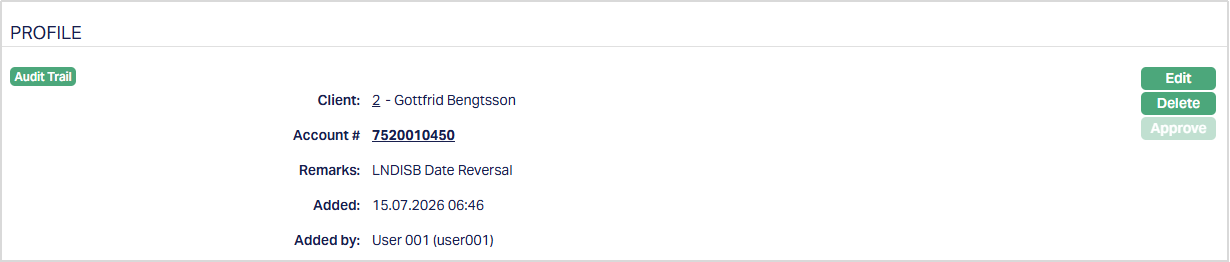
2. Click Edit. Edit Loan Reversal page appears.
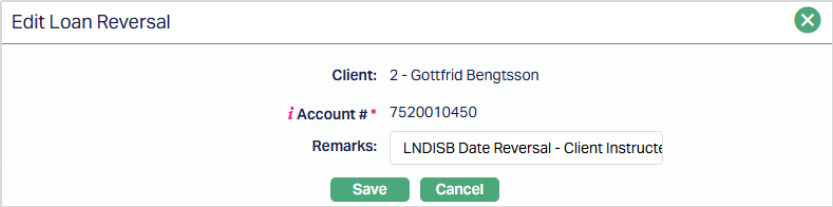
Note: Only Remarks field is editable.
3. Click Save. Profile page appears with the edited details.
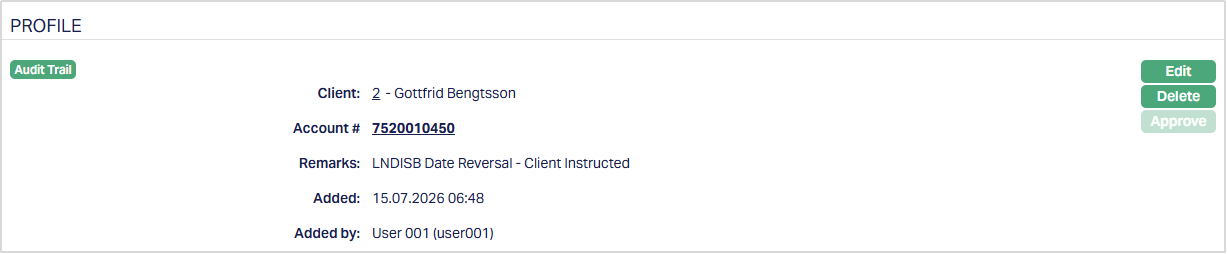
Functions: Edit, Delete and Approve
Note: Any change in the tab will set the tab status to Pending till it is approved by another user. On approval, the tab status is set to Approved and the red bubble disappears.
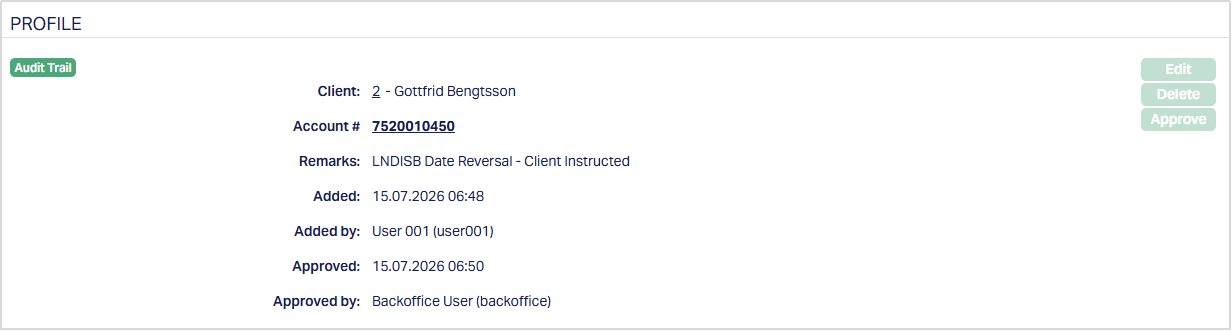
The additional fields that you can view in the tab are explained below:
Status field denotes the status of the reversal record.
Added field denotes the date on which the record was added.
Added by field denotes the name of the user who created the record.
Approved field denotes date on which the record was approved and is displayed only for approved records.
Approved by field denotes name of the user who approved the record and is displayed only for approved records.
Reversal Event
This is a view-only tab that displays the list of events that are selected for reversal during the reversal record creation. For details refer to New Loan Reversal → Reversal Events Step (2/3).
