
Network cutoff time
The Network cut-off time menu allows you to maintain the details of the cut-off time for various Branches for the days of the week for a specific Clearing Network. You can define the time for each day of the week; and apply that to all branches that have the same cut-off time. Thus, it provides you the flexibility to define different cut-off times for different branches; and at the same time, once a set of cut-off times is defined, it can be applied to all or selected branches.
The following are the sub-tabs in Network cut-off time.
First, you have to choose the Clearing Network for which you want to maintain the cut-off time. For this,
- From PaymentGrid menu, click Settings and then Network Cutoff Time. Network Cutoff Time Search page appears.

- Click Add. New Network Cutoff Time -- General (1/2) page appears.
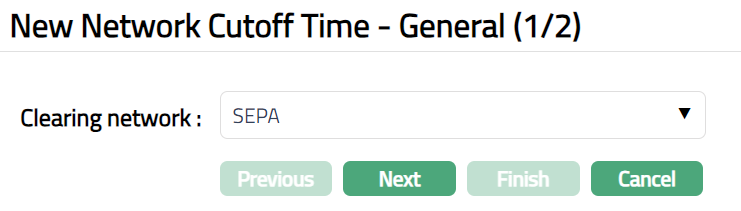
Choose the required Clearing Network from the dropdown list of clearing networks that are available for you.
Click Next. New Network Cutoff Time-- Confirmation (2/2) page appears.
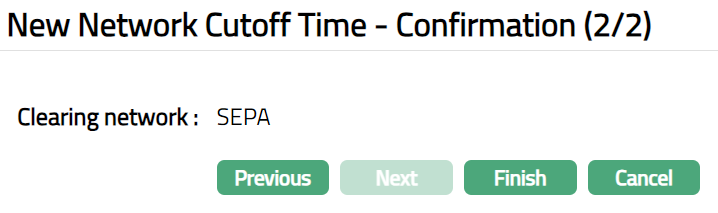
- Click Finish. Network Cutoff Time Maintenance page appears. The new Clearing Network is created, and you can see the Days of Week tab by default.

Functions: Add, Search, New, Edit.
Days of Week
Days of Week tab, which is the default tab in the Network Cutoff Time Maintenance screen, shows the Days of the Week for which you have defined the cut-off time.
To specify the cutoff time for various days in the week
- From PaymentGrid menu, click Settings and then** Network Cutoff Time**. Click Days of Week tab, which is the default tab. Initially it will display blank, unless Days of Week was already added earlier.

- Click New. New days Of Week page appears. You can see all days of the week, with the drop-down for time in HH: MM.
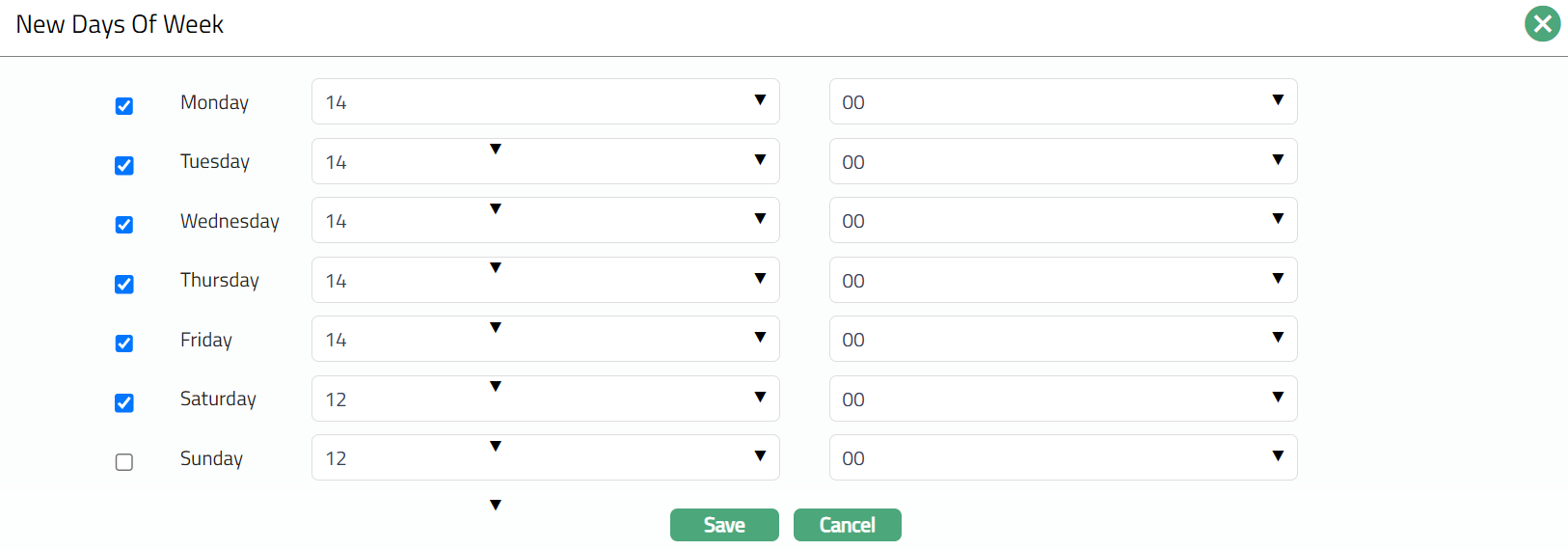
Select checkbox for the required days and select the required cutoff time using the drop-down for hours and minutes.
Click Save. Days Of Week tab appears with the added details.
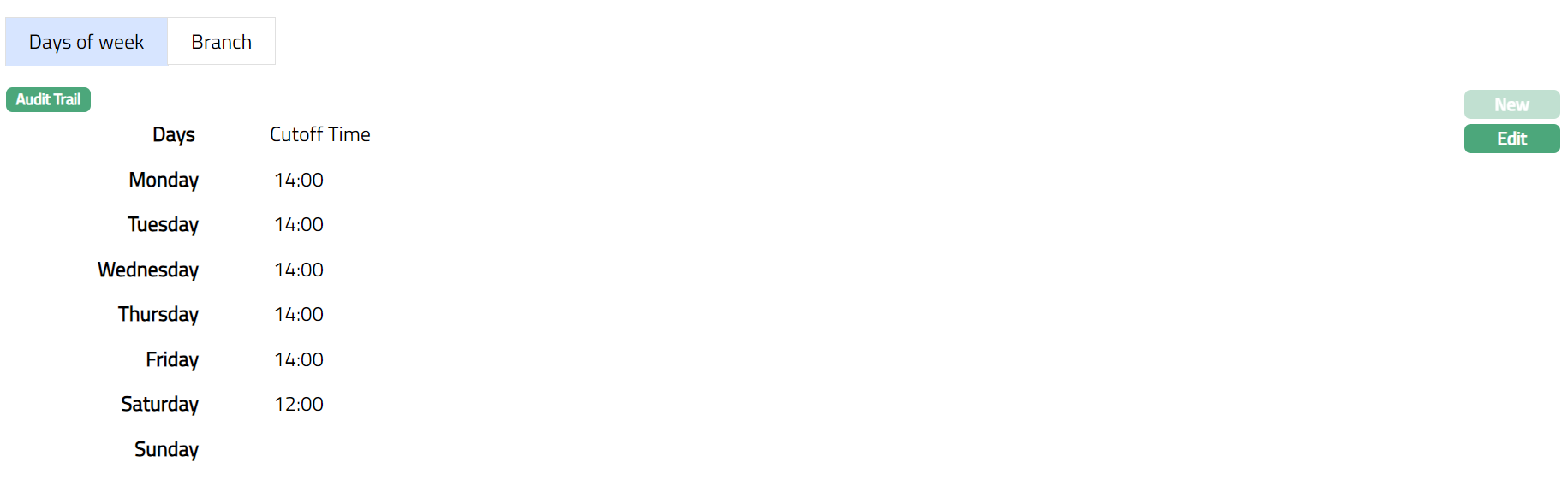
Functions: New, Edit
To Edit Day Of Week.
- Click Edit. Edit days Of Week page appears.
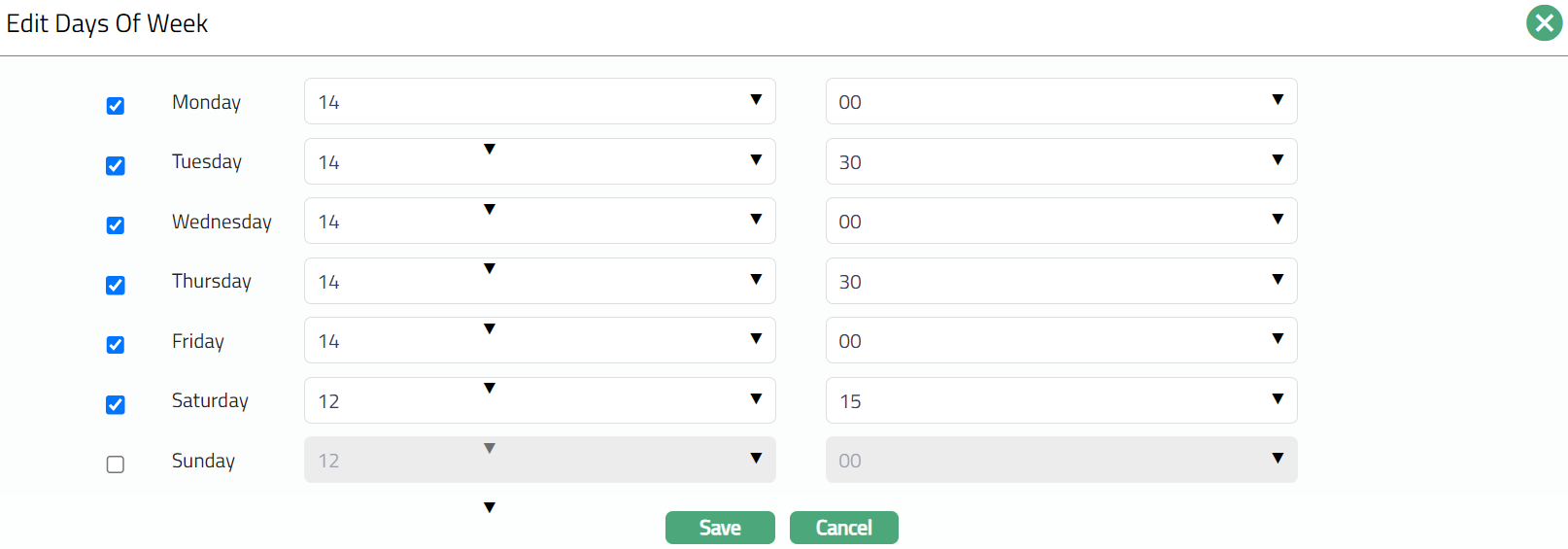
Note: All fields are editable.
- Click Save. Days Of Week tab appears with the edited details.
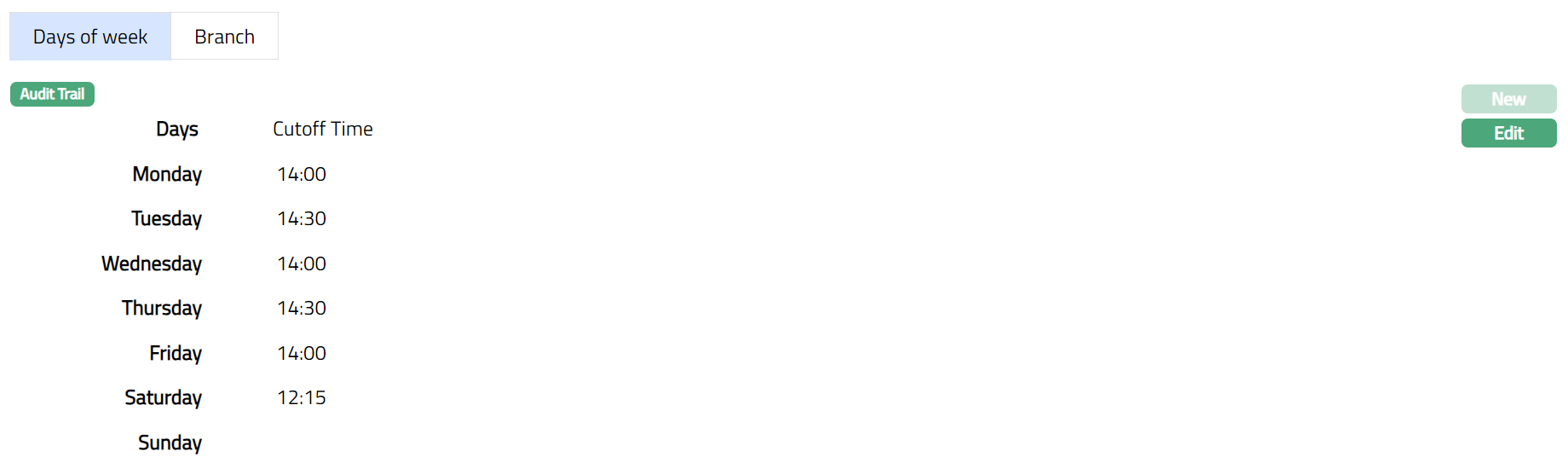
Functions: New, Edit
Branch
The Branch Tab allows you to define the various Branches to which the cut-off time as maintained in the Days of Week Tab will be applicable.
If you want to apply the cutoff time to only selected branches, you will then have to specify such branches by using the Add button.
To Add selected Branches
- By default, All radio button is selected so that this Time is available for all Branches.

- To restrict the branches for which this Time is available, click Selected radio button. Add button is now enabled.

- Click Add. Add Branch screen appears where you can select the required branch from the drop-down list of all active Branches of the Entity.
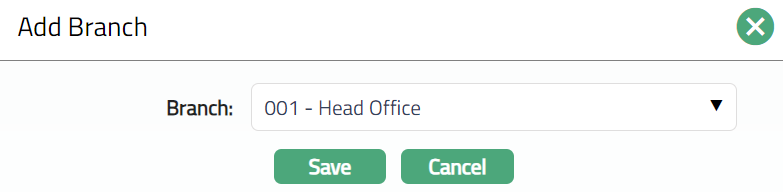
- Click Save. Branch tab appears with the added details.

Functions: Add, Delete