
Interest Scheme
Interest Scheme menu allows you to set Interest scheme. Once an Interest Scheme is maintained, it may be attached either as Interest Receivable or as Interest Payable to Account Products / Accounts.
Following are the Tab and sub-tab in the Interest screen:
To add new Interest Scheme
- From Admin menu, click Pricing Interest, and then Interest Scheme. Interest Scheme Search page appears. All Interest Schemes if available in Aura will appear on this page.

- Click Add. New Interest Scheme -- General (1/3) page appears.
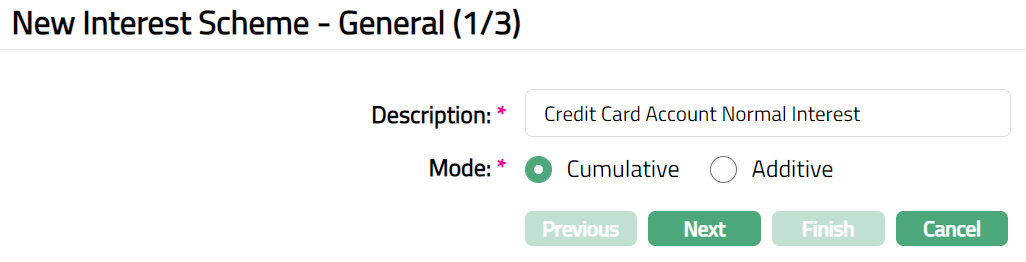
Enter Description for the Interest Scheme.
Select Mode. The options available are Cumulative and Additive. By default, Cumulative is checked.
Additive: If this option is chosen, then the interest scheme will pick additive interest rates that are calculated based on Bands maintained in an additive form and the total interest is summed up.
Cumulative: If this option is chosen, then the interest scheme will pick cumulative interest rates. Cumulative interest rate is the total rate picked based on the Band range.
Click Next. New Interest Scheme -- Interest Combination (2/3) page appears.
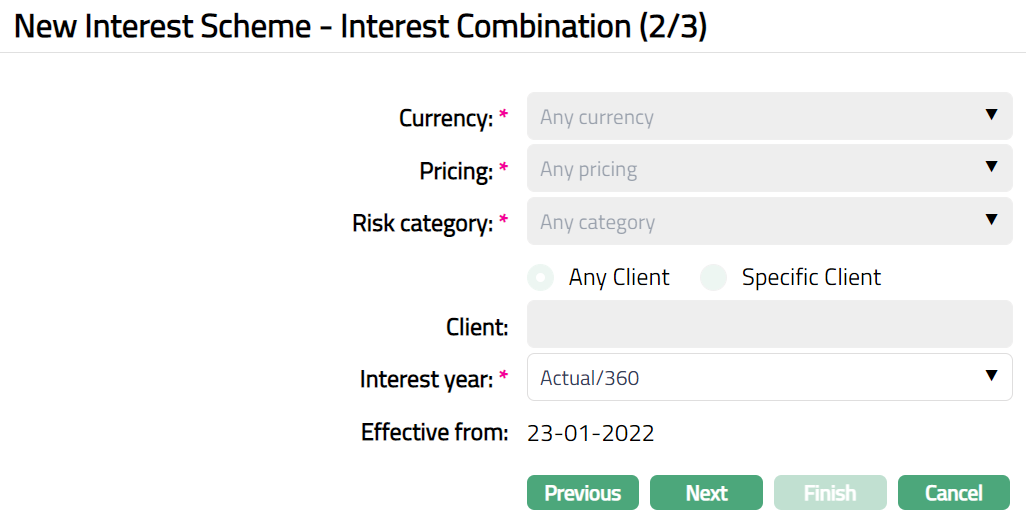
When Interest Scheme is first created, a default Combination of currency, pricing, Risk category and Client is automatically created -- These fields are non -- editable and have the default values Any currency, Any pricing Any category and Any Client respectively. This ensures that a default interest combination is available for all the accounts. If required, you can create additional Combinations by choosing a specific currency, pricing, Risk category and client or any combination of these as required. Refer to the section on Adding an Interest Combination below.
Select Interest Year from the available pre-shipped drop-down list. Available options are, Actual/360, Actual/365, 30-Eur/360, 30-Eur/365.
If numerator is Actual, then the actual number of days is taken into consideration for interest calculation.
If numerator is 30-EUR then all months are taken as 30 days.
If denominator is 360 then during interest calculation the denominator is always 360
If denominator is 365 then during interest calculation the denominator is 365 for a non-leap year and 366 for a leap year.
Effective from is the date from which the interest combination will be applicable. For the default combination (DD-MM-YYYY), the current date will be the Charge Effective from date by default and is not editable. The effective date can be changed for the second combination onwards.
Click Next. New Interest Scheme -- Confirmation (3/3) page appears.
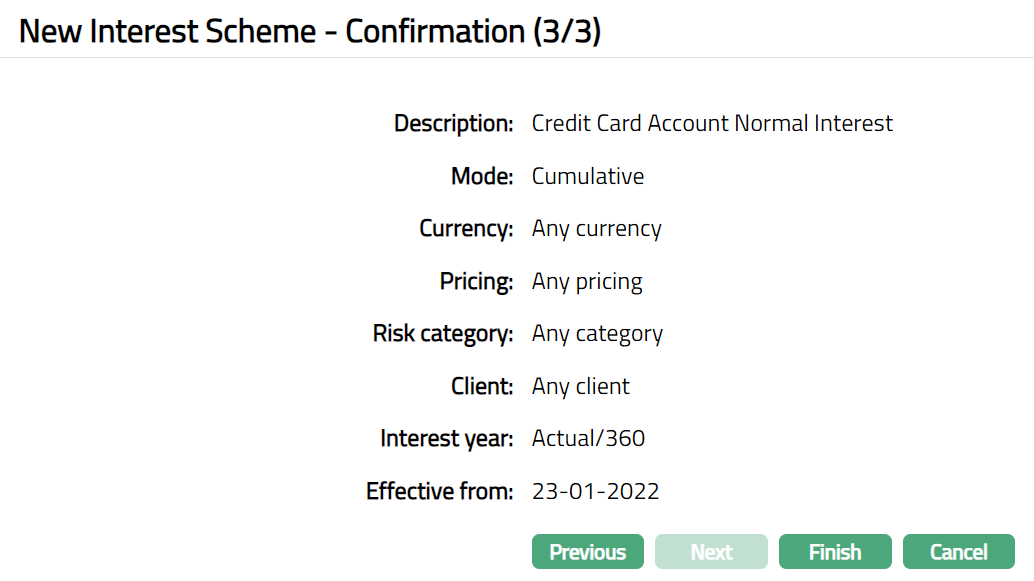
- Click Finish. Interest Scheme page appears displaying the details of the Interest Scheme you added.
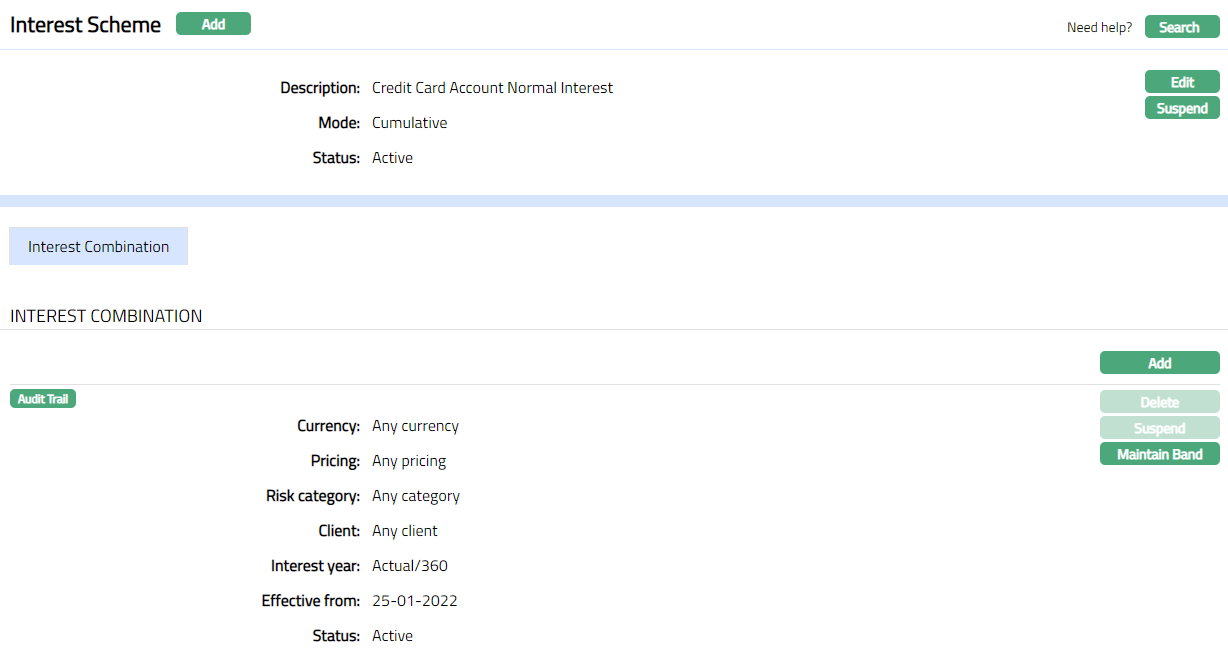
Functions: Add, Edit, Search, Suspend, Activate
Status: Status of the Interest Scheme is Active as soon as the Interest scheme is created.
Suspend: You can suspend the Interest Scheme by clicking on Suspend button. When you click on Suspend button at the top, Aura displays an alert message. On confirmation Aura will suspend the Interest scheme Combination. Once the interest scheme is suspended, it is not available for use in other modules. Suspended interest schemes can be activated by using Activate button.
Activate: You can activate a Suspended Interest Scheme by clicking on Activate button. When you click on Activate button, Aura displays an alert message. On confirmation Aura will activate the Interest Scheme. Once the interest scheme is activated, it becomes available for use in other modules.
Note: Once the default interest scheme combination record is created, Delete, and Suspend buttons for the Default Combination will be disabled and only the Maintain Band button will be enabled.
Adding Interest Combination
This option allows you to create the required combination of Currency, Pricing, Risk category and Client as you require for calculation of Interest.
For example, if you want a specific interest rate to be applied to all accounts with a specific currency, you can choose the specific currency in the interest combination page. The Pricing and Client should be chosen as Any Pricing, Any category and Any client. Similarly, if you want a special interest rate to be applied to a specific group of customers defined under Relationship Pricing in System Codes, you can choose that specific group in the Pricing field of the Interest combination page; and choosing Any Currency, Any category and Any Client. Like wise if you want a specific interest rate to be applied to a specific group of customers who fall in a particular Risk category then you can choose the specific category in the interest combination page.
To add Interest Combination,
- Click any of the existing records to access Interest Scheme page. Then click Interest Combination tab and then Add. New Interest Combination page appears.
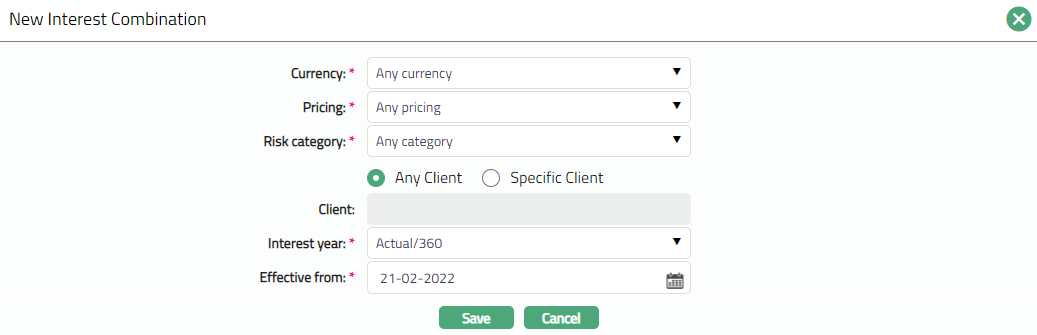
Select Currency for this Interest scheme from the drop-down list of currencies that have been maintained in Admin > System codes > Currencies > Currencies. If you do not want to specify a currency, choose Any currency. Once the record is created this field cannot be edited.
Select Pricing to which this Interest scheme is applicable from the drop-down list of Relationship Pricing that have been maintained in Admin > Categories > Relationship pricing. If you do not want to specify a relationship pricing, choose Any pricing. Once the record is created this field cannot be edited.
Select Risk category to which this Interest scheme is applicable from the drop-down list of Risk categories that are created and maintained under Admin > System codes Categories > Risk category. If you do not want to specify a Risk category, choose Any category. Once the record is created this field cannot be edited.
If you want the interest scheme to be applicable to a specific client, select Specific Client radio button. Client hyperlink will be enabled. Click on the hyperlink to select the required client. If you do not want to specify a client, choose Any client radio button. The client hyperlink will then be disabled.
Enter Effective from date. Interest scheme will be applicable from the date entered here. This cannot be a past date.
Select Interest year from the pre-shipped drop-down list. The available drop-down values are, Actual/360, Actual/365, 30-Eur/360, 30-Eur/365 and Actual/Actual.
If numerator is Actual, then the actual number of days is taken into consideration for calculation.
If numerator is 30-EUR then all months are taken as 30 days.
If denominator is 360 then during accrual calculation the denominator is always 360
If denominator is 365 then during accrual calculation the denominator is either 365 for a non leap year and 366 for a leap year.
If numerator and denominator is Actual, then the actual number of days is taken into consideration for calculation. Actual number of days in a year -- 365 for non-leap years and 366 for leap years
- Click Save. Interest Combination page appears displaying the details of the Interest Combination you added. Interest Scheme will now be available to be attached either as Interest Receivable or Interest Payable for any Product.
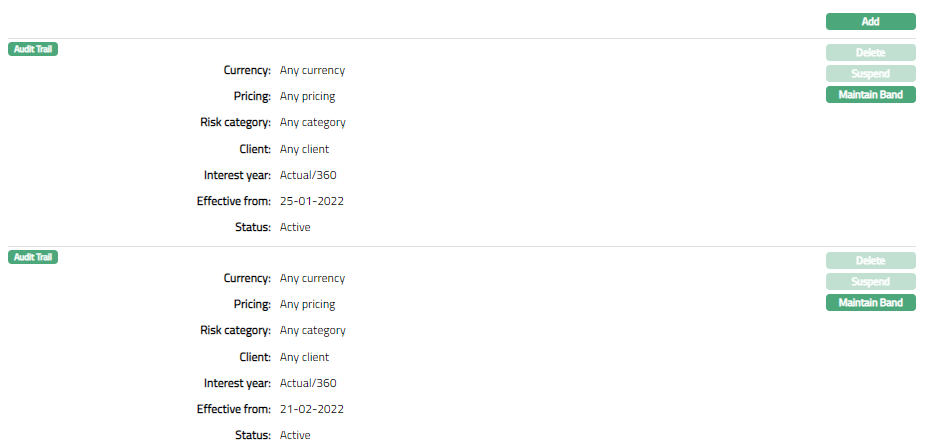 Functions: Delete, Suspend, Activate, Maintain Band
Status: Status of the Interest scheme Combination is Active as soon as the Interest scheme is created.
Suspend: You can suspend the Interest scheme Combination by clicking on Suspend button. When you click on Suspend button, Aura displays an alert message. On confirmation Aura will suspend the Interest scheme Combination. Once the interest scheme is suspended, it is not available for use in other modules. Suspended interest schemes can be activated by using Activate button.
Activate: You can activate the Interest scheme Combination by clicking on Activate button. When you click on Activate button, Aura displays an alert message. On confirmation Aura will activate the Interest scheme Combination. Once the interest scheme is activated, it becomes for use in other modules.
Adding Band
- Click any of the existing records to access Interest Scheme page. Then click Interest Combination tab and then Maintain Band. For a new interest Combination, this will be blank.
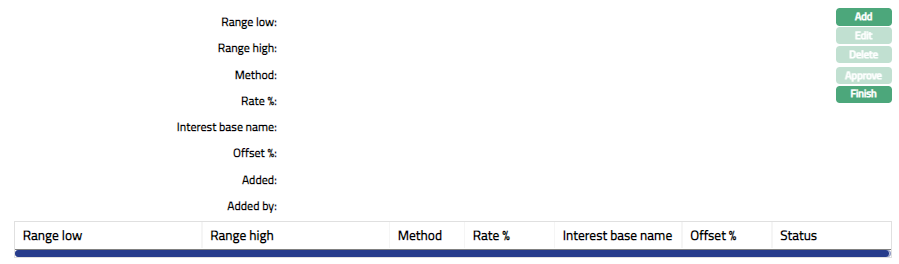
- Click Add. New Band page appears.
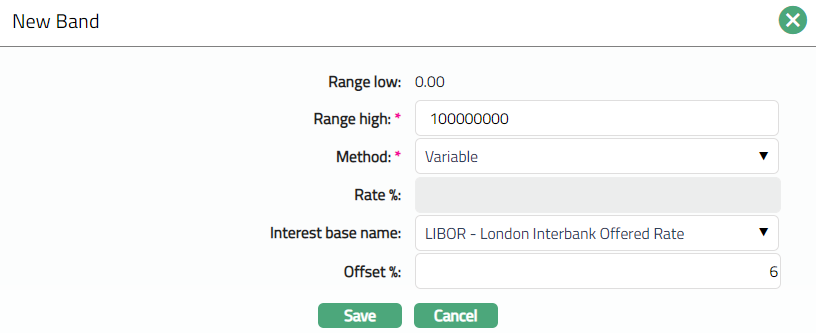
Range Low defaults to Zero for the first band. For the succeeding bands, it is automatically set as Range high of the previous band + least decimal of Interest currency. In case of Any Currency, the number of decimals is taken as 2.
Enter Range High i.e., the upper limit for the Band.
Note: Where you have only a single Interest rate without multiple bands, enter the Range High as a sufficiently large amount to cover the highest balance.
Select Interest Method as None, Fixed or Variable from the drop-down list. Note: If you select None, the remaining fields are disabled.
If you select Fixed or Method, the Rate % field will be enabled. Enter the fixed rate% for the Band.
In case of Variable Interest Rate, enter the Interest Base which will be used as the Basis for the Variable interest from the dropdown in Interest Base Name. The Interest Bases should have been maintained at Admin > Interest > Interest Bases. Also, enter the Offset % i.e., the % by which the base interest rate should be offset to get the actual interest to be applied for interest calculation.
Click Save. Interest Scheme page appears displaying the details of the Band you added.
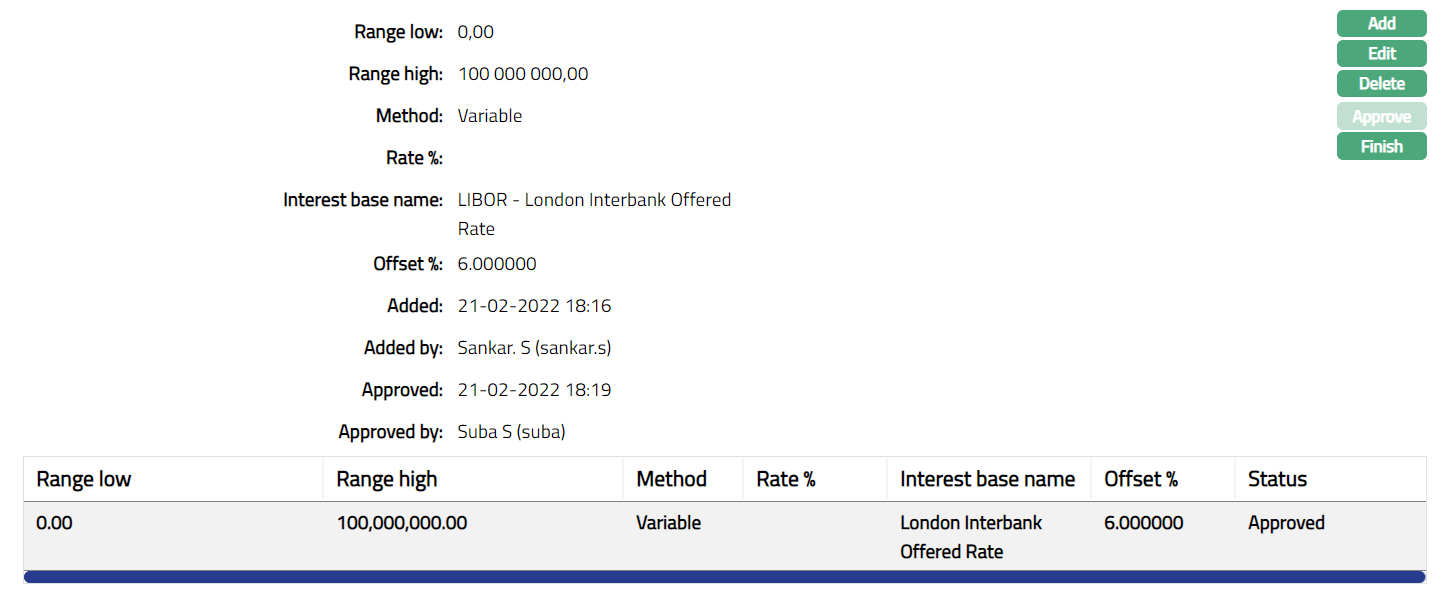 Functions: Add, Edit, Delete, Approve, Finish
The additional fields are as follows:
Added field denotes the date on which the record was added.
Added by field denotes the name of the user who created the record.
Approved field denotes date on which the record was approved and is displayed only on approval.
Approved by field denotes name of the user who approved the record and is displayed only on approval.
Note: Status of the Interest scheme entered is pending. Any user other than the one who has created the Interest scheme record can Approve it.
To Edit band,
- Click Edit, Edit Band screen will be displayed.
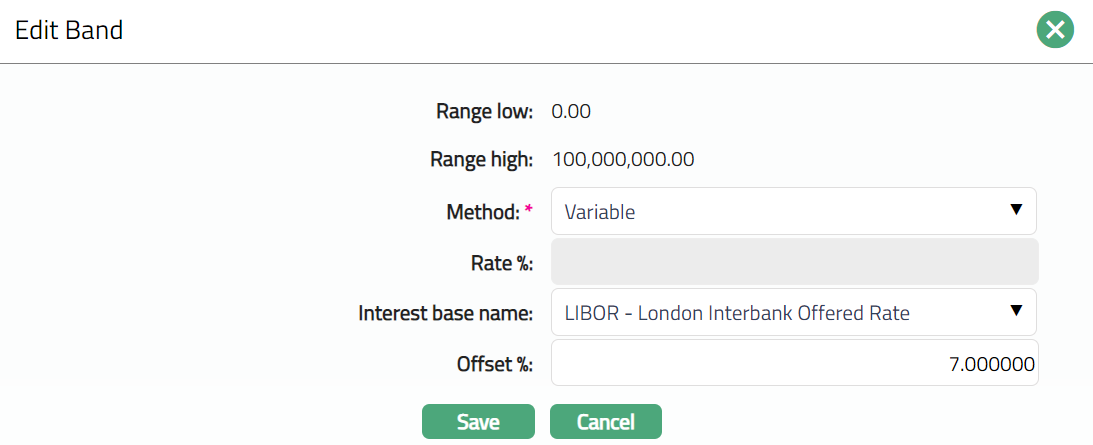
Note: Except Range low and Range high fields all other fields are editable.
- Click Save. Band page appears with the edited details.
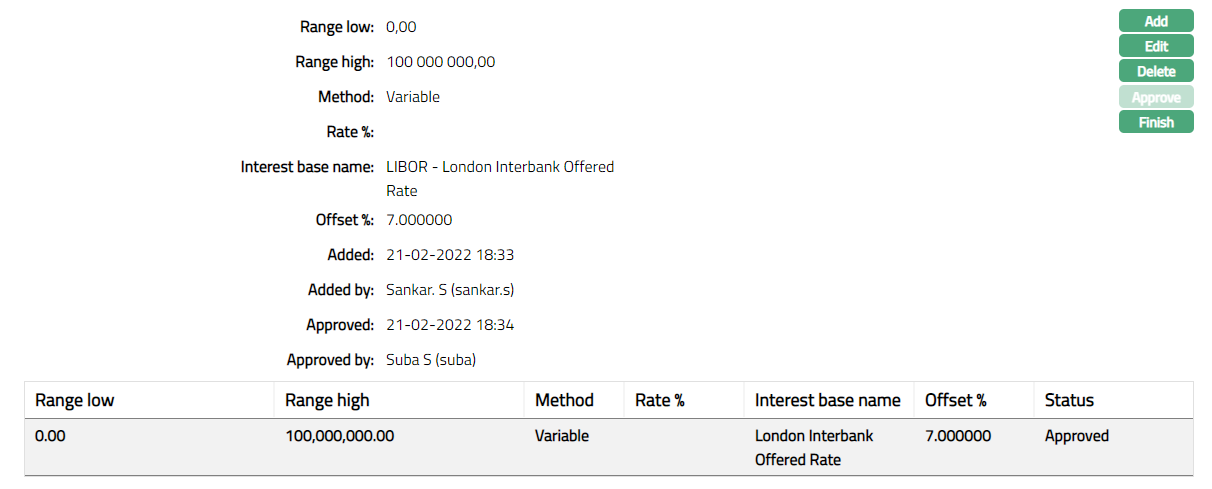
Functions: Add, Edit, Delete, Approve, Finish
- Click Finish. Interest Combination page appears with the edited details.
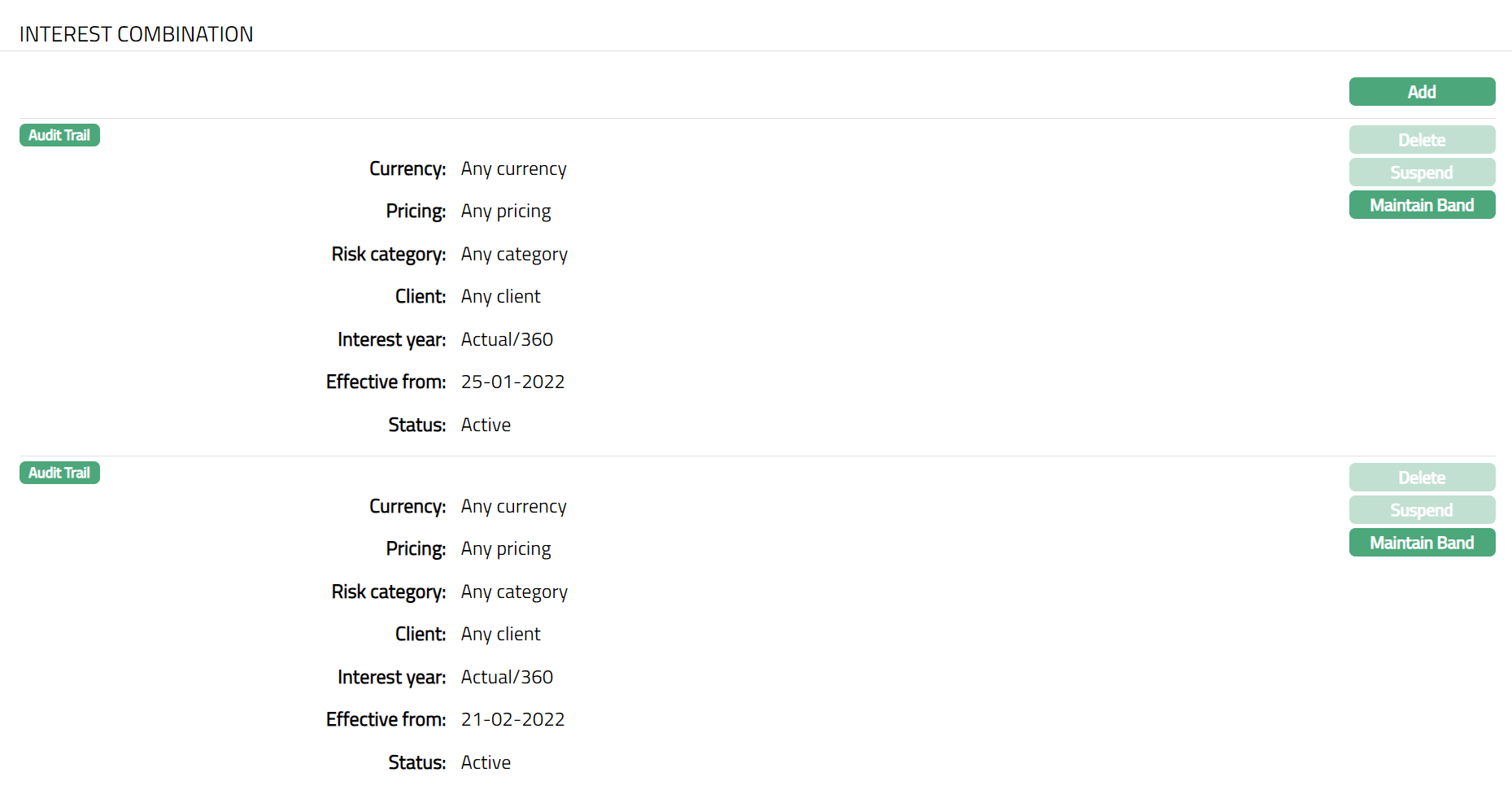
Functions: Add, Delete, Suspend, Activate, Maintain Band