
Reward Account Maintain
Reward Account can be created using a reward account product. A Reward Account created is attached to a Current account or Credit Card Account, which is a Billing account. The reward earned by the Billing account and related Transaction accounts will be credited to the reward account. The reward points can then be redeemed either automatically or manually. There will be a 1:1 relationship between a Billing account and a Reward account.
If a transaction eligible for reward points comes in the Transaction File, and a Reward account does not already exist, the interface system will auto-create a Reward account for this Credit Card account or Current Account and post the entry into the Reward account.
Following are the various tabs that appear on the Reward Account page.
To add new Reward Account,
1. From CRM menu, click Loyalty Program, and then Maintain. Reward Account Search page appears.

2. Click Add. New Reward Account → Details (1/2) page appears.

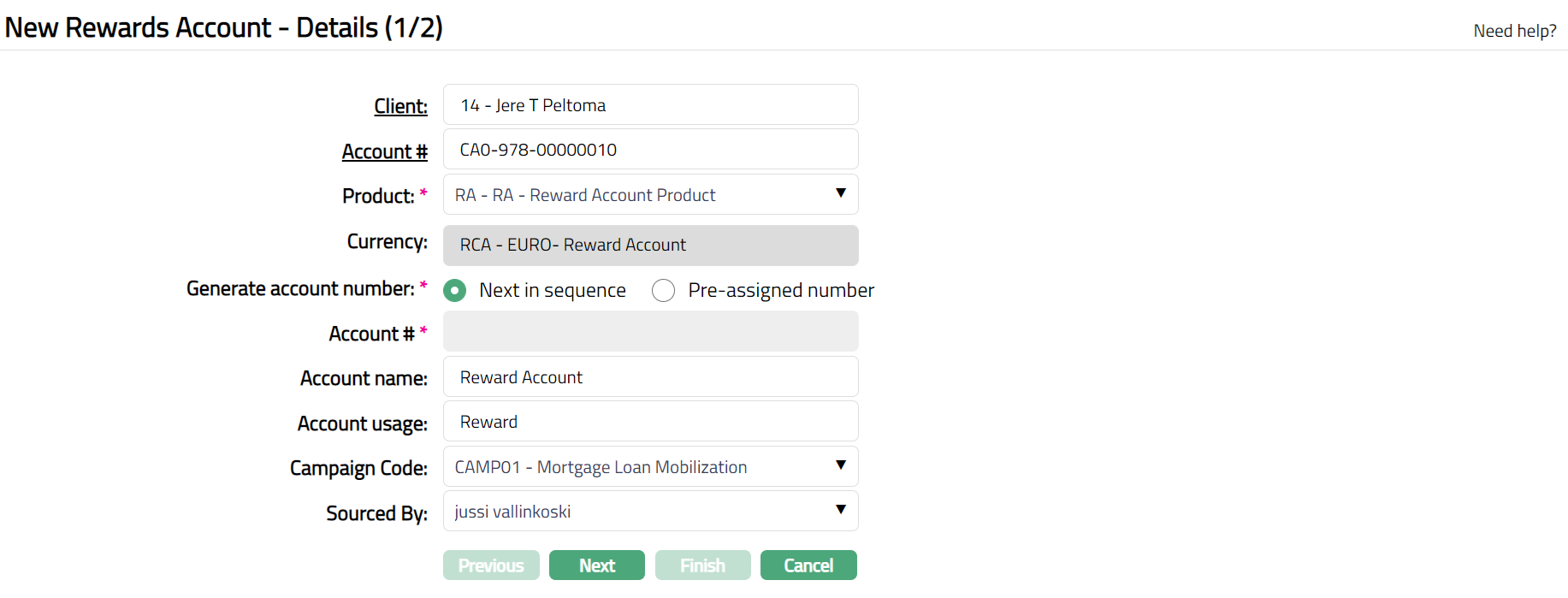
3. Select Client by clicking the client hyperlink. The Client search page appears where you can search for a client with relevant criteria and select the required client. You can also input the client's name and select the required client from the list displayed by Aura.
4. Click Account # hyperlink to select the billing account for which a Reward account has not been already maintained for the selected Client.
5. Select Product from the drop-down list. The drop-down list contains the active Reward Account Products maintained in Aura.
6. Once product is selected the corresponding Currency maintained at the product level will get displayed.
7. Input how the account number has to be generated in Generate account number. If you want to auto-generate the account number, choose Next in sequence. If you want to give a specific account number for this account, choose Pre-assigned number. In case of the former, Aura will generate account number internally using the account number mask maintained at the Entity level. The account number is unique across the Entity.
8. Account # will be enabled only on selecting Pre-assigned number for Generate account number. Enter the required Account #. Aura will validate the Pre - assigned number against the account number mask maintained at the Entity level and also check if it is unique.
9. Enter Account name. This name will be used for the account.
10. Enter Account usage, i.e., the purpose of the account.
11. Select Campaign code from the drop-down list of options maintained under Admin → Sales → Campaigns. Campaigns code is a unique code which can be used as campaign identifier in Aura.
12. Select Sourced by. It is the Aura user whose status is activated. All activated Aura user's will be available in the drop-down list.
13. Click Next. New Rewards Account → Confirmation (2/3) page appears.
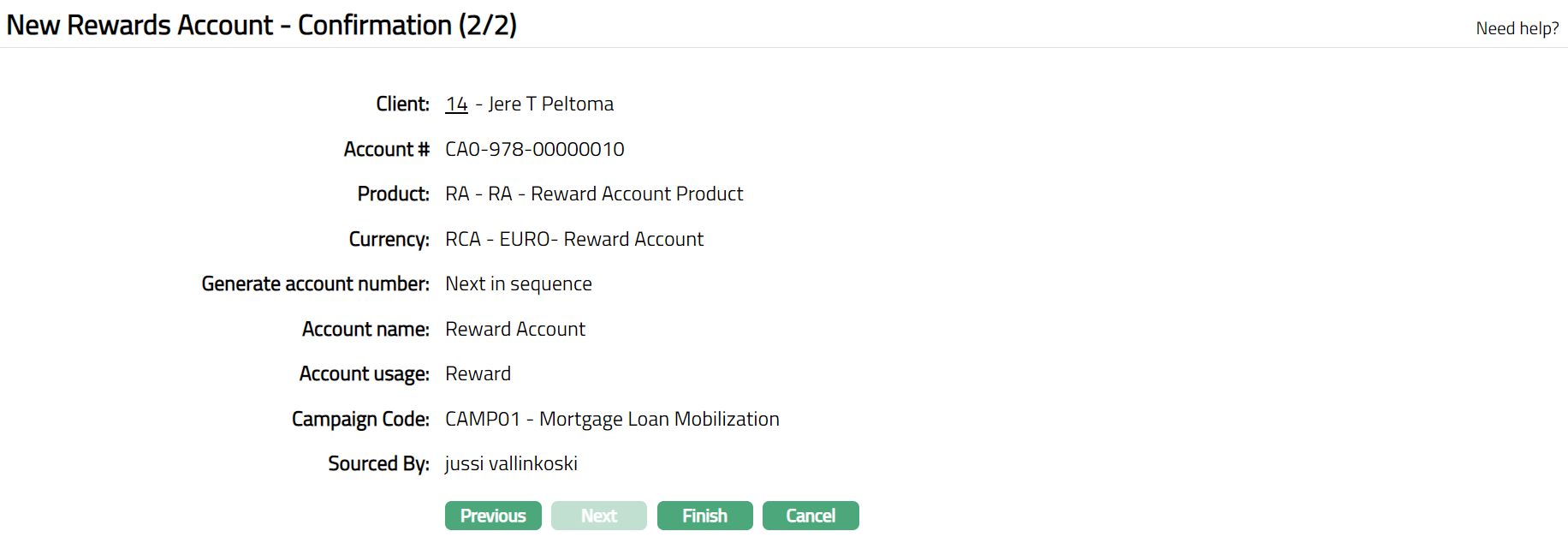
14. Click Finish. Reward Account page appears displaying Profile tab of the Reward Account by default.
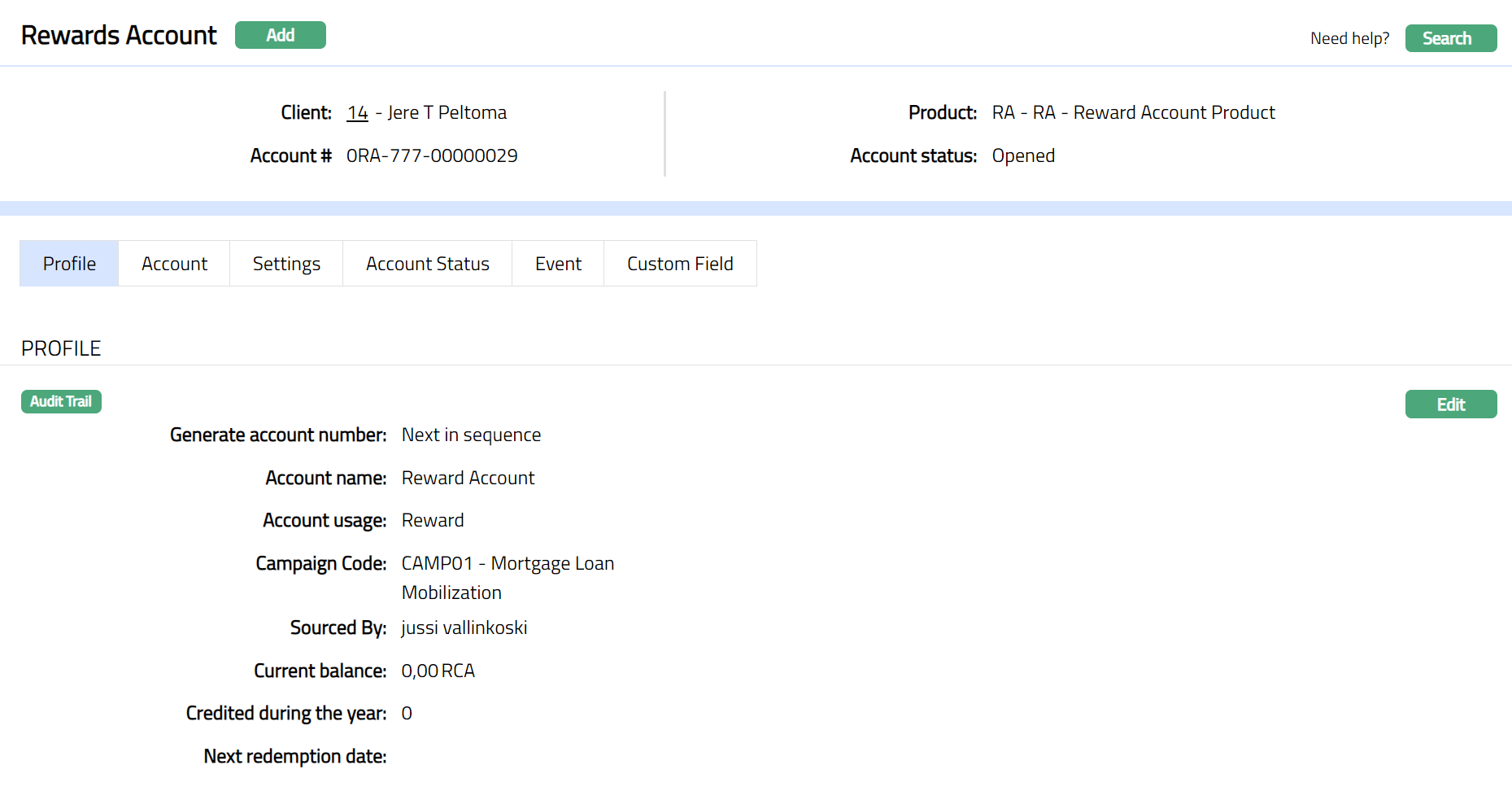
Functions: Add, Search, Edit
Note: In case of a Reward Account that is manually created, on click of Finish, the Account status is Open, and the record status is Approved. Only when the account status is Activated and record status is Approved, the account becomes effective, and transactions can be posted in the account.
To activate account,
Add the Activated Account status using Account Status tab. This will make the Account Status Activated, but the record status is Pending.
Another user should approve the Activated Account status, so that the record status becomes Approved.
Note: If the Reward Account is auto created, automatically, the account status is set as Activated and the record status is Approved.
Profile
Profile tab, which is the default tab in the Rewards Account screen, shows the basic details of the Reward accounts. For details refer to the Add Reward Account - New Reward Account → Details (1/2). These are non-editable fields.
To view/ edit Profile,
1. Access Reward Account screen and click Profile tab.
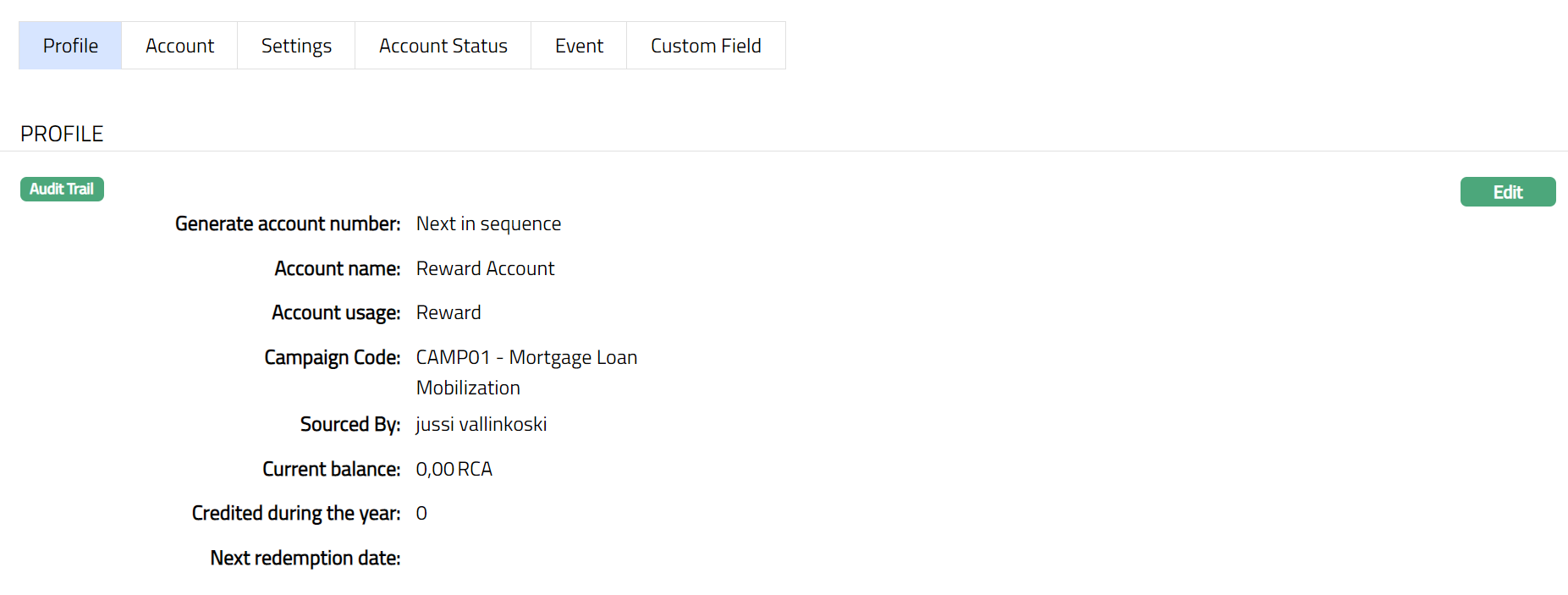
The additional fields that you can view in the Profile tab are explained below:
Current balance: This field denotes the total reward points currently available in the reward account.
Credited during the year: This field shows the total Reward points credited during the year (1 Jan to 31 Dec) into the Reward Account.
Next Redemption date: This field shows the next redemption date in case of Auto-redemption Yes. In case of Auto-redemption No, it will be blank.
2. Click Edit. Edit Profile page appears.
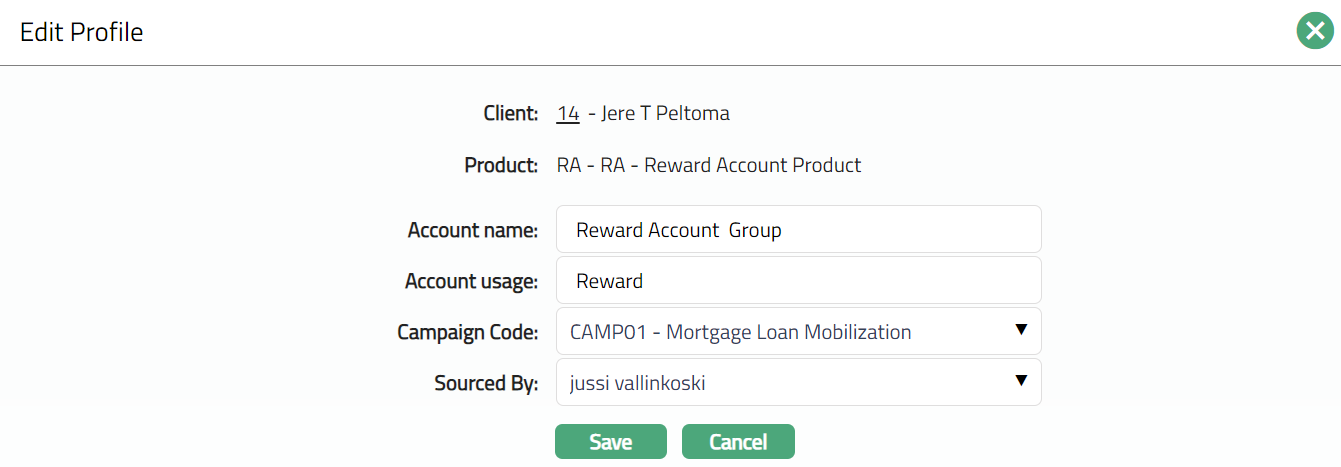
3. Click Save. Profile page appears withy the edited details.
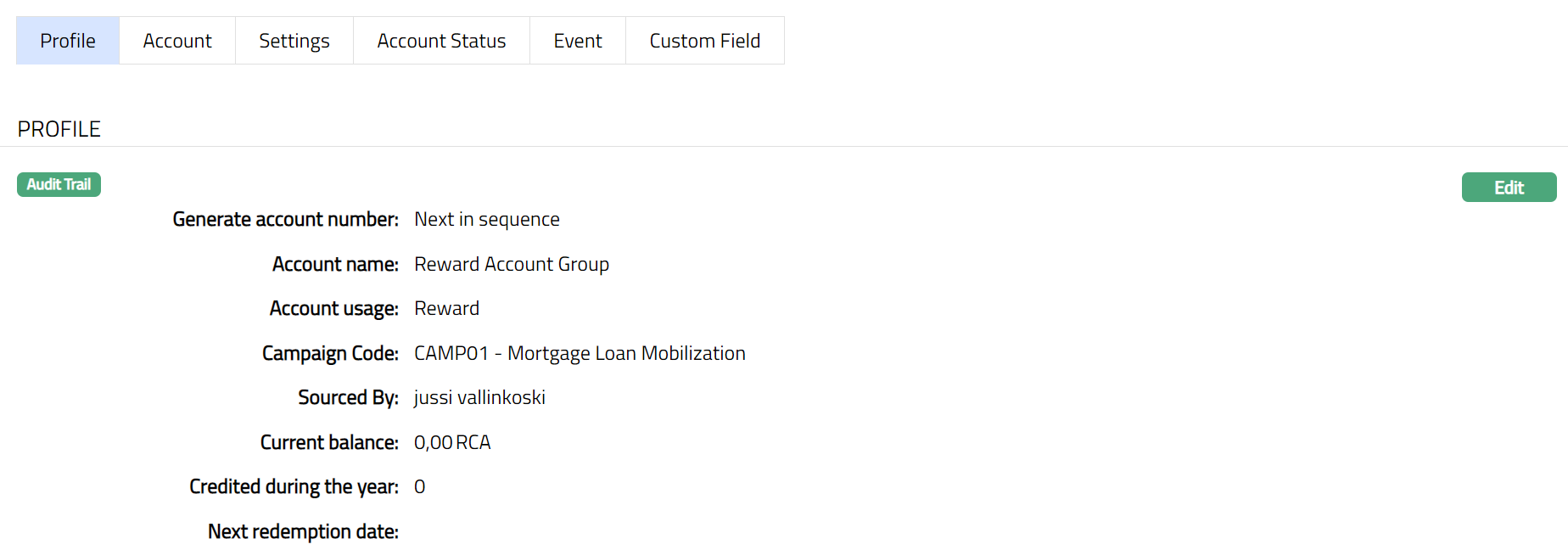
Functions: Edit
Account
Account tab allows you to add multiple accounts, which can be used for redeeming the points.
1. Access Reward Account page and click Account tab. The values are defaulted from the details that were entered on creation of a Reward Account.
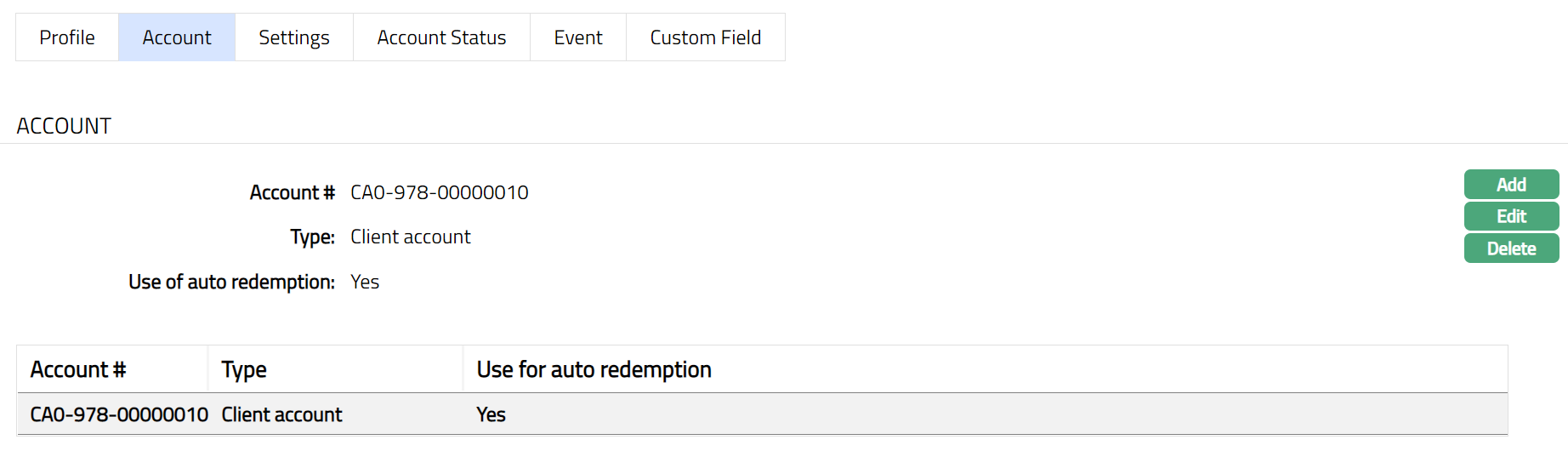
2. Click Add. Add Account page appears.
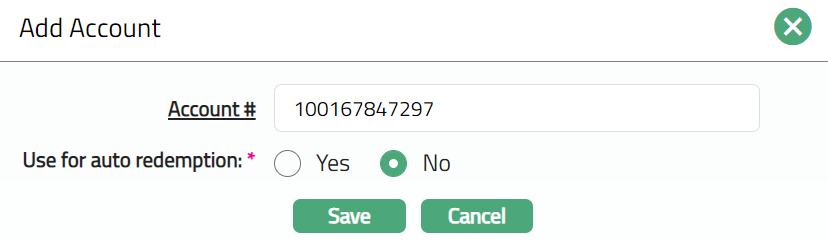
3. Click Account # hyperlink to select the account for which a Reward account has not been already maintained for the selected Client. The list will display all the Activated/ Approved Credit Card and CASA accounts for the selected clients.
4. If you want to use the above chosen account for auto redemption; select Yes or No. If Yes option is chosen, the reward points will automatically get redeemed to the above account. By default, No option is chosen.
5. Click Save. Account page appears with the added details.
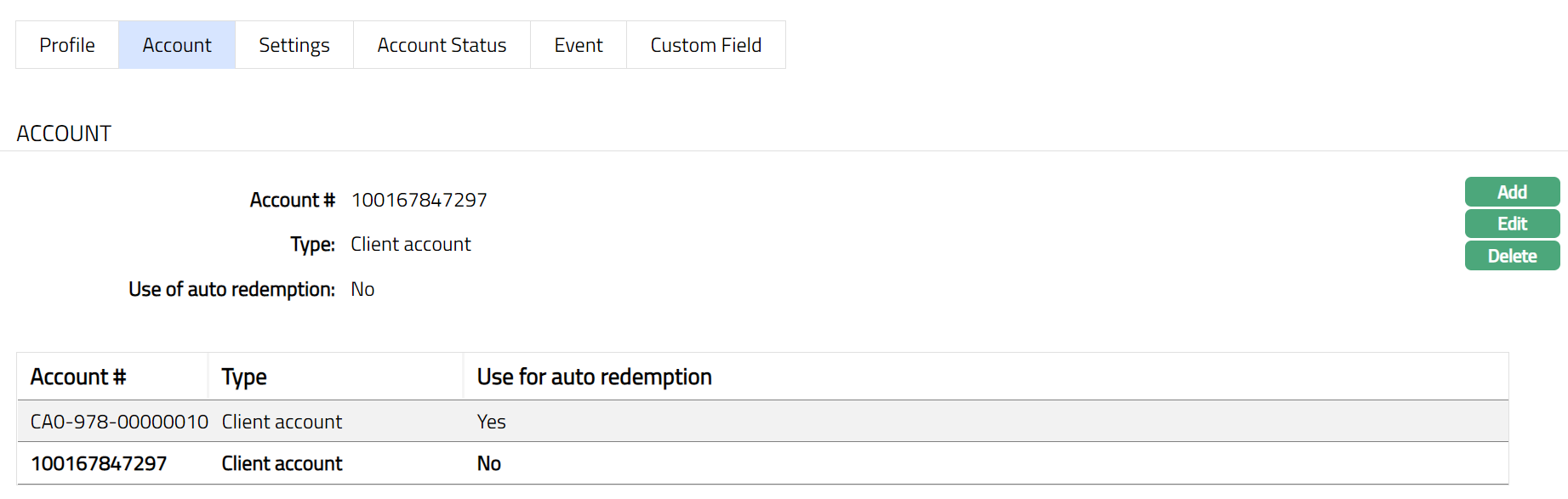
Functions: Add, Edit, Delete
Note: Atleast one account need to have auto redemption facility.
To edit Account,
1. Access Reward Account page and click Account tab.
2. Click Edit. Edit Account page appears.
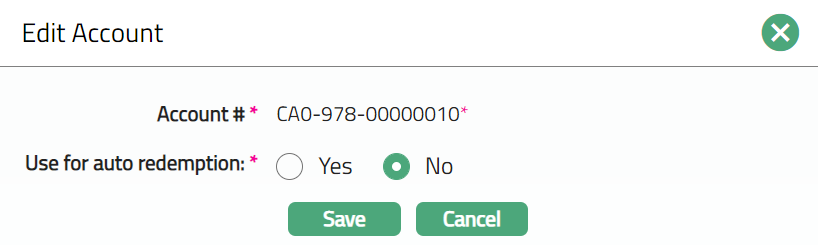
3. Click Save. Account page appears with the edited details.
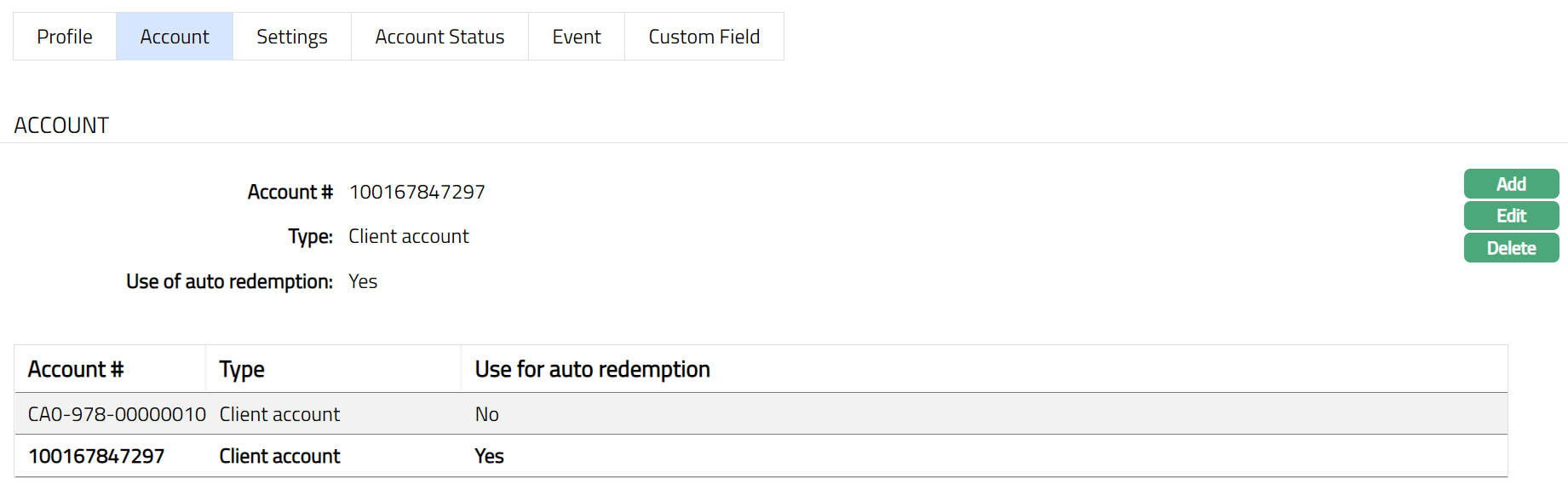
Functions: Add, Edit, Delete
Delete: You can delete Account saved in Aura by a click on Delete button. Aura will ask for confirmation, on approving the selected record will be deleted.
Settings
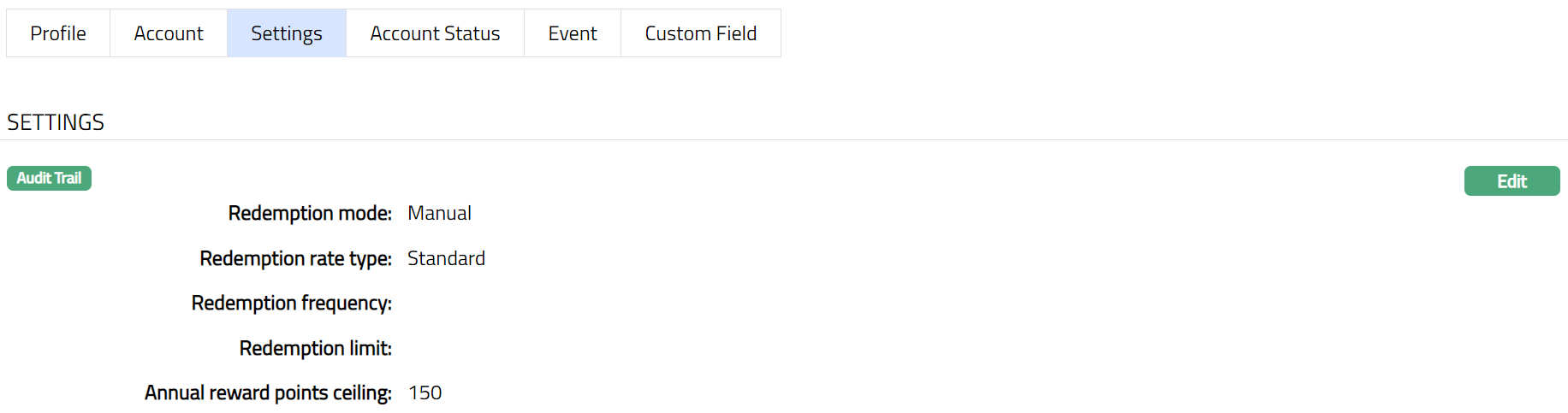
Settings tab allows you to edit the settings of the Client's Reward Account. The values from the Product are defaulted to the Account automatically. If required, you can edit any of these parameters.
To edit Settings,
1. Access Reward Account page and click Settings tab. The values from the product are defaulted to the account automatically. If required, you can edit any of these parameters.
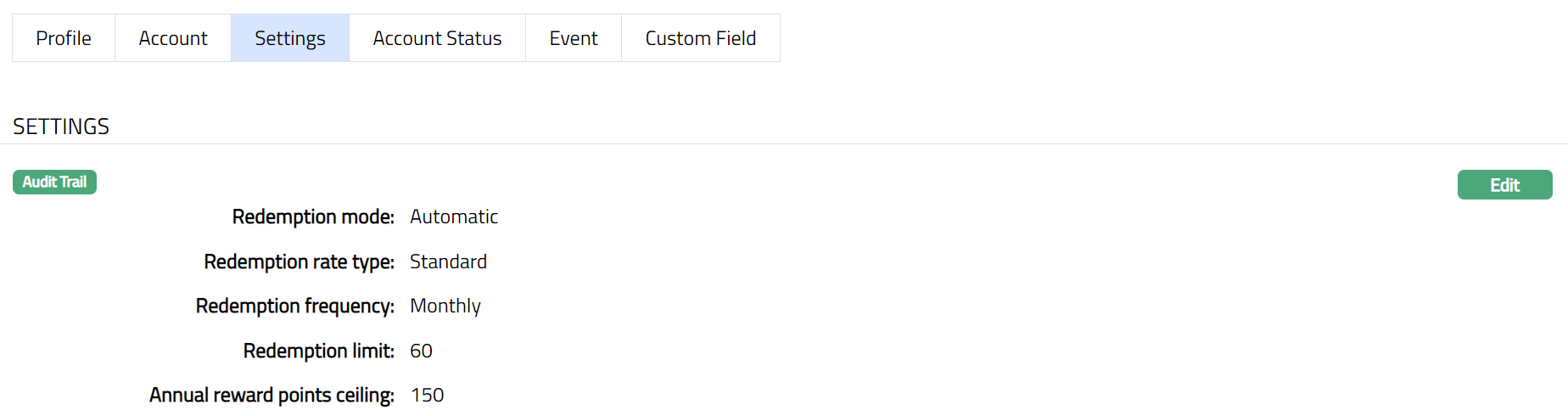
2. Click Edit. Edit Settings page appears.
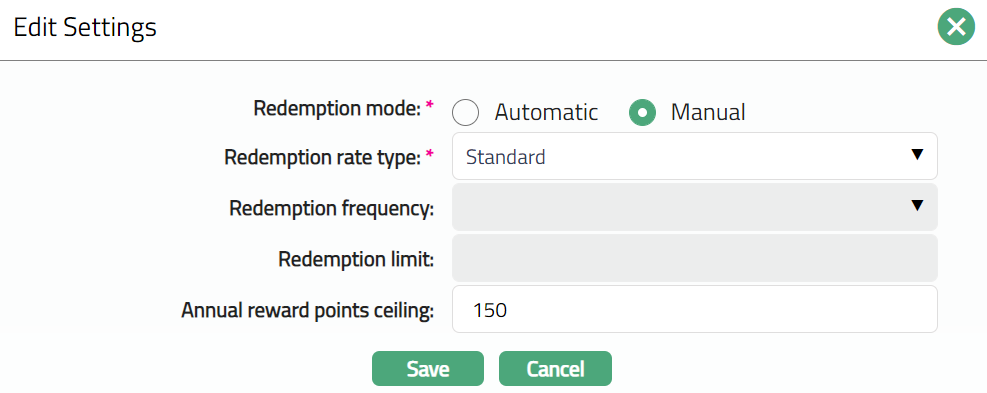
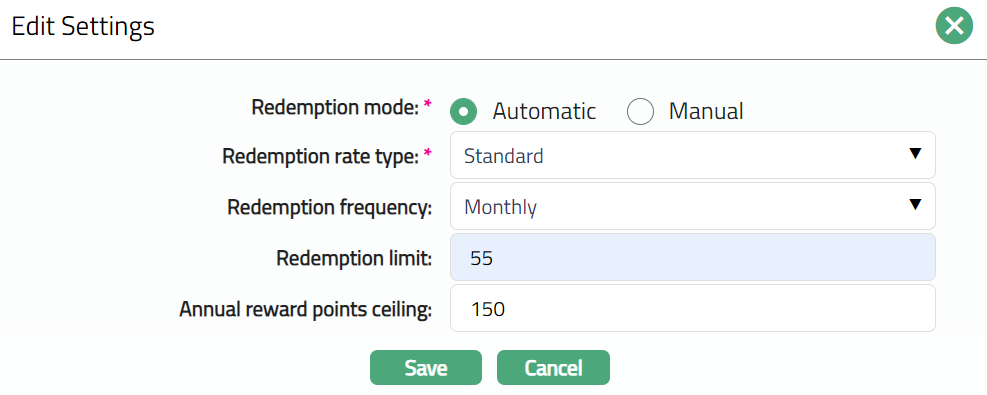
3. If Redemption mode is Automatic, then all fields are editable, if Manual then Redemption Rate type and Annual Reward points ceiling fields are editable. Please refer the sample screen shots as shown above.
4. Click Save. Settings page appears with the edited details.
Functions: Edit
Account Status
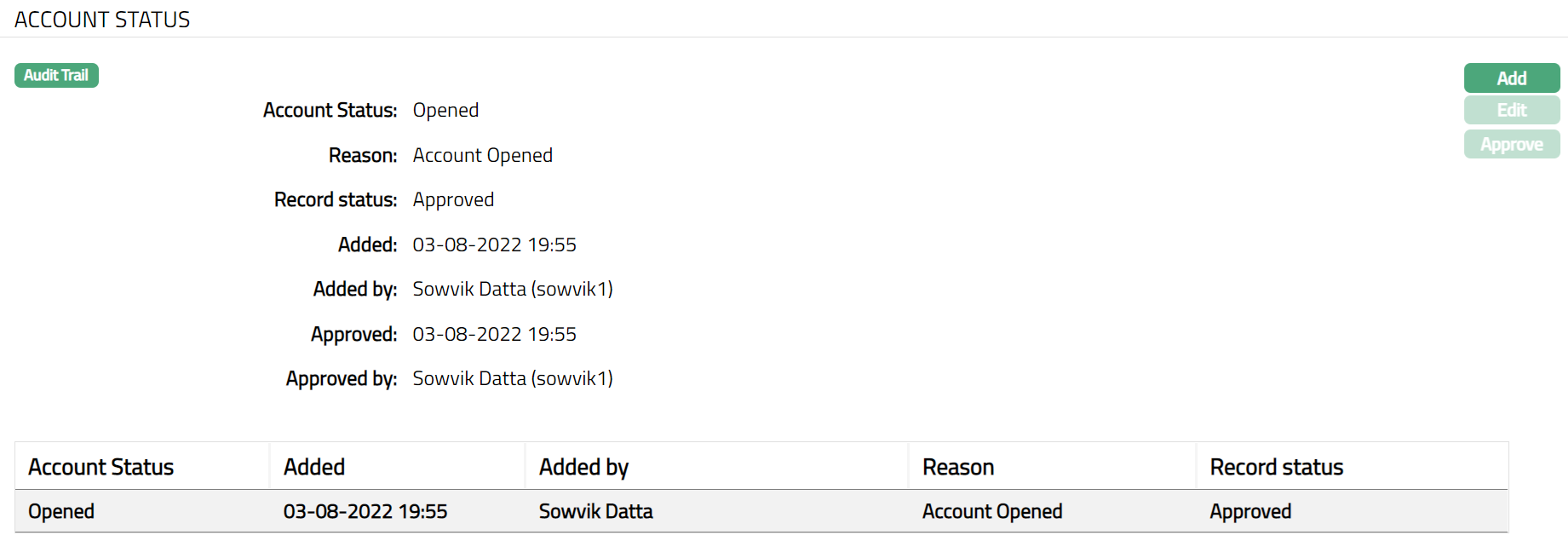
This tab allows you to view / add / edit the status of Reward Account.
To Add / Edit Account Status,
1. Access Reward Account page and click Account Status tab.
2. Click Add. Add Account Status page appears.
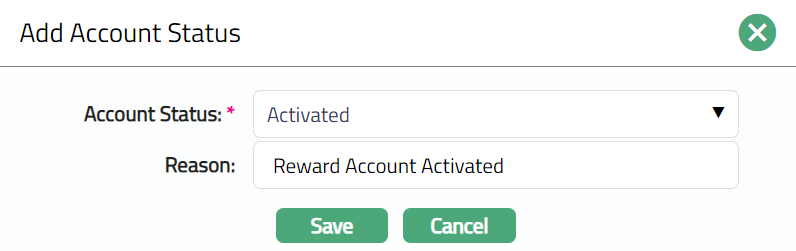
3\ Select Account status from the drop-down list. Depending on the current status of the Reward account, the possible values are:
Opened: This is the initial account status as soon as it is created.
Activated: This status indicates that the Reward account is activated, and Reward points can be credited to or redeemed from the account.
Closed: This is the status of the account when it is closed.
Note: If Reward account is automatically created, the account status will be automatically Activated and Approved If the Reward account is created manually, then the status has to be manually changed.
4. Enter Reason for the added account status.
5. Click Save. Reward Account page appears with the added details.
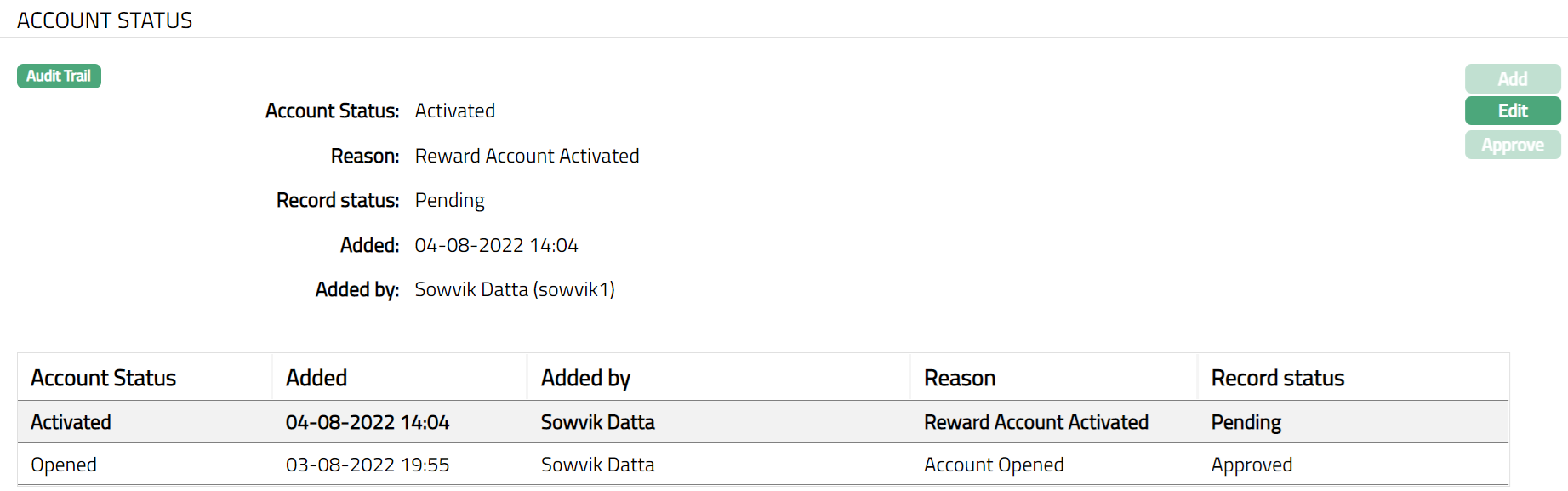
Functions: Add, Edit, Approve
Note: After add / edit, the tab is in Pending status. To approve, retrieve the record and click on Approve. Once the tab is approved, no further changes can be done on the Account Status tab.
To edit Account Status,
1. Click Edit. Edit Account Status page appears.
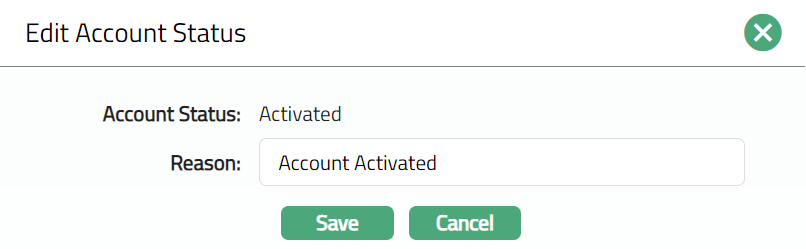
2. Only Reason field is editable. Make changes if required.
3. Click Save. Reward Account page appears with the updated details.
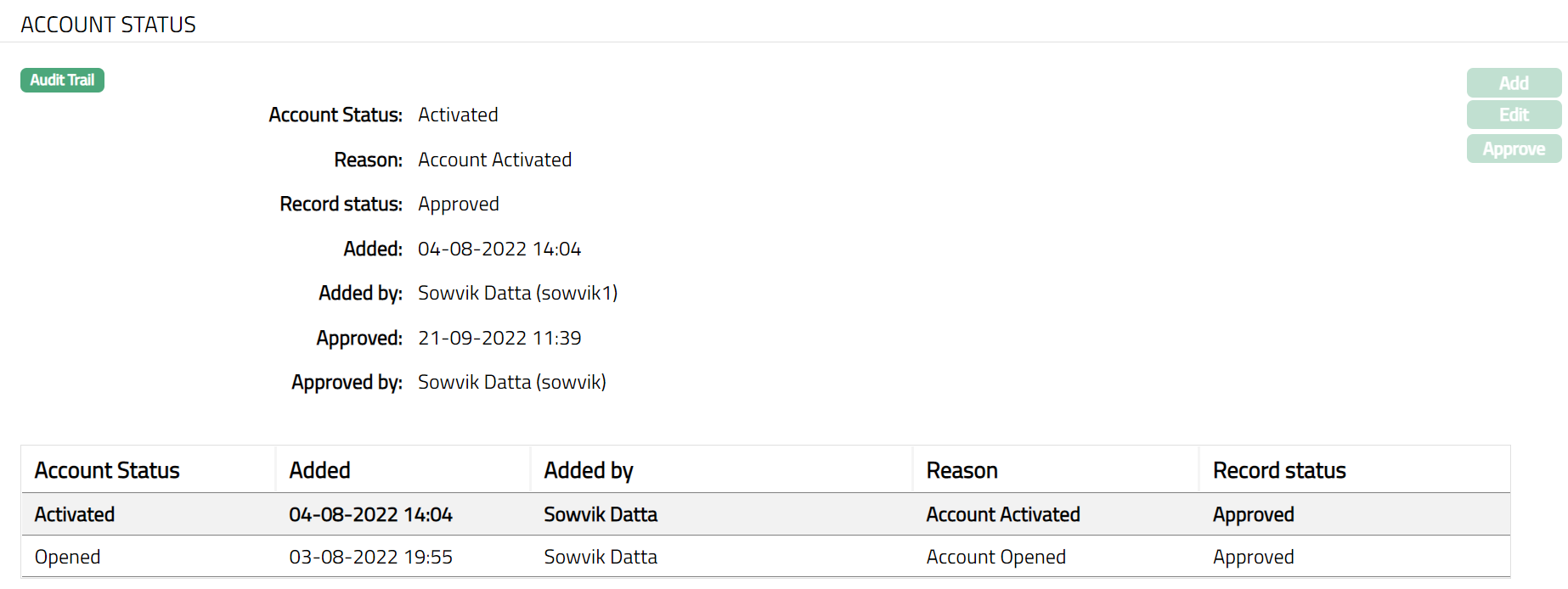
Functions: Add, Edit, Approve
Additional fields that you can view in the Account Status tab are explained below.
Record Status field denotes the status of record.
Added field denotes the date on which the record was added.
Added by field denotes the name of the user who created the record.
Approved field denotes date on which the record was approved. This is displayed only if the record is approved.
Approved by field denotes name of the user who approved the record. This is displayed only if the record is approved.
Event
Events tab allows you to view the past, current and future events. This tab is non-editable.
To view Events,
1. Access Reward Account Maintenance screen. Click Event tab. There are three sub-tabs within it -- Past, Current and Future. By default, the Current tab is displayed. It shows the details of the Events that have value date = current business date. The Past tab and Future tab show details of events that have value date earlier than / later than the current business date respectively.
A sample of Past tab is shown below:

A sample of Current tab is shown below:

A sample of Future tab is shown below:

All the tabs show the following data:
Event: It displays the code for the event.
Description: It displays the description of the event.
Value Date: It is the date on which interest starts applying. For example: Booking date is 29^th^ June, Value date is 5th July- interest will start applying from 5^th^ July
Book Date: The date of entry / input of the event.
Ref No: The transaction reference number under which the event is processed.
Status: It displays the status of the event. It status can be of the following types.
Pending: Where the event is not yet processed.
Success: Where the event has been processed successfully.
Failure: Where the event has failed during process.
Retry: Indicates a failed event where the system retries to process the event on subsequent business days.
Amount: It indicates the amount processed by the event. Example: Interest liquidation event will have the amount of interest liquidated.
Collection Status: If the Collection status is Pending, it indicates that the deferred charges has not been collected and if the Collection Status is Success, it indicates that the deferred charges has been collected
Custom Field
This menu option allows you to define fields apart from those that are already available in the standard version of Aura. Thus, it enables you to customize additional data storage and use as required to suit your specific business needs.
To maintain the Custom Field,
1. Access Reward Account page. Click Custom Field tab. Custom Field screen appears.

2. The field appears only when it is created in Admin → System codes → Custom fields → Custom fields and linked to Card Loan product option in Admin → System codes → Custom fields → Field mappings.
3. Click Edit. Edit Custom Field page appears.

4. Enter Reward Account.
5. Click Save. Custom field appears with the added details.

Functions: Edit