
Security Settings
This menu option is used to maintain security settings for accessing Aura. It allows you to set up the security settings for both Aura User and Channel Banking User. During the implementation of Aura in your bank, these will be set up by the implementation team in consultation with your Bank's IT team.
It has two tabs. Under User tab there are 2 sub tabs.
Profile
Aura User
Using this option, you can set up the security settings for any Aura user.
To maintain security settings for Aura User
- From Admin menu, click Settings, then Security and then Aura User tab. The System will display the details of existing Security settings under Aura User followed by two subtabs Profile and Password Rule. Note: Profile will be the default subtab under Aura User tab.
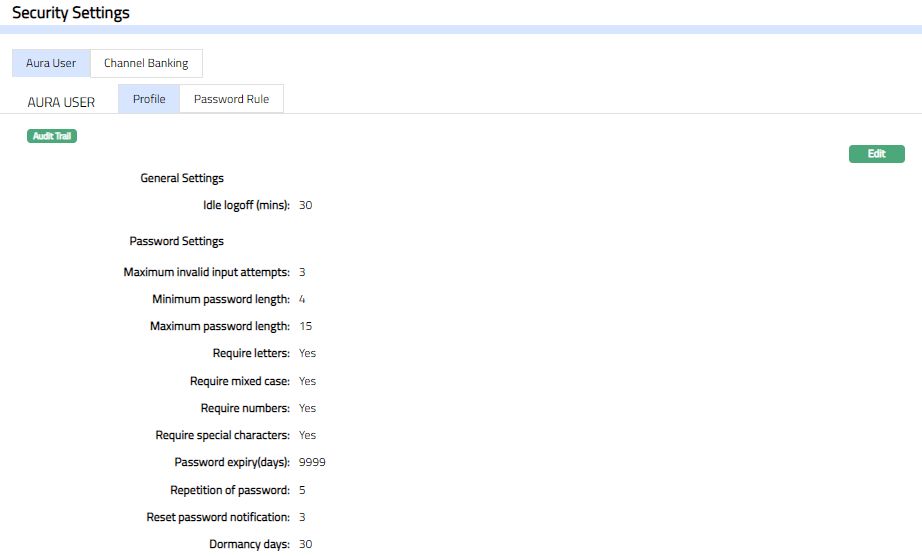
The Available Fields are:
General Settings
- Idle logoff (mins). It is the time limit (in minutes) after which a user who has not had any activity will be logged out of Aura application.
Password Settings
Maximum invalid input attempts -- It is the number of attempts a user is allowed to try entering password. If the user enters invalid password as many times as defined in the Maximum invalid input attempts, Aura will suspend the user.
Minimum password length -- This field stores the minimum value for the length of the password. Higher the number, greater the security. During any password reset or change, if the new password does not fulfill the criteria, it will not be accepted as a valid password.
Maximum password length -- This field stores the maximum value for the length of the password. Higher the number, greater the security. During any password reset or change, if the new password does not fulfill the criteria, it will not be accepted as a valid password.
Require Letters - When this box is checked the user must use at least one letter in the password combination. This way of maintaining password will be more secure. During any password reset or change, if the new password does not fulfill the criteria, it will not be accepted as a valid password.
Require mixed case - When this box is checked the user must use at least one uppercase (A-Z) and one lowercase (a-z) alphabet in the password combination. This way of maintaining password will be more secure During any password reset or change, if the new password does not fulfill the criteria, it will not be accepted as a valid password.
Require numbers - When this box is checked the user must use at least one numeric character (0-9) in the password combination. This way of maintaining password will be more secure. During any password reset or change, if the new password does not fulfill the criteria, it will not be accepted as a valid password.
Require special characters -- When this box is checked the user must use at least one special character ('!', '@', '#', '$', '%', '&', '*', '-', '+', '=', '<', '>', '_', '?') in the password combination. This way of maintaining password will be more secure. During any password reset or change, if the new password does not fulfill the criteria, it will not be accepted as a valid password.
Password expiry (days) - It is the number of days after which a password will expire. The user has to change his password before it expires; else, he/she will not be able to login to Aura and has to contact the administrator for a reset.
Repetition of password -- It is the number of times you are allowed to repeat the same password.
Reset password notification -- It is the number of times you get the prompt message to reset your password.
Dormancy days -- It is the number of days the user will be allowed to stay in a dormant state.
- Click Edit. Edit Aura User Security Settings page appears.
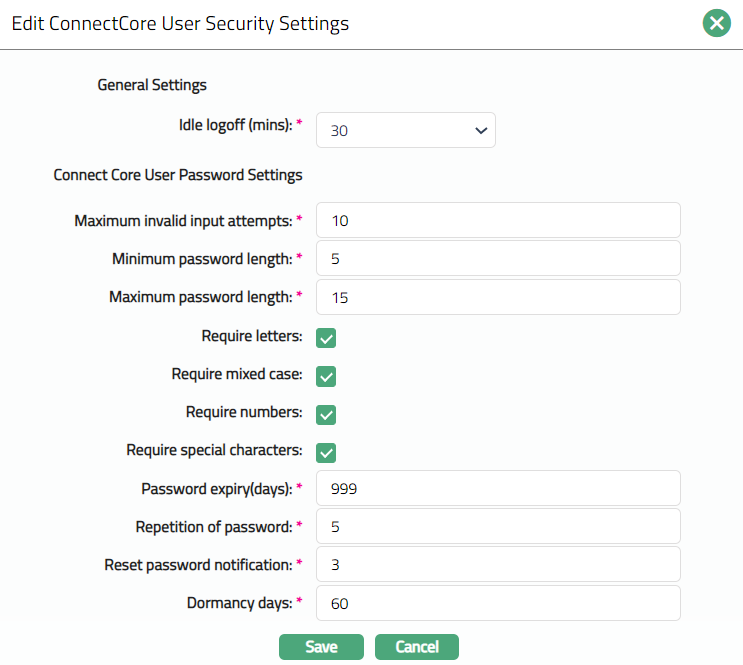
Note: All fields are editable.
3. Click Save. Profile subtab appears with the edited details.
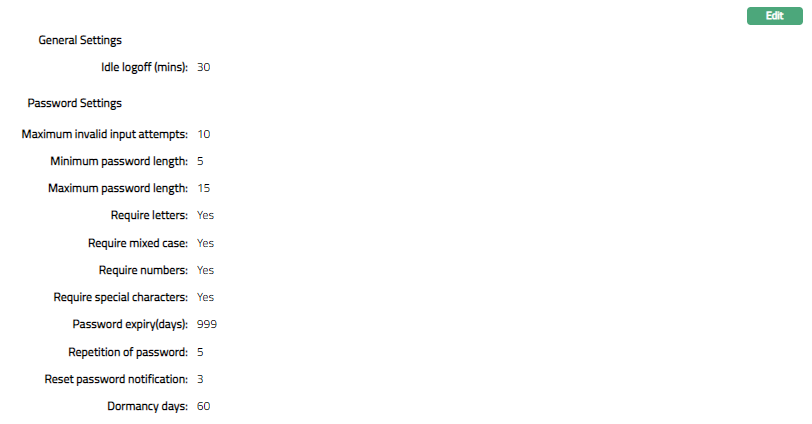
Functions: Edit
Password Rule
This sub tab allows you to maintain various rules related to password.
- From Admin menu, click Settings, then Security, then Aura User tab and then Password Rule sub tab. The System will display the details of existing Security settings if maintained under Password Rule, else it will reflect as blank.

- Click Add. New Password Rule screen appears.
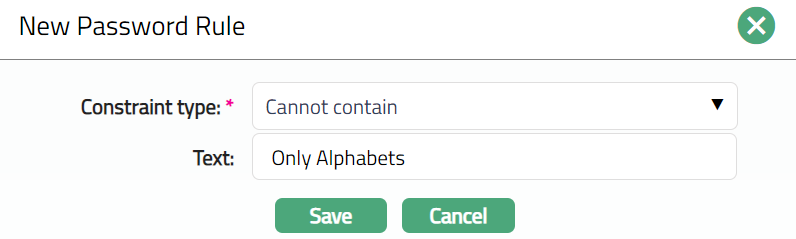
Select Constraint type from the available drop-down list. The available list are: Cannot contain, cannot start with and cannot end with.
Enter Text for relevent to the slected constraint type.
Click Save. Password Rule sub tab appears with the added details.
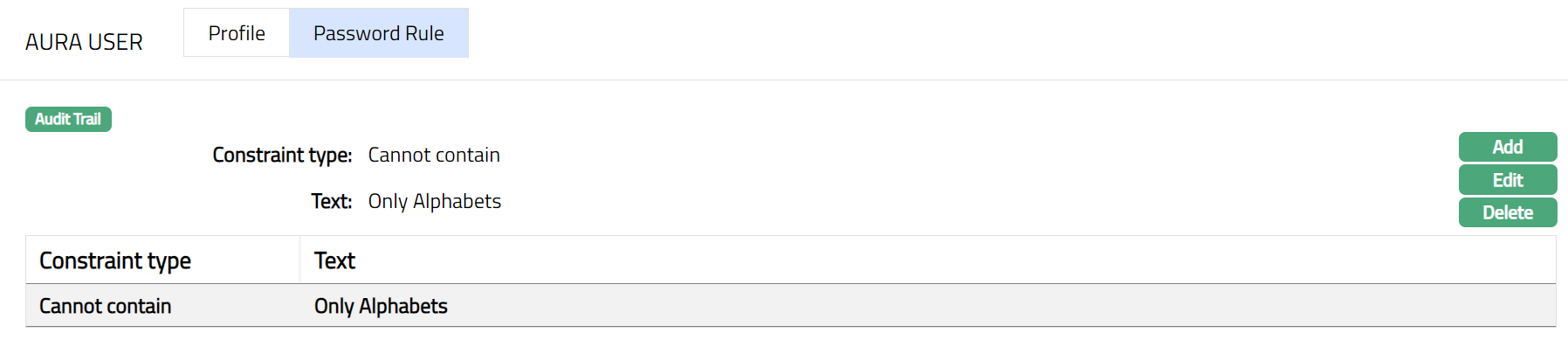
Functions: Add, Edit, Delete.
Note: You can add more Password rule as shown below.
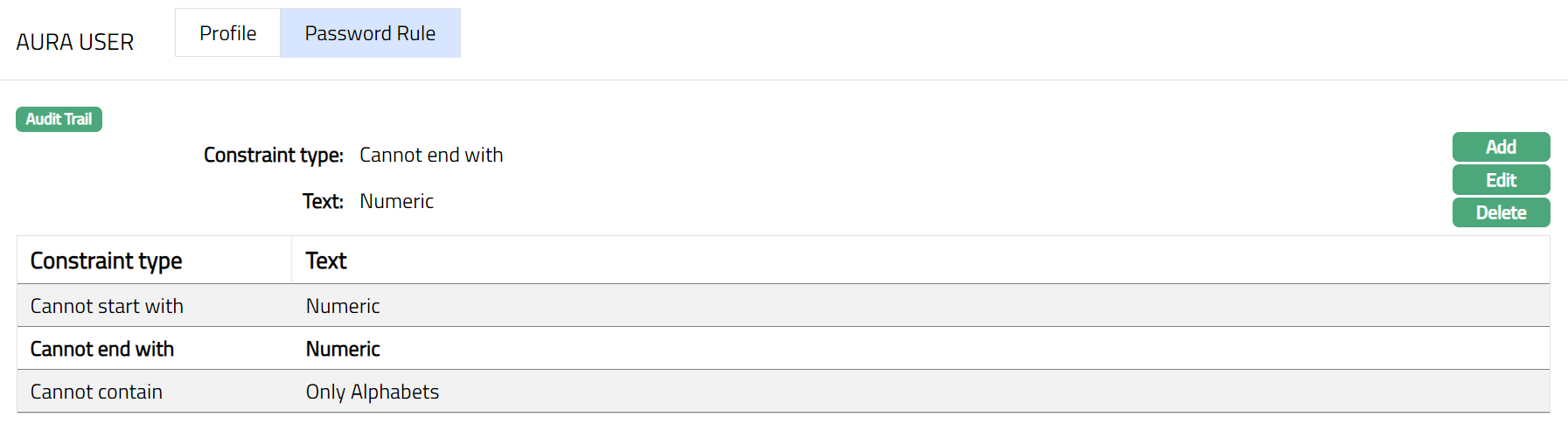
To Edit Password Rule
- Select the required rule and click Edit. Edit Password rule page appears.
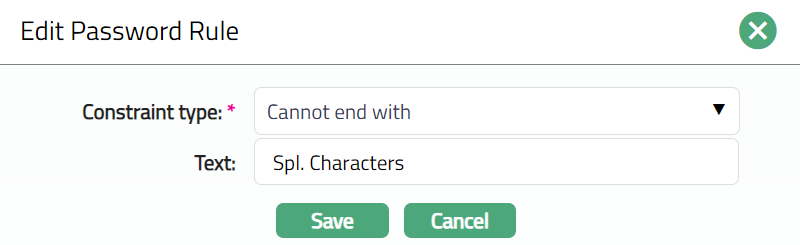
- Click Save. Password Rule sub tab appears with the edited details.
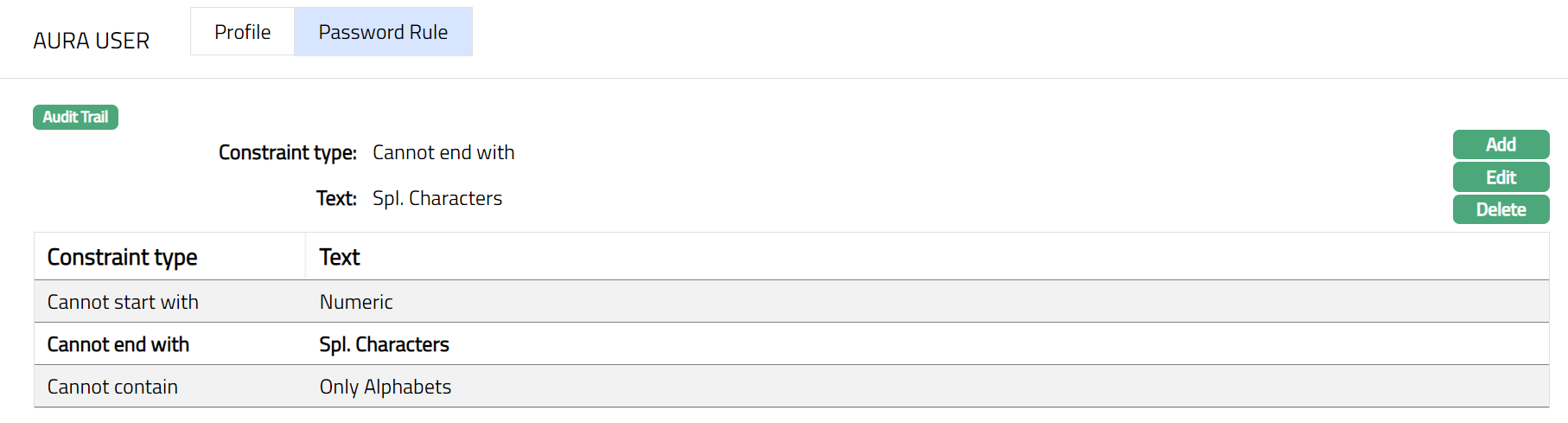
Functions: Add, Edit, Delete
Channel Banking
Using this option, you can set up the security settings for any Channel Banking user. You can maintain the security settings for both Password and SMS code.
To maintain security settings for Channel Banking user
- Click Channel Banking tab. Channel Banking view page appears.
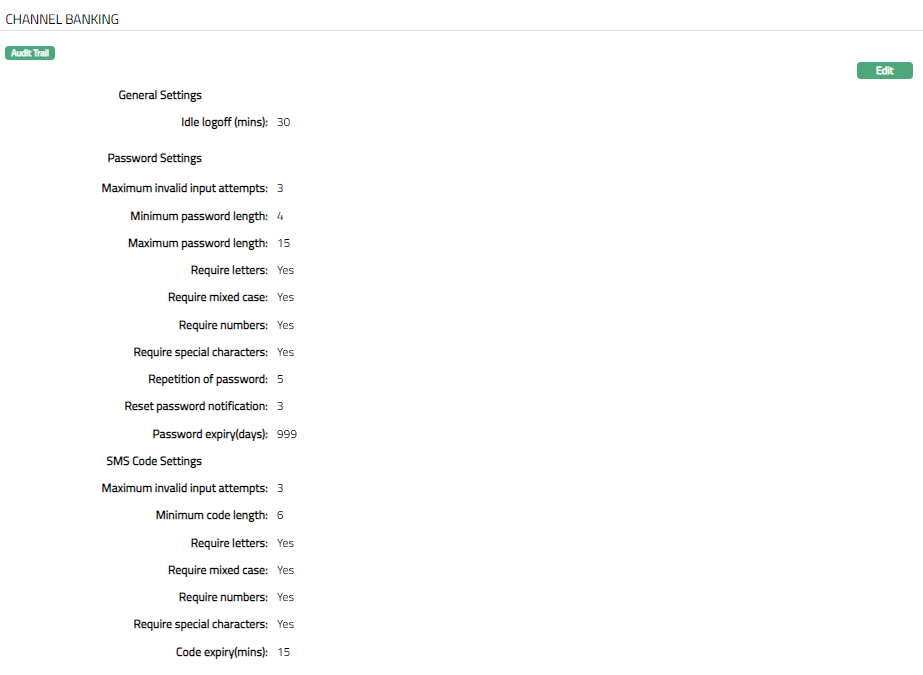
General Settings and Password Settings for the Channel Banking User are exactly the same as those for the Aura User. Please refer to the above section for the details regarding these.
The SMS Code Settings for the Channel Banking User are also similar to the Password Settings. The additional fields are as follows.
Minimum Code Length: This field stores the value of the length of the code. The available values are 3, 4.5,6,7,8.
Code expiry (mins): It is the time limit in minutes, after which the code sent by the bank to the channel banking user will expire.
- Click Edit. Edit Channel Banking Security Settings page appears.
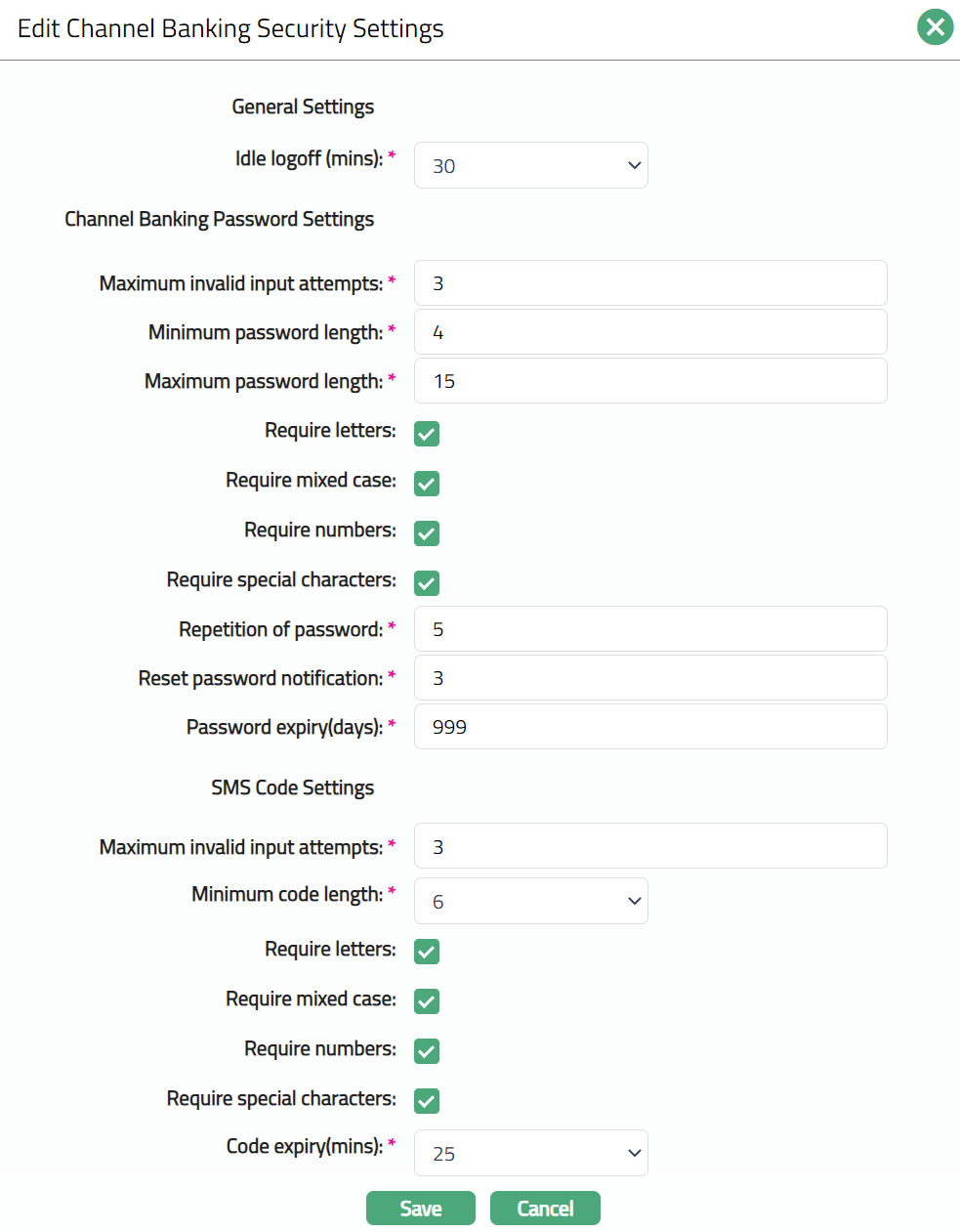
Note: All fields are editable.
- Click Save. Channel Banking tab appears with the edited details.
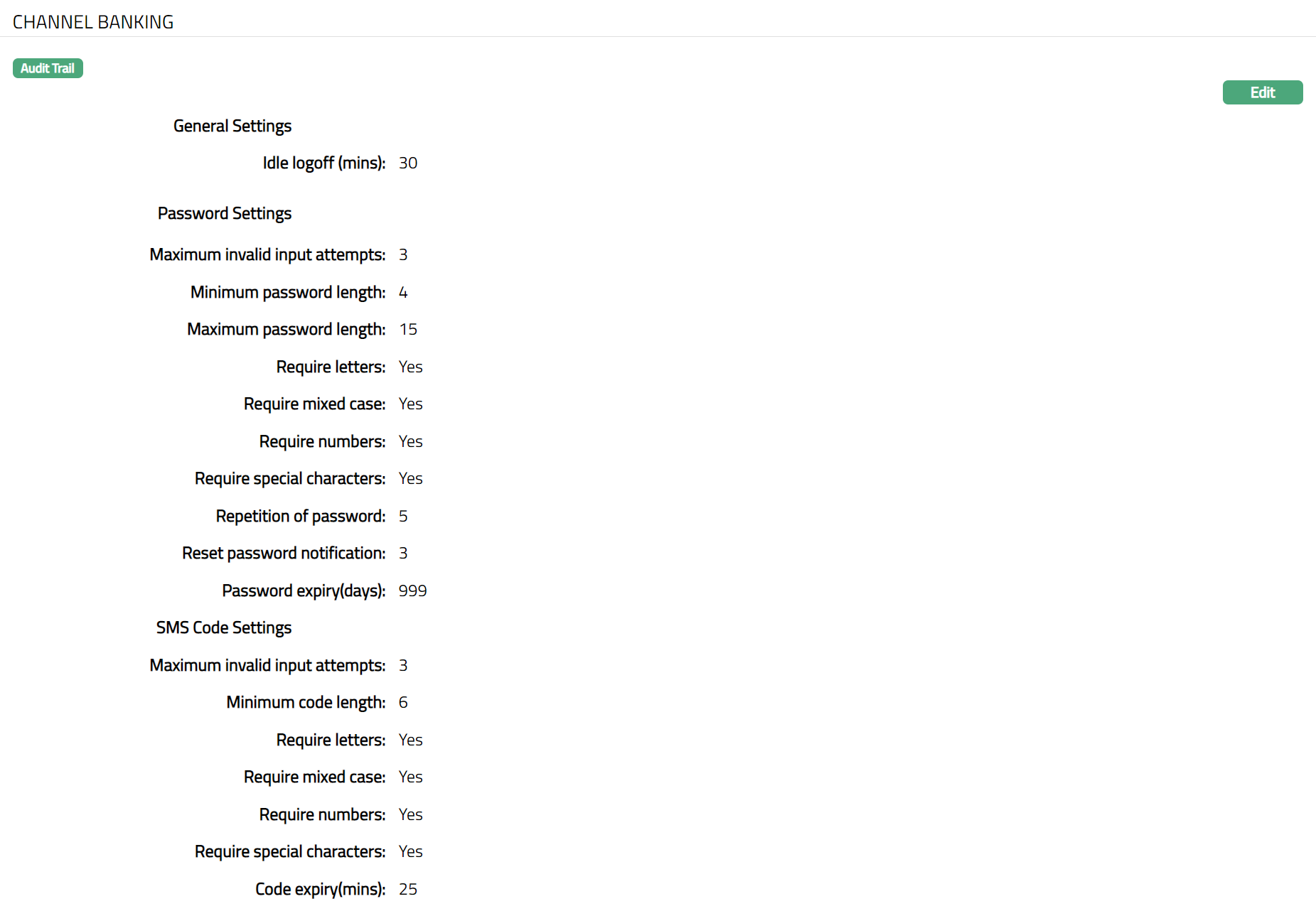
Functions: Edit