
Direct Debit
Using this functionality, you can access both Inward and Outward direct debit records for both SEPA and GIRO networks. The Inward message comes from Network to DataMatrice, then from DataMatrice to PaymentGrid and then to Aura. The Outward messages are initiated from Corebank.
The message that gets generated for the networks are as follows:
- PACS.003 -- SEPA (Collection Message)
- TK82 -- AUTOGIRO (General)
In case of SEPA; if the network cut off time gets over, the record having the message status as "Sent for Collection" will be changed to Processed and the account will be credited.
The message that gets generated is as follows:
In case of SEPA
| Message Mode | Status | Message Generated |
|---|---|---|
| Outward | Sent for Collection | PACS:003 |
| Inward/Debtor | Refund/Return | PACS:004 |
| Outward/Creditor | Reverse | PACS:007 |
In case of AUTOGIRO
| Message Mode | Status | Message Generated |
|---|---|---|
| Outward | Sent for collection | TK82 |
| Inward/Outward | Refund | TK77 |
There are five sub-tabs in the Direct Debit Maintenance screen; which will allow you to view or modify the records. The sub-tabs are as follows
To view/ edit a Direct Debit record,
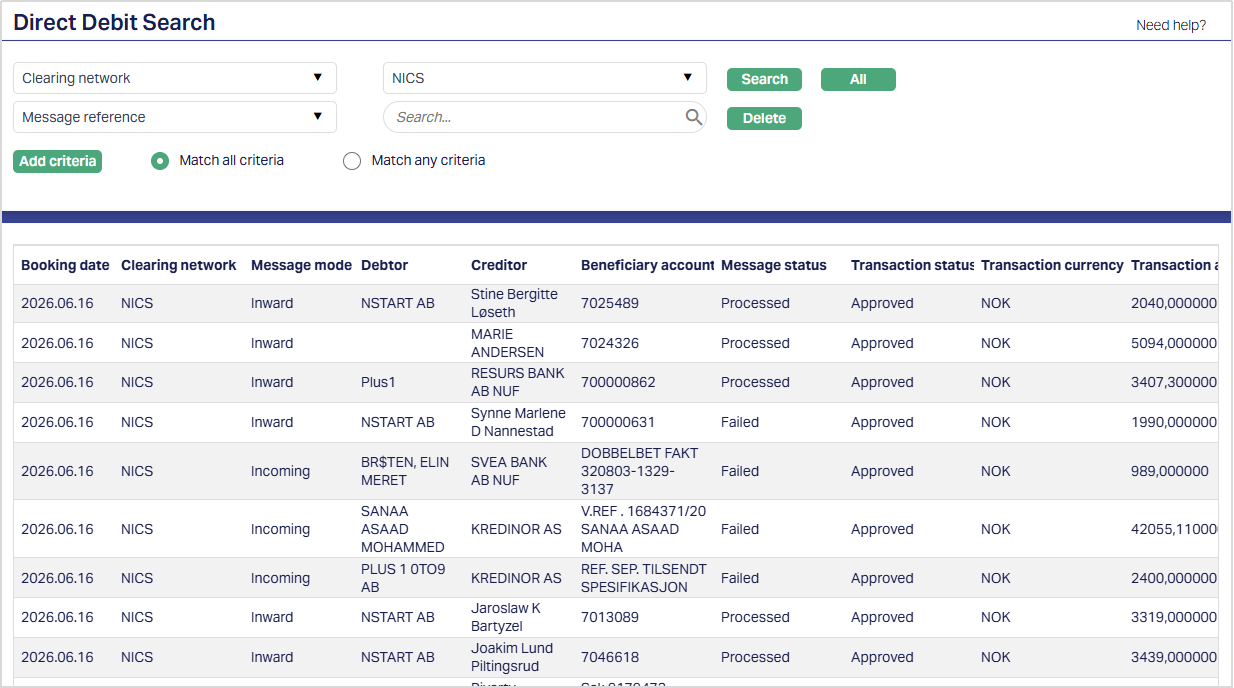
1. From the PaymentGrid menu, click Operations and then click Direct Debit. The Direct Debit Search page appears. You can search for a record based on Beneficiary account, Booking date, Clearing network, Creditor, Debtor, Exception, Message mode, Message reference, Message status, Transaction amount, Transaction currency or Transaction status. If you click All, then Direct Debit Search page will display all the Inward and Outward SEPA and GIRO records maintained in PG. A sample screen is shown below.
2. If you want to view a Direct Debit record, click on the appropriate record and the Direct Debit Maintenance page appears.
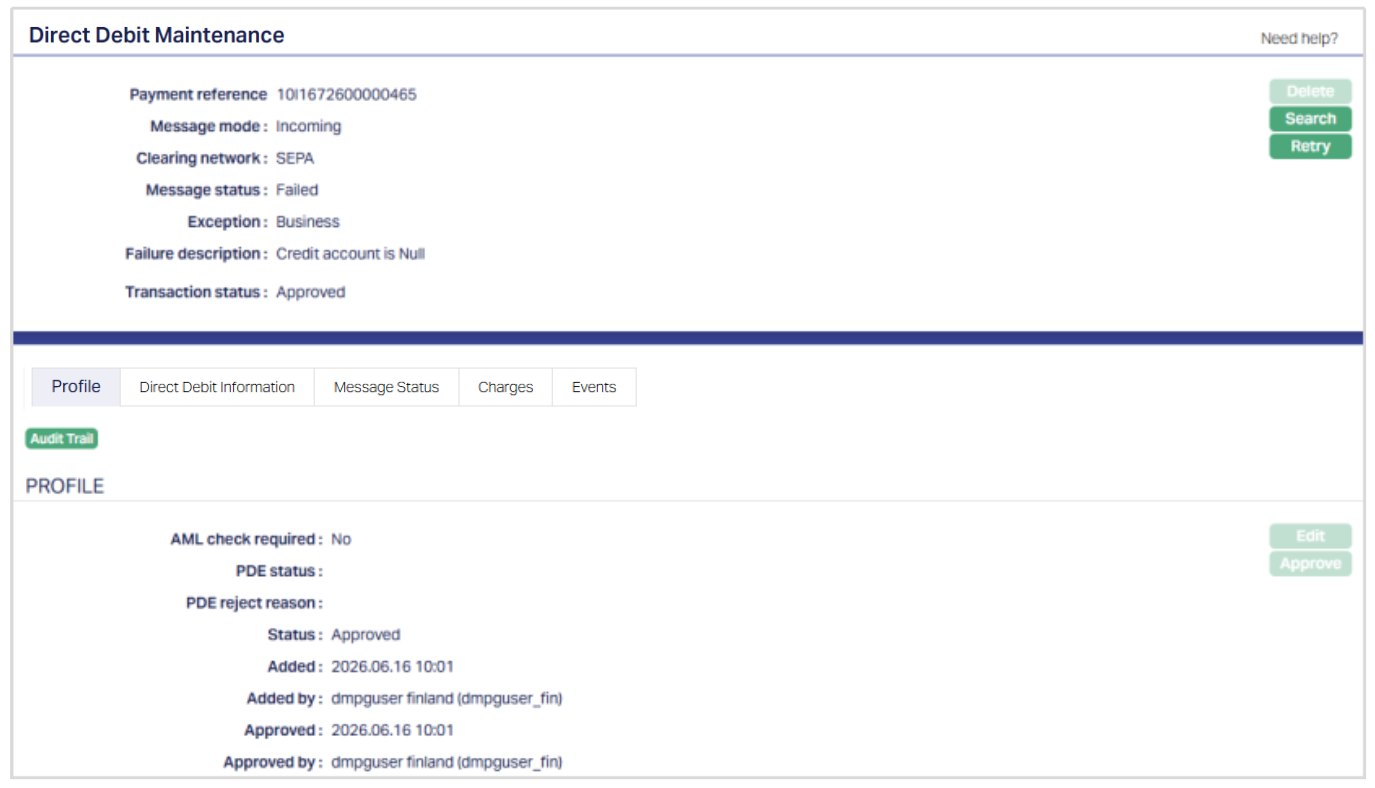
Functions: Delete, Search, Retry
Payment reference #: It specifies the reference number of the payment transaction.
Message mode: It specifies the mode of the message. The mode can be Inward, Outward.
Clearing network: It specifies the Clearing network of the payment transaction. The network can be SEPA or GIRO.
Message status: It specifies the status of the message. The status can be Registered, Sent for collection, Processed, Failed, Cancelled, Reversed, Returned, Rejected and Refunded.
Exception: It specifies the exception of the transaction. The exceptions are AML, PDE, Business and Critical.
Failure description: It specifies the description of the failed transaction.
Transaction status: It specifies the status of the transaction. The status can be Pending or Approved.
Delete: You can delete a Direct Debit record saved in PaymentGrid by a click on Delete button. PaymentGrid will ask for confirmation, on approving which the selected record will be deleted. This button gets enabled only if the Message Status is Registered.
Retry: If you want to retry the Direct Debit record by a click on Retry button. PaymentGrid will ask for confirmation, on approving which the selected record is retried. This button will be enabled only if Message status is Failed with exception as Critical.
Profile
The Profile tab, which is the default tab in the Direct Debit Maintenance screen, shows the basic details of the Direct Debit payment record. The details displayed here are based on the configuration and message mode.
To view/edit the Profile,
1. Access the Direct Debit Maintenance screen and click Profile tab to view the details as per sample below.
Message mode: Outward

Message mode: Inward

AML check required: It displays whether the AML check is required or not. The options are Yes or No. If Yes, then AML check is required. If No, then AML check is not required. This field will appear when the Message Mode is both Inward and Outward. The value is defaulted from the AML Required field maintained in Product.
Message dispatched: It displays whether the message is dispatched or not. The available options are Yes or No. If Yes, the message is dispatched and if No, the message is not dispatched. This field will be displayed only for Outward Payments.
PDE status: It displays the PDE (Positive Duplicate Emission) status of the transaction. The status can be PDE Occurred, PDE Override, and PDE Reject. The field will be displayed only if Message mode is Inward.
PDE reject reason: It will display the reason updated by the user on PDE rejection. It will display only when the Message mode is Inward.
Status field displays the status of the tab.
Added field displays the date on which the record was added.
Added by field displays the name of the User who created the record.
Approved field displays date on which the record was approved and is displayed only for approved records.
Approved by field displays name of the User who approved the record and is displayed only for approved records.
2. Click Edit. The Edit Profile page appears. The Edit button will be enabled only if the PDE status is PDE occurred.
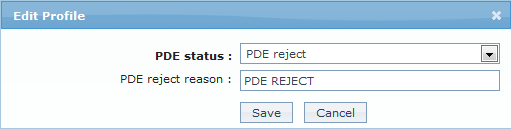
3. Select the PDE status from the drop down list. The options are PDE Override, PDE reject, PDE Occurred.
4. Enter the PDE reject reason.
5. Make the required changes and Save.
 Functions: Edit, Approve.
Approve: If you want to approve a Direct Debit record, then retrieve the record and click Approve. PG will ask for confirmation. Once the tab is approved, status gets changed from Pending to Approved.
On Approval of a record, the following actions is taken
If the PDE status is PDE override, then PG will trigger to the next stage.
If PDE status is PDE reject, then PG will update the Message status as Rejected and End of payment cycle
Direct Debit Information
Direct Debit Information tab allows you to view the details for the actual message generated.
To view the Direct Debit Information
1. Access the Direct Debit Maintenance screen and click Direct Debit Information tab to view the details as per sample below.
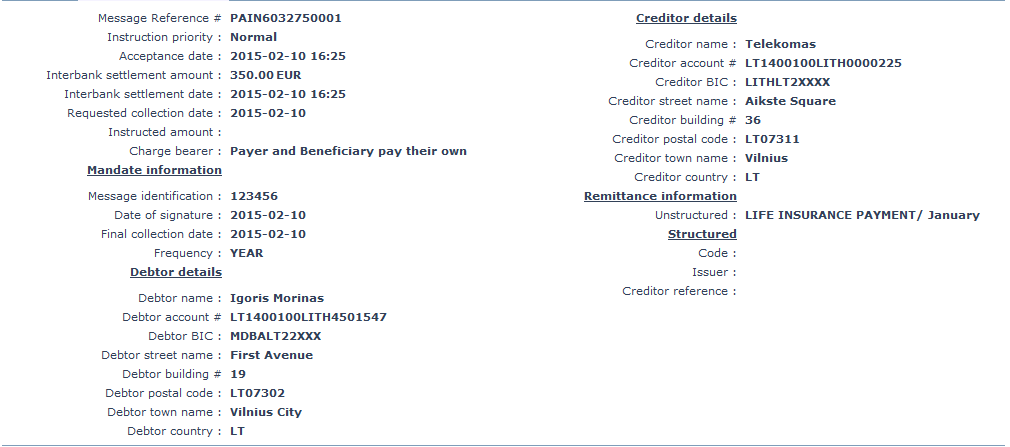
Message Reference #: It specifies the reference number assigned by the Sender to identify the message.
Instruction priority: It specifies the payment processing speed. Only NORMAL value is used for SEPA payments.
Acceptance date: It specifies the date of fulfillment of all conditions required by the originator bank for the execution of a SEPA direct debit. It includes but is not limited to the regulatory option of cut off time defined by the originator bank or to the availability of adequate financial cover and of the information required to execute the instruction.
Interbank settlement amount: It specifies the total amount and currency moved between instructing agent and instructed agent.
Interbank settlement date: It specifies the date on which obligations with respect to fund transfer between originator bank and Beneficiary bank are discharged.
Requested Collection date: It specifies the date and the time at which the creditor requests that the amount of money is to be collected from the debtor.
Instructed amount: It specifies the amount of money to be moved between the debtor and creditor, before deduction of charges, expressed in the currency as ordered by the initiating party.
Charge bearer: It specifies the party (Parties) liable for payment related fees. Only SLEV is allowed for a SEPA direct debit.
Mandate Information: It provides the details of the direct debit mandate signed between the creditor and the debtor.
Message Identification: It is a unique identification, as assigned by the creditor, to unambiguously identify the mandate.
Date of signature: It specifies the date on which the direct debit mandate has been signed by the debtor.
Final Collection date: It specifies the date of the final collection of a direct debit as per the mandate.
Frequency: It specifies the regularity with which direct debit instructions are to be created and processed.
Debtor name: It specifies the name of the party that owes an amount of money to the creditor.
Debtor account #: It specifies the unambiguous identification of the account of the debtor to which a debit entry will be made as a result of the transaction.
Debtor BIC: It specifies the BIC code BIC code of the financial institution servicing an account for the debtor.
Debtor street name: It specifies the street name of the Debtor.
Debtor building: It specifies the Debtor's or Originator's building number.
Debtor postal code: It specifies the postal code of the Debtor.
Debtor town name: It specifies the town name of the Debtor.
Debtor country: It specifies the country of the Debtor.
Creditor name: It specifies the creditor name.
Creditor account #: It specifies the unambiguous identification of the account of the creditor to which a credit entry will be posted as a result of the payment transaction.
Creditor BIC: It specifies the BIC code of the financial institution servicing an account for the creditor.
Creditor street name: It specifies the street name of the Creditor.
Creditor building #: It specifies the Creditor's building number.
Creditor postal code: It specifies the postal code of the Creditor.
Creditor town name: It specifies the town name of the Creditor.
Creditor country: It specifies the country of the Creditor.
Remittance Information: It specifies the information supplied to enable the reconciliation of an entry with the items that the payment is intended to settle, such as commercial invoices in an accounts' receivable application, in a Structured or unstructured form.
Code: It specifies the document type in a coded form.
Issuer: It specifies the identification of the issuer of the reference document type.
Creditor reference: It specifies the reference information provided by the creditor to allow the identification of the underlying documents.
Message status
Message status allows you to add a status for the message.
To view/add the Message status,
1. Access the Direct Debit Maintenance screen and click Message Status tab to view the details as per sample below.
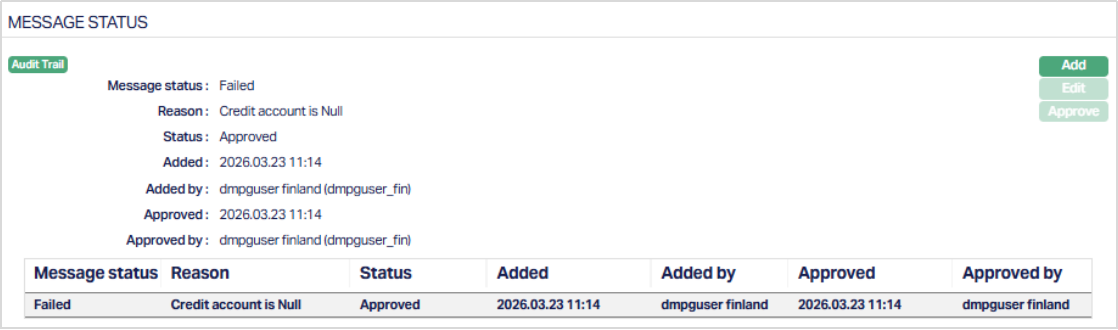
Message status displays the status of the message as selected by the user or updated by PG.
Reason specifies the Reason for the message status.
Status field displays the status of the tab -- Pending or Approved.
Added field displays the date on which the record was added.
Added by field displays the name of the user who created the record.
Approved field displays date on which the record was approved and is displayed only for approved records.
Approved by field displays name of the user who approved the record and is displayed only for approved records.
2. Click Add. The Add Message Status page appears. Add button will be enabled only if the Message status is Processed for both Inward/ Outward Message mode.
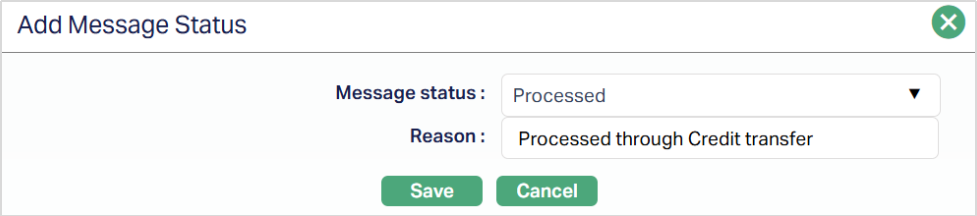
3. Select the Message status from the drop down list. The available options are Cancelled and Reversed, Refund.
4. Enter the Reason for the change in message status.
5. Click Save to save the added details.
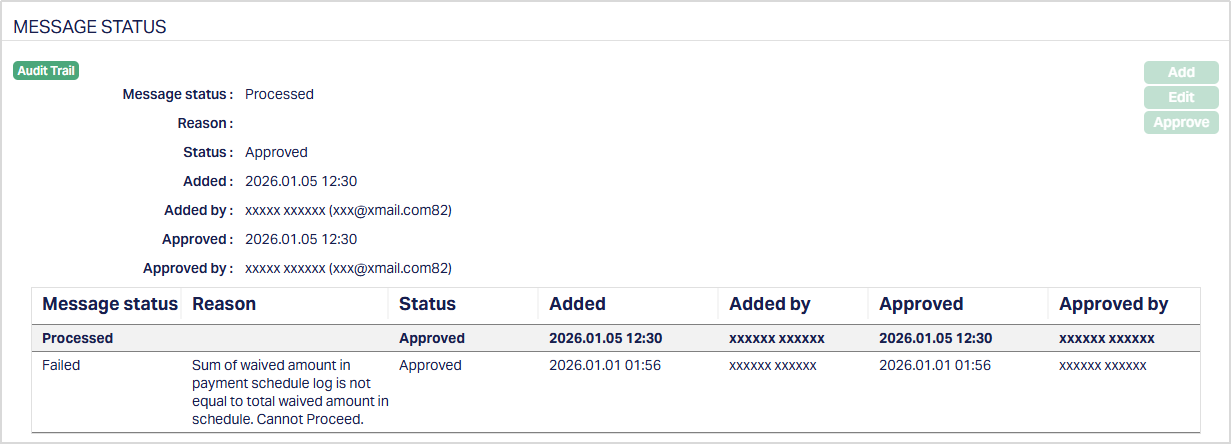 Functions: Add, Edit, Approve
To edit the Message status,
1. Access the Direct Debit Maintenance page and Message Status and click Edit. The Edit Message status page appears. Only Reason can be edited.
2. Make the required changes and click Save.
Charges
The charge tab allows you to view the charge details of a transaction.
To view the charges,
1. Access the Direct Debit Maintenance screen and click Charges tab to view the details as per sample below.

Charge scheme: It specifies the Charge scheme attached to the charge rule. On the basis of the rule, the Charge scheme created in Aura and attached to the Charge rule in PG is picked and displayed here.
Charge amount in charge currency: It specifies the amount and currency collected for charge in Charge Currency.
Charge amount in account currency: It specifies the amount and currency collected for charge in Account currency.
Events
Event tab allows you to view the events of the transactions. It will display the events of all the accounting entries in Aura.
To view the charges,
1. Access the Direct Debit Maintenance screen and click Events tab to view the details as per sample below.
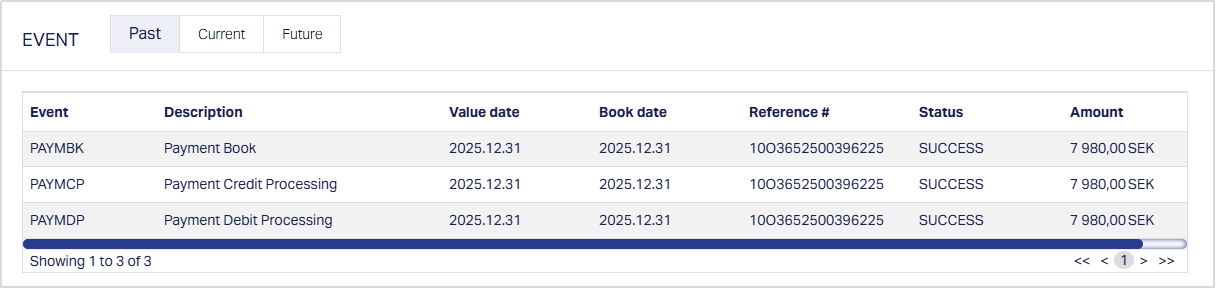
2. Click Event tab. There are three sub-tabs within it -- Past, Current and Future. By default, the Current tab is displayed. It shows the details of the Events that have value date = current business date. The Past tab and Future tab show details of events that have value date earlier than / later than the current business date respectively.
A sample of the Past tab is shown below:
A sample of the Current tab is shown below:

A sample of the Future tab is shown below:

All the tabs show the following data:
Event: Code for the event.
Description: Description of the event.
Value Date: The value date for the event.
Book Date: The date of entry / input of the event.
Reference #: The transaction reference number under which the event is processed.
Status: Status of the event
- Pending: Where the event is not yet processed.
- Success: Where the event has been processed successfully.
- Failure: Where the event has failed during process.
- Retry: Indicates a failed event where the system retries to process the event on subsequent business days
Amount: Indicates the amount processed by the event..
The Events which will occur in Event tab are as follows:
| Events | Description | Transaction Status |
|---|---|---|
| PAYMBK | The event will trigger when the Payment is booked in Core Bank. | Registered |
| PAYMDP | The event will trigger after the debit processing is done in Core bank | Registered |
| PAYMCP | The event will trigger after the credit processing is done in Core bank | Processed |
| PAYMRV | The event will trigger after the payment reversal done in Core Bank | Reversed |
| PAYMRT | The event will trigger when return / cancel action is taken in CC-PG / Core bank respectively | Returned |
| PAYMRF | The event will trigger when Refund / Cancel action done in CC-PG / Corebank respectively | Refunded |