
Users Maintain
Access to Aura is governed through User details maintained under this option. Each User is identified by a unique User name and is linked to one or more Role groups for each Entity and Branch. The rights associated with the Role groups of the User dictate the functions that the User can perform on Aura.
Following are the tabs in User:
On every new deployment of the application, there will be a specific User Name and Password provided which would be required for the ADMIN to perform the user maintenance activity for further creation of the users in the system.
To add new User
- From Admin menu, click Users, and then Maintain. The system will display the User Search screen. The list of all the users maintained in Aura will be displayed.

- Click Add. New User -- User Details (1/6) page will appear.
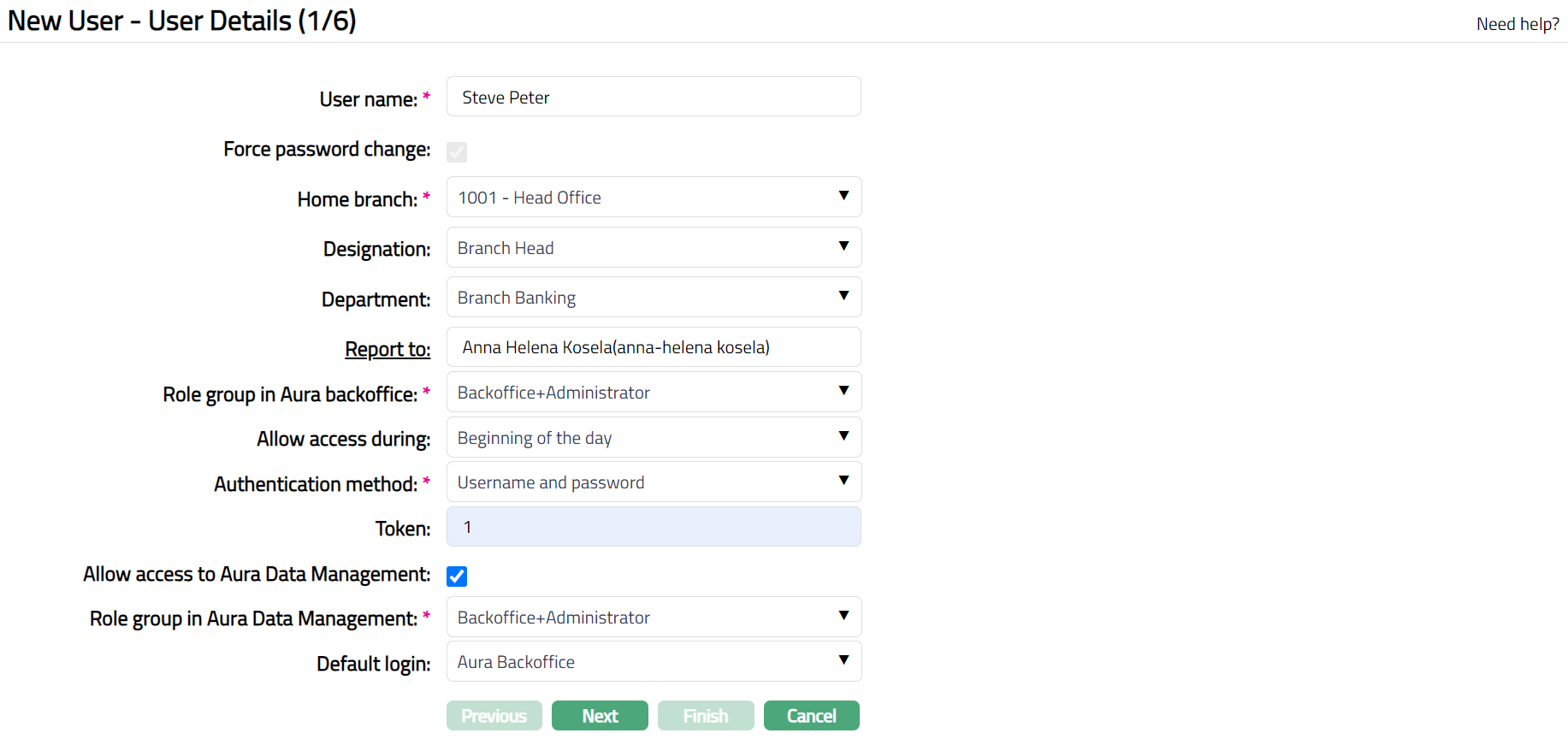
Enter User name by which the user will log in to Aura. User name should be unique.
Force password change checkbox is preselected to allow the user to reset the password when he / she logs into the system for the first time.
Select Home Branch for the user from the drop-down list of all the branches maintained under Admin > Branches > Maintain. This is the branch into which the user will be automatically logged in.
Select Designation for the User from the drop-down list of options maintained under Admin > Users > Designations > Maintain.
Select Department for the User from the drop-down list of options maintained under Admin > System codes > Generic definition > Departments.
Enter Report to i.e., the User to which this User will report. Click the hyperlinked Report to, then select the user from the User Search Page.
Select appropriate Role Group in Aura backoffice for the user from the drop-down list maintained under Admin > User > Role Groups, to define the access rights of the User to the back office (transaction processing) system.
Select Allow access during from the available drop-down list. The available preshipped values are:
Processing indicates that the Users are allowed to login and perform various functions when the Entity status is Processing.
Non processing indicates that the users are allowed to login when the Entity status is Processing or End-Of-Day (EOD).
Beginning of the day indicates that the users are allowed to login when the Entity Status is Processing, EOD or BOD (Beginning-of-the-Day).
Select Authentication method from the available drop-down list maintained under Admin > Users > Authentication Settings
Enter Token for the user.
Select Allow access to Aura Data Management checkbox to define if the user has access to data management screens.
Role Group in Aura Data Management will be enabled only if the above checkbox is checked. Select the required role group from the drop-down list of Role groups maintained under Aura Data Management > Admin > User > Role Group,
Default login allows you to define if the user should see the landing page of Aura Backoffice (transaction processing) or Aura Data Management during login. Select the required option from the following pre-shipped options: Aura Data management and Aura Backoffice.
Click Next. New User -- General (2/6) page will appear.
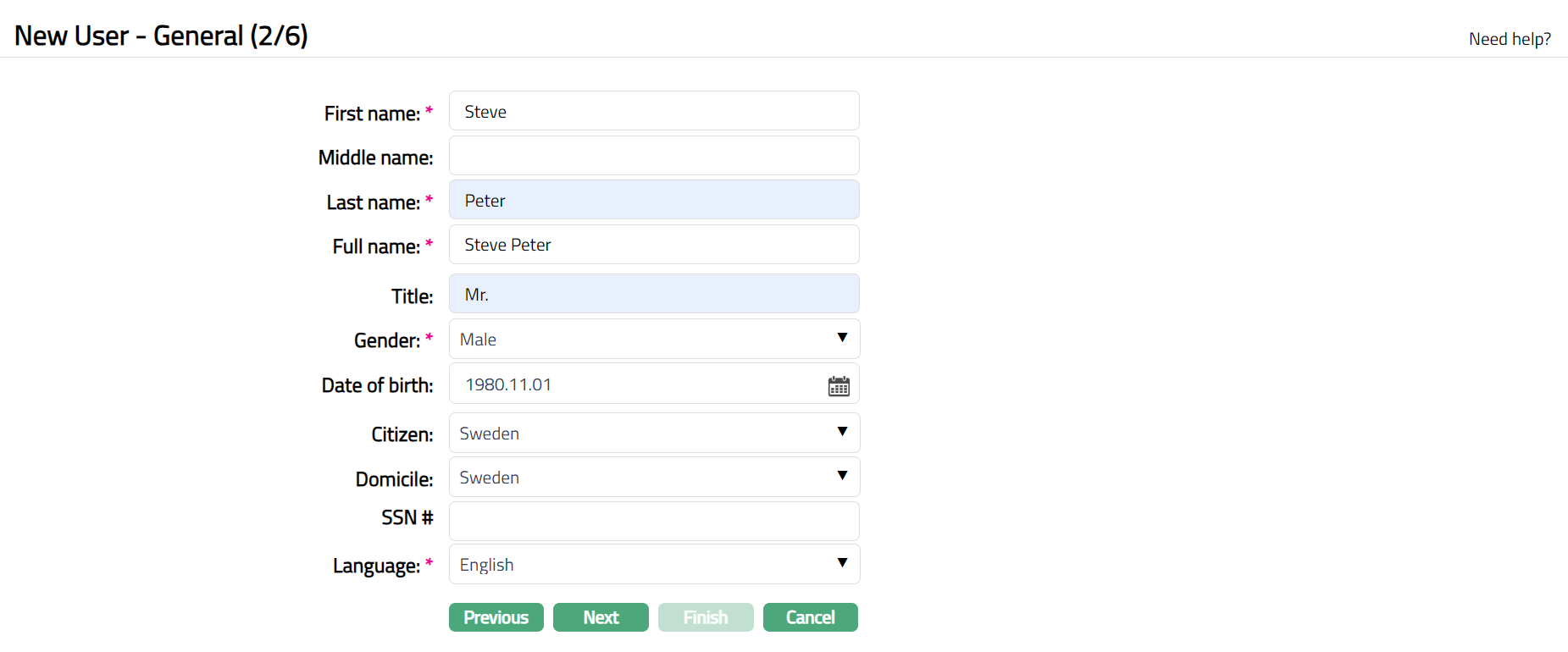
Enter First name of the User.
Enter Middle name of the user if required.
Enter Last Name of the User.
On entering the First Name, Middle Name and Last Name system derives the Full name.
Enter Title of the User that is to be prefixed to the User's name.
Select Gender of the User from the drop-down list. The available options are Female, Male and Not disclosed.
Input Date of birth of the User. You can either enter the date manually or select using the calendar. Aura will validate the date format against the format maintained at Entity maintenance > Regional > Date format.
Select Citizen i.e., country of Citizenship of the User from the drop-down list of countries maintained under Admin > System codes > Generic definitions > Countries.
Select Domicile of the User i.e., country of residence from the drop-down list of countries maintained under Admin > System codes > Generic definitions > Countries.
Enter SSN#. It is the User's Social Security Number i.e., a unique number provided by the User's residence country.
Note: The validation for SSN, if required, may be customized during implementation.
Select Language i.e., Language of the User from the drop-down list of languages maintained under Admin > System codes > Generic definitions > Languages.
Click Next. New User -- Address (3/6) page will appear.
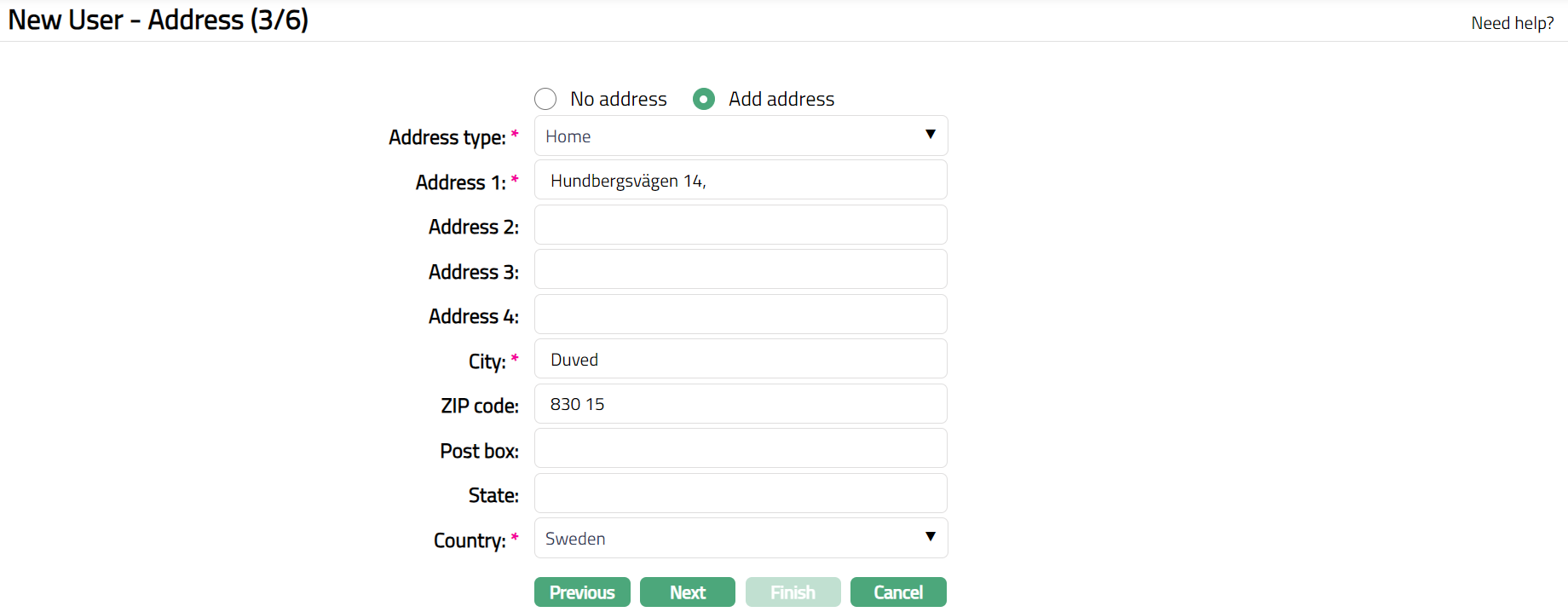
By default, No address is selected. If you do not want to record the address of the User at this stage, then you can retain this option.
If you want to enter the address, then click Add address and provide the required details.
Select Address type from the drop-down list of Address Types maintained under Admin > System Codes > Address details > Address types.
Enter Address 1 of the User.
Enter Address 2 of the User.
Enter Address 3 of the User.
Enter Address 4 of the User.
Enter City of the User.
Enter Zip code of the User.
Enter Post box of the User.
Enter State of the User.
Select Country from the drop-down list of countries maintained under Admin > System codes > Generic definitions > Countries.
Click Next. New User -- Phone (4/6) page appears.
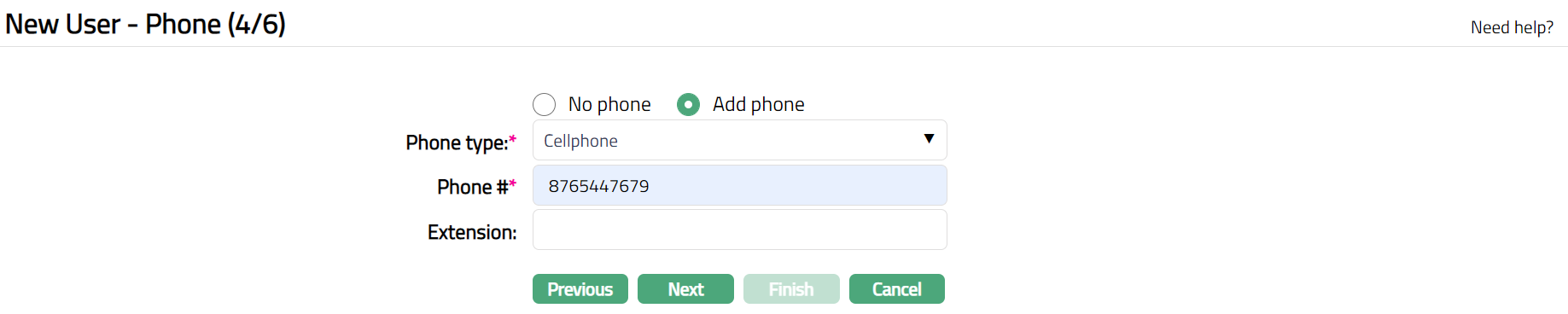
By default, No phone is selected. If you do not want to input the phone details at this stage, then you can retain this option.
If you want to enter phone details, then click Add phone and provide the required details.
Select Phone type from the drop-down list of Phone Types maintained under Admin > System Codes > Address details > Phone types.
Enter Phone # of the User.
Enter Extension of the phone of the User if required.
Click Next. New User -- E-mail (5/6) page appears.

By default, No E-mail is selected. If you do not want to enter the E-mail details of the User at this stage, then you can retain this option.
If you want to enter E-mail details, then click Add E-mail and provide the required details.
Select E-mail type from the drop-down list of E-mail types maintained under Admin > System Codes > Address details > E-mail types.
Enter E-mail address of the User.
Click Next. New User -- Confirmation (6/6) page appears showing all the details that you entered for the User.
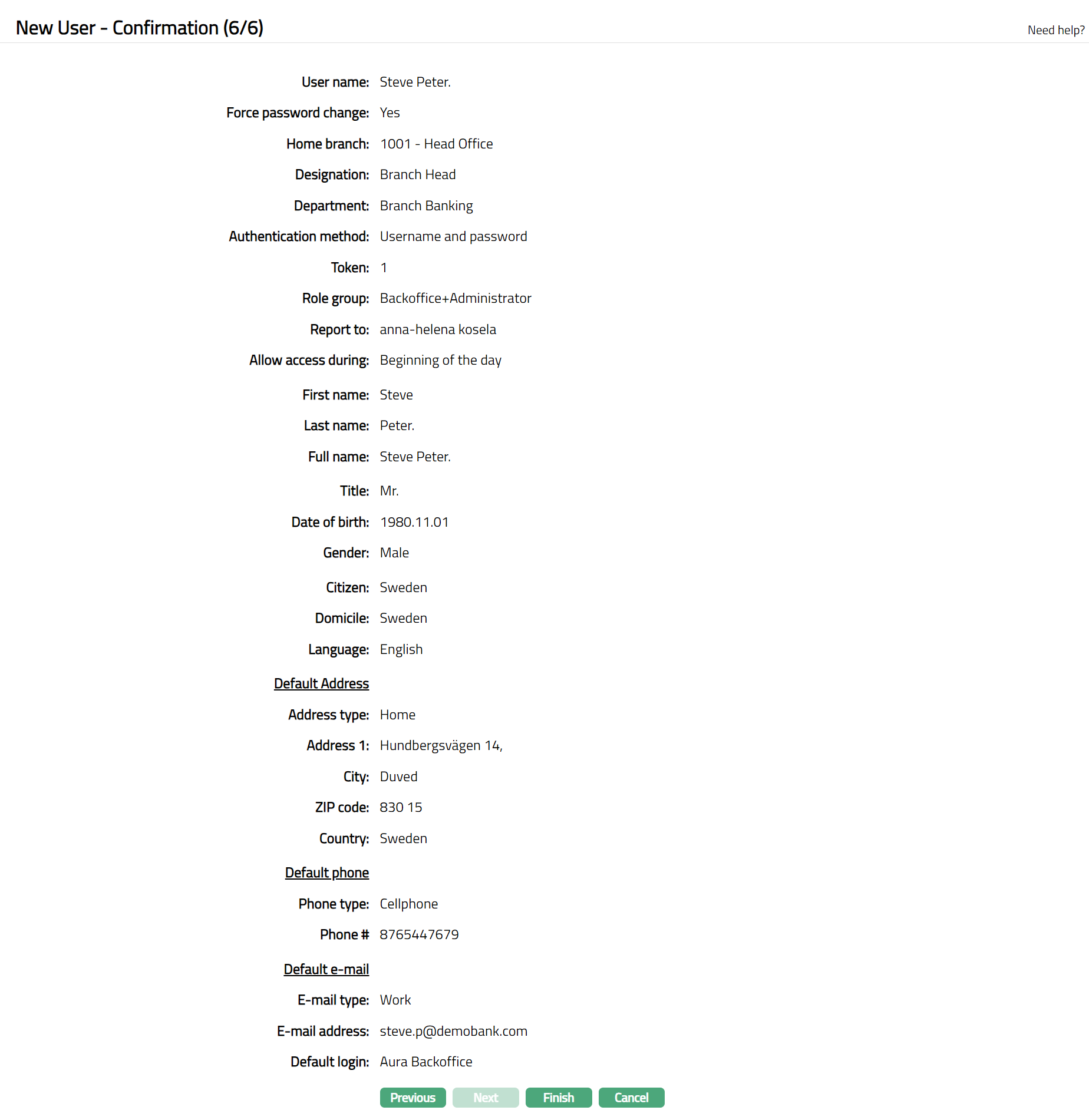
Click Finish. The details of the user are now added, the user status is Opened, and you will see the Profile tab by default. You need to activate the User using the Status Tab after which the user will receive an email with the credentials (user id and password) to login to Aura.
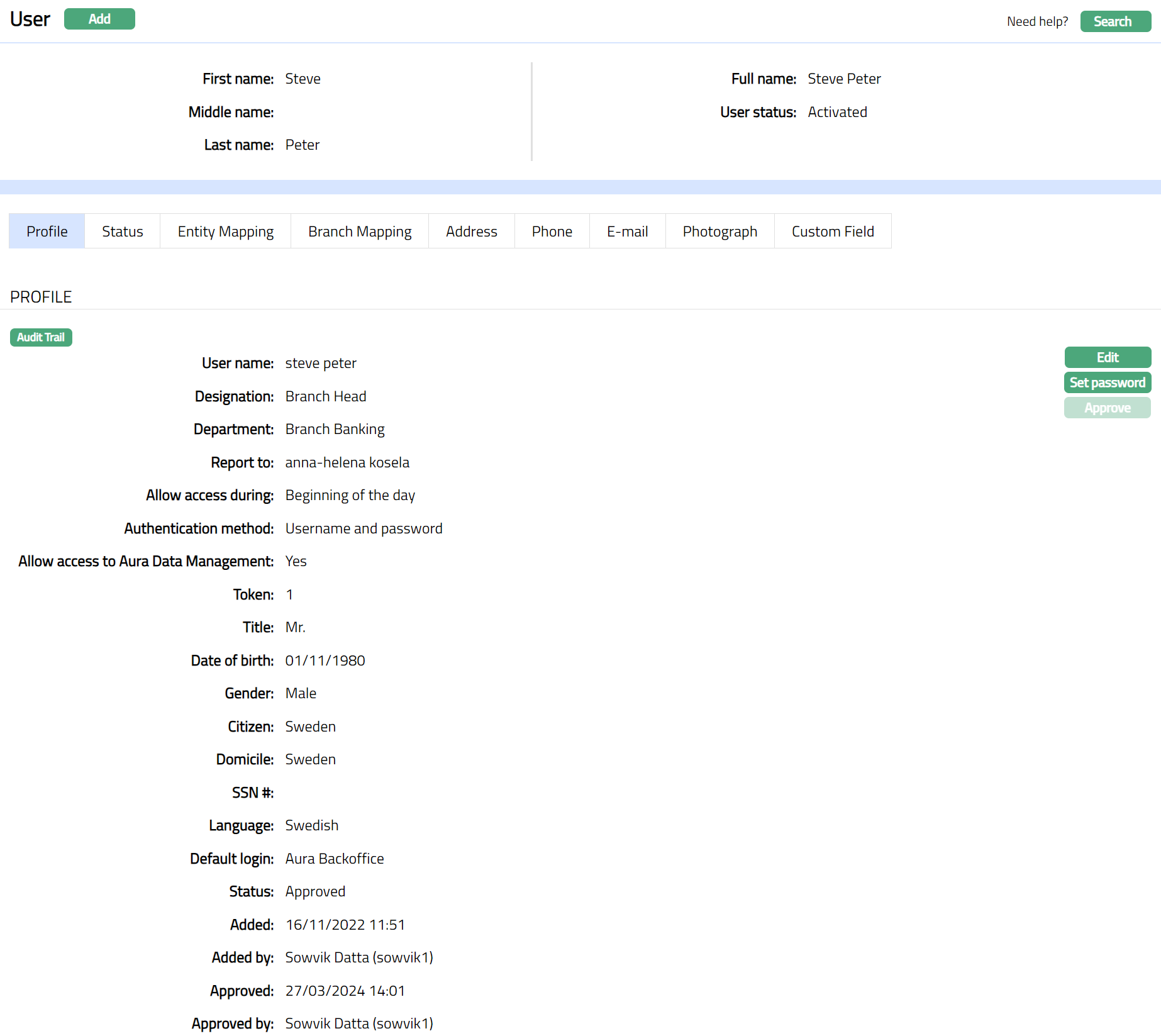
Functions: Add, Search
Note: If the custom field is mapped to User under Admin > System Codes > Custom fields > Field mapping, then an additional screen will appear before the confirmation screen. The custom fields will be mandatory or non mandatory based on the rules set at the Field mappings. For more detail on custom field functionality please refer Admin > System codes > Custom fields > Field mappings manual.
Profile
Profile tab, which is the default tab in the User screen, shows the basic details of the User. Refer to New User -- User Details (1/6) and New User -- General (2/6) for detailed explanation
To view / edit Profile,
- Access User page and click Profile tab.
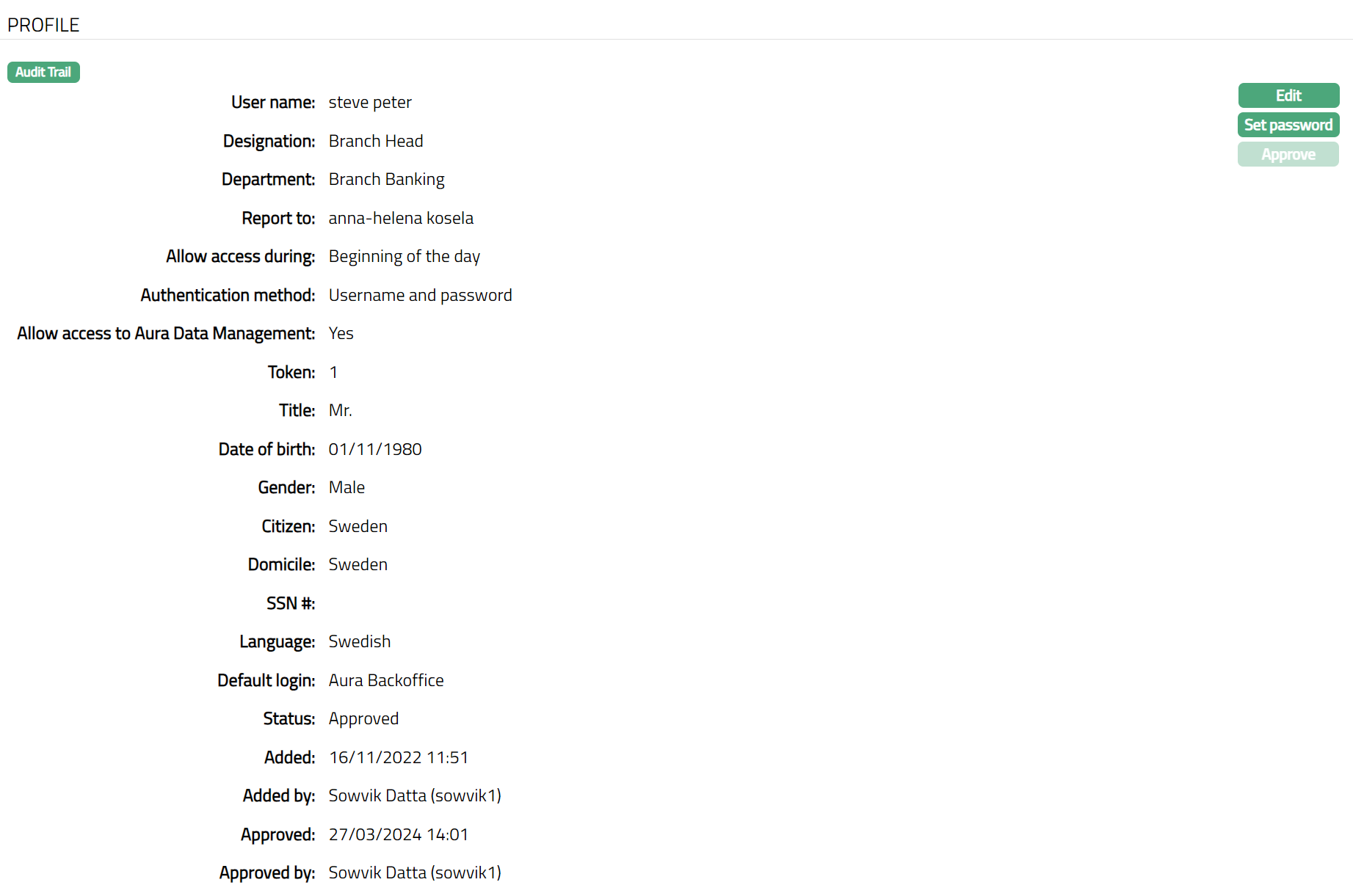
All the details that you input during creation of New User in Steps 1 and 2 are shown.
Following are the additional fields that you can see in the tab:
Status field denotes the status of the record.
Added field denotes the date on which the record was added.
Added by field denotes the name of the user who created the record.
Approved field denotes date on which the record was approved and is displayed only on approval.
Approved by field denotes name of the user who approved the record and is displayed only on approval.
Click Edit. Edit User Profile page appears.
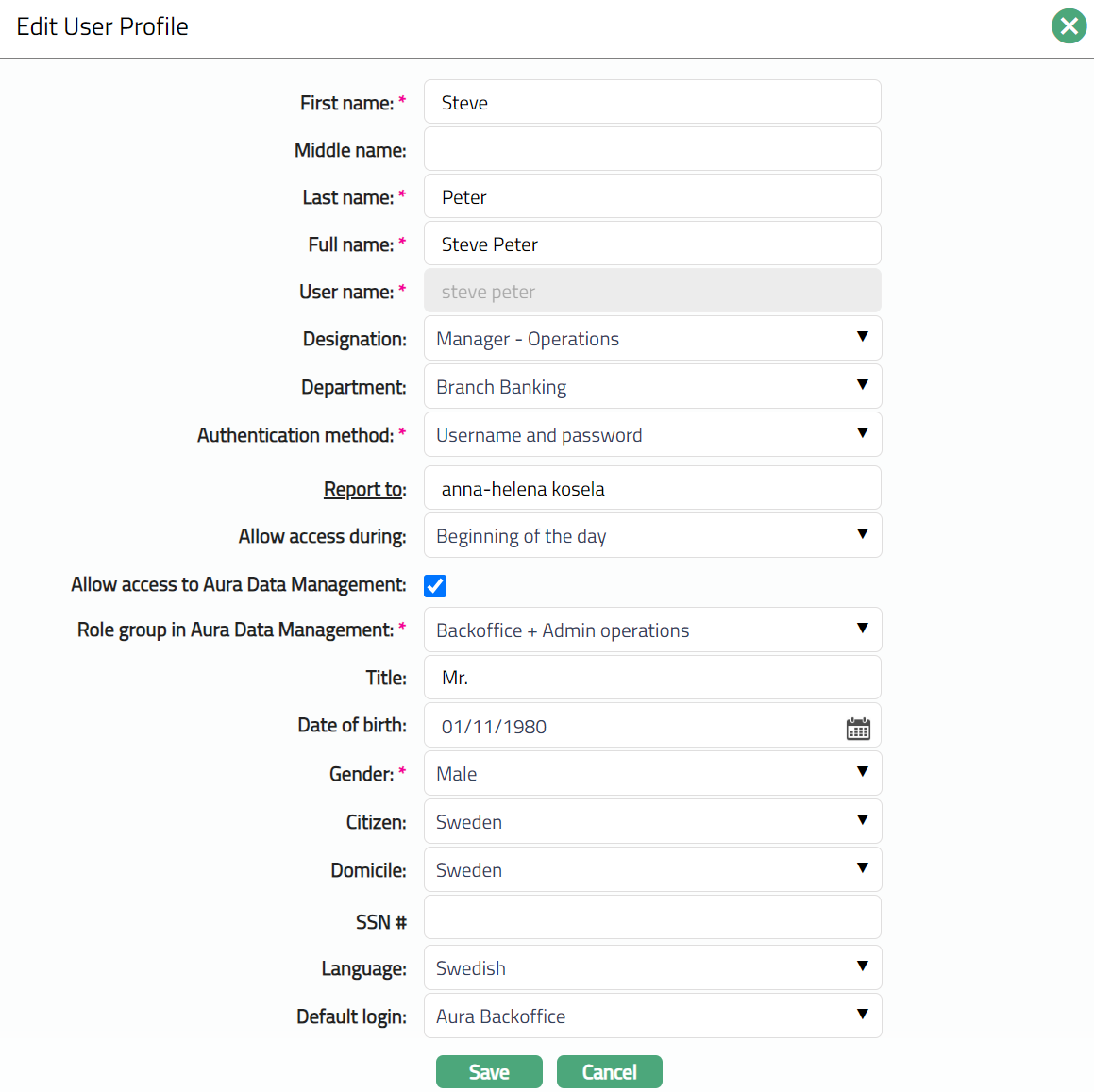
Note: All fields except User name are editable.
Click Save. Profile page appears with the edited details; and the tab status is updated to Pending. Another user with the required rights should approve the same so that the tab status becomes Approved.
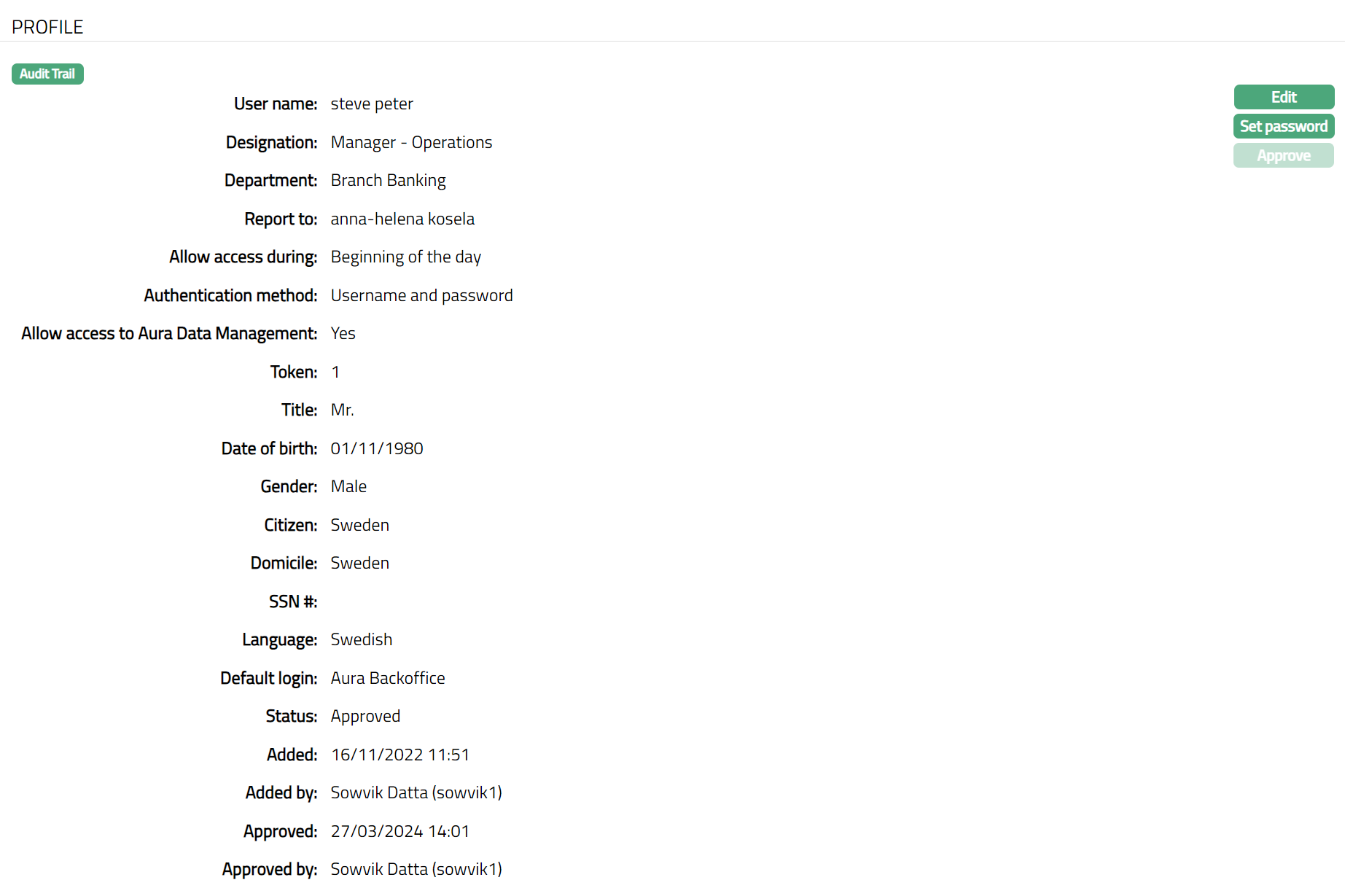
Functions: Edit, Set Password, Approve.
Set Password: You can reset the existing password by clicking on Set password.
Approve: If you want to Approve the Profile tab, then retrieve the record and Click on Approve. Aura will ask for confirmation. Once the tab is approved, status gets changed from pending to Approved and blue bubble disappears from the Profile tab.
Status
This tab allows you to add a status to the User's account. On creation of the User account, the Status by default will be Opened. Only when the status is Activated and record status is Approved, the User becomes effective.
To activate user
Access User screen and click Status tab.
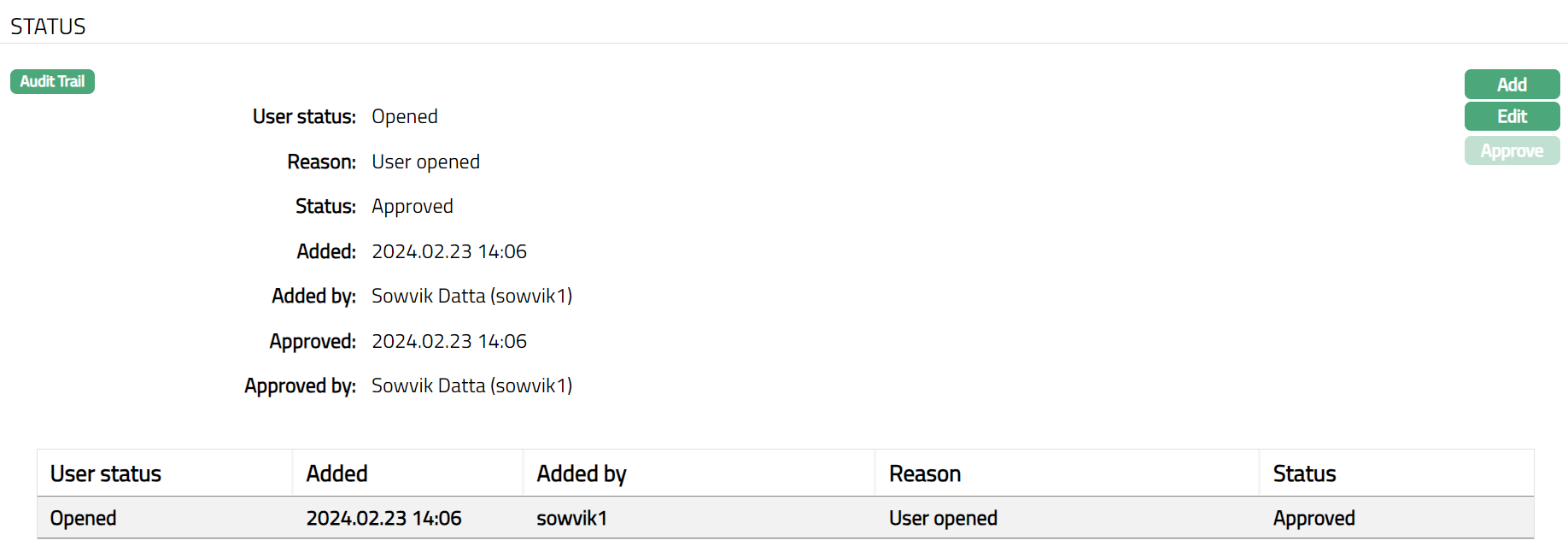
Following are the additional fields that you can see in the tab:
Status field denotes the status of the record.
Added field denotes the date on which the record was added.
Added by field denotes the name of the user who created the record.
Approved field denotes date on which the record was approved and is displayed only on approval.
Approved by field denotes name of the user who approved the record and is displayed only on approval.
Click Add. User Status page appears.
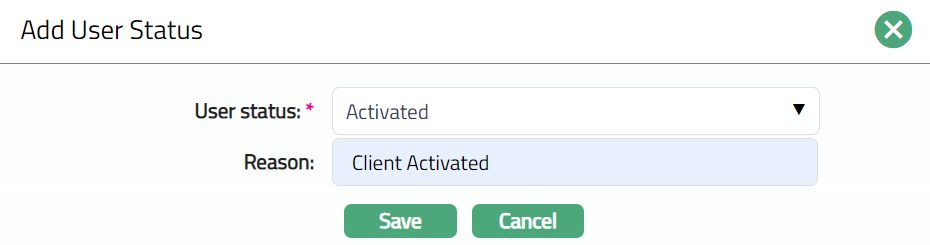
Select User status from the drop-down list. The pre- shipped options are Activated and Suspended.
Enter Reason for the User Status.
Click Save. Status page appears with the added details. Status of the record will be Pending. Another user with the required rights should approve this record. Only on Approval, the User becomes active and can perform the functions in Aura as per the Roles Groups linked to the User.
Note: If the user who added the Status had auto-approval rights, the status of the record will automatically become Approved
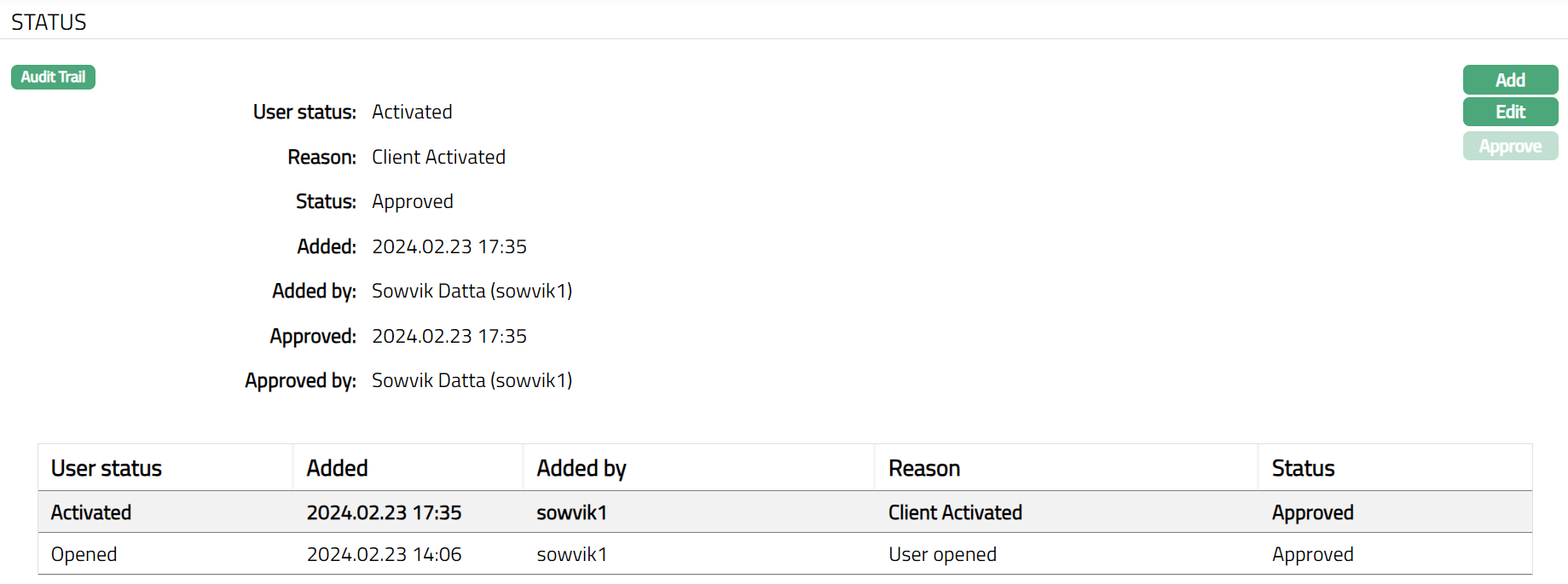
Functions: Add, Edit, Approve
To edit status
Access User screen and click Status tab.
Click Edit. Edit Status page appears.
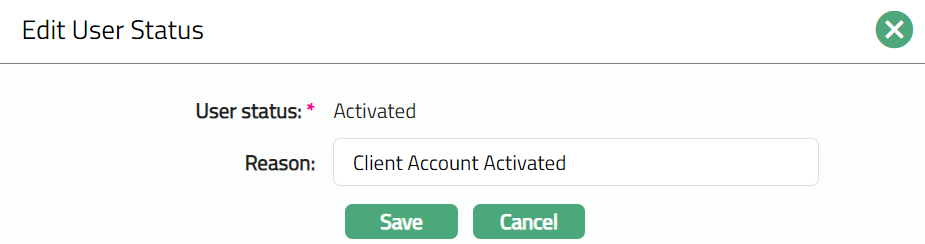
Note: Only Reason field is editable.
Click Save. Status page appears with the edited details.
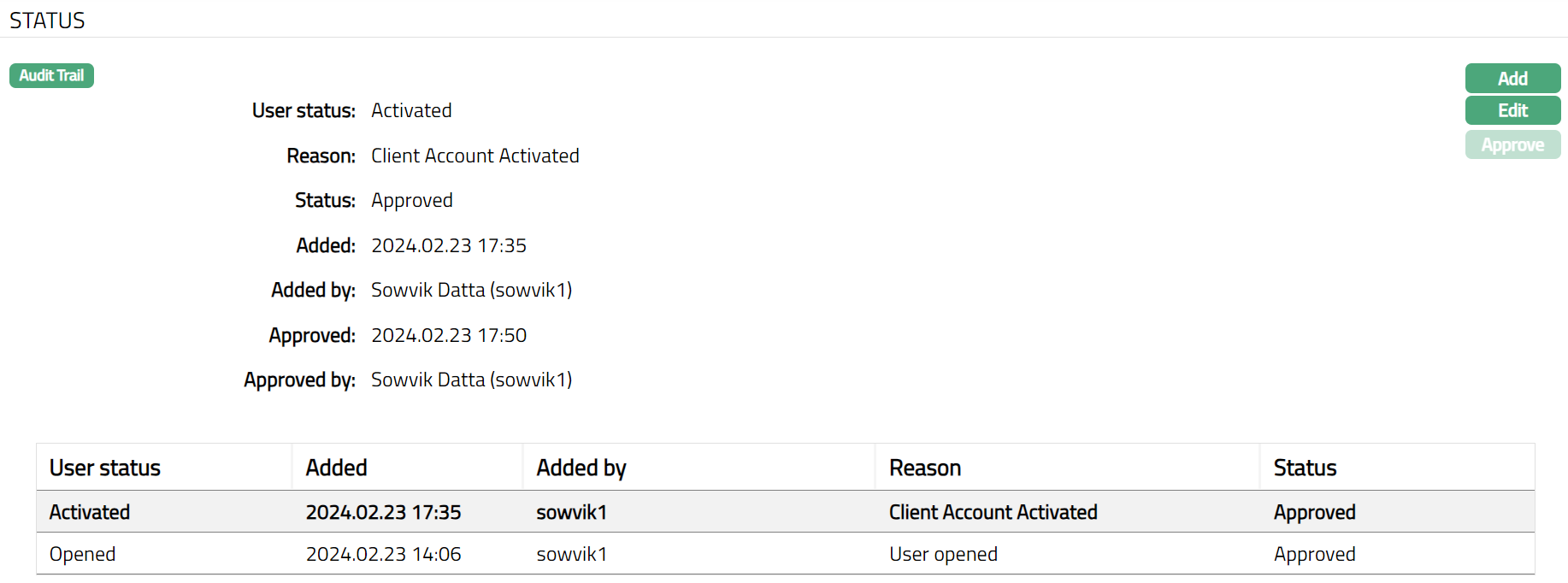
Functions: Add, Edit, Approve
Approve: If you want to Approve the Status tab, then retrieve the record and click Approve. Aura will ask for confirmation. Once the tab is approved, status will be changed from Pending to Approved.
Entity Mapping
This tab will allow you to map one user to multiple Entities. When a user record is created, it is automatically mapped to the Entity in which the user was created with the Home Branch as the default branch. The Entity Mapping tab will display the same. You can map other Entities to the user so that the User can switch between the Entities. Note that the user who is logged in cannot map himself / herself to any Entity. It has to be done by any other user who has the necessary rights for the same.
To map new entity to the user,
Access User screen and click Entity mapping tab.
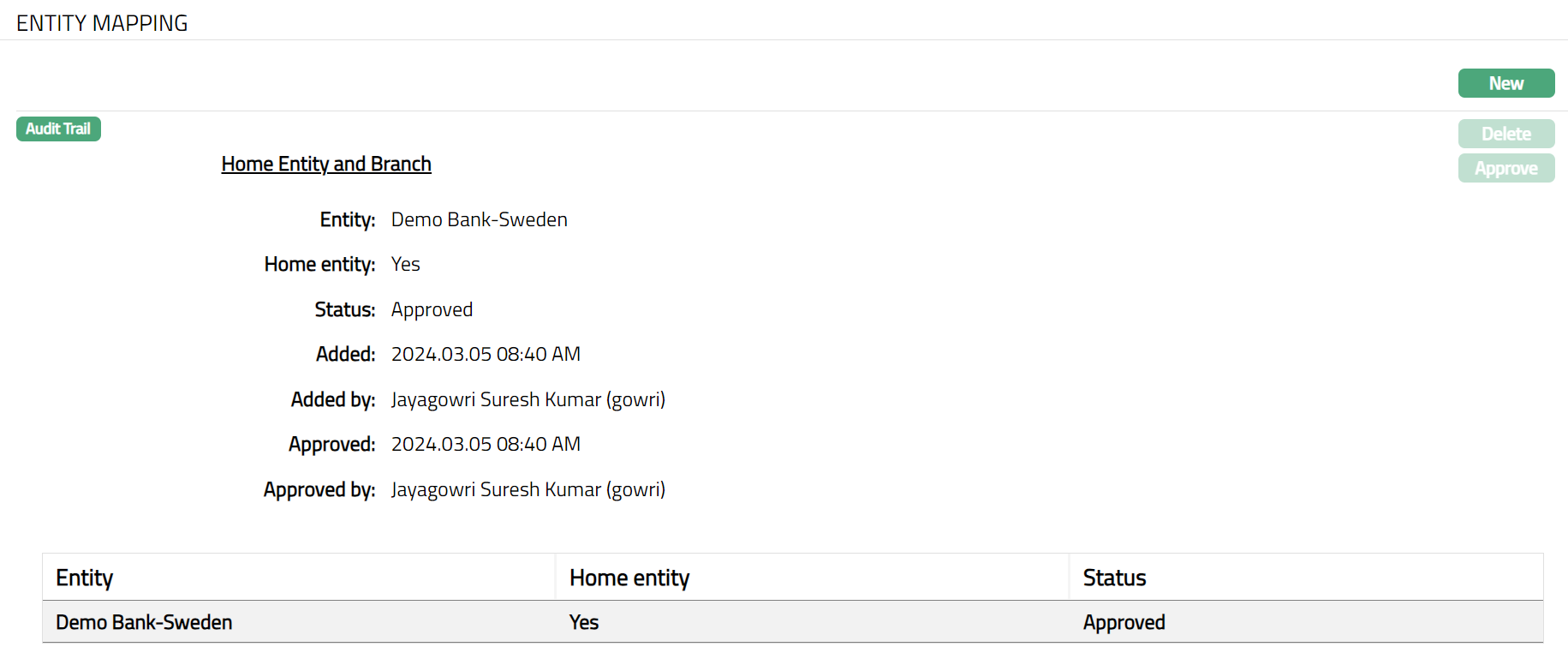
Click New. New Entity Mapping page appears.
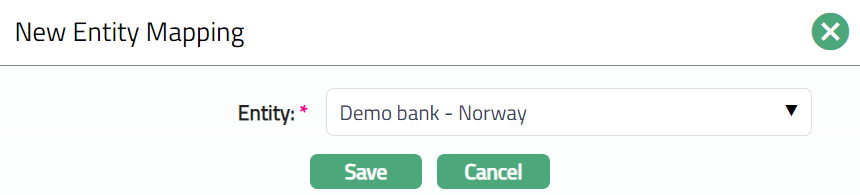
Select Entity to be mapped with the user from the drop-down list of Entities maintained under Admin > Entities > Maintain.
Click Save to save the added entity.
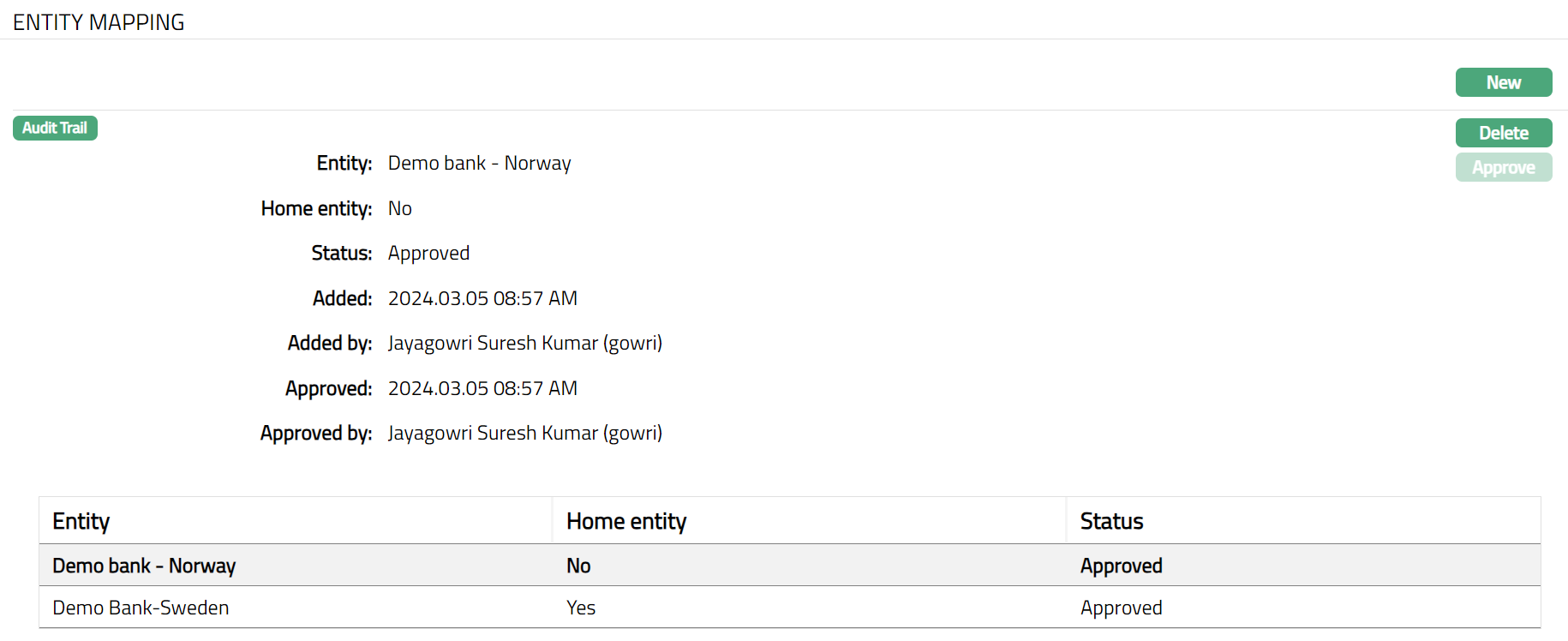
Functions: New, Delete, Approve.
Note: If you are mapped to multiple entities, you will be allowed to switch between the entities.
To switch between the entities,
On top right of the menu bar, you can see the Entity and Branch in which you are currently logged in. Sample screen shown below.

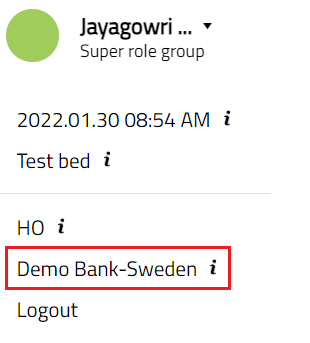
Click Entity name hyperlink, Switch Entity page appears.

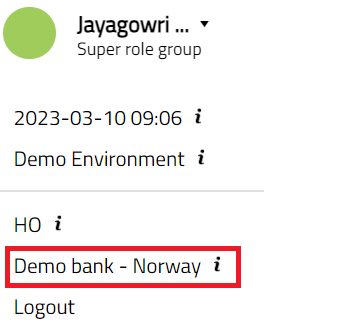
Select Destination Entity from the drop-down list. The drop-down values appear only if you are mapped to those Entities in User maintenance > Entity mapping.
Click Change entity button to switch to selected entity. Sample screen shown below.
Branch Mapping
This tab will allow you to map one user to multiple Branches. When a user record is created, He / She can be mapped to the Home Branch as the default branch. The same user can be mapped to multiple other branches as required. It has to be done by any other user who has the necessary rights for the same.
To map new branch to the user,
- Access User screen and click Branch mapping tab.
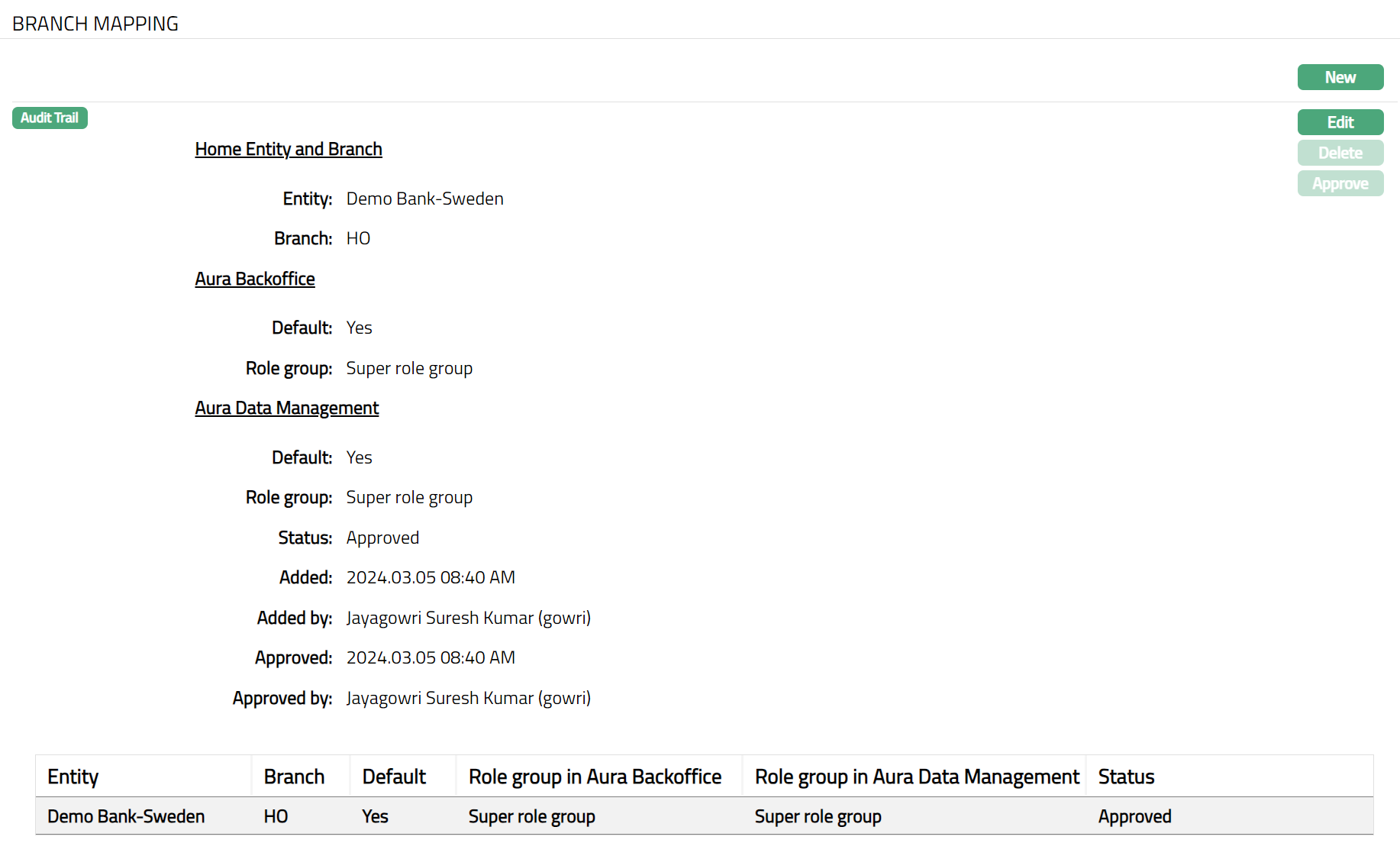
- Click New. New Branch Mapping screen appears.
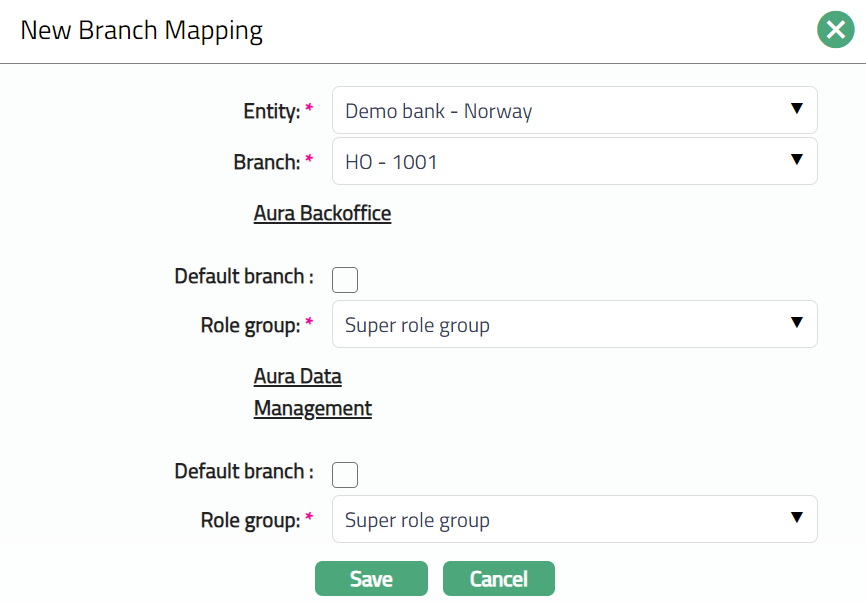
Select Entity to be mapped with the user from the drop-down list of Entities maintained under Admin > Entities > Maintain.
Select Branch of the Entity which this user can access from the drop-down list of Branches for the Entity chosen above as maintained under Admin > Branches > Maintain.
Aura Backoffice and Aura Data Management
If you want to make the selected branch as the default branch for the user in the mapped Entity, then check the Default branch checkbox. If there was any other Branch earlier marked as Default Branch, the same will be replaced by the option that you choose now. This is editable only if there are multiple Branches for the Entity; else, it is automatically checked and disabled.
Select appropriate Role Group for the user to define the access rights of the User to the Backoffice (transaction processing) screens in the Entity chosen above from the drop-down list of Role groups for the Entity as maintained under Admin > User > Role Groups.
Click Save. Branch Mapping page appears with the added details.
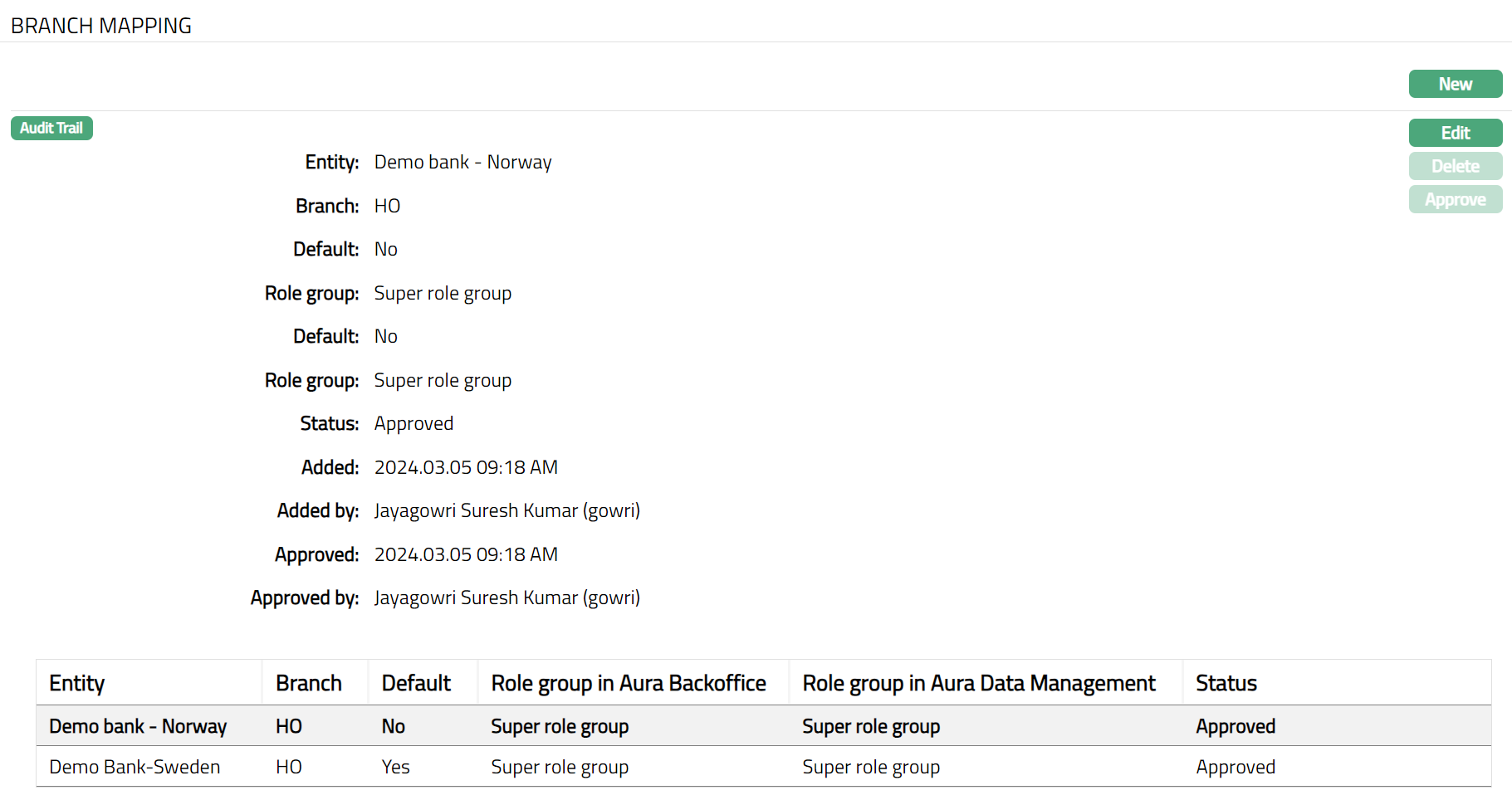 Functions: New, Edit, Delete, Approve.
To Edit Branch Mapping.
- Click Edit. Edit Branch Mapping page appears.
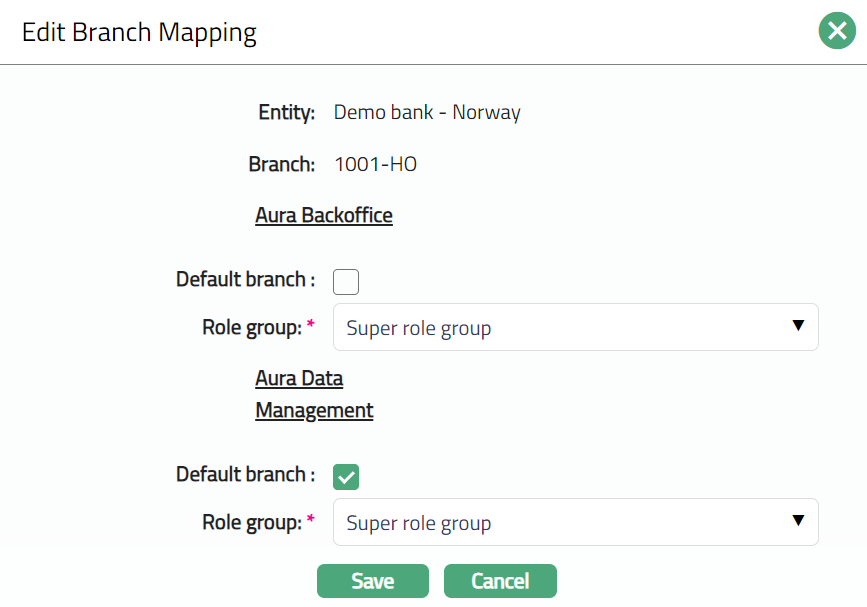
Note: Only default branch and Role group fields are editable.
- Click Save. Branch Mapping page appears with the edited details.
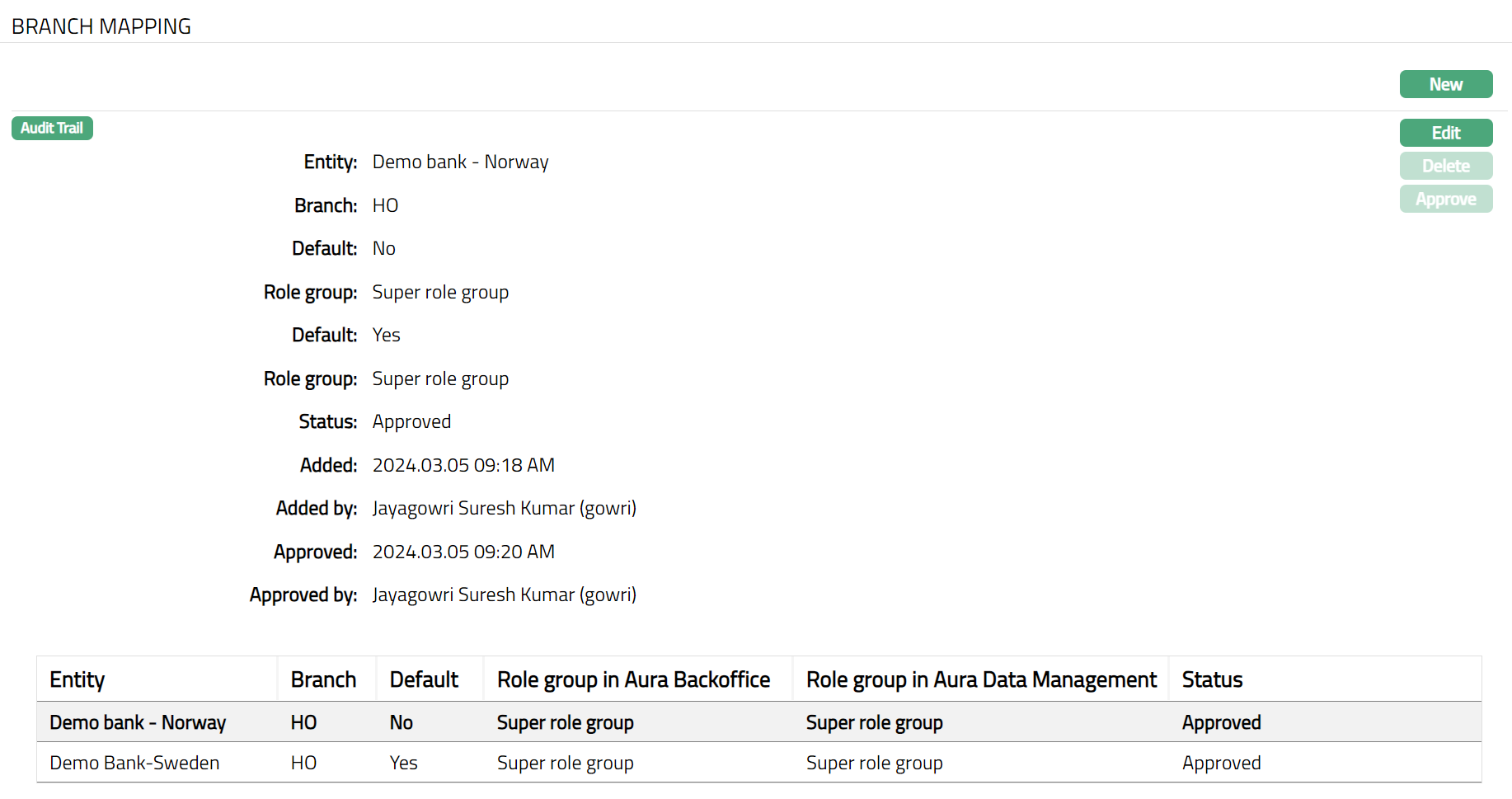 Functions: New, Edit, Delete, Approve.
The additional fields that you can see are as follows:
Status field denotes the status of the record.
Added field denotes the date on which the record was added.
Added by field denotes the name of the user who created the record.
Approved field denotes date on which the record was approved and is displayed only on approval.
Approved by field denotes name of the user who approved the record and is displayed only on approval.
Delete: This option is used to delete the address. Aura will ask for confirmation, on confirmation of which the address will be deleted.
Approve: If you want to Approve the Branch Mapping tab, then retrieve the record and Click Approve. Aura will ask for confirmation. Once the tab is approved, status gets changed from pending to Approved.
Address
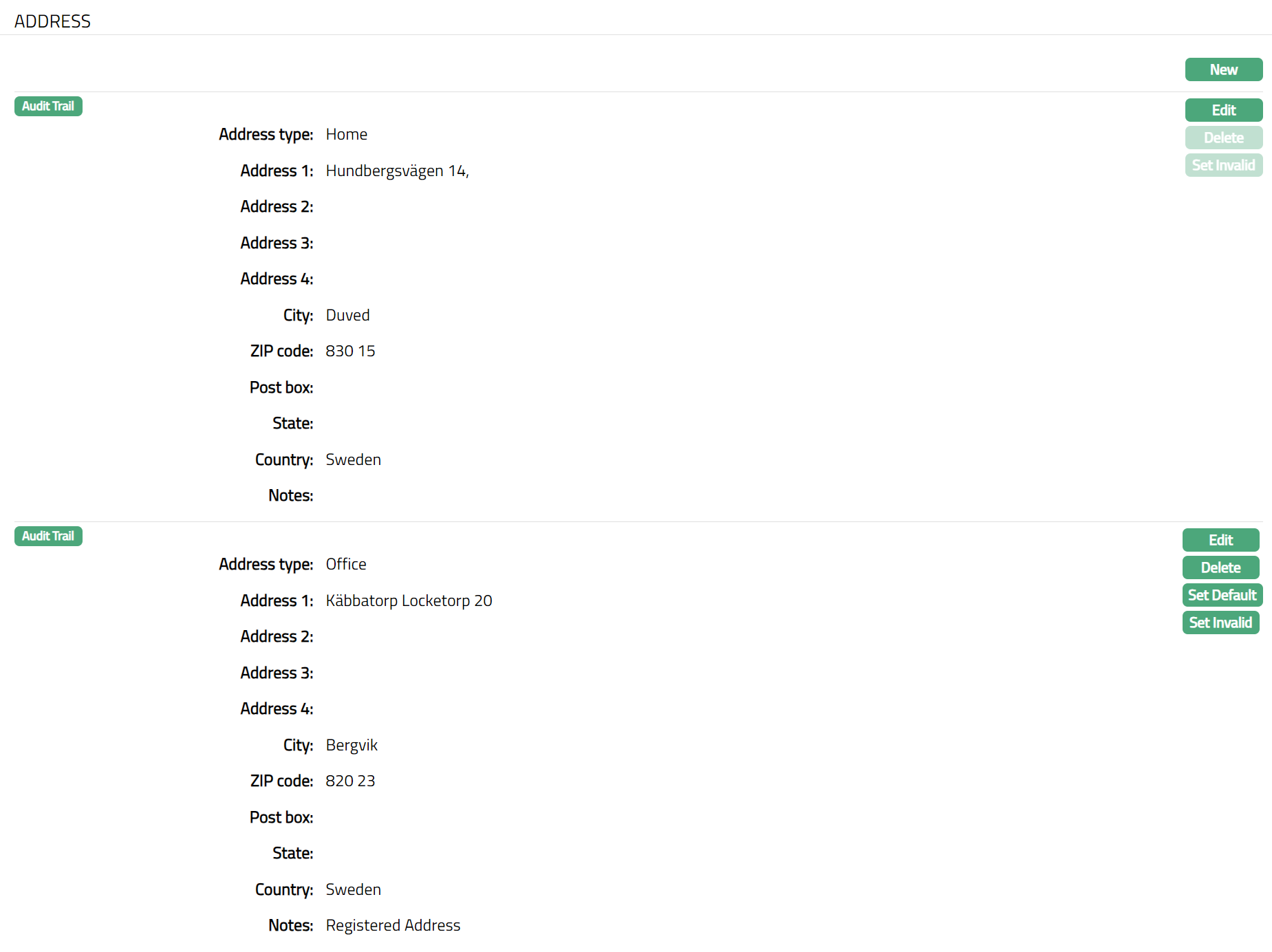
Address tab allows you to maintain the address of the User. You can maintain multiple addresses for the User, set one of them as a default, mark an address as invalid or delete an existing address record.
To add new Address,
- Access User page and click Address tab. For detailed explanation of these fields, refer to the New User -- Address(3/6).
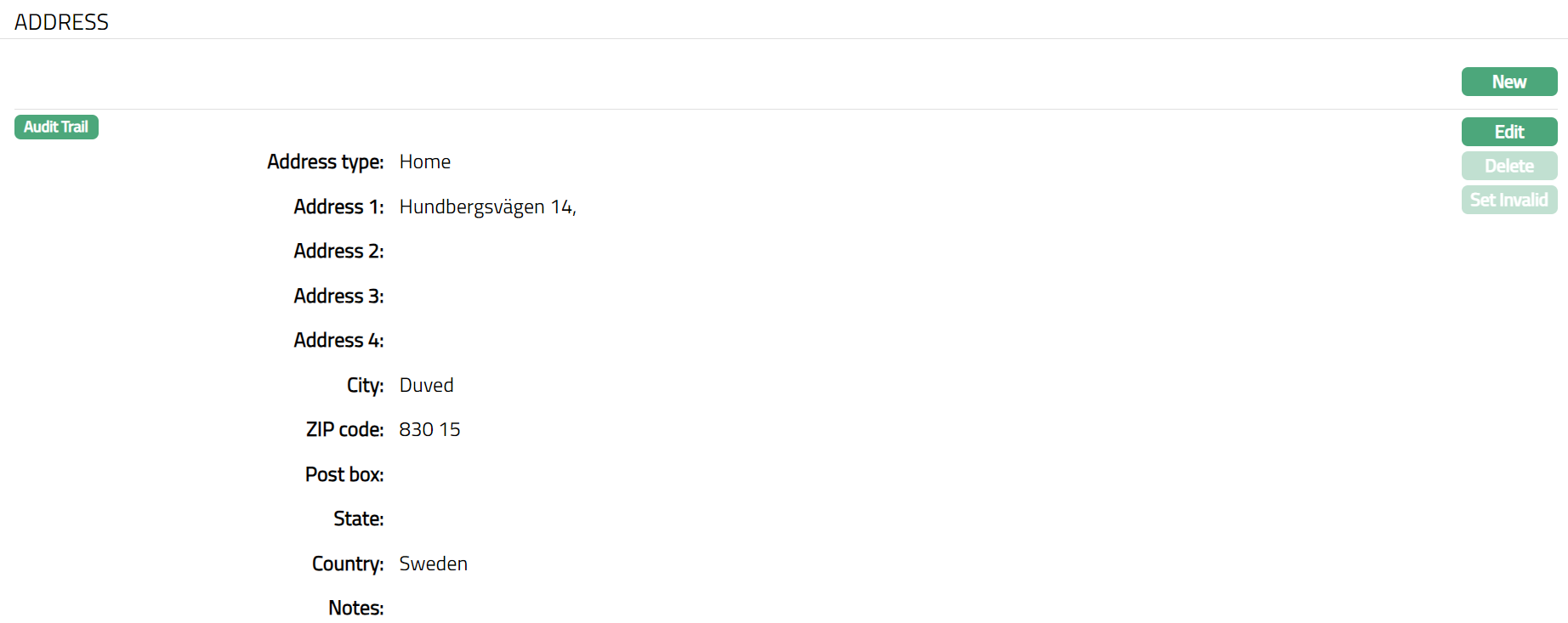
Note: Once the address record is saved, there will be an additional field -- Notes, with which you can add any additional information that you wish regarding the Address record during Edit.
Click New. New Address page appears.
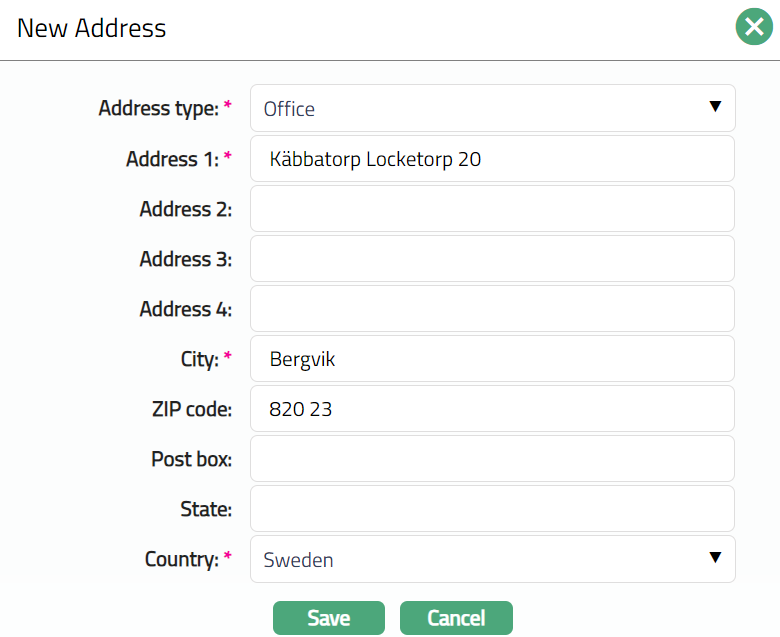
Select Address type from the list of Address types maintained at Admin > Address Details > Address types.
Enter address details in Address 1, Address 2, Address 3 and Address 4 i.e., any additional locator such as name of Apartment / Building, a prominent landmark, etc, which will help locate the User's address more easily.
Enter City or the town of the User's address as designated by the post office.
Enter Zip code or postal code in full, if used in the User's address.
Enter Post box details of the address.
Enter State in which the address exists, if applicable.
Select Country from the list of countries maintained at Admin > Generic Definitions > Countries.
Click Save. Address page appears with the new added address.
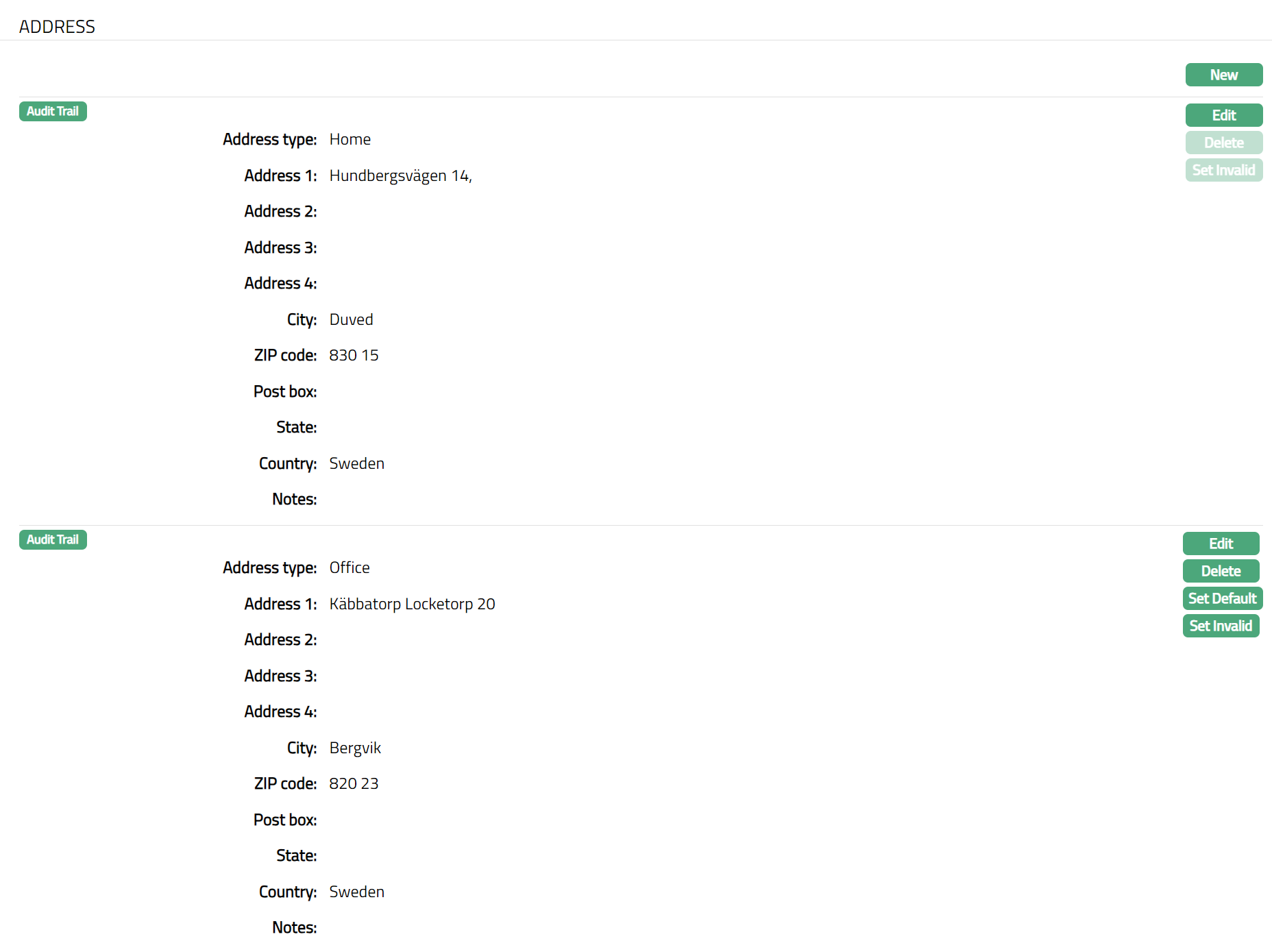
Functions: New, Edit, Delete, Set Invalid, Set Valid, Set Default
Set Invalid: This option is used to set the selected address as invalid.
Set Valid: This option is used to set an invalid address as valid.
Set Default: When you create multiple address records, you can set one of them as the default address using this button. When there is only one address, the same is taken as the default address.
Delete: This option is used to delete any address that is not the Default Address. Aura will ask for confirmation, on confirmation of which the address will be deleted.
To Edit Address.
- Click Edit for the address you want to edit. Edit Address page appears.
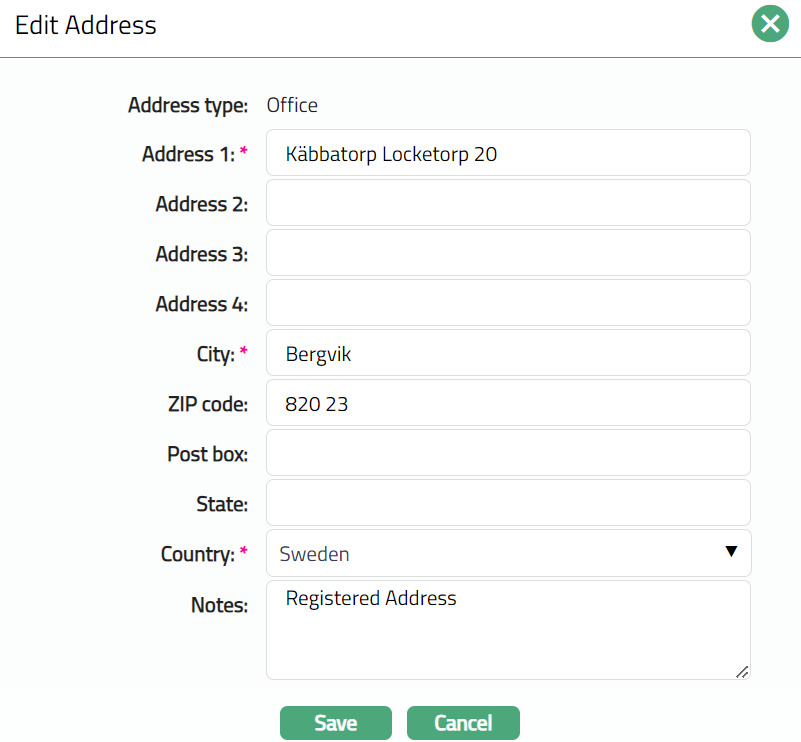
Note: Except Address type all other fields are editable.
Enter Notes, if there is any additional information that you wish to capture regarding the new E-mail record.
Click Save. Address page appears with the edited details.
Functions: New, Edit, Delete, Set Invalid, Set Valid, Set Default
Phone
Phone tab allows you to maintain the phone details of the User. You can maintain multiple phone details for the User, set one of them as a default, mark a phone as invalid or delete an existing phone record.
To Add Phone details
- Access User page and click Phone tab.
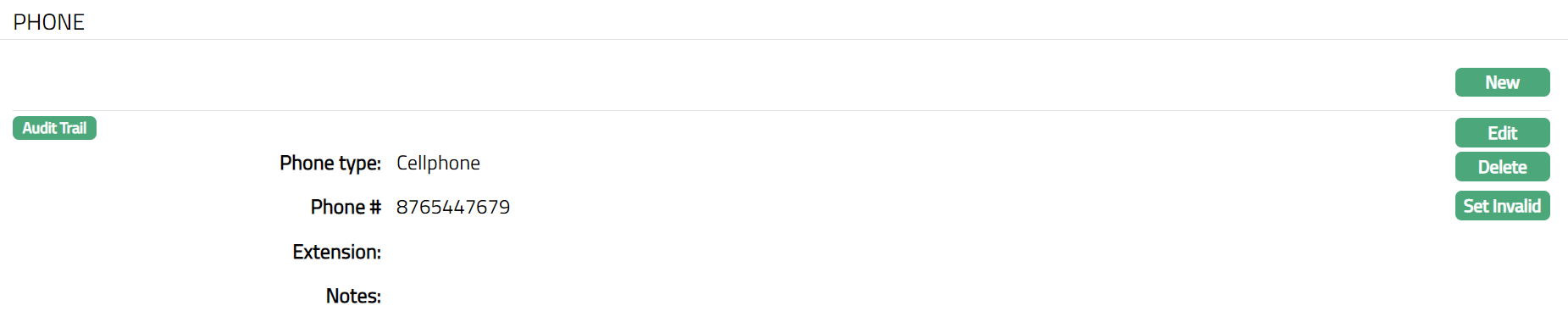
Note: Once saved, there will be an additional field -- Notes, with which you can add any additional information that you wish regarding the Phone record using Edit.
- Click New. New Phone page appears.
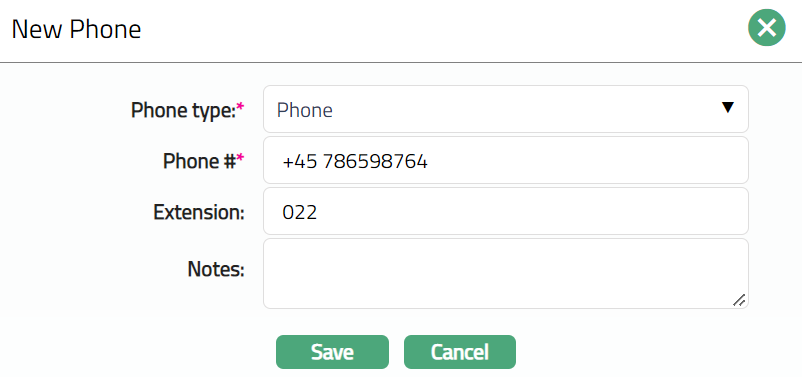
Select Phone type from the drop-down list. Phone type should be maintained at Admin > Address Details > Phone types.
Enter Phone # i.e., the phone number of the user.
Enter Extension for the Phone #.
Key in Notes, if there is any additional information that you wish to capture regarding the phone record.
Click Save. Phone page appears with the new phone details.
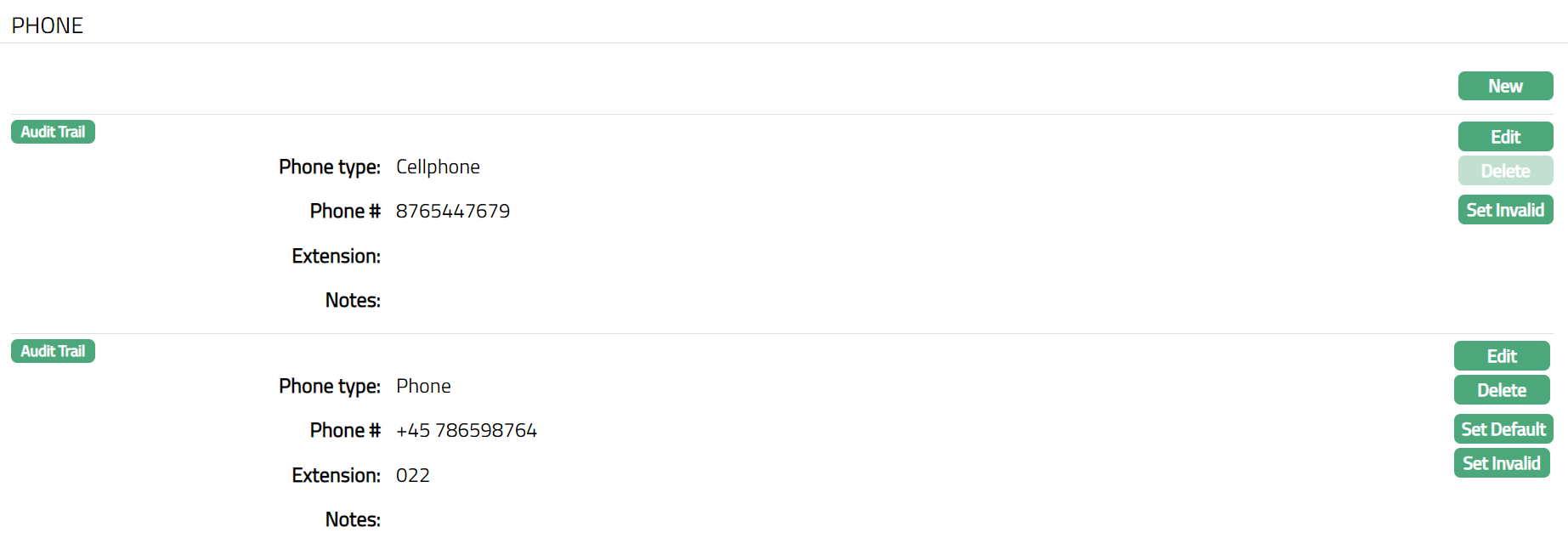
Functions: New, Edit, Delete, Set Invalid, Set Valid, Set Default
Set Invalid: This option is used to set the selected phone number as invalid.
Set Valid: This option is used to set an invalid phone number as valid.
Set Default: When you create multiple phone records, you can set one of them as the default phone number using this button. When there is only one phone number, the same is taken as the default phone number.
Delete: This option is used to delete the phone number. Aura will ask for confirmation, on confirmation of which the phone number will be deleted.
To Edit Phone.
- Click Edit for the phone you want to edit. Edit Phone page appears.
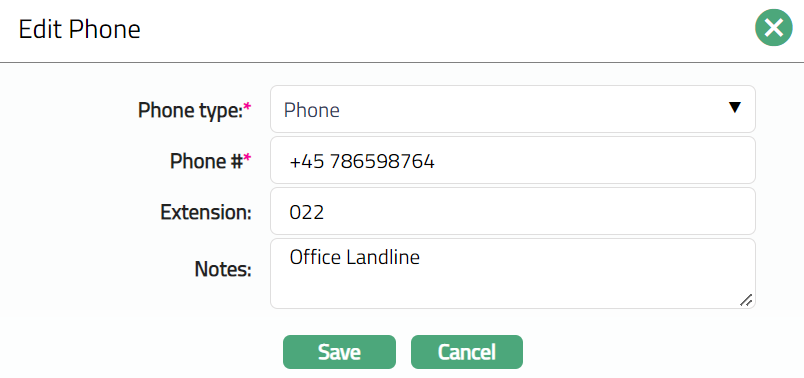
Note: All fields are editable.
- Click Save. Phone page appears with the edited details.
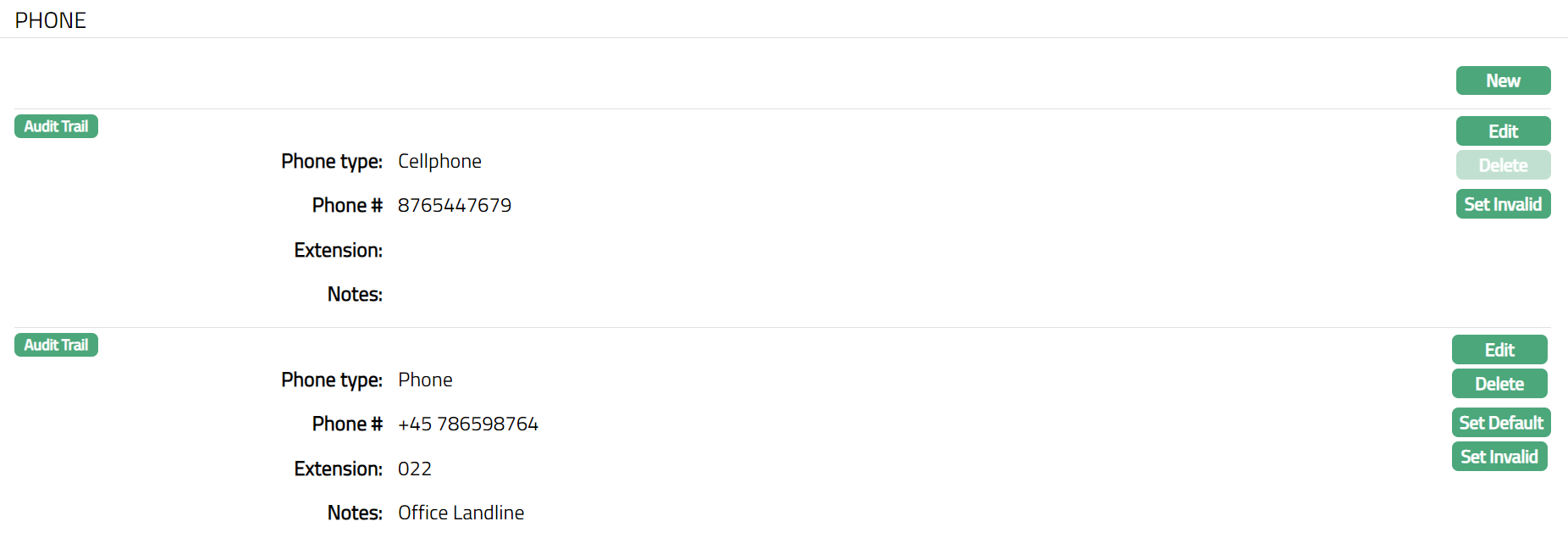
Functions: New, Edit, Delete, Set Invalid, Set Valid, Set Default
E-mail tab allows you to maintain the E-mail details of the user. You can maintain multiple E-Mail details for the User, set one of them as a default, mark an E-Mail as invalid or delete an existing E-Mail record.
To Add new E-mail details
- Access User page and click E-mail tab.

Note: Once saved, there will be an additional field -- Notes, with which you can add any additional information that you wish regarding the E-mail record using Edit.
- Click New. New E- mail Address Page appears.
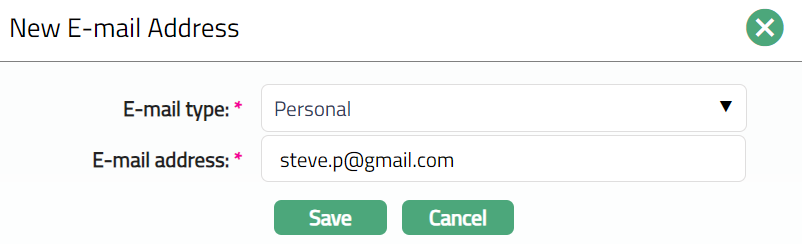
Select Email type from the drop-down list. E-mail type should be maintained at Admin > Address Details > E-mail types.
Enter E-mail address.
Click Save. E-mail page appears with new E-mail details.
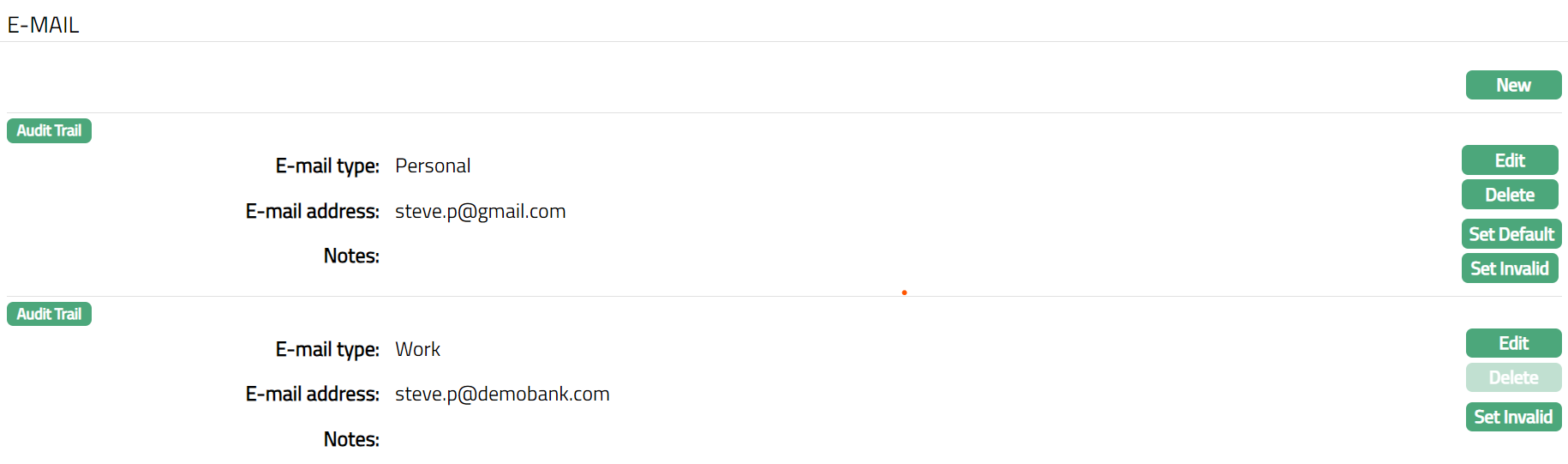
Functions: New, Edit, Delete, Set Invalid, Set Valid, Set Default
Set Invalid: This option is used to set the selected E-mail address as invalid.
Set valid: This option is used to set an invalid E-mail address as valid.
Set Default: When you create multiple E-mail address records, you can set one of them as the default E-mail address using this button. When there is only one address, the same is taken as the default E-mail address.
Delete: This option is used to delete the E-mail address that is not marked as default. Aura will ask for confirmation, on approval of which the E-mail address will be deleted.
To Edit E-Mail.
- Click Edit for the E-mail you want to edit. Edit E-mail Address page appears.
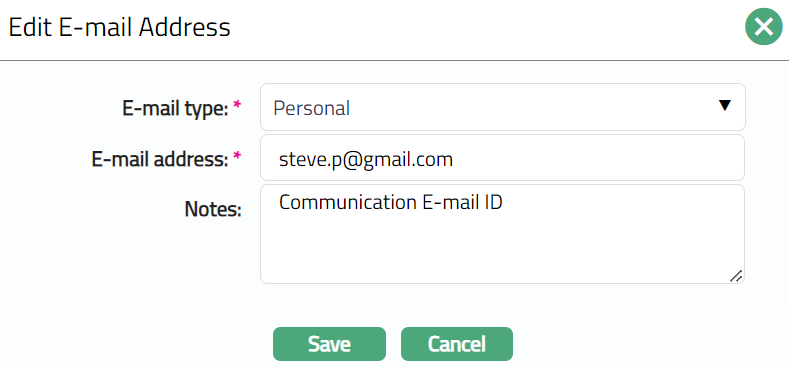
Note: All fields are editable.
Enter Notes, if there is any additional information that you wish to capture regarding the new E-mail record.
Click Save. E-mail page appears with the edited details.
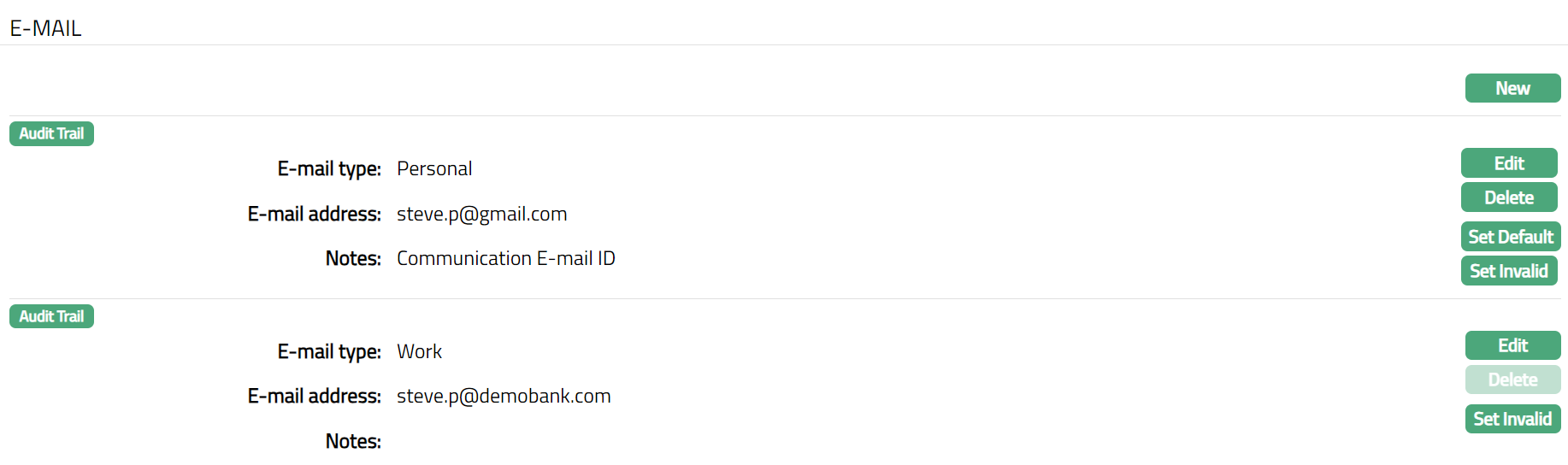
Functions: New, Edit, Delete, Set Invalid, Set Valid, Set Default
Photograph
Photograph tab allows you to maintain the photograph of the User. You can maintain multiple photographs for the User. You can also delete an existing photograph from the record.
To add new Photograph,
- Access User page and click Photograph tab.

Click New. Photograph page appears.
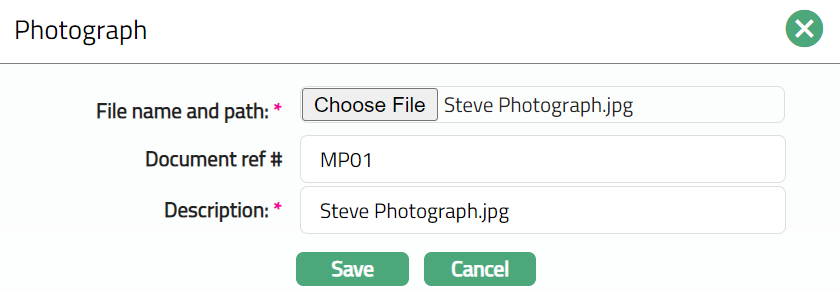
Click Choose File button to select the File name and path of the photograph.
Enter Document ref # for the photograph.
Based on the file name selected, the Description field will automatically be derived. If required, you can change the description.
Click Save. The photograph gets uploaded, and Photograph page appears with the added details.
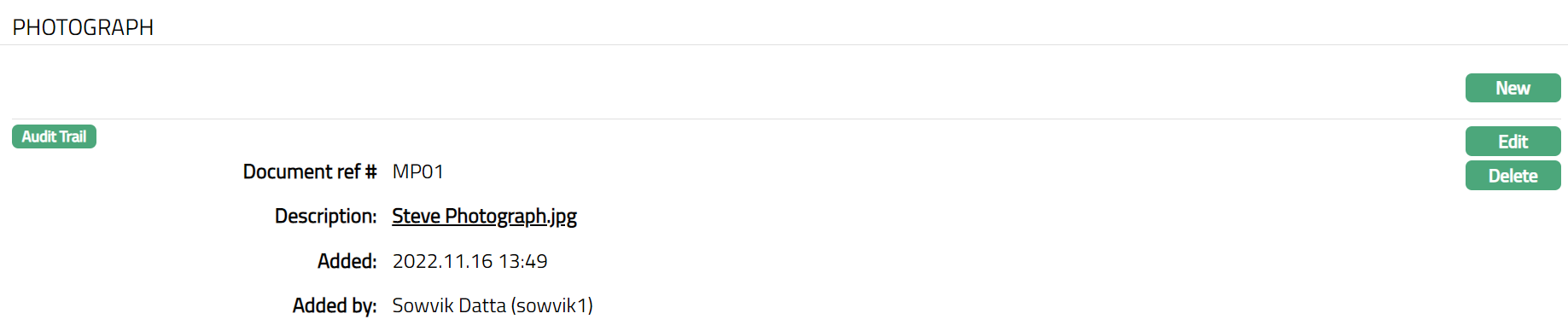
Functions: New, Edit, Delete.
Additional fields that you can see are as follows:
Added field denotes the date on which the record was added.
Added by field denotes the name of the user who created the record.
Delete: This option is used to delete the photograph. Aura will ask for confirmation, on confirmation of which the photograph will be deleted.
To Edit Photograph.
- Click Edit. Edit Photograph page appears.
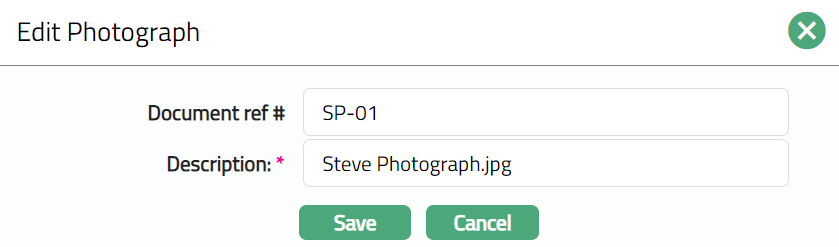
Note: All fields are editable.
- Click Save. Photograph page appears with the edited details.
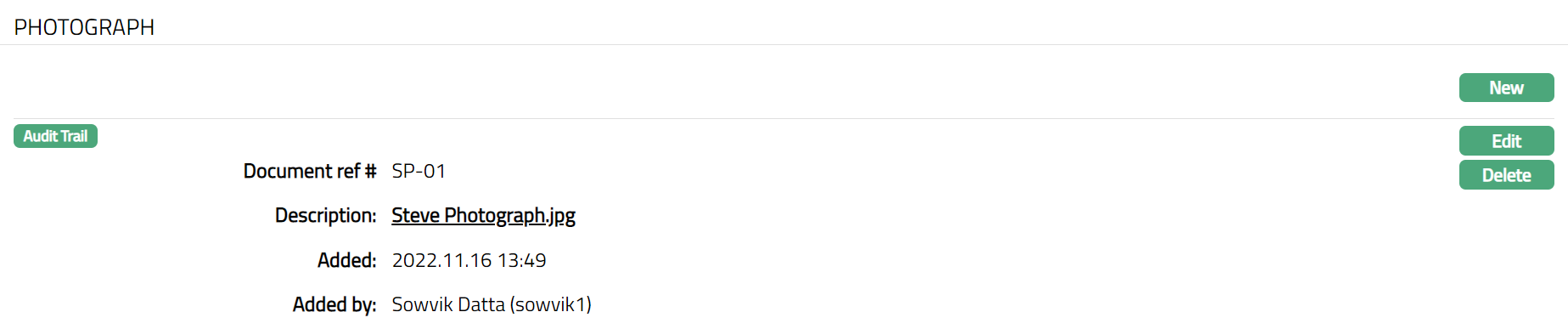
Functions: New, Edit, Delete
Custom Field
This option provides you the flexibility to define fields apart from those that are already available in the standard version of Aura. Thus, it enables you to customize additional data storage and use as required to suit your specific business needs.
Using the Custom Field tab, you can maintain the custom fields mapped to the User. Depending on the custom fields created and mapped to User module (using Admin > System Codes > Custom Fields), the fields will be displayed on this tab.
To edit Custom Field
- Access User page and click Custom Field tab.

- Click Edit. Edit Custom Field page appears.

Enter details as required for New User.
Click Save. Custom Field page appears with the edited details.

Functions: Edit.