
Client Account Closure
Client Account Closure wizard facilitates closure of client accounts.
The following are the various tabs that appear on Client Account closure page:
To close the account,
1. From Retail menu, click Accounts, then Client account and then Closure. Client Account Closure Search page appears showing the accounts where closure has been initiated but has not yet been approved.

2. Click Add. Client Account Closure → Client Details (1/6) page appears.
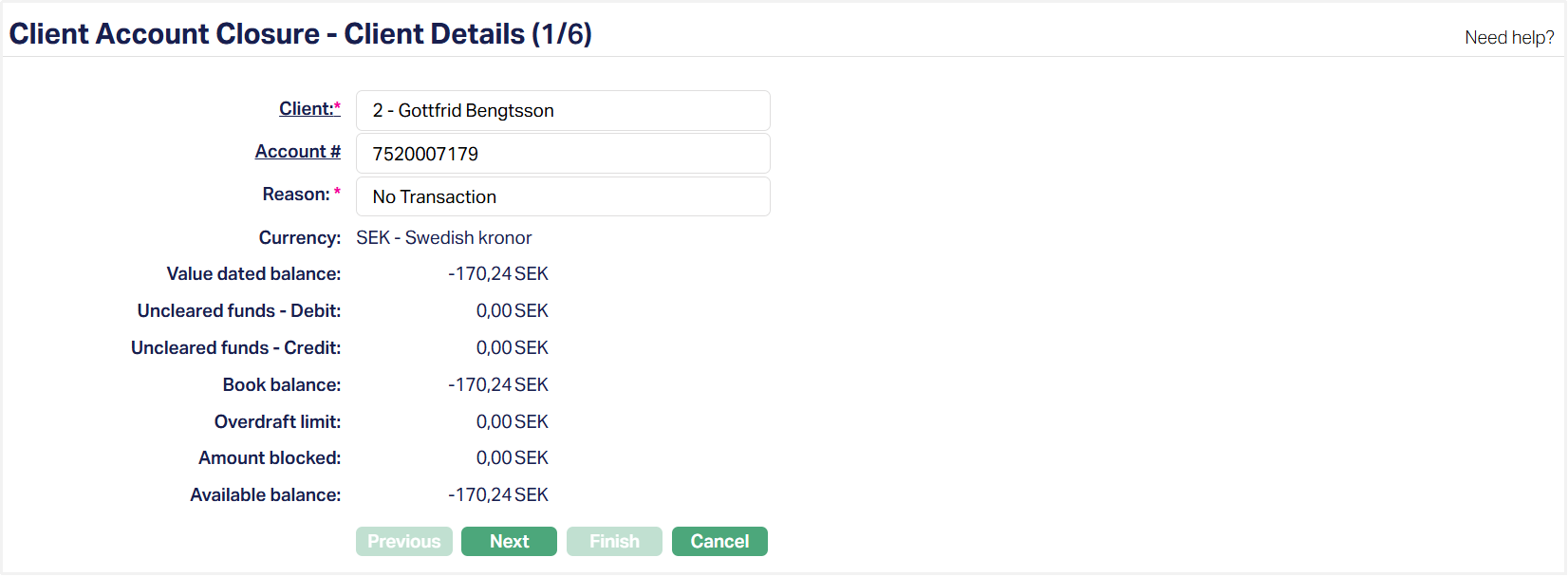
3. Select Client by clicking client hyperlink. Client search page appears where you can search for a client with relevant criteria and select the required client. Alternatively, you can input the client's name and select the required client from the list displayed by Aura.
4. Select Account # by clicking on Account number hyperlink. Search Client Account page appears where you can search for the Client account with relevant criteria and select the required account for a client.
5. On selection of the Client account, the account Currency will be defaulted.
6. Value dated balance denotes the current value dated balance of the account.
7. Uncleared funds - Debit denotes the total amount that is pending to be debited from the account.
8. Uncleared funds - Credit denotes the total amount that is pending to be credited to the account.
9. Book balance denotes the current book dated balance. It is calculated as Value dated balance + Uncleared funds debit + Uncleared funds credit.
10. Overdraft limit shows the amount available to be overdrawn from the account if such a limit is set.
11. Amount blocked denotes the total amount blocked for the account, which is not available for the customer to use. The blocked amount however will qualify for interest calculation.
12. Available balance denotes the available balance in the account and is calculated as follows: opening value dated balance + credits during the day with current or past value date -- debits during the day with current or past value date + overdraft limit -- amount blocked.
Note: Aura will not allow you to proceed to the next screen if any of the following conditions are found:
If the account is in a status apart from Activated
If any standing instructions is pending.
If there are any amount blocks in the account.
If there are any un-cleared balances.
If there is any future value dated balances in the account.
If there are any transactions pending to be authorized in Station journal.
If there are any Term deposits opened where this account is linked.
If there are any loans opened where this account is linked as collateral.
If the account is mapped to the locker as charge account
13. Click Next. Client Account Closure → Interest Details (2/6) page appears.
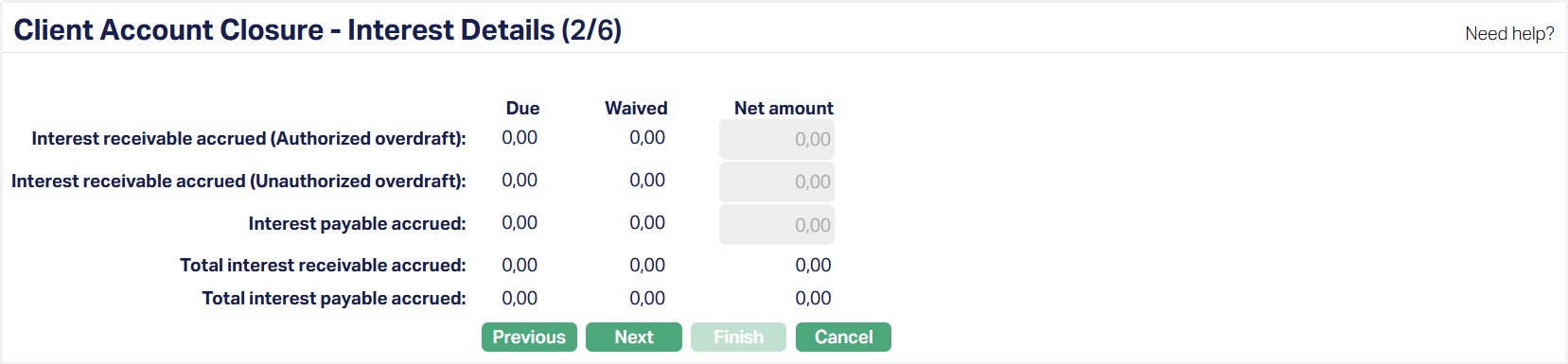
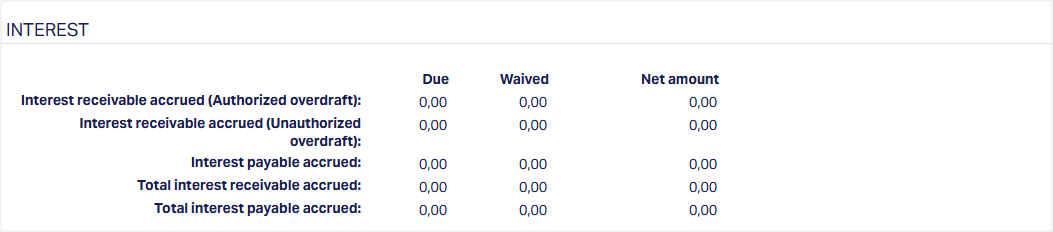
Interest receivable accrued (Authorized overdraft) denotes the interest receivable accrued for an authorized overdraft. This will be zero if there is no interest receivable accrual.
Interest receivable accrued (Unauthorized overdraft) denotes the interest receivable accrued for an unauthorized overdraft. This will be zero if there is no interest receivable accrual.
Interest payable accrued denotes the unpaid interest payable accrued (but not yet debited from the customer's account) as of the previous day, since interest payable accrual happens at the end of day. Interest amounts that have already been settled are not included.
Total Interest receivable accrued denotes the total interest receivable accrued for an authorized overdraft. It will be zero if there is no interest receivable accrual.
Total Interest payable accrued denotes the interest payable accrued (but not yet debited from the customer's account) as of the previous day, since interest receivable accrual happens at the end of day.
Due column denotes the due amounts either accrued or payable.
Waived column denotes the amount that is waived. It is calculated as Due minus Net amount.
Net amount column denotes the amount to be collected from the Client. Aura will automatically show the sign as minus, for a receivable.
14. Click Next. Client Account Closure → Charges details (3/6) page appears.

Charges denotes name of all the Charge Schemes applicable to the selected client account that are due and not yet liquidated, or, if any refund is due. If there is no charge due to be collected / refunded, only the Total charges will be shown with zero.
Due denotes the amount that is due as per the calculations. Closure Charges will be shown as due to be collected. In case of refunds, this will be positive and in case of amounts to be collected, this will be shown with a minus sign.
Waived denotes amount waived for each Charge Scheme, this amount is calculated as Due minus Net amount.
Net amount denotes the amount to be collected from / refunded to the customer. For each Charge Scheme, you will be able to input the amount to be collected from / refunded to the customer. The sign of the Net amount will be the same as the Due amount.
Total charges denote the sum of all the charges applicable for the client account.
15. Click Next. Client Account Closure → Settlement Details (4/6) page appears.
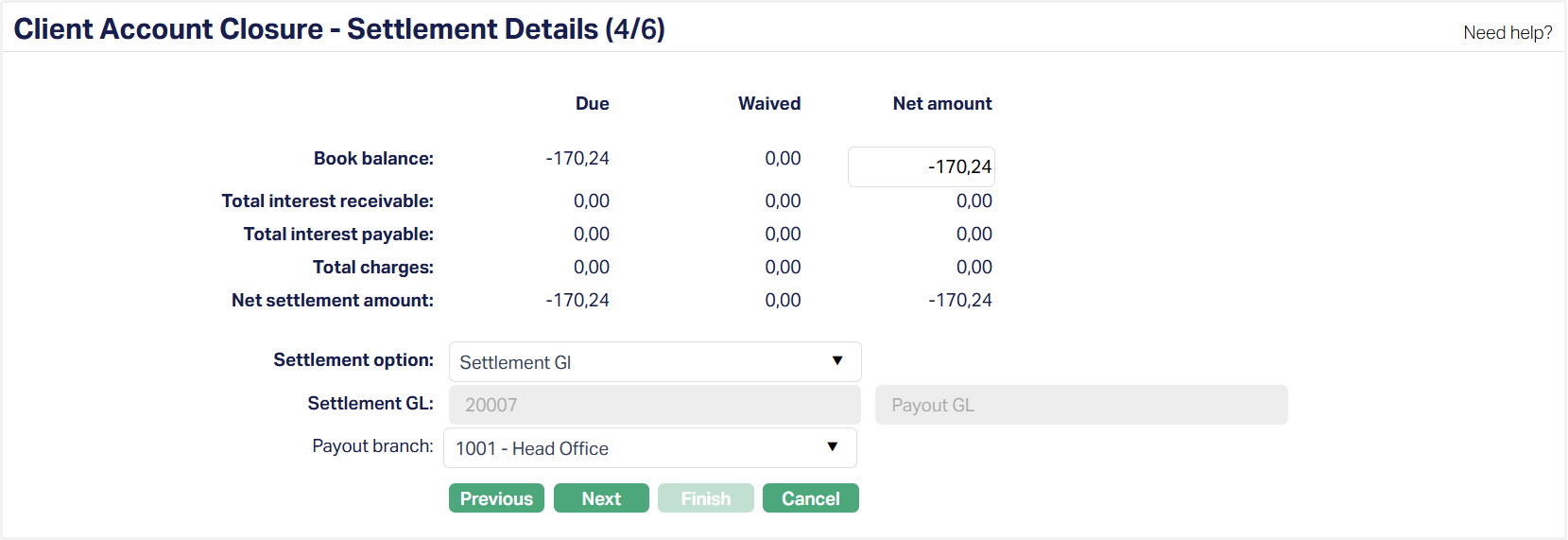
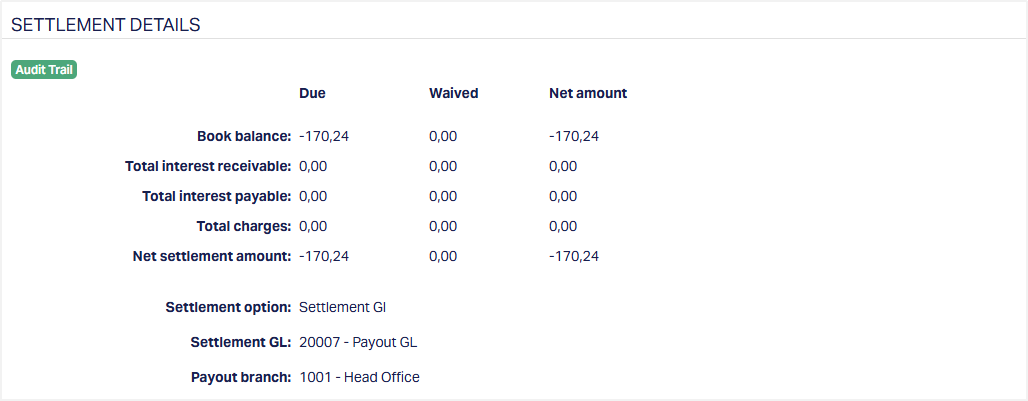
Book balance denotes the balance existing in the account at the time of generation of the record. Amount due from the customer will be shown with a minus sign, while any amount due to the customer will be shown as a positive amount. You will be able to input the net amount due to / from the customer.
Total interest receivable denotes the amount of interest that is receivable is populated from the Client Account Closure → Interest Details (2/6) page.
Total interest payable denotes the amount of interest that is payable populated from the Client Account Closure → Interest Details (2/6) page.
Total Charges denotes the total charges that are due to be collected / refunded is populated from the Client Account Closure → Charges details (3/6) page.
Net settlement amount displays the sum of the Book balance, Total interest receivable, Total interest payable and Total Charges.
Due denotes the amount that is due as per the calculations (gross amounts). This will always denote the balance that was at the time of generation / save / approval of the record. During approval, the amount will be recalculated and updated as per the balance at that point of time, and version number of the record will be incremented.
Waived denotes the waived amount which is calculated as Due -- Net amount for Book Balance and Bonus redemption. For interest receivable, interest payable and charges, the sum of the waived amount from the previous steps are displayed here.
Net amount denotes the net amount receivable / payable on the client account. For Book balance and Bonus redemption, you will be able to input the net amount to be treated as the Book balance or the Bonus redemption amount respectively, For Total interest receivable, Total interest payable and Total Charges, this will show the sum of the net amount to be collected / paid from the previous steps.
16. Select the Settlement option from the dropdown list. The available options are:
Own account transfer: Use this option if you want to use any other account belonging to the client for settling the dues on this client account.
Other client transfer: Use this option if you want to use an account of any other client for settling the dues on this client account.
Settlement GL: Use this option if you want to use an external (other bank) account or GL for settling the due on this client account.
Transfer to Other Bank: Use this option if you want to transfer the settlement amount to an account maintained in another bank.
17. Based on Settlement option chosen to perform one of the following steps.
a) If Settlement option is Own account transfer, then.
The name of the client to whom the settlement account belongs is automatically populated.
Click Settlement account# hyperlink and select an account from the list of all the active accounts owned by the client.
b) If Settlement option is other client transfer, then.
Click Settlement client hyperlink and select a client from the list of all the existing clients in Aura.
Click on the Settlement account# hyperlink and select an account from the list of all the active accounts owned by the above client.
c) If Settlement option is Settlement GL, then.
Click Settlement GL hyperlink and select a settlement GL from the list of GLs maintained at General ledger → General ledger → Accounts.
Select Payout branch from the drop-down list of active branches maintained at Admin → Branches → Maintain. You can choose the branch from where the client wishes the settlement amount to be paid.
d) If Settlement option is Transfer to other bank, then.
Select Beneficiary as New or Existing: If Beneficiary is selected as New, enter the beneficiary details such as Clearing network, Account holder name, address details, Country, and Account number.
Select Bank as New or Existing: If Bank is selected as New, enter the bank details such as Bank name, address details, Country, and SWIFT/BIC.
Select Add to beneficiary list checkbox if the beneficiary details must be added to the beneficiary list.
18. Click Next. Client Account Closure → Instrument Details (5/6) page appears.

Number of cheque leaves field denotes the number of cheques pending or issued by the client.
Passbook number field denotes the number of passbooks held by the client.
19. Click Next. Client Account Closure → Confirmation (5/6) page appears. This page will show all the details that were input in the previous steps.
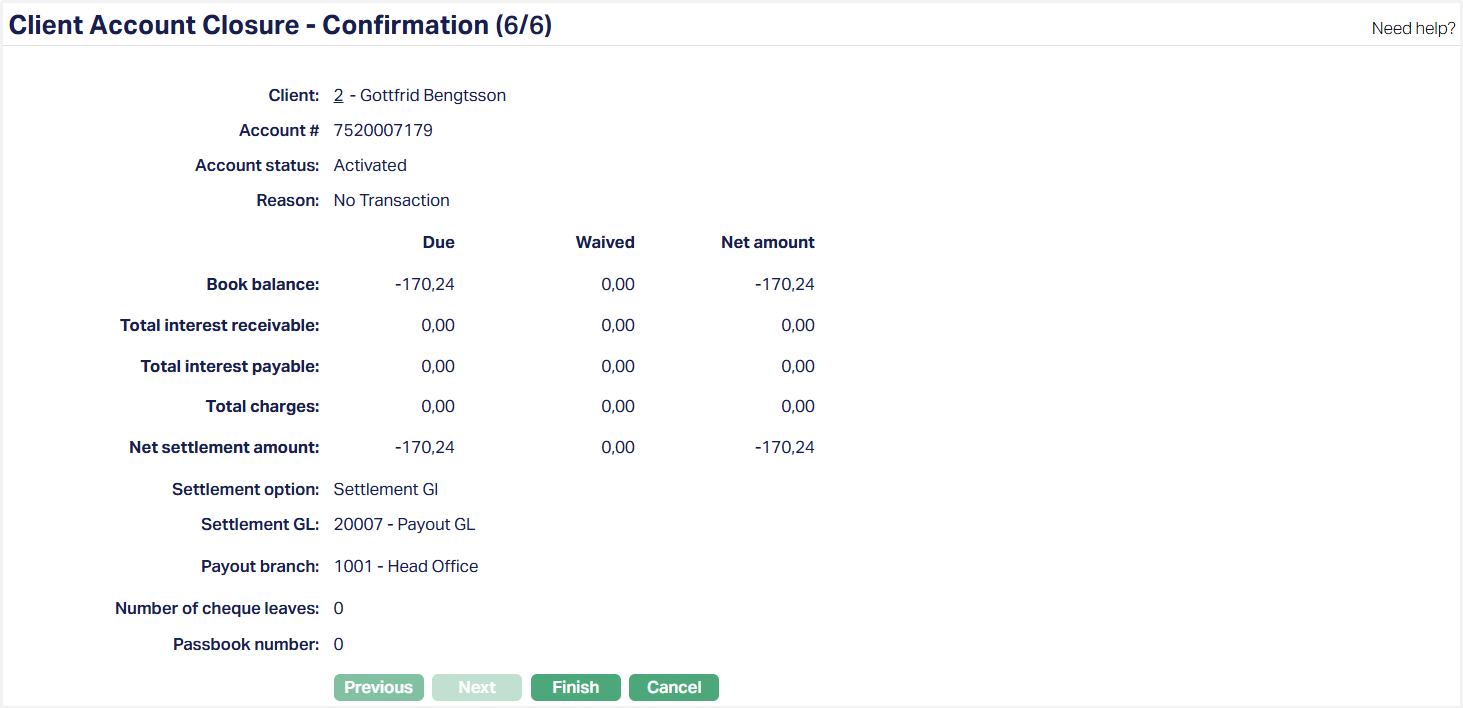
20. Click Finish. Client Account Closure page appears.
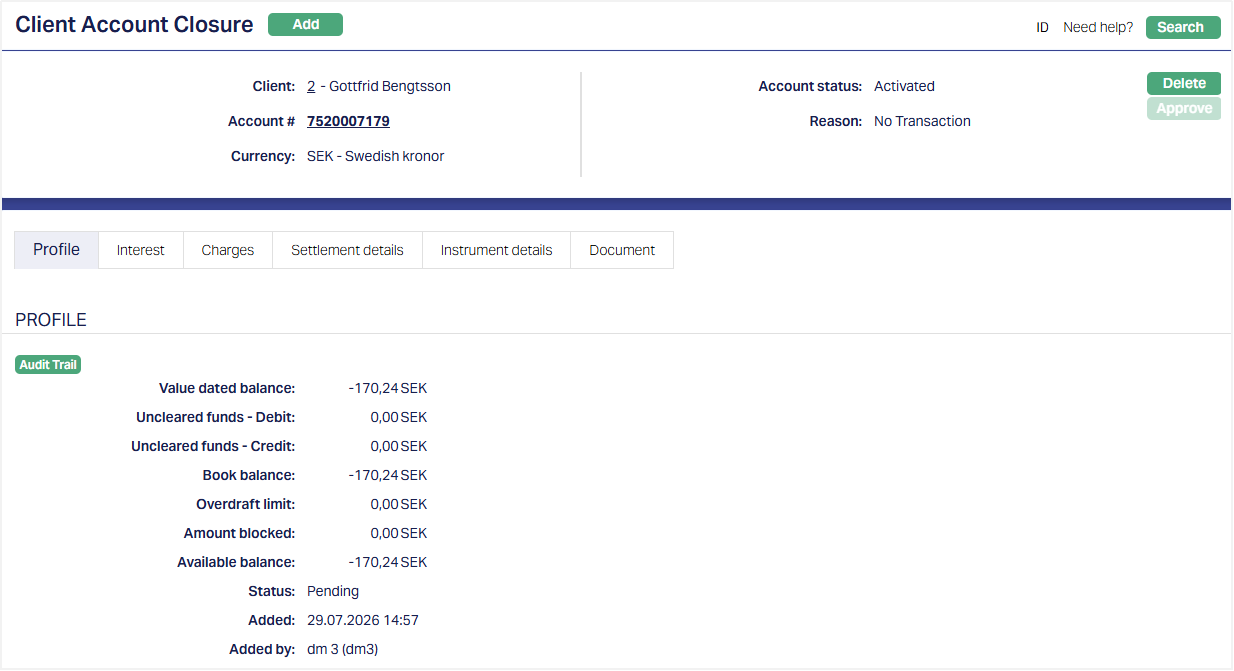
Note: The status of the Client Account Closure is Pending. The same has to be approved by a user other the one who created the closure record. Once the Closure is approved, the account is closed in the following sequence:
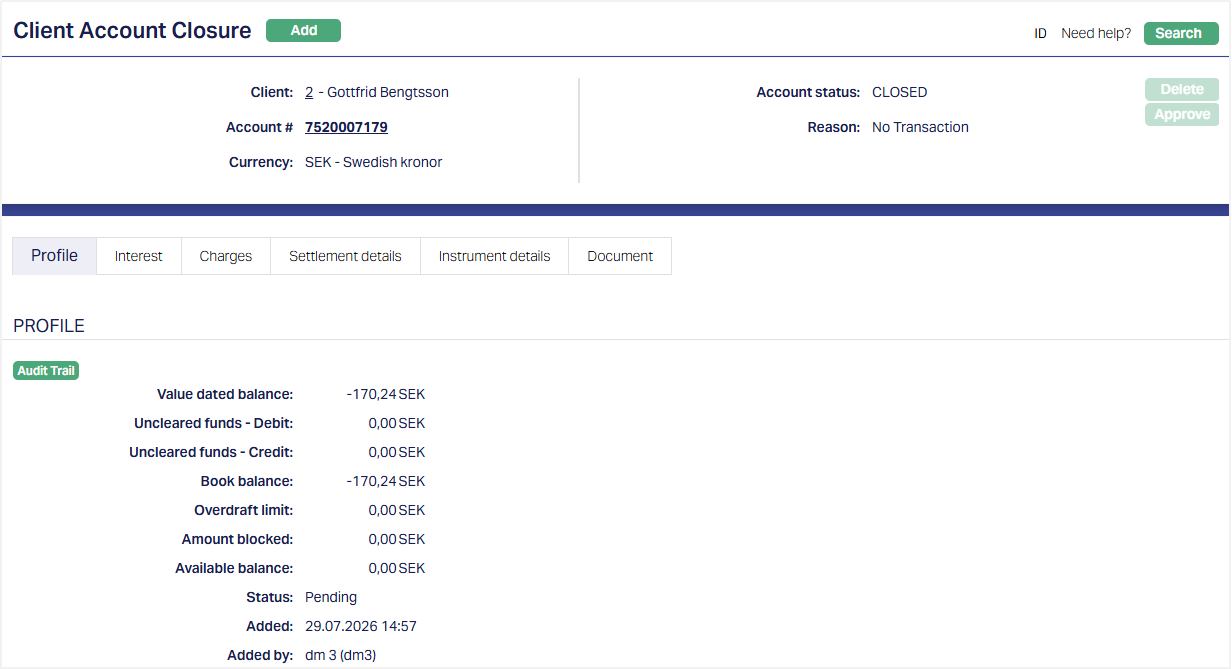
Functions: Add, Search, Edit, Delete, Approve.
The additional fields available are:
Status field denotes the status of the record.
Added field denotes the date on which the record was added.
Added by field denotes the name of the user who created the record.
Approved field denotes date on which the record was approved and is displayed only on approval.
Approved by field denotes name of the user who approved the record and is displayed only on approval.
Note: If any of these steps fail, the closure does not get completed
The account closing fee is debited.
The accrued interest is liquidated.
The net payable amount is transferred based on the selected payment option. If To account is selected, then the net payable amount is transferred to the provided account using the transaction code maintained at the product level. If By cash / External Transfer is the payment option, then the net payable amount is transferred to payable GL defined at product level.
When the payment option is Settlement GL the customer can collect the cash as specified in the Payout Branch.
In case of transfer to external bank a separate payment instruction has to be initiated for transferring the amount
When the account is closed only the account status can be changed (i.e., from Closed -- Reopened). All the other tabs can only be viewed. Once the account is reopened then normal operations on the account can be resumed.
If there is any remaining balance in the Charge Amortization GL for the Client Account, the balance is transferred to the Charge Income GL.
Profile
Profile tab, which is the default tab in Client Account Closure screen, shows the basic details of the account closure record created for an account.
To view Profile,
Access Client Account Closure page and click Profile tab to view the details as per sample below. The details are defaulted from the entries that you made in Client Account Closure → Client Details (1/6) during account closure record creation.
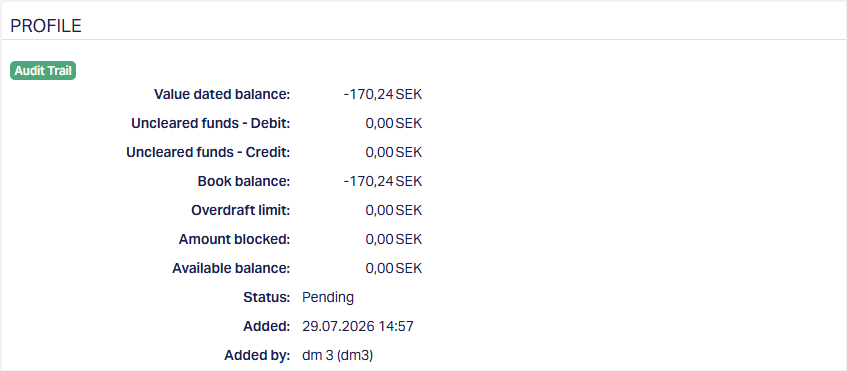
The additional fields available are:
Status field denotes the status of the record.
Added field denotes the date on which the record was added.
Added by field denotes the name of the user who created the record.
Approved field denotes date on which the record was approved and is displayed only on approval.
Approved by field denotes name of the user who approved the record and is displayed only on approval.
Interest
This tab displays the details of the accrued interest receivable / payable calculated as at the point of generation of record.
To view the Interest details,
AccessClient Account Closure page and click on the Interest tab. The details are defaulted from the entries that you made in Client Account Closure → Interest Details (2/6) during Manual Action record creation.
Charges
This tab will allow you to view all charges that are due on the account and are yet to be liquidated. These will include both periodic and event-based charges. This is available for both Billing accounts and Transaction Accounts. Charges that are due to be collected will be shown as negative amounts while refunds will be shown as positive amounts.
To view the charge details,
Access Client Account Closure page and click on the Charge tab. All the details of the charges that are applicable to the account are displayed here. The details are defaulted from the entries that you made in Client Account Closure → Charges details (3/6) during account closure record creation.

Settlement Details
All the details of the settlement to be done on closure of the account are displayed under this tab.
To view the Settlement details,
Access Client Account Closure page and click Settlement details tab. The details are defaulted from the entries that you made in Client Account Closure → Settlement Details (4/6) during account closure record creation.
Instrument Details
All the details of the instruments to be made on closure of the account are displayed under this tab.
To view the Instrument details,
Access Client Account Closure page and click Instrument details tab. The details are defaulted from the entries that you made in Client Account Closure → Instrument Details (5/6) during account closure record creation.

Number of cheque leaves and Passbook number denotes the number of cheque leaves and passbook pending or issued for the Client Account Closure → Interest Details (5/6) page.
Document
The Document tab allows you to upload documents related to the account closure. These can be in the form of scanned images or files on your computer. You can categorize the documents as per Document Type and store with a document reference number.
1. Access Client Account Closure screen. Click Document tab. Document tab appears.

2. Click New. New Document page appears.
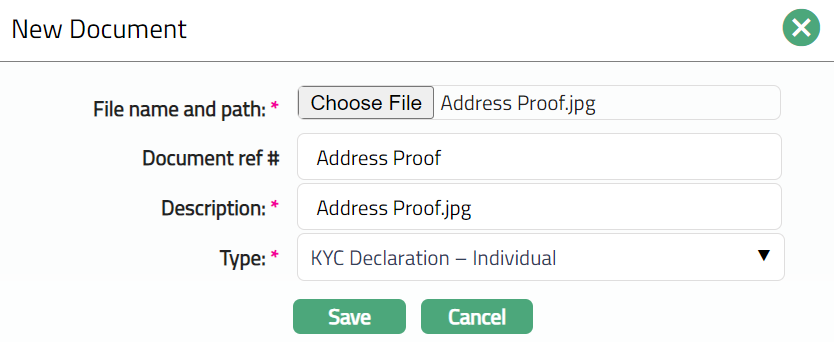
3. Click Choose File button to select the File name and path of the document.
4. Enter Document ref no. for the document. This document reference number is used in Branch view → Documents.
5. Based on the file selected the Description field will be derived. If required, you can change the description.
6. Select Type of the document uploaded. The document types should have been maintained using Admin → System codes → Documents → Document types. Once entered, this cannot be edited.
7. Click Save. The document gets uploaded, and the details are displayed.
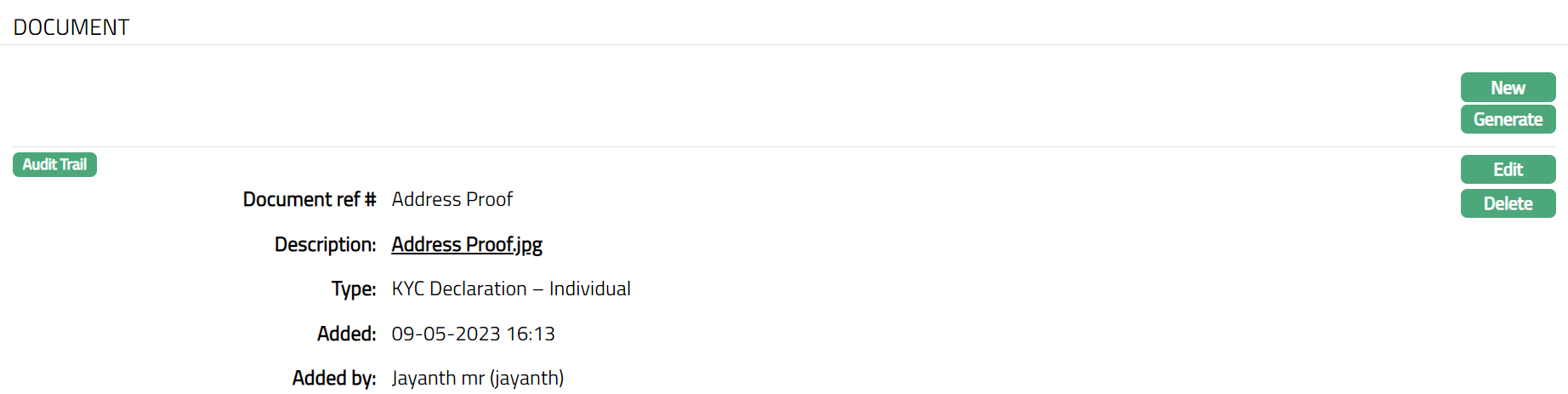
Functions: New, Gererate, Edit, Delete
8. Click Generate to generate the pdf file using the template as maintained under Admin → System codes → Process → Document templates. You have to map the document template for Client Account using the Document Template Settings tab as maintained under Retail → Settings → Product. Generate Document page will appear where the mapped templates will be displayed.
9. Click any template from the list of templates after which the document will be generated based on the selected template as shown below.
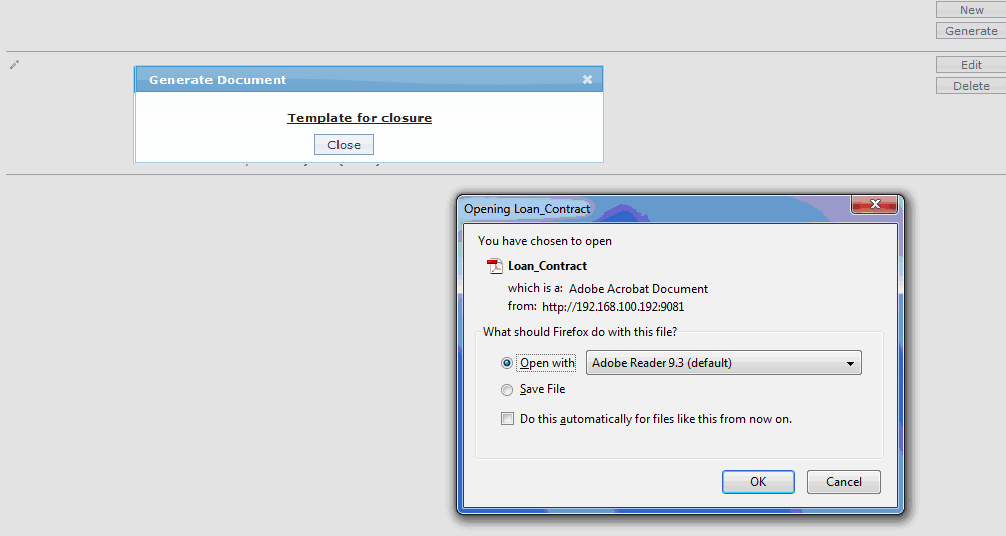
Functions: New, Generate, Edit, Delete
10. Click Delete to delete the document. Aura will ask for confirmation, on approval of which the document will be deleted.
To Edit Document,
1. Click Edit. Edit Document page appears.
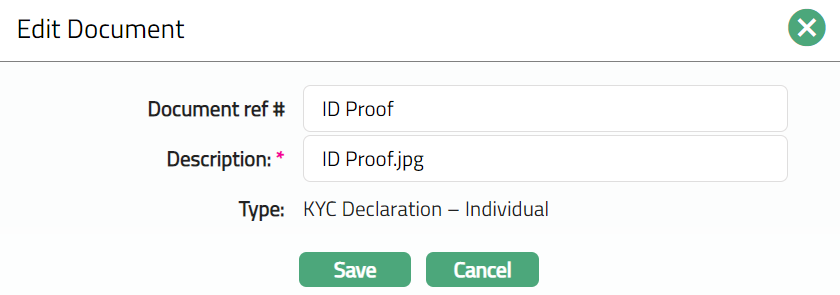
2. Note: Except Type field, rest all other fields are editable.
3. Click Save. Document page appears with the edited details.
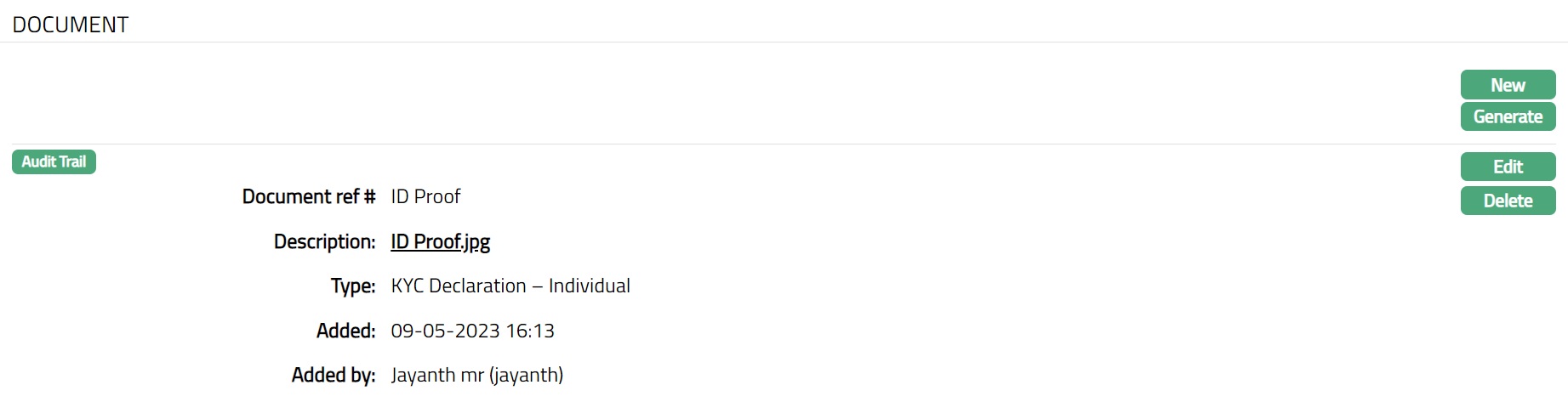
Functions: New, Generate, Edit, Delete