
Collective Impairment
Using Collective Impairment functionality, you can maintain a certain percentage of outstanding loans or receivable amount as an allowance for probable loss in future.
It is used for following products maintained in Aura.
Current Account Product
Consumer Loan Product
Mortgage Loan Product
Commercial Loan Product
Card Loan Product
Instalment Loan Product
Card Account Product
As per the selected product, you can select the Account Status and Payment status of the accounts created under the selected product and define Provision or Percentage for a particular set of statuses.
For the given provision %, in order to book provision; Aura will consider -
Total Principal Outstanding amount for Loan Products.
Total Outstanding amount (book balance of card accounts) for Card Account Products.
Book balance for booking provision for Current Account Product. (For Current account and Card account provision is made only when account is in debit balance)
Booking and rebalancing of provision is done automatically on accounting period end.
To add Collective Impairment record,
1. From General Ledger menu, click Collective Impairment and then Maintain. Collective Impairment Search Page appears.

2. Click Add. New Collective Impairment → Profile (1/3) page appears.
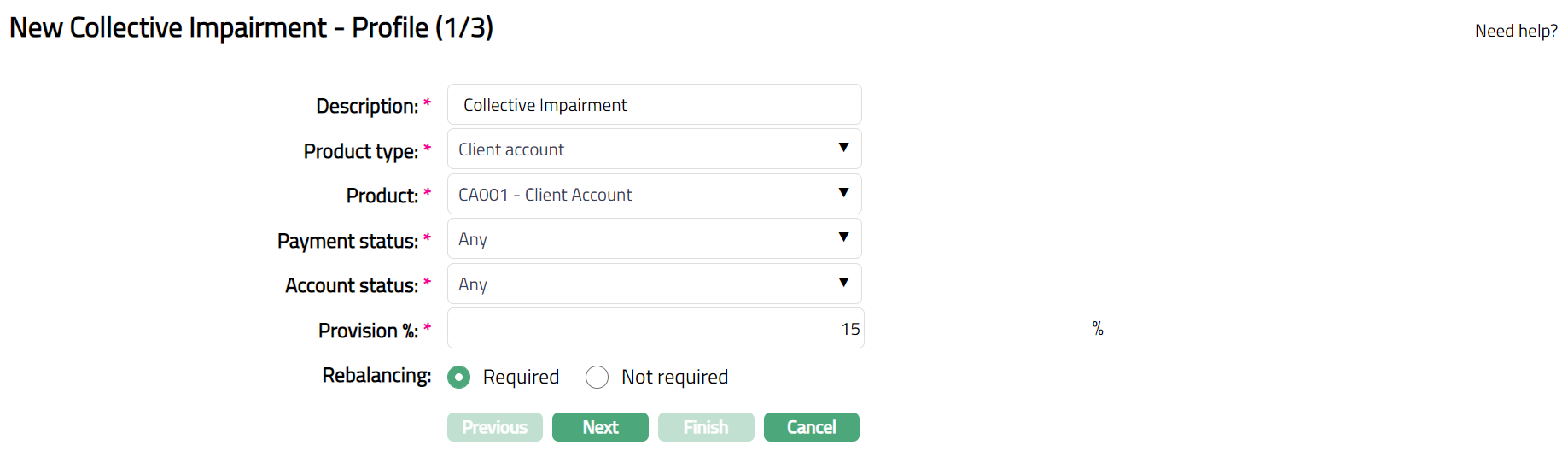
3. Enter Description for the Collective Impairment record.
4. Select Product type from the drop-down list of pre-shipped values. The available options are as follows:
Credit Card Account
Client Account
Deferred card payment
Installment loan
Mortgage and Loan
Marketplace Loan
5. Select Product from the drop-down list of options. As per the Product Type selected above, Aura will display all the active products maintained under that category.
6. Select Payment Status from the drop-down list of options. As per the Product Type selected above and the Product available under that product type; Aura will display all pre-shipped, user defined and Any payment statuses.
7. Select Account Status from the drop-down list of options. As per the Product Type selected above and the Product available under that product type; Aura will display the following types of account statuses:
All pre-shipped Account statuses other than Opened and Closed
User defined Account statuses and
Any account status.
Note: - As per selected product type Aura will change statuses under the dropdown list.
8. Enter Provision %. Aura will allow you to input the provision percentage only for the below mentioned combination of payment and account statuses.
For the given provision %, for booking provision -
Total Principal Outstanding amount for Loan Products.
Total Outstanding amount (book balance of card accounts) for Card Account Products.
Book balance for booking provision for Current Account Product.
The Provision percentage must be greater than 0 and less than 100 and no negative numbers is allowed.
9. Click Next. New Collective Impairment → Accounting (2/3) page appears.
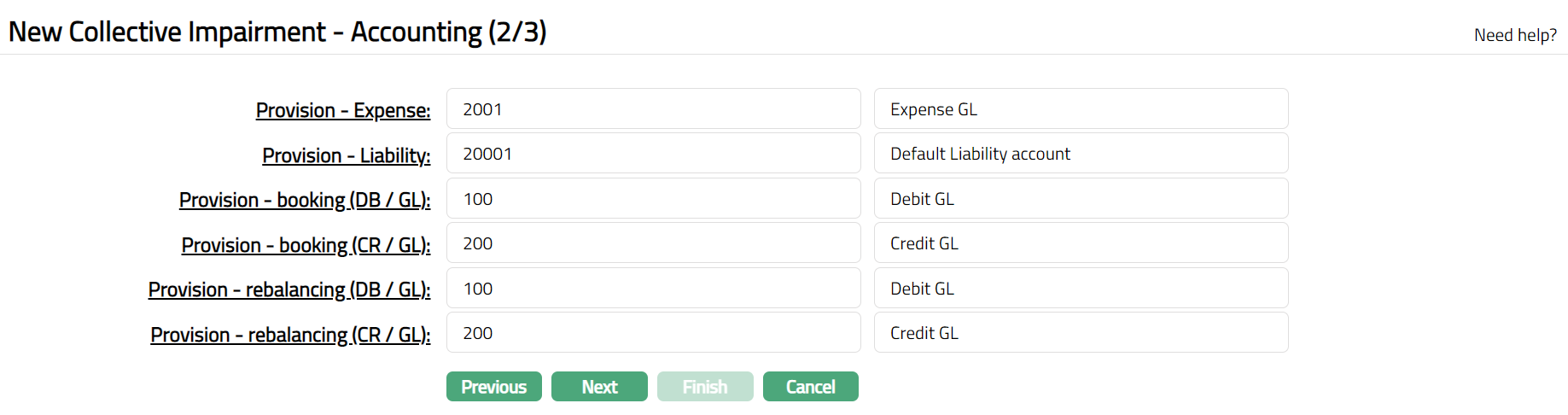
Input the required Transaction codes and General Ledgers to be used for accounting the various events in the Collective Impairment. You can either directly input the Ledger #/ Transaction code or click on the hyperlink to see the list of GLs /Transaction code satisfying these conditions and select the required Ledger #/Transaction code.
| SL No | Field Name | Used for | List of Transactions codes and GLs based on |
|---|---|---|---|
| 1 | Provision - Expense | For passing the accounting entries of Provision expenses | Ledger type Expense |
| 2 | Provision - Liability | For passing the accounting entries of the Provision liability | Ledger type Liability |
| 3 | Provision - Booking (DB/GL) | For recording all the receivable debit transactions booked | General Ledger Debit |
| 4 | Provision - Booking (CR/GL) | For recording all the receivable credit transactions booked | General Ledger Credit |
| 5 | Provision - Rebalancing (DB/GL) | For recording all the debit transactions for balancing the GL | General Ledger Debit |
| 6 | Provision - Rebalancing (CR/GL) | For recording all the credit transactions for balancing the GL | General Ledger Credit |
10. Click Next. New Collective Impairment → Confirmation (3/3) page appears.
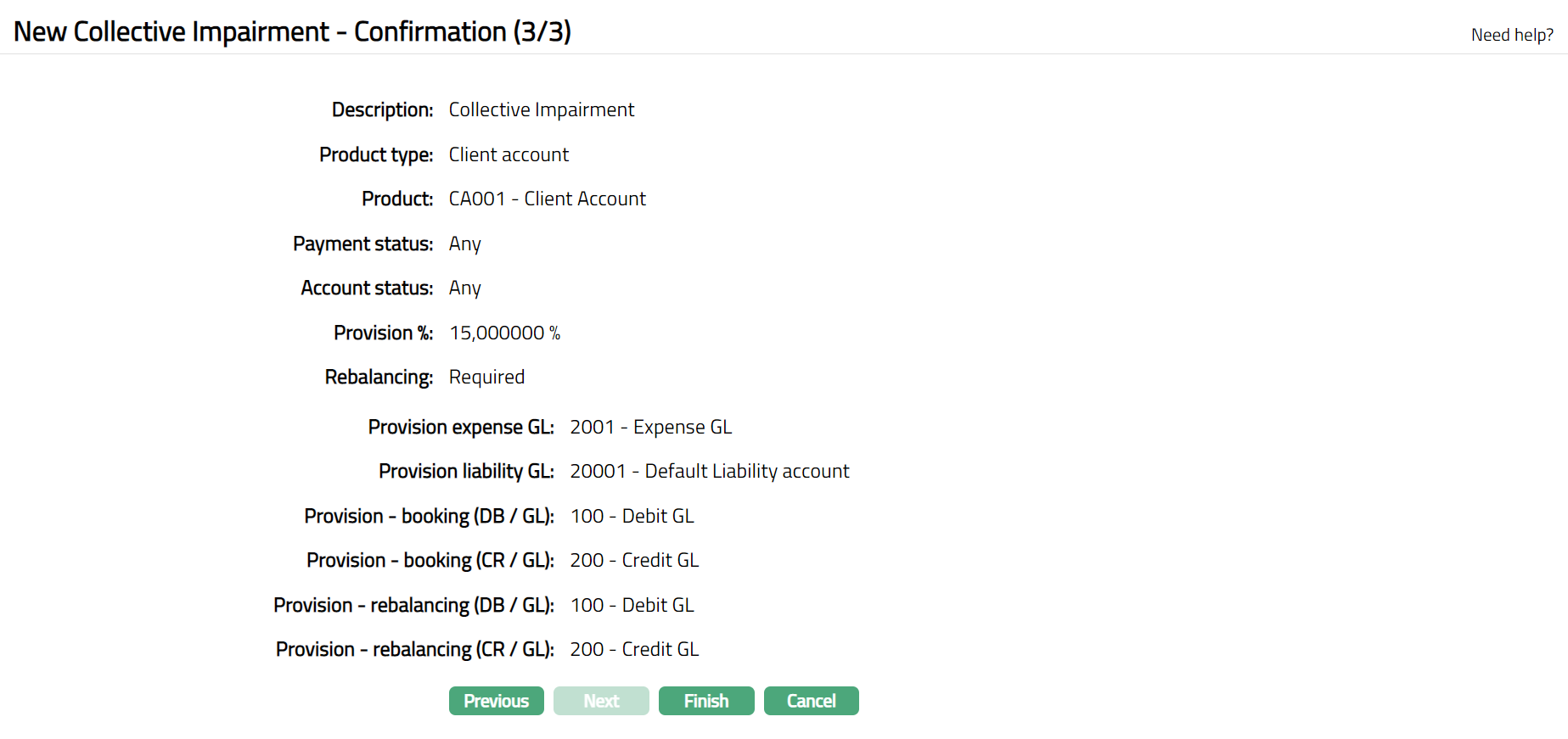
11. Click Finish. Collective Impairment page appears with Status as Active; Profile tab appears by default with the Status as pending and a red bubble appears on the Profile tab.
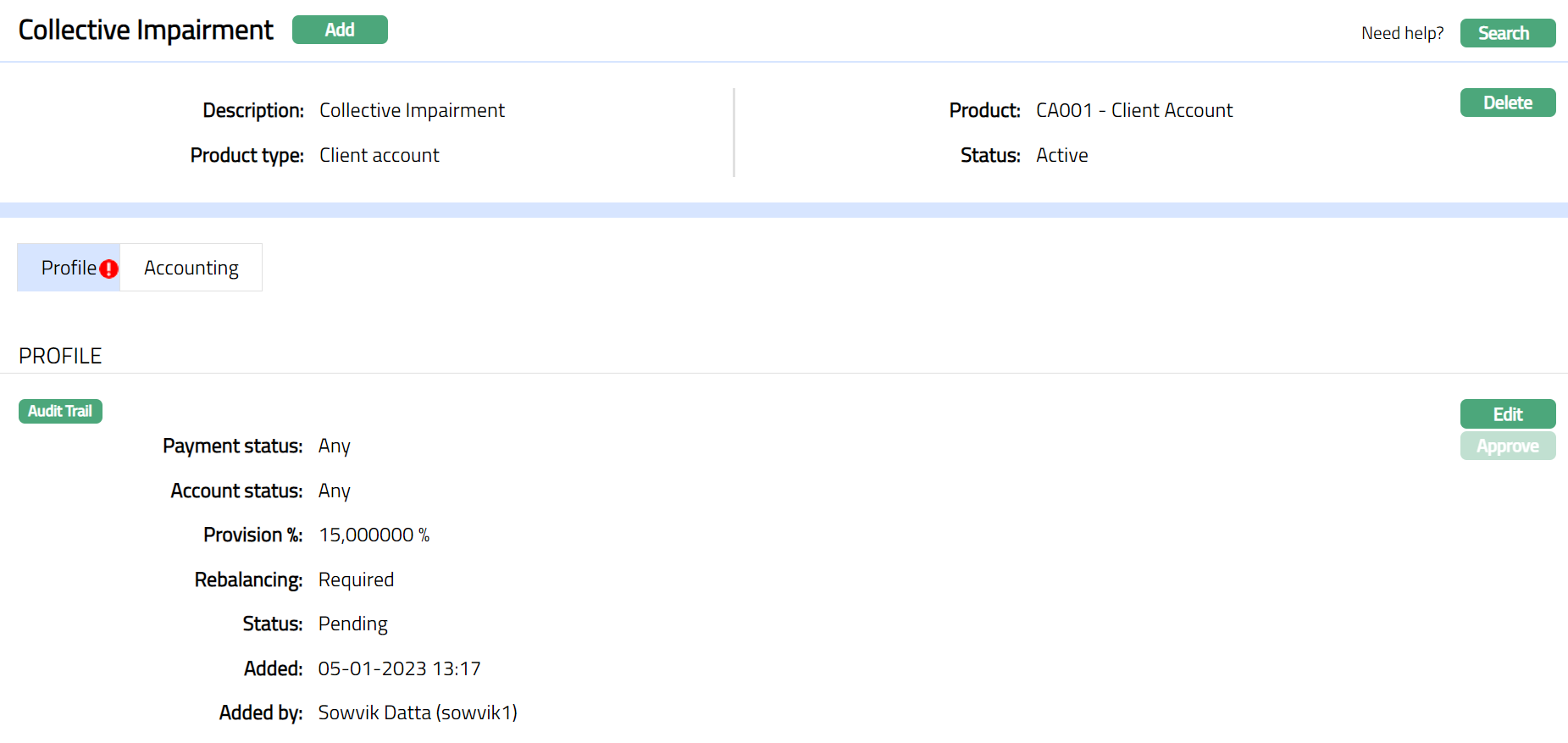
Functions: Add, Search, Delete
Note: Only on Approval of the Profile tab Aura will book provision.
Delete: You can delete a Collective Impairment record saved in Aura by a click on Delete button. Aura will ask for Confirmation, on approving which the selected record will be deleted.
If under selected Account and Payment status, an account exists and provision is booked with some amount which needs to be rebalanced, then for that particular record the Delete button will be in disabled mode.
If under selected Account and Payment status, no account exists, and provision is booked with zero amount and there is nothing to be rebalanced then Delete button will be enabled for that particular record and Aura will allow you to delete the record.
If the record is in Pending status and provision is not booked, then Aura will allow you to delete the Collective Impairment record.
Approve: If you want to Approve a Collective Impairment record, then retrieve the record and Click on Approve. Aura will ask for confirmation. Once the tab is approved, status gets changed from pending to Approved.
Note: Aura will not allow you to create a Collective Impairment record with same combination of Payment and Account statuses.
Profile
Profile tab, which is the default tab in the Collective Impairment Maintenance page shows the basic details of the Collective Impairment. The default status of the tab is Pending, and the status can be changed Approved. Any user other than the one who has created the record can approve the profile tab.
To view/edit Profile,
1. Access Collective Impairment page and click Profile tab to view the details as sample below. The details are defaulted from the entries that you made during creation of Collective Impairment record. For details refer to New Collective Impairment → Profile (1/3) page.
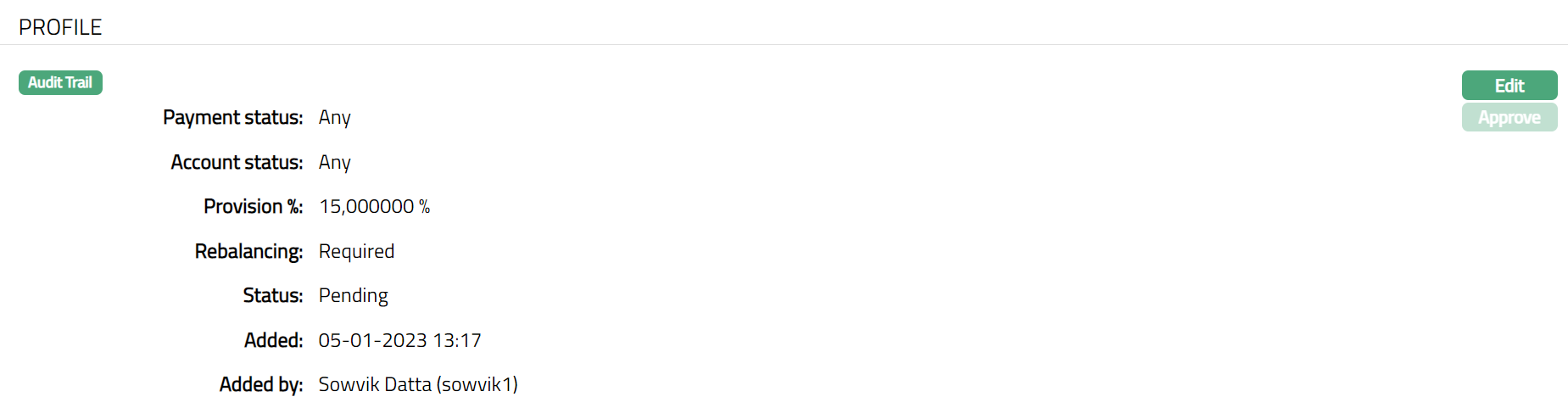
The additional fields that you can view in the tab are explained below:
Status field displays the status of the tab.
Added field displays the date on which the record was added.
Added by field displays the name of the user who created the record.
2. Click Edit. Edit Profile tab appears.
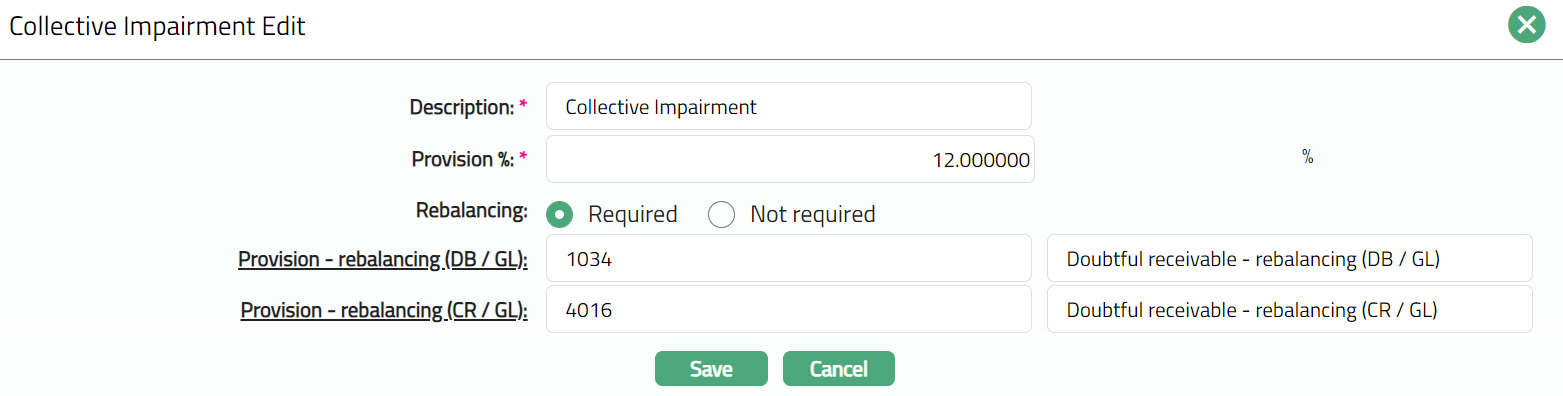
Note: All fields are editable.
3. Click Save. Profile page appears with the edited details with the Status appears as Pending until it is approved by another user who has not created the record.
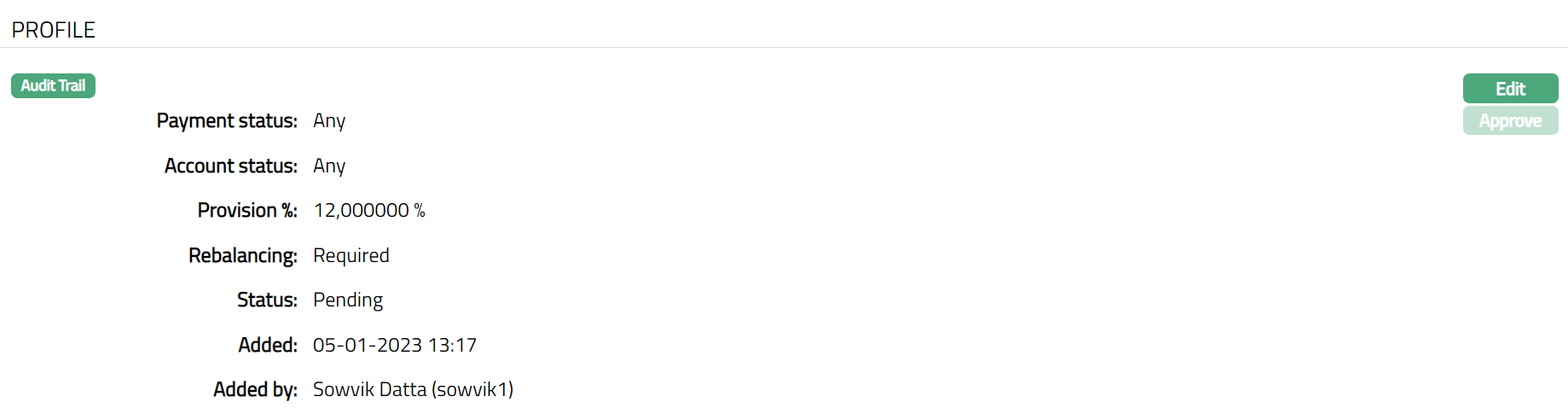
Note: Once approved by another user, the status will display as Approved.
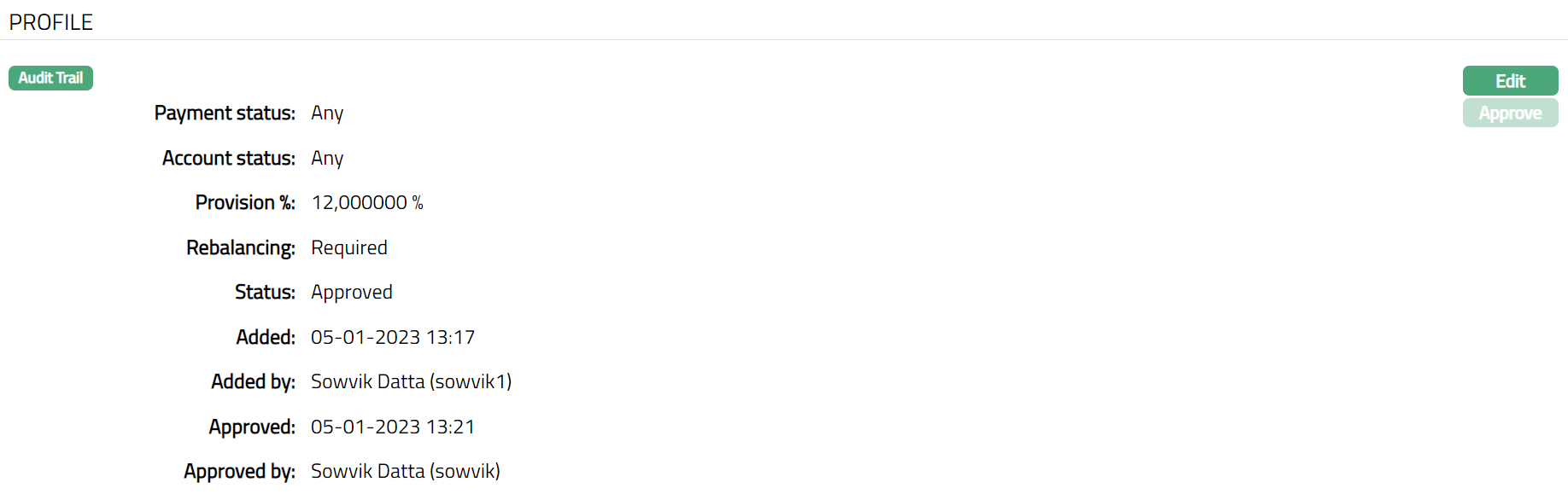
Functions: Edit, Approve
Approved field displays date on which the record was approved and is displayed only for approved records.
Approved by field displays name of the user who approved the record and is displayed only for approved records.
Accounting
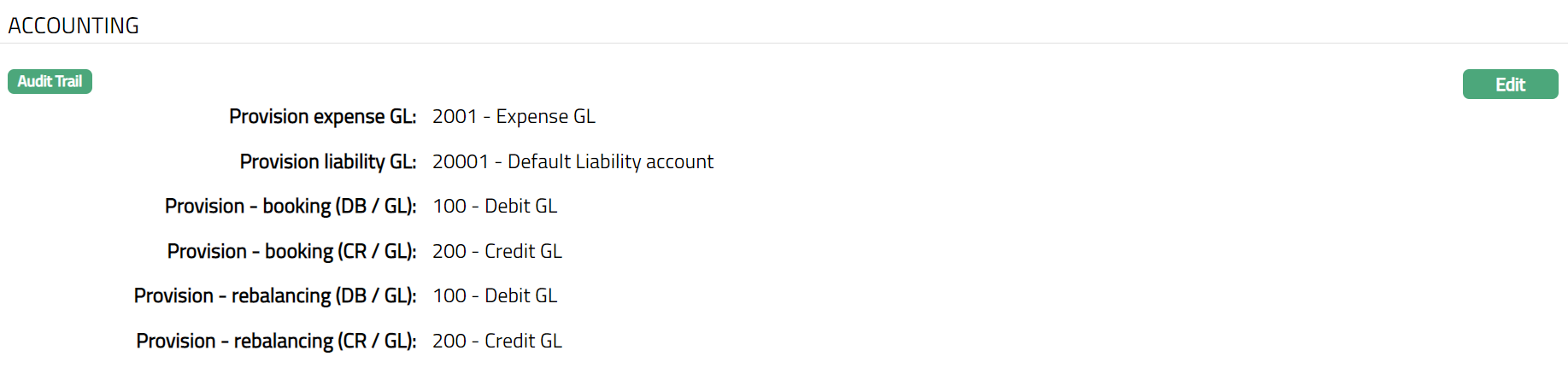
This tab allows you to maintain the General Ledger and Transactions codes used for passing the accounting entries for Provision. The details are defaulted from New Collective Impairment - Accounting (2/3).
To view/edit the Accounting,
1. Access Collective Impairment page and click Accounting tab to view the details as sample below. The details are defaulted from the entries that you made during creation of Collective Impairment record. For details refer to New Collective Impairment → Accounting (2/3) page.
2. Click Edit. Edit Accounting page appears.
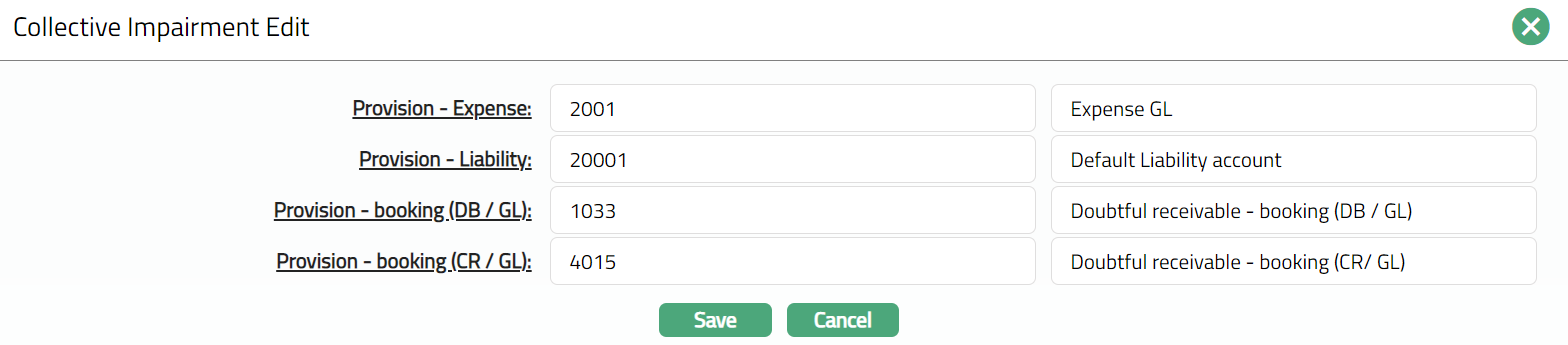
Note: All fields are editable
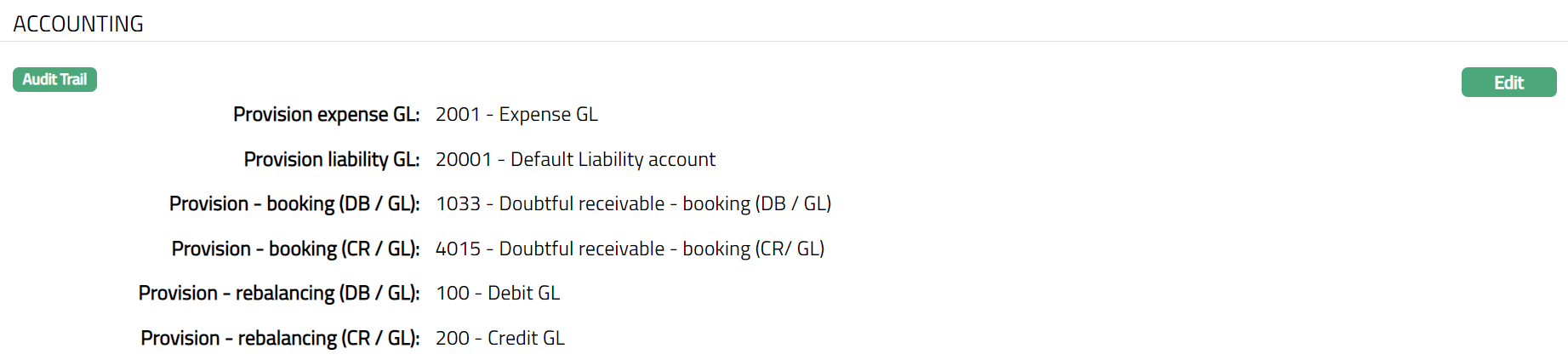
3. Click Save. Accounting page appears with the edited details.
Functions: Edit.