
Transaction defaults
Transaction defaults allow you to perform the most common client transactions through a simple-to-use interface.
Following are the tabs that appear on creation of Transaction default for both Cash Deposit and Cash Withdrawal types.
Transaction Default
To add new Transaction default for Cash Deposit
- From Retail menu, click Settings, and then Transaction defaults. Transaction Default Search page appears.

Type -- Cash Deposit
- Click Add. New Transaction Default -- General (1/5) page appears.
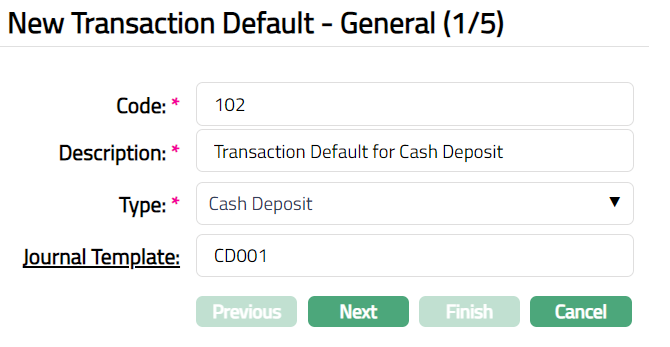
Enter Code for Transaction Default.
Enter Description for Transaction Default.
Select Cash Deposit as Type of Transaction Default from the preshipped values.
Input which Journal Template is to be used for the accounting entries to be posted on input of transactions under the chosen Type. Click the hyperlink Journal Template. The Journal Template Search** Screen appears with the list of all active Journal Templates. Select the required Journal Template from the list.
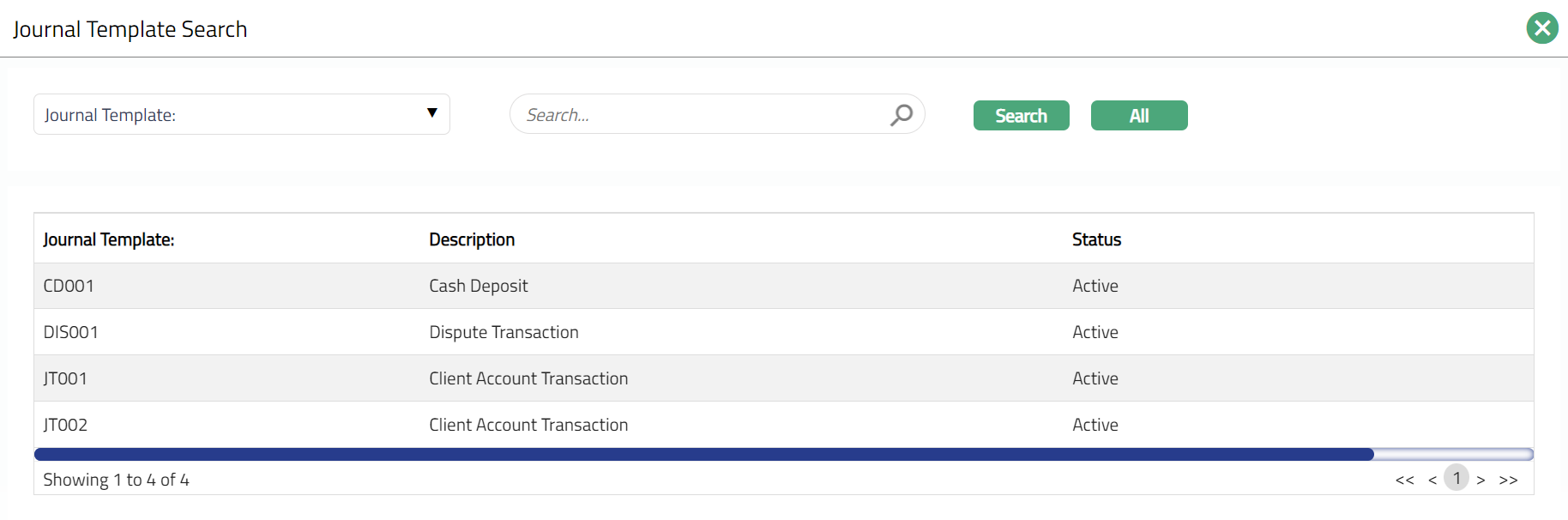
- Click Next. New Transaction Default -- Transaction Description Settings (2/5) page appears.
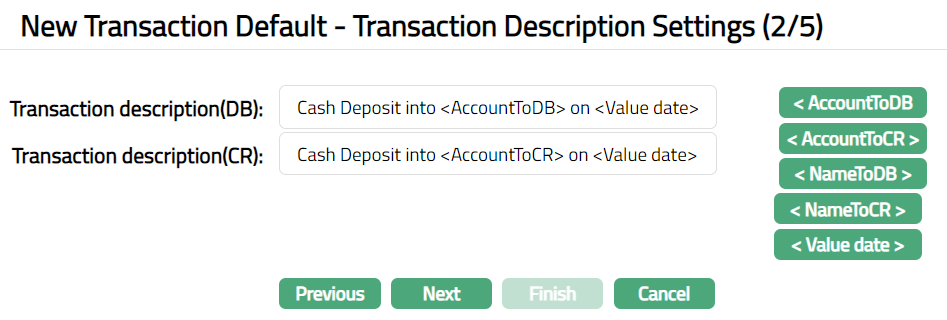
- Enter Transaction description (DB) details for the debit entry. You can include specific details of the transaction in the description using the buttons on the right. Click the required button to include it in the description. The available codes are as follows:
AccountToDB: It displays the account number to be debited.
AccountToCR: It displays the account number to be credited.
NameToDB: It displays the name of the account to be debited.
NameToCR: It displays the name of the account to be credited.
Value date: It displays the value date of the transaction.
- Enter Transaction description (CR) details for the credit entry. You can include specific details of the transaction in the description using the buttons on the right. Click the required button to include it in the description. The available codes are as follows:
AccountToDB: It displays the account number to be debited.
AccountToCR: It displays the account number to be credited.
NameToDB: It displays the name of the account to be debited.
NameToCR: It displays the name of the account to be credited.
Value date: It displays the value date of the transaction.
- Click Next. New Transaction Default -- Transaction code (3/5) page appears.
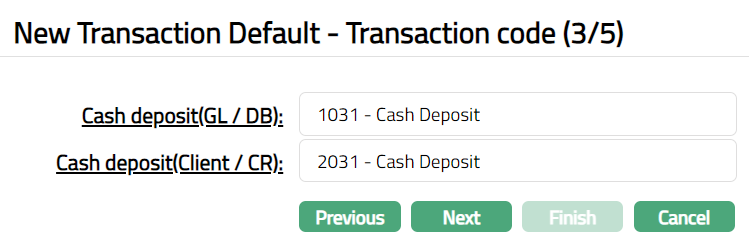
Click hyperlink Cash Deposit (GL/DB). This is the transaction code that will be used for the debit leg of the accounting entry for the Cash Deposit. If you click on the hyperlink, the Transaction Search Code appears with the list of active General Ledger debit transaction codes, which must be maintained under General Ledger > Settings > Transaction codes.
Click hyperlink Cash Deposit (Client/CR). This is the transaction code that will be used for the credit leg of the accounting entry for the Cash Deposit. If you click on the hyperlink, the Transaction Search Code appears with the list of active Client account credit transaction codes, which must be maintained under General Ledger > Settings > Transaction codes.
Click Next. New Transaction Default-General Ledger (4/5) page appears. Note: If you choose Select option for All currencies field, then New Transaction Default -- General Ledger (4/5) changes to New Transaction Default -- General Ledger (4/6). Sample screen shot shown below when select radio button is selected.
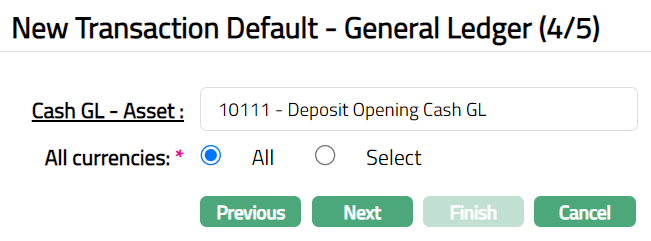
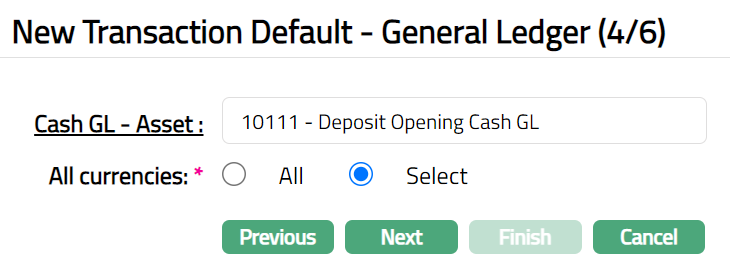
Click the hyperlink Cash GL-Asset, the GL Account Search page appears with the list of active Asset General Ledgers where Cash Account = Yes.
Select All Currencies. The available options are All and Select. By default, All option is selected. You can also choose Select option, to restrict the currencies for which this Transaction default is available.
Click Next. New Transaction Default-Currencies (5/6) page appears.
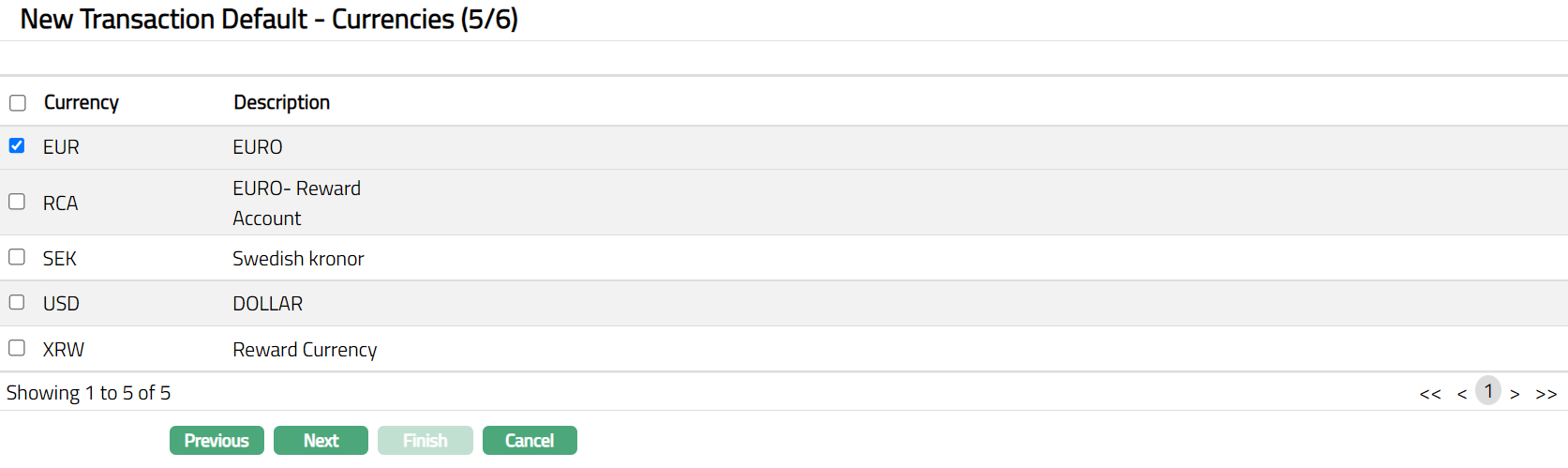
Select Currency from the list of currencies available.
Click Next. New Transaction Default -- Confirmation (6/6) page appears.
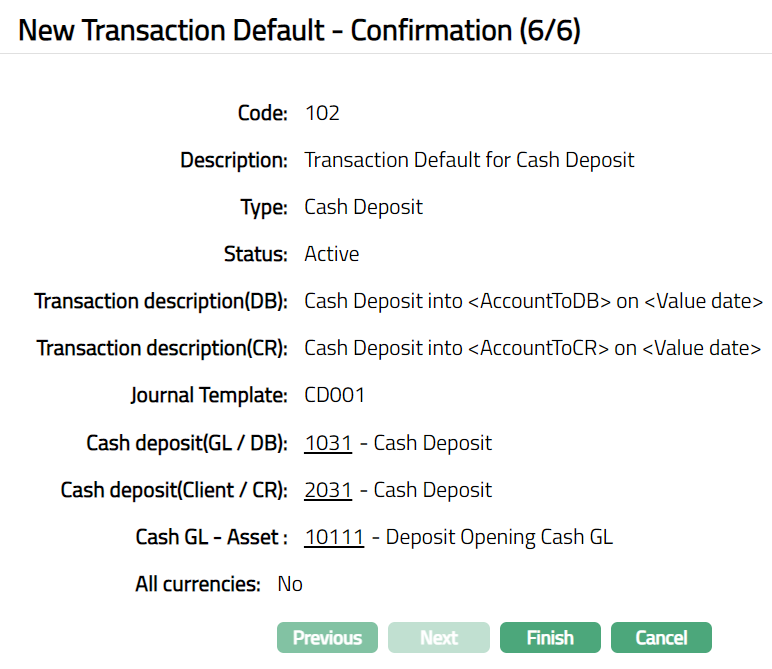
- Click Finish. Transaction Default page appears with the added details. Note: Status of the record is Active.
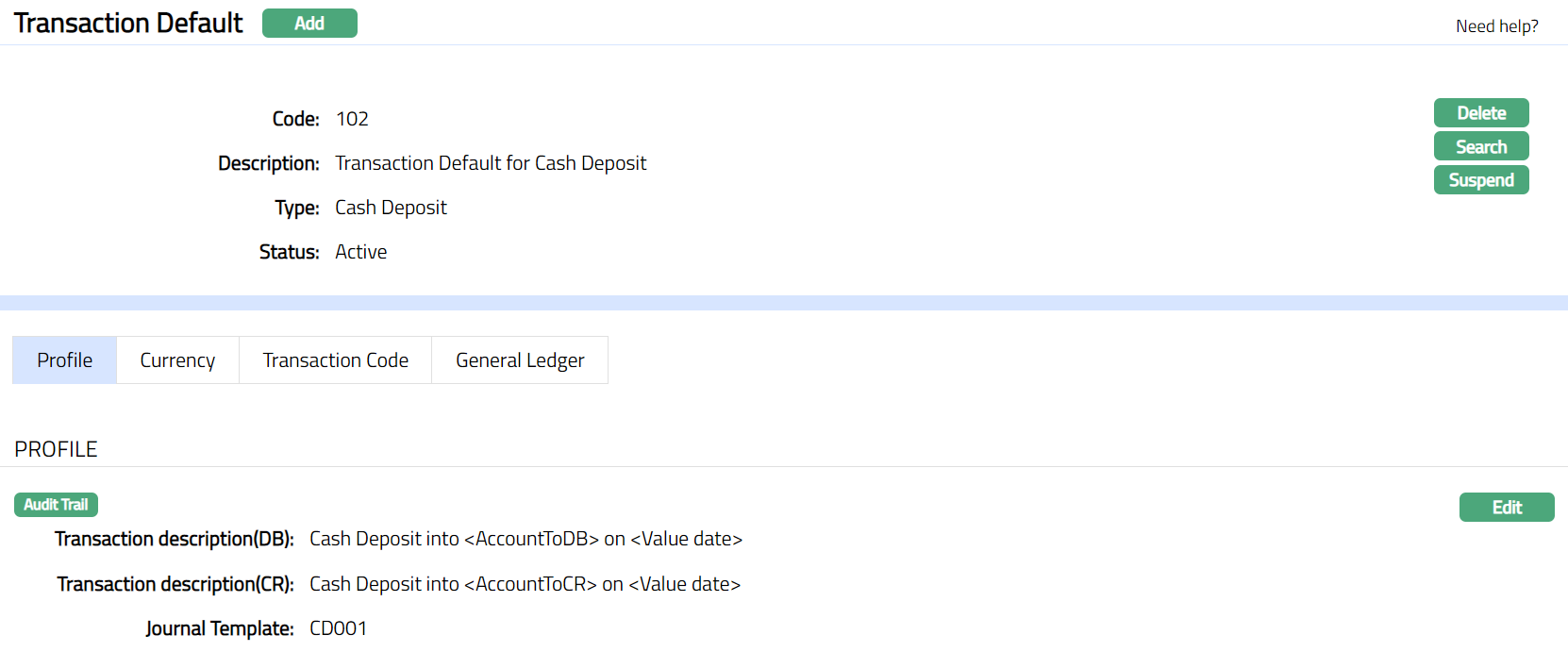 Functions: Add, Delete, Search, Suspend, Activate.
Delete: You can delete a Transaction Default record saved in Aura by a click on Delete button. Aura will ask for confirmation, on approving which the selected record will be deleted. Once the record is approved, it cannot be deleted.
Suspend: You can suspend a Transaction Default record by clicking on Suspend button. When you click on Suspend button, Aura displays an alert message. On confirmation Aura will suspend the Transaction Default and Activate button will appear in place of the Suspend button.
Activate: If you want to activate a suspended Transaction Default record then click on Activate button. Aura displays an alert message. On confirmation Aura will Activate the record and Suspend button will appear in place of Activate button
Profile
Profile tab, which is the default tab in the Transaction Default screen, shows the basic details of the Transaction default which were added in New Transaction Default -- General (1/5).
To edit Transaction default.
- Access Transaction Default page and click Profile tab to view the details as per sample below. The details are defaulted from the entries that you made during creation of a Transaction Default. For details refer to New Transaction Default -- General (1/5)

- Click Edit. Edit Description page appears.
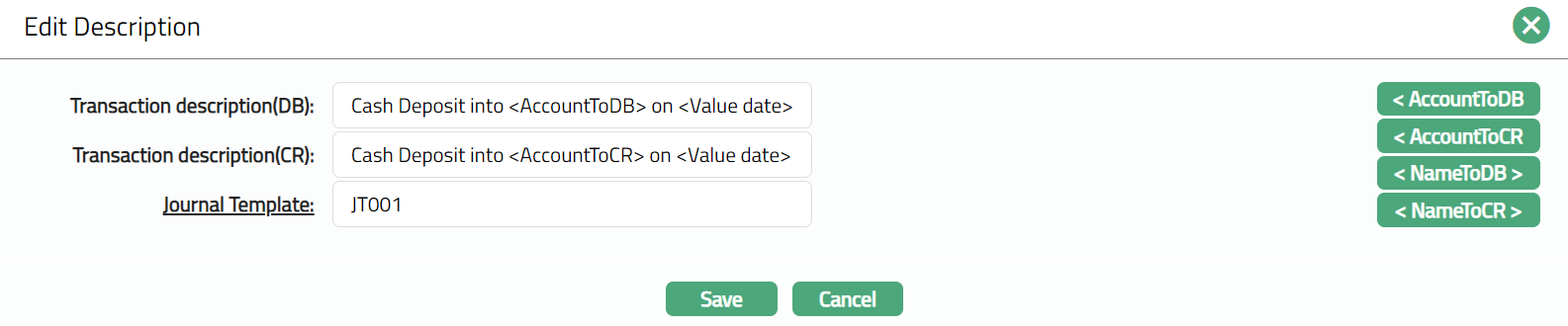
Note: All fields are editable
- Click Save. Profile page appears with the edited details.

Functions: Edit.
Currency
This tab allows you to control the availability of Transaction Default to specific currencies.
To add Currency
- Access Transaction Default page and click Currency tab.

All-radio button is selected by default, so that the Transaction Default is available for all currencies.
To restrict the currencies for which this Transaction default is available, click Select radio button. Add button will be enabled.

- Click Add. Add Currency screen appears where you can select the required currency from the list of all active currencies.
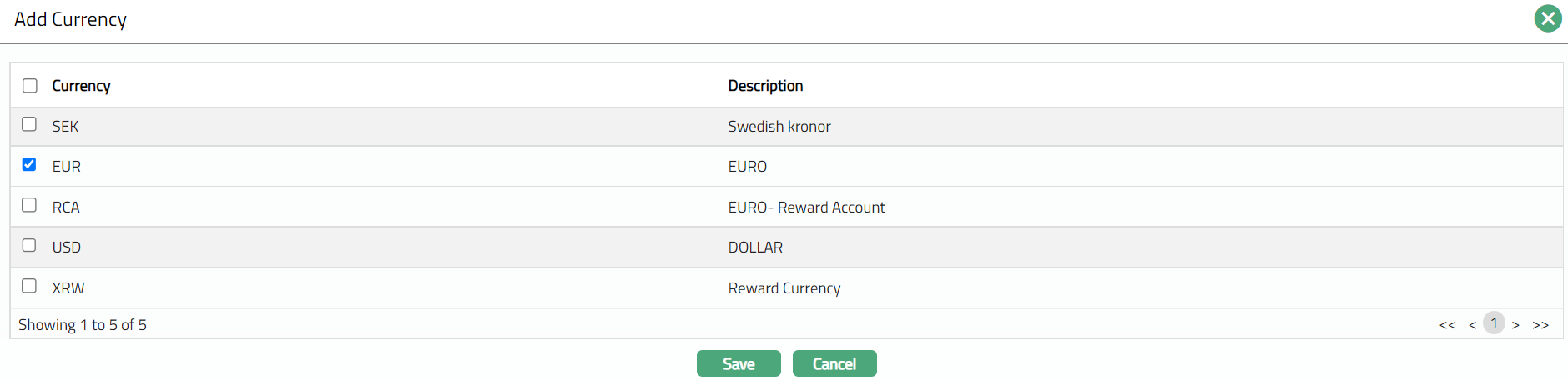
- Select Currency and click Save. Transaction Default page appears with the added currency.

Functions: Add, Delete.
Transaction Code
Transaction code tab allows you to edit the transaction codes that were selected for the Transaction Default.
- Access Transaction Default page and click Transaction Code tab to view the details as per sample below. The details are defaulted from the entries that you made during creation of a Transaction Default. For details refer to New Transaction Default -- Transaction code (3/5).

- Click Edit. Edit Transaction Code page appears.

Note: All fields are editable.
- Click Save. Transaction Code page appears with the edited details.

Functions: Edit
General Ledger
This tab allows you to edit the General Ledger(s) that was selected for the Transaction Default.
- Access Transaction Default page and click General ledger tab to view the details as per sample below. The details are defaulted from the entries that you made during creation of a Transaction Default. For details refer to New Transaction Default -- General Ledger (4/5).

- Click Edit. Edit General Ledger page appears.

Note: All fields are editable.
- Click Save. General Ledger page appears with the edited details.

Functions: Edit
Type -- Cash withdrawal
To add new Transaction default for Cash Withdrawal
From Retail menu, click Settings, and then Transaction defaults. Transaction Default Search page appears.
Click Add. New Transaction Default -- General (1/5) page appears.
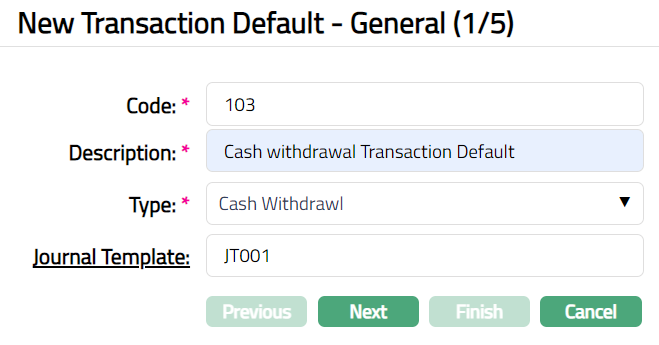
Enter Code for Transaction Default.
Enter Description for Transaction Default.
Select Cash Withdrawal as Type of Transaction Default from the preshipped values.
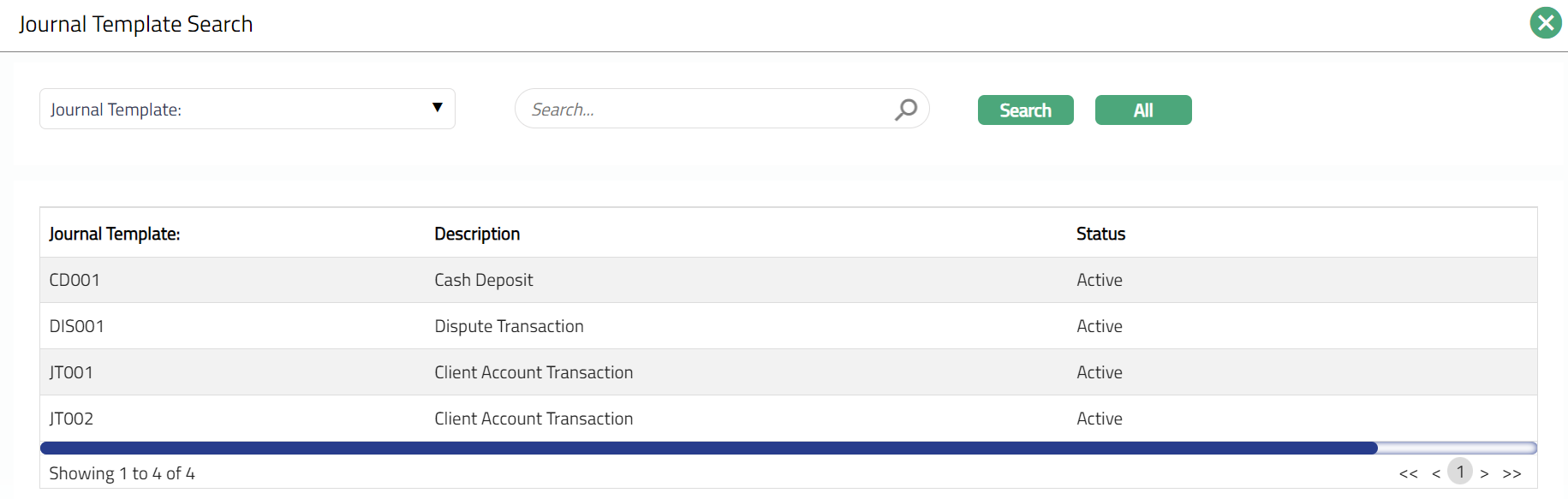
Input which Journal Template is to be used for the accounting entries to be posted on input of transactions under the chosen Type. Click the hyperlink Journal Template. Journal Template Search** Screen appears with the list of all active Journal Templates. Select the required Journal Template from the list.
- Click Next. New Transaction Default -- Transaction Description Settings (2/5) page appears.
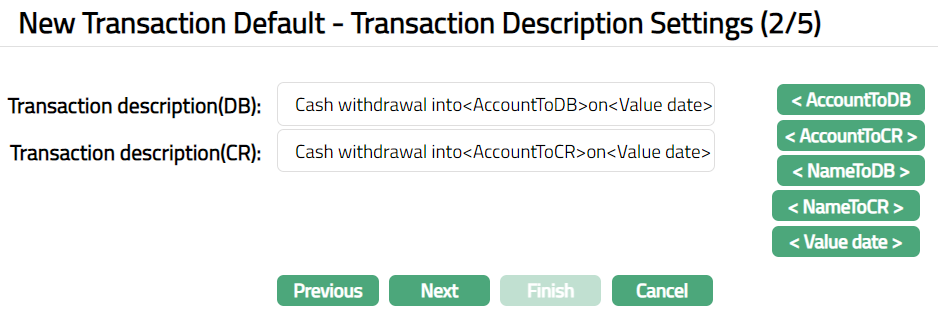
- Enter Transaction description (DB) details for the debit entry. You can include specific details of the transaction in the description using the buttons on the right. Click on the required button to include it in the description. The available codes are as follows:
AccountToDB: It displays the account number to be debited.
AccountToCR: It displays the account number to be credited.
NameToDB: It displays the name of the account to be debited.
NameToCR: It displays the name of the account to be credited.
Value date: It displays the value date of the transaction.
- Enter Transaction description (CR) details for the credit entry. You can include specific details of the transaction in the description using the buttons on the right. Click on the required button to include it in the description. The available codes are as follows:
AccountToDB: It displays the account number to be debited.
AccountToCR: It displays the account number to be credited.
NameToDB: It displays the name of the account to be debited.
NameToCR: It displays the name of the account to be credited.
Value date: It displays the value date of the transaction.
- Click Next. New Transaction Default -- Transaction code (3/5) page appears.
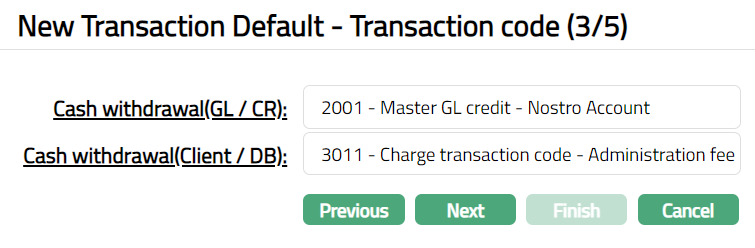
Click the hyperlink Cash withdrawal (GL/CR). This is the transaction code that will be used for the credit leg of the accounting entry for the Cash withdrawal. If you click on the hyperlink, the Transaction Search Code appears with the list of active General Ledger credit transaction codes, which must be maintained under General Ledger > Settings > Transaction codes.
Click the hyperlink Cash withdrawal (Client/DB). This is the transaction code that will be used for the debit leg of the accounting entry for the Cash withdrawal. If you click on the hyperlink, the Transaction Search Code appears with the list of active Client account debit transaction codes, which must be maintained under General Ledger > Settings > Transaction codes.
Click Next. New Transaction Default - General Ledger (4/5) page appears. If you choose Select option for All currencies field, then the New Transaction Default -- General Ledger (4/5) changes to New Transaction Default -- General Ledger (4/6).
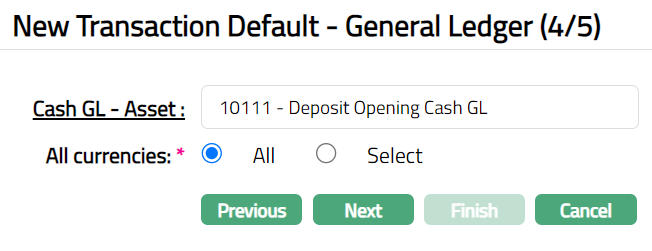
Click hyperlink Cash GL- Asset, the GL Account Search page appears with the list of active Asset General Ledgers where Cash Account = Yes.
Select All Currencies. The available options are All and Select. By default, the All option is selected. You can also choose Select option, to restrict the currencies for which this Transaction default is available.
Click Next. New Transaction Default-Currencies (5/6) page appears.
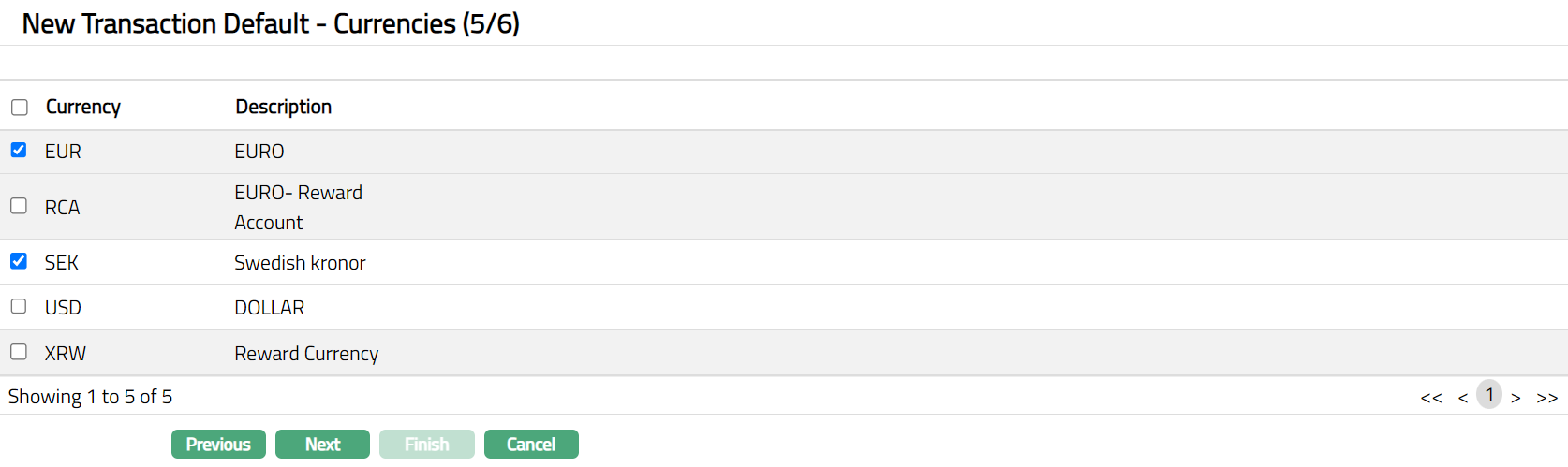
Select Currency from the list of currencies available.
Click Next. New Transaction Default -- Confirmation (6/6) page appears.
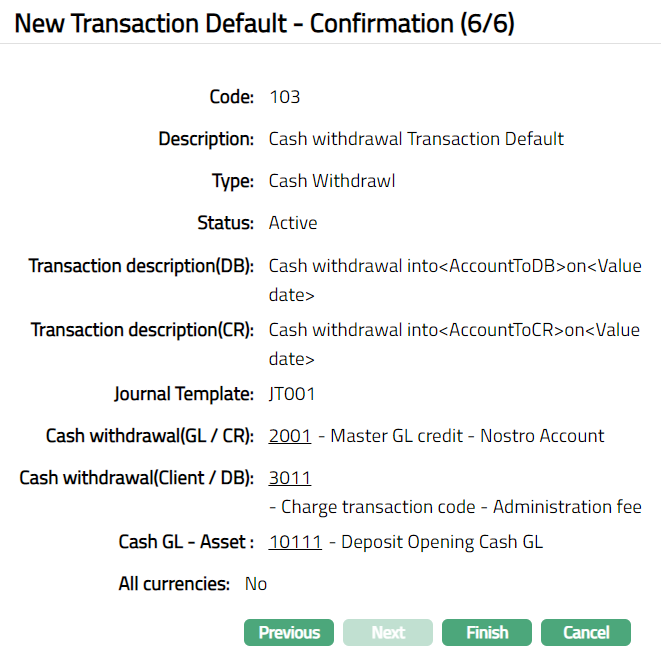
- Click Finish. Transaction Default page appears with the added details. Note: Status of the record is Active.
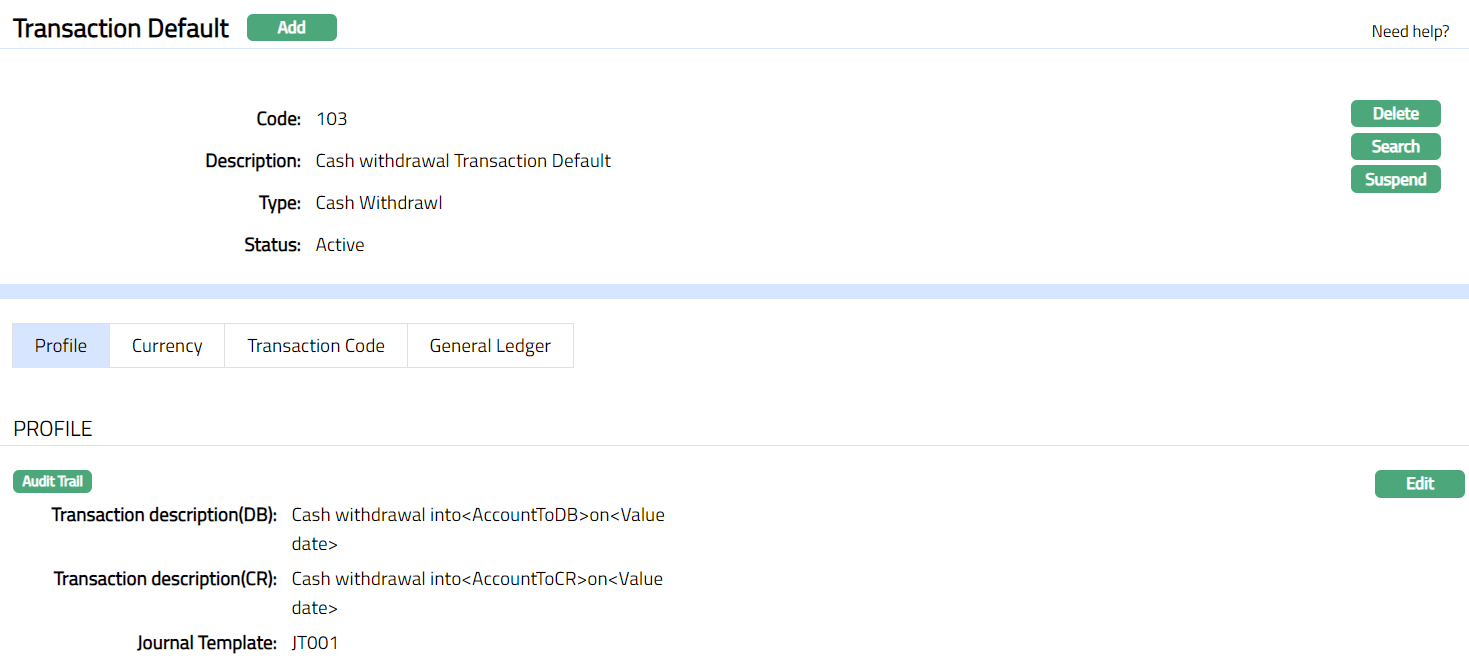 Functions: Add, Delete, Search,Suspend, Activate.
Delete: You can delete a Transaction Default record saved in Aura by a click on Delete button. Aura will ask for confirmation, on approving which selected record will be deleted. Once the record is approved, it cannot be deleted.
Suspend: You can suspend a Transaction Default record by clicking on Suspend button. When you click on Suspend button, Aura displays an alert message. On confirmation Aura will suspend the Transaction Default and Activate button will appear in place of the Suspend button.
Activate: If you want to activate a suspended Transaction Default record then click on Activate button. Aura displays an alert message. On confirmation Aura will Activate the record and Suspend button will appear in place of Activate button
Profile
Profile tab, which is the default tab in the Transaction Default Maintenance screen, shows the basic details of the Transaction default which were added in New Transaction Default -- General (1/5).
To edit Transaction default.
- Access Transaction Default page and click Profile tab to view the details as per sample below. The details are defaulted from the entries that you made during creation of a Transaction Default. For details refer to New Transaction Default -- General (1/5)

- Click Edit. Edit Description page appears.
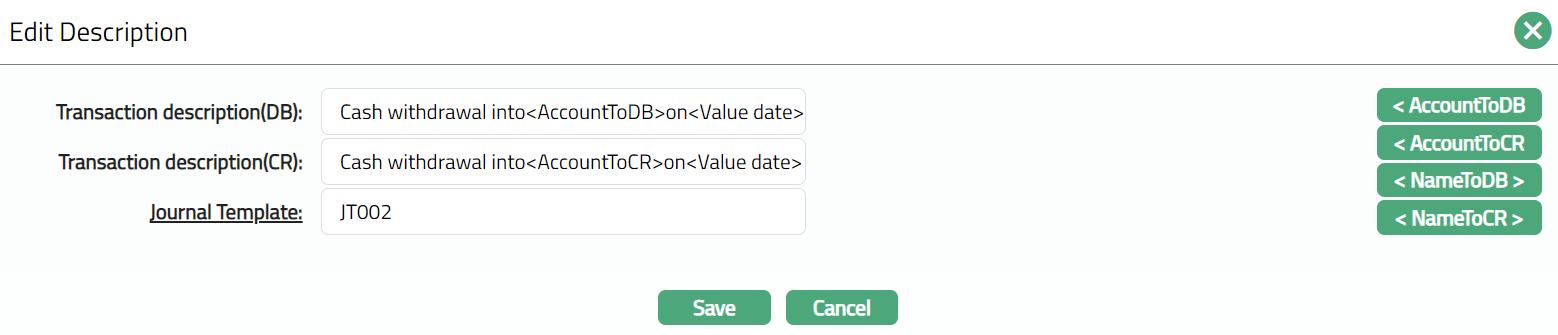
Note: All fields are editable
- Click Save. Profile page appears with the edited details.

Functions: Edit.
Currency
This tab allows you to control the availability of Transaction Default to specific currencies.
To add Currency
- Access Transaction Default page and click Currency tab.

All radio button is selected by default, so that the Transaction Default is available for all currencies.
To restrict the currencies for which this Transaction default is available, click Select radio button. Add button will be enabled.

- Click Add. Add Currency screen appears where you can select the required currency from the list of all active currencies.
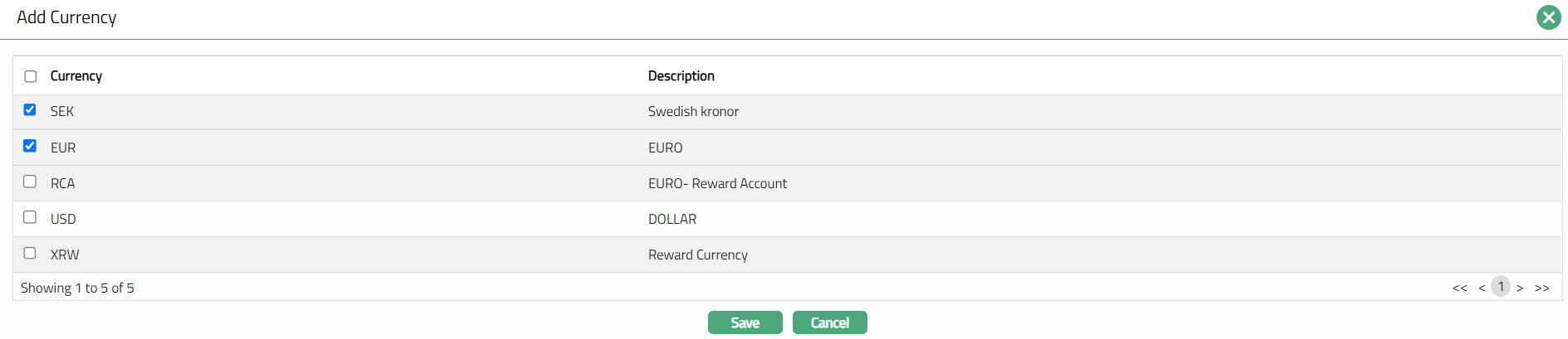
- Select Currency and click Save. Transaction Default page appears with the added currency.

Functions: Add, Delete.
Transaction Code
Transaction code tab allows you to edit the transaction codes that were selected for the Transaction Default.
- Access Transaction Default page and click Transaction Code tab to view the details as per sample below. The details are defaulted from the entries that you made during creation of a Transaction Default. For details refer to New Transaction Default -- General Ledger (4/6).

- Click Edit. Edit Transaction Code page appears.


Note: All fields are editable.
- Click Save. Transaction Code page appears with the edited details.

Functions: Edit
General Ledger
This tab allows you to edit the General Ledger(s) that was selected for the Transaction Default.
- Access Transaction Default page and click General ledger tab to view the details as per sample below. The details are defaulted from the entries that you made during creation of a Transaction Default. For details refer to New Transaction Default -- General Ledger (4/6).

- Click Edit. Edit General Ledger page appears.

- Click Save. General Ledger page appears with the edited details.

Functions: Edit