
Charges
Charges option is used to create and maintain fees / charges which can be charged on client bank accounts / contracts / transactions. Aura provides you a very flexible framework through which you can maintain the charge details.
Following are the tabs in Charges schemes:
To add new Charge,
1. From Admin menu, click Pricing, Charges, and then Charge Schemes. Charges Search page appears. All Charges available in Aura appear on the page.

2. Click Add. New Charge → General (1/4) page appears.
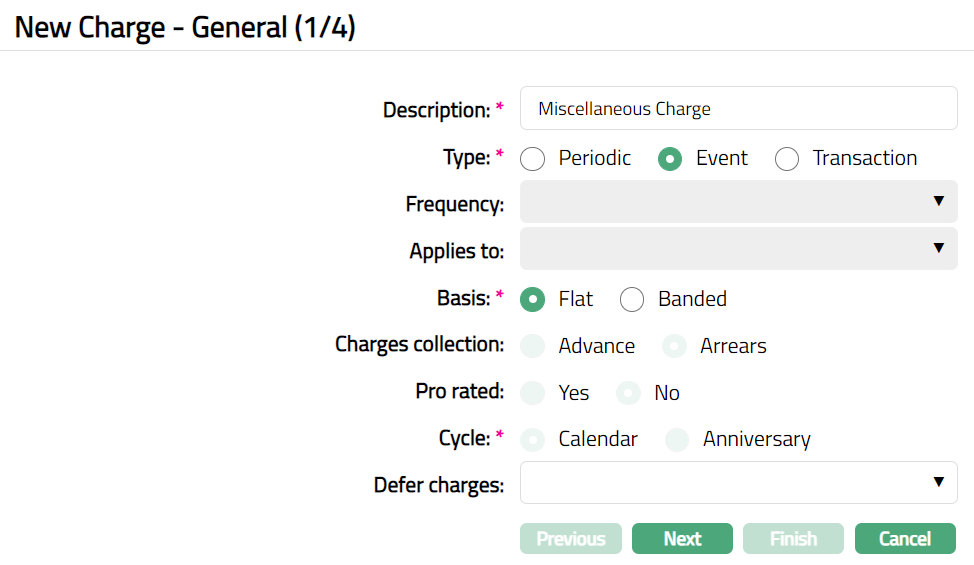
3. Enter Description for the Charge.
4. Select Type of charge. The available options are:
Periodic: Choose this option if you want the charge to be applied on a periodic basis.
Event: Choose this option if you want the charge to be applied based on event triggers.
Transaction: Choose this option if you want the charge to be applied on a transaction i.e., based on Transaction Codes.
Periodic
| Frequency | Daily | Weekly | Monthly | Quarterly | Semi-annual | Annual | Debit Liquidation Date | Credit Liquidation Date |
|---|---|---|---|---|---|---|---|---|
| Applies To | Disabled | Disabled | Disabled. | Disabled. | Disabled. | Disabled. | Disabled. | Disabled. |
| Basis | Flat / Banded. Can be selected. | Flat / Banded. Can be selected. | Flat / Banded. Can be selected. | Flat / Banded. Can be selected. | Flat / Banded. Can be selected. | Flat / Banded. Can be selected. | Flat / Banded. Can be selected. | Flat / Banded. Can be selected. |
| Charges Collection | Defaulted to Arrears. Cannot be changed. | Advance / Arrears. Can be selected. | Advance / Arrears. Can be selected. | Advance / Arrears. Can be selected. | Advance / Arrears. Can be selected. | Advance / Arrears. Can be selected. | Defaulted to Arrears. Cannot be changed. | Defaulted to Arrears. Cannot be changed |
| Pro Rated | Defaulted to No. Cannot be changed. | Defaulted to No. Cannot be changed. | Yes / No. Can be selected. | Yes / No. Can be selected. | Yes / No. Can be selected. | Yes / No. Can be selected. | Defaulted to No. Cannot be changed. | Defaulted to No. Cannot be changed. |
| Cycle | Defaulted to Calendar. Cannot be Changed. | Calendar / Anniversary. Can be selected. | Calendar / Anniversary. Can be selected. | Calendar / Anniversary. Can be selected. | Calendar / Anniversary. Can be selected. | Calendar / Anniversary. Can be selected. | Defaulted to Calendar. Cannot be Changed. | Defaulted to Calendar. Cannot be Changed. |
| Defer Charges | Disabled. | Disabled. | Disabled. | Disabled. | Disabled. | Disabled. | Disabled. | Disabled. |
Event
| Frequency | Applies To | Basis | Charges Collection | Pro Rated | Cycle | Defer Charges | Days |
|---|---|---|---|---|---|---|---|
| Disabled | Disabled | Flat / Banded. Can be selected. | Defaulted to Arrears. Cannot be changed. | Defaulted to No. Cannot be changed. | Defaulted to Calendar. Cannot be Changed. | Defer to Debit Liquidation date, Defer to Last calendar day, Defer to X days after event. | Enabled when “Defer to X days after event” |
Transaction
| Applies To | Debit | Credit | Both |
|---|---|---|---|
| Frequency | Disabled. | Disabled. | Disabled. |
| Basis | Flat / Banded. Can be selected. | Flat / Banded. Can be selected. | Flat / Banded. Can be selected. |
| Charges Collection | Defaulted to Arrears. Cannot be changed. | Defaulted to Arrears. Cannot be changed. | Defaulted to Arrears. Cannot be changed. |
| Pro Rated | Defaulted to No. Cannot be changed. | Defaulted to No. Cannot be changed. | Defaulted to No. Cannot be changed. |
| Cycle | Defaulted to Calendar. Cannot be Changed. | Defaulted to Calendar. Cannot be Changed. | Defaulted to Calendar. Cannot be Changed. |
| Defer Charges | Disabled. | Disabled. | Disabled. |
5. If you have selected the Type as Periodic, specify the Frequency for the charge from the available drop-down list - Daily, Weekly, Monthly, Quarterly, Semi-Annual and Annual, Debit liquidation date and Credit liquidation date.
If Type is Event or Transaction, then Frequency field will be disabled.
6. Only if Type is Transaction, Applies to field will be enabled and you can specify whether the charge should be applied to the debit leg, credit leg or both legs of a Transaction on which the charge has to be applied.
7. Select Basis of the charge amount calculation from the following options:
Flat: It will be a flat charge without reference to any basis like account balance or transaction amount.
Banded: Amount of charges will be calculated with reference to a context sensitive basis -- for example, transaction amount, Current account available balance or Card account current balance.
8. Specify when the charges have to be collected in Charges Collection. This field will be enabled only if the charge type is Periodic, and the Frequency of the charge is more than a day. You can specify whether the charge is to be collected in Advance -- i.e., at the beginning of the period which ends or to collect it in Arrears -- i.e., at the end of the period which is past. By default, Arrears will be selected.
In case of Event / Transaction based charges and Periodic charges with Daily Frequency, this is defaulted to Arrears and disabled.
For example: The charge is defined as an annual charge and account has been opened in March. If the charge collection is marked as Arrears, charges will be collected in December for the period March to December. However, if the charge collection is selected as Advance, then, charges will be collected in March itself for the period March to December.
9. If the charge is Periodic and with a Frequency of Monthly, Quarterly, Semi-annual or Annual, you can specify if the charges are to be collected on a pro-rata basis using the Pro-rated option.
For Monthly frequency, Pro-rated is defaulted to No and is enabled, allowing you to change it to Yes.
When Pro-rated = Yes for a Monthly charge, the charge amount is calculated proportionately based on the number of chargeable days in the month.
Pro-rated Charge Amount = Charge Amount × (No. of chargeable days / No. of days in the month)
For example, if the Charge Amount is 60, the pro-rated amount is calculated as follows:
| Charge Applied On | End of Month | No. of Chargeable Days | No. of Days in Month | Charge Amount | Pro-rated Amount |
|---|---|---|---|---|---|
| 02-Sep-2026 | 30-Sep-2026 | 29 | 30 | 60 | 58 |
| 02-Oct-2026 | 31-Oct-2026 | 30 | 31 | 60 | 58.06 |
| 02-Feb-2027 | 28-Feb-2027 | 27 | 28 | 60 | 57.86 |
| 02-Feb-2028 | 29-Feb-2028 | 28 | 29 | 60 | 57.93 |
For other frequencies -- Daily, Weekly, Debit liquidation date and Credit liquidation date -- Pro-rated is defaulted to No and is disabled.
10. If charge is Periodic and with a Frequency of Weekly, Monthly, Quarterly, Semi-annual or Annual, you can specify if the charge should be applied on a Calendar basis or Anniversary basis using the Cycle option. By default, all periodic charges are treated as applicable on a Calendar Cycle; and will be applied as shown below:
Weekly: Monday to Sunday
Monthly: 1st to end of month
Quarterly: January to March, April to June, July to September, October to December
Semi-annual: January to June, July to December
Annual: January to December
However, if required, you can change it to Anniversary cycle, such that the charges are applied on the anniversary of the period. For example: The charge is defined as an annual charge, to be collected in Advance with an Anniversary cycle. If the account has been opened on 12-Mar-2018, the first charge will be collected on 12-Mar-2018; and the next charge will be collected on 12-Mar-2019. However, if the charge has been defined with a Calendar cycle, the first charge will be collected on 12-Mar-2018 and the next charge will be collected on 01-Jan-2019
For Periodic charges with Frequency Daily and Debit (Credit) liquidation date, the Cycle is defaulted to Calendar and disabled. Thus, for Daily frequency, charges will be applied on a daily basis; and in case of Debit (Credit) liquidation date, the charge will be applied on the date of debit (credit) interest liquidation into the account.
11. If you want to postpone (defer) the booking of the charge into the account to a date later than when the actual event occurred, you can specify it using Defer Charges options. Charges are calculated as on the date of the event; but the booking into the account is deferred as per the option that you choose. This field will be enabled only when Type is selected as Event. The following are the available options:
Defer to Debit liquidation date: The charge will be deferred to the date on which the debit interest is next liquidated to the account.
Defer to Last calendar day: The charge will be deferred to the last calendar date of the month in which the event occurred.
Defer by X days after event: The charge will be deferred by X days after the event has occurred.
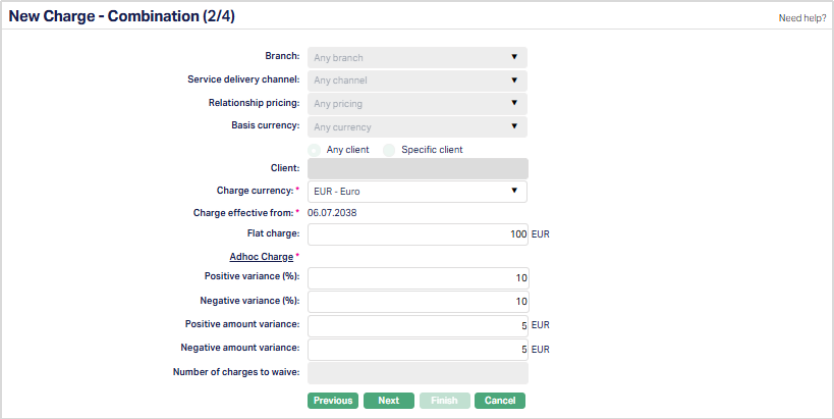
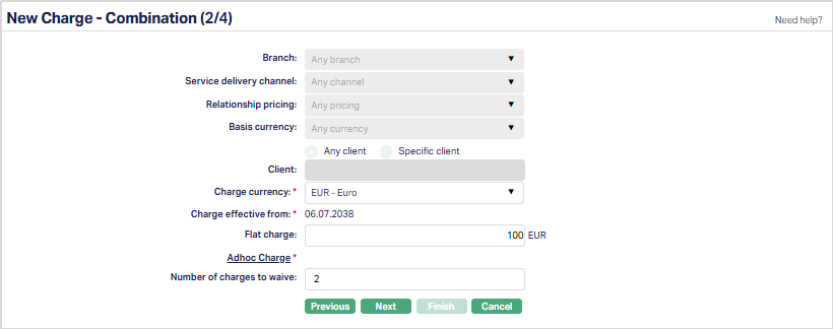
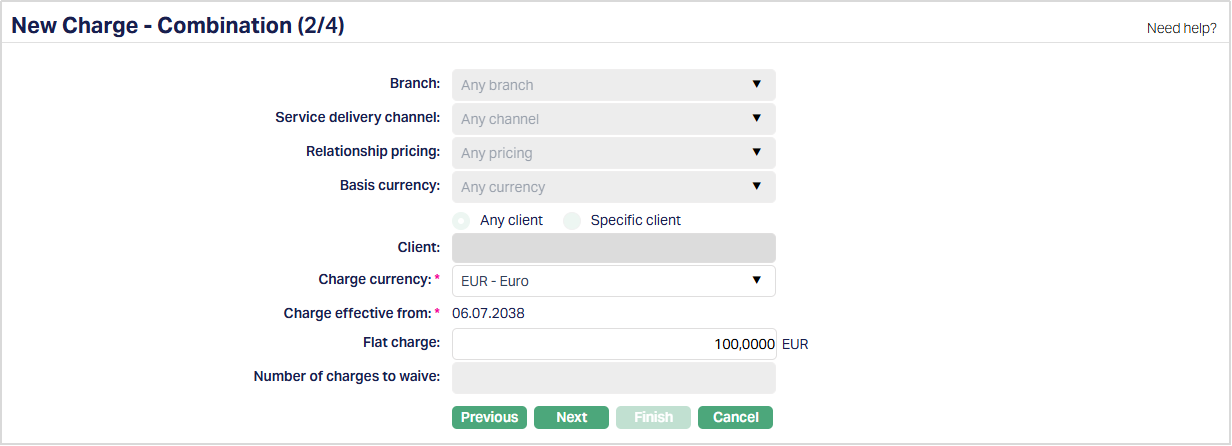
12. Click Next. New Charge → Combination (2/4) page appears.
If Event is selected:
If Periodic is selected:
If Transaction is selected:
13. When Charge Scheme is first created, a default Combination of Branch, Service Delivery Channel, Relationship Pricing, Basis currency and Client is automatically created -- These fields are non -- editable and have the default values Any branch, Any channel, Any pricing, Any currency and Any Client respectively. This ensures that a default charge is available for all the accounts. If required, you can create additional Combinations by choosing a specific branch, channel, pricing, currency and client or any combination of these as required. Refer to the section on Adding a Charge Combination below.
14. Select Charge Currency from the available drop-down list of GL currencies. The charge amount will be calculated in this currency.
15. Charge effective from is the date from which the charge will be applicable. For the default combination (DD-MM-YYYY), the current date will be the Charge Effective from date by default and is not editable. The effective date can be changed for the second combination onwards.
16. Flat charge will be enabled only for Flat basis. Enter the fixed amount of charge that has to be collected. Irrespective of the transaction value / account balance, this amount will be charged. Charge amount entered should be within variance range.
Example:
| Condition | Parameter values | Validation in Adhoc Charge screen |
|---|---|---|
| If the charge >= Minimum variance range maintained and <= Maximum variance range | Charge scheme -- Adhoc charges Event type -- Event Charge amount -- 10 EUR Positive variance % - 20 Negative variance % - 10 Positive variance amount -- 2 EUR Negative variance amount -- 4 EUR | 1) You can enter a minimum of (10*10/100) or (10-2) whichever is greater, so the minimum charge amount you can enter is 9 EUR. 2) You can enter a maximum of (10*20/100) or (10+4) whichever is lesser, so the maximum charge amount you can enter is 12 EUR. 3) Hence, the charge amounts equal to or greater than 9 and less than or equal to 12. |
| If the charge amount entered < Minimum variance range maintained and > Maximum variance range maintained | Charge scheme -- Adhoc charges Event type -- Event Charge amount -- 10 EUR Positive variance % - 20 Negative variance % - 10 Positive variance amount -- 2 EUR Negative variance amount -- 4 EUR | 1) You can enter a minimum of (10*10/100) or (10-2) whichever is greater, so the minimum charge amount you can enter is 9 EUR. 2) You can enter a maximum of (10*20/100) or (10+4) whichever is lesser, so the maximum charge amount you can enter is 12 EUR. 3) Hence, the charge amount you enter has to be greater than 9 and less than 12 |
Adhoc Charge: Adhoc charge is the additional charge maintained by a bank. The below mentioned fields will allow you to maintain the variance for the charge. The charge entered for a client at Retail → Operations → Adhoc charges has to be within the range of variance % or variance amount. When the variance is entered both in terms of percentage and amount, then charge whichever is lesser will be considered.
Note: The following fields are available only for the event-based charges.
17. Enter Positive variance % for the charge entered. It displays the percentage, on the basis of which the range of the charge amount is calculated.
18. Enter Negative variance % for the charge entered. It displays the percentage, on the basis of which the range of the charge amount is calculated.
For example:
Suppose, Flat Charge = 100 Euro.
Positive variance % = 5% of 100= 5 (100+5 = 105)
Negative variance % = 5% of 100= 5(100-5 = 95)
So, the charge can be entered between the 95 Euro to 105 Euro.
19. Enter Positive amount variance for the charge entered in charge currency. It displays the Positive variance amount, on the basis of which the range for the charge amount is calculated.
20. Enter Negative amount variance for the charge entered in charge currency. It displays the Negative variance amount, on the basis of which the range for the charge amount is calculated.
For example:
Suppose, Flat Charge = 100 Euro.
Positive variance amount = 12 (100+12 = 112)
Negative variance amount = 12(100-12 = 88)
So, the charge can be entered between the 88 Euro to 112 Euro.
21. Number of Charges to Waive - Enter the number of initial charge occurrences to be waived when the charge scheme is linked.
This field is applicable only to Periodic charges and accepts values from 0 to 99. For Event and Transaction charges, Number of Charges to Waive is not applicable and remains disabled with no value.
- 0 indicates that no initial charges are waived.
- A value greater than 0 specifies the number of initial charge occurrences to be waived.
- The charges are waived based on the configured Charge Frequency.
22. Click Next. New Charge → Accounting (3 /4) page appears.
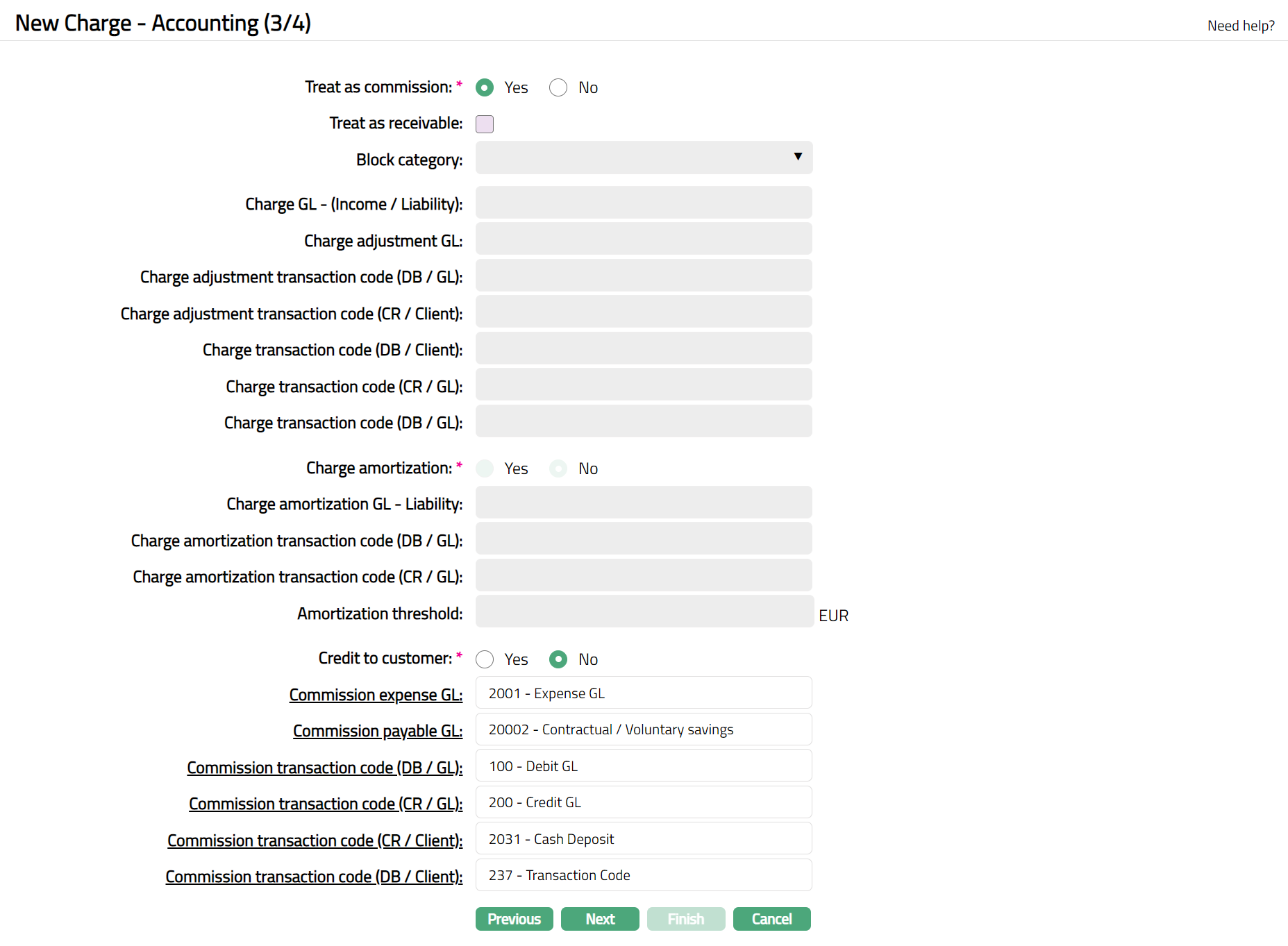
23. You can specify if the Charge is to be treated as a Commission by selecting either Yes or No for Treat as commission. Based on your selection, the subsequent fields are enabled or disabled. If Treat as commission is marked Yes, the charge will be credited to the client account / GL and will be treated as an expense for the Bank. If this is No, the charge is treated as income for the Bank and will be debited from the client account / GL.
24. By checking Treat as Receivable checkbox, you can specify that the charge amount should be treated as a Receivable if at the time of booking of the charge, funds are not available to be debited from the account. By default, when Treat as commission is No, it is checked; and when Treat as Commission is Yes, this is disabled, as commission cannot be treated as a receivable.
25. If Treat as Receivable is Yes, then Block Category field will be enabled, and you can select a block category from the drop-down list of all the active block categories maintained under Admin → System codes → Categories → Block categories. Based on the balance check maintained for the block category, Aura will check for the balance. If the condition satisfies, then the charge will be applicable and if the condition is not satisfied then the charges will be treated as receivable. If the balance check for the block category is maintained as No check, then Aura will not check for the balance and the charge will be treated as receivable; but if there are insufficient funds in the account when the transaction is posted, the charge amount will be blocked.
26. Charge amortization is applicable only for loans (Corporate loans and Mortgage loans). The field will be enabled only if the Charge Type is selected as Periodic (advance only) or Event. For Periodic charges, when Charge amortization is selected as Yes, the Amortization Basis is defaulted to SLM (Straight Line Method) and is disabled.
- EIR (Effective Interest Rate): This is the default value. When selected, the charge is amortized based on the Effective Interest Rate (EIR), as per the existing charge amortization behaviour.
- SLM (Straight Line Method) :Select this option to amortize the charge equally over the loan tenor.
If Charge amortization is selected as Yes and the Charge Type is Periodic or Event, charges collected in advance are posted into the charge amortization ledger. Charge accrual is calculated on a daily basis and the calculated accrued amount is posted into the charge income ledger. If No is selected, Charge Amortization is not applicable for the charge.
Note: When EIR (Effective Interest Rate) is selected as the Amortization Basis, charge accrual is calculated based on the effective interest rate method across the contractual period defined for Loans module. The effective interest method is a method of allocating the charge income over the relevant period of a financial contract. A charge is amortized as per the tenor maintained in the loan contract. Whenever charge is collected for loans, Aura will recalculate the EIR (Effective Interest Rate). The difference between EIR (Effective Interest Rate) applied on interest accrued amount with actual interest accrued amount will be the charge accrual amount.
For Periodic charges with Monthly frequency, when Pro-rated = Yes, Charge Amortization remains enabled.
27. Enter Amortization threshold in the base currency. If the calculated charge amount is more than the specified threshold limit, then only the charge amount is amortized. The field will be enabled only if the charge amortization is maintained as Yes.
28. If the Treat as commission is Yes and Credit to customer is Yes, then instead of Commission payable GL, the client Account (for example, Current account or Card account) will be credited. If Credit to customer is No, then the commission payable ledger will be credited, and commission expense is debited.
29. You will see the list of various GLs and Transaction Codes required to account for the charges. These are enabled / disabled based on your inputs in Treat as Commission and Credit to Customer.
If Treat as Commission is Yes, then Charge GLs and Transaction codes will be disabled; Commission GLs and Transaction codes will be enabled. If Treat as Commission is No, then the Commission GLs and Transaction codes will be disabled; Charge GLs and Transaction codes will be enabled.
In the table below you will find the description of the fields, the use and the conditions for each of the GLs / Transaction Codes. You can either directly input the Ledger / Transaction Code or click on the hyperlink to see the list of GLs / Transaction Codes satisfying these conditions and select the required Ledger / Transaction Code.
| Fields | Used | List of Accounts/Transaction codes based on |
|---|---|---|
| Charge GL-(Income/Liability) | For charge income received by the bank | Ledger type Income and Liability. |
| Charge adjustment GL | For any adjustment in charges | Ledger type Income / Expense |
| Charge adjustment transaction code (DB/GL) | For any adjustment in charges in the GL account | Transaction type Debit General Ledger |
| Charge adjustment transaction code (CR/Client) | For any adjustment in charges in the client account | Transaction type Credit Client Account |
| Charge transaction code (DB/Client) | For debiting the charges from the client account | Transaction type Debit Client Account |
| Charge transaction code (CR/GL) | For crediting the charges to the GL account | Transaction type Credit General Ledger |
| Charge transaction code (DB/GL) | For debiting the charges from the GL account | Transaction type Debit General Ledger |
| Charge amortization GL- Liability | For charge income received by bank. The field will be enabled only if Charge amortization is maintained as Yes. | Ledger type Liability, where currency is Null and cash account is No. |
| Charge amortization transaction code (DB/GL) | For debiting the charges from GL account | Transaction type Debit General Ledger |
| Charge amortization transaction code (CR/GL) | For crediting the charges to the GL account. | Transaction type Credit General Ledger |
| Commission expense GL | For commission expenses incurred by the bank | Ledger type Expense |
| Commission payable GL | For Commission Payable | Ledger type Liability |
| Commission transaction code (DB/GL) | For debiting the commission GL | Transaction type Debit General Ledger |
| Commission transaction code (CR/GL) | For crediting the commission to GL | Transaction type Credit General ledger |
| Commission transaction code (CR/Client) | For crediting the commission to Client Account | Transaction type Credit Client Account |
| Commission transaction code (DB/Client) | For debiting the commission from Client Account | Transaction type Debit Client Account |
Note:
If Liability GL is selected for Charge -- Income/Liability, then all the Amortization related fields will be disabled.
If you select Liability GL type for Charge -- Income/Liability, then Aura will ask for Confirmation.
If Yes option is chosen, then Aura will change Charge GL- Income to Liability and GL Amortization will be in disabled mode. Aura will stop passing amortization entries and the charge amount which is not amortized fully will remain in the amortization GL.
If No option is chosen, Aura will allow you to change the Charge GL again.
If Charge GL of type income is chosen, then Aura will pass amortization entries in new charge GL. For Charge schemes which is not in use, Aura will allow you to change the Charge GL type as Income or Liability.
30. Click Next. New Charge → Confirmation (4/4) page appears.
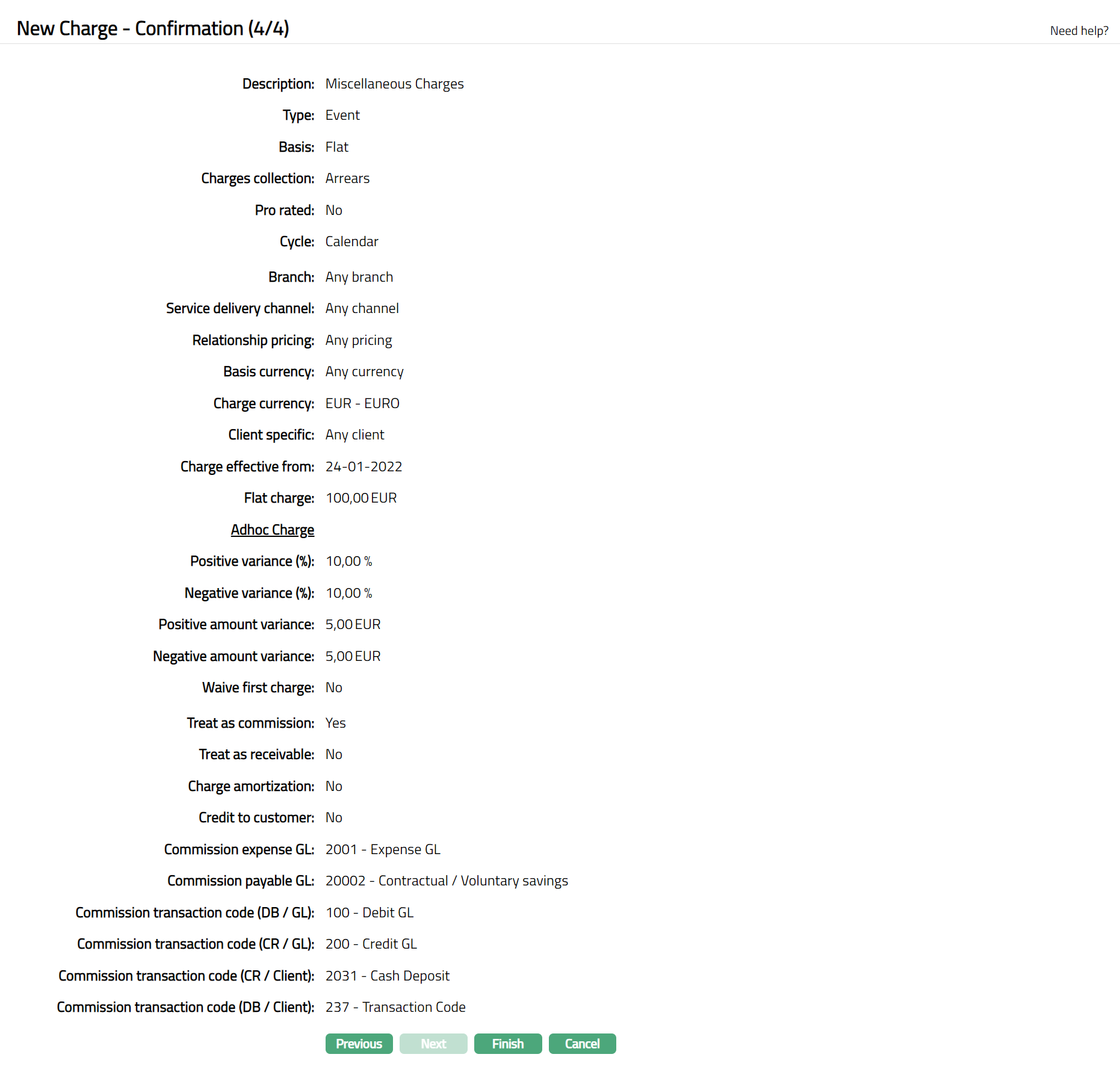
31. Click Finish. Charge page appears with the added details.
Note: Status of the charge is Active.
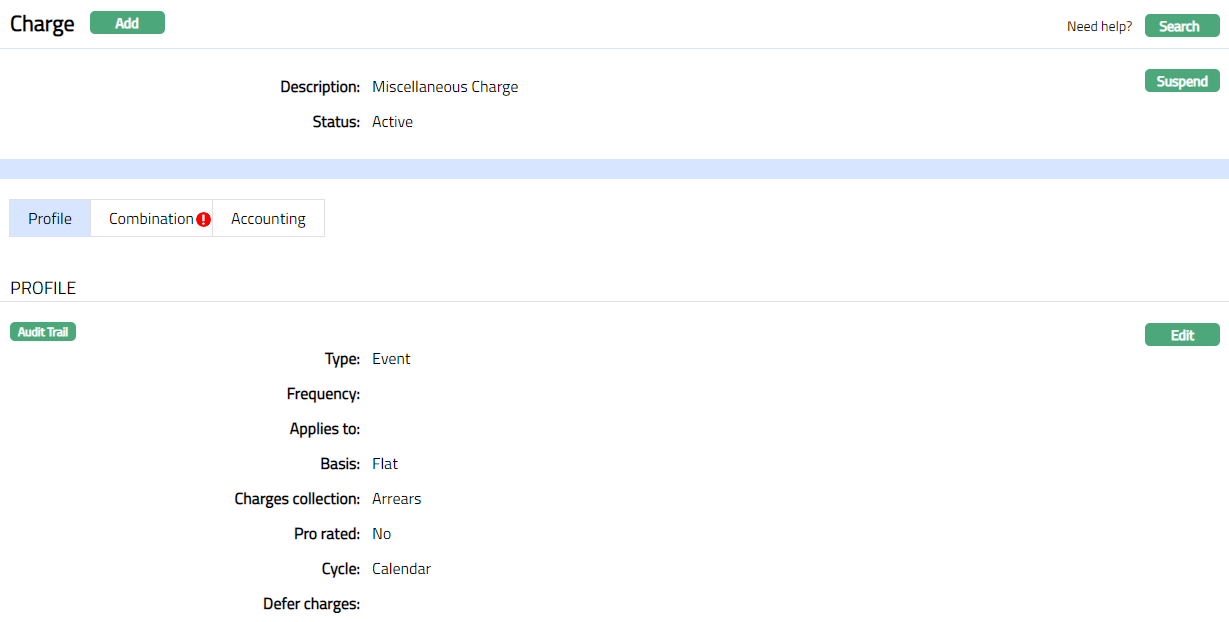
Functions: Add, Search, Suspend, Activate
Note: The status of the Charge is Active. However, for Banded Charges the bands have to be mandatorily created, so that the charge basis is defined.
Suspend: You can suspend the charge by clicking on Suspend button. When you click on Suspend button, Aura will ask for confirmation. On confirmation Aura will suspend the Charge and Activate button will appear in place of the Suspend button.
Activate: If you want to activate a suspended Charge record then click on Activate button. Aura will ask for confirmation. On confirmation Aura will Activate the Charge and Suspend button will appear in place of Activate button.
Profile
Profile tab, which is the default tab in the Charge screen, shows the basic details of the charge.
To view / edit,
1. Access Charge page and click Profile tab to view the Charge details as per sample below. The details are defaulted from the entries that you made during charge creation. For details refer to New Charge → General (1/4).
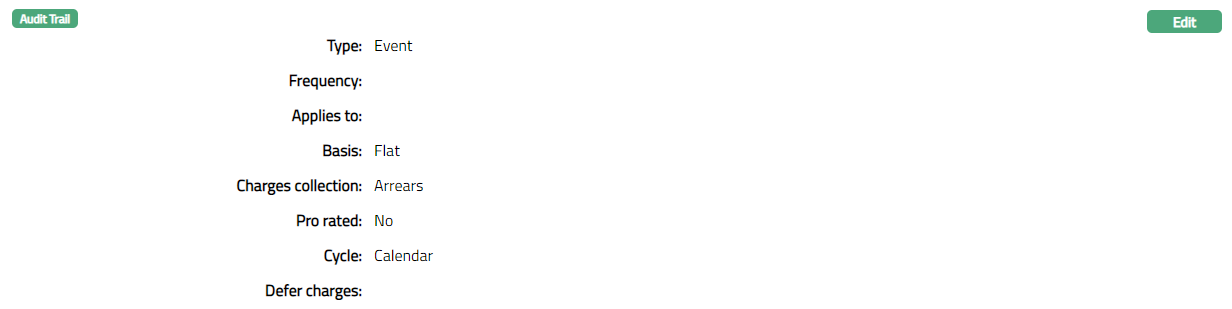
2. Click Edit. Edit Profile page appears.
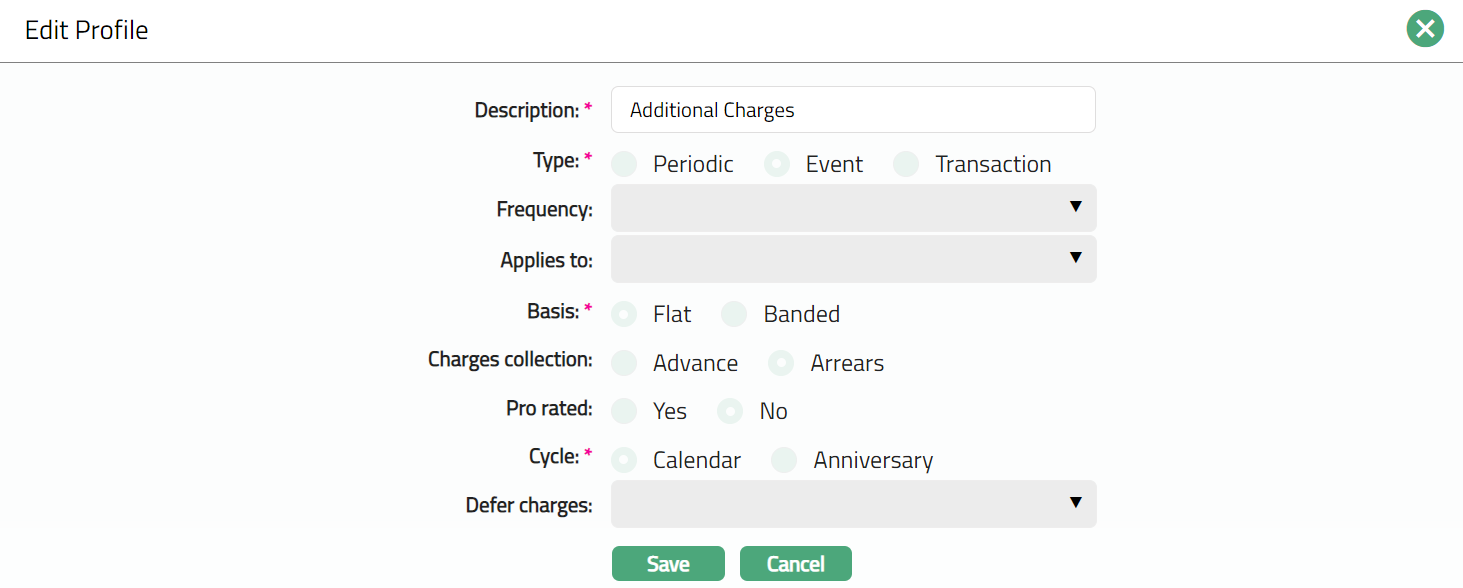
Note: Only Description field is editable.
3. Click Save. Charge page appears with the edited details.
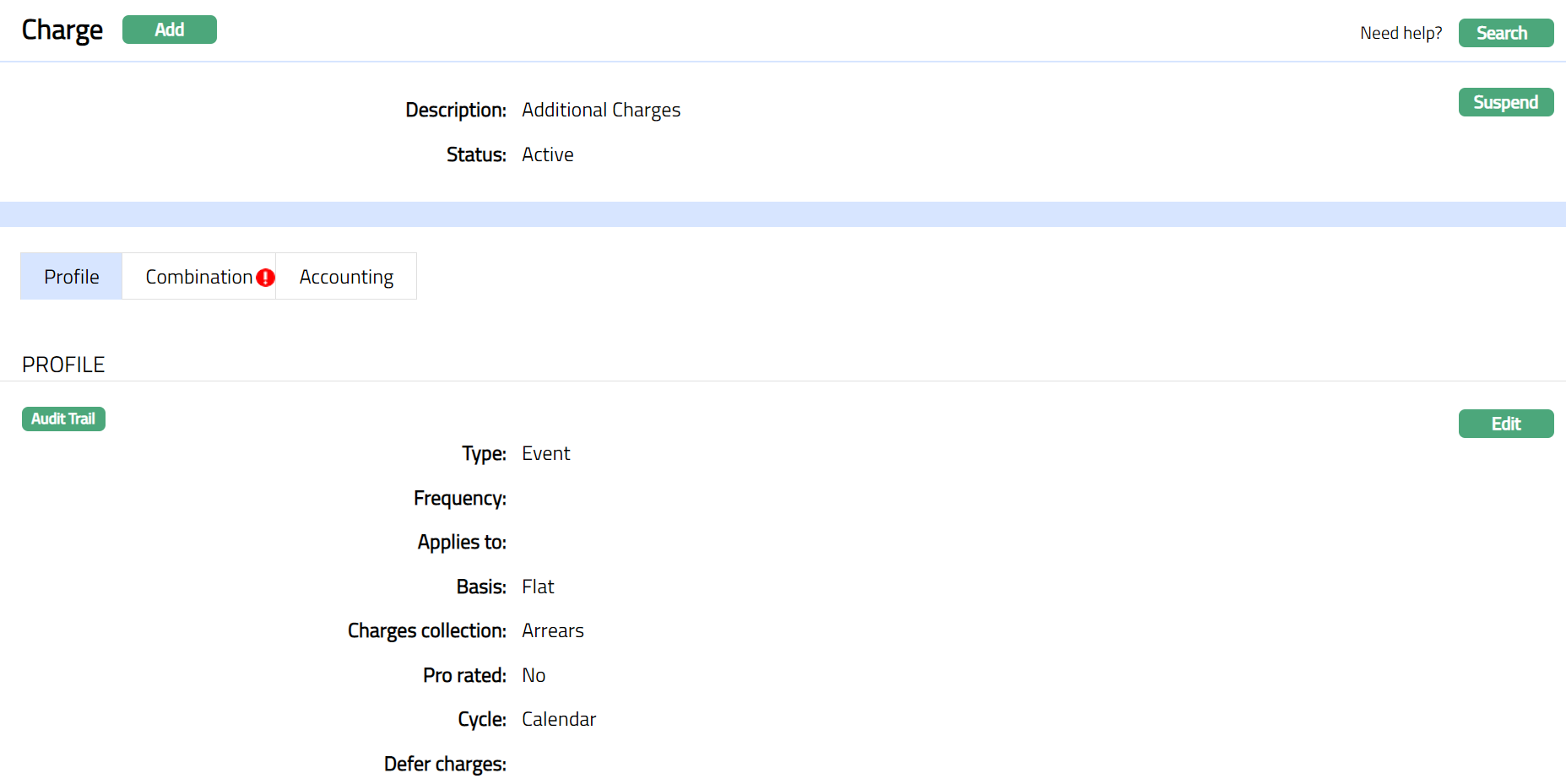
Functions: Edit
Combination
This option allows you to maintain the combination for charges. The combination helps you to tailor the charges to specific branch, service delivery channel, relationship pricing, basis currency or client or any combination thereof. You cannot create a record for the same combination as the one already existing, except when you give a different effective from date.
When multiple combinations are maintained, the Charge Combination values are picked up based on the most suitable combination applicable to the account / transaction. The order in which the combination is chosen is shown below:
| Order | Effective Date | Pricing | Client | Service Delivery Channel | Currency | Branch |
|---|---|---|---|---|---|---|
| 1 | Current Date | Specific | Specific | Specific | Specific | Specific |
| 2 | Current Date | Specific | Specific | Specific | Specific | Any |
| 3 | Current Date | Specific | Specific | Specific | Any | Any |
| 4 | Current Date | Specific | Specific | Any | Any | Any |
| 5 | Current Date | Specific | Any | Any | Any | Any |
| 6 | Current Date | Specific | Specific | Specific | Any | Specific |
| 7 | Current Date | Specific | Specific | Any | Any | Specific |
| 8 | Current Date | Specific | Any | Any | Any | Specific |
| 9 | Current Date | Any | Any | Any | Any | Specific |
| 10 | Current Date | Specific | Specific | Any | Specific | Specific |
| 11 | Current Date | Specific | Any | Any | Specific | Specific |
| 12 | Current Date | Any | Any | Any | Specific | Specific |
| 13 | Current Date | Any | Any | Any | Specific | Any |
| 14 | Current Date | Specific | Any | Specific | Specific | Specific |
| 15 | Current Date | Any | Any | Specific | Specific | Specific |
| 16 | Current Date | Any | Any | Specific | Specific | Any |
| 17 | Current Date | Any | Any | Specific | Any | Any |
| 18 | Current Date | Any | Specific | Specific | Specific | Specific |
| 19 | Current Date | Any | Specific | Specific | Specific | Any |
| 20 | Current Date | Any | Specific | Specific | Any | Any |
| 21 | Current Date | Any | Specific | Any | Any | Any |
| 22 | Current Date | Any | Any | Any | Any | Any |
| 23 | Future Dated | Specific | Specific | Specific | Specific | Specific |
To add a combination,
1. Access Charge screen and click Combination tab.
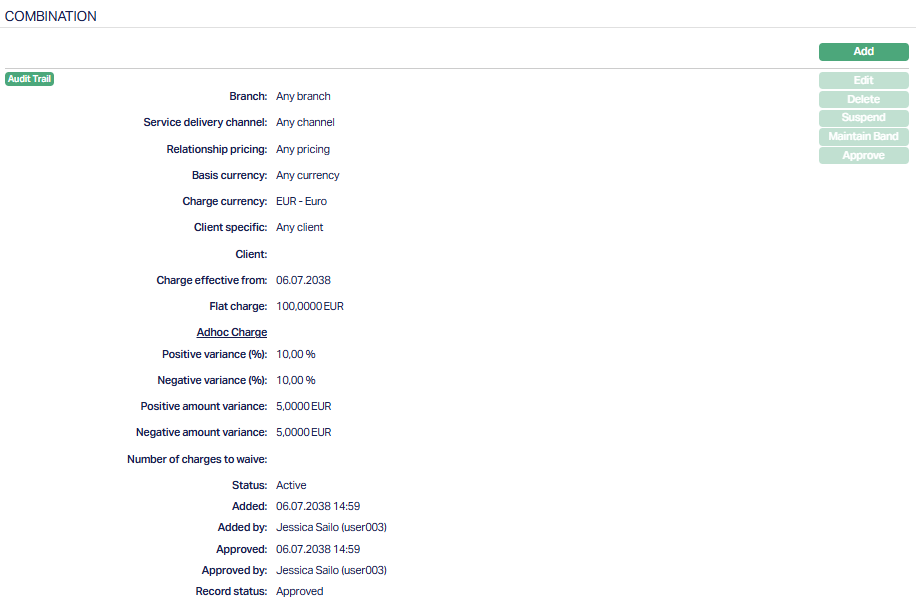
Note: Record status will display as Pending. Once approved by another user who has not created the record, the status will display as Approved. Sample screen shown below.
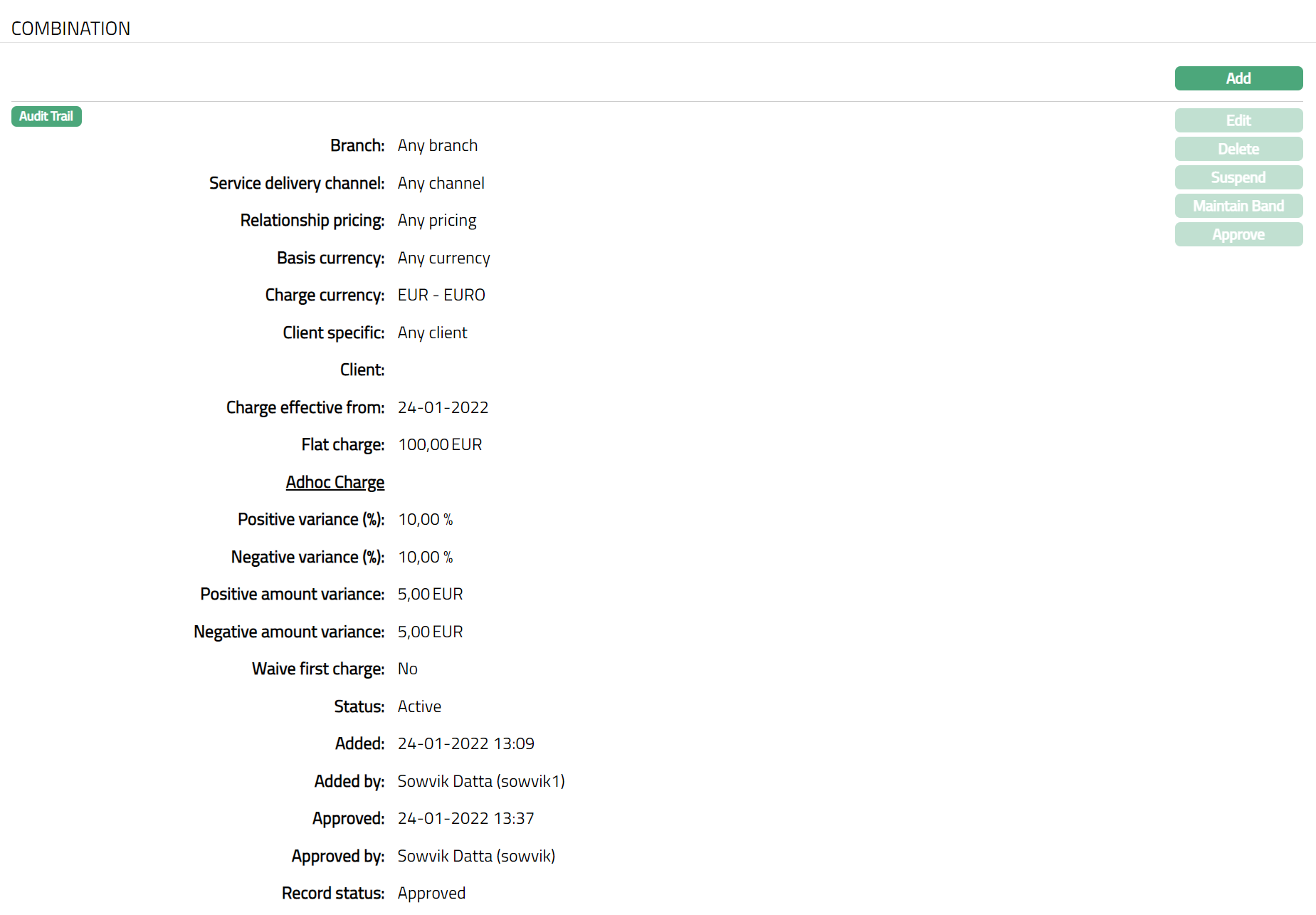
2. Click Add. New Charge Combination page appears.
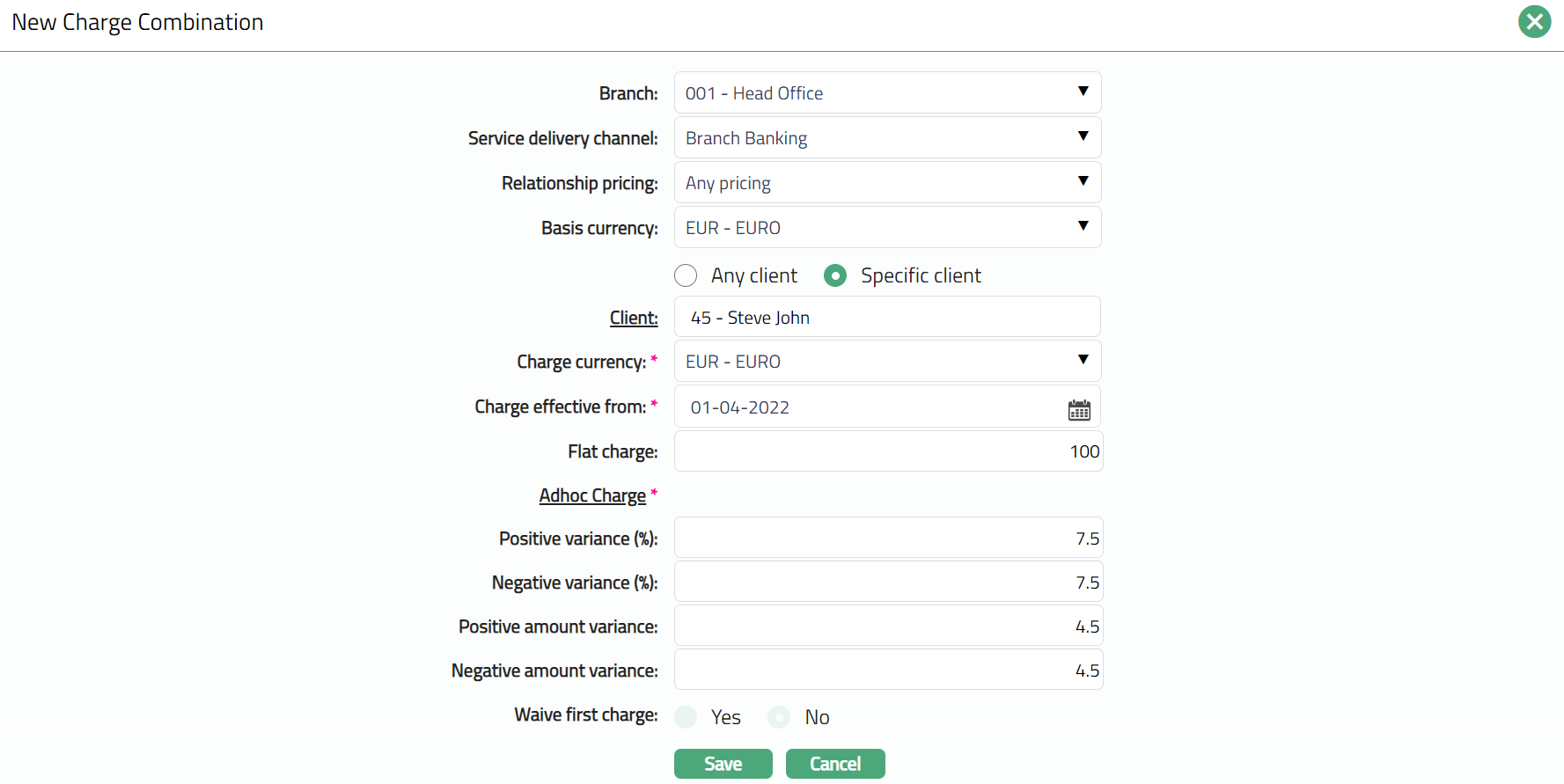
3. Select Branch to which this Charge is applicable from the drop-down list of Branches maintained under Admin → Branch → Maintain. If you do not want to specify a Branch, choose Any Branch. Once the record is created this field cannot be edited.
4. Select Service Delivery Channel to which this Charge is applicable from the drop-down list of Channels that have been maintained in Admin → Categories → Service delivery channel. If you do not want to specify a channel, choose Any channel. Once the record is created this field cannot be edited.
5. Select Relationship Pricing to which this Charge is applicable from the drop-down list of Relationship Pricing that have been maintained in Admin → Categories → Relationship pricing. If you do not want to specify a relationship pricing, choose Any pricing. Once the record is created this field cannot be edited.
6. Select Basis Currency for this Charge from the drop-down list of currencies that have been maintained in Admin → System codes → Currencies → Currencies. If you do not want to specify a currency, choose Any currency. Once the record is created this field cannot be edited.
7. If you want the charge to be applicable to a specific client, select Specific Client radio button. The Client hyperlink will be enabled. Click on the hyperlink to select the required client. If you do not want to specify a client, choose Any client radio button. The client hyperlink will then be disabled.
8. Select Charge currency from the drop-down list. This is the currency in which the charge amount will be calculated.
9. Enter Charge Effective from date. The charge will be applicable from the date entered here. This cannot be a past date.
10. Flat Charge field will be disabled, if the charge created is a Banded Charge and is enabled only when the charge created is a Flat charge.
11. Enter Positive variance % for the charge entered. It displays the percentage, on the basis of which the range of the charge amount is calculated.
12. Enter Negative variance % for the charge entered. It displays the percentage, on the basis of which the range of the charge amount is calculated.
13. Enter Positive amount variance for the charge entered in charge currency. It displays the Positive variance amount, on the basis of which the range for the charge amount is calculated.
14. Enter Negative amount variance for the charge entered in charge currency. It displays the Negative variance amount, on the basis of which the range for the charge amount is calculated.
15. Number of Charges to Waive – Enter the number of initial charge occurrences to be waived when the Charge Scheme is linked.
This field is applicable only to Periodic charges and accepts values from 0 to 99. For Event and Transaction charges, Number of Charges to Waive is not applicable and remains disabled with no value.
- 0 indicates that no initial charges are waived.
- A value greater than 0 specifies the number of initial charge occurrences to be waived.
- The charges are waived based on the configured Charge Frequency.
16. Click Save. Combination page appears with the added details.
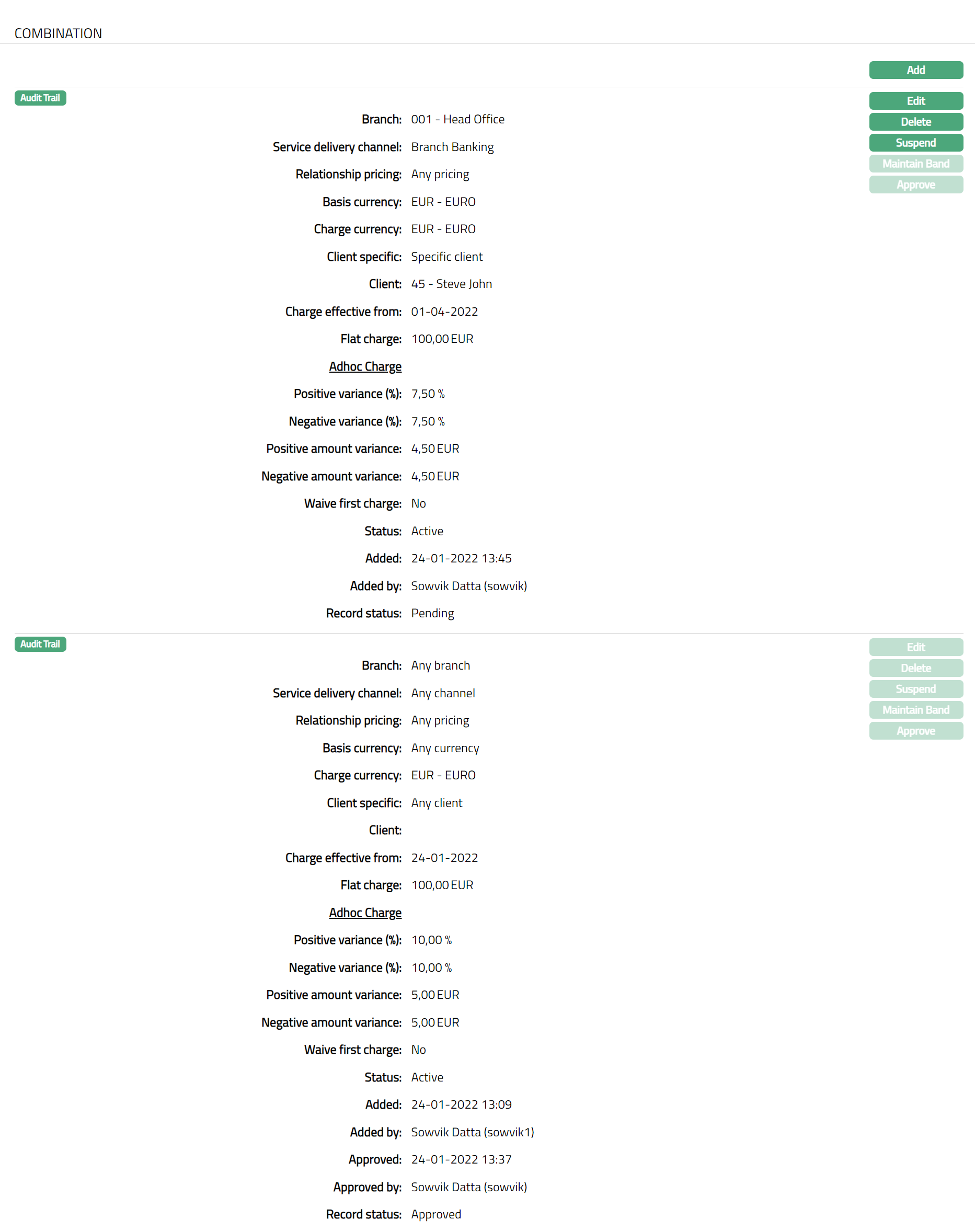
Functions: Add, Edit, Delete, Suspend, Activate, Maintain Band
Status: The status of the Charge Combination is Active as soon as the Charge is created, and Record status will be Pending. Once approved by another user the record status will display as Approved.
Suspend: You can suspend the Charge Combination by clicking on Suspend button. When you click on Suspend button, Aura will ask for confirmation. On confirmation Aura will suspend the Charge Combination. Once the charge is suspended, it is not available for use in other modules. Suspended charges can be activated by using Activate button.
Activate: You can activate the Charge Combination by clicking on Activate button. When you click on Activate button, Aura will ask for confirmation. On confirmation Aura will activate the Charge Combination. Once the charge is activated, it becomes used in other modules.
Note: Once the default charge combination record is created, the Edit, Delete, and Suspend button will be disabled and only the Maintain Band button will be enabled. For other combinations the Edit, Delete, Suspend and Maintain Band buttons will be enabled.
To Edit Combination,
1. Click Edit. Edit Charge Combination page appears.
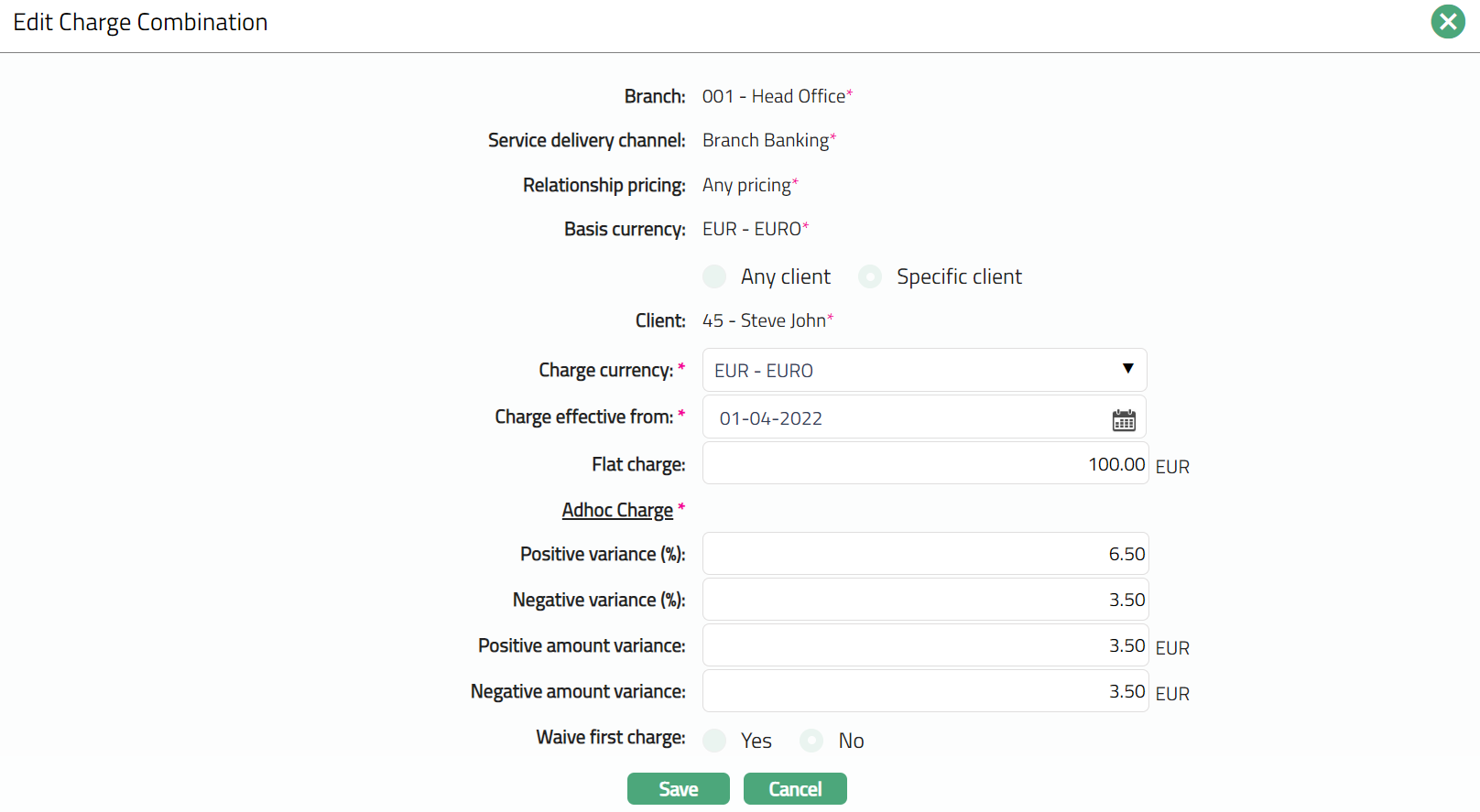
Note: Except Branch, Service Delivery Channel, Relationship Pricing, Basis Currency, Any Client and Specific Client radio button, and Client, the fields are editable, including Number of Charges to Waive for Periodic charges.
Any change to Number of Charges to Waive applies to future charge generation. Charges that have already been generated or processed remain unchanged.
2. Click Save. Combination page appears with the edited details, diplaying status as Active and Record Status as Pending.
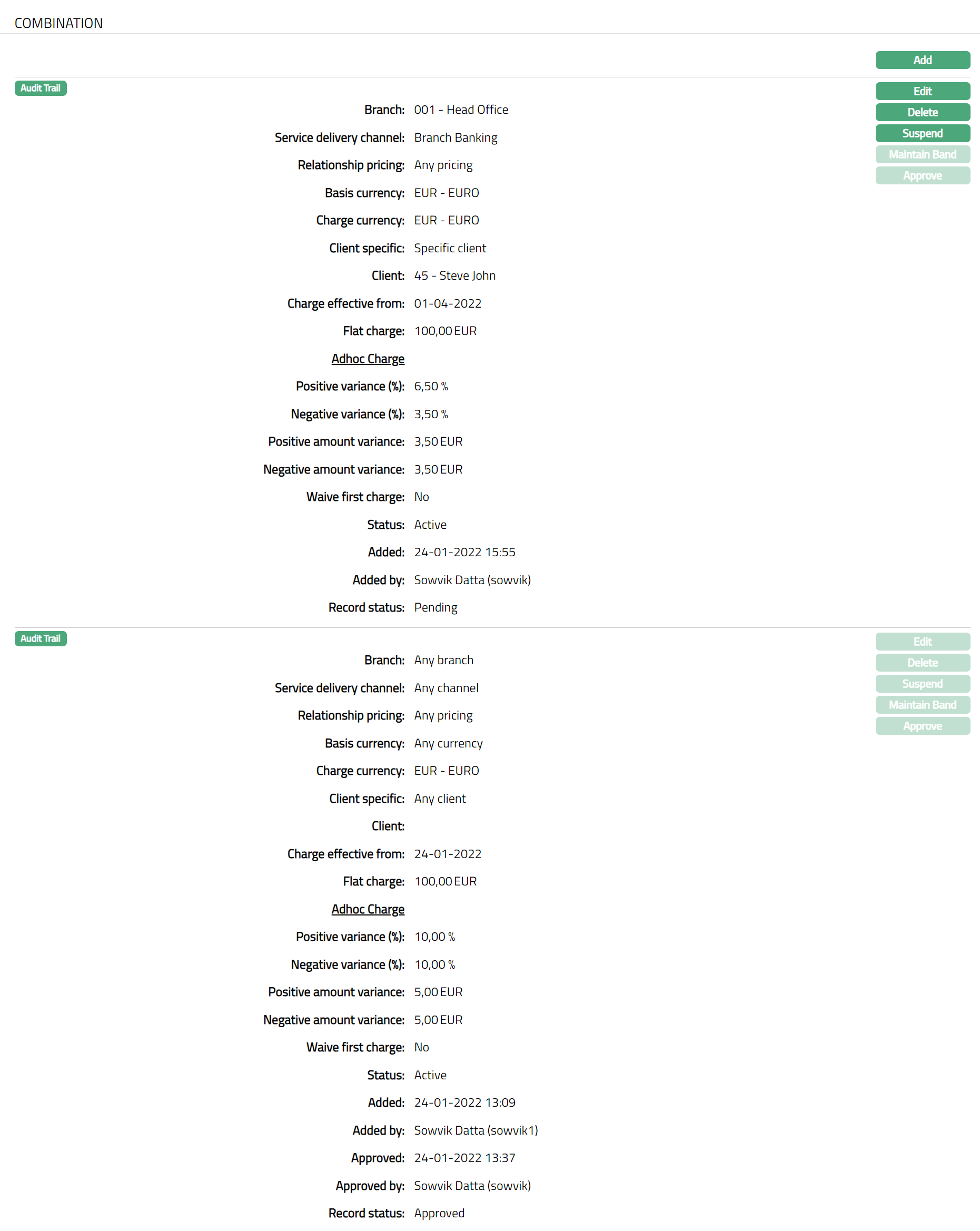
Note: Once approved by another user who has not created the record, the Record Status will display as Approved.
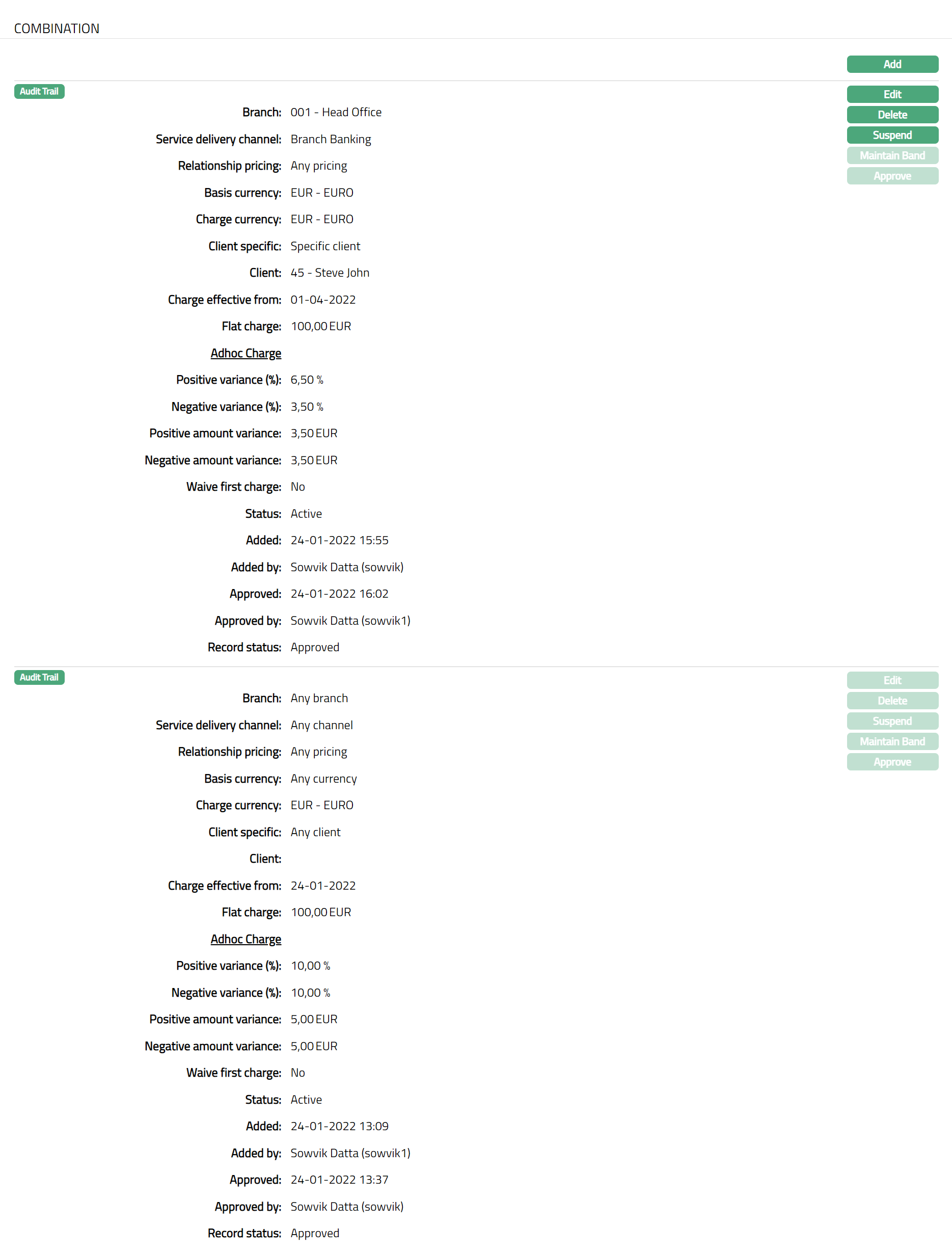
The additional fields are as follows:
Added field denotes the date on which the record was added.
Added by field denotes the name of the user who created the record.
Approved field denotes date on which the record was approved and is displayed only on approval.
Approved by field denotes name of the user who approved the record and is displayed only on approval.
Delete: You can delete combination record saved in Aura by clicking Delete button. Aura will ask for confirmation, approving which selected record will be deleted.
System Behaviour:
Number of Charges to Waive -
The configured Number of Charges to Waive determines the number of initial applicable charge occurrences that are waived from the point at which the Charge Scheme is linked.
The waiver is applied according to the configured Charge Frequency. Once the configured number of charge occurrences has been waived, subsequent applicable charges are generated normally.
If the Charge Scheme is linked after some charge periods have already occurred, the waiver count starts from the point at which the Charge Scheme is linked.
Loan Maturity -
If the configured waiver period extends beyond the loan maturity date, Aura does not project a charge beyond the loan maturity date.
Only applicable charge occurrences within the loan term are considered for waiver.
Client Account -
When a Periodic Charge Scheme with a configured Number of Charges to Waive is linked to a Client Account, the specified number of initial charge occurrences are waived according to the configured Charge Frequency.
Example:
If Number of Charges to Waive is 12 and the Charge Frequency is Monthly:
- The first 12 applicable monthly charge occurrences are waived.
- The charge becomes applicable from the 13th monthly occurrence.
- If the loan matures before the 13th occurrence, no charge is projected beyond the loan maturity date.
Maintain Band
Maintain Band option allows you to maintain multiple bands for each Charge combination. The bands have to be mandatorily created in case of Banded charges, so that the charge basis is defined.
To add a new Band,
1. Access Charge screen and click Combination tab. The Combinations that already exist for the Charge are displayed.
2. Click Maintain Band for the required Combination. Band screen appears showing the Bands that have already been maintained for this Combination. For a new Charge Combination, this will be blank.
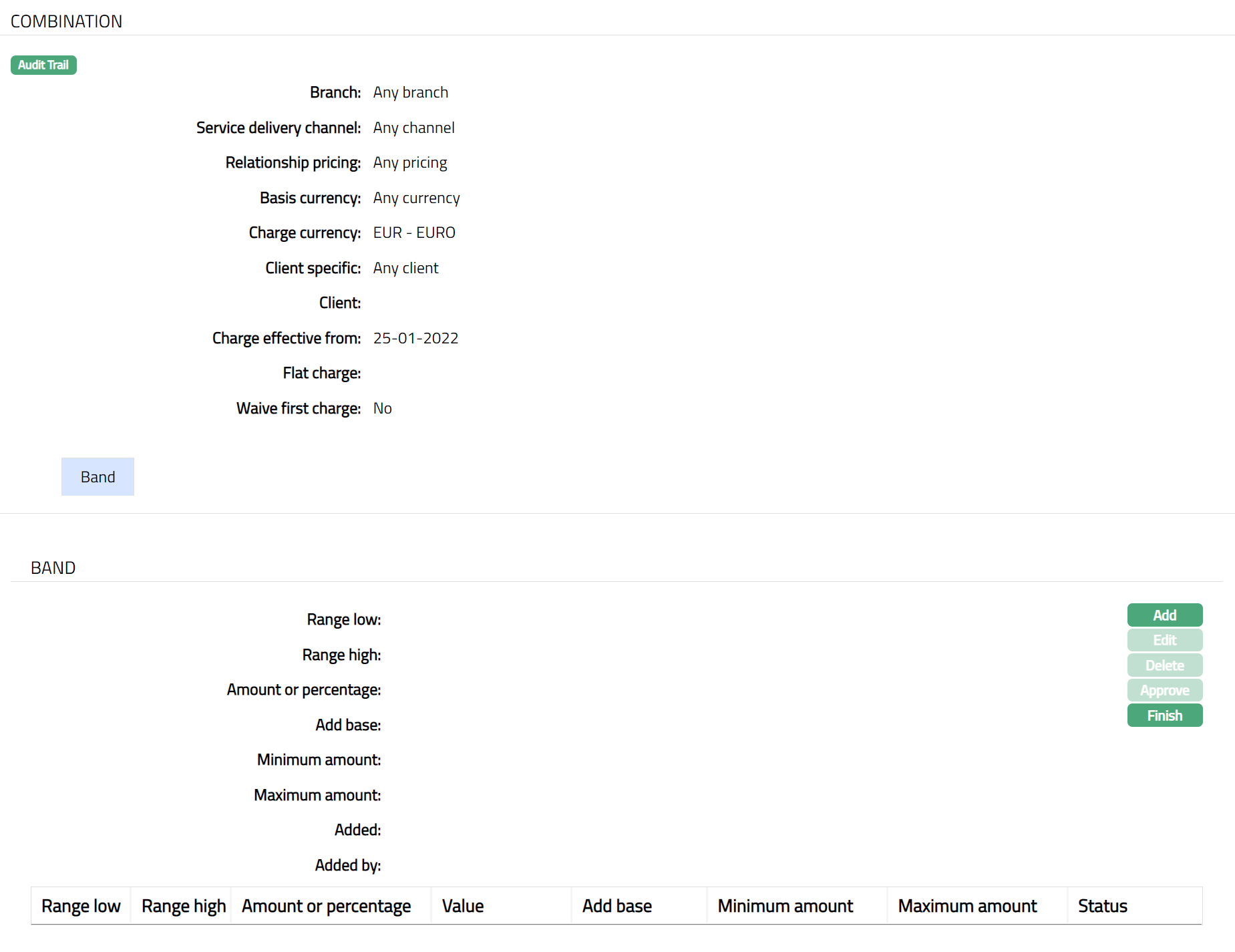
3. Values for Branch, Service delivery channel, Relationship Pricing, Basis Currency, Charge Currency, Client specific, Client, Charge effective from, Flat charge, Number of Charges to Waive are derived from the Combination that is maintained.
4. Click Add. Add Band page appears.
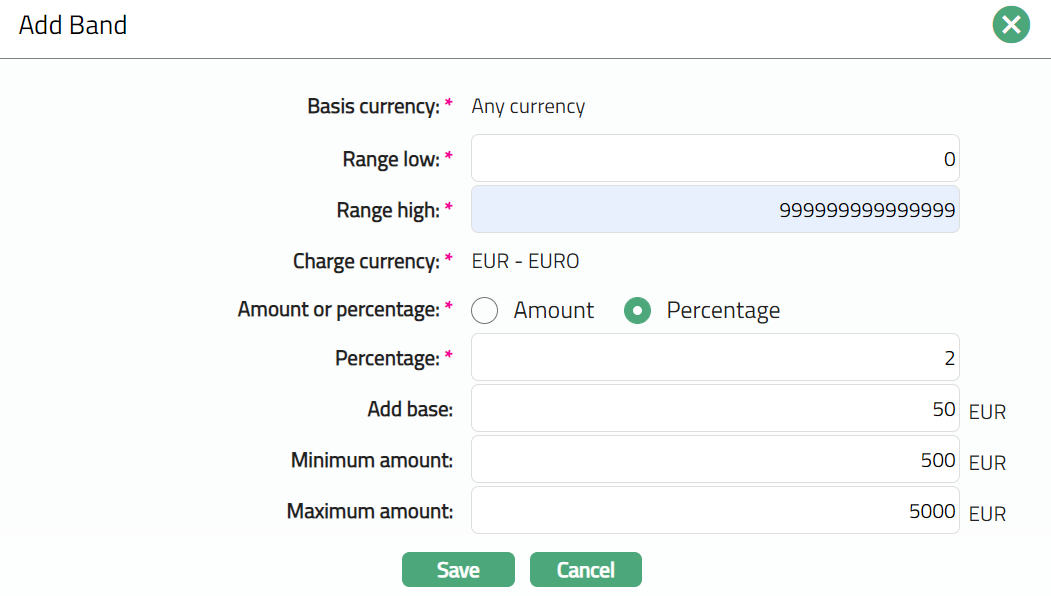
5. Basis currency is derived from the Basis currency that you had specified for the combination. This is a non-editable field.
6. Range Low, i.e., the lower limit, is defaulted to Zero for the first band. For the succeeding bands, it is automatically set as Range high of the previous band + least decimal of Basis currency. In case of Any Currency, the number of decimals is taken as 2.
7. Enter Range high. i.e., the upper limit for the Band.
Note: The Range Low and High should be entered as negative numbersif the charge basis is the debit balance of an account. For example, in case of Card Accounts, if you want to charge a fee based on the balance in the card account, maintain the Band in negative numbers, so that charge would be calculated only if there is a debit balance in the card account.
If the charge basis amount lies outside the Range, the charge will be calculated as 0. Hence, you should maintain the Range values such that it would cover any amount.
8. Charge currency is what you had specified for the Combination. This is a non-editable field.
9. Specify if you want the charge for the Band to be a fixed amount or a percentage using the Amount or percentage field. Accordingly, the charge amount will be taken as the fixed amount for the band or calculated using the percentage and the basis amount.
10. Enter Amount or Percentage of charge. The name of the field changes depending on the radio button above. This is an editable field.
11. Add Base enables you to add a fixed amount apart from a percentage-based charge. This field is enabled only if Percentage is selected. It provides you the ability to define the percentage to calculate the charge and add a fixed amount to get the final amount to be charged.
12. Enter Minimum amount to be charged. This field will be enabled only if percentage is selected above. Aura will check if the calculated charge amount < Minimum amount, if Yes then the final charge amount will be the Minimum amount.
13. Enter Maximum amount to be charged. This field will be enabled only if percentage is selected above. Aura will again check whether the calculated charge amount > Maximum amount, if Yes then the final charge amount will be the Maximum amount.
For example:
Band Range is between - 10000.00 to 0.00. Percentage is 8%. Add Base = 10.00 SEK, Minimum amount = 20.00 SEK, Maximum Amount = 100.00 SEK.
Case 1:
If The Account balance = - 1000.00
Percentage Charge = 80 (1000 * 8%).
Add base = 10,
Calculated Charge amount = 80+10= 90.
Case 2:
Account balance = - 100.00
Percentage charge = 8 (100 * 8%)
Add base = 10
Calculated Charge amount = 8 + 10 = 18, which is < Minimum amount of 20.00
Hence, the charge amount that will be booked = 20.00
Case 3:
Account balance = - 10000.00
Percentage charge = 800 (10000 * 8%)
Add base = 10
Calculated Charge amount = 800 + 10 = 810, which is > Maximum amount of 100.00
Hence, the charge amount that will be booked = 100.00
14. Click Save. Band page appears with the added details.
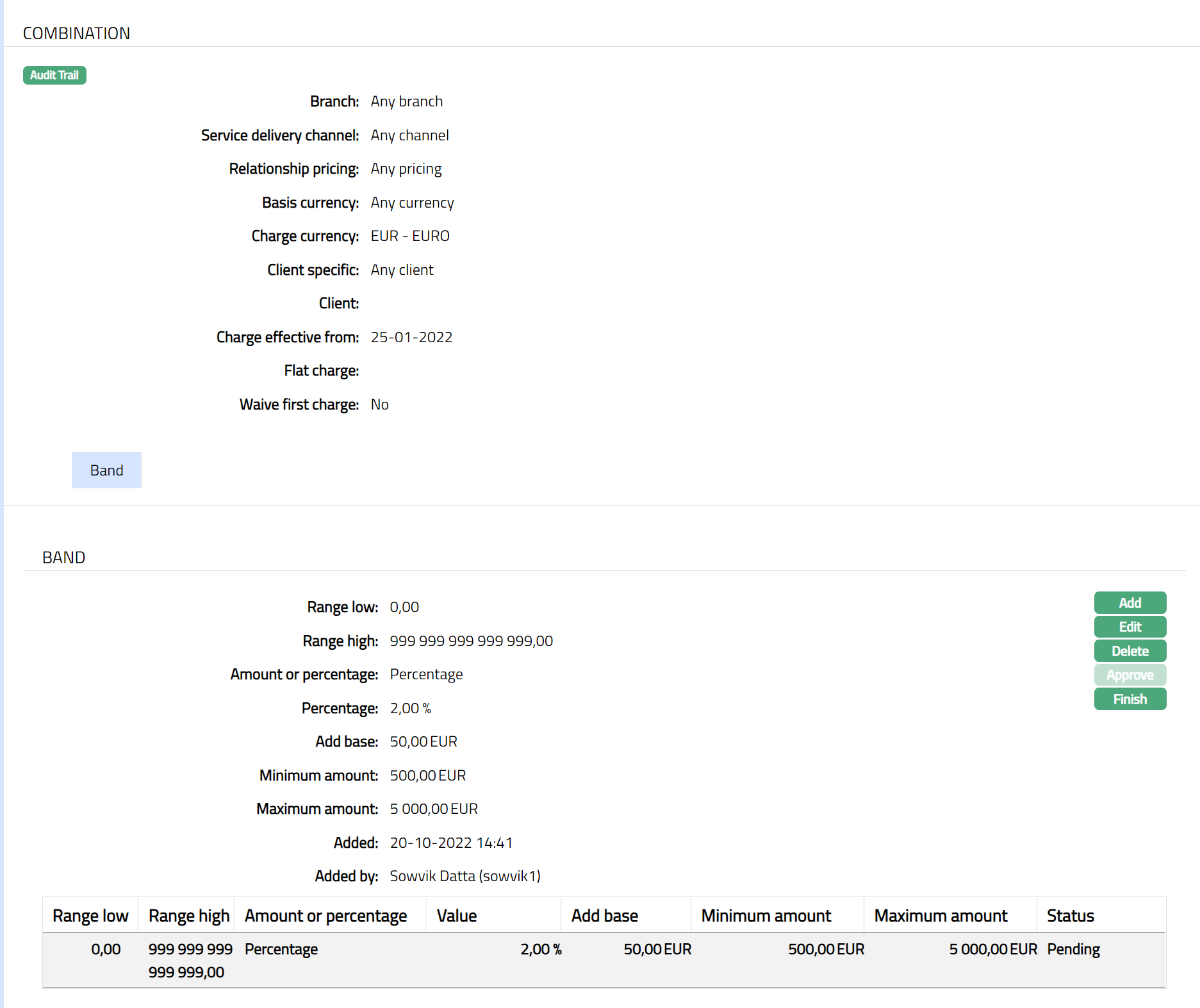
Note: Any change in the tab will set the status to Pending till it is approved by another user. On approval, the status is set to Approved.
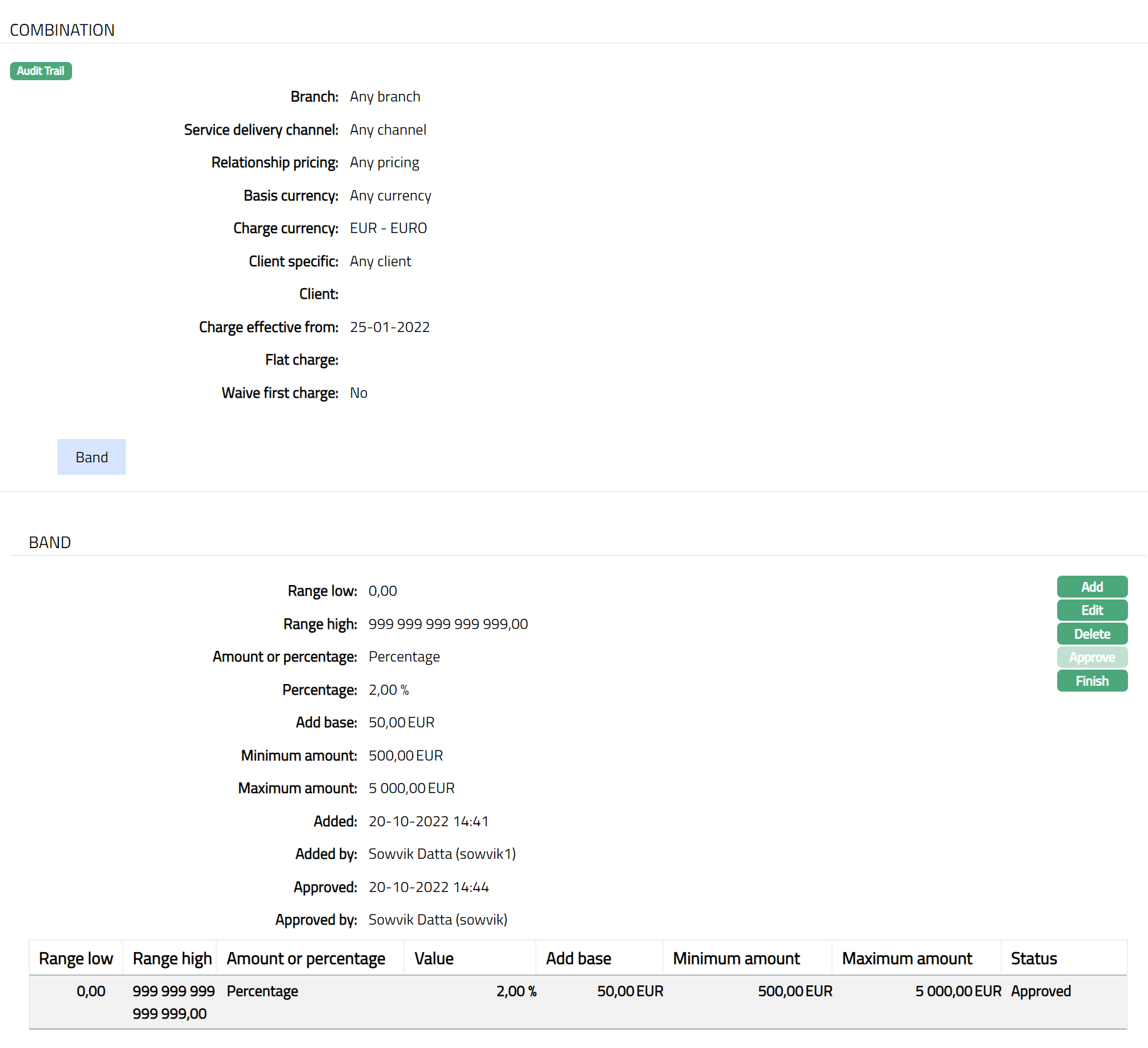
Functions: Add, Edit, Delete, Approve, Finish
Additional Fields are as follows:
Added field denotes the date on which the record was added.
Added by field denotes the name of the user who created the record.
Approved field denotes date on which the record was approved and is displayed only for approved records.
Approved by field denotes name of the user who approved the record and is displayed only for approved records.
15. Click Finish. Combination page appears with the added details.
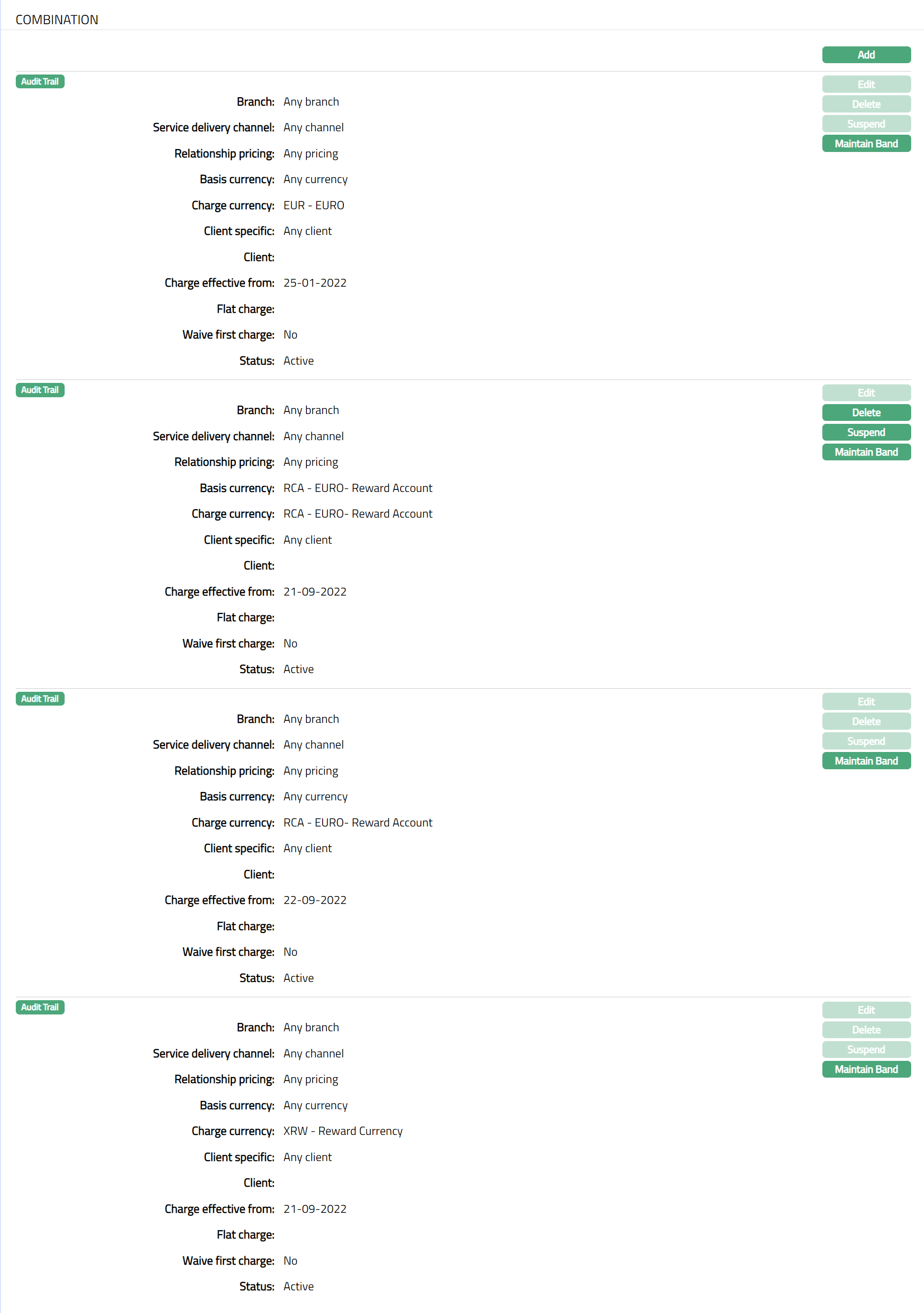
Functions: Add, Edit, Delete, Suspend, Activate
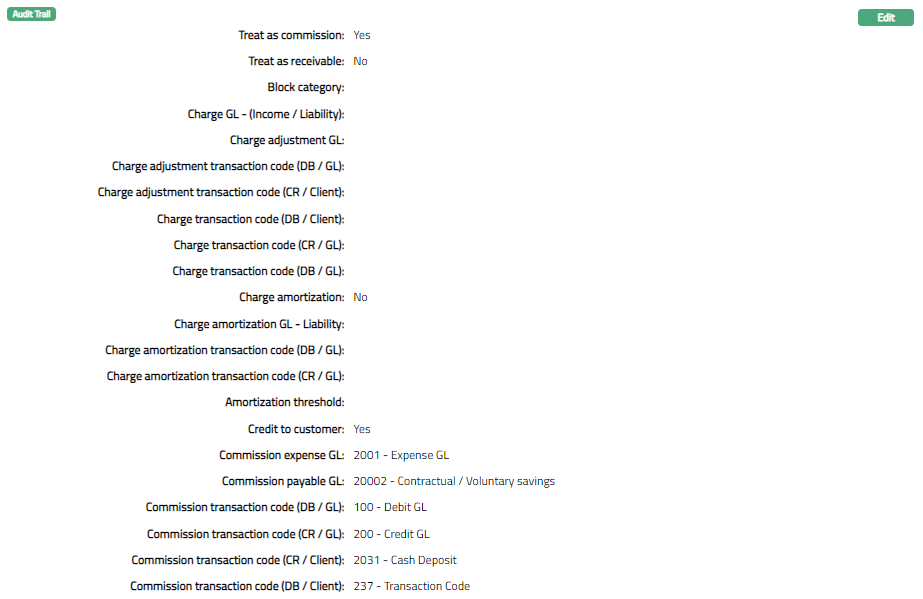
Accounting
Accounting tab allows you to view and maintain the fields relevant to accounting entries for the Charges.
To add /edit Accounting,
1. Access Charge screen and click Accounting tab. Accounting fields that already exist for the Charge are displayed.
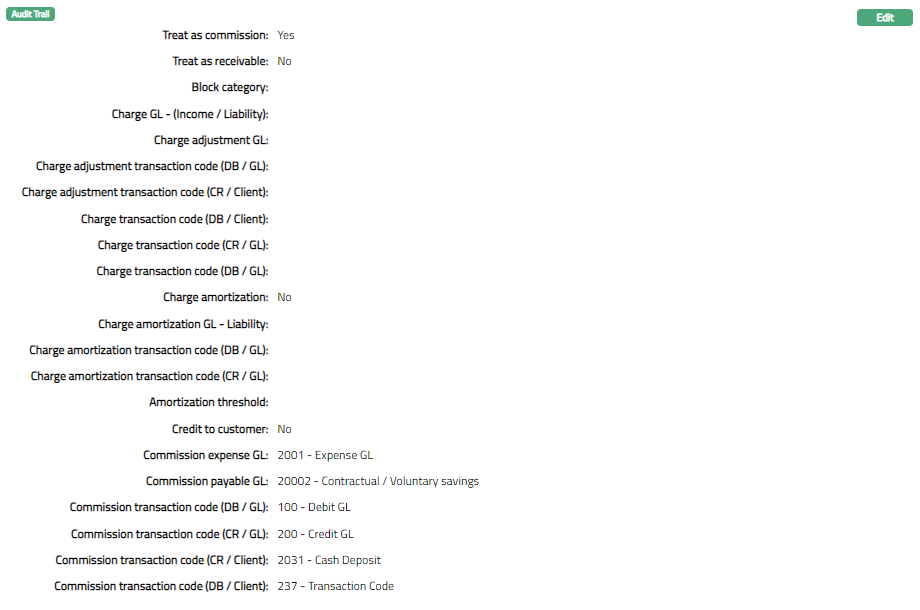
2. Click Edit. Edit Accounting screen appears.
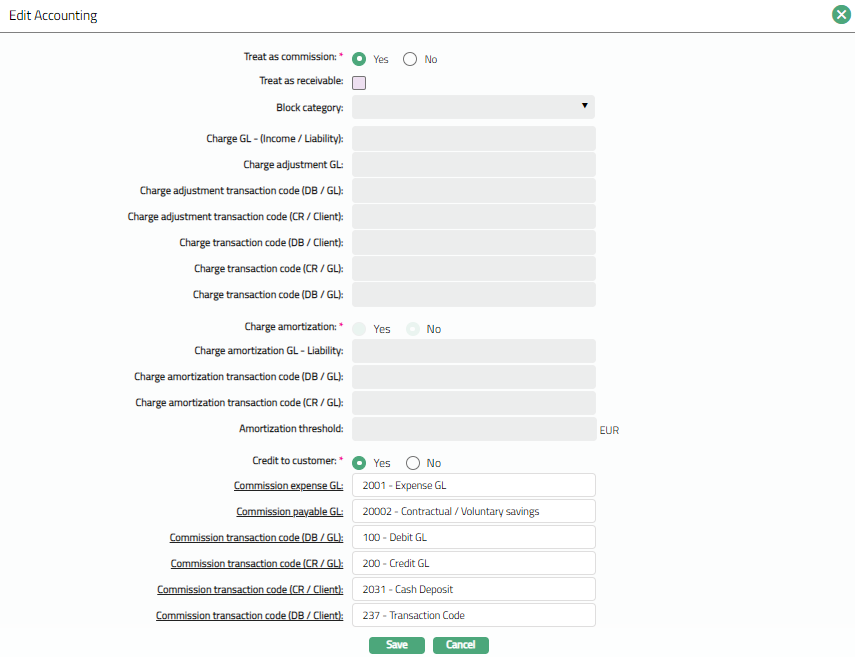
Note: All fields are editable. Refer to New Charge → Accounting (3 /4) for description of fields.
3. Click Save. Accounting page appears with the edited details.
Functions: Edit