
FX Cancellation
Cancellation is annulment of any contract at the instance of the counterparty. Charges may be applied on such annulment. Any FX contract in which both the legs have not yet been settled can only be Cancelled. If the contract has just been booked (with Contract, Record status Open/Active, Pending), the Contract can only be deleted and not Cancelled.
To execute a new Forex Cancellation,
1. From the Treasury menu, click Contracts and then Cancellation**.** The Contract Search page will appear. All Cancellation records if maintained under Treasury > Contracts will be displayed or else it will be blank.
2. Click Add. The New Cancellation → Details (1/3) page appears.
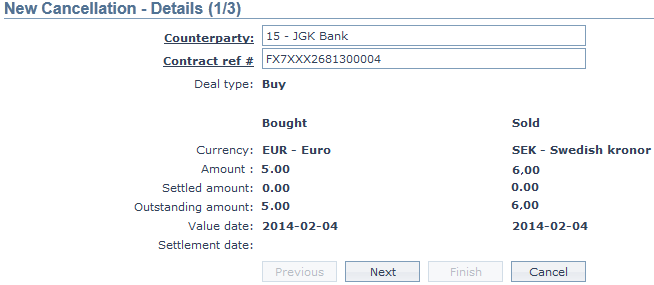
3. Click the hyperlink to input the client id and name of the other party for the contract in Counterparty.
4. Click the hyperlink to input the Contract reference #. Aura will display contracts belonging to the counterparty where both legs (Buy and Sell) have not yet settled.
5. Based on the Contract reference # you choose, Aura will automatically display the Deal Type. This field is not editable
6. Based on the Contract reference # you choose, Aura will automatically display the Bought Currency. This field is not editable.
7. Based on the Contract reference # you choose, Aura will automatically display the Sold Currency. This field is not editable
8. Based on the Contract reference # you choose, Aura will automatically display the Bought amount. This field is not editable.
9. Based on the Contract reference # you choose, Aura will calculate the Settled amount. This field is not editable.
10. Based on the Contract reference # you choose, Aura will calculate the Outstanding amount using the formula Bought amount minus Settled amount for the deal type -- Buy and the formula will be Sold amount minus Outstanding amount for the deal type-Sell. 0 will be the defaulted value displayed if the amount is yet to be settled.
11. Based on the Contract reference # you choose, Aura will display the Value Date which is normally by default 2 working days from the Book Date.
12. As the contract is yet to reach a settlement the Settlement Date field remains blank.
13. Click Next. The New Cancellation → Charges (2/3) page appears.
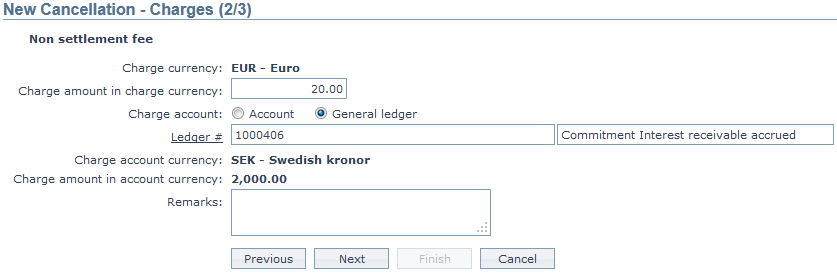
14. Aura displays the Charge currency defaulted from the product level.
15. Enter the Charge amount in charge currency.
16. Click the radio button to indicate the type of Charge account. The options are:
- Client Account
- General Ledger Account
17. The ledger # field is enabled if you select Charge account type as General Ledger. Click the hyperlink to select the required Ledger number.
18. Charge account currency is automatically displayed by Aura based on your selection of charge account.
19. Charge amount in account currency is defaulted from the entry you made during charge creation where the Charge Type is Transaction and the Amount or percentage is Amount.
20. Enter the Remarks for the cancellation charges.
21. Click Next. The New Cancellation → Confirmation (3/3) page appears.
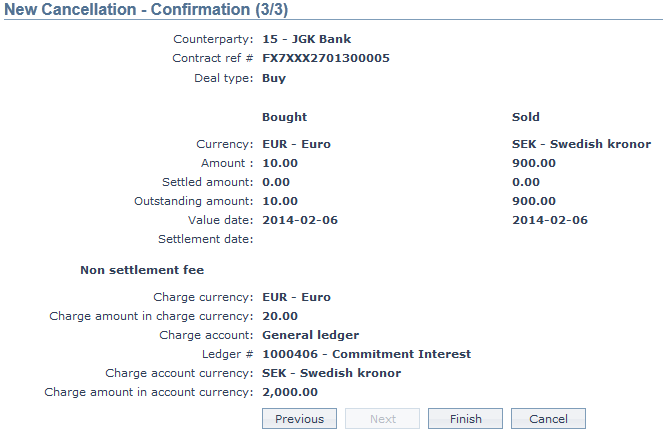
22. Click Finish. The Cancellation Maintenance page appears a shown below.
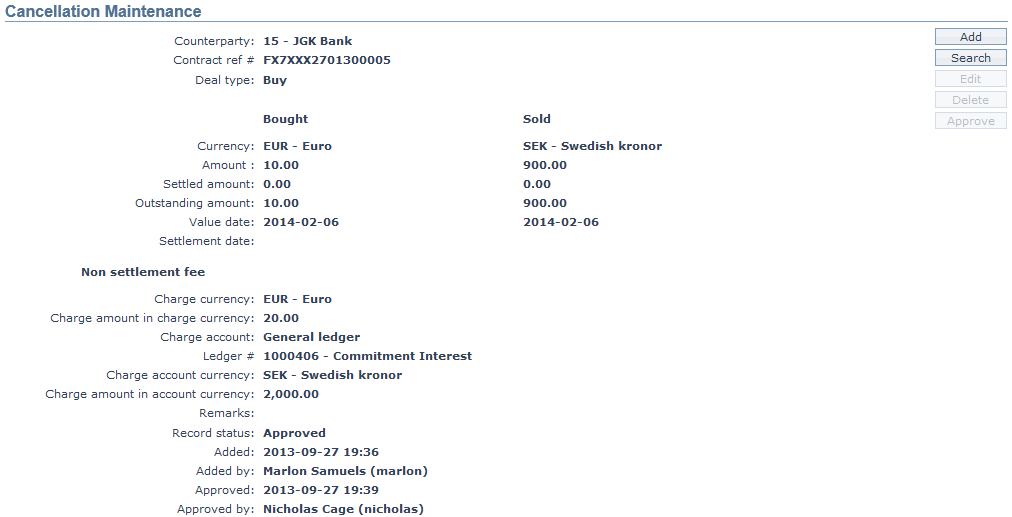
Functions: Add, Search, Edit, Delete, Approve.