
Adhoc Charges
Adhoc charges will allow you to charge the client for any Adhoc services rendered. Example:
- Charge for verifying / attesting customer signature
- Charge for a photocopy
- Locker services
The Adhoc charges are applicable for - Current Account, Consumer Loan Account, Mortgage Loan Account, Limit, Card Accounts and Card Loan Accounts.
However, this will depend on the Modules that have been released to the Bank. If the Bank has taken only specific Modules, then the charges will be applicable only to accounts pertaining to those modules.
In case of Current Account and Card Account, the charged amount will be directly debited to the account. In case of Loan accounts, the charge will be treated as receivable in the loan account and will be part of the next invoice. The amount will be debited from the Service Account, in the normal course. In case of Limits, the charge amount is debited from the Charge Account configured for the selected Limit. If no Charge Account is configured, Aura displays an error message and does not allow the Adhoc charge to be processed.
Following is the tab under Adhoc Charge:
To add an Adhoc charge,
1. Access Retail menu, click Accounts, Operations and then Adhoc Charge. The system will display the Adhoc ChargeSearch screen. The list of all the adhoc charges issued in Aura will be displayed.
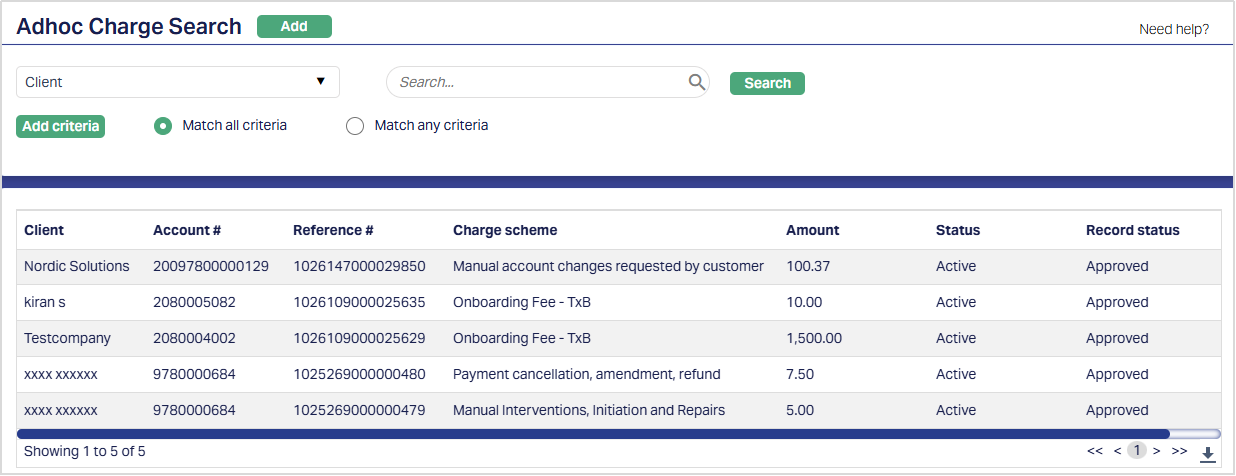
2. Click Add. The New Adhoc Charge → Profile (1/2) page will be displayed.
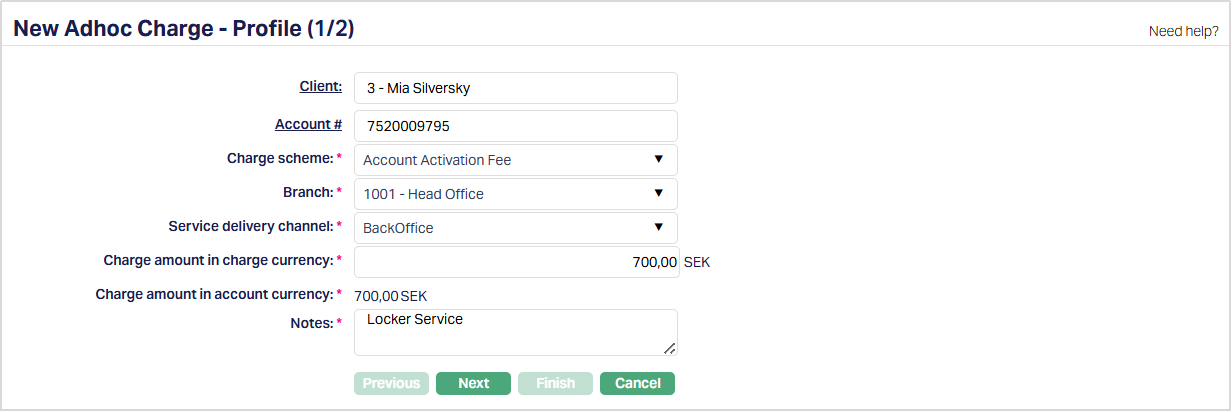
3. Select Client by clicking on client hyperlink. The Client search page appears with the list of Clients maintained under CRM → Clients → Maintain. You can search for a client with relevant criteria and select the required client. You can also input the client's name or client number and select the required client from the list displayed by Aura.
4. Select account number by clicking on the Account # hyperlink. The Search Account page displays all eligible accounts of the selected Client, including Current Account, Consumer Loan Account, Mortgage Loan Account, Card Account, Card Loan Account and active Limits.
Note: If a Limit is selected, a Charge Account must be configured for that Limit.
5. Select Charge scheme from the drop-down list of all the active Charges where the Charge Type is Event based Flat charge both deferred and non deferred for which Treat as Commission is marked as Yes. The Charge Scheme in the dropdown list will be populated based on the charge scheme combination maintained at Admin → System code → Charges → Charges.
Note:
- If the charge is treated as commission, then Aura will not display these charges in the Charge Scheme dropdown list.
- If the selected account is a Loan Account, Charge Schemes where Charge Amortization = Yes are also displayed.
- If the selected account is a Client Account, Charge Schemes where Charge Amortization = Yes and Amortization Basis = SLM are also displayed.
- If the selected account is a Card Account, Aura will display all the Event based flat charges irrespective of Defer Charges.
6. Apportion To: If the selected account is a Loan Account, select the required option from the drop-down list:
- First upcoming schedule
- Maturity schedule
- Schedules between two dates
First upcoming schedule is selected by default.
Note:
- If the selected Charge Scheme has Amortization Required = Yes, Apportion To defaults to First upcoming schedule and the field is disabled.
- For a Loan Account before disbursement, the availability of Maturity schedule for an Adhoc Charge depends on the Post-maturity Invoice Frequency setting. If Post-maturity Invoice Frequency is Yes, the Adhoc Charge can be apportioned to the Maturity schedule. If Post-maturity Invoice Frequency is None, the Adhoc Charge cannot be apportioned to the Maturity schedule.
For a Loan Account:
If the selected Charge Scheme has Charge Amortization = Yes, the charge is amortized based on the Amortization Basis configured for the Charge Scheme.
- EIR (Effective Interest Rate): The charge is amortized daily using the current Loan EIR over the remaining loan period.
- SLM (Straight Line Method): The charge is amortized equally over the remaining loan tenor from the date on which the charge is applied.
For a Client Account:
If the selected Charge Scheme has Charge Amortization = Yes and Amortization Basis = SLM, enter the required tenor in the Tenor in Months field.
- Tenor in Months: Enter the number of months over which the charge is to be amortized.
If Apportion To = Schedules between two dates, the following fields are displayed:
- From Date: Enter a date later than the later of the Current Booking Date and the maximum due date of the uncancelled invoices.
- To Date: Enter a date later than the From Date and not later than the Maturity Date.
- Number of Schedules for the Charge: Displays the number of applicable Principal/Interest schedules between the From Date and To Date.
- Amount per Schedule: Displays the charge amount apportioned to each applicable schedule.
7. Select Branch from the drop-down list of all the active branches maintained at Admin → Branches → Maintain.
8. Service delivery channel that will be used for transactions initiated by the Backoffice. You can select the required Service Delivery Channel from the list of service delivery channels maintained at Admin → System Codes → Categories → Service delivery.
9. Enter amount to be charged in Charge amount in charge currency field. The charge currency will be defaulted from the charge scheme based on the combination maintained at Admin → System code → Charges → Charges. The Charge Amount in Charge Currency has to be within the allowed variance range. Charge amount is derived according to the charge combinations maintained and else the default combination to get the charge amount based on the below parameters:
Client = Selected client
Branch = Selected branch
Charge currency = Selected Charge scheme,
Service delivery channel = Channel selected in the above fields
10. If the charge currency is different from the account currency, then Aura will convert the Charge Amount in Charge Currency to the Charge amount in account currency based on the currency conversion rate maintained at Admin → System code → Currencies → Currencies. The charge amount has to be greater than or equal to 0.
11. In Notes field, enter the reason for which the charges are applicable to the client.
12. Click Next. The New Adhoc Charge → Conformation (2/2) page will appear.
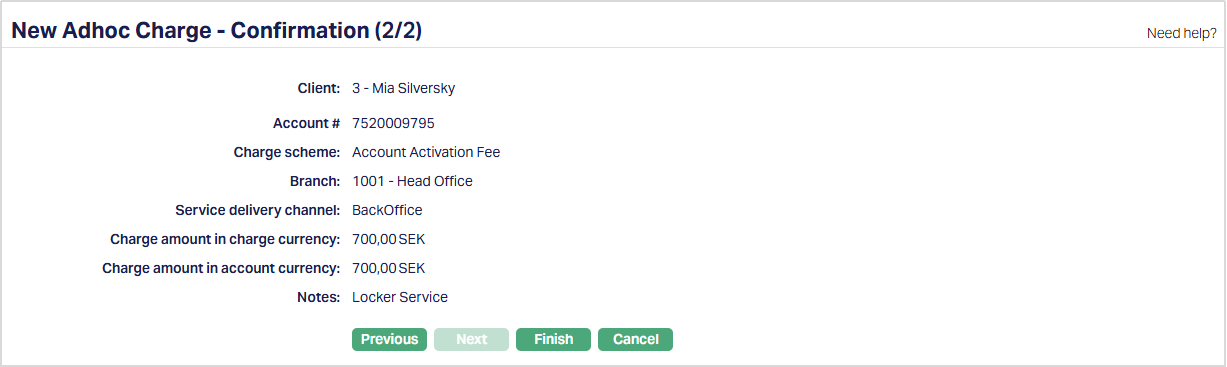
12. Click Finish. The Adhoc Charge page will appear with all the added details.
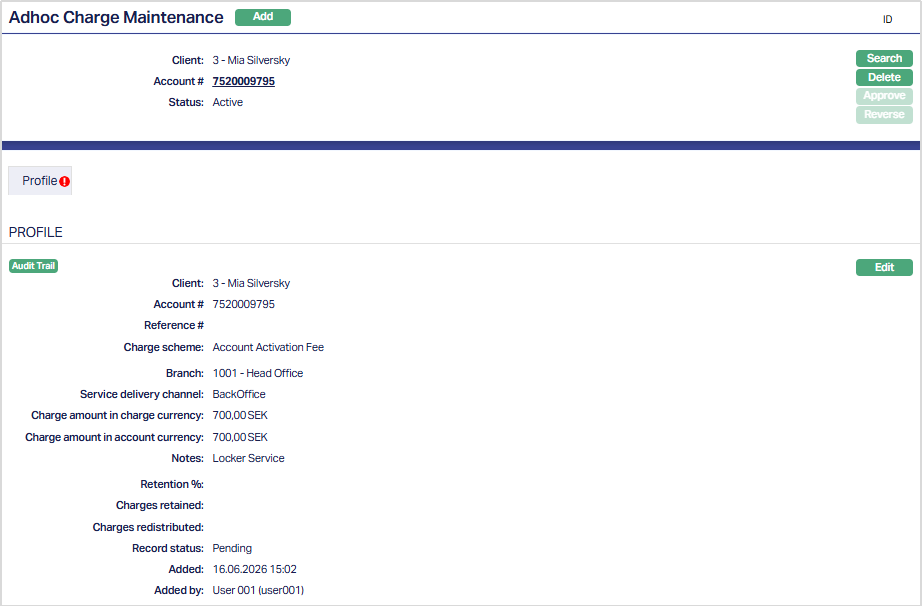
Functions: Add, Search, Delete, Approve, Reverse
On click of Finish, an Adhoc charge is created, and the status will be Active and record status will be Pending. If the Auto Approve Setting is marked as Yes then, the charge status will be Active and the record status will be Approved.
Delete: You can delete an Adhoc charges record by a click on Delete button until the record status is approved. Aura will ask for confirmation, on approving which selected record will be deleted. Once the record is approved, it cannot be deleted.
Note: Aura does not allow you to delete the Adhoc charge record when the charge record is Reversed, and the record status is Pending or Approved.
Approve: If you want to approve an Adhoc charges record, then retrieve the record and click on Approve. Aura will ask for confirmation. Once the record is approved, status gets changed from Pending to Approved. You can Approve the record only if you have initiated / reversed the record.
If the Status is Active:
The charge will be booked to the account, immediately on approval as per the following accounting entries.
Note:
In case of Loan accounts, the charge will be treated as a receivable and will be part of the next invoice. The amount will be debited from the Service Account, in the normal course. In case of Current Account and Card Account, the amount will be directly debited to the account. If the selected account is a Limit, the Adhoc Charge is debited from the Charge Account configured for the Limit. The Event and accounting entries are recorded against the selected Limit.
Aura will display the Adhoc charge amount as due amount in the payment Schedule tab and will be collected according to the schedule for the loan account.
If Charge account is linked to the loan account Aura will debit the charge account immediately and display the ADHFEE event in the Charge account. You will be able to see the Adhoc charge details in the Loan account payment schedule tab and display the amount as Paid amount. Due date will be updated as booking date.
If loan account does not have a charge account attached, Adhoc fee will be considered as receivable and will be part of LNPAYS / LNPAYP event. You will be able to see the Adhoc charge details in the Loan account payment schedule tab and display the amount as due amount. Due will be updated as Schedule date for the next schedule.
| DB/CR | Account/GL | Currency | Charge Amount | Transaction Code |
|---|---|---|---|---|
| Debit | Account | Account currency | Adhoc charge amount in account currency (e.g., 8.00 EUR) | Charge Transaction code (DB/Client) from Charge Scheme |
| Credit | Charge income GL from Charge Scheme | Account Currency | Adhoc charge amount in account currency (e.g., 8.00 EUR) | Charge Transaction code (CR/GL) from Charge Scheme |
For a Client Account where Charge Amortization = Yes and Amortization Basis = SLM, on approval, the charge amount is debited from the Client Account and the Charge Amortization GL is credited.
During EOD, the charge is amortized using the Straight Line Method (SLM). Daily amortization entries are generated by debiting the Charge Amortization GL and crediting the Charge Income GL until the specified tenor is completed.
If an Amount Block is created for the Client Account, charge amortization starts. Daily amortization entries are generated even if the Client Account has not yet been debited.
Reverse: Reverse button will only be enabled if record status is Active/Approved.
On click of Reverse, Aura will ask for conformation. On confirming, Adhoc charges Status changes to reversed and record status is changed to pending.
If the status is Reversed:
The charge will be reversed to the account, immediately on approval as per the following accounting entries. If the Adhoc Charge was created for a Limit, the reversal is processed against the configured Charge Account and the Event status for the Limit is updated accordingly.
| DB/CR | Account/GL | Currency | Charge Amount | Transaction Code |
|---|---|---|---|---|
| Debit | Account | Account currency | Adhoc charge amount in account currency (e.g., 8.00 EUR) | Charge Transaction code (DB/Client) from Charge Scheme |
| Credit | Charge income GL from Charge Scheme | Account Currency | Adhoc charge amount in account currency (e.g., 8.00 EUR) | Charge Transaction code (CR/GL) from Charge Scheme |
When an Adhoc Charge with Charge Amortization = Yes is reversed for a Loan Account, the charge amortization entries created for the reversed charge are reversed or adjusted accordingly. No further charge amortization entries are generated for the reversed Adhoc Charge.
When an Adhoc Charge with Charge Amortization = Yes is reversed for a Client Account, the charge amortization entries created for the reversed charge are reversed or adjusted accordingly. No further charge amortization entries are generated for the reversed Adhoc Charge. Any remaining balance in the Charge Amortization GL is adjusted according to the reversal process.
Profile
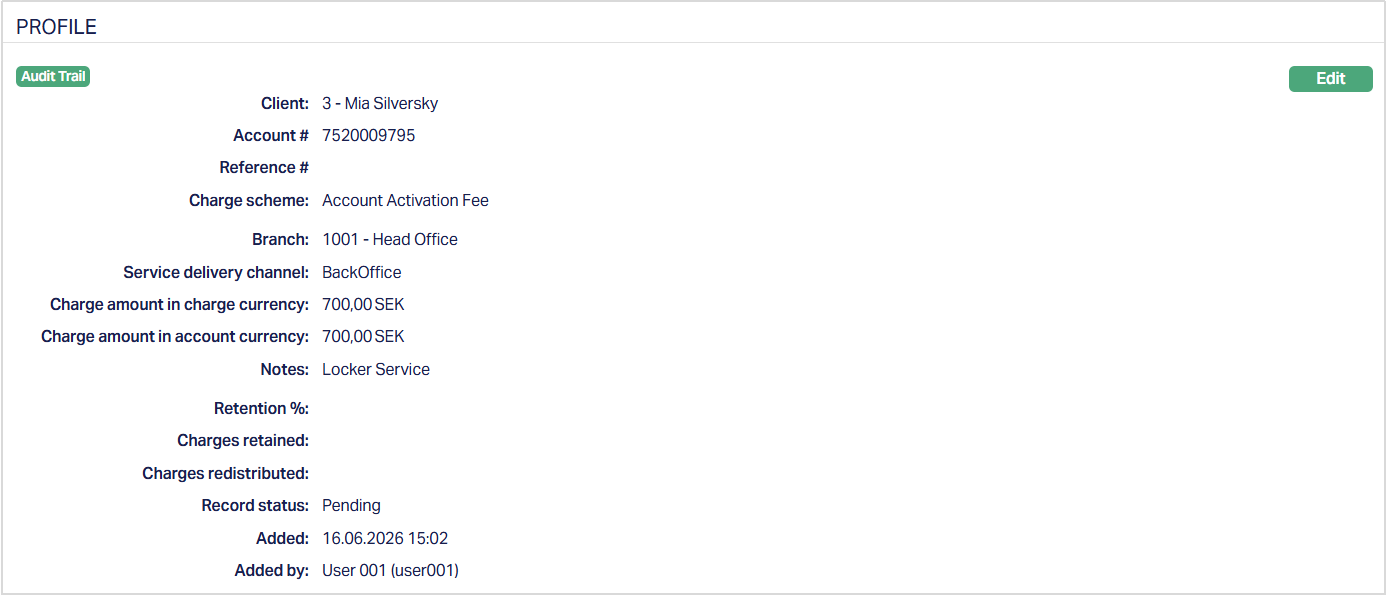
The Profile tab, which is the default tab in the Adhoc Charge screen, shows the basic details of the Adhoc charges.
A sample of the Profile tab is shown below:
To View Profile,
1. Access Adhoc Charges page, by default the Profile tab will be displayed.
Functions: Edit
Additional fields are:
Reference # denotes the Unique reference number generated for every Adhoc Charge record. It is automatically generated once the record status is Approved. The reference number is displayed in the Adhoc Charges view and can be used as a search criterion.
Retention % displays the retention percentage configured for the linked product. Redistribution-related fields are displayed only when the product retention percentage is less than 100%.
Charges retained displays the portion of the charge retained based on the configured retention percentage. This field is displayed for Marketplace Loans or when the retention percentage is less than 100%.
Charges redistributed displays the portion of the charge redistributed according to the retention percentage configured for the linked product. This field is displayed conditionally based on the product retention percentage.
Status denotes the status of the Adhoc charges record.
Added denotes the date on which the Adhoc charges record was added.
Added by denotes the name of the user who created the Adhoc charges record.
To edit profile,
1. Click Edit. The Edit Profile page is displayed.
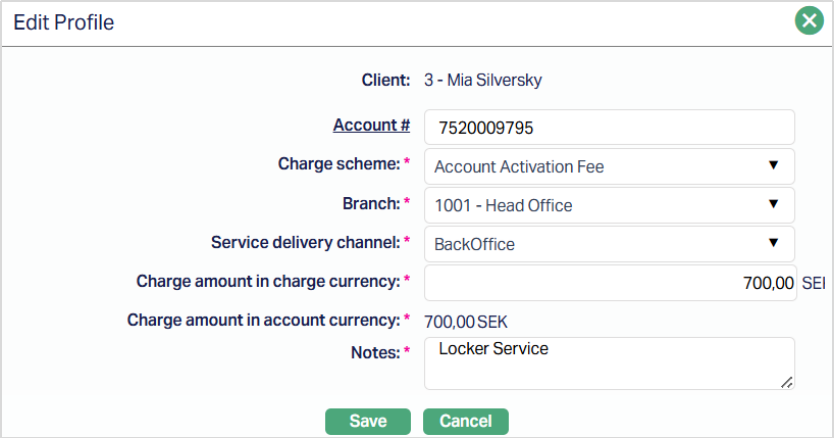
Note: Except Client and Charge amount in account currency all other fields are editable.
2. Click Save. The Profile tab appears with the edited details.
Function: Edit
Note: The Record Status will display as Pending unless it is approved by another user who has not created the Record. Once approved the Record Status will display as Approved.
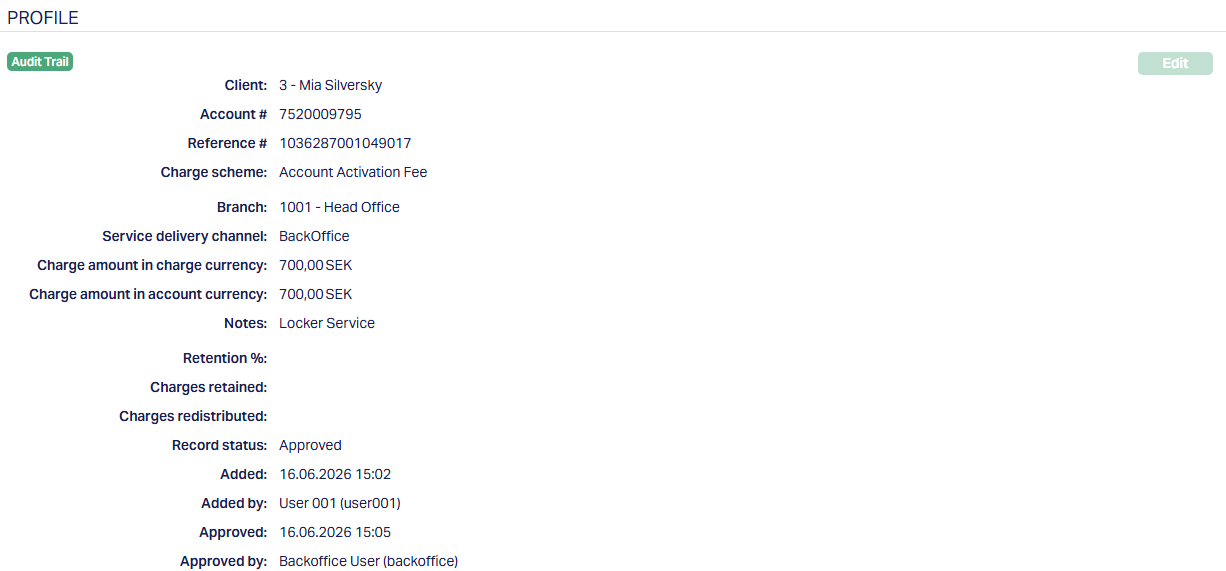
Additional fields are:
Approved denotes date on which the Adhoc charges record was approved. This is displayed only if the record is approved.
Approved by denotes name of the user who approved the Adhoc charges record. This is displayed only if the record is approved.
For Adhoc Charges apportioned across Loan schedules, Aura recalculates the applicable schedule details during approval to account for changes that may have occurred on the Loan Account between creation and approval of the Adhoc Charge.