
DocumentationDocumentation
  • Main

    • Introduction
    • My Account

      • Change Password
      • Logout
    • Common Topics

      • Accounting
      • Audit trail and Version control
      • Accounts Vs Contracts
      • Branch Operations
      • Concept of Entity
      • Holidays
      • EOC
      • Concept of Events
      • Concept of Input and Authorization
      • Navigation
      • Impact of Unapproved Records
      • Concept of Product
  • Admin

    • Branches

      • EOC Details
      • Maintain
    • Channel banking

      • Mobile app version
      • Role template
      • Target announcement
      • User maintenance
    • Correspondent Bank Management

      • Maintain
    • Entities

      • Announcement
      • Maintain
      • Task forces
    • Notification

      • Settings

        • Maintain
    • Pricing

      • Charges

        • Charge bundle setting
        • Charge schemes
      • Interest

        • Interest bases
        • Interest rate history
        • Interest scheme
      • Settings

        • Charge bundle group
        • Relationship pricing
    • Reports

      • Audit log
      • Cob exception report
      • User log on - log off
    • Secure stationery

      • Card bundle
      • Card maintenance
      • Secure device
      • Series
      • Welcome kit order
    • Settings

      • Security
    • Status

      • Card account status
      • Client account status
      • Loan status
      • Loan application status
      • Factoring status
    • System codes

      • Address details

        • Address Type
        • E-mail types
        • Phone types
        • Regions
        • Zip codes
        • Zones
      • Categories

        • AML category
        • Block category
        • Category types
        • Conversation category
        • Classified data category
        • Employment categories
        • Loan level risk category
        • Offering
        • Risk category
        • Services delivery channel
        • Tax category
      • Currency

        • Currency
        • Currency rate type
        • Rates authorization
      • Custom fields

        • Custom fields
        • Field mappings
      • Documents

        • Diary types
        • Document type
        • Document templates
      • Generic definitions

        • Clearing zone
        • Community
        • Countries
        • Credit rating agency
        • Identification type
        • Branch levels
        • Departments
        • Education
        • Employment type
        • Identification type
        • Insurance plan
        • Invoice formats
        • Languages
        • Locker type
        • Offer condition
        • Organisation type
        • Person role
        • Purpose of loan
        • Reminder formats
        • Sic codes
        • Statement format
        • Till/vault/ATM
      • Interface definition

        • External Product mapping
        • ISO 8583 mapping
        • Maintain
      • Network calendar

        • Maintain
      • Payments

        • Payment methods
        • Payments terms
        • Source of funds
      • Process

        • Auto allocation rules
        • Branch submenus
        • Business rule parameters
        • Link process
        • Process authorization
        • Process help
        • Process mapping
        • Process reasons
        • Stage rule association
    • Tax schemes

      • Maintain
    • Translations

      • Aura-data
      • Aura-label
    • Users

      • Authentication settings
      • Active sessions
      • Designations
      • Maintain
      • Roles
      • Role groups
      • Unapproved records
    • Additional Topics

      • Interest Accrual
  • Retail

    • Accounts

      • Client account

        • Closure
        • Maintain
      • Multi-currency contract

        • Maintain
      • Nostro account

        • Closure
        • Maintain
      • Operations

        • Adhoc Charges
        • Cheque number search
        • Prepaid instrument issue enquiry
      • Term deposit

        • Maintain
        • Premature withdrawal
        • Reversal
    • Loans

      • Change of terms

        • Interest Parameters
        • Payment Terms
        • Settings
        • Invoice Cancellation
      • Charge waiver
      • Disbursement
      • Maintain
      • Product Novation
      • Repayment

        • Full Prepayment
        • Partial Prepayment
        • Payment of Due Amounts
        • Payment of Invoice Amounts
        • Simulation of Payment
      • Restructuring
      • Reversal
      • Loan application

        • Maintain
    • Loan Broker

      • Maintain
    • Payments

      • Gross payment settlement

        • RTGS/SWIFT/TARGET2
      • Net payment settlement

        • Authorization
        • Enquiry
        • Credit transfer
        • Dispatch accounting enquiry
        • Debit order
        • Internal client transfer
      • Standing instructions

        • Maintain
    • Peer-to-peer

      • Loan request

        • Maintain
        • Loan request repayment
      • Placement instruction

        • Maintain
      • Placement plan

        • Maintain
      • Settings

        • Loan request settings
        • Marketplace preferences
        • Placement settings
        • Product
    • Safe deposit locker

      • Agreement
      • Maintain
      • Operation
    • Settings

      • Collection settings
      • Multi-currency settings
      • Payment settings
      • Payment template
      • Product Maintenance
      • Product-Client Account
      • Product-Term Deposit
      • Product-Nostro Account
      • Product-Mortgage and Loan
      • Standing instruction settings
      • Transaction defaults
    • Transaction review

      • Account statement
    • Transaction wizard

      • Cash deposit
      • Cash withdrawal
    • Additional Topics

      • Module Specific EOC Batches
      • Payment Processing
  • Commercial

    • Factoring

      • Contract

        • Maintain
        • Disbursement
        • Repayment
        • Change of terms
      • Operations

        • Adhoc charges
      • Settings

        • Product
  • Treasury

    • Forex

      • Contracts

        • Cancellation
        • Maintain
        • Manual Settlement
      • Settings

        • Product
    • Additional Topics

      • Module Specific EOC Batches
  • Card

    • Cards

      • Maintain card
      • Maintain card account
      • Maintain dispute account
    • Loans

      • Change of terms
      • Disbursement
      • Maintain
      • Repayment
      • Reversal
    • Operations

      • Balance Movement
      • Change of Cycle
      • Manual actions
    • Settings

      • Card account product
      • Card loan product
      • Card product
      • Card provider
      • Merchant category
      • Charge group
      • Cycle group
      • Interest group
      • Message type
    • Transaction review

      • Transaction enquiry
    • Additional Topics

      • Balance classification
      • Overdue Days
      • Interest Liquidation
      • Replenishment
      • Module Specific EOC Batches
      • Reversals
  • CRM

    • Clients

      • Agreement
      • Maintain
      • Marketplace investment preferences
    • Collateral/Limits

      • Collaterals
      • Limits
      • Settings

        • Limit setting
    • Conversations

      • Conversation
    • Due diligence

      • Organization
      • Person
    • Loyalty program

      • Maintain
      • Reward points redemption
      • Settings

        • Product
        • Reward group
    • Organisation

      • Maintain
    • Person

      • Maintain
    • Reports

      • Balance certificate
      • Average account balance
    • Sales

      • Agent
      • Agent User
      • Campaigns
      • Outlet
      • Performance targets
      • Terminal
    • Additional Topics

      • Limit Utilization
      • Module Specific EOC Batches
  • General ledger

    • Collective impairment

      • Maintain
    • General ledger

      • Accounts
      • Chart of accounts
    • Reports

      • Branch Inter-branch reconciliation
      • GL report
      • GL transaction report
      • Inter branch - Due to Due from
      • Journal report
    • Settings

      • Accounting period
      • Currency
      • Journal template
      • Transaction code
      • Related transaction setting
    • Transaction entry

      • Cross currency journal
      • Day journal
      • Station journal
    • Transaction review

      • Statement
      • Transaction enquiry
    • Additional Topics

      • Module Specific EOC Batches
  • Digital assets

    • Escrow covenant
    • Primary issue
  • Paymentgrid

    • Settings

      • Charge rule
      • General ledger
      • Language converter
      • Message configuration
      • Network cutoff time
      • Nostro BIC mapping
      • Nostro route
      • Nostro configuration
      • Product
      • STP configuration
      • Transaction code
    • Operations

      • Bulk dispatch for inward cheques
      • Debit order
      • Direct Debit
      • Free format message
      • Gross settlement
      • Net settlement
      • STP exception
    • Nostro reconciliation

      • Account mapping and preferences
      • External manual entry
      • External statement view
      • Manual reconciliation
      • Reconciliation details
      • Reports

        • Adjustment entry report
        • Reconciled entry report
        • Reversed entry report
        • Unreconciled entry report

Change of cycle

Change of Cycle option will allow you to change the billing cycle for a Billing Account. The change could be made effective from the current cycle or the next cycle. Based on the new cycle and the option for the changes to be effective from, the interest receivable liquidation date and payment due dates will be changed on approval of the Change Of Cycle record, You will be allowed to edit an existing Change of Cycle record till the status is Pending

The tab is

  • Change of Cycle

    To change Cycle details for an Account,

  1. From Cards menu, click Operations, and then Change of cycle. Change Of Cycle search page appears.

  2. Click Add. New Change Of Cycle - (1/2) page appears.
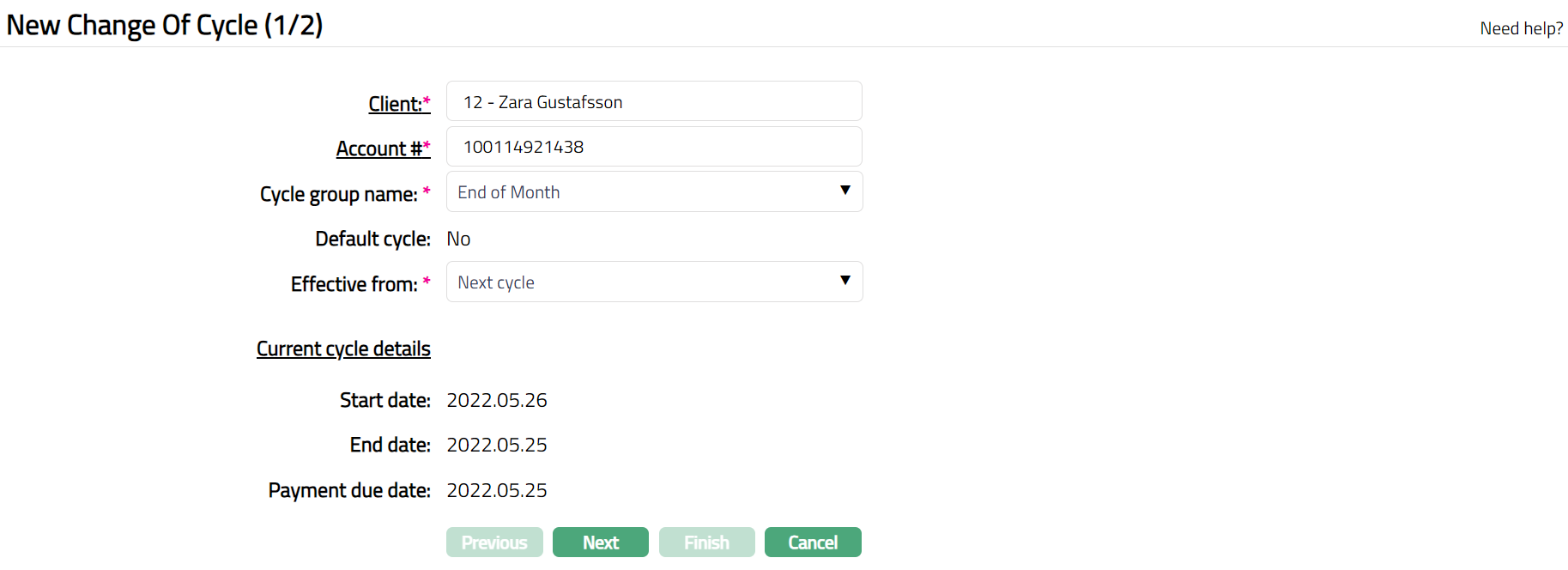
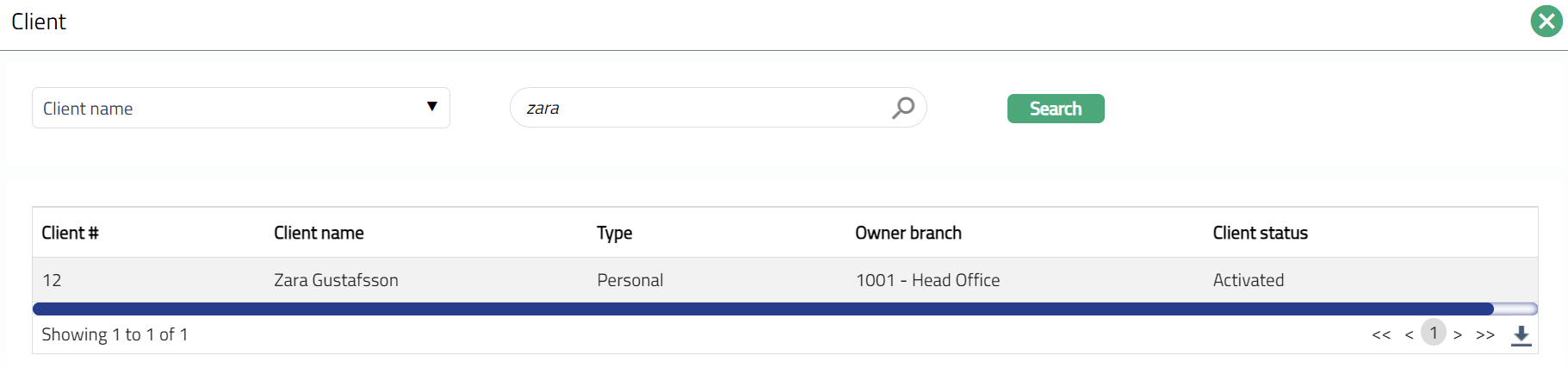
  3. Select Client by clicking on client hyperlink. Client search page appears with the list of Clients maintained under CRM > Clients > Maintain. You can search for a client with relevant criteria and select the required client for whom the billing cycle is to be changed. You can also input the client's name and select the required client from the list displayed by Aura.
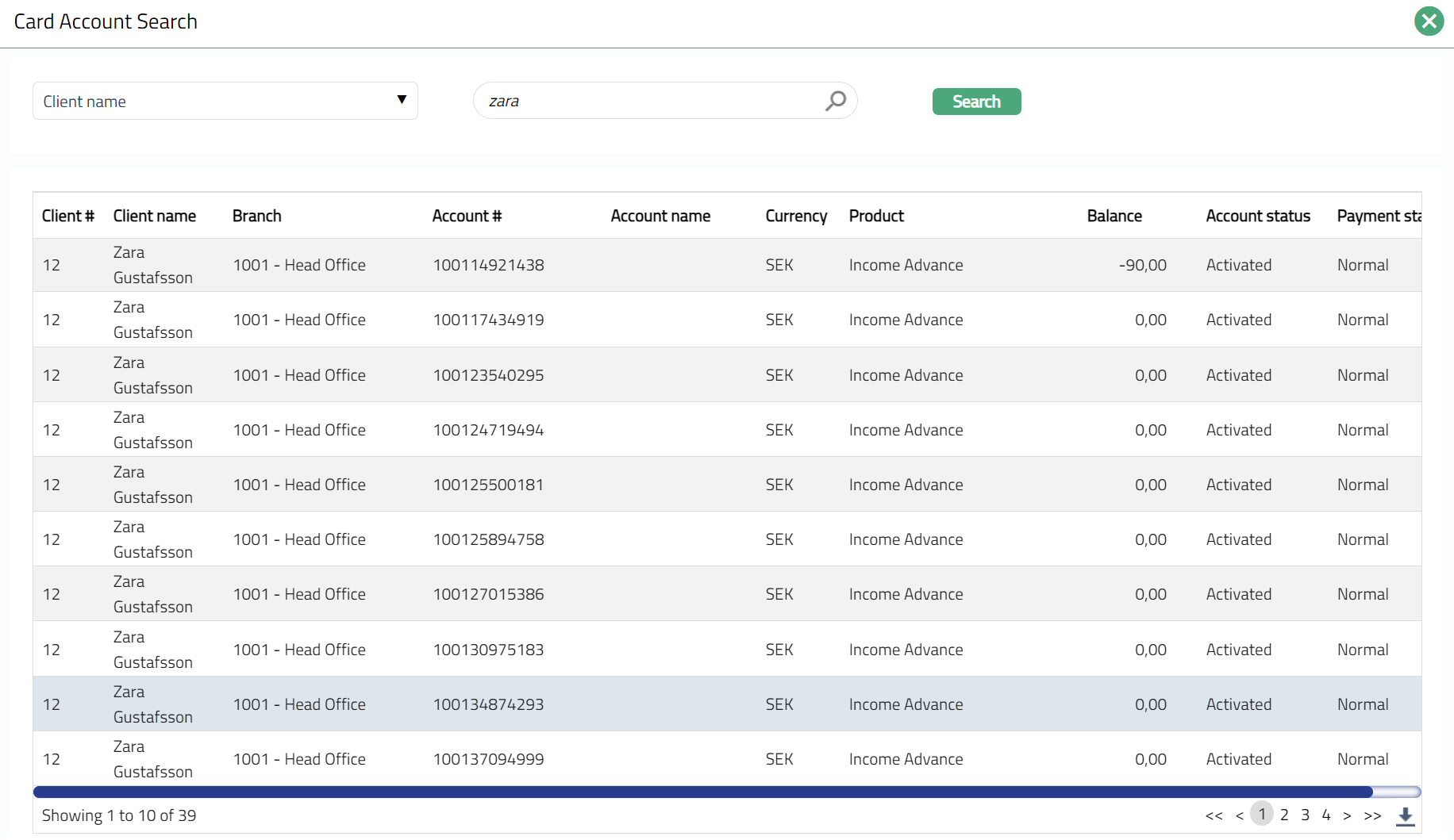
  4. Click Account# hyperlink to select the Card account for which the Cycle details have to be changed. All Active Billing Accounts are listed in the Card account search page. Select the required Billing account using the search criteria in the Card Account Search screen. You can also input the account number and select the required account number from the list displayed by Aura.
  5. Select Cycle group name to which the Account has to be moved into, from the drop-down list of Default and other Cycle groups maintained under Cards > Settings > Cycle group.

  6. If Cycle group name selected from the drop-down list is the default cycle that is attached to the account, then Yes will be displayed for Default cycle field; else No will be displayed.

  7. Select option from Effective from drop-down list. The available options are.

  • Current Cycle: If you want the change of cycle to be effective immediately, choose this option.

  • Next Cycle: If you want the change of cycle to be effective from the next cycle, choose this option.

    Note: See examples at the end of the section for more details on how these options impact the cycle dates.

  1. On selection of the Account number the Current cycle details such as Start date, End date and Payment due date are auto populated from Card > Card account maintain > Overview.

  2. Click Next. New Change of Cycle -- Confirmation (2/2) page will appear.
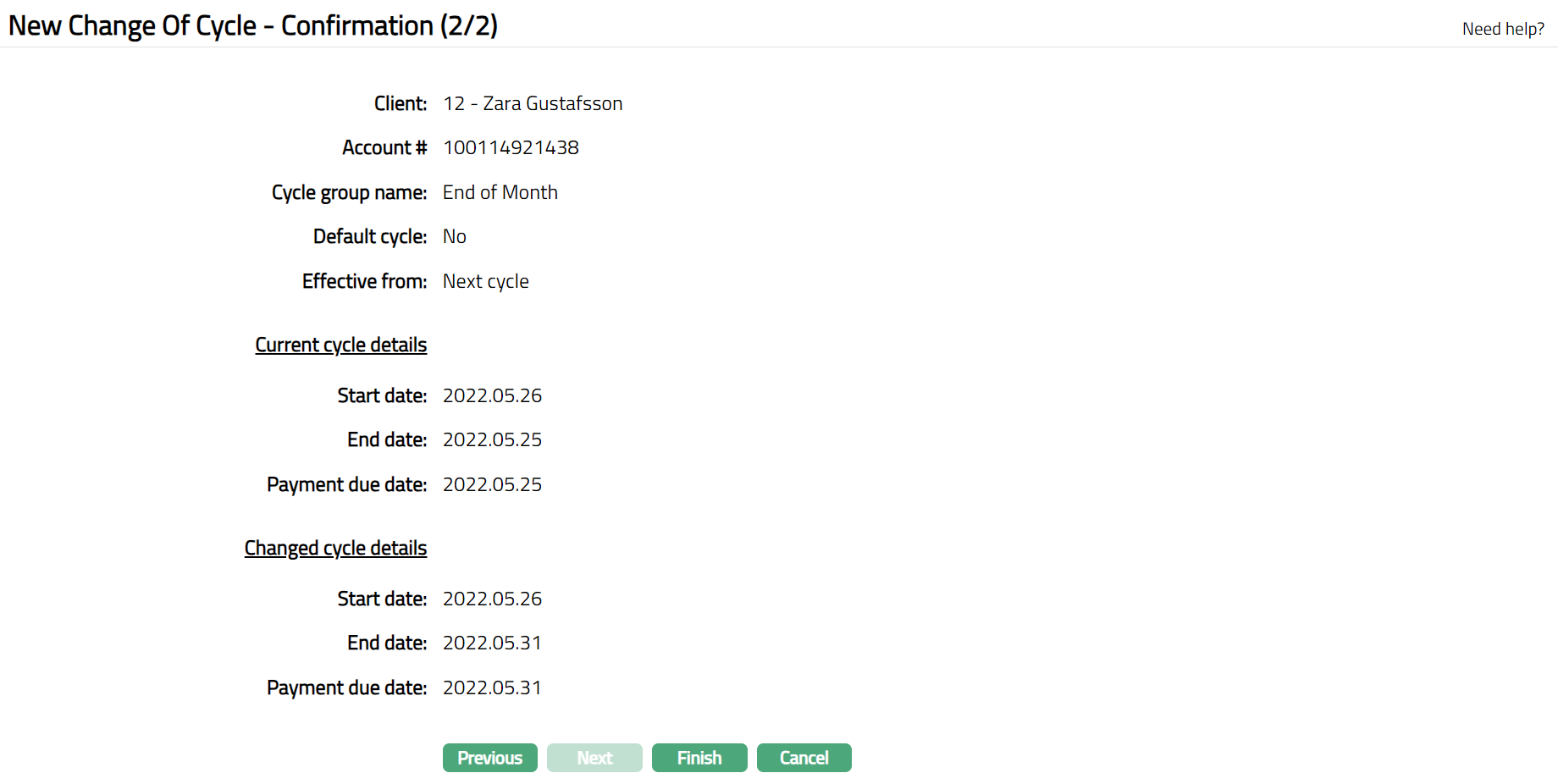
Additional fields available under Changed cycle details are:

Start date:

  • If Effective from = Current Cycle, then Start date will be defaulted from the account overview Tab

  • If Effective from = Next Cycle, then Start date will be the current cycle end date + 1

    End date:

  • If Effective from = Current Cycle, then Aura will recalculate the current cycle end date from the start date, as per the interest receivable date and frequency of the selected cycle group name. If the Changed cycle end date for the current cycle is less than system date, then system will treat it like Next cycle changes i.e. it will NOT affect the changes.

  • If Effective from = Next Cycle, then Aura will recalculate the next liquidation due date from the start date, as per the interest receivable date and frequency of the selected cycle group name

    Payment due date:

  • If Effective from = Current Cycle, then Aura will recalculate the current cycle payment due date from the End date, as per the payment due on, holidays and grace days of the selected cycle group name

  • If Effective from = Next Cycle, then Aura will recalculate the next cycle payment due date from the End date, as per the payment due on, holidays and grace days of the selected cycle group name.

  1. Click Finish. Change of Cycle page will appear.
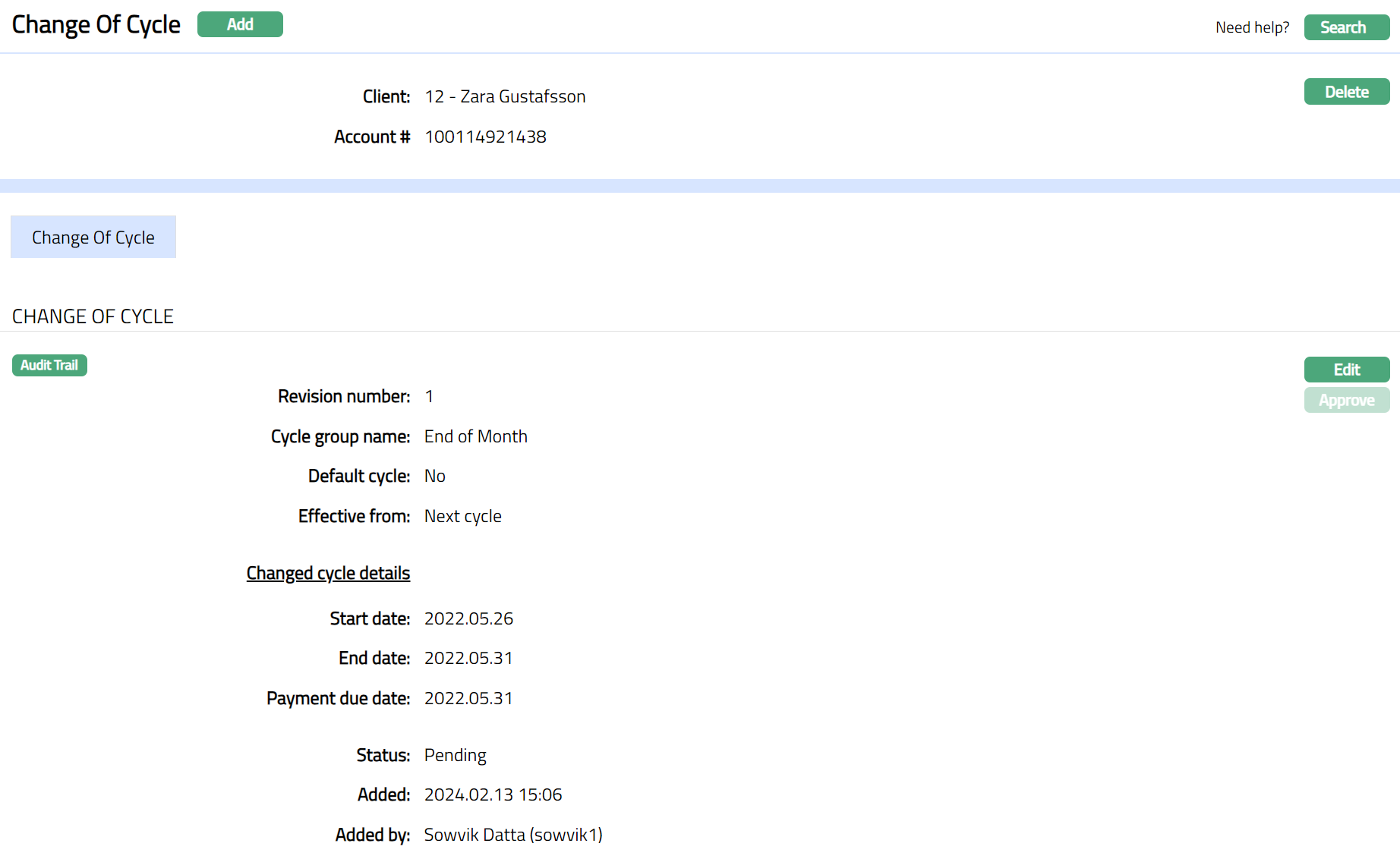
Functions: Add, Edit, Approve.

Note: Once Change of Cycle record is created, the record status will be Pending. Any user other than the one who has created this has to approve the record.

The additional fields that you can view in the tab are explained below:

  • Revision Number field denotes the revision number of the record. For the first time that a change of cycle is done for an account, it will be 1 and will be incremented by 1 for every subsequent change of cycle for that account.

  • Status field denotes the status of the Change of Cycle record.

  • Added field denotes the date on which the record was added.

  • Added by field denotes the name of the user who created the record.

Edit: You can update the details of the Change of Cycle record by clicking on Edit button. This button will be enabled only for the user who created the record and only if the status is Pending.

Delete: You can delete the details of the Change of Cycle record by clicking on Delete button. This button will be enabled only for the user who created the record and only if the status is Pending.

Approve: Any user other than the one who created this record will be allowed to Approve the record.

On approval, the following actions take place depending on the value chosen for Effective From:

If Effective From = Next Cycle, Aura will

a. update the cycle details for the account in Interest receivable and settings tab.

b. update the Status as Approved

c. update the Approved and Approved by details.

If Effective From = Current Cycle, Aura will

a. Update the cycle details for the account in Interest Receivable and Settings tab

b. Recalculate the Current cycle end date, in the overview tab, using the changed cycle data.

c. If the cycle end date for the current cycle is less than system date, then Aura will treat it like Next cycle changes i.e. it will NOT affect the changes.

d. Recalculate the payment due date for the current cycle, in the overview tab, using the changed cycle data.

e. Recalculate the Next Payment due date and the next liquidation due date and store it internally.

f. Schedule repopulation of pending Events of interest liquidation

g. Revise all periodic charges having Frequency as Debit Liquidation Date based on the recalculated cycle end date.

h. Revise the defer date of all events-based charges having Defer By as Debit Liquidation Date based on the recalculated Cycle end date.

i. Update the schedule for pending invoice fees, if any

j. Update the Status as Approved

k. Update the Approved and Approved by details.

l. Update the value date of the current cycle Transactions as per the changed dates. Note that in case of credit transactions, the value date will be updated only if it is a future value dated transaction.

Example:

Existing Cycle Group:

Frequency: Monthly

Liquidation Date for Interest Receivable: End of Month

Payment Due Date: 15 calendar days after EOC

Revised Cycle Group:

Frequency: Monthly

Liquidation Date for Interest Receivable: 15^th^ of the month

Payment Due Date: 15 calendar days after EOC

Case 1:

Change of cycle is done on 10-Mar-2014:

Current Cycle details:

Start Date: 01-Mar-2014

End Date: 31-Mar-2014

Payment Due Date: 15-Apr-2014

Changed Cycle details will be as follows:

If Effective From = Current Cycle,

Start date = 01-Mar-2014

End date = 15-Mar-2014

Payment due date = 30-Mar-2014

If Effective From = Next Cycle,

Start date = 01-Apr-2014

End date = 15-Apr-2014

Payment due date = 30-Apr-2014

Case 2:

Change of cycle is done on 20-Mar-2014:

Current Cycle details:

Start Date: 01-Mar-2014

End Date: 31-Mar-2014

Payment Due Date: 15-Apr-2014

Changed Cycle details will be as follows:

If Effective From = Current Cycle,

Start date = 01-Mar-2014

End date = 15-Apr-2014

Payment due date = 30-Apr-2014

If Effective From = Next Cycle,

Start date = 01-Apr-2014

End date = 15-Apr-2014

Payment due date = 30-Apr-2014

Change of cycle

This tab will allow you to view and edit the Change of Cycle record. The record can be edited till it is in the Pending status.

  1. Access Change of Cycle page. Change of Cycle tab will appear.
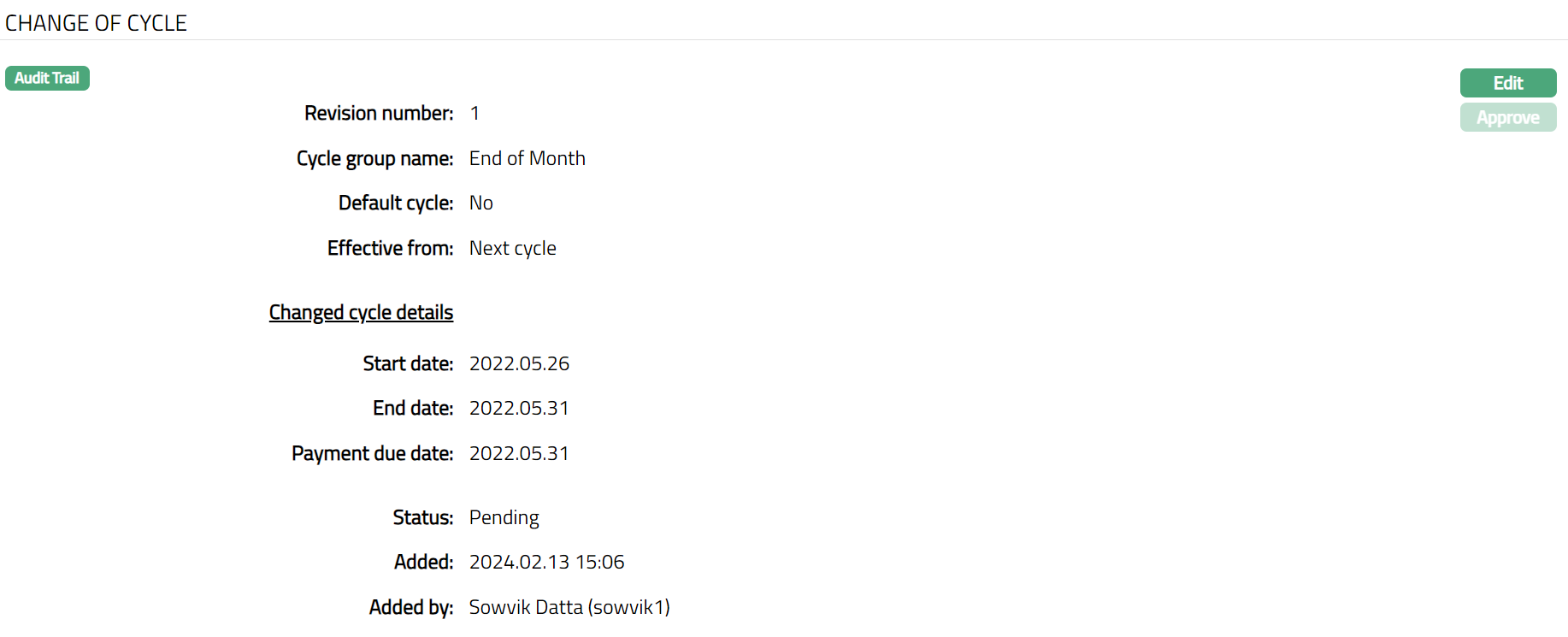
  1. Click Edit. Edit Change of Cycle page appears.
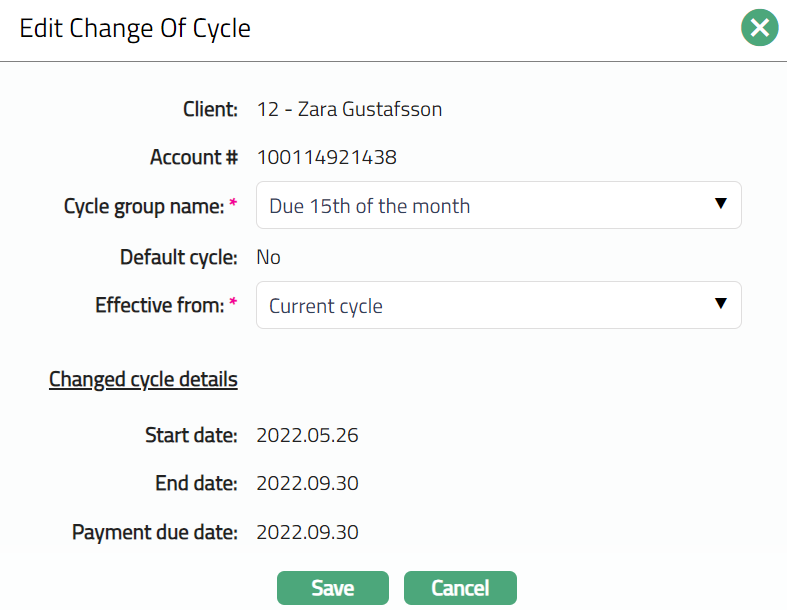
Note: Only Cycle Group Name and Effective From fields are editable.

  1. Make required changes and click Save. Change of Cycle page appears with the edited details. Note: Status remains Pending till it is approved by another user.
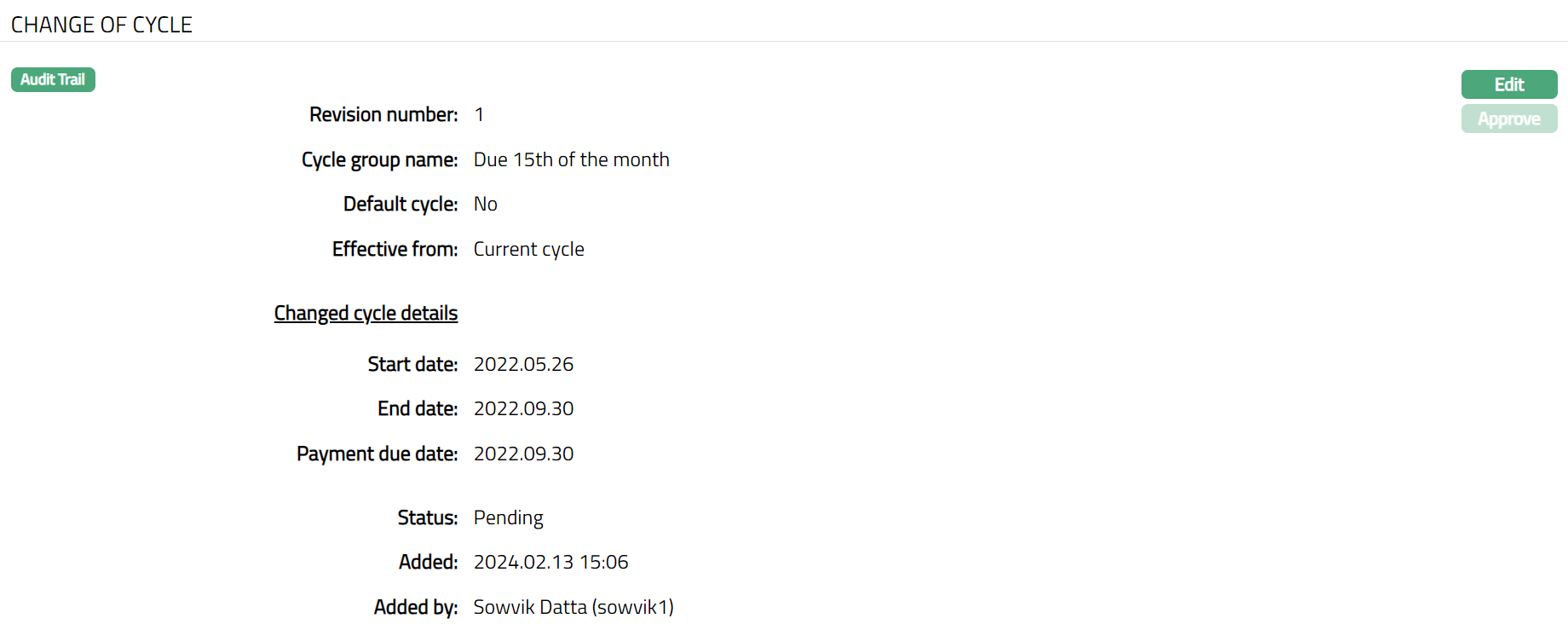
Note: Once Change of Cycle record is created/ Edited, the record status will be Pending. Any user other than the one who has created this has to approve the record. Once Approved the Status will change to Approved.
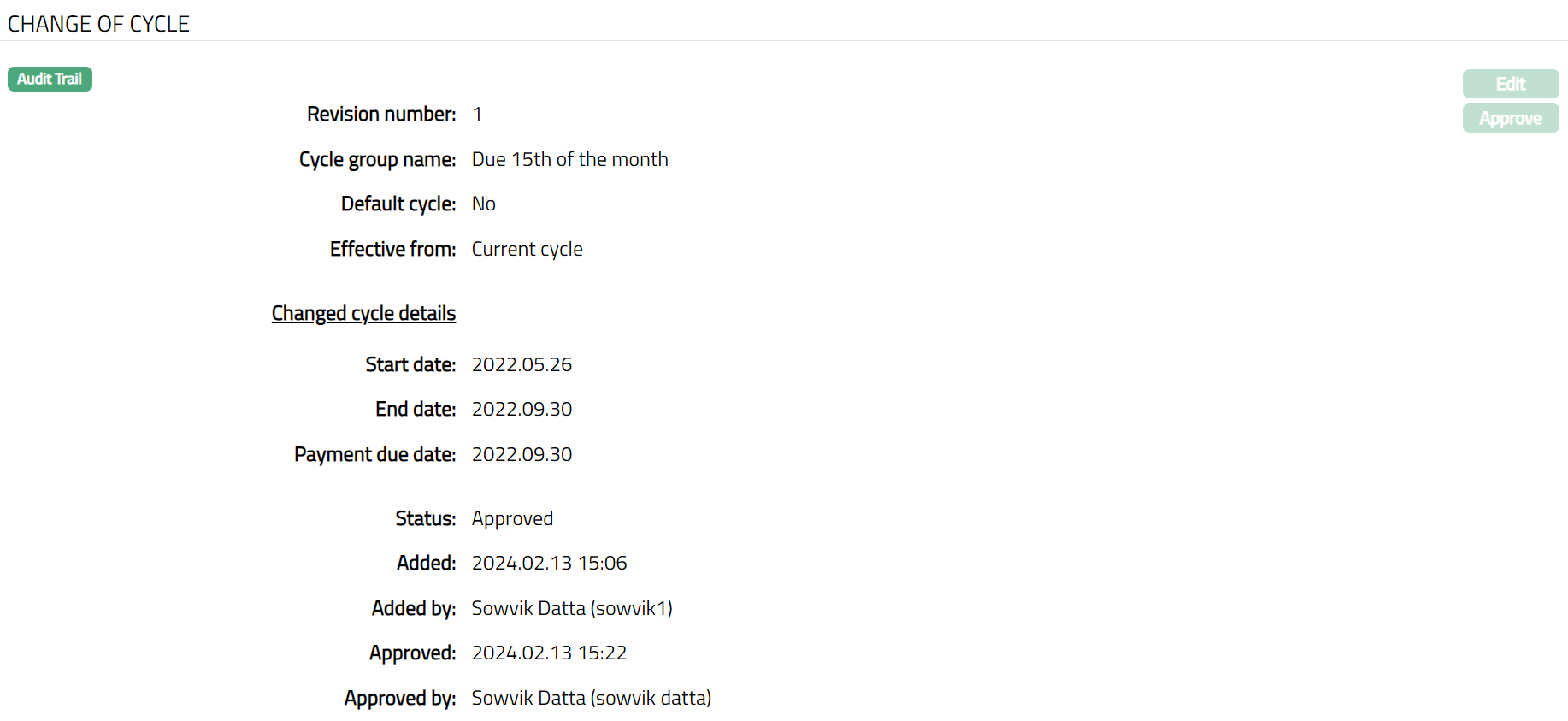
Functions: Edit, Approve.

The additional fields are:

  • Status field denotes the status of the Change of Cycle record.

  • Added field denotes the date on which the record was added.

  • Added by field denotes the name of the user who created the record.

  • Approved field denotes date on which the record was approved and is displayed only for approved records.

  • Approved by field denotes name of the user who approved the record and is displayed only for approved records.

Prev
Balance Movement
Next
Manual actions