
Reconciliation Details
The Reconciliation Details page is used to view and maintain reconciliation records. You can view the following records:
- Auto-Reconciled Approved records.
- Auto-Reconciled Approved records with Adjustment Entries.
- Manually Reconciled Approved records.
- Manually Reconciled Pending records with Adjustment Entries.
You can reverse the records which have Reconciliation Status as Reconciled and Record Status as Approved. On reversal, Reconciliation Status will change to Reversed, and Record Status will change to Pending.
The Reconciliation Details page has the following tabs:
The Reconciliation Details page is in view mode. You can edit the status of the existing reconciliation records, but you cannot add a new reconciliation record. The existing reconciliation records are resulting from Reconciliation actions/operations performed elsewhere.
To Search/View Reconciliation Details,
1. From the Payment Grid menu, click Nostro Reconciliation and then Reconciliation Details. The Reconciliation Details search page appears. Initially, no records are displayed by default.
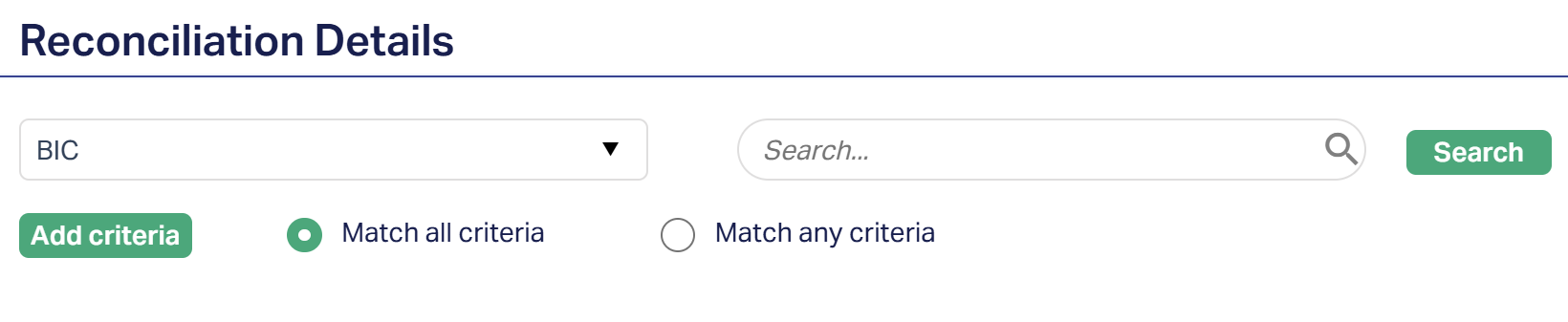
This page allows you to search and view Reconciliation records generated from various processes originating in Account Mapping and Preferences, External Manual Entry and Manual Reconciliation. All three menus can be found in Payment Grid → Nostro Reconciliation.
2. Select the Search criteria from the drop down. You can search using the following criteria:
- Adjustment entry
- BIC
- Currency
- External account #
- External system code
- Internal account #
- Reconciliation date
- Reconciliation reference #
- Reconciliation status
- Reconciliation type
3. Click Search. Aura will display all the existing/available records that satisfy the search conditions.
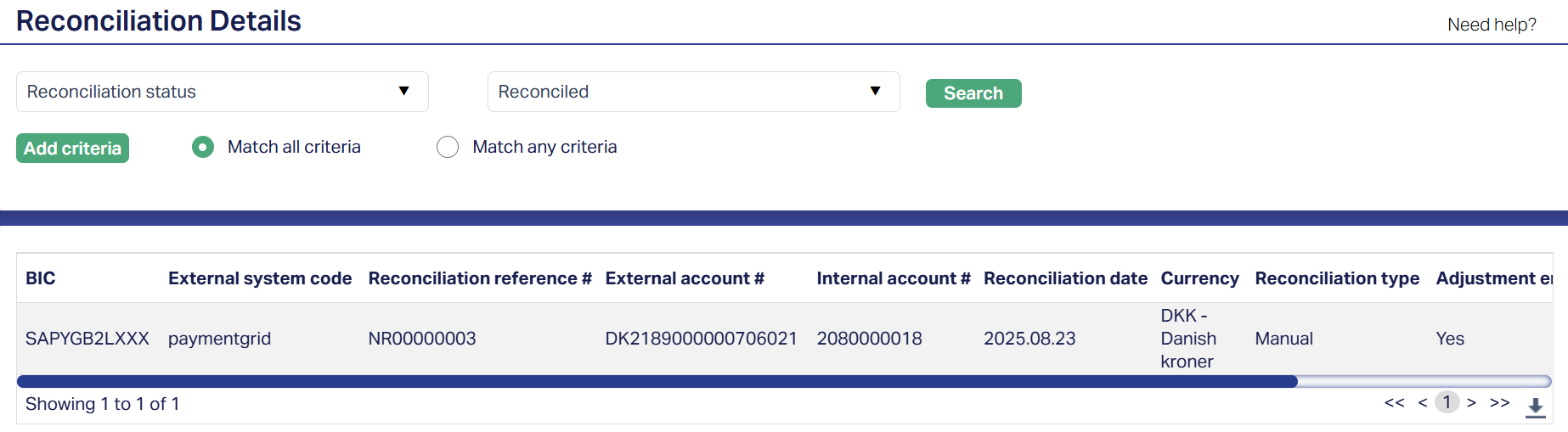
4. To view the details of a reconciled record, click on it. The Reconciliation Details page appears.
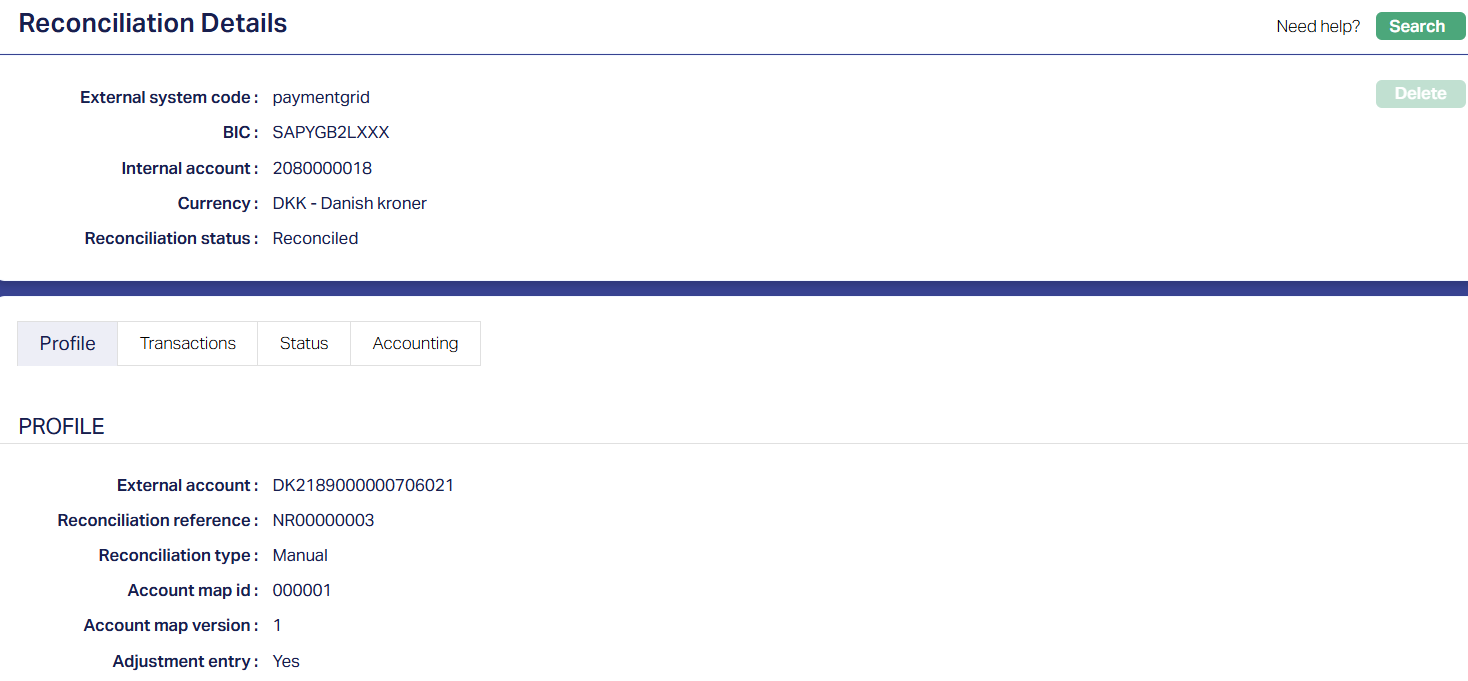
Functions: Search, Delete.
The header pane for all the tabs displays the following fields:
- External system code: This denotes the code identifying the external payment or reconciliation system, selected from the drop-down auto populated from Account Mapping and Preferences. Unlike the External account number, which is the account number itself, this code specifies the system or platform from which the external record originated.
- BIC: This indicates the Business Identifier Code that uniquely identifies the banking/financial institution involved in the Reconciliation. The BIC is maintained in Account Mapping and Preferences.
- Internal account: This denotes the unique identifier for the bank's own Nostro account maintained internally, used for matching against external transactions. This corresponds to the bank's ledger account and is essential for identifying discrepancies in reconciliation.
- Currency: This indicates the currencies that are valid/available for reconciliation. Valid/Available currency list is maintained in Account Mapping and Preferences, and is a sub-set of the list of currencies maintained in Admin → System Codes → Currency → Currency.
- Reconciliation status: This denotes the current state of the reconciliation entry, and the possible values are Reconciled, Not Reconciled and Reversed.
Delete: You can reject a Reconciled record whose record Status is Pending (in the Status tab) using the Delete button. When you click Delete, Aura displays a confirmation window. On confirmation, Aura will delete the Reconciliation record from the system, which will render it as Rejected, and the record will disappear from any searches.
Profile
The Profile tab, which is the default tab, shows the basic details of reconciliation. The Profile tab is in view-only mode and the details/fields cannot be edited.
To View the Profile,
1. Access the Reconciliation Details page and click the Profile tab to view the details as shown below.
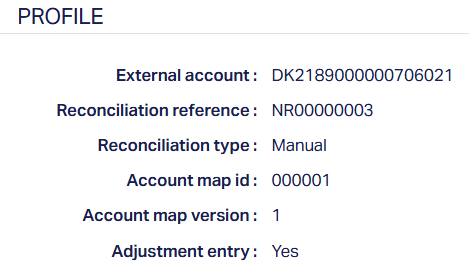
The Profile tab displays the following fields:
- External account: This denotes the unique identifier for the external Nostro account, which is maintained in Account Mapping and Preferences. This is distinct from internal references and is used to match transactions from the correspondent bank's statements.
- Reconciliation reference: This denotes the unique system-generated or user-assigned reference number for a specific reconciliation entry or batch. This is used to track and retrieve individual reconciliation records, differentiating it from transaction references like External reference number, which may pertain to specific external transactions.
- Reconciliation type: This indicates the mode for the release of funds, and can be either Auto or Manual. Auto means that the system released the funds automatically after a predefined number of days. Manual means that the funds have been released after a specified number of days.
- Account map id: It displays the unique identifier for the particular mapping configuration that links external accounts (or external account identifiers) with internal account ledgers for reconciliation. It defines which internal account(s) correspond to which external account(s) under that mapping setup. It is maintained in Account Mapping and Preferences.
- Account map version: It displays the version (or iteration) of the account-map configuration in use. It is maintained in Account Mapping and Preferences.
- Adjustment entry: This field indicates if the records you are searching for were given adjustment entries during manual reconciliation. The possible values are Yes or No. Note: During the matching process of Manual Reconciliation, if there is any variance in the amounts between the internal and external account transactions, then Aura would have provided a facility to enter all adjustment entry details, in order to finish the transaction. The Adjustment Entry values for such transactions will be Yes.
Transactions
The Transactions tab displays all the External transactions, Internal transactions, External manual entry and Adjustment entry transactions and is differentiated based on source entry type. This tab is in view-only mode, and the details/fields cannot be edited.
To View the Transaction details,
1. Access the Reconciliation Details screen and click the Transactions tab to view the details as per sample below.

The various fields that are displayed on the Transactions page are:
- Book date: It specifies the date the external bank books/initiates the transaction in its ledger.
- Value date: It specifies the date on which the transaction affects the available/settled balance (that is, when funds are considered effective).
- Amount: It displays the amount for the transactions posted for the Reconciliation.
- Debit / Credit: It specifies a directional indicator showing whether the transaction record is a debit (amount leaving the Nostro account) or credit (amount entering the Nostro account).
- Internal reference: It displays the reference number created by your internal system used to uniquely identify the transactions posted for reconciliation.
- External reference: It displays the reference number supplied by the correspondent/external system used to uniquely identify the transactions matched against internal reference during automated or manual reconciliation.
- Transaction type: It displays the transaction type code for the transactions posted for the reconciliation.
- Transaction description: It displays the transaction description for the transactions posted for the reconciliation.
- Internal or External: It displays the source entry type for the transactions posted for the reconciliation. It can be Internal or External.
Status
Status displays the status of the reconciled record. Using the Status tab you can approve the records which have the Reconciliation status as Reconciled and Record status as Pending. Reconciliation status will be Reconciled and Record status will be Approved.
You can also reverse the records which have the Reconciliation status as Reconciled and Record status as Approved from the Status tab. Status will then change to Reversed.
To Add/View the status of the reconciled record,
1. Access the Reconciliation Details screen and click Status tab to view the details as per sample below.
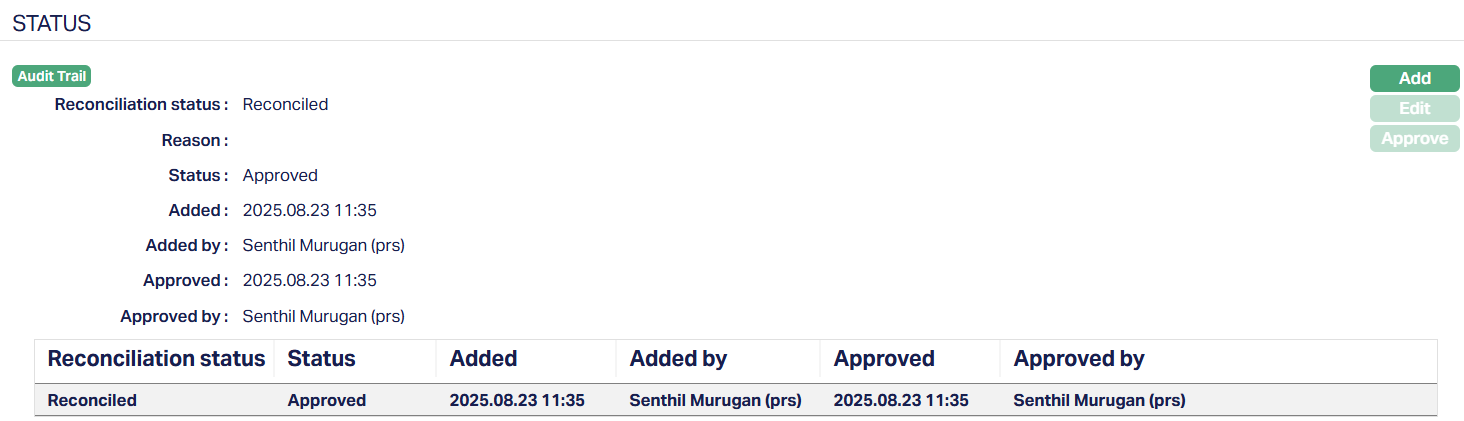
The Status tab shows the following fields:
- Reconciliation status: It displays the reconciliation status. The status can be Reconciled or Reversed.
- Reason: It displays the reason for the change of the reconciliation status.
2. Click Add. The Add Status page appears.
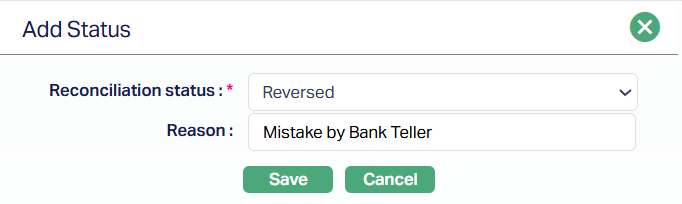
Note: Add will be enabled only when Reconciliation status is Reconciled and Record status is Pending.
3. Select the Reconciliation status from the drop down list of statuses.
If the current Reconciliation status is Not Reconciled, then the available option is Reconciled. If the current Reconciliation status is Reconciled, then the available option is Reversed.
4. Enter the Reason for the change of status.
5. Click Save. The newly added/created status will appear on the Status page, as shown below:
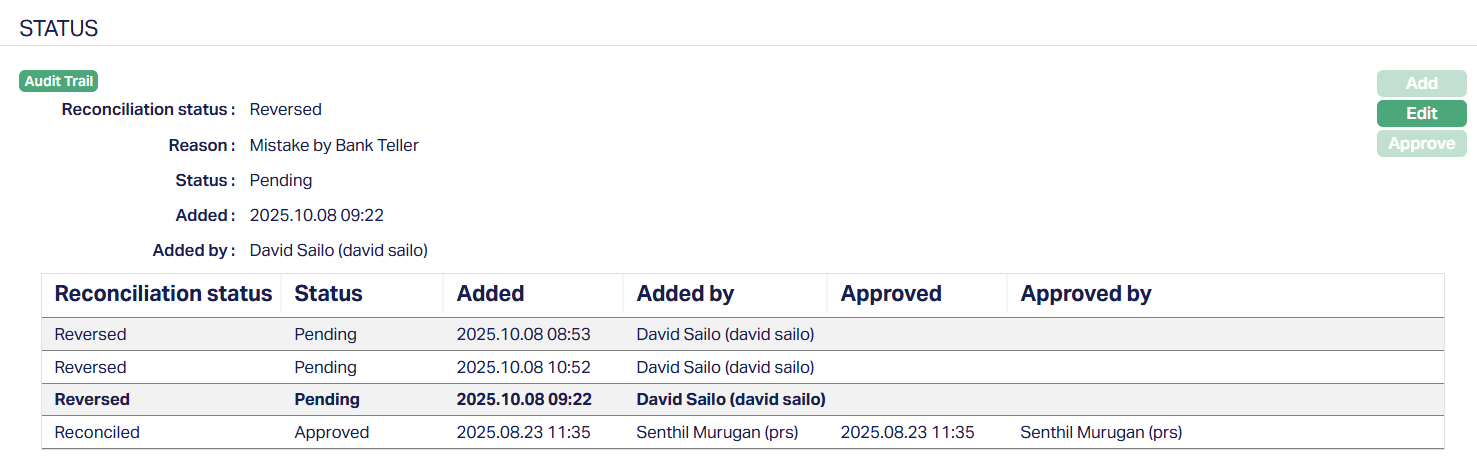
To Edit the Status,
1. Access the Reconciliation Details page, then click the Status tab. The Status page appears.
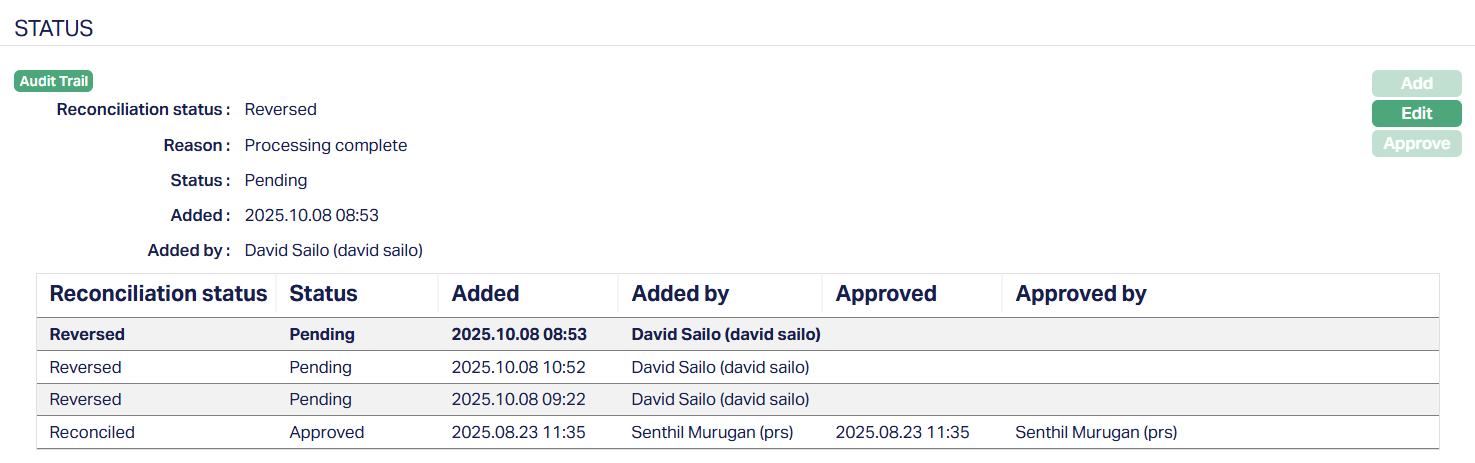
2. Click Edit. The Edit Status page appears.
Note: The Edit button will be enabled only when the Reconciliation status is Reversed, and the record Status is Pending.
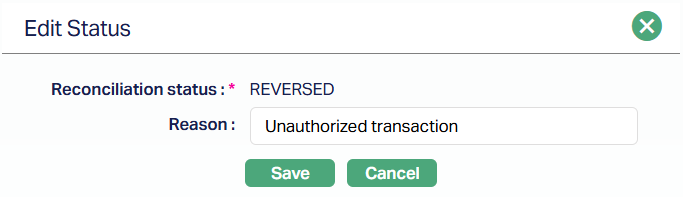
Only the Reason field is editable.
3. Make the required changes and click Save. The Reconciliation Details page appears with the updated details.
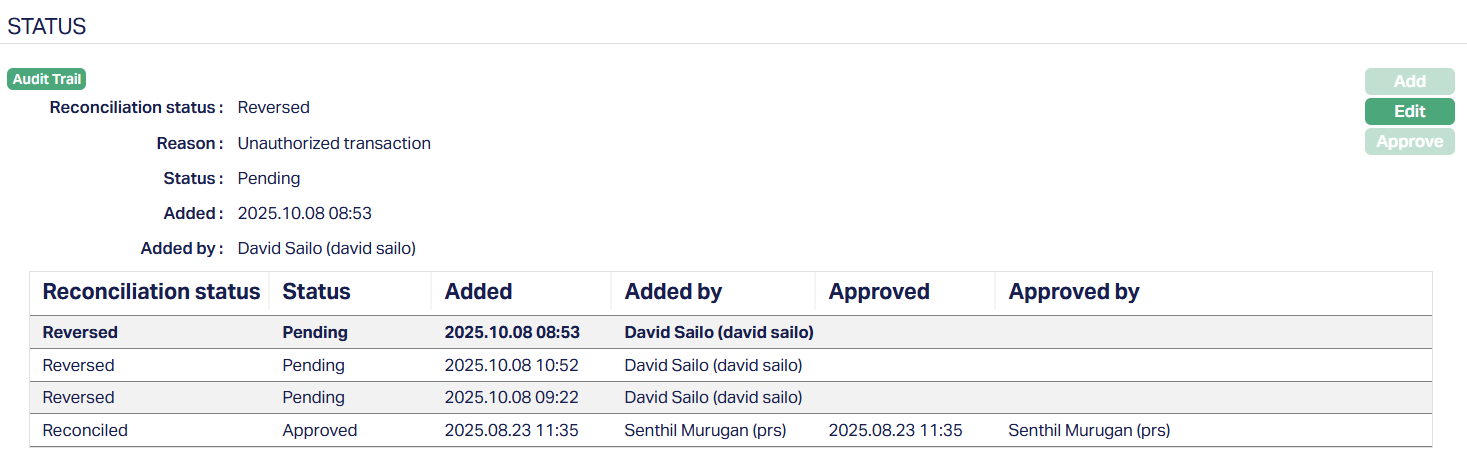
Approve: Approval can be done for those records which have the Reconciliation status as Reconciled and record Status as Pending. Approval can only be done by a user different from the one who added/edited the status.
If you want to approve a Reconciled Pending record, then retrieve the record and click Approve. Aura will ask for confirmation. On confirmation, the Reconciliation status will be Reconciled and the record Status will be Approved, as shown below.
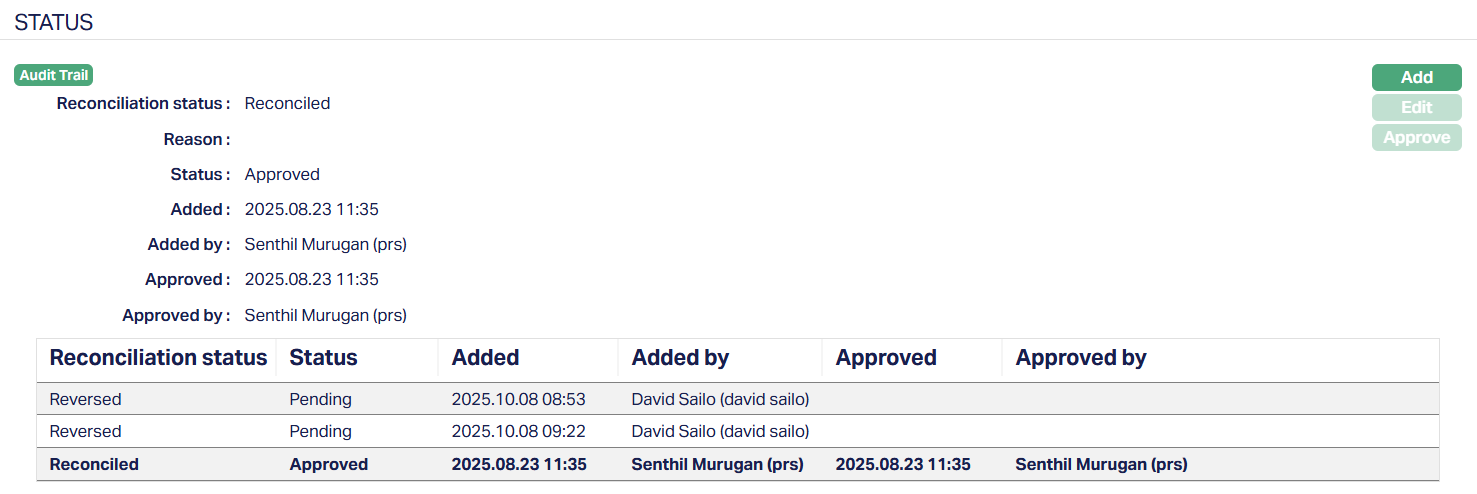
Functions: Add, Edit, Approve.
The additional fields displayed in the Status page are:
- Status field displays the status of the record, for example Pending or Approved.
- Added field displays the date and time on which the record was added.
- Added by field displays the name of the user who created the record.
- Approved field displays date and time on which the record was approved and is displayed only for approved records.
- Approved by field displays the name of the user who approved the record and is displayed only for approved records.
Accounting
The Accounting tab allows you to view the details of those reconciled records which have adjustment entries. This tab will be visible only when the reconciliation records have adjustment entries. The Accounting tab is in view-only mode, and the details are defaulted from Reconciliation actions/operations performed elsewhere.
To View the Accounting details,
1. Access the Reconciliation Details screen and click the Accounting tab to view the details as per sample below.
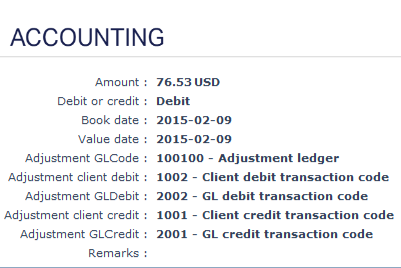
The various fields displayed on the Accounting page are:
- Amount: It displays the amount for the Auto or Manual adjustment entries posted.
- Debit or credit: It displays the Debit / Credit for Auto or Manual adjustment entries posted.
- Book date: It displays the Book date for Auto or Manual adjustment entries posted.
- Value date: It displays the Value date for Auto or Manual adjustment entries posted.
- Adjustment GL code – It displays the Ledger number which is used as the Adjustment Ledger for the Nostro reconciliation
- Adjustment client debit – It displays the transaction code which is used as the Adjustment entry for debiting the Client account during the Nostro Reconciliation.
- Adjustment GL Debit – It displays the transaction code which is used as the Adjustment entry for debiting the General Ledger account during the Nostro Reconciliation.
- Adjustment client credit – It displays the transaction code which is used as the Adjustment entry for crediting the client account during the Nostro Reconciliation.
- Adjustment GL credit – It displays the transaction code which is used as the Adjustment entry for crediting the General Ledger account during the Nostro Reconciliation.
- Remarks - It displays the remarks for the adjustment entry.