
Safe Deposit Locker -- Operations
Safe deposit locker -- Operations allows you to maintain the operations on the locker. You can create or update a record with details like Client name, Date of operation, In time, Out time against a particular locker number.
Following are the various tabs that appear on Safe Deposit Locker Operation page.
To create locker operation record
- From Retail menu, click Safe Deposit Locker and then Operation. Safe Deposit Locker Operation search page appears.

- Click Add. New Operations -- Details (1/3) page appears.
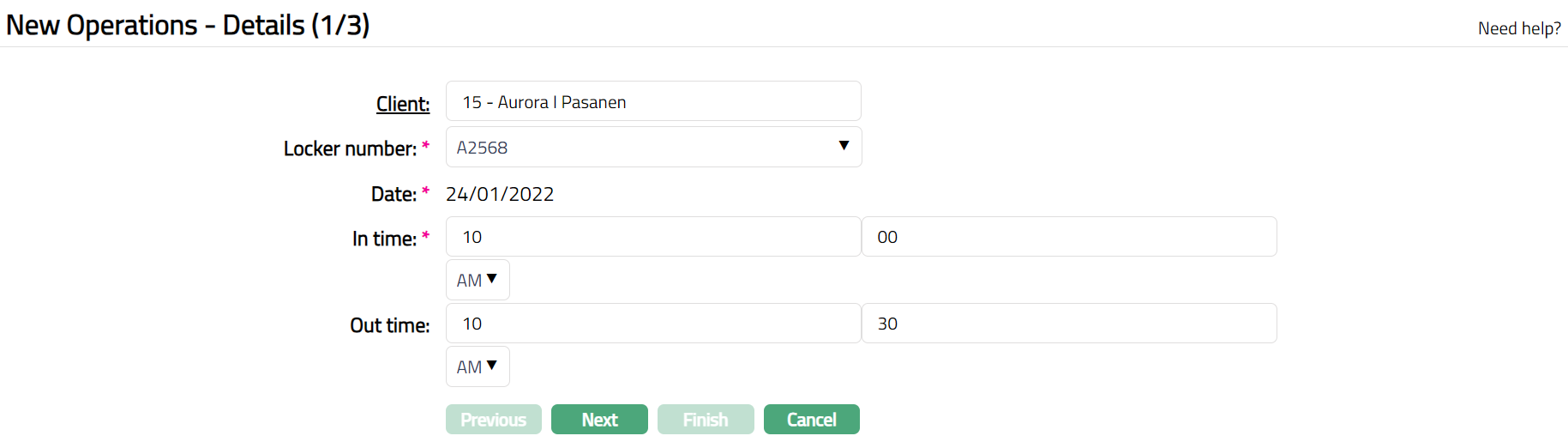
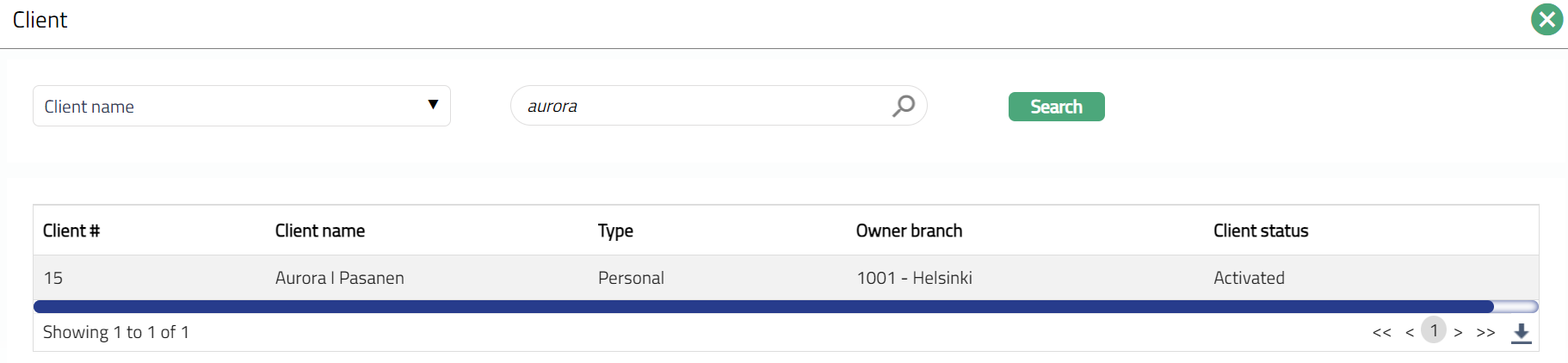
- Select client by clicking Client hyperlink. Client search page appears where you can search for a client with relevant criteria. You can also input the client's name or client number on the search page. Select the required client from the list displayed.
Select Locker number from the drop-down list of lockers whose status is Allocated -- Approved, the key status is Activated -- Approved and the agreement status is Activated-Approved for the selected client.
Locker operation date is defaulted to Current Date.
Enter In time. This time indicates the locker operation start time.
Enter Out time. This time indicates the locker operation end time.
Click Next. New Operations -- Operator(s) (2/3) page appears.

Note: The operator details in this screen are defaulted from the operating instructions maintained at Retail > Safe deposit lockers > Agreement.
The columns available here are:
Group denotes the group information as maintained for an operating instruction at Retail > Safe deposit lockers > Agreement.
Operating instruction denotes if the locker is to be operated by a single person or jointly in the particular group. If it is Single, then only a selected person in that group can operate the locker at a time. If it is jointly, then selected people in the group can operate the locker at a time.
For example: Group 1 with operating instruction as Single has three people in the group person A, person B and person C. If person B is selected, then only person B can operate the locker at a time, and you can select multiple persons at a time.
Group -- 2 with operating instruction as Jointly has three people in the group person A, person B and person C. If person B and person C are selected, then both person B and person C can operate the locker together at a time.
Person denotes the name of the person/people who can operate the locker as per the operating instruction defined at Retail > Safe deposit lockers > Agreement.
Note denotes the user entered description for the operation done.
Select person by selecting the checkbox. If the checkbox is selected, then it denotes that the selected person/people have operated that locker during that particular operation.
Click Next. New Operations -- Confirmation (3/3) page appears.
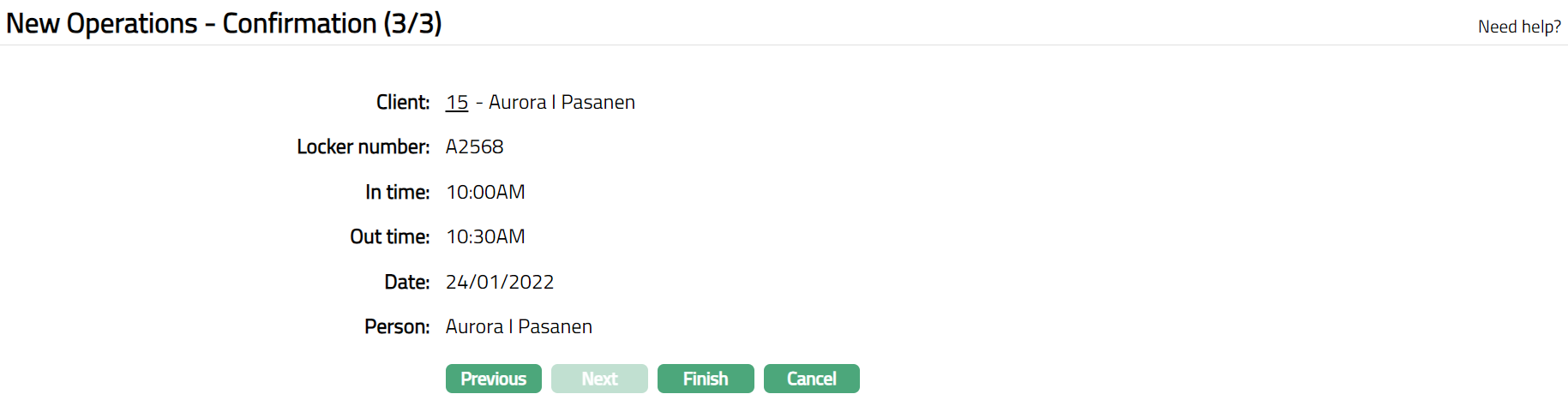
- Click Finish. Safe Deposit Locker Operation page appears.
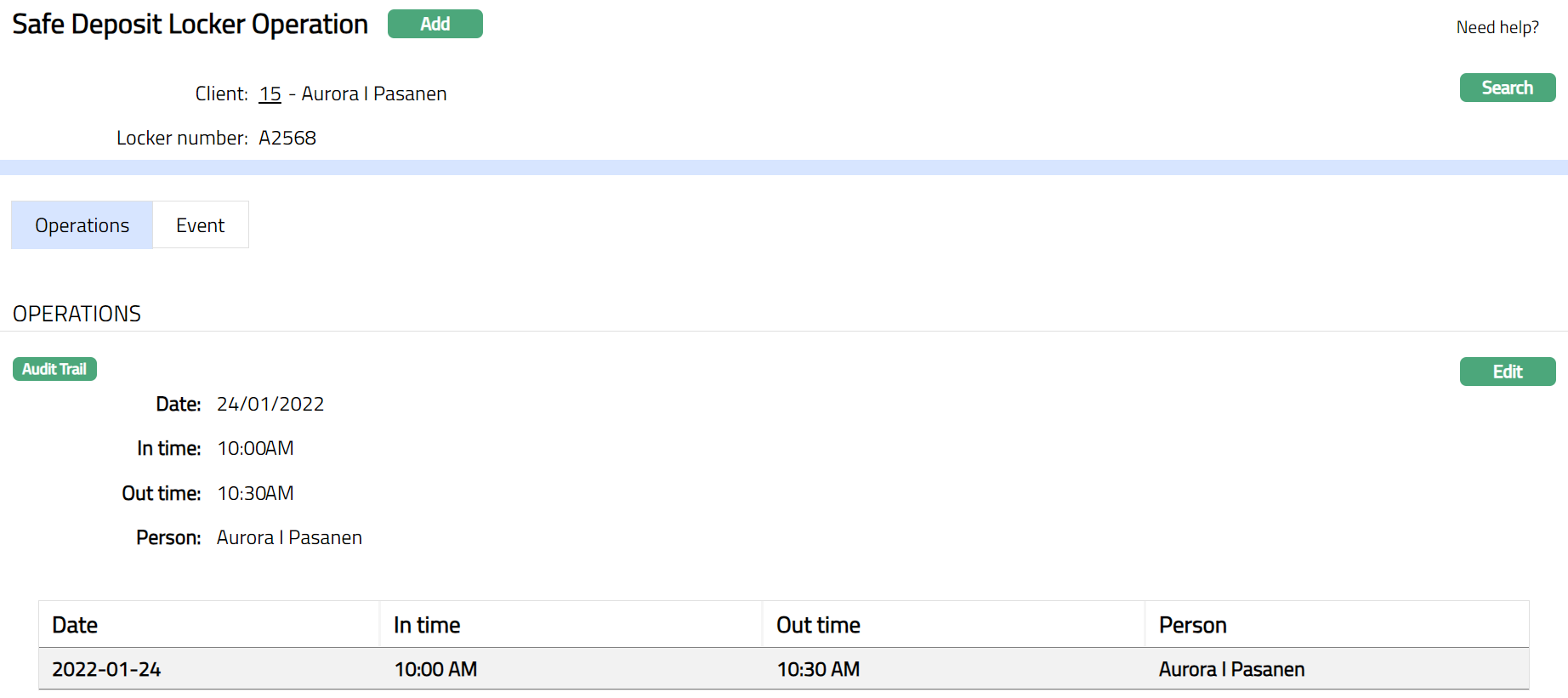
Functions: Add, Search, Edit.
Note: On Click of Finish, the locker operation maintenance record is created and can be seen in the Operations tab. The summary of the locker operations is also saved under Safe deposit locker maintenance > History > Operations.
Operations
This tab shows the details of locker operations that was created using Safe deposit locker 🡪 Operation menu. For details refer New Operations -- Details (1/3) page.
To view / edit the locker operation details.
- Access Safe Deposit Locker Operation page by default Operations tab will be opened, displaying the operations summary.
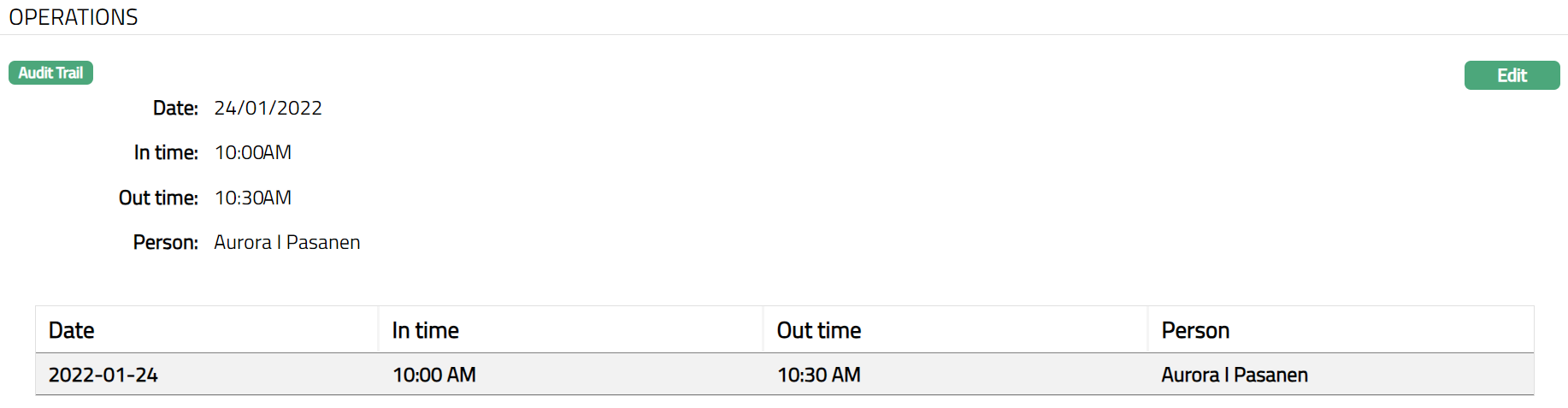
To Edit record
- Click Edit. Edit Operations page appears.
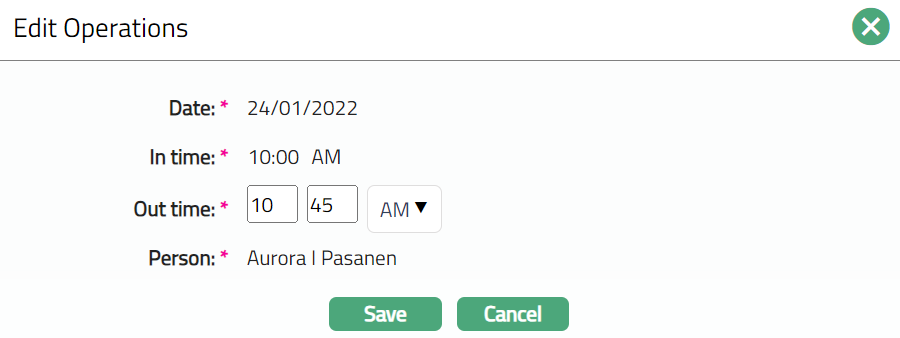
Note: Only Out time field is editable.
- Click Save. Operation page appears with the edited details.
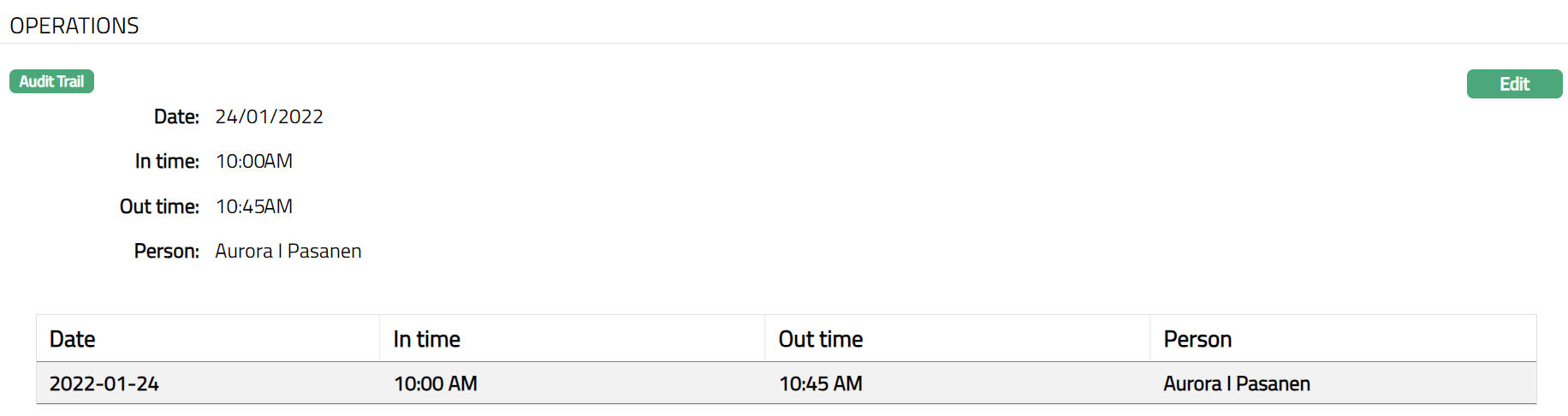
Function: Edit.
Event
Events tab allows you to view the past, current and future event-based events. This tab is non-editable. Only operations fee event is populated in this event tab.
To view Events
Access Safe Deposit Locker Operations page.
Click Event tab. There are three sub-tabs within it -- Past, Current and Future. By default, Current tab is displayed. It shows the details of the Events that have value date = current business date. Past tab and Future tab show details of events that have value date earlier than / later than the current business date respectively if available.
A sample of Past tab is shown below:
Note: Presently no records are available for Past.
A sample of Current tab is shown below:
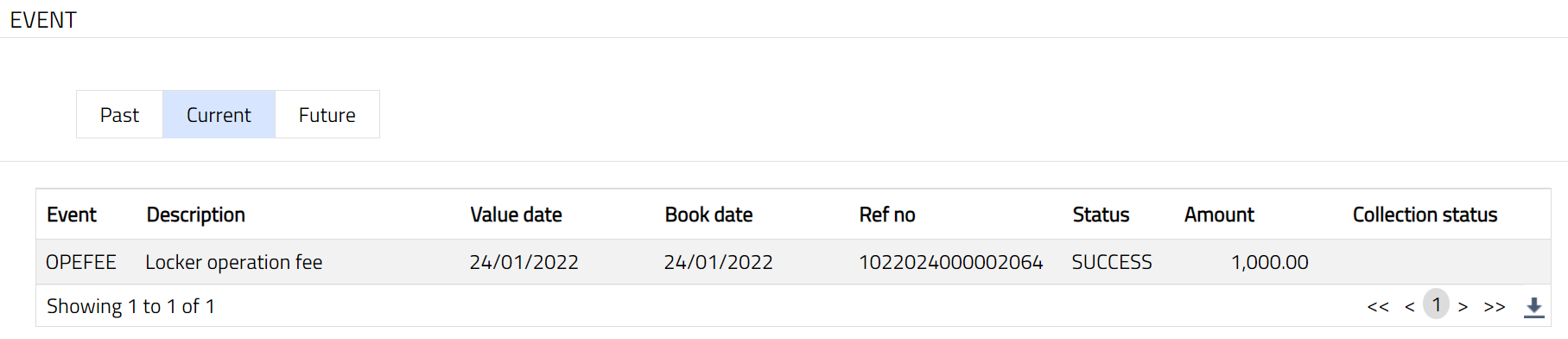
A sample of Future tab is shown below:
Note: Presently no records are available for Future tab.
All the tabs show the following data:
Event: Code for the event.
Description: Description of the event.
Value Date: The value date for the event.
Book Date: The date of entry / input of the event.
Ref No: The transaction reference number under which the event is processed.
Status: Status of the event:
Pending: Where the event is not yet processed.
Success: Where the event has been processed successfully.
Failure: Where the event has failed during process.
Retry: Indicates a failed event where the system retries to process the event
on subsequent business days.
Amount: Indicates the amount processed by the event.
Collection Status: If the Collection status is Pending, it indicates that the deferred charges has not been collected and if the Collection Status is Success, it indicates that the deferred charges has been collected.
The Events are listed below.
| Event Code | Description | Condition |
|---|---|---|
| OPEFEE | Locker operation Fee | If the Locker operation fee is attached to the agreement for the locker and it is approved (for details, refer to the Agreement user manual), then on creation of the locker operation maintenance record, this event will be triggered, and the charge will be collected on the liquidation date. |