Contract Maintenance
Commitment to buy or sell a specified amount of foreign currency on a fixed date and rate of exchange is termed as Foreign Exchange Contract.
Foreign exchange contracts can be classified in to two types: Spot Contract and Forward Contract
Spot Contract
A Foreign Exchange contract that has to be settled (both payment and delivery) on the spot date, which is normally two business days after the trade date is termed as Spot Contract.
Forward Contract
A foreign exchange contract that has to be settled after the spot dates (i.e.) after two business days from the Spot Date is termed as foreign exchange forward contract.
Foreign exchange Contracts Maintenance menu in Aura allows you to maintain the details of Foreign exchange Contracts that are created by your bank to your customers. The values in Contract are defaulted from the Product, with an option to change the details at the contract level.
The following are the tabs in Foreign Exchange Contract.
Adding a Forex Contract
To add a new Forex Contract,
1. From the Treasury menu, click Contracts and Maintain. The Contract Search page will appear. All Contract records if maintained under Treasury → Contracts will be displayed or else it will be blank.
2. Click Add. The New Contract → Details (1/3) page appears.
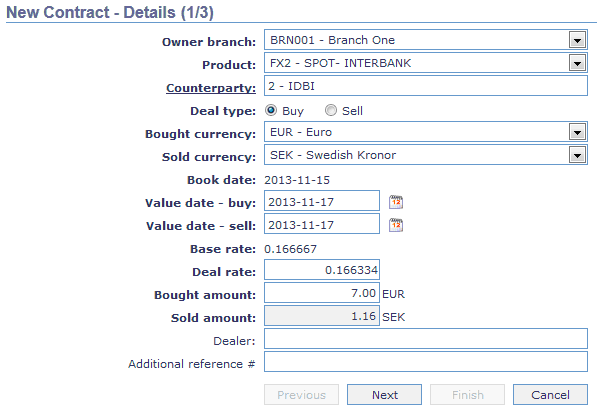
3. Input the Owner Branch at which the transaction is done. By default, user's logged in branch will be displayed. You can change to any other branch from the dropdown list of active branches maintained under Admin → Branches → maintain.
4. Input the Product code under which the contract is being booked. Select from the dropdown list of all active FX products displayed.
5. Enter the client id and name of the other party required for the contract in Counterparty. Click on the hyperlink and select from the list of Clients available. The client names displayed in the dropdown list differs in different cases based on the parameters you chose while creating the FX product.
6. Input whether it is buy or sell Deal Type for the Bank by clicking the required Radio Button.
7. Enter the currency which is being bought by the Bank in Bought Currency. The currency displayed in the dropdown list is based on the FX product you choose for the Contract creation. The currencies what you see is in the dropdown list are the one which is allowed for that particular product. The list should be ordered as per the Priority flag maintained for currencies.
8. Enter the currency which is being sold by the Bank in Sold Currency. The currency displayed in the dropdown list is based on the FX product you choose for the Contract creation. The currencies what you see is in the dropdown list are the one which is allowed for that particular product.
9. While creating the contract Aura automatically displays the Current Business date as the Book date.
10. Input the settlement date of the contract in Value date -- buy which is normally by default 2 working days from the Book Date. This again depends on the product you choose and the various input parameters that went in at the time of its creation.
11. Input the settlement date of the contract in Value date -- sell which is normally by default 2 working days from the Book Date. This again depends on the product you choose and the various input parameters that went in at the time of its creation.
12. The mid-rate for the currency pair as maintained in the currency rate is displayed automatically in Base rate by Aura on entering the Bought currency and Sold currency.
13. Input the rate at which the deal has been struck in Deal rate. The Deal rate should be with in the variance allowed for the product. (The variance % of the product is defined at the time of its creation.)
14. Input the amount for which the currency is bought in Bought amount. This field is enabled only if the deal type is buy. If it is a Sell deal, this field is disabled. Once the Sold amount is entered, Aura automatically calculate the equivalent Bought amount based on Sold amount and Deal rate.
15. Input the amount for which the currency is sold in Sold amount. This field is enabled only if the deal type is Sell. If it is a Sell deal, this field is enabled. Once the bought amount is entered, Aura automatically calculate the equivalent Sold amount based on Sold amount and Deal rate.
16. Enter the Dealer Id and name who struck the contract. This field is optional.
17. Enter the Additional reference# which again is Non -- Mandatory field. However this reference number can be used for tracking a particular deal easily.
18. Click Next. The New contract → Secured by (2/3) page appears.

19. If you want to attach the Contract to a Limit / Collateral then select from the list of active collaterals / Limits maintained in Aura. Else leave it blank and click Next to go to the next page or If you link the Contract to a collateral then the following screen appears as shown below.
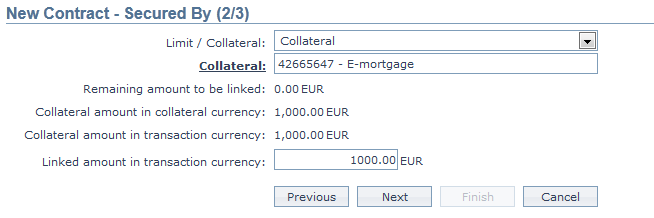
20. Input whether you are securing the contract through Limit / Collateral by choosing from the dropdown list.
21. If you select Collateral as your choice then the next subsequent field will be collateral with a hyperlink. Click on the hyperlink to select the required collateral from the list of active Collaterals maintained in Aura.
22. Enter whether the contract is secured by the total value of the Collateral or part value in Remaining amount to be linked.
23. Input the Collateral amount in collateral currency.
24. Enter the Collateral amount in transaction currency.
25. Input the linked amount in transaction currency.
26. Click Next. The New Contract → Confirmation (3/3) page appears.
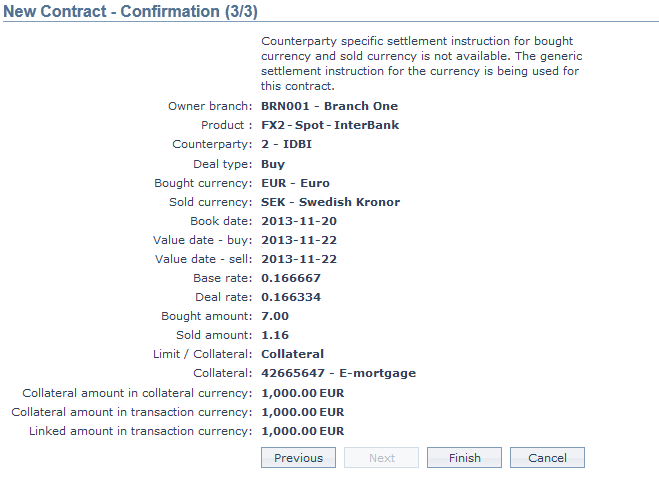
27. Click Finish. The Contract maintenance page appears showing the profile tab by default.
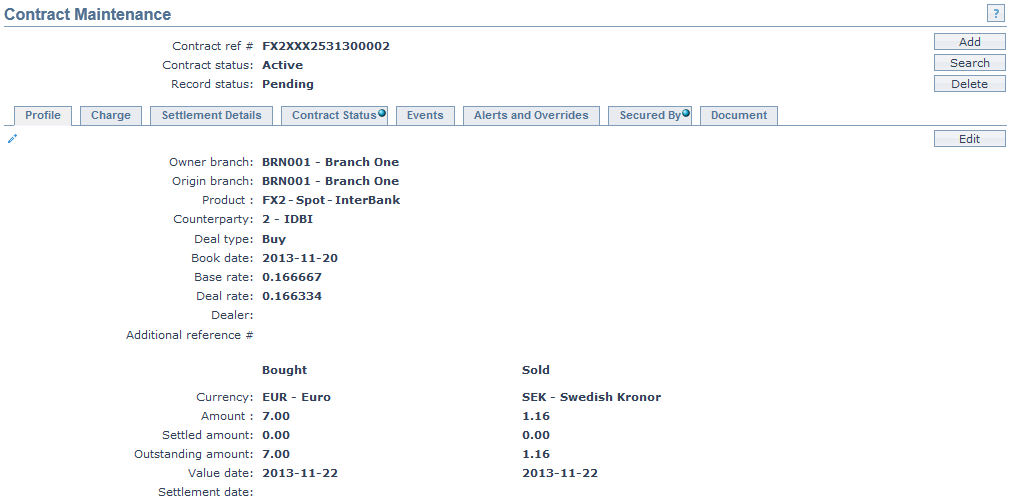
Functions: Add, Search, Delete, Edit.
The Additional fields which appear on the Contract Maintenance screen are explained below.
- Contract ref # This is auto generated by Aura. It is unique for every contract.
- Contract status This field denotes the status of the contract.
- Record status denotes the status of the record.
Note: The status of the contract is pending as soon as it is created. The Contract Status tab shows a blue bubble indicating that it is pending till it is approved by another user. On approval, the tab status is set to Approved and the blue bubble disappears.
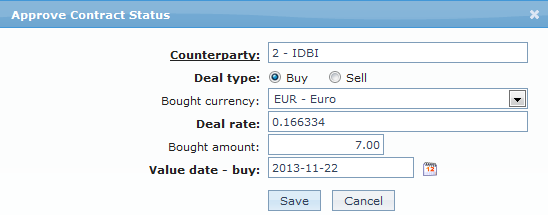
Edit: Using Edit, you can update details of the Contract. However after updating, the record status becomes pending once again till it is approved by another user.
Delete: You can delete a Contract by a click on Delete button. When you click on Delete button, Aura will ask for confirmation. On confirmation Aura will delete the Contract. However, the user who created the contract can delete it. In case it is deleted, there is no further trace of the contract.
Profile
The Profile tab, which is the default tab in the Contract Maintenance screen, shows the basic details of the Contract.
To view / edit the Profile,
1. Access the Contract Maintenance page. Click on the Profile tab to view the details as per sample below. The details are defaulted from the entries that you made during Contract creation. For details refer to New Contract → Details (1/3).
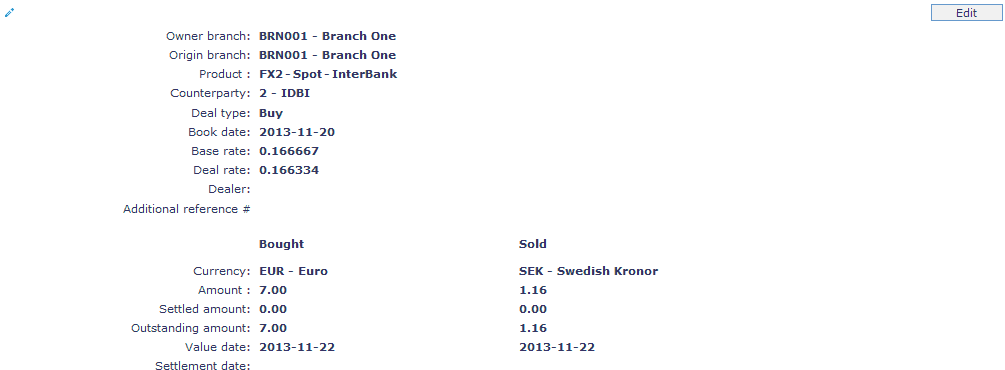
2. Click on Edit. Edit Profile page appears.
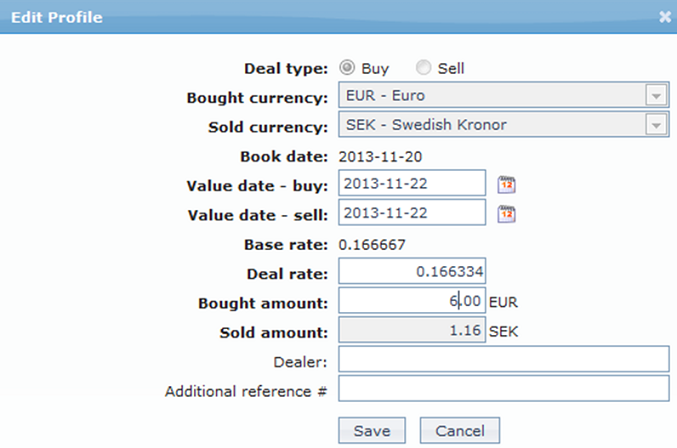
All fields except Book date and Deal rate are editable.
3. Enter the required changes in the editable fields.
4. Make the required changes and click on Save.
Functions: Edit, Approve.
Note: Any change in the tab will set the record status to Pending till it is approved by another user. On approval, the record status is set to Approved.
Charge
The Charge tab allows you to view and edit the details of different charges for the Contract created at the product level.
To view / edit,
1. Access the Product Maintenance page. Click on the Charge tab to view the details as per sample below. The details are defaulted from the entries that you made during Contract creation. For details refer to New Contract → Details (1/3).
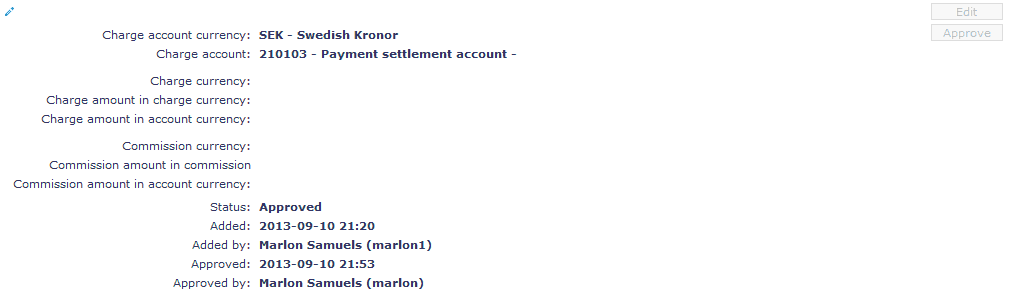
The additional fields that you can view in the Charge tab are explained below:
- Status field denotes the status of the record.
- Added field denotes the date on which the record was added.
- Added by field denotes the name of the user who created the record.
- Approved field denotes date on which the record was approved and is displayed only on approval.
- Approved by field denotes name of the user who approved the record and is displayed only on approval.
2. Click Edit. The Edit Charge page appears.
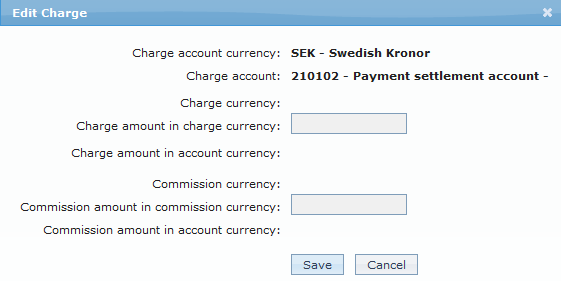
3. Enter the required changes in the editable fields.
4. Make the required changes and click on Save.
Note: The charge details are not editable once it is approved. However Charge amount in charge currency and charge amount in commission currency fields are only editable.
Functions: Edit, Approve.
Settlement Details
The Settlement Details tab allows you to view and edit the details pertaining to the settlement instruction for the Contract created at the product level. If Counterparty specific settlement instruction for bought currency and sold currency is not available then the generic settlement instruction for the currency can be used for the contract.
To view / edit,
1. Access the Contract Maintenance page. Click on the Settlement Details tab to view the details as per sample below. The details are defaulted from the entries that you made during product creation.
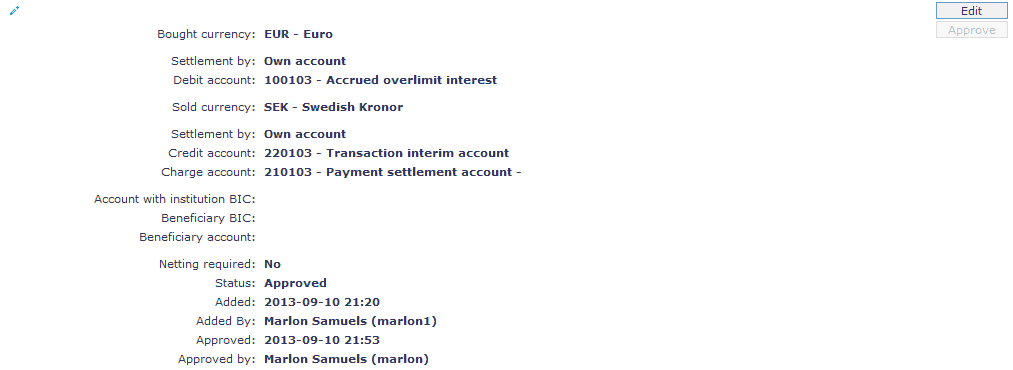
2. Click Edit. The Edit Settlement Details page appears.
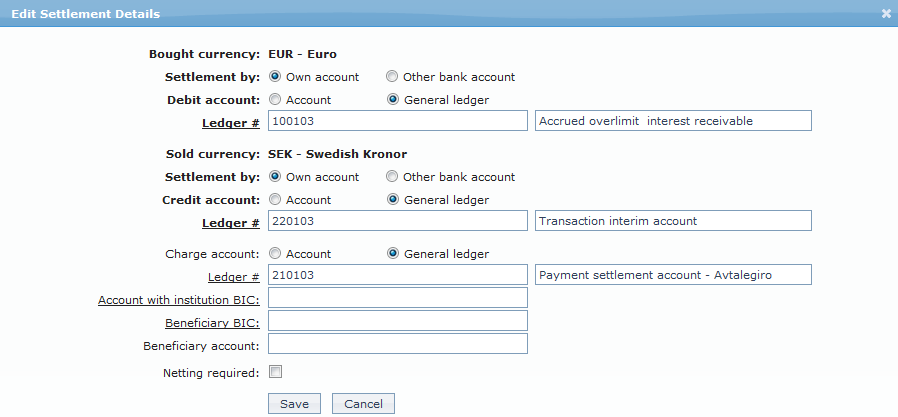
All fields except Bought Currency and Sold currency are editable.
3. Enter the required changes in the editable fields.
4. Make the required changes and click on Save.
Functions: Edit, Approve.
Contract Status
Contract status tab allows you to view the status of the contract.
To view / edit,
1. Access the Contract Maintenance page. Click on the Contract Status tab to view the details as per sample below.
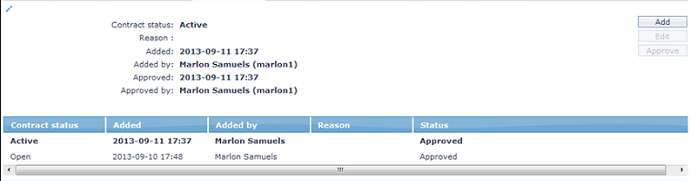
2. Click Add. Add Contract Status screen appears.
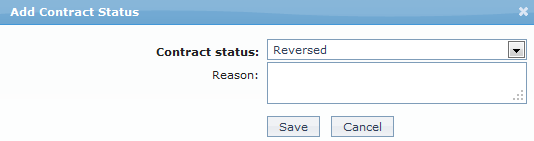
3. Enter the required details
4. Click Save to save the changes that you made.
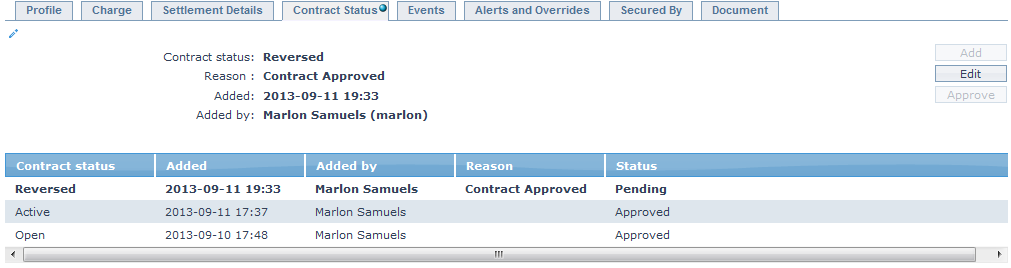
Functions: Add, Edit, Approve.
Note: On adding the New Contract status the status of the tab becomes pending till it is approved by another user. On approval, the tab status is set to Approved.
Events
Using this tab, you can view the past, current and future events in the life cycle of the Contract.
1. Access the Contract Maintenance page. Click on Events tab.
2. Clicking on the Events tab opens three sub tabs. Past, Present and Future accordingly. By default current tab is displayed. It shows the details of the Events that have value date = current business date.
3. Click on Past tab and Future tab to show details of events that have value date earlier than / later than the current business date respectively.
All the tabs show the following data:
Event: Code for the event.
Description: Description of the event.
Value Date: The value date for the event.
Book Date: The date of entry / input of the event
Ref No: The transaction reference number under which the event is processed.
Status: Status of the event:
- Pending: Where the event is not yet processed
- Success: Where the event has been processed successfully
- Failure: Where the event has failed during process.
Amount: Indicates the amount processed by the event.
Collection Status: Indicates the Collection Status in the event.
A sample of the Current tab is shown below:

A sample of Past tab is shown below.

A sample of Future tab is shown below

Alerts and Overrides
This tab allows you to view Alert or override messages for the contract along with the message generated date and the user Name. In the given sample below: An alert message is displayed describing that a generic settlement instruction is used for this contract for both Sold and Bought Currencies.
1. Access the Contract Maintenance page. Click on Alerts and Overrides tab.

Secured By
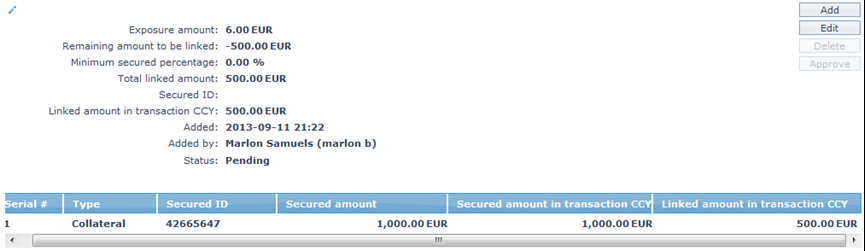
This tab indicates and displays the details of a Limit or Collateral attached to the contract. You can view / Add a limit or Collateral to the Contract.
To view / Add,
1. Access the Contract Maintenance page. Click on the Secured By tab to view the details as per sample below. The details are defaulted from the entries that you made during contract creation.
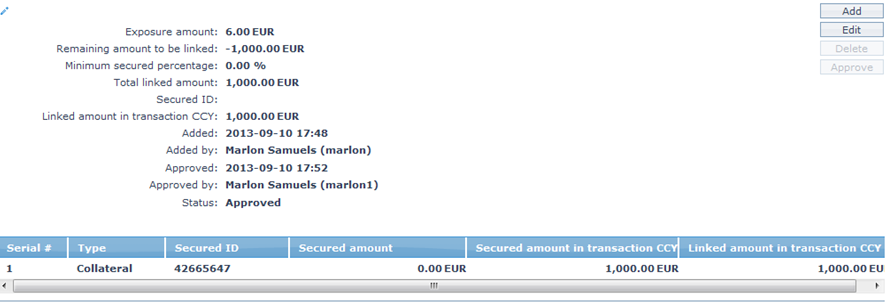
2. Click Edit. The Edit Secured By screen appears.
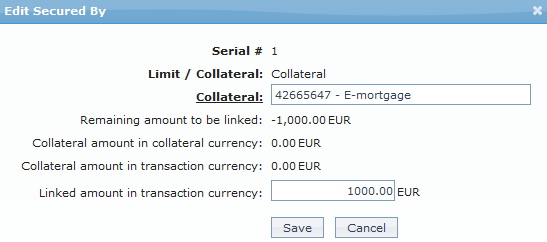
All fields except Collateral and Linked amount in transaction currency are non-editable.
3. Enter the required changes in the editable fields.
4. Click Save to save the changes that you made.
Document
The Document tab allows you to upload documents related to the FX contract. These can be in the form of scanned images or files on your computer. You can categorize the documents as per Document Type and store with a document reference number.
1. Access Contract Maintenance page and click on Document tab.
2. Click on New. The New Document page appears.
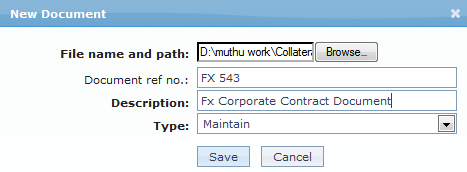
3. Click on Browse button to select the File name and path of the document.
4. Enter the Document ref no. for the document. This document reference number is used in Branch view > Documents.
5. Based on the file selected the Description field will be derived. If required you can change the description.
6. Select the Type of the Document uploaded. The document types should have been maintained using Admin > System codes > Documents > Document types. Once entered, this cannot be edited.
7. Click Save. The document gets uploaded and the details are displayed.

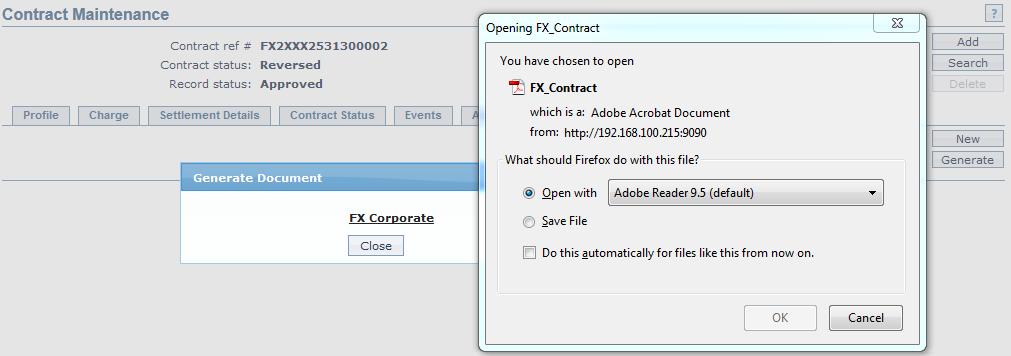
8. Click Generate to generate the pdf file using the template as maintained under Admin > System codes > Process > Document templates. New Document page will appear where the mapped templates will be displayed.
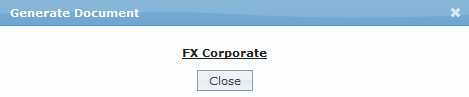
9. Click on any template from the list of templates after which the document will be generated based on the selected template as shown below.