
Manual Actions
This option allows you to simulate and / or liquidate the interests and charges on an account as well as initiate a manual closure. The different types of manual actions available for an account are:
Manual action-Closure
Manual Closure of an account can be initiated directly from the Add wizard using the Action Closure, or from a Simulated record.
To initiate closure,
From Cards menu, click Operations, and then Manual Actions. Manual actions Search page appears.

Click Add. Manual Actions -- General (1/6) page appears.
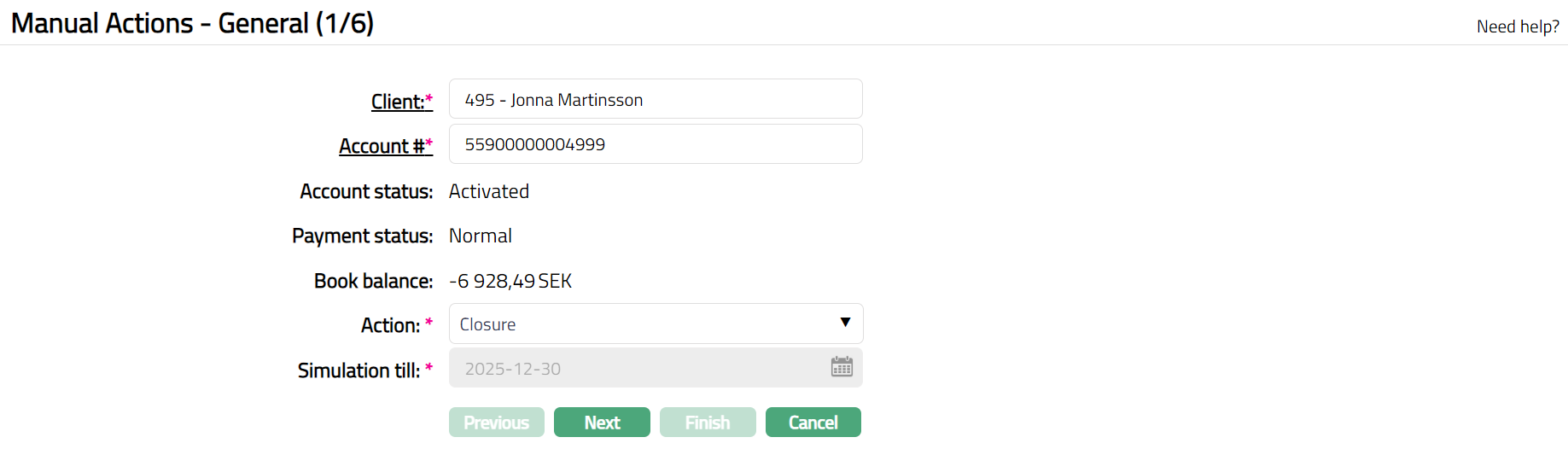
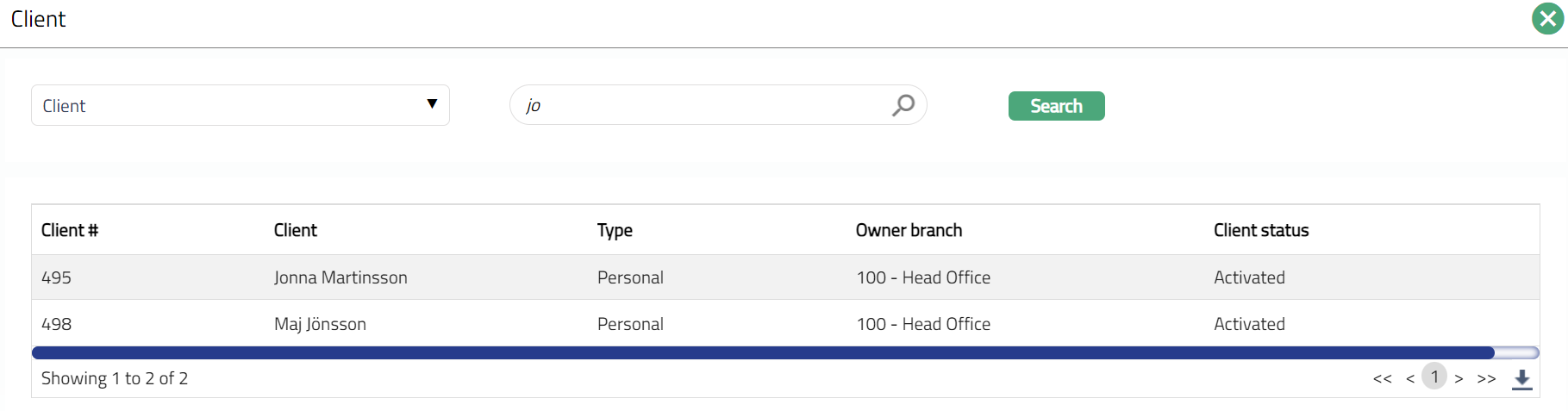
Select Client by clicking on client hyperlink. Client search page appears with the list of Clients maintained under CRM > Clients > Maintain. You can search for a client with relevant criteria and select the required client. You can also enter the client's name and select the required client from the list displayed by Aura.
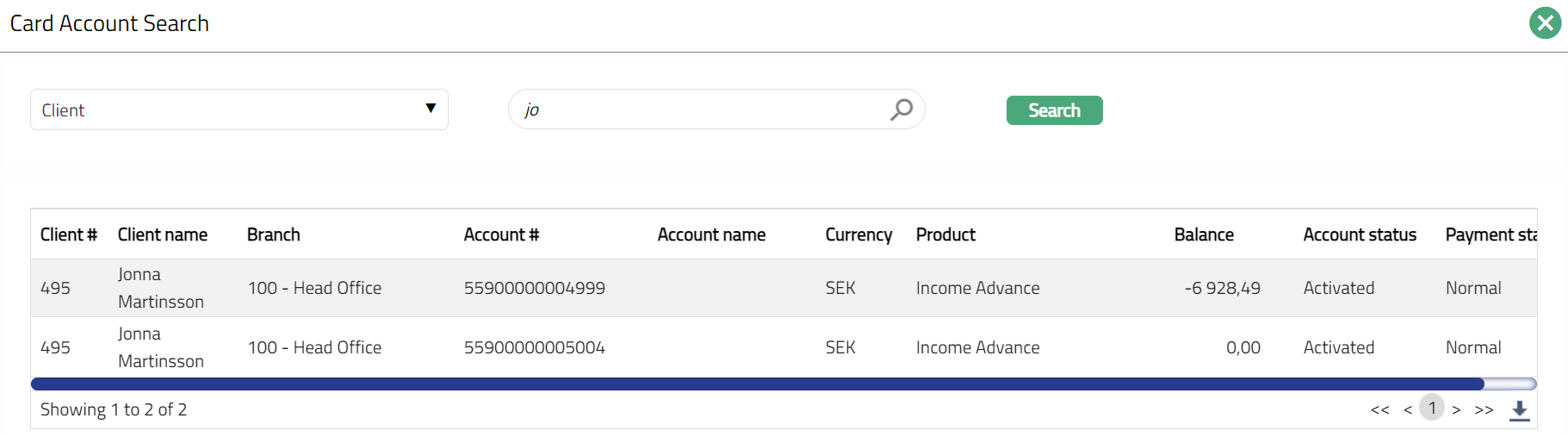
Select the Account by clicking Account# hyperlink. Card Account Search page appears with the list of card accounts of the selected client maintained under Card > Cards > Maintain card account.
Account status, Payment Status and Book balance of the account selected in the above step are displayed by default based on the account # selected.
Select Closure as the Action to be performed on the selected account.
Simulation till will automatically show the current application date.
Click Next. Manual Actions -- Interest Receivable Details (2/6) page appears. This page will appear only if the chosen Card Account is a Billing account.
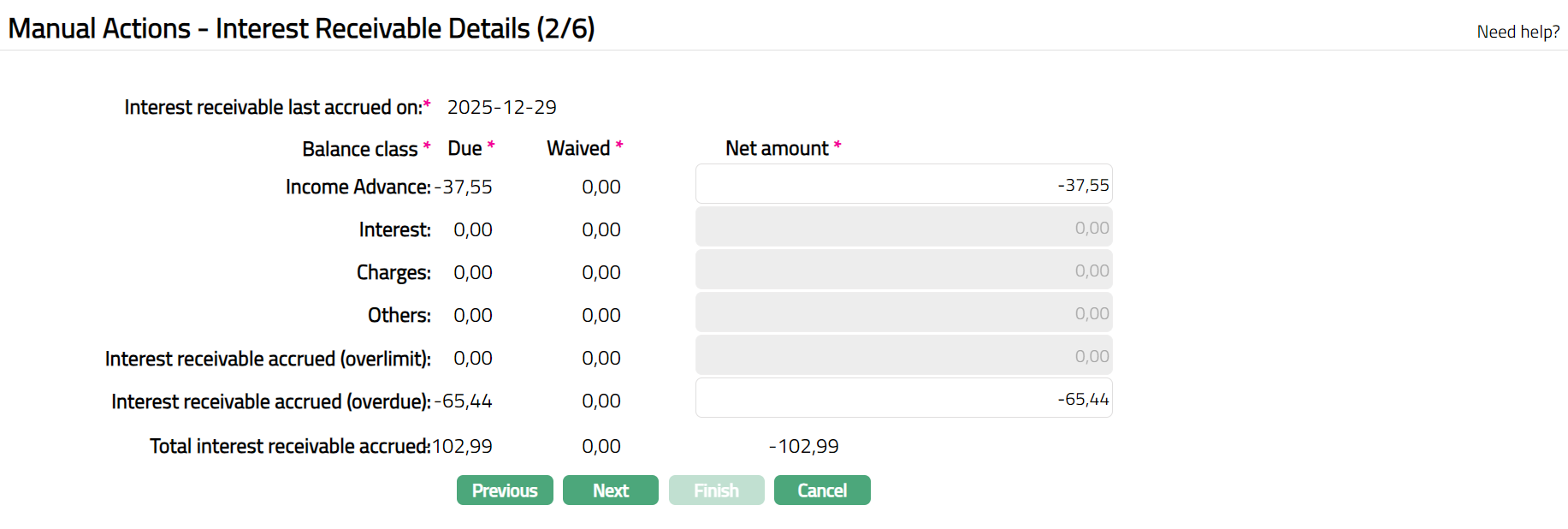
Available fields are:
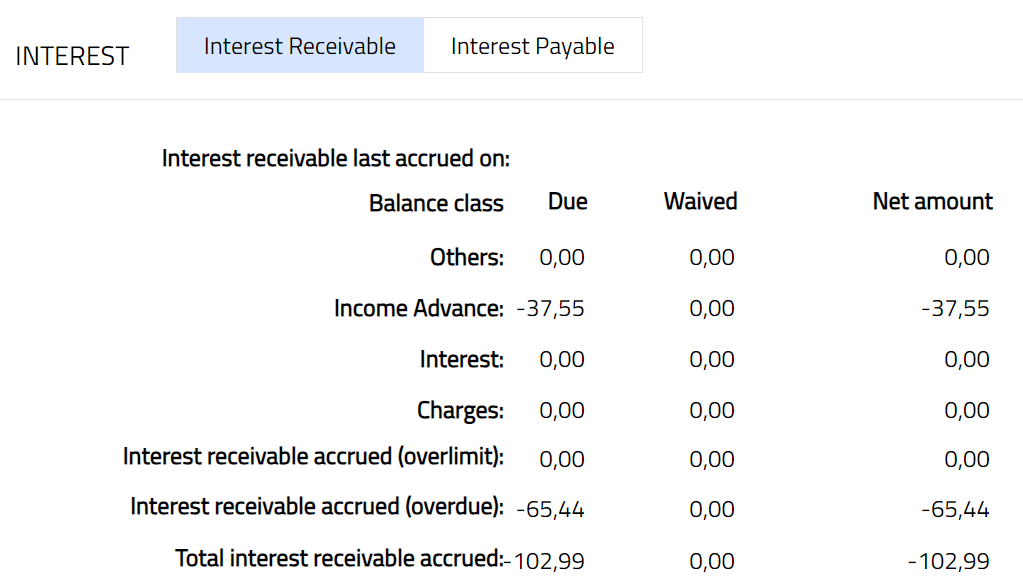
Interest receivable last accrued on: This shows the date on which interest receivable was last accrued.
Balance Class: All the Debit Balance Classes are displayed under this column head. If there is no interest accrued, only the Default Balance Class will be shown with zero. It also shows the Interest receivable accrued on Overlimit amount and Overdue amount.
Due: This is the amount of interest accrued for each Balance Class up to Simulation Till Date.
Waived: For each Balance Class, this amount is calculated as Due minus Net amount.
Net amount: Denotes the amount to be collected from the customer. For each Balance Class, you will be able to input the amount to be collected from the customer. This amount will be displayed with a negative sign, as this is receivable and should be <= Due.
Total interest receivable accrued: denotes the sum of the interest receivable accrued for all the balance classes as well as Overlimit and Overdue interest accrued.
Click Next. Manual Actions -- Interest Payable Details (3/6) page appears. This page will appear only if the chosen Card Account is a Billing account.

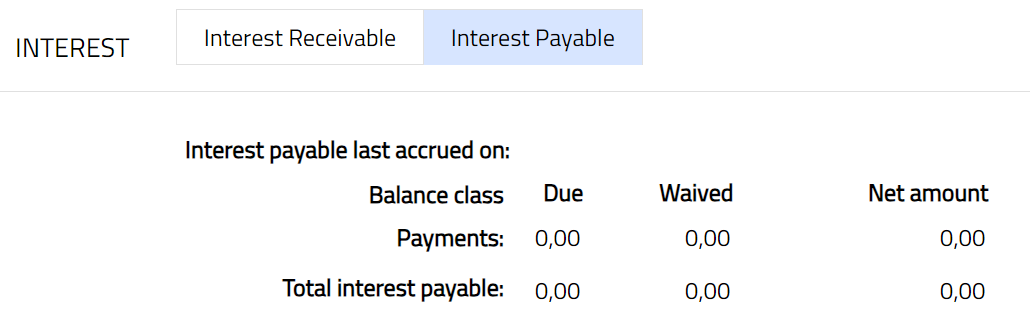
Interest payable last accrued on: This shows the date on which interest payable was last accrued.
Balance Class: All the Credit Balance Classes are displayed under this column head. If there is no interest accrued, only the Default Balance Class will be shown with zero.
Due: This is the amount of interest accrued for each Balance Class up to Simulation Till Date minus 1.
Waived: For each Balance Class, this amount is calculated as Due minus Net amount.
Net amount: Denotes the amount to be paid to the customer. For each Balance Class, you will be able to input the amount to be paid to the customer. This amount will be displayed with a positive sign, as this is payable and should be <= Due.
Total interest payable: denotes the sum of the interest payable accrued for all the balance classes as well as Overlimit and Overdue interest accrued.
- Click Next. Manual Actions -- Charge Details (4/6) page appears. This page will display all charges that are due on the account, but which have not been collected (liquidated) or if any refund is due. These will include both periodic and event-based charges. This page will appear irrespective of whether the chosen Card Account is a Billing account or a Transaction Account.
Note: Charges that are due to be collected will be shown as negative amounts while refunds will be shown as positive amounts.

The Fields available are:
Charge: Denotes name of all the Charge Schemes applicable to the selected card account that are due and not yet liquidated, or, if any refund is due. If there is no charge due to be collected / refunded, only the Total charges will be shown with zero.
Due: Denotes the amount that is due as per the calculations. Closure Charges will be shown as due to be collected. In case of refunds, this will be positive and in case of amounts to be collected, this will be shown with a minus sign.
Waived: For each Charge Scheme, this amount is calculated as Due minus Net amount.
Net amount: Denotes the amount to be collected from / refunded to the customer. For each Charge Scheme, you will be able to input the amount to be collected from / refunded to the customer. The sign of the Net amount will be the same as the Due amount.
Total charges: denotes the sum of all the charges applicable for the card account.
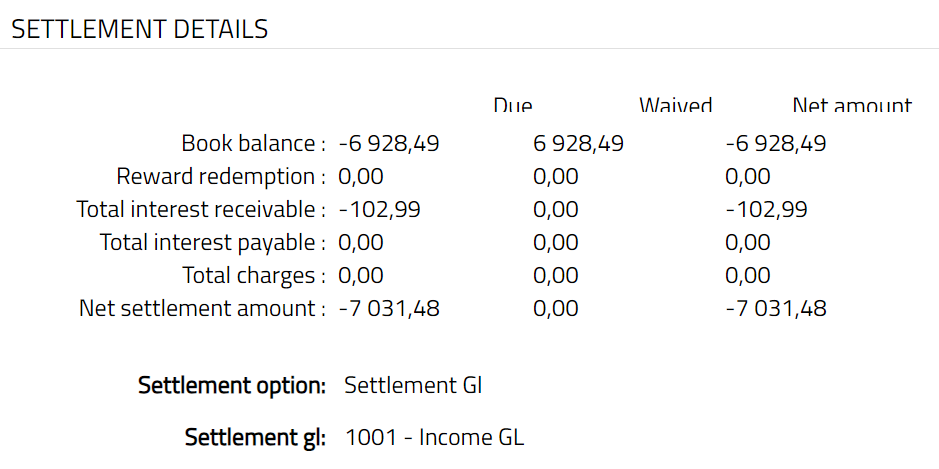
Click Next. Manual Actions -- Settlement Details (5/6) page appears. The page will display all the amounts that are due on the account upto the Simulation till date, and you will also be able to specify the mode of settlement of the net amount receivable / payable. This page will appear irrespective of whether the chosen Card Account is a Billing account or a Transaction Account.
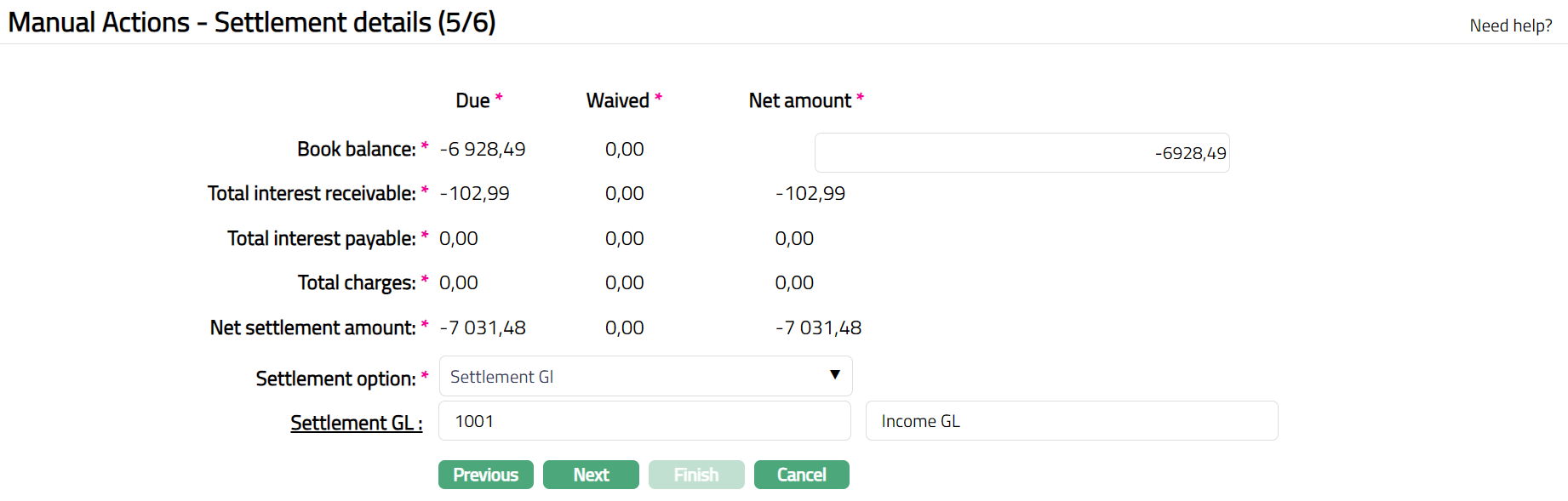
Fields available here are:
Book balance: denotes the balance existing in the account at the time of generation of the record. Amount due from the customer will be shown with a minus sign, while any amount due to the customer will be shown as a positive amount. You will be able to input the net amount due to / from the customer.
Bonus redemption: In case of Bonus redemption, the Due amount will show the amount to be credited into the Card account if the bonus points are redeemed, as a positive amount. You will be able to input the net Bonus redemption amount to be credited to the account.
Total interest receivable: The amount of interest that is receivable is populated from the Manual Actions -- Interest receivable (2/6) page.
Total interest payable: The amount of interest that is payable is populated from the Manual Actions -- Interest payable (3/6) page.
Total Charges: The total charges that are due to be collected / refunded is populated from the Manual Actions -- Charge Details (4/6) page.
Net settlement amount: Displays the sum of the Book balance, Bonus redemption, Total interest receivable, Total interest payable and Total Charges.
Due: Denotes the amount that is due as per the calculations (gross amounts). This will always denote the balance that was at the time of generation / save / approval of the record. During approval, the amount will be recalculated and updated as per the balance at that point of time, and version number of the record will be incremented.
Waived: Denotes the waived amount which is calculated as Due -- Net amount for Book Balance and Bonus redemption. For interest receivable, interest payable and charges, the sum of the waived amount from the previous steps are displayed here.
Net amount: Denotes the net amount receivable / payable on the card account. For Book balance and Bonus redemption, you will be able to input the net amount to be treated as the Book balance or the Bonus redemption amount respectively, For Total interest receivable, Total interest payable and Total Charges, this will show the sum of the net amount to be collected / paid from the previous steps.
- Select Settlement option from the dropdown list. The available options are:
Own account transfer: Use this option if you want to use any other account belonging to the client for settling the dues on this card account.,
Other client transfer: Use this option if you want to use an account of any other client for settling the dues on this card account.
Settlement GL: Use this option if you want to use an external (other bank) account or GL for settling the due on this card account.
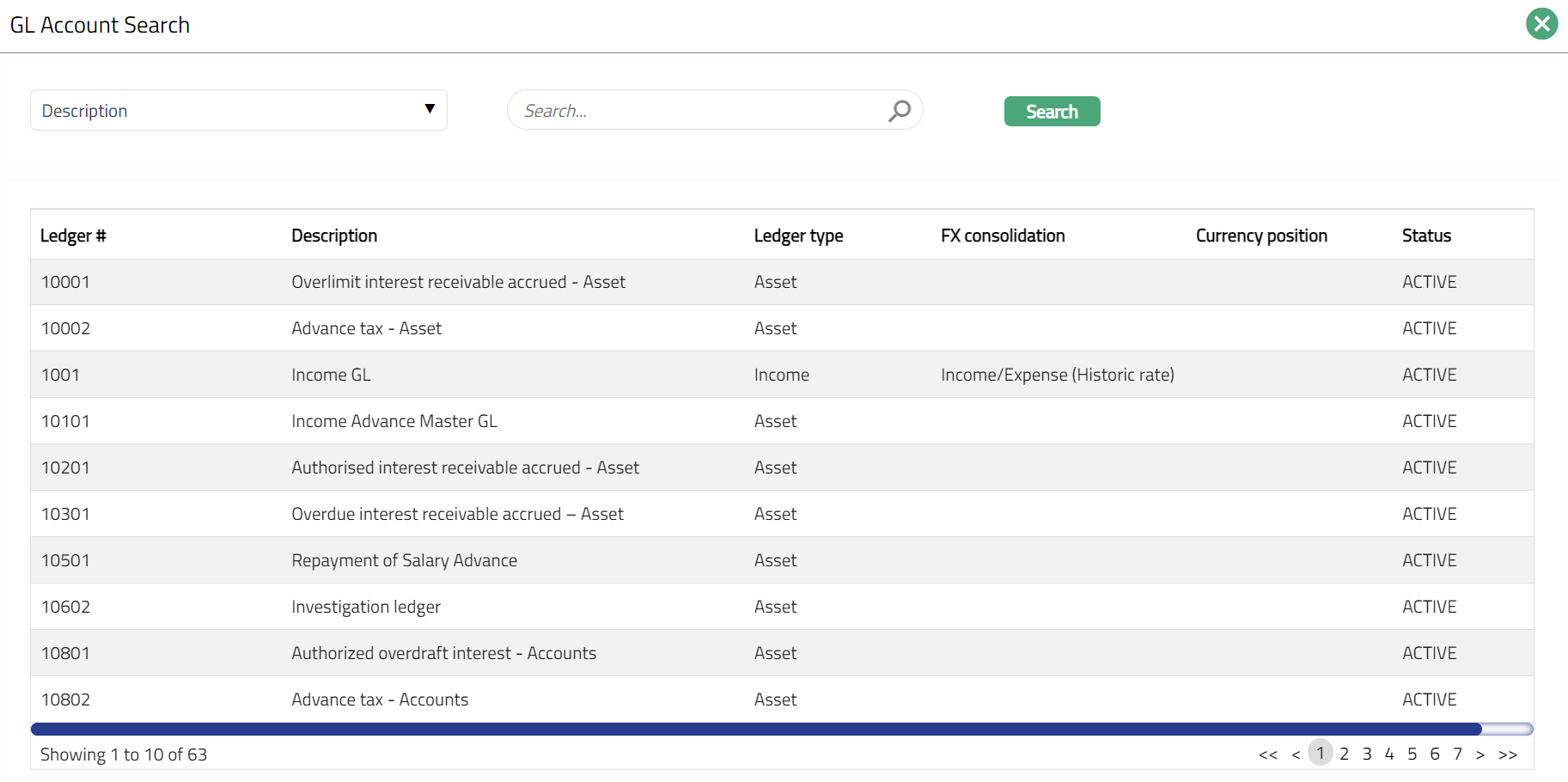
- Based on the Settlement option chosen to perform one of the following steps.
i. If Settlement option is Own account transfer, then
a. The Client to whom the Card account # belongs is automatically populated.
b. Click on the Settlement account# hyperlink and select an account from the list of all the active accounts owned by the client.
ii. If Settlement option is Other client transfer, then.
a. Click on the Settlement client hyperlink and select a client from the list of all the existing clients in Aura.
b. Click on the Settlement account# hyperlink and select an account from the list of all the active accounts owned by the above client.
iii. If Settlement option is Settlement GL, then.
 a.  Click **Settlement GL** hyperlink and select a settlement GL
     from the list of GLs maintained at General ledger \> General
     ledger \> Accounts.
Click Next. Manual Actions -- Confirmation (6/6) page appears. This page will appear irrespective of whether the chosen Card Account is a Billing account or a Transaction Account and will show all the details that were input in the previous steps.
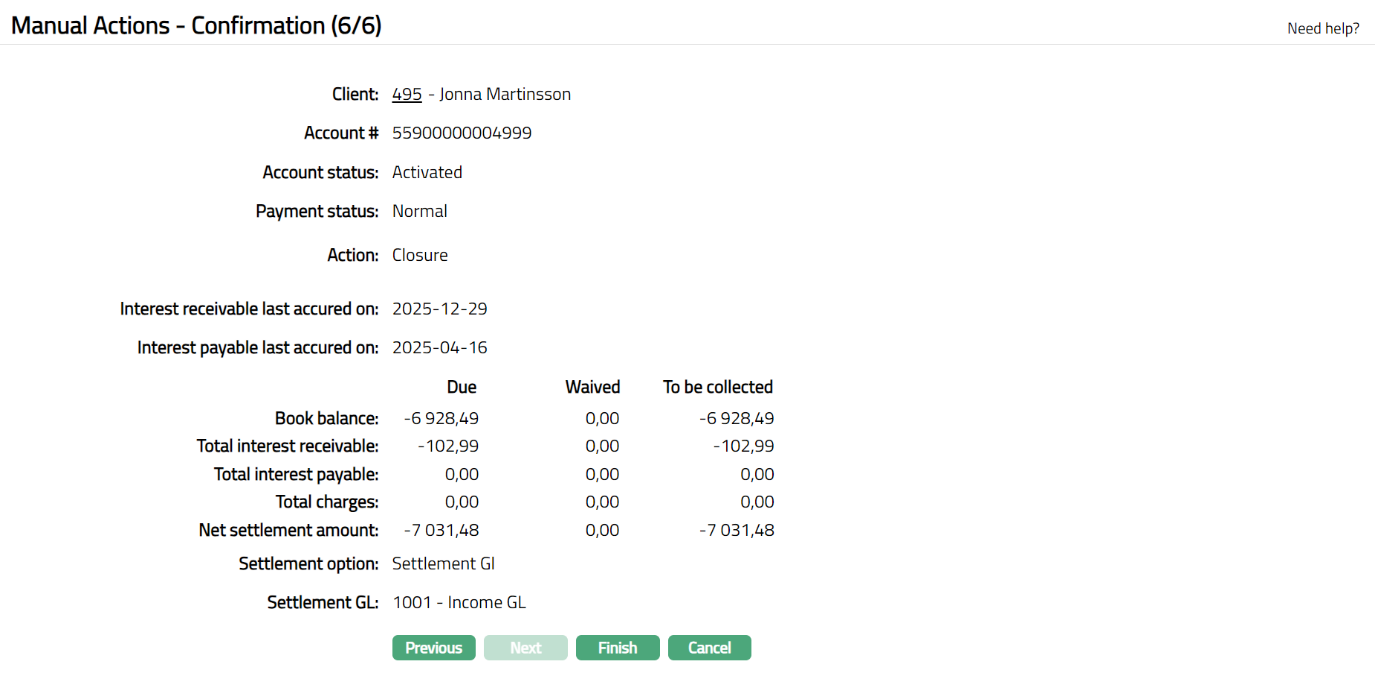
Click Finish. Manual Actions page appears, and the Profile tab is displayed by default. On creation of a closure record, the status of the record and Profile will display as Pending.
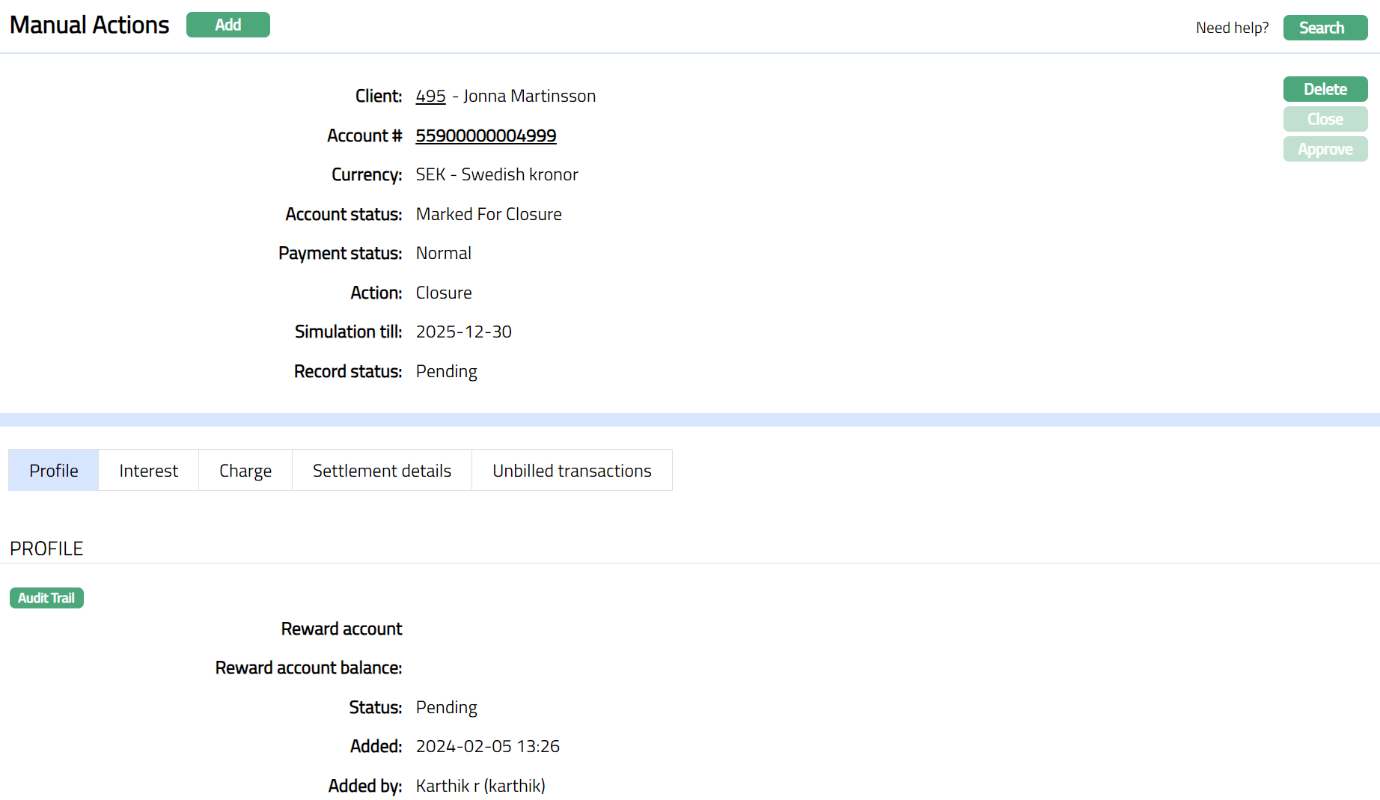
Functions: Add, Delete, Search and Approve.
Approve: Any user other than the one who created the Manual action record can approve the record. You can click on the Approve button to approve the record. Aura will ask for confirmation. On confirmation,
a. Aura will recalculate all the amounts.
b. Interest and the charges will be liquidated by passing the accounting entries for interest and / or charges.
c. Bonus redemption, all waivers and settlement entries will be passed.
d. Insurance Plans on card accounts, if active, will be permanently suspended.
e. Related Bonus account, Dispute account and Card Loan accounts, if active, will be closed.
f. Card account that is closed will be available only for View / Reopen. No further actions will be possible on the Account.
Delete: You can delete a record by clicking on Delete button. When you click on Delete button, Aura will display an alert message. On confirmation Aura will delete the manual action record. This button will be enabled only when the record is in Pending status.
Profile
Profile tab, which is the default tab in the Manual Actions screen, shows the basic details of the manual action record created for an account.
To view Profile
Access Manual Action page and click on Profile tab to view the details as per sample below. The details are defaulted from the entries that you made in Manual Actions -- General (1/6) during Manual Action record creation.
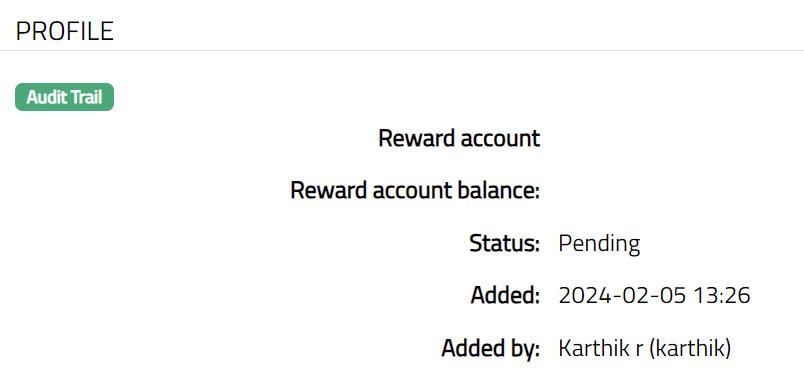
Note: On creation of a closure record, the status of the record profile status will display as Pending. Any user other than the one who created the record can approve the closure record. While approving the record Aura will ask for confirmation on recalculation of all the details. If you click Yes Aura will recalculate all the amounts and the record will get approved. If you select No, then the record will still be Pending for approval.
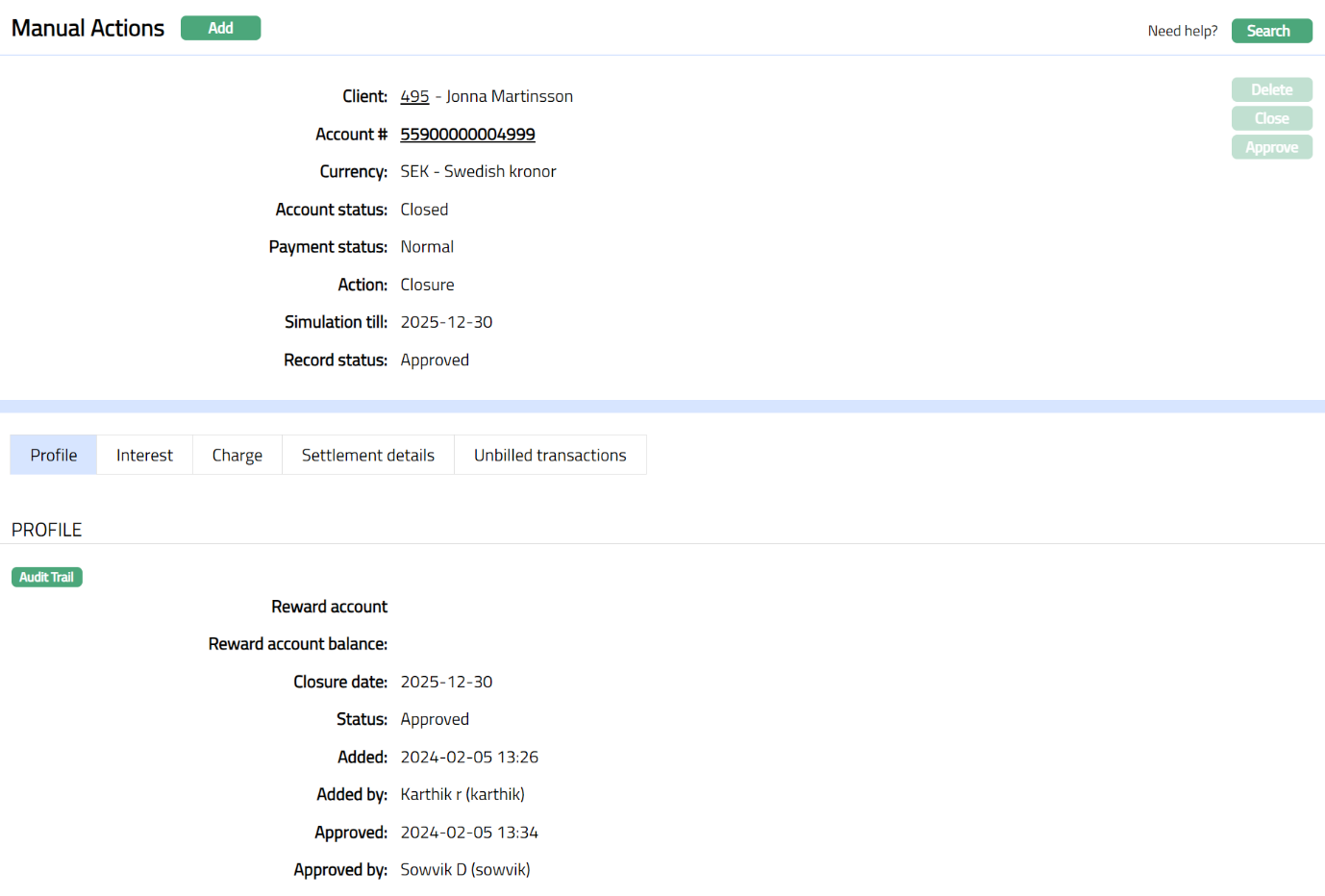
Function: Approve
The additional fields available are:
Closure date denotes the Date of approval of the closure and is displayed only on approval.
Status field denotes the status of the record.
Added field denotes the date on which the record was added.
Added by field denotes the name of the user who created the record.
Approved field denotes date on which the record was approved and is displayed only on approval.
Approved by field denotes name of the user who approved the record and is displayed only on approval.
Interest
This tab displays the details of the accrued interest receivable / payable calculated as at the point of generation of record. This tab will be available only for the Billing Accounts and will not be available Transaction Accounts.
There are two sub tabs under Interest tab.
Interest receivable
Interest Payable
To view Interest Receivable,
- Access Manual Action page and click Interest tab. The details are defaulted from the entries that you made in Manual Actions -- Interest Receivable Details (2/6) during Manual Action record creation.
To view Interest Payable,
- Access Manual Action page and click Interest tab and then Interest payable. The details are defaulted from the entries that you made in Manual Actions -- Interest Payable Details (3/6) during Manual Action record creation.
Charges
This tab will allow you to view all charges that are due on the account and are yet to be liquidated. These will include both periodic and event-based charges. This is available for both Billing accounts and Transaction Accounts. Charges that are due to be collected will be shown as negative amounts while refunds will be shown as positive amounts.
To view charge details,
- Access Manual Action page and click Charge tab. All the details of the charges that are applicable to the account are displayed here. The details are defaulted from the entries that you made in Manual Actions -- Charge Details (4/6) during Manual Action record creation.

Settlement Details
All the details of the settlement to be made on closure of the account are displayed under this tab.
To view Settlement details,
- Access Manual Action page and click Settlement details tab. The details are defaulted from the entries that you made in Manual Actions -- Settlement Details (5/6) during Manual Action record creation.
Unbilled transactions
To view unbilled transaction details,
Access Manual Action page and click Unbilled transaction tab. All the unbilled transactions of the Card account as at the time of viewing are displayed here.

Available fields are:
Date: denotes the on which the transaction is made.
Particulars: denotes the details of the transaction.
Amount: denotes the Amount of the transaction
Manual action-Simulation
You can use this option to simulate the interest and charges on an account upto a future date.
To initiate Simulation
From Cards menu, click Operations, and then Manual Actions. Manual actions Search page appears.
Click Add. Manual Actions -- General (1/2) page appears.
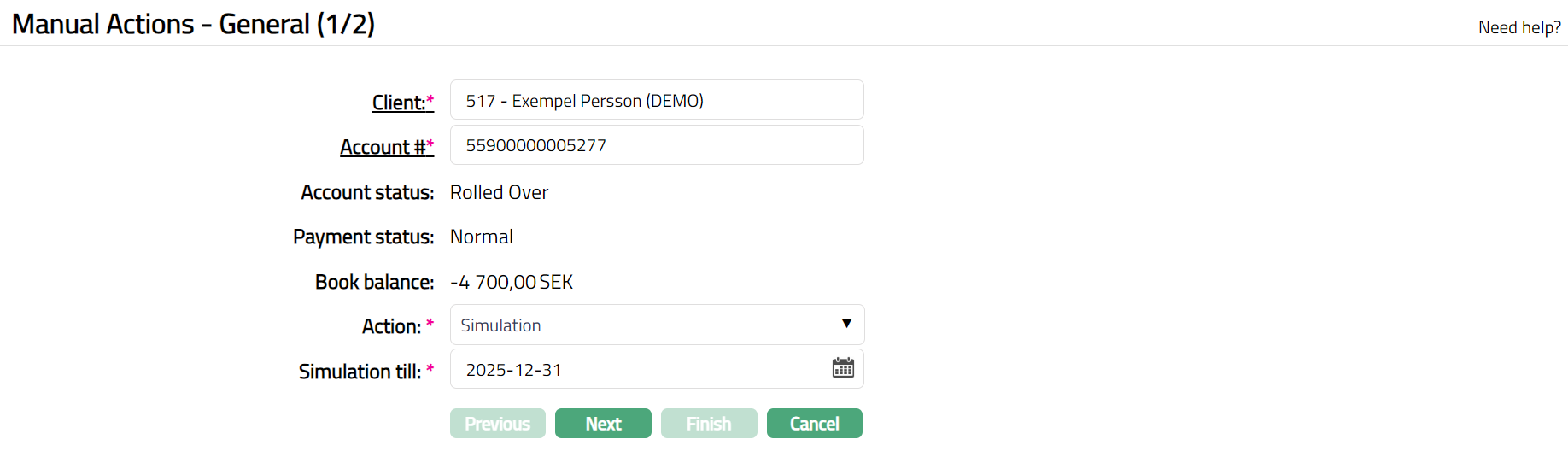
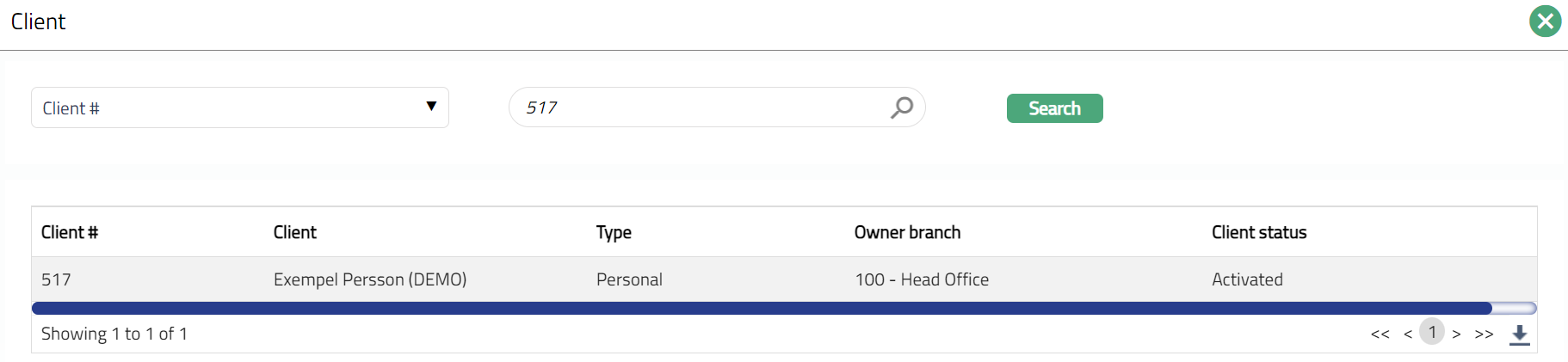
Select Client by clicking on client hyperlink. Client search page appears with the list of Clients maintained under CRM > Clients > Maintain. You can search for a client with relevant criteria and select the required client. You can also input the client's name and select the required client from the list displayed by Aura.
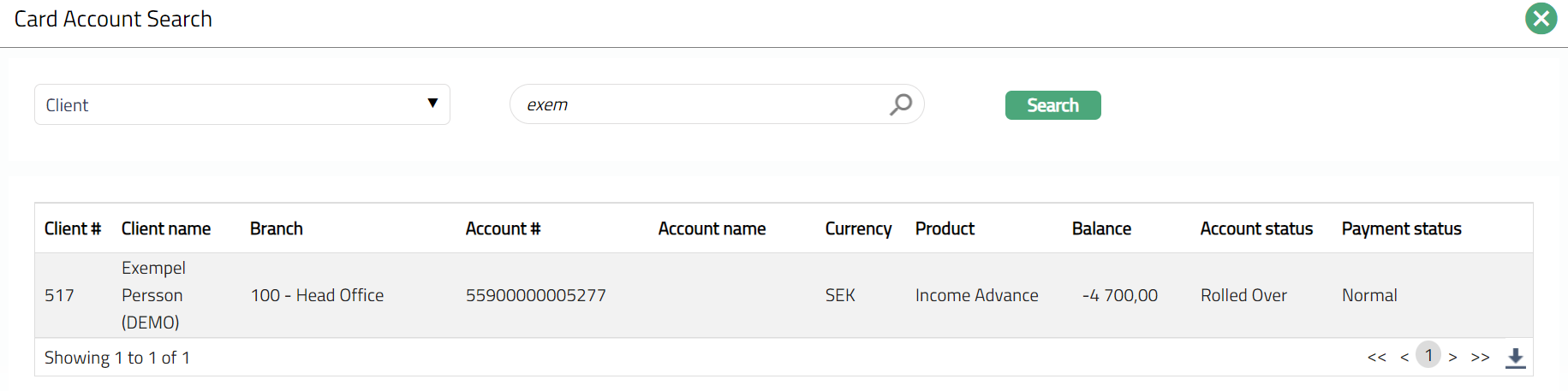
Click Account# hyperlink. Card Account Search page appears with the list of card accounts of the selected client maintained under Card > Cards > Maintain card account.
Account Status, Payment Status and Book balance of the account selected in the above step are displayed.
Select Simulation as the Action to be performed on the selected account.
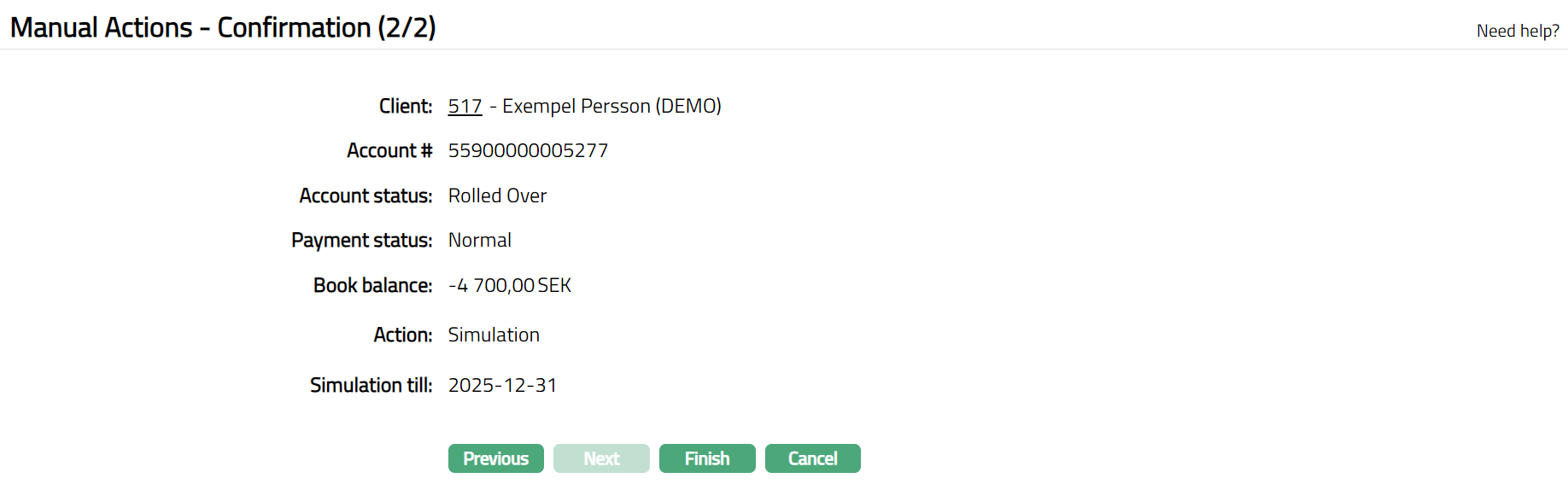
Simulation till will automatically show the current date. You can change it to a future date till which the Simulation is to be done but this date has to be greater than or equal to the current date and has to be less than or equal to current EOC date.
Click Next. Manual Actions -- Confirmation (2/2) page appears.
- Click Finish. Manual Actions page appears, showing the Profile tab by default.
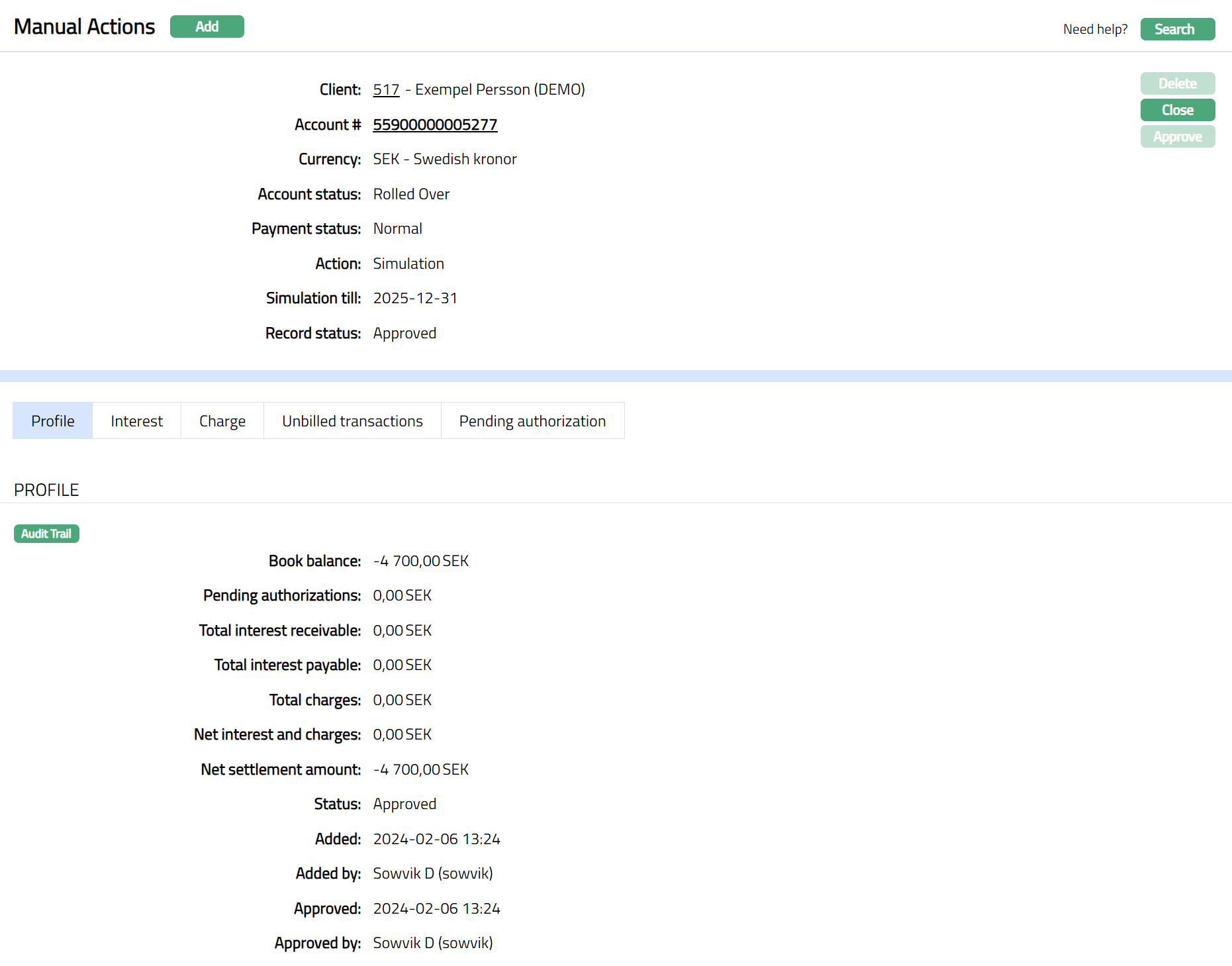
Functions: Add, Search, Close.
On creation of a Simulation record, the Record status is automatically updated to Approved. The accrued interest receivable accrued interest payable and charges due to be collected or refunded till the Simulation Till date are calculated and displayed in the appropriate tabs.
Close: You can close the account for which interest and charges have been simulated using this button. Aura will use the account details of the simulated record and initiate the closure of the account. Please refer to the section on Manual Action -- Closure for details.
Profile
Profile tab, which is the default tab in the Dispute Manual Actions screen, shows the basic details of the manual action record created for an account.
To view Profile,
Access Manual Action page and click Profile tab to view the details as per sample below. The details are defaulted from the entries that you made in Manual Actions -- General (1/2) during Manual Action record creation.
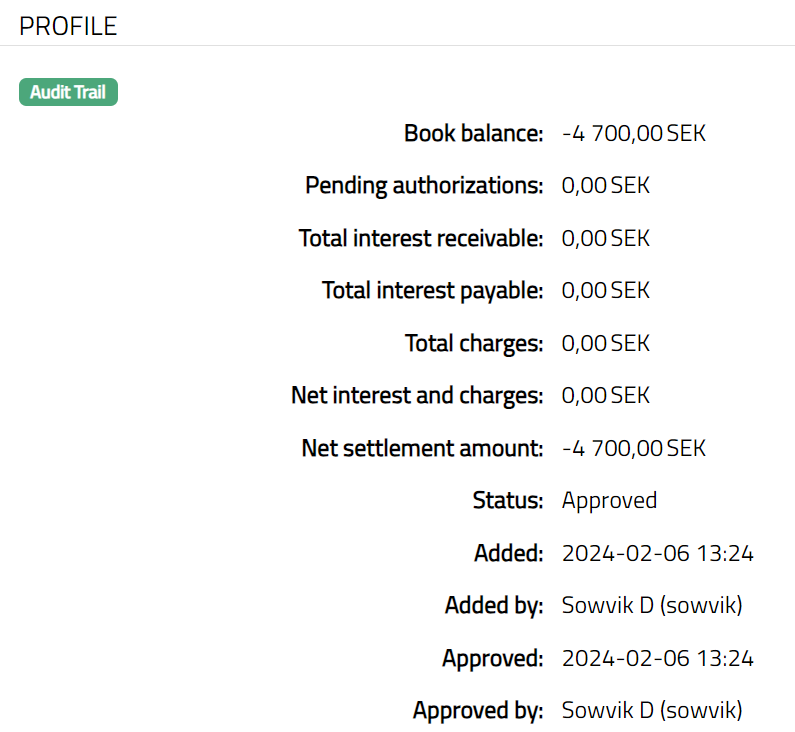
The fields available are:
Book balance displays the book balance available in the selected card account.
Pending authorizations display the total amount of active amount blocks for the card account as at the time of viewing.
Total interest receivable displays the total interest receivable (accrued till date of generation + calculated up to the Simulation Till date) as at the time of generating the record.
Total interest payable displays the total interest payable (accrued till date of generation + calculated up to the Simulation Till date) as at the time of generating the record.
Total charges display the total charges (due till date of generation + calculated up to the Simulation Till date) as at the time of generating the record. This field will show a net negative (to be collected) or net positive (refund) amount.
Net interest and charges display the Sum of interests and charges as at the time of generating the record.
Net settlement amount displays the Sum of Book Balance, interests and charges as at the time of generating the record.
Status field denotes the status of the record.
Added field denotes the date on which the record was added.
Added by field denotes the name of the user who created the record.
Approved field denotes date on which the record was approved and is displayed only on approval.
Approved by field denotes name of the user who approved the record and is displayed only on approval.
Interest
This tab displays the details of the accrued interest receivable / payable calculated as at the point of generation of record. This tab will be available only for the Billing Accounts and will not be available Transaction Accounts.
There are two sub tabs under Interest tab.
Interest Receivable
Interest Payable
To view Interest Receivable,
- Access Manual Action page and click Interest tab.
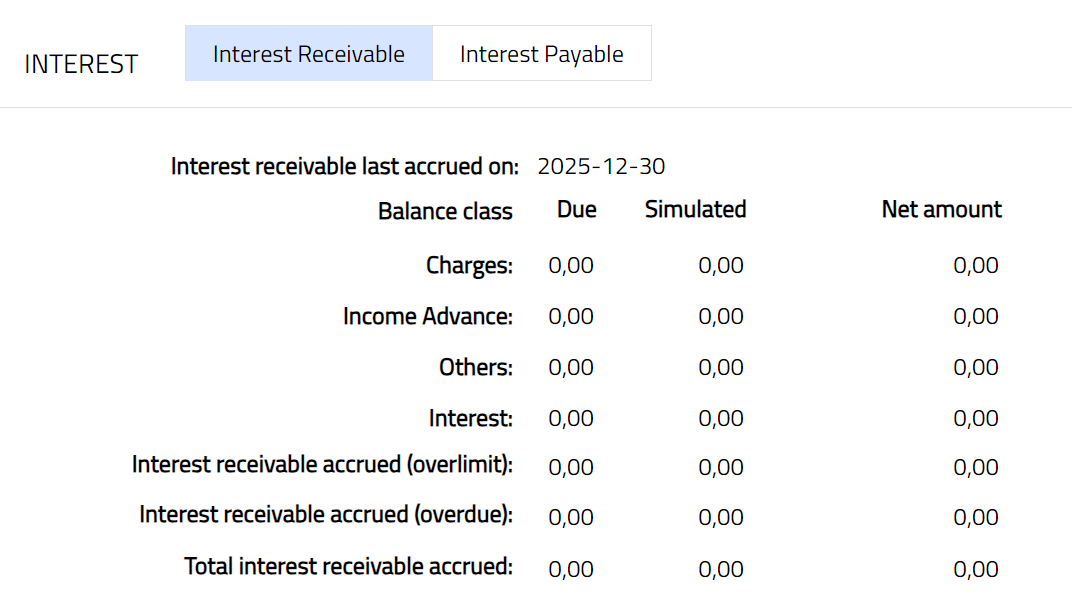
Available fields are:
Interest receivable last accrued on: This shows the date on which interest receivable was last accrued.
Balance Class: All the Debit Balance Classes are displayed under this column head. If there is no interest accrued, only the Default Balance Class will be shown with zero. It also shows the Interest receivable accrued on Overlimit amount and Overdue amount.
Due: This is the amount of interest accrued for each Balance Class up to current Date.
Simulated: If Simulation Till Date > current date, the amount that is due from current date till the Simulation Till Date minus 1 is displayed.
Net amount: Denotes the amount to be collected from the customer for each Balance Class and is the total of amounts under Due and Simulated. This amount will be displayed with a negative sign, as this is receivable.
Total interest receivable accrued: denotes the sum of the interest receivable accrued for all the balance classes as well as Overlimit and Overdue interest accrued.
To view Interest Payable,
- Access Manual Action page and click Interest tab and then Interest payable.
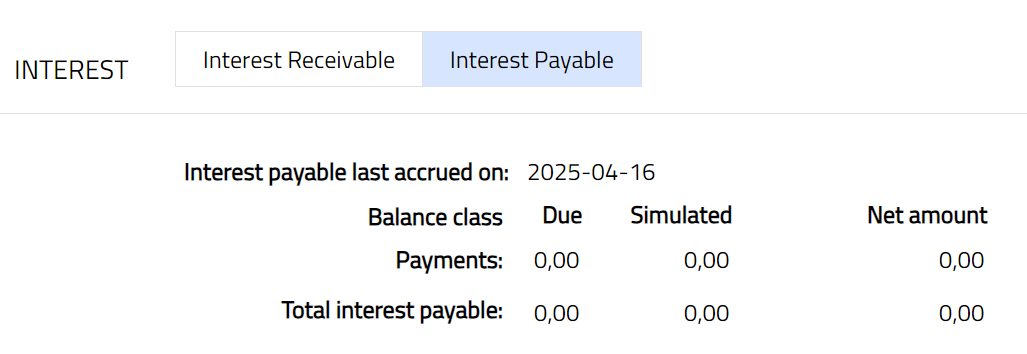
Available fields are:
Interest payable last accrued on: This shows the date on which interest payable was last accrued.
Balance Class: All the Credit Balance Classes are displayed under this column head. If there is no interest accrued, only the Default Balance Class will be shown with zero.
Due: This is the amount of interest accrued for each Balance Class up to current date.
Simulated: If Simulation Till Date > current date, the amount that is due from current date till the Simulation Till Date minus 1 is displayed.
Net amount: Denotes the amount to be paid to the customer for each Balance Class and is the total of amounts under Due and Simulated. This amount will be displayed with a positive sign, as this is a payable.
Total interest payable: denotes the sum of the interest payable accrued for all the balance classes.
Charges
This tab will allow you to view all charges that are due on the account and are yet to be liquidated. These will include both periodic and event-based charges. This is available for both Billing accounts and Transaction Accounts. Charges that are due to be collected will be shown as negative amounts while refunds will be shown as positive amounts.
To view the charge details,
- Access Manual Action page and click Charge tab. All the details of the charges that are applicable to the account are displayed here.

Available fields are:
Charge: Name of all the Charge Schemes for charges that are due and not yet liquidated, or, if any refund is due. If there is no charge due to be collected / refunded, only the Total charges will be shown as zero.
Due: For each row, the amount that is due as on current date is displayed here.
Simulated: If Simulation Till Date > current date, the amount that is due from current date till the Simulation Till Date is displayed.
Total: Denotes the amount to be received from / refunded to the customer for each charge scheme and is the total of amounts under Due and Simulated. This amount will be displayed with a negative sign if it is to be collected from the client and with a positive sign if it is a refund to the client.
Unbilled transactions
To view the unbilled transaction details,
Access Manual Action page and click Unbilled transaction tab. All the unbilled transactions of the Card account as at the time of viewing are displayed here.

Available fields are:
Date: denotes the on which the transaction is made.
Particulars: denotes the details of the transaction.
Amount: denotes the Amount of the transaction
Pending Authorizations
All active amount blocks that are pending for authorization at the time of creation of the manual action record are displayed under this tab.
- Access Manual Action page and click Pending Authorizations tab. If available all the active amount blocks for the card account will be displayed.

Available fields are:
Effective Date: denotes the Effective date of the amount block.
Expiry Date: denotes the Expiry date of the amount block.
Particulars: denotes the description of the Block Category of the amount block
Amount: denotes Amount blocked
Manual action-Liquidation
You can use this option to liquidate the interest and / or charges on an account.
From Cards menu, click Operations, and then Manual Actions. Manual actions Search page appears.
- Click Add. Manual Actions -- General (1/4) page appears.
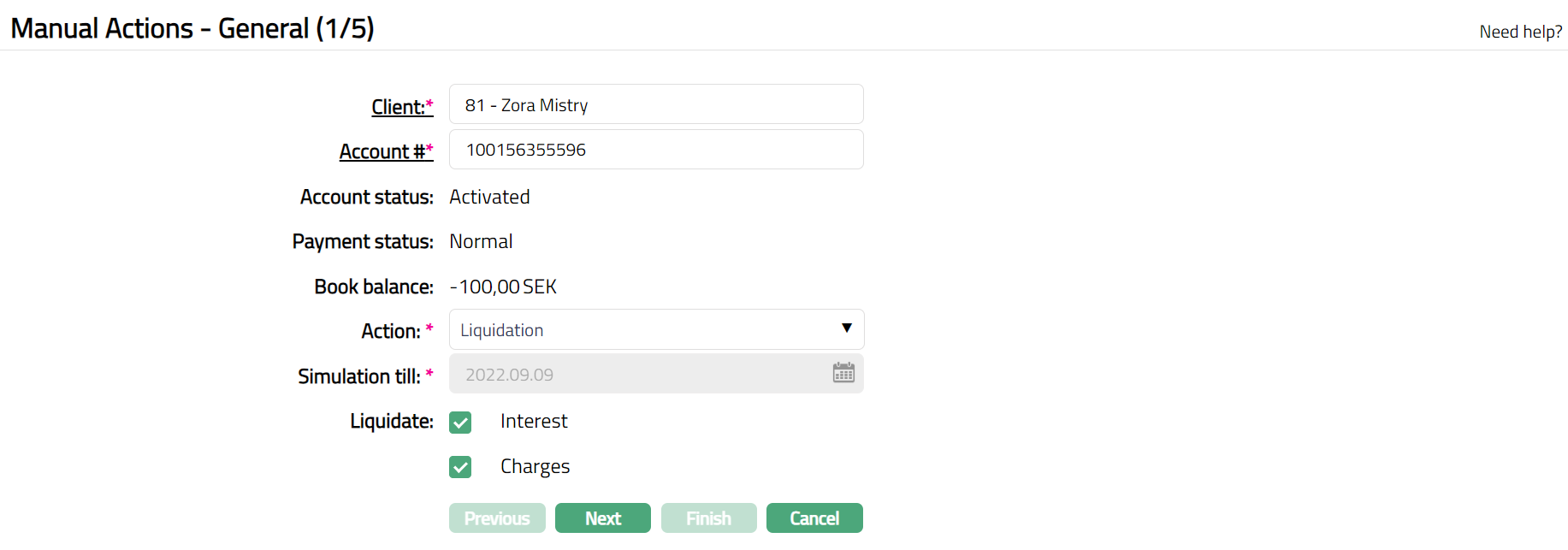
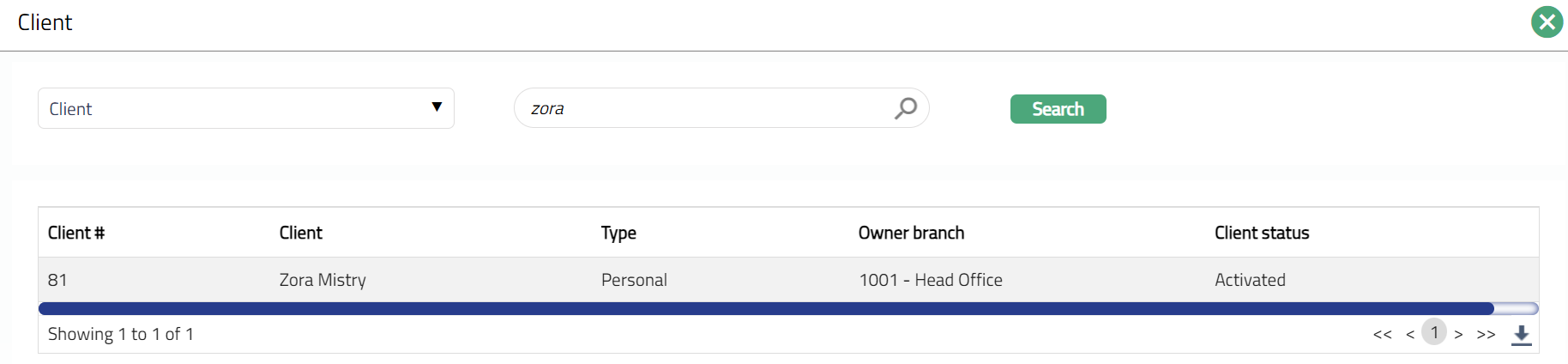
Select Client by clicking on client hyperlink. Client search page appears with the list of Clients maintained under CRM > Clients > Maintain. You can search for a client with relevant criteria and select the required client. You can also input the client's name and select the required client from the list displayed by Aura.
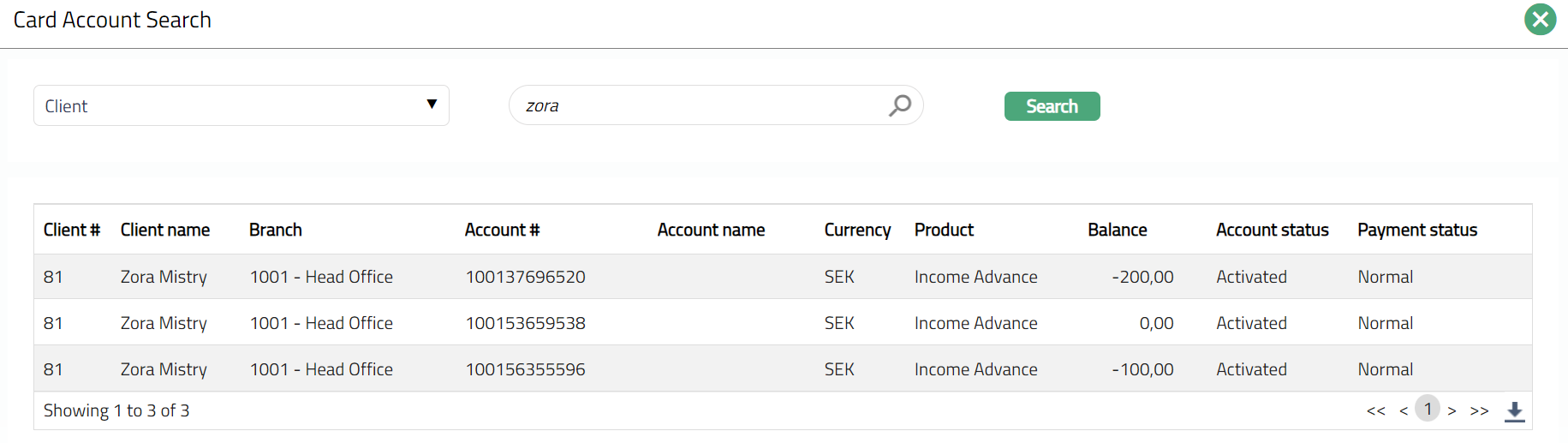
Click Account# hyperlink. Card Account Search page appears with the list of card accounts of the selected client maintained under Card > Cards > Maintain card account.
Account Status, Payment Status and Book balance of the account selected in the above step are displayed.
Select Liquidation as the Action to be performed on the selected account.
The current date will be auto populated for the Simulation till field.
Select the option for the Liquidate field. If you want to liquidate the interest for the selected account, check the Interest check box; if you want to liquidate only the charges for the selected account, check the Charges check box; and if you want to liquidate both interest and charges, check both.
Note:
For Billing Account, you will be allowed to select either Interest or Charges or Both.
For Transaction Account, Interest will be disabled and Charges is checked by default.
Click Next. Based on whether you chose to liquidate Interest or Charges or both, the next screens will change.
If Liquidate Interest was checked, Manual Actions -- Interest Receivable Details (2/5) page is displayed. If Liquidate Interest is not checked, or if the chosen account is a Transaction Account, this page will not appear.
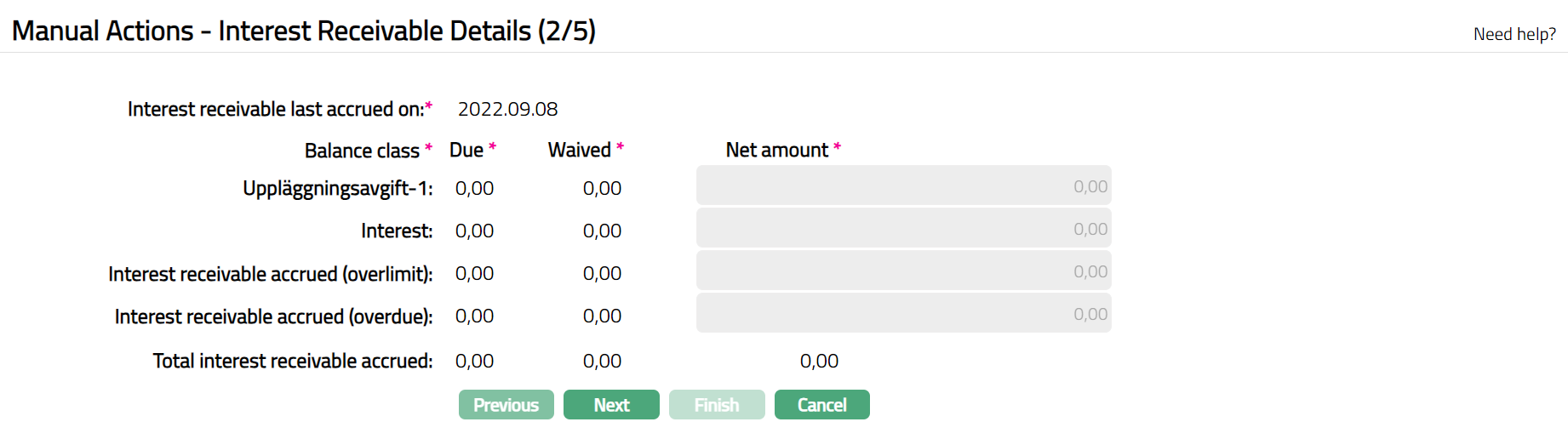
The available fields are:
Balance Class: All the Debit Balance Classes are displayed under this column head. If there is no interest accrued, only the Default Balance Class will be shown with zero. It also shows the Interest receivable accrued on Overlimit amount and Overdue amount.
Due: This is the amount of interest accrued for each Balance Class up to Simulation Till Date.
Waived: For each Balance Class, this amount is calculated as Due minus Net amount.
Net amount: Denotes the amount to be collected from the customer. For each Balance Class, you will be able to input the amount to be collected from the customer. This amount will be displayed with a negative sign, as this is receivable and should be <= Due.
Total interest receivable accrued: denotes the sum of the interest receivable accrued for all the balance classes as well as Overlimit and Overdue interest accrued.
- Click Next. Manual Actions -- Interest Payable Details (3/5) page is displayed. This page appears only if Liquidate Interest checkbox is checked. If Liquidate Interest is not checked, or if the chosen account is a Transaction Account, this page will not appear.

Balance Class: All the Credit Balance Classes are displayed under this column head. If there is no interest accrued, only the Default Balance Class will be shown with zero.
Due: This is the amount of interest accrued for each Balance Class up to current date.
Waived: For each Balance Class, this amount is calculated as Due minus Net amount.
Net amount: Denotes the amount to be paid to the customer. For each Balance Class, you will be able to input the amount to be paid to the customer. This amount will be displayed with a positive sign, as this is payable and should be <= Due.
Total interest payable: denotes the sum of the interest payable accrued for all the balance classes.
Click Next. Manual Actions -- Charge Details (4/5) page is displayed. This page will appear only if Liquidate Charges is checked. If Liquidate Charges is not checked, this page will not appear. This page will appear for both Billing accounts and Transaction Accounts. It will show all charges that are due on the account, but which have not been collected (liquidated) or if any refund is due. These will include both periodic and event-based charges.
Periodic:
All the periodic charges for which Charge Collection is marked as Advance and Pro-rata are marked as Yes, then Refunds will be applicable, if the frequency is greater than a month. The refund has to be calculated for the last collected charges.
All the periodic charges for which Charge Collection is marked as Advance and Pro-rata is marked as No, then Refunds will not be applicable.
All the periodic charges for which Charge Collection is marked as Arrears and Pro-rata is marked as Yes, then Charges will be due, and this has to be collected.
All the periodic charges for which Charge Collection is marked as Advance and Pro-rata is marked as No, then Charge will not be due.
Event:
- All event-based charges that have been deferred will be shown as due to be collected -- individually.
Note: Charges that are due to be collected will be shown as negative amounts while refunds will be shown as positive amounts.

The available fields are:
Charge: Denotes name of all the Charge Schemes applicable to the selected card account that are due and not yet liquidated, or, if any refund is due. If there is no charge due to be collected / refunded, only the Total charges will be shown as zero.
Due: Denotes the amount that is due as per the calculations. In case of refunds, this will be positive and in case of amounts to be collected, this will be shown with a minus sign.
Waived: For each Charge Scheme, this amount is calculated as Due minus Net amount.
Net amount: Denotes the amount to be collected from / refunded to the customer. For each Charge Scheme, you will be able to input the amount to be collected from / refunded to the customer. The sign of the Net amount will be the same as the Due amount.
Total charges: denotes the sum of all the charges applicable for the card account.
- Click Next. Manual Actions -- Confirmation (5/5) page is displayed.
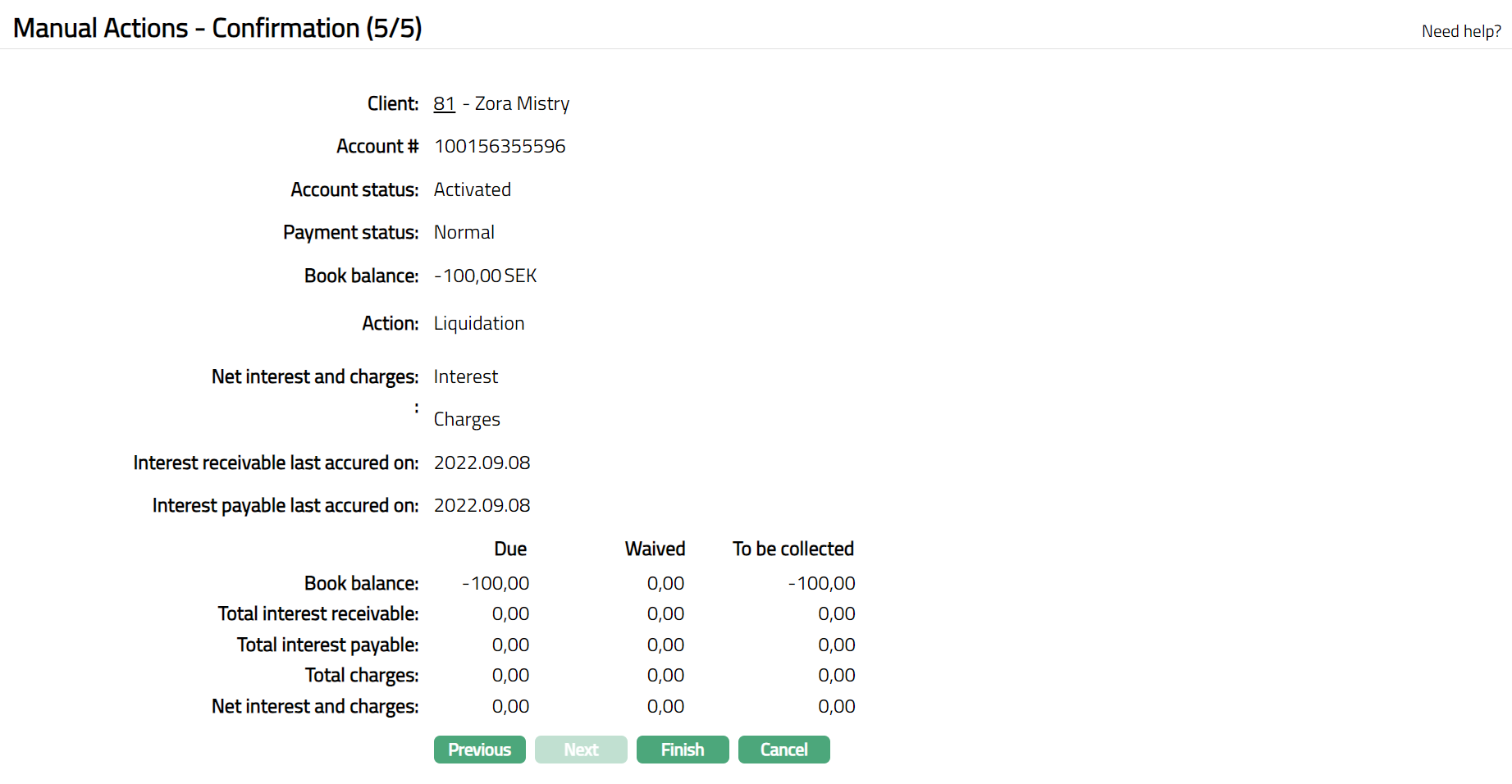
- Click Finish. Manual Actions page appears, and the Profile tab is displayed by default.
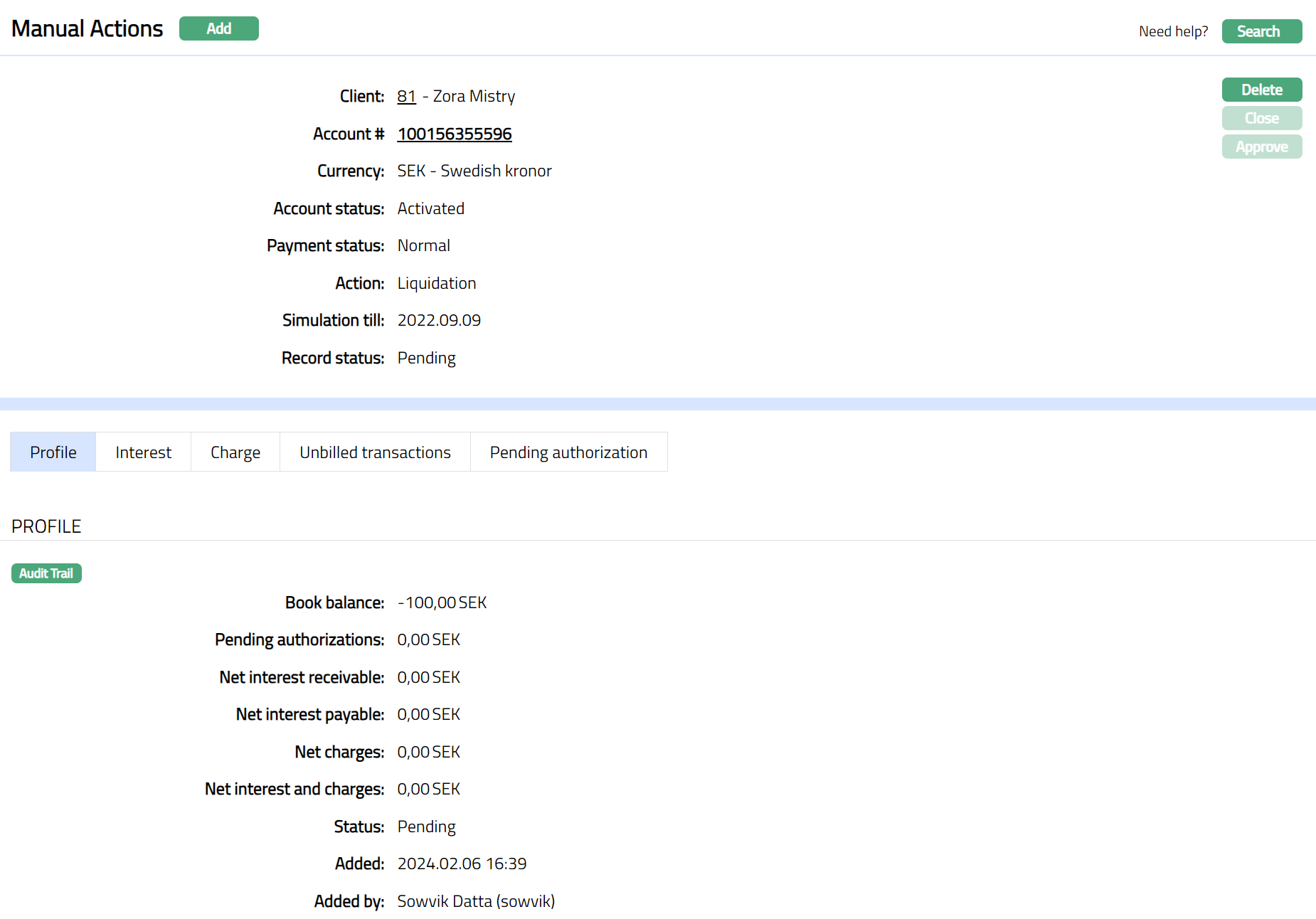
Functions: Add, Delete, Search and Approve.
On creation of a liquidation record, the status of the record is Pending. Any user other than the one who created the record can approve the liquidation record. While approving the record Aura will ask for confirmation on recalculation of all the details. If you click Yes Aura will recalculate all the amounts and the record will get approved. If you select No, then the record will still be Pending for approval.
Approve: Any user other than the one who created the Manual action record can approve the record. You can click on the Approve button to approve the record. On approval, Aura will ask for confirmation. On confirmation, Aura will recalculate all the amounts. The interest and the charges will be liquidated by passing the accounting entries for interest and / or charges.
Delete: You can delete a record by clicking on Delete button. When you click on Delete button, Aura will display an alert message. On confirmation Aura will delete the manual action record. This button will be enabled only when the record is in Pending status.
Profile
Profile tab, which is the default tab in the Manual Actions screen, shows the basic details of the manual action record created for an account.
To view Profile,
- Access Manual Action page and click Profile tab to view the details as per sample below. The details are defaulted from the entries that you made in Manual Actions -- General (1/5) during Manual Action record creation.
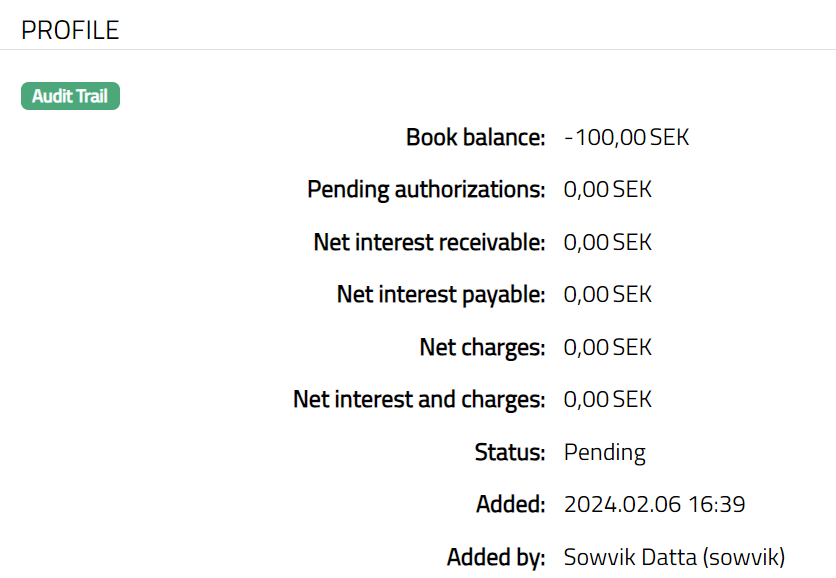
Book balance displays the book balance available in the selected card account.
Pending authorizations display the total amount of active amount blocks for the card account as at the time of viewing.
Net interest receivable displays the total interest receivable (after waiver, if any) as at the time of generating the record.
Net interest payable displays the total interest (after waiver, if any) as at the time of generating the record.
Net charges display the total charges (after waiver, if any) as at the time of generating the record. This field will show a net negative (to be collected) or net positive (refund) amount.
Net interest and charges display the Sum of interests and charges as at the time of generating the record.
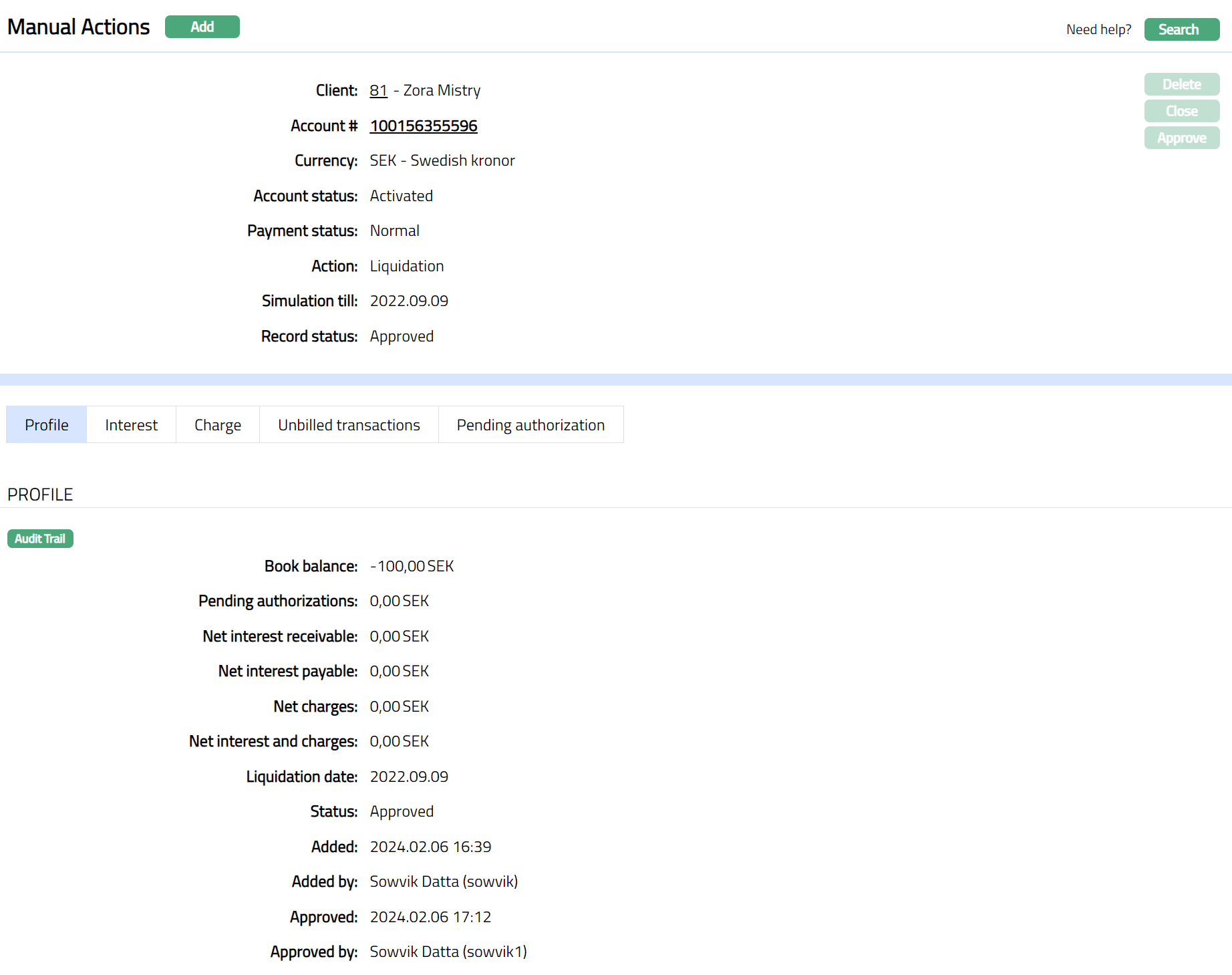
Function: Approve
Additional fields are:
Status field denotes the status of the record.
Added field denotes the date on which the record was added.
Added by field denotes the name of the user who created the record.
Approved field denotes date on which the record was approved and is displayed only on approval.
Approved by field denotes name of the user who approved the record and is displayed only on approval.
Interest
Refer to the Interest section under Manual action -- Closure.
Charge
Refer to the Charge section under Manual action -- Closure.
Unbilled transactions
Refer to the unbilled transaction section under Manual action -- Closure.
Pending Authorization
Refer to the Pending Authorization section under Manual action -- Simulation.