
Term Deposit Reversal
Term Deposit Reversal option allows you to reverse specific lifecycle events that have occurred on a term deposit account.
The following are the tabs on Term Deposit Reversal screen:
To add reversal record,
1. From Retail menu, click Accounts, and then Term Deposit Reversal. The Term Deposit Reversal Search page appears.

2. Click Add. New Term Deposit Reversal → Profile (1/3) page appears.

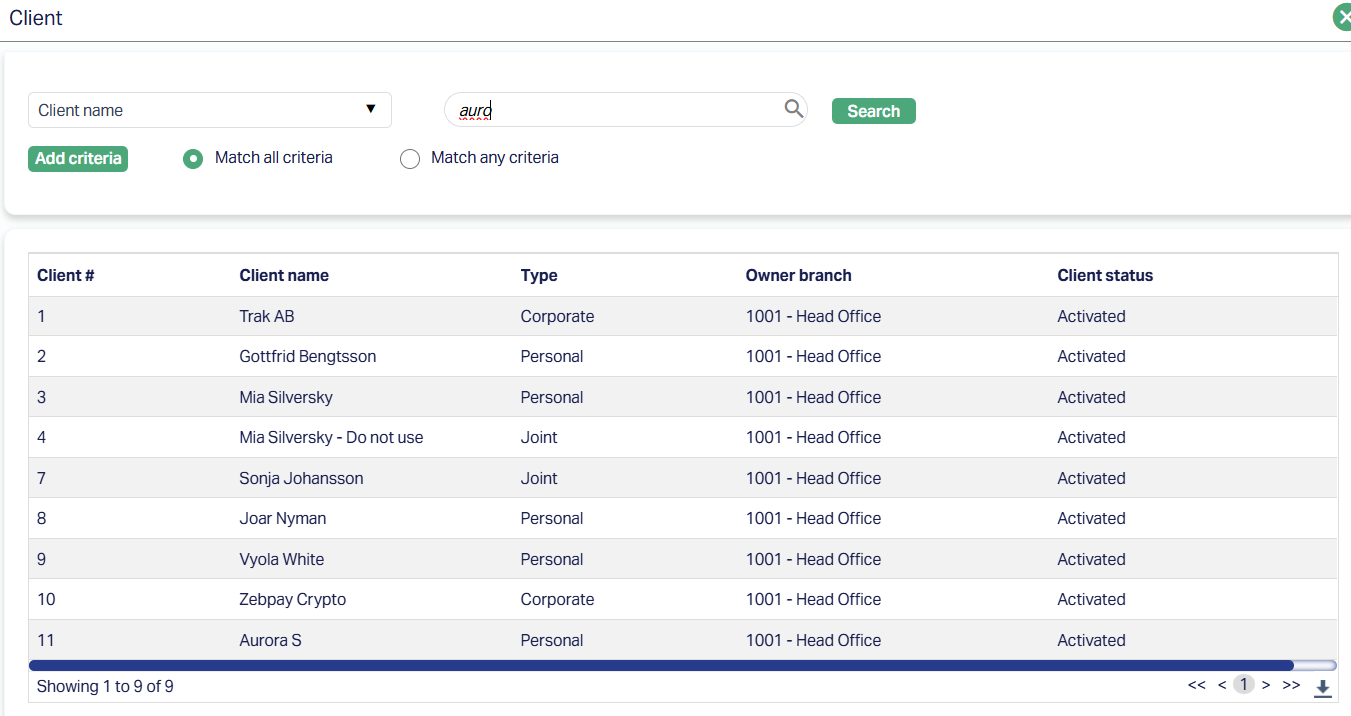
3. Click on Client hyperlink to select the client from the list of clients maintained under CRM → Clients → Maintain. You can search for a client with relevant criteria and select the required client. Alternatively, you can type in the name of the client and choose the relevant client from the list suggested by Aura.
4. Select the account for which you want to do the reversal from Account # drop-down list. Aura will display all Term Deposit account numbers of the selected client where the account status is Active.
5. Enter the reason for the reversal in the Remarks field.
Note: If you select the Account # for which there are no eligible reversible events, Aura will not allow you to proceed to the next step.
6. Click Next. The New Term Deposit Reversal → Reversal Events Step (2/3) page appears. All the events that are eligible for reversal for the selected account will be displayed here.

Only events that are within the open accounting period will be considered for reversal. Events in the closed accounting period cannot be reversed.
The following events are reversible :
TDACTV - When this event is triggered, the amount is debited from Funding Account and credited to TD account.
TDLIQD - This event occurs when you do premature liquidation. The account status will be changed to Matured if user has done full liquidation else the event Status Change is not initiated
TDCLOS - This event occurs as the last event in the lifecycle of a term deposit account and is processed immediately after the maturity event.
INTPAY - This event occurs based on the Payment day maintained under the interest payable tab. (Interest payout reversal-Debit payout mode credit payable GL)
INLIQP - This event occurs based on the Interest frequency maintained under the interest payable tab. (Interest liquidation reversal-Debit payable GL credit interest accrued liability GL)
TDMATY - This event occurs based on the Maturity Date. The account status will be changed to Matured.
TDROLL - This event occurs based on the Maturity Instruction (Rollover maturity amount / Rollover special). The account status will be changed to Await Roll Over if the user selects Roll over with grace days.
Notes:
On reversal, INTPAY and INLIQP events will not be displayed If you have selected any other event for reversal -- after which liquidation and payout happens, then INLIQP and INTPAY events will get reversed and one reversal event will get populated.
On reversal, all accounting entries from the current date till the date of the event to be reversed are reversed. The same entries will be posted with negative amounts. If there were any tax related entries, then both ledgers of the same are not reversed.
For each type of TD event, Reversal event is generated and on reversal of any event, Aura will populate that reversal event with reversal date as booking and value date of reversed event value date.
The events are always reversed in chronological order -- the latest event appears first. For example, if you want to reverse TDACTV and the account has TDLIQD done, then the user should reverse TDLIQD and then reverse TDACTV.
If any TD account has been reversed till TD activation, the TD account status is changed to Closed. This behaviour is intended for cancellation of the Term Deposit. A Closed Term Deposit account cannot be reactivated. If corrections are required, create a new Term Deposit account with the required details. A back-dated Term Deposit can be created if required.
For all accrual events Aura passes reversal accounting entry in the accrual table, there will not be any separate events for accrual reversal.
AMTBLK and BLKREL -- amount block events are not considered for reversal as at account level you can change amount block related updates. (like Suspend, expiry)
If there is an active amount block on an Account, TDACTV is not allowed to be reversed. All other events can be reversed
TDRATE -- The interest rate change is not considered to be reversed.
7. Select the Event from the list of events for the selected account.
8. The data on the grid are as follows:
Event: It displays the code for the event.
Description: It displays the description of the event
Value Date: It is the date on which interest starts applying. For example: Booking date is 20th July 2024, Value Date is 20th August 2025 - interest will start applying from 20th August 2025.
Book Date: The date of entry/input of the event.
Ref No: The transaction reference number under which the event is processed.
Amount: It indicates the amount processed by the event. Example: Interest liquidation event will have the amount of interest liquidated.
Status: It displays the status of the event. The status can be one of the following:
Success: Where the event has been processed successfully.
Failure: Where the event has failed during the process.
Retry: Indicates a failed event where Aura retries to process the event on subsequent business days.
9. Click Next. The New Term Deposit Reversal → Confirmation (3/3) page appears.
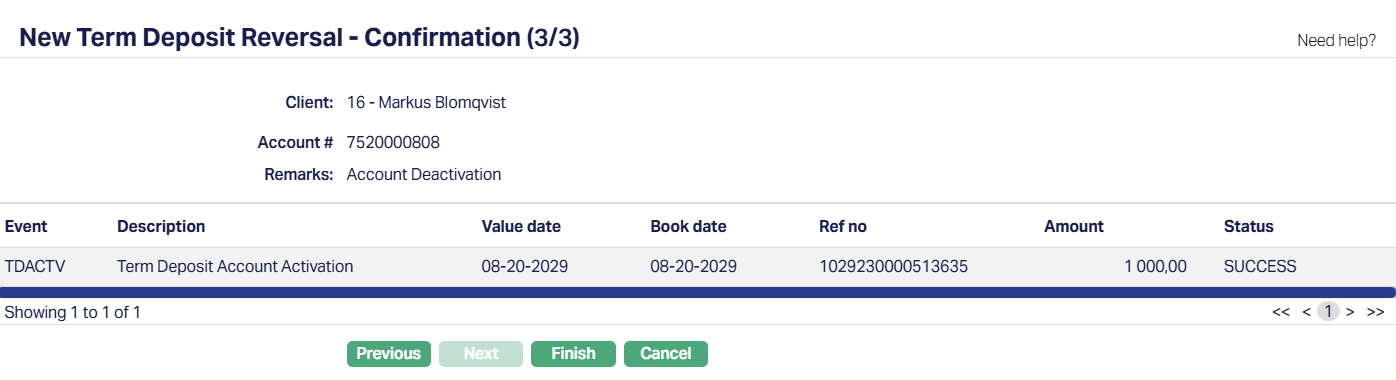
10. Click Finish. Term Deposit Reversal page will appear.
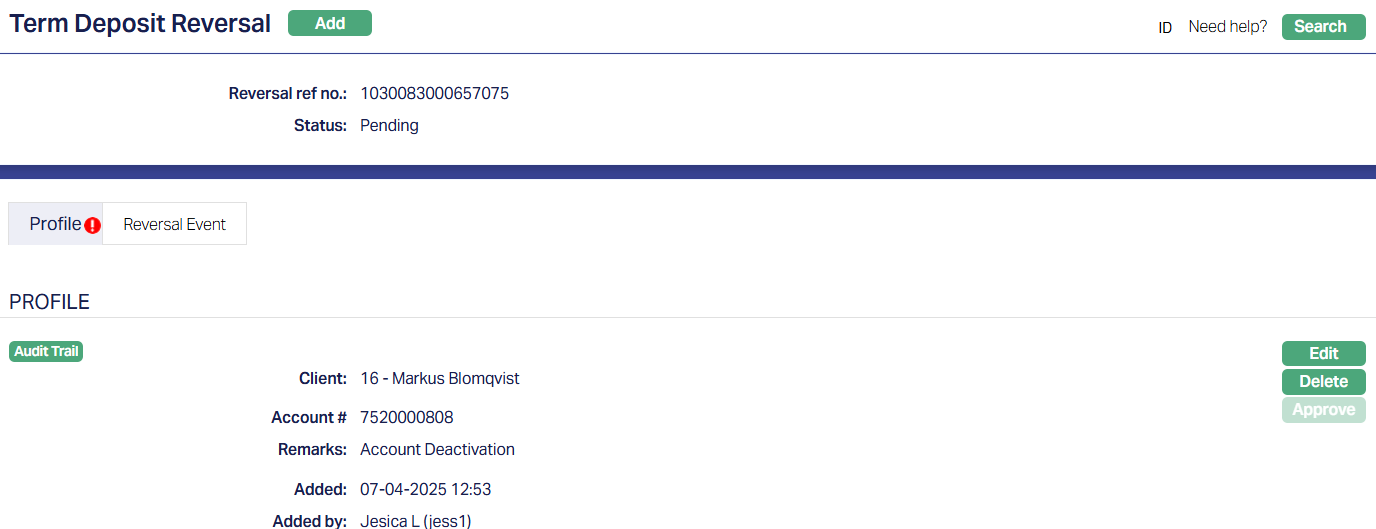
Functions: Add, Edit, Delete and Approve.
The Reversal record will be created with a unique Reversal Reference Number and the record status will be Pending. Any user other than the one who has created this has to approve the record.
Edit: You can update the details of the reversal record by clicking on Edit button. This button will be enabled only for the user who created the record and only if the status is Pending.
Delete: You can delete the details of the reversal record by clicking on Delete button. This button will be enabled only for the user who created the record and only if the status is Pending.
Approver: Any user other than the one who created this record will be allowed to Approve the record.
On approval, the following actions take place:
All system events from the earliest Reversal event till date will be reversed by Aura automatically.
For each reversed event, Aura will post the reversal entry.
The Reversal accounting entries will be tagged along with the original accounting entry.
The event status will be updated as Reversed.
Only successful events will be reversed.
Failed events will not be (need not be) reversed.
On Approval of the reversal record, Aura will populate the reversal event for above mentioned events. The event status for such events should get changed as Reversed in the event log table.
Profile
Profile tab, which is the default tab in the Term Deposits Reversal screen, shows the basic details of the Term Deposit Account.
To view / edit profile,
1. Access Term Deposit Reversal page. Profile tab is displayed by default as per sample below. The details are defaulted from the entries that you made during reversal record creation. For details, refer to New Term Deposit Reversal → Profile (1/3)

2. Click Edit. Edit Term Deposit Reversal page appears.
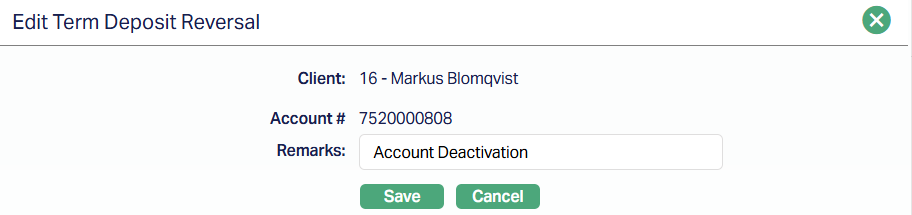
Note: Only Remarks field is editable.
3. Click Save. Profile page appears with the edited details.
Functions: Edit, Delete and Approve.
Note: Any change in the tab will set the tab status to Pending till it is approved by another user. On approval, the tab status is set to Approved, the buttons are disabled and the red bubble disappears.
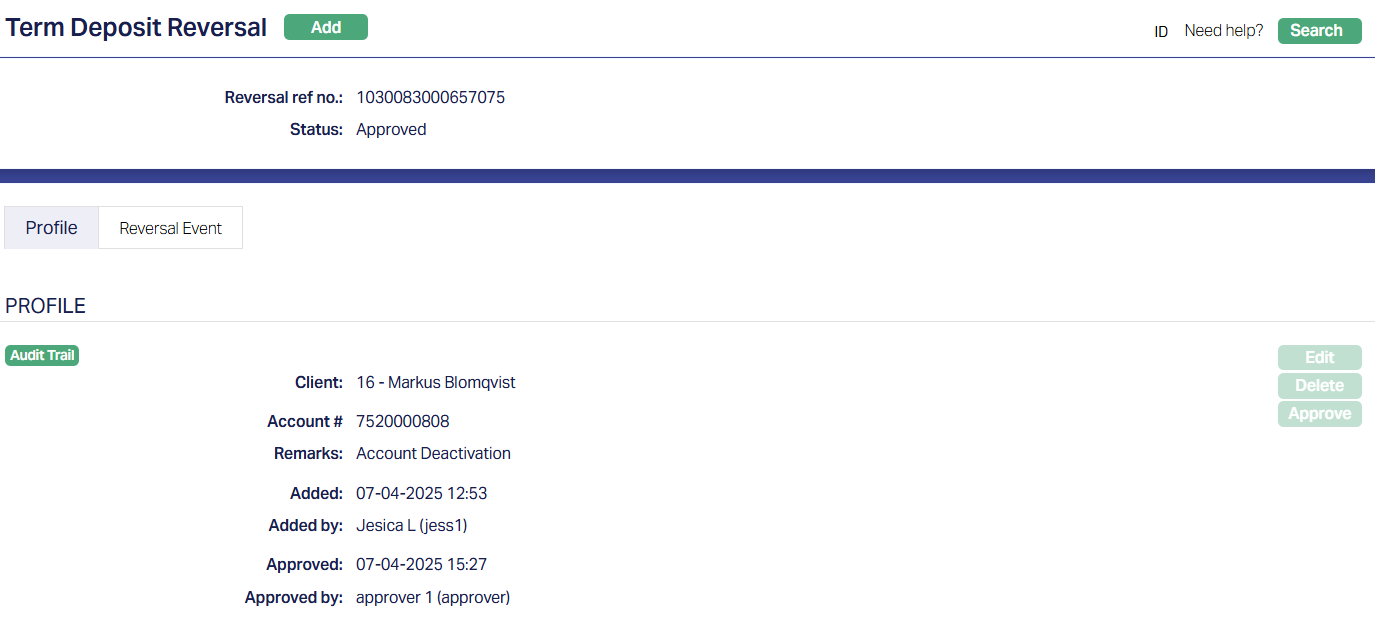
The additional fields that are shown are:
Added shows the date and timestamp when the record was created and Added by displays the user ID and full name of the person who created the record.
Approved shows the date and time when the record was approved and Approved by displays the user ID and full name of the person who approved the record..
Reversal Event
This tab displays the list of events that are selected for reversal during the reversal record creation. For details refer to the New Term Deposit Reversal → Reversal Events Step (2/3)

Term Deposit Reversal Events:
For reversal of any above mentioned event in the add wizard section, Aura will populate one reversal event.
| Event Code | Reversal Event Code | Reversal Event Description | Remarks |
|---|---|---|---|
| TDACTV | TDRVAC | Term Deposit Activation | On successful reversal of TDACTV event, Aura will populate TDRVAC event with TDACTV event value date and reversal date as event booking date. |
| TDLIQD | TDRVLQ | Term Deposit Premature Withdrawal | On successful reversal of TDLIQD event, Aura will populate TDRVLQ event with TDLIQD event value date and reversal date as event booking date. |
| TDCLOS | TDRVCL | Term Deposit Closure | On successful reversal of TDCLOS event, Aura will populate TDRVCL event with TDCLOS event value date and reversal date as event booking date. |
| INLIQP | INRVLQ | Interest Liquidation Reversal | On successful reversal of INLIQP event, Aura will populate INRVLQ event in the event master table with INLIQP event value date and reversal date as booking date. |
| INTPAY | INRVPY | Interest Payable Reversal | On successful reversal of INTPAY event, Aura will populate INRVPY event with INTPAY event value date and reversal date as booking date. |
| TDMATY | TDRVMT | Term Deposit Maturity Reversal | On successful reversal of TDMATY event, Aura will populate TDRVMT event with TDMATY event value date and reversal date as event booking date. |
| TDROLL | TDRVRL | Term Deposit Roll Over Reversal | On successful reversal of TDROLL event, Aura will populate TDRVRL event with TDROLL event value date and reversal date as event booking date. |