
Mortgage and Loan Repayment - Simulation of Payment
Using the Loan Repayment function, by choosing the option for Simulation of Payment, you will be able to answer the following:
How much should be paid on a loan account for all dues to be cleared as on a specific date
How much should be paid on a loan account, if the borrower wants to prepay a specific Principal amount as on a specific date
How much should be paid on a loan account, if the borrower wants to completely prepay and foreclose the loan as on a specific date.
The specific date could be the current date or a future date.
The following are the tabs in a Simulation of Payment under Loan Repayment screen:
To simulate a payment,
1. From Retail menu, click Loans, and then click Repayment. Loan Repayment Search page appears.

2. Click Add. New Loan Repayment → Profile (1/4) page appears by default.
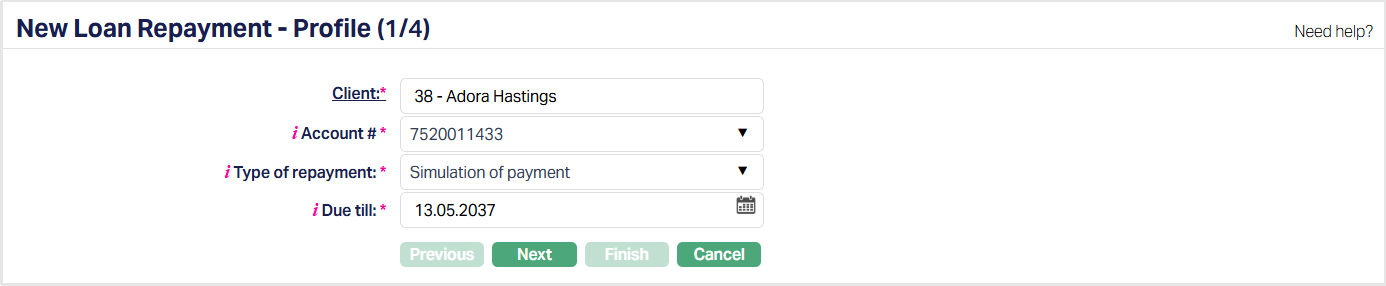
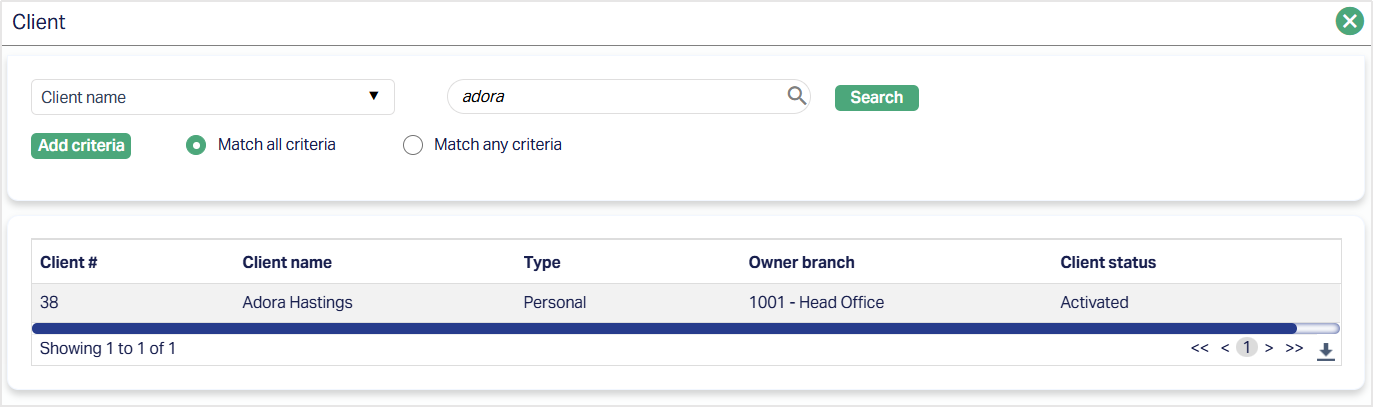
3. Click Client hyperlink to select the client from the list of active clients maintained under CRM → Clients → Maintain. You can search for a client with relevant criteria and select the required client. Alternatively, you can type in the name of the client and choose the relevant client from the list suggested by Aura.
4. Select account for which you want to simulate the payment or prepayment from Account # dropdown list of all loan account numbers of the selected client where outstanding amount is greater than zero.
5. Select Simulation of Payment for Type of repayment from the drop-down list. Based on the option chosen for Type Of Repayment the next set of fields is enabled / disabled. The available options and the corresponding fields are explained below.
Note: If there are any pending records for Disbursement, Repayment, Change of Terms (COT), Restructuring or Reversal, you cannot simulate.
6. Aura displays Due till as the current date. You can change this to a future date as long as it is not more than 30 days from the Current Booking date.
Note:
If invoice has already been generated for the upcoming schedule due date and you input Due Till Date = Future Invoice Due Date, the amounts could be different to the extent of the following: Penalty interest on Principal Overdue and Penalty interest on Interest Overdue after the invoice generation date; Any charges (like Adhoc Charges, Additional Charges, etc.,) that were input / became due after the Invoice was generated.
The Due Till date can be > Maturity Date
7. Click Next. New Loan Repayment → Schedule Dues (2/4) page appears.
If Type Of Repayment is Simulation of Payment New Loan Repayment → Schedule Dues (2/4) is displayed. A sample is shown below
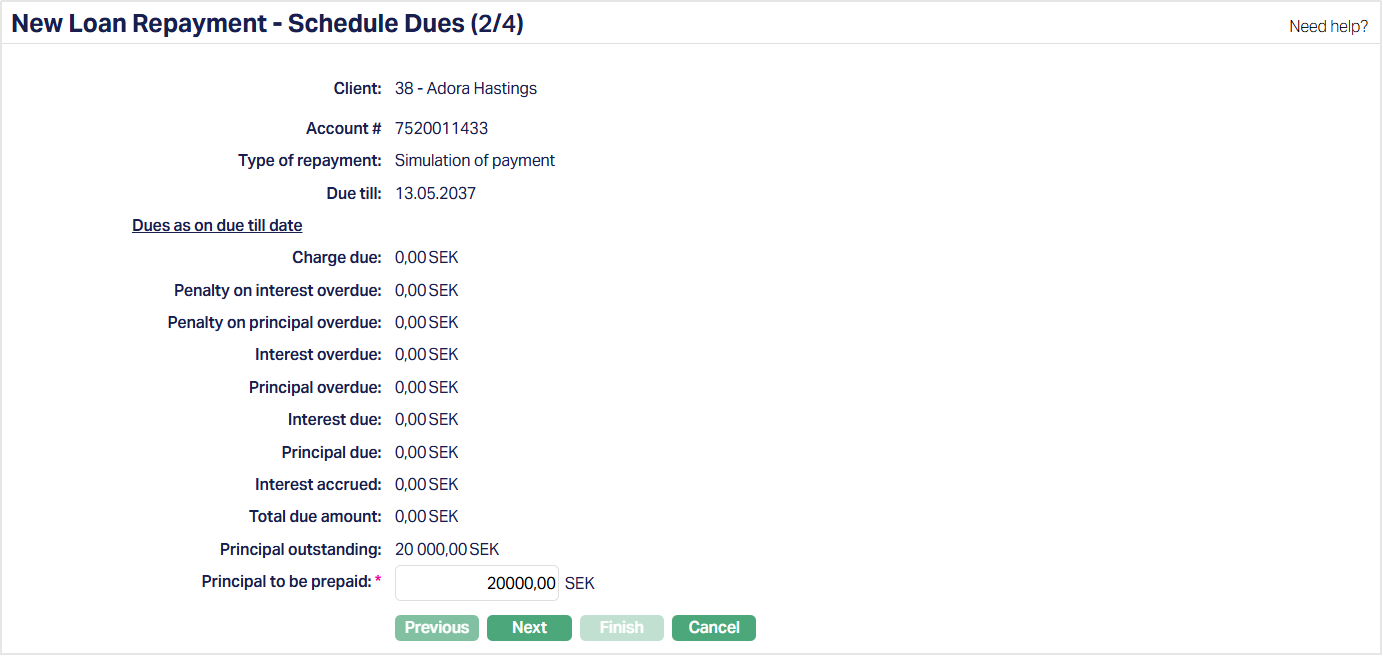
8. Aura displays the total due amount payable under the various components viz., Charge due, Penalty on interest overdue, Penalty on principal overdue, Interest overdue, Principal overdue, Interest due, Principal due, Interest accrued, Total due amount and Principal outstanding.
Charge due This field displays all the charges that will be due on the Loan Account as on the Due Till Date, including Additional Charges, Adhoc Charges already input, Loan Request Charges for Marketplace Loans (Lender Fee and Broker Fee), etc., In other words, it displays all charges where the Event is already created and the charge is shown in the Payment Schedule. If Principal to be Prepaid is greater than 0.00, the Prepayment Charge to be Collected component is displayed in the next step based on the configured Prepayment Charge Scheme and the Principal to be Prepaid entered in this step.
Penalty on interest overdue For schedules where Penalties are already calculated: Aura will display the penalties that are unpaid as at this point + an extrapolated amount for Overdue interest schedules from Current Booking Date to (Due Till Date minus 1). For schedules where Penalties are not yet calculated (this will be so where the Due Date < Current Booking Date <= End of Grace Days: in these cases, Penalties will be calculated only on End of Grace Days): Aura will extrapolate for unpaid Interest schedule from Due Date to (Due Till Date minus 1). If there are any interest schedules where the Due date >= Current Booking Date and Due Date < Due Till Date: Aura will extrapolate for unpaid interest schedules from Due Date to (Due Till Date minus 1)
Penalty on principal overdue For schedules where Penalties are already calculated: Aura will display the penalties that are unpaid as at this point + an extrapolated amount for Overdue principal schedules from Current Booking Date to (Due Till Date minus 1). For schedules where Penalties are not yet calculated (this will be so where the Due Date < Current Booking Date <= End of Grace Days: in these cases, Penalties will be calculated only on End of Grace Days): Aura will extrapolate for unpaid Principal schedule from Due Date to (Due Till Date minus 1). If there are any principal schedules where the Due date >= Current Booking Date and Due Date < Due Till Date: Aura will extrapolate for unpaid principal schedules from Due Date to (Due Till Date minus 1)
Interest overdue: Any Interest component that would be overdue as on the Due Till Date will be shown. This includes all Interest schedules that are unpaid as at this point where Due Date < Current Booking Date + those schedules where the Due Date >= Current Booking Date and Due Date < Due Till Date.
Principal overdue: Any Principal component that would be overdue as on the Due Till Date will be shown. This includes all principal schedules that are unpaid as at this point where Due Date < Current Booking Date + those schedules where the Due Date >= Current Booking Date and Due Date < Due Till Date.
Interest due Any interest component that would be Due as on the Due Till date will be shown i.e., where the Due Date = Due Till date, include the same under Dues.
Principal due Any principal component that would be Due as on the Due Till date should be shown i.e., where the Due Date = Due Till date.
Interest accrued: This shows the interest amount from the max (schedule due date for Interest that is < Due Till Date) to (Due Till Date minus 1) at the Interest Rate as at the time of calculation. Basis will be the Principal Outstanding in Schedule for max (schedule due date for Principal that is < (Due Till Date minus 1)). The accrued interest is calculated from the last Interest Due Date to (Due Till Date minus 1). If there is no applicable Interest Due Date, the Loan Account Value Date is used as the starting date for calculating the accrued interest. If Due Till Date = upcoming Interest Due Date, there will not be any Interest Accrued, but there will be Interest Due.
Also, If Loan Maturity Date <= Current Booking Date: Interest Accrued will be 0. If Loan Maturity Date > Current Booking Date, Interest Accrued could be > 0
Total due amount: This is the total of all the above amounts, i.e., total due from the Borrower for the Loan Account as on the Due Till Date.
Principal outstanding: This is the Principal Outstanding in Schedule for max (schedule due date for Principal that is <= Due Till Date).
Note:
- Simulation of Payment calculates repayment amounts based on the selected Due Till Date. Future schedule adjustments, including Interest Difference maintained for schedules beyond the selected Due Till Date, are not considered during the simulation.
- If a Negative Principal adjustment exists in the current schedule, the simulation reduces the Interest Due/Overdue amount accordingly. The corresponding adjustment is reflected in the displayed Principal Outstanding.
Principal to be prepaid is defaulted from the Principal Outstanding. You can also edit it to input any other amount, but it cannot exceed Principal Outstanding. Principal to be prepaid should be between 0.00 and the amount shown under Principal Outstanding above.
9. Click Next. New Loan Repayment → Schedule Allocation (3/4) page will appear.
- If Type Of Repayment is Simulation of Payment, the following screen is displayed showing the allocation to various components.
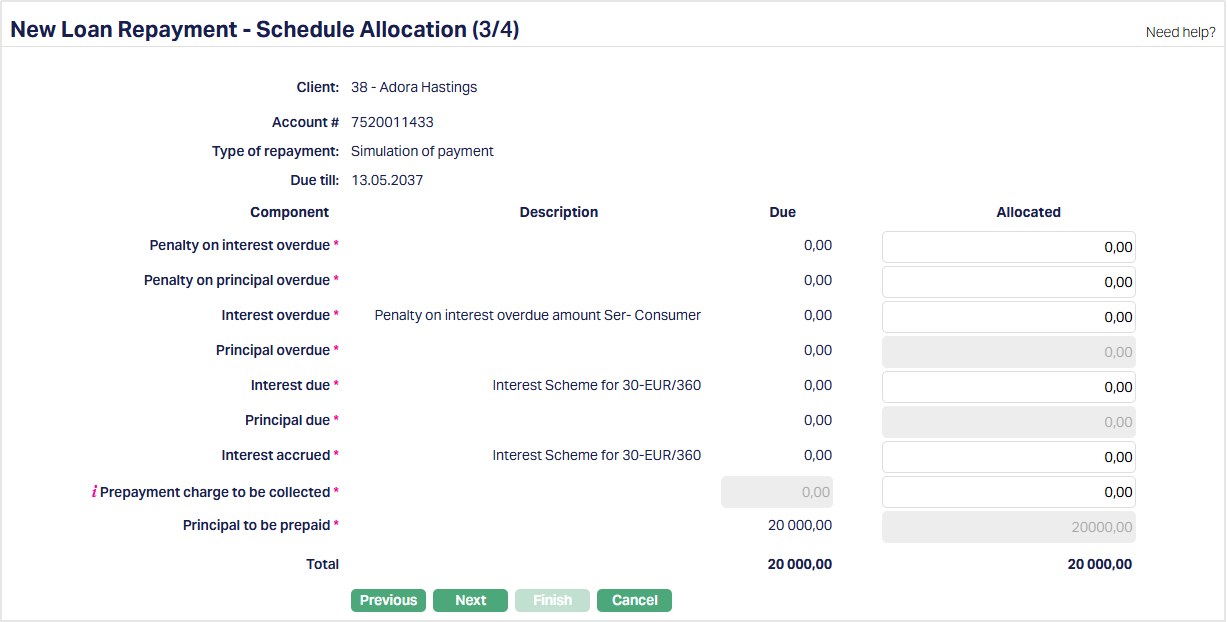
10. Component: Displays the list of components with unpaid amounts. For charges that are unpaid, details are shown for each charge separately. If Principal to be Prepaid is greater than 0.00, the Prepayment Charge to be Collected component is displayed based on the configured Prepayment Charge Scheme and the Principal to be Prepaid entered in the previous step. If Principal to be Prepaid is 0.00, this component is not displayed.
11. Description: Displays the description of the Interest Scheme / Charge scheme as applicable for the interest / charge components
12. Due: Displays the amount due from the borrower i.e., Due after earlier write offs minus (Paid + Waived) for each component as on the Due Till date. In case of Principal To Be Prepaid, the Due Amount is based on the amount input in the previous step.
13. Aura allocates the Total to various dues based on the repayment priority set at the product for the current Account Status - Payment Status combination in the loan. If needed, you can edit the Allocated amounts as required. By default, Allocation displays the amount due from the borrower for each component. For any of the components, you can input an amount less than the Due Amount, if you want to. For the Prepayment Charge to be Collected component, you can increase or decrease the displayed Due Amount during Simulation of Payment. Only in case of Adhoc Charges, you can input an amount greater than the Due Amount, if you wish to charge any additional amount from the Borrower. However, you have to ensure that the required Adhoc Charge record is created for such increased amount, so that when the borrower pays the higher charge amount, it will be processed / accounted correctly.
Note that only if the Principal to be prepaid is 0, Principal overdue and Principal due can be decreased. This is because, there can be Prepayment only after all Principal Due / Overdue is paid completely; and so, if Prepayment is marked as > 0, allocation for Principal Due / Overdue has to be the same as Due Amount; and these amounts cannot be edited.
14. Total field denotes the total of all the above amounts, i.e., total due and total allocated.
15. Click Next. New Loan Repayment → Confirmation (4/4) page appears showing the details of the Simulation.
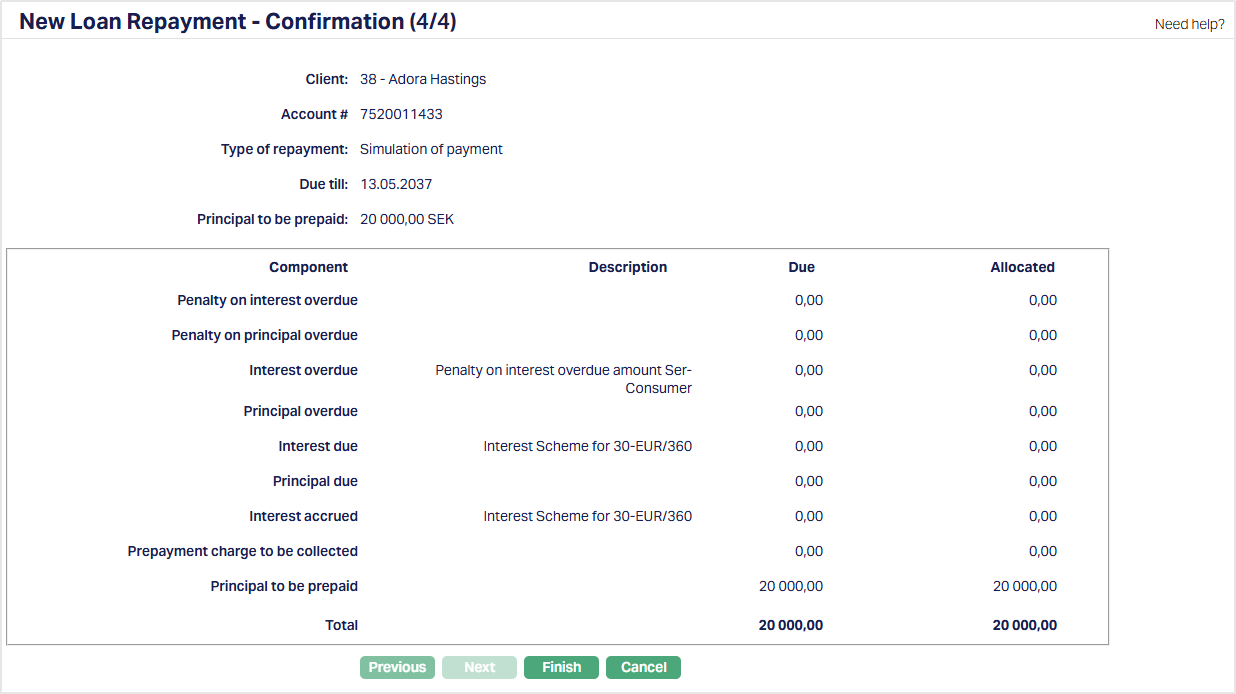
16. Click Finish. Loan Repayment screen appears and the Profile tab is displayed. By default the Status will be Approved and you will be able to generate any document that is mapped to the Product. Loan Account > Events tab will display a record with the Event Code LNPSIM.
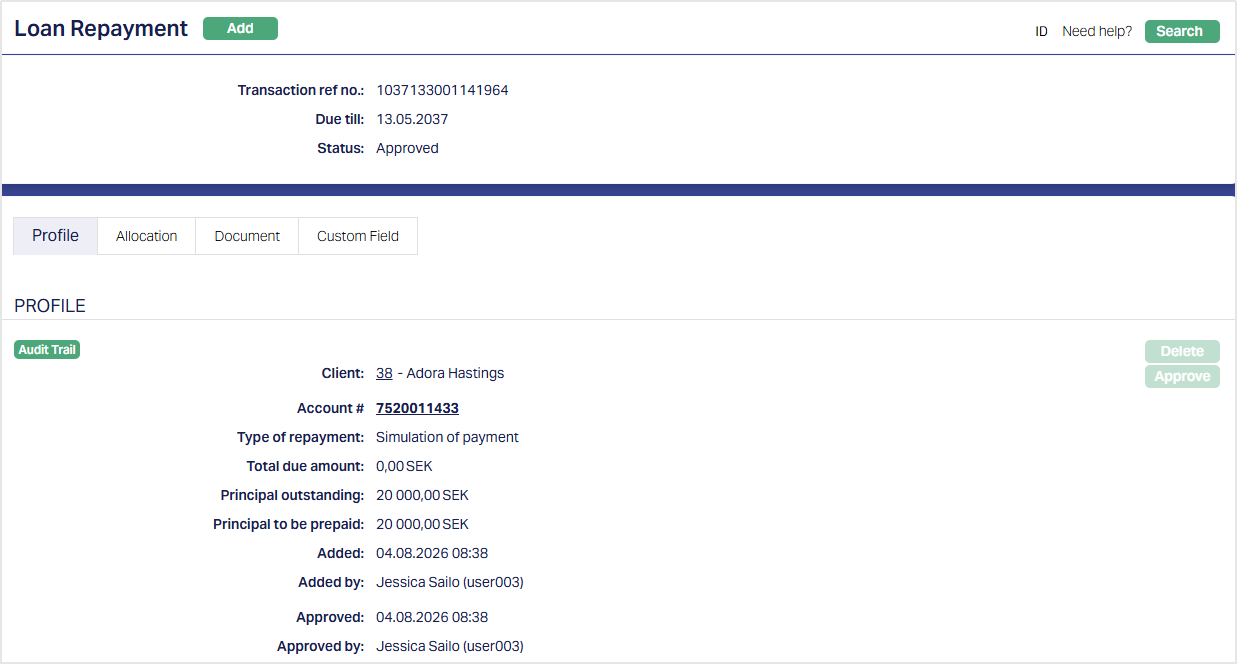
Note: The status of the loan repayment record is Approved as soon as the record is created. Hence, Delete and Approve Buttons will always be disabled
Profile
Profile tab, which is the default tab in the Loan Repayment screen, shows the basic details of the Loan Repayment record.
1. Access Loan Repayment page. Profile tab is displayed by default. The details are defaulted from the entries that you made during Loan Repayment creation. For details refer to New Loan Repayment → Profile (1/4).
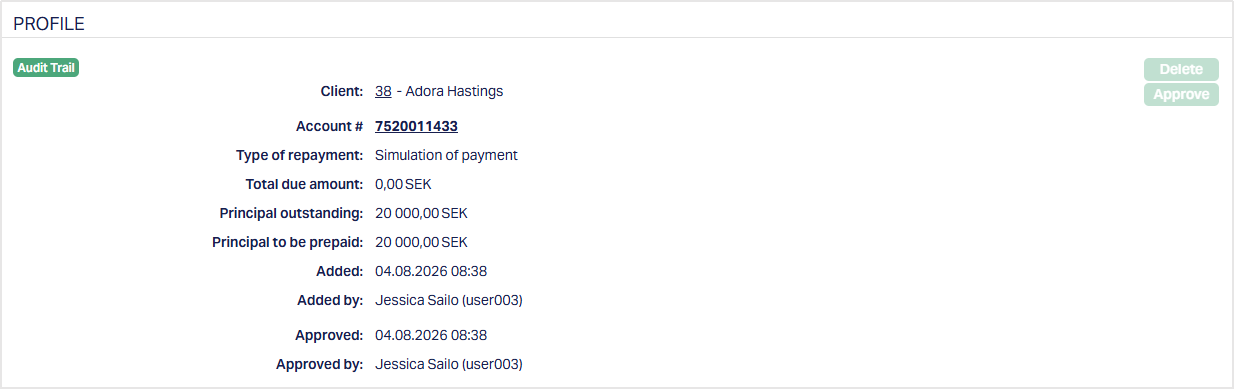
The additional fields that you can view in the Profile tab are explained below.
Added denotes the date on which the loan repayment record was added.
Added by denotes the name of the user who created the loan repayment record.
Approved denotes date on which the loan repayment record was approved. In case of Simulation of Payment, it will be the same as Added.
Approved by denotes name of the user who approved the loan repayment record. In case of Simulation of Payment, it will be the same as Added by.
Allocation
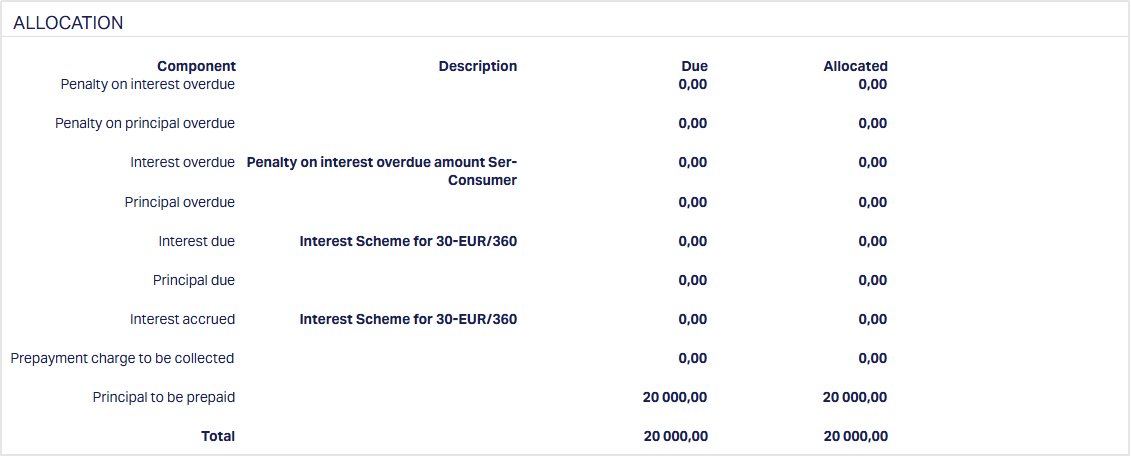
Allocation tab allows you to view the total due amount as allocated under the various components.
1. Access Loan Repayment page. Click Allocation tab. The details are defaulted from the entries that you made during loan repayment creation. For details refer to the step New Loan Repayment → Schedule Allocation (3/4)
Document
Document tab allows you to view / add any relevant documents.
1. Access Loan Repayment page. Click Document tab.

2. To upload a document: Click New. New Document page appears.
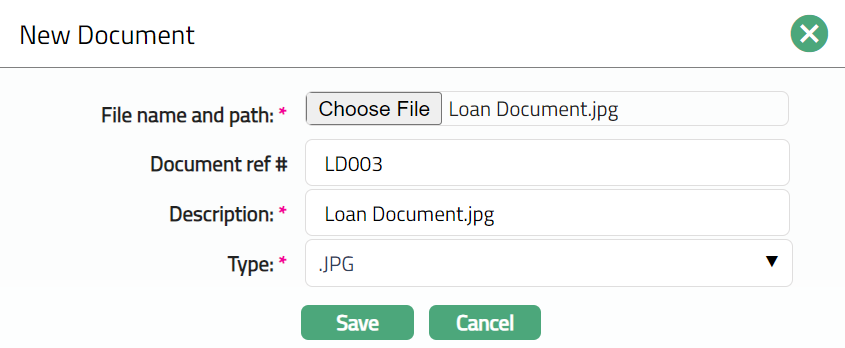
3. Enter the file name and path or select the desired file on your local media by clicking Choose File.
4. Enter reference number for the document in Document ref #.
5. Description will be defaulted to the name of the selected file with the ability for you to make changes.
6. Select Type of the document from the list of active Document Types as maintained under Admin → System codes → Documents → Document types.
7. Click Save. Document tab appears with the added details.
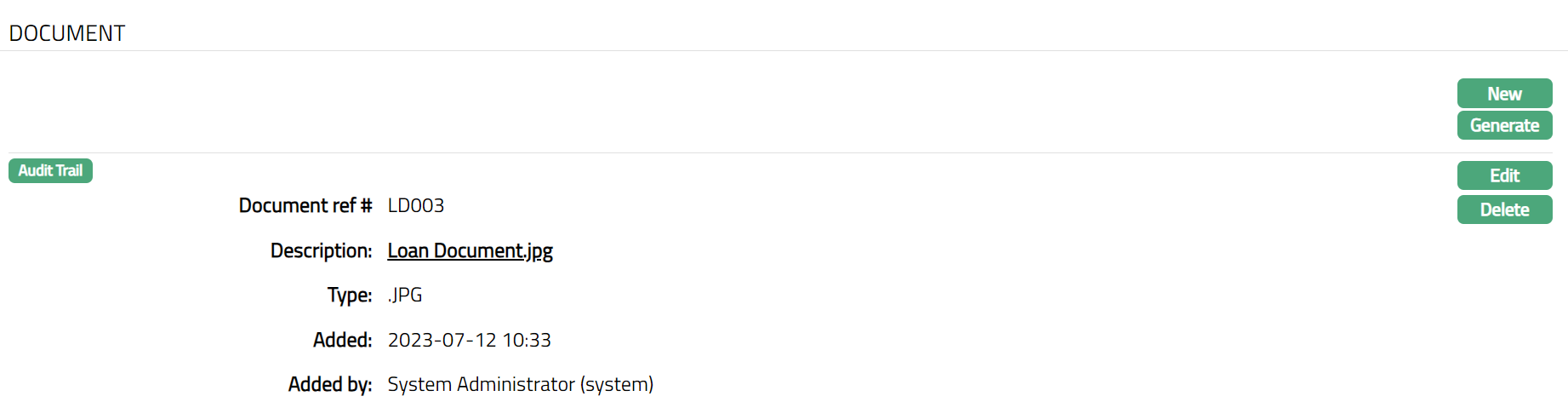
Functions: New, Generate, Edit, Delete
8. To generate document based on templates: Click Generate to generate the pdf file using the template as maintained under Admin → System codes → Process → Document templates. You have to map the document template for Mortgage loan repayment under document template settings as maintained under Retail → Settings → Product → Mortgage loan and Template applicable type = Simulation of payment. Generate Document page will appear where the mapped templates will be displayed.
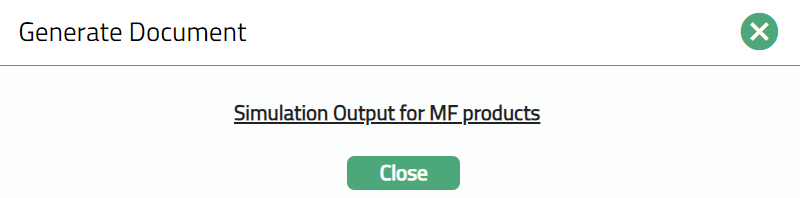
9. Click on any template from the list of templates after which the document will be generated based on the selected template. Note: The template needs to be defined and mapped as part of Implementation.
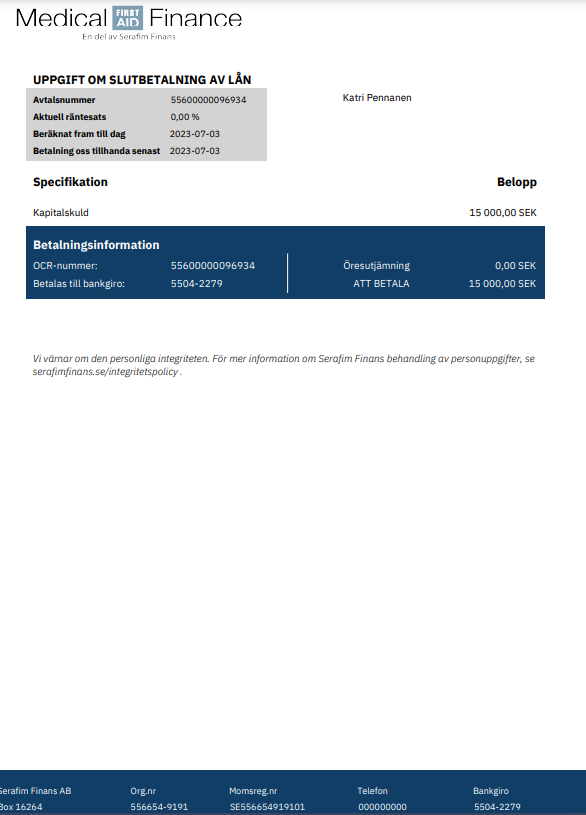
Note: For Simulation of Payment, the generated settlement document displays the applicable amounts calculated during the simulation. The settlement amount includes the applicable principal, interest and penalties, prepayment charge, and other applicable charges. Other applicable charges are displayed separately using their corresponding charge descriptions. The Total Amount for Settlement represents the sum of the applicable settlement components. Any changes made to Principal to be Prepaid during the Simulation of Payment are reflected in the generated settlement document.
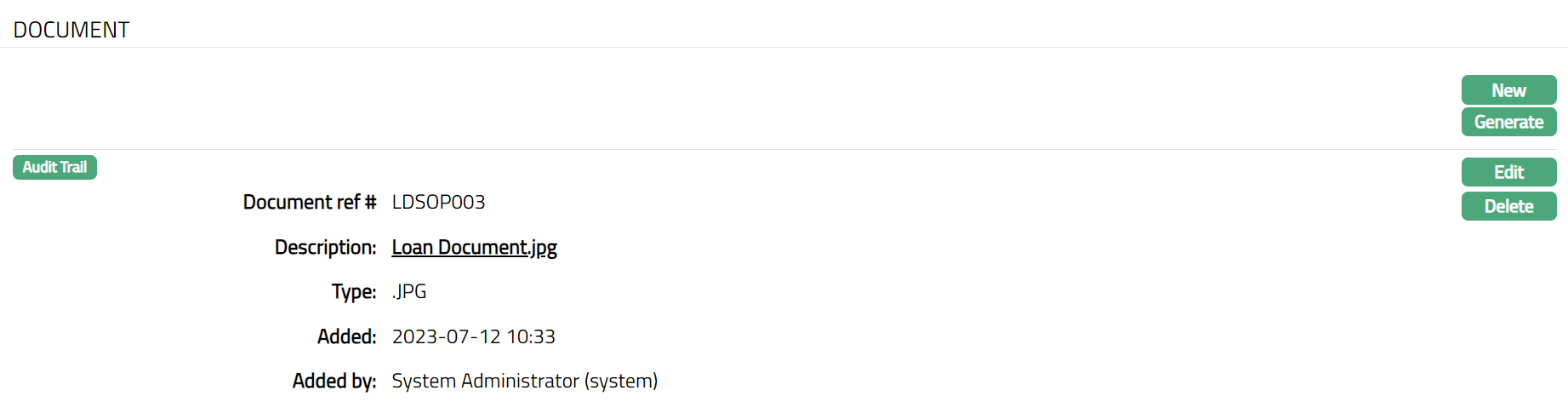
10. Once you click on the template, Document tab appears as shown in the sample screen below.
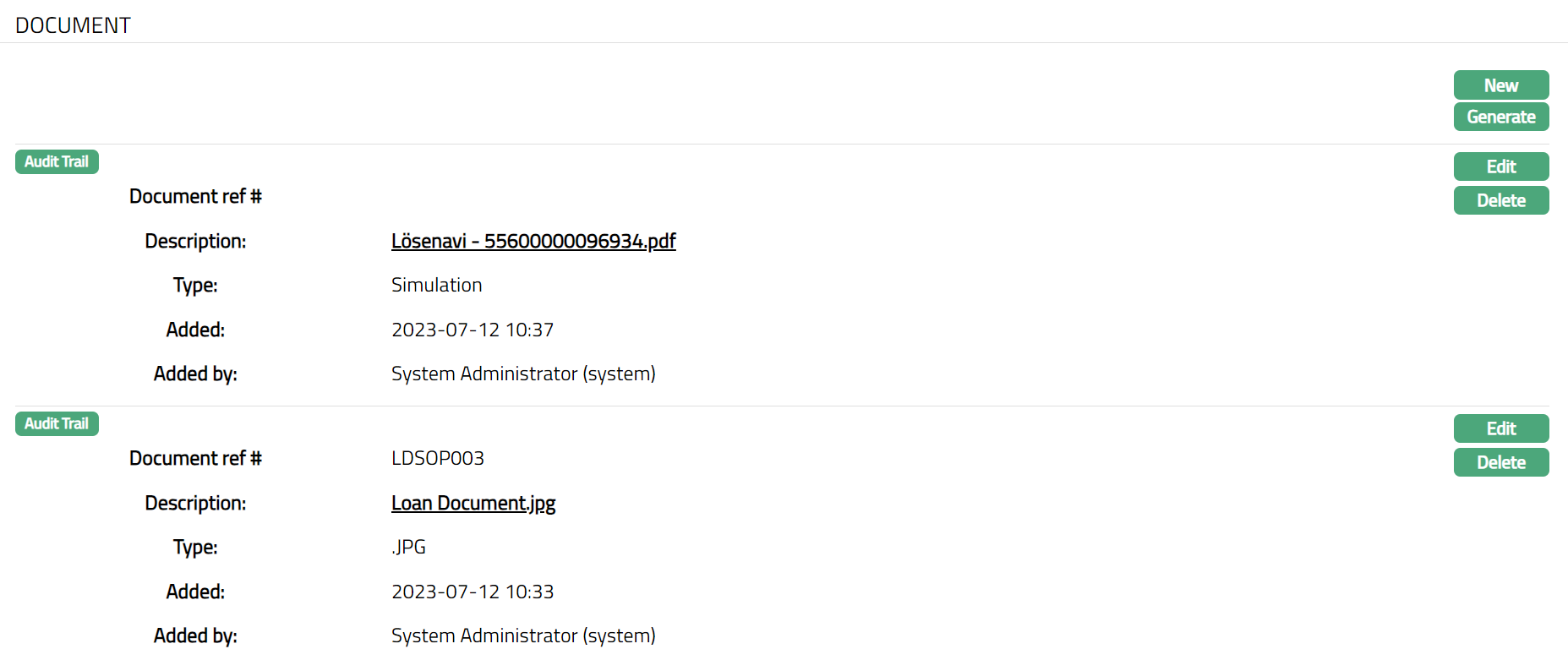
Functions: Edit, Delete.
11. To delete any document: Click Delete. Aura will ask for confirmation, on approval of which document will be deleted.
12. To view the document, click document hyperlink under Description field. Please refer to the screen shown below.
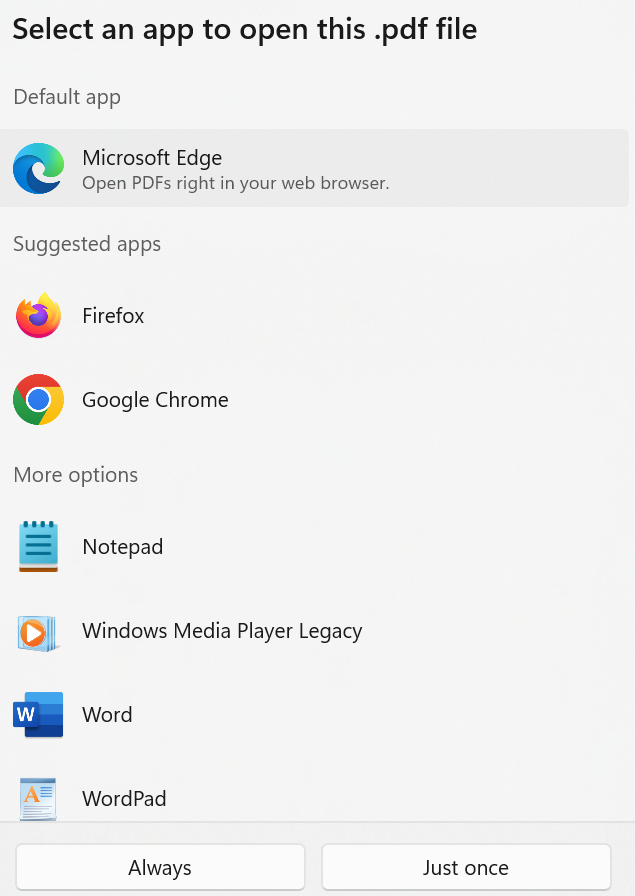
13. Select the required application though which you want to open the document, then click Always or Just once button. Document will get generated and appear as shown below.
To edit document,
14. Click Edit. Edit Document page will be displayed.
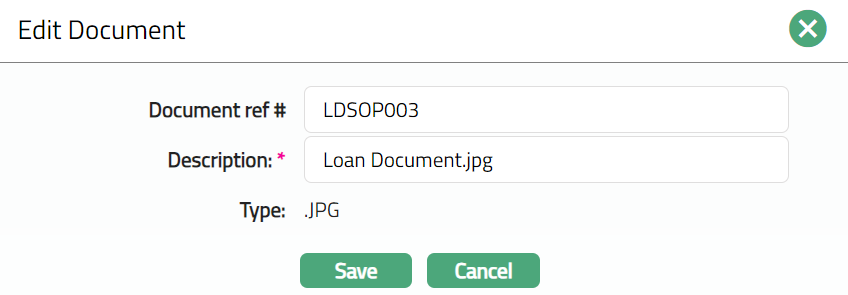
Note: Except Type field all other fields are Editable.
15. Click Save. Document page appears with the edited details.
Functions: New, Generate, Edit, Delete
Custom Field
This option provides you the flexibility to define fields apart from those that are already available in the standard version of Aura. Thus, it enables you to customize additional data storage and use as required to suit your specific business needs.
1. Access Loan Repayment page. Click Custom Field tab.

2. The field appears only when it is created in Admin → System codes → Custom fields → Custom fields and linked to specific Accounts option in Admin → System codes → Custom fields → Field mappings.
3. Click Edit. Edit Custom Field page appears. In the following illustration, a custom field, Last Review Date has been mapped to the Account as shown below.

4. Enter Last Review Date.
5. Click Save. Custom Field page appears with the edited details.

Functions: Edit