
Client Account Status
Client Account Status allows you to define any number of account statuses / payment statuses for Client accounts and define the action to be done at each status. Each account status will have corresponding preferences. These statuses can be used in the Rule Builder of Client Account Product to automatically move the accounts to various statuses based on business rules.
Note: Aura will not allow you to set preferences for a Payment status. Any Client account will be moved to the Payment status only when the rule is defined in the rule builder tab under Client.
The following are the various tabs that appear on the Client Account Status page.
To add new Status record
- From Admin menu, click Status and then Client account status. Client Account Status search page appears.

- Click Add. New Client Account Status - Profile (1/2) page appears.
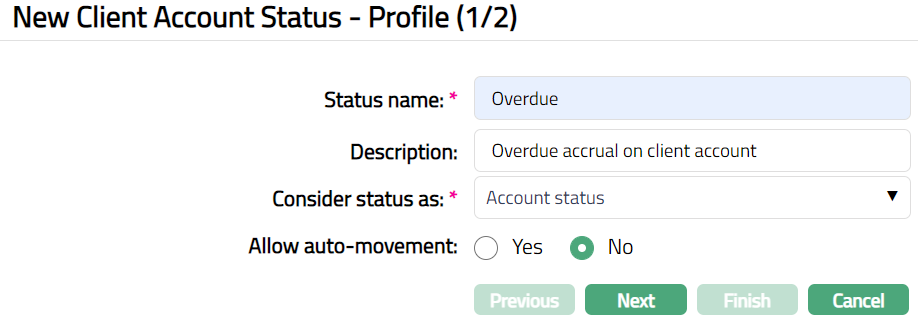
Enter name of the status in the Status name field.
Enter Description for the status.
Select option from Consider status as from the available drop-down list. The options available are.
Account Status: if this option is selected, then the Client account status will be considered as an Account status.
Payment Status: if this option is selected, then the Client account status will be considered as Payment status.
Account Status and Payment Status: if this option is selected, then the Client account status will be considered as both Payment status and account status.
Select option for Allow auto movement; this option will be available only when the Client account status is considered as an Account status or when the Client account status is considered as both Account status and Payment status. When an account reaches this status, the Allow auto movement flag will be defaulted into the account from this maintenance. If Allow auto-movement is No, the account status will not automatically move even if the account satisfies the Rules maintained in the product's Rule Builder tab. However, if Allow auto movement is selected as Yes, then the account status will change automatically, as per the Rules in the Rule Builder tab.
- Click Next. New Client Account Status -- Confirmation (2/2) page appears.
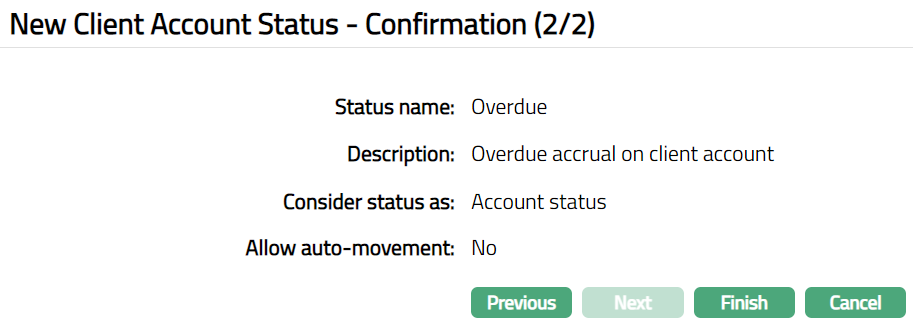
- Click Finish. Client Account Status page appears displaying the details of the Status you added. Status of the record will be Active.
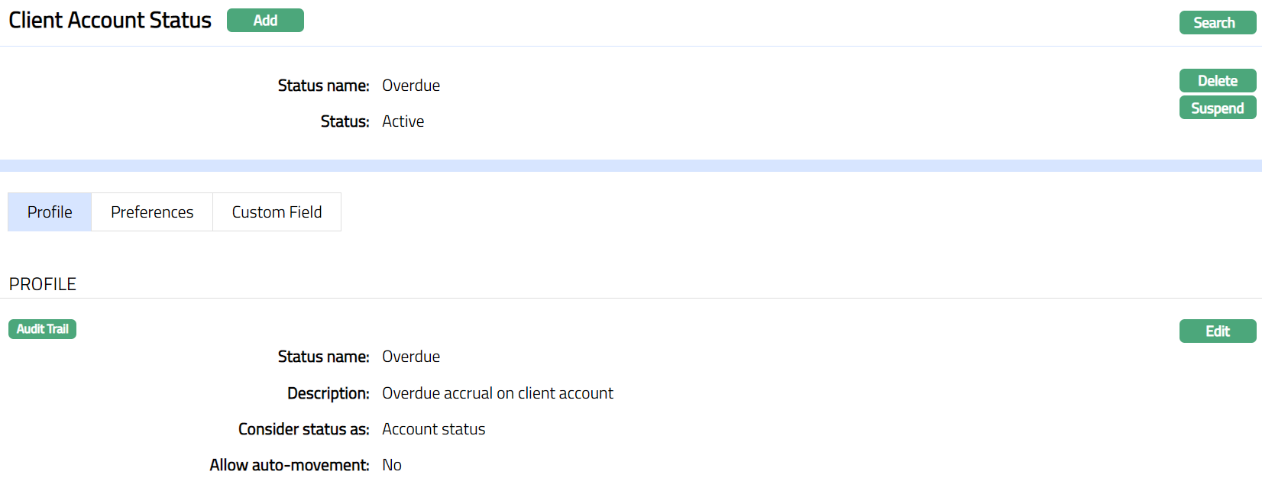
Functions: Add, Search, Delete, Suspend, Edit
Note: Preferences will be Available only when the Client account status is considered as an Account Status / Account Status and Payment Status
Delete: You can delete Client Account Status record saved in Aura by a click on Delete button. Aura will ask for confirmation, on approving which selected record will be deleted.
Suspend: You can suspend the Client Account Status by a click on Suspend button. When you click on Suspend button, Aura will ask for confirmation. On confirmation Aura will suspend the Client Account Status and Activate button will appear in place of the Suspend button.
Activate: If you want to activate a suspended Client Account Status record then click on Activate button. Aura will ask for confirmation. On confirmation Aura will Activate the Client Account Status and Suspend button will appear in place of Activate button.
Profile
Profile tab, which is the default tab in the Client Account Status screen, shows the basic Status details which were added in New Client account Status -- Profile (1/2).
To View/ Edit Status
- Access Client Account Status page. By default, Profile tab will be displayed.

- Click Edit. Edit Profile page appears.
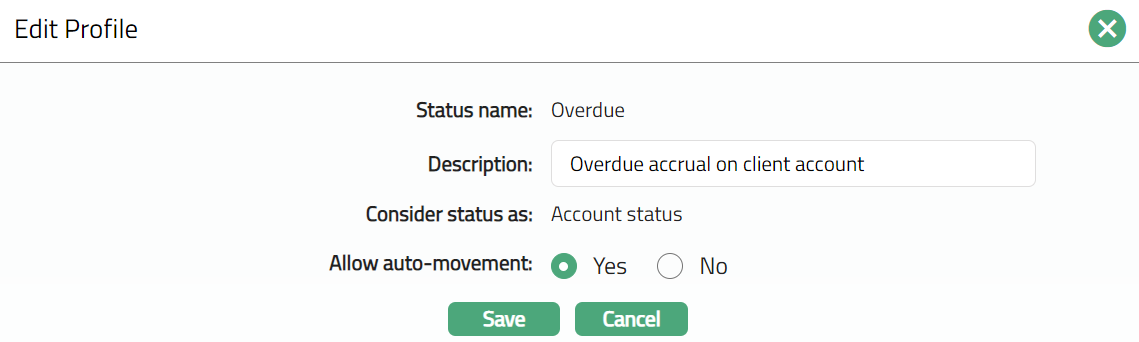
Note: Only Description and Allow auto movement fields are editable.
- Click Save. Client Account Status page appears with the edited details.

Function: Edit
Preference
The Preference tab allows you to maintain the corresponding preferences that will apply to accounts which fall into the specific account status. Flexibility is provided in enabling or disabling specific preferences on accounts that reach a specific account status. This tab is displayed only when the Client account status is considered as an Account Status / Account Status and Payment Status
To View/Edit Preferences
- Access Client Account Status page and click Preferences Tab.
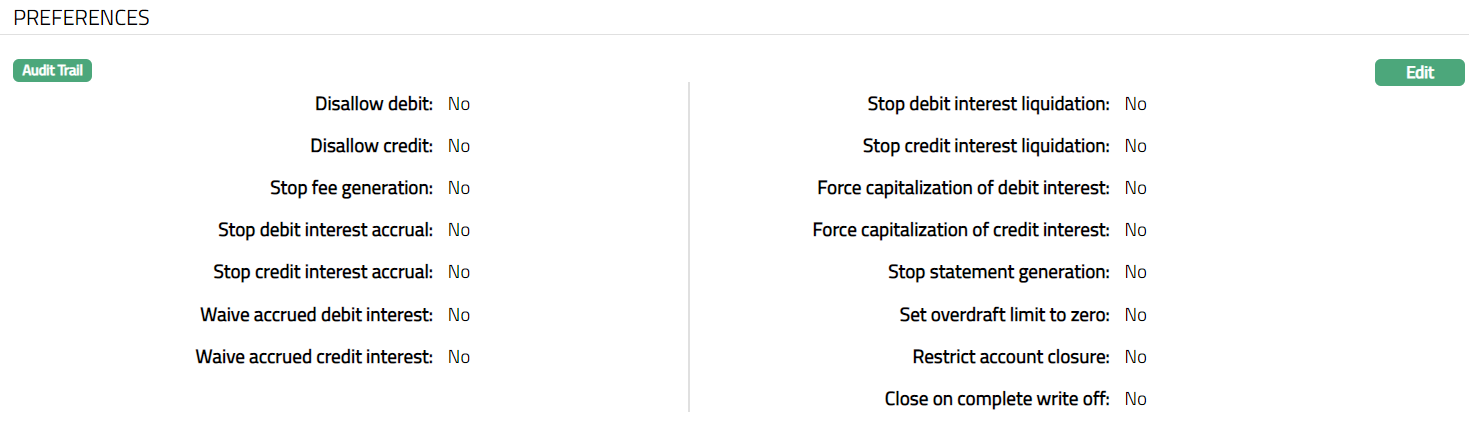
Function: Edit
- The following are the Preferences available for a user-defined status. All these are by default marked as No such that normal activities are allowed in the account.
Disallow Debit: When this flag is marked as Yes, Aura will not allow any debits from that account. However, based on Allow Forced Debit flag in the Transaction code, debits may still be processed.
Disallow Credit: When this flag is marked as Yes, Aura will not allow any credits into this account. However, based on Allow Forced Credit flag in the Transaction code, credits may still be processed.
Stop fee generation: When this flag is marked as Yes, Aura will not process any event based and periodic fee for the account. However, the transaction-based charges will continue to apply.
Stop debit interest accrual: When this flag is marked as Yes, Aura will stop any interest accrual on the debit balances for this account. When the flag is marked as No, Aura will re-start to accrue interest from that date. There will not be any accrual for the interim period when this flag is Yes.
Stop Credit interest accrual: When this flag is marked as Yes, Aura will stop any interest accrual on the credit balances for this account. When the flag is marked as No, Aura will re-start to accrue interest from that date. There will not be any accrual for the interim period when this flag is Yes.
Waive accrued debit interest: When this field is marked Yes, the interest that has accrued till that point will be waived. If this is marked as No, then the interest that had accrued till then will not be waived and will remain as an accrual. If this field is Yes, Stop debit interest accrual field will be Yes and disabled.
Waive accrued Credit interest: When this field is marked Yes, the interest that has accrued till that point will be waived. If this is marked as No, then the interest that had accrued till then will not be waived and will remain as an accrual. If this field is Yes, Stop credit interest accrual field will be Yes and disabled.
Stop debit interest liquidation: When this flag is marked as Yes, Aura will not liquidate any debit interest even though the liquidation day according to the frequency is reached. The accrual of debit interest continues and thus this flag will only stop the liquidation of interest as long as this option is checked. When the flag is unchecked all the accrued debit interest will be liquidated in the next cycle.
Stop credit interest liquidation: When this flag is marked as Yes, Aura will not liquidate any credit interest even though the liquidation day according to the frequency is reached. The accrual of credit interest continues and thus this flag will only stop the liquidation of interest as long as this option is checked. When the flag is unchecked all the accrued credit interest will be liquidated in the next cycle.
Force capitalization of debit interest: If this flag is marked as Yes, Aura will liquidate the accrued debit interest in the account, when the account moves to this account status. Accrual will however continue if the Stop Accrual flag is not checked. If this field is Yes, Stop debit interest accrual field will be Yes and disabled.
Force capitalization of credit interest: If this flag is checked, Aura will liquidate the accrued credit interest in the account, when the account moves to this account status. Withholding Tax will be debited. Accrual will however continue if the Stop Accrual flag is not checked. If this field is Yes, Stop credit interest accrual field will be Yes and disabled.
Stop statement generation: If this flag is marked as Yes, Aura will stop generating the statements for the account. If the flag is marked as No, then Statement will be generated.
Set overdraft limit to Zero: If the flag is marked as Yes, Aura will update the Overdraft limit expiry date to current booking date, so that at the End of the Day, the overdraft limit is set to zero. If the flag is marked as No, then Aura will not set the overdraft limit to zero by updating the Overdraft Limit Expiry Date.
Restrict account closure: If the flag is marked as Yes, then Aura will not allow account closure. If the flag is marked as No, Aura will allow account closure.
Close on complete write off: When the flag is marked as Yes, and 100% write off is set as impairment treatment for the account, then the Client account will be completely written off and the account will be closed. If the preference is marked as Yes and the impairment treatment is not set for the account, then the account will not be closed. If this field is marked as No then even on complete write off, the account will not be closed.
- Click Edit. Edit Preferences page appears.
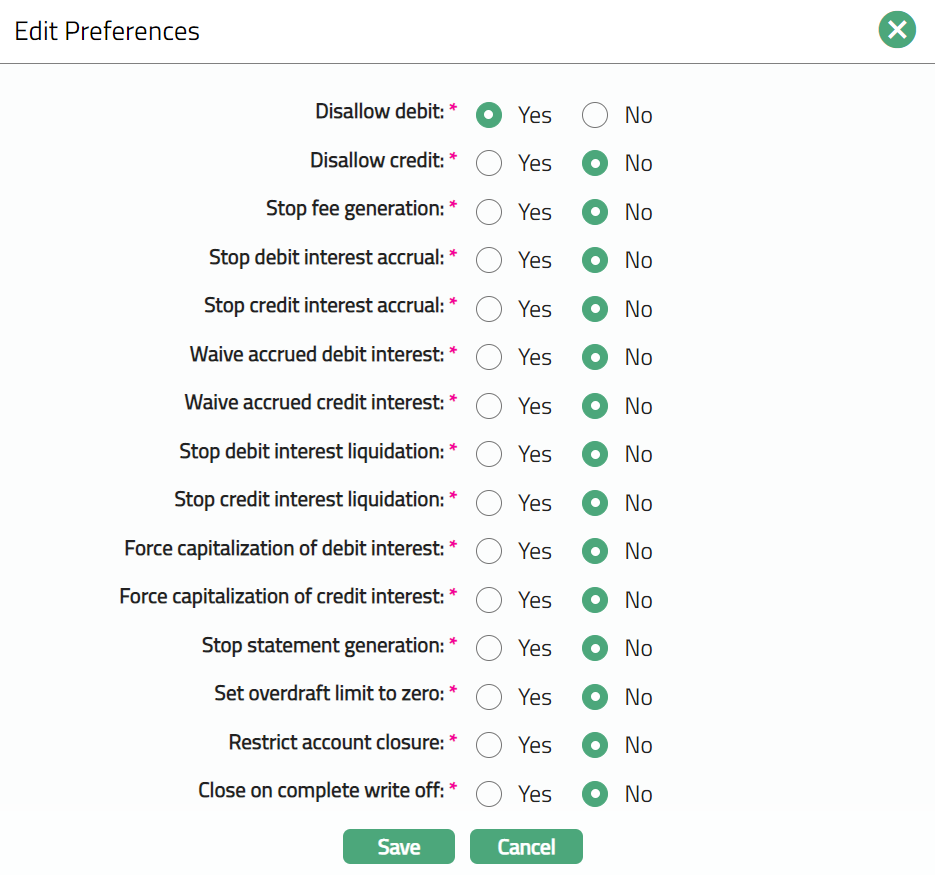
Note: All fields are editable
- Click Save. Preferences page appears with the edited details.
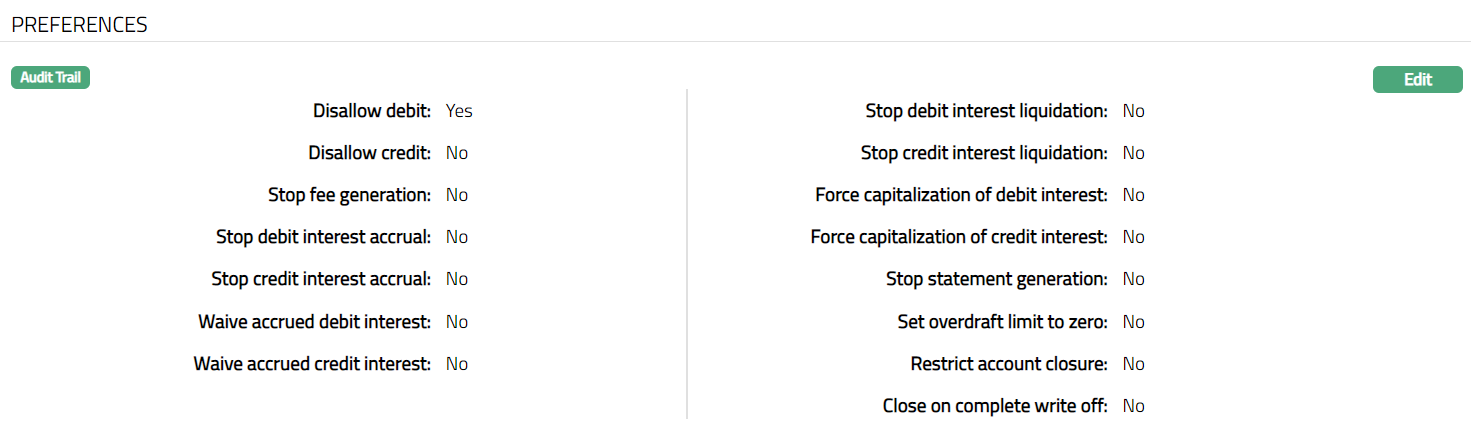
Function: Edit
Custom Field
This option provides you the flexibility to define fields apart from those that are already available in the standard version of Aura. Thus, it enables you to customize additional data storage and use as required to suit your specific business needs.
Using the Custom Field tab, you can maintain the custom fields mapped to the Client Account Status. Depending on the custom fields created and mapped to Client Account Status (using Admin > System Codes > Custom Fields), the fields will be displayed on this tab.
To Edit Custom Field
- Access Client Account Status page and click Custom Field tab.

- Click Edit. Edit Custom Field page opens up.

Enter Description for Overdue which you have created for new Client Account Status.
Click Save. Custom Field page appears with the added details.

Functions: Edit